key NISSAN PATHFINDER 2010 Owner´s Manual
[x] Cancel search | Manufacturer: NISSAN, Model Year: 2010, Model line: PATHFINDER, Model: NISSAN PATHFINDER 2010Pages: 463, PDF Size: 5.69 MB
Page 286 of 463
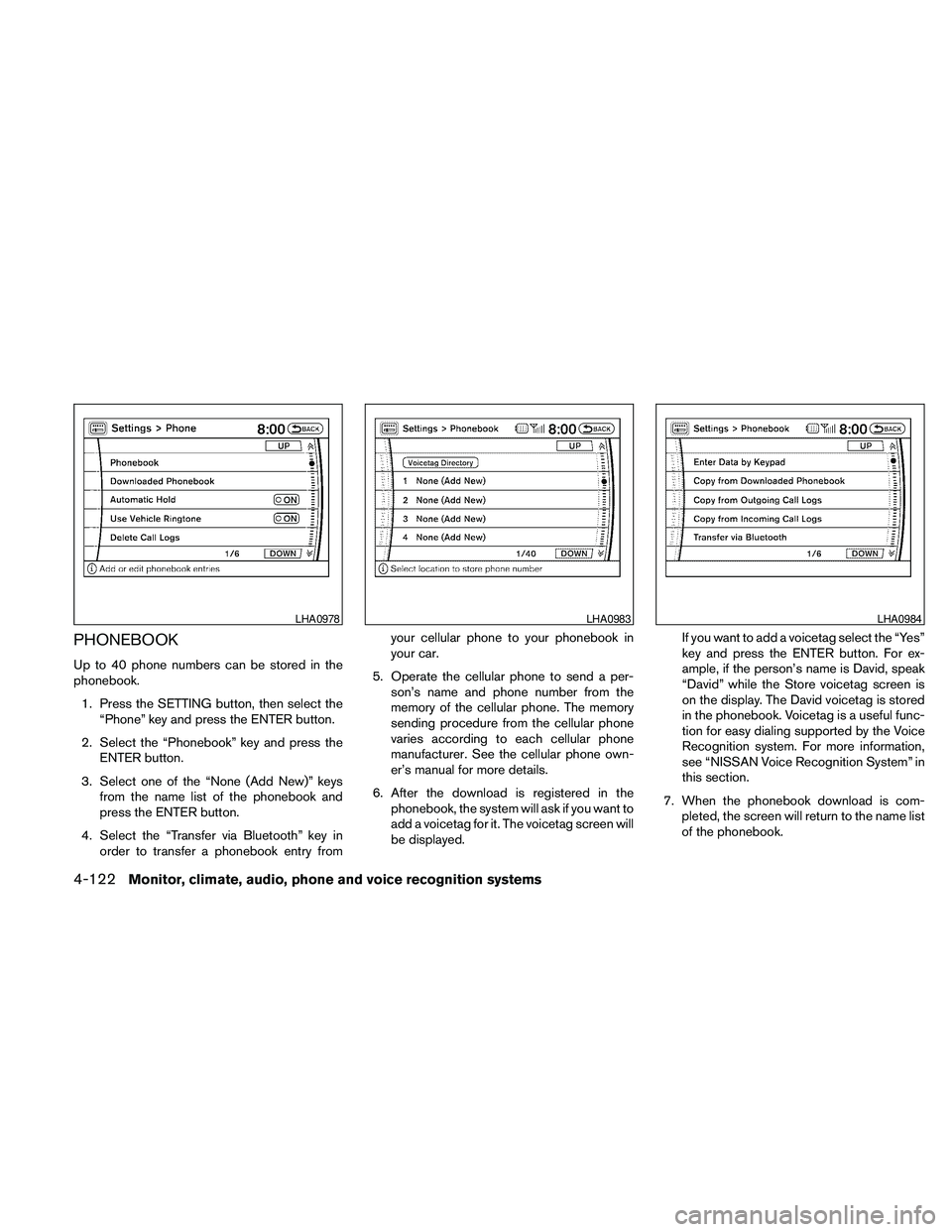
PHONEBOOK
Up to 40 phone numbers can be stored in the
phonebook.
1. Press the SETTING button, then select the
“Phone” key and press the ENTER button.
2. Select the “Phonebook” key and press the
ENTER button.
3. Select one of the “None (Add New)” keys
from the name list of the phonebook and
press the ENTER button.
4. Select the “Transfer via Bluetooth” key in
order to transfer a phonebook entry fromyour cellular phone to your phonebook in
your car.
5. Operate the cellular phone to send a per-
son’s name and phone number from the
memory of the cellular phone. The memory
sending procedure from the cellular phone
varies according to each cellular phone
manufacturer. See the cellular phone own-
er’s manual for more details.
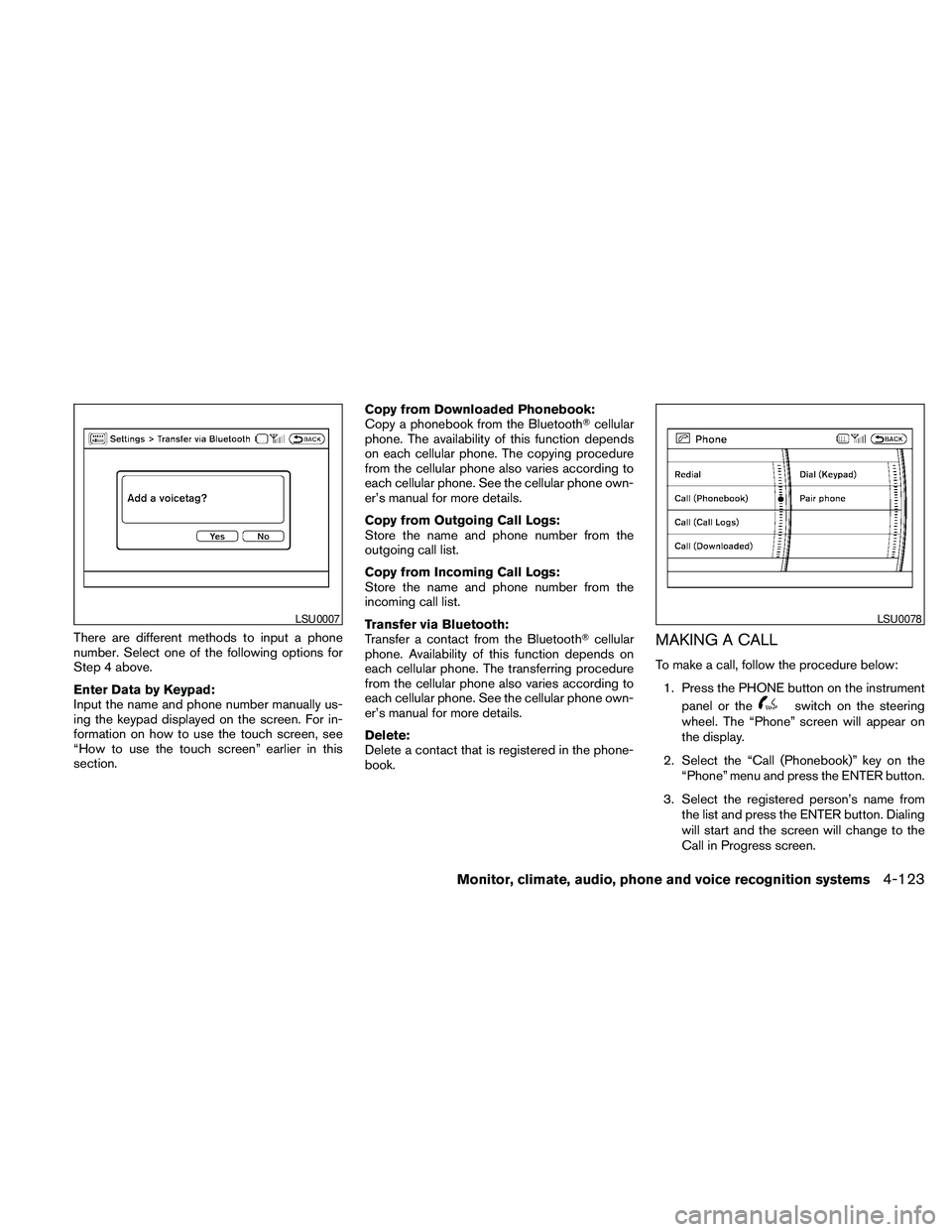
6. After the download is registered in the
phonebook, the system will ask if you want to
add a voicetag for it. The voicetag screen will
be displayed.If you want to add a voicetag select the “Yes”
key and press the ENTER button. For ex-
ample, if the person’s name is David, speak
“David” while the Store voicetag screen is
on the display. The David voicetag is stored
in the phonebook. Voicetag is a useful func-
tion for easy dialing supported by the Voice
Recognition system. For more information,
see “NISSAN Voice Recognition System” in
this section.
7. When the phonebook download is com-
pleted, the screen will return to the name list
of the phonebook.
LHA0978LHA0983LHA0984
4-122Monitor, climate, audio, phone and voice recognition systems
Page 287 of 463
There are different methods to input a phone
number. Select one of the following options for
Step 4 above.
Enter Data by Keypad:
Input the name and phone number manually us-
ing the keypad displayed on the screen. For in-
formation on how to use the touch screen, see
“How to use the touch screen” earlier in this
section.Copy from Downloaded Phonebook:
Copy a phonebook from the BluetoothTcellular
phone. The availability of this function depends
on each cellular phone. The copying procedure
from the cellular phone also varies according to
each cellular phone. See the cellular phone own-
er’s manual for more details.
Copy from Outgoing Call Logs:
Store the name and phone number from the
outgoing call list.
Copy from Incoming Call Logs:
Store the name and phone number from the
incoming call list.
Transfer via Bluetooth:
Transfer a contact from the BluetoothTcellular
phone. Availability of this function depends on
each cellular phone. The transferring procedure
from the cellular phone also varies according to
each cellular phone. See the cellular phone own-
er’s manual for more details.
Delete:
Delete a contact that is registered in the phone-
book.MAKING A CALL
To make a call, follow the procedure below:
1. Press the PHONE button on the instrument
panel or the
switch on the steering
wheel. The “Phone” screen will appear on
the display.
2. Select the “Call (Phonebook)” key on the
“Phone” menu and press the ENTER button.
3. Select the registered person’s name from
the list and press the ENTER button. Dialing
will start and the screen will change to the
Call in Progress screen.
LSU0007LSU0078
Monitor, climate, audio, phone and voice recognition systems4-123
Page 288 of 463
4. After the call is over, perform one of the
following to finish the call:
a. Select the “Hang up” key on the Call in
Progress screen and press the ENTER
button.
b. Press the
switch on the steering
wheel.
c. When the Call in Progress screen is dis-
played, press the PHONE button on the
instrument panel to hang up. If any other
screen is currently displayed, press the
PHONE button to display the Call in
Progress screen first, then press the
PHONE button again to hang up.
There are different methods to make a call. Select
one of the following options instead of “Call
(Phonebook)” in Step 2 above.
cRedial:
Dial the previously dialed number again.
cCall (Call Logs):
Select the name or phone number from the
incoming or outgoing call logs.cCall (Downloaded):
Select the name or phone number from the
downloaded cellular phonebook.
cDial (Keypad):
Input the phone number manually using the
keypad displayed on the screen. For infor-
mation on how to use the touch screen, see
“How to use the touch screen” earlier in this
section.
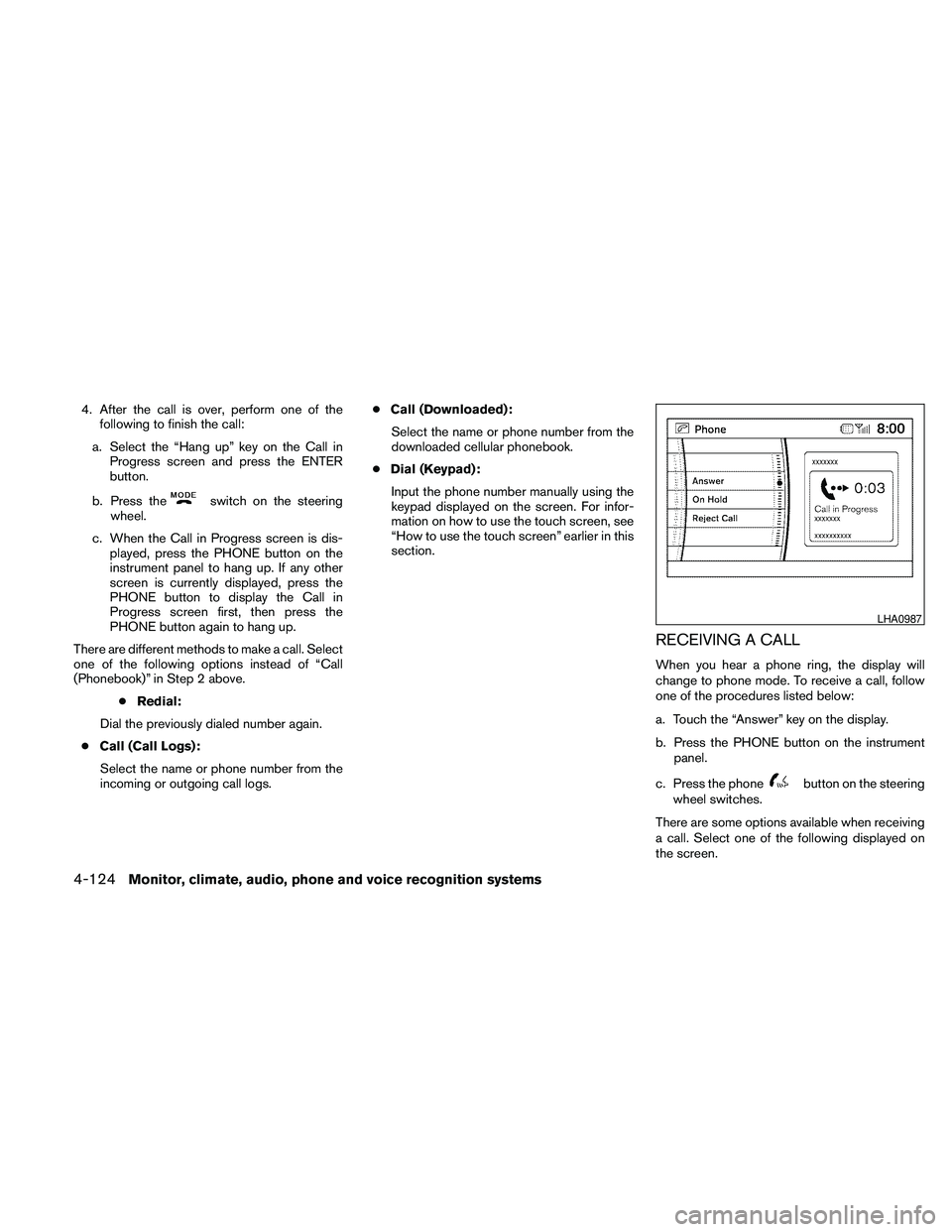
RECEIVING A CALL
When you hear a phone ring, the display will
change to phone mode. To receive a call, follow
one of the procedures listed below:
a. Touch the “Answer” key on the display.
b. Press the PHONE button on the instrument
panel.
c. Press the phone
button on the steering
wheel switches.
There are some options available when receiving
a call. Select one of the following displayed on
the screen.
LHA0987
4-124Monitor, climate, audio, phone and voice recognition systems
Page 289 of 463
Answer:
Accept an incoming call to talk.
On Hold:
Put an incoming call on hold.
Reject Call:
Reject an incoming call.
To finish the call, follow one of the procedures
listed below:
a. Touch the “Reject Call” key on the display.
b. Press the PHONE button on the instrument
panel.
c. Press and hold the phone
button on the
steering wheel switches.
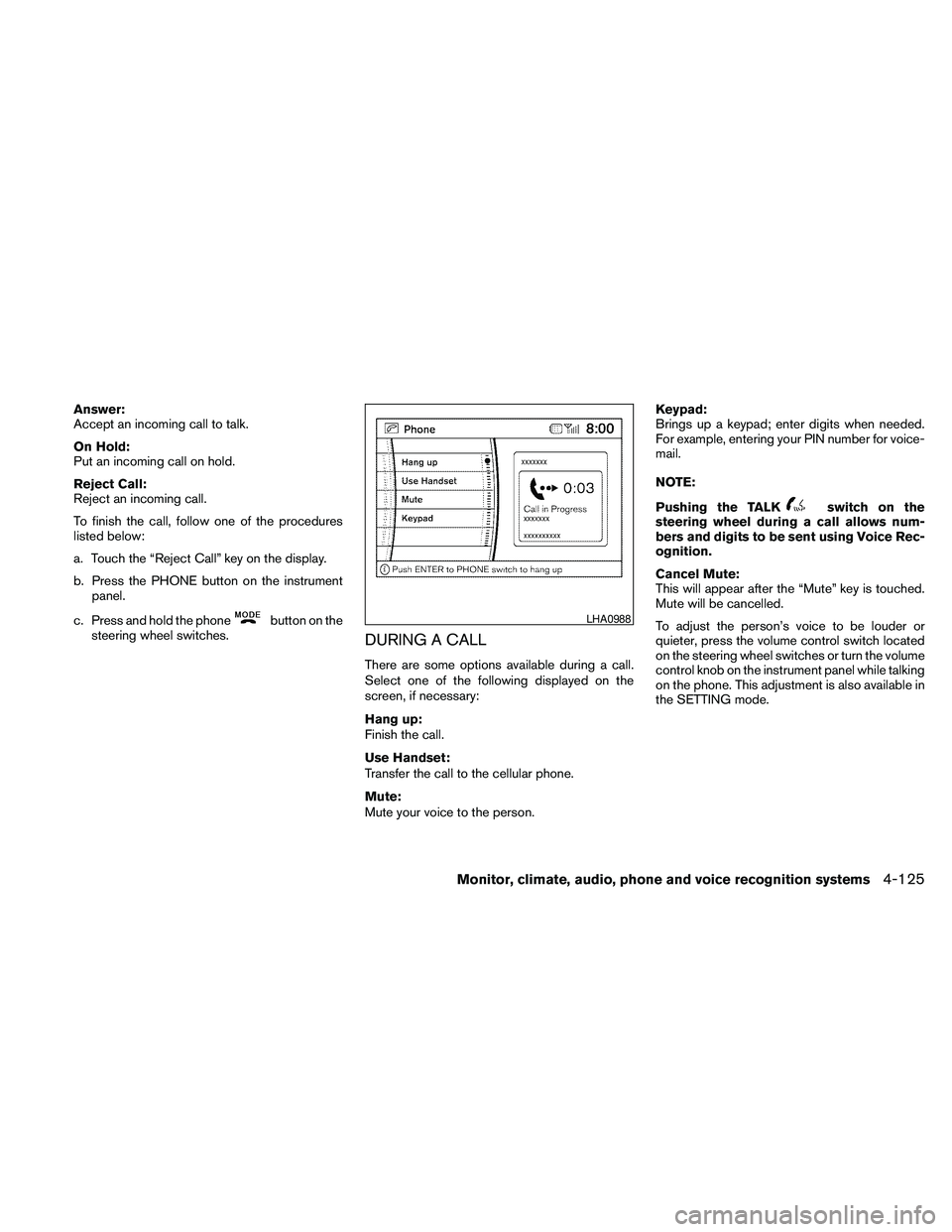
DURING A CALL
There are some options available during a call.
Select one of the following displayed on the
screen, if necessary:
Hang up:
Finish the call.
Use Handset:
Transfer the call to the cellular phone.
Mute:
Mute your voice to the person.Keypad:
Brings up a keypad; enter digits when needed.
For example, entering your PIN number for voice-
mail.
NOTE:
Pushing the TALK
switch on the
steering wheel during a call allows num-
bers and digits to be sent using Voice Rec-
ognition.
Cancel Mute:
This will appear after the “Mute” key is touched.
Mute will be cancelled.
To adjust the person’s voice to be louder or
quieter, press the volume control switch located
on the steering wheel switches or turn the volume
control knob on the instrument panel while talking
on the phone. This adjustment is also available in
the SETTING mode.
LHA0988
Monitor, climate, audio, phone and voice recognition systems4-125
Page 290 of 463
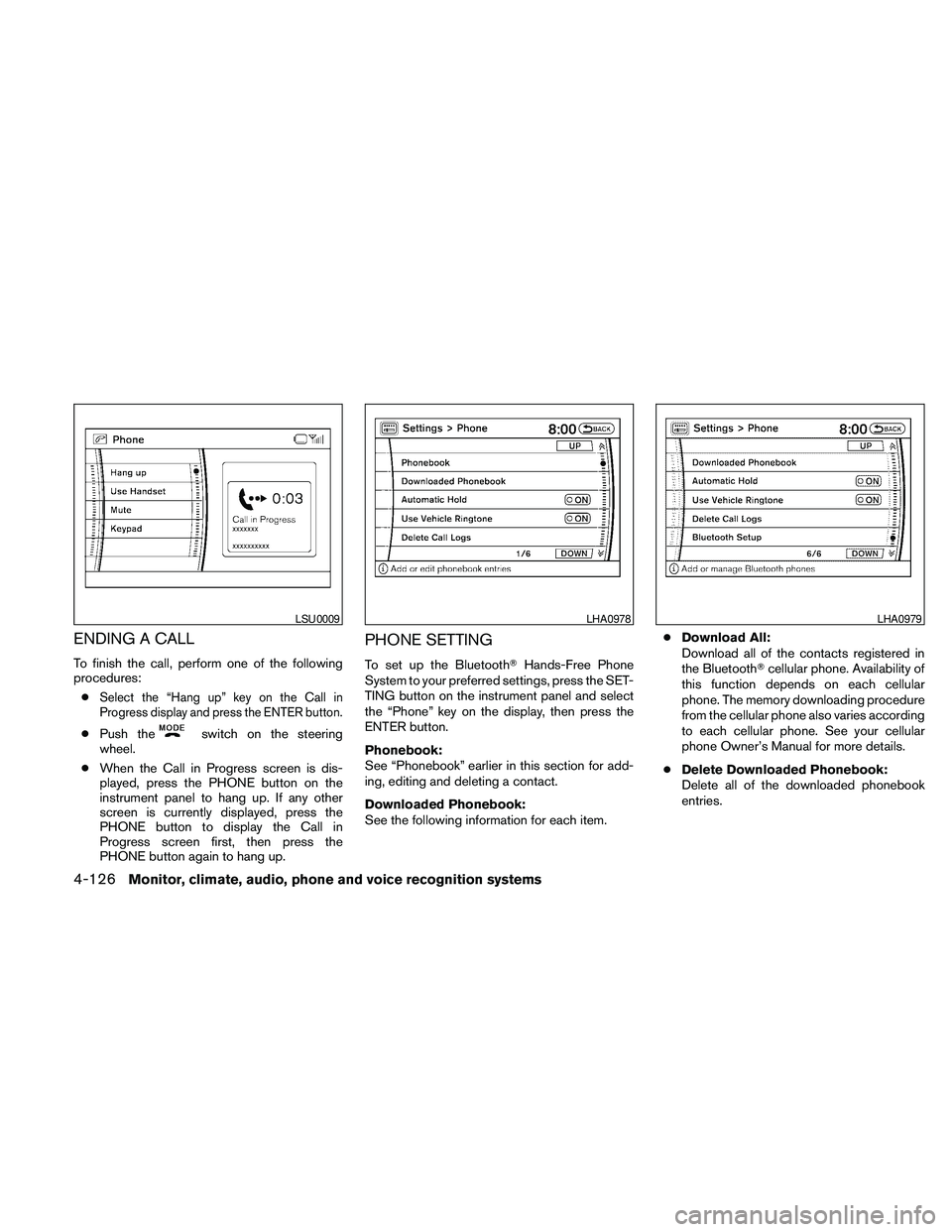
ENDING A CALL
To finish the call, perform one of the following
procedures:
c
Select the “Hang up” key on the Call in
Progress display and press the ENTER button.
cPush theswitch on the steering
wheel.
cWhen the Call in Progress screen is dis-
played, press the PHONE button on the
instrument panel to hang up. If any other
screen is currently displayed, press the
PHONE button to display the Call in
Progress screen first, then press the
PHONE button again to hang up.
PHONE SETTING
To set up the BluetoothTHands-Free Phone
System to your preferred settings, press the SET-
TING button on the instrument panel and select
the “Phone” key on the display, then press the
ENTER button.
Phonebook:
See “Phonebook” earlier in this section for add-
ing, editing and deleting a contact.
Downloaded Phonebook:
See the following information for each item.cDownload All:
Download all of the contacts registered in
the BluetoothTcellular phone. Availability of
this function depends on each cellular
phone. The memory downloading procedure
from the cellular phone also varies according
to each cellular phone. See your cellular
phone Owner’s Manual for more details.
cDelete Downloaded Phonebook:
Delete all of the downloaded phonebook
entries.
LSU0009LHA0978LHA0979
4-126Monitor, climate, audio, phone and voice recognition systems
Page 291 of 463
cDelete an Entry of Downloaded Phone-
book:
Delete a single entry from the downloaded
phonebook. Touch the corresponding letter
key, then touch the name key you wish to
delete. Touch the “Yes” key to delete the
entry.
Automatic Hold:
If this item is turned on, an incoming call will be
placed on hold automatically after several rings.
Use Vehicle Ringtone:
If this item is turned on, a specific ringtone that is
different from the cellular phone’s will sound
when receiving a call.
Delete Call Logs:
Delete all the outgoing or incoming call logs from
the list.
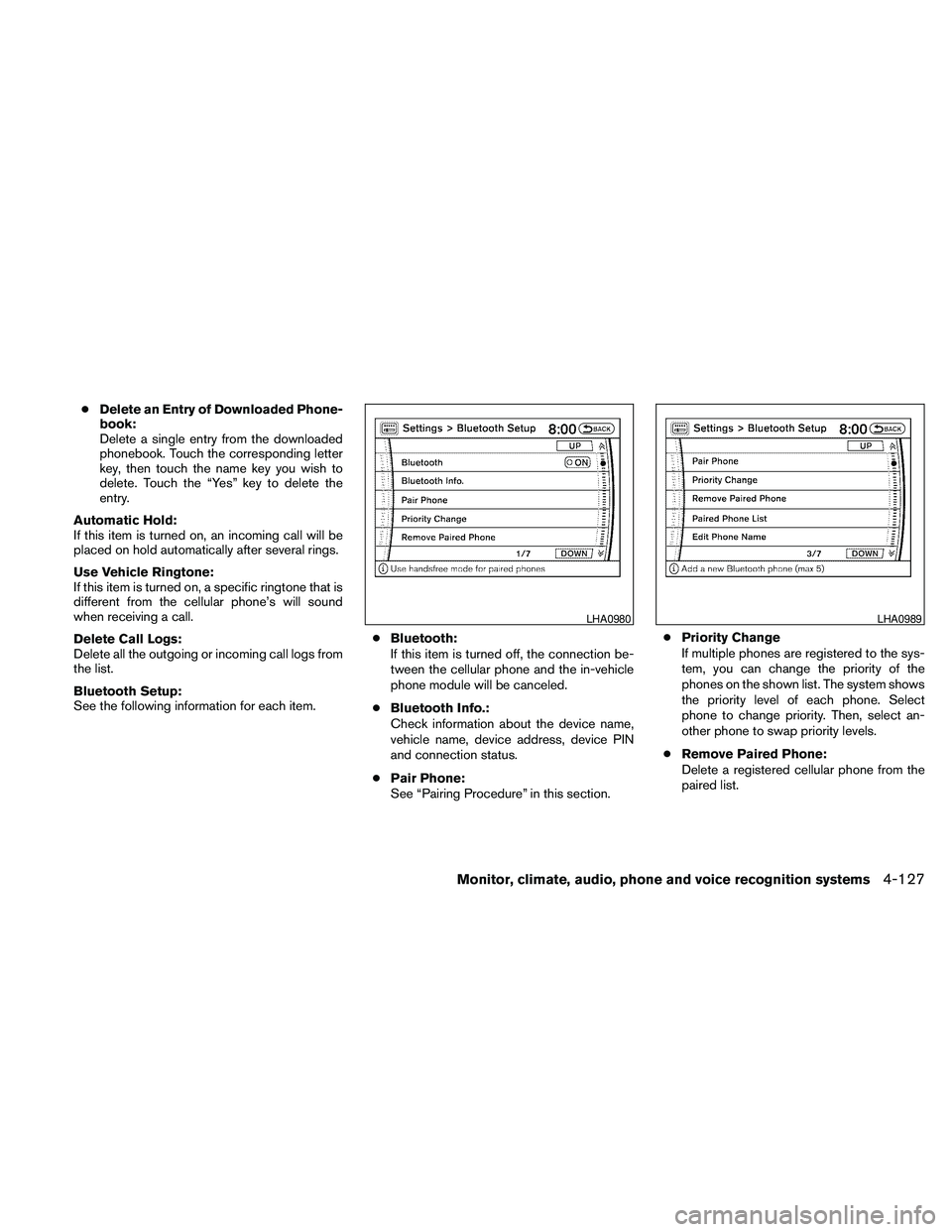
Bluetooth Setup:
See the following information for each item.cBluetooth:
If this item is turned off, the connection be-
tween the cellular phone and the in-vehicle
phone module will be canceled.
cBluetooth Info.:
Check information about the device name,
vehicle name, device address, device PIN
and connection status.
cPair Phone:
See “Pairing Procedure” in this section.cPriority Change
If multiple phones are registered to the sys-
tem, you can change the priority of the
phones on the shown list. The system shows
the priority level of each phone. Select
phone to change priority. Then, select an-
other phone to swap priority levels.
cRemove Paired Phone:
Delete a registered cellular phone from the
paired list.
LHA0980LHA0989
Monitor, climate, audio, phone and voice recognition systems4-127
Page 292 of 463
cPaired Phone List:
Up to 5 registered cellular phones are
shown on the list. If you select a cellular
phone that is different from the one currently
being connected, the newly selected phone
will be connected to the system.
cEdit Phone Name:
If you would like to change the way your
phone’s name is displayed, select this key; a
character input screen will be displayed.
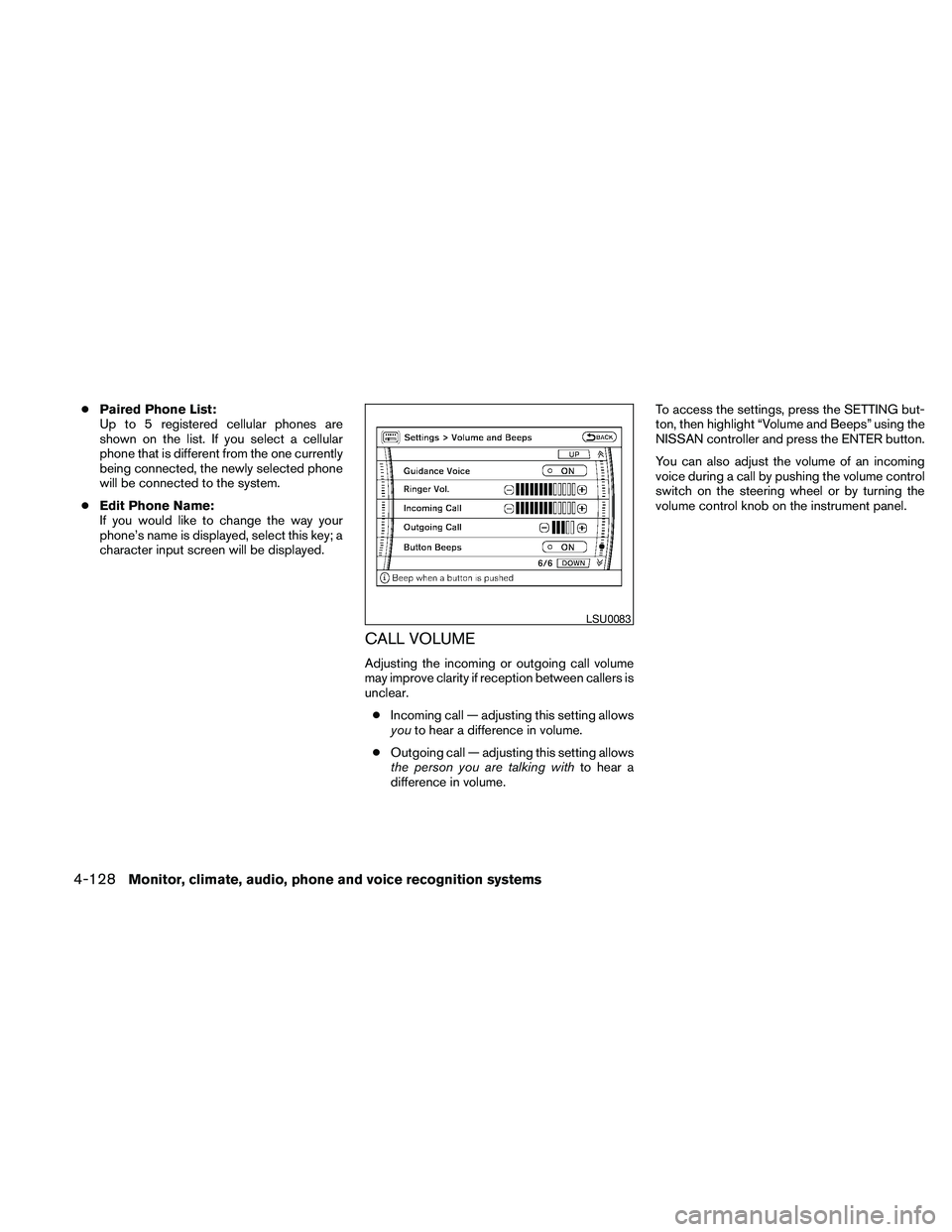
CALL VOLUME
Adjusting the incoming or outgoing call volume
may improve clarity if reception between callers is
unclear.
cIncoming call — adjusting this setting allows
youto hear a difference in volume.
cOutgoing call — adjusting this setting allows
the person you are talking withto hear a
difference in volume.To access the settings, press the SETTING but-
ton, then highlight “Volume and Beeps” using the
NISSAN controller and press the ENTER button.
You can also adjust the volume of an incoming
voice during a call by pushing the volume control
switch on the steering wheel or by turning the
volume control knob on the instrument panel.
LSU0083
4-128Monitor, climate, audio, phone and voice recognition systems
Page 294 of 463
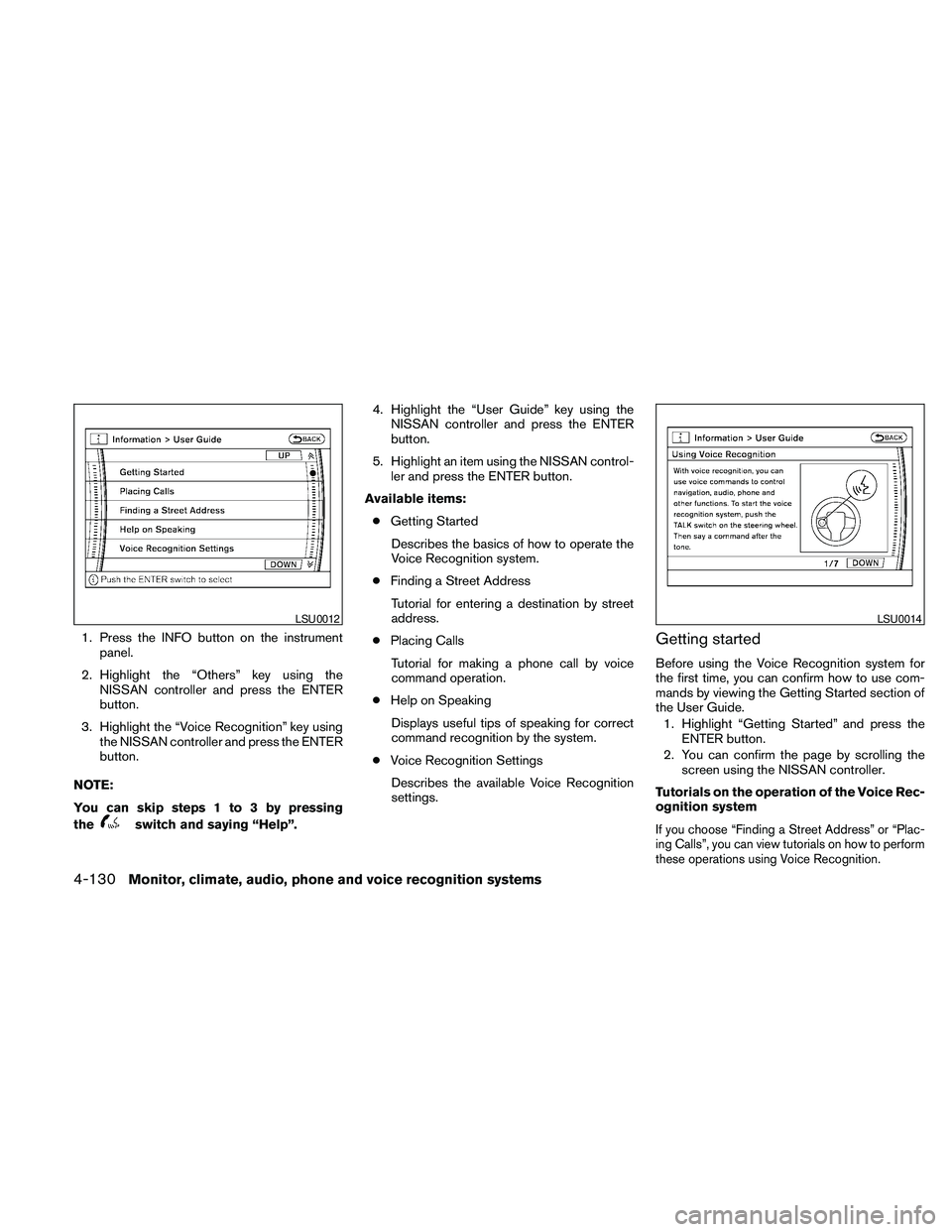
1. Press the INFO button on the instrument
panel.
2. Highlight the “Others” key using the
NISSAN controller and press the ENTER
button.
3. Highlight the “Voice Recognition” key using
the NISSAN controller and press the ENTER
button.
NOTE:
You can skip steps 1 to 3 by pressing
the
switch and saying “Help”.4. Highlight the “User Guide” key using the
NISSAN controller and press the ENTER
button.
5. Highlight an item using the NISSAN control-
ler and press the ENTER button.
Available items:
cGetting Started
Describes the basics of how to operate the
Voice Recognition system.
cFinding a Street Address
Tutorial for entering a destination by street
address.
cPlacing Calls
Tutorial for making a phone call by voice
command operation.
cHelp on Speaking
Displays useful tips of speaking for correct
command recognition by the system.
cVoice Recognition Settings
Describes the available Voice Recognition
settings.
Getting started
Before using the Voice Recognition system for
the first time, you can confirm how to use com-
mands by viewing the Getting Started section of
the User Guide.
1. Highlight “Getting Started” and press the
ENTER button.
2. You can confirm the page by scrolling the
screen using the NISSAN controller.
Tutorials on the operation of the Voice Rec-
ognition system
If you choose “Finding a Street Address” or “Plac-
ing Calls”, you can view tutorials on how to perform
these operations using Voice Recognition.
LSU0012LSU0014
4-130Monitor, climate, audio, phone and voice recognition systems
Page 295 of 463
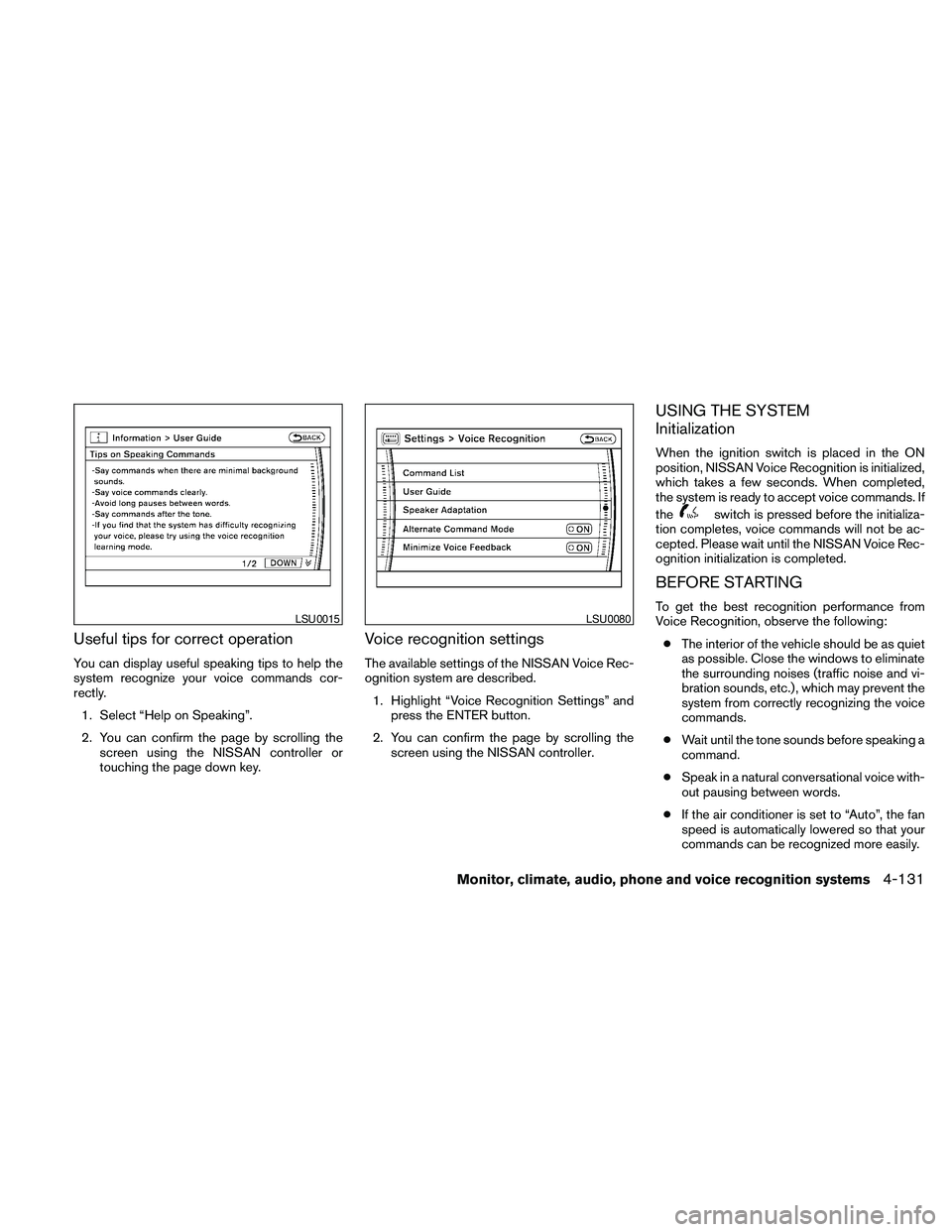
Useful tips for correct operation
You can display useful speaking tips to help the
system recognize your voice commands cor-
rectly.
1. Select “Help on Speaking”.
2. You can confirm the page by scrolling the
screen using the NISSAN controller or
touching the page down key.
Voice recognition settings
The available settings of the NISSAN Voice Rec-
ognition system are described.
1. Highlight “Voice Recognition Settings” and
press the ENTER button.
2. You can confirm the page by scrolling the
screen using the NISSAN controller.
USING THE SYSTEM
Initialization
When the ignition switch is placed in the ON
position, NISSAN Voice Recognition is initialized,
which takes a few seconds. When completed,
the system is ready to accept voice commands. If
the
switch is pressed before the initializa-
tion completes, voice commands will not be ac-
cepted. Please wait until the NISSAN Voice Rec-
ognition initialization is completed.
BEFORE STARTING
To get the best recognition performance from
Voice Recognition, observe the following:
cThe interior of the vehicle should be as quiet
as possible. Close the windows to eliminate
the surrounding noises (traffic noise and vi-
bration sounds, etc.) , which may prevent the
system from correctly recognizing the voice
commands.
cWait until the tone sounds before speaking a
command.
cSpeak in a natural conversational voice with-
out pausing between words.
cIf the air conditioner is set to “Auto”, the fan
speed is automatically lowered so that your
commands can be recognized more easily.LSU0015LSU0080
Monitor, climate, audio, phone and voice recognition systems4-131
Page 305 of 463
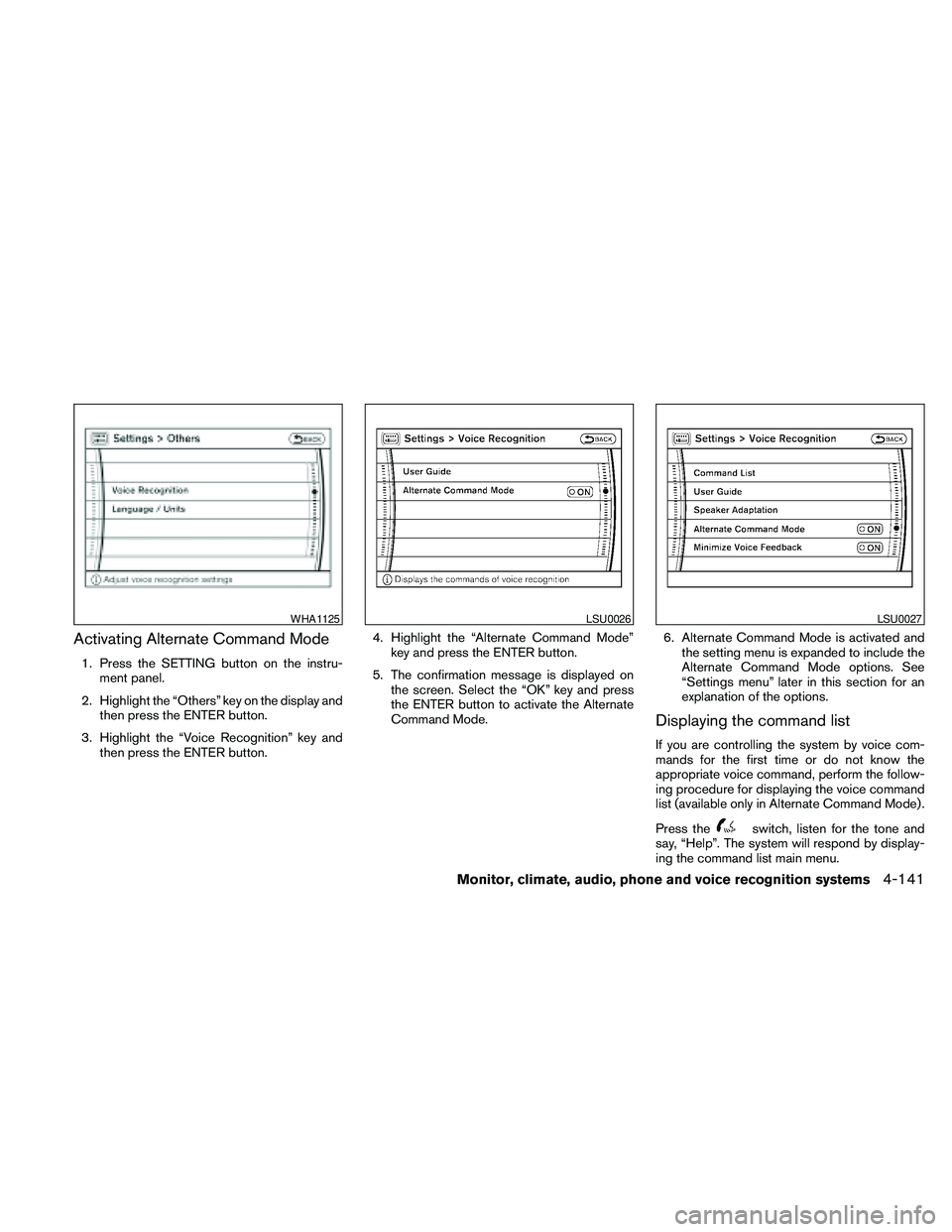
Activating Alternate Command Mode
1. Press the SETTING button on the instru-
ment panel.
2. Highlight the “Others” key on the display and
then press the ENTER button.
3. Highlight the “Voice Recognition” key and
then press the ENTER button.4. Highlight the “Alternate Command Mode”
key and press the ENTER button.
5. The confirmation message is displayed on
the screen. Select the “OK” key and press
the ENTER button to activate the Alternate
Command Mode.6. Alternate Command Mode is activated and
the setting menu is expanded to include the
Alternate Command Mode options. See
“Settings menu” later in this section for an
explanation of the options.
Displaying the command list
If you are controlling the system by voice com-
mands for the first time or do not know the
appropriate voice command, perform the follow-
ing procedure for displaying the voice command
list (available only in Alternate Command Mode) .
Press the
switch, listen for the tone and
say, “Help”. The system will respond by display-
ing the command list main menu.
WHA1125LSU0026LSU0027
Monitor, climate, audio, phone and voice recognition systems4-141