ECO mode NISSAN PATHFINDER 2010 Owner´s Manual
[x] Cancel search | Manufacturer: NISSAN, Model Year: 2010, Model line: PATHFINDER, Model: NISSAN PATHFINDER 2010Pages: 463, PDF Size: 5.69 MB
Page 142 of 463
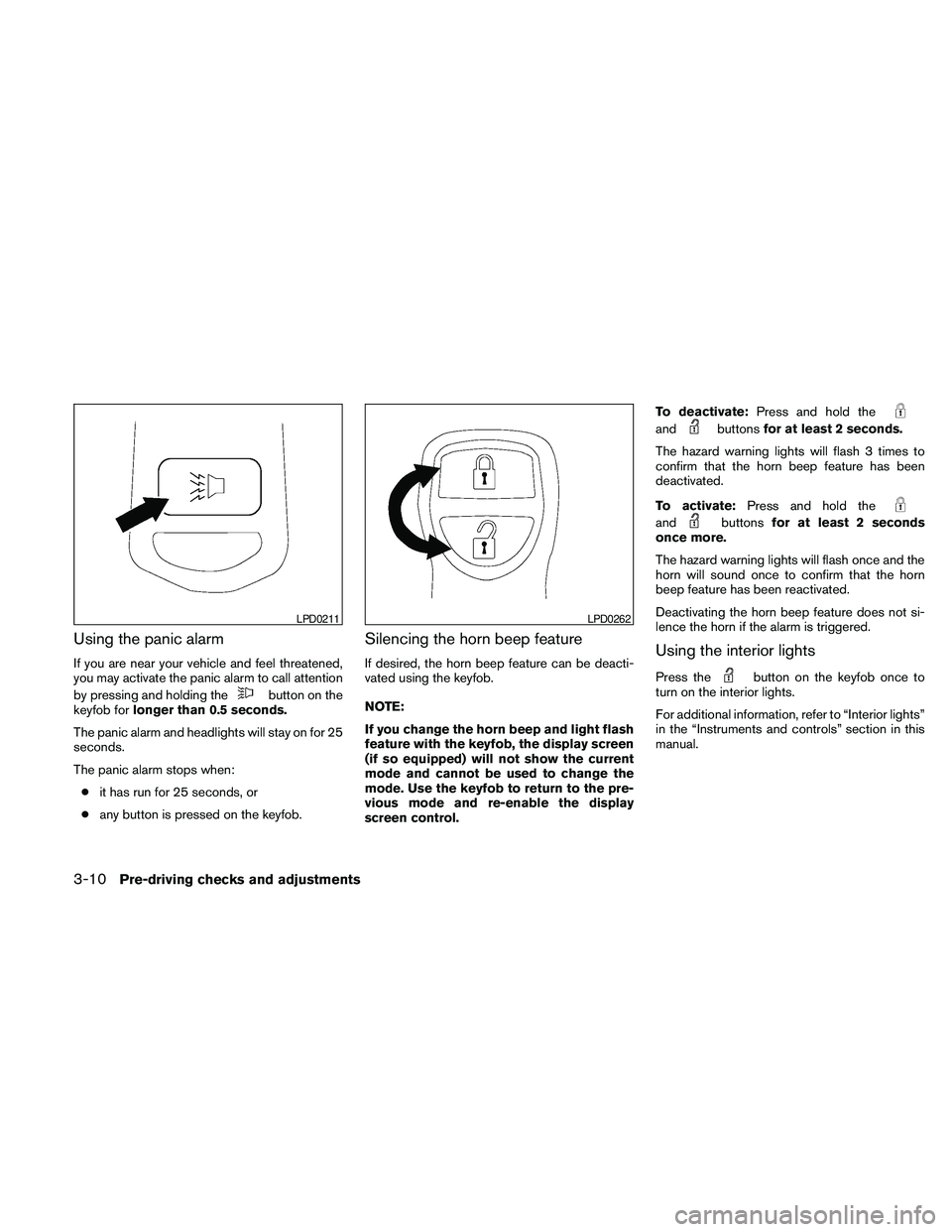
Using the panic alarm
If you are near your vehicle and feel threatened,
you may activate the panic alarm to call attention
by pressing and holding the
button on the
keyfob forlonger than 0.5 seconds.
The panic alarm and headlights will stay on for 25
seconds.
The panic alarm stops when:
cit has run for 25 seconds, or
cany button is pressed on the keyfob.
Silencing the horn beep feature
If desired, the horn beep feature can be deacti-
vated using the keyfob.
NOTE:
If you change the horn beep and light flash
feature with the keyfob, the display screen
(if so equipped) will not show the current
mode and cannot be used to change the
mode. Use the keyfob to return to the pre-
vious mode and re-enable the display
screen control.To deactivate:Press and hold the
andbuttonsfor at least 2 seconds.
The hazard warning lights will flash 3 times to
confirm that the horn beep feature has been
deactivated.
To activate:Press and hold the
andbuttonsfor at least 2 seconds
once more.
The hazard warning lights will flash once and the
horn will sound once to confirm that the horn
beep feature has been reactivated.
Deactivating the horn beep feature does not si-
lence the horn if the alarm is triggered.
Using the interior lights
Press thebutton on the keyfob once to
turn on the interior lights.
For additional information, refer to “Interior lights”
in the “Instruments and controls” section in this
manual.
LPD0211LPD0262
3-10Pre-driving checks and adjustments
Page 144 of 463
For models with a steering wheel lock mecha-
nism: Because the steering wheel is locked elec-
trically, unlocking the steering wheel with the
ignition switch in the LOCK position is impossible
when the vehicle battery is completely dis-
charged. Unlocking the steering wheel is impos-
sible even if the Intelligent Key is inserted into the
ignition switch. Pay special attention that the
vehicle battery is not completely discharged.
As many as 4 Intelligent Keys can be registered
and used with one vehicle. For information about
the purchase and use of additional Intelligent
Keys, contact a NISSAN dealer.
CAUTION
Listed below are conditions or occur-
rences which will damage the Intelligent
Key:
cDo not allow the Intelligent Key, which
contains electrical components, to
come into contact with water or salt
water. This could affect the system
function.
cDo not drop the Intelligent Key.
cDo not strike the Intelligent Key sharply
against another object.
cDo not change or modify the Intelligent
Key.cWetting may damage the Intelligent
Key. If the Intelligent Key gets wet, im-
mediately wipe until it is completely dry.
cDo not place the Intelligent Key for an
extended period in an area where tem-
peratures exceed 140°F (60°C) .
cDo not attach the Intelligent Key with a
key holder that contains a magnet.
cDo not place the Intelligent Key near
equipment that produces a magnetic
field, such as a TV, audio equipment and
personal computers.
If an Intelligent Key is lost or stolen, NISSAN
recommends erasing the ID code of that Intelli-
gent Key from the vehicle. This may prevent the
unauthorized use of the Intelligent Key to operate
the vehicle. For information regarding the erasing
procedure, contact a NISSAN dealer.
3-12Pre-driving checks and adjustments
Page 167 of 463
Call volume..................................4-128
NISSAN Voice Recognition System
(if so equipped).................................4-129
NISSAN Voice Recognition Standard Mode.....4-129
Using the system.............................4-131
Before starting...............................4-131Giving voice commands.......................4-132
NISSAN Voice Recognition Alternate
Command Mode.............................4-140
Using the system.............................4-147
Speaker Adaptation function...................4-149
Troubleshooting guide........................4-152
Page 171 of 463
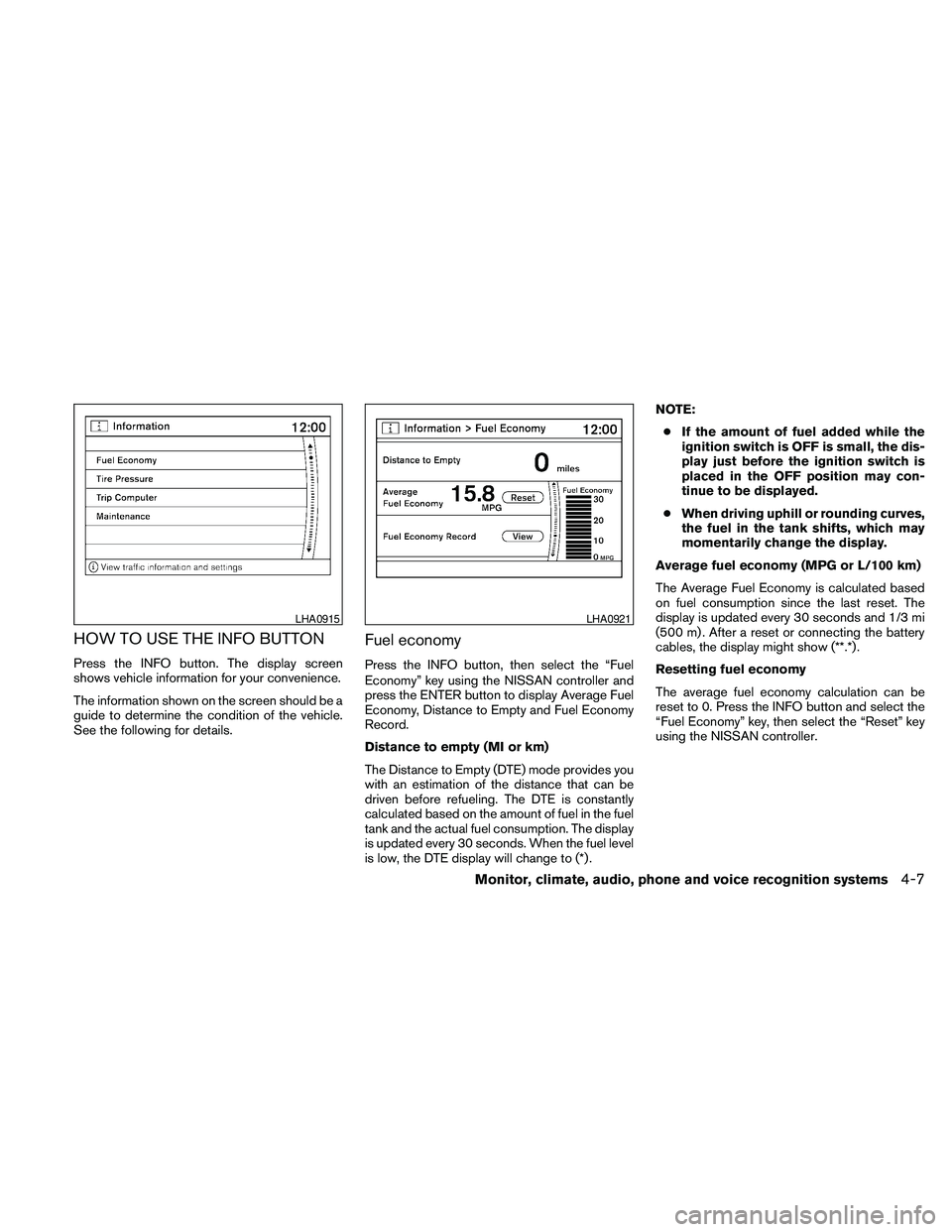
HOW TO USE THE INFO BUTTON
Press the INFO button. The display screen
shows vehicle information for your convenience.
The information shown on the screen should be a
guide to determine the condition of the vehicle.
See the following for details.
Fuel economy
Press the INFO button, then select the “Fuel
Economy” key using the NISSAN controller and
press the ENTER button to display Average Fuel
Economy, Distance to Empty and Fuel Economy
Record.
Distance to empty (MI or km)
The Distance to Empty (DTE) mode provides you
with an estimation of the distance that can be
driven before refueling. The DTE is constantly
calculated based on the amount of fuel in the fuel
tank and the actual fuel consumption. The display
is updated every 30 seconds. When the fuel level
is low, the DTE display will change to (*) .NOTE:
cIf the amount of fuel added while the
ignition switch is OFF is small, the dis-
play just before the ignition switch is
placed in the OFF position may con-
tinue to be displayed.
cWhen driving uphill or rounding curves,
the fuel in the tank shifts, which may
momentarily change the display.
Average fuel economy (MPG or L/100 km)
The Average Fuel Economy is calculated based
on fuel consumption since the last reset. The
display is updated every 30 seconds and 1/3 mi
(500 m) . After a reset or connecting the battery
cables, the display might show (**.*) .
Resetting fuel economy
The average fuel economy calculation can be
reset to 0. Press the INFO button and select the
“Fuel Economy” key, then select the “Reset” key
using the NISSAN controller.
LHA0915LHA0921
Monitor, climate, audio, phone and voice recognition systems4-7
Page 175 of 463
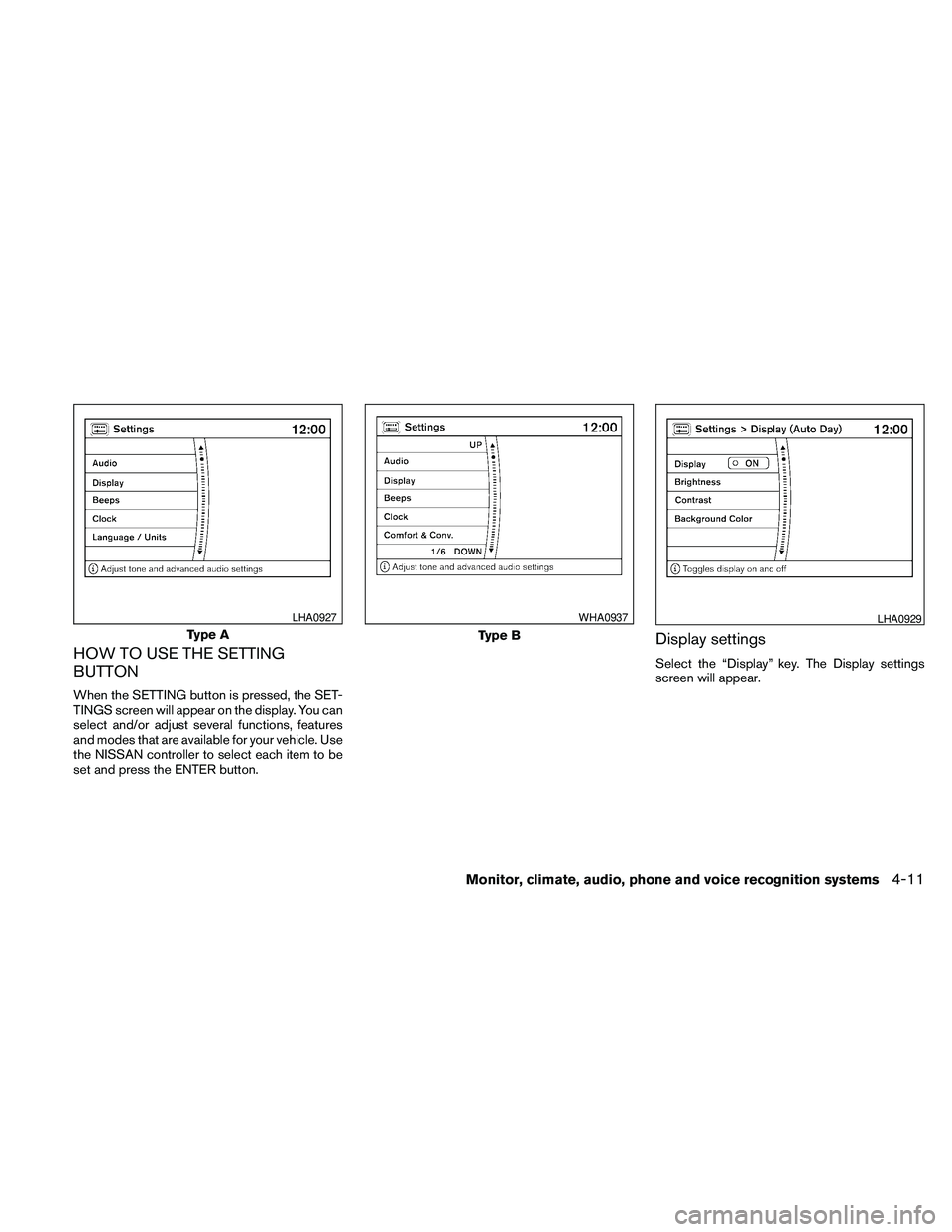
HOW TO USE THE SETTING
BUTTON
When the SETTING button is pressed, the SET-
TINGS screen will appear on the display. You can
select and/or adjust several functions, features
and modes that are available for your vehicle. Use
the NISSAN controller to select each item to be
set and press the ENTER button.
Display settings
Select the “Display” key. The Display settings
screen will appear.
Type A
LHA0927
Type B
WHA0937LHA0929
Monitor, climate, audio, phone and voice recognition systems4-11
Page 176 of 463
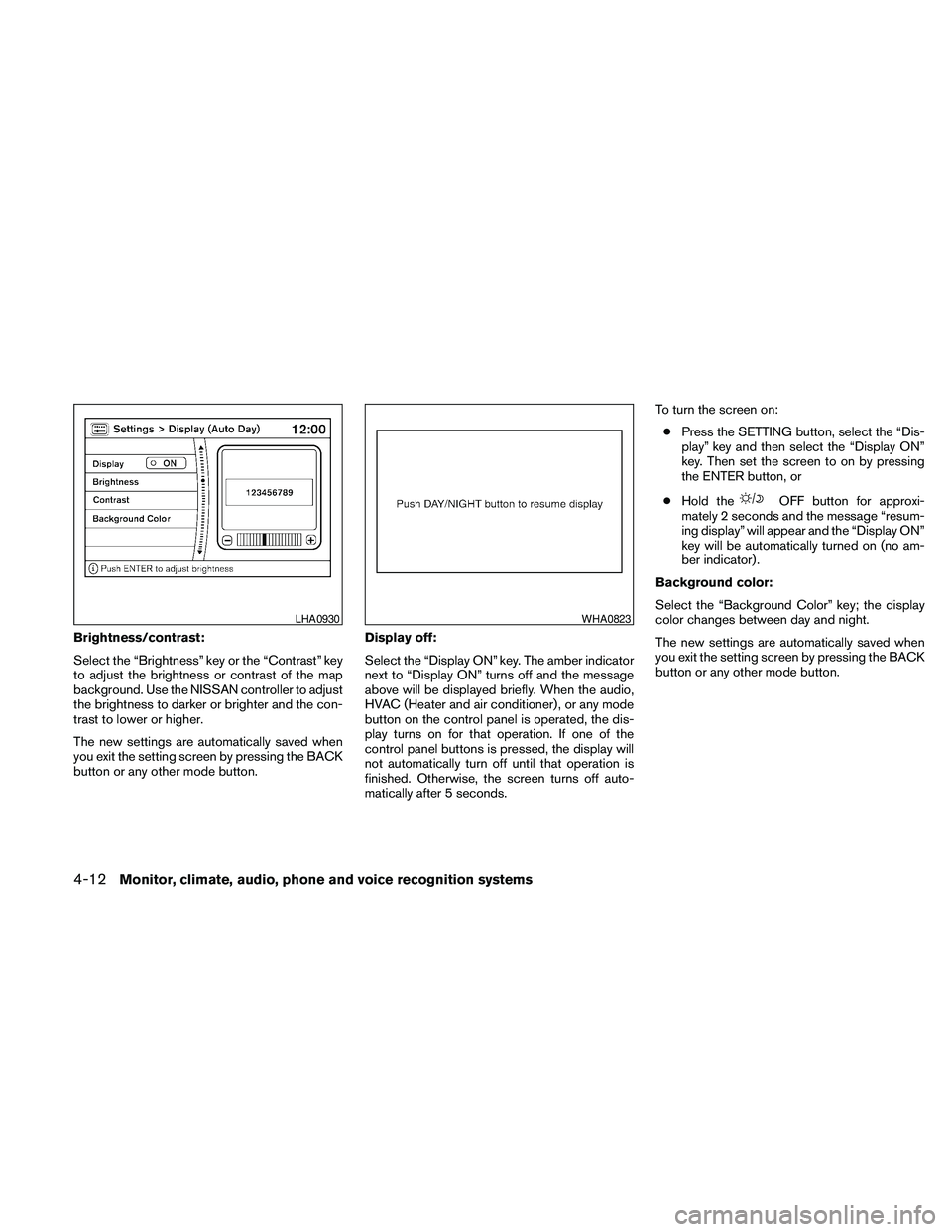
Brightness/contrast:
Select the “Brightness” key or the “Contrast” key
to adjust the brightness or contrast of the map
background. Use the NISSAN controller to adjust
the brightness to darker or brighter and the con-
trast to lower or higher.
The new settings are automatically saved when
you exit the setting screen by pressing the BACK
button or any other mode button.Display off:
Select the “Display ON” key. The amber indicator
next to “Display ON” turns off and the message
above will be displayed briefly. When the audio,
HVAC (Heater and air conditioner) , or any mode
button on the control panel is operated, the dis-
play turns on for that operation. If one of the
control panel buttons is pressed, the display will
not automatically turn off until that operation is
finished. Otherwise, the screen turns off auto-
matically after 5 seconds.To turn the screen on:
cPress the SETTING button, select the “Dis-
play” key and then select the “Display ON”
key. Then set the screen to on by pressing
the ENTER button, or
cHold the
OFF button for approxi-
mately 2 seconds and the message “resum-
ing display” will appear and the “Display ON”
key will be automatically turned on (no am-
ber indicator) .
Background color:
Select the “Background Color” key; the display
color changes between day and night.
The new settings are automatically saved when
you exit the setting screen by pressing the BACK
button or any other mode button.
LHA0930WHA0823
4-12Monitor, climate, audio, phone and voice recognition systems
Page 179 of 463
cOK:
Select to accept the changes made and
return to the clock setting display.
After selection/settings, press the BACK button
or any other mode button to accept the changes.
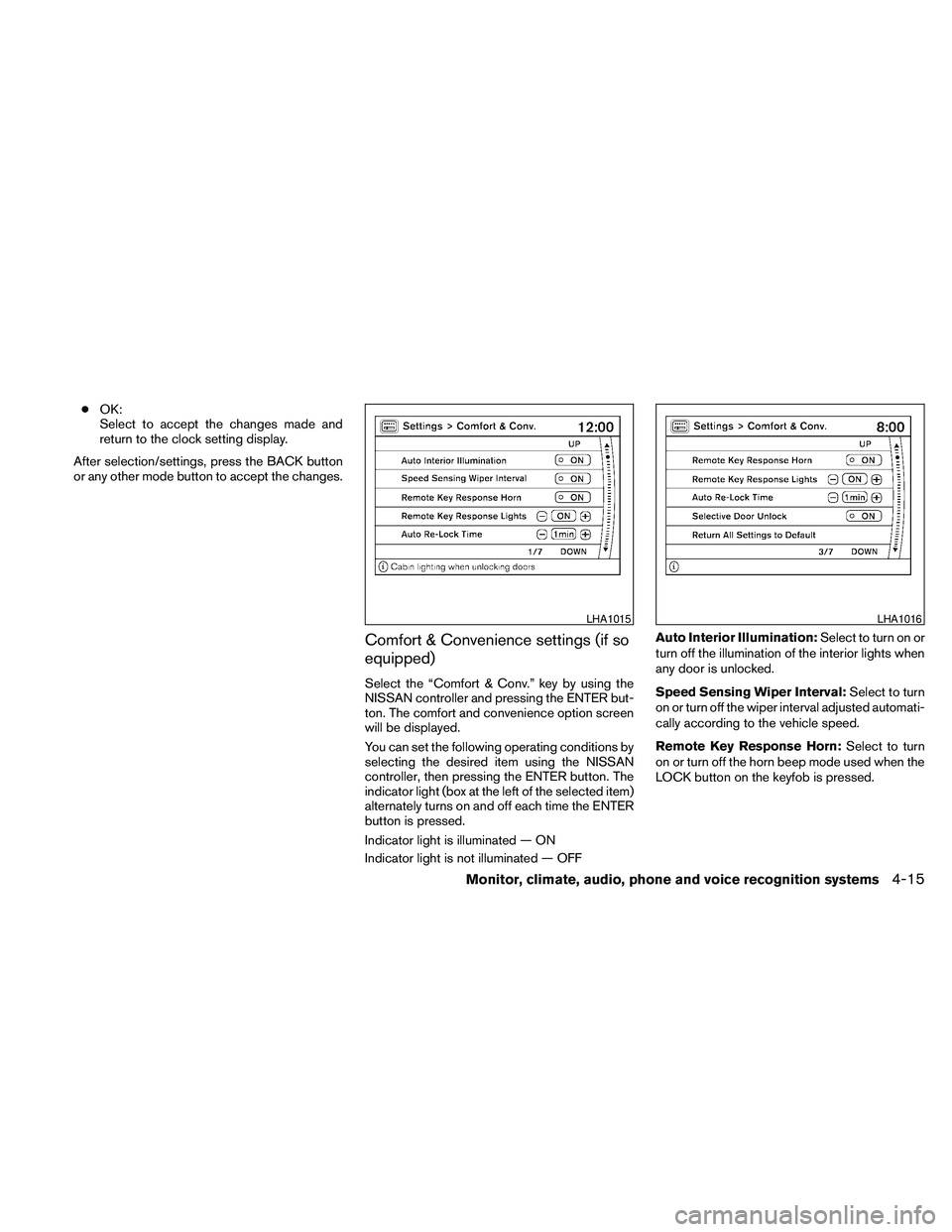
Comfort & Convenience settings (if so
equipped)
Select the “Comfort & Conv.” key by using the
NISSAN controller and pressing the ENTER but-
ton. The comfort and convenience option screen
will be displayed.
You can set the following operating conditions by
selecting the desired item using the NISSAN
controller, then pressing the ENTER button. The
indicator light (box at the left of the selected item)
alternately turns on and off each time the ENTER
button is pressed.
Indicator light is illuminated — ON
Indicator light is not illuminated — OFFAuto Interior Illumination:Select to turn on or
turn off the illumination of the interior lights when
any door is unlocked.
Speed Sensing Wiper Interval:Select to turn
on or turn off the wiper interval adjusted automati-
cally according to the vehicle speed.
Remote Key Response Horn:Select to turn
on or turn off the horn beep mode used when the
LOCK button on the keyfob is pressed.
LHA1015LHA1016
Monitor, climate, audio, phone and voice recognition systems4-15
Page 180 of 463
NOTE:
If you change the horn beep or the lamp
flash feature with the keyfob, the mode will
not be changed with the display. Use the
keyfob to return to the previous mode and
re-enable the display control.
Remote Key Response Lights:Select to turn
on or turn off the hazard indicator flash mode
used when the LOCK or UNLOCK button on the
keyfob is pressed.
NOTE:
If you change the horn beep or the lamp
flash feature with the keyfob, the mode will
not be changed with the display. Use the
keyfob to return to the previous mode and
re-enable the display control.
Auto Re-Lock Time:Select to set the length of
time before doors automatically re-lock.
Selective Door Unlock:When this item is
turned on, only the driver’s door is unlocked first
after the door unlock operation. When the door
handle request switch on the driver’s or front
passenger’s side door is pushed to be unlocked,
only the corresponding door is unlocked first. All
the doors can be unlocked if the door unlock
operation is performed again within 1 minute.When this item is turned to off, all the doors will
be unlocked after the door unlock operation is
performed once.
Return All Settings to Default:Select to
change all the comfort and convenience systems
to their default settings.
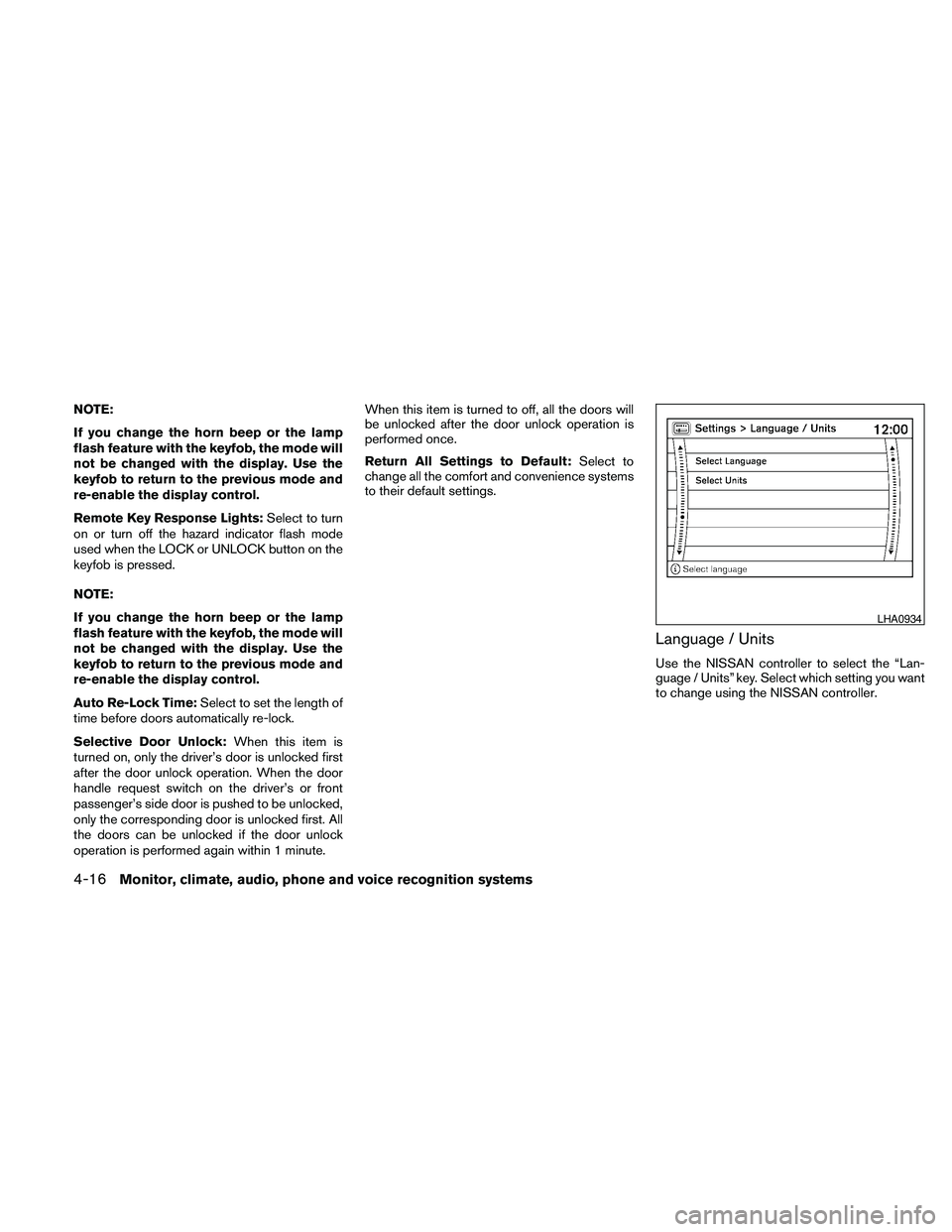
Language / Units
Use the NISSAN controller to select the “Lan-
guage / Units” key. Select which setting you want
to change using the NISSAN controller.
LHA0934
4-16Monitor, climate, audio, phone and voice recognition systems
Page 186 of 463
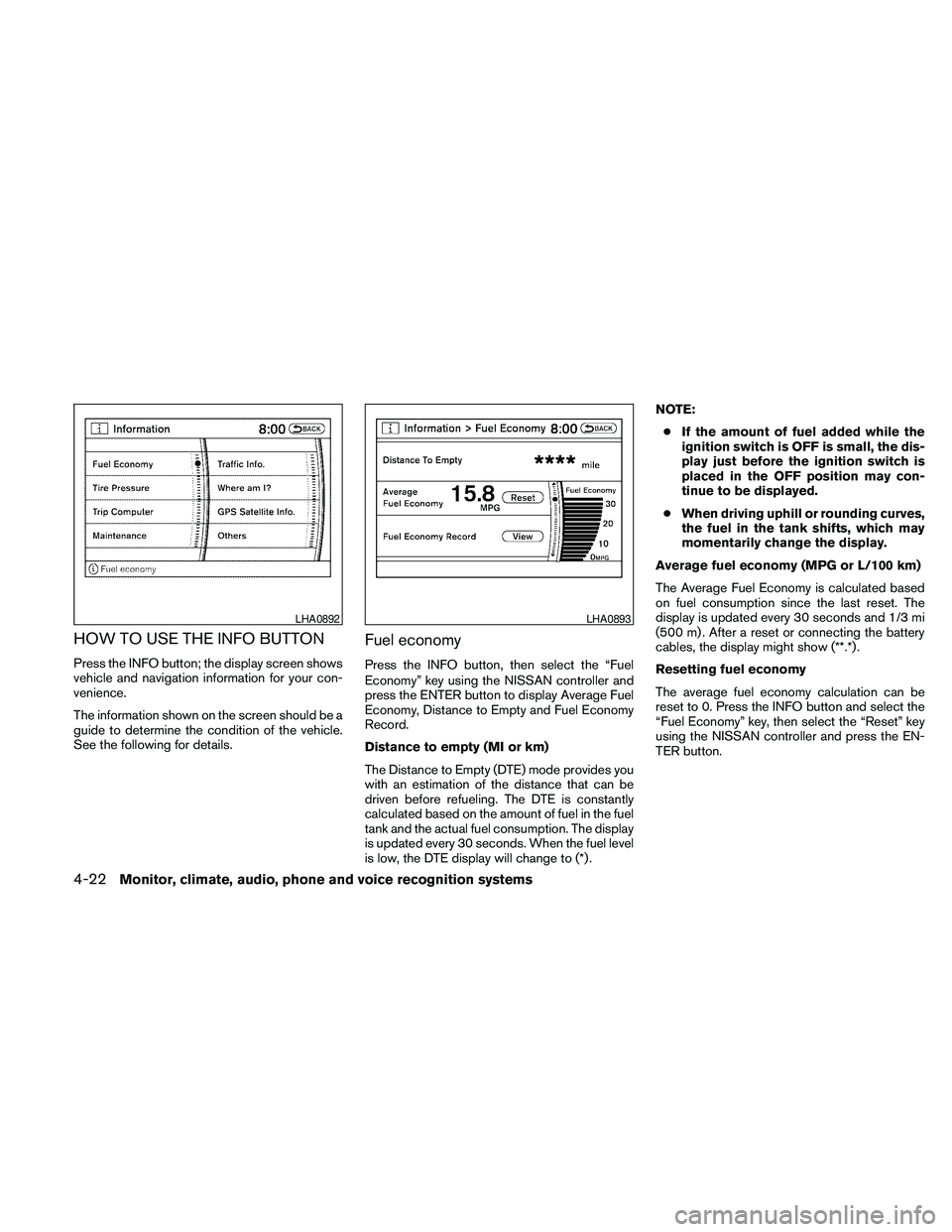
HOW TO USE THE INFO BUTTON
Press the INFO button; the display screen shows
vehicle and navigation information for your con-
venience.
The information shown on the screen should be a
guide to determine the condition of the vehicle.
See the following for details.
Fuel economy
Press the INFO button, then select the “Fuel
Economy” key using the NISSAN controller and
press the ENTER button to display Average Fuel
Economy, Distance to Empty and Fuel Economy
Record.
Distance to empty (MI or km)
The Distance to Empty (DTE) mode provides you
with an estimation of the distance that can be
driven before refueling. The DTE is constantly
calculated based on the amount of fuel in the fuel
tank and the actual fuel consumption. The display
is updated every 30 seconds. When the fuel level
is low, the DTE display will change to (*) .NOTE:
cIf the amount of fuel added while the
ignition switch is OFF is small, the dis-
play just before the ignition switch is
placed in the OFF position may con-
tinue to be displayed.
cWhen driving uphill or rounding curves,
the fuel in the tank shifts, which may
momentarily change the display.
Average fuel economy (MPG or L/100 km)
The Average Fuel Economy is calculated based
on fuel consumption since the last reset. The
display is updated every 30 seconds and 1/3 mi
(500 m) . After a reset or connecting the battery
cables, the display might show (**.*) .
Resetting fuel economy
The average fuel economy calculation can be
reset to 0. Press the INFO button and select the
“Fuel Economy” key, then select the “Reset” key
using the NISSAN controller and press the EN-
TER button.
LHA0892LHA0893
4-22Monitor, climate, audio, phone and voice recognition systems
Page 190 of 463
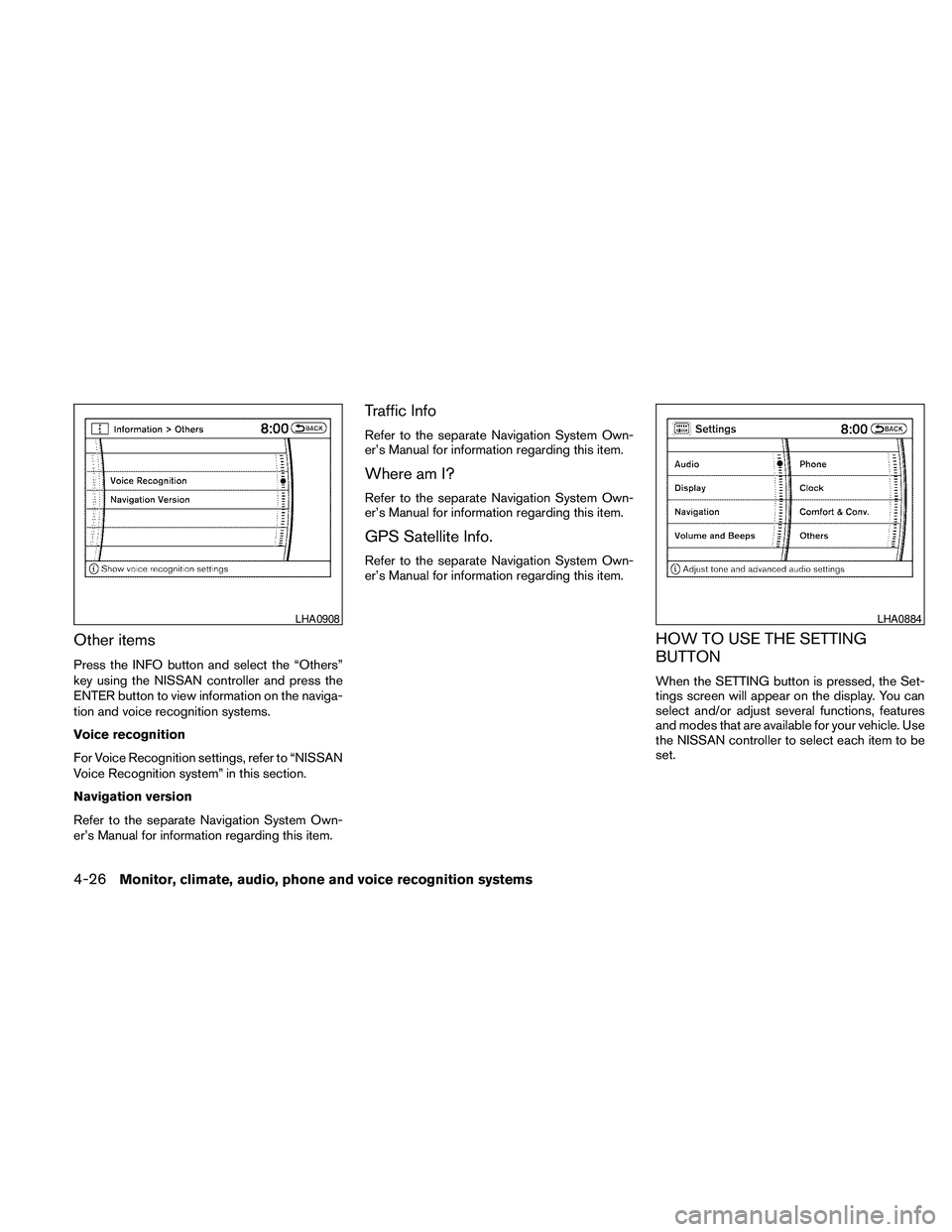
Other items
Press the INFO button and select the “Others”
key using the NISSAN controller and press the
ENTER button to view information on the naviga-
tion and voice recognition systems.
Voice recognition
For Voice Recognition settings, refer to “NISSAN
Voice Recognition system” in this section.
Navigation version
Refer to the separate Navigation System Own-
er’s Manual for information regarding this item.
Traffic Info
Refer to the separate Navigation System Own-
er’s Manual for information regarding this item.
Where am I?
Refer to the separate Navigation System Own-
er’s Manual for information regarding this item.
GPS Satellite Info.
Refer to the separate Navigation System Own-
er’s Manual for information regarding this item.
HOW TO USE THE SETTING
BUTTON
When the SETTING button is pressed, the Set-
tings screen will appear on the display. You can
select and/or adjust several functions, features
and modes that are available for your vehicle. Use
the NISSAN controller to select each item to be
set.
LHA0908LHA0884
4-26Monitor, climate, audio, phone and voice recognition systems