ECO mode NISSAN PATHFINDER 2010 Owner´s Manual
[x] Cancel search | Manufacturer: NISSAN, Model Year: 2010, Model line: PATHFINDER, Model: NISSAN PATHFINDER 2010Pages: 463, PDF Size: 5.69 MB
Page 258 of 463
Pressing thebutton on the front controls
turns the rear speakers on or off and enables or
disables the wireless headphones .
It is possible to operate the DVD player by remote
control.
Headphones are a wireless type and no cables
are necessary. You can use them in almost all the
ranges in the rear seat. (It is not possible to use
the headphones in the front seat.)
DISC/AUX button
Park the vehicle in a safe location and
apply the parking brake for the front seat
occupants to operate the DVD drive while
watching the images.
Press the DISC/AUX button on the instrument
panel and turn the display to the DVD mode.
When a DVD is loaded, it will be replayed auto-
matically.
The operation screen will be turned on when the
DISC/AUX button located on the instrument
panel is pressed while a DVD is being played,
and it will turn off automatically after a period of
time. To turn it on again, press the DISC/AUX
button once more.
DVD operation keys
To operate the DVD drive, touch the preferred key
(if so equipped) or select the preferred key dis-
played on the operation screen using the
NISSAN controller.
NOTE:
If the display in your vehicle is not touch
screen enabled; use the NISSAN controller
and the ENTER button to operate the fol-
lowing functions. For more information on
how to operate the NISSAN controller, see
“How to use the NISSAN controller” earlier
in this section.
PAUSE key:
Touch the “
” PAUSE key to pause the DVD.
To resume playing the DVD, touch the
“
”PLAY key.
To pause the DVD, it is also possible to press
the
button on the keypad of the remote
controller.
PLAY key:
Touch the “
” PLAY key to start playing the
DVD, for example, after pausing the DVD.To start playing the DVD, it is also possible to
press the
button on the keypad of the
remote controller.
STOP key:
Touch the “
” STOP key to stop playing the
DVD.
To stop playing the DVD, it is also possible to
press the
button on the keypad of the
remote controller.
SKIP (forward) key:
Touch the “
” SKIP key to skip the chapter(
s) of the disc forward. The chapters will advance
the number of times the “
” SKIP key is
touched.
Touch and hold the “
” SKIP key for more
than 1.5 seconds to fast forward the disc. When
the “
” SKIP key is released, the disc will be
played normally.
To skip the chapter(s) forward, it is also possible
to press the
button on the keypad of the
remote controller.
4-94Monitor, climate, audio, phone and voice recognition systems
Page 260 of 463
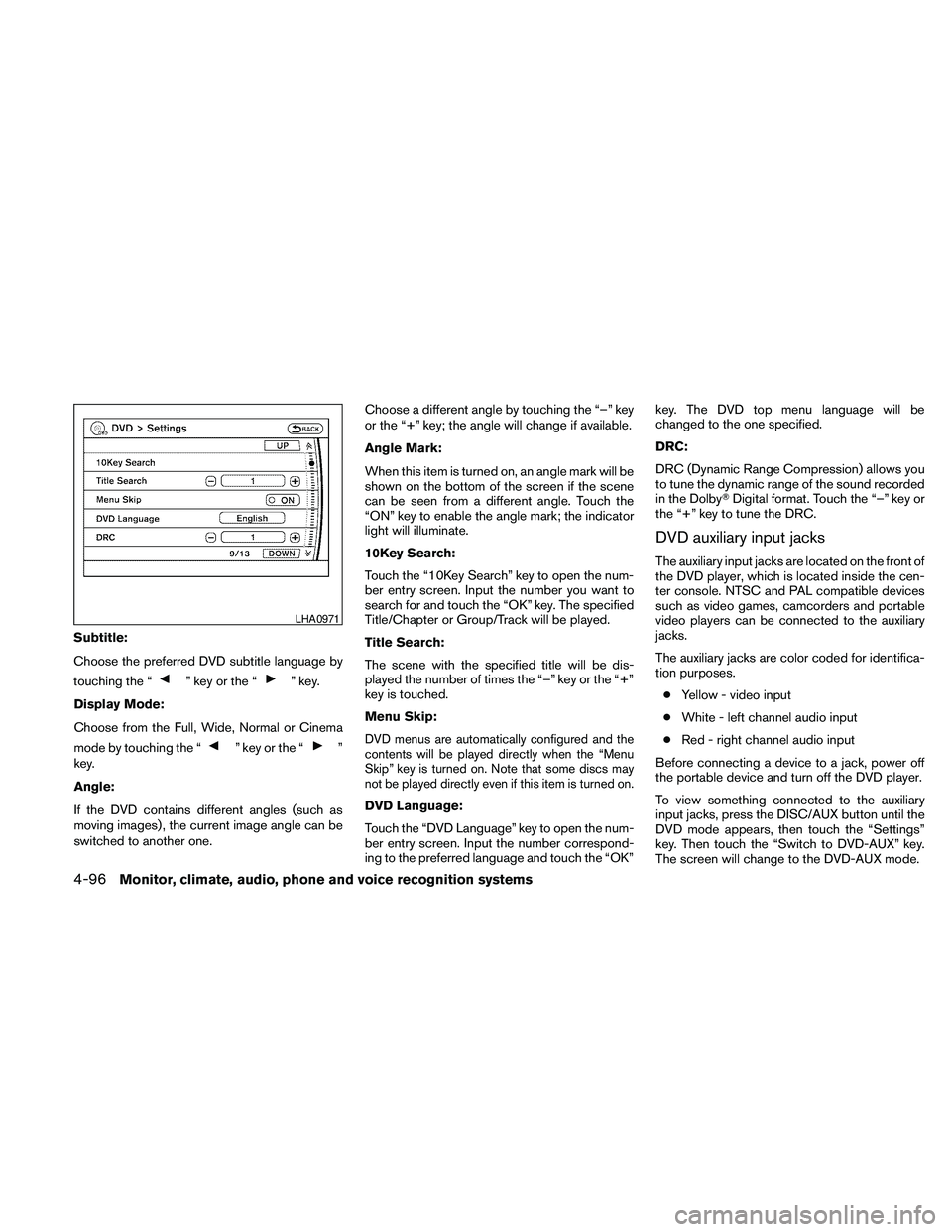
Subtitle:
Choose the preferred DVD subtitle language by
touching the “
” key or the “” key.
Display Mode:
Choose from the Full, Wide, Normal or Cinema
mode by touching the “
” key or the “”
key.
Angle:
If the DVD contains different angles (such as
moving images) , the current image angle can be
switched to another one.Choose a different angle by touching the “–” key
or the “+” key; the angle will change if available.
Angle Mark:
When this item is turned on, an angle mark will be
shown on the bottom of the screen if the scene
can be seen from a different angle. Touch the
“ON” key to enable the angle mark; the indicator
light will illuminate.
10Key Search:
Touch the “10Key Search” key to open the num-
ber entry screen. Input the number you want to
search for and touch the “OK” key. The specified
Title/Chapter or Group/Track will be played.
Title Search:
The scene with the specified title will be dis-
played the number of times the “–” key or the “+”
key is touched.
Menu Skip:DVD menus are automatically configured and the
contents will be played directly when the “Menu
Skip” key is turned on. Note that some discs may
not be played directly even if this item is turned on.
DVD Language:
Touch the “DVD Language” key to open the num-
ber entry screen. Input the number correspond-
ing to the preferred language and touch the “OK”key. The DVD top menu language will be
changed to the one specified.
DRC:
DRC (Dynamic Range Compression) allows you
to tune the dynamic range of the sound recorded
in the DolbyTDigital format. Touch the “–” key or
the “+” key to tune the DRC.
DVD auxiliary input jacks
The auxiliary input jacks are located on the front of
the DVD player, which is located inside the cen-
ter console. NTSC and PAL compatible devices
such as video games, camcorders and portable
video players can be connected to the auxiliary
jacks.
The auxiliary jacks are color coded for identifica-
tion purposes.
cYellow - video input
cWhite - left channel audio input
cRed - right channel audio input
Before connecting a device to a jack, power off
the portable device and turn off the DVD player.
To view something connected to the auxiliary
input jacks, press the DISC/AUX button until the
DVD mode appears, then touch the “Settings”
key. Then touch the “Switch to DVD-AUX” key.
The screen will change to the DVD-AUX mode.
LHA0971
4-96Monitor, climate, audio, phone and voice recognition systems
Page 261 of 463
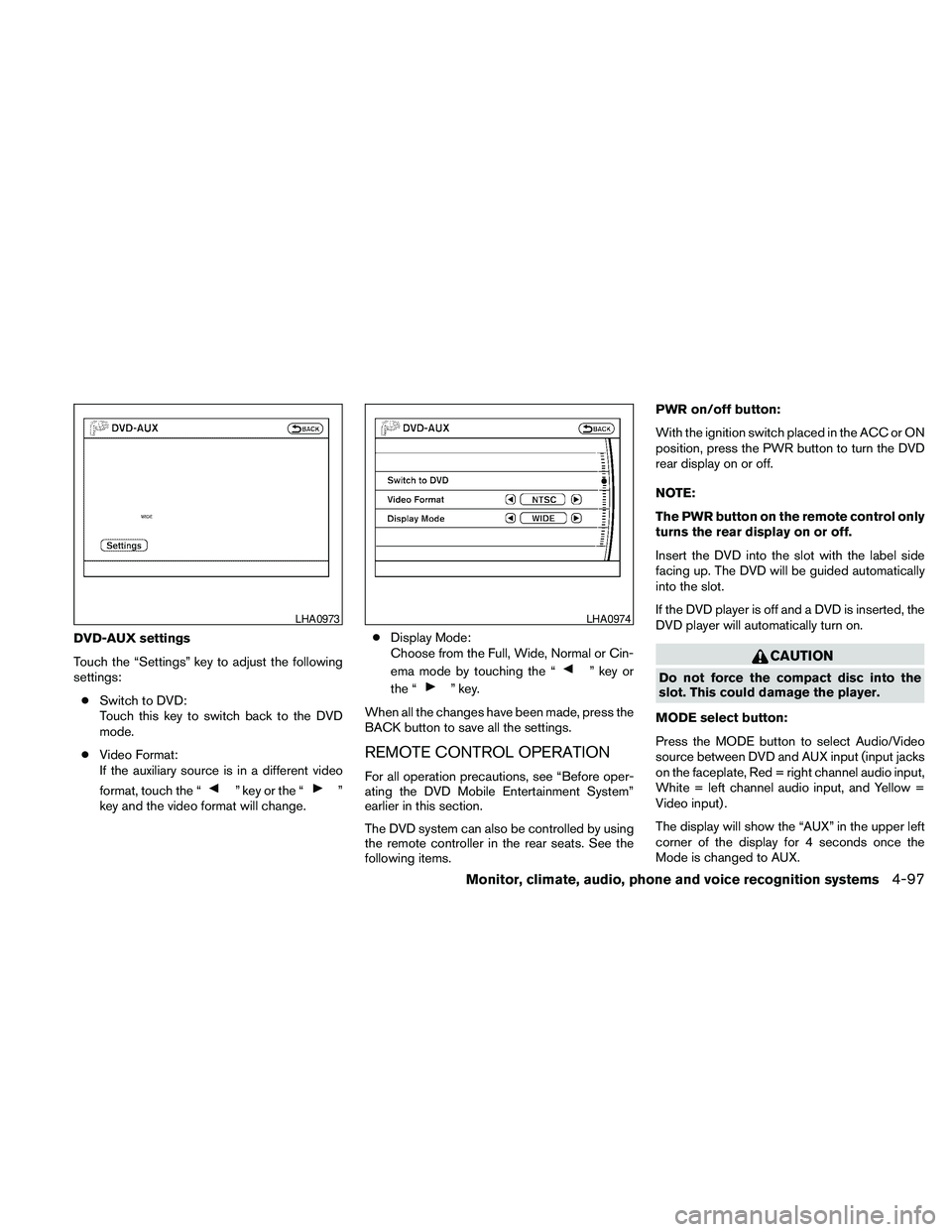
DVD-AUX settings
Touch the “Settings” key to adjust the following
settings:
cSwitch to DVD:
Touch this key to switch back to the DVD
mode.
cVideo Format:
If the auxiliary source is in a different video
format, touch the “
” key or the “”
key and the video format will change.cDisplay Mode:
Choose from the Full, Wide, Normal or Cin-
ema mode by touching the “
” key or
the “
” key.
When all the changes have been made, press the
BACK button to save all the settings.
REMOTE CONTROL OPERATION
For all operation precautions, see “Before oper-
ating the DVD Mobile Entertainment System”
earlier in this section.
The DVD system can also be controlled by using
the remote controller in the rear seats. See the
following items.PWR on/off button:
With the ignition switch placed in the ACC or ON
position, press the PWR button to turn the DVD
rear display on or off.
NOTE:
The PWR button on the remote control only
turns the rear display on or off.
Insert the DVD into the slot with the label side
facing up. The DVD will be guided automatically
into the slot.
If the DVD player is off and a DVD is inserted, the
DVD player will automatically turn on.
CAUTION
Do not force the compact disc into the
slot. This could damage the player.
MODE select button:
Press the MODE button to select Audio/Video
source between DVD and AUX input (input jacks
on the faceplate, Red = right channel audio input,
White = left channel audio input, and Yellow =
Video input) .
The display will show the “AUX” in the upper left
corner of the display for 4 seconds once the
Mode is changed to AUX.
LHA0973LHA0974
Monitor, climate, audio, phone and voice recognition systems4-97
Page 262 of 463
To use the input jacks, refer to “Auxiliary input
jacks” in this section.
PLAY:
When the
PLAY button on the remote
control is pressed, the player will play.
In play mode, the display will briefly show
on the upper left corner of the display.
FF (Fast Forward) , REW
(Rewind):
Press the
(fast forward) /(rewind)
buttons to carry out the fast forward or rewind
presentation at 5 times normal play speed.
Press the
(fast forward) /(rewind)
buttons again or PLAY button to resume the
normal play speed.
NEXT CHAPTER/
PREVIOUS CHAPTER:
When the
(NEXT CHAPTER) button is
pressed while the DVD is playing, the program
next to the present one will start to play from its
beginning. Press several times to skip through
programs. The DVD will advance the number of
times the button is pressed. When the
(PREVIOUS CHAPTER) button is pressed, the
program being played returns to its beginning.
Press several times to skip back through pro-
grams. The DVD will go back the number of times
the button is pressed.
PAUSE:
When the
PAUSE button on the remote
control is pressed, the player will pause playing of
the media. In pause mode, the player will
show
on the upper left corner of the dis-
play until the player is changed to another mode.
STOP:
Press the STOP button once to stop playing the
media. The display will show
in the upper
left corner of the display for 4 seconds, and the
last disc position will be stored. When the PLAY
button is pressed again, it will resume at the
stored disc track and time position.
If the STOP button is pressed again when the
player is already in Stop mode, it will reinitialize
the pointer to the beginning of the disc. In effect,
it will ignore the last stored disc position and
upon receipt of the next play message, will begin
at the Title Menu or at “the beginning of the disc”.DISPLAY:
If the DISPLAY control is pressed for less than 2
seconds, the display menu will appear on the
screen.
cThe display menu will remain on the screen
for 10 seconds if no subsequent control
activations occur.
cUse the NAVIGATION KEYS to navigate
within the display menu and use ENTER to
select the item.
NAVIGATION KEYS:
If media is in activated MENU mode, the NAVI-
GATION KEYS will be used to navigate Up,
Down, Left, and Right within the menu.
If display control menu is on, the NAVIGATION
KEYS will be used to navigate Up, Down, Left,
and Right within the menu.
ENTER:
In MENU mode, press the ENTER button to se-
lect MENU items.
In the display menu, press the ENTER button to
select items for modification, as per the on-
screen instructions.
4-98Monitor, climate, audio, phone and voice recognition systems
Page 263 of 463
MENU:
If the media is in PLAY mode and the MENU
button is pressed, the DVD menu will appear on
the screen. Use the Navigation Keys to navigate
within the menu and use ENTER to select the
item.
Press the MENU button again to return to PLAY
mode.
TITLE:
Press the TITLE button to return the DVD media
to the “title” of the DVD.
Press the TITLE button again to return to the
previous stop point and play.
BACK:
Press the BACK button to exit the current active
menu and return to the previous menu.
SUBTITLE:
Press the SUBTITLE button to call up subtitle
selection menu.
Repeatedly press the SUBTITLE button to cycle
through each available subtitle.
AUDIO:
Press the AUDIO button to call up the audio
menu.Repeatedly press the AUDIO button to cycle
through each available audio track.
ANGLE:
Press the ANGLE button to call up the camera
angle menu.
Repeatedly press the ANGLE button to cycle
through each available angle.
CLEAR:
Press the CLEAR button to clear all numeric
inputs, if actuated prior to expiration of the
3-second timer.
NUMERIC KEYPAD (0–9 &¸10):
Press the NUMERIC KEYPAD to directly access
disc chapters, titles or tracks by inputting their
numeric value.
Use the “¸10” button to input numbers greater
than or equal to 10. Up to 3 digits can be inputted
when selecting the chapter/title/track number.
The subsequent actuation of numeric buttons will
continuously shift the previously input number to
the “left”.The chapter/title/track number will be automati-
cally selected (if valid, based on media content) if
3 seconds expire without any keypad inputs.
The operator can cancel the input
chapter/title/track number by actuating the
CLEAR control prior to the expiration of the
3-second timer.
These functions can be used only for the DVD
discs which correspond to them.
CARE AND MAINTENANCE
Use a lightly dampened, lint free cloth to clean the
surfaces of your NISSAN Mobile Entertainment
System (DVD player face, screen, remote control,
etc.) .
Do not attempt to use the system in extreme
temperature conditions [below -4°F (-20°C) or
above 158°F (70°C)].
Do not attempt to operate the system in extreme
humidity conditions (less than 10% or more than
75%) .
Monitor, climate, audio, phone and voice recognition systems4-99
Page 267 of 463
When installing a CB, ham radio or car phone in
your NISSAN, be sure to observe the following
precautions; otherwise, the new equipment may
adversely affect the engine control system and
other electronic parts.
WARNING
cA cellular telephone should not be used
while driving so full attention may be
given to vehicle operation. Some juris-
dictions prohibit the use of cellular tele-
phones while driving.
cIf you must make a call while your ve-
hicle is in motion, the hands free cellu-
lar phone operational mode (if so
equipped) is highly recommended. Ex-
ercise extreme caution at all times so
full attention may be given to vehicle
operation.
cIf you are unable to devote full attention
to vehicle operation while talking on
the phone, pull off the road to a safe
location and stop your vehicle.
CAUTION
cKeep the antenna as far away as pos-
sible from the electronic control
modules.
cKeep the antenna wire more than 8 in
(20 cm) away from the electronic con-
trol system harnesses. Do not route the
antenna wire next to any harness.
cAdjust the antenna standing-wave ratio
as recommended by the manufacturer.
cConnect the ground wire from the CB
radio chassis to the body.
cFor details, consult a NISSAN dealer.
cDo not ground electrical accessories
directly to the battery terminal. Doing
so will bypass the variable voltage con-
trol system and the vehicle battery may
not charge completely. Refer to “Vari-
able voltage control system” in the
“Maintenance and do-it-yourself” sec-
tion later in this manual.
cUse electrical accessories with the en-
gine running to avoid discharging the
vehicle battery.
WARNING
cUse a phone after stopping your vehicle
in a safe location. If you have to use a
phone while driving, exercise extreme
caution at all times so full attention may
be given to vehicle operation.
cIf you are unable to devote full attention
to vehicle operation while talking on
the phone, pull off the road to a safe
location and stop your vehicle.
CAUTION
To avoid discharging the vehicle battery,
use a phone after starting the engine.
CAR PHONE OR CB RADIO BLUETOOTHTHANDS-FREE PHONE
SYSTEM WITHOUT NAVIGATION
SYSTEM (if so equipped)
Monitor, climate, audio, phone and voice recognition systems4-103
Page 272 of 463
PHONE/END
Press the
button to cancel a VR
session or end a call.
GETTING STARTED
The following procedures will help you get
started using the BluetoothTHands-Free Phone
System with NISSAN Voice Recognition. For ad-
ditional command options, refer to “List of voice
commands” in this section.
Choosing a language
You can interact with the BluetoothTHands-Free
Phone System using English, Spanish or French.
To change the language, perform the following.
1. Press and hold the
button for more
than 5 seconds.
2. The system announces: “Press the
PHONE/SEND (
) button for the
hands-free phone system to enter the
speaker adaptation mode or press the
PHONE/END (
) button to select a dif-
ferent language.”
3. Press the
button.For information on speaker adaptation, see
“Speaker adaptation (SA) mode” later in this
section.
4. The system announces the current language
and gives you the option to change the lan-
guage to Spanish (in Spanish) or French (in
French) . Use the following chart to select
the language.
NOTE:
You must press the
button or
the
button within 5 seconds to
change the language.
Current
languagePress(PHONE/SEND)
to selectPress(PHONE/END)
to select
English Spanish French
Spanish English French
French English Spanish
5. If you decide not to change the language, do
not press either button. After 5 seconds, the
VR session will end, and the language will
not be changed.
Pairing procedure
NOTE:
The pairing procedure must be performed
when the vehicle is stationary. If the vehicle
starts moving during the procedure, the
procedure will be cancelled.
Main Menu
“Setup”
sA
“Pair phone”sB
“New phone”sC
Initiate from handsetsD
Name phonesE
Assign prioritysF
Choose ringtonesG
1. Press thebutton on the steering
wheel. The system announces the available
commands.
2. Say: “Setup”
sA. The system acknowledges
the command and announces the next set of
available commands.
3. Say: “Pair phone”
sB. The system acknowl-
edges the command and announces the
next set of available commands.
4-108Monitor, climate, audio, phone and voice recognition systems
Page 273 of 463
4. Say: “New phone”sC. The system acknowl-
edges the command and asks you to initiate
pairing from the phone handset
sD.
The pairing procedure of the cellular phone
varies according to each cellular phone
model. See the cellular phone Owner’s
Manual for details. You can also visit
www.nissanusa.com/bluetooth for instruc-
tions on pairing NISSAN recommended cel-
lular phones.
When prompted for a Passkey code, enter
“1234” from the handset. The Passkey code
“1234” has been assigned by NISSAN and
cannot be changed.
5. The system asks you to say a name for the
phone
sE.
If the name is too long or too short, the
system tells you, then prompts you for a
name again.
Also, if more than one phone is paired and
the name sounds too much like a name
already used, the system tells you, then
prompts you for a name again.
6. The system asks you to assign a priority level
sF. The priority level determines which
phone is active when more than one paired
BluetoothTphone is in the vehicle. Follow
the instructions provided by the system orrefer to “Setup” later in this section for more
information on changing priorities.
7. The system will ask if you would like to select
a custom ring tone
sG. Follow the instruc-
tions provided by the system or refer to
“Setup” later in this section for more infor-
mation on selecting ringtones.
Making a call by entering a phone
number
Main Menu
“Call”
sA
Number (speak digits)sB
“Dial”sC
1. Press thebutton on the steering
wheel. A tone will sound.
2. Say: “Call”
sA. The system acknowledges
the command and announces the next set of
available commands.
Say: “Call International” to dial more than 10
digits or any special characters.
3. Say the number you wish to call starting with
the area code in single digit format
sB.Ifthe
system has trouble recognizing the correct
phone number, try entering the number in
the following groups: 3-digit area code,3-digit prefix and the last 4-digits. For ex-
ample, 555-121-3354 can be said as “five
five five” as the 1st group, then “one two
one” as the 2nd group, and “three three five
four” as the 3rd group. For dialing more than
10 digits or any special characters, say “In-
ternational”. See “How to say numbers” in
this section, for more information.
4. When you have finished speaking the phone
number, the system repeats it back and an-
nounces the available commands.
5. Say: “Dial”
sC. The system acknowledges
the command and makes the call.
For additional command options, see “List of
voice commands” in this section.
Receiving a call
When you hear the ring tone, press thebutton on the steering wheel.
Once the call has ended, press the
button
on the steering wheel.
NOTE:
If you do not wish to take the call when you
hear the ring tone, press the
button
on the steering wheel.
Monitor, climate, audio, phone and voice recognition systems4-109
Page 275 of 463
If a redial number does not exist, the system
announces, “There is no number to redial” and
ends the VR session.
“Call back”
sD
Use the Call Back command to dial the number of
the last incoming call within the vehicle.
The system acknowledges the command, re-
peats the number and begins dialing.
If a call back number does not exist, the system
announces, “There is no number to call back” and
ends the VR session.
International
For dialing more than 10 digits or any special
characters, please say “international”. When the
system acknowledges the command, the system
will prompt you to speak the number.
During a call
During a call there are several command options
available. Press the
button on the steering
wheel to mute the receiving voice and enter com-
mands.
c“Help” — The system announces the avail-
able commands.
c“Go back/Correction” — The system an-
nounces “Go back,” ends the VR session
and returns to the call.c“Cancel/Quit” — The system announces
“Cancel,” ends the VR session and returns
to the call.
c“Send/Enter/Call/Dial” — Use the Send
command to enter numbers, “*” or “#” during
a call. For example, if you were directed to
dial an extension by an automated system:
Say: “Send one two three four.”
The system acknowledges the command
and sends the tones associated with the
numbers. The system then ends the VR ses-
sion and returns to the call. Say “star” for “*”,
Say “pound” for “#”.
c“Transfer call” — Use the Transfer Call com-
mand to transfer the call from the BluetoothT
Hands-Free Phone System to the cellular
phone when privacy is desired.
The system announces, “Transfer call. Call
transferred to privacy mode.” The system
then ends the VR session.
You can also issue the Transfer Call com-
mand again to return to a hands-free call
through the vehicle.
c“Mute” — Use the Mute command to mute
your voice so the other party cannot hear it.
Use the mute command again to unmute
your voice.NOTE:
If a call is ended or the cellular phone
network connection is lost while the Mute
feature is on, the Mute feature will be reset
to “off” for the next call so the other party
can hear your voice.
“Phone book”
NOTE:
Phone book commands are not available
when the vehicle is moving.
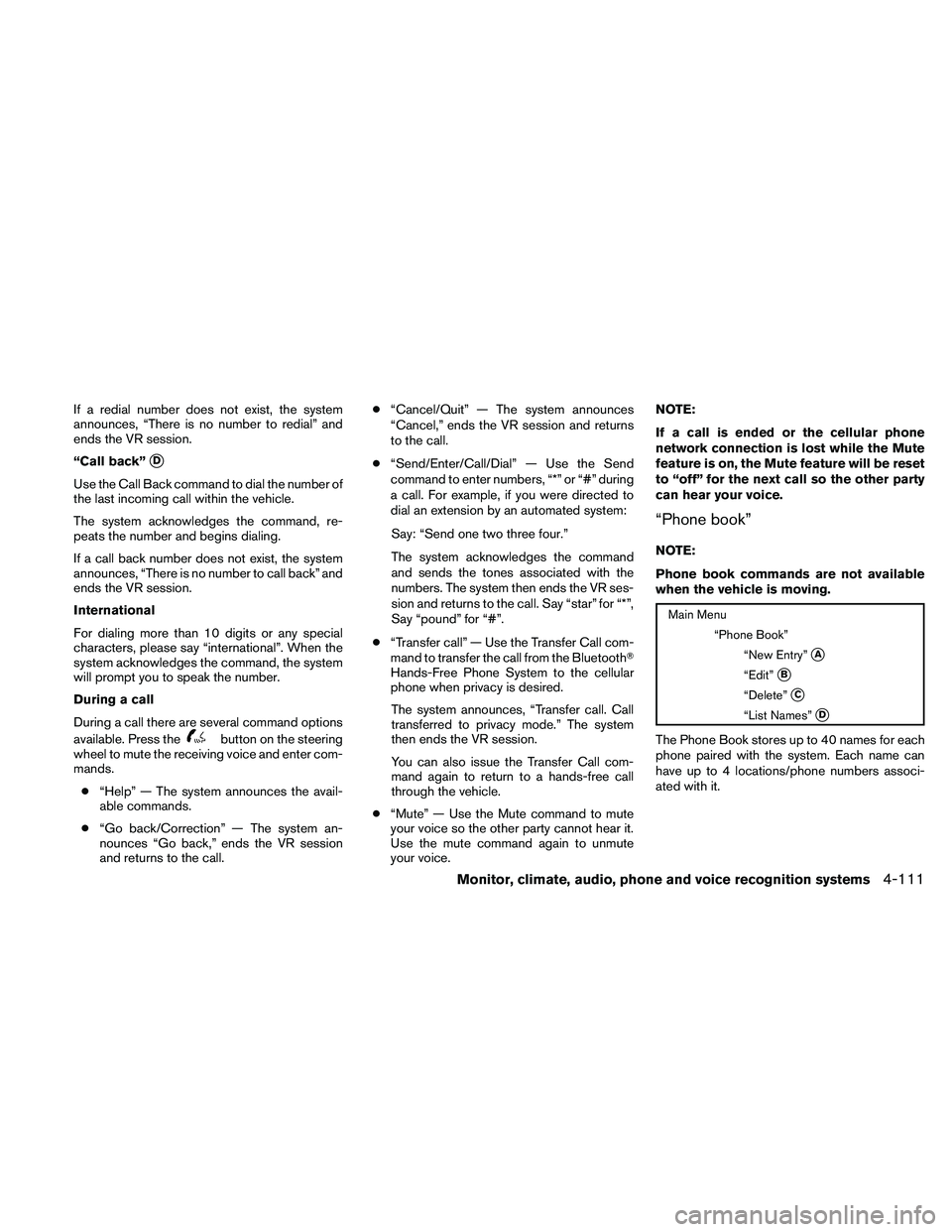
Main Menu
“Phone Book”
“New Entry”
sA
“Edit”sB
“Delete”sC
“List Names”sD
The Phone Book stores up to 40 names for each
phone paired with the system. Each name can
have up to 4 locations/phone numbers associ-
ated with it.
Monitor, climate, audio, phone and voice recognition systems4-111
Page 279 of 463
For example, if the current priority levels are:
Priority Level 1 = Phone A
Priority Level 2 = Phone B
Priority Level 3 = Phone C
and you change the priority level of Phone C to
Level 1, then:
Priority Level 1 = Phone C
Priority Level 2 = Phone B
Priority Level 3 = Phone A
“Delete phone”
sE
Use the Delete Phone command to delete a
specific phone or all phones from the BluetoothT
Hands-Free Phone System.
The system announces the names of the phones
already paired with the system and their priority
level. The system then gives you the option to
delete a specific phone, all phones or listen to the
list again.
Once you choose to delete a phone or all phones,
the system asks you to confirm this action.
NOTE:
When you delete a phone, the associated
phone book for that phone will also be
deleted.“Select ringtone”
sF
Use the Select Ringtone command to select the
tone heard in the vehicle when an incoming call is
received.
The system announces the name of the active
phone and asks you to choose from the following
commands:
c“Ringtone” — The system plays a ringtone
and asks if you would like to select that tone.
If you say “No”, the system plays the next
ringtone available and continues to cycle
through the ringtones until you select one or
quit.
c“Silent” — The system asks you to confirm
your wish to disable the ringtone.
“Bluetooth off”
sG
Use the Bluetooth Off command to turn off the
BluetoothTHands-Free Phone System.
When the BluetoothTHands-Free Phone Sys-
tem is off, you will not be able to make or receive
calls using NISSAN Voice Recognition. Also, you
will not have access to the Phone Book.
You can still use the Memo Pad and access
Setup.
SPEAKER ADAPTATION (SA) MODE
Speaker Adaptation allows up to two out-of-
dialect users to train the system to improve rec-
ognition accuracy. By repeating a number of
commands, the users can create a voice model of
their own voice that is stored in the system. The
system is capable of storing a different speaker
adaptation model for memory A and memory B.
If memory A is available, the system will use
memory A to store the model. If memory A is in
use and memory B is available, the system will
use memory B to store the model. If both of the
memory locations are in use, the system will ask
the user to select which memory location should
be overwritten.
Training procedure
The procedure for training a voice is as follows.
1. Position the vehicle in a reasonably quiet
outdoor location.
2. Sit in the driver’s seat with the engine run-
ning, the parking brake on, and the transmis-
sion in P (Park) .
3. Press and hold the
button for more
than 5 seconds.
Monitor, climate, audio, phone and voice recognition systems4-115