display NISSAN PATHFINDER 2010 Owner´s Manual
[x] Cancel search | Manufacturer: NISSAN, Model Year: 2010, Model line: PATHFINDER, Model: NISSAN PATHFINDER 2010Pages: 463, PDF Size: 5.69 MB
Page 151 of 463
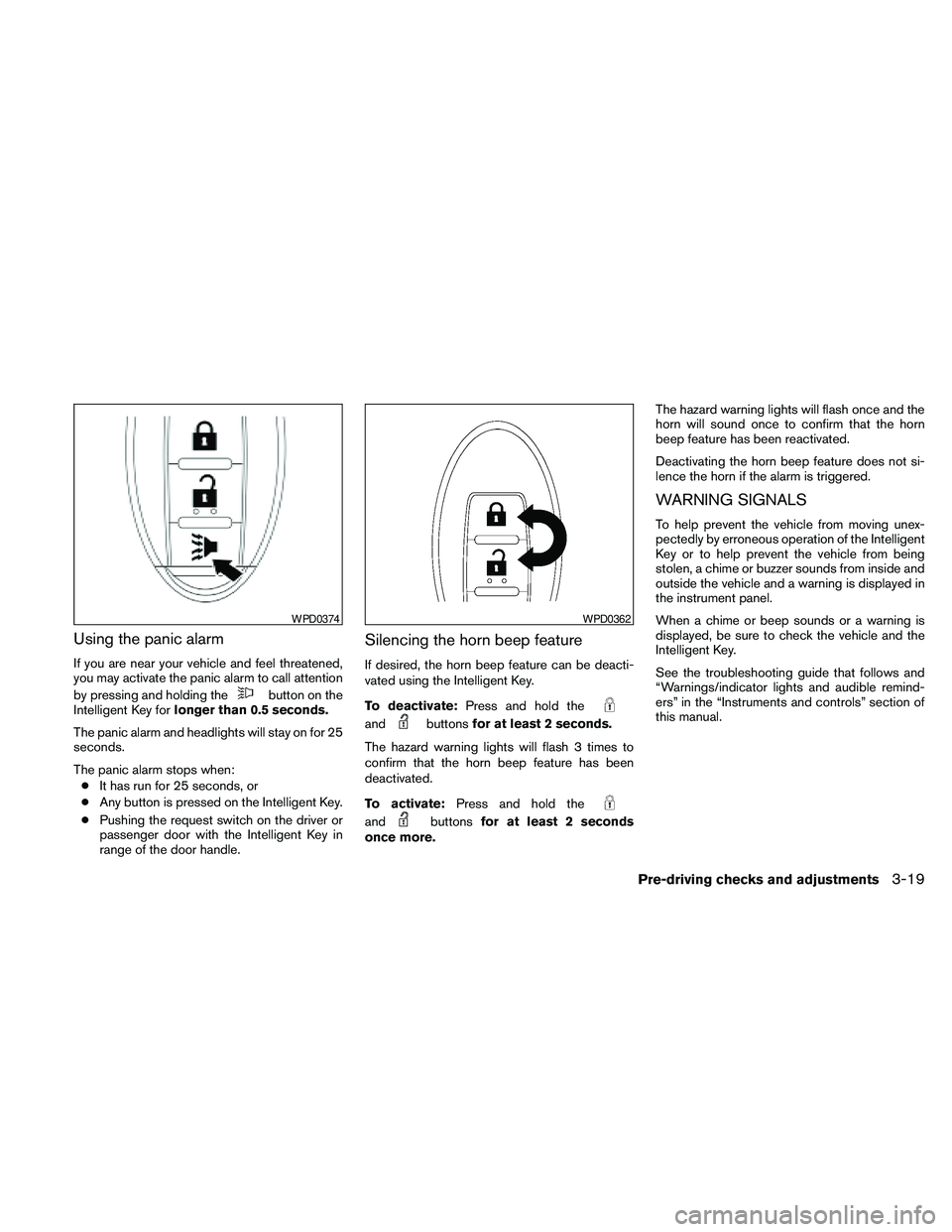
Using the panic alarm
If you are near your vehicle and feel threatened,
you may activate the panic alarm to call attention
by pressing and holding the
button on the
Intelligent Key forlonger than 0.5 seconds.
The panic alarm and headlights will stay on for 25
seconds.
The panic alarm stops when:
cIt has run for 25 seconds, or
cAny button is pressed on the Intelligent Key.
cPushing the request switch on the driver or
passenger door with the Intelligent Key in
range of the door handle.
Silencing the horn beep feature
If desired, the horn beep feature can be deacti-
vated using the Intelligent Key.
To deactivate:Press and hold the
andbuttonsfor at least 2 seconds.
The hazard warning lights will flash 3 times to
confirm that the horn beep feature has been
deactivated.
To activate:Press and hold the
andbuttonsfor at least 2 seconds
once more.The hazard warning lights will flash once and the
horn will sound once to confirm that the horn
beep feature has been reactivated.
Deactivating the horn beep feature does not si-
lence the horn if the alarm is triggered.
WARNING SIGNALS
To help prevent the vehicle from moving unex-
pectedly by erroneous operation of the Intelligent
Key or to help prevent the vehicle from being
stolen, a chime or buzzer sounds from inside and
outside the vehicle and a warning is displayed in
the instrument panel.
When a chime or beep sounds or a warning is
displayed, be sure to check the vehicle and the
Intelligent Key.
See the troubleshooting guide that follows and
“Warnings/indicator lights and audible remind-
ers” in the “Instruments and controls” section of
this manual.
WPD0374WPD0362
Pre-driving checks and adjustments3-19
Page 152 of 463
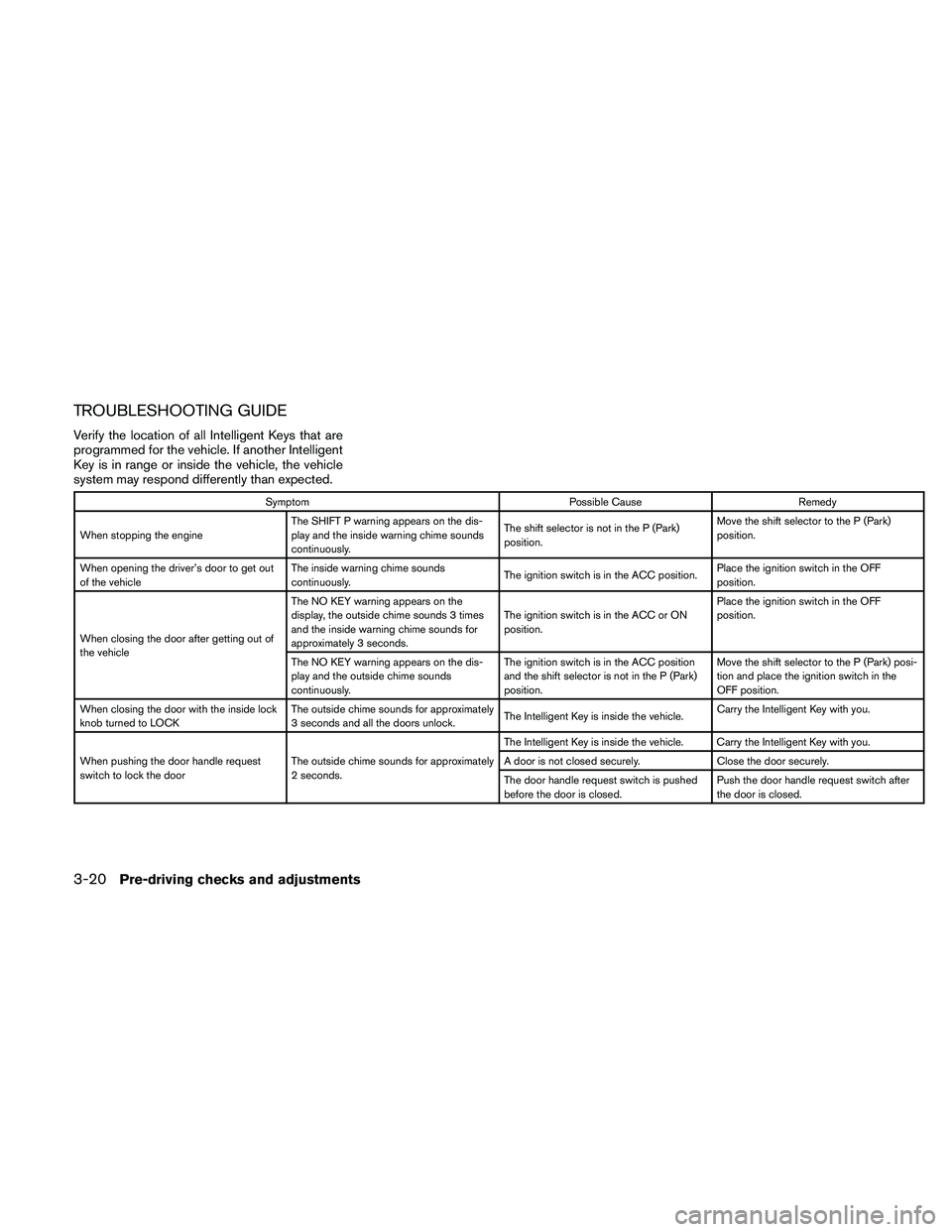
TROUBLESHOOTING GUIDE
Verify the location of all Intelligent Keys that are
programmed for the vehicle. If another Intelligent
Key is in range or inside the vehicle, the vehicle
system may respond differently than expected.
Symptom Possible Cause Remedy
When stopping the engineThe SHIFT P warning appears on the dis-
play and the inside warning chime sounds
continuously.The shift selector is not in the P (Park)
position.Move the shift selector to the P (Park)
position.
When opening the driver’s door to get out
of the vehicleThe inside warning chime sounds
continuously.The ignition switch is in the ACC position.Place the ignition switch in the OFF
position.
When closing the door after getting out of
the vehicleThe NO KEY warning appears on the
display, the outside chime sounds 3 times
and the inside warning chime sounds for
approximately 3 seconds.The ignition switch is in the ACC or ON
position.Place the ignition switch in the OFF
position.
The NO KEY warning appears on the dis-
play and the outside chime sounds
continuously.The ignition switch is in the ACC position
and the shift selector is not in the P (Park)
position.Move the shift selector to the P (Park) posi-
tion and place the ignition switch in the
OFF position.
When closing the door with the inside lock
knob turned to LOCKThe outside chime sounds for approximately
3 seconds and all the doors unlock.The Intelligent Key is inside the vehicle.Carry the Intelligent Key with you.
When pushing the door handle request
switch to lock the doorThe outside chime sounds for approximately
2 seconds.The Intelligent Key is inside the vehicle. Carry the Intelligent Key with you.
A door is not closed securely. Close the door securely.
The door handle request switch is pushed
before the door is closed.Push the door handle request switch after
the door is closed.
3-20Pre-driving checks and adjustments
Page 159 of 463
AUTOMATIC ANTI-GLARE
REARVIEW MIRROR (if so equipped)
The inside mirror is designed so that it automati-
cally dims during night time conditions and ac-
cording to the intensity of the headlights of the
vehicle following you. The automatic anti-glare
feature is activated when the ignition switch is in
the ON position.
The indicator light will illuminate when the auto-
matic anti-glare feature is operating.
NOTE:
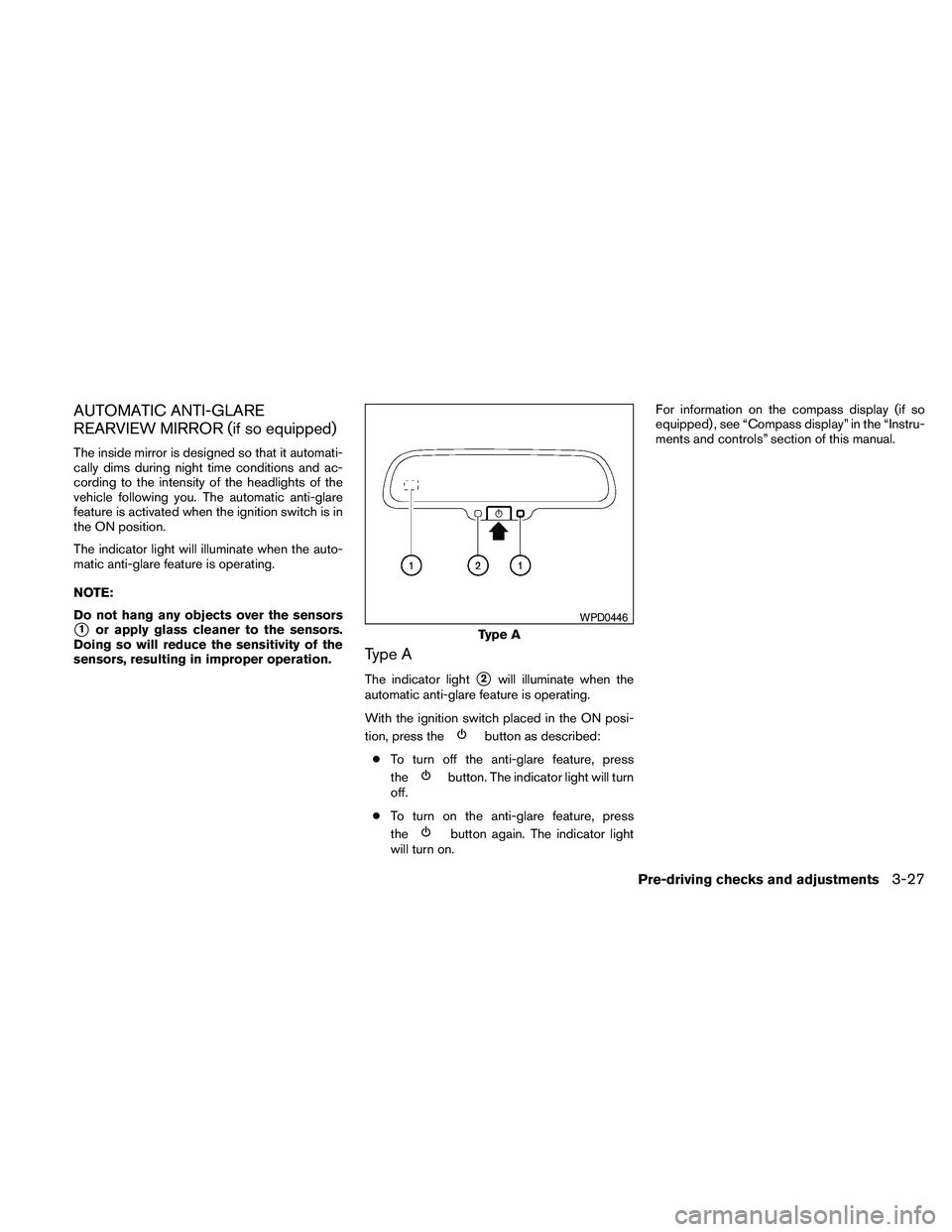
Do not hang any objects over the sensors
s1or apply glass cleaner to the sensors.
Doing so will reduce the sensitivity of the
sensors, resulting in improper operation.
Type A
The indicator lights2will illuminate when the
automatic anti-glare feature is operating.
With the ignition switch placed in the ON posi-
tion, press the
button as described:
cTo turn off the anti-glare feature, press
the
button. The indicator light will turn
off.
cTo turn on the anti-glare feature, press
the
button again. The indicator light
will turn on.For information on the compass display (if so
equipped) , see “Compass display” in the “Instru-
ments and controls” section of this manual.
Type A
WPD0446
Pre-driving checks and adjustments3-27
Page 160 of 463
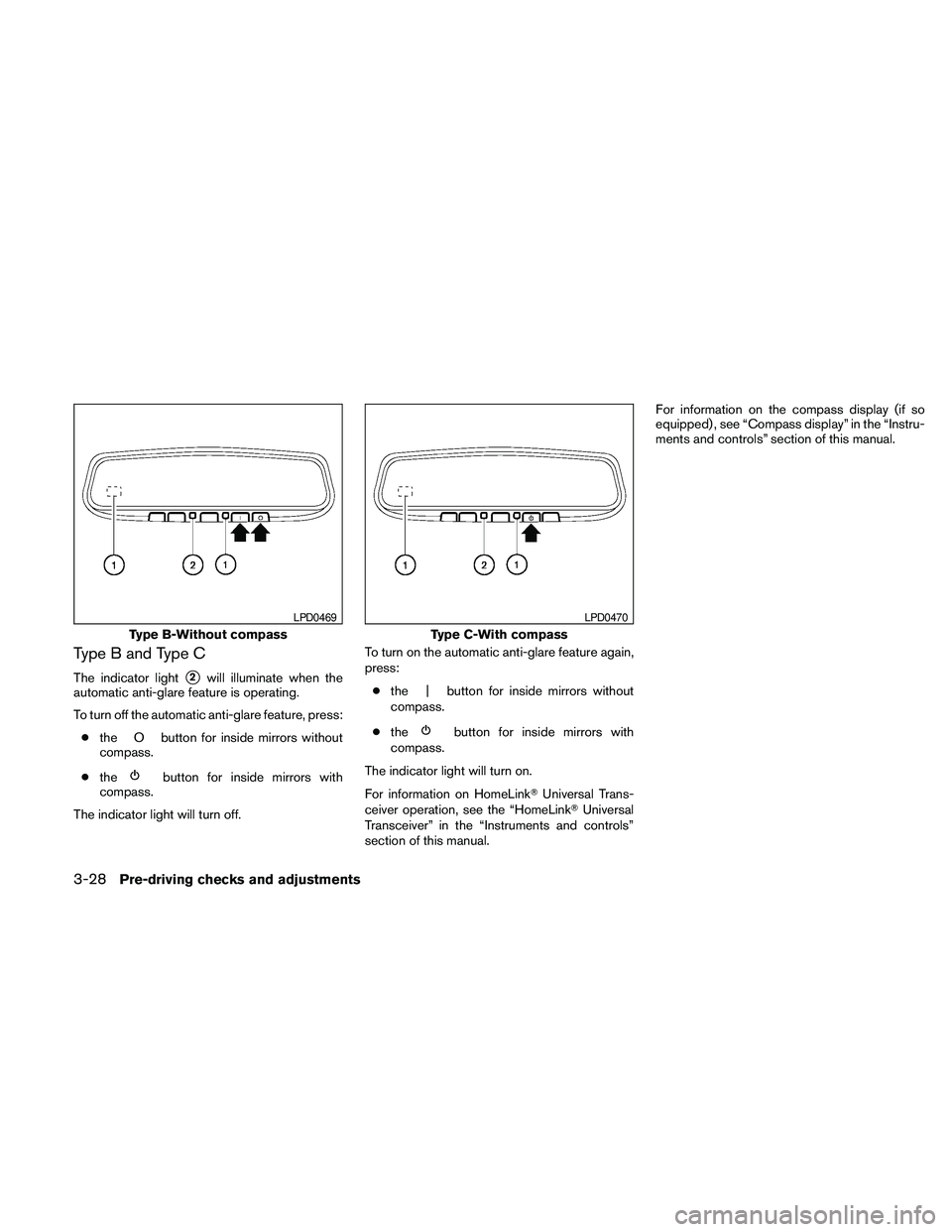
Type B and Type C
The indicator lights2will illuminate when the
automatic anti-glare feature is operating.
To turn off the automatic anti-glare feature, press:
cthe O button for inside mirrors without
compass.
cthe
button for inside mirrors with
compass.
The indicator light will turn off.To turn on the automatic anti-glare feature again,
press:
cthe | button for inside mirrors without
compass.
cthe
button for inside mirrors with
compass.
The indicator light will turn on.
For information on HomeLinkTUniversal Trans-
ceiver operation, see the “HomeLinkTUniversal
Transceiver” in the “Instruments and controls”
section of this manual.For information on the compass display (if so
equipped) , see “Compass display” in the “Instru-
ments and controls” section of this manual.
Type B-Without compass
LPD0469
Type C-With compass
LPD0470
3-28Pre-driving checks and adjustments
Page 165 of 463
4 Monitor, climate, audio, phone and voice
recognition systems
Control panel buttons — color screen without
Navigation System (if so equipped)..................4-4
How to use the NISSAN controller...............4-5
How to select menus on the screen..............4-6
How to use the STATUS button..................4-6
How to use the INFO button.....................4-7
How to use the SETTING button................4-11
OFF button.............................4-17
Control panel buttons — color screen with
Navigation System (if so equipped).................4-18
How to use the NISSAN controller..............4-19
How to use the touch screen...................4-19
Start-up screen...............................4-21
How to select menus on the screen.............4-21
How to use the STATUS button.................4-21
How to use the INFO button....................4-22
How to use the SETTING button................4-26
OFF button.............................4-33
RearView Monitor (if so equipped)..................4-33
How to read the displayed lines.................4-34
Adjusting the screen...........................4-34
Operating tips.................................4-35
Vents...........................................4-36Heater and air conditioner (manual)
(if so equipped)..................................4-37
Controls......................................4-37
Heater operation..............................4-38
Air conditioner operation.......................4-39
Air flow charts.................................4-41
Heater and air conditioner (automatic)
(if so equipped)..................................4-44
Automatic operation...........................4-44
Manual operation..............................4-45
Operating tips.................................4-45
Rear seat air conditioner (if so equipped)............4-46
Controls......................................4-47
Servicing air conditioner...........................4-47
Audio system....................................4-47
Radio........................................4-47
FM radio reception............................4-48
AM radio reception............................4-48
Satellite radio reception (if so equipped).........4-48
Audio operation precautions....................4-49
FM/AM radio with compact disc (CD) player
(if so equipped)...............................4-54
FM/AM/SAT radio with compact disc (CD)
changer (if so equipped).......................4-59
Page 168 of 463
WARNING
cPositioning of the heating or air condi-
tioning controls and display controls
should not be done while driving in or-
der that full attention may be given to
the driving operation.
cDo not disassemble or modify this sys-
tem. If you do, it may result in accidents,
fire, or electrical shock.
cDo not use this system if you notice any
abnormality, such as a frozen screen or
lack of sound. Continued use of the
system may result in accident, fire or
electric shock.
cIn case you notice any foreign object in
the system hardware, spill liquid on it,
or notice smoke or smell coming from
it, stop using the system immediately
and contact your nearest NISSAN
dealer. Ignoring such conditions may
lead to accidents, fire or electrical
shock.
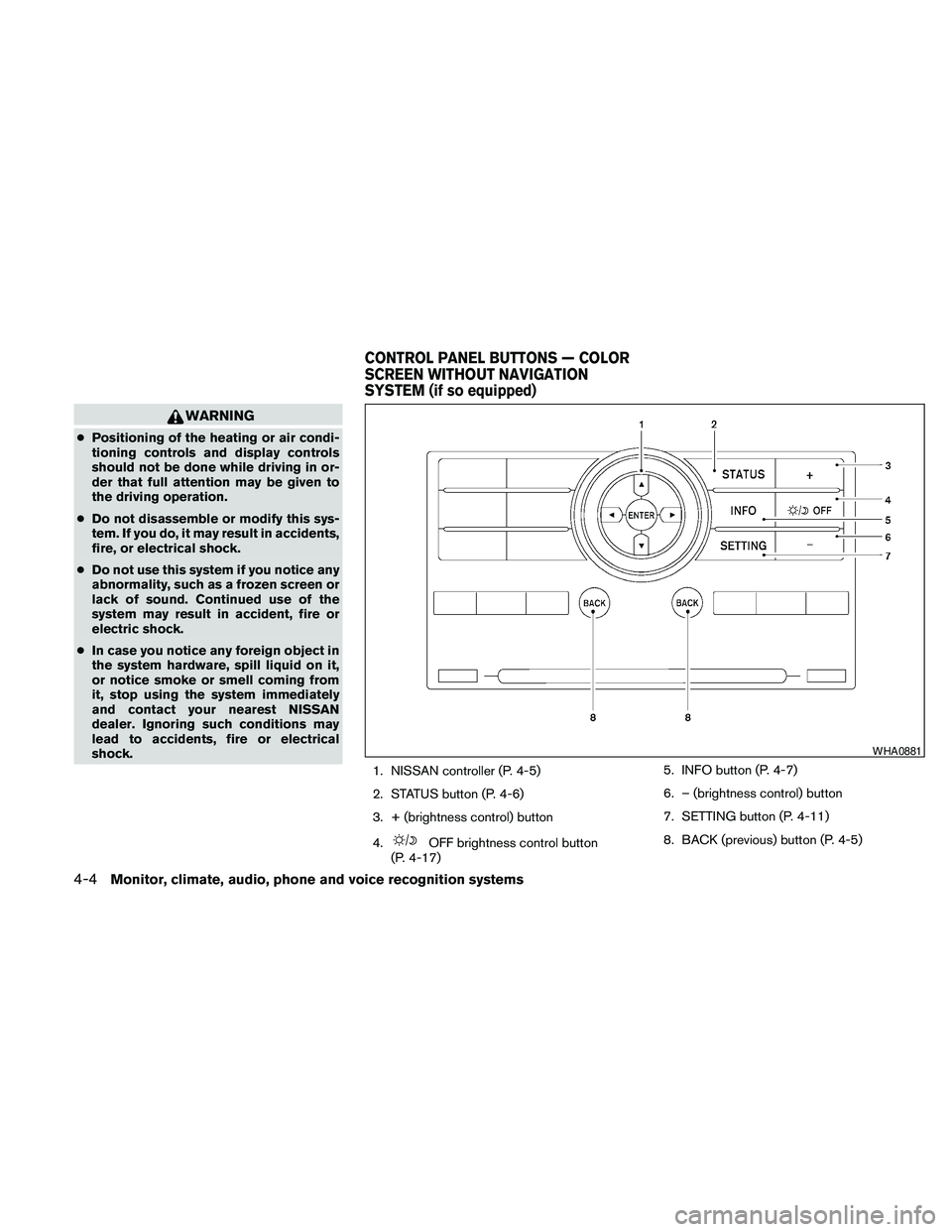
1. NISSAN controller (P. 4-5)
2. STATUS button (P. 4-6)
3. + (brightness control) button
4.
OFF brightness control button
(P. 4-17)5. INFO button (P. 4-7)
6. – (brightness control) button
7. SETTING button (P. 4-11)
8. BACK (previous) button (P. 4-5)
WHA0881
CONTROL PANEL BUTTONS — COLOR
SCREEN WITHOUT NAVIGATION
SYSTEM (if so equipped)
4-4Monitor, climate, audio, phone and voice recognition systems
Page 169 of 463
CAUTION
cThe glass screen on the liquid crystal
display may break if it is hit with a hard
or sharp object. If the glass breaks, do
not touch the liquid crystalline material,
which contains a small amount of mer-
cury. In case of contact with skin, wash
immediately with soap and water.
cTo clean the display, never use a rough
cloth, alcohol, benzine, thinner or any
kind of solvent or paper towel with a
chemical cleaning agent. They will
scratch or deteriorate the panel.
cDo not splash any liquid such as water
or car fragrance on the display. Contact
with liquid will cause the system to
malfunction.
When you use this system, make sure the engine
is running.
If you use the system with the engine not
running (ignition switch in the ON or ACC
position) for a long time, it will discharge
the battery, and the engine will not start.Reference symbols:
ENTER button — This is a button on the control
panel.
“Display” key — This is a select key on the screen.
By selecting this key you can proceed to the next
function.
HOW TO USE THE NISSAN
CONTROLLER
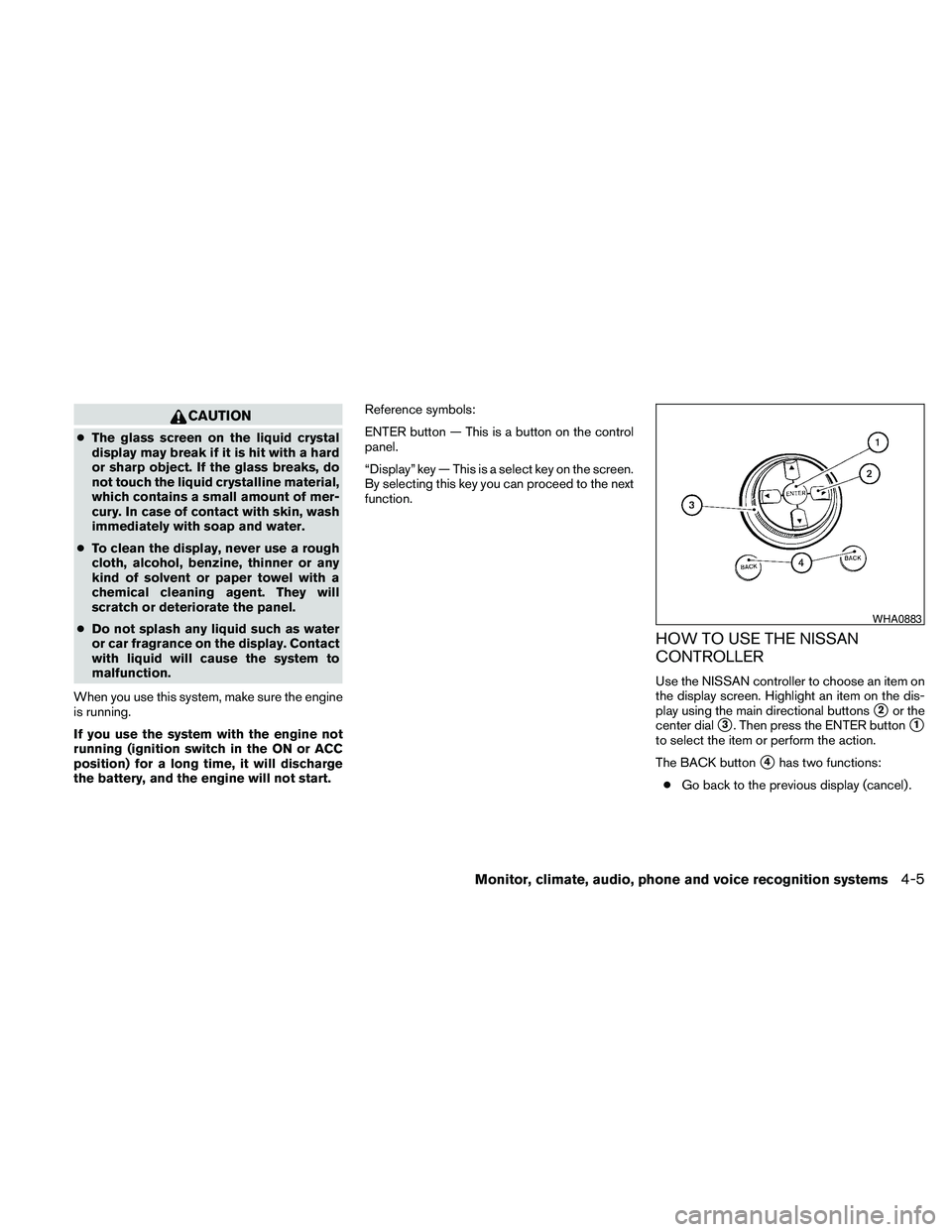
Use the NISSAN controller to choose an item on
the display screen. Highlight an item on the dis-
play using the main directional buttons
s2or the
center dial
s3. Then press the ENTER buttons1
to select the item or perform the action.
The BACK button
s4has two functions:
cGo back to the previous display (cancel) .
WHA0883
Monitor, climate, audio, phone and voice recognition systems4-5
Page 170 of 463
If you press the BACK buttons4during setup,
the setup will be canceled and/or the display will
return to the previous screen.
cFinish setup.
In some screens pressing the BACK button
s4
accepts the changes made during setup.
HOW TO SELECT MENUS ON THE
SCREEN
Vehicle functions are viewed on the center dis-
play screen in menus. Whenever a menu selec-
tion is made or menu item is highlighted, different
areas on the screen provide you with important
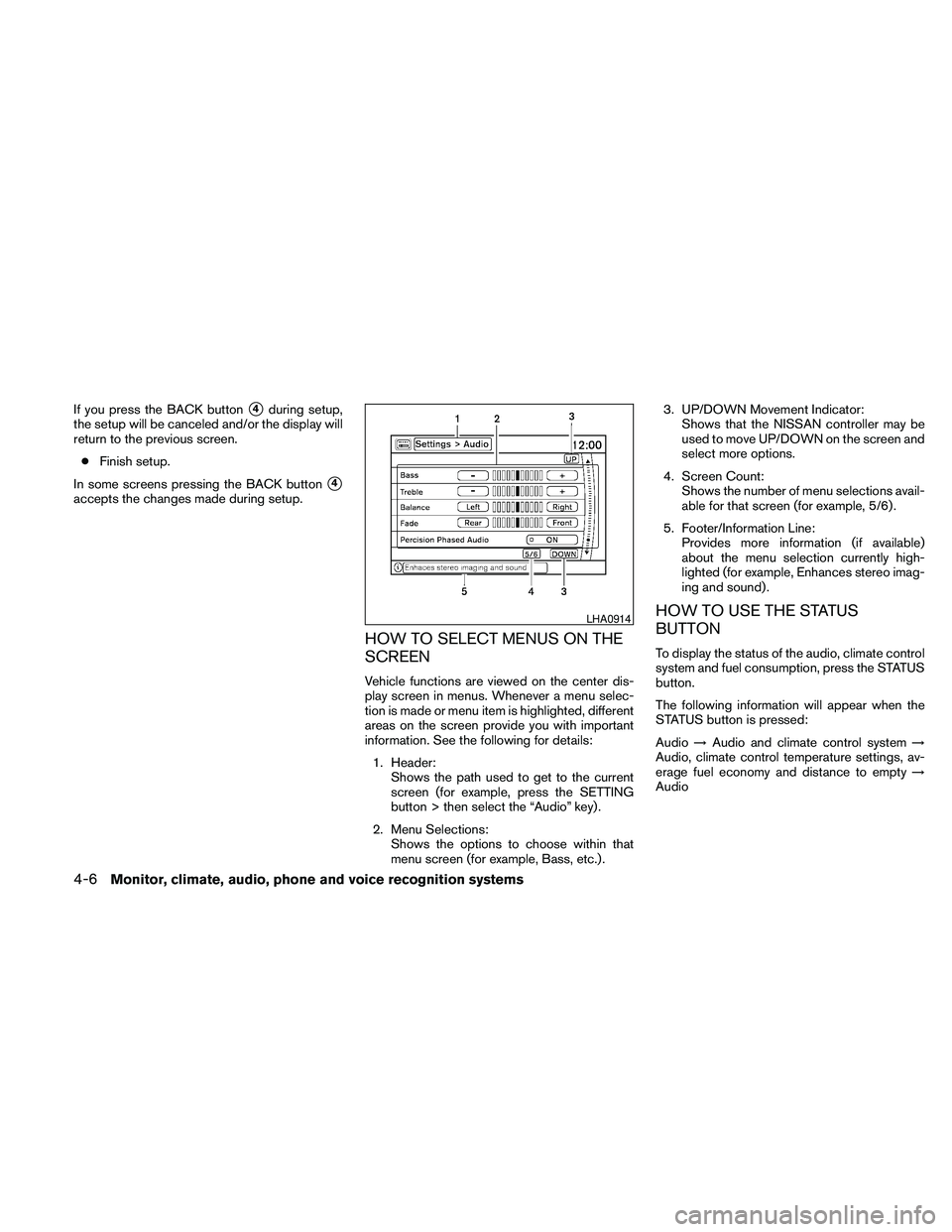
information. See the following for details:
1. Header:
Shows the path used to get to the current
screen (for example, press the SETTING
button > then select the “Audio” key) .
2. Menu Selections:
Shows the options to choose within that
menu screen (for example, Bass, etc.) .3. UP/DOWN Movement Indicator:
Shows that the NISSAN controller may be
used to move UP/DOWN on the screen and
select more options.
4. Screen Count:
Shows the number of menu selections avail-
able for that screen (for example, 5/6) .
5. Footer/Information Line:
Provides more information (if available)
about the menu selection currently high-
lighted (for example, Enhances stereo imag-
ing and sound) .
HOW TO USE THE STATUS
BUTTON
To display the status of the audio, climate control
system and fuel consumption, press the STATUS
button.
The following information will appear when the
STATUS button is pressed:
Audio!Audio and climate control system!
Audio, climate control temperature settings, av-
erage fuel economy and distance to empty!
Audio
LHA0914
4-6Monitor, climate, audio, phone and voice recognition systems
Page 171 of 463
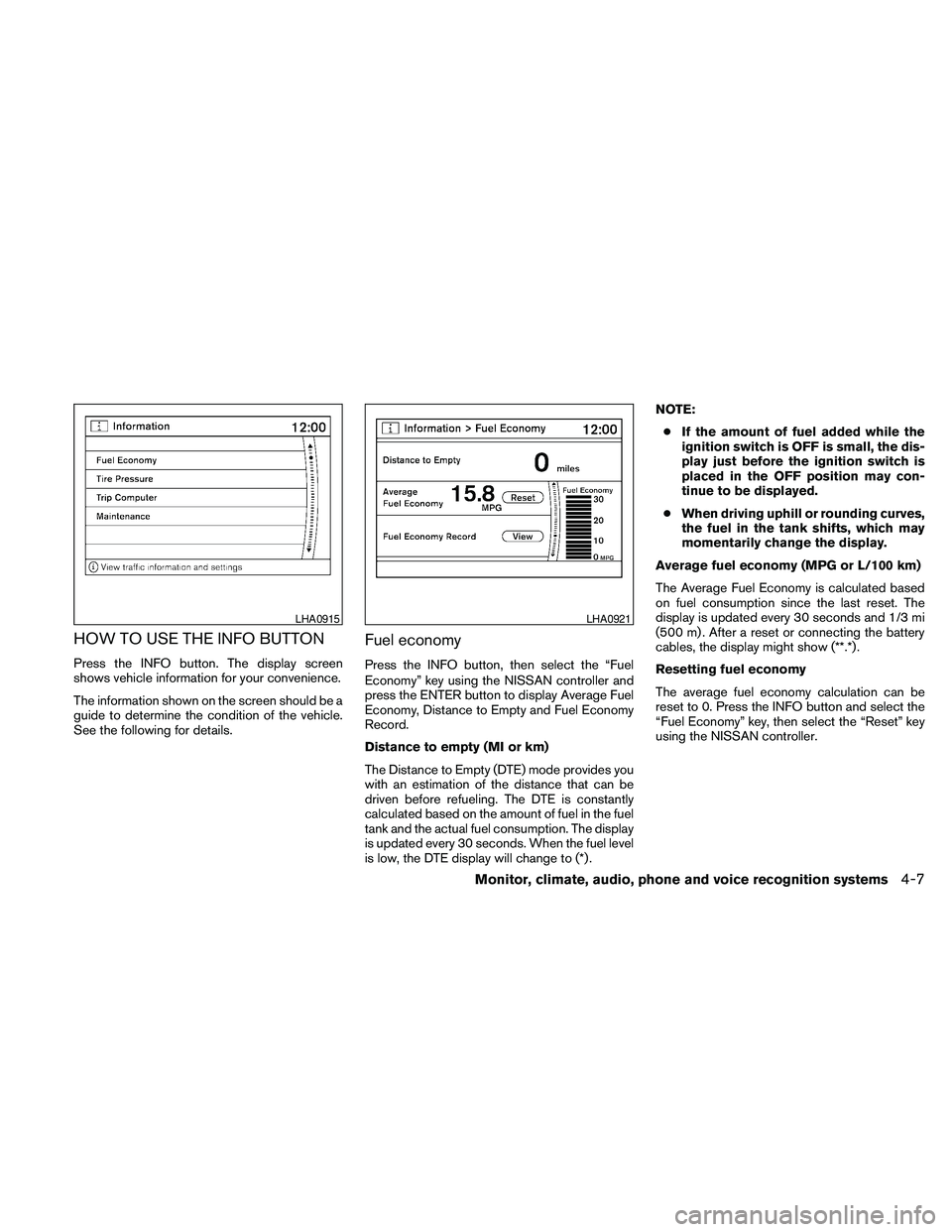
HOW TO USE THE INFO BUTTON
Press the INFO button. The display screen
shows vehicle information for your convenience.
The information shown on the screen should be a
guide to determine the condition of the vehicle.
See the following for details.
Fuel economy
Press the INFO button, then select the “Fuel
Economy” key using the NISSAN controller and
press the ENTER button to display Average Fuel
Economy, Distance to Empty and Fuel Economy
Record.
Distance to empty (MI or km)
The Distance to Empty (DTE) mode provides you
with an estimation of the distance that can be
driven before refueling. The DTE is constantly
calculated based on the amount of fuel in the fuel
tank and the actual fuel consumption. The display
is updated every 30 seconds. When the fuel level
is low, the DTE display will change to (*) .NOTE:
cIf the amount of fuel added while the
ignition switch is OFF is small, the dis-
play just before the ignition switch is
placed in the OFF position may con-
tinue to be displayed.
cWhen driving uphill or rounding curves,
the fuel in the tank shifts, which may
momentarily change the display.
Average fuel economy (MPG or L/100 km)
The Average Fuel Economy is calculated based
on fuel consumption since the last reset. The
display is updated every 30 seconds and 1/3 mi
(500 m) . After a reset or connecting the battery
cables, the display might show (**.*) .
Resetting fuel economy
The average fuel economy calculation can be
reset to 0. Press the INFO button and select the
“Fuel Economy” key, then select the “Reset” key
using the NISSAN controller.
LHA0915LHA0921
Monitor, climate, audio, phone and voice recognition systems4-7
Page 172 of 463
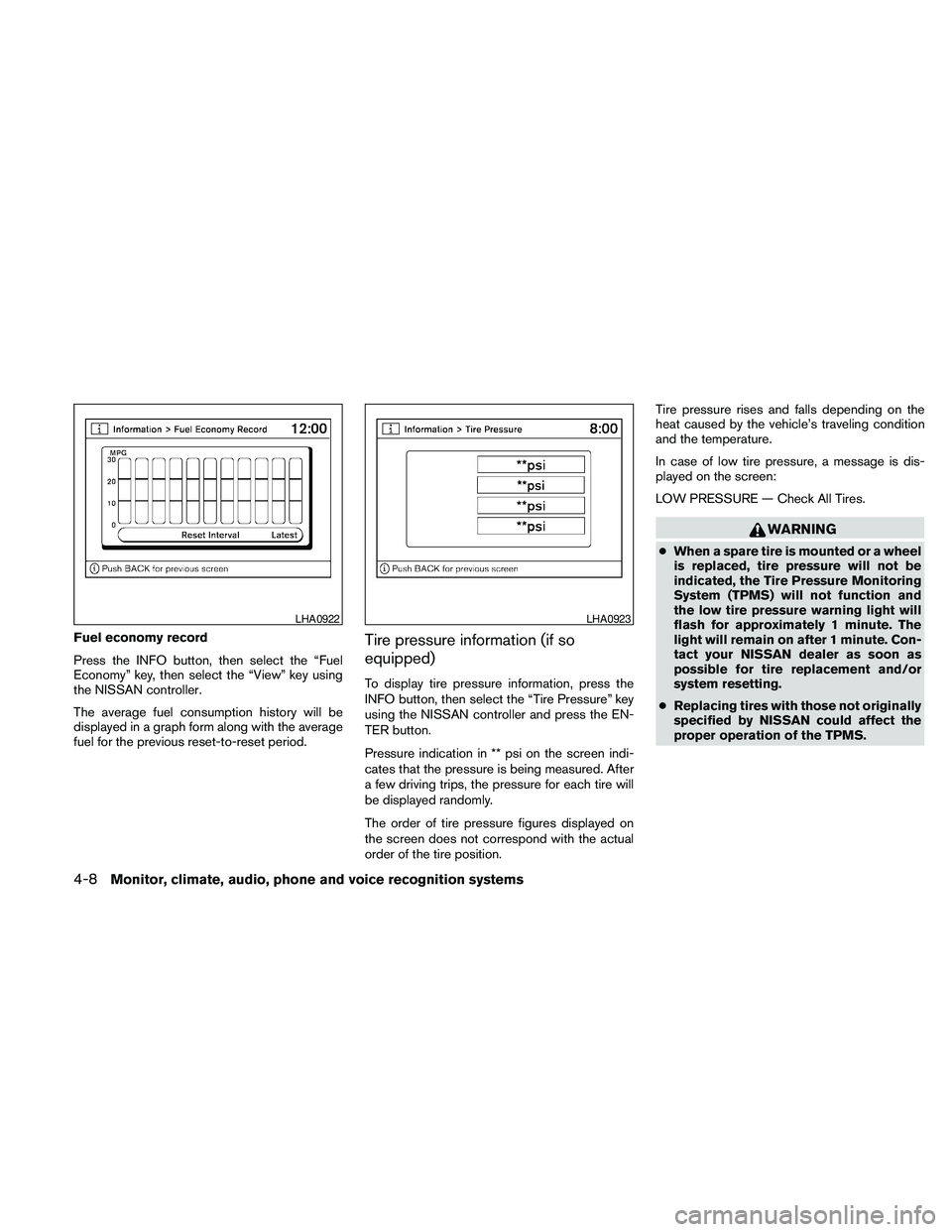
Fuel economy record
Press the INFO button, then select the “Fuel
Economy” key, then select the “View” key using
the NISSAN controller.
The average fuel consumption history will be
displayed in a graph form along with the average
fuel for the previous reset-to-reset period.Tire pressure information (if so
equipped)
To display tire pressure information, press the
INFO button, then select the “Tire Pressure” key
using the NISSAN controller and press the EN-
TER button.
Pressure indication in ** psi on the screen indi-
cates that the pressure is being measured. After
a few driving trips, the pressure for each tire will
be displayed randomly.
The order of tire pressure figures displayed on
the screen does not correspond with the actual
order of the tire position.Tire pressure rises and falls depending on the
heat caused by the vehicle’s traveling condition
and the temperature.
In case of low tire pressure, a message is dis-
played on the screen:
LOW PRESSURE — Check All Tires.
WARNING
cWhen a spare tire is mounted or a wheel
is replaced, tire pressure will not be
indicated, the Tire Pressure Monitoring
System (TPMS) will not function and
the low tire pressure warning light will
flash for approximately 1 minute. The
light will remain on after 1 minute. Con-
tact your NISSAN dealer as soon as
possible for tire replacement and/or
system resetting.
cReplacing tires with those not originally
specified by NISSAN could affect the
proper operation of the TPMS.
LHA0922LHA0923
4-8Monitor, climate, audio, phone and voice recognition systems