display NISSAN PATHFINDER 2010 Owner´s Manual
[x] Cancel search | Manufacturer: NISSAN, Model Year: 2010, Model line: PATHFINDER, Model: NISSAN PATHFINDER 2010Pages: 463, PDF Size: 5.69 MB
Page 173 of 463
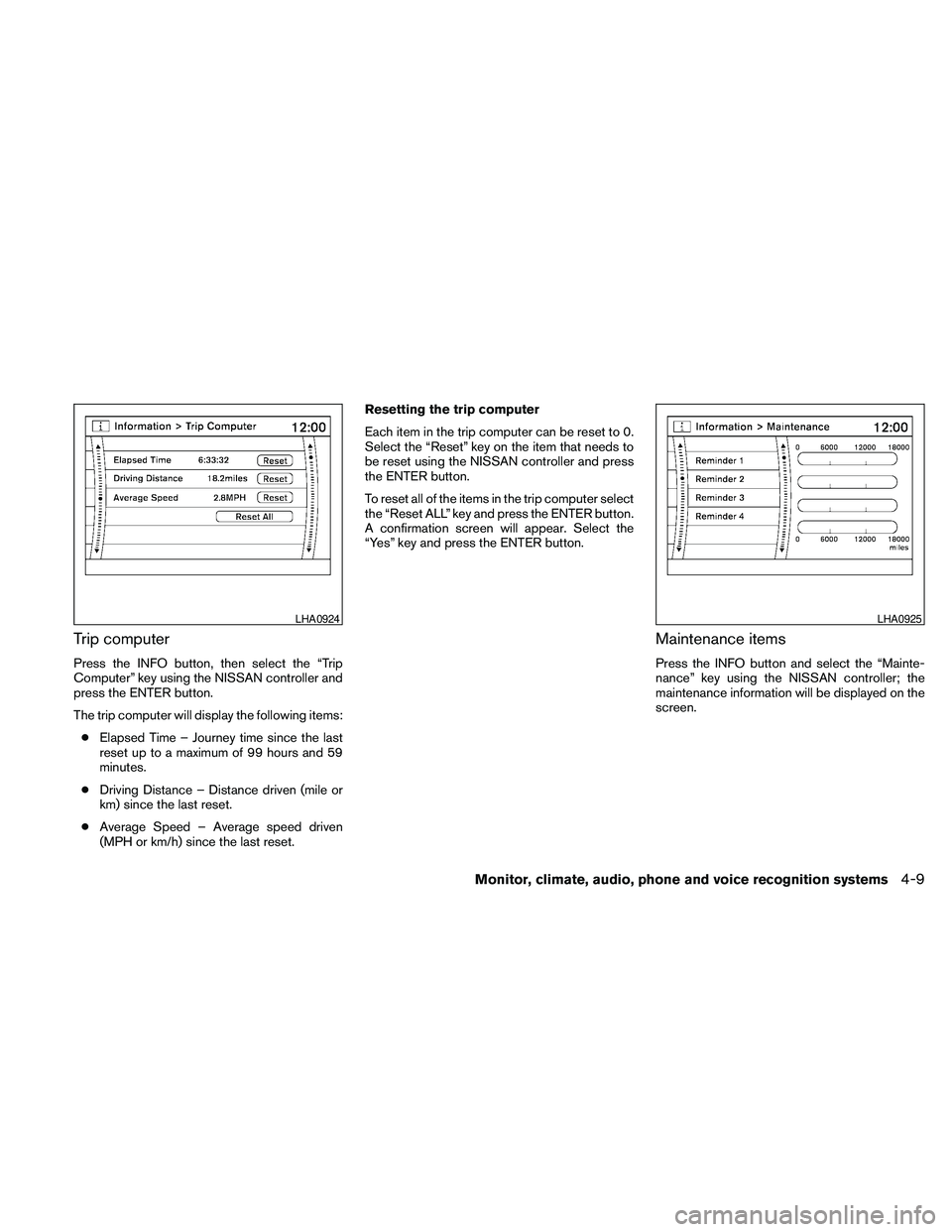
Trip computer
Press the INFO button, then select the “Trip
Computer” key using the NISSAN controller and
press the ENTER button.
The trip computer will display the following items:
cElapsed Time – Journey time since the last
reset up to a maximum of 99 hours and 59
minutes.
cDriving Distance – Distance driven (mile or
km) since the last reset.
cAverage Speed – Average speed driven
(MPH or km/h) since the last reset.Resetting the trip computer
Each item in the trip computer can be reset to 0.
Select the “Reset” key on the item that needs to
be reset using the NISSAN controller and press
the ENTER button.
To reset all of the items in the trip computer select
the “Reset ALL” key and press the ENTER button.
A confirmation screen will appear. Select the
“Yes” key and press the ENTER button.
Maintenance items
Press the INFO button and select the “Mainte-
nance” key using the NISSAN controller; the
maintenance information will be displayed on the
screen.
LHA0924LHA0925
Monitor, climate, audio, phone and voice recognition systems4-9
Page 174 of 463
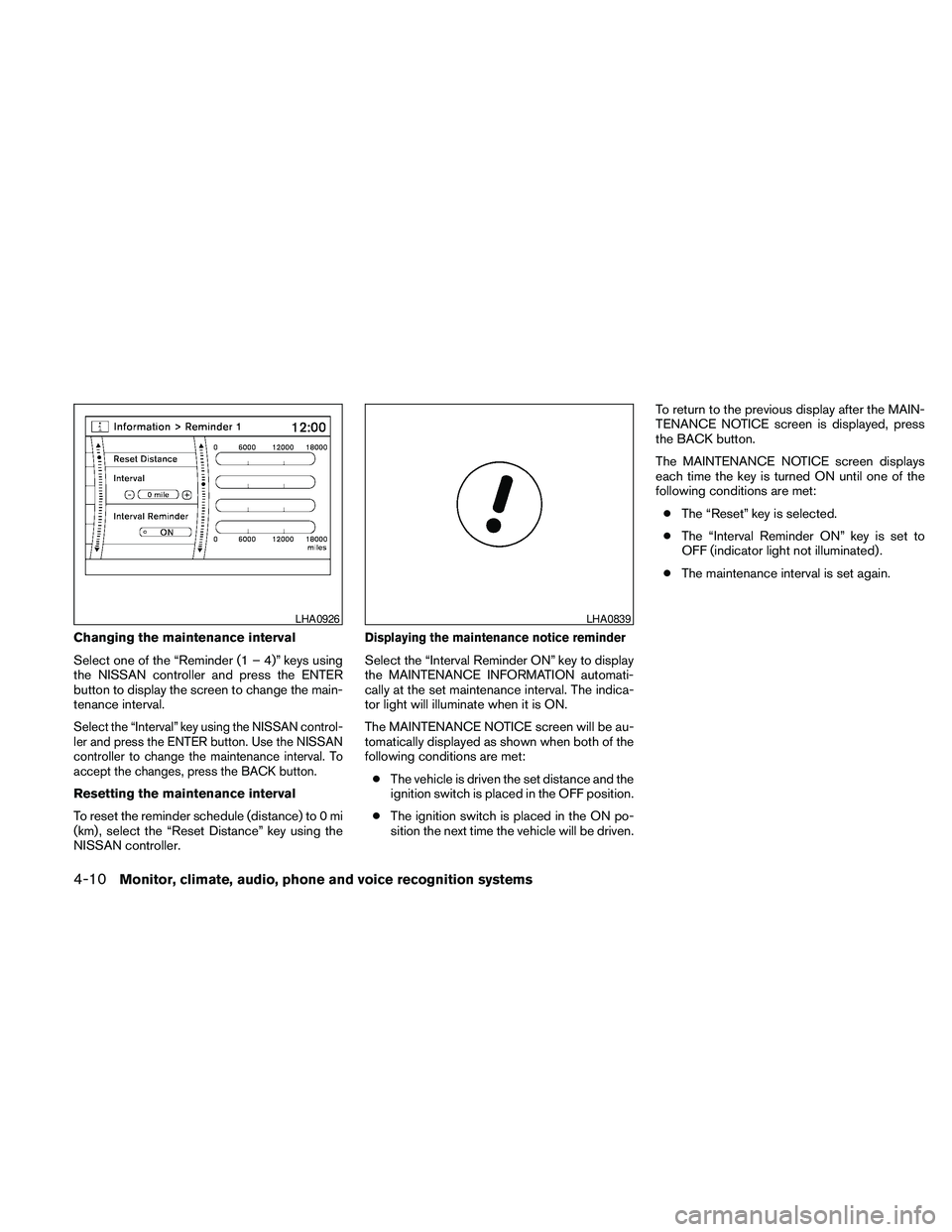
Changing the maintenance interval
Select one of the “Reminder (1 – 4)” keys using
the NISSAN controller and press the ENTER
button to display the screen to change the main-
tenance interval.
Select the “Interval” key using the NISSAN control-
ler and press the ENTER button. Use the NISSAN
controller to change the maintenance interval. To
accept the changes, press the BACK button.
Resetting the maintenance interval
To reset the reminder schedule (distance) to 0 mi
(km) , select the “Reset Distance” key using the
NISSAN controller.
Displaying the maintenance notice reminder
Select the “Interval Reminder ON” key to display
the MAINTENANCE INFORMATION automati-
cally at the set maintenance interval. The indica-
tor light will illuminate when it is ON.
The MAINTENANCE NOTICE screen will be au-
tomatically displayed as shown when both of the
following conditions are met:
cThe vehicle is driven the set distance and the
ignition switch is placed in the OFF position.
cThe ignition switch is placed in the ON po-
sition the next time the vehicle will be driven.To return to the previous display after the MAIN-
TENANCE NOTICE screen is displayed, press
the BACK button.
The MAINTENANCE NOTICE screen displays
each time the key is turned ON until one of the
following conditions are met:
cThe “Reset” key is selected.
cThe “Interval Reminder ON” key is set to
OFF (indicator light not illuminated) .
cThe maintenance interval is set again.
LHA0926LHA0839
4-10Monitor, climate, audio, phone and voice recognition systems
Page 175 of 463
HOW TO USE THE SETTING
BUTTON
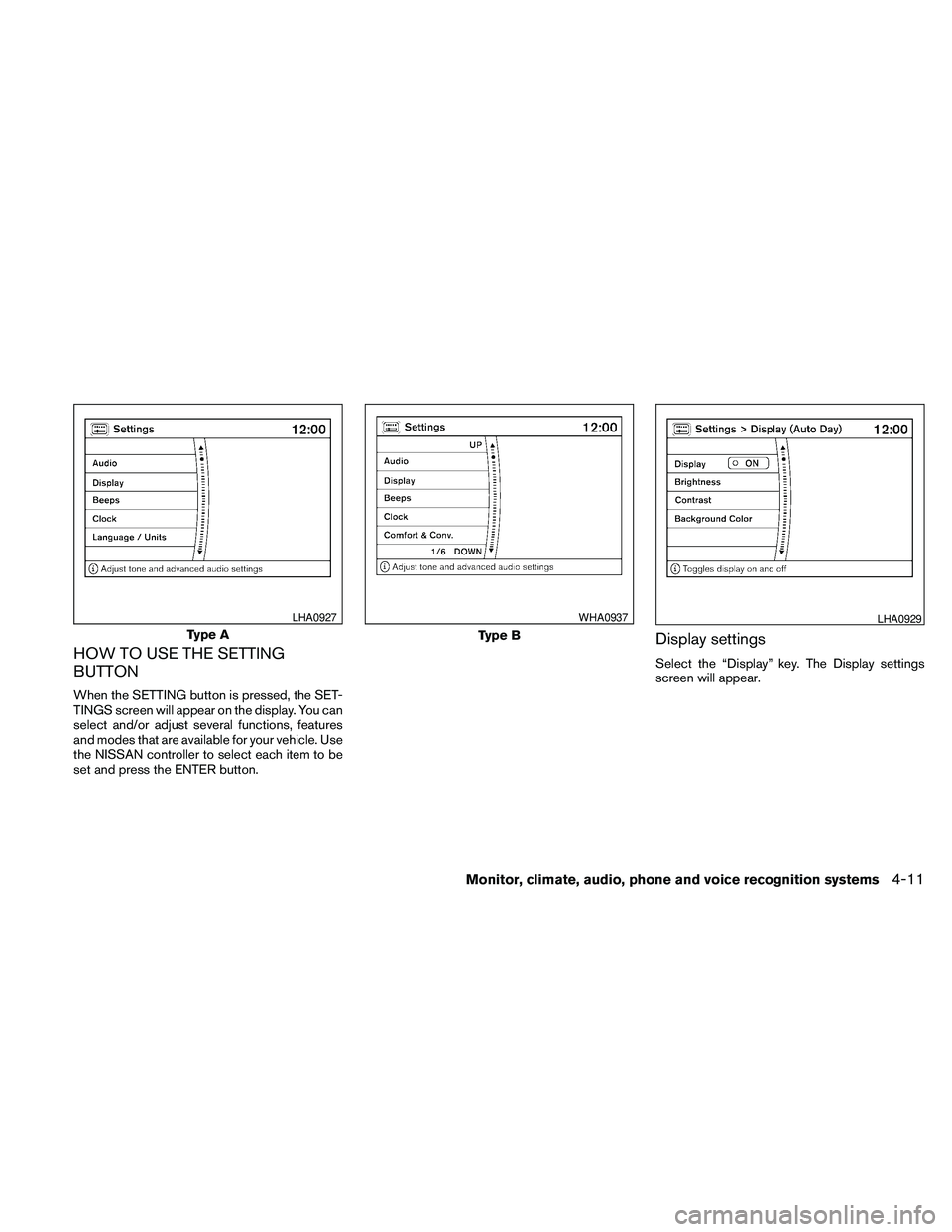
When the SETTING button is pressed, the SET-
TINGS screen will appear on the display. You can
select and/or adjust several functions, features
and modes that are available for your vehicle. Use
the NISSAN controller to select each item to be
set and press the ENTER button.
Display settings
Select the “Display” key. The Display settings
screen will appear.
Type A
LHA0927
Type B
WHA0937LHA0929
Monitor, climate, audio, phone and voice recognition systems4-11
Page 176 of 463
Brightness/contrast:
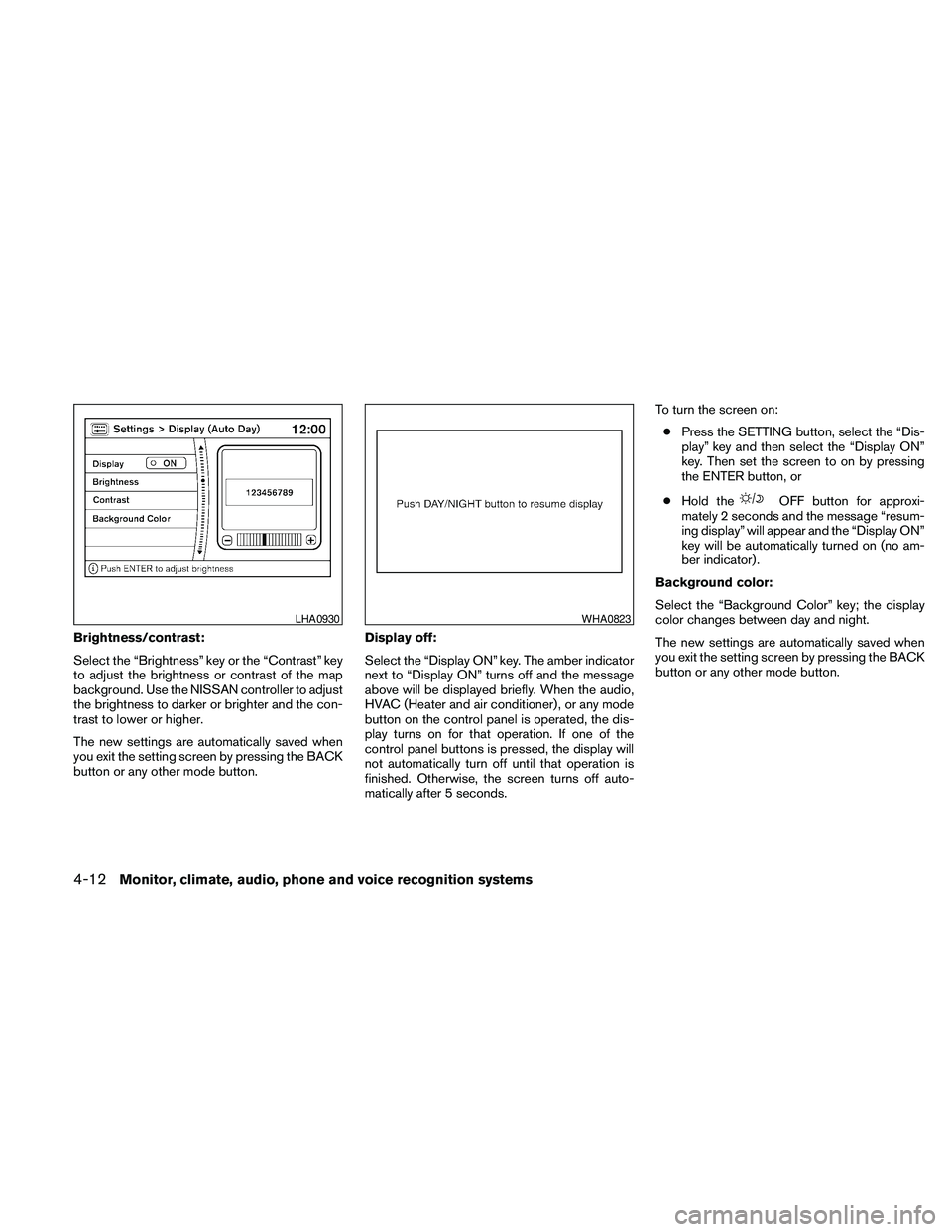
Select the “Brightness” key or the “Contrast” key
to adjust the brightness or contrast of the map
background. Use the NISSAN controller to adjust
the brightness to darker or brighter and the con-
trast to lower or higher.
The new settings are automatically saved when
you exit the setting screen by pressing the BACK
button or any other mode button.Display off:
Select the “Display ON” key. The amber indicator
next to “Display ON” turns off and the message
above will be displayed briefly. When the audio,
HVAC (Heater and air conditioner) , or any mode
button on the control panel is operated, the dis-
play turns on for that operation. If one of the
control panel buttons is pressed, the display will
not automatically turn off until that operation is
finished. Otherwise, the screen turns off auto-
matically after 5 seconds.To turn the screen on:
cPress the SETTING button, select the “Dis-
play” key and then select the “Display ON”
key. Then set the screen to on by pressing
the ENTER button, or
cHold the
OFF button for approxi-
mately 2 seconds and the message “resum-
ing display” will appear and the “Display ON”
key will be automatically turned on (no am-
ber indicator) .
Background color:
Select the “Background Color” key; the display
color changes between day and night.
The new settings are automatically saved when
you exit the setting screen by pressing the BACK
button or any other mode button.
LHA0930WHA0823
4-12Monitor, climate, audio, phone and voice recognition systems
Page 177 of 463
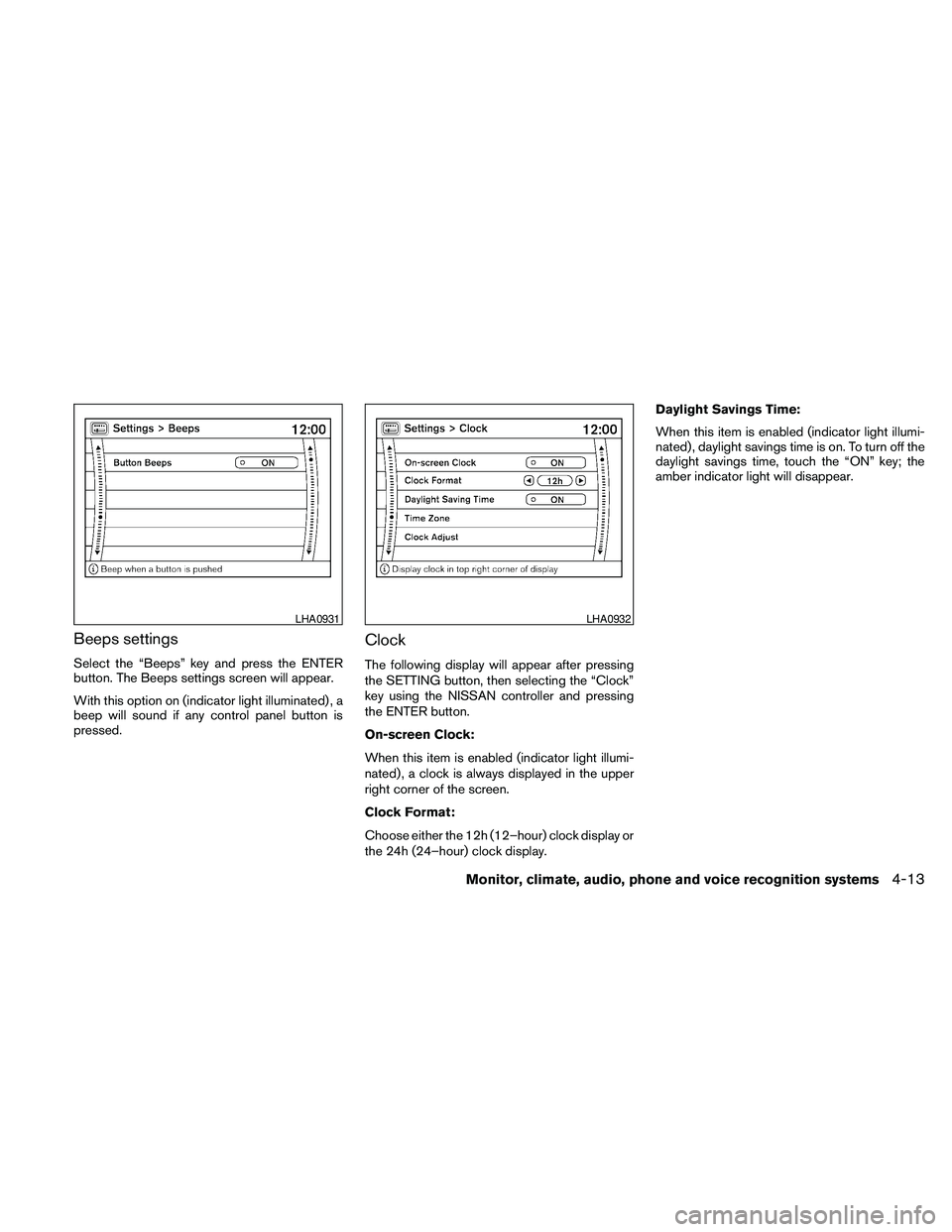
Beeps settings
Select the “Beeps” key and press the ENTER
button. The Beeps settings screen will appear.
With this option on (indicator light illuminated) , a
beep will sound if any control panel button is
pressed.
Clock
The following display will appear after pressing
the SETTING button, then selecting the “Clock”
key using the NISSAN controller and pressing
the ENTER button.
On-screen Clock:
When this item is enabled (indicator light illumi-
nated) , a clock is always displayed in the upper
right corner of the screen.
Clock Format:
Choose either the 12h (12–hour) clock display or
the 24h (24–hour) clock display.Daylight Savings Time:
When this item is enabled (indicator light illumi-
nated) , daylight savings time is on. To turn off the
daylight savings time, touch the “ON” key; the
amber indicator light will disappear.
LHA0931LHA0932
Monitor, climate, audio, phone and voice recognition systems4-13
Page 178 of 463
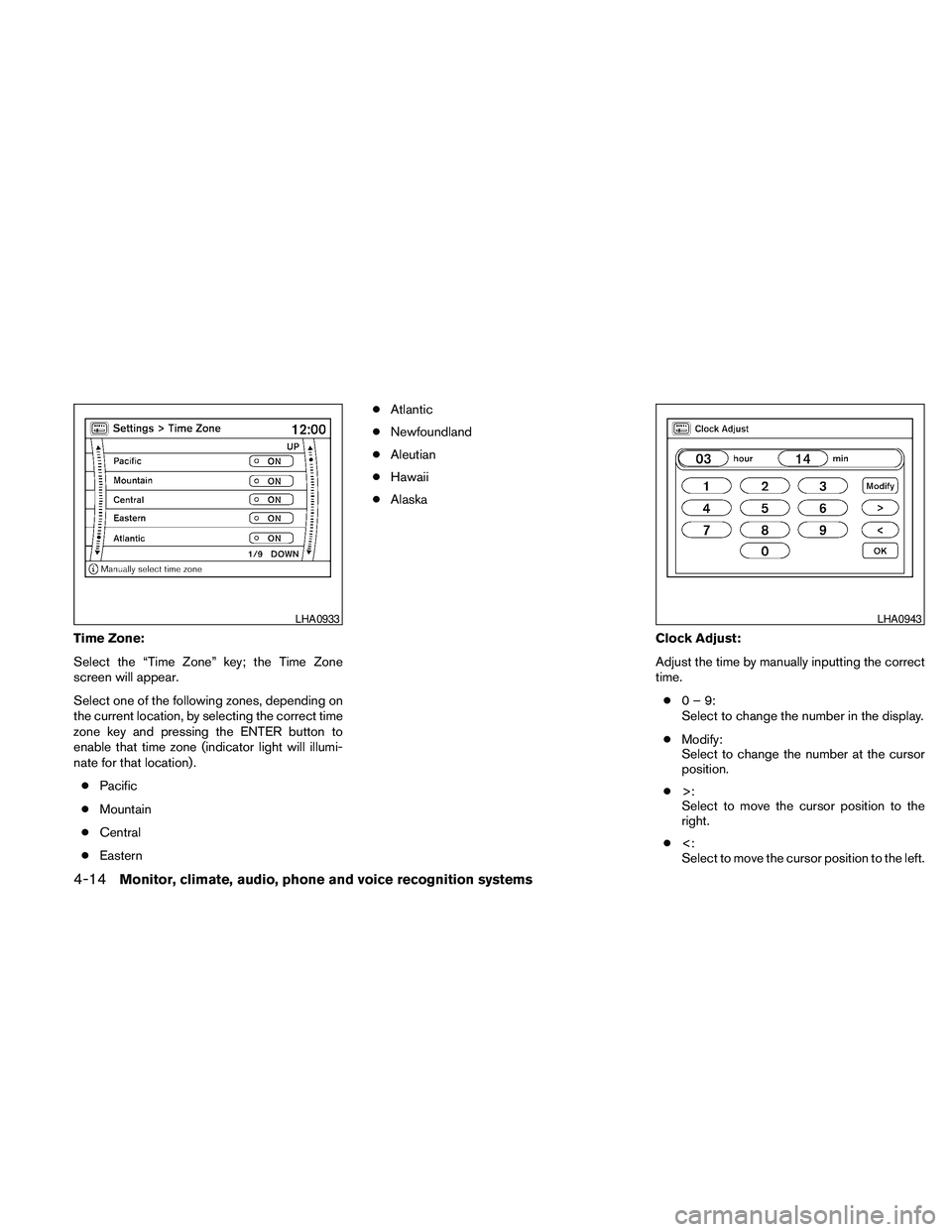
Time Zone:
Select the “Time Zone” key; the Time Zone
screen will appear.
Select one of the following zones, depending on
the current location, by selecting the correct time
zone key and pressing the ENTER button to
enable that time zone (indicator light will illumi-
nate for that location) .
cPacific
cMountain
cCentral
cEasterncAtlantic
cNewfoundland
cAleutian
cHawaii
cAlaska
Clock Adjust:
Adjust the time by manually inputting the correct
time.
c0–9:
Select to change the number in the display.
cModify:
Select to change the number at the cursor
position.
c>:
Select to move the cursor position to the
right.
c<:
Select to move the cursor position to the left.
LHA0933LHA0943
4-14Monitor, climate, audio, phone and voice recognition systems
Page 179 of 463
cOK:
Select to accept the changes made and
return to the clock setting display.
After selection/settings, press the BACK button
or any other mode button to accept the changes.
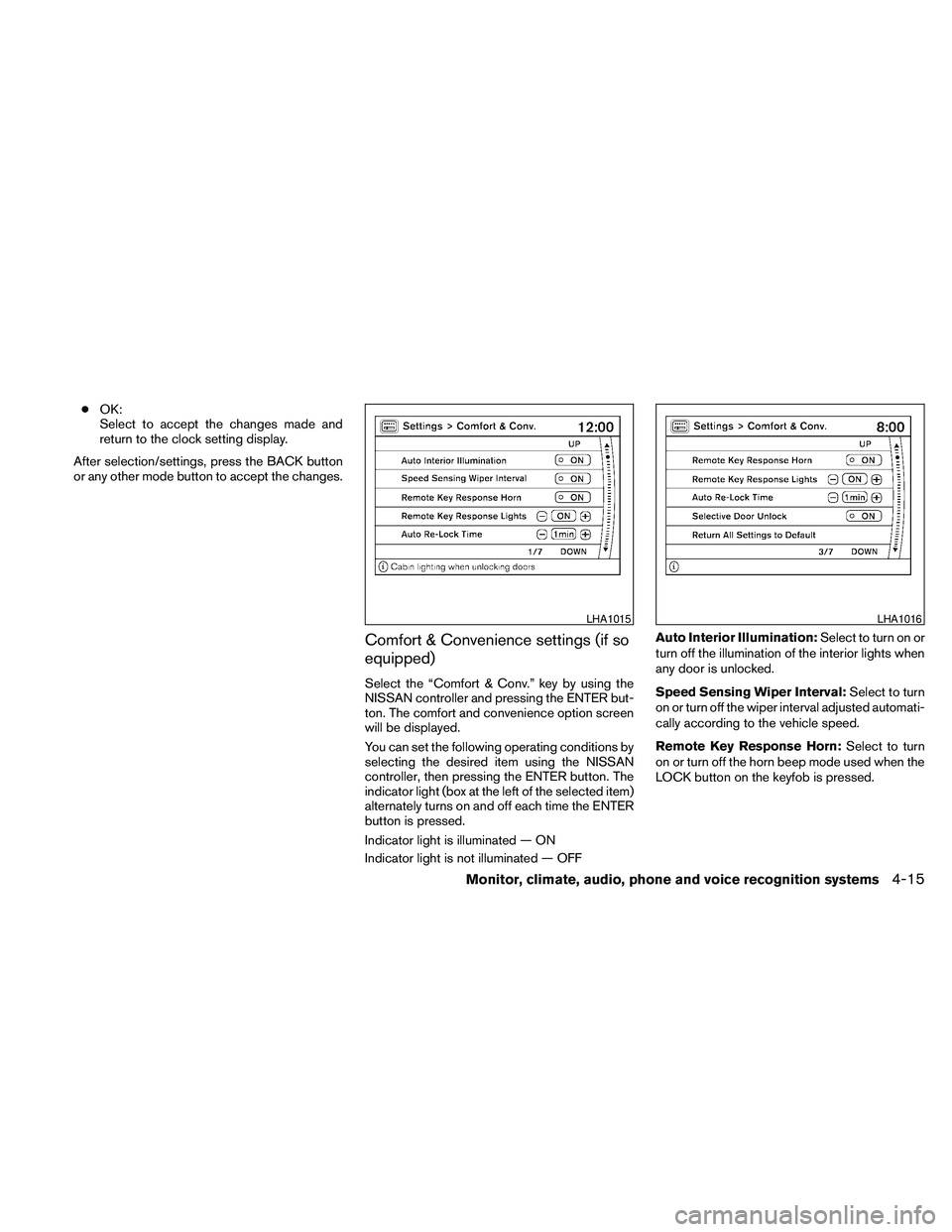
Comfort & Convenience settings (if so
equipped)
Select the “Comfort & Conv.” key by using the
NISSAN controller and pressing the ENTER but-
ton. The comfort and convenience option screen
will be displayed.
You can set the following operating conditions by
selecting the desired item using the NISSAN
controller, then pressing the ENTER button. The
indicator light (box at the left of the selected item)
alternately turns on and off each time the ENTER
button is pressed.
Indicator light is illuminated — ON
Indicator light is not illuminated — OFFAuto Interior Illumination:Select to turn on or
turn off the illumination of the interior lights when
any door is unlocked.
Speed Sensing Wiper Interval:Select to turn
on or turn off the wiper interval adjusted automati-
cally according to the vehicle speed.
Remote Key Response Horn:Select to turn
on or turn off the horn beep mode used when the
LOCK button on the keyfob is pressed.
LHA1015LHA1016
Monitor, climate, audio, phone and voice recognition systems4-15
Page 180 of 463
NOTE:
If you change the horn beep or the lamp
flash feature with the keyfob, the mode will
not be changed with the display. Use the
keyfob to return to the previous mode and
re-enable the display control.
Remote Key Response Lights:Select to turn
on or turn off the hazard indicator flash mode
used when the LOCK or UNLOCK button on the
keyfob is pressed.
NOTE:
If you change the horn beep or the lamp
flash feature with the keyfob, the mode will
not be changed with the display. Use the
keyfob to return to the previous mode and
re-enable the display control.
Auto Re-Lock Time:Select to set the length of
time before doors automatically re-lock.
Selective Door Unlock:When this item is
turned on, only the driver’s door is unlocked first
after the door unlock operation. When the door
handle request switch on the driver’s or front
passenger’s side door is pushed to be unlocked,
only the corresponding door is unlocked first. All
the doors can be unlocked if the door unlock
operation is performed again within 1 minute.When this item is turned to off, all the doors will
be unlocked after the door unlock operation is
performed once.
Return All Settings to Default:Select to
change all the comfort and convenience systems
to their default settings.
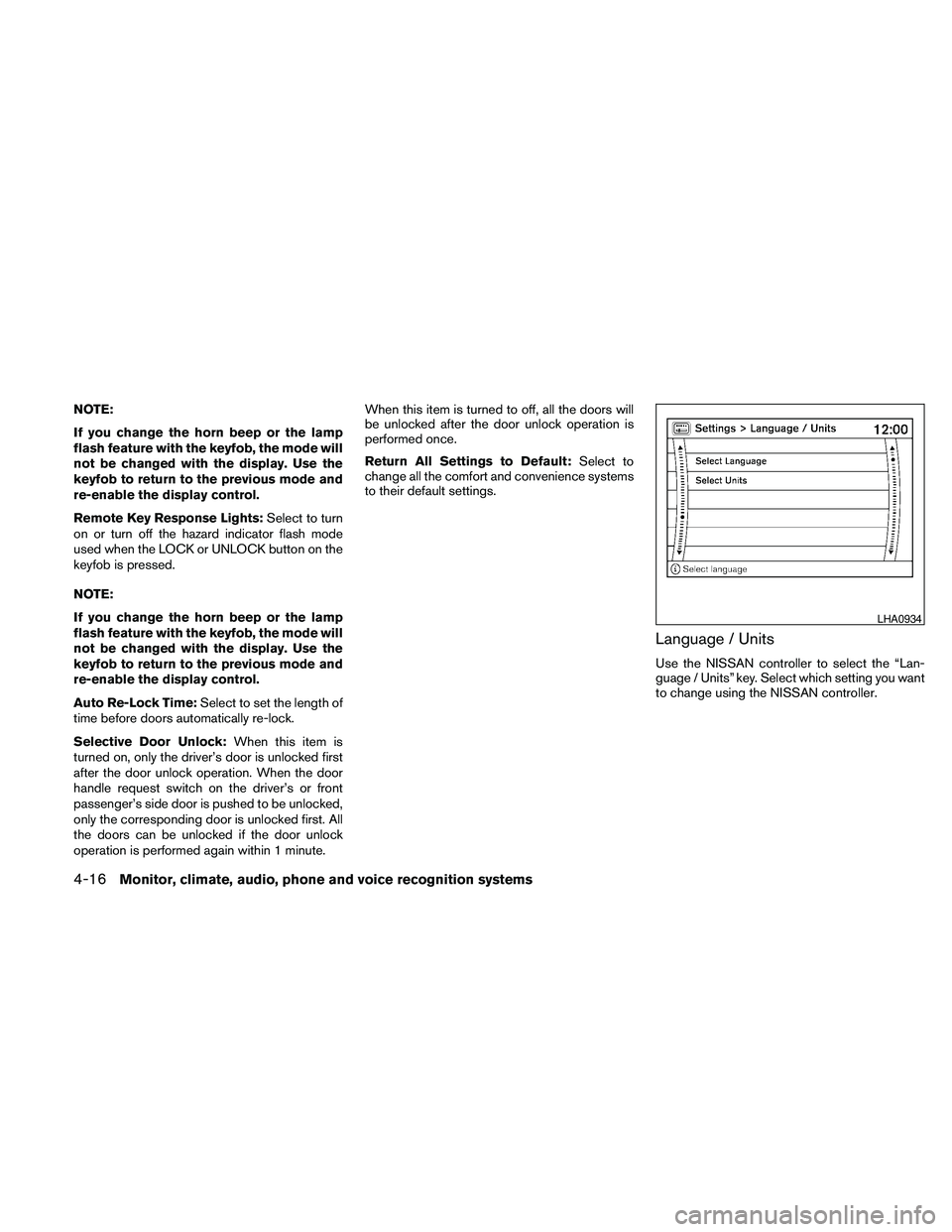
Language / Units
Use the NISSAN controller to select the “Lan-
guage / Units” key. Select which setting you want
to change using the NISSAN controller.
LHA0934
4-16Monitor, climate, audio, phone and voice recognition systems
Page 181 of 463
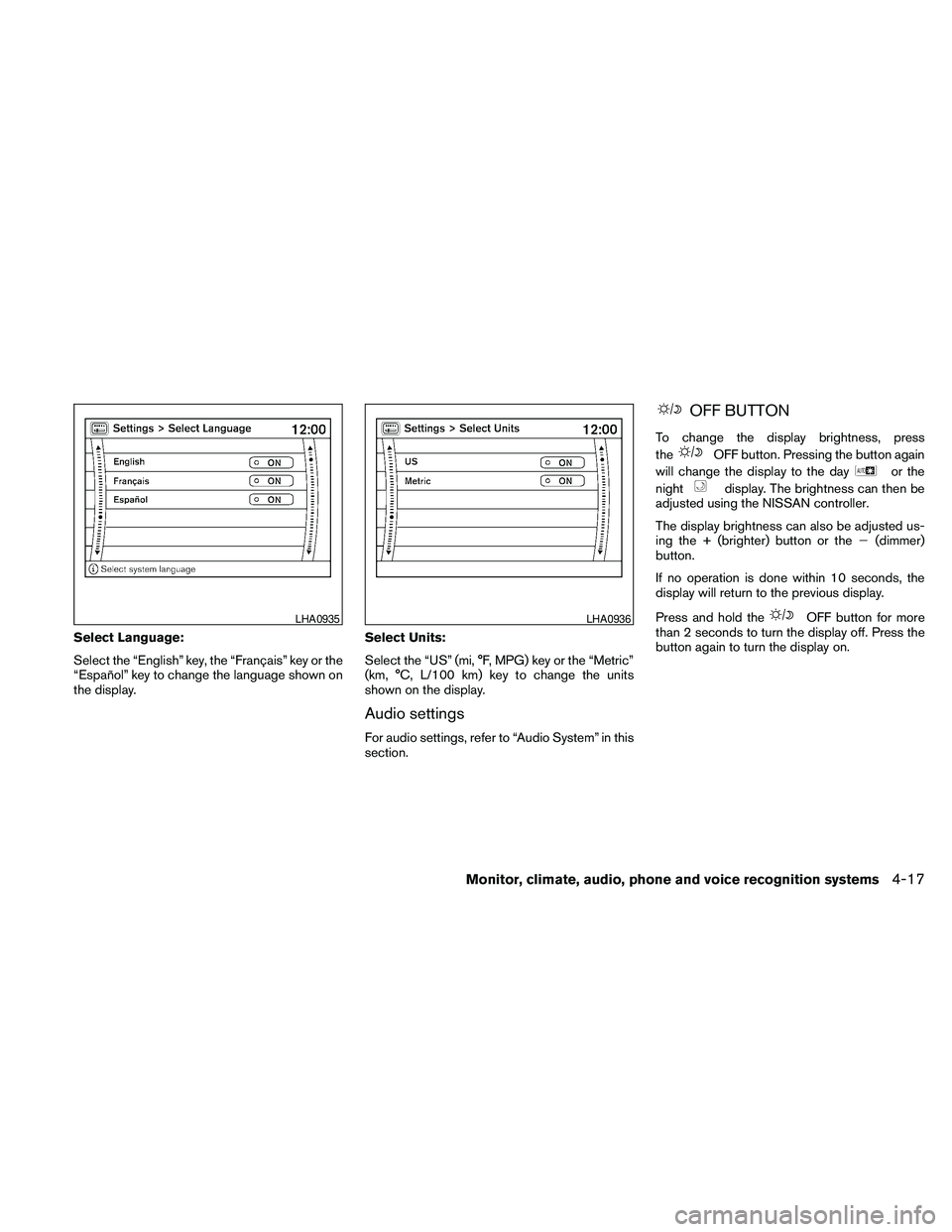
Select Language:
Select the “English” key, the “Français” key or the
“Español” key to change the language shown on
the display.Select Units:
Select the “US” (mi, °F, MPG) key or the “Metric”
(km, °C, L/100 km) key to change the units
shown on the display.
Audio settings
For audio settings, refer to “Audio System” in this
section.
OFF BUTTON
To change the display brightness, press
the
OFF button. Pressing the button again
will change the display to the day
or the
night
display. The brightness can then be
adjusted using the NISSAN controller.
The display brightness can also be adjusted us-
ing the + (brighter) button or the2(dimmer)
button.
If no operation is done within 10 seconds, the
display will return to the previous display.
Press and hold the
OFF button for more
than 2 seconds to turn the display off. Press the
button again to turn the display on.LHA0935LHA0936
Monitor, climate, audio, phone and voice recognition systems4-17
Page 182 of 463
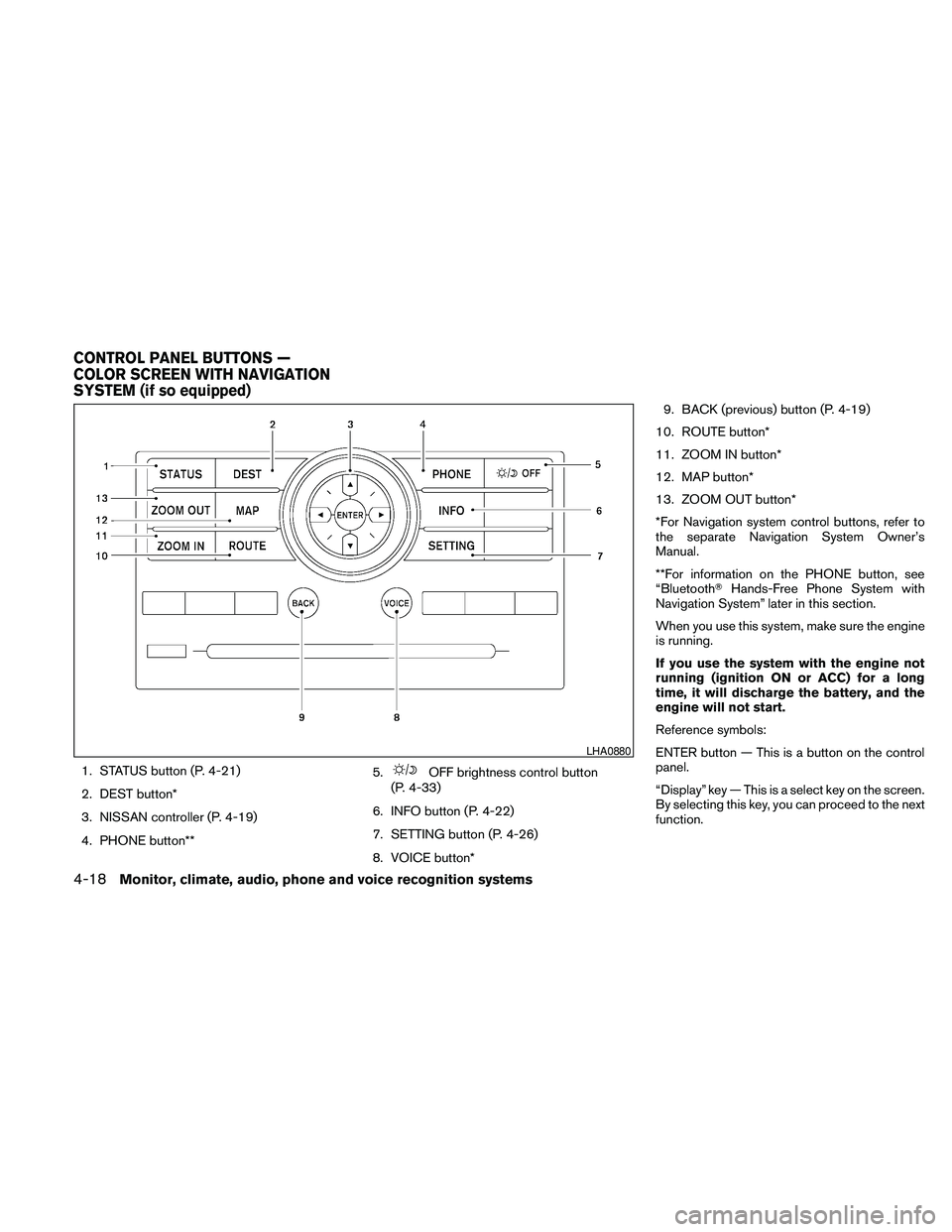
1. STATUS button (P. 4-21)
2. DEST button*
3. NISSAN controller (P. 4-19)
4. PHONE button**5.OFF brightness control button
(P. 4-33)
6. INFO button (P. 4-22)
7. SETTING button (P. 4-26)
8. VOICE button*9. BACK (previous) button (P. 4-19)
10. ROUTE button*
11. ZOOM IN button*
12. MAP button*
13. ZOOM OUT button*
*For Navigation system control buttons, refer to
the separate Navigation System Owner’s
Manual.
**For information on the PHONE button, see
“BluetoothTHands-Free Phone System with
Navigation System” later in this section.
When you use this system, make sure the engine
is running.
If you use the system with the engine not
running (ignition ON or ACC) for a long
time, it will discharge the battery, and the
engine will not start.
Reference symbols:
ENTER button — This is a button on the control
panel.
“Display” key — This is a select key on the screen.
By selecting this key, you can proceed to the next
function.
LHA0880
CONTROL PANEL BUTTONS —
COLOR SCREEN WITH NAVIGATION
SYSTEM (if so equipped)
4-18Monitor, climate, audio, phone and voice recognition systems