steering wheel NISSAN PATHFINDER 2010 Owner´s Manual
[x] Cancel search | Manufacturer: NISSAN, Model Year: 2010, Model line: PATHFINDER, Model: NISSAN PATHFINDER 2010Pages: 463, PDF Size: 5.69 MB
Page 112 of 463
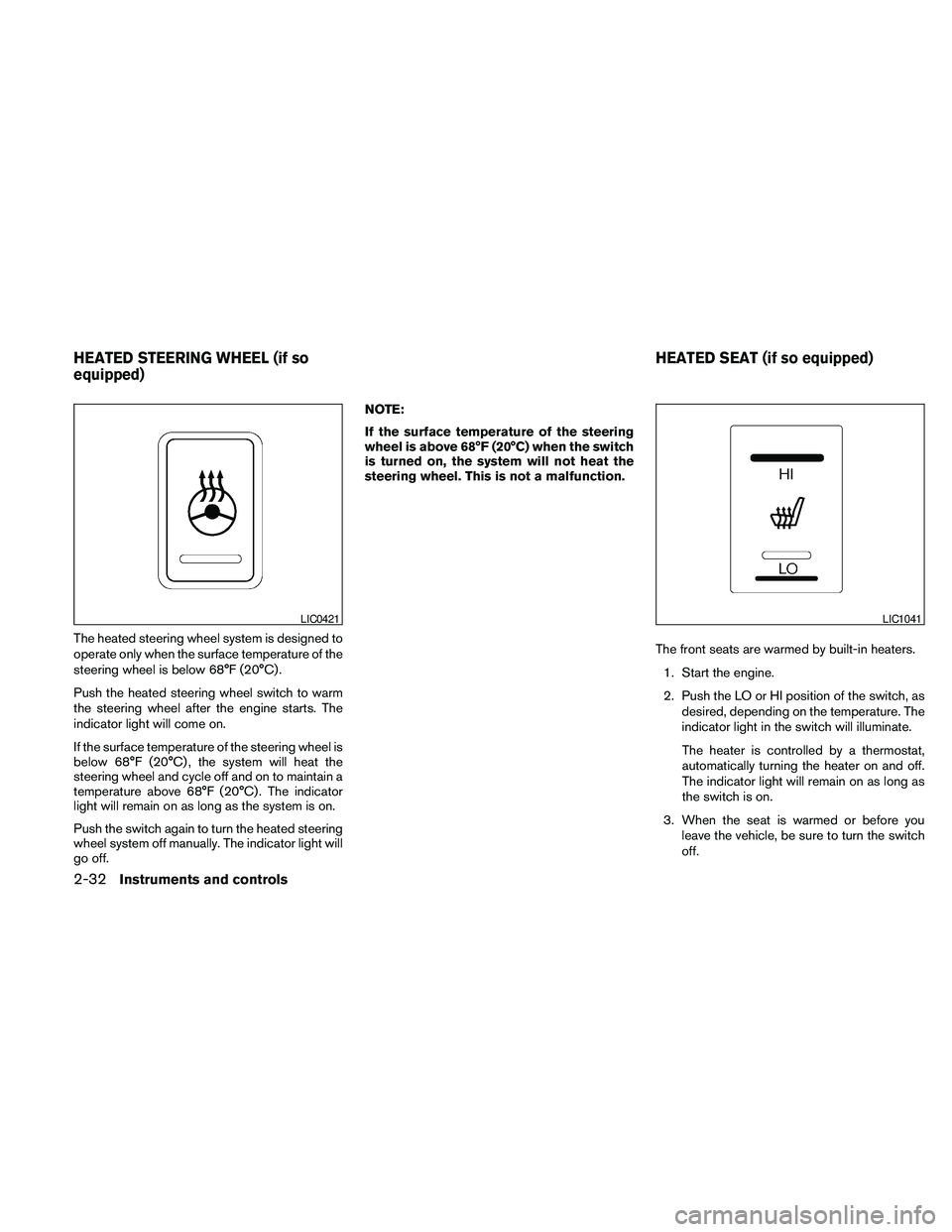
The heated steering wheel system is designed to
operate only when the surface temperature of the
steering wheel is below 68°F (20°C) .
Push the heated steering wheel switch to warm
the steering wheel after the engine starts. The
indicator light will come on.
If the surface temperature of the steering wheel is
below 68°F (20°C) , the system will heat the
steering wheel and cycle off and on to maintain a
temperature above 68°F (20°C) . The indicator
light will remain on as long as the system is on.
Push the switch again to turn the heated steering
wheel system off manually. The indicator light will
go off.NOTE:
If the surface temperature of the steering
wheel is above 68°F (20°C) when the switch
is turned on, the system will not heat the
steering wheel. This is not a malfunction.
The front seats are warmed by built-in heaters.
1. Start the engine.
2. Push the LO or HI position of the switch, as
desired, depending on the temperature. The
indicator light in the switch will illuminate.
The heater is controlled by a thermostat,
automatically turning the heater on and off.
The indicator light will remain on as long as
the switch is on.
3. When the seat is warmed or before you
leave the vehicle, be sure to turn the switch
off.
LIC0421LIC1041
HEATED STEERING WHEEL (if so
equipped)HEATED SEAT (if so equipped)
2-32Instruments and controls
Page 133 of 463
3 Pre-driving checks and adjustments
Keys .............................................3-2
NISSAN Vehicle Immobilizer System keys.........3-2
NISSAN Intelligent Key™ (if so equipped).........3-3
Doors............................................3-4
Locking with key................................3-5
Locking with inside lock knob....................3-5
Locking with power door lock switch.............3-6
Automatic door locks...........................3-6
Child safety rear door lock.......................3-7
Remote keyless entry system (if so equipped).........3-7
How to use remote keyless entry system..........3-8
NISSAN Intelligent Key™ (if so equipped)...........3-11
Operating range...............................3-13
Door locks/unlocks precaution..................3-13
NISSAN Intelligent Key™ Operation..............3-14
How to use the remote keyless entry
function......................................3-17
Warning signals...............................3-19
Troubleshooting guide.........................3-20
Hood...........................................3-21Lift gate.........................................3-21
Glass hatch......................................3-22
Fuel-filler door...................................3-23
Opening the fuel-filler lid.......................3-23
Fuel-filler cap.................................3-23
Steering wheel...................................3-24
Tilt operation..................................3-24
Pedal position adjustment (if so equipped)..........3-25
Sun visors.......................................3-25
Vanity mirrors.................................3-26
Mirrors..........................................3-26
Rearview mirror (if so equipped).................3-26
Automatic anti-glare rearview mirror
(if so equipped)...............................3-27
Outside mirrors...............................3-29
Automatic drive positioner (if so equipped)..........3-30
Memory storage function.......................3-30
Entry/exit function.............................3-31
System operation..............................3-32
Page 144 of 463
For models with a steering wheel lock mecha-
nism: Because the steering wheel is locked elec-
trically, unlocking the steering wheel with the
ignition switch in the LOCK position is impossible
when the vehicle battery is completely dis-
charged. Unlocking the steering wheel is impos-
sible even if the Intelligent Key is inserted into the
ignition switch. Pay special attention that the
vehicle battery is not completely discharged.
As many as 4 Intelligent Keys can be registered
and used with one vehicle. For information about
the purchase and use of additional Intelligent
Keys, contact a NISSAN dealer.
CAUTION
Listed below are conditions or occur-
rences which will damage the Intelligent
Key:
cDo not allow the Intelligent Key, which
contains electrical components, to
come into contact with water or salt
water. This could affect the system
function.
cDo not drop the Intelligent Key.
cDo not strike the Intelligent Key sharply
against another object.
cDo not change or modify the Intelligent
Key.cWetting may damage the Intelligent
Key. If the Intelligent Key gets wet, im-
mediately wipe until it is completely dry.
cDo not place the Intelligent Key for an
extended period in an area where tem-
peratures exceed 140°F (60°C) .
cDo not attach the Intelligent Key with a
key holder that contains a magnet.
cDo not place the Intelligent Key near
equipment that produces a magnetic
field, such as a TV, audio equipment and
personal computers.
If an Intelligent Key is lost or stolen, NISSAN
recommends erasing the ID code of that Intelli-
gent Key from the vehicle. This may prevent the
unauthorized use of the Intelligent Key to operate
the vehicle. For information regarding the erasing
procedure, contact a NISSAN dealer.
3-12Pre-driving checks and adjustments
Page 156 of 463
cDo not fill a portable fuel container in
the vehicle or trailer. Static electricity
can cause an explosion of flammable
liquid, vapor or gas in any vehicle or
trailer. To reduce the risk of serious
injury or death when filling portable fuel
containers:
– Always place the container on the
ground when filling.
– Do not use electronic devices when
filling.
– Keep the pump nozzle in contact
with the container while you are fill-
ing it.
– Use only approved portable fuel con-
tainers for flammable liquid.CAUTION
cIf fuel is spilled on the vehicle body,
flush it away with water to avoid paint
damage.
cInsert the fuel-filler cap straight into the
fuel-filler tube, then tighten until the
fuel-filler cap clicks. Failure to tighten
the fuel-filler cap properly may cause
the
Malfunction Indicator Light
(MIL) to illuminate. If the
light
illuminates because the fuel-filler cap
is loose or missing, tighten or install the
cap and continue to drive the vehicle.
The
light should turn off after a
few driving trips. If the
light
does not turn off after a few driving
trips, have the vehicle inspected by a
NISSAN dealer
cFor additional information, see the
“Malfunction Indicator Light (MIL)” in
the “Instruments and Controls” section
in this manual.
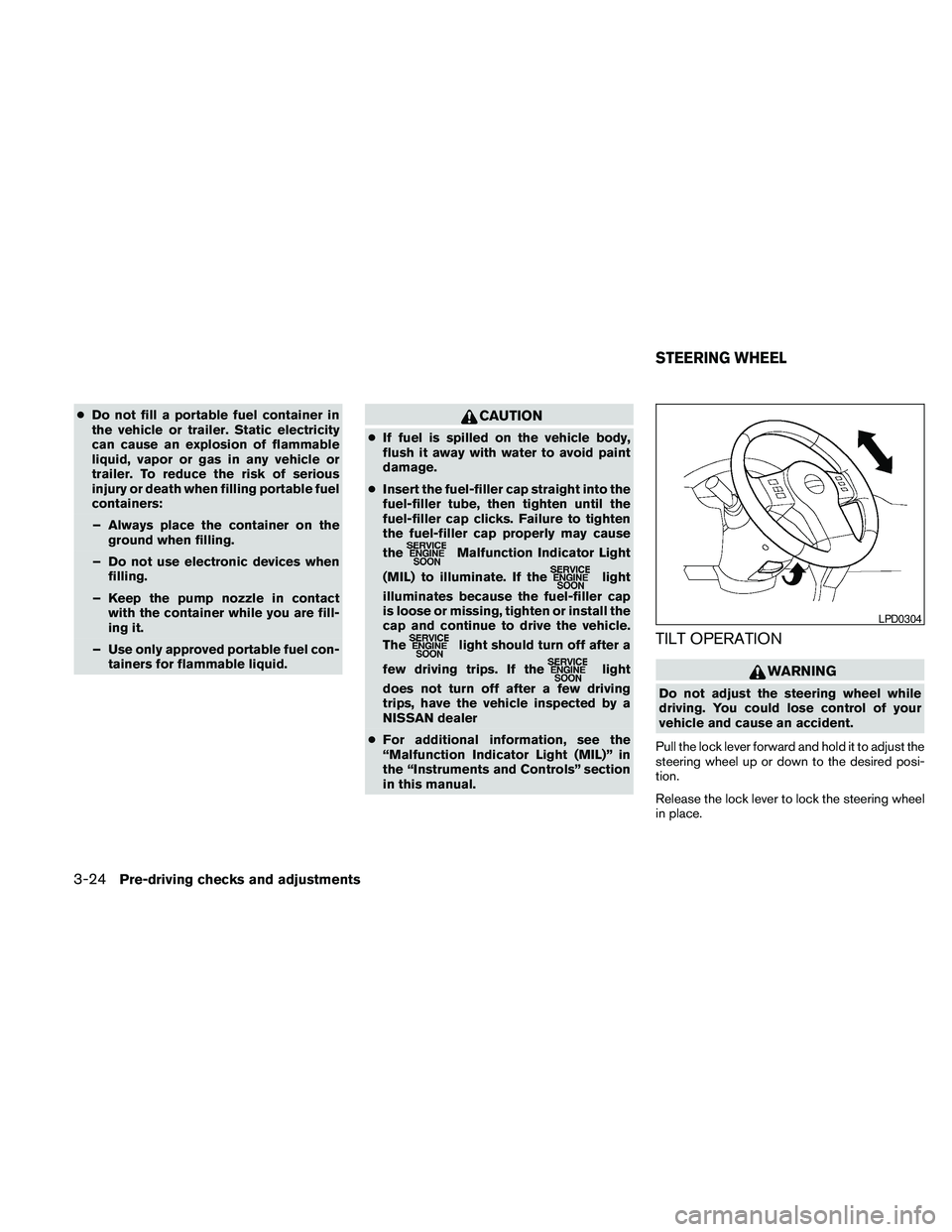
TILT OPERATION
WARNING
Do not adjust the steering wheel while
driving. You could lose control of your
vehicle and cause an accident.
Pull the lock lever forward and hold it to adjust the
steering wheel up or down to the desired posi-
tion.
Release the lock lever to lock the steering wheel
in place.
LPD0304
STEERING WHEEL
3-24Pre-driving checks and adjustments
Page 166 of 463
FM/AM/SAT radio with compact disc (CD)
player (if so equipped).........................4-67
CompactFlashT(CF) player operation
(if so equipped)...............................4-72
Music Box™ Hard Drive audio system
(if so equipped)...............................4-74
CD/CF (CompactFlashT) care and cleaning......4-83
Steering wheel switch for audio control..........4-85
Remote audio system controls
(if so equipped)...............................4-86
Antenna......................................4-87
NISSAN mobile entertainment system (MES)
(if so equipped)..................................4-88
Digital video disc (DVD) player controls..........4-89
Remote control................................4-90
Flip-down screen..............................4-90
Before operating the DVD mobile
entertainment system..........................4-92
Playing a digital versatile disc (DVD).............4-93
Remote control operation.......................4-97
Care and maintenance.........................4-99
How to handle the DVD.......................4-100Car phone or CB radio...........................4-103
BluetoothTHands-Free Phone System without
Navigation System (if so equipped)................4-103
Regulatory Information........................4-105
Using the system.............................4-105
Control buttons..............................4-107
Getting started...............................4-108
List of voice commands.......................4-110
Speaker adaptation (SA) mode.................4-115
Troubleshooting guide........................4-117
BluetoothTHands-Free Phone System with
Navigation System (if so equipped)................4-118
Regulatory Information........................4-120
Voice commands.............................4-120
Pairing procedure............................4-120
Phonebook..................................4-122
Making a call.................................4-123
Receiving a call..............................4-124
During a call.................................4-125
Ending a call.................................4-126
Phone setting................................4-126
Page 240 of 463
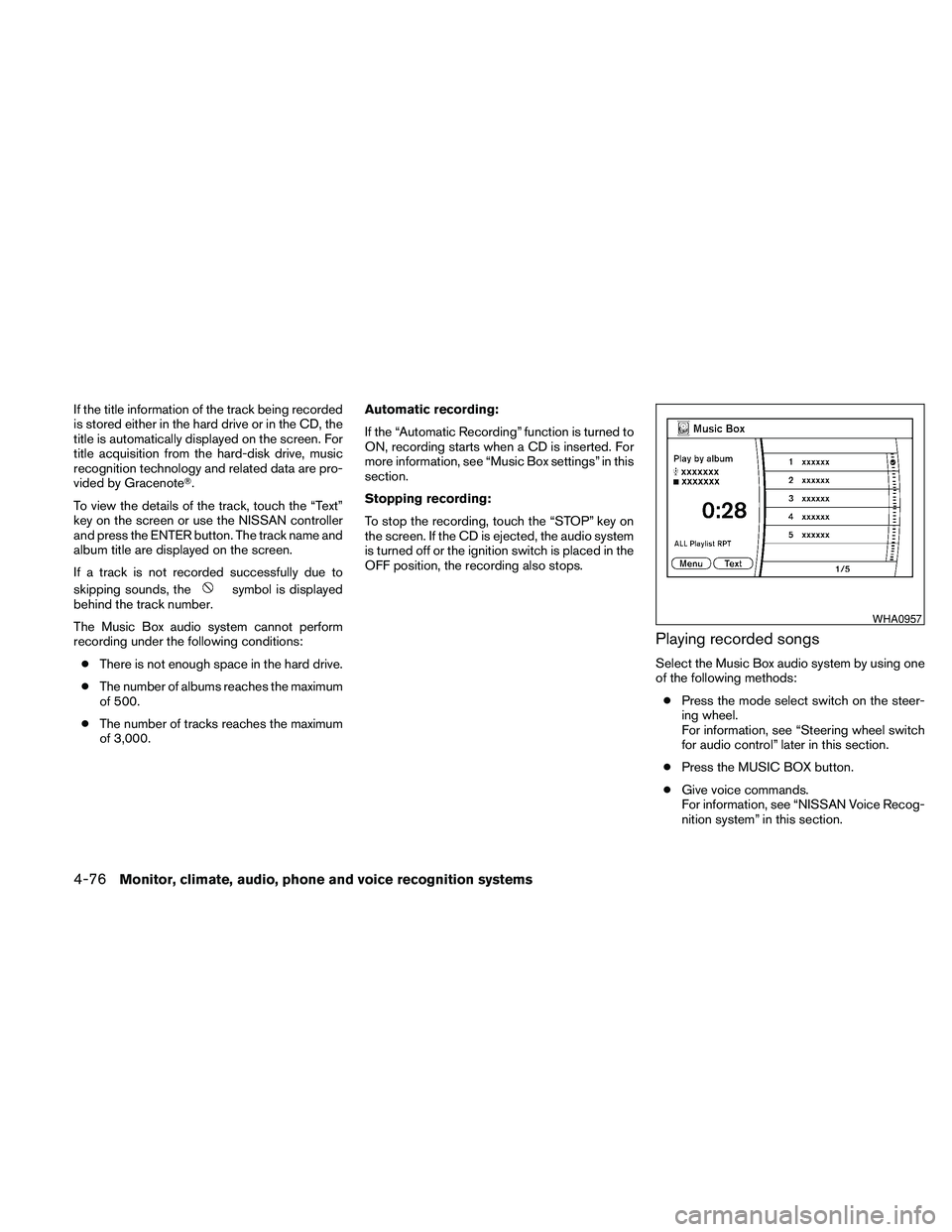
If the title information of the track being recorded
is stored either in the hard drive or in the CD, the
title is automatically displayed on the screen. For
title acquisition from the hard-disk drive, music
recognition technology and related data are pro-
vided by GracenoteT.
To view the details of the track, touch the “Text”
key on the screen or use the NISSAN controller
and press the ENTER button. The track name and
album title are displayed on the screen.
If a track is not recorded successfully due to
skipping sounds, the
symbol is displayed
behind the track number.
The Music Box audio system cannot perform
recording under the following conditions:
cThere is not enough space in the hard drive.
cThe number of albums reaches the maximum
of 500.
cThe number of tracks reaches the maximum
of 3,000.Automatic recording:
If the “Automatic Recording” function is turned to
ON, recording starts when a CD is inserted. For
more information, see “Music Box settings” in this
section.
Stopping recording:
To stop the recording, touch the “STOP” key on
the screen. If the CD is ejected, the audio system
is turned off or the ignition switch is placed in the
OFF position, the recording also stops.
Playing recorded songs
Select the Music Box audio system by using one
of the following methods:
cPress the mode select switch on the steer-
ing wheel.
For information, see “Steering wheel switch
for audio control” later in this section.
cPress the MUSIC BOX button.
cGive voice commands.
For information, see “NISSAN Voice Recog-
nition system” in this section.
WHA0957
4-76Monitor, climate, audio, phone and voice recognition systems
Page 249 of 463
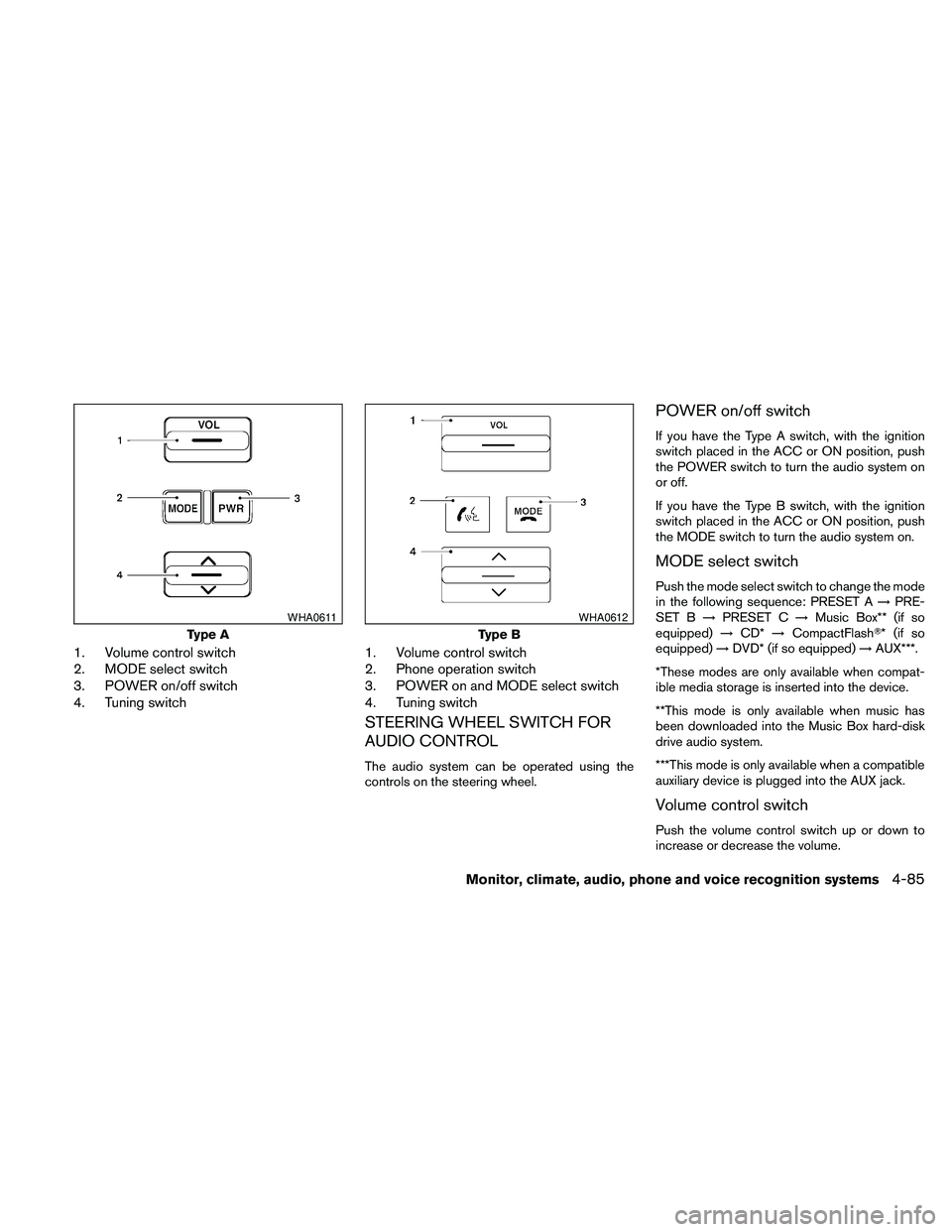
1. Volume control switch
2. MODE select switch
3. POWER on/off switch
4. Tuning switch1. Volume control switch
2. Phone operation switch
3. POWER on and MODE select switch
4. Tuning switch
STEERING WHEEL SWITCH FOR
AUDIO CONTROL
The audio system can be operated using the
controls on the steering wheel.
POWER on/off switch
If you have the Type A switch, with the ignition
switch placed in the ACC or ON position, push
the POWER switch to turn the audio system on
or off.
If you have the Type B switch, with the ignition
switch placed in the ACC or ON position, push
the MODE switch to turn the audio system on.
MODE select switch
Push the mode select switch to change the mode
in the following sequence: PRESET A!PRE-
SET B!PRESET C!Music Box** (if so
equipped)!CD*!CompactFlashT* (if so
equipped)!DVD* (if so equipped)!AUX***.
*These modes are only available when compat-
ible media storage is inserted into the device.
**This mode is only available when music has
been downloaded into the Music Box hard-disk
drive audio system.
***This mode is only available when a compatible
auxiliary device is plugged into the AUX jack.
Volume control switch
Push the volume control switch up or down to
increase or decrease the volume.
Type A
WHA0611
Type B
WHA0612
Monitor, climate, audio, phone and voice recognition systems4-85
Page 270 of 463
Operating tips
To get the best performance out of the NISSAN
Voice Recognition system, observe the following:
cKeep the interior of the vehicle as quiet as
possible. Close the windows to eliminate
surrounding noises (traffic noises, vibration
sounds, etc.) , which may prevent the system
from recognizing voice commands correctly.
cWait until the tone sounds before speaking a
command. Otherwise, the command will not
be received properly.
cStart speaking a command within 5 seconds
after the tone sounds.
cSpeak in a natural voice without pausing
between words.
Giving voice commands
To operate NISSAN Voice Recognition, press
and release the
button located on the
steering wheel. After the tone sounds, speak a
command.
The command given is picked up by the micro-
phone, and voice feedback is given when the
command is accepted.
cIf you need to hear the available commands
for the current menu again, say “Help” and
the system will repeat them.cIf a command is not recognized, the system
announces, “Command not recognized.
Please try again.” Repeat the command in a
clear voice.
cIf you want to go back to the previous com-
mand, you can say “Go back” or “Correc-
tion” any time the system is waiting for a
response.
cYou can cancel a command when the sys-
tem is waiting for a response by saying,
“Cancel” or “Quit.” The system announces
“Cancel” and ends the VR session. You can
also press the
button on the steering
wheel at any time. Whenever the VR session
is cancelled, a double beep is played to
indicate you have exited the system.
cIf you want to adjust the volume of the voice
feedback, press the volume control switches
(+ or -) on the steering wheel while being
provided with feedback. You can also use
the radio volume control knob.
cIn most cases you can interrupt the voice
feedback to speak the next command by
pressing the
button on the steering
wheel.cTo speed the operation you can say multiple
commands. For example, press the
button then say “Phonebook, New entry”
rather than “Phonebook.” Wait for the voice
feedback prompt then say “New entry”.
How to say numbers
NISSAN Voice Recognition requires a certain
way to speak numbers in voice commands. Refer
to the following rules and examples.
cEither “zero” or “oh” can be used for “0”.
Example: 1-800-662-6200
– “One eight oh oh six six two six two oh
oh”, or
– “One eight zero zero six six two six two oh
oh”
cWords can be used for the first 4 digits
places only.
Example: 1-800-662-6200
– “One eight hundred six six two six two oh
oh”,
– NOT “One eight hundred six six two sixty
two hundred, and
– NOT “One eight oh oh six six two sixty two
hundred.
4-106Monitor, climate, audio, phone and voice recognition systems
Page 271 of 463
cNumbers can be spoken in small groups.
The system will prompt you to continue en-
tering digits, if desired.
Example: 1-800-662-6200
– “One eight zero zero”
The system repeats the numbers and
prompts you to enter more.
– “six six two”
The system repeats the numbers and
prompts you to enter more.
– “six two zero zero”
cSay “pound” for “#”. Say “star” for “*” (avail-
able when using the “Call International”
command and the “Send” command during
a call) .
cSay “plus” for “+” (available only when using
the “Call International” command) .
cSay “pause” for a 2 second pause (available
only when storing a phone book number) .
cYou can say “star” for “*” and “pound” for “#”
at any time in any position of the phone
number (available only when using “Call In-
ternational” command) .
See “List of voice commands” and “Interna-
tional” in this section for more information.Example: 1-555-1212 *123
– “One five five five one two one two star
one two three”
NOTE:
For best results, say phone numbers as
single digits.
The voice command “Help” is available at any
time. Please use the “Help” command to get
information on how to use the system.
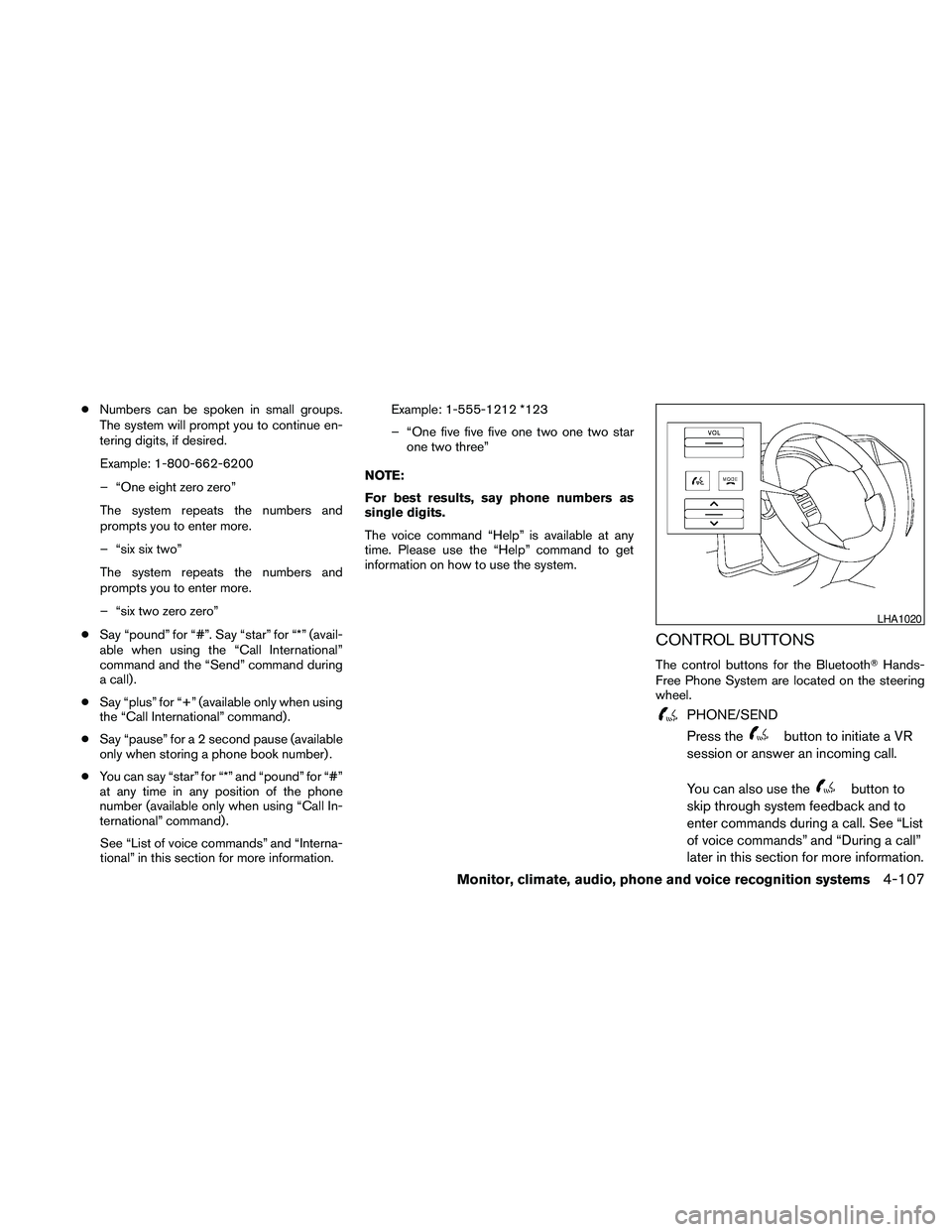
CONTROL BUTTONS
The control buttons for the BluetoothTHands-
Free Phone System are located on the steering
wheel.
PHONE/SEND
Press the
button to initiate a VR
session or answer an incoming call.
You can also use the
button to
skip through system feedback and to
enter commands during a call. See “List
of voice commands” and “During a call”
later in this section for more information.
LHA1020
Monitor, climate, audio, phone and voice recognition systems4-107
Page 272 of 463
PHONE/END
Press the
button to cancel a VR
session or end a call.
GETTING STARTED
The following procedures will help you get
started using the BluetoothTHands-Free Phone
System with NISSAN Voice Recognition. For ad-
ditional command options, refer to “List of voice
commands” in this section.
Choosing a language
You can interact with the BluetoothTHands-Free
Phone System using English, Spanish or French.
To change the language, perform the following.
1. Press and hold the
button for more
than 5 seconds.
2. The system announces: “Press the
PHONE/SEND (
) button for the
hands-free phone system to enter the
speaker adaptation mode or press the
PHONE/END (
) button to select a dif-
ferent language.”
3. Press the
button.For information on speaker adaptation, see
“Speaker adaptation (SA) mode” later in this
section.
4. The system announces the current language
and gives you the option to change the lan-
guage to Spanish (in Spanish) or French (in
French) . Use the following chart to select
the language.
NOTE:
You must press the
button or
the
button within 5 seconds to
change the language.
Current
languagePress(PHONE/SEND)
to selectPress(PHONE/END)
to select
English Spanish French
Spanish English French
French English Spanish
5. If you decide not to change the language, do
not press either button. After 5 seconds, the
VR session will end, and the language will
not be changed.
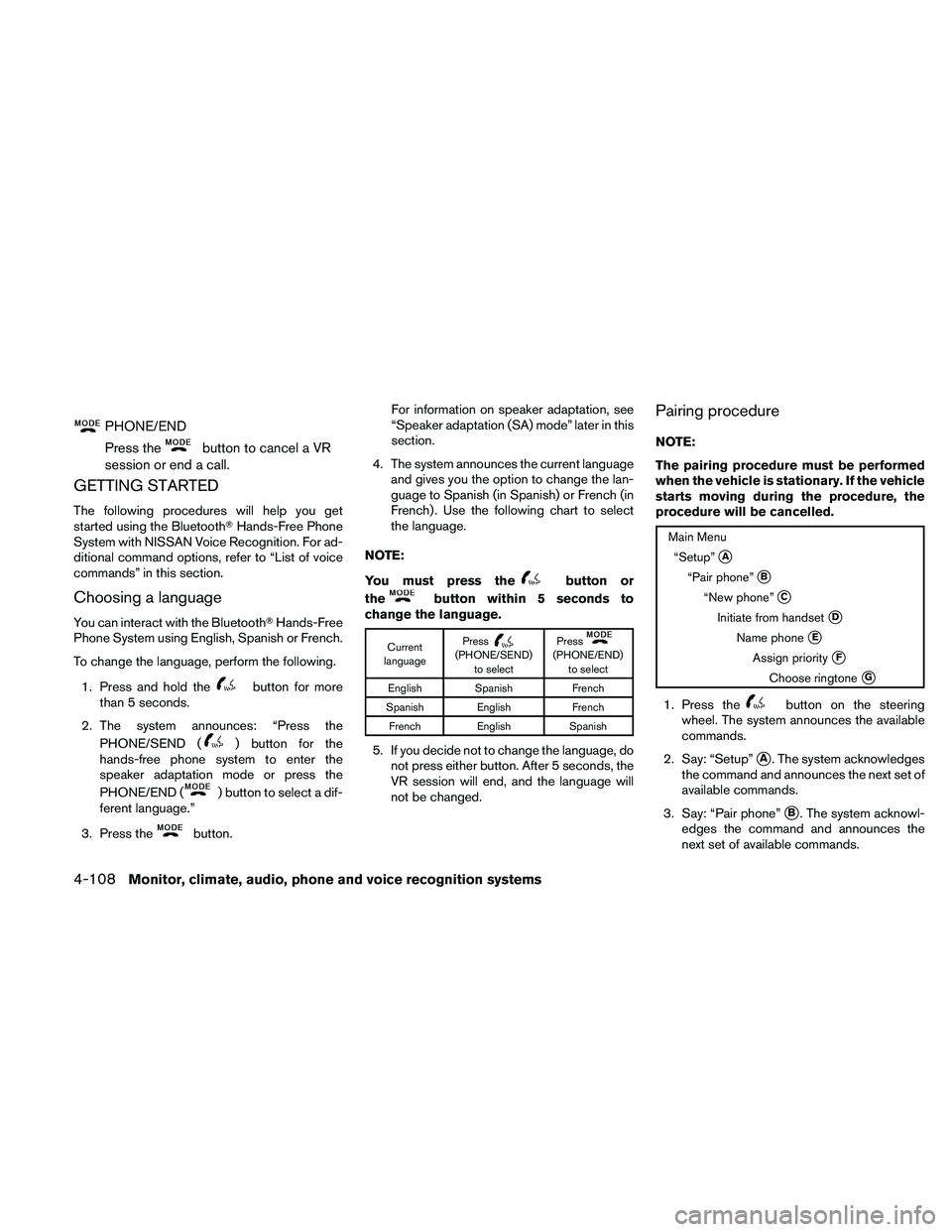
Pairing procedure
NOTE:
The pairing procedure must be performed
when the vehicle is stationary. If the vehicle
starts moving during the procedure, the
procedure will be cancelled.
Main Menu
“Setup”
sA
“Pair phone”sB
“New phone”sC
Initiate from handsetsD
Name phonesE
Assign prioritysF
Choose ringtonesG
1. Press thebutton on the steering
wheel. The system announces the available
commands.
2. Say: “Setup”
sA. The system acknowledges
the command and announces the next set of
available commands.
3. Say: “Pair phone”
sB. The system acknowl-
edges the command and announces the
next set of available commands.
4-108Monitor, climate, audio, phone and voice recognition systems