instrument panel NISSAN PATHFINDER 2010 Owner´s Manual
[x] Cancel search | Manufacturer: NISSAN, Model Year: 2010, Model line: PATHFINDER, Model: NISSAN PATHFINDER 2010Pages: 463, PDF Size: 5.69 MB
Page 284 of 463
REGULATORY INFORMATION
FCC Regulatory information
– CAUTION: To maintain compliance with
FCC’s RF exposure guidelines, use only the
supplied antenna. Unauthorized antenna,
modification, or attachments could damage
the transmitter and may violate FCC regula-
tions.
– Operation is subject to the following two con-
ditions:
1. This device may not cause interference and
2. this device must accept any interference,
including interference that may cause un-
desired operation of the device.
IC Regulatory information
– Operation is subject to the following two con-
ditions: (1) this device may not cause interfer-
ence, and (2) this device must accept any
interference, including interference that may
cause undesired operation of the device.
– This Class B digital apparatus meets all re-
quirements of the Canadian Interference-
Causing Equipment Regulations.
BLUETOOTHtis a
trademark owned by
Bluetooth SIG, Inc.,
U.S.A. and licensed to
Xanavi Informatics
Corporation.
VOICE COMMANDS
You can use voice commands to operate various
BluetoothTHands-Free Phone System features
using the NISSAN Voice Recognition system. For
more details, see “NISSAN Voice Recognition
System” in this section.
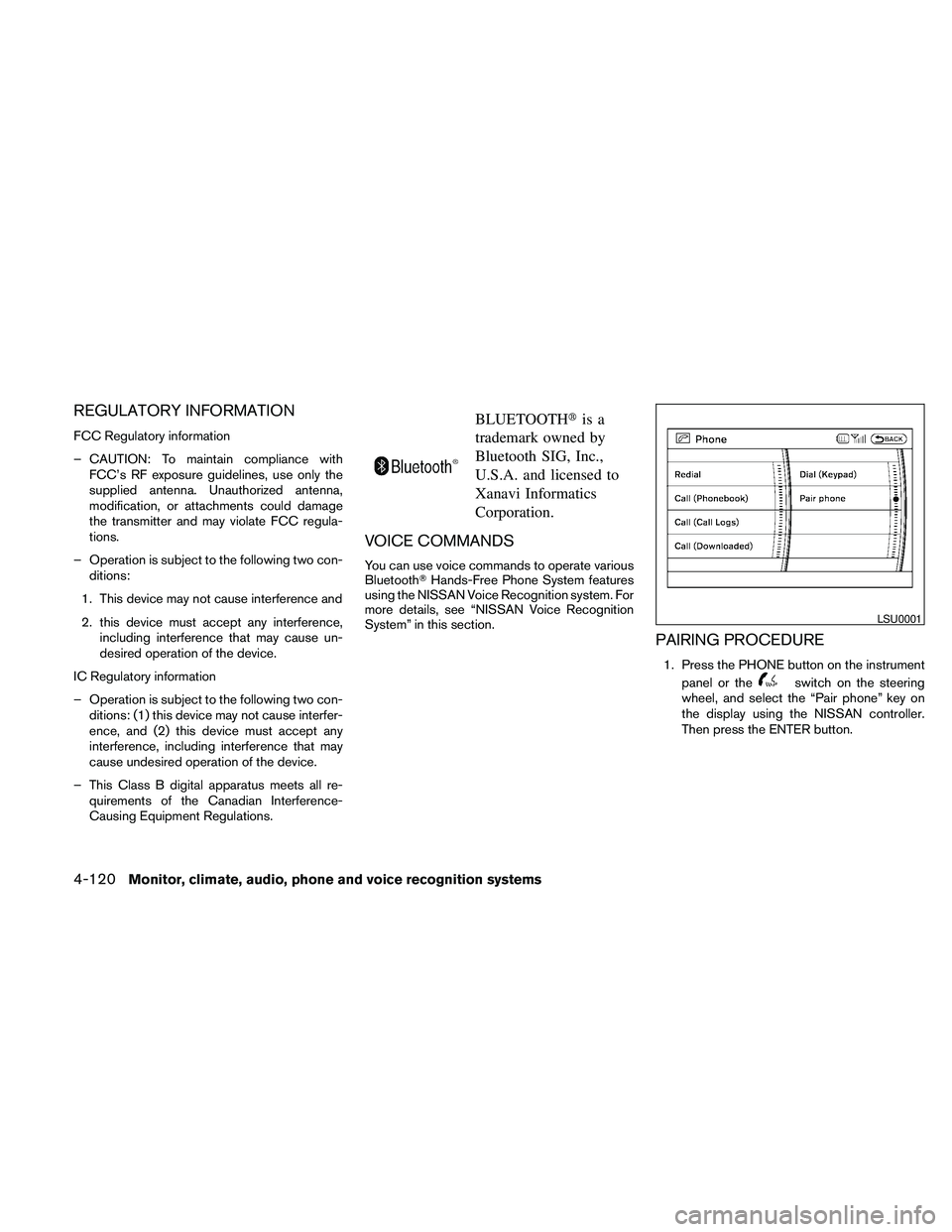
PAIRING PROCEDURE
1. Press the PHONE button on the instrument
panel or the
switch on the steering
wheel, and select the “Pair phone” key on
the display using the NISSAN controller.
Then press the ENTER button.
LSU0001
4-120Monitor, climate, audio, phone and voice recognition systems
Page 287 of 463
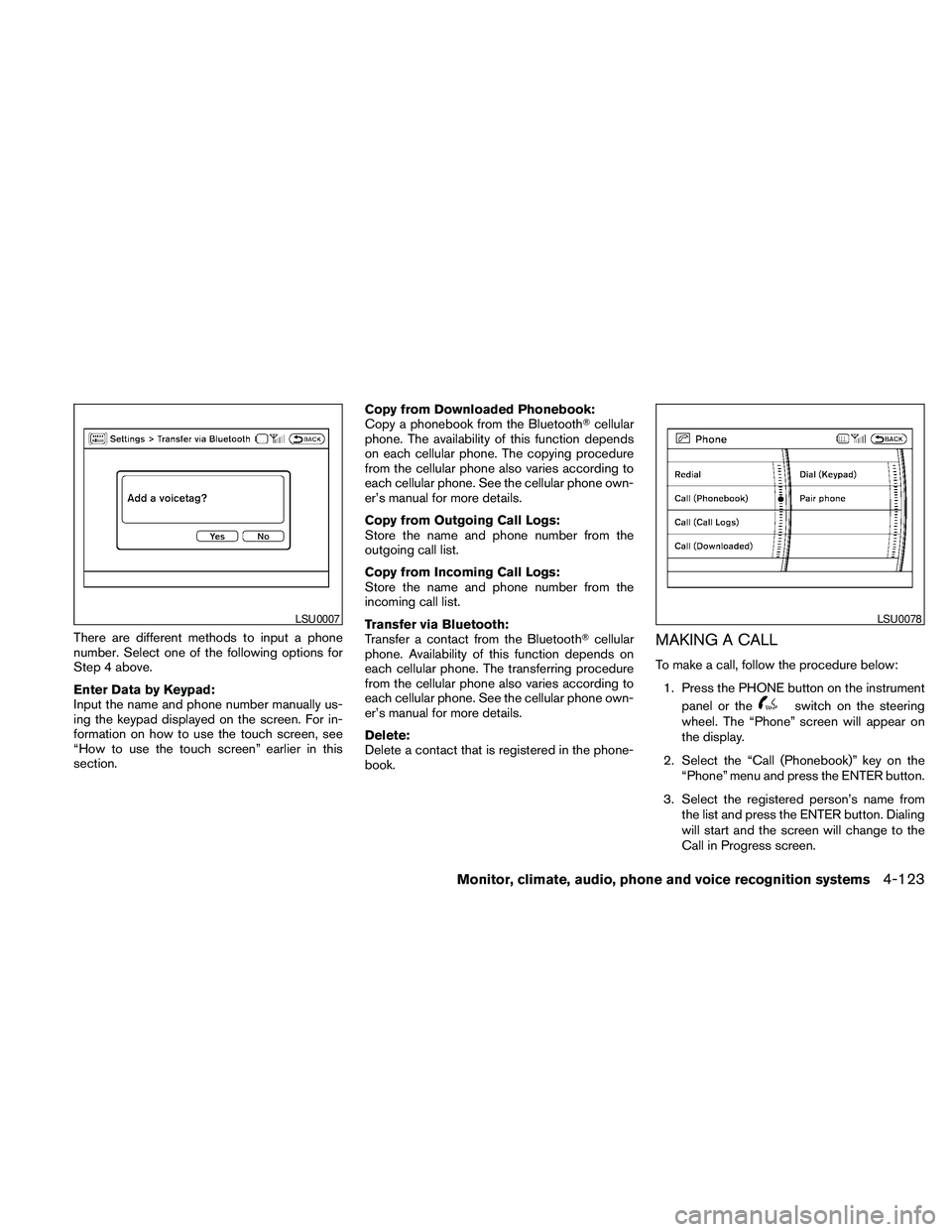
There are different methods to input a phone
number. Select one of the following options for
Step 4 above.
Enter Data by Keypad:
Input the name and phone number manually us-
ing the keypad displayed on the screen. For in-
formation on how to use the touch screen, see
“How to use the touch screen” earlier in this
section.Copy from Downloaded Phonebook:
Copy a phonebook from the BluetoothTcellular
phone. The availability of this function depends
on each cellular phone. The copying procedure
from the cellular phone also varies according to
each cellular phone. See the cellular phone own-
er’s manual for more details.
Copy from Outgoing Call Logs:
Store the name and phone number from the
outgoing call list.
Copy from Incoming Call Logs:
Store the name and phone number from the
incoming call list.
Transfer via Bluetooth:
Transfer a contact from the BluetoothTcellular
phone. Availability of this function depends on
each cellular phone. The transferring procedure
from the cellular phone also varies according to
each cellular phone. See the cellular phone own-
er’s manual for more details.
Delete:
Delete a contact that is registered in the phone-
book.MAKING A CALL
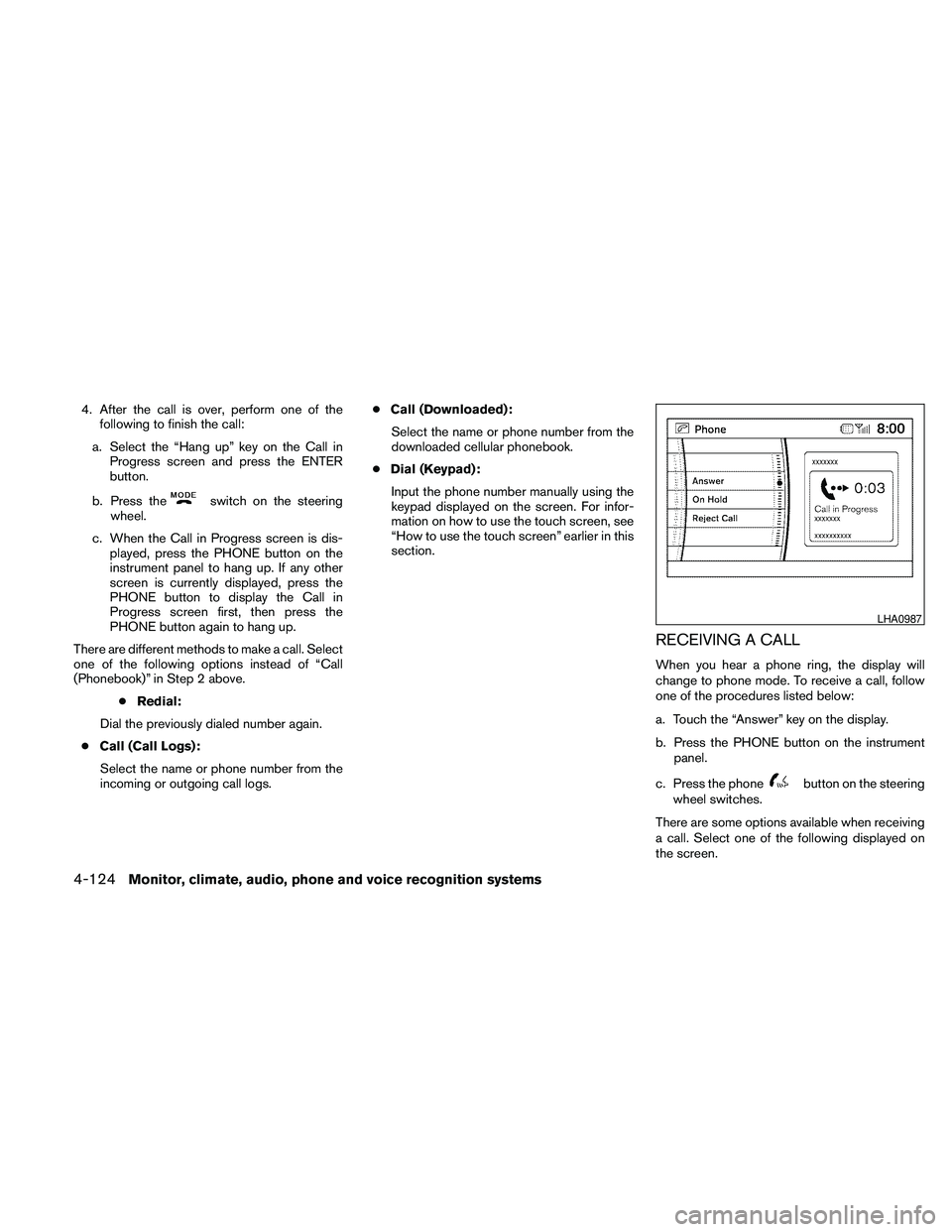
To make a call, follow the procedure below:
1. Press the PHONE button on the instrument
panel or the
switch on the steering
wheel. The “Phone” screen will appear on
the display.
2. Select the “Call (Phonebook)” key on the
“Phone” menu and press the ENTER button.
3. Select the registered person’s name from
the list and press the ENTER button. Dialing
will start and the screen will change to the
Call in Progress screen.
LSU0007LSU0078
Monitor, climate, audio, phone and voice recognition systems4-123
Page 288 of 463
4. After the call is over, perform one of the
following to finish the call:
a. Select the “Hang up” key on the Call in
Progress screen and press the ENTER
button.
b. Press the
switch on the steering
wheel.
c. When the Call in Progress screen is dis-
played, press the PHONE button on the
instrument panel to hang up. If any other
screen is currently displayed, press the
PHONE button to display the Call in
Progress screen first, then press the
PHONE button again to hang up.
There are different methods to make a call. Select
one of the following options instead of “Call
(Phonebook)” in Step 2 above.
cRedial:
Dial the previously dialed number again.
cCall (Call Logs):
Select the name or phone number from the
incoming or outgoing call logs.cCall (Downloaded):
Select the name or phone number from the
downloaded cellular phonebook.
cDial (Keypad):
Input the phone number manually using the
keypad displayed on the screen. For infor-
mation on how to use the touch screen, see
“How to use the touch screen” earlier in this
section.
RECEIVING A CALL
When you hear a phone ring, the display will
change to phone mode. To receive a call, follow
one of the procedures listed below:
a. Touch the “Answer” key on the display.
b. Press the PHONE button on the instrument
panel.
c. Press the phone
button on the steering
wheel switches.
There are some options available when receiving
a call. Select one of the following displayed on
the screen.
LHA0987
4-124Monitor, climate, audio, phone and voice recognition systems
Page 289 of 463
Answer:
Accept an incoming call to talk.
On Hold:
Put an incoming call on hold.
Reject Call:
Reject an incoming call.
To finish the call, follow one of the procedures
listed below:
a. Touch the “Reject Call” key on the display.
b. Press the PHONE button on the instrument
panel.
c. Press and hold the phone
button on the
steering wheel switches.
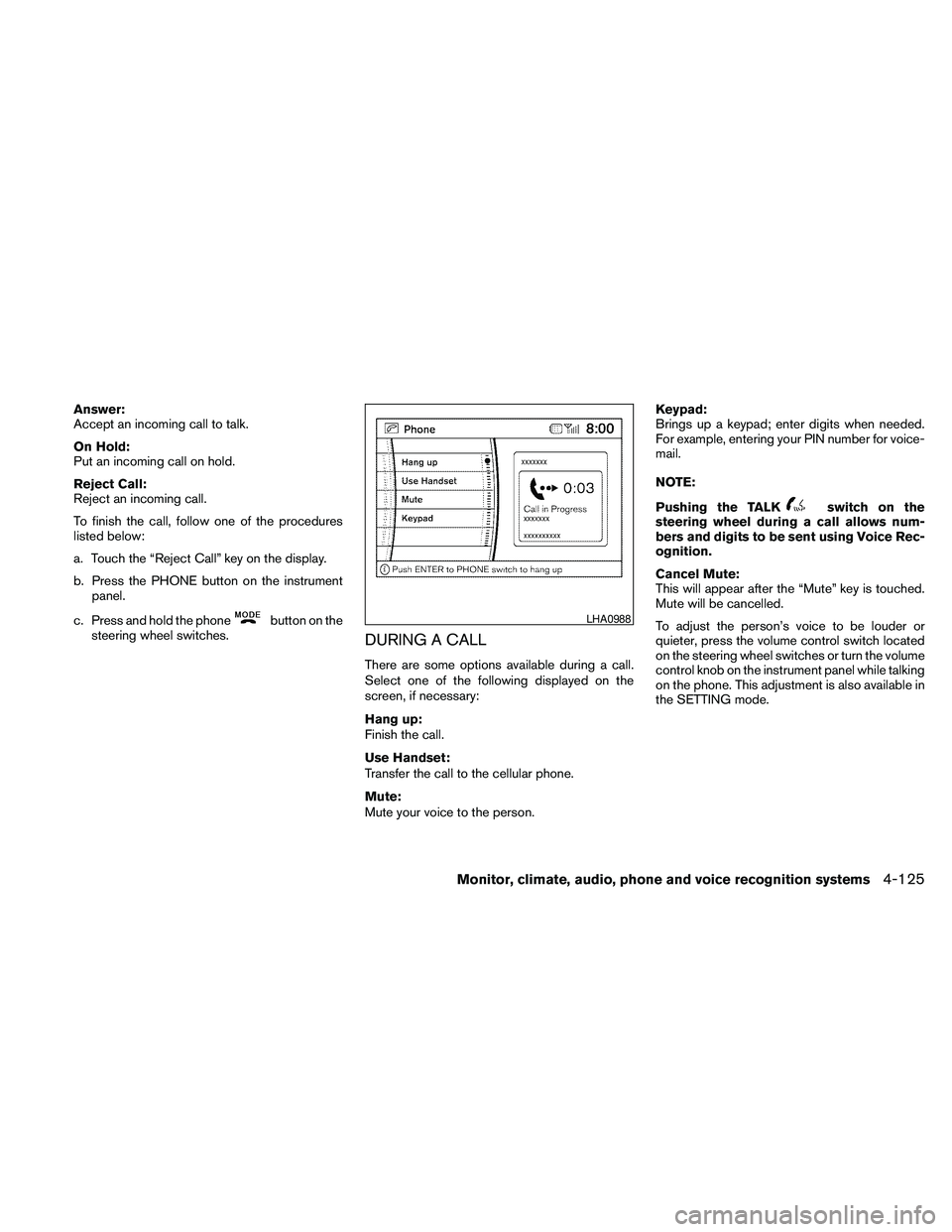
DURING A CALL
There are some options available during a call.
Select one of the following displayed on the
screen, if necessary:
Hang up:
Finish the call.
Use Handset:
Transfer the call to the cellular phone.
Mute:
Mute your voice to the person.Keypad:
Brings up a keypad; enter digits when needed.
For example, entering your PIN number for voice-
mail.
NOTE:
Pushing the TALK
switch on the
steering wheel during a call allows num-
bers and digits to be sent using Voice Rec-
ognition.
Cancel Mute:
This will appear after the “Mute” key is touched.
Mute will be cancelled.
To adjust the person’s voice to be louder or
quieter, press the volume control switch located
on the steering wheel switches or turn the volume
control knob on the instrument panel while talking
on the phone. This adjustment is also available in
the SETTING mode.
LHA0988
Monitor, climate, audio, phone and voice recognition systems4-125
Page 290 of 463
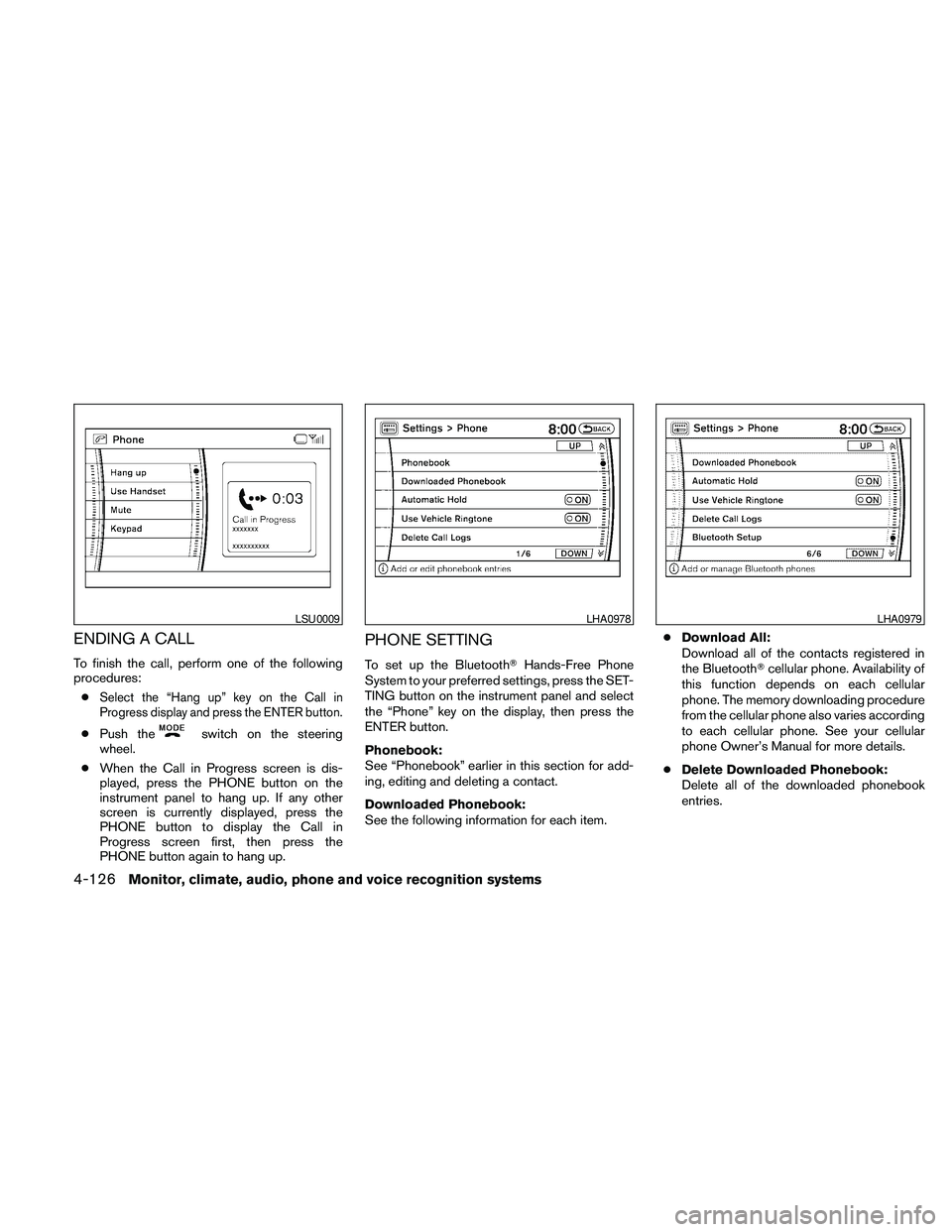
ENDING A CALL
To finish the call, perform one of the following
procedures:
c
Select the “Hang up” key on the Call in
Progress display and press the ENTER button.
cPush theswitch on the steering
wheel.
cWhen the Call in Progress screen is dis-
played, press the PHONE button on the
instrument panel to hang up. If any other
screen is currently displayed, press the
PHONE button to display the Call in
Progress screen first, then press the
PHONE button again to hang up.
PHONE SETTING
To set up the BluetoothTHands-Free Phone
System to your preferred settings, press the SET-
TING button on the instrument panel and select
the “Phone” key on the display, then press the
ENTER button.
Phonebook:
See “Phonebook” earlier in this section for add-
ing, editing and deleting a contact.
Downloaded Phonebook:
See the following information for each item.cDownload All:
Download all of the contacts registered in
the BluetoothTcellular phone. Availability of
this function depends on each cellular
phone. The memory downloading procedure
from the cellular phone also varies according
to each cellular phone. See your cellular
phone Owner’s Manual for more details.
cDelete Downloaded Phonebook:
Delete all of the downloaded phonebook
entries.
LSU0009LHA0978LHA0979
4-126Monitor, climate, audio, phone and voice recognition systems
Page 292 of 463
cPaired Phone List:
Up to 5 registered cellular phones are
shown on the list. If you select a cellular
phone that is different from the one currently
being connected, the newly selected phone
will be connected to the system.
cEdit Phone Name:
If you would like to change the way your
phone’s name is displayed, select this key; a
character input screen will be displayed.
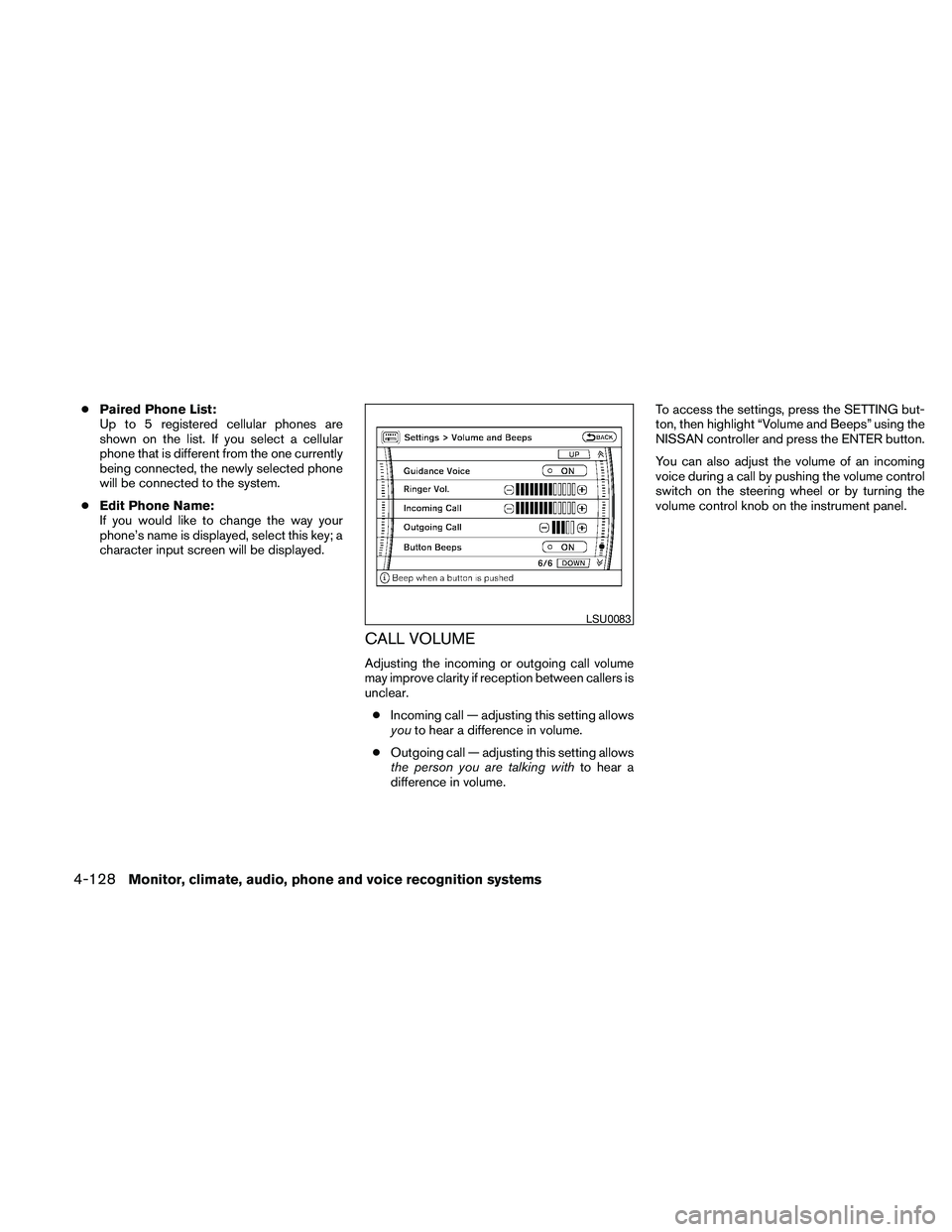
CALL VOLUME
Adjusting the incoming or outgoing call volume
may improve clarity if reception between callers is
unclear.
cIncoming call — adjusting this setting allows
youto hear a difference in volume.
cOutgoing call — adjusting this setting allows
the person you are talking withto hear a
difference in volume.To access the settings, press the SETTING but-
ton, then highlight “Volume and Beeps” using the
NISSAN controller and press the ENTER button.
You can also adjust the volume of an incoming
voice during a call by pushing the volume control
switch on the steering wheel or by turning the
volume control knob on the instrument panel.
LSU0083
4-128Monitor, climate, audio, phone and voice recognition systems
Page 294 of 463
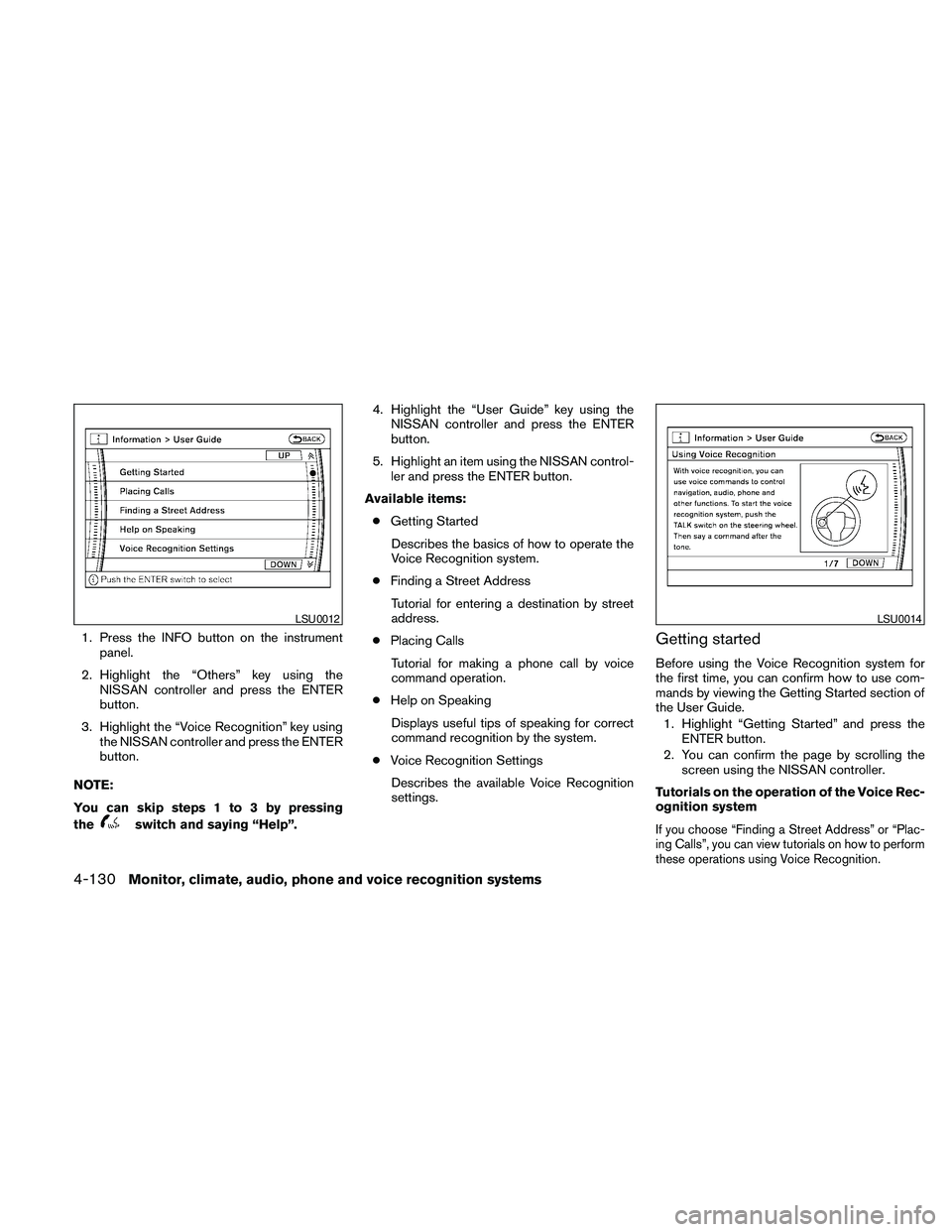
1. Press the INFO button on the instrument
panel.
2. Highlight the “Others” key using the
NISSAN controller and press the ENTER
button.
3. Highlight the “Voice Recognition” key using
the NISSAN controller and press the ENTER
button.
NOTE:
You can skip steps 1 to 3 by pressing
the
switch and saying “Help”.4. Highlight the “User Guide” key using the
NISSAN controller and press the ENTER
button.
5. Highlight an item using the NISSAN control-
ler and press the ENTER button.
Available items:
cGetting Started
Describes the basics of how to operate the
Voice Recognition system.
cFinding a Street Address
Tutorial for entering a destination by street
address.
cPlacing Calls
Tutorial for making a phone call by voice
command operation.
cHelp on Speaking
Displays useful tips of speaking for correct
command recognition by the system.
cVoice Recognition Settings
Describes the available Voice Recognition
settings.
Getting started
Before using the Voice Recognition system for
the first time, you can confirm how to use com-
mands by viewing the Getting Started section of
the User Guide.
1. Highlight “Getting Started” and press the
ENTER button.
2. You can confirm the page by scrolling the
screen using the NISSAN controller.
Tutorials on the operation of the Voice Rec-
ognition system
If you choose “Finding a Street Address” or “Plac-
ing Calls”, you can view tutorials on how to perform
these operations using Voice Recognition.
LSU0012LSU0014
4-130Monitor, climate, audio, phone and voice recognition systems
Page 306 of 463
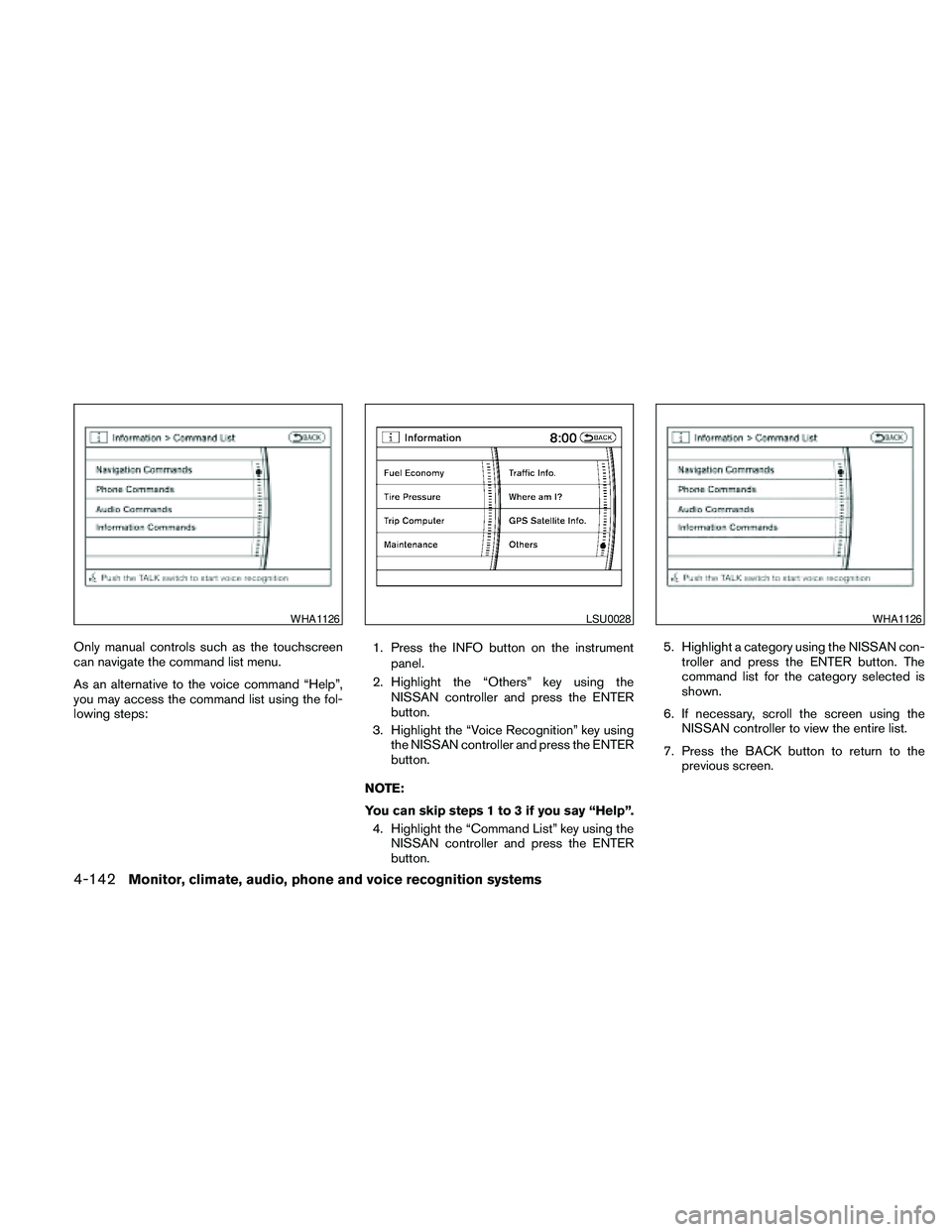
Only manual controls such as the touchscreen
can navigate the command list menu.
As an alternative to the voice command “Help”,
you may access the command list using the fol-
lowing steps:1. Press the INFO button on the instrument
panel.
2. Highlight the “Others” key using the
NISSAN controller and press the ENTER
button.
3. Highlight the “Voice Recognition” key using
the NISSAN controller and press the ENTER
button.
NOTE:
You can skip steps 1 to 3 if you say “Help”.
4. Highlight the “Command List” key using the
NISSAN controller and press the ENTER
button.5. Highlight a category using the NISSAN con-
troller and press the ENTER button. The
command list for the category selected is
shown.
6. If necessary, scroll the screen using the
NISSAN controller to view the entire list.
7. Press the BACK button to return to the
previous screen.
WHA1126LSU0028WHA1126
4-142Monitor, climate, audio, phone and voice recognition systems
Page 310 of 463
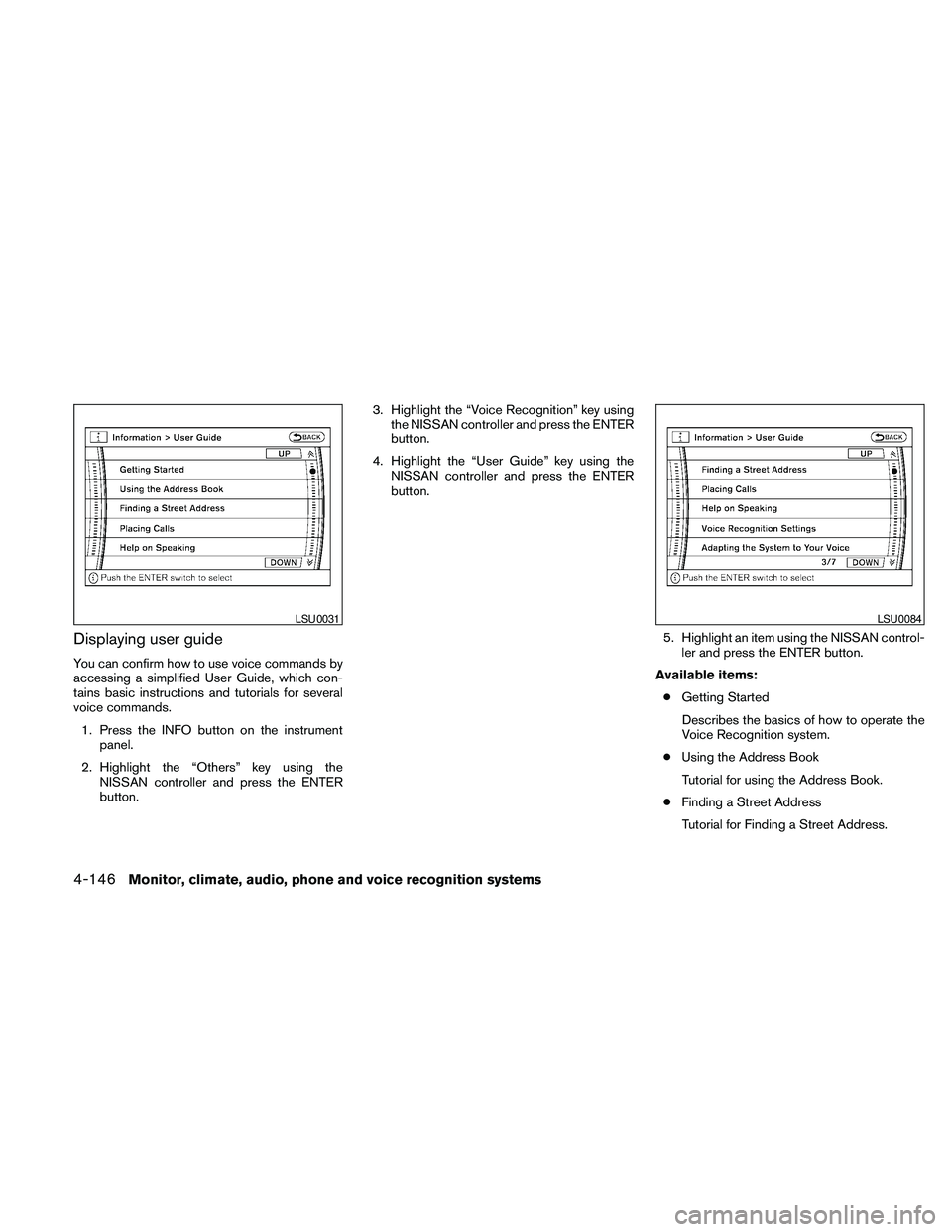
Displaying user guide
You can confirm how to use voice commands by
accessing a simplified User Guide, which con-
tains basic instructions and tutorials for several
voice commands.
1. Press the INFO button on the instrument
panel.
2. Highlight the “Others” key using the
NISSAN controller and press the ENTER
button.3. Highlight the “Voice Recognition” key using
the NISSAN controller and press the ENTER
button.
4. Highlight the “User Guide” key using the
NISSAN controller and press the ENTER
button.
5. Highlight an item using the NISSAN control-
ler and press the ENTER button.
Available items:
cGetting Started
Describes the basics of how to operate the
Voice Recognition system.
cUsing the Address Book
Tutorial for using the Address Book.
cFinding a Street Address
Tutorial for Finding a Street Address.
LSU0031LSU0084
4-146Monitor, climate, audio, phone and voice recognition systems
Page 335 of 463
OFF: For driving up and down long
slopes where engine braking is nec-
essary push the Overdrive switch
once. The O/D OFF indicator light
in the instrument panel comes on at
this time.
When cruising at a low speed or climbing a
gentle slope, you may feel uncomfortable shift
shocks as the transmission shifts into and out of
Overdrive repeatedly. In this case, depress the
Overdrive switch to turn the Overdrive off. The
O/D OFF indicator light in the instrument panel
comes on at this time.
When driving conditions change, depress the
Overdrive switch to turn the Overdrive on.
Remember not to drive at high speeds for ex-
tended periods of time with the Overdrive off.
This reduces fuel economy.
WARNING
cBe sure the parking brake is fully re-
leased before driving. Failure to do so
can cause brake failure and lead to an
accident.
cDo not release the parking brake from
outside the vehicle.
cDo not use the shift selector in place of
the parking brake. When parking, be
sure the parking brake is fully engaged.
cDo not leave children unattended in a
vehicle. They could release the parking
brake and cause an accident.
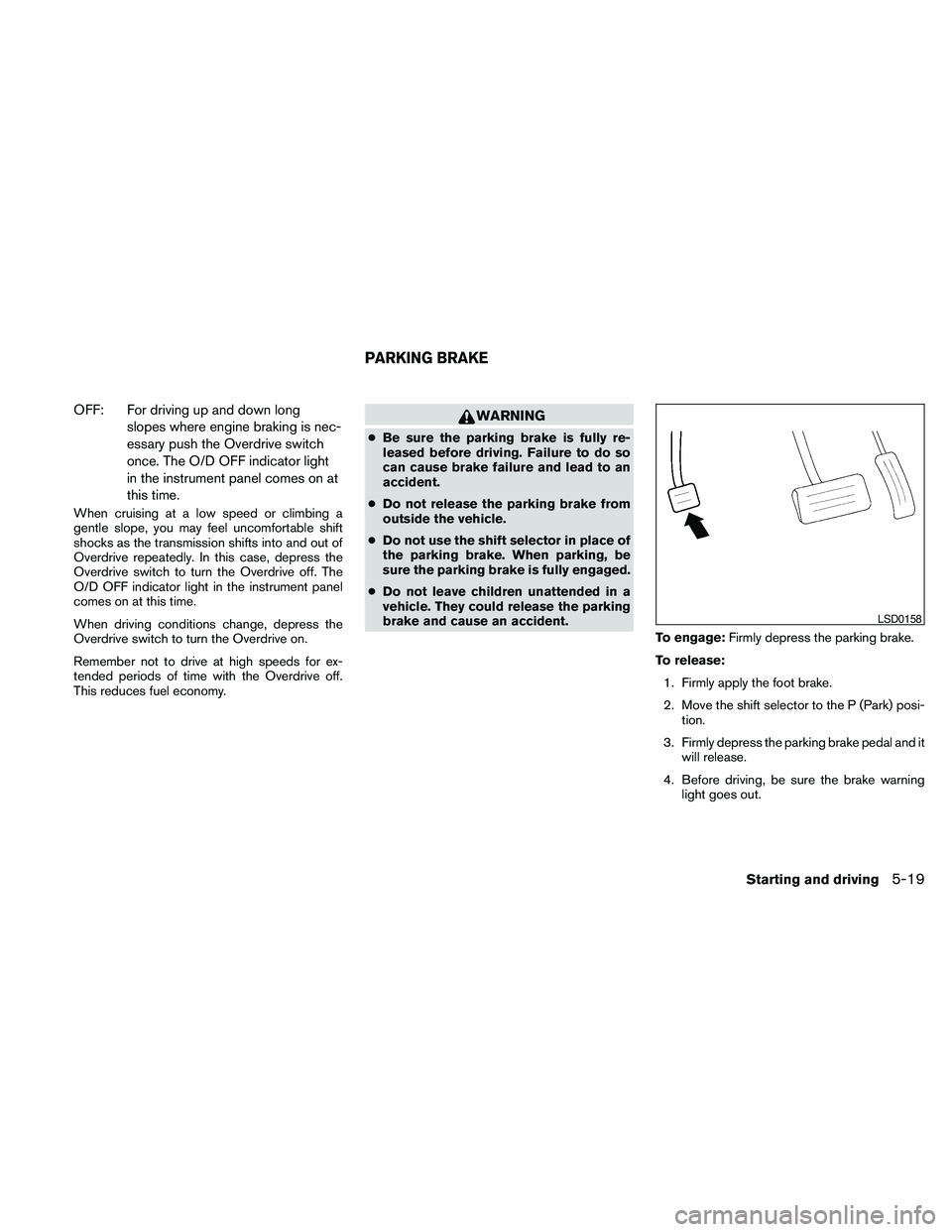
To engage:Firmly depress the parking brake.
To release:
1. Firmly apply the foot brake.
2. Move the shift selector to the P (Park) posi-
tion.
3. Firmly depress the parking brake pedal and it
will release.
4. Before driving, be sure the brake warning
light goes out.
LSD0158
PARKING BRAKE
Starting and driving5-19