Cond NISSAN PATHFINDER 2014 R52 / 4.G Owners Manual
[x] Cancel search | Manufacturer: NISSAN, Model Year: 2014, Model line: PATHFINDER, Model: NISSAN PATHFINDER 2014 R52 / 4.GPages: 492, PDF Size: 4.62 MB
Page 241 of 492
Reception conditions will constantly change be-
cause of vehicle movement. Buildings, terrain,
signal distance and interference from other ve-
hicles can work against ideal reception. De-
scribed below are some of the factors that can
affect your radio reception.
Some cellular phones or other devices may
cause interference or a buzzing noise to come
from the audio system speakers. Storing the de-
vice in a different location may reduce or elimi-
nate the noise.
FM RADIO RECEPTION
Range: FM range is normally limited to 25 – 30 mi
(40 – 48 km) , with monaural (single channel) FM
having slightly more range than stereo FM. Exter-
nal influences may sometimes interfere with FM
station reception even if the FM station is within
25 mi (40 km) . The strength of the FM signal is
directly related to the distance between the
transmitter and receiver. FM signals follow a line-
of-sight path, exhibiting many of the same char-
acteristics as light. For example, they will reflect
off objects.
Fade and drift: As your vehicle moves away from
a station transmitter, the signals will tend to fade
and/or drift.Static and flutter: During signal interference from
buildings, large hills or due to antenna position
(usually in conjunction with increased distance
from the station transmitter) , static or flutter can
be heard. This can be reduced by adjusting the
treble control to reduce treble response.
Multipath reception: Because of the reflective
characteristics of FM signals, direct and reflected
signals reach the receiver at the same time. The
signals may cancel each other, resulting in mo-
mentary flutter or loss of sound.
AM RADIO RECEPTION
AM signals, because of their low frequency, can
bend around objects and skip along the ground.
In addition, the signals can be bounced off the
ionosphere and bent back to earth. Because of
these characteristics, AM signals are also sub-
ject to interference as they travel from transmitter
to receiver.
Fading: Occurs while the vehicle is passing
through freeway underpasses or in areas with
many tall buildings. It can also occur for several
seconds during ionospheric turbulence even in
areas where no obstacles exist.
Static: Caused by thunderstorms, electrical
power lines, electric signs and even traffic lights.
SATELLITE RADIO RECEPTION (if so
equipped)
When the satellite radio is used for the first time
or the battery has been replaced, the satellite
radio may not work properly. This is not a mal-
function. Wait more than 10 minutes with satellite
radio ON and the vehicle outside of any metal or
large building for satellite radio to receive all of
the necessary data.
The satellite radio mode will be skipped unless an
optional satellite receiver and antenna are in-
stalled and a SiriusXM Satellite Radio service
subscription is active. Satellite radio is not avail-
able in Alaska, Hawaii and Guam.
Satellite radio performance may be affected if
cargo carried on the roof blocks the satellite radio
signal.
If possible, do not put cargo over the satellite
antenna.
A build up of ice on the satellite radio antenna can
affect satellite radio performance. Remove the
ice to restore satellite radio reception.
XM® is a registered trademark of SiriusXM Sat-
ellite Radio, Inc.
4-50Monitor, climate, audio, phone and voice recognition systems
Page 242 of 492
AUDIO OPERATION PRECAUTIONSCompact disc (CD) player (models
without Navigation System)
CAUTION
●
Do not force a compact disc into the CD
insert slot. This could damage the CD
and/or CD changer/player.
● Trying to load a CD with the CD door
closed could damage the CD and/or CD
changer.
● Only one CD can be loaded into the CD
player at a time.
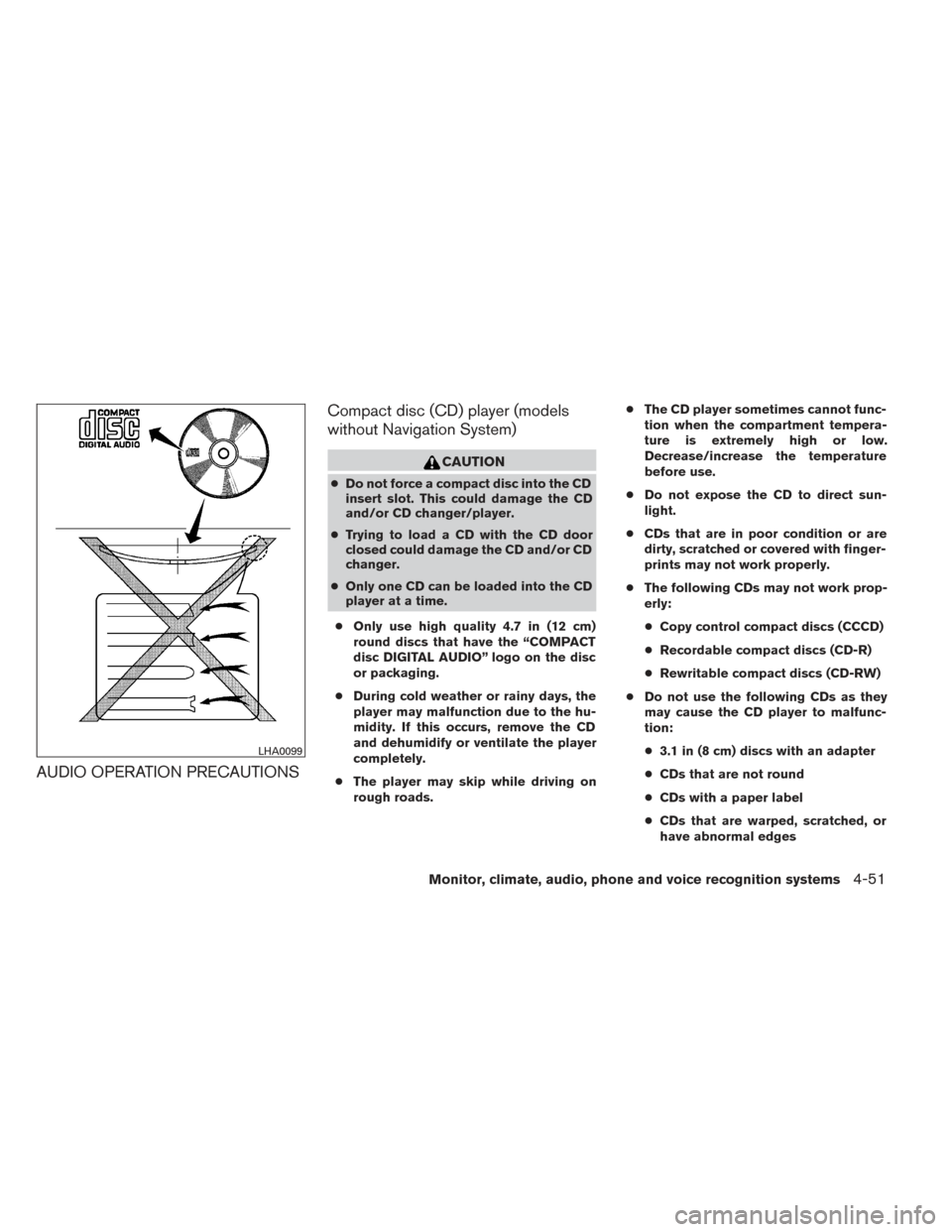
● Only use high quality 4.7 in (12 cm)
round discs that have the “COMPACT
disc DIGITAL AUDIO” logo on the disc
or packaging.
● During cold weather or rainy days, the
player may malfunction due to the hu-
midity. If this occurs, remove the CD
and dehumidify or ventilate the player
completely.
● The player may skip while driving on
rough roads. ●
The CD player sometimes cannot func-
tion when the compartment tempera-
ture is extremely high or low.
Decrease/increase the temperature
before use.
● Do not expose the CD to direct sun-
light.
● CDs that are in poor condition or are
dirty, scratched or covered with finger-
prints may not work properly.
● The following CDs may not work prop-
erly:
● Copy control compact discs (CCCD)
● Recordable compact discs (CD-R)
● Rewritable compact discs (CD-RW)
● Do not use the following CDs as they
may cause the CD player to malfunc-
tion:
● 3.1 in (8 cm) discs with an adapter
● CDs that are not round
● CDs with a paper label
● CDs that are warped, scratched, or
have abnormal edges
LHA0099
Monitor, climate, audio, phone and voice recognition systems4-51
Page 246 of 492
●An incorrect song title may appear when the
Play Mode is changed while using an iPod®
nano (2nd Generation) .
● Audiobooks may not play in the same order
as they appear on an iPod®.
● Large video files cause slow responses in an
iPod®. The vehicle center display may mo-
mentarily black out, but will soon recover.
● If an iPod® automatically selects large video
files while in the shuffle mode, the vehicle
center display may momentarily black out,
but will soon recover.
Bluetooth® streaming audio (if so
equipped)
● Some Bluetooth® audio devices may not be
recognized by the in-vehicle audio system.
● It is necessary to set up the wireless con-
nection between a compatible Bluetooth®
audio device and the in-vehicle Bluetooth®
module before using the Bluetooth® audio.
● Operating procedure of the Bluetooth® au-
dio will vary depending on the devices. Make
sure how to operate your audio device be-
fore using it with this system.
● The Bluetooth® audio may be stopped un-
der the following conditions: ●
Receiving a call on the Hands-Free
Phone System.
● Checking the connection to the hands-
free phone.
● Do not place the Bluetooth® audio device in
an area surrounded by metal or far away from
the in-vehicle Bluetooth® module to prevent
tone quality degradation and wireless con-
nection disruption.
● While an audio device is connected through
the Bluetooth® wireless connection, the
battery power of the device may discharge
quicker than usual.
● This system supports the Bluetooth® Audio
Distribution Profile (A2DP, AVRCP) .BLUETOOTH® is a
trademark owned by
Bluetooth SIG, Inc.
and licensed to
Clarion Co., Ltd.
CD or USB with Compressed Audio
Files (models without Navigation
System)
The file types supported by this system are MP3
and WMA. Explanation of terms:
● MP3 — MP3 is short for Moving Pictures
Experts Group Audio Layer 3. MP3 is the
most well-known compressed digital audio
file format. This format allows for near “CD
quality” sound, but at a fraction of the size of
normal audio files. MP3 conversion of an
audio track from CD-ROM can reduce the
file size by approximately a 10:1 ratio with
virtually no perceptible loss in quality. MP3
compression removes the redundant and
irrelevant parts of a sound signal that the
human ear doesn’t hear.
● WMA — Windows Media Audio (WMA)* is a
compressed audio format created by Micro-
soft as an alternative to MP3. The WMA
codec offers greater file compression than
the MP3 codec, enabling storage of more
digital audio tracks in the same amount of
space when compared to MP3s at the same
level of quality.
● Bit rate — Bit rate denotes the number of
bits per second used by a digital music file.
The size and quality of a compressed digital
audio file is determined by the bit rate used
when encoding the file.
Monitor, climate, audio, phone and voice recognition systems4-55
Page 247 of 492
●Sampling frequency — Sampling frequency
is the rate at which the samples of a signal
are converted from analog to digital (A/D
conversion) per second.
● Multisession — Multisession is one of the
methods for writing data to media. Writing
data once to the media is called a single
session, and writing more than once is called
a multisession.
● ID3/WMA Tag — The ID3/WMA tag is the
part of the encoded MP3 or WMA file that
contains information about the digital music
file such as song title, artist, encoding bit
rate, track time duration, etc. ID3 tag infor-
mation is displayed on the Artist/song title
line on the display.
* Windows®, Windows Media® and Windows
Vista® are registered trademarks and trade-
marks in the United States of America and other
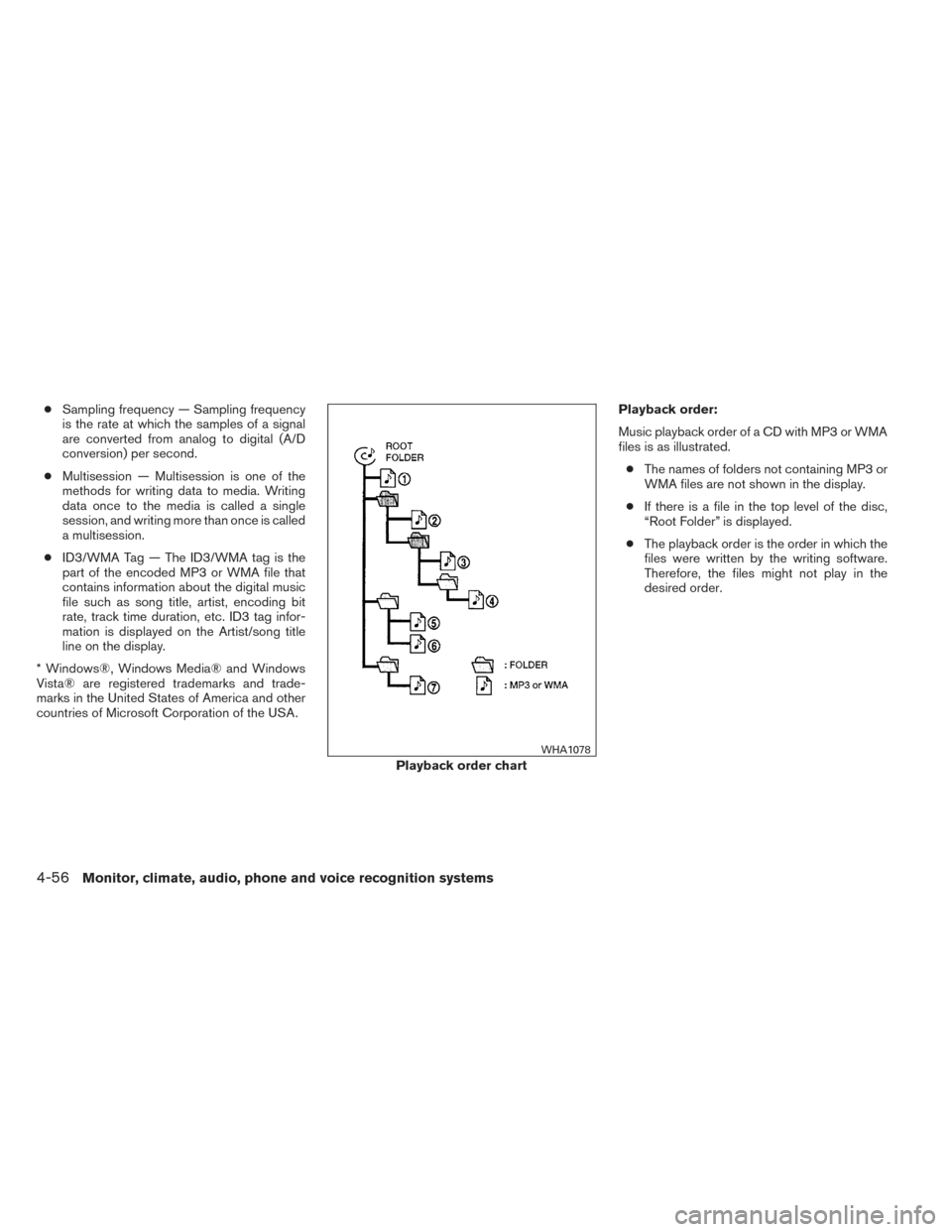
countries of Microsoft Corporation of the USA. Playback order:
Music playback order of a CD with MP3 or WMA
files is as illustrated.
● The names of folders not containing MP3 or
WMA files are not shown in the display.
● If there is a file in the top level of the disc,
“Root Folder” is displayed.
● The playback order is the order in which the
files were written by the writing software.
Therefore, the files might not play in the
desired order.
Playback order chart
WHA1078
4-56Monitor, climate, audio, phone and voice recognition systems
Page 249 of 492
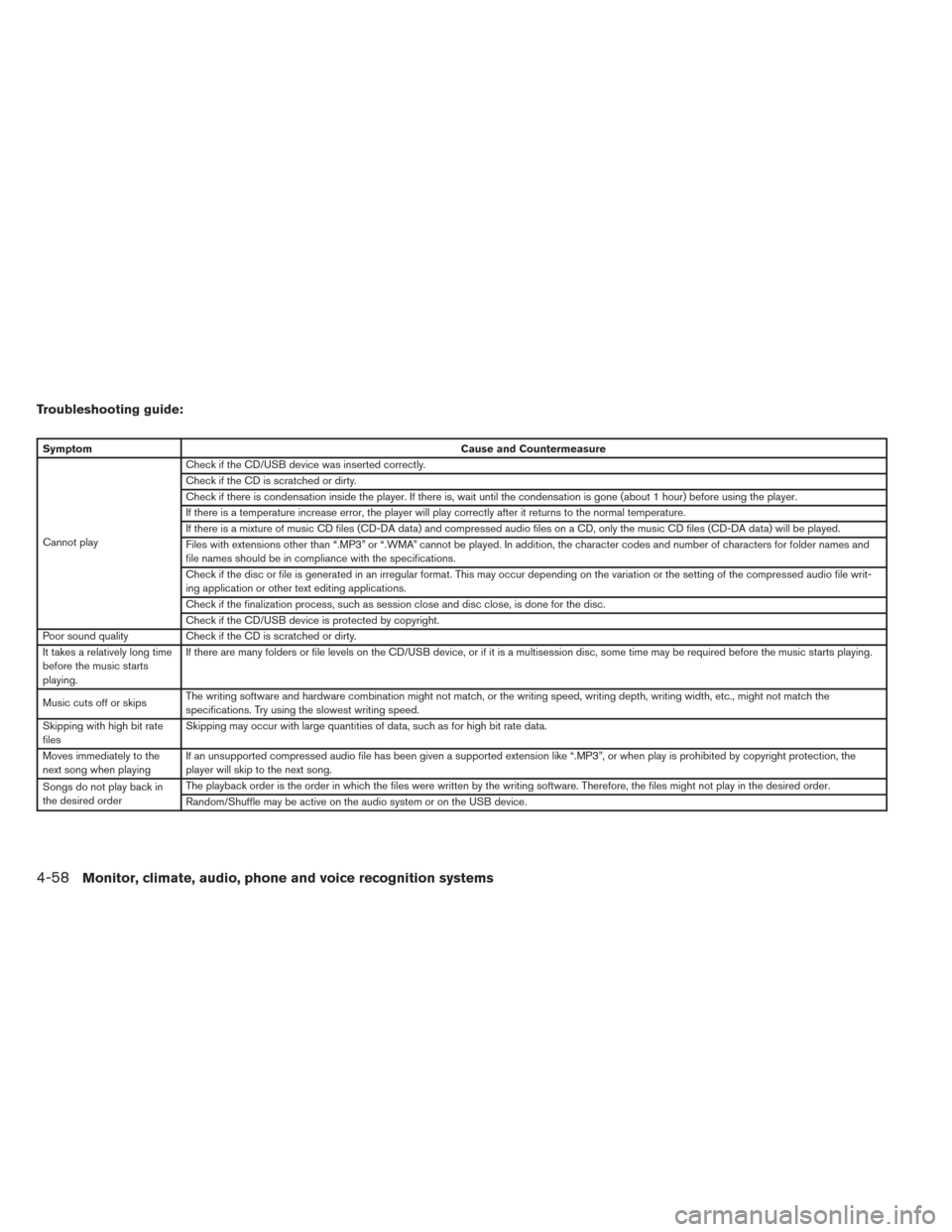
Troubleshooting guide:
SymptomCause and Countermeasure
Cannot play Check if the CD/USB device was inserted correctly.
Check if the CD is scratched or dirty.
Check if there is condensation inside the player. If there is, wait until the condensation is gone (about 1 hour) before using the player.
If there is a temperature increase error, the player will play correctly after it returns to the normal temperature.
If there is a mixture of music CD files (CD-DA data) and compressed audio files on a CD, only the music CD files (CD-DA data) will be played.
Files with extensions other than “.MP3” or “.WMA” cannot be played. In addition, the character codes and number of characters for folder names and
file names should be in compliance with the specifications.
Check if the disc or file is generated in an irregular format. This may occur depending on the variation or the setting of the compressed audio file writ-
ing application or other text editing applications.
Check if the finalization process, such as session close and disc close, is done for the disc.
Check if the CD/USB device is protected by copyright.
Poor sound quality Check if the CD is scratched or dirty.
It takes a relatively long time
before the music starts
playing. If there are many folders or file levels on the CD/USB device, or if it is a multisession disc, some time may be required before the music starts playing.
Music cuts off or skips The writing software and hardware combination might not match, or the writing speed, writing depth, writing width, etc., might not match the
specifications. Try using the slowest writing speed.
Skipping with high bit rate
files Skipping may occur with large quantities of data, such as for high bit rate data.
Moves immediately to the
next song when playing If an unsupported compressed audio file has been given a supported extension like “.MP3”, or when play is prohibited by copyright protection, the
player will skip to the next song.
Songs do not play back in
the desired order The playback order is the order in which the files were written by the writing software. Therefore, the files might not play in the desired order.
Random/Shuffle may be active on the audio system or on the USB device.
4-58Monitor, climate, audio, phone and voice recognition systems
Page 250 of 492
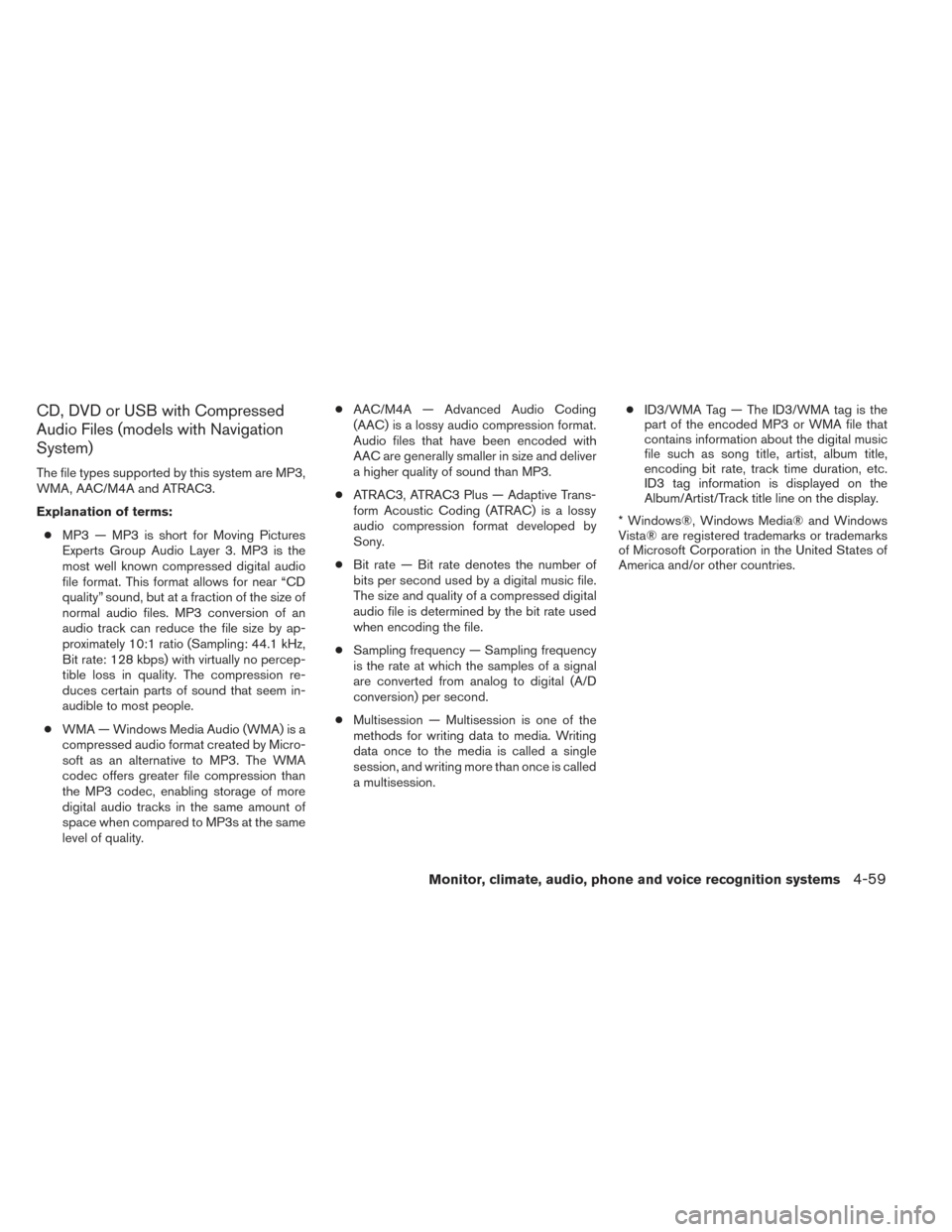
CD, DVD or USB with Compressed
Audio Files (models with Navigation
System)
The file types supported by this system are MP3,
WMA, AAC/M4A and ATRAC3.
Explanation of terms:● MP3 — MP3 is short for Moving Pictures
Experts Group Audio Layer 3. MP3 is the
most well known compressed digital audio
file format. This format allows for near “CD
quality” sound, but at a fraction of the size of
normal audio files. MP3 conversion of an
audio track can reduce the file size by ap-
proximately 10:1 ratio (Sampling: 44.1 kHz,
Bit rate: 128 kbps) with virtually no percep-
tible loss in quality. The compression re-
duces certain parts of sound that seem in-
audible to most people.
● WMA — Windows Media Audio (WMA) is a
compressed audio format created by Micro-
soft as an alternative to MP3. The WMA
codec offers greater file compression than
the MP3 codec, enabling storage of more
digital audio tracks in the same amount of
space when compared to MP3s at the same
level of quality. ●
AAC/M4A — Advanced Audio Coding
(AAC) is a lossy audio compression format.
Audio files that have been encoded with
AAC are generally smaller in size and deliver
a higher quality of sound than MP3.
● ATRAC3, ATRAC3 Plus — Adaptive Trans-
form Acoustic Coding (ATRAC) is a lossy
audio compression format developed by
Sony.
● Bit rate — Bit rate denotes the number of
bits per second used by a digital music file.
The size and quality of a compressed digital
audio file is determined by the bit rate used
when encoding the file.
● Sampling frequency — Sampling frequency
is the rate at which the samples of a signal
are converted from analog to digital (A/D
conversion) per second.
● Multisession — Multisession is one of the
methods for writing data to media. Writing
data once to the media is called a single
session, and writing more than once is called
a multisession. ●
ID3/WMA Tag — The ID3/WMA tag is the
part of the encoded MP3 or WMA file that
contains information about the digital music
file such as song title, artist, album title,
encoding bit rate, track time duration, etc.
ID3 tag information is displayed on the
Album/Artist/Track title line on the display.
* Windows®, Windows Media® and Windows
Vista® are registered trademarks or trademarks
of Microsoft Corporation in the United States of
America and/or other countries.
Monitor, climate, audio, phone and voice recognition systems4-59
Page 253 of 492
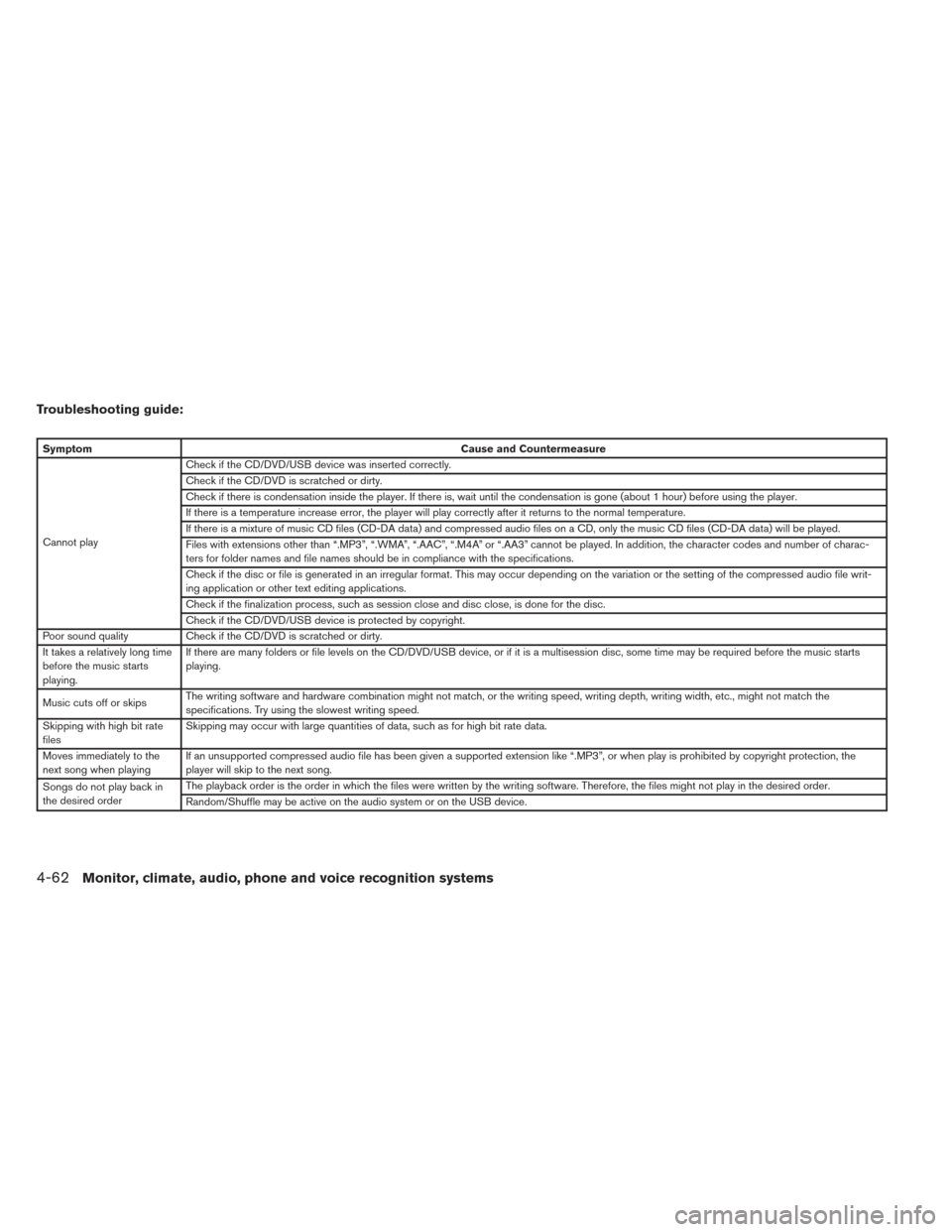
Troubleshooting guide:
SymptomCause and Countermeasure
Cannot play Check if the CD/DVD/USB device was inserted correctly.
Check if the CD/DVD is scratched or dirty.
Check if there is condensation inside the player. If there is, wait until the condensation is gone (about 1 hour) before using the player.
If there is a temperature increase error, the player will play correctly after it returns to the normal temperature.
If there is a mixture of music CD files (CD-DA data) and compressed audio files on a CD, only the music CD files (CD-DA data) will be played.
Files with extensions other than “.MP3”, “.WMA”, “.AAC”, “.M4A” or “.AA3” cannot be played. In addition, the character codes and number of charac-
ters for folder names and file names should be in compliance with the specifications.
Check if the disc or file is generated in an irregular format. This may occur depending on the variation or the setting of the compressed audio file writ-
ing application or other text editing applications.
Check if the finalization process, such as session close and disc close, is done for the disc.
Check if the CD/DVD/USB device is protected by copyright.
Poor sound quality Check if the CD/DVD is scratched or dirty.
It takes a relatively long time
before the music starts
playing. If there are many folders or file levels on the CD/DVD/USB device, or if it is a multisession disc, some time may be required before the music starts
playing.
Music cuts off or skips The writing software and hardware combination might not match, or the writing speed, writing depth, writing width, etc., might not match the
specifications. Try using the slowest writing speed.
Skipping with high bit rate
files Skipping may occur with large quantities of data, such as for high bit rate data.
Moves immediately to the
next song when playing If an unsupported compressed audio file has been given a supported extension like “.MP3”, or when play is prohibited by copyright protection, the
player will skip to the next song.
Songs do not play back in
the desired order The playback order is the order in which the files were written by the writing software. Therefore, the files might not play in the desired order.
Random/Shuffle may be active on the audio system or on the USB device.
4-62Monitor, climate, audio, phone and voice recognition systems
Page 254 of 492
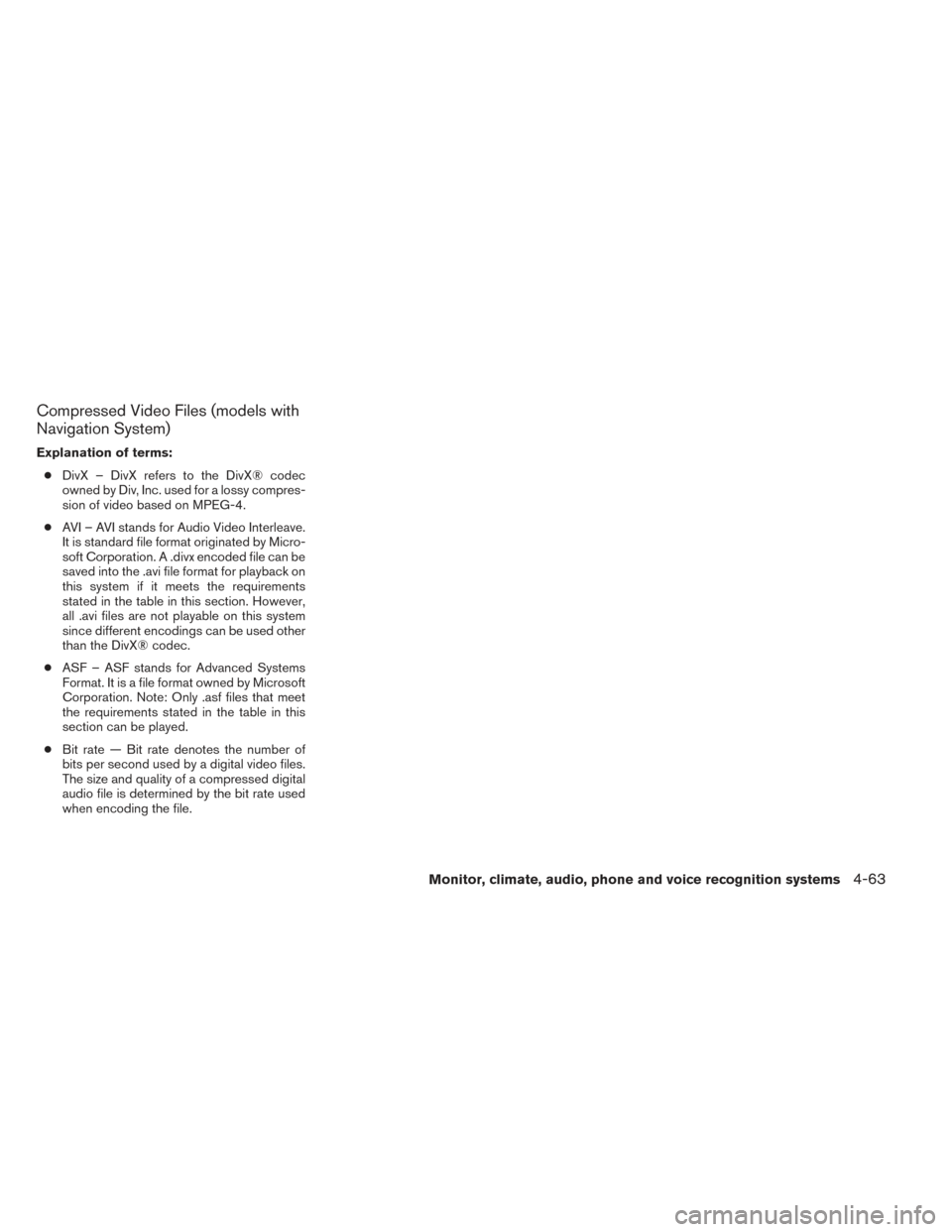
Compressed Video Files (models with
Navigation System)
Explanation of terms:● DivX – DivX refers to the DivX® codec
owned by Div, Inc. used for a lossy compres-
sion of video based on MPEG-4.
● AVI – AVI stands for Audio Video Interleave.
It is standard file format originated by Micro-
soft Corporation. A .divx encoded file can be
saved into the .avi file format for playback on
this system if it meets the requirements
stated in the table in this section. However,
all .avi files are not playable on this system
since different encodings can be used other
than the DivX® codec.
● ASF – ASF stands for Advanced Systems
Format. It is a file format owned by Microsoft
Corporation. Note: Only .asf files that meet
the requirements stated in the table in this
section can be played.
● Bit rate — Bit rate denotes the number of
bits per second used by a digital video files.
The size and quality of a compressed digital
audio file is determined by the bit rate used
when encoding the file.
Monitor, climate, audio, phone and voice recognition systems4-63
Page 257 of 492
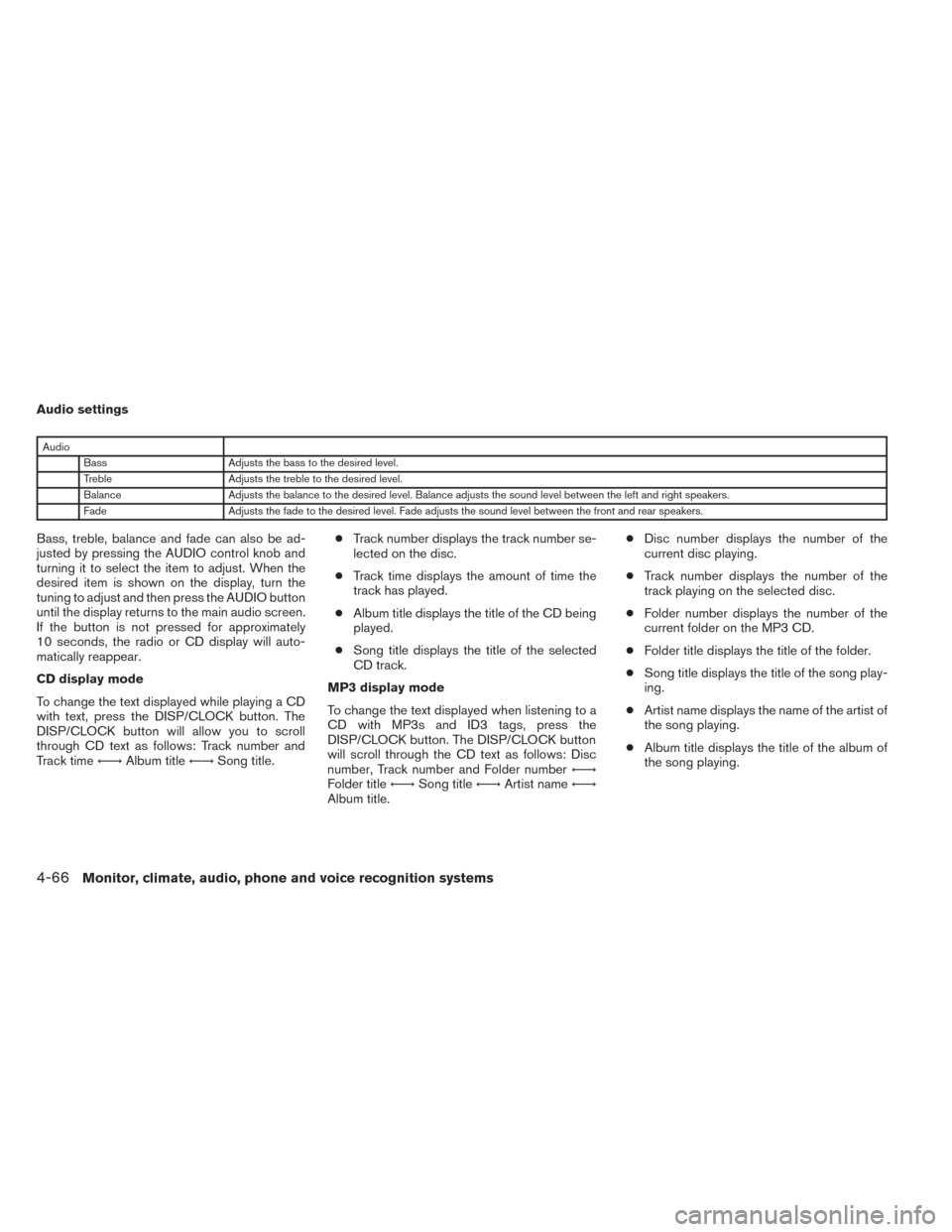
Audio settings
AudioBass Adjusts the bass to the desired level.
Treble Adjusts the treble to the desired level.
Balance Adjusts the balance to the desired level. Balance adjusts the sound level between the left and right speakers.
Fade Adjusts the fade to the desired level. Fade adjusts the sound level between the front and rear speakers.
Bass, treble, balance and fade can also be ad-
justed by pressing the AUDIO control knob and
turning it to select the item to adjust. When the
desired item is shown on the display, turn the
tuning to adjust and then press the AUDIO button
until the display returns to the main audio screen.
If the button is not pressed for approximately
10 seconds, the radio or CD display will auto-
matically reappear.
CD display mode
To change the text displayed while playing a CD
with text, press the DISP/CLOCK button. The
DISP/CLOCK button will allow you to scroll
through CD text as follows: Track number and
Track time←→Album title ←→Song title. ●
Track number displays the track number se-
lected on the disc.
● Track time displays the amount of time the
track has played.
● Album title displays the title of the CD being
played.
● Song title displays the title of the selected
CD track.
MP3 display mode
To change the text displayed when listening to a
CD with MP3s and ID3 tags, press the
DISP/CLOCK button. The DISP/CLOCK button
will scroll through the CD text as follows: Disc
number, Track number and Folder number ←→
Folder title ←→Song title ←→Artist name ←→
Album title. ●
Disc number displays the number of the
current disc playing.
● Track number displays the number of the
track playing on the selected disc.
● Folder number displays the number of the
current folder on the MP3 CD.
● Folder title displays the title of the folder.
● Song title displays the title of the song play-
ing.
● Artist name displays the name of the artist of
the song playing.
● Album title displays the title of the album of
the song playing.
4-66Monitor, climate, audio, phone and voice recognition systems
Page 258 of 492
FM/AM radio operation
FM/AM band select:
Pressing the AM·FM button will change the band
as follows:
AM→FM1 →FM2 →AM
When the AM·FM button is pressed while the
ignition switch is in the ACC or ON position, the
radio will come on at the station last played.
The last station played will also come on when
the VOL/ON·OFF control knob is pressed ON.
If a compact disc is playing when the AM·FM
button is pressed, the compact disc will auto-
matically be turned off and the last radio station
played will come on.
The FM stereo indicator ST will illuminate during
FM stereo reception. When the stereo broadcast
signal is weak, the radio will automatically change
from stereo to monaural reception.
TUNE/FOLDER (Tuning) knob:
To manually tune the radio, turn the
TUNE/FOLDER knob to the right or left.
SEEK/CAT and TRACK tuning buttons:
Press the SEEK/CAT
button or the
TRACK
button to tune from high to low or
low to high frequencies and stop at the next
broadcasting station.
SCAN tuning:
Press the SCAN button to stop at each broad-
casting station for 5 seconds. Pressing the
SCAN button again during this 5-second period
will stop scan tuning and the radio will remain
tuned to that station. If the SCAN button is not
pressed within 5 seconds, scan tuning moves to
the next station.
1 to 6 Station memory operations:
Twelve stations can be set for the FM band (6 for
FM1, 6 for FM2) and six stations can be set for
the AM band.
1. Choose the radio band AM, FM1 or FM2 using the AM·FM select button.
2. Tune to the desired station using manual, SEEK or SCAN tuning. Press and hold any
of the desired station memory buttons (1 –
6) until a beep sound is heard. 3. The channel indicator will then come on and
the sound will resume. Programming is now
complete.
4. Other buttons can be set in the same man- ner.
If the battery cable is disconnected or if the fuse
opens, the radio memory will be canceled. In that
case, reset the desired stations.
Compact disc (CD) changer operation
Place the ignition switch in the ACC or ON
position and press the LOAD button, then press
one of the CD insert (1 – 6) slots. Insert the
compact disc into the slot with the label side
facing up. The compact disc will be guided auto-
matically into the slot and start playing.
If the radio is already operating, it will automati-
cally turn off and the compact disc will play.
If the system has been turned off while a compact
disc was playing, pressing the VOL/ON·OFF
control knob will start the compact disc.
LOAD button:
To insert a CD in the CD changer, press the
LOAD button for less than 1.5 seconds. Select
the loading slot by pressing the CD insert select
button (1 – 6) , then insert the CD.
Monitor, climate, audio, phone and voice recognition systems4-67