fuel NISSAN PATHFINDER 2022 Owner´s Manual
[x] Cancel search | Manufacturer: NISSAN, Model Year: 2022, Model line: PATHFINDER, Model: NISSAN PATHFINDER 2022Pages: 647, PDF Size: 8.48 MB
Page 134 of 647
12. ProPILOT Assist (if so equipped)
The ProPILOT Assist mode shows operat-
ing conditions for the following systems:
• Intelligent Cruise Control (ICC)
• Steering Assist
The display will also be shown when the
ProPILOT Assist is turned on. For additional
information, see “ProPILOT Assist” (P. 5-86).
13. Traffic Sign Recognition (if so
equipped)
The Traffic Sign Recognition (TSR) system
provides the driver with information about
the most recently detected speed limit.
For additional information, see “Traffic Sign
Recognition (TSR) (P. 5-32).
14. Idling Stop System (if so
equipped)
The Idling Stop System provides the driver
with information about the amount of fuel
saved while using the system.
For additional information, see “Idling Stop
System” (P. 5-189).
OIL CONTROL SYSTEM (if so
equipped)
The oil control system can be accessed in
the Maintenance portion of the vehicle in-
formation display settings.
Engine oil information informs the distance
to oil change. Never exceed one year or
10,000 miles (16,000 km) between oil
change intervals for the 3.5L 6 cylinder
(VQ35DD engine model).
Display when
ignition is ONDisplay timing Action
Required
Engine Oil
Service due in
xxx miles Remaining oil
life is less than
940 miles (1500
km). Plan to have
your vehicle
serviced.
Engine Oil
Service due Remaining oil
life is 0 miles
(0 km). Have your ve-
hicle serviced
within two
weeks or less
than 500 miles
(800 km).
The oil change interval cannot be adjusted
manually.
The distance to oil change interval is calcu-
lated depending on the driving conditions
and set automatically by the oil control sys-
tem. A reminder will be displayed when ap-
proaching the end of the service interval. When the Factory Reset option is selected
in the vehicle information display, the oil
control system will also be reset to initial
value. Please change the engine oil when
Factory Reset is selected.
CAUTION
If the oil replacement indicator is dis-
played, change the engine oil within two
weeks or less than 500 miles (800 km).
Operating the vehicle with deteriorated
oil can damage the engine.
To reset oil control system:
1.
Place the ignition switch in the ON position.
2. Push theandbuttons located
on the steering wheel until “Settings” dis-
plays in the vehicle information display.
Use the scroll dial to select “Mainte-
nance”. Then, press the scroll dial.
3. Select the “Service” and press the scroll dial.
4. Press the scroll dial according to the re- set instructions displayed at the bottom
of the “Service” maintenance screen.
For additional information, see “Mainte-
nance” (P. 2-58).
Instruments and controls2-27
Page 141 of 647

Customize Display
The customize display menu allows the user to customize the information that appears in the vehicle information display.
Some menu items shown below may not be equipped on your vehicle.
Menu itemExplanation
Main Menu Selection Displays the available screens that can be shown in the vehicle information display.
Home Allows user to turn the home screen on or off in the vehicle information display.
Blank Allows user to turn the blank on or off in the vehicle information display.
Speed Allows user to turn the speed screen on or off in the vehicle information display.
Drive Computer Allows user to turn the drive computer screen on or off in the vehicle information display.
Fuel Economy Allows user to turn the fuel economy screen on or off in the vehicle information display.
ECO Pedal Guide Allows user to turn the ECO Pedal guide screen on or off in the vehicle information display.
TPMS Allows user to turn the TPMS screen on or off in the vehicle information display.
Idling Stop Allows user to turn the Idling stop screen on or off in the vehicle information display.
4x4–I Allows user to turn the 4x4–I screen on or off in the vehicle information display.
Navigation Allows user to turn the navigation screen on or off in the vehicle information display.
Audio Allows user to turn the audio controls screen on or off in the vehicle information display.
Driving Aids Allows user to turn the driving aids screen on or off in the vehicle information display.
Cruise Allows user to turn the cruise control screen on or off in the vehicle information display.
Speed Limit Sign Allows user to turn the speed limit sign screen on or off in the vehicle information display.
Route Guidance Displays the available route guidance settings.
Alerts Allows user to turn the alerts on or off.
Transition (Cruise) Allows user to turn the transition (cruise) on or off.
Welcome Effect Displays the available welcome effect settings.
Gauges Allows user to turn the gauges effect on or off.
Animation Allows user to turn the animation effect on or off.
Operation guidance Displays the available operation guidance settings.
2-34Instruments and controls
Page 142 of 647
Menu itemExplanation
Lights Allows user to turn the light mode guidance on or off.
Wiper Displays the available wiper settings.
Front Allows user to turn the front wiper guidance on or off.
Rear Allows user to turn the rear wiper guidance on or off.
High Beam Assist Allows user to turn the High Beam Assist on or off.
Seat Memory Allows user to turn the seat memory on or off.
Cruise Control Allows user to turn the cruise control on or off.
Unit/Language
The unit/language menu allows the user to change the units shown in the vehicle information display.
Some menu items shown below may not be equipped on your vehicle.
Menu item Explanation
Mileage/Fuel Displays the available mileage/fuel display units and allows user to select preferred unit for display.
Tire Pressure Allows user to select the tire pressure display units.
Temperature Allows user to select the temperature display units.
Language Displays the available language options and allows user to select preferred language for display.
Instruments and controls2-35
Page 146 of 647
Low Fuel
This warning appears when the fuel level in
the fuel tank is getting low. Refuel as soon
as it is convenient, preferably before the
fuel gauge reaches 0 (Empty).There will be
a small reserve of fuel in the tank when
the fuel gauge needle reaches 0 (Empty).
Low Oil Pressure: See
Owner’s Manual
This warning appears in the message area
of the vehicle information display if low oil
pressure is detected. This gauge is not de-
signed to indicate low oil level. The low oil
pressure warning is not designed to indi-
cate a low oil level. Use the dipstick to
check the oil level. For additional informa-
tion, see “Engine oil” (P. 8-7).
Low Outside Temperature
This warning appears if the outside tem-
perature is below 37°F (3°C). The tempera-
ture can be changed to display in Celsius or
Fahrenheit. For additional information, see
“Driver Assistance” (P. 2-28).
Low Washer Fluid
This warning appears when the windshield-
washer fluid is at a low level. Add windshield-
washer fluid as necessary. For additional
information, see “Windshield-washer fluid”
(P. 8-12).
Parking Sensor Error: See Owner’s
Manual
This warning appears when there is an er-
ror with the system. For additional informa-
tion, see “Front and rear sonar system”
(P. 5-183).
Power will turn off to save the battery
This message appears in the vehicle infor-
mation display af ter a period of time if the
ignition switch is in the ON position and if
the vehicle is in P (Park). For additional infor-
mation, see “Push-button ignition switch
positions” (P. 5-14).
Power turned off to save the battery
This message appears af ter the ignition
switch is automatically turned off. For addi-
tional information, see “Push-button igni-
tion switch positions” (P. 5-14).
Press Brake Pedal
This warning appears in the following situ-
ations:
• The driver tries to release the electronic parking brake manually without depress-
ing the brake pedal.
• The vehicle is stopped on a steep hill and there is a possibility of moving backward,
even if the electronic parking brake is
applied.
• This warning appears if the vehicle moves while the automatic brake hold is
activated.
Press brake to operate
switch
This warning appears if the automatic
brake hold switch is pushed without de-
pressing the brake pedal while the auto-
matic brake hold function is activated. De-
press the brake pedal and push the switch
to deactivate the automatic brake hold
function.
For additional information, see “Automatic
brake hold” (P. 5-25).
Instruments and controls2-39
Page 153 of 647
• Audio information
• Compass and navigation information(if so equipped)
• Shif t position
• Distance to empty
• Odometer/twin trip odometer
• Clock and outside temperature
• Intelligent 4x4 (if so equipped)
HOW TO USE THE VEHICLE
INFORMATION DISPLAY
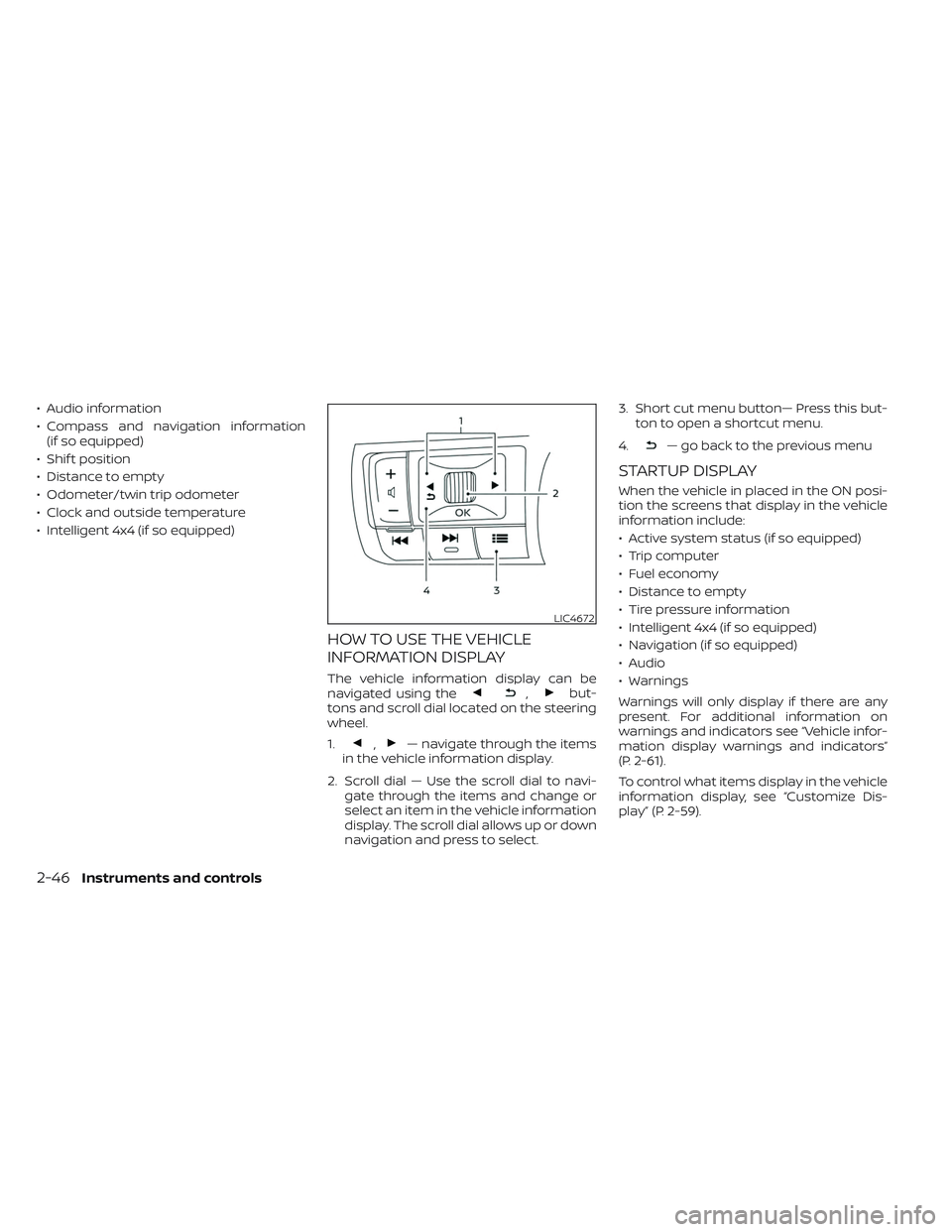
The vehicle information display can be
navigated using the,but-
tons and scroll dial located on the steering
wheel.
1.
,— navigate through the items
in the vehicle information display.
2. Scroll dial — Use the scroll dial to navi- gate through the items and change or
select an item in the vehicle information
display. The scroll dial allows up or down
navigation and press to select. 3. Short cut menu button— Press this but-
ton to open a shortcut menu.
4.
— go back to the previous menu
STARTUP DISPLAY
When the vehicle in placed in the ON posi-
tion the screens that display in the vehicle
information include:
• Active system status (if so equipped)
• Trip computer
• Fuel economy
• Distance to empty
• Tire pressure information
• Intelligent 4x4 (if so equipped)
• Navigation (if so equipped)
• Audio
• Warnings
Warnings will only display if there are any
present. For additional information on
warnings and indicators see “Vehicle infor-
mation display warnings and indicators”
(P. 2-61).
To control what items display in the vehicle
information display, see “Customize Dis-
play” (P. 2-59).
LIC4672
2-46Instruments and controls
Page 155 of 647
2. Speed and Average speed (if so
equipped)
The Speed and Average speed mode
shows the current vehicle speed and the
average vehicle speed since the last reset.
The Speed and Average speed mode has
three modes of operation. You can switch
between Manual Reset1, Manual Reset2 or
Auto Refuel by pushing the scroll dial.
Manual Reset1 can be reset manually by
using the scroll dial.
Manual Reset2 can be reset manually by
using the scroll dial or will be reset auto-
matically each time the ignition switch is
placed in the OFF position (if so equipped).
Auto Refuel will be reset automatically each
time when refueling.
3. Drive Computer
Average fuel consumption:
The average fuel consumption shows the
average fuel consumption since the last
reset.
Average speed:
The average speed shows the average ve-
hicle speed since the last reset.Trip odometer:
The trip odometer shows the total dis-
tance the vehicle has been driven since the
last reset.
Elapsed time:
The elapsed time shows the time since the
last reset.
The Drive computer mode has three
modes of operation. You can switch be-
tween Manual Reset1, Manual Reset2 or
Auto Refuel by pushing the scroll dial.
Manual Reset1 can be reset manually by
using the scroll dial.
Manual Reset2 can be reset manually by
using the scroll dial or will be reset auto-
matically each time the ignition switch is
placed in the OFF position (if so equipped).
Auto Refuel will be reset automatically each
time when refueling.
4. Fuel economy display
Current fuel consumption:
The Fuel economy display mode shows the
current fuel consumption.
Average fuel consumption:
The Fuel economy display mode shows the
average fuel consumption since the last
reset.
The Fuel economy display mode has three
modes of operation. You can switch be-
tween Manual Reset1, Manual Reset2 or
Auto Refuel by pushing the scroll dial.
Manual Reset1 can be reset manually by
using the scroll dial.
Manual Reset2 can be reset manually by
using the scroll dial or will be reset auto-
matically each time the ignition switch is
placed in the OFF position (if so equipped).
Auto Refuel will be reset automatically each
time when refueling.
5. Eco Pedal Guide
When the ECO mode is selected, you can
view ECO Pedal Guide function for improv-
ing fuel economy.
The ECO Pedal Guide mode has three
modes of operation. You can switch be-
tween Manual Reset1, Manual Reset2 or
Auto Refuel by pushing the scroll dial.
Manual Reset1 can be reset manually by
using the scroll dial.
2-48Instruments and controls
Page 156 of 647
Manual Reset2 can be reset manually by
using the scroll dial or will be reset auto-
matically each time the ignition switch is
placed in the OFF position (if so equipped).
Auto Refuel will be reset automatically each
time when refueling.
For additional information, see “ECO Mode”
(P. 5-31).
6. Tire Pressures
The tire pressure mode shows the pres-
sure of all four tires while the vehicle is
driven.
With the “Tire Pres ECO advice” function ON,
when the tire pressure is getting low,
“Check Tire Pressures for Best Fuel
Economy” or “Add air for Best Fuel
Economy” appears. For additional informa-
tion, see “ECO Mode Setting” (P. 5-31) or “Tire
Pres ECO advice” (P. 5-31).
When the “Tire Pressure Low — Add Air”
warning appears, the display can be
switched to the tire pressure mode by
pushing the scroll dial to reveal additional
details on the displayed warning.
7. Intelligent 4x4 torque
distribution display (if so
equipped)
When the Intelligent 4x4 torque distribution
display is selected, you can view the distri-
bution ratio of the transmission torque to
the front and rear wheels during driving.
8. Compass (if so equipped)
This display indicates the direction the ve-
hicle is heading.
9. Navigation (if so equipped)
When the route guidance is set in the navi-
gation system, this item shows the naviga-
tion route information.
9. Audio
The audio mode shows the status of audio
information.
11. Driver Assistance
The Driver Assistance mode shows the op-
erating condition for the following systems:
•Forward–– Automatic Emergency Braking (AEB)with Pedestrian Detection system –
– Intelligent Forward Collision Warning
(I-FCW)
• Lane: –– Lane Departure Warning (LDW)
–– Intelligent Lane Intervention (I-LI)
• Blind Spot: –– Blind Spot Warning (BSW)
–– Intelligent Blind Spot Intervention (I-
BSI) (if so equipped)
For additional information, see “Intelligent
Blind Spot Intervention (I-BSI)” (P. 5-62),
“Blind Spot Warning (BSW)” (P. 5-49), “Lane
Departure Warning (LDW)” (P. 5-35), “Auto-
matic Emergency Braking (AEB) with Pe-
destrian Detection” (P. 5-136), “Intelligent
Forward Collision Warning (I-FCW)” (P. 5-149)
or “Intelligent Lane Intervention (I-LI)”
(P. 5-42).
12. ProPILOT Assist (if so equipped)
The ProPILOT Assist mode shows operat-
ing conditions for the following systems:
• Intelligent Cruise Control (ICC)
• Steering Assist
The display will also be shown when the
ProPILOT Assist is turned on. For additional
information, see “ProPILOT Assist” (P. 5-86).
Instruments and controls2-49
Page 157 of 647
13. Traffic Sign Recognition (if so
equipped)
The Traffic Sign Recognition (TSR) system
provides the driver with information about
the most recently detected speed limit.
For additional information, see “Traffic Sign
Recognition (TSR) (P. 5-32).
14. Idling Stop System (if so
equipped)
The Idling Stop System provides the driver
with information about the amount of fuel
saved while using the system.
For additional information, see “Idling Stop
System” (P. 5-189).
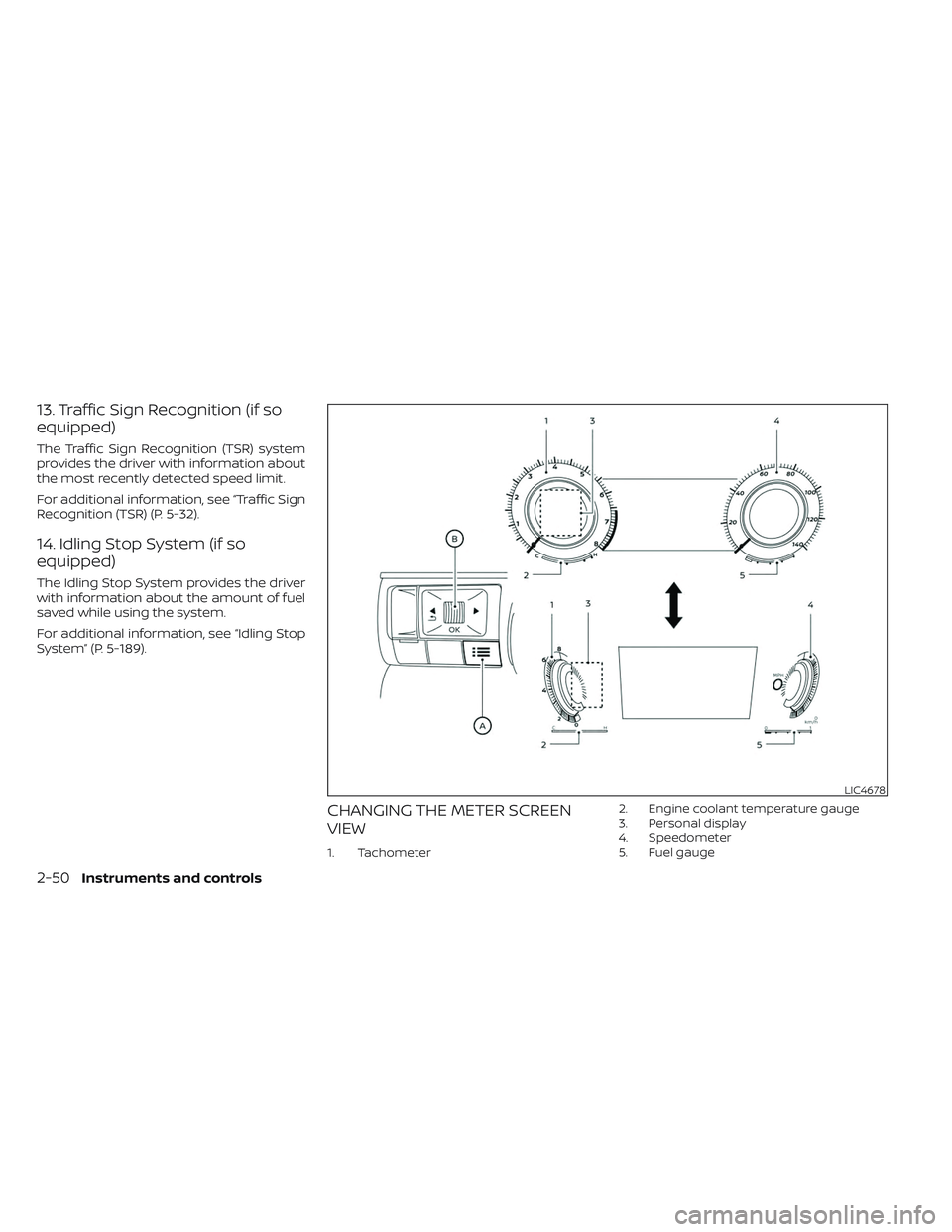
CHANGING THE METER SCREEN
VIEW
1. Tachometer2. Engine coolant temperature gauge
3. Personal display
4. Speedometer
5. Fuel gauge
LIC4678
2-50Instruments and controls
Page 161 of 647
Personal Display
The Personal Display menu allows the user to set various screens in the personal display area in the vehicle information display.
Some menu items shown below may not be equipped on your vehicle.
Menu item Explanation
Blank Allows user to select the blank screen.
Navigation Allows user to select the navigation screen.
Time to Destination Allows user to select the time to destination screen.
Fuel Economy Allows user to select the fuel economy screen.
Trip Allows user to select the trip screen.
Gear position Allows user to select the gear position screen.
Average speed Allows user to select the average speed screen.
Head-Up Display (if so equipped)
The Head—Up Display menu allows the user to control the Head—Up Display feature.
Some menu items shown below may not be equipped on your vehicle.
Menu item Explanation
Brightness Allows user to change the brightness.
Height Allows user to change the height.
Rotation Allows user to change the rotation.
Contents selection Displays the available content in the Head-Up Display.
Navigation Allows user to turn the navigation on or off.
Driving Assist Allows user to turn the driving assist on or off.
Speed Limit Sign Allows user to turn the speed limit sign on or off.
Audio Allows user to turn the audio on or off.
TEL/SMS Allows user to turn the TEL/SMS on or off.
Reset Allows user to reset the settings. Once selected, the user can confirm or cancel the reset.
2-54Instruments and controls
Page 166 of 647
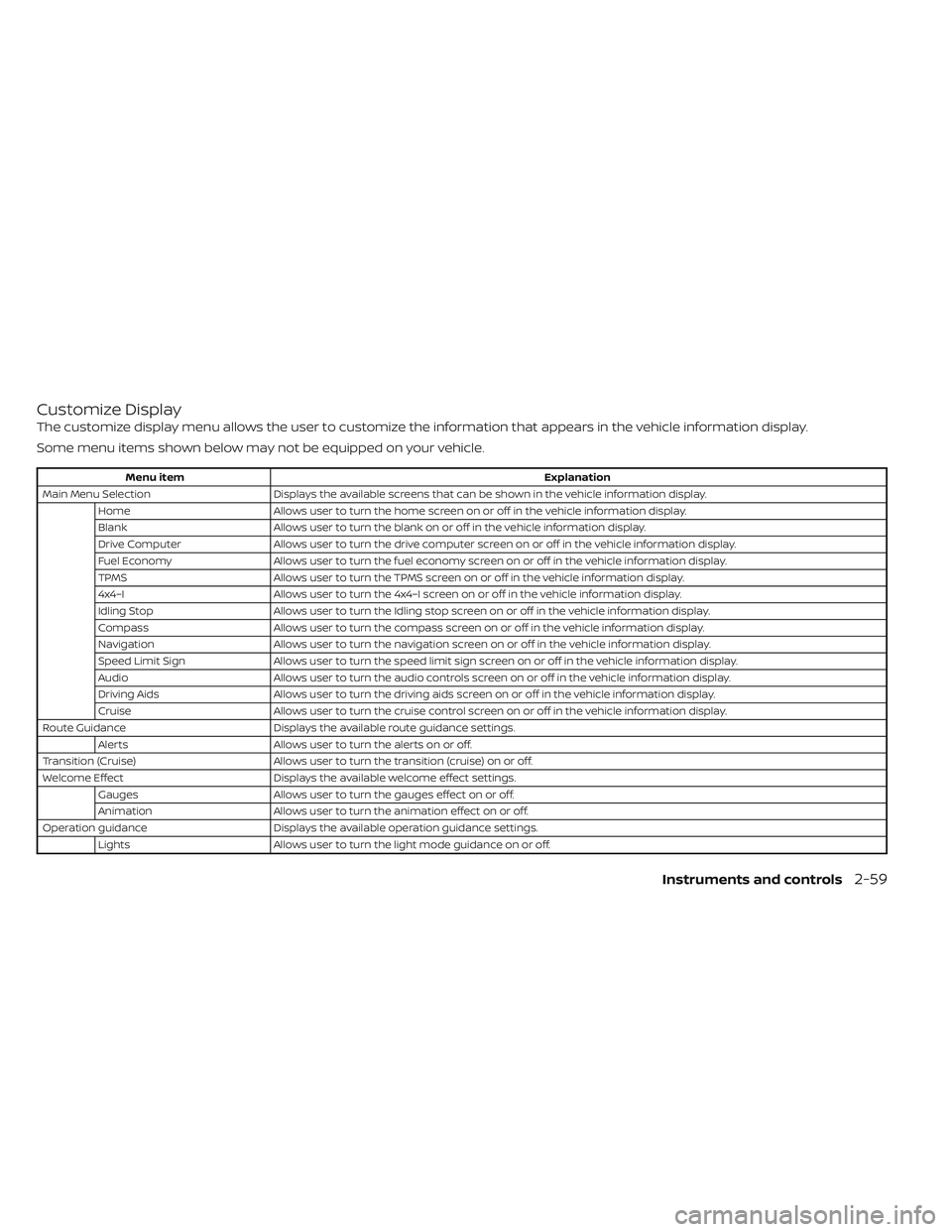
Customize Display
The customize display menu allows the user to customize the information that appears in the vehicle information display.
Some menu items shown below may not be equipped on your vehicle.
Menu itemExplanation
Main Menu Selection Displays the available screens that can be shown in the vehicle information display.
Home Allows user to turn the home screen on or off in the vehicle information display.
Blank Allows user to turn the blank on or off in the vehicle information display.
Drive Computer Allows user to turn the drive computer screen on or off in the vehicle information display.
Fuel Economy Allows user to turn the fuel economy screen on or off in the vehicle information display.
TPMS Allows user to turn the TPMS screen on or off in the vehicle information display.
4x4–I Allows user to turn the 4x4–I screen on or off in the vehicle information display.
Idling Stop Allows user to turn the Idling stop screen on or off in the vehicle information display.
Compass Allows user to turn the compass screen on or off in the vehicle information display.
Navigation Allows user to turn the navigation screen on or off in the vehicle information display.
Speed Limit Sign Allows user to turn the speed limit sign screen on or off in the vehicle information display.
Audio Allows user to turn the audio controls screen on or off in the vehicle information display.
Driving Aids Allows user to turn the driving aids screen on or off in the vehicle information display.
Cruise Allows user to turn the cruise control screen on or off in the vehicle information display.
Route Guidance Displays the available route guidance settings.
Alerts Allows user to turn the alerts on or off.
Transition (Cruise) Allows user to turn the transition (cruise) on or off.
Welcome Effect Displays the available welcome effect settings.
Gauges Allows user to turn the gauges effect on or off.
Animation Allows user to turn the animation effect on or off.
Operation guidance Displays the available operation guidance settings.
Lights Allows user to turn the light mode guidance on or off.
Instruments and controls2-59