maintenance NISSAN PATHFINDER 2022 Owner´s Manual
[x] Cancel search | Manufacturer: NISSAN, Model Year: 2022, Model line: PATHFINDER, Model: NISSAN PATHFINDER 2022Pages: 647, PDF Size: 8.48 MB
Page 140 of 647
Maintenance
The maintenance menu allows the user to set reminders for various vehicle maintenance items.
Some menu items shown below may not be equipped on your vehicle.
WARNING
The tire replacement indicator is not a substitute for regular tire checks, including tire pressure checks. For additional informa-
tion, see “Changing wheels and tires” (P. 8-38). Many factors including tire inflation, alignment, driving habits and road conditions
affect tire wear and when tires should be replaced. Setting the tire replacement indicator for a certain driving distance does not
mean your tires will last that long. Use the tire replacement indicator as a guide only and always perform regular tire checks.
Failure to perform regular tire checks, including tire pressure checks could result in tire failure. Serious vehicle damage could
occur and may lead to a collision, which could result in serious personal injury or death.
Menu item Explanation
Service Allows user to reset the current interval. This should only be done af ter completing oil change maintenance.
Air Filter Allows user to set a reminder at a specific interval or reset the current one.
Tire This indicator appears when the customer set distance is reached for replacing tires. You can set or reset the dis-
tance for replacing tires.
Other This indicator appears when the customer set distance is reached for checking or replacing maintenance items
other than the engine oil, oil filter and tires. Other maintenance items can include such things as air filter or tire
rotation. The distance for checking or replacing the items can be set or reset.
Instruments and controls2-33
Page 158 of 647
For models with the full-screen display, the
meter screen view can be changed to ex-
pand the vehicle information display.
To change the meter screen view:
1. Push the shortcut menu button
OAon
the lef t side of the steering wheel. “Short-
cut Menu” appears on the vehicle infor-
mation display.
2. Select “Change Meter View” by rotating the scroll dial
OBand pushing it to
change the view.
OIL CONTROL SYSTEM (if so
equipped)
The oil control system can be accessed in
the Maintenance portion of the vehicle in-
formation display settings.
Engine oil information informs the distance
to oil change. Never exceed one year or
10,000 miles (16,000 km) between oil
change intervals for the 3.5L 6 cylinder
(VQ35DD engine model).
Display when
ignition is ON Display timing Action
Required
Engine Oil
Service due in
xxx miles Remaining oil
life is less than
940 miles (1500
km). Plan to have
your vehicle
serviced.
Engine Oil
Service due Remaining oil
life is 0 miles
(0 km). Have your ve-
hicle serviced
within two
weeks or less
than 500 miles
(800 km).
The oil change interval cannot be adjusted
manually.
The distance to oil change interval is calcu-
lated depending on the driving conditions
and set automatically by the oil control sys-
tem. A reminder will be displayed when ap-
proaching the end of the service interval.
When the Factory Reset option is selected
in the vehicle information display, the oil
control system will also be reset to initial
value. Please change the engine oil when
Factory Reset is selected.
CAUTION
If the oil replacement indicator is dis-
played, change the engine oil within
two weeks or less than 500 miles (800
km).
Operating the vehicle with deteriorated
oil can damage the engine.
To reset oil control system:
1. Place the ignition switch in the ON position.
2. Push the
andbuttons located
on the steering wheel until “Settings” dis-
plays in the vehicle information display.
Use the scroll dial to select “Mainte-
nance”. Then, press the scroll dial.
3. Select the “Service” and press the scroll dial.
4. Press the scroll dial according to the re- set instructions displayed at the bottom
of the “Service” maintenance screen.
For additional information, see “Mainte-
nance” (P. 2-58).
Instruments and controls2-51
Page 159 of 647
SETTINGS
The setting mode allows you to change the
information displayed in the vehicle infor-
mation display:
• VDC Setting
• Driver Assistance• Personal Display
• Head—Up Display (if so equipped)
• ECO Mode Setting
• TPMS Setting
• Clock
• Vehicle Settings
• Maintenance
• Customize Display
• Unit/Language
• Factory Reset
VDC Setting
The VDC Setting menu allows the user to enable or disable the Vehicle Dynamic Control (VDC) system.
Some menu items shown below may not be equipped on your vehicle.
Menu item
Explanation
System Allows the user to turn the VDC system on or off. For additional information, see “Vehicle Dynamic Control
(VDC) system” (P. 5-177).
Driver Assistance
The driver assistance menu allows the user to change the various driving aids, parking aids and braking features.
Some menu items shown below may not be equipped on your vehicle.
Menu item Explanation
Steering Assist Allows user to turn the Steering Assist of the ProPILOT Assist system on or off. For additional information, see “ProPILOT As-
sist” (P. 5-86).
Lane Assist Displays available lane options.
Warning Allows user to turn the Lane Departure Warning (LDW) system on or off. For additional information, see “Lane Departure
Warning (LDW)” (P. 5-35).
Intervention Allows user to turn Intelligent Lane Intervention (I-LI) system on or off. For additional information, see “Intelligent Lane Inter-
vention (I-LI)” (P. 5-42).
2-52Instruments and controls
Page 165 of 647
Maintenance
The maintenance menu allows the user to set reminders for various vehicle maintenance items.
Some menu items shown below may not be equipped on your vehicle.
WARNING
The tire replacement indicator is not a substitute for regular tire checks, including tire pressure checks. For additional informa-
tion, see “Changing wheels and tires” (P. 8-38). Many factors including tire inflation, alignment, driving habits and road conditions
affect tire wear and when tires should be replaced. Setting the tire replacement indicator for a certain driving distance does not
mean your tires will last that long. Use the tire replacement indicator as a guide only and always perform regular tire checks.
Failure to perform regular tire checks, including tire pressure checks could result in tire failure. Serious vehicle damage could
occur and may lead to a collision, which could result in serious personal injury or death.
Menu item Explanation
Service Allows user to reset the current interval. This should only be done af ter completing oil change maintenance.
Air Filter Allows user to set a reminder at a specific interval or reset the current one.
Tire This indicator appears when the customer set distance is reached for replacing tires. You can set or reset the dis-
tance for replacing tires.
Other This indicator appears when the customer set distance is reached for checking or replacing maintenance items
other than the engine oil, oil filter and tires. Other maintenance items can include such things as air filter or tire
rotation. The distance for checking or replacing the items can be set or reset.
2-58Instruments and controls
Page 171 of 647
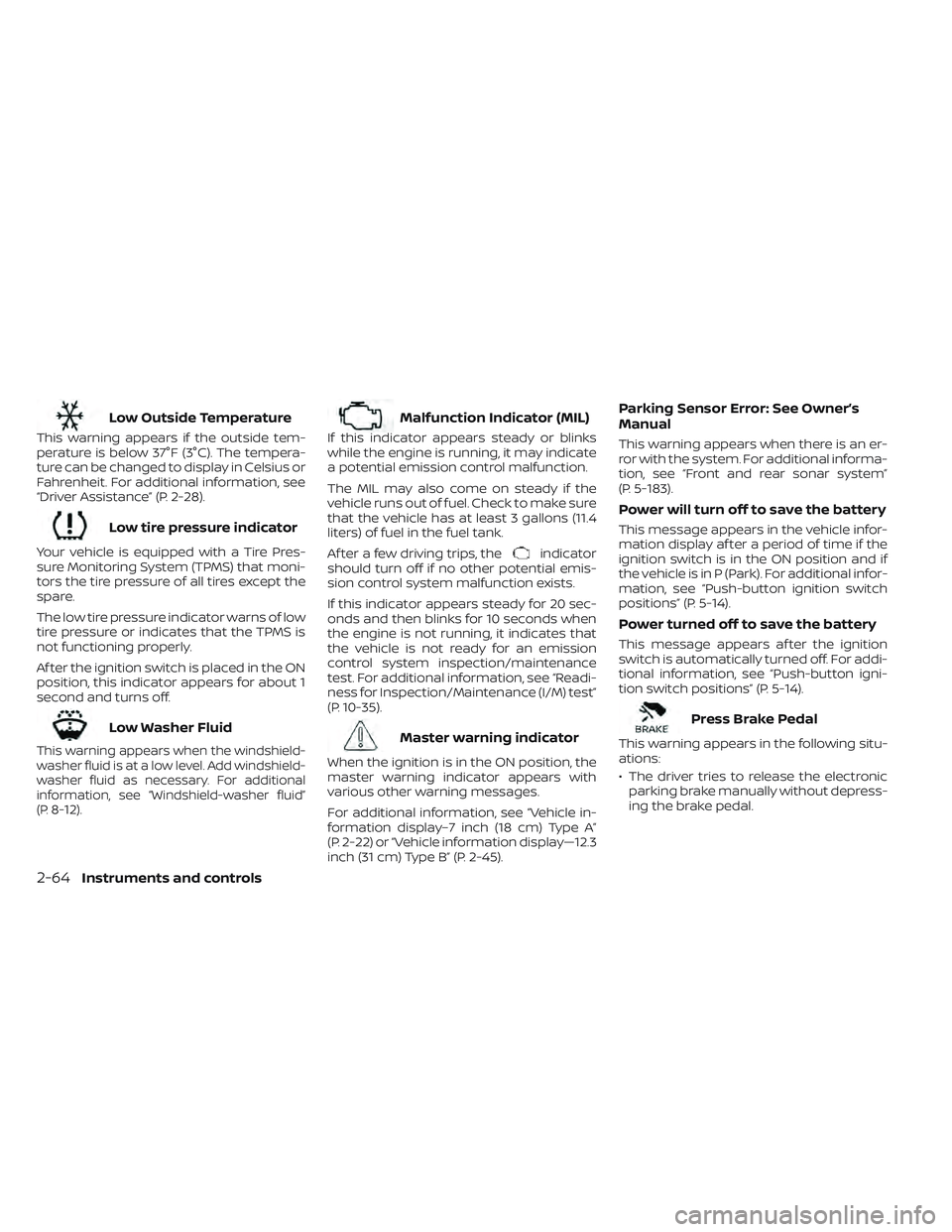
Low Outside Temperature
This warning appears if the outside tem-
perature is below 37°F (3°C). The tempera-
ture can be changed to display in Celsius or
Fahrenheit. For additional information, see
“Driver Assistance” (P. 2-28).
Low tire pressure indicator
Your vehicle is equipped with a Tire Pres-
sure Monitoring System (TPMS) that moni-
tors the tire pressure of all tires except the
spare.
The low tire pressure indicator warns of low
tire pressure or indicates that the TPMS is
not functioning properly.
Af ter the ignition switch is placed in the ON
position, this indicator appears for about 1
second and turns off.
Low Washer Fluid
This warning appears when the windshield-
washer fluid is at a low level. Add windshield-
washer fluid as necessary. For additional
information, see “Windshield-washer fluid”
(P. 8-12).
Malfunction Indicator (MIL)
If this indicator appears steady or blinks
while the engine is running, it may indicate
a potential emission control malfunction.
The MIL may also come on steady if the
vehicle runs out of fuel. Check to make sure
that the vehicle has at least 3 gallons (11.4
liters) of fuel in the fuel tank.
Af ter a few driving trips, the
indicator
should turn off if no other potential emis-
sion control system malfunction exists.
If this indicator appears steady for 20 sec-
onds and then blinks for 10 seconds when
the engine is not running, it indicates that
the vehicle is not ready for an emission
control system inspection/maintenance
test. For additional information, see “Readi-
ness for Inspection/Maintenance (I/M) test”
(P. 10-35).
Master warning indicator
When the ignition is in the ON position, the
master warning indicator appears with
various other warning messages.
For additional information, see “Vehicle in-
formation display–7 inch (18 cm) Type A”
(P. 2-22) or “Vehicle information display—12.3
inch (31 cm) Type B” (P. 2-45).
Parking Sensor Error: See Owner’s
Manual
This warning appears when there is an er-
ror with the system. For additional informa-
tion, see “Front and rear sonar system”
(P. 5-183).
Power will turn off to save the battery
This message appears in the vehicle infor-
mation display af ter a period of time if the
ignition switch is in the ON position and if
the vehicle is in P (Park). For additional infor-
mation, see “Push-button ignition switch
positions” (P. 5-14).
Power turned off to save the battery
This message appears af ter the ignition
switch is automatically turned off. For addi-
tional information, see “Push-button igni-
tion switch positions” (P. 5-14).
Press Brake Pedal
This warning appears in the following situ-
ations:
• The driver tries to release the electronic parking brake manually without depress-
ing the brake pedal.
2-64Instruments and controls
Page 189 of 647
When the vehicle speed lowers to less than
approximately 16 mph (25 km/h), the head-
light uses the low beam.
To turn off the High Beam Assist system,
push the switch again..
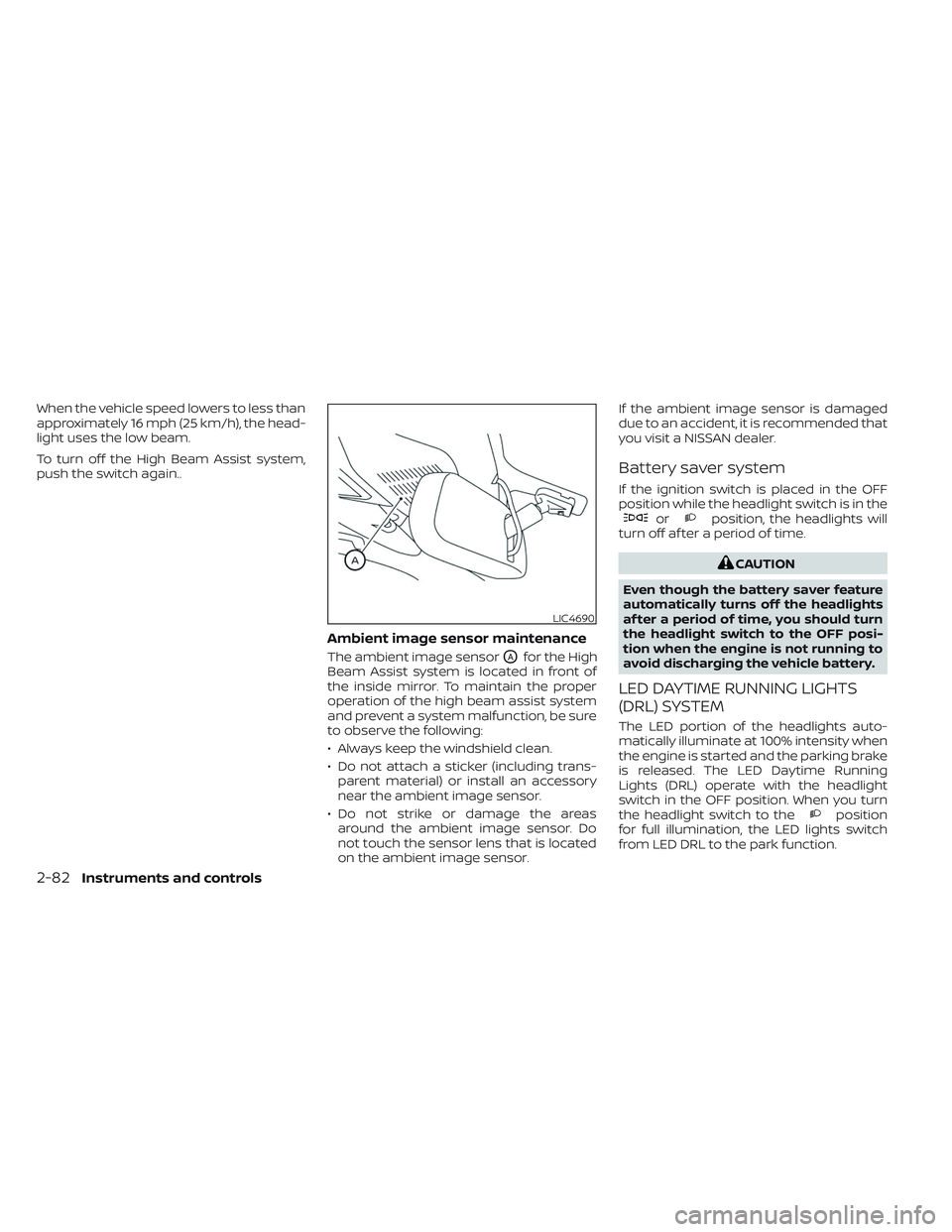
Ambient image sensor maintenance
The ambient image sensorOAfor the High
Beam Assist system is located in front of
the inside mirror. To maintain the proper
operation of the high beam assist system
and prevent a system malfunction, be sure
to observe the following:
• Always keep the windshield clean.
• Do not attach a sticker (including trans- parent material) or install an accessory
near the ambient image sensor.
• Do not strike or damage the areas around the ambient image sensor. Do
not touch the sensor lens that is located
on the ambient image sensor. If the ambient image sensor is damaged
due to an accident, it is recommended that
you visit a NISSAN dealer.
Battery saver system
If the ignition switch is placed in the OFF
position while the headlight switch is in the
orposition, the headlights will
turn off af ter a period of time.
CAUTION
Even though the battery saver feature
automatically turns off the headlights
af ter a period of time, you should turn
the headlight switch to the OFF posi-
tion when the engine is not running to
avoid discharging the vehicle battery.
LED DAYTIME RUNNING LIGHTS
(DRL) SYSTEM
The LED portion of the headlights auto-
matically illuminate at 100% intensity when
the engine is started and the parking brake
is released. The LED Daytime Running
Lights (DRL) operate with the headlight
switch in the OFF position. When you turn
the headlight switch to the
position
for full illumination, the LED lights switch
from LED DRL to the park function.
LIC4690
2-82Instruments and controls
Page 270 of 647

4 Monitor, climate, audio, phone and
voice recognition systems
NissanConnect® Owner’s Manual...............4-2
RearView Monitor (if so equipped) ...............4-3
RearView Monitor system operation ..........4-4
How to read the displayed lines ..............4-4
Difference between predicted and
actual distances .............................4-5
How to park with predicted course
lines ..........................................4-6
Adjusting the screen .........................4-8
How to turn on and off predicted
course lines ..................................4-8
RearView Monitor system limitations .........4-8
System maintenance ........................4-9
Intelligent Around View Monitor
(if so equipped) ................................. 4-10
Intelligent Around View Monitor system
operation .................................... 4-11
Difference between predicted and
actual distances ............................ 4-16
How to park with predicted course
lines ......................................... 4-17
How to switch the display ...................4-18
Adjusting the screen ........................ 4-19
Intelligent Around View Monitor system
limitations .................................. 4-20System maintenance
.......................4-22
Camera aiding sonar (parking sensor)
(if so equipped) ................................. 4-22
Sonar system operation .....................4-23
Turning on and off the sonar function .......4-24
Sonar system limitations ....................4-24
System maintenance .......................4-25
Moving Object Detection (MOD)
(if so equipped) ................................. 4-26
MOD system operation ......................4-27
Turning MOD on and off .....................4-29
MOD system limitations .....................4-29
System maintenance .......................4-30
Vents .......................................... 4-31
Heater and air conditioner (automatic) .........4-32
Automatic operation ........................ 4-33
Manual operation ........................... 4-34
Operating tips ............................... 4-36
Rear automatic air conditioning system .....4-37
Servicing air conditioner ........................4-39
Antenna ........................................ 4-39
Car phone or CB radio .......................... 4-40
iP
od®/iPhone® ................................. 4-40
Page 278 of 647
The following are operating limitations and
do not represent a system malfunction:
• When the temperature is extremely highor low, the screen may not clearly display
objects.
• When strong light directly shines on the camera, objects may not be displayed
clearly.
• Vertical lines may be seen in objects on the screen. This is due to strong reflected
light from the bumper.
• The screen may flicker under fluorescent light.
• The colors of objects on the RearView Monitor may differ somewhat from the
actual color of objects.
• Objects on the monitor may not be clear in a dark environment.
• There may be a delay when switching between views.
• If dirt, rain or snow accumulate on the camera, the RearView Monitor may not
display objects clearly. Clean the camera.
• Do not use wax on the camera lens. Wipe off any wax with a clean cloth dampened
with a diluted mild cleaning agent, then
wipe with a dry cloth.
SYSTEM MAINTENANCE
CAUTION
• Do not use alcohol, benzine or thin-
ner to clean the camera. This will
cause discoloration.
• Do not damage the camera as the
monitor screen may be adversely
affected. If dirt, rain or snow accumulates on the
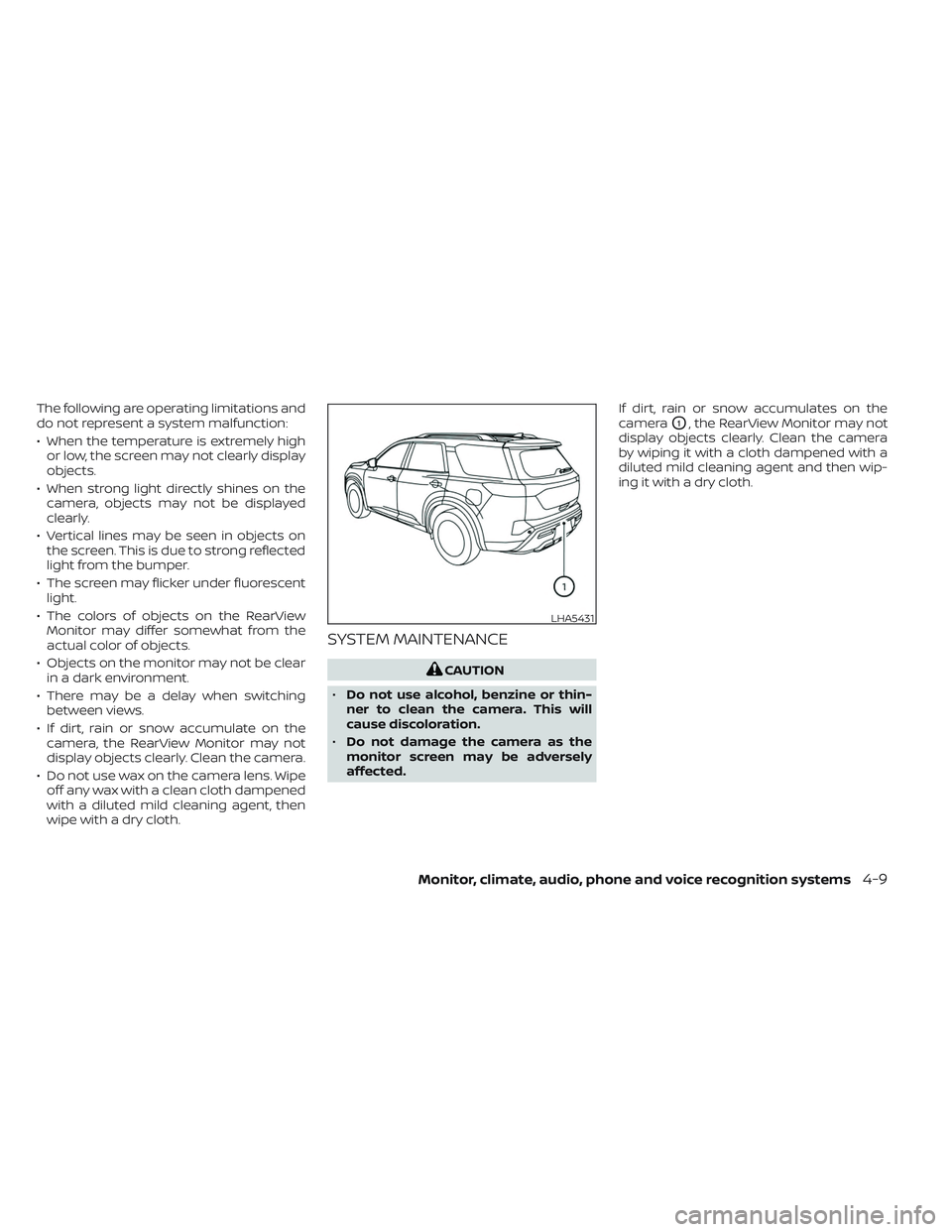
camera
O1, the RearView Monitor may not
display objects clearly. Clean the camera
by wiping it with a cloth dampened with a
diluted mild cleaning agent and then wip-
ing it with a dry cloth.
LHA5431
Monitor, climate, audio, phone and voice recognition systems4-9
Page 291 of 647

SYSTEM MAINTENANCE
CAUTION
• Do not use alcohol, benzine or thin-
ner to clean the camera. This will
cause discoloration.
• Do not damage the cameras as the
monitor screen may be adversely
affected. If dirt, rain or snow accumulates on any of
the cameras
O1, the Intelligent Around
View Monitor may not display objects
clearly. Clean the camera by wiping with a
cloth dampened with a diluted mild clean-
ing agent and then wiping with a dry cloth.WARNING
Failure to follow the warnings and in-
structions for proper use of the sonar
function as outlined in this section
could result in serious injury or death.
• The sonar is a convenience feature. It
is not a substitute for proper parking.
• This function is designed as an aid to
the driver in detecting large station-
ary objects to help avoid damaging
the vehicle.
• The driver is always responsible for
safety during parking and other
maneuvers.
• Always look around and check that it
is safe to move before parking.
• Read and understand the limitations
of the sonar as contained in this
section.
The sonar function helps to inform the
driver of large stationary objects around
the vehicle when parking by issuing an au-
dible and visual alert.
LHA5436
CAMERA AIDING SONAR (parking
sensor) (if so equipped)
4-22Monitor, climate, audio, phone and voice recognition systems
Page 294 of 647

•The system may not detect the fol-
lowing objects:
– Fluff y objects such as snow, cloth,
cotton, grass or wool.
– Thin objects such as rope, wire or
chain.
– Wedge-shaped objects.
• If your vehicle sustains damage to
the bumper fascia, leaving it mis-
aligned or bent, the sensing zone
may be altered causing inaccurate
measurement of objects or false
alarms.
CAUTION
Excessive noise (such as audio system
volume or an open vehicle window) will
interfere with the tone and it may not
be heard.
System temporarily unavailable
When the amber markers are displayed at
the corners of the vehicle icon and the
function cannot be activated from the
Camera setting menu (the setting items
are grayed out), the sonar system may be
malfunctioning.
SYSTEM MAINTENANCE
CAUTION
Keep the surface of the sonar sensors
(located on the front and rear bumper
fascia) free from accumulations of
snow, ice and dirt. Do not scratch the
surface of the sonar sensors when
cleaning. If the sensors are covered, the
accuracy of the sonar function will be
diminished.
Monitor, climate, audio, phone and voice recognition systems4-25