reset NISSAN PATHFINDER 2022 Owner´s Manual
[x] Cancel search | Manufacturer: NISSAN, Model Year: 2022, Model line: PATHFINDER, Model: NISSAN PATHFINDER 2022Pages: 647, PDF Size: 8.48 MB
Page 158 of 647
For models with the full-screen display, the
meter screen view can be changed to ex-
pand the vehicle information display.
To change the meter screen view:
1. Push the shortcut menu button
OAon
the lef t side of the steering wheel. “Short-
cut Menu” appears on the vehicle infor-
mation display.
2. Select “Change Meter View” by rotating the scroll dial
OBand pushing it to
change the view.
OIL CONTROL SYSTEM (if so
equipped)
The oil control system can be accessed in
the Maintenance portion of the vehicle in-
formation display settings.
Engine oil information informs the distance
to oil change. Never exceed one year or
10,000 miles (16,000 km) between oil
change intervals for the 3.5L 6 cylinder
(VQ35DD engine model).
Display when
ignition is ON Display timing Action
Required
Engine Oil
Service due in
xxx miles Remaining oil
life is less than
940 miles (1500
km). Plan to have
your vehicle
serviced.
Engine Oil
Service due Remaining oil
life is 0 miles
(0 km). Have your ve-
hicle serviced
within two
weeks or less
than 500 miles
(800 km).
The oil change interval cannot be adjusted
manually.
The distance to oil change interval is calcu-
lated depending on the driving conditions
and set automatically by the oil control sys-
tem. A reminder will be displayed when ap-
proaching the end of the service interval.
When the Factory Reset option is selected
in the vehicle information display, the oil
control system will also be reset to initial
value. Please change the engine oil when
Factory Reset is selected.
CAUTION
If the oil replacement indicator is dis-
played, change the engine oil within
two weeks or less than 500 miles (800
km).
Operating the vehicle with deteriorated
oil can damage the engine.
To reset oil control system:
1. Place the ignition switch in the ON position.
2. Push the
andbuttons located
on the steering wheel until “Settings” dis-
plays in the vehicle information display.
Use the scroll dial to select “Mainte-
nance”. Then, press the scroll dial.
3. Select the “Service” and press the scroll dial.
4. Press the scroll dial according to the re- set instructions displayed at the bottom
of the “Service” maintenance screen.
For additional information, see “Mainte-
nance” (P. 2-58).
Instruments and controls2-51
Page 159 of 647
SETTINGS
The setting mode allows you to change the
information displayed in the vehicle infor-
mation display:
• VDC Setting
• Driver Assistance• Personal Display
• Head—Up Display (if so equipped)
• ECO Mode Setting
• TPMS Setting
• Clock
• Vehicle Settings
• Maintenance
• Customize Display
• Unit/Language
• Factory Reset
VDC Setting
The VDC Setting menu allows the user to enable or disable the Vehicle Dynamic Control (VDC) system.
Some menu items shown below may not be equipped on your vehicle.
Menu item
Explanation
System Allows the user to turn the VDC system on or off. For additional information, see “Vehicle Dynamic Control
(VDC) system” (P. 5-177).
Driver Assistance
The driver assistance menu allows the user to change the various driving aids, parking aids and braking features.
Some menu items shown below may not be equipped on your vehicle.
Menu item Explanation
Steering Assist Allows user to turn the Steering Assist of the ProPILOT Assist system on or off. For additional information, see “ProPILOT As-
sist” (P. 5-86).
Lane Assist Displays available lane options.
Warning Allows user to turn the Lane Departure Warning (LDW) system on or off. For additional information, see “Lane Departure
Warning (LDW)” (P. 5-35).
Intervention Allows user to turn Intelligent Lane Intervention (I-LI) system on or off. For additional information, see “Intelligent Lane Inter-
vention (I-LI)” (P. 5-42).
2-52Instruments and controls
Page 161 of 647
Personal Display
The Personal Display menu allows the user to set various screens in the personal display area in the vehicle information display.
Some menu items shown below may not be equipped on your vehicle.
Menu item Explanation
Blank Allows user to select the blank screen.
Navigation Allows user to select the navigation screen.
Time to Destination Allows user to select the time to destination screen.
Fuel Economy Allows user to select the fuel economy screen.
Trip Allows user to select the trip screen.
Gear position Allows user to select the gear position screen.
Average speed Allows user to select the average speed screen.
Head-Up Display (if so equipped)
The Head—Up Display menu allows the user to control the Head—Up Display feature.
Some menu items shown below may not be equipped on your vehicle.
Menu item Explanation
Brightness Allows user to change the brightness.
Height Allows user to change the height.
Rotation Allows user to change the rotation.
Contents selection Displays the available content in the Head-Up Display.
Navigation Allows user to turn the navigation on or off.
Driving Assist Allows user to turn the driving assist on or off.
Speed Limit Sign Allows user to turn the speed limit sign on or off.
Audio Allows user to turn the audio on or off.
TEL/SMS Allows user to turn the TEL/SMS on or off.
Reset Allows user to reset the settings. Once selected, the user can confirm or cancel the reset.
2-54Instruments and controls
Page 165 of 647
Maintenance
The maintenance menu allows the user to set reminders for various vehicle maintenance items.
Some menu items shown below may not be equipped on your vehicle.
WARNING
The tire replacement indicator is not a substitute for regular tire checks, including tire pressure checks. For additional informa-
tion, see “Changing wheels and tires” (P. 8-38). Many factors including tire inflation, alignment, driving habits and road conditions
affect tire wear and when tires should be replaced. Setting the tire replacement indicator for a certain driving distance does not
mean your tires will last that long. Use the tire replacement indicator as a guide only and always perform regular tire checks.
Failure to perform regular tire checks, including tire pressure checks could result in tire failure. Serious vehicle damage could
occur and may lead to a collision, which could result in serious personal injury or death.
Menu item Explanation
Service Allows user to reset the current interval. This should only be done af ter completing oil change maintenance.
Air Filter Allows user to set a reminder at a specific interval or reset the current one.
Tire This indicator appears when the customer set distance is reached for replacing tires. You can set or reset the dis-
tance for replacing tires.
Other This indicator appears when the customer set distance is reached for checking or replacing maintenance items
other than the engine oil, oil filter and tires. Other maintenance items can include such things as air filter or tire
rotation. The distance for checking or replacing the items can be set or reset.
2-58Instruments and controls
Page 167 of 647
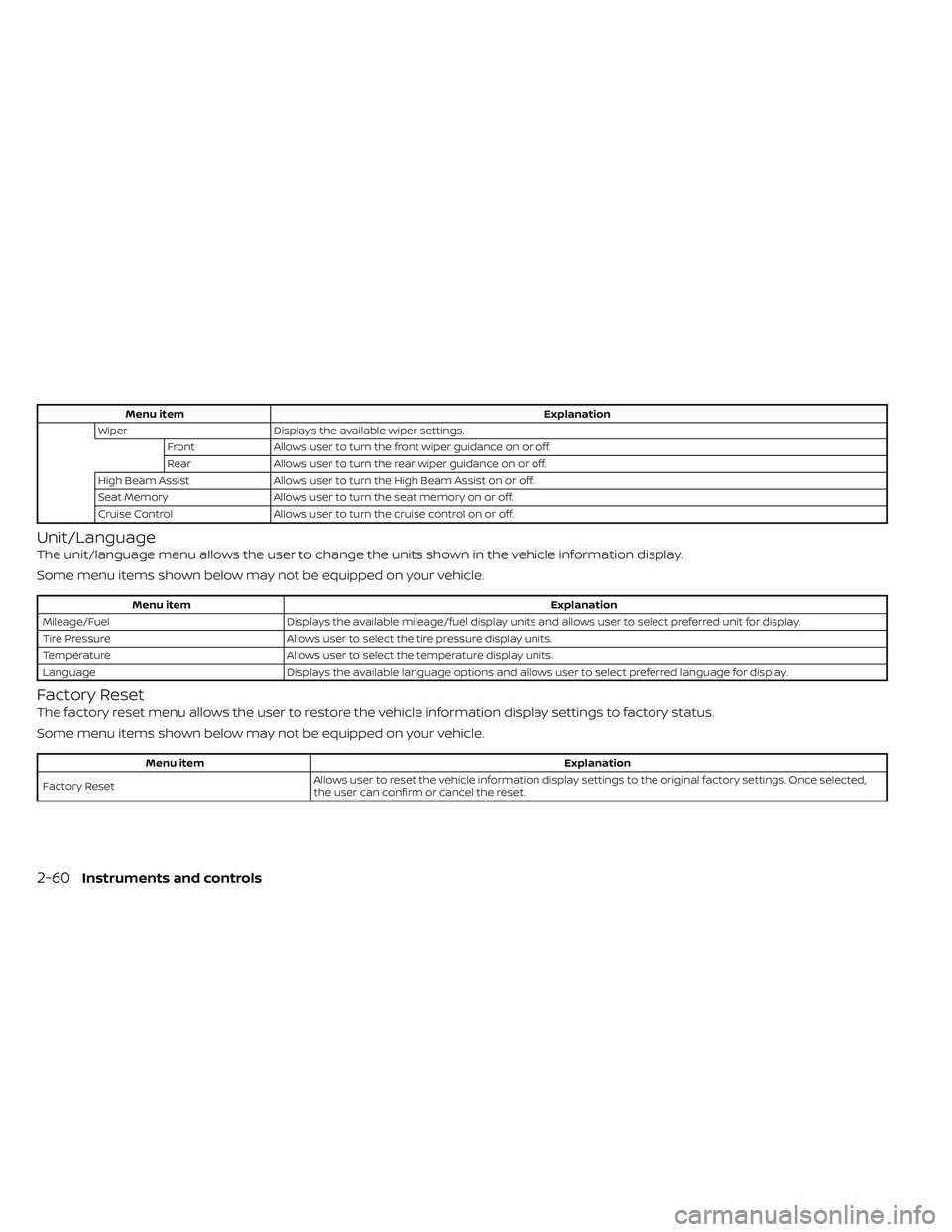
Menu itemExplanation
Wiper Displays the available wiper settings.
Front Allows user to turn the front wiper guidance on or off.
Rear Allows user to turn the rear wiper guidance on or off.
High Beam Assist Allows user to turn the High Beam Assist on or off.
Seat Memory Allows user to turn the seat memory on or off.
Cruise Control Allows user to turn the cruise control on or off.
Unit/Language
The unit/language menu allows the user to change the units shown in the vehicle information display.
Some menu items shown below may not be equipped on your vehicle.
Menu item Explanation
Mileage/Fuel Displays the available mileage/fuel display units and allows user to select preferred unit for display.
Tire Pressure Allows user to select the tire pressure display units.
Temperature Allows user to select the temperature display units.
Language Displays the available language options and allows user to select preferred language for display.
Factory Reset
The factory reset menu allows the user to restore the vehicle information display settings to factory status.
Some menu items shown below may not be equipped on your vehicle.
Menu item Explanation
Factory Reset Allows user to reset the vehicle information display setti
ngs to the original factory settings. Once selected,
the user can confirm or cancel the reset.
2-60Instruments and controls
Page 186 of 647

• Turn on the headlights if the windshieldwipers make multiple continuous passes
within approximately one minute of the
first pass (if so equipped). The headlights
remain on until the wipers are turned off
for a short period of time.
NOTE:
Autolight activation sensitivity (if so
equipped) and the time delay for auto-
light shutoff can be adjusted. For addi-
tional information, see “Vehicle infor-
mation display–7 inch (18 cm) Type A”
(P. 2-22) or “Vehicle information
display—12.3 inch (31 cm) Type B”
(P. 2-45).
To turn on the autolight system:
• Place the headlight switch in the AUTOposition
O1.
• Place the ignition switch in the ON position.
• The autolight system automatically turns the headlights on and off.
Initially, if the ignition switch is turned OFF
and a door is opened and lef t open, the
headlights remain ON for a period of time. If
another door is opened while the head-
lights are on, then the timer is reset. To turn the autolight system off, place the
switch in the OFF,
,orposition.
The headlights will turn on automatically at
twilight or in rainy weather (when the wind-
shield wiper is operated continuously).
If the ignition switch is placed in the OFF
position and one of the doors is opened
and this condition is continued, the head-
lights remain on for 5 minutes.
Be sure you do not put anything on top
of the autolight sensor located in the top
side of the instrument panel
O1. The au-
tolight sensor controls the autolight; if it
is covered, the autolight sensor reacts as
if it is dark out and the headlights will
illuminate. If this occurs while parked
with the engine off and the ignition
switch placed in the ON position, your
vehicle's battery could become
discharged.
LIC4687
Instruments and controls2-79
Page 199 of 647
HOW TO USE THE HUD
To turn the HUD on, push the HUD switch.
To turn the HUD off, push the switch again.
If the HUD is turned off, it will remain off even
if the vehicle is restarted.
The following settings can be changed in
the vehicle information display:
• Brightness
• Height
• Rotation
• Contents selection–– Navigation
–– Driving Assist –– Speed Limit Sign
–– Audio
–– TEL/SMS
• Reset
NOTE:
Emergency information may display
even if the HUD is turned off.
This product includes the following
sof tware.
(1) Panasonic Corporation or sof tware de-
veloped for Panasonic Corporation
(2) Third-party sof tware licensed to Pana-
sonic Corporation
(3) Open source sof tware
Regarding (3) Open source sof tware, it in-
cludes open source sof tware (OSS), includ-
ing various sof tware to which license infor-
mation applies.
Refer to the license web site at:
http://car.panasonic.jp/oss/i02lln39.
DRIVER ASSISTANCE/NAVIGATION
LINKING
The HUD will display driver assistance and
navigation information. The driver assistance display will show
warning situations for the following sys-
tems:
• Automatic Emergency Braking (AEB) with
Pedestrian Detection
• Lane Departure Warning (LDW)
• Intelligent Forward Collision Warning (IFCW)
• Hands-free warning (for vehicles with ProPILOT Assist) (if so equipped)
• Traffic Sign Recognition (TSR) (if so equipped)
The navigation system linking display will
show the following items:
• Intersection names
• Arrows indicating turning direction
• Distance to the next intersection
The Audio System linking display will show
the following items:
• Songs
• Radio stations
The TEL/SMS linking display will show the
following items:
• Caller’s name or phone number
LIC3829
2-92Instruments and controls
Page 262 of 647
AUTOMATIC OPERATION (if so
equipped)
Tilt and telescopic operation
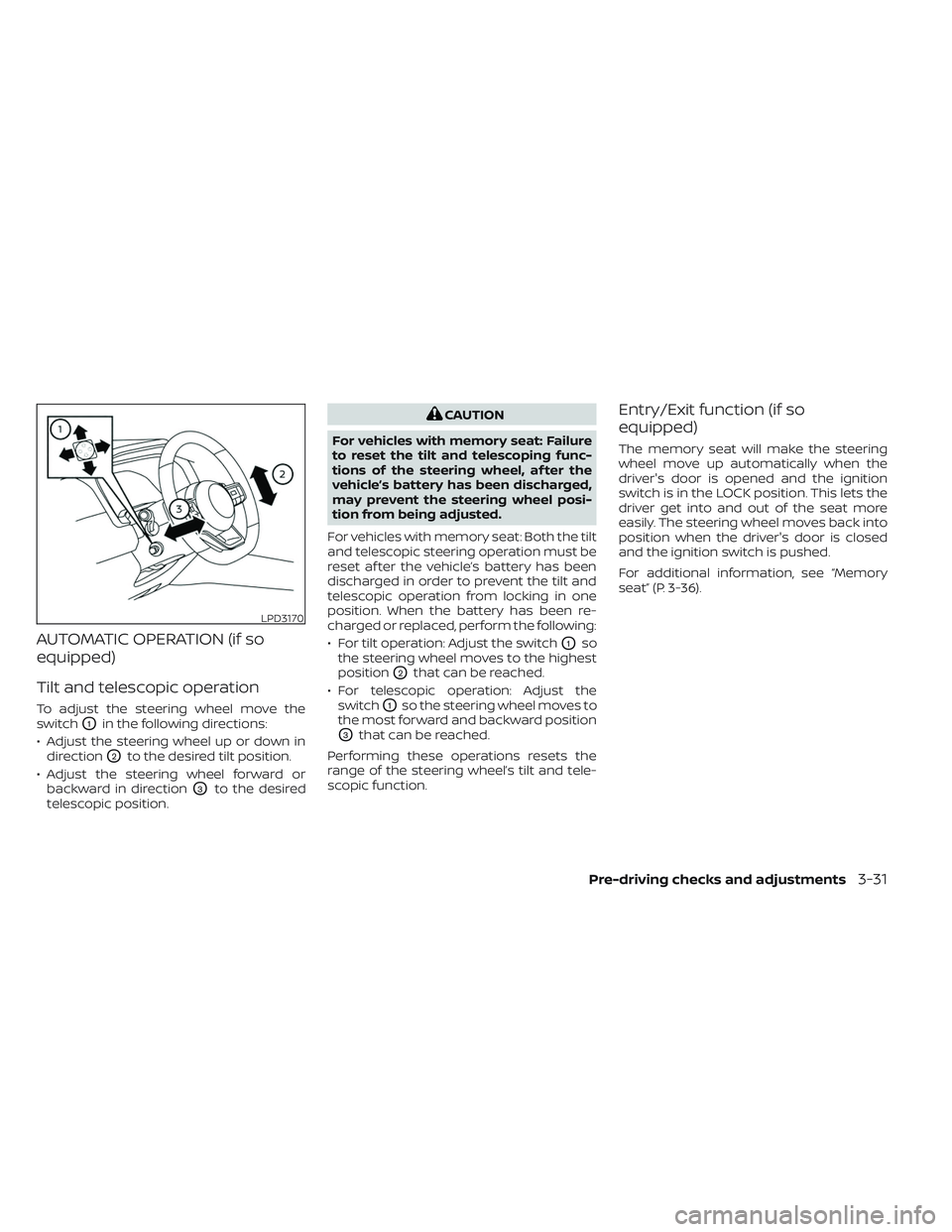
To adjust the steering wheel move the
switch
O1in the following directions:
• Adjust the steering wheel up or down in direction
O2to the desired tilt position.
• Adjust the steering wheel forward or backward in direction
O3to the desired
telescopic position.
CAUTION
For vehicles with memory seat: Failure
to reset the tilt and telescoping func-
tions of the steering wheel, af ter the
vehicle’s battery has been discharged,
may prevent the steering wheel posi-
tion from being adjusted.
For vehicles with memory seat: Both the tilt
and telescopic steering operation must be
reset af ter the vehicle’s battery has been
discharged in order to prevent the tilt and
telescopic operation from locking in one
position. When the battery has been re-
charged or replaced, perform the following:
• For tilt operation: Adjust the switch
O1so
the steering wheel moves to the highest
position
O2that can be reached.
• For telescopic operation: Adjust the switch
O1so the steering wheel moves to
the most forward and backward position
O3that can be reached.
Performing these operations resets the
range of the steering wheel’s tilt and tele-
scopic function.
Entry/Exit function (if so
equipped)
The memory seat will make the steering
wheel move up automatically when the
driver's door is opened and the ignition
switch is in the LOCK position. This lets the
driver get into and out of the seat more
easily. The steering wheel moves back into
position when the driver's door is closed
and the ignition switch is pushed.
For additional information, see “Memory
seat” (P. 3-36).
LPD3170
Pre-driving checks and adjustments3-31
Page 318 of 647
•When using a wheel without the
TPMS such as the spare tire, when a
spare tire is mounted or a wheel is
replaced, tire pressure will not be in-
dicated, the TPMS will not function
and the low tire pressure warning
light will flash for approximately 1
minute. The light will remain on af ter
1 minute. Have your tires replaced
and/or TPMS system reset as soon as
possible. It is recommended that you
visit a NISSAN dealer for this service.
• Replacing tires with those not origi-
nally specified by NISSAN could af-
fect the proper operation of the
TPMS.
• Do not inject any tire liquid or aerosol
tire sealant into the tires, as this may
cause a malfunction of the tire pres-
sure sensors.
CAUTION
• The TPMS may not function properly
when the wheels are equipped with
tire chains or the wheels are buried in
snow. •
Do not place metalized film or any
metal parts (antenna, etc.) on the
windows. This may cause poor re-
ception of the signals from the tire
pressure sensors, and the TPMS will
not function properly.
Some devices and transmitters may tem-
porarily interfere with the operation of the
TPMS and cause the low tire pressure
warning light to illuminate.
Some examples are:
• Facilities or electric devices using similar radio frequencies are near the vehicle.
• If a transmitter set to similar frequencies is being used in or near the vehicle.
• If a computer (or similar equipment) or a DC/AC converter is being used in or near
the vehicle.
The low tire pressure warning light may
illuminate in the following cases.
• If the vehicle is equipped with a wheel and tire without TPMS.
• If the TPMS has been replaced and the ID has not been registered.
• If the wheel is not originally specified by NISSAN. FCC Notice:
For USA:
This device complies with Part 15 of the
FCC Rules. Operation is subject to the fol-
lowing two conditions: (1) This device
may not cause harmful interference, and
(2) this device must accept any interfer-
ence received, including interference
that may cause undesired operation.
NOTE:Changes or modifications not expressly
approved by the party responsible for
compliance could void the user's au-
thority to operate the equipment.
For Canada:
This device contains licence-exempt
transmitter(s)/receiver(s) that comply
with Innovation, Science and Economic
Development Canada’s licence-exempt
RSS(s). Operation is subject to the fol-
lowing two conditions: (1) This device
may not cause interference. (2) This de-
vice must accept any interference, in-
cluding interference that may cause un-
desired operation of the device.
Starting and driving5-7
Page 397 of 647
• The vehicle may not maintain the setspeed when going up or down steep hills.
If this happens, drive without the cruise
control.
To cancel the preset speed, use one of the
following three methods:
• Push the CANCEL switch; the
indica-
tor (green) in the vehicle information dis-
play goes out.
• Tap the brake pedal; the
indicator
(green) goes out.
• Push the cruise control ON/OFF switch off. The
indicator in the vehicle infor-
mation display go out.
The cruise control is automatically can-
celed and the
indicator (green) in the
vehicle information display goes out if:
• You depress the brake pedal while push- ing the RES+ or SET- switch. The preset
speed is deleted from memory.
• The vehicle slows down more than 8 mph (13 km/h) below the set speed.
• You move the shif t lever to N (Neutral). To reset at a faster cruising speed,
use
one of the following three methods:
• Depress the accelerator pedal. When the vehicle attains the desired speed, push
and release the SET- switch.
• Push and hold the RES+ switch. When the vehicle attains the speed you desire, re-
lease the switch.
• Push and release the RES+ switch. Each time you do this, the set speed increases
by about 1 mph (1.6 km/h).
To reset at a slower cruising speed, use
one of the following three methods:
• Lightly tap the brake pedal. When the ve- hicle attains the desired speed, push the
SET- switch and release it.
• Push and hold the SET- switch. Release the switch when the vehicle slows to the
desired speed.
• Push and release the SET- switch. Each time you do this, the set speed decreases
by about 1 mph (1.6 km/h).
To resume the preset speed, push and
release the RES+ switch. The vehicle re-
turns to the last set cruising speed when
the vehicle speed is over 25 mph (40 km/h).
WARNING
Failure to follow the warnings and in-
structions for proper use of the ProPI-
LOT Assist system could result in seri-
ous injury or death.
• ProPILOT Assist is not a self-driving
system. Within the limits of its capa-
bilities, as described in this manual, it
helps the driver with certain driving
activities.
• The ProPILOT Assist system is not a
replacement for proper driving pro-
cedures and is not designed to cor-
rect careless, inattentive or absent-
minded driving. ProPILOT Assist will
not always steer the vehicle to keep it
in the lane. The ProPILOT Assist sys-
tem is not designed to prevent loss of
control. It is the driver’s responsibility
to stay alert, drive safely, keep the
vehicle in the traveling lane, and be in
control of the vehicle at all times.
PROPILOT ASSIST (if so equipped)
5-86Starting and driving