key NISSAN PATHFINDER HYBRID 2015 Repair Manual
[x] Cancel search | Manufacturer: NISSAN, Model Year: 2015, Model line: PATHFINDER HYBRID, Model: NISSAN PATHFINDER HYBRID 2015Pages: 524, PDF Size: 6.49 MB
Page 257 of 524
●To dehumidify the air, press the A/C key
before turning on the heater.
Turning the system off
1. Press the REAR button on the front control
panel until the Rear Air-conditioning screen
is displayed. The REAR button indicator will
remain illuminated.
2. Press the OFF button. The REAR button
indicator on the front climate control panel
will turn OFF, and the rear climate controls
also turn OFF.
Rear control buttons
The rear seat passengers can adjust the rear
automatic air conditioning system using the con-
trol switches at the rear of the center console.
The rear control buttons do not function when the
Rear Air-conditioning screen is shown on the
front display. To activate the rear control buttons,
press the REAR button on the front air condi-
tioner control panel and switch the screen on the
front display.
●OFF button: Turns rear automatic air condi-
tioning system off.
●Fan speed increase and decrease buttons:
Adjusts the rear fan speed up or down.●AUTO button: Turns rear automatic air con-
ditioning system on, AUTO mode on.
●Temperature increase and decrease but-
tons: Adjusts the rear temperature up or
down.
To turn system off
Press the OFF button.
OPERATING TIPS
●When the engine coolant temperature and
outside air temperature are low, the air flow
from the foot outlets may not operate for a
maximum of 150 seconds. However, this is
not a malfunction. After the coolant tempera-
ture warms up, air flow from the foot outlets
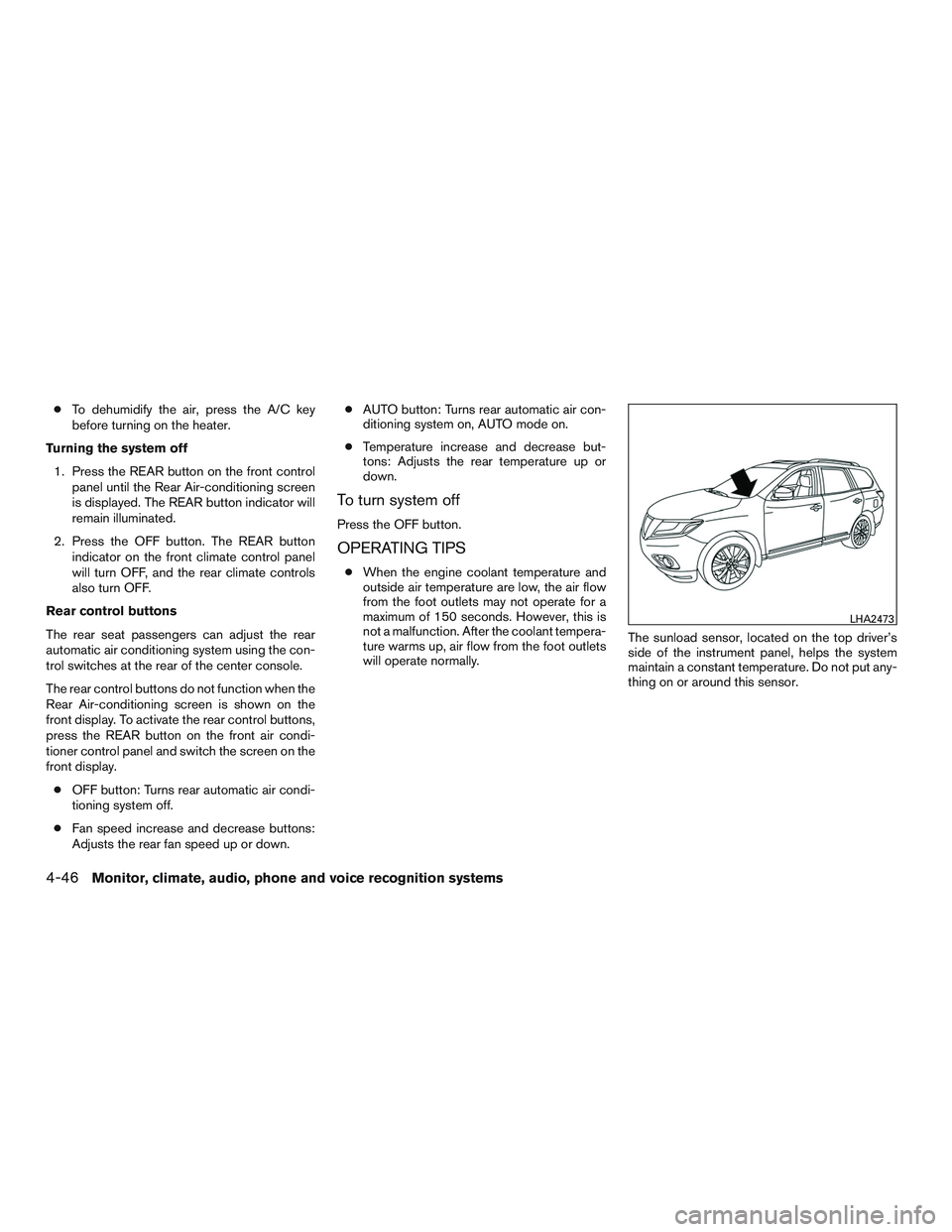
will operate normally.The sunload sensor, located on the top driver’s
side of the instrument panel, helps the system
maintain a constant temperature. Do not put any-
thing on or around this sensor.
LHA2473
4-46Monitor, climate, audio, phone and voice recognition systems
Page 276 of 524
Clock operation
For additional information on setting the clock,
refer to “How to use the setting button” in this
section.
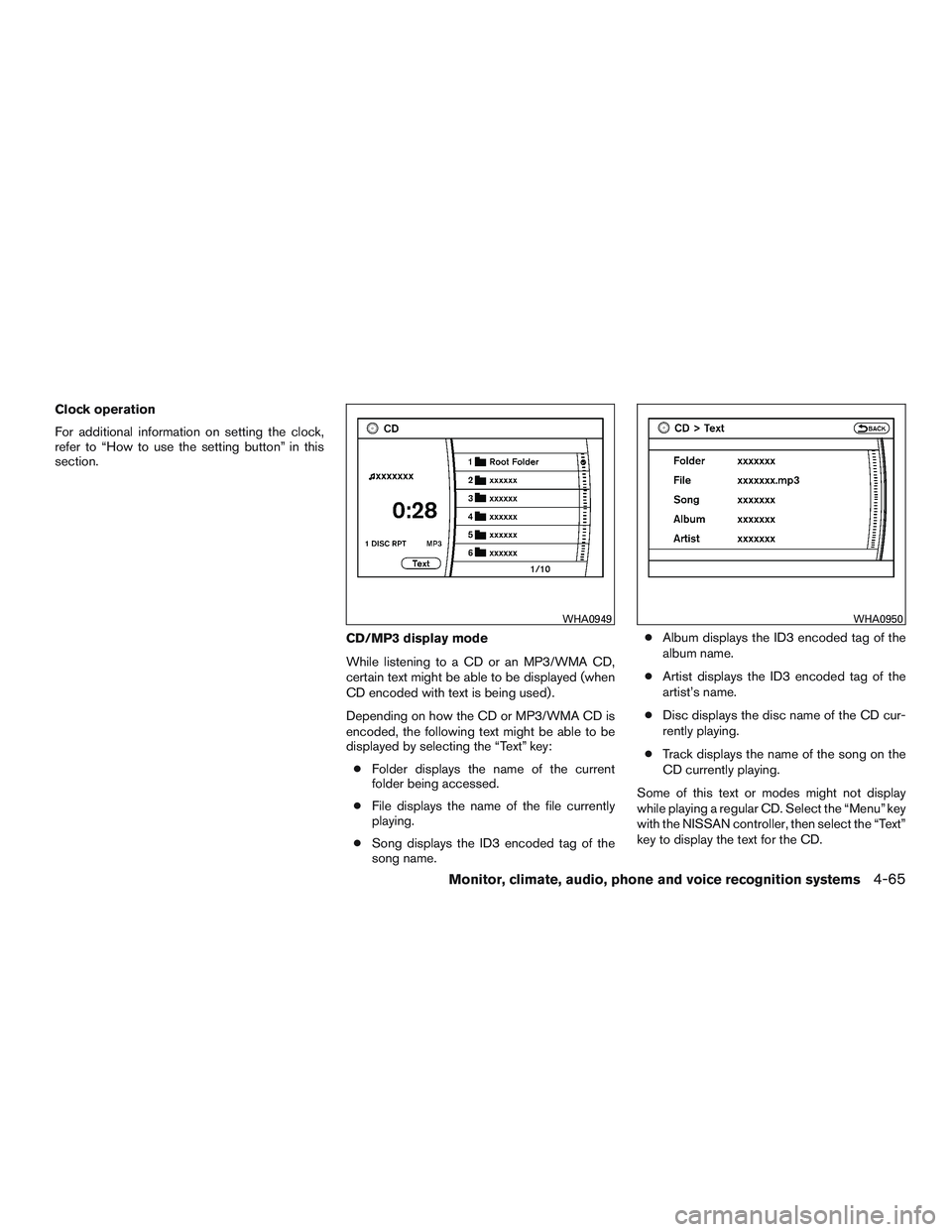
CD/MP3 display mode
While listening to a CD or an MP3/WMA CD,
certain text might be able to be displayed (when
CD encoded with text is being used) .
Depending on how the CD or MP3/WMA CD is
encoded, the following text might be able to be
displayed by selecting the “Text” key:
●Folder displays the name of the current
folder being accessed.
●File displays the name of the file currently
playing.
●Song displays the ID3 encoded tag of the
song name.●Album displays the ID3 encoded tag of the
album name.
●Artist displays the ID3 encoded tag of the
artist’s name.
●Disc displays the disc name of the CD cur-
rently playing.
●Track displays the name of the song on the
CD currently playing.
Some of this text or modes might not display
while playing a regular CD. Select the “Menu” key
with the NISSAN controller, then select the “Text”
key to display the text for the CD.
WHA0949WHA0950
Monitor, climate, audio, phone and voice recognition systems4-65
Page 278 of 524
If the battery cable is disconnected, or if the fuse
opens, the radio memory will be canceled. In that
case, reset the desired stations.
Radio data system (RDS)
RDS stands for Radio Data System, and is a data
information service transmitted by some radio
stations on the FM band (not AM band) . Cur-
rently, most RDS stations are in large cities, but
many stations are now considering broadcasting
RDS data.
RDS can display:
●Station call sign, such as “WHFR 98.3”.
●Station name, such as “The Groove”.
●Music or programming type such as “Clas-
sical”, “Country”, or “Rock”.
When the “Text” key is selected with the NISSAN
controller on the display while the radio is playing,
additional information is displayed on the screen.
If the station broadcasts RDS information, the
RDS icon is displayed.
Compact disc (CD) player operation
Place the ignition in the ACC or ON position and
insert the compact disc into the slot with the label
side facing up. The compact disc will be guided
automatically into the slot and start playing.If the radio is already operating, it will automati-
cally turn off and the compact disc will play.
If the system has been turned off while the com-
pact disc was playing, pressing the
VOL/ON·OFF control knob will start the compact
disc.
DISC button
When the DISC button is pressed with the sys-
tem off and a compact disc loaded, the system
will turn on and the compact disc will start to play.
When the DISC button is pressed with a com-
pact disc loaded with the radio playing, the radio
will automatically be turned off and the compact
disc will start to play.
SEEK/CAT and TRACK
buttons
When the SEEK/CAT
button is pressed
while a compact disc is playing, the track being
played returns to its beginning. Press several
times to skip back through tracks. The compact
disc will go back the number of times the button
is pressed.
When the TRACK
button is pressed while
a compact disc is playing, the next track will start
to play from its beginning. Press several times to
skip through tracks. The compact disc will ad-vance the number of times the button is pressed.
(When the last track on the compact disc is
skipped through, the first track will be played.)
The NISSAN controller can also be used to se-
lect tracks when a CD is playing.
SEEK/CAT and TRACK
(Rewind and Fast For-
ward) buttons
Press and hold the SEEK/CAT
(rewind)
button or the TRACK
(fast forward) button
while a compact disc is playing; the compact disc
will play while rewinding or fast forwarding. When
the button is released, the compact disc will
return to normal play speed.
TUNE/FOLDER knob
While playing an MP3/WMA CD, turn the
TUNE/FOLDER knob right or left to scan forward
or backward through available folders.
RPT (repeat)/RDM (random) button
When the RPT/RDM button is pressed while the
compact disc is playing, the play pattern can be
changed as follows:
CD
Repeat All→1 Track Repeat→1 Disc Random
→Repeat All
Monitor, climate, audio, phone and voice recognition systems4-67
Page 280 of 524
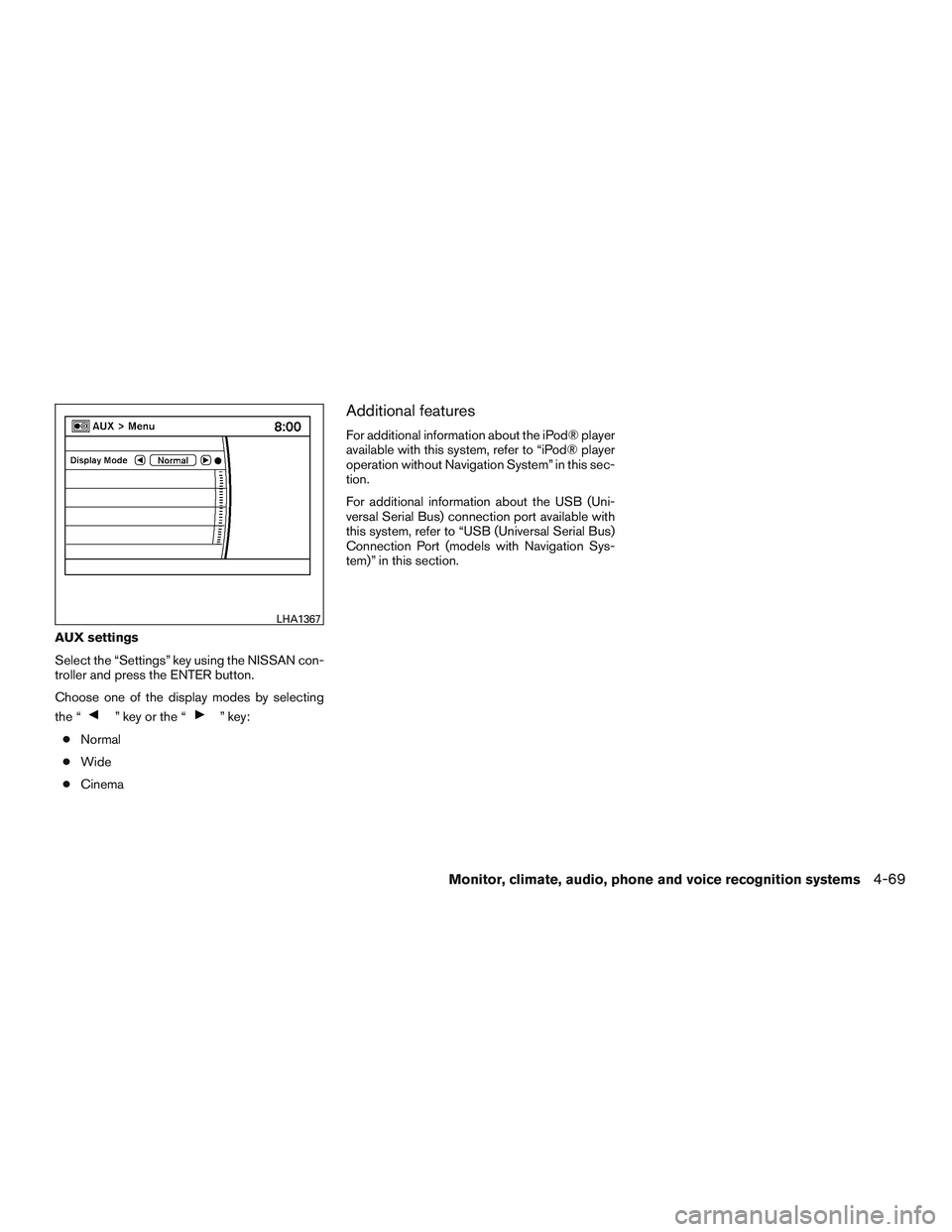
AUX settings
Select the “Settings” key using the NISSAN con-
troller and press the ENTER button.
Choose one of the display modes by selecting
the “
” key or the “” key:
●Normal
●Wide
●Cinema
Additional features
For additional information about the iPod® player
available with this system, refer to “iPod® player
operation without Navigation System” in this sec-
tion.
For additional information about the USB (Uni-
versal Serial Bus) connection port available with
this system, refer to “USB (Universal Serial Bus)
Connection Port (models with Navigation Sys-
tem)” in this section.
LHA1367
Monitor, climate, audio, phone and voice recognition systems4-69
Page 284 of 524
SEEK/CAT and TRACK
tuning buttons
For AM or FM:
Press the SEEK/CAT
button or the
TRACK
button to tune from high to low or
low to high frequencies and stop at the next
broadcasting station.
For XM:
Press the SEEK/CAT
button or the
TRACK
button to go to the first channel of
the previous or next category.
SCAN tuning
Press the SCAN button to stop at each broad-
casting station for 5 seconds. Pressing the
SCAN button again during this 5 second period
will stop scan tuning and the radio will remain
tuned to that station. If the SCAN button is not
pressed within 5 seconds, scan tuning moves to
the next station.
1 to 6 Station memory operations
Six stations can be set for the AM band. Twelve
stations can be set for the FM band (six for FM1,
six for FM2) . Eighteen channels can be set for the
SAT radio (six for XM1, six for XM2, six for XM3 –
if so equipped) .1. Choose the radio band AM, FM1 or FM2
using the FM·AM select button, or choose
the satellite band XM1, XM2 or XM3 using
the SAT button.
2. Tune to the desired station using manual,
SEEK or SCAN tuning. Press and hold any
of the desired station memory buttons (1 –
6) until the preset number is updated on the
display and the sound is briefly muted.
3. The channel indicator will then come on and
the sound will resume. Programming is now
complete.
4. Other buttons can be set in the same man-
ner.
If the battery cable is disconnected, or if the fuse
opens, the radio memory will be canceled. In that
case, reset the desired stations.
List (AM and FM)
Select the “List” key using the NISSAN controller
or touch-screen to see a list of the presets in the
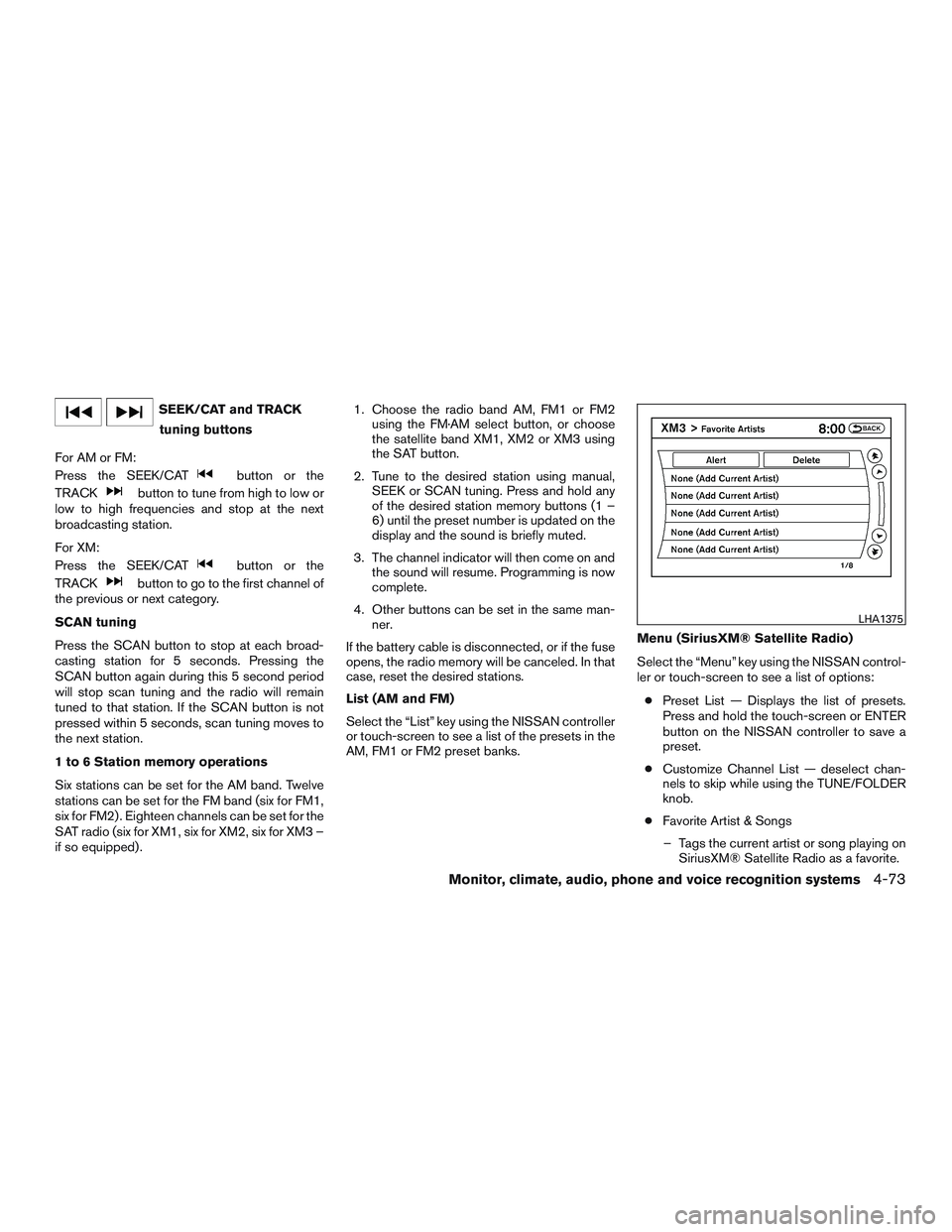
AM, FM1 or FM2 preset banks.Menu (SiriusXM® Satellite Radio)
Select the “Menu” key using the NISSAN control-
ler or touch-screen to see a list of options:
●Preset List — Displays the list of presets.
Press and hold the touch-screen or ENTER
button on the NISSAN controller to save a
preset.
●Customize Channel List — deselect chan-
nels to skip while using the TUNE/FOLDER
knob.
●Favorite Artist & Songs
– Tags the current artist or song playing on
SiriusXM® Satellite Radio as a favorite.
LHA1375
Monitor, climate, audio, phone and voice recognition systems4-73
Page 287 of 524
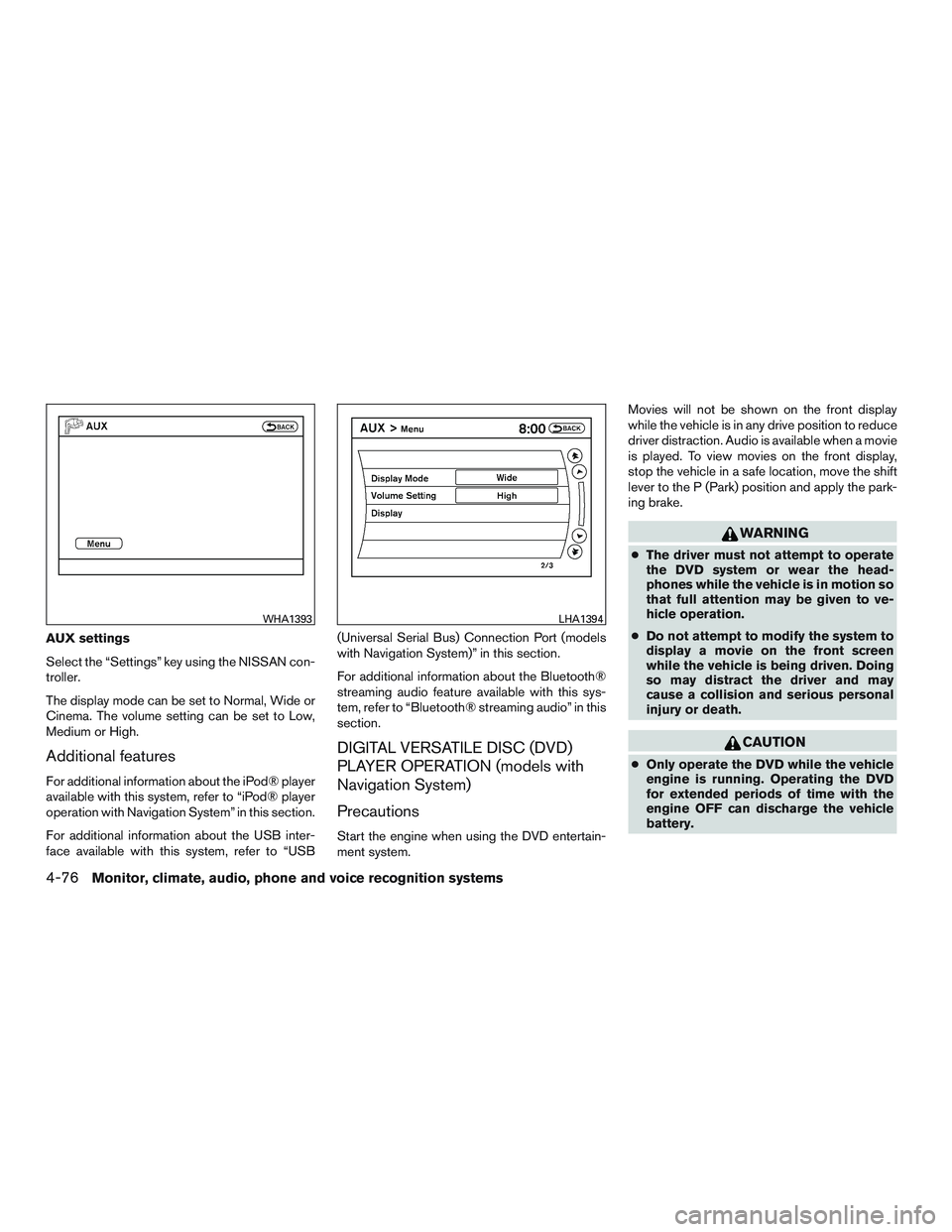
AUX settings
Select the “Settings” key using the NISSAN con-
troller.
The display mode can be set to Normal, Wide or
Cinema. The volume setting can be set to Low,
Medium or High.
Additional features
For additional information about the iPod® player
available with this system, refer to “iPod® player
operation with Navigation System” in this section.
For additional information about the USB inter-
face available with this system, refer to “USB(Universal Serial Bus) Connection Port (models
with Navigation System)” in this section.
For additional information about the Bluetooth®
streaming audio feature available with this sys-
tem, refer to “Bluetooth® streaming audio” in this
section.
DIGITAL VERSATILE DISC (DVD)
PLAYER OPERATION (models with
Navigation System)
Precautions
Start the engine when using the DVD entertain-
ment system.Movies will not be shown on the front display
while the vehicle is in any drive position to reduce
driver distraction. Audio is available when a movie
is played. To view movies on the front display,
stop the vehicle in a safe location, move the shift
lever to the P (Park) position and apply the park-
ing brake.
WARNING
●The driver must not attempt to operate
the DVD system or wear the head-
phones while the vehicle is in motion so
that full attention may be given to ve-
hicle operation.
●Do not attempt to modify the system to
display a movie on the front screen
while the vehicle is being driven. Doing
so may distract the driver and may
cause a collision and serious personal
injury or death.
CAUTION
●Only operate the DVD while the vehicle
engine is running. Operating the DVD
for extended periods of time with the
engine OFF can discharge the vehicle
battery.
WHA1393LHA1394
4-76Monitor, climate, audio, phone and voice recognition systems
Page 288 of 524
●Do not allow the system to get wet.
Excessive moisture such as spilled liq-
uids may cause the system to
malfunction.
●While playing VIDEO-CD media, this
DVD player does not guarantee com-
plete functionality of all VIDEO-CD
formats.
Playing a DVD
DISC-AUX button
Park the vehicle in a safe location for the front
seat occupants to operate the DVD drive while
watching the images.
Press the DISC-AUX button until the DVD mode
is active on the display.
When a DVD is loaded, it will be replayed auto-
matically.
The operation screen will be turned on when the
DISC-AUX button is pressed while a DVD is
playing. The operation screen will turn off auto-
matically after a period of time. To turn it on again,
press the DISC-AUX button.
DVD operation keys
When the DVD is playing without the operation
screen being shown, you may use the touch-
screen to select items from the displayed video.You may also use the NISSAN controller to select
an item from the displayed video. When the op-
eration screen is being shown, use the NISSAN
controller or the touch-screen to select an item
from the displayed menus.
PAUSE
Select the
key to pause the DVD. To re-
sume playing the DVD, use the
key.
PLAY
Select the
key to start playing the DVD or
resume playing the DVD after it has been paused.
STOP
Select the
key to stop playing the DVD.
NEXT/PREVIOUS
CHAPTER
Select the
key to skip the chapter(s) of the
disc forward. Select the
key to skip the
chapter(s) of the disc backward. The chapters
will advance forward or backward the number of
times the respective key is touched or selected
with the NISSAN controller.
CM SKIP
This function is only for DVD-VIDEO and DVD-
VR. Select the
orkey to fast forward
or rewind a set interval of time based on the CM
settings. For additional information, refer to “DVD
settings” in this section.
Top Menu
When the “Top Menu” key is selected while the
DVD is playing, the top menu specific to each
disc will be displayed. For additional information,
refer to the instructions attached to the disc.
DVD settings
Select the “Settings” key to adjust the following
settings:
●Key(DVD-VIDEO)
Displays the operation keys for the specific
DVD menu.
– Select the directional keys to move the
cursor on the DVD menu.
– Select the “Enter” key to fix the selected
menu item.
– Select the “Move” key to move the loca-
tion of the operation keys on the screen.
Monitor, climate, audio, phone and voice recognition systems4-77
Page 289 of 524
– Select the “Back” key to return to the
previous menu screen.
– Select the “Hide” key to hide the opera-
tion keys.
●Title Menu(DVD-VIDEO)
Some menus specific to each disc will be
shown. For additional information, refer to
the instructions attached to the disc.
●Title Search(DVD-VIDEO, DVD-VR)
The scene with the specified title will be
displayed the number of times the “+” or “-”
side is selected.
●Group Search(VIDEO CD)
The scene with the specified group will be
displayed the number of times the “+” or “-”
side is selected.
●10 Key Search(DVD-VIDEO, VIDEO CD,
CD-DA, DVD-VR)
Select the “10 Key Search” key to open the
number entry screen. Input the number you
want to search for and select the “OK” key.
The specified Title/Chapter or Group/Track
will be played.
●Select No.(VIDEO CD)
Select the “Select No.” key to open the
number entry screen. Input the number you
want to search for and select the “OK” key.
The specified scene will be played.●Angle(DVD-VIDEO)
If the DVD contains different angles (such as
moving images) , the current image angle
can be switched to another one. Select the
“Angle” key and use the “+” or “-” key to
change the angle.
●Angle Mark(DVD-VIDEO)
When this item is turned on, an angle mark
will be shown on the bottom of the screen if
the scene can be seen from a different angle.
●Menu Skip(DVD-VIDEO)
DVD menus are automatically configured
and the contents will be played directly
when the “Menu Skip” key is turned on. Note
that some discs may not be played directly
even if this item is turned on.
●CM Skip(DVD-VIDEO)
Select the “CM Skip” key to choose the
setting time for CM backward and forward
operations. Use the “+” or “-” key to choose
a setting time of 15, 30 or 60 seconds.
●DRC(DVD-VIDEO, DVD-VR)
DRC (Dynamic Range Compression) auto-
matically adjusts the soundtrack volume
level to maintain a more even sound to the
speakers.●DVD Language(DVD-VIDEO, VIDEO CD)
Select the “DVD Language” key to open the
number entry screen. Input the number cor-
responding to the preferred language and
select the “OK” key. The DVD top menu
language will be changed to the one speci-
fied.
●Display
Adjust the image quality of the screen by
selecting the preferred adjustment items.
●Audio
Choose the preferred language for the au-
dio.
●Subtitle(DVD-VIDEO, DVD-VR)
Choose the preferred language for the sub-
titles.
●Display Mode(DVD-VIDEO, VIDEO CD,
DVD-VR)
Choose from the “Full”, “Wide”, “Normal” or
“Cinema” mode.
●Title List(DVD-VR)
Choose the preferred title from the list.
●Play Mode
Choose the preferred play mode.
●PG/PL Mode(DVD-VR)
Choose from the “PG” or “PL” mode.
4-78Monitor, climate, audio, phone and voice recognition systems
Page 293 of 524
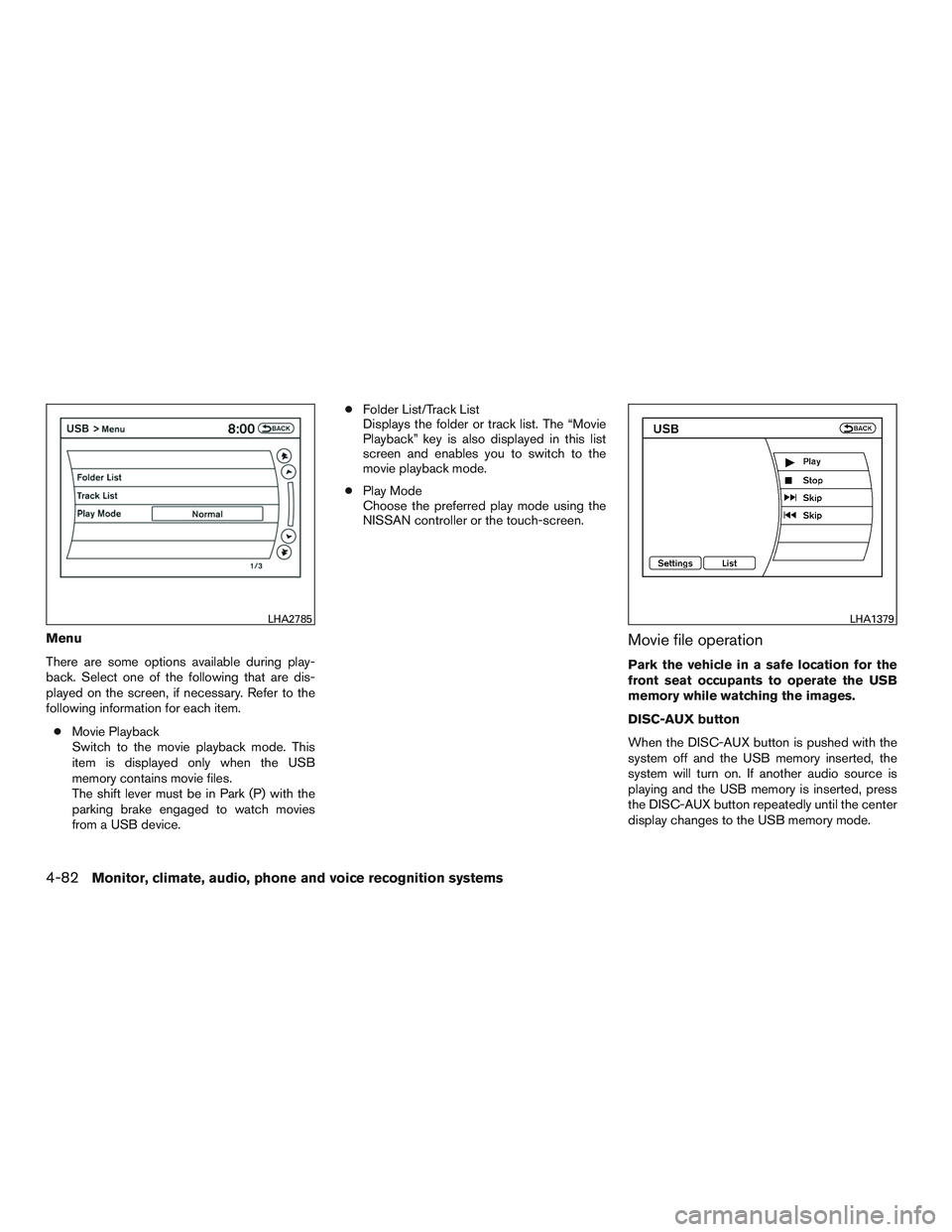
Menu
There are some options available during play-
back. Select one of the following that are dis-
played on the screen, if necessary. Refer to the
following information for each item.
●Movie Playback
Switch to the movie playback mode. This
item is displayed only when the USB
memory contains movie files.
The shift lever must be in Park (P) with the
parking brake engaged to watch movies
from a USB device.●Folder List/Track List
Displays the folder or track list. The “Movie
Playback” key is also displayed in this list
screen and enables you to switch to the
movie playback mode.
●Play Mode
Choose the preferred play mode using the
NISSAN controller or the touch-screen.Movie file operation
Park the vehicle in a safe location for the
front seat occupants to operate the USB
memory while watching the images.
DISC-AUX button
When the DISC-AUX button is pushed with the
system off and the USB memory inserted, the
system will turn on. If another audio source is
playing and the USB memory is inserted, press
the DISC-AUX button repeatedly until the center
display changes to the USB memory mode.
LHA2785LHA1379
4-82Monitor, climate, audio, phone and voice recognition systems
Page 294 of 524
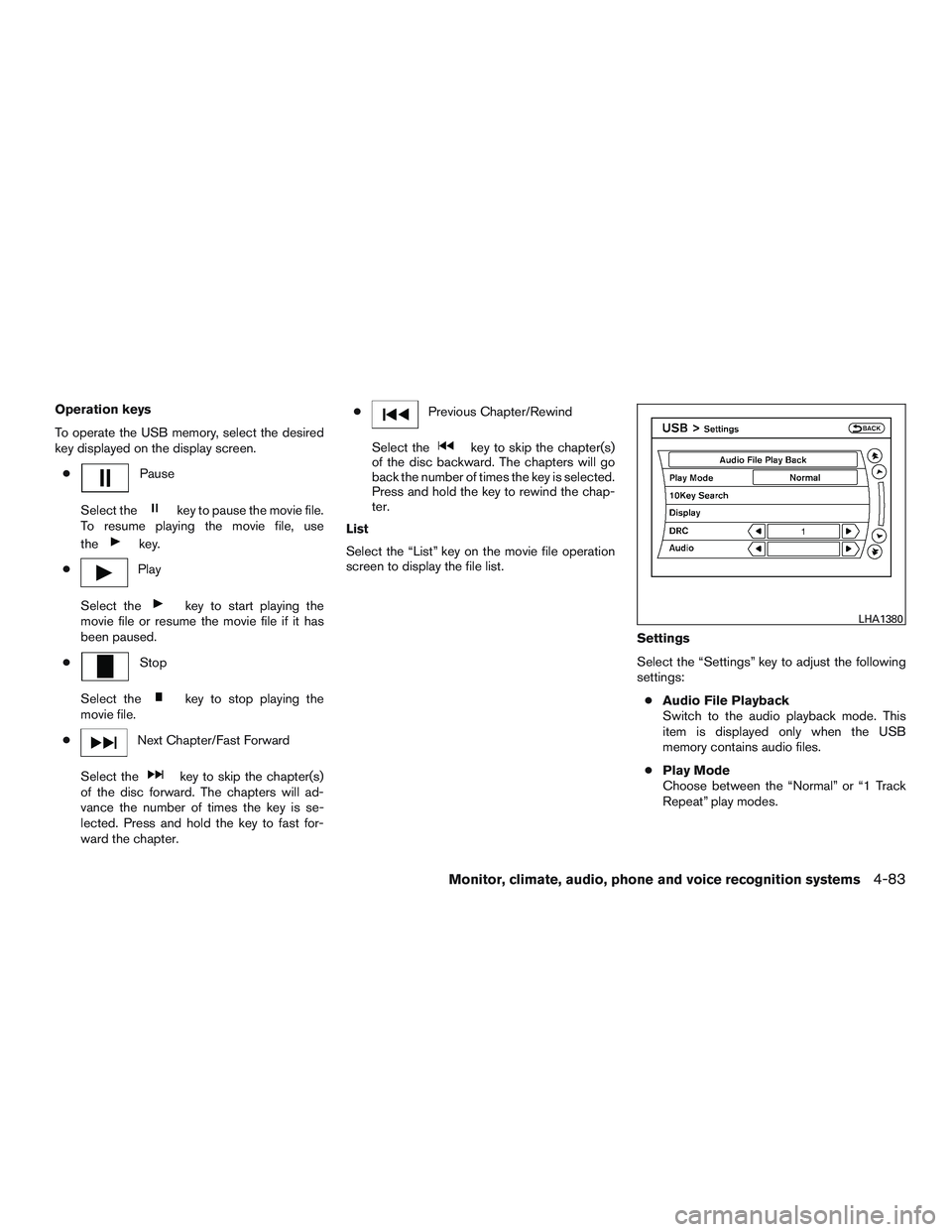
Operation keys
To operate the USB memory, select the desired
key displayed on the display screen.
●
Pause
Select the
key to pause the movie file.
To resume playing the movie file, use
the
key.
●
Play
Select the
key to start playing the
movie file or resume the movie file if it has
been paused.
●
Stop
Select the
key to stop playing the
movie file.
●
Next Chapter/Fast Forward
Select the
key to skip the chapter(s)
of the disc forward. The chapters will ad-
vance the number of times the key is se-
lected. Press and hold the key to fast for-
ward the chapter.●
Previous Chapter/Rewind
Select the
key to skip the chapter(s)
of the disc backward. The chapters will go
back the number of times the key is selected.
Press and hold the key to rewind the chap-
ter.
List
Select the “List” key on the movie file operation
screen to display the file list.
Settings
Select the “Settings” key to adjust the following
settings:
●Audio File Playback
Switch to the audio playback mode. This
item is displayed only when the USB
memory contains audio files.
●Play Mode
Choose between the “Normal” or “1 Track
Repeat” play modes.
LHA1380
Monitor, climate, audio, phone and voice recognition systems4-83