light NISSAN QASHQAI 2007 Workshop Manual
[x] Cancel search | Manufacturer: NISSAN, Model Year: 2007, Model line: QASHQAI, Model: NISSAN QASHQAI 2007Pages: 297, PDF Size: 4.09 MB
Page 111 of 297
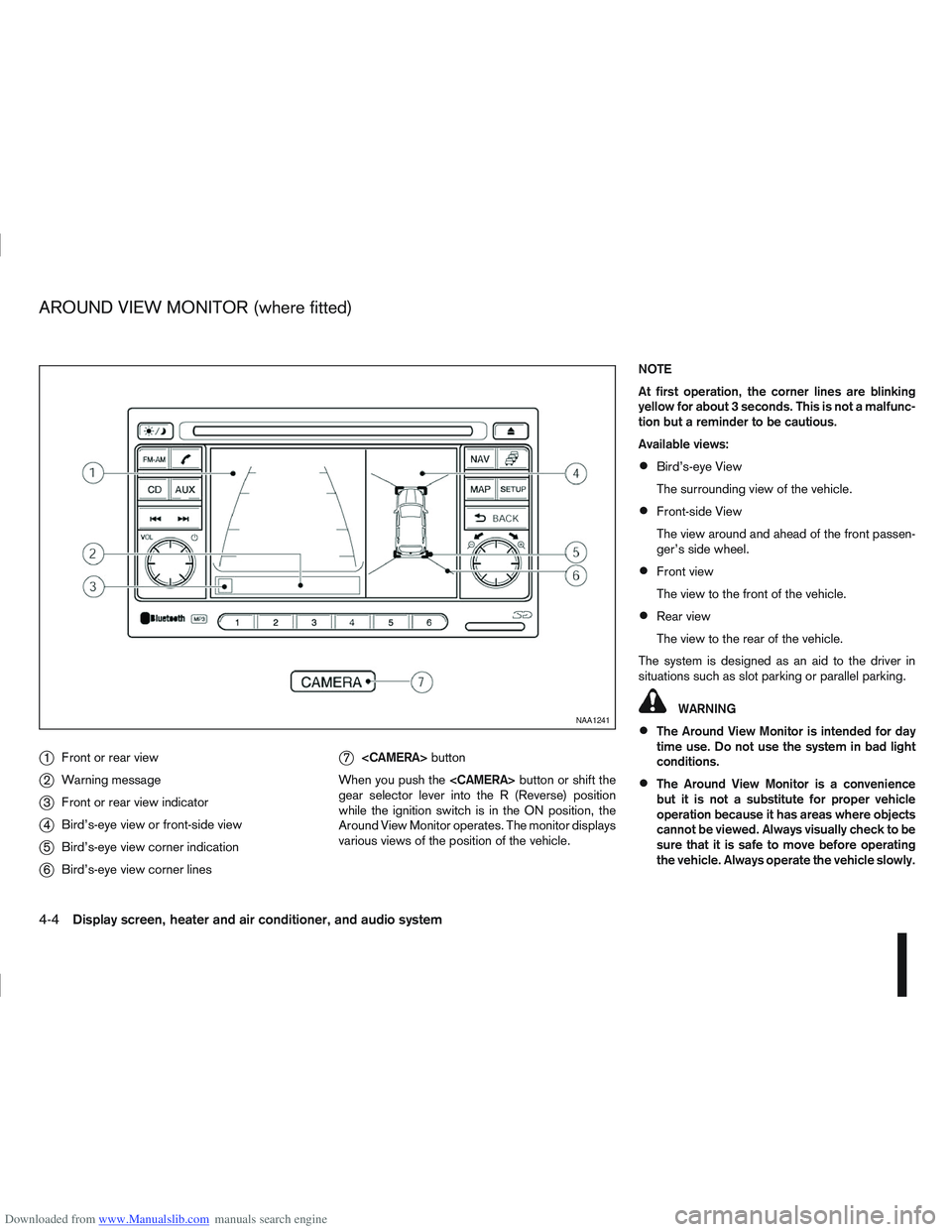
Downloaded from www.Manualslib.com manuals search engine j1Front or rear view
j2Warning message
j3Front or rear view indicator
j4Bird’s-eye view or front-side view
j5Bird’s-eye view corner indication
j6Bird’s-eye view corner lines
j7
button
When you push the
gear selector lever into the R (Reverse) position
while the ignition switch is in the ON position, the
Around View Monitor operates. The monitor displays
various views of the position of the vehicle. NOTE
At first operation, the corner lines are blinking
yellow for about 3 seconds. This is not a malfunc-
tion but a reminder to be cautious.
Available views:
Bird’s-eye View
The surrounding view of the vehicle.
Front-side View
The view around and ahead of the front passen-
ger’s side wheel.
Front view
The view to the front of the vehicle.
Rear view
The view to the rear of the vehicle.
The system is designed as an aid to the driver in
situations such as slot parking or parallel parking.
WARNING
The Around View Monitor is intended for day
time use. Do not use the system in bad light
conditions.
The Around View Monitor is a convenience
but it is not a substitute for proper vehicle
operation because it has areas where objects
cannot be viewed. Always visually check to be
sure that it is safe to move before operating
the vehicle. Always operate the vehicle slowly.
NAA1241
AROUND VIEW MONITOR (where fitted)
4-4Display screen, heater and air conditioner, and audio system
Page 115 of 297
Downloaded from www.Manualslib.com manuals search engine Yellow linej2 :approx.1m(3ft)
Green linej3 :approx.2m(7ft)
Green linej4 :approx.3m(10ft)
Vehicle width guide lines
j5:
Indicate the vehicle width when reversing.
Predictive course lines
j6:
Indicate the predictive course when operating the
vehicle. The predictive course lines will be displayed
on the monitor when the steering wheel is turned.
The predictive course lines will move depending on
how much the steering wheel is turned and will not
be displayed while the steering wheel is in the neu-
tral position.
The front view will not be displayed when the vehicle
speed is above 10 km/h (6 MPH).
WARNING
The distance between objects viewed in the
rear view differs from actual distance because
a wide-angle lens is used. Objects in the rear
view will appear visually opposite than when
viewed in the rear view and outside mirrors.
On a snow-covered or slippery road, there
may be a difference between the predictive
course line and the actual course line.
If the battery is disconnected or becomes dis-
charged, the predictive course lines may be
displayed incorrectly. If this occurs visit a
NISSAN dealer or qualified workshop.
If predictive course lines are displayed incor-
rectly visit a NISSAN dealer or qualified work-
shop.
The displayed lines on the rear view will ap-
pear slightly off to the right because the rear
view camera is not installed in the rear centre
of the vehicle.
NOTE
When the monitor displays the front view and the
steering wheel turns about 90 degrees or less
from the neutral position, both the right and left
predictive course lines
j6 are displayed. When
the steering wheel turns about 90 degrees or
more, a line is displayed only on the opposite
side of the turn.
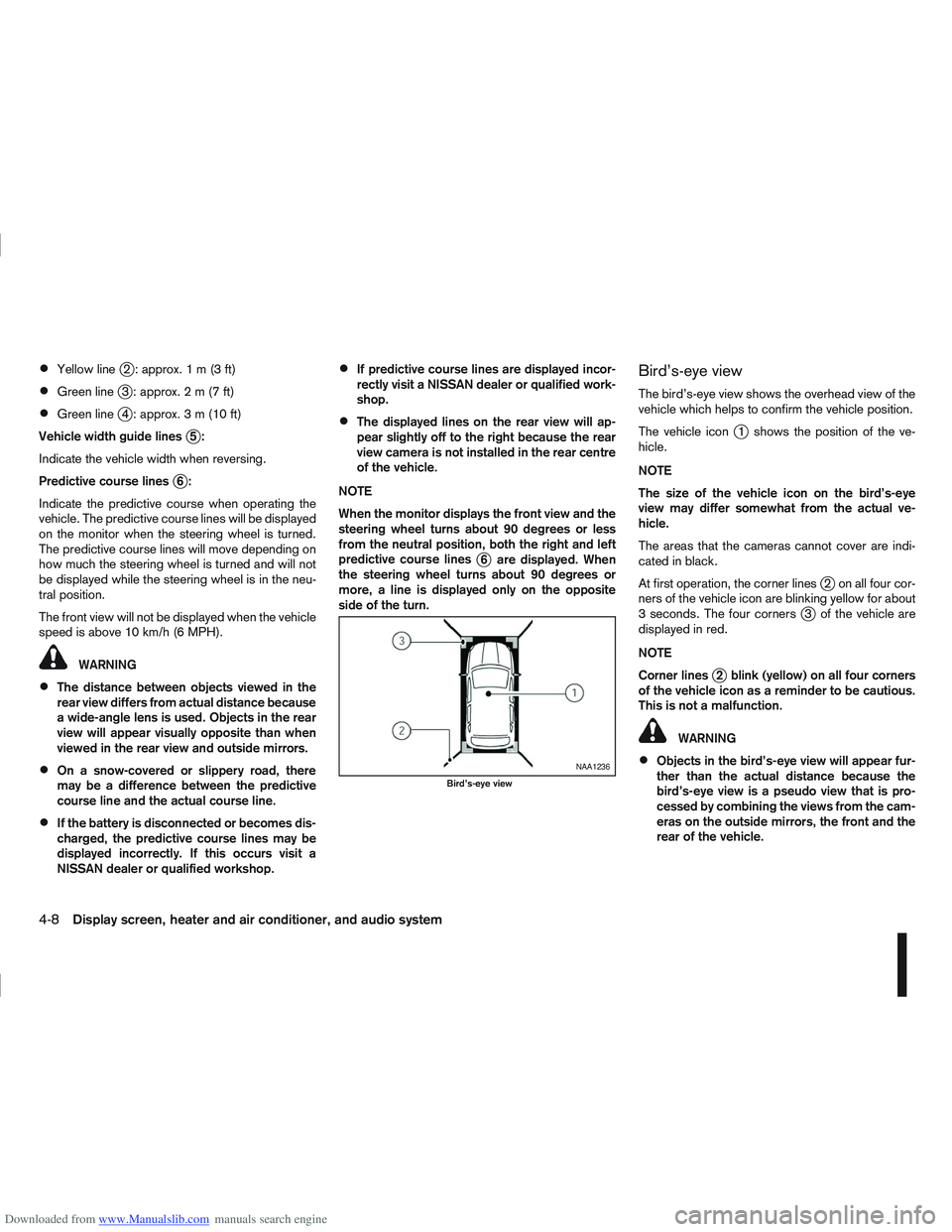
Bird’s-eye view
The bird’s-eye view shows the overhead view of the
vehicle which helps to confirm the vehicle position.
The vehicle icon
j1 shows the position of the ve-
hicle.
NOTE
The size of the vehicle icon on the bird’s-eye
view may differ somewhat from the actual ve-
hicle.
The areas that the cameras cannot cover are indi-
cated in black.
At first operation, the corner lines
j2 on all four cor-
ners of the vehicle icon are blinking yellow for about
3 seconds. The four corners
j3 of the vehicle are
displayed in red.
NOTE
Corner lines
j2 blink (yellow) on all four corners
of the vehicle icon as a reminder to be cautious.
This is not a malfunction.
WARNING
Objects in the bird’s-eye view will appear fur-
ther than the actual distance because the
bird’s-eye view is a pseudo view that is pro-
cessed by combining the views from the cam-
eras on the outside mirrors, the front and the
rear of the vehicle.NAA1236
Bird’s-eye view
4-8Display screen, heater and air conditioner, and audio system
Page 118 of 297
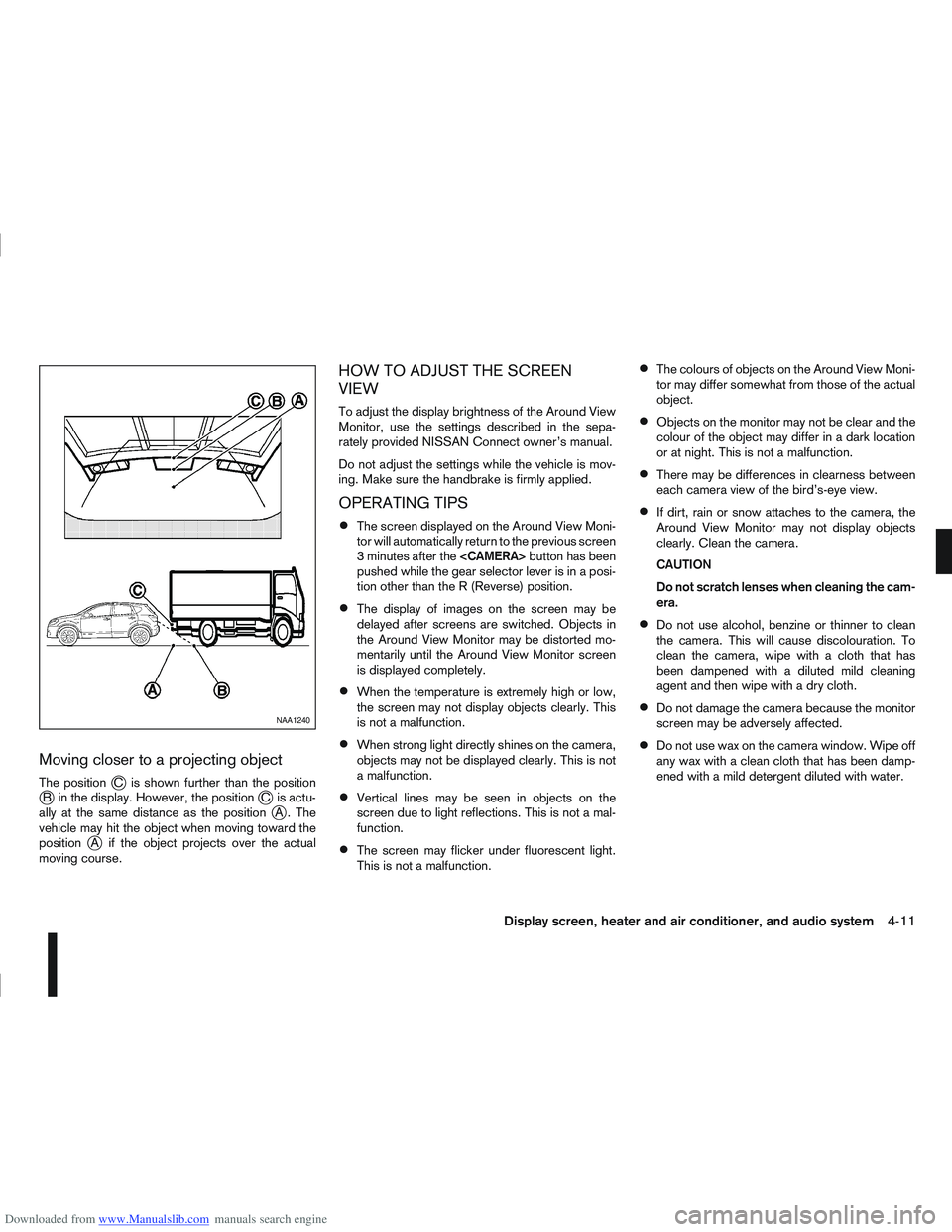
Downloaded from www.Manualslib.com manuals search engine Moving closer to a projecting object
The positionjC is shown further than the positionjB in the display. However, the positionjC is actu-
ally at the same distance as the positionjA . The
vehicle may hit the object when moving toward the
position
jA if the object projects over the actual
moving course.
HOW TO ADJUST THE SCREEN
VIEW
To adjust the display brightness of the Around View
Monitor, use the settings described in the sepa-
rately provided NISSAN Connect owner’s manual.
Do not adjust the settings while the vehicle is mov-
ing. Make sure the handbrake is firmly applied.
OPERATING TIPS
The screen displayed on the Around View Moni-
tor will automatically return to the previous screen
3 minutes after the
pushed while the gear selector lever is in a posi-
tion other than the R (Reverse) position.
The display of images on the screen may be
delayed after screens are switched. Objects in
the Around View Monitor may be distorted mo-
mentarily until the Around View Monitor screen
is displayed completely.
When the temperature is extremely high or low,
the screen may not display objects clearly. This
is not a malfunction.
When strong light directly shines on the camera,
objects may not be displayed clearly. This is not
a malfunction.
Vertical lines may be seen in objects on the
screen due to light reflections. This is not a mal-
function.
The screen may flicker under fluorescent light.
This is not a malfunction.
The colours of objects on the Around View Moni-
tor may differ somewhat from those of the actual
object.
Objects on the monitor may not be clear and the
colour of the object may differ in a dark location
or at night. This is not a malfunction.
There may be differences in clearness between
each camera view of the bird’s-eye view.
If dirt, rain or snow attaches to the camera, the
Around View Monitor may not display objects
clearly. Clean the camera.
CAUTION
Do not scratch lenses when cleaning the cam-
era.
Do not use alcohol, benzine or thinner to clean
the camera. This will cause discolouration. To
clean the camera, wipe with a cloth that has
been dampened with a diluted mild cleaning
agent and then wipe with a dry cloth.
Do not damage the camera because the monitor
screen may be adversely affected.
Do not use wax on the camera window. Wipe off
any wax with a clean cloth that has been damp-
ened with a mild detergent diluted with water.
NAA1240
Display screen, heater and air conditioner, and audio system4-11
Page 121 of 297
Downloaded from www.Manualslib.com manuals search engine Air flow control dial:
Use this dial to manually select the air flow from the
air outlets as described below.
: Air flows from centre and side vents.
: Air flows from centre, side vents and floor
outlets.
: Air flows mainly from floor outlets.
: Air flows from the defogger outlets and floor
outlets.
: Air flows mainly from defogger outlets.
Air recirculation button
m:
Outside air circulation
Press the air recirculation () button to the
“OFF” position to draw outside air into the pas-
senger compartment (the indicator light goes
off). Use the “OFF” position for normal heating
ventilation, or air conditioner (where fitted) op-
eration.
Air recirculation
Press the air recirculation (
) button to the
“ON” position (the indicator light goes on). Use
the “ON” position in situations such as: driving
on a dust raised road, avoiding traffic fumes or
having maximum cooling from the air conditioner
(where fitted).
If the windows fog up, switch on the air condi-
tioning (where fitted). A/C (Air Conditioner) button (where fitted):
Press the A/C button to turn the air conditioner on
or off. When the air conditioner is on, the A/C indi-
cator light illuminates.
Operation
The heater and air conditioner operate when the
engine is running. The air blower will operate even if
the engine is turned off and the ignition switch is in
the ON position.
NOTE
The air conditioner cooling function operates only
when the engine is running and the fan is acti-
vated.
1. Press the air recirculation (
) button to the
“OFF” position.
2. Turn the airflow control dial for: – Cooling: select the
orposition.
– Heating: select the
orposition.
– Heating and defogging : select the
po-
sition.
– Ventilation : select the
orposition.
– Windscreen defogging : select the
po-
sition
3. Turn the fan speed control dial to the desired position.
4. Turn the temperature control dial to the desired position. NOTE
When selecting the
orposition, turn
the temperature control dial to the desired
position between the middle and the maxi-
mum “HOT” (right) position.
5. Press the A/C button (where fitted) to the “ON” position and the indicator light will come on.
Switch this mode on for dehumidified heating or
cooling.
NOTE
The air conditioner mode is used to cool and
dehumidify. For quick cooling when the out-
side temperature is high, select the air recir-
culation mode position (
). Be sure to re-
turn to the outside air mode to avoid windows
from fogging-up and interior air from becom-
ing stale.
A visible mist may be seen coming from the
vents in hot, humid conditions as the air is
cooled rapidly this is not a malfunction.
For quick heating, press the air recirculation
() button to the “ON” position. Be sure to
return to the “OFF” position for normal heat-
ing (no indicator light) in order to avoid win-
dow fog and stale interior.
To quickly defrost/defog the windscreen,
turn:
1) The airflow control dial to
position.
2) The fan speed control dial to speed posi- tion 4.
4-14Display screen, heater and air conditioner, and audio system
Page 126 of 297
Downloaded from www.Manualslib.com manuals search engine NOTE
The air conditioner cooling function operates
only when the engine is running, and the am-
bient temperature is above -2°C (28°F).
The air conditioner can be used to dehumidify
when heating, or to reduce air temperature
and dehumidify when cooling. This is possible
in both auto or manual control mode as long
as the fan speed is minimum (first bar).
When the AUTO mode is selected, the tem-
perature of the passenger compartment will
be maintained automatically. Air flow distribu-
tion and fan speed will also be controlled au-
tomatically.
Controls
NOTE
Before any selection or change is made, press
the AUTO button to activate the heater and air
conditioner system.
Cooling and/or dehumidified heating (AUTO
mode):
This mode may be used all year round. The system
works automatically to control the inside tempera-
ture, air flow distribution and fan speed after the
preferred temperature is set manually.
1. Press the AUTO button (the indicator light willilluminate).
2. Operate the driver’s side temperature control dial to set the desired temperature. Adjust the temperature to about 22°C (72°F) for
normal operation.
3. Driver’s side and passenger side temperatures can be set independently using the individual
temperature control dial. When the passenger
side temperature control dial is turned, the DUAL
indicator light will come on. To turn off the pas-
senger side temperature control, press the DUAL
button.
NOTE
A visible mist may be seen coming from the
vents in hot, humid conditions as the air is
cooled rapidly, this is not a malfunction.
It is not possible to use DUAL mode when
windscreen defogger is selected.
Heating (AUTO mode):
Use this mode for heating purposes only.
1. Press the A/C button to turn off the air condi- tioner cooling function (A/C indicator light goes
off).
2. Select the desired temperature with the tempera- ture control dial.
Do not set the temperature at a lower level than
the one of the outside air temperature. Other-
wise the system may not work properly.
This mode is not recommended if the windscreen
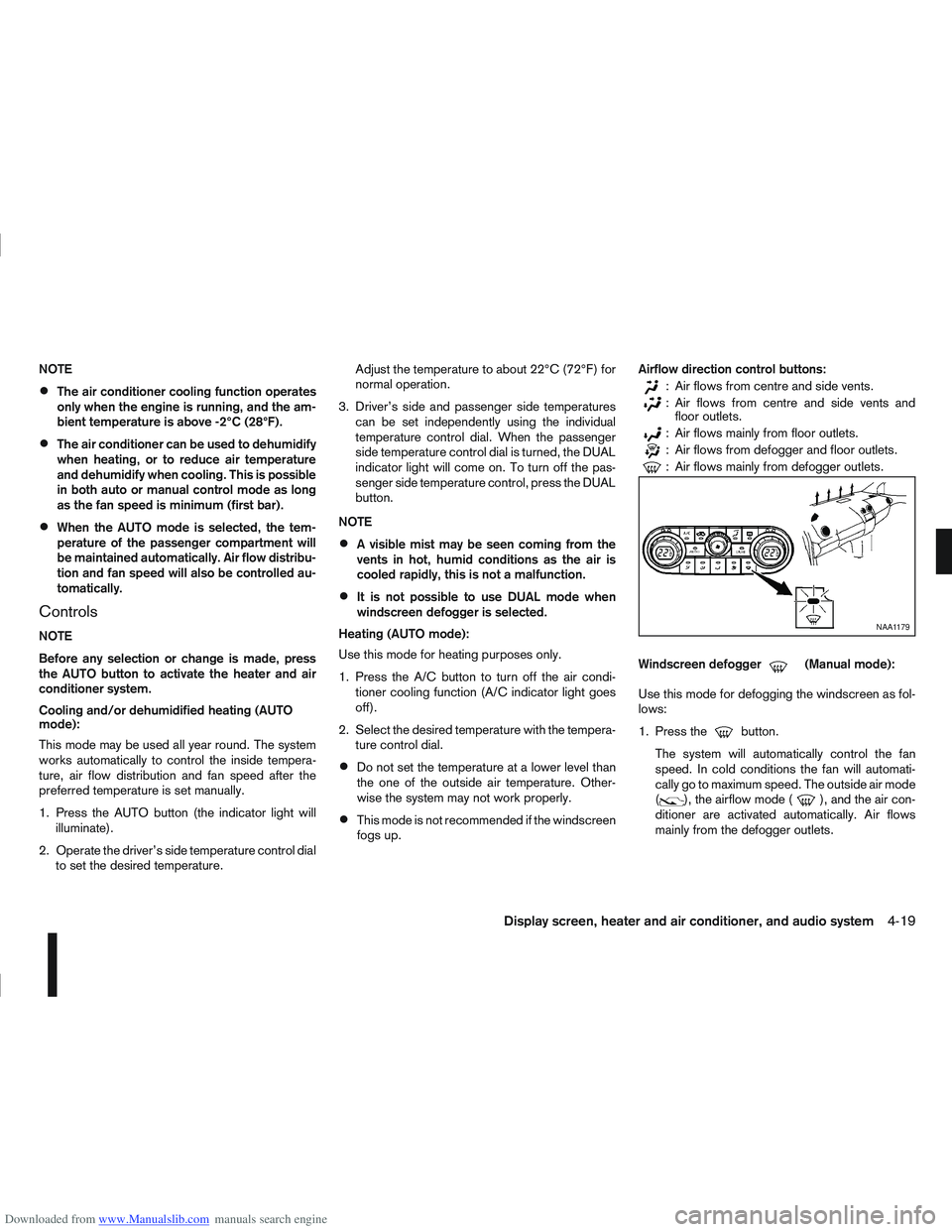
fogs up. Airflow direction control buttons:
: Air flows from centre and side vents.
: Air flows from centre and side vents and
floor outlets.
: Air flows mainly from floor outlets.
: Air flows from defogger and floor outlets.
: Air flows mainly from defogger outlets.
Windscreen defogger
m(Manual mode):
Use this mode for defogging the windscreen as fol-
lows:
1. Press the
button.
The system will automatically control the fan
speed. In cold conditions the fan will automati-
cally go to maximum speed. The outside air mode
(
), the airflow mode (), and the air con-
ditioner are activated automatically. Air flows
mainly from the defogger outlets.
NAA1179
Display screen, heater and air conditioner, and audio system4-19
Page 127 of 297
Downloaded from www.Manualslib.com manuals search engine 2. To switch off, press either thebutton to
return to the previous mode or the AUTO button
for the auto climate control mode.
To quickly defrost/defog the windscreen, set the
fan speed to the maximum position.
As soon as possible after the windscreen has
been cleared of ice or fog, press either the
windscreen defogger button or AUTO button.
When the windscreen defogging mode is acti-
vated, the air conditioner will automatically switch
on at outside temperatures [above -2°C (28°F)]
and the air recirculation mode will be switched
off.
Outside air is drawn into the passenger com-
partment to improve the defogging performance.
Heating and defogging (Manual mode):
This mode heats the interior and defogs the wind-
screen.
The outside air is drawn inside the passenger com-
partment when the
button is pressed. Switch
on the air-conditioning to improve the defogging and
adjust the preferred fan speed and temperature.
Fan speed control
m(Manual mode):
Turn the fan speed control dial anticlockwise or
clockwise to adjust the fan speed.
Press the AUTO button to change the fan speed to
automatic mode. Air recirculation:
Use this mode to recirculate interior air inside the
passenger compartment in situations such as driv-
ing on a dust raised road, avoiding traffic fumes or
having maximum cooling from the air conditioner.
Press the
<
>button to recirculate interior air.
The indicator light illuminates and the air conditioner
will automatically come on.
When the air recirculation mode is switched off, out-
side air is drawn into the passenger compartment.
Outside air circulation:
Use this mode to draw outside air into the passen-
ger compartment for normal heating, ventilation or
air conditioner operation.
Press the <
>button to change the air intake
from the air recirculation to the outside air mode.
The indicator light (
) turns off. To turn the system on/off:
Press the “ON/OFF” (
) button to turn the system
on or off.
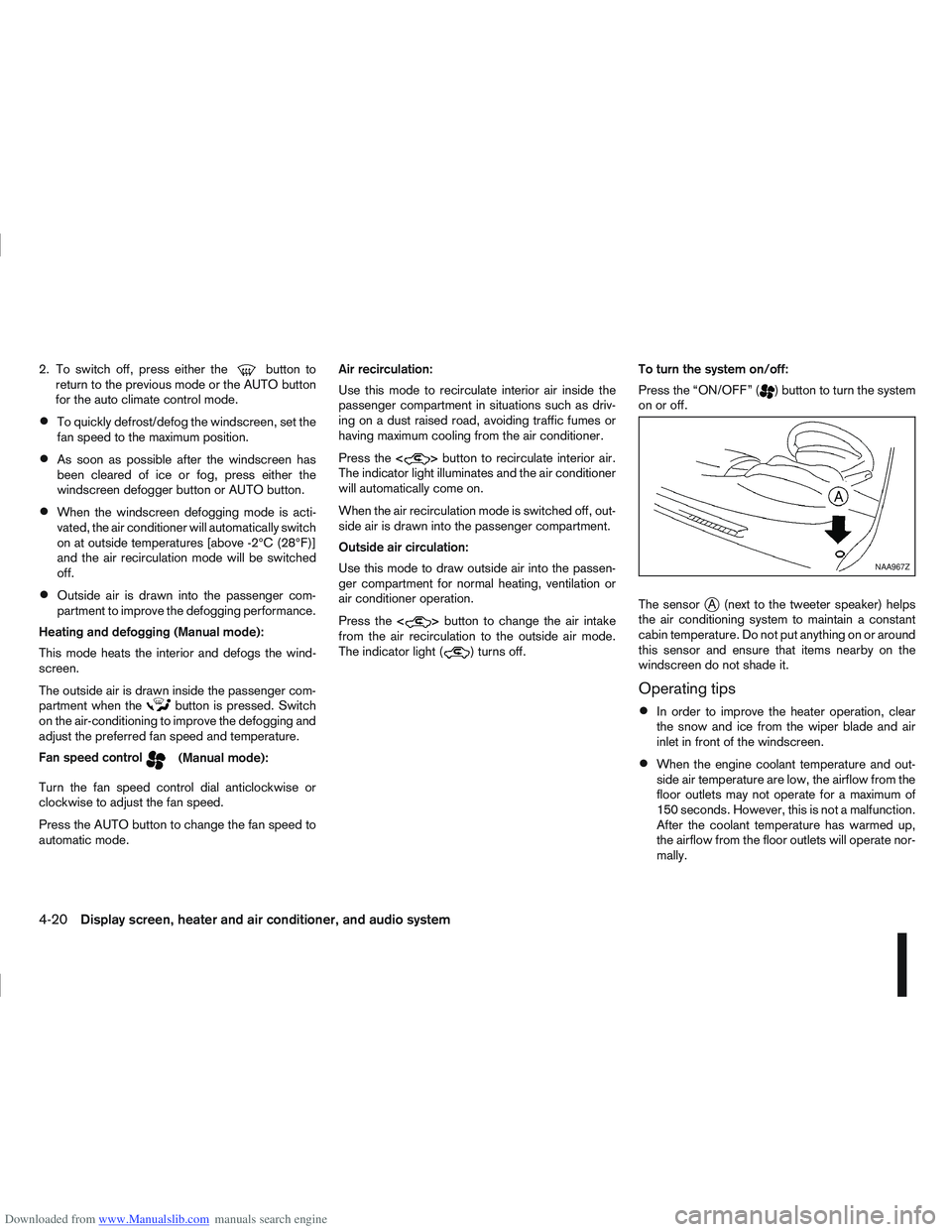
The sensor
jA (next to the tweeter speaker) helps
the air conditioning system to maintain a constant
cabin temperature. Do not put anything on or around
this sensor and ensure that items nearby on the
windscreen do not shade it.
Operating tips
In order to improve the heater operation, clear
the snow and ice from the wiper blade and air
inlet in front of the windscreen.
When the engine coolant temperature and out-
side air temperature are low, the airflow from the
floor outlets may not operate for a maximum of
150 seconds. However, this is not a malfunction.
After the coolant temperature has warmed up,
the airflow from the floor outlets will operate nor-
mally.
NAA967Z
4-20Display screen, heater and air conditioner, and audio system
Page 129 of 297
Downloaded from www.Manualslib.com manuals search engine The player may skip while driving on rough
roads.
Occasionally, the CD player may not function
when the compartment temperature is ex-
tremely high. Decrease the temperature be-
fore use.
Do not expose the CD to direct sunlight.
CDs that are of poor quality, dirty, scratched,
covered with finger prints, or that have pin
holes may not work properly.
The following CDs may not work properly.
Copy control compact discs (CCCD)
Recordable compact discs (CD-R)
Rewritable compact discs (CD-RW)
Do not use the following CDs as they may
cause the CD player to malfunction.
8 cm (3.1 in) discs with an adaptor
CDs that are not round
CDs with a paper label
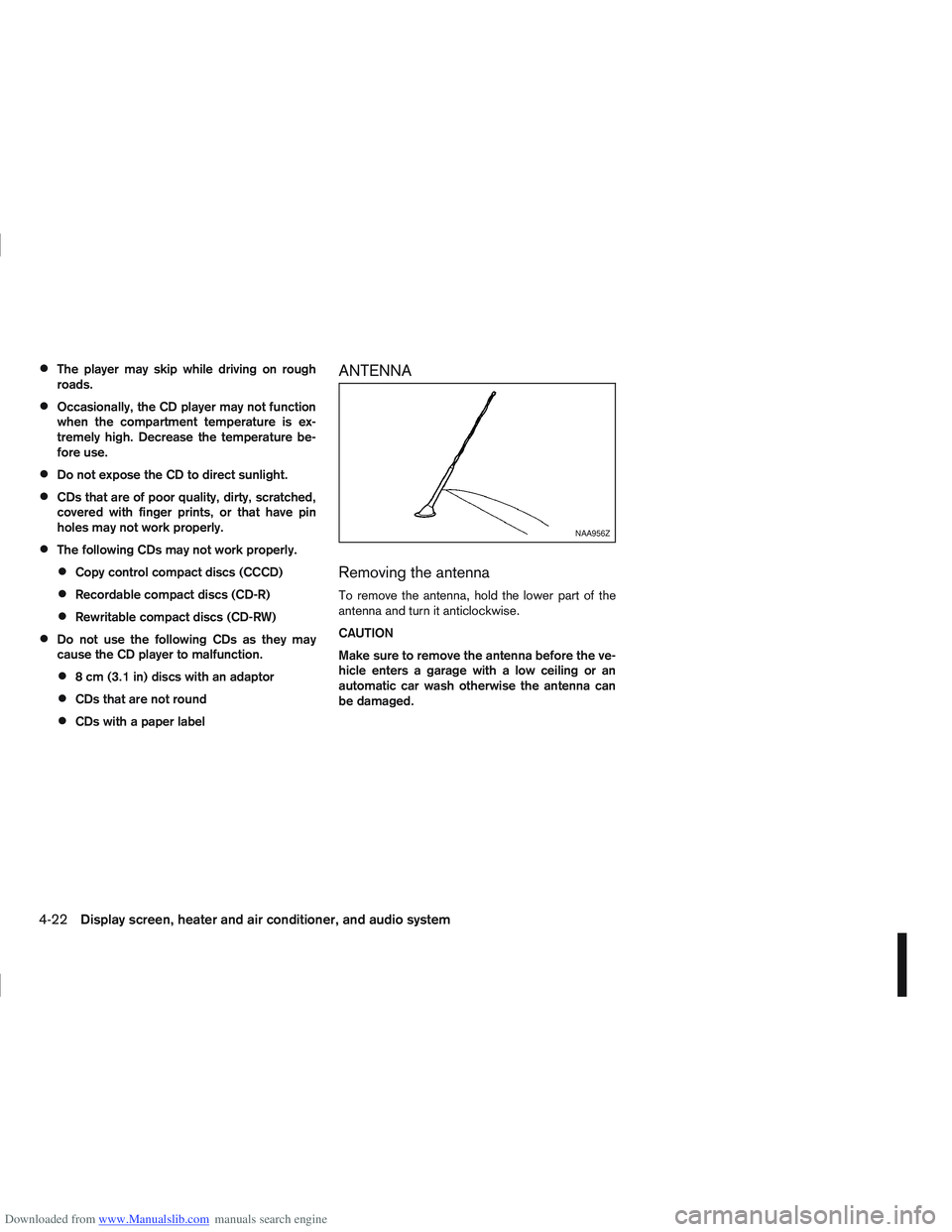
ANTENNA
Removing the antenna
To remove the antenna, hold the lower part of the
antenna and turn it anticlockwise.
CAUTION
Make sure to remove the antenna before the ve-
hicle enters a garage with a low ceiling or an
automatic car wash otherwise the antenna can
be damaged.
NAA956Z
4-22Display screen, heater and air conditioner, and audio system
Page 139 of 297
Downloaded from www.Manualslib.com manuals search engine mPower ON/OFF button
Press thebutton to switch on the audio unit. If
the audio unit was switched off using the ignition
switch, it can also be switched on with the ignition
switch. The source that was playing immediately
before the unit was switched off will resume playing
and the volume will be set to the previous volume
level.
The audio unit can be switched off by pressing
,
or by turning the ignition switch to the “OFF” or
LOCK position.
mVolume (VOL) level control
Turn the
adjust the volume level.
The audio unit is equipped with a speed control vol-
ume function, this means that the audio system au-
tomatically adjusts the volume level in relation to
vehicle speed. For details, see “SPD VOL (Speed
volume) control” later in this section.
Mute button (where fitted)
Press thebutton to mute the sound and [MUTE]
appears in the display. To cancel the mode, use any
of the following options:
– Press
again.
– Turn the
– Press the
Day/Night button (where fitted)
The illumination brightness level is linked to the
headlight switch. When the headlights are switched
“ON” the brightness is dimmed automatically. Press
the button to toggle illumination brightness levels
between daytime setting and nighttime setting inde-
pendent of headlamp status.
RADIO OPERATION
When the(power ON/OFF) button is pressed,
the audio unit will switch on with the last received
radio station, if the audio unit was previously
switched off in radio mode.
Radio band select
buttons
Press the button to change the reception
wave band as follows:
FM1 →FM2 →FMT →AM →FM1
When button is pressed, the radio will
come on at the last received radio station. If the CD
or AUX source mode is already playing, pressing
the button will switch off the playing
source mode and the last received radio station will
be selected.
FM Auto store
When the button is pressed for more
than 1.5 seconds the six stations with the strongest
signals are stored in the preset (1 to 6) buttons of
the FMT band. During the search, a notification mes-
sage [AUTOSTORE] appears in the display and the sound is muted until the operation is complete. Once
completed, the radio selects preset button
j1.
Manual tuning
When adjusting the broadcasting station frequency
manually, turn the
sired station is tuned in.
The frequency increases or decreases in steps of
100 kHz on the FM band, and 9 kHz on the AM
band.
WARNING
The radio should not be tuned while driving in
order for full attention to be given to the driving
operation.
SEEK tuning buttons
Pressing the <>or <>button starts the tun-
ing mode. The radio tuner seeks from low to high or
high to low frequencies and stops at the next broad-
casting station. During seek mode, the audio output
is muted. If no broadcasting station can be found
within the complete band cycle, it will return to the
initial frequency.
Preset station buttonsj1j2j3j4j5j6
Pressing a preset button for less than 2 seconds will
select the stored radio station.
Pressing a preset button for more than 2 seconds
will cause the station currently being received to be
stored against that preset button.
4-32Display screen, heater and air conditioner, and audio system
Page 144 of 297
Downloaded from www.Manualslib.com manuals search engine USB MEMORY OPERATION
(where fitted)
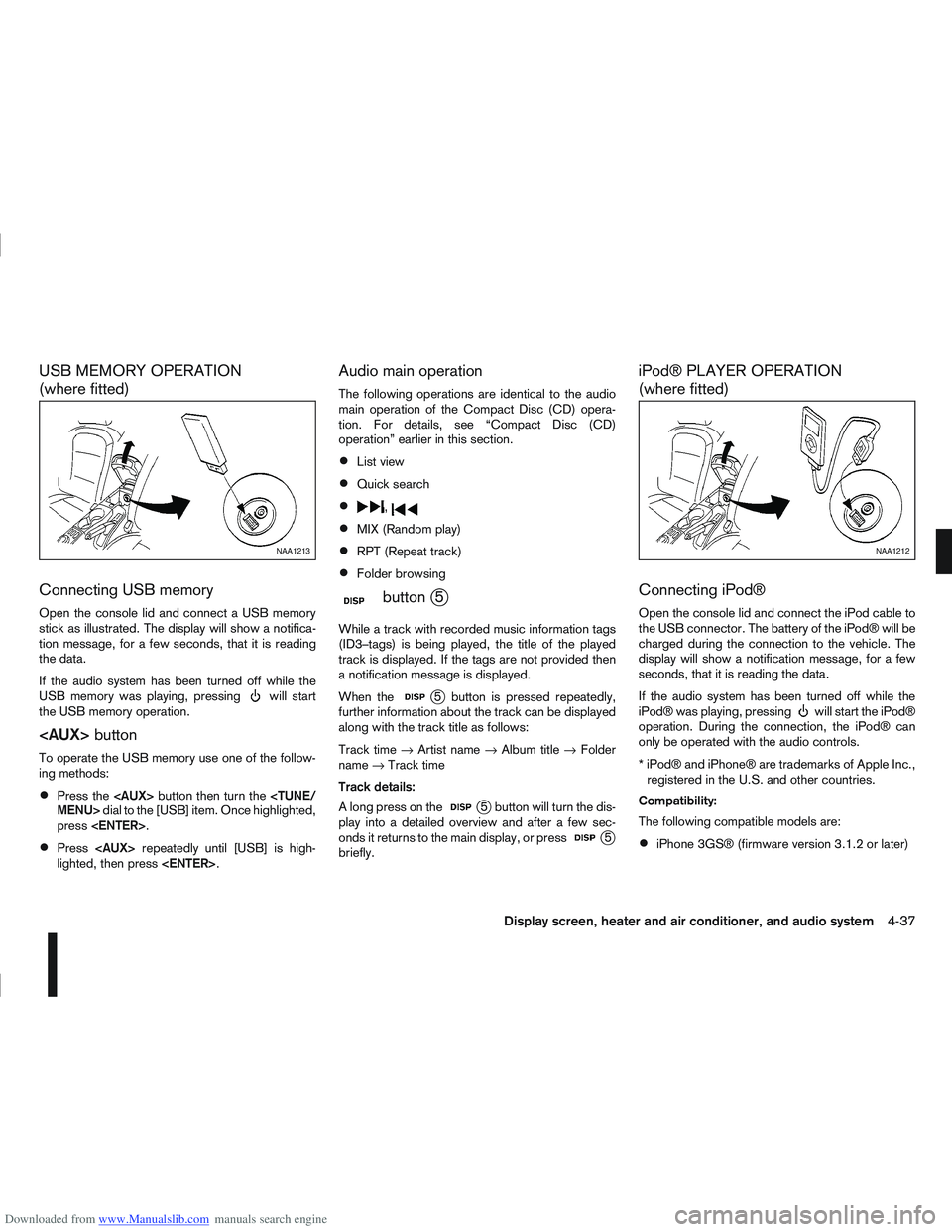
Connecting USB memory
Open the console lid and connect a USB memory
stick as illustrated. The display will show a notifica-
tion message, for a few seconds, that it is reading
the data.
If the audio system has been turned off while the
USB memory was playing, pressing
will start
the USB memory operation.
To operate the USB memory use one of the follow-
ing methods:
Press the
press
Press
lighted, then press
Audio main operation
The following operations are identical to the audio
main operation of the Compact Disc (CD) opera-
tion. For details, see “Compact Disc (CD)
operation” earlier in this section.
List view
Quick search
,
MIX (Random play)
RPT (Repeat track)
Folder browsing
mbuttonj5
While a track with recorded music information tags
(ID3–tags) is being played, the title of the played
track is displayed. If the tags are not provided then
a notification message is displayed.
When the
j5 button is pressed repeatedly,
further information about the track can be displayed
along with the track title as follows:
Track time →Artist name →Album title →Folder
name →Track time
Track details:
A long press on the
j5 button will turn the dis-
play into a detailed overview and after a few sec-
onds it returns to the main display, or press
j5
briefly.
iPod® PLAYER OPERATION
(where fitted)
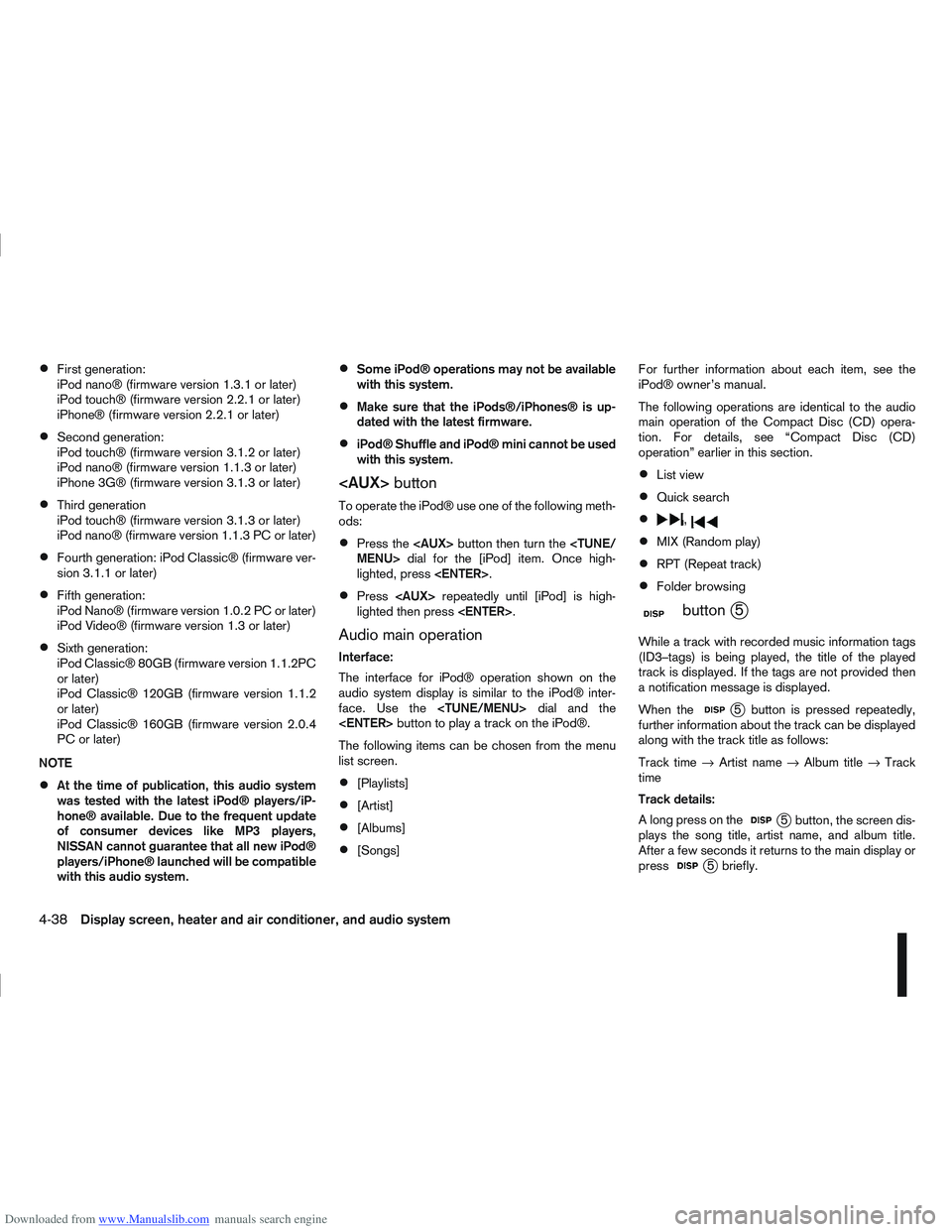
Connecting iPod®
Open the console lid and connect the iPod cable to
the USB connector. The battery of the iPod® will be
charged during the connection to the vehicle. The
display will show a notification message, for a few
seconds, that it is reading the data.
If the audio system has been turned off while the
iPod® was playing, pressing
will start the iPod®
operation. During the connection, the iPod® can
only be operated with the audio controls.
* iPod® and iPhone® are trademarks of Apple Inc., registered in the U.S. and other countries.
Compatibility:
The following compatible models are:
iPhone 3GS® (firmware version 3.1.2 or later)
NAA1213NAA1212
Display screen, heater and air conditioner, and audio system4-37
Page 145 of 297
Downloaded from www.Manualslib.com manuals search engine First generation:
iPod nano® (firmware version 1.3.1 or later)
iPod touch® (firmware version 2.2.1 or later)
iPhone® (firmware version 2.2.1 or later)
Second generation:
iPod touch® (firmware version 3.1.2 or later)
iPod nano® (firmware version 1.1.3 or later)
iPhone 3G® (firmware version 3.1.3 or later)
Third generation
iPod touch® (firmware version 3.1.3 or later)
iPod nano® (firmware version 1.1.3 PC or later)
Fourth generation: iPod Classic® (firmware ver-
sion 3.1.1 or later)
Fifth generation:
iPod Nano® (firmware version 1.0.2 PC or later)
iPod Video® (firmware version 1.3 or later)
Sixth generation:
iPod Classic® 80GB (firmware version 1.1.2PC
or later)
iPod Classic® 120GB (firmware version 1.1.2
or later)
iPod Classic® 160GB (firmware version 2.0.4
PC or later)
NOTE
At the time of publication, this audio system
was tested with the latest iPod® players/iP-
hone® available. Due to the frequent update
of consumer devices like MP3 players,
NISSAN cannot guarantee that all new iPod®
players/iPhone® launched will be compatible
with this audio system.
Some iPod® operations may not be available
with this system.
Make sure that the iPods®/iPhones® is up-
dated with the latest firmware.
iPod® Shuffle and iPod® mini cannot be used
with this system.
To operate the iPod® use one of the following meth-
ods:
Press the
lighted, press
Press
lighted then press
Audio main operation
Interface:
The interface for iPod® operation shown on the
audio system display is similar to the iPod® inter-
face. Use the
The following items can be chosen from the menu
list screen.
[Playlists]
[Artist]
[Albums]
[Songs] For further information about each item, see the
iPod® owner’s manual.
The following operations are identical to the audio
main operation of the Compact Disc (CD) opera-
tion. For details, see “Compact Disc (CD)
operation” earlier in this section.
List view
Quick search
,
MIX (Random play)
RPT (Repeat track)
Folder browsing
mbuttonj5
While a track with recorded music information tags
(ID3–tags) is being played, the title of the played
track is displayed. If the tags are not provided then
a notification message is displayed.
When the
j5 button is pressed repeatedly,
further information about the track can be displayed
along with the track title as follows:
Track time →Artist name →Album title →Track
time
Track details:
A long press on the
j5 button, the screen dis-
plays the song title, artist name, and album title.
After a few seconds it returns to the main display or
press
j5 briefly.
4-38Display screen, heater and air conditioner, and audio system