battery NISSAN QASHQAI 2011 Owner's Manual
[x] Cancel search | Manufacturer: NISSAN, Model Year: 2011, Model line: QASHQAI, Model: NISSAN QASHQAI 2011Pages: 297, PDF Size: 4.09 MB
Page 95 of 297
Downloaded from www.Manualslib.com manuals search engine Locking the doors
1. Make sure you have the Intelligent Key with youwhen exiting the vehicle.
2. Close all doors.
3. Press any of the outside lock switches (front doors or back door).
– All the doors lock.
– The direction indicators flash once.
– Super Lock system equipped models: The Su-
per Lock system will be activated
CAUTION
Do not leave the duplicate Intelligent Key inside
the vehicle as the locking procedure logic will
not work.
NOTE
If the Intelligent Key is left in the vehicle and the
door/back door outside lock switch is pressed, a
buzzer will sound, warning the owner that the
Intelligent Key has been left inside the vehicle.
Unlocking the doors
For details on setting the unlock mode (anti-hijack or
convenience mode) see “Switching from Conve-
nience mode to Anti-hijack mode” earlier in this sec-
tion. Convenience mode:
Push the door/back door outside lock switch.
– All doors unlock.
– The direction indicators flash twice.
– The message [All door unlock] appears in the
vehicle information display.
Anti-hijack mode:
1. Push the door/back door outside lock switch.
– The corresponding door unlocks
– The direction indicators flash twice quickly
– The message [Single door unlock] appears in the vehicle information display.
2. Push the door/back door outside lock switch again within 5 seconds.
– All doors unlock.
– The direction indicators flash twice, slowly.
NOTE
External interference may impair the Intelligent
Key’s operation. In this case, use the emergency
key located in the Intelligent Key integrated key-
fob. See “Door locks” later in this section for fur-
ther details.
CAUTION
Make sure the Intelligent Key battery is in good
condition. Note that battery life may vary de-
pending on condition, amount of use, ambi-
ent temperature, etc.
The Intelligent Key contains a miniature radio
transmitter that may be affected when placed
near metal objects.
Keep the Intelligent Key away from mobile
phones, laptop computers and other metal
objects or electronics.
STARTING THE ENGINE WITH THE
INTELLIGENT KEY
See “Ignition knob (where fitted)” in the “5. Starting
and driving” section.
CAUTION
Make sure you carry the Intelligent Key with
you when starting and driving the vehicle.
If the Intelligent Key is too far away from the
passenger compartment, the vehicle may not
start. See “Intelligent Key operating range” in
the “3. Pre-driving checks and adjustments”
section
3-8Pre-driving checks and adjustments
Page 96 of 297
Downloaded from www.Manualslib.com manuals search engine SUPER LOCK SYSTEM (RHD models)
WARNING
Super Lock system equipped models:
Failure to follow the precautions below may lead
to hazardous situations. Make sure the Super
Lock system activation is always conducted
safely.
When the vehicle is occupied, never lock the
doors with the integrated keyfob. Doing so
will trap the occupants, since the Super Lock
system prevents the doors from being opened
from the inside of the vehicle.
Only operate the integrated keyfob “LOCK”
button when there is a clear view of the ve-
hicle. This is to prevent anybody from being
trapped inside the vehicle through the Super
Lock system activation.
Pressing the “LOCK” button
on the integrated
keyfob or locking the doors using one of the outside
door lock switches (Intelligent Key models) will acti-
vate the Super Lock system.
When the Super Lock system is active, none of the
doors can be opened from inside the vehicle. This
provides additional security in case of theft or break-
in.
The Super Lock system will be released when all
the doors are unlocked using the integrated keyfob
or an outside door lock switch (Intelligent Key mod-
els).
Emergency situations
If the Super Lock system is activated while you are
inside the vehicle, for example by a traffic accident
or other unexpected circumstances, follow the in-
structions below.
To release the Super Lock system:
– Insert the key into the ignition switch and turn it to the ON position.
All doors can now be unlocked and opened from
inside the vehicle.
– Remove the key from the ignition switch and un- lock the doors using the integrated keyfob “UN-
LOCK” button
.
All doors can now be opened from inside the
vehicle.
To unlock and open the driver’s door from
inside the vehicle while the Super Lock system
is active:
1. Open or break the driver’s door window.
2. Insert the key into the outside door key cylinder and turn it towards the rear of the vehicle.
3. The driver’s door will unlock and can now be opened from inside the vehicle.
Locking without activating the Super
Lock system
WARNING
Do not leave the key inside the vehicle when leav-
ing the vehicle.
Locking the doors using the door key cylinder or
power door lock switch will not activate the Super
Lock system. See “Power door lock switch” later in
this section for further information.
LOCKING/UNLOCKING WITH THE
KEY (vehicle dead battery)
WARNING
When leaving the vehicle, do not leave the key
inside the vehicle.
Never leave children unattended in a vehicle
and always be sure you have your keys with
you when leaving. If an emergency occurs it
may be more difficult to help them otherwise.
NPA828Z
DOOR LOCKS
Pre-driving checks and adjustments3-9
Page 97 of 297
Downloaded from www.Manualslib.com manuals search engine The driver’s door can be locked/unlocked from out-
side using the key/emergency key if the vehicle’s
battery is dead.
To lock the door, insert the key into the driver’s door
key cylinder and turn it towards the front of the ve-
hicle
j1.
To unlock the door, turn the key towards the rear of
the vehicle
j2.
See “Ignition knob (where fitted)” in the “5. Starting
and driving” section for instructions on accessing
the Intelligent Key system Emergency key.
CAUTION
The alarm system will be triggered when the door
is opened using the key (NISSAN alarm equipped
models). To stop the alarm, turn the ignition key
to the ON position or press the unlock
button
on the integrated keyfob.
Initialising the system after vehicle
battery loading or replacement
After recharging or replacing the battery, you should
release (initialise) the system by:
Inserting the key into the ignition switch and then
turning it to the ON position.
Unlocking the vehicle using the integrated key-
fob.
INSIDE DOOR HANDLE
To unlock and open the door, pull the inside door
handle as illustrated.
With Super Lock (where fitted)
The door cannot be opened when the Super Lock
system is activated.
POWER DOOR LOCK SWITCH
j
1 Press to lock
j2Press to unlock
WARNING
When leaving the vehicle, do not leave the key
inside the vehicle.
The power door lock switch, located on the centre
console, can be used to lock
j1 or unlockj2all
doors simultaneously from inside the vehicle.
The switch will illuminate when the doors are locked.
A chime will sound and the doors will not lock if the
power door lock switch is pressed while any door
other than the driver’s door is open.
NOTE
Models without the Super Lock system: If a door
is manually opened from inside after having
pressed the integrated keyfob “LOCK” button, the
door will unlock, but the power door lock switch
will remain illuminated.
Locking the doors when leaving the
vehicle
It is possible to lock all doors using the power door
lock switch when leaving the vehicle:
1. Open the driver’s door, remove the key from the ignition or the Intelligent Key (where fitted) from
the passenger compartment.
2. Press the “LOCK” side of the power door lock switch
j1.
– All doors except the driver’s door lock
SPA2531Z
NPA952
3-10Pre-driving checks and adjustments
Page 99 of 297
Downloaded from www.Manualslib.com manuals search engine BACK DOOR LOCK
WARNING
Always check that the back door has been
properly closed to prevent it from opening
while driving.
Do not drive with the back door opened. This
could allow dangerous exhaust gases to be
drawn into the vehicle.
Closely supervise children when they are
around the vehicle to prevent them from play-
ing and being locked in the luggage compart-
ment where they could be seriously injured.
Keep the vehicle locked, with the back door
closed, when not in use, and prevent chil-
dren’s access to the vehicle’s keys.
The power door lock system allows you to lock or
unlock all doors including the back door.
The back door can be manually released from the outside, when the vehicle is not locked, by operat-
ing the microswitch
j1 located on the back door
underside.
NOTE
The back door cannot be opened from the out-
side when the power door lock switch is acti-
vated. An audible warning is heard when the
microswitch
j1 located on the back door under-
side is operated.
To open the back door, unlock it with one of the fol-
lowing operations, then push the back door mi-
croswitch
j1 and pull up to open it.
Push the back door outside lock switchj2
(where fitted). See “Intelligent Key system
(where fitted)” earlier in this section.
Push the “UNLOCK” button on the Intelligent
Key (where fitted). See “Intelligent Key system
(where fitted)” earlier in this section.
Push the “UNLOCK” button on the integrated
keyfob (where fitted). See “Integrated keyfob/re-
mote control system” earlier in this section.
Unlock all the doors using the key.
Push the power door lock switch to the “UN-
LOCK” position.
To close the back door, pull down and then push
closed until securely locked.
Vehicle dead battery – Back door lock
release lever (where fitted)
The vehicle’s back door can be unlocked from the
inside when the battery is dead. Tilt the seatback
down. Remove the cover from the lock and slide the
release lever
j1 as illustrated. See “Rear seat(s)” in
the “1. Safety — seats, seat belts and supplemental
restraint system” section for more information re-
garding the seat operation.
NPA914Z
NPA990
3-12Pre-driving checks and adjustments
Page 115 of 297
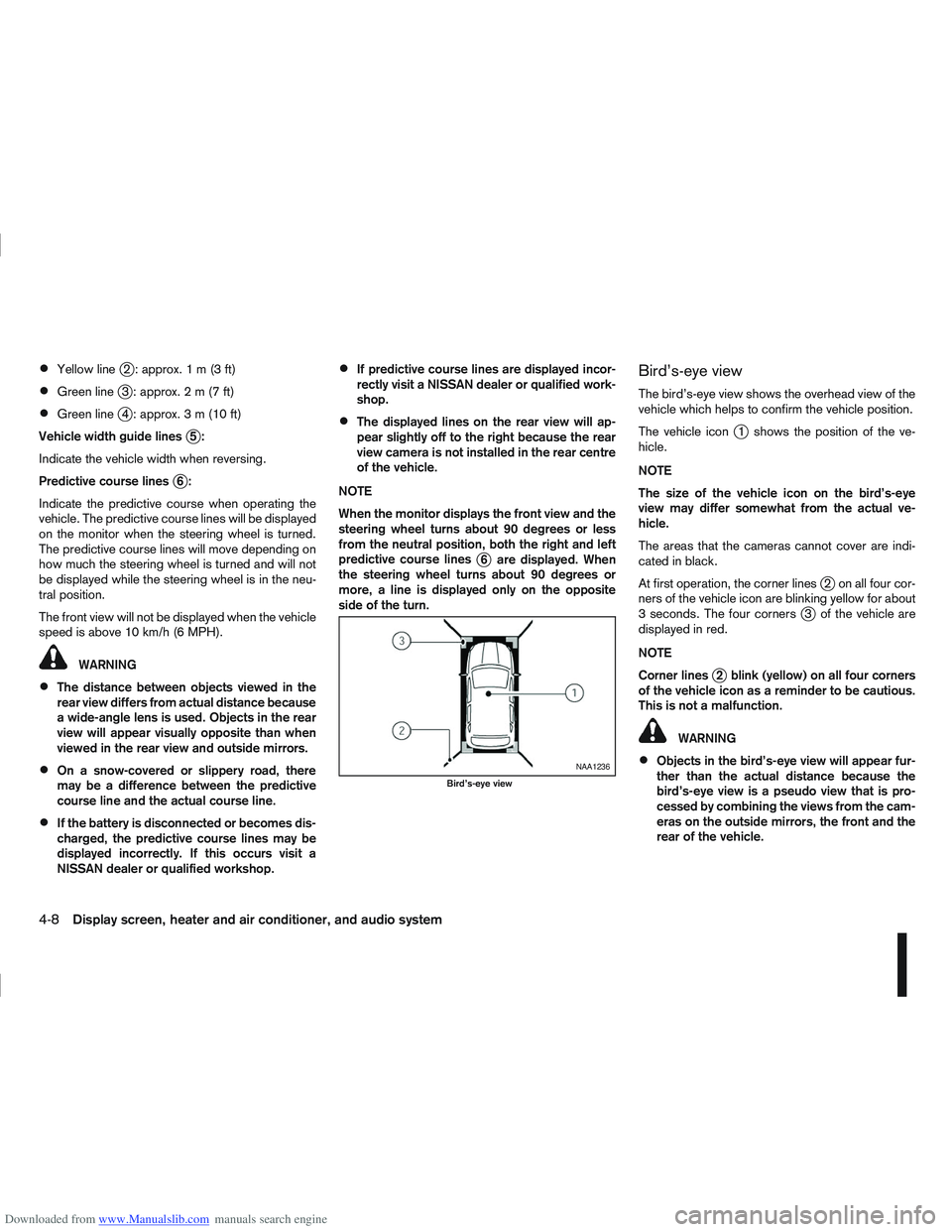
Downloaded from www.Manualslib.com manuals search engine Yellow linej2 :approx.1m(3ft)
Green linej3 :approx.2m(7ft)
Green linej4 :approx.3m(10ft)
Vehicle width guide lines
j5:
Indicate the vehicle width when reversing.
Predictive course lines
j6:
Indicate the predictive course when operating the
vehicle. The predictive course lines will be displayed
on the monitor when the steering wheel is turned.
The predictive course lines will move depending on
how much the steering wheel is turned and will not
be displayed while the steering wheel is in the neu-
tral position.
The front view will not be displayed when the vehicle
speed is above 10 km/h (6 MPH).
WARNING
The distance between objects viewed in the
rear view differs from actual distance because
a wide-angle lens is used. Objects in the rear
view will appear visually opposite than when
viewed in the rear view and outside mirrors.
On a snow-covered or slippery road, there
may be a difference between the predictive
course line and the actual course line.
If the battery is disconnected or becomes dis-
charged, the predictive course lines may be
displayed incorrectly. If this occurs visit a
NISSAN dealer or qualified workshop.
If predictive course lines are displayed incor-
rectly visit a NISSAN dealer or qualified work-
shop.
The displayed lines on the rear view will ap-
pear slightly off to the right because the rear
view camera is not installed in the rear centre
of the vehicle.
NOTE
When the monitor displays the front view and the
steering wheel turns about 90 degrees or less
from the neutral position, both the right and left
predictive course lines
j6 are displayed. When
the steering wheel turns about 90 degrees or
more, a line is displayed only on the opposite
side of the turn.
Bird’s-eye view
The bird’s-eye view shows the overhead view of the
vehicle which helps to confirm the vehicle position.
The vehicle icon
j1 shows the position of the ve-
hicle.
NOTE
The size of the vehicle icon on the bird’s-eye
view may differ somewhat from the actual ve-
hicle.
The areas that the cameras cannot cover are indi-
cated in black.
At first operation, the corner lines
j2 on all four cor-
ners of the vehicle icon are blinking yellow for about
3 seconds. The four corners
j3 of the vehicle are
displayed in red.
NOTE
Corner lines
j2 blink (yellow) on all four corners
of the vehicle icon as a reminder to be cautious.
This is not a malfunction.
WARNING
Objects in the bird’s-eye view will appear fur-
ther than the actual distance because the
bird’s-eye view is a pseudo view that is pro-
cessed by combining the views from the cam-
eras on the outside mirrors, the front and the
rear of the vehicle.NAA1236
Bird’s-eye view
4-8Display screen, heater and air conditioner, and audio system
Page 132 of 297
Downloaded from www.Manualslib.com manuals search engine Band select button
Press the button to change the reception
wave band as follows:
FM1 →FM 2 →FM T →MW →LW →FM1
When button is pressed while the igni-
tion switch is in the Acc or ON position, the radio
will come on at the last received radio station. If the
CD is already playing, pressing the but-
ton will switch off the CD play mode and the last
received radio station will be selected.
FM Auto store
When the button is pressed for more
than 1.5 seconds and the six strongest stations are
stored in the preset (1 to 6) of the FM T band. Dur-
ing the search, a notification message [AU-
TOSTORE] appears in the display and the sound is
muted until the operation is complete. Once com-
pleted, the radio selects preset 1.
Manual tuning buttons
WARNING
The radio should not be tuned while driving in
order for full attention to be given to the driving
operation.
Press the
orbutton repeatedly to in-
crease or decrease the frequency. The frequency increases or decreases in steps of
100 kHz on the FM band, 9kHz on the MW band,
and 3 kHz on the LW band.
If the
orbutton is held down with a long
press, the frequency will continuously increase or
decrease until the button is released.
SEEK tuning buttons
Pressing briefly on theorbutton starts the
tuning mode. The radio tuner seeks from low to high
or high to low frequencies and stops at the next
broadcasting station. During seek mode, the audio
output is muted. If no broadcasting station can be
found within the complete band cycle, it will return
to the initial frequency.
If the
orbutton is held down with a long
press, the seek mode will continuously increase or
decrease until the button is released. When the but-
ton is released, the seek mode will seek the next
broadcasting station.
Preset station buttonsj1j2j3j4j5j6
Pressing a preset button for less than 2 seconds will
select the stored radio station.
Pressing a preset button for more than 2 seconds
will cause the station currently being received to be
stored against that preset button.
Eighteen stations can be stored in the FM band.
(Six each for FM1, FM2 and FMT)
Six stations can be set for both the MW and LW
bands. If the battery is disconnected, or if the fuse blows,
the radio memory will be erased. In that case, reset
the desired stations after battery connection or fuse
replacement.
Radio data system (RDS) operation
The RDS is a system through which encoded digital
information is transmitted by FM radio station in ad-
dition to the normal FM-radio broadcasting. The
RDS provides information services such as station
name, traffic information and news.
NOTE
In some countries or regions, some of these ser-
vices may not be available.
Alternative Frequency (AF) mode:
The AF mode operates in the FM (radio) mode.
The AF mode operates both in the FM (radio)
and CD mode (if FM was previously selected in
the radio mode).
When AF mode has been set to the “ON” posi-
tion in the user set up menu mode, the [AF] indi-
cator comes on. For activation or deactivation
details, see “MENU button” later in this section.
The AF function compares signal strengths and se-
lects the station with the optimum reception condi-
tions for the currently tuned-in station.
Display screen, heater and air conditioner, and audio system4-25
Page 138 of 297
Downloaded from www.Manualslib.com manuals search engine ANTI-THEFT SYSTEM
Use of a 4-digit radio PIN (Personal Identification
Number) code, known only to the vehicle owner,
effectively reduces the possibility of the audio unit
being stolen. Without the PIN code the audio unit
cannot be activated.
If force is used to try and remove the audio unit, the
Anti-theft system activates and the audio unit is
locked. The only way to unlock the audio unit is to
enter the radio code number shown on an identifica-
tion card supplied with the vehicle documentation.
NOTE
The 4 digit radio code is shown on a card that
you received with your vehicle documenta-
tion.
Record the 4 digit radio code on the “Security
information” page at the end of this manual.
Remove the security page and keep it in a
safe, not in the vehicle.
Contact a NISSAN dealer if you do lose the 4
digit radio code of the audio unit.
Unlocking the unit
If the battery supply to the vehicle is interrupted, the
audio unit will lock.
When the power is restored and the unit switched
on, the display will show [Radio Code:] and it will be
unlocked when the codes have been entered cor-
rectly.
Unlocking procedure:
Read this section very carefully. It is important
that the instructions are followed precisely.
To unlock the audio unit, proceed as follows:
1. Turn the ignition switch to the Acc or ON posi-tion.
2. [Radio Code:] is displayed along with four nu- merical zero digits.
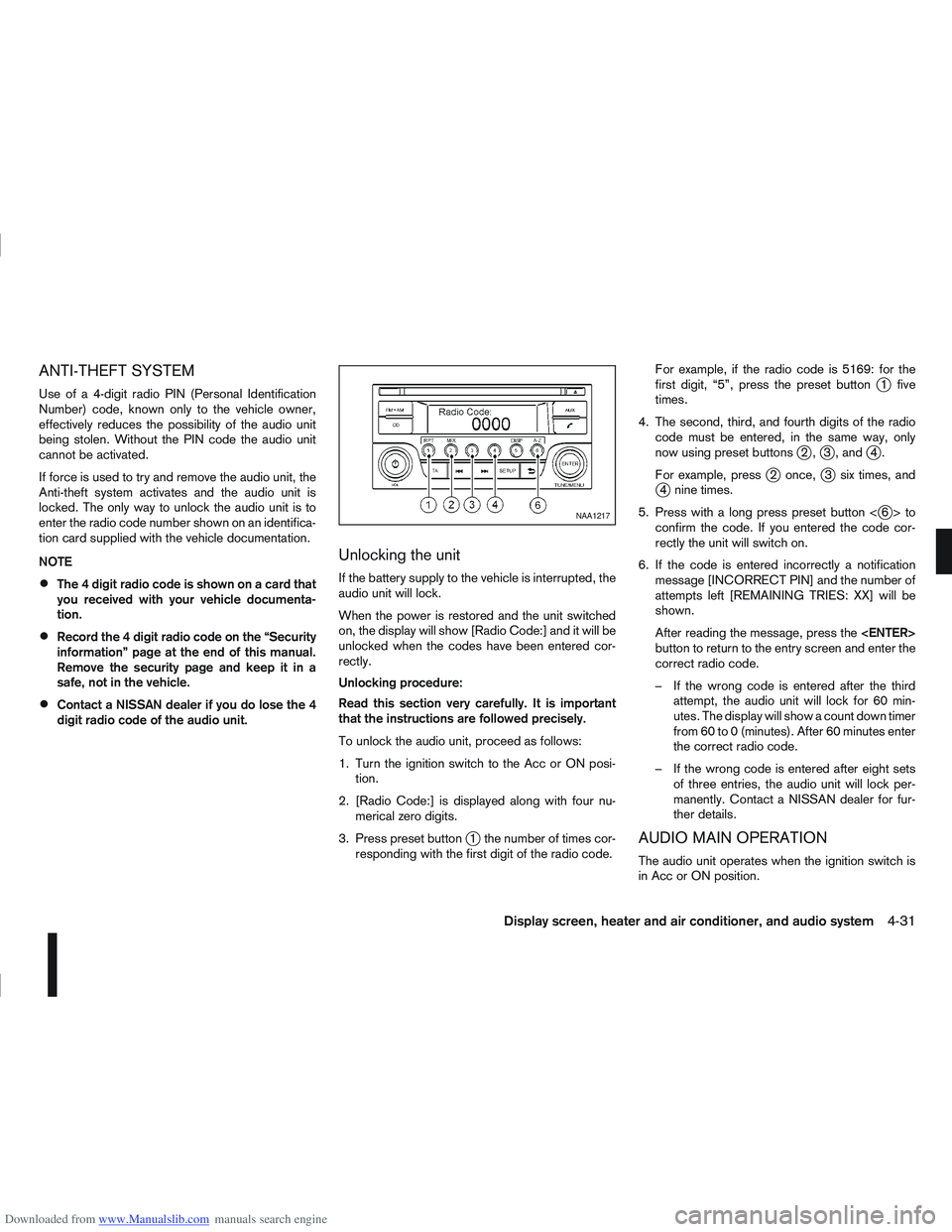
3. Press preset button
j1 the number of times cor-
responding with the first digit of the radio code. For example, if the radio code is 5169: for the
first digit, “5”, press the preset button
j1 five
times.
4. The second, third, and fourth digits of the radio code must be entered, in the same way, only
now using preset buttons
j2,j3 , andj4.
For example, press
j2 once,j3 six times, andj4 nine times.
5. Press with a long press preset button <
j6>to
confirm the code. If you entered the code cor-
rectly the unit will switch on.
6. If the code is entered incorrectly a notification message [INCORRECT PIN] and the number of
attempts left [REMAINING TRIES: XX] will be
shown.
After reading the message, press the
button to return to the entry screen and enter the
correct radio code.
– If the wrong code is entered after the third attempt, the audio unit will lock for 60 min-
utes. The display will show a count down timer
from 60 to 0 (minutes). After 60 minutes enter
the correct radio code.
– If the wrong code is entered after eight sets of three entries, the audio unit will lock per-
manently. Contact a NISSAN dealer for fur-
ther details.
AUDIO MAIN OPERATION
The audio unit operates when the ignition switch is
in Acc or ON position.
NAA1217
Display screen, heater and air conditioner, and audio system4-31
Page 140 of 297
Downloaded from www.Manualslib.com manuals search engine Eighteen stations can be stored in the FM band.
(Six each for FM1, FM2 and FMT)
Six stations can be set for the AM band.
If the battery is disconnected, or if the fuse blows,
the radio memory will be erased. In that case, reset
the desired stations after battery connection or fuse
replacement.
Radio data system (RDS) operation
The RDS is a system through which encoded digital
information is transmitted by FM radio stations in
addition to the normal FM radio broadcasting. The
RDS provides information services such as station
name, traffic information, or news.
NOTE
In some countries or regions, some of these ser-
vices may not be available.
Alternative Frequency (AF) mode:
The AF mode operates in the FM (radio) mode.
The AF mode operates in the FM (radio), AUX or
CD mode (if FM was previously selected in the
radio mode).
The AF function compares signal strengths and
selects the station with the optimum reception
conditions for the currently tuned-in station.
RDS functions
Programme Service (PS) function (station name
display function):
When an RDS station is tuned in with seek or manual
tuning, the RDS data is received and the PS name
is displayed.
TA Traffic announcement
This function operates in FM (Radio), CD or AUX
mode.
Pressing the
The TA indicator is displayed while TA mode is
on.
When
switched off and the TA indicator will disappear
from the display.
Traffic announcement interrupt function:
When a traffic announcement is received, the an-
nouncement is tuned in and the display shows a
notification message with the radio station name e.g.
[TA: Radio 1].
Once the traffic announcement has finished, the unit
returns to the source that was active before the traf-
fic announcement started.
If
the traffic announcement interrupt mode is can-
celled. The TA mode returns to the standby mode
and the audio unit returns to the previous source.
SETUP BUTTON
To configure Audio, Clock, Bluetooth, Language or
Scroll direction settings, perform the following pro-
cedure:
1. Press the
2. Turn the
clockwise, the display will appear in the following
order:
[Audio] ⇔[Clock] ⇔[Bluetooth] ⇔[Language]
⇔ [Scroll Direction]
After the desired levels have been set, press either
the
(Back) button repeatedly, the
button, or wait for 8 seconds without pressing any
buttons to exit the menu screen.
Display brightness (Day/Night mode)
Press the
switch the display brightness between the daytime
and nighttime mode.
Audio adjustments
Press the
screen then select [Audio].
Each time the
will change as follows:
[Bass] →[Treble] →[Balance] →[Fade] →[AUX
VOL] →[SPD VOL] →setup menu screen [Audio]
→ [Bass]
Display screen, heater and air conditioner, and audio system4-33
Page 144 of 297
Downloaded from www.Manualslib.com manuals search engine USB MEMORY OPERATION
(where fitted)
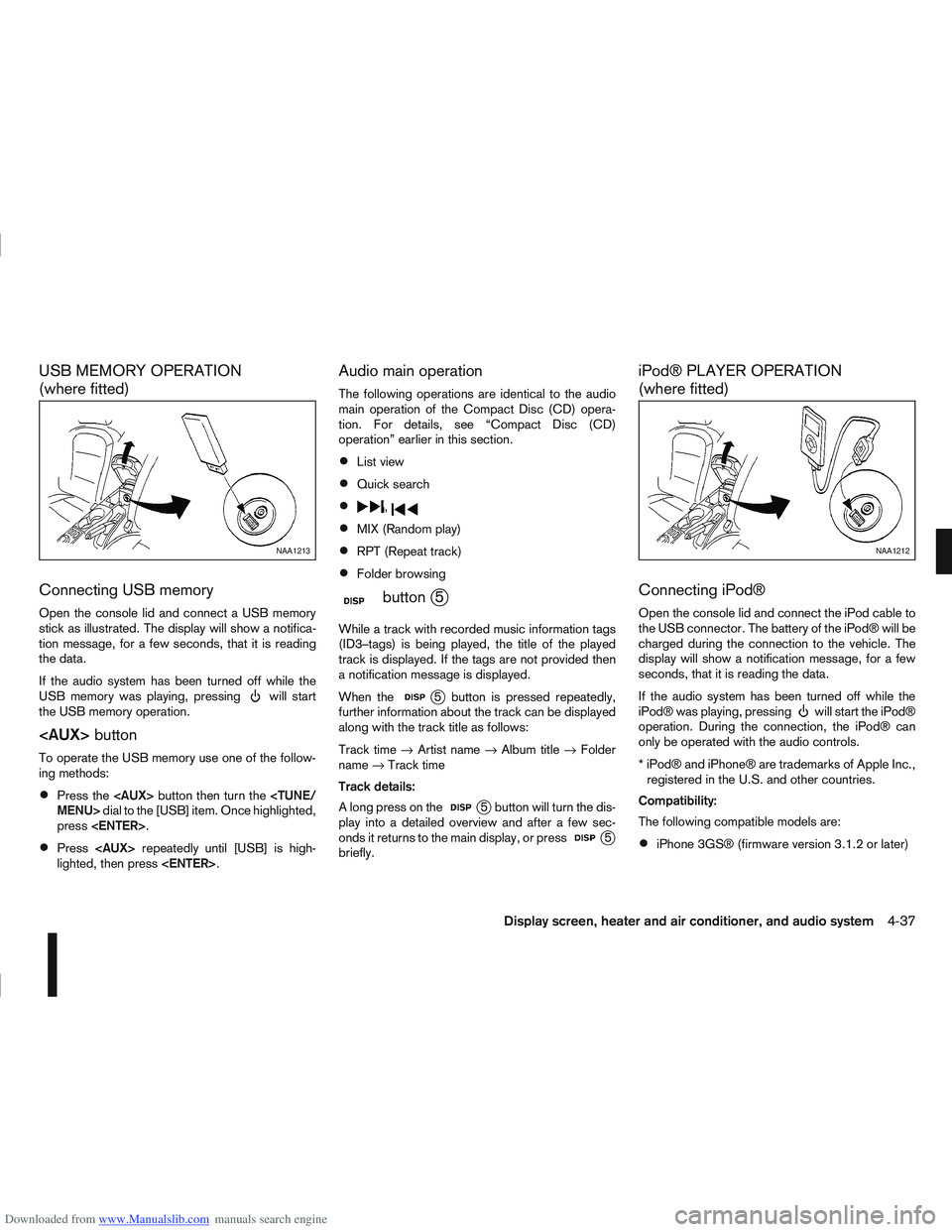
Connecting USB memory
Open the console lid and connect a USB memory
stick as illustrated. The display will show a notifica-
tion message, for a few seconds, that it is reading
the data.
If the audio system has been turned off while the
USB memory was playing, pressing
will start
the USB memory operation.
To operate the USB memory use one of the follow-
ing methods:
Press the
press
Press
lighted, then press
Audio main operation
The following operations are identical to the audio
main operation of the Compact Disc (CD) opera-
tion. For details, see “Compact Disc (CD)
operation” earlier in this section.
List view
Quick search
,
MIX (Random play)
RPT (Repeat track)
Folder browsing
mbuttonj5
While a track with recorded music information tags
(ID3–tags) is being played, the title of the played
track is displayed. If the tags are not provided then
a notification message is displayed.
When the
j5 button is pressed repeatedly,
further information about the track can be displayed
along with the track title as follows:
Track time →Artist name →Album title →Folder
name →Track time
Track details:
A long press on the
j5 button will turn the dis-
play into a detailed overview and after a few sec-
onds it returns to the main display, or press
j5
briefly.
iPod® PLAYER OPERATION
(where fitted)
Connecting iPod®
Open the console lid and connect the iPod cable to
the USB connector. The battery of the iPod® will be
charged during the connection to the vehicle. The
display will show a notification message, for a few
seconds, that it is reading the data.
If the audio system has been turned off while the
iPod® was playing, pressing
will start the iPod®
operation. During the connection, the iPod® can
only be operated with the audio controls.
* iPod® and iPhone® are trademarks of Apple Inc., registered in the U.S. and other countries.
Compatibility:
The following compatible models are:
iPhone 3GS® (firmware version 3.1.2 or later)
NAA1213NAA1212
Display screen, heater and air conditioner, and audio system4-37
Page 147 of 297
Downloaded from www.Manualslib.com manuals search engine Audio device without PIN code:
The Bluetooth connection will be automati-
cally connected without any further input.
Audio device with PIN code:
A new screen will appear. Assign the 4 digit
PIN code by turning the
to each code and press the
to confirm. Then select [Validate] and press
made.
The 4–digit PIN code is provided with the
audio device, see the owner’s manual of the
audio device.
3. On Bluetooth® audio/mobile phone devices. 1) Switch on the Bluetooth® connection, if not already switched on.
2) Switch on the search mode for Bluetooth® devices. If the search mode finds a device it
will be shown on the device display.
3) When a device is found use the
to select [My Car].
4) Enter the number code shown on the relevant device with the device’s own keypad, and
press the confirmation key on the device it-
self. Refer to the relevant Bluetooth® device
owner’s manual for further details.
When successfully paired a notification message
will be displayed, then the audio system display will return to the current audio source display.
During connection the following status icons will
be displayed (top left of the display): Signal
strength (), Battery status* () and Blue-
tooth “ON” ().
*: If the low battery message comes on, the
Bluetooth® device must be recharged soon.
The pairing procedure and operation may vary ac-
cording to device type and compatibility. See the
Bluetooth® owner’s manual for further details.
NOTE
For device details, see your audio/mobile
phone Owner’s Manual.
For assistance with the Bluetooth® audio/
mobile phone integration, please visit your lo-
cal NISSAN dealer.
[Select Device]:
The paired device list shows which Bluetooth® au-
dio or mobile phone devices have been paired or
registered with the Bluetooth® audio system. If the
list contains devices then select the appropriate de-
vice to connect to the Bluetooth® audio system.
The following symbols (where fitted) indicate the
capability of the registered device:
: Mobile phone integration
: Audio streaming (A2DP – Advanced Audio
Distribution Profile) [Delete Device]:
A registered device can be removed from the Blue-
tooth audio system. Select a registered device then
press
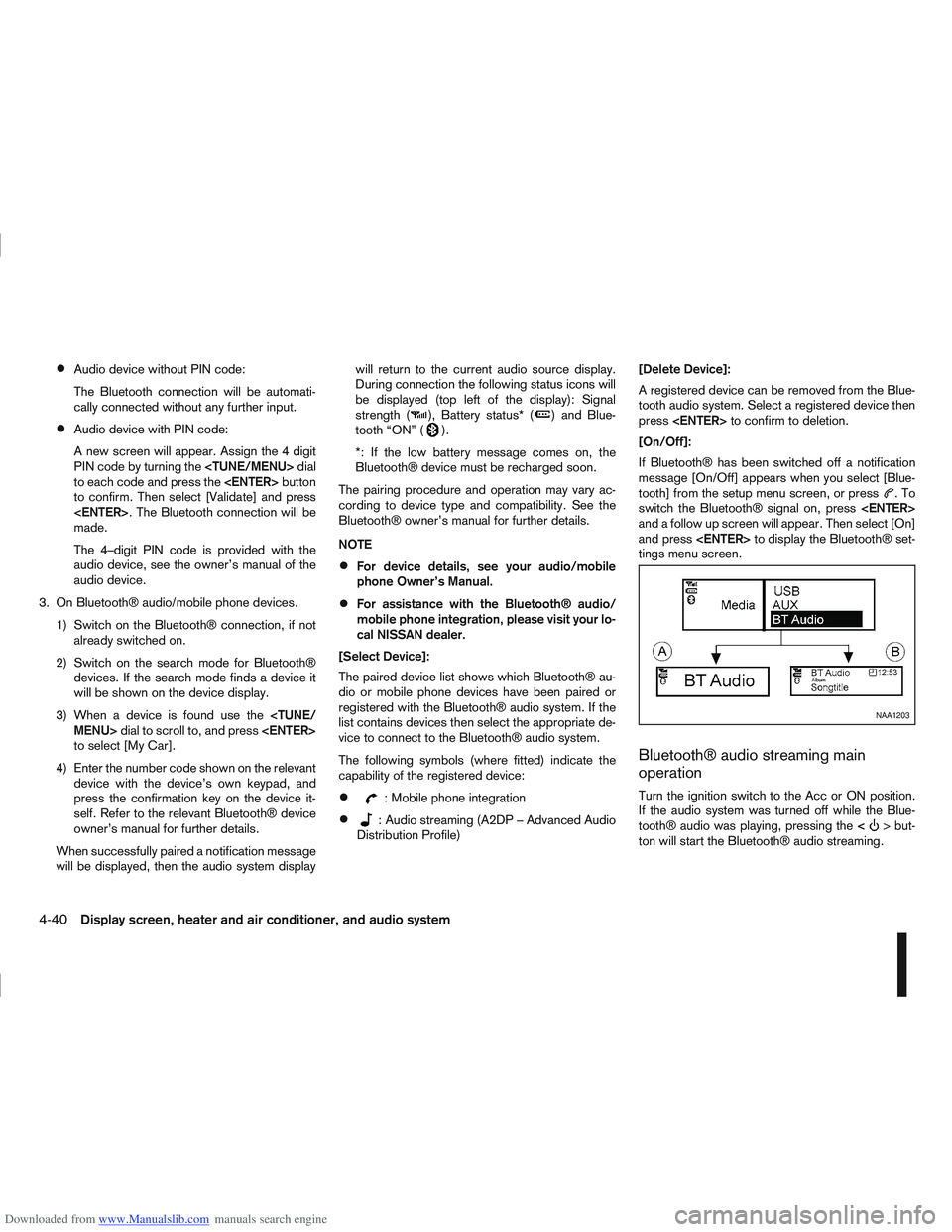
[On/Off]:
If Bluetooth® has been switched off a notification
message [On/Off] appears when you select [Blue-
tooth] from the setup menu screen, or press
.To
switch the Bluetooth® signal on, press
and a follow up screen will appear. Then select [On]
and press
tings menu screen.
Bluetooth® audio streaming main
operation
Turn the ignition switch to the Acc or ON position.
If the audio system was turned off while the Blue-
tooth® audio was playing, pressing the <
> but-
ton will start the Bluetooth® audio streaming.
NAA1203
4-40Display screen, heater and air conditioner, and audio system