switch NISSAN QASHQAI 2012 Manual Online
[x] Cancel search | Manufacturer: NISSAN, Model Year: 2012, Model line: QASHQAI, Model: NISSAN QASHQAI 2012Pages: 297, PDF Size: 4.09 MB
Page 142 of 297
![NISSAN QASHQAI 2012 Manual Online Downloaded from www.Manualslib.com manuals search engine [Russian]
Scroll direction
Sets the scroll direction of the<TUNE/MENU>dial.
For example, to change the way in which you turn
the dial (anticloc](/img/5/56764/w960_56764-141.png "NISSAN QASHQAI 2012 Manual Online Downloaded from www.Manualslib.com manuals search engine [Russian]
Scroll direction
Sets the scroll direction of the<TUNE/MENU>dial.
For example, to change the way in which you turn
the dial (anticloc")
Downloaded from www.Manualslib.com manuals search engine [Russian]
Scroll direction
Sets the scroll direction of the
For example, to change the way in which you turn
the dial (anticlockwise or clockwise) in order to scroll
up or down a list.
COMPACT DISC (CD) OPERATION
The CD player can play a music CD or an encoded
MP3/WMA CD and while listening to those CD’s
certain text might be able to be displayed (when CD
encoded with text is being used).
Press the
start to play.
When
mode is already operating, it will automatically turn
off the playing source and the CD play mode will
start.
However, if the CD disc is not loaded, then a notifi-
cation message will be displayed and the audio unit
remains in radio or AUX source mode.
CAUTION
Do not force the CD into the slot. This could
damage the player.
Do not use 8 cm (3.1 in) discs.
CD insert (CD player)
Insert the CD disc into the slot with the label side
facing up. The disc will be guided automatically into
the slot and will start playing. After loading the disc,
track information will be displayed.
NOTE
The CD player accepts normal audio CD or
CD recorded with MP3/WMA files.
Inserting a CD recorded with MP3/WMA files,
the audio unit will automatically detect and
[MP3CD] will be indicated.
An error notification message will be
displayed when inserting a wrong disc type
(e.g. DVD), or the player cannot read the CD
disc. Eject the disc and insert another disc.
CD button
Press the
CD. Playing starts from the track that was being
played when the CD play mode was switched off.
Audio main operation
List view:
While the track is being played, press either the
button to display the available
tracks in a listed view mode. To select a track from
the list, or a track to start listening from, turn the
In the list view mode, quick search can be per-
formed to find a track from the list.
Push the
j6 button then turn the
of the track title then press
a list of the available tracks will be displayed. Select,
and press
Fast Forward (Cue), Fast
Reverse (Review) buttons:
When the
(Cue) or(Review) button is
pressed continuously, the track will be played at
high speed. When the button is released, the track
will be played at normal playing speed.
Track up/down buttons:
Pressing the
orbutton once, the track will
be skipped forward to the next track or backward to
the beginning of the current played track. Press the
orbutton more than once to skip through
the tracks.
Folder browsing:
If the recorded media contains folders with music
files, pressing the
orbutton will play in
sequence the tracks of each folder.
To select a preferred folder:
1. Press the
button and a list of
tracks in the current folder is displayed.
2. Press the
button.
Display screen, heater and air conditioner, and audio system4-35
Page 143 of 297
Downloaded from www.Manualslib.com manuals search engine 3. Turn the
folder.
4. Press
turn the
If the current selected folder contains sub folders,
press
folders will be displayed. Turn the
dial for the sub folder then press
lect. Select the [Root] folder item when songs are
recorded additionally in the root folder.
To return to the previous folder screen, press
.
Repeat button:
Push the
j1 button and the current track will
be played continuously.
button:
Push the
j2 button and all the tracks will be
played in a random order.
mbutton:
While a CD with recorded music information tags
(CD-text/ID3–text tags) is being played, the title of
the played track is displayed. If the title information
is not provided then [Track] is displayed.
When the
j5 button is pressed repeatedly,
further information about the track can be displayed
along with the track title as follows:
CD: Track time
→Artist name→ Track title→Album
title→ Track time
CD with MP3/WMA:
Track time →Artist name→ Album title→Folder
name →Track time
Track details:
A long press on the
j5 button will turn the dis-
play into a detailed overview and after a few sec-
onds it returns to the main display, or press
j5
briefly.
CD eject button
CD player:
Press the
(eject) button and the CD will be
ejected.
Ejecting CD (with ignition switch in “OFF” or
LOCK):
When the ignition switch is in the “OFF” or LOCK
position it is possible to eject the currently played
CD. However the audio unit will not be activated.
Press the
button and the CD will be ejected.
NOTE
When the CD is ejected and not removed
within 8 seconds, it will automatically retract
into the slot to protect it from damage.
If an error message appears in the display,
pressto eject the faulty CD and insert an-
other CD or check if the ejected CD is in-
serted upside down.
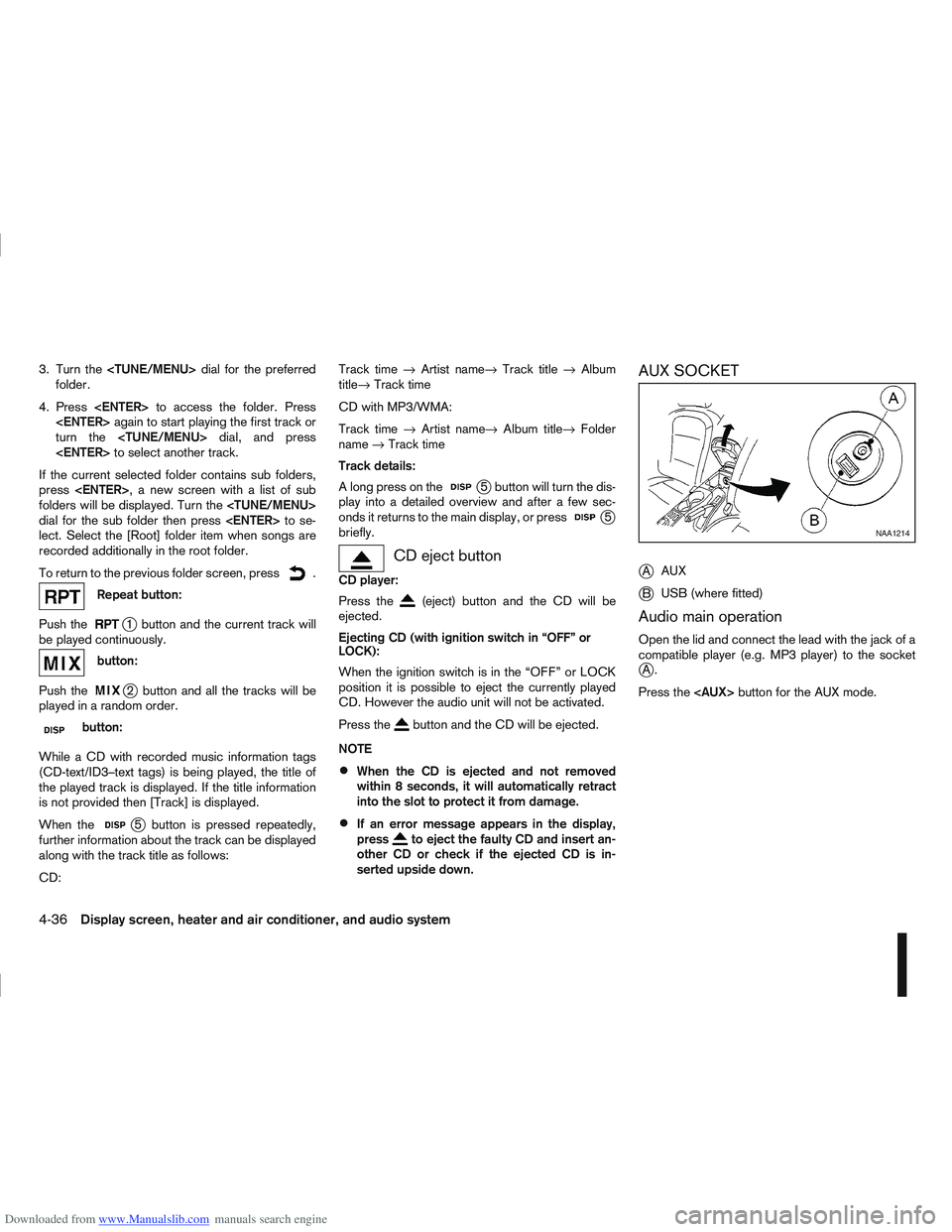
AUX SOCKET
j
A AUX
jB USB (where fitted)
Audio main operation
Open the lid and connect the lead with the jack of a
compatible player (e.g. MP3 player) to the socket
jA.
Press the
NAA1214
4-36Display screen, heater and air conditioner, and audio system
Page 147 of 297
Downloaded from www.Manualslib.com manuals search engine Audio device without PIN code:
The Bluetooth connection will be automati-
cally connected without any further input.
Audio device with PIN code:
A new screen will appear. Assign the 4 digit
PIN code by turning the
to each code and press the
to confirm. Then select [Validate] and press
made.
The 4–digit PIN code is provided with the
audio device, see the owner’s manual of the
audio device.
3. On Bluetooth® audio/mobile phone devices. 1) Switch on the Bluetooth® connection, if not already switched on.
2) Switch on the search mode for Bluetooth® devices. If the search mode finds a device it
will be shown on the device display.
3) When a device is found use the
to select [My Car].
4) Enter the number code shown on the relevant device with the device’s own keypad, and
press the confirmation key on the device it-
self. Refer to the relevant Bluetooth® device
owner’s manual for further details.
When successfully paired a notification message
will be displayed, then the audio system display will return to the current audio source display.
During connection the following status icons will
be displayed (top left of the display): Signal
strength (), Battery status* () and Blue-
tooth “ON” ().
*: If the low battery message comes on, the
Bluetooth® device must be recharged soon.
The pairing procedure and operation may vary ac-
cording to device type and compatibility. See the
Bluetooth® owner’s manual for further details.
NOTE
For device details, see your audio/mobile
phone Owner’s Manual.
For assistance with the Bluetooth® audio/
mobile phone integration, please visit your lo-
cal NISSAN dealer.
[Select Device]:
The paired device list shows which Bluetooth® au-
dio or mobile phone devices have been paired or
registered with the Bluetooth® audio system. If the
list contains devices then select the appropriate de-
vice to connect to the Bluetooth® audio system.
The following symbols (where fitted) indicate the
capability of the registered device:
: Mobile phone integration
: Audio streaming (A2DP – Advanced Audio
Distribution Profile) [Delete Device]:
A registered device can be removed from the Blue-
tooth audio system. Select a registered device then
press
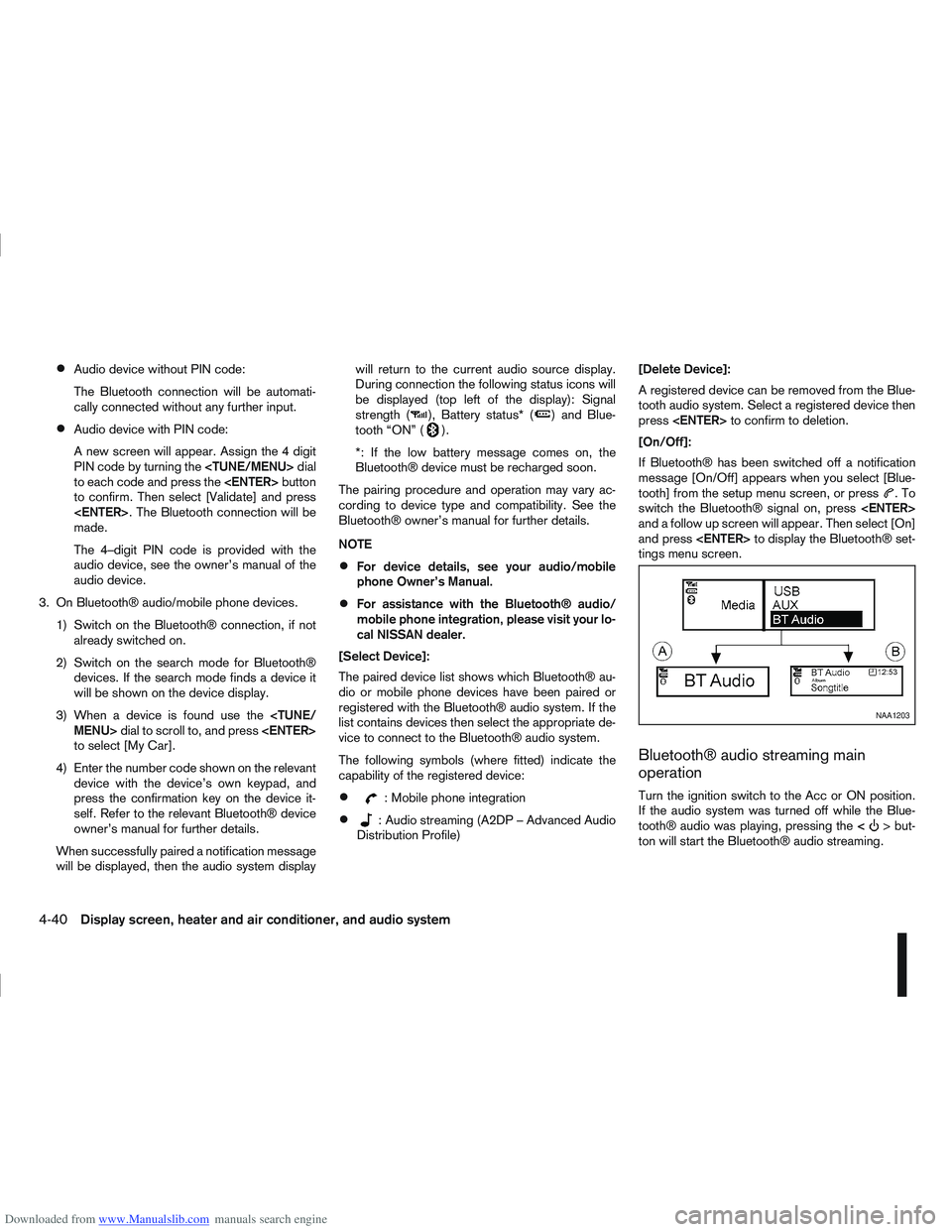
[On/Off]:
If Bluetooth® has been switched off a notification
message [On/Off] appears when you select [Blue-
tooth] from the setup menu screen, or press
.To
switch the Bluetooth® signal on, press
and a follow up screen will appear. Then select [On]
and press
tings menu screen.
Bluetooth® audio streaming main
operation
Turn the ignition switch to the Acc or ON position.
If the audio system was turned off while the Blue-
tooth® audio was playing, pressing the <
> but-
ton will start the Bluetooth® audio streaming.
NAA1203
4-40Display screen, heater and air conditioner, and audio system
Page 150 of 297
Downloaded from www.Manualslib.com manuals search engine For details, see the separately provided NISSAN
Connect Owner’s Manual.
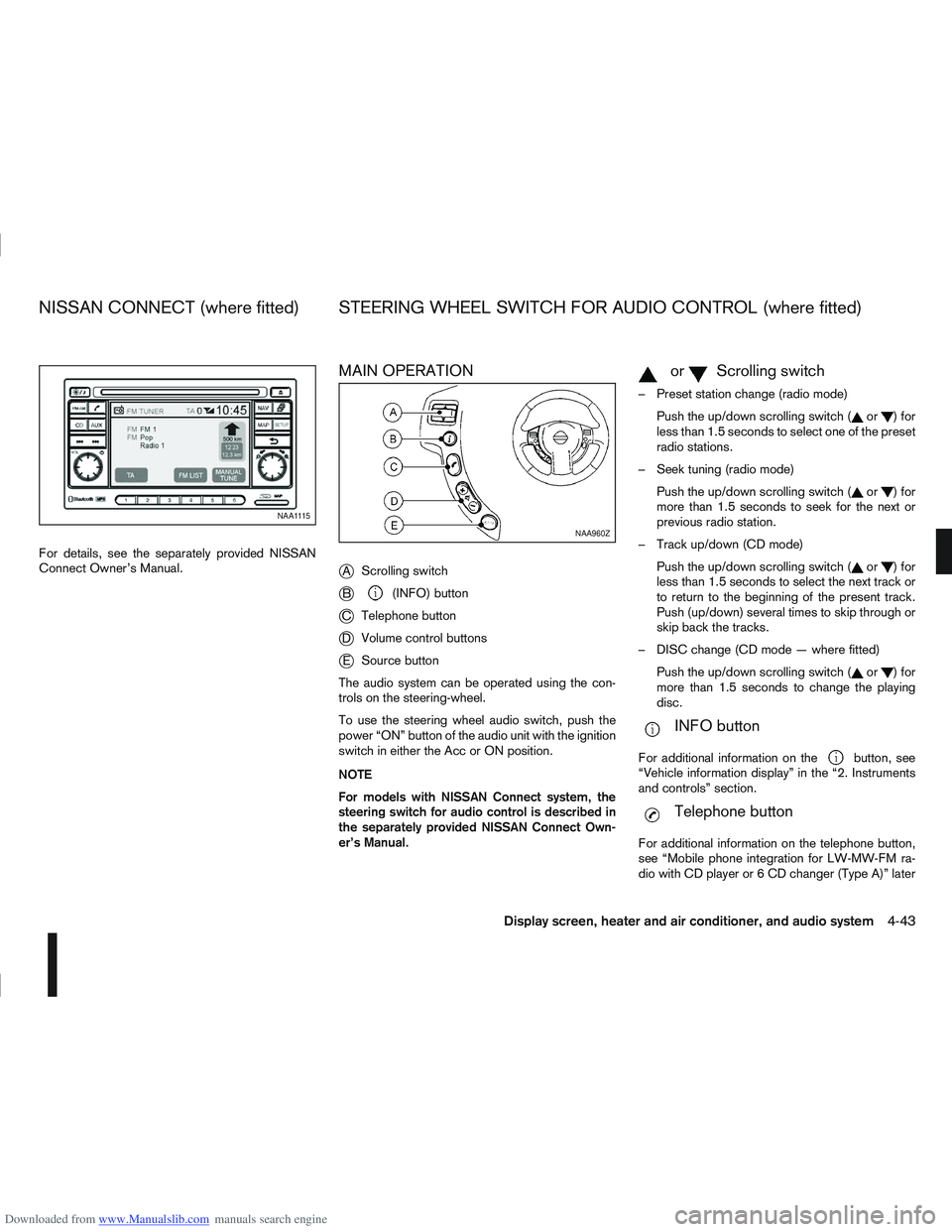
MAIN OPERATION
j
AScrolling switch
jB(INFO) button
jC Telephone button
jDVolume control buttons
jESource button
The audio system can be operated using the con-
trols on the steering-wheel.
To use the steering wheel audio switch, push the
power “ON” button of the audio unit with the ignition
switch in either the Acc or ON position.
NOTE
For models with NISSAN Connect system, the
steering switch for audio control is described in
the separately provided NISSAN Connect Own-
er’s Manual.
mormScrolling switch
– Preset station change (radio mode) Push the up/down scrolling switch (
or)for
less than 1.5 seconds to select one of the preset
radio stations.
– Seek tuning (radio mode) Push the up/down scrolling switch (
or)for
more than 1.5 seconds to seek for the next or
previous radio station.
– Track up/down (CD mode) Push the up/down scrolling switch (
or)for
less than 1.5 seconds to select the next track or
to return to the beginning of the present track.
Push (up/down) several times to skip through or
skip back the tracks.
– DISC change (CD mode — where fitted) Push the up/down scrolling switch (
or)for
more than 1.5 seconds to change the playing
disc.
mINFO button
For additional information on thebutton, see
“Vehicle information display” in the “2. Instruments
and controls” section.
mTelephone button
For additional information on the telephone button,
see “Mobile phone integration for LW-MW-FM ra-
dio with CD player or 6 CD changer (Type A)” later
NAA1115
NAA960Z
NISSAN CONNECT (where fitted) STEERING WHEEL SWITCH FOR AUDIO CONTROL (where fitted)
Display screen, heater and air conditioner, and audio system4-43
Page 152 of 297
Downloaded from www.Manualslib.com manuals search engine Bluetooth®is a wireless radio communication stan-
dard. This system offers a hands-free facility for your
mobile telephone to enhance driving comfort.
NOTE
For models with NISSAN Connect system, see
the separately provided Owner’s Manual.
In order to use your mobile phone with the Blue-
tooth
®of the audio system, the mobile phone must
first be set-up. For details, see “Hands-free tele-
phone setup” later in this section. Once it has been
set-up, the hands-free mode is automatically acti-
vated on the registered mobile phone (via Blue-
tooth
®) when it comes into range.
A notification message on the audio display comes
on when the phone is connected, when an incoming
call is being received as well as when a call is initi-
ated.
When a call is active, the audio system, microphone
(located in the ceiling in front of the rear view mirror)
and the steering wheel switches enable hands-free
communication.
If the audio system is being used at the time, the
radio or CD mode will be muted and will stay muted
until the active call has ended.
If the Bluetooth
®system is unable to connect with
your mobile phone, this may occur because:
The mobile phone is too far away from the ve-
hicle.
The Bluetooth®mode on your mobile phone has
not been activated.
Your mobile phone has not been paired with the
Bluetooth®system of the audio unit.
The mobile phone does not support Bluetooth®
technology (BT Core v1.2, Hands Free Profile
v1.0 and Object Push Profile v1.0).
NOTE
For details, see your mobile phone’s Owner’s
Manual.
For assistance with your mobile phone inte-
gration, please visit your local NISSAN dealer.
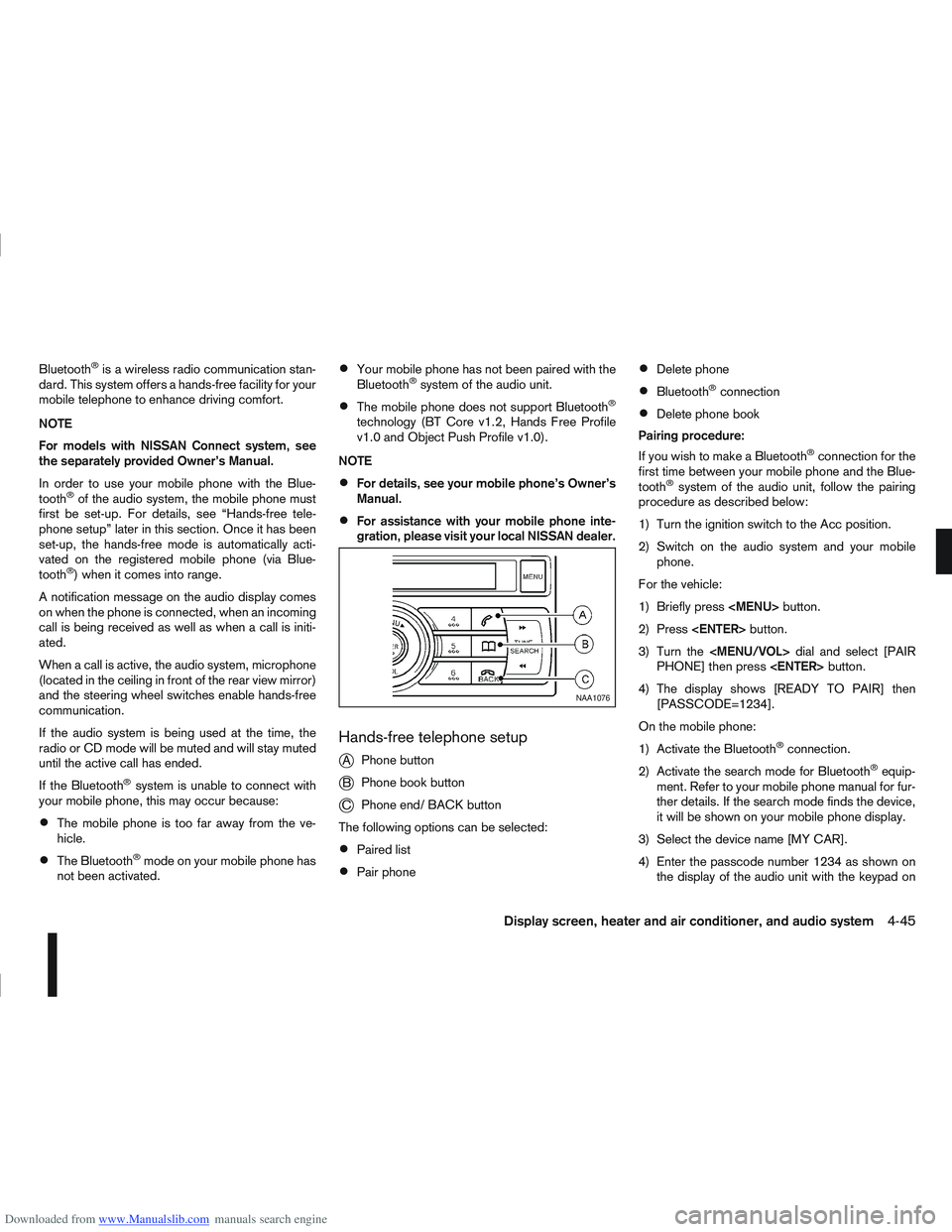
Hands-free telephone setup
j
A Phone button
jB Phone book button
jC Phone end/ BACK button
The following options can be selected:
Paired list
Pair phone
Delete phone
Bluetooth®connection
Delete phone book
Pairing procedure:
If you wish to make a Bluetooth
®connection for the
first time between your mobile phone and the Blue-
tooth
®system of the audio unit, follow the pairing
procedure as described below:
1) Turn the ignition switch to the Acc position.
2) Switch on the audio system and your mobile phone.
For the vehicle:
1) Briefly press
Page 158 of 297
Downloaded from www.Manualslib.com manuals search engine If necessary, turn the
Page 159 of 297
Downloaded from www.Manualslib.com manuals search engine BLUETOOTH®MOBILE PHONE
FEATURE
WARNING
Whilst driving, using the mobile phone is ex-
tremely dangerous because it significantly im-
pairs your concentration and diminishes your re-
action capabilities to sudden changes on the
road, and it may lead to a fatal accident. This
applies to all phone call situations such as when
receiving an incoming call, during a phone con-
versation, when calling through the phone book
search, etc.
CAUTION
Certain country jurisdictions prohibit the use of
the mobile phone in the car without hands-free
support.
This chapter provides information about the NISSAN
hands-free phone system using a Bluetooth
®con-
nection. Bluetooth
®is a wireless radio communication stan-
dard. This system offers a hands-free facility for your
mobile telephone to enhance driving comfort.
NOTE
For models with NISSAN Connect system, see
the separately provided Owner’s Manual.
In order to use your mobile phone with the Blue-
tooth
®of the audio system, the mobile phone must
first be setup. For details, see “BLUETOOTH®
settings” later in this section. Once it has been
setup, the hands-free mode is automatically acti-
vated on the registered mobile phone (via Blue-
tooth
®) when it comes into range.
A notification message appears on the audio display
when the phone is connected, when an incoming
call is being received, as well as when a call is initi-
ated.
When a call is active, the audio system, microphone
(located in the ceiling in front of the rear view mir-
ror), and steering wheel switches enable hands-free
communication.
If the audio system is in use at the time, the radio,
CD, or AUX source mode will be muted and will stay
muted until the active call has ended.
The Bluetooth
®system may be not be able to con-
nect with your mobile phone for the following rea-
sons:
The mobile phone is too far away from the ve-
hicle.
The Bluetooth®mode on your mobile phone has
not been activated.
Your mobile phone has not been paired with the
Bluetooth®system of the audio unit.
The mobile phone does not support Bluetooth®
technology (BT Core v2.0).
NOTE
For models with NISSAN Connect (Audio with
Navigation system) see the separately pro-
vided Owner’s Manual.
For details, see your mobile phone’s Owner’s
Manual.
For assistance with your mobile phone inte-
gration, please visit your local NISSAN dealer.
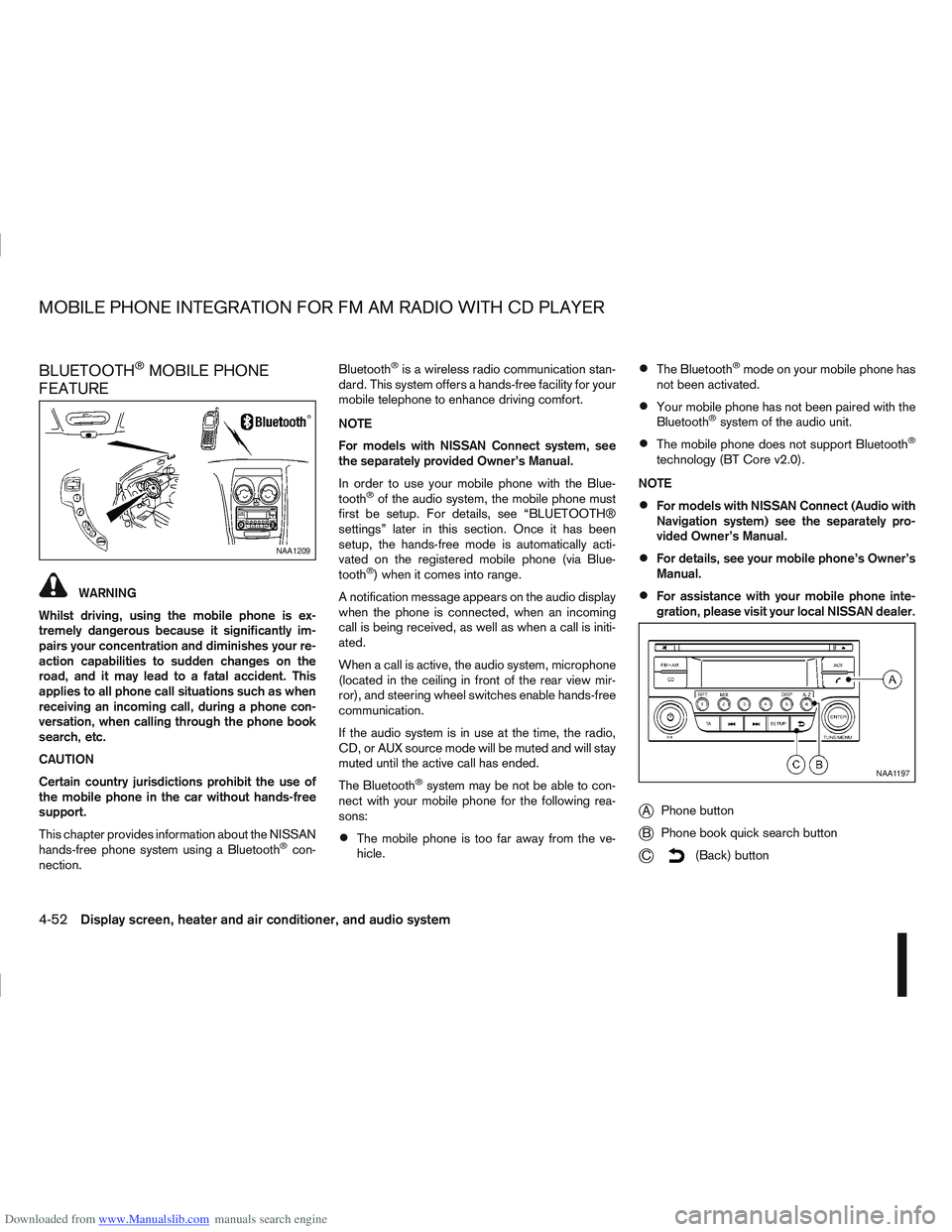
jA Phone button
jB Phone book quick search button
jC(Back) button
NAA1209
NAA1197
MOBILE PHONE INTEGRATION FOR FM AM RADIO WITH CD PLAYER
4-52Display screen, heater and air conditioner, and audio system
Page 160 of 297
Downloaded from www.Manualslib.com manuals search engine BLUETOOTH® settings
To setup the Bluetooth system to pair (connect or
register) your preferred mobile phone, push the
then push the
enter the setup menu directly via the <
> (phone)
button.
The following options can be selected:
[Pair Device]
Bluetooth mobile phones can be paired with the
system. A maximum of 5 Bluetooth mobile
phones can be registered.
[Select Device]
Paired Bluetooth mobile phones (
) are listed
on the display and can be selected for connec-
tion.
[Delete Device]
A registered Bluetooth mobile phone can be de-
leted.
[On]/[Off]
If this setting is turned off, the connection be-
tween the Bluetooth devices and the in-vehicle
Bluetooth module will be cancelled.
For details, see “BLUETOOTH® settings” earlier in
this section.
When successfully paired, a notification message
will be displayed. During the connection the follow-
ing status icons will be displayed (top left of dis- play): Signal strength (
), Battery status (), and
Bluetooth ().
*: If the low battery message comes on, the Blue-
tooth® device must be recharged soon.
HANDS-FREE TELEPHONE
CONTROL
The hands-free mode can be operated using the
telephone <>button on the audio system, or
(where fitted) on the steering wheel.
Initiating a call
A call can be initiated using one of the following
methods:
– Redial
– Phone book
– Manual dialling
– Missed calls
– Dialled calls
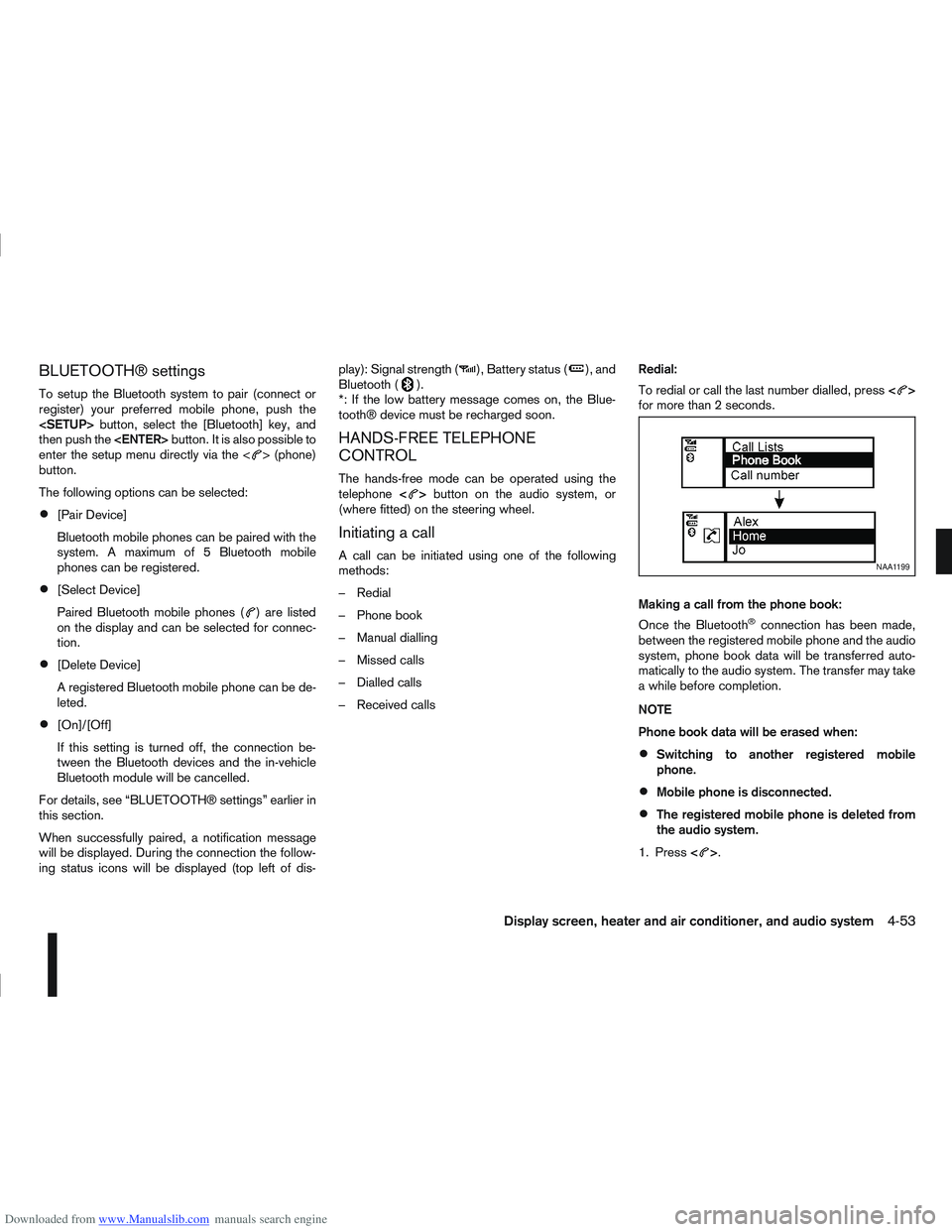
– Received calls Redial:
To redial or call the last number dialled, press
<
>
for more than 2 seconds.
Making a call from the phone book:
Once the Bluetooth
®connection has been made,
between the registered mobile phone and the audio
system, phone book data will be transferred auto-
matically to the audio system. The transfer may take
a while before completion.
NOTE
Phone book data will be erased when:
Switching to another registered mobile
phone.
Mobile phone is disconnected.
The registered mobile phone is deleted from
the audio system.
1. Press <
>.
NAA1199
Display screen, heater and air conditioner, and audio system4-53
Page 162 of 297
Downloaded from www.Manualslib.com manuals search engine Receiving a call
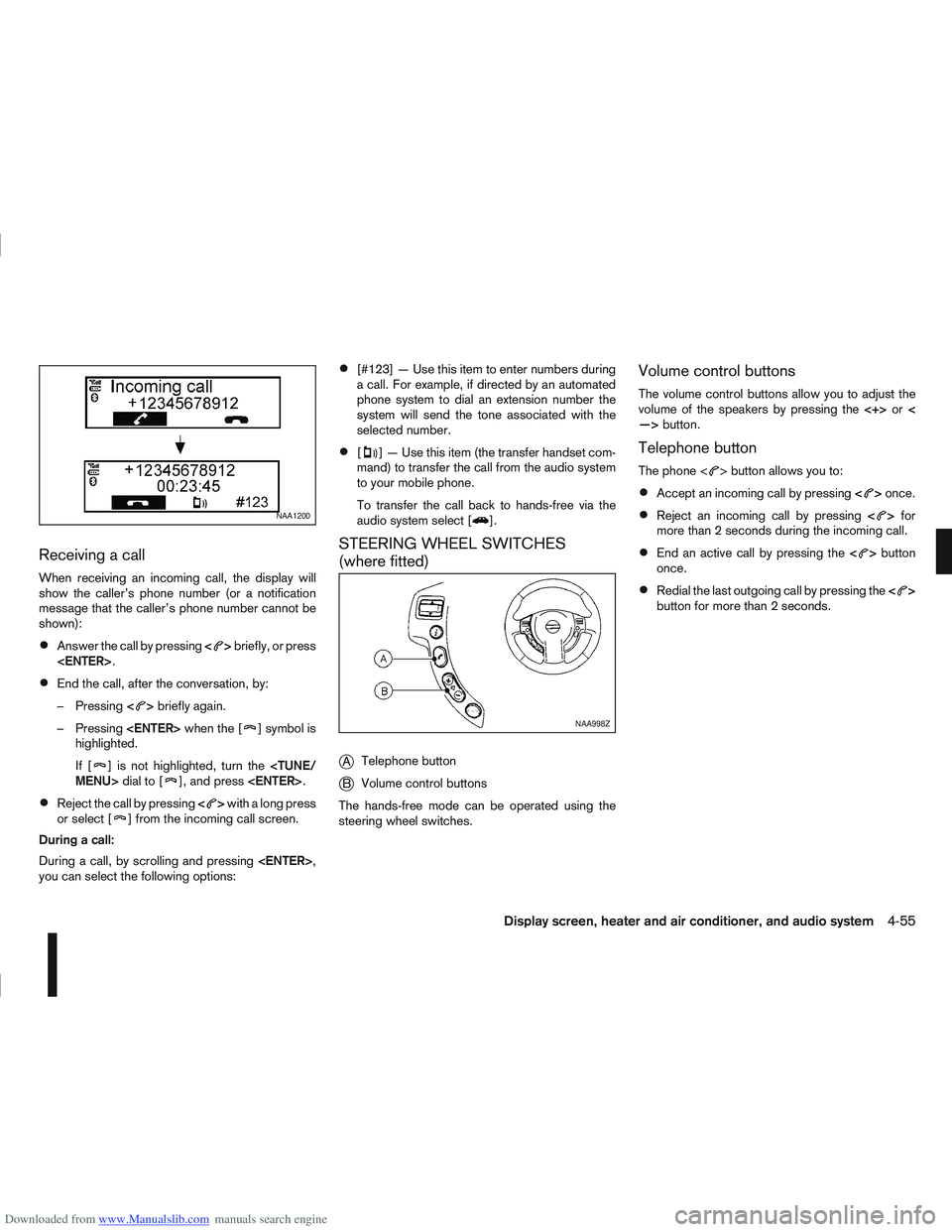
When receiving an incoming call, the display will
show the caller’s phone number (or a notification
message that the caller’s phone number cannot be
shown):
Answer the call by pressing<>briefly, or press
End the call, after the conversation, by:
– Pressing <
>briefly again.
– Pressing
] symbol is
highlighted.
If [
] is not highlighted, turn the
Reject the call by pressing <>with a long press
or select [] from the incoming call screen.
During a call:
During a call, by scrolling and pressing
you can select the following options:
[#123] — Use this item to enter numbers during
a call. For example, if directed by an automated
phone system to dial an extension number the
system will send the tone associated with the
selected number.
[] — Use this item (the transfer handset com-
mand) to transfer the call from the audio system
to your mobile phone.
To transfer the call back to hands-free via the
audio system select [
].
STEERING WHEEL SWITCHES
(where fitted)
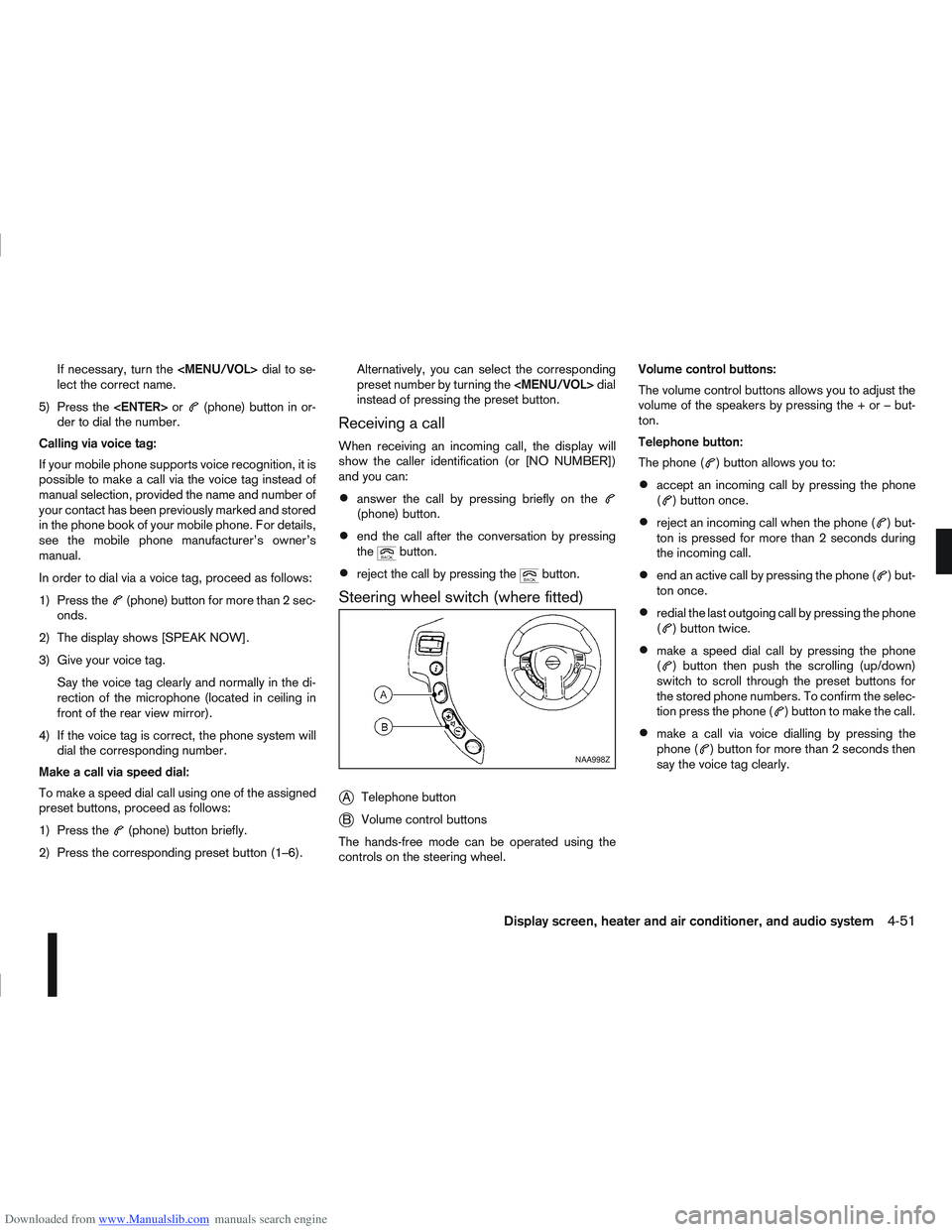
j
A Telephone button
jB Volume control buttons
The hands-free mode can be operated using the
steering wheel switches.
Volume control buttons
The volume control buttons allow you to adjust the
volume of the speakers by pressing the <+>or<
—> button.
Telephone button
The phone <> button allows you to:
Accept an incoming call by pressing <>once.
Reject an incoming call by pressing <>for
more than 2 seconds during the incoming call.
End an active call by pressing the <>button
once.
Redial the last outgoing call by pressing the <>
button for more than 2 seconds.
NAA1200
NAA998Z
Display screen, heater and air conditioner, and audio system4-55
Page 163 of 297
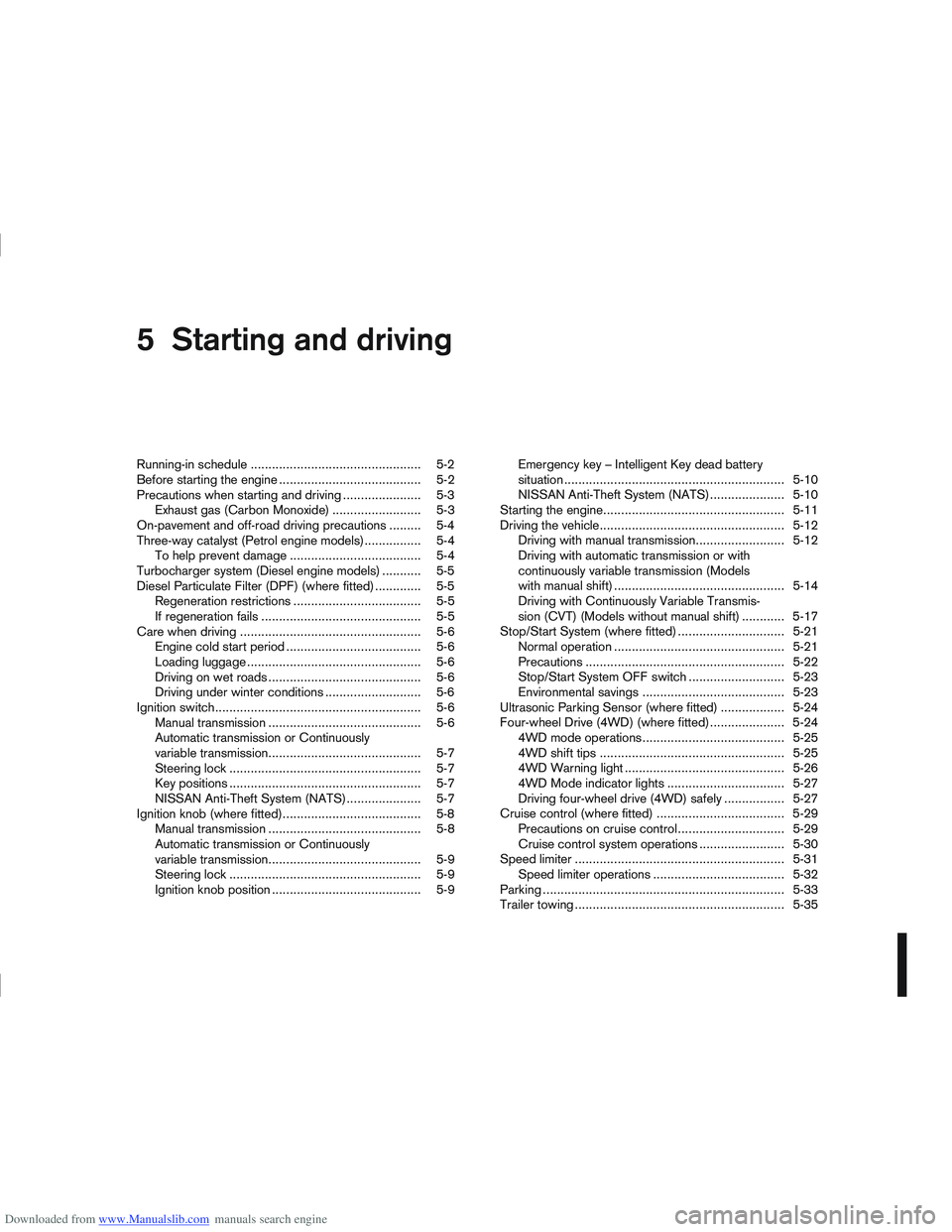
Downloaded from www.Manualslib.com manuals search engine 5Starting and driving
Starting and driving
Running-in schedule ................................................ 5-2
Before starting the engine ........................................ 5-2
Precautions when starting and driving ...................... 5-3
Exhaust gas (Carbon Monoxide) ......................... 5-3
On-pavement and off-road driving precautions ......... 5-4
Three-way catalyst (Petrol engine models)................ 5-4 To help prevent damage ..................................... 5-4
Turbocharger system (Diesel engine models) ........... 5-5
Diesel Particulate Filter (DPF) (where fitted) ............. 5-5 Regeneration restrictions .................................... 5-5
If regeneration fails ............................................. 5-5
Care when driving ................................................... 5-6 Engine cold start period ...................................... 5-6
Loading luggage ................................................. 5-6
Driving on wet roads ........................................... 5-6
Driving under winter conditions ........................... 5-6
Ignition switch.......................................................... 5-6 Manual transmission ........................................... 5-6
Automatic transmission or Continuously
variable transmission........................................... 5-7
Steering lock ...................................................... 5-7
Key positions ...................................................... 5-7
NISSAN Anti-Theft System (NATS)..................... 5-7
Ignition knob (where fitted)....................................... 5-8 Manual transmission ........................................... 5-8
Automatic transmission or Continuously
variable transmission........................................... 5-9
Steering lock ...................................................... 5-9
Ignition knob position .......................................... 5-9 Emergency key – Intelligent Key dead battery
situation .............................................................. 5-10
NISSAN Anti-Theft System (NATS)..................... 5-10
Starting the engine................................................... 5-11
Driving the vehicle.................................................... 5-12 Driving with manual transmission......................... 5-12
Driving with automatic transmission or with
continuously variable transmission (Models
with manual shift) ................................................ 5-14
Driving with Continuously Variable Transmis-
sion (CVT) (Models without manual shift) ............ 5-17
Stop/Start System (where fitted) .............................. 5-21 Normal operation ................................................ 5-21
Precautions ........................................................ 5-22
Stop/Start System OFF switch ........................... 5-23
Environmental savings ........................................ 5-23
Ultrasonic Parking Sensor (where fitted) .................. 5-24
Four-wheel Drive (4WD) (where fitted)..................... 5-24 4WD mode operations........................................ 5-25
4WD shift tips .................................................... 5-25
4WD Warning light ............................................. 5-26
4WD Mode indicator lights ................................. 5-27
Driving four-wheel drive (4WD) safely ................. 5-27
Cruise control (where fitted) .................................... 5-29 Precautions on cruise control .............................. 5-29
Cruise control system operations ........................ 5-30
Speed limiter ........................................................... 5-31 Speed limiter operations ..................................... 5-32
Parking .................................................................... 5-33
Trailer towing ........................................................... 5-35