turn signal NISSAN QASHQAI 2015 Owner´s Manual
[x] Cancel search | Manufacturer: NISSAN, Model Year: 2015, Model line: QASHQAI, Model: NISSAN QASHQAI 2015Pages: 338, PDF Size: 4.88 MB
Page 98 of 338
lowered using the switch located on the driver’s
side of the instrument panel, next to the steering
wheel.
The higher the number designated on the switch,
the lower the axis.
When travelling with no heavy load on a flat road,
select position 0.
AUTOMATIC AIMING CONTROL (LED
headlights)
Vehicles with LED headlights are equipped with an
automatic levelling system. The headlight axis is con-
trolled automatically.
NISSAN recommends consulting local regulations
on the use of lights.To clean the headlights, pull the windscreen washer
switch towards you while the headlight switch is in
the
position and the ignition switch is in the ON
position.
NOTE
The headlight cleaner will automatically operate
every fifth operation of the wiper and washer
switch.
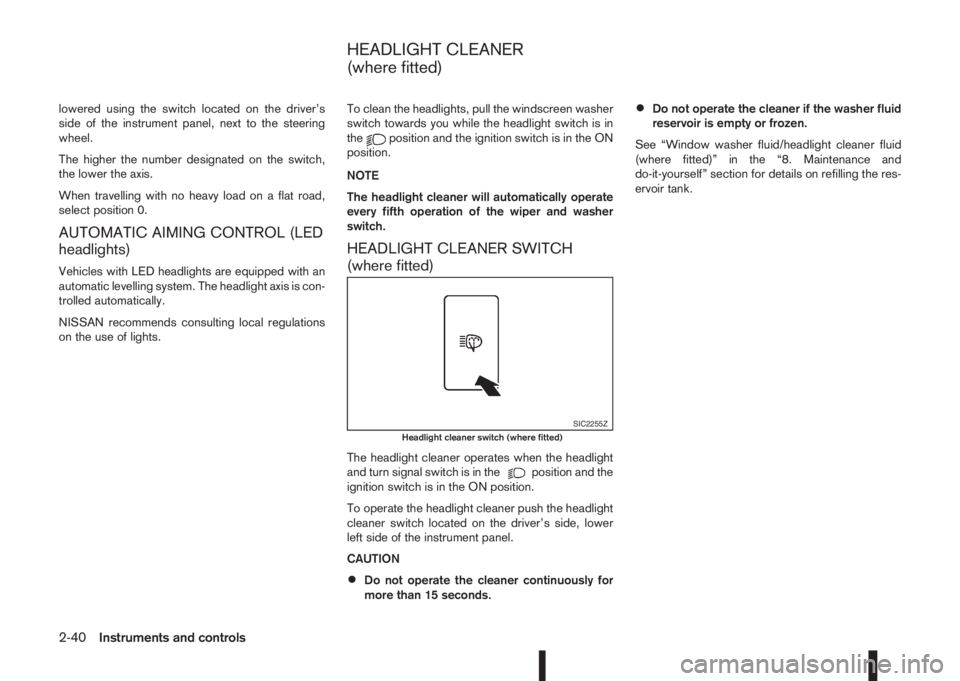
HEADLIGHT CLEANER SWITCH
(where fitted)
The headlight cleaner operates when the headlight
and turn signal switch is in theposition and the
ignition switch is in the ON position.
To operate the headlight cleaner push the headlight
cleaner switch located on the driver’s side, lower
left side of the instrument panel.
CAUTION
•Do not operate the cleaner continuously for
more than 15 seconds.
•Do not operate the cleaner if the washer fluid
reservoir is empty or frozen.
See “Window washer fluid/headlight cleaner fluid
(where fitted)” in the “8. Maintenance and
do-it-yourself” section for details on refilling the res-
ervoir tank.
SIC2255ZHeadlight cleaner switch (where fitted)
HEADLIGHT CLEANER
(where fitted)
2-40Instruments and controls
Page 122 of 338
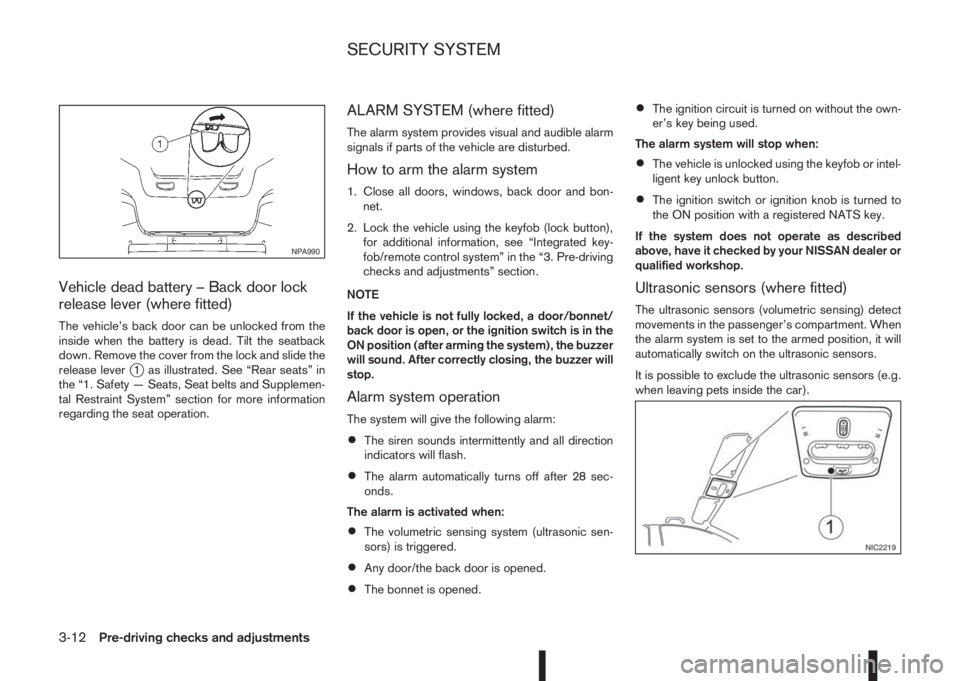
Vehicle dead battery – Back door lock
release lever (where fitted)
The vehicle’s back door can be unlocked from the
inside when the battery is dead. Tilt the seatback
down. Remove the cover from the lock and slide the
release lever
j1 as illustrated. See “Rear seats” in
the “1. Safety — Seats, Seat belts and Supplemen-
tal Restraint System” section for more information
regarding the seat operation.
ALARM SYSTEM (where fitted)
The alarm system provides visual and audible alarm
signals if parts of the vehicle are disturbed.
How to arm the alarm system
1. Close all doors, windows, back door and bon-
net.
2. Lock the vehicle using the keyfob (lock button),
for additional information, see “Integrated key-
fob/remote control system” in the “3. Pre-driving
checks and adjustments” section.
NOTE
If the vehicle is not fully locked, a door/bonnet/
back door is open, or the ignition switch is in the
ON position (after arming the system), the buzzer
will sound. After correctly closing, the buzzer will
stop.
Alarm system operation
The system will give the following alarm:
•The siren sounds intermittently and all direction
indicators will flash.
•The alarm automatically turns off after 28 sec-
onds.
The alarm is activated when:
•The volumetric sensing system (ultrasonic sen-
sors) is triggered.
•Any door/the back door is opened.
•The bonnet is opened.
•The ignition circuit is turned on without the own-
er’s key being used.
The alarm system will stop when:
•The vehicle is unlocked using the keyfob or intel-
ligent key unlock button.
•The ignition switch or ignition knob is turned to
the ON position with a registered NATS key.
If the system does not operate as described
above, have it checked by your NISSAN dealer or
qualified workshop.
Ultrasonic sensors (where fitted)
The ultrasonic sensors (volumetric sensing) detect
movements in the passenger’s compartment. When
the alarm system is set to the armed position, it will
automatically switch on the ultrasonic sensors.
It is possible to exclude the ultrasonic sensors (e.g.
when leaving pets inside the car).
NPA990
NIC2219
SECURITY SYSTEM
3-12Pre-driving checks and adjustments
Page 153 of 338
WARNING
Do not adjust the audio system while driving.
The audio system operates when the ignition switch
is in the Acc or ON position. If you want to listen to
the radio or CD while the engine is not running, turn
the ignition switch to the Acc position.Do not use
for an extended period of time with the engine
stopped.
AUDIO OPERATION PRECAUTIONS
NOTE
Models with NissanConnect system, see the au-
dio operation precautions in the separately pro-
vided NissanConnect Owner’s Manual.
Radio
•Radio reception is affected by station signal
strength, distance from radio transmitter, build-
ings, bridges, mountains and other external influ-
ences. Intermittent changes in reception quality
are normally caused by these external influences.
•Using a mobile phone in or near the vehicle may
influence radio reception quality.
•Use the antenna for the best reception.
Compact Disc (CD) player
•During cold weather or rainy days, the player
may malfunction due to the humidity. If this
occurs, remove the CD and dehumidify or
ventilate the player completely.
•The player may skip while driving on rough
roads.
•Occasionally, the CD player may not function
when the compartment temperature is ex-
tremely high. Decrease the temperature be-
fore use.
•Do not expose the CD to direct sunlight.
•CDs that are of poor quality, dirty, scratched,
covered with finger prints, or that have pin
holes may not work properly.
•The following CDs may not work properly.
•Copy control compact discs (CCCD)
•Recordable compact discs (CD-R)
•Rewritable compact discs (CD-RW)
•Do not use the following CDs as they may
cause the CD player to malfunction.
•8 cm (3.1 in) discs with an adaptor
•CDs that are not round
•CDs with a paper label
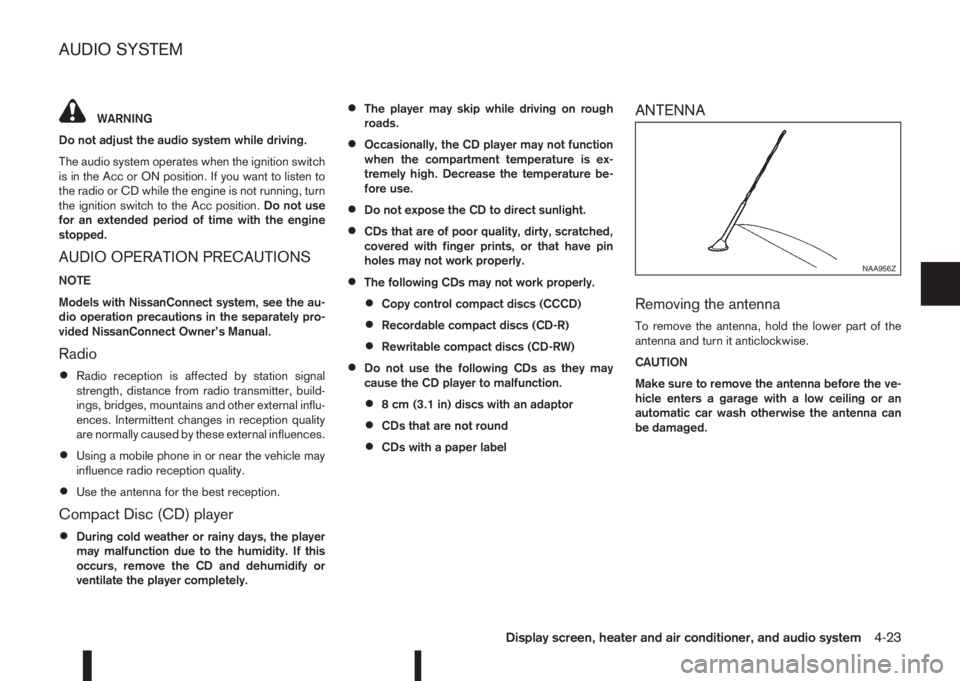
ANTENNA
Removing the antenna
To remove the antenna, hold the lower part of the
antenna and turn it anticlockwise.
CAUTION
Make sure to remove the antenna before the ve-
hicle enters a garage with a low ceiling or an
automatic car wash otherwise the antenna can
be damaged.
NAA956Z
AUDIO SYSTEM
Display screen, heater and air conditioner, and audio system4-23
Page 156 of 338
![NISSAN QASHQAI 2015 Owner´s Manual Pressing a preset button for more than 2 seconds
while in the [FM list] or radio main screen will cause
the station currently being received to be stored
against that preset button.
•Twelve stations](/img/5/40325/w960_40325-155.png "NISSAN QASHQAI 2015 Owner´s Manual Pressing a preset button for more than 2 seconds
while in the [FM list] or radio main screen will cause
the station currently being received to be stored
against that preset button.
•Twelve stations")
Pressing a preset button for more than 2 seconds
while in the [FM list] or radio main screen will cause
the station currently being received to be stored
against that preset button.
•Twelve stations (if available) can be stored in the
FM bands. (Six each for FM1 and FM2)
•Six stations (if available) can be set for the AM
band.
If the battery is disconnected, or if the fuse blows,
the radio memory will be erased. In that case, reset
the desired stations after battery connection or fuse
replacement.
Radio Data System (RDS) operation
(where fitted)
The RDS is a system through which encoded digital
information is transmitted by FM radio stations in
addition to the normal FM radio broadcasting. The
RDS provides information services such as station
name, traffic information, or news.
NOTE
•In some countries or regions, some of these
services may not be available.
Alternative Frequency (AF) mode:
The AF mode operates in the FM (radio) mode.
•The AF mode operates in the FM (radio), AUX or
CD mode (if FM was previously selected in the
radio mode).
•The AF function compares signal strengths and
selects the station with the optimum reception
conditions for the currently tuned-in station.
RDS functions
Programme Service (PS) function (station name
display function):
– FM:
When an RDS station is tuned in with seek or
manual tuning, the RDS data is received and the
PS name is displayed.
TA Traffic announcement
This function operates in FM (Radio) mode. This
function will still operate in the background if any
media source is selected (CD, USB or MEDIA
mode).
•Pressing the
The TA indicator is displayed while TA mode is
on.
•When
switched off and the TA indicator will disappear
from the display.
Traffic announcement interrupt function:
When a traffic announcement is received, the an-
nouncement is tuned in and the display shows a
notification message with the radio station name e.g.
[TA: Radio 1].
Once the traffic announcement has finished, the unit
returns to the source that was active before the traf-
fic announcement started.If
the traffic announcement interrupt mode is can-
celled. The TA mode returns to the standby mode
and the audio unit returns to the previous source.
SETUP BUTTON
To configure [Audio], [Clock], [Radio], and [Lan-
guage] settings, perform the following procedure:
1. Press the
2. Turn the
Page 162 of 338
![NISSAN QASHQAI 2015 Owner´s Manual •[Composers]
•[Genre]
•[Podcasts]
For further information about each item, see the
iPod® owner’s manual.
The following operations are identical to the audio
main operation of the Compact Disc](/img/5/40325/w960_40325-161.png "NISSAN QASHQAI 2015 Owner´s Manual •[Composers]
•[Genre]
•[Podcasts]
For further information about each item, see the
iPod® owner’s manual.
The following operations are identical to the audio
main operation of the Compact Disc")
•[Composers]
•[Genre]
•[Podcasts]
For further information about each item, see the
iPod® owner’s manual.
The following operations are identical to the audio
main operation of the Compact Disc (CD) opera-
tion. For details, see “Audio main operation” earlier
in this section.
•List view
•,
•MIX (Random play)
•RPT (Repeat track)
•Folder browsing
mbuttonj5
While a track with recorded music information tags
(ID3–tags) is being played, the title of the played
track is displayed. If the tags are not provided then
a notification message is displayed.
When the
j5 button is pressed repeatedly,
further information about the track can be displayed
along with the track title as follows:
Track time→Artist name→Album title→Track
timeTrack details:
A long press on the
j5 button, the screen
displays the song title, artist name, and album title.
After a few seconds it returns to the main display or
press
j5 briefly.
BLUETOOTH® OPERATION
Regulatory information
m
Bluetooth® is a trademark
owned by Bluetooth SIG, Inc.
CE statement
Hereby Yanfeng Visteon Automotive Electronics
Co., Ltd. declares that this system is in compliance
with the essential requirements and other relevant
provisions of Directive 1999/5/EC.
m
NOTE
The audio system only supports Bluetooth® de-
vices with AVRCP (Audio Video Remote Control
Profile) version 1.4 or earlier.
BLUETOOTH® settings
To pair a device, make sure the Bluetooth is
switched on and use the [Scan device] key or the
[Pair device] key For details, see “[Scan devices]”
later in this section.
Up to 5 different Bluetooth devices can be con-
nected. However, only one device can be used at a
time. If 5 different Bluetooth registered devices are
registered, a new device can only replace one of the
5 existing paired devices. Use [Del. device] key to
delete one of the existing paired devices. For de-
tails, see “[Del. device]” later in this section.
When successfully paired a notification message
will be displayed, then the audio system display will
return to the current audio source display. During
connection the following status icons will be dis-
played (top left of the display): Signal strength
(
), Battery status* () and Bluetooth “ON”
().
*: If the low battery message comes on, the Blue-
tooth® device must be recharged soon.
NAA1392*: a device with bluetooth capabilities
4-32Display screen, heater and air conditioner, and audio system
Page 164 of 338
![NISSAN QASHQAI 2015 Owner´s Manual 2) Select the audio unit shown as [My Car].
3) Follow the instructions in the owner’s manual
for the Bluetooth® enabled device to estab-
lish a connection with the audio unit.
4) Enter the PIN code](/img/5/40325/w960_40325-163.png "NISSAN QASHQAI 2015 Owner´s Manual 2) Select the audio unit shown as [My Car].
3) Follow the instructions in the owner’s manual
for the Bluetooth® enabled device to estab-
lish a connection with the audio unit.
4) Enter the PIN code")
2) Select the audio unit shown as [My Car].
3) Follow the instructions in the owner’s manual
for the Bluetooth® enabled device to estab-
lish a connection with the audio unit.
4) Enter the PIN code shown on the relevant
device with the device’s own keypad, and
press the confirmation key on the device it-
self.
Refer to the relevant Bluetooth® device own-
er’s manual for further details.
[Sel. device]:
The paired device list shows which Bluetooth® au-
dio or mobile phone devices have been paired or
registered with the Bluetooth® audio system. If the
list contains devices then select the appropriate de-
vice to connect to the Bluetooth® audio system.
The following symbols (where fitted) indicate the
capability of the registered device:
•: Mobile phone integration
•: Audio streaming (A2DP – Advanced Audio
Distribution Profile)
[Del. device]:
A registered device can be removed from the Blue-
tooth audio system. Select a registered device then
press
[Bluetooth]:
If Bluetooth® has been switched off a notification
message [ON/OFF] appears when you select [Blue-
tooth] from the phone menu (press
). To switchthe Bluetooth® signal on, press
follow up screen will appear. Then select [ON] and
press
menu screen.
Bluetooth®audio streaming main
operation
Turn the ignition switch to the Acc or ON position.
If the audio system was turned off while the Blue-
tooth® audio was playing, pressing the<
> but-
ton will start the Bluetooth® audio streaming.
MEDIA button:
To operate the Bluetooth® audio streaming use the
following method:
•Press
shown.
The type of display,
jAorjB , shown on the audio
system can vary depending on the Bluetooth® ver-
sion of the device.
Fast Forward (Cue), Fast
Reverse (Review) buttons:
When the
(Cue) or(Review) button is
pressed continuously, the track will be played at
high speed. When the button is released, the track
will be played at normal playing speed.
Track up/down buttons:
Pressing the
orbutton once, the track will
be skipped forward to the next track or backward to
the beginning of the current played track. Press the
orbutton more than once to skip through
the tracks.
mbutton
If the song contains music information tags (ID3–
tags), the title of the played song will be displayed.
If tags are not provided then the display will not
show any messages.
When the
button is pressed repeatedly fur-
ther information about the song can be displayed
along with the song title.
A long press on
will turn the display into a
detailed overview which after a few seconds returns
to the main display; or press
briefly.
NAA1203
4-34Display screen, heater and air conditioner, and audio system
Page 170 of 338
In order to use your mobile phone with the Blue-
tooth®of the audio system, the mobile phone must
first be setup. For details, see “BLUETOOTH®
settings” later in this section. Once it has been
setup, the hands-free mode is automatically acti-
vated on the registered mobile phone (via Blue-
tooth
®) when it comes into range.
A notification message appears on the audio display
when the phone is connected, when an incoming
call is being received, as well as when a call is initi-
ated.
When a call is active, the audio system, microphone
(located in the ceiling in front of the rear view mir-
ror), and steering wheel switches enable hands-free
communication.
If the audio system is in use at the time, the radio,
CD, iPod, USB audio, Bluetooth audio or AUX
source mode will be muted and will stay muted until
the active call has ended.
The Bluetooth
®system may not be able to connect
with your mobile phone for the following reasons:
•The mobile phone is too far away from the ve-
hicle.
•The Bluetooth®mode on your mobile phone has
not been activated.
•Your mobile phone has not been paired with the
Bluetooth®system of the audio unit.
•The mobile phone does not support Bluetooth®
technology (BT Core v2.0).NOTE
•For models with NissanConnect (Audio with
Navigation system) see the separately pro-
vided Owner’s Manual.
•For details, see your mobile phone’s Owner’s
Manual.
•For assistance with your mobile phone inte-
gration, please visit your local NISSAN dealer.
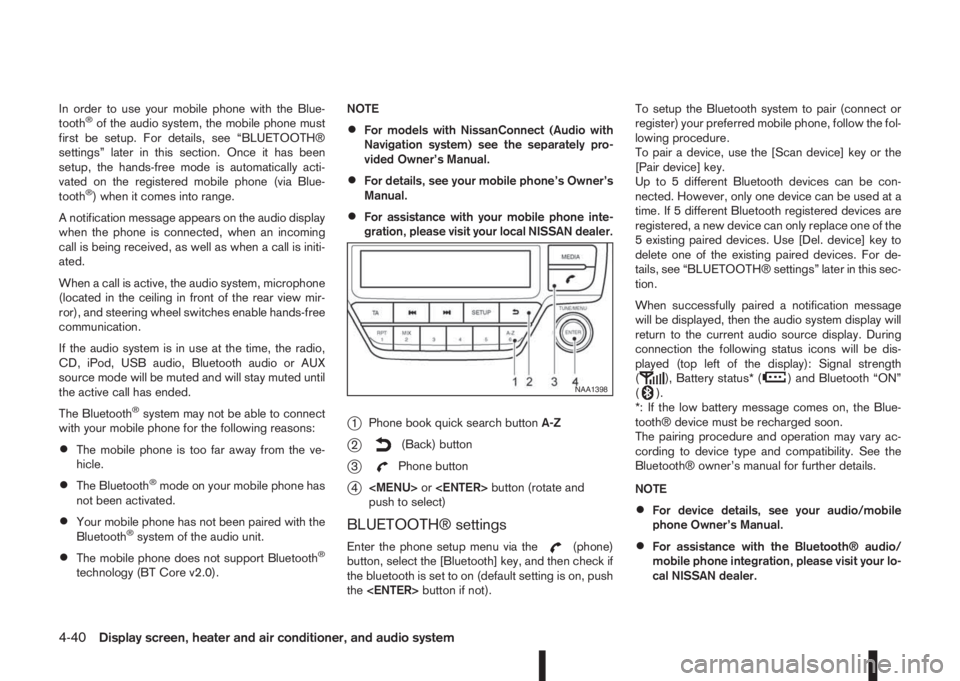
j1Phone book quick search buttonA-Z
j2(Back) button
j3Phone button
j4
Page 181 of 338
be able to detect or signal low tyre pressure as
intended. TPMS malfunctions may occur for a vari-
ety of reasons including the installation of replace-
ment or alternate tyres or wheels on the vehicle that
prevent the TPMS from functioning properly. Always
check the TPMS indicator light after replacing one
or more tyres or wheels on your vehicle to ensure
that the replacement or alternate tyres and wheels
allow the TPMS to continue to function properly.
•The TPMS does not monitor the tyre pressure of
the spare tyre.
•The TPMS will activate only when the vehicle is
driven at speeds above 25 km/h (16 MPH). Also,
this system may not detect a sudden drop in tyre
pressure (for example a flat tyre while driving).
•The TPMS indicator light may not automatically
turn off when the tyre pressure is adjusted.After
the tyre is inflated to the recommended COLD
tyre pressure, drive the vehicle at speeds above
25 km/h (16 MPH) to activate the TPMS. See
“TPMS sensor ID and position recognition” later
in this section
•Following a change in the outside temperature,
the TPMS indicator light may illuminate even if
the tyre pressure has been adjusted properly.
Adjust the tyre pressure to the recommended
COLD tyre pressure again when the tyres are
cold, and reset the TPMS.
For additional information, see “[Check cold tyre]
message” later in this section.
WARNING
•If the TPMS indicator light illuminates while
driving:
– avoid sudden steering manoeuvres
– avoid abrupt braking
– reduce vehicle speed
– pull off the road to a safe location
– stop the vehicle as soon as possible
•Driving with under-inflated tyres may perma-
nently damage the tyres and increase the like-
lihood of tyre failure. Serious vehicle damage
could occur which may lead to an accident
and could result in serious personal injury.
•Check the tyre pressure for all four tyres. Ad-
just the tyre pressure to the recommended
COLD tyre pressure shown on the tyre plac-
ard to turn the TPMS indicator light “OFF”. In
case of a flat tyre, replace it with a spare tyre
as soon as possible. (See “Flat tyre” in the
“6. In case of emergency” section for chang-
ing a flat tyre.)
•When a spare tyre is mounted or a wheel is
replaced, the TPMS will not function and the
TPMS indicator light will flash for approxi-
mately 1 minute. The light will remain on after
1 minute. Be sure to follow all instructions for
wheel replacement and mount the TPMS sys-
tem correctly.
•Replacing tyres with those not originally speci-
fied by NISSAN could affect the proper opera-
tion of the TPMS.
•The Genuine NISSAN Emergency Tyre Repair
Sealant or equivalent can be used for tempo-
rarily repairing a tyre. Do not inject any other
tyre liquid or aerosol tyre sealant into the
tyres, as this may cause a malfunction of the
tyre pressure sensors.
•NISSAN recommends using only Genuine
NISSAN Emergency Tyre Sealant provided
with your vehicle. Other tyre sealants may
damage the valve stem seal which can cause
the tyre to lose air pressure. Visit a NISSAN
dealer or qualified workshop as soon as pos-
sible after using tyre repair sealant (for mod-
els equipped with the emergency tyre punc-
ture repair kit).
CAUTION
•The TPMS may not function properly when the
wheels are equipped with tyre chains or the
wheels are buried in snow.
•Do not place metalised film or any metal parts
(antenna, etc.) on the windows. This may
cause poor reception of the signals from the
tyre pressure sensors, and the TPMS will not
function properly.
Starting and driving5-5
Page 207 of 338
mirrors) will illuminate. If the turn signal is then acti-
vated, the system chimes (twice) and the Blind spot
indicator light will start flashing bright orange to alert
you to the presence of vehicle(s) in the adjacent
lane.
The Blind spot indicator light continues to flash until
the detected vehicle(s) leave the detection zone.
Detection zone
The camera unit can detect vehicles on either side
of your vehicle when part of another vehicle is within
the detection zone shown as illustrated.
This detection zone typically starts from the outside
mirror of your vehicle and extends approximately 3
m (10 ft) behind the rear bumper, and approximately
3 m (10 ft) sideways.
The brightness of the Blind Spot Indicator lights is
adjusted automatically depending on the brightness
of the ambient light.
A chime sounds if the camera unit has already de-
tected vehicles when the driver activates the turnsignal. If a vehicle comes into the detection zone
after the driver activates the turn signal, then only
the Blind Spot Indicator light flashes and no chime
sounds. (See “BSW driving situations” later in this
section.)
Turning the BSW system on or off
Turning the BSW system on or off is done using the
[Settings] menu in the vehicle information display.
For details. see “Vehicle information display” in the
“2. Instruments and controls” section.
In the [Settings] menu, select the [Driver Assistance]
key. Then select [Driving Aids]. Select [Blind Spot
Warning] key by pressing
next to [Blind Spot Warning] indicates that the sys-
tem is turned on.
SYSTEM ON:
The BSW light on the vehicle information display will
light up.
SYSTEM OFF:
The BSW light on the vehicle information display will
turn off.
WARNING
•The camera unit may not be able to detect
when certain objects are present such as:
– Pedestrians, bicycles, animals.
– Vehicles such as motorcycles, low height
vehicles, or high ground clearance
vehicles.
– Oncoming vehicles.– A vehicle approaching rapidly from behind.
(See “BSW driving situations” later in this
section.)
– A vehicle which your vehicle overtakes rap-
idly. (See “BSW driving situations” later in
this section.)
– A vehicle that merges or changes lanes
rapidly directly next to your vehicle.
•The camera unit may not be able to detect
properly when your vehicle travels beside the
middle section of a vehicle with long wheel-
base (for example, trailer truck, semi-trailer,
tractor).
•The camera detection zone is designed based
on a standard lane width. When driving in a
wider lane, the camera unit may not detect
vehicles in an adjacent lane. When driving in a
narrow lane, the camera unit may detect ve-
hicles driving two lanes away.
•The camera unit is designed to ignore most
stationary objects, however objects such as
guardrails, walls, foliage and parked vehicles
may occasionally be detected. This is a nor-
mal operating condition.
•The camera unit may detect the reflected im-
age of vehicles or roadside objects that are
not actually in the detection zone, especially
when the road is wet.
SSD1026Z
Starting and driving5-31
Page 208 of 338
BSW DRIVING SITUATIONS
Another vehicle approaching from
behind
The Blind Spot Indicator light illuminates if a vehicle
enters the detection zone from behind in an adja-
cent lane.
However, if the overtaking vehicle is travelling much
faster than your vehicle, the indicator light may not
illuminate before the detected vehicle is beside your
vehicle.If the driver activates the turn signal, then the Blind
Spot Indicator light flashes and a chime will sound
twice.
NOTE
If the driver activates the turn signal before a
vehicle enters the detection zone, the Blind Spot
Indicator light will flash but no chime will sound
when the other vehicle is detected.
Overtaking other vehicles
The Blind Spot Indicator light illuminates if you over-
take a vehicle and that vehicle stays in the detection
zone for approximately 3 seconds.
The camera unit may not detect slower moving ve-
hicles if they are passed quickly.
If the driver activates the turn signal while another
vehicle is in the detection zone, then the Blind Spot
Indicator light flashes and a chime will sound twice.
BSW TEMPORARY DISABLED
STATUS
Under the following conditions the BSW system is
turned off temporarily and the BSW light will blink
when:
•The back door is open.
•The rear camera lens is dirty.
•Rain, snow or dirt has adhered to the windscreen
in front of the multi-sensing camera unit.
SSD1026Z
SSD1031Z
SSD1033Z
SSD1034Z
5-32Starting and driving