ESP NISSAN QASHQAI 2016 Owner´s Manual
[x] Cancel search | Manufacturer: NISSAN, Model Year: 2016, Model line: QASHQAI, Model: NISSAN QASHQAI 2016Pages: 338, PDF Size: 4.87 MB
Page 70 of 338
•Avoid steep uphill grades.
•If possible, reduce the load being carried or
towed.
The Malfunction Indicator light may stop blinking
and come on steady.
Have the vehicle inspected by a NISSAN dealer or
qualified workshop. You do not need to have your
vehicle towed to the dealer.
CAUTION
Continued vehicle operation without having the
engine control system checked and repaired as
necessary could lead to poor driveability,
reduced fuel economy and possible damage to
the engine control system, which may affect your
warranty coverage.
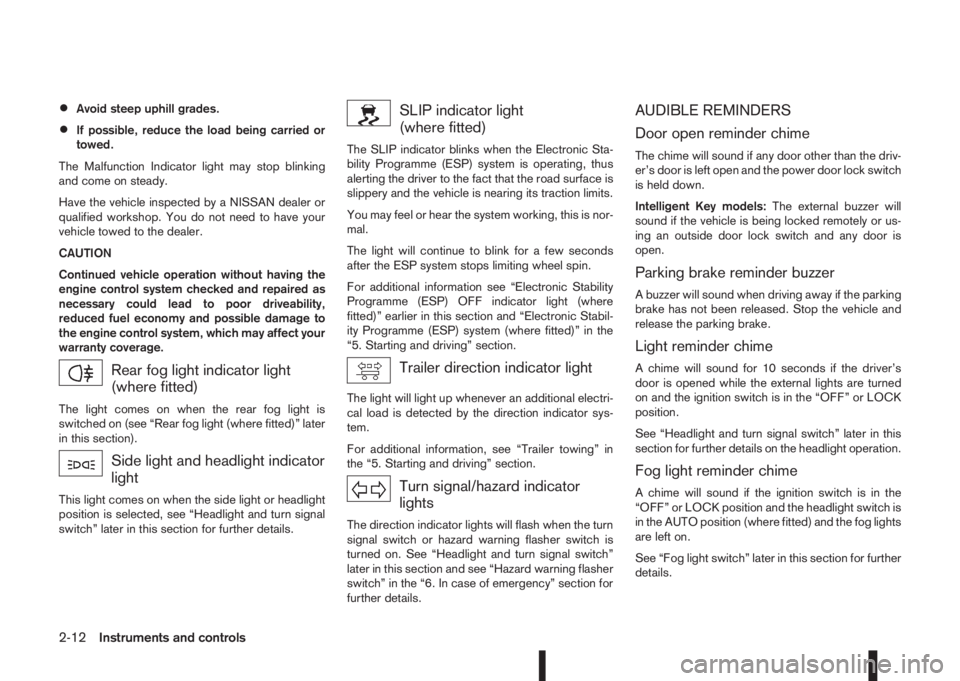
Rear fog light indicator light
(where fitted)
The light comes on when the rear fog light is
switched on (see “Rear fog light (where fitted)” later
in this section).
Side light and headlight indicator
light
This light comes on when the side light or headlight
position is selected, see “Headlight and turn signal
switch” later in this section for further details.
SLIP indicator light
(where fitted)
The SLIP indicator blinks when the Electronic Sta-
bility Programme (ESP) system is operating, thus
alerting the driver to the fact that the road surface is
slippery and the vehicle is nearing its traction limits.
You may feel or hear the system working, this is nor-
mal.
The light will continue to blink for a few seconds
after the ESP system stops limiting wheel spin.
For additional information see “Electronic Stability
Programme (ESP) OFF indicator light (where
fitted)” earlier in this section and “Electronic Stabil-
ity Programme (ESP) system (where fitted)” in the
“5. Starting and driving” section.
Trailer direction indicator light
The light will light up whenever an additional electri-
cal load is detected by the direction indicator sys-
tem.
For additional information, see “Trailer towing” in
the “5. Starting and driving” section.
Turn signal/hazard indicator
lights
The direction indicator lights will flash when the turn
signal switch or hazard warning flasher switch is
turned on. See “Headlight and turn signal switch”
later in this section and see “Hazard warning flasher
switch” in the “6. In case of emergency” section for
further details.
AUDIBLE REMINDERS
Door open reminder chime
The chime will sound if any door other than the driv-
er’s door is left open and the power door lock switch
is held down.
Intelligent Key models:The external buzzer will
sound if the vehicle is being locked remotely or us-
ing an outside door lock switch and any door is
open.
Parking brake reminder buzzer
A buzzer will sound when driving away if the parking
brake has not been released. Stop the vehicle and
release the parking brake.
Light reminder chime
A chime will sound for 10 seconds if the driver’s
door is opened while the external lights are turned
on and the ignition switch is in the “OFF” or LOCK
position.
See “Headlight and turn signal switch” later in this
section for further details on the headlight operation.
Fog light reminder chime
A chime will sound if the ignition switch is in the
“OFF” or LOCK position and the headlight switch is
in the AUTO position (where fitted) and the fog lights
are left on.
See “Fog light switch” later in this section for further
details.
2-12Instruments and controls
Page 75 of 338
![NISSAN QASHQAI 2016 Owner´s Manual •[Auto lights]:
The sensitivity of the automatic lighting can be
adjusted. From the [Lighting] menu, select [Auto
Lights]. Use the
orand ENTER switches to
select the required sensitivity. The follow](/img/5/40324/w960_40324-74.png "NISSAN QASHQAI 2016 Owner´s Manual •[Auto lights]:
The sensitivity of the automatic lighting can be
adjusted. From the [Lighting] menu, select [Auto
Lights]. Use the
orand ENTER switches to
select the required sensitivity. The follow")
•[Auto lights]:
The sensitivity of the automatic lighting can be
adjusted. From the [Lighting] menu, select [Auto
Lights]. Use the
orand ENTER switches to
select the required sensitivity. The following op-
tions are available:
– On earliest
– On earlier
– Standard
– On later
[Turn indicator]:
The [3 flash on] overtaking feature can be set to be
ON or OFF. From the Vehicle Settings menu, select
“[3 Flash on]”. Use the ENTER button to turn this
feature ON or OFF.
[Unlocking]:
There are two options (where fitted) in the [Unlock-
ing] menu:
•[I–Key Door Lock] (where fitted)
When this item is turned on, the request switch
on the door is activated. From the [Unlocking]
menu, select [I-Key Door Unlock]. Use the
ENTER button to activate or deactivate this func-
tion.
•[Selective unlock]
When this item is turned on, and the door handle
request switch on the driver’s or front passen-
ger’s side door is pushed, only the correspond-
ing door is unlocked. All the doors can be un-
locked if the door handle request switch ispushed again within 1 minute. When this item is
turned to off, all the doors will be unlocked when
the door handle request switch is pushed once.
From the [Unlocking] menu, select [Selective
Unlock]. Use the ENTER button to activate or
deactivate this function.
[Wipers]:
•[Speed dependent] (where fitted)
The Speed dependent wiper feature can be set
to be ON or OFF. From the [Wipers] menu,
select [Speed Dependent]. Use the ENTER but-
ton to turn this feature ON or OFF.
•[Rain Sensor] (where fitted)
The [Rain sensor] feature can be activated or
deactivated. From the [Wipers] menu, select
[Rain Sensor]. Use the ENTER button to turn
this feature ON or OFF.
•[Reverse link]
The [Reverse link] wiper feature can be set to be
ON or OFF. From the [Wipers] menu, select
[Reverse Link]. Use the ENTER button to turn
this feature ON or OFF.
•[Drip wipe]
The [Drip wipe] feature can be set to be ON or
OFF. From the [Wipers] menu, select [Drip
Wipe]. Use the ENTER button to turn this fea-
ture ON or OFF.
Maintenance
1. Engine oil and filter replacement indicator:
This indicator appears when the customer set time
comes for changing the engine oil and filter. You
can set or reset the distance for changing the en-
gine oil and filter.
NIC2206
Instruments and controls2-17
Page 88 of 338
TRAFFIC SIGN RECOGNITION
(where fitted)
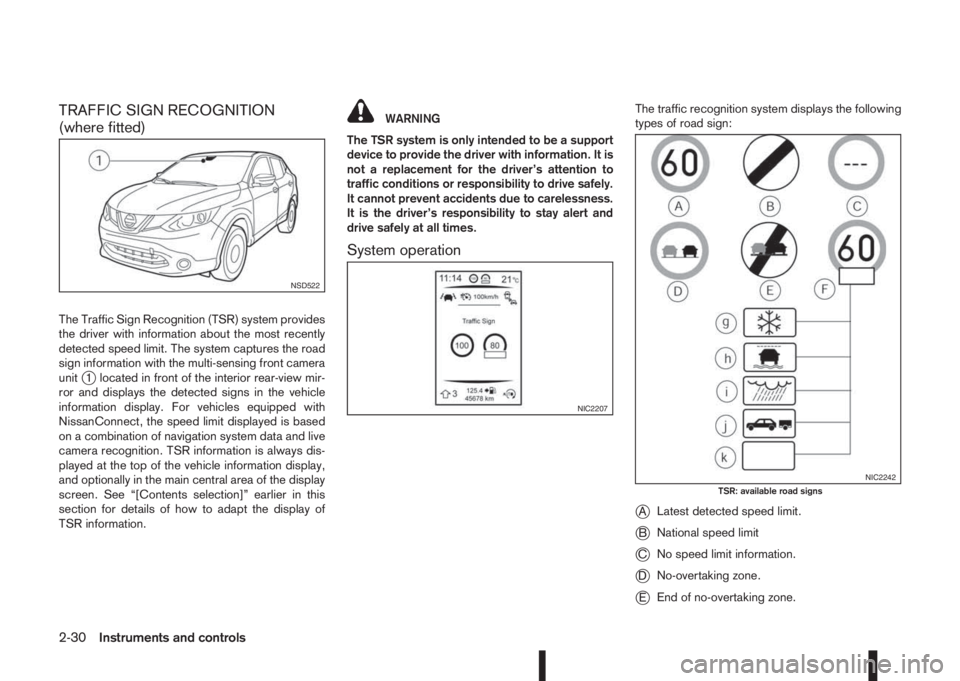
The Traffic Sign Recognition (TSR) system provides
the driver with information about the most recently
detected speed limit. The system captures the road
sign information with the multi-sensing front camera
unit
j1 located in front of the interior rear-view mir-
ror and displays the detected signs in the vehicle
information display. For vehicles equipped with
NissanConnect, the speed limit displayed is based
on a combination of navigation system data and live
camera recognition. TSR information is always dis-
played at the top of the vehicle information display,
and optionally in the main central area of the display
screen. See “[Contents selection]” earlier in this
section for details of how to adapt the display of
TSR information.
WARNING
The TSR system is only intended to be a support
device to provide the driver with information. It is
not a replacement for the driver’s attention to
traffic conditions or responsibility to drive safely.
It cannot prevent accidents due to carelessness.
It is the driver’s responsibility to stay alert and
drive safely at all times.
System operation
The traffic recognition system displays the following
types of road sign:
jALatest detected speed limit.
jBNational speed limit
jCNo speed limit information.
jDNo-overtaking zone.
jEEnd of no-overtaking zone.
NSD522
NIC2207
NIC2242TSR: available road signs
2-30Instruments and controls
Page 89 of 338
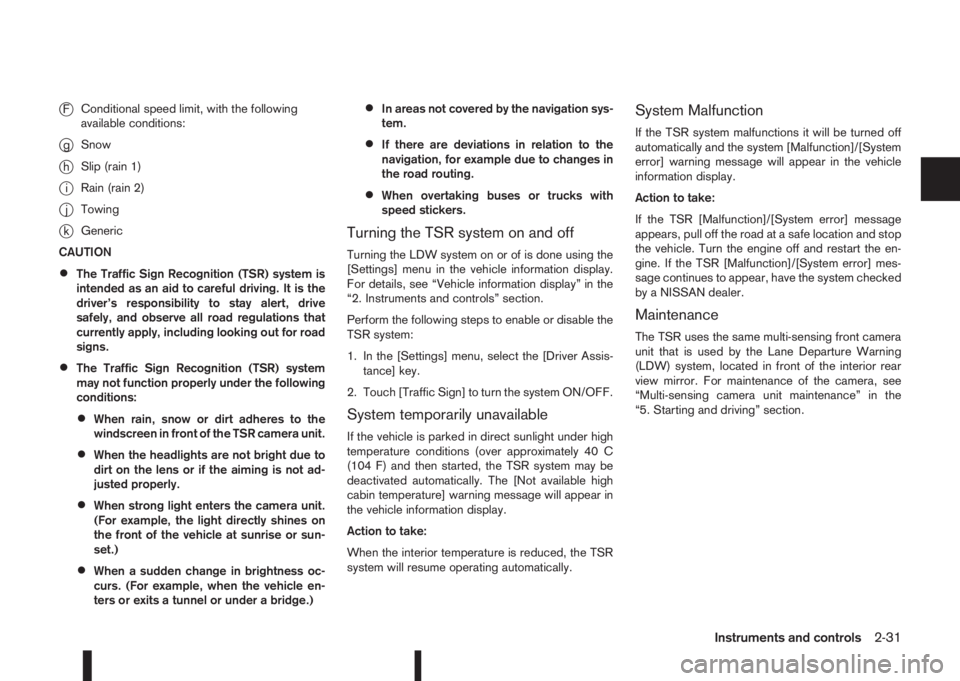
jFConditional speed limit, with the following
available conditions:
jgSnow
jhSlip (rain 1)
jiRain (rain 2)
jjTowing
jkGeneric
CAUTION
•The Traffic Sign Recognition (TSR) system is
intended as an aid to careful driving. It is the
driver’s responsibility to stay alert, drive
safely, and observe all road regulations that
currently apply, including looking out for road
signs.
•The Traffic Sign Recognition (TSR) system
may not function properly under the following
conditions:
•When rain, snow or dirt adheres to the
windscreen in front of the TSR camera unit.
•When the headlights are not bright due to
dirt on the lens or if the aiming is not ad-
justed properly.
•When strong light enters the camera unit.
(For example, the light directly shines on
the front of the vehicle at sunrise or sun-
set.)
•When a sudden change in brightness oc-
curs. (For example, when the vehicle en-
ters or exits a tunnel or under a bridge.)
•In areas not covered by the navigation sys-
tem.
•If there are deviations in relation to the
navigation, for example due to changes in
the road routing.
•When overtaking buses or trucks with
speed stickers.
Turning the TSR system on and off
Turning the LDW system on or of is done using the
[Settings] menu in the vehicle information display.
For details, see “Vehicle information display” in the
“2. Instruments and controls” section.
Perform the following steps to enable or disable the
TSR system:
1. In the [Settings] menu, select the [Driver Assis-
tance] key.
2. Touch [Traffic Sign] to turn the system ON/OFF.
System temporarily unavailable
If the vehicle is parked in direct sunlight under high
temperature conditions (over approximately 40 C
(104 F) and then started, the TSR system may be
deactivated automatically. The [Not available high
cabin temperature] warning message will appear in
the vehicle information display.
Action to take:
When the interior temperature is reduced, the TSR
system will resume operating automatically.
System Malfunction
If the TSR system malfunctions it will be turned off
automatically and the system [Malfunction]/[System
error] warning message will appear in the vehicle
information display.
Action to take:
If the TSR [Malfunction]/[System error] message
appears, pull off the road at a safe location and stop
the vehicle. Turn the engine off and restart the en-
gine. If the TSR [Malfunction]/[System error] mes-
sage continues to appear, have the system checked
by a NISSAN dealer.
Maintenance
The TSR uses the same multi-sensing front camera
unit that is used by the Lane Departure Warning
(LDW) system, located in front of the interior rear
view mirror. For maintenance of the camera, see
“Multi-sensing camera unit maintenance” in the
“5. Starting and driving” section.
Instruments and controls2-31
Page 95 of 338
DYNAMIC HIGH BEAM ASSISTANT
(where fitted)
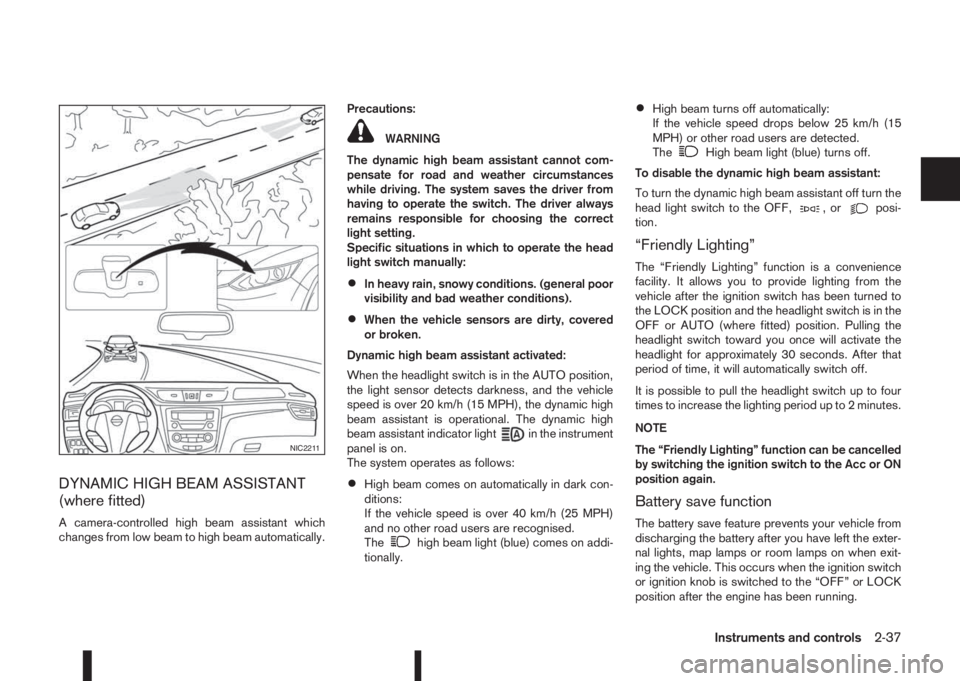
A camera-controlled high beam assistant which
changes from low beam to high beam automatically.Precautions:
WARNING
The dynamic high beam assistant cannot com-
pensate for road and weather circumstances
while driving. The system saves the driver from
having to operate the switch. The driver always
remains responsible for choosing the correct
light setting.
Specific situations in which to operate the head
light switch manually:
•In heavy rain, snowy conditions. (general poor
visibility and bad weather conditions).
•When the vehicle sensors are dirty, covered
or broken.
Dynamic high beam assistant activated:
When the headlight switch is in the AUTO position,
the light sensor detects darkness, and the vehicle
speed is over 20 km/h (15 MPH), the dynamic high
beam assistant is operational. The dynamic high
beam assistant indicator light
in the instrument
panel is on.
The system operates as follows:
•High beam comes on automatically in dark con-
ditions:
If the vehicle speed is over 40 km/h (25 MPH)
and no other road users are recognised.
The
high beam light (blue) comes on addi-
tionally.
•High beam turns off automatically:
If the vehicle speed drops below 25 km/h (15
MPH) or other road users are detected.
The
High beam light (blue) turns off.
To disable the dynamic high beam assistant:
To turn the dynamic high beam assistant off turn the
head light switch to the OFF,
,orposi-
tion.
“Friendly Lighting”
The “Friendly Lighting” function is a convenience
facility. It allows you to provide lighting from the
vehicle after the ignition switch has been turned to
the LOCK position and the headlight switch is in the
OFF or AUTO (where fitted) position. Pulling the
headlight switch toward you once will activate the
headlight for approximately 30 seconds. After that
period of time, it will automatically switch off.
It is possible to pull the headlight switch up to four
times to increase the lighting period up to 2 minutes.
NOTE
The “Friendly Lighting” function can be cancelled
by switching the ignition switch to the Acc or ON
position again.
Battery save function
The battery save feature prevents your vehicle from
discharging the battery after you have left the exter-
nal lights, map lamps or room lamps on when exit-
ing the vehicle. This occurs when the ignition switch
or ignition knob is switched to the “OFF” or LOCK
position after the engine has been running.
NIC2211
Instruments and controls2-37
Page 104 of 338
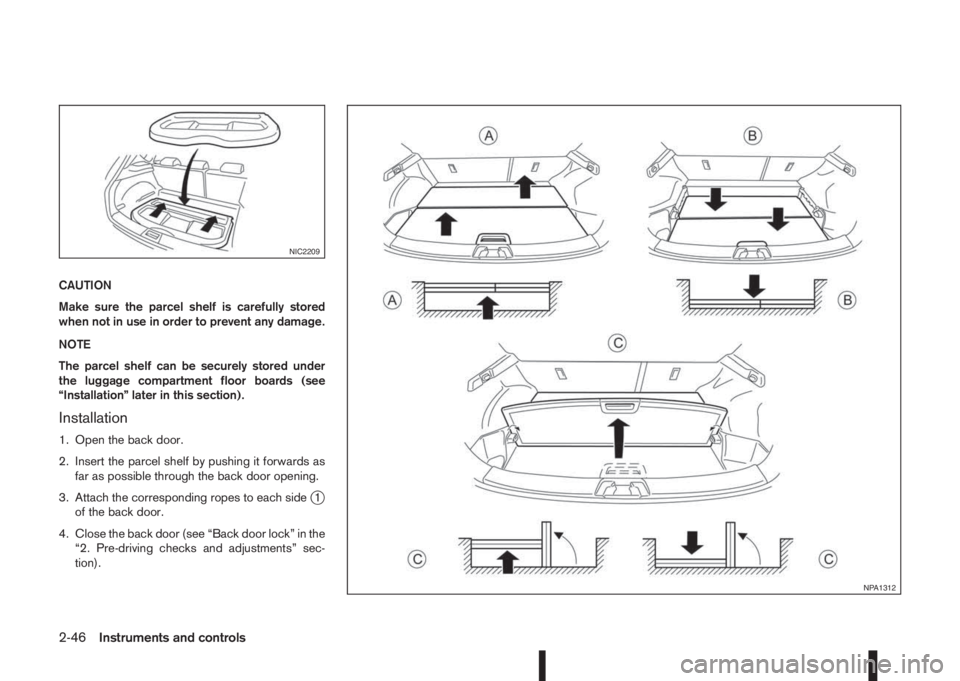
CAUTION
Make sure the parcel shelf is carefully stored
when not in use in order to prevent any damage.
NOTE
The parcel shelf can be securely stored under
the luggage compartment floor boards (see
“Installation” later in this section).
Installation
1. Open the back door.
2. Insert the parcel shelf by pushing it forwards as
far as possible through the back door opening.
3. Attach the corresponding ropes to each side
j1
of the back door.
4. Close the back door (see “Back door lock” in the
“2. Pre-driving checks and adjustments” sec-
tion).
NIC2209
NPA1312
2-46Instruments and controls
Page 106 of 338
POWER WINDOWS
The power window switches are located on the door
panels and will only operate when the ignition switch
is in the ON position.
WARNING
•Make sure that all passengers have their
hands, etc. inside the vehicle before operat-
ing the power windows.
•Never leave children or adults who would nor-
mally require the support of others alone in
the vehicle. They could unknowingly activate
switches or controls and inadvertently
become involved in an accident.
•It is recommended to instruct all occupants in
the safe operation of power windows with par-
ticular emphasis given to the safety and su-
pervision of children.
The power windows only operate when the ignition
switch is in the “ON” position.
To open a window, push down the power window
switch.
To close a window, pull up the power window
switch.
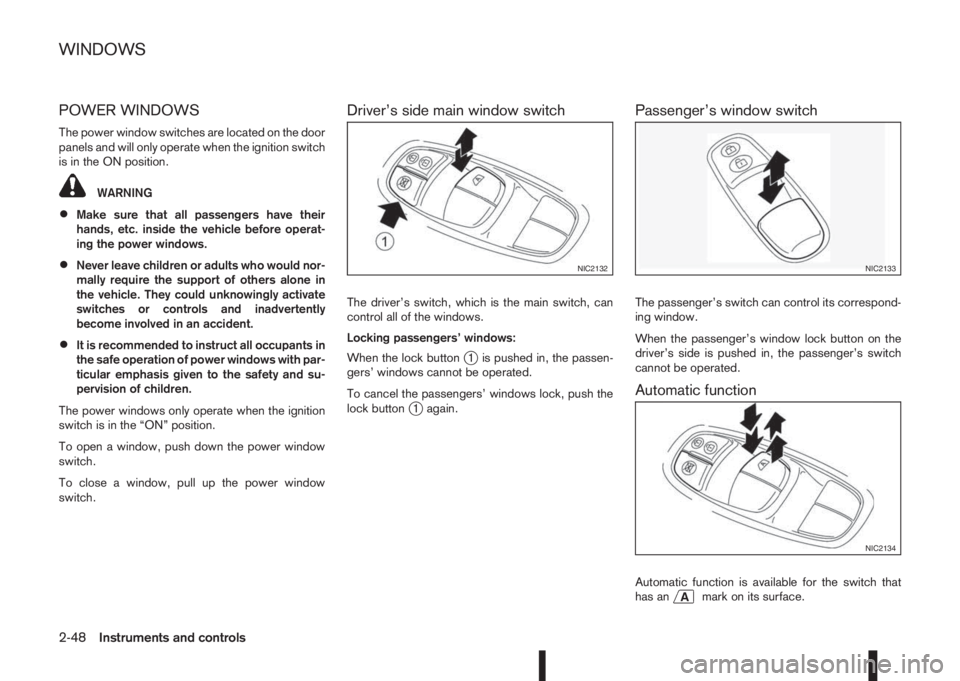
Driver’s side main window switch
The driver’s switch, which is the main switch, can
control all of the windows.
Locking passengers’ windows:
When the lock button
j1 is pushed in, the passen-
gers’ windows cannot be operated.
To cancel the passengers’ windows lock, push the
lock button
j1 again.
Passenger’s window switch
The passenger’s switch can control its correspond-
ing window.
When the passenger’s window lock button on the
driver’s side is pushed in, the passenger’s switch
cannot be operated.
Automatic function
Automatic function is available for the switch that
has anmark on its surface.
NIC2132NIC2133
NIC2134
WINDOWS
2-48Instruments and controls
Page 118 of 338
![NISSAN QASHQAI 2016 Owner´s Manual Convenience mode:
Push the door/back door request button.
– All doors and the back door will be unlocked.
– The direction indicators flash twice.
– The message [All door unlock] appears in the
v](/img/5/40324/w960_40324-117.png "NISSAN QASHQAI 2016 Owner´s Manual Convenience mode:
Push the door/back door request button.
– All doors and the back door will be unlocked.
– The direction indicators flash twice.
– The message [All door unlock] appears in the
v")
Convenience mode:
Push the door/back door request button.
– All doors and the back door will be unlocked.
– The direction indicators flash twice.
– The message [All door unlock] appears in the
vehicle information display.
Anti-hijack mode (where fitted):
1. Push the door/back door request button.
– The corresponding door unlocks.
– The direction indicators flash twice quickly.
2. Push the request button again within 5 seconds.
– All the doors and the back door will be unlocked.
– The direction indicators flash twice.
NOTE
•External interference may impair the Intelli-
gent Key’s operation. In this case, use the
emergency key located in the Intelligent Key
integrated keyfob. See “Door locks” later in
this section for further details.
•If the vehicle is unlocked and no doors are
opened for 2 minutes the doors will automati-
cally be locked.
CAUTION
•Make sure the Intelligent Key battery is in good
condition. Note that battery life may vary de-
pending on condition, amount of use, ambi-
ent temperature, etc.
•The Intelligent Key contains a miniature radio
transmitter that may be affected when placed
near metal objects.
•Keep the Intelligent Key away from mobile
phones, laptop computers and other metal
objects or electronics.
STARTING THE ENGINE WITH THE
INTELLIGENT KEY
See “Push-button ignition switch (where fitted)” in
the “5. Starting and driving” section.
CAUTION
•Make sure you carry the Intelligent Key with
you when starting and driving the vehicle.
•If the Intelligent Key is too far away from the
passenger compartment, the vehicle may not
start. See “Intelligent Key operating range” in
the “3. Pre-driving checks and adjustments”
section
SUPER LOCK SYSTEM (RHD models)
WARNING
Super Lock system equipped models:
Failure to follow the precautions below may lead
to hazardous situations. Make sure the Super
Lock system activation is always conducted
safely.
•When the vehicle is occupied, never lock the
doors with the integrated keyfob. Doing so
will trap the occupants, since the Super Lock
system prevents the doors from being opened
from the inside of the vehicle.
•Only operate the integrated keyfob “LOCK”
button when there is a clear view of the ve-
hicle. This is to prevent anybody from being
trapped inside the vehicle through the Super
Lock system activation.
Pressing the “LOCK” button (
) on the integrated
keyfob or locking the doors using one of the request
buttons (Intelligent Key models) will activate the Su-
per Lock system.
When the Super Lock system is active, none of the
doors can be opened from inside the vehicle. This
provides additional security in case of theft or break-
in.
The Super Lock system will be released when all
the doors are unlocked using the integrated keyfob
or a request button (Intelligent Key models).
DOOR LOCKS
3-8Pre-driving checks and adjustments
Page 121 of 338
–Intelligent Key models:If the Intelligent Key has
been left inside the vehicle, all doors will unlock
and an audible warning will sound.
Super Lock equipped models (RHD
models)
If the doors are locked using the integrated keyfob
lock button () or a request button (Intelligent Key
models), the Super Lock system will be activated.
The
indicator light in the centre console comes
on to indicate that all doors are locked, but it will not
be possible to use the
button of the power door
lock switch to unlock the doors.
Locking the doors with the power door lock switch
will not activate the Super Lock system.
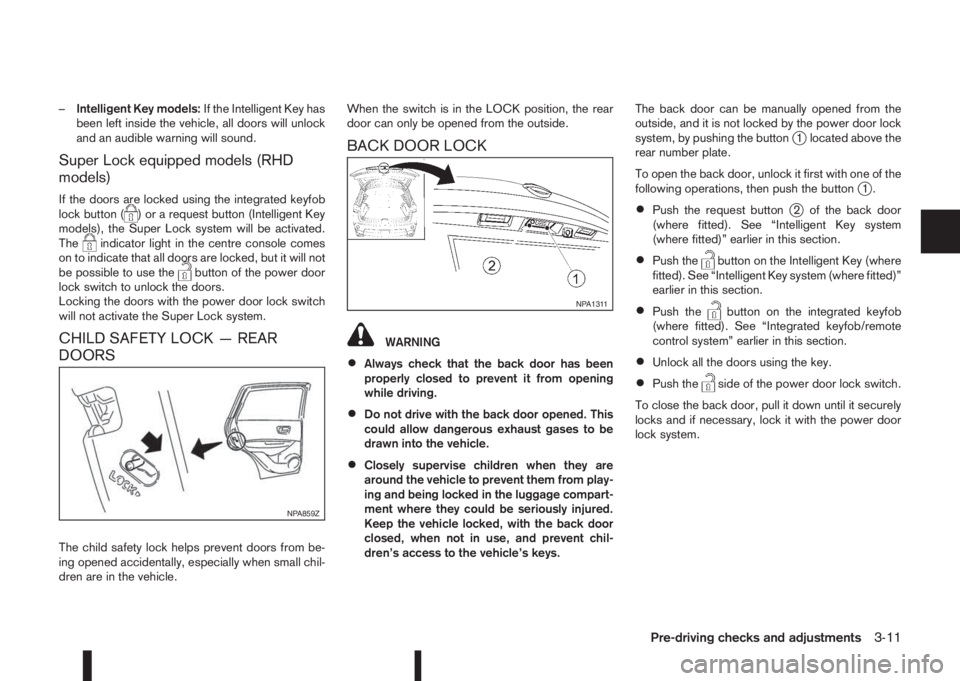
CHILD SAFETY LOCK — REAR
DOORS
The child safety lock helps prevent doors from be-
ing opened accidentally, especially when small chil-
dren are in the vehicle.When the switch is in the LOCK position, the rear
door can only be opened from the outside.
BACK DOOR LOCK
WARNING
•Always check that the back door has been
properly closed to prevent it from opening
while driving.
•Do not drive with the back door opened. This
could allow dangerous exhaust gases to be
drawn into the vehicle.
•Closely supervise children when they are
around the vehicle to prevent them from play-
ing and being locked in the luggage compart-
ment where they could be seriously injured.
Keep the vehicle locked, with the back door
closed, when not in use, and prevent chil-
dren’s access to the vehicle’s keys.The back door can be manually opened from the
outside, and it is not locked by the power door lock
system, by pushing the button
j1 located above the
rear number plate.
To open the back door, unlock it first with one of the
following operations, then push the button
j1.
•Push the request buttonj2 of the back door
(where fitted). See “Intelligent Key system
(where fitted)” earlier in this section.
•Push thebutton on the Intelligent Key (where
fitted). See “Intelligent Key system (where fitted)”
earlier in this section.
•Push thebutton on the integrated keyfob
(where fitted). See “Integrated keyfob/remote
control system” earlier in this section.
•Unlock all the doors using the key.
•Push theside of the power door lock switch.
To close the back door, pull it down until it securely
locks and if necessary, lock it with the power door
lock system.
NPA859Z
NPA1311
Pre-driving checks and adjustments3-11
Page 135 of 338
NOTE
At first operation, the corner lines are blinking
yellow for about 3 seconds. This is not a malfunc-
tion but a reminder to be cautious.
Available views:
•Bird’s-eye View
The surrounding view of the vehicle.
•Front-side View
The view around and ahead of the front passen-
ger’s side wheel.
•Front view
The view to the front of the vehicle.
•Rear view
The view to the rear of the vehicle.
•Full screen rear view
The view to the rear of the vehicle (which is a
little wider than the standard rear view)
The system is designed as an aid to the driver in
situations such as slot parking or parallel parking.
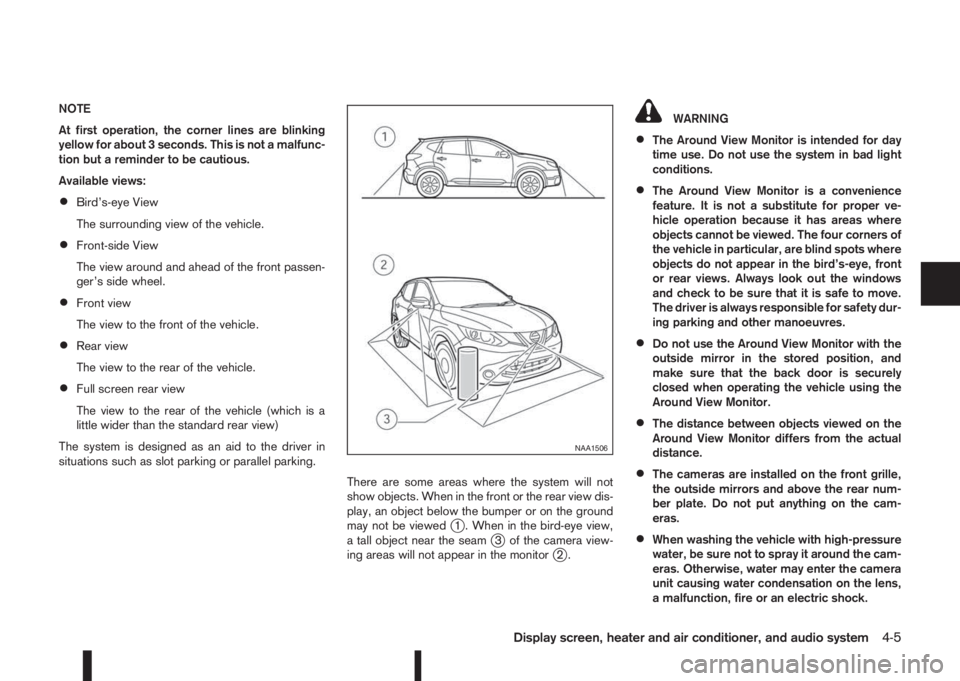
There are some areas where the system will not
show objects. When in the front or the rear view dis-
play, an object below the bumper or on the ground
may not be viewed
j1 . When in the bird-eye view,
a tall object near the seamj3 of the camera view-
ing areas will not appear in the monitorj2.
WARNING
•The Around View Monitor is intended for day
time use. Do not use the system in bad light
conditions.
•The Around View Monitor is a convenience
feature. It is not a substitute for proper ve-
hicle operation because it has areas where
objects cannot be viewed. The four corners of
the vehicle in particular, are blind spots where
objects do not appear in the bird’s-eye, front
or rear views. Always look out the windows
and check to be sure that it is safe to move.
The driver is always responsible for safety dur-
ing parking and other manoeuvres.
•Do not use the Around View Monitor with the
outside mirror in the stored position, and
make sure that the back door is securely
closed when operating the vehicle using the
Around View Monitor.
•The distance between objects viewed on the
Around View Monitor differs from the actual
distance.
•The cameras are installed on the front grille,
the outside mirrors and above the rear num-
ber plate. Do not put anything on the cam-
eras.
•When washing the vehicle with high-pressure
water, be sure not to spray it around the cam-
eras. Otherwise, water may enter the camera
unit causing water condensation on the lens,
a malfunction, fire or an electric shock.
NAA1506
Display screen, heater and air conditioner, and audio system4-5