phone NISSAN QASHQAI 2016 Owner´s Manual
[x] Cancel search | Manufacturer: NISSAN, Model Year: 2016, Model line: QASHQAI, Model: NISSAN QASHQAI 2016Pages: 338, PDF Size: 4.87 MB
Page 163 of 338
The pairing procedure and operation may vary ac-
cording to device type and compatibility. See the
Bluetooth® owner’s manual for further details.
NOTE
•For device details, see your audio/mobile
phone Owner’s Manual.
•For assistance with the Bluetooth® audio/
mobile phone integration, please visit your lo-
cal NISSAN dealer.
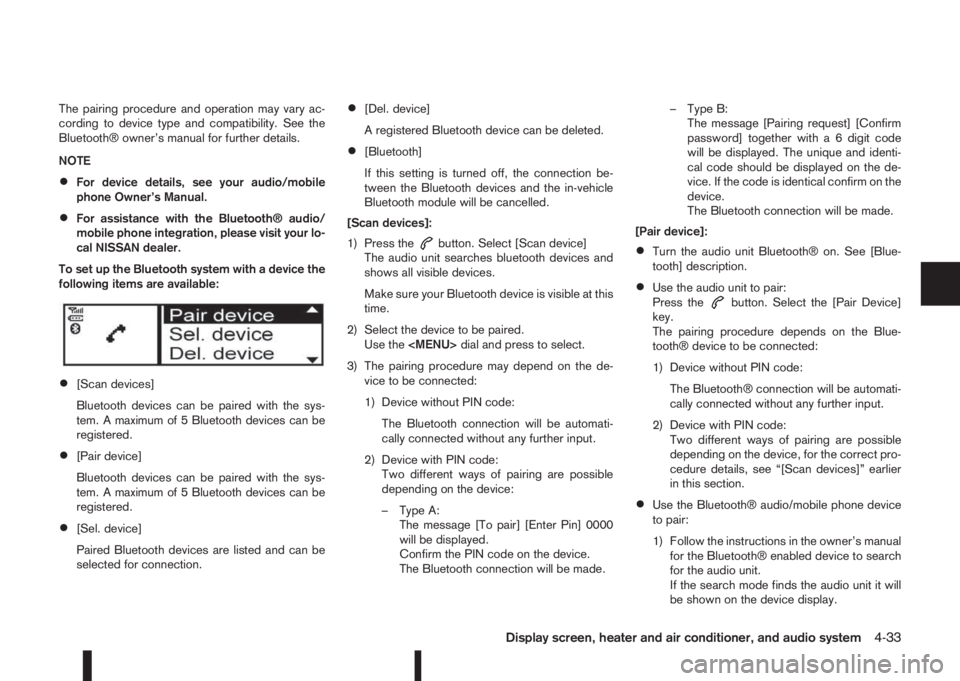
To set up the Bluetooth system with a device the
following items are available:
•[Scan devices]
Bluetooth devices can be paired with the sys-
tem. A maximum of 5 Bluetooth devices can be
registered.
•[Pair device]
Bluetooth devices can be paired with the sys-
tem. A maximum of 5 Bluetooth devices can be
registered.
•[Sel. device]
Paired Bluetooth devices are listed and can be
selected for connection.
•[Del. device]
A registered Bluetooth device can be deleted.
•[Bluetooth]
If this setting is turned off, the connection be-
tween the Bluetooth devices and the in-vehicle
Bluetooth module will be cancelled.
[Scan devices]:
1) Press the
button. Select [Scan device]
The audio unit searches bluetooth devices and
shows all visible devices.
Make sure your Bluetooth device is visible at this
time.
2) Select the device to be paired.
Use the
Page 164 of 338
![NISSAN QASHQAI 2016 Owner´s Manual 2) Select the audio unit shown as [My Car].
3) Follow the instructions in the owner’s manual
for the Bluetooth® enabled device to estab-
lish a connection with the audio unit.
4) Enter the PIN code](/img/5/40324/w960_40324-163.png "NISSAN QASHQAI 2016 Owner´s Manual 2) Select the audio unit shown as [My Car].
3) Follow the instructions in the owner’s manual
for the Bluetooth® enabled device to estab-
lish a connection with the audio unit.
4) Enter the PIN code")
2) Select the audio unit shown as [My Car].
3) Follow the instructions in the owner’s manual
for the Bluetooth® enabled device to estab-
lish a connection with the audio unit.
4) Enter the PIN code shown on the relevant
device with the device’s own keypad, and
press the confirmation key on the device it-
self.
Refer to the relevant Bluetooth® device own-
er’s manual for further details.
[Sel. device]:
The paired device list shows which Bluetooth® au-
dio or mobile phone devices have been paired or
registered with the Bluetooth® audio system. If the
list contains devices then select the appropriate de-
vice to connect to the Bluetooth® audio system.
The following symbols (where fitted) indicate the
capability of the registered device:
•: Mobile phone integration
•: Audio streaming (A2DP – Advanced Audio
Distribution Profile)
[Del. device]:
A registered device can be removed from the Blue-
tooth audio system. Select a registered device then
press
[Bluetooth]:
If Bluetooth® has been switched off a notification
message [ON/OFF] appears when you select [Blue-
tooth] from the phone menu (press
). To switchthe Bluetooth® signal on, press
follow up screen will appear. Then select [ON] and
press
menu screen.
Bluetooth®audio streaming main
operation
Turn the ignition switch to the Acc or ON position.
If the audio system was turned off while the Blue-
tooth® audio was playing, pressing the<
> but-
ton will start the Bluetooth® audio streaming.
MEDIA button:
To operate the Bluetooth® audio streaming use the
following method:
•Press
shown.
The type of display,
jAorjB , shown on the audio
system can vary depending on the Bluetooth® ver-
sion of the device.
Fast Forward (Cue), Fast
Reverse (Review) buttons:
When the
(Cue) or(Review) button is
pressed continuously, the track will be played at
high speed. When the button is released, the track
will be played at normal playing speed.
Track up/down buttons:
Pressing the
orbutton once, the track will
be skipped forward to the next track or backward to
the beginning of the current played track. Press the
orbutton more than once to skip through
the tracks.
mbutton
If the song contains music information tags (ID3–
tags), the title of the played song will be displayed.
If tags are not provided then the display will not
show any messages.
When the
button is pressed repeatedly fur-
ther information about the song can be displayed
along with the song title.
A long press on
will turn the display into a
detailed overview which after a few seconds returns
to the main display; or press
briefly.
NAA1203
4-34Display screen, heater and air conditioner, and audio system
Page 165 of 338
Bluetooth®mobile phone feature
This system offers a hands-free facility for your mo-
bile telephone with Bluetooth® to enhance driving
safety, and comfort.
For details, see “Mobile phone integration for FM
AM radio with CD player (where fitted)” later in this
section.
Display screen, heater and air conditioner, and audio system4-35
Page 169 of 338
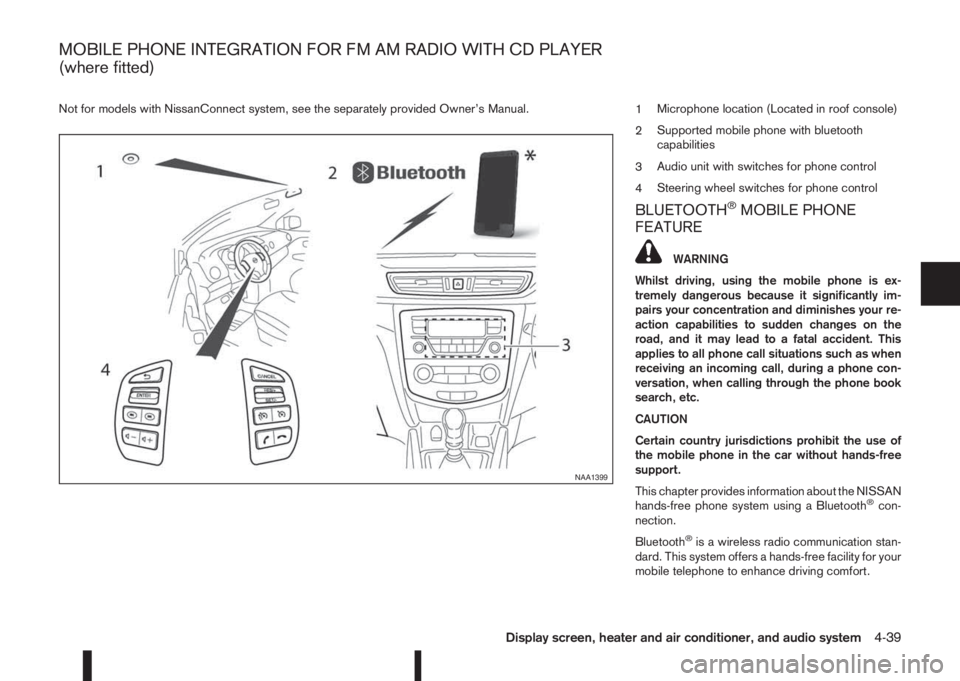
Not for models with NissanConnect system, see the separately provided Owner’s Manual.
1Microphone location (Located in roof console)
2Supported mobile phone with bluetooth
capabilities
3Audio unit with switches for phone control
4Steering wheel switches for phone control
BLUETOOTH®MOBILE PHONE
FEATURE
WARNING
Whilst driving, using the mobile phone is ex-
tremely dangerous because it significantly im-
pairs your concentration and diminishes your re-
action capabilities to sudden changes on the
road, and it may lead to a fatal accident. This
applies to all phone call situations such as when
receiving an incoming call, during a phone con-
versation, when calling through the phone book
search, etc.
CAUTION
Certain country jurisdictions prohibit the use of
the mobile phone in the car without hands-free
support.
This chapter provides information about the NISSAN
hands-free phone system using a Bluetooth
®con-
nection.
Bluetooth
®is a wireless radio communication stan-
dard. This system offers a hands-free facility for your
mobile telephone to enhance driving comfort.
NAA1399
MOBILE PHONE INTEGRATION FOR FM AM RADIO WITH CD PLAYER
(where fitted)
Display screen, heater and air conditioner, and audio system4-39
Page 170 of 338
In order to use your mobile phone with the Blue-
tooth®of the audio system, the mobile phone must
first be setup. For details, see “BLUETOOTH®
settings” later in this section. Once it has been
setup, the hands-free mode is automatically acti-
vated on the registered mobile phone (via Blue-
tooth
®) when it comes into range.
A notification message appears on the audio display
when the phone is connected, when an incoming
call is being received, as well as when a call is initi-
ated.
When a call is active, the audio system, microphone
(located in the ceiling in front of the rear view mir-
ror), and steering wheel switches enable hands-free
communication.
If the audio system is in use at the time, the radio,
CD, iPod, USB audio, Bluetooth audio or AUX
source mode will be muted and will stay muted until
the active call has ended.
The Bluetooth
®system may not be able to connect
with your mobile phone for the following reasons:
•The mobile phone is too far away from the ve-
hicle.
•The Bluetooth®mode on your mobile phone has
not been activated.
•Your mobile phone has not been paired with the
Bluetooth®system of the audio unit.
•The mobile phone does not support Bluetooth®
technology (BT Core v2.0).NOTE
•For models with NissanConnect (Audio with
Navigation system) see the separately pro-
vided Owner’s Manual.
•For details, see your mobile phone’s Owner’s
Manual.
•For assistance with your mobile phone inte-
gration, please visit your local NISSAN dealer.
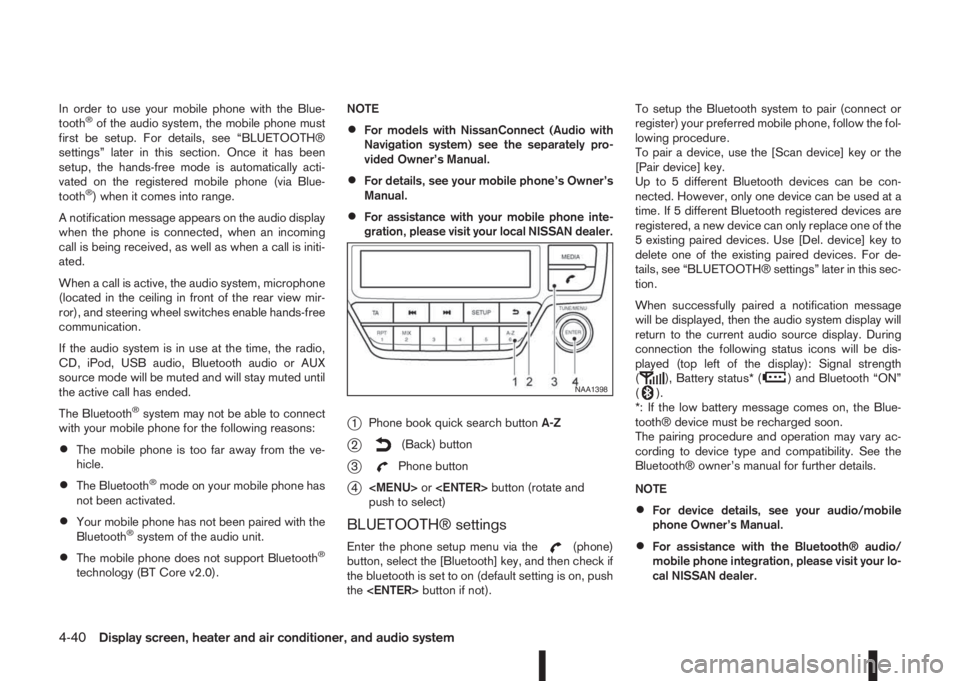
j1Phone book quick search buttonA-Z
j2(Back) button
j3Phone button
j4
Page 171 of 338
![NISSAN QASHQAI 2016 Owner´s Manual •A maximum of 5 Bluetooth devices can be
paired with the system.
To set up the Bluetooth system with a device the
following items are available:
•[Scan device]
Shows all available visible Bluetoot](/img/5/40324/w960_40324-170.png "NISSAN QASHQAI 2016 Owner´s Manual •A maximum of 5 Bluetooth devices can be
paired with the system.
To set up the Bluetooth system with a device the
following items are available:
•[Scan device]
Shows all available visible Bluetoot")
•A maximum of 5 Bluetooth devices can be
paired with the system.
To set up the Bluetooth system with a device the
following items are available:
•[Scan device]
Shows all available visible Bluetooth devices and
initializes Bluetooth connection from the audio
unit.
•[Pair device]
Initializes Bluetooth connection from the mobile
device.
•[Sel. device]
Paired Bluetooth devices are listed and can be
selected for connection.
•[Del. device]
A registered Bluetooth device can be deleted.
•[Bluetooth]
If this setting is turned off, the connection be-
tween the Bluetooth devices and the in-vehicle
Bluetooth module will be cancelled.[Scan devices]:
1) Press the
button. Select [Scan device]
The audio unit searches bluetooth devices and
shows all visible devices.
Pressing the
button cancels the search.
2) Select the device to be paired.
Use the
Page 172 of 338
![NISSAN QASHQAI 2016 Owner´s Manual [Sel. device]:
The paired device list shows which Bluetooth® au-
dio or mobile phone devices have been paired or
registered with the Bluetooth® audio system. If the
list contains devices then select](/img/5/40324/w960_40324-171.png "NISSAN QASHQAI 2016 Owner´s Manual [Sel. device]:
The paired device list shows which Bluetooth® au-
dio or mobile phone devices have been paired or
registered with the Bluetooth® audio system. If the
list contains devices then select")
[Sel. device]:
The paired device list shows which Bluetooth® au-
dio or mobile phone devices have been paired or
registered with the Bluetooth® audio system. If the
list contains devices then select the appropriate de-
vice to connect to the Bluetooth® audio system.
The following symbols (where fitted) indicate the
capability of the registered device:
•: Mobile phone integration
•: Audio streaming (A2DP – Advanced Audio
Distribution Profile)
[Del. device]:
A registered device can be removed from the Blue-
tooth audio system. Select a registered device then
press
[Bluetooth]:
If Bluetooth® has been switched off a notification
message [ON/OFF] appears when you select [Blue-
tooth] from the phone menu (press
). To switch
the Bluetooth® signal on, press
follow up screen will appear. Then select [ON] and
press
menu screen.
HANDS-FREE TELEPHONE
CONTROL
The hands-free mode can be operated using the
telephonebutton on the audio system, or theand (where fitted) on the steering wheel.
Receiving a call
When receiving an incoming call, the display will
show the caller’s phone number (or a notification
message that the caller’s phone number cannot be
shown) and three operation icons.
1. Answering and during a call:
Answer the call by pressing
is
highlighted).
By pressing
options:
•Ending the call by selectingand press
•Put the call on hold by selectingand press
•[]
Use this item (the transfer handset command) to
transfer the call from the audio system to your
mobile phone.
To transfer the call back to hands-free via the
audio system select [
].
•[#123]
Use this item to enter numbers during a call. For
example, if directed by an automated phone sys-
tem to dial an extension number the system will
send the tone associated with the selected num-
ber.
2. Put a call on hold:
Rotate the
Page 173 of 338
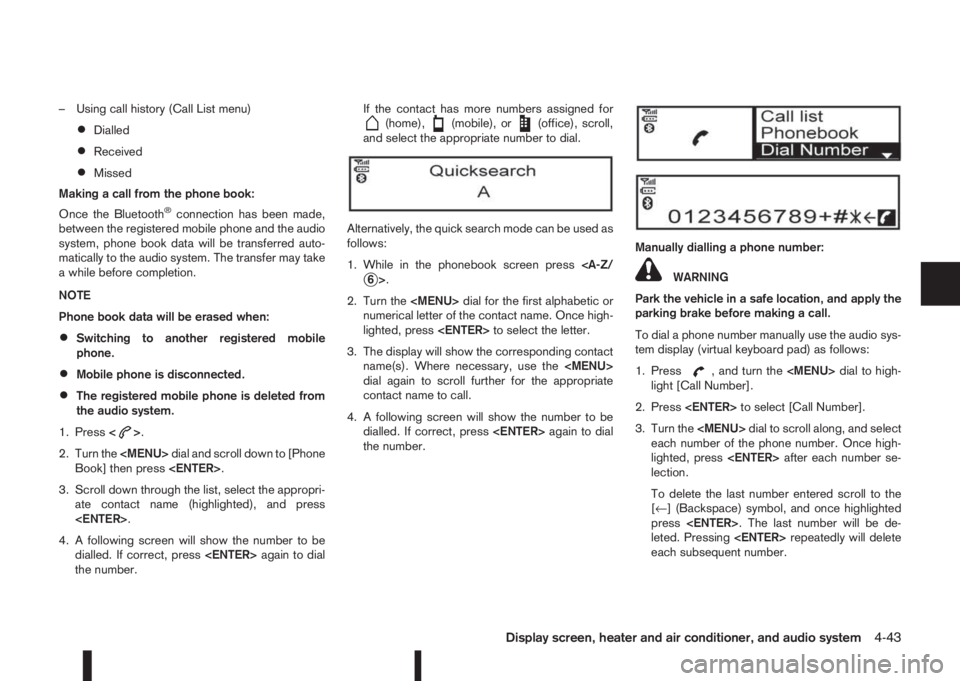
– Using call history (Call List menu)
•Dialled
•Received
•Missed
Making a call from the phone book:
Once the Bluetooth
®connection has been made,
between the registered mobile phone and the audio
system, phone book data will be transferred auto-
matically to the audio system. The transfer may take
a while before completion.
NOTE
Phone book data will be erased when:
•Switching to another registered mobile
phone.
•Mobile phone is disconnected.
•The registered mobile phone is deleted from
the audio system.
1. Press<
>.
2. Turn the
Page 174 of 338
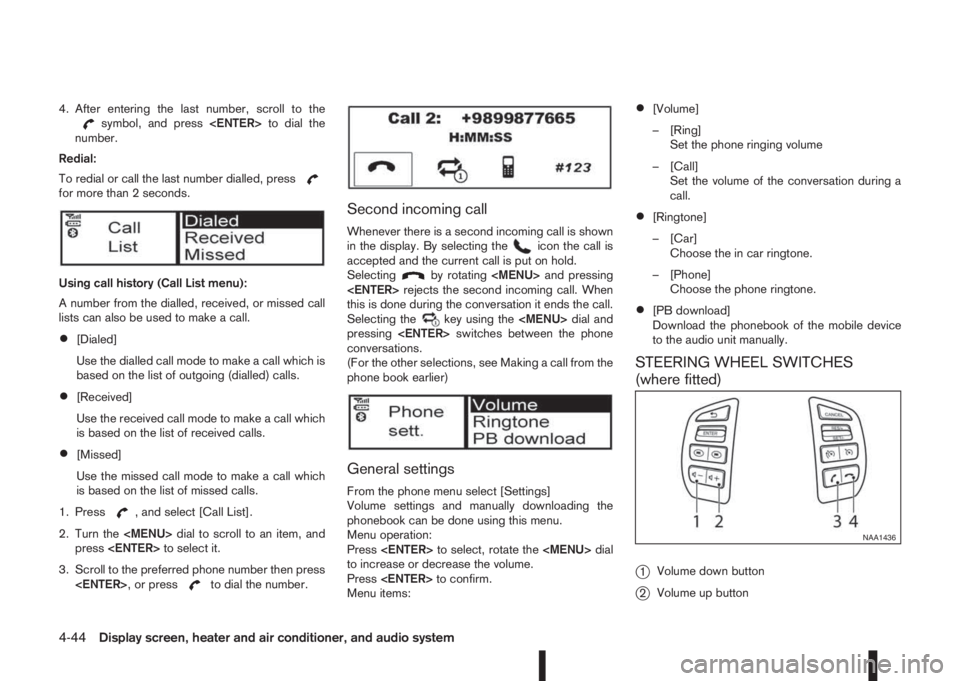
4. After entering the last number, scroll to thesymbol, and press
number.
Redial:
To redial or call the last number dialled, press
for more than 2 seconds.
Using call history (Call List menu):
A number from the dialled, received, or missed call
lists can also be used to make a call.
•[Dialed]
Use the dialled call mode to make a call which is
based on the list of outgoing (dialled) calls.
•[Received]
Use the received call mode to make a call which
is based on the list of received calls.
•[Missed]
Use the missed call mode to make a call which
is based on the list of missed calls.
1. Press
, and select [Call List].
2. Turn the
Page 175 of 338
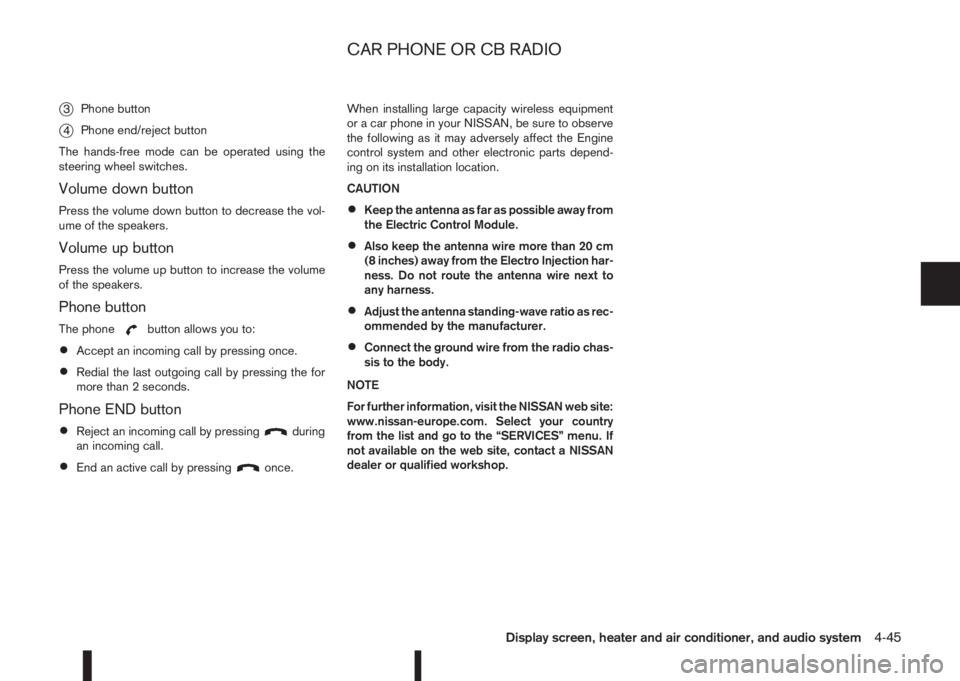
j3Phone button
j4Phone end/reject button
The hands-free mode can be operated using the
steering wheel switches.
Volume down button
Press the volume down button to decrease the vol-
ume of the speakers.
Volume up button
Press the volume up button to increase the volume
of the speakers.
Phone button
The phonebutton allows you to:
•Accept an incoming call by pressing once.
•Redial the last outgoing call by pressing the for
more than 2 seconds.
Phone END button
•Reject an incoming call by pressingduring
an incoming call.
•End an active call by pressingonce.When installing large capacity wireless equipment
or a car phone in your NISSAN, be sure to observe
the following as it may adversely affect the Engine
control system and other electronic parts depend-
ing on its installation location.
CAUTION
•Keep the antenna as far as possible away from
the Electric Control Module.
•Also keep the antenna wire more than 20 cm
(8 inches) away from the Electro Injection har-
ness. Do not route the antenna wire next to
any harness.
•Adjust the antenna standing-wave ratio as rec-
ommended by the manufacturer.
•Connect the ground wire from the radio chas-
sis to the body.
NOTE
For further information, visit the NISSAN web site:
www.nissan-europe.com. Select your country
from the list and go to the “SERVICES” menu. If
not available on the web site, contact a NISSAN
dealer or qualified workshop.
CAR PHONE OR CB RADIO
Display screen, heater and air conditioner, and audio system4-45