phone NISSAN QASHQAI 2016 Owner´s Manual
[x] Cancel search | Manufacturer: NISSAN, Model Year: 2016, Model line: QASHQAI, Model: NISSAN QASHQAI 2016Pages: 338, PDF Size: 4.87 MB
Page 12 of 338
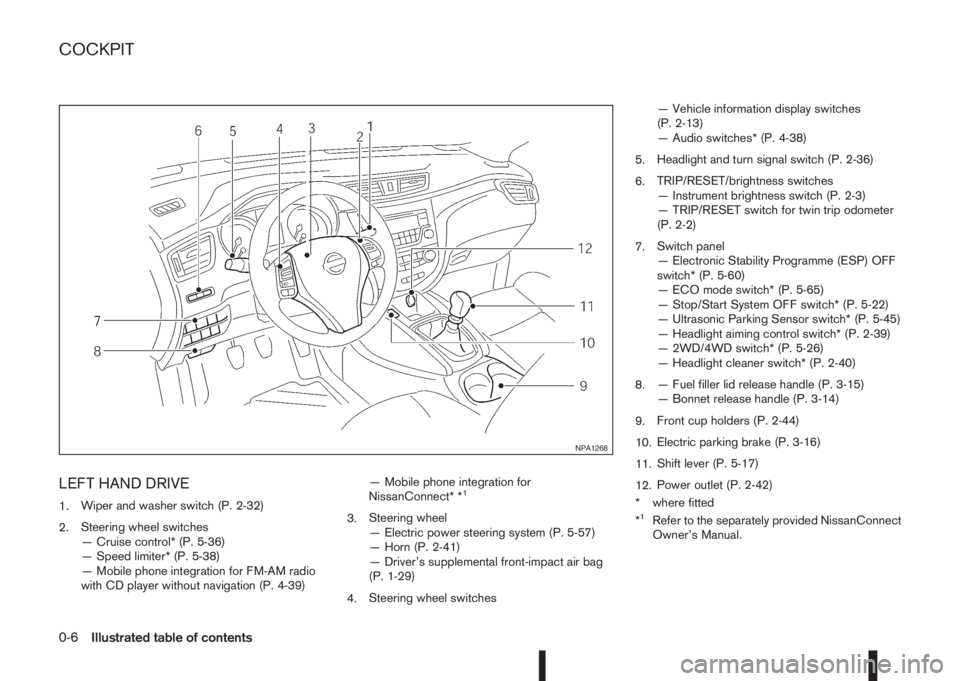
LEFT HAND DRIVE
1.Wiper and washer switch (P. 2-32)
2.Steering wheel switches
— Cruise control* (P. 5-36)
— Speed limiter* (P. 5-38)
— Mobile phone integration for FM-AM radio
with CD player without navigation (P. 4-39)— Mobile phone integration for
NissanConnect* *1
3.Steering wheel
— Electric power steering system (P. 5-57)
— Horn (P. 2-41)
— Driver’s supplemental front-impact air bag
(P. 1-29)
4.Steering wheel switches— Vehicle information display switches
(P. 2-13)
— Audio switches* (P. 4-38)
5.Headlight and turn signal switch (P. 2-36)
6.TRIP/RESET/brightness switches
— Instrument brightness switch (P. 2-3)
— TRIP/RESET switch for twin trip odometer
(P. 2-2)
7.Switch panel
— Electronic Stability Programme (ESP) OFF
switch* (P. 5-60)
— ECO mode switch* (P. 5-65)
— Stop/Start System OFF switch* (P. 5-22)
— Ultrasonic Parking Sensor switch* (P. 5-45)
— Headlight aiming control switch* (P. 2-39)
— 2WD/4WD switch* (P. 5-26)
— Headlight cleaner switch* (P. 2-40)
8.— Fuel filler lid release handle (P. 3-15)
— Bonnet release handle (P. 3-14)
9.Front cup holders (P. 2-44)
10.Electric parking brake (P. 3-16)
11.Shift lever (P. 5-17)
12.Power outlet (P. 2-42)
* where fitted
*1Refer to the separately provided NissanConnect
Owner’s Manual.
NPA1268
COCKPIT
0-6Illustrated table of contents
Page 13 of 338
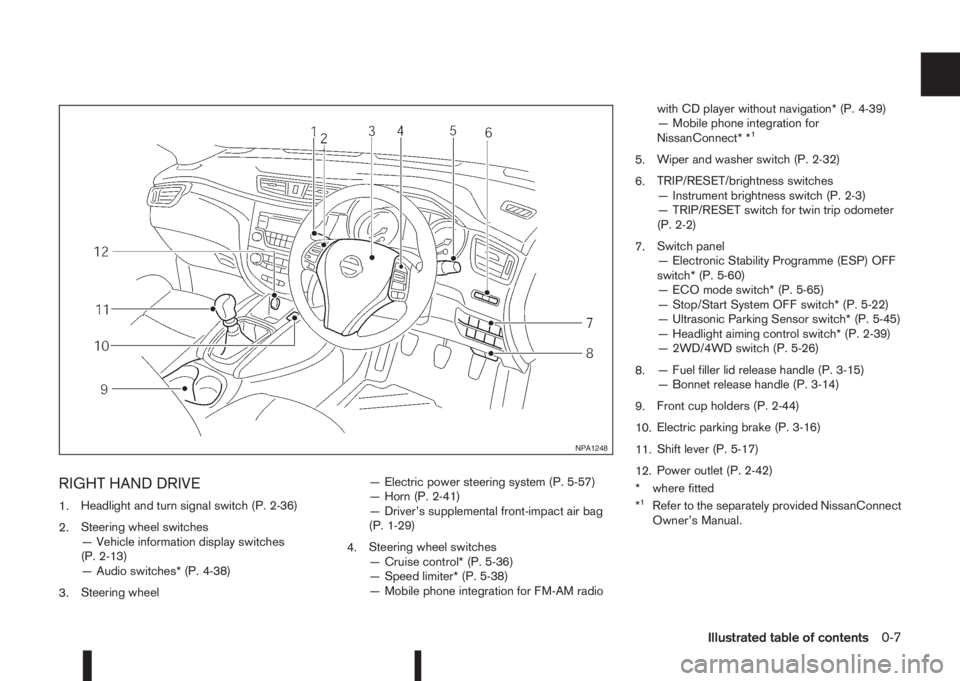
RIGHT HAND DRIVE
1.Headlight and turn signal switch (P. 2-36)
2.Steering wheel switches
— Vehicle information display switches
(P. 2-13)
— Audio switches* (P. 4-38)
3.Steering wheel— Electric power steering system (P. 5-57)
— Horn (P. 2-41)
— Driver’s supplemental front-impact air bag
(P. 1-29)
4.Steering wheel switches
— Cruise control* (P. 5-36)
— Speed limiter* (P. 5-38)
— Mobile phone integration for FM-AM radiowith CD player without navigation* (P. 4-39)
— Mobile phone integration for
NissanConnect* *
1
5.Wiper and washer switch (P. 2-32)
6.TRIP/RESET/brightness switches
— Instrument brightness switch (P. 2-3)
— TRIP/RESET switch for twin trip odometer
(P. 2-2)
7.Switch panel
— Electronic Stability Programme (ESP) OFF
switch* (P. 5-60)
— ECO mode switch* (P. 5-65)
— Stop/Start System OFF switch* (P. 5-22)
— Ultrasonic Parking Sensor switch* (P. 5-45)
— Headlight aiming control switch* (P. 2-39)
— 2WD/4WD switch (P. 5-26)
8.— Fuel filler lid release handle (P. 3-15)
— Bonnet release handle (P. 3-14)
9.Front cup holders (P. 2-44)
10.Electric parking brake (P. 3-16)
11.Shift lever (P. 5-17)
12.Power outlet (P. 2-42)
* where fitted
*
1Refer to the separately provided NissanConnect
Owner’s Manual.
NPA1248
Illustrated table of contents0-7
Page 14 of 338
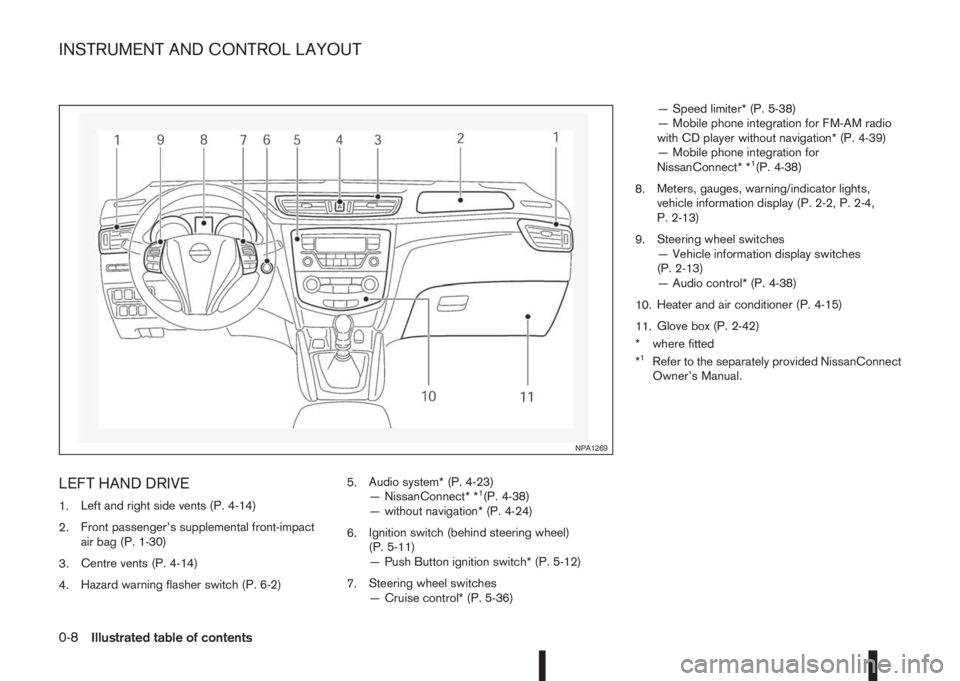
LEFT HAND DRIVE
1.Left and right side vents (P. 4-14)
2.Front passenger’s supplemental front-impact
air bag (P. 1-30)
3.Centre vents (P. 4-14)
4.Hazard warning flasher switch (P. 6-2)5.Audio system* (P. 4-23)
— NissanConnect* *1(P. 4-38)
— without navigation* (P. 4-24)
6.Ignition switch (behind steering wheel)
(P. 5-11)
— Push Button ignition switch* (P. 5-12)
7.Steering wheel switches
— Cruise control* (P. 5-36)— Speed limiter* (P. 5-38)
— Mobile phone integration for FM-AM radio
with CD player without navigation* (P. 4-39)
— Mobile phone integration for
NissanConnect* *
1(P. 4-38)
8.Meters, gauges, warning/indicator lights,
vehicle information display (P. 2-2, P. 2-4,
P. 2-13)
9.Steering wheel switches
— Vehicle information display switches
(P. 2-13)
— Audio control* (P. 4-38)
10.Heater and air conditioner (P. 4-15)
11.Glove box (P. 2-42)
* where fitted
*
1Refer to the separately provided NissanConnect
Owner’s Manual.
NPA1269
INSTRUMENT AND CONTROL LAYOUT
0-8Illustrated table of contents
Page 15 of 338
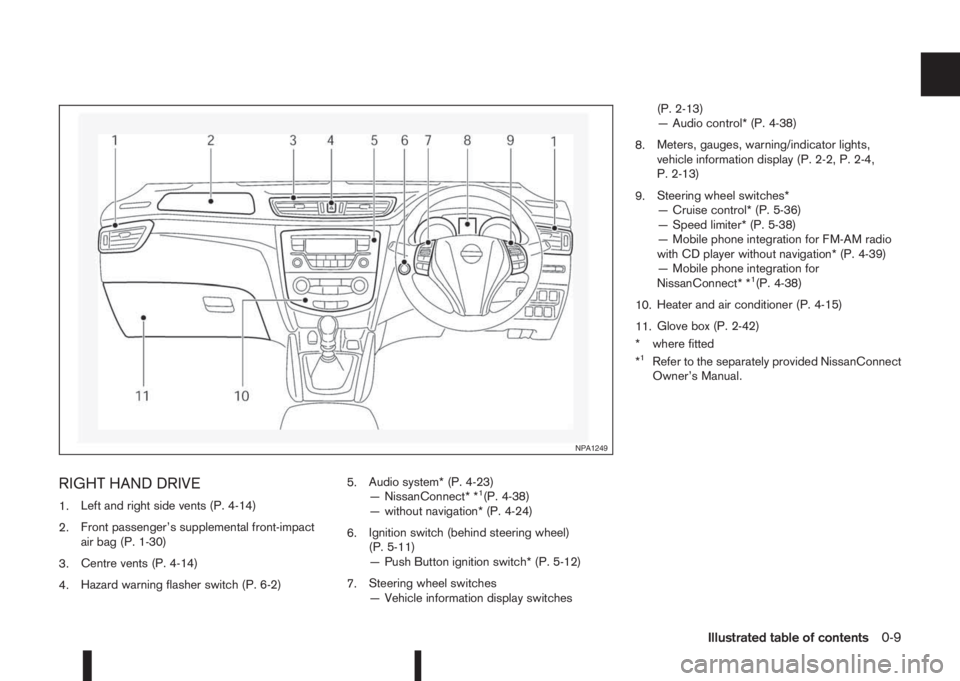
RIGHT HAND DRIVE
1.Left and right side vents (P. 4-14)
2.Front passenger’s supplemental front-impact
air bag (P. 1-30)
3.Centre vents (P. 4-14)
4.Hazard warning flasher switch (P. 6-2)5.Audio system* (P. 4-23)
— NissanConnect* *1(P. 4-38)
— without navigation* (P. 4-24)
6.Ignition switch (behind steering wheel)
(P. 5-11)
— Push Button ignition switch* (P. 5-12)
7.Steering wheel switches
— Vehicle information display switches(P. 2-13)
— Audio control* (P. 4-38)
8.Meters, gauges, warning/indicator lights,
vehicle information display (P. 2-2, P. 2-4,
P. 2-13)
9.Steering wheel switches*
— Cruise control* (P. 5-36)
— Speed limiter* (P. 5-38)
— Mobile phone integration for FM-AM radio
with CD player without navigation* (P. 4-39)
— Mobile phone integration for
NissanConnect* *
1(P. 4-38)
10.Heater and air conditioner (P. 4-15)
11.Glove box (P. 2-42)
* where fitted
*
1Refer to the separately provided NissanConnect
Owner’s Manual.
NPA1249
Illustrated table of contents0-9
Page 76 of 338
![NISSAN QASHQAI 2016 Owner´s Manual NOTE
Diesel models with diesel engines make use of
an Oil Condition Supervisor (OCS) function.
Petrol engines have a basic service reminder.
1. Use the
orbuttons to select [Settings], and
press ENTER.](/img/5/40324/w960_40324-75.png "NISSAN QASHQAI 2016 Owner´s Manual NOTE
Diesel models with diesel engines make use of
an Oil Condition Supervisor (OCS) function.
Petrol engines have a basic service reminder.
1. Use the
orbuttons to select [Settings], and
press ENTER.")
NOTE
Diesel models with diesel engines make use of
an Oil Condition Supervisor (OCS) function.
Petrol engines have a basic service reminder.
1. Use the
orbuttons to select [Settings], and
press ENTER.
2. Select [Maintenance], followed by [Service] us-
ing the
orand ENTER switches. In the
[Service] menu, use theorbuttons to navi-
gate between the menu options and press
ENTER to set or reset the distance for changing
the engine oil.
3. (Diesel models only) Select [Maintenance], fol-
lowed by [Filter] using the
orand ENTER
switches. In the [Filter] menu, use theorbuttons to navigate between the menu options
and press ENTER to set or reset the distance for
draining the diesel fuel filter.
For scheduled maintenance items and intervals, see
your NISSAN Service and Maintenance Guide.
2. Tyre replacement indicator:
This indicator appears when the customer set dis-
tance comes for replacing tyres. You can set or
reset the distance for replacing tyres.
1. Use the
orbuttons to select [Settings], and
press ENTER.
2. Select [Maintenance], followed by [Tyre] using
the
orand ENTER switches. In the [Tyre]menu, use the
orbuttons to navigate be-
tween the menu options and press ENTER to set
or reset the distance for replacing tyres.
WARNING
The tyre replacement indicator is not a substitute
for regular tyre checks, including tyre pressure
checks. See “Wheels and tyres” in the “8. Main-
tenance and do-it-yourself” section. Many factors
including tyre inflation, alignment, driving habits
and road conditions affect tyre wear and when
tyres should be replaced. Setting the tyre re-
placement indicator for a certain driving distance
does not mean your tyres will last that long. Use
the tyre replacement indicator as a guide only
and always perform regular tyre checks. Failure
to perform regular tyre checks, including tyre
pressure checks could result in tyre failure. Seri-
ous vehicle damage could occur and may lead to
a collision, which could result in serious personal
injury or death.
3. Other indicator:
This indicator appears when the customer set time
comes for replacing items other than the engine oil,
fuel filter and tyres. You can set or reset the dis-
tance for replacing the items.
[Alert]
You can specify that an alert occurs to notify the
driver that a certain event has occurred. You can set
alerts for the following items:
•[Timer]
•[Navigation] (where fitted)
•[Phone]
•[Mail] (where fitted)
To set an alert:
1. Use the
orbuttons to select the item re-
quired, and press ENTER.
2. For [Phone], [Navigation] or [Mail] use the
ENTER button to toggle between YES and NO.
For the [Timer], to change the timer value, use
the
orbuttons and the ENTER button to
save the selected length of time.
[Tyre pressures]
The settings in the Tyre pressures] menu are all
related to the Tyre pressure monitoring system
TPMS (see “Tyre Pressure Monitoring System
(TPMS)” in the “5. Starting and driving” section).
•[Target front]
•[Target rear]
•[Tyre pressure unit]
•[Calibrate]
[Target front]:
The [target front] tyre pressure is the pressure speci-
fied for the front tyres on the tyre placard (see “Tyre
placard” in the “9. Technical information” section
and “Tyre Pressure Monitoring System (TPMS)” in
the “5. Starting and driving” section).
2-18Instruments and controls
Page 118 of 338
![NISSAN QASHQAI 2016 Owner´s Manual Convenience mode:
Push the door/back door request button.
– All doors and the back door will be unlocked.
– The direction indicators flash twice.
– The message [All door unlock] appears in the
v](/img/5/40324/w960_40324-117.png "NISSAN QASHQAI 2016 Owner´s Manual Convenience mode:
Push the door/back door request button.
– All doors and the back door will be unlocked.
– The direction indicators flash twice.
– The message [All door unlock] appears in the
v")
Convenience mode:
Push the door/back door request button.
– All doors and the back door will be unlocked.
– The direction indicators flash twice.
– The message [All door unlock] appears in the
vehicle information display.
Anti-hijack mode (where fitted):
1. Push the door/back door request button.
– The corresponding door unlocks.
– The direction indicators flash twice quickly.
2. Push the request button again within 5 seconds.
– All the doors and the back door will be unlocked.
– The direction indicators flash twice.
NOTE
•External interference may impair the Intelli-
gent Key’s operation. In this case, use the
emergency key located in the Intelligent Key
integrated keyfob. See “Door locks” later in
this section for further details.
•If the vehicle is unlocked and no doors are
opened for 2 minutes the doors will automati-
cally be locked.
CAUTION
•Make sure the Intelligent Key battery is in good
condition. Note that battery life may vary de-
pending on condition, amount of use, ambi-
ent temperature, etc.
•The Intelligent Key contains a miniature radio
transmitter that may be affected when placed
near metal objects.
•Keep the Intelligent Key away from mobile
phones, laptop computers and other metal
objects or electronics.
STARTING THE ENGINE WITH THE
INTELLIGENT KEY
See “Push-button ignition switch (where fitted)” in
the “5. Starting and driving” section.
CAUTION
•Make sure you carry the Intelligent Key with
you when starting and driving the vehicle.
•If the Intelligent Key is too far away from the
passenger compartment, the vehicle may not
start. See “Intelligent Key operating range” in
the “3. Pre-driving checks and adjustments”
section
SUPER LOCK SYSTEM (RHD models)
WARNING
Super Lock system equipped models:
Failure to follow the precautions below may lead
to hazardous situations. Make sure the Super
Lock system activation is always conducted
safely.
•When the vehicle is occupied, never lock the
doors with the integrated keyfob. Doing so
will trap the occupants, since the Super Lock
system prevents the doors from being opened
from the inside of the vehicle.
•Only operate the integrated keyfob “LOCK”
button when there is a clear view of the ve-
hicle. This is to prevent anybody from being
trapped inside the vehicle through the Super
Lock system activation.
Pressing the “LOCK” button (
) on the integrated
keyfob or locking the doors using one of the request
buttons (Intelligent Key models) will activate the Su-
per Lock system.
When the Super Lock system is active, none of the
doors can be opened from inside the vehicle. This
provides additional security in case of theft or break-
in.
The Super Lock system will be released when all
the doors are unlocked using the integrated keyfob
or a request button (Intelligent Key models).
DOOR LOCKS
3-8Pre-driving checks and adjustments
Page 131 of 338
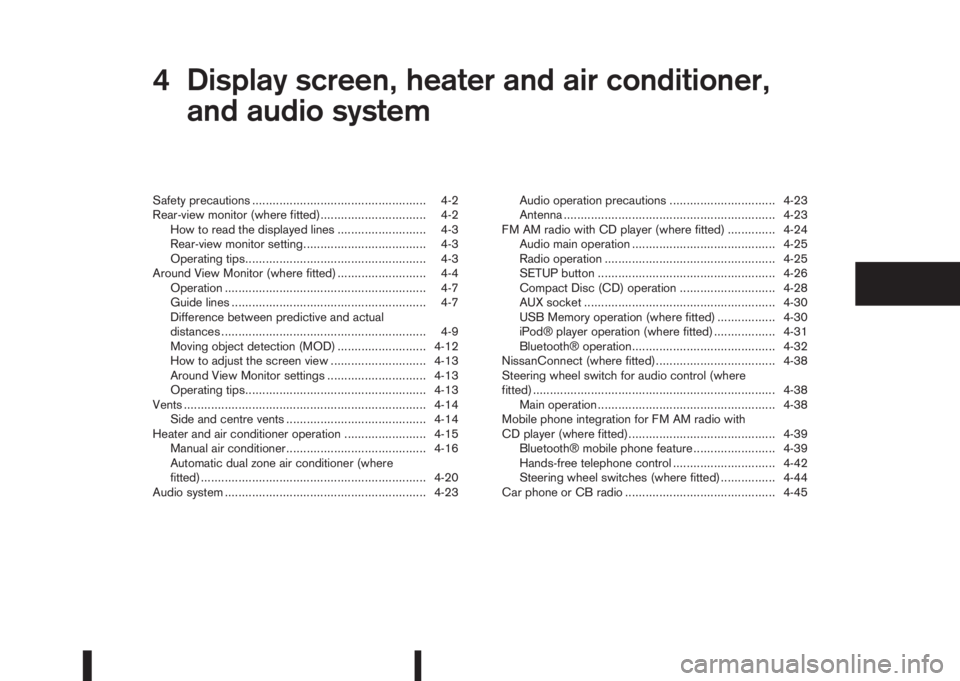
4Display screen, heater and air conditioner,
and audio systemDisplay screen, heater and air conditioner,
and audio system
Safety precautions ................................................... 4-2
Rear-view monitor (where fitted)............................... 4-2
How to read the displayed lines .......................... 4-3
Rear-view monitor setting.................................... 4-3
Operating tips..................................................... 4-3
Around View Monitor (where fitted) .......................... 4-4
Operation ........................................................... 4-7
Guide lines ......................................................... 4-7
Difference between predictive and actual
distances ............................................................ 4-9
Moving object detection (MOD) .......................... 4-12
How to adjust the screen view ............................ 4-13
Around View Monitor settings ............................. 4-13
Operating tips..................................................... 4-13
Vents ....................................................................... 4-14
Side and centre vents ......................................... 4-14
Heater and air conditioner operation ........................ 4-15
Manual air conditioner......................................... 4-16
Automatic dual zone air conditioner (where
fitted).................................................................. 4-20
Audio system ........................................................... 4-23Audio operation precautions ............................... 4-23
Antenna .............................................................. 4-23
FM AM radio with CD player (where fitted) .............. 4-24
Audio main operation .......................................... 4-25
Radio operation .................................................. 4-25
SETUP button .................................................... 4-26
Compact Disc (CD) operation ............................ 4-28
AUX socket ........................................................ 4-30
USB Memory operation (where fitted) ................. 4-30
iPod® player operation (where fitted) .................. 4-31
Bluetooth® operation.......................................... 4-32
NissanConnect (where fitted)................................... 4-38
Steering wheel switch for audio control (where
fitted) ....................................................................... 4-38
Main operation .................................................... 4-38
Mobile phone integration for FM AM radio with
CD player (where fitted)........................................... 4-39
Bluetooth® mobile phone feature ........................ 4-39
Hands-free telephone control .............................. 4-42
Steering wheel switches (where fitted)................ 4-44
Car phone or CB radio ............................................ 4-45
Page 153 of 338
WARNING
Do not adjust the audio system while driving.
The audio system operates when the ignition switch
is in the Acc or ON position. If you want to listen to
the radio or CD while the engine is not running, turn
the ignition switch to the Acc position.Do not use
for an extended period of time with the engine
stopped.
AUDIO OPERATION PRECAUTIONS
NOTE
Models with NissanConnect system, see the au-
dio operation precautions in the separately pro-
vided NissanConnect Owner’s Manual.
Radio
•Radio reception is affected by station signal
strength, distance from radio transmitter, build-
ings, bridges, mountains and other external influ-
ences. Intermittent changes in reception quality
are normally caused by these external influences.
•Using a mobile phone in or near the vehicle may
influence radio reception quality.
•Use the antenna for the best reception.
Compact Disc (CD) player
•During cold weather or rainy days, the player
may malfunction due to the humidity. If this
occurs, remove the CD and dehumidify or
ventilate the player completely.
•The player may skip while driving on rough
roads.
•Occasionally, the CD player may not function
when the compartment temperature is ex-
tremely high. Decrease the temperature be-
fore use.
•Do not expose the CD to direct sunlight.
•CDs that are of poor quality, dirty, scratched,
covered with finger prints, or that have pin
holes may not work properly.
•The following CDs may not work properly.
•Copy control compact discs (CCCD)
•Recordable compact discs (CD-R)
•Rewritable compact discs (CD-RW)
•Do not use the following CDs as they may
cause the CD player to malfunction.
•8 cm (3.1 in) discs with an adaptor
•CDs that are not round
•CDs with a paper label
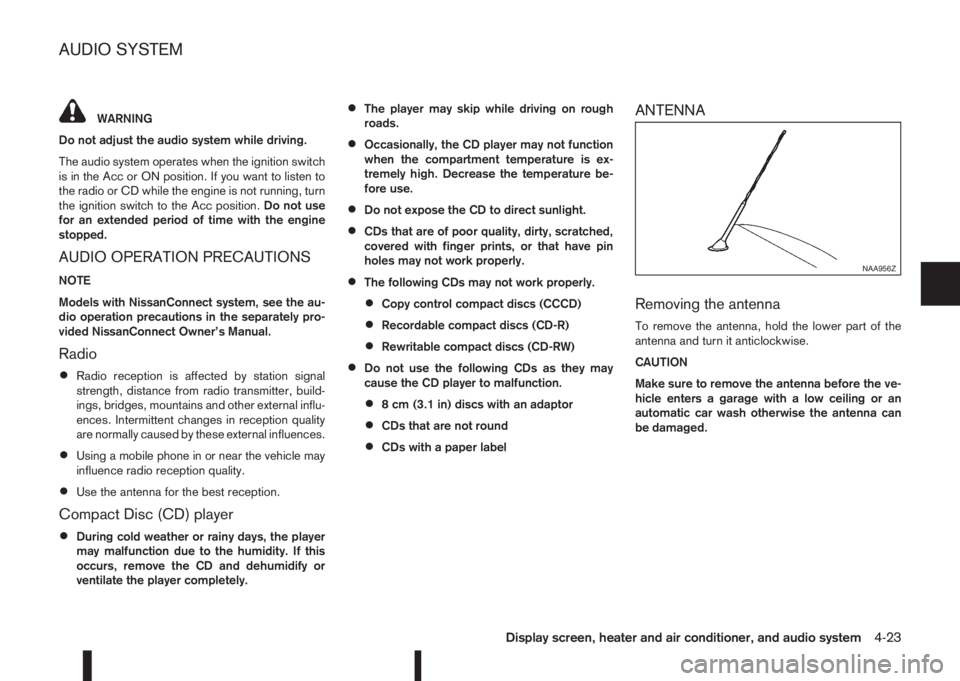
ANTENNA
Removing the antenna
To remove the antenna, hold the lower part of the
antenna and turn it anticlockwise.
CAUTION
Make sure to remove the antenna before the ve-
hicle enters a garage with a low ceiling or an
automatic car wash otherwise the antenna can
be damaged.
NAA956Z
AUDIO SYSTEM
Display screen, heater and air conditioner, and audio system4-23
Page 154 of 338
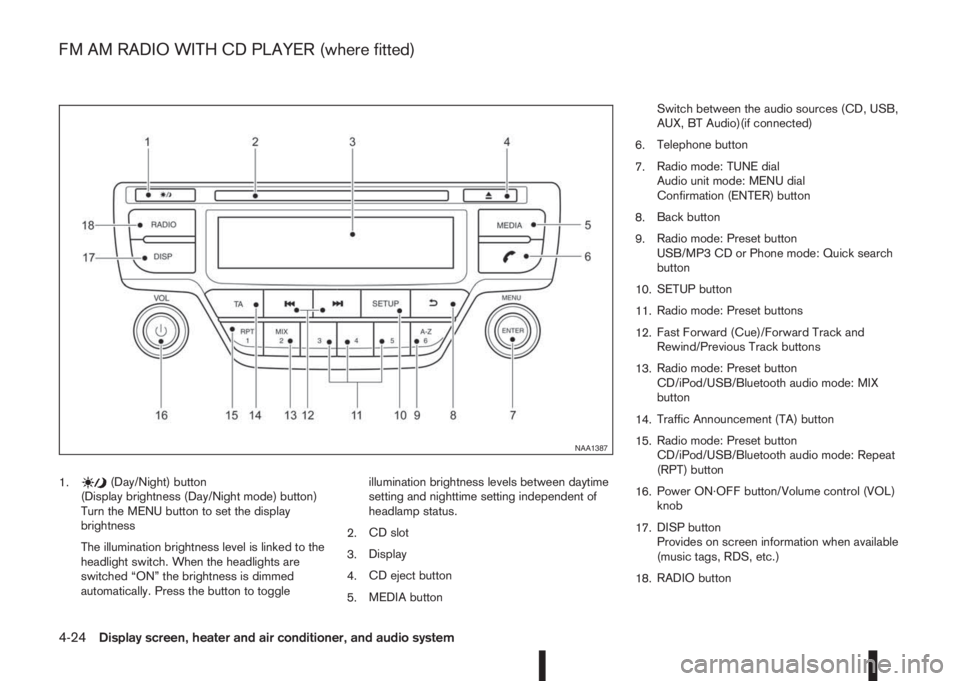
1.(Day/Night) button
(Display brightness (Day/Night mode) button)
Turn the MENU button to set the display
brightness
The illumination brightness level is linked to the
headlight switch. When the headlights are
switched “ON” the brightness is dimmed
automatically. Press the button to toggleillumination brightness levels between daytime
setting and nighttime setting independent of
headlamp status.
2.CD slot
3.Display
4.CD eject button
5.MEDIA buttonSwitch between the audio sources (CD, USB,
AUX, BT Audio)(if connected)
6.Telephone button
7.Radio mode: TUNE dial
Audio unit mode: MENU dial
Confirmation (ENTER) button
8.Back button
9.Radio mode: Preset button
USB/MP3 CD or Phone mode: Quick search
button
10.SETUP button
11.Radio mode: Preset buttons
12.Fast Forward (Cue)/Forward Track and
Rewind/Previous Track buttons
13.Radio mode: Preset button
CD/iPod/USB/Bluetooth audio mode: MIX
button
14.Traffic Announcement (TA) button
15.Radio mode: Preset button
CD/iPod/USB/Bluetooth audio mode: Repeat
(RPT) button
16.Power ON·OFF button/Volume control (VOL)
knob
17.DISP button
Provides on screen information when available
(music tags, RDS, etc.)
18.RADIO button
NAA1387
FM AM RADIO WITH CD PLAYER (where fitted)
4-24Display screen, heater and air conditioner, and audio system
Page 161 of 338
![NISSAN QASHQAI 2016 Owner´s Manual is no match (the display shows [No match] the next
item will be shown. Select, and press<ENTER>to
play the preferred track.
buttonj5
While a track with recorded music information tags
(ID3–tags) is](/img/5/40324/w960_40324-160.png "NISSAN QASHQAI 2016 Owner´s Manual is no match (the display shows [No match] the next
item will be shown. Select, and press<ENTER>to
play the preferred track.
buttonj5
While a track with recorded music information tags
(ID3–tags) is")
is no match (the display shows [No match] the next
item will be shown. Select, and press
play the preferred track.
buttonj5
While a track with recorded music information tags
(ID3–tags) is being played, the title of the played
track is displayed. If the tags are not provided then
a notification message is displayed.
When the
j5 button is pressed repeatedly,
further information about the track can be displayed
along with the track title as follows:
Track time→Artist name→Album title→Track
time
Track details:
A long press on the
j5 button will turn the
display into a detailed overview and after a few sec-
onds it returns to the main display, or press
j5 briefly.
iPod® PLAYER OPERATION
(where fitted)
Connecting iPod®
Open the console lid and connect the iPod cable to
the USB connector. The battery of the iPod® will be
charged during the connection to the vehicle. The
display will show the notification message [iPod
reading the data.
If the audio system has been turned off while the
iPod® was playing, pressing
will start the iPod®operation. During the connection, the iPod® can
only be operated with the audio controls.
* iPod® and iPhone® are trademarks of Apple Inc.,
registered in the U.S. and other countries.
CAUTION
•Do not force the iPod cable into the USB
port. Inserting the iPod cable tilted or up-
side- down into the port may damage the
iPod cable and the port. Make sure that the
iPod cable is connected correctly into the
USB port. (Some iPod cables come with a
mark as a guide. Make sure that the
mark is facing the correct direction before
inserting the iPod cable.)
•Do not locate objects near the iPod cable to
prevent the objects from leaning on the iPod
cable and the port. Pressure from the ob-
jects may damage the iPod cable and the
port.
Compatibility:
NOTE
•At the time of publication, this audio system
was tested with the latest iPod® players/iP-
hone® available. Due to the frequent update
of consumer devices like MP3 players,
NISSAN cannot guarantee that all new iPod®
players/iPhone® launched will be compatible
with this audio system.
•Some iPod® operations may not be available
with this system.
•Make sure that the iPod®/iPhone® is updated
with the latest firmware.
•iPod® Shuffle and iPod® mini cannot be used
with this system.
•Full functionality of iPhone USB and Bluetooth
Audio may not be available to the user if the
same device is connected by USB and Blue-
tooth simultaneously.
MEDIAbutton
To operate the iPod press
peatedly until [iPod
Audio main operation
Interface:
The interface for iPod® operation shown on the
audio system display is similar to the iPod® inter-
face. Use the