key NISSAN QASHQAI 2016 Owner´s Manual
[x] Cancel search | Manufacturer: NISSAN, Model Year: 2016, Model line: QASHQAI, Model: NISSAN QASHQAI 2016Pages: 338, PDF Size: 4.87 MB
Page 143 of 338
•The MOD system might detect flowing water
droplets on the camera lens, white smoke
from the exhaust, moving shadows, etc.
•The MOD system may not function properly
depending on the speed, direction, distance
or shape of the moving objects.
•If your vehicle sustains damage to the parts
where the camera is installed, leaving it mis-
aligned or bent, the sensing zone may be al-
tered and the MOD system may not detect
objects properly.
•When the temperature is extremely high or
low, the screen may not display objects
clearly. This is not a malfunction.
Camera maintenance
If dirt, rain or snow accumulates on the camera, the
MOD system may not operate properly. Clean the
camera.
HOW TO ADJUST THE SCREEN
VIEW
To adjust the display brightness of the Around View
Monitor, use the settings described in the sepa-
rately provided NissanConnect owner’s manual.
Do not adjust the settings while the vehicle is mov-
ing. Make sure the parking brake is firmly applied.
AROUND VIEW MONITOR SETTINGS
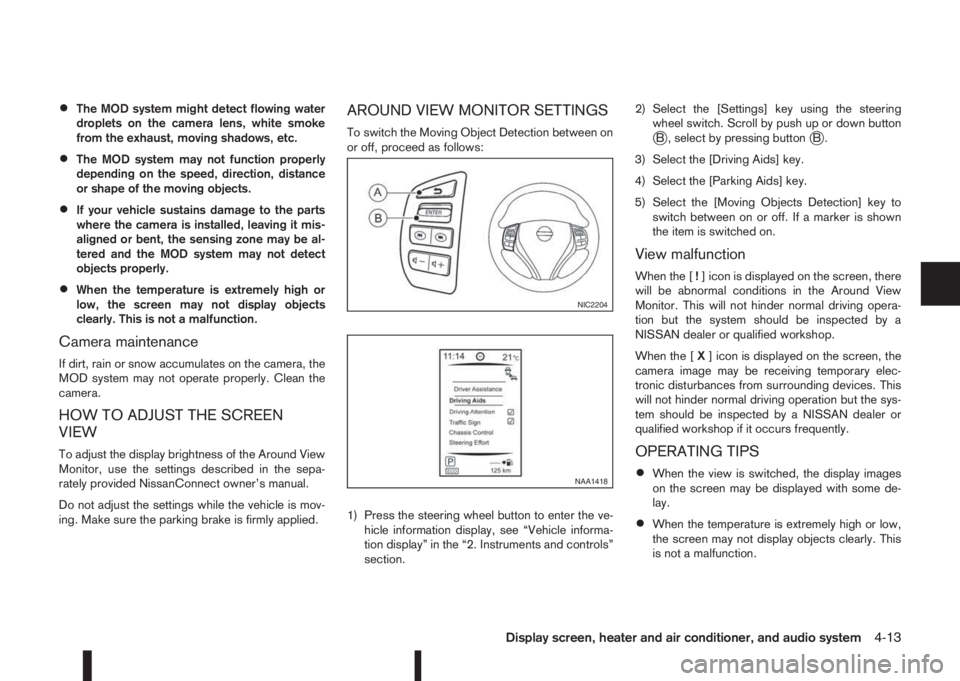
To switch the Moving Object Detection between on
or off, proceed as follows:
1) Press the steering wheel button to enter the ve-
hicle information display, see “Vehicle informa-
tion display” in the “2. Instruments and controls”
section.2) Select the [Settings] key using the steering
wheel switch. Scroll by push up or down buttonjB , select by pressing buttonjB.
3) Select the [Driving Aids] key.
4) Select the [Parking Aids] key.
5) Select the [Moving Objects Detection] key to
switch between on or off. If a marker is shown
the item is switched on.
View malfunction
When the [!] icon is displayed on the screen, there
will be abnormal conditions in the Around View
Monitor. This will not hinder normal driving opera-
tion but the system should be inspected by a
NISSAN dealer or qualified workshop.
When the [X] icon is displayed on the screen, the
camera image may be receiving temporary elec-
tronic disturbances from surrounding devices. This
will not hinder normal driving operation but the sys-
tem should be inspected by a NISSAN dealer or
qualified workshop if it occurs frequently.
OPERATING TIPS
•When the view is switched, the display images
on the screen may be displayed with some de-
lay.
•When the temperature is extremely high or low,
the screen may not display objects clearly. This
is not a malfunction.
NIC2204
NAA1418
Display screen, heater and air conditioner, and audio system4-13
Page 162 of 338
![NISSAN QASHQAI 2016 Owner´s Manual •[Composers]
•[Genre]
•[Podcasts]
For further information about each item, see the
iPod® owner’s manual.
The following operations are identical to the audio
main operation of the Compact Disc](/img/5/40324/w960_40324-161.png "NISSAN QASHQAI 2016 Owner´s Manual •[Composers]
•[Genre]
•[Podcasts]
For further information about each item, see the
iPod® owner’s manual.
The following operations are identical to the audio
main operation of the Compact Disc")
•[Composers]
•[Genre]
•[Podcasts]
For further information about each item, see the
iPod® owner’s manual.
The following operations are identical to the audio
main operation of the Compact Disc (CD) opera-
tion. For details, see “Audio main operation” earlier
in this section.
•List view
•,
•MIX (Random play)
•RPT (Repeat track)
•Folder browsing
mbuttonj5
While a track with recorded music information tags
(ID3–tags) is being played, the title of the played
track is displayed. If the tags are not provided then
a notification message is displayed.
When the
j5 button is pressed repeatedly,
further information about the track can be displayed
along with the track title as follows:
Track time→Artist name→Album title→Track
timeTrack details:
A long press on the
j5 button, the screen
displays the song title, artist name, and album title.
After a few seconds it returns to the main display or
press
j5 briefly.
BLUETOOTH® OPERATION
Regulatory information
m
Bluetooth® is a trademark
owned by Bluetooth SIG, Inc.
CE statement
Hereby Yanfeng Visteon Automotive Electronics
Co., Ltd. declares that this system is in compliance
with the essential requirements and other relevant
provisions of Directive 1999/5/EC.
m
NOTE
The audio system only supports Bluetooth® de-
vices with AVRCP (Audio Video Remote Control
Profile) version 1.4 or earlier.
BLUETOOTH® settings
To pair a device, make sure the Bluetooth is
switched on and use the [Scan device] key or the
[Pair device] key For details, see “[Scan devices]”
later in this section.
Up to 5 different Bluetooth devices can be con-
nected. However, only one device can be used at a
time. If 5 different Bluetooth registered devices are
registered, a new device can only replace one of the
5 existing paired devices. Use [Del. device] key to
delete one of the existing paired devices. For de-
tails, see “[Del. device]” later in this section.
When successfully paired a notification message
will be displayed, then the audio system display will
return to the current audio source display. During
connection the following status icons will be dis-
played (top left of the display): Signal strength
(
), Battery status* () and Bluetooth “ON”
().
*: If the low battery message comes on, the Blue-
tooth® device must be recharged soon.
NAA1392*: a device with bluetooth capabilities
4-32Display screen, heater and air conditioner, and audio system
Page 163 of 338
The pairing procedure and operation may vary ac-
cording to device type and compatibility. See the
Bluetooth® owner’s manual for further details.
NOTE
•For device details, see your audio/mobile
phone Owner’s Manual.
•For assistance with the Bluetooth® audio/
mobile phone integration, please visit your lo-
cal NISSAN dealer.
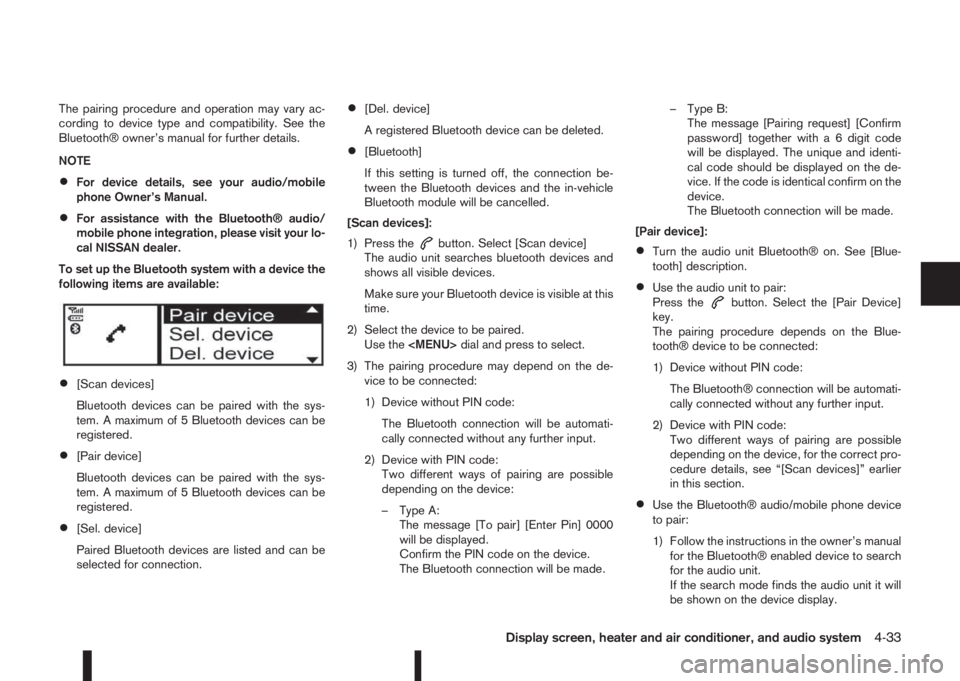
To set up the Bluetooth system with a device the
following items are available:
•[Scan devices]
Bluetooth devices can be paired with the sys-
tem. A maximum of 5 Bluetooth devices can be
registered.
•[Pair device]
Bluetooth devices can be paired with the sys-
tem. A maximum of 5 Bluetooth devices can be
registered.
•[Sel. device]
Paired Bluetooth devices are listed and can be
selected for connection.
•[Del. device]
A registered Bluetooth device can be deleted.
•[Bluetooth]
If this setting is turned off, the connection be-
tween the Bluetooth devices and the in-vehicle
Bluetooth module will be cancelled.
[Scan devices]:
1) Press the
button. Select [Scan device]
The audio unit searches bluetooth devices and
shows all visible devices.
Make sure your Bluetooth device is visible at this
time.
2) Select the device to be paired.
Use the
Page 164 of 338
![NISSAN QASHQAI 2016 Owner´s Manual 2) Select the audio unit shown as [My Car].
3) Follow the instructions in the owner’s manual
for the Bluetooth® enabled device to estab-
lish a connection with the audio unit.
4) Enter the PIN code](/img/5/40324/w960_40324-163.png "NISSAN QASHQAI 2016 Owner´s Manual 2) Select the audio unit shown as [My Car].
3) Follow the instructions in the owner’s manual
for the Bluetooth® enabled device to estab-
lish a connection with the audio unit.
4) Enter the PIN code")
2) Select the audio unit shown as [My Car].
3) Follow the instructions in the owner’s manual
for the Bluetooth® enabled device to estab-
lish a connection with the audio unit.
4) Enter the PIN code shown on the relevant
device with the device’s own keypad, and
press the confirmation key on the device it-
self.
Refer to the relevant Bluetooth® device own-
er’s manual for further details.
[Sel. device]:
The paired device list shows which Bluetooth® au-
dio or mobile phone devices have been paired or
registered with the Bluetooth® audio system. If the
list contains devices then select the appropriate de-
vice to connect to the Bluetooth® audio system.
The following symbols (where fitted) indicate the
capability of the registered device:
•: Mobile phone integration
•: Audio streaming (A2DP – Advanced Audio
Distribution Profile)
[Del. device]:
A registered device can be removed from the Blue-
tooth audio system. Select a registered device then
press
[Bluetooth]:
If Bluetooth® has been switched off a notification
message [ON/OFF] appears when you select [Blue-
tooth] from the phone menu (press
). To switchthe Bluetooth® signal on, press
follow up screen will appear. Then select [ON] and
press
menu screen.
Bluetooth®audio streaming main
operation
Turn the ignition switch to the Acc or ON position.
If the audio system was turned off while the Blue-
tooth® audio was playing, pressing the<
> but-
ton will start the Bluetooth® audio streaming.
MEDIA button:
To operate the Bluetooth® audio streaming use the
following method:
•Press
shown.
The type of display,
jAorjB , shown on the audio
system can vary depending on the Bluetooth® ver-
sion of the device.
Fast Forward (Cue), Fast
Reverse (Review) buttons:
When the
(Cue) or(Review) button is
pressed continuously, the track will be played at
high speed. When the button is released, the track
will be played at normal playing speed.
Track up/down buttons:
Pressing the
orbutton once, the track will
be skipped forward to the next track or backward to
the beginning of the current played track. Press the
orbutton more than once to skip through
the tracks.
mbutton
If the song contains music information tags (ID3–
tags), the title of the played song will be displayed.
If tags are not provided then the display will not
show any messages.
When the
button is pressed repeatedly fur-
ther information about the song can be displayed
along with the song title.
A long press on
will turn the display into a
detailed overview which after a few seconds returns
to the main display; or press
briefly.
NAA1203
4-34Display screen, heater and air conditioner, and audio system
Page 170 of 338
In order to use your mobile phone with the Blue-
tooth®of the audio system, the mobile phone must
first be setup. For details, see “BLUETOOTH®
settings” later in this section. Once it has been
setup, the hands-free mode is automatically acti-
vated on the registered mobile phone (via Blue-
tooth
®) when it comes into range.
A notification message appears on the audio display
when the phone is connected, when an incoming
call is being received, as well as when a call is initi-
ated.
When a call is active, the audio system, microphone
(located in the ceiling in front of the rear view mir-
ror), and steering wheel switches enable hands-free
communication.
If the audio system is in use at the time, the radio,
CD, iPod, USB audio, Bluetooth audio or AUX
source mode will be muted and will stay muted until
the active call has ended.
The Bluetooth
®system may not be able to connect
with your mobile phone for the following reasons:
•The mobile phone is too far away from the ve-
hicle.
•The Bluetooth®mode on your mobile phone has
not been activated.
•Your mobile phone has not been paired with the
Bluetooth®system of the audio unit.
•The mobile phone does not support Bluetooth®
technology (BT Core v2.0).NOTE
•For models with NissanConnect (Audio with
Navigation system) see the separately pro-
vided Owner’s Manual.
•For details, see your mobile phone’s Owner’s
Manual.
•For assistance with your mobile phone inte-
gration, please visit your local NISSAN dealer.
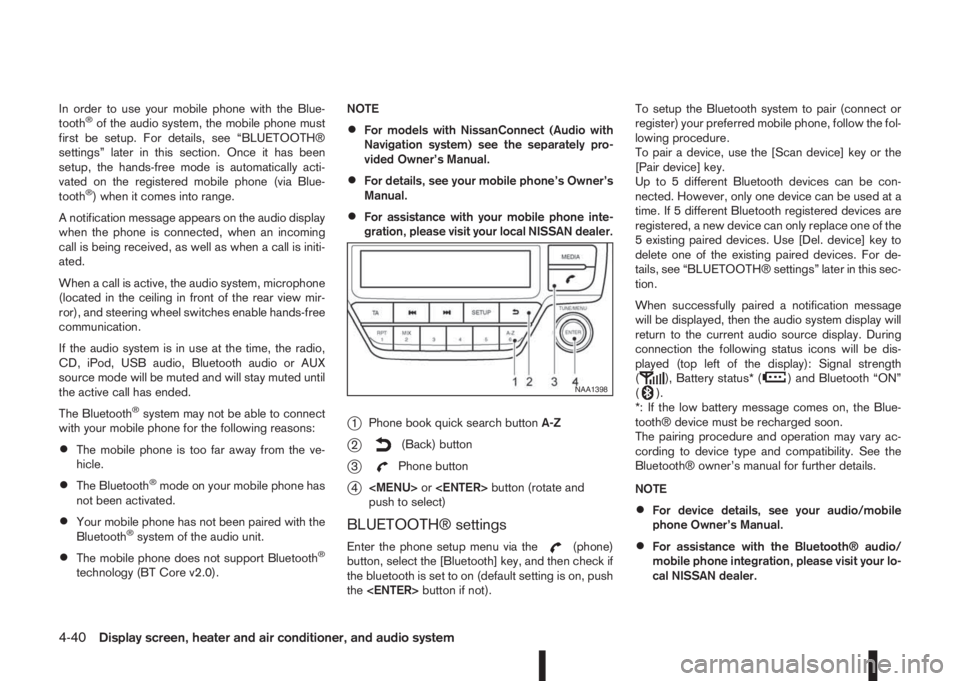
j1Phone book quick search buttonA-Z
j2(Back) button
j3Phone button
j4
Page 171 of 338
![NISSAN QASHQAI 2016 Owner´s Manual •A maximum of 5 Bluetooth devices can be
paired with the system.
To set up the Bluetooth system with a device the
following items are available:
•[Scan device]
Shows all available visible Bluetoot](/img/5/40324/w960_40324-170.png "NISSAN QASHQAI 2016 Owner´s Manual •A maximum of 5 Bluetooth devices can be
paired with the system.
To set up the Bluetooth system with a device the
following items are available:
•[Scan device]
Shows all available visible Bluetoot")
•A maximum of 5 Bluetooth devices can be
paired with the system.
To set up the Bluetooth system with a device the
following items are available:
•[Scan device]
Shows all available visible Bluetooth devices and
initializes Bluetooth connection from the audio
unit.
•[Pair device]
Initializes Bluetooth connection from the mobile
device.
•[Sel. device]
Paired Bluetooth devices are listed and can be
selected for connection.
•[Del. device]
A registered Bluetooth device can be deleted.
•[Bluetooth]
If this setting is turned off, the connection be-
tween the Bluetooth devices and the in-vehicle
Bluetooth module will be cancelled.[Scan devices]:
1) Press the
button. Select [Scan device]
The audio unit searches bluetooth devices and
shows all visible devices.
Pressing the
button cancels the search.
2) Select the device to be paired.
Use the
Page 173 of 338
– Using call history (Call List menu)
•Dialled
•Received
•Missed
Making a call from the phone book:
Once the Bluetooth
®connection has been made,
between the registered mobile phone and the audio
system, phone book data will be transferred auto-
matically to the audio system. The transfer may take
a while before completion.
NOTE
Phone book data will be erased when:
•Switching to another registered mobile
phone.
•Mobile phone is disconnected.
•The registered mobile phone is deleted from
the audio system.
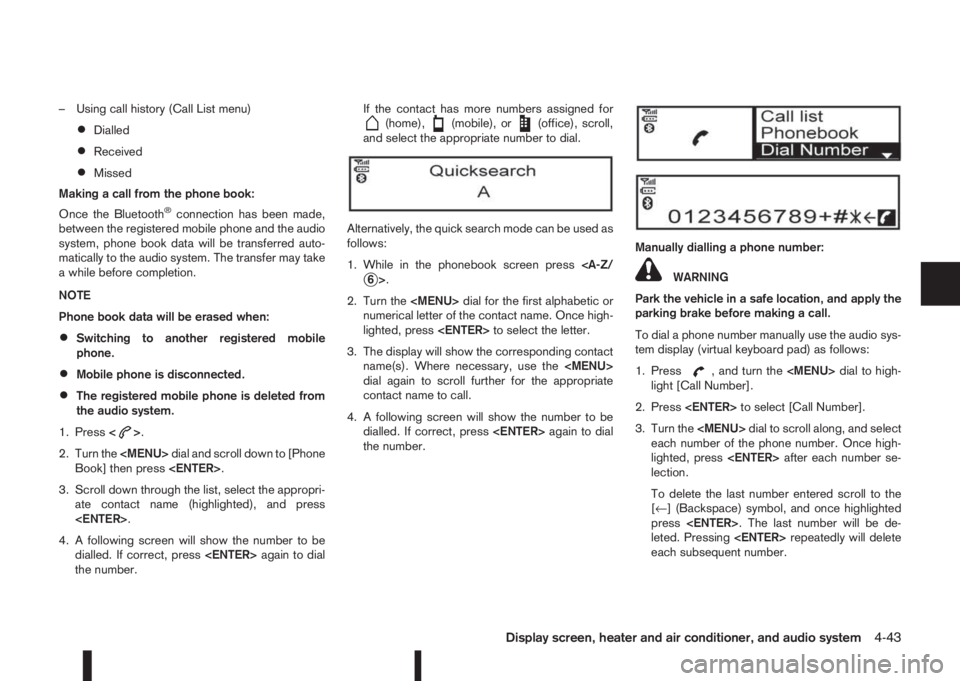
1. Press<
>.
2. Turn the
Page 174 of 338
4. After entering the last number, scroll to thesymbol, and press
number.
Redial:
To redial or call the last number dialled, press
for more than 2 seconds.
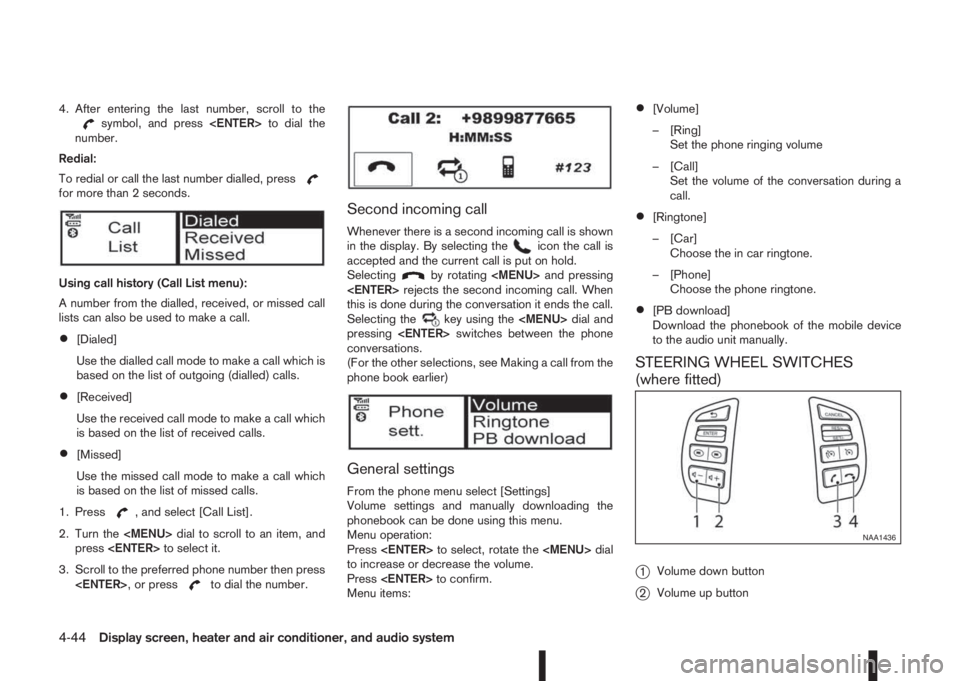
Using call history (Call List menu):
A number from the dialled, received, or missed call
lists can also be used to make a call.
•[Dialed]
Use the dialled call mode to make a call which is
based on the list of outgoing (dialled) calls.
•[Received]
Use the received call mode to make a call which
is based on the list of received calls.
•[Missed]
Use the missed call mode to make a call which
is based on the list of missed calls.
1. Press
, and select [Call List].
2. Turn the
Page 176 of 338
5Starting and drivingStarting and driving
Running-in schedule ................................................ 5-2
Before starting the engine ........................................ 5-2
Precautions when starting and driving ...................... 5-3
Exhaust gas (Carbon Monoxide) ......................... 5-3
Tyre Pressure Monitoring System (TPMS)................ 5-4
Meter information................................................ 5-7
Activation............................................................ 5-7
TPMS sensor ID and position recognition ........... 5-7
Adjusting TPMS target pressure ......................... 5-8
Tyre pressure units ............................................. 5-8
[Check cold tyre] message ................................. 5-8
TPMS temperature calibration............................. 5-8
On-pavement and off-road driving precautions ......... 5-9
Three-way catalyst (Petrol engine models)................ 5-9
To help prevent damage ..................................... 5-9
Turbocharger system (Diesel engine models) ........... 5-10
Care when driving ................................................... 5-10
Engine cold start period ...................................... 5-10
Loading luggage ................................................. 5-10
Driving on wet roads ........................................... 5-10
Driving under winter conditions ........................... 5-10
Ignition switch (where fitted) .................................... 5-11
Manual transmission ........................................... 5-11
XTRONIC transmission (CVT) ............................ 5-11
Steering lock ...................................................... 5-11
Key positions ...................................................... 5-11
NISSAN Anti-Theft System (NATS) (where
fitted).................................................................. 5-12
Push-button ignition switch (where fitted) ................. 5-12Precautions on push-button ignition switch
operation ............................................................ 5-12
Intelligent Key system ......................................... 5-12
Ignition switch positions ...................................... 5-13
Emergency engine shut off.................................. 5-14
Steering lock ...................................................... 5-14
Intelligent Key battery discharge.......................... 5-14
Starting engine ........................................................ 5-15
Models with Intelligent Key system ...................... 5-15
Models without Intelligent Key system ................. 5-16
Driving the vehicle.................................................... 5-17
Driving with manual transmission......................... 5-17
Driving with XTRONIC Transmission (CVT) ........ 5-18
Stop/Start System (where fitted) .............................. 5-22
Normal operation ................................................ 5-22
Precautions ........................................................ 5-24
Stop/Start System OFF switch ........................... 5-25
Environmental savings ........................................ 5-25
Four-wheel Drive (4WD) (where fitted)..................... 5-26
4WD mode operations........................................ 5-27
4WD shift tips .................................................... 5-27
4WD Mode indicator lights ................................. 5-28
Driving four-wheel drive (4WD) safely ................. 5-28
Blind Spot Warning (BSW) system (where fitted)..... 5-30
BSW system operation ....................................... 5-30
BSW driving situations ....................................... 5-32
BSW temporary disabled status.......................... 5-32
BSW automatic deactivation ............................... 5-33
BSW malfunction ............................................... 5-33
BSW camera unit maintenance ........................... 5-33
Page 187 of 338
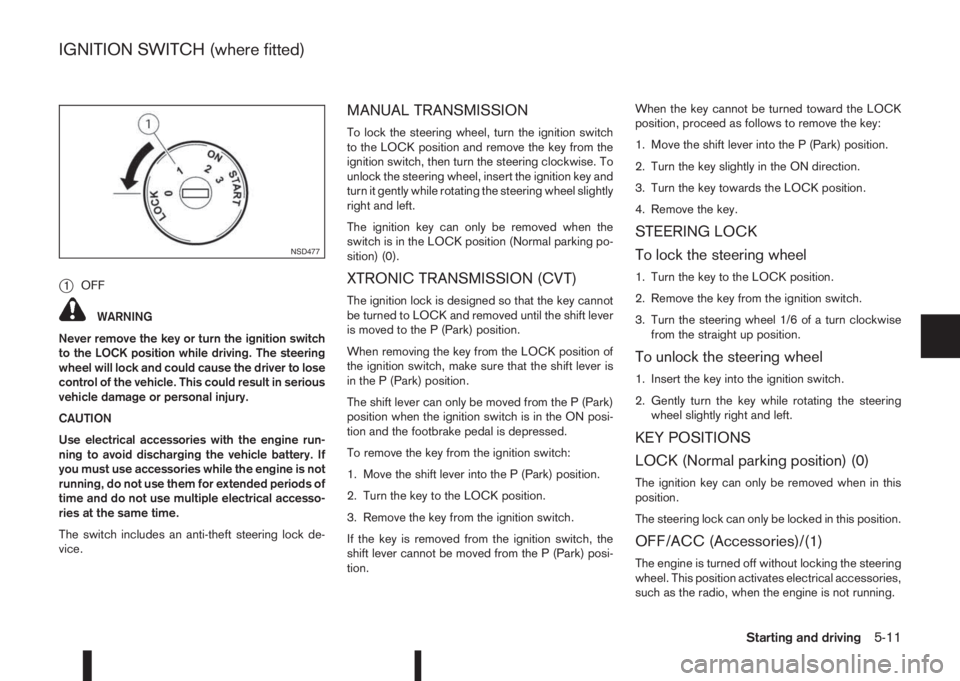
j1OFF
WARNING
Never remove the key or turn the ignition switch
to the LOCK position while driving. The steering
wheel will lock and could cause the driver to lose
control of the vehicle. This could result in serious
vehicle damage or personal injury.
CAUTION
Use electrical accessories with the engine run-
ning to avoid discharging the vehicle battery. If
you must use accessories while the engine is not
running, do not use them for extended periods of
time and do not use multiple electrical accesso-
ries at the same time.
The switch includes an anti-theft steering lock de-
vice.
MANUAL TRANSMISSION
To lock the steering wheel, turn the ignition switch
to the LOCK position and remove the key from the
ignition switch, then turn the steering clockwise. To
unlock the steering wheel, insert the ignition key and
turn it gently while rotating the steering wheel slightly
right and left.
The ignition key can only be removed when the
switch is in the LOCK position (Normal parking po-
sition) (0).
XTRONIC TRANSMISSION (CVT)
The ignition lock is designed so that the key cannot
be turned to LOCK and removed until the shift lever
is moved to the P (Park) position.
When removing the key from the LOCK position of
the ignition switch, make sure that the shift lever is
in the P (Park) position.
The shift lever can only be moved from the P (Park)
position when the ignition switch is in the ON posi-
tion and the footbrake pedal is depressed.
To remove the key from the ignition switch:
1. Move the shift lever into the P (Park) position.
2. Turn the key to the LOCK position.
3. Remove the key from the ignition switch.
If the key is removed from the ignition switch, the
shift lever cannot be moved from the P (Park) posi-
tion.When the key cannot be turned toward the LOCK
position, proceed as follows to remove the key:
1. Move the shift lever into the P (Park) position.
2. Turn the key slightly in the ON direction.
3. Turn the key towards the LOCK position.
4. Remove the key.
STEERING LOCK
To lock the steering wheel
1. Turn the key to the LOCK position.
2. Remove the key from the ignition switch.
3. Turn the steering wheel 1/6 of a turn clockwise
from the straight up position.
To unlock the steering wheel
1. Insert the key into the ignition switch.
2. Gently turn the key while rotating the steering
wheel slightly right and left.
KEY POSITIONS
LOCK (Normal parking position) (0)
The ignition key can only be removed when in this
position.
The steering lock can only be locked in this position.
OFF/ACC (Accessories)/(1)
The engine is turned off without locking the steering
wheel. This position activates electrical accessories,
such as the radio, when the engine is not running.
NSD477
IGNITION SWITCH (where fitted)
Starting and driving5-11