pairing phone NISSAN QASHQAI 2017 Owner´s Manual
[x] Cancel search | Manufacturer: NISSAN, Model Year: 2017, Model line: QASHQAI, Model: NISSAN QASHQAI 2017Pages: 508, PDF Size: 2.68 MB
Page 270 of 508
While the second call is active, pushing thebutton will allow the same commands that are
available during any call as well as two additional
commands:
.Switch Call
Speak this command to hold the second call
and switch back to the original call.
.End Other Call
Speak this command to stay with the
second call and end the original call.
Push the
button to accept the call. Push thebutton to reject the call.
Ending a call
To end an active call, push thebutton.
Text messaging (if so equipped)
WARNING
.Laws in some jurisdictions may
restrict the use of some of the
applications and features, such as
social networking and texting.
.Laws in some jurisdictions may
restrict the use of“Text-to-Speech”.
Check local regulations before
using this feature..Use the text messaging feature after
stopping your vehicle in a safe
location. If you have to use the
feature while driving, exercise ex-
treme caution at all times so full
attention may be given to vehicle
operation.
.If you are unable to devote full
attention to vehicle operation while
using the text messaging feature,
pull off the road to a safe location
and stop your vehicle.
NOTE:
.This feature is automatically disabled if
the connected device does not support
the Message Access Profile (MAP) . See
the phone’s owner’s manual for details
and instructions.
.Many phones may require special per-
mission to enable text messaging.
Check the phone’s screen during Blue-
tooth
Špairing. For some phones, you
may need to enable“Notifications”in
the phone’s Bluetooth
Šmenu for text
messages to appear on the vehicle
audio system. See the phone’s owner’s
manual for details. Text message inte-
gration requires that the phone supportMAP (Message Access Profile) for both
receiving and sending text messages.
Some phones may not support all text
messaging features. Refer to www.
nissanusa.com/bluetooth or www.
nissan.ca/bluetooth for compatibility
information, as well as your device’s
owner’s manual.
The system allows for the sending and receiving
of text messages through the vehicle interface.
Sending a text message:
1. Push the
button.
2. Say “Phone”.
3. Say “Send Text”.
4. The system will provide a list of available
commands in order to determine the reci-
pient of the text message. Choose from the
following:
.To (a name).Enter Number.Incoming Calls.Outgoing Calls.Missed Calls
If “Incoming Calls”, “Outgoing Calls”, or
“Missed Calls” is selected, the following
additional commands will be displayed:
Heater, air conditioner, audio and phone systems4-89
Page 276 of 508
JVH1583X
Example
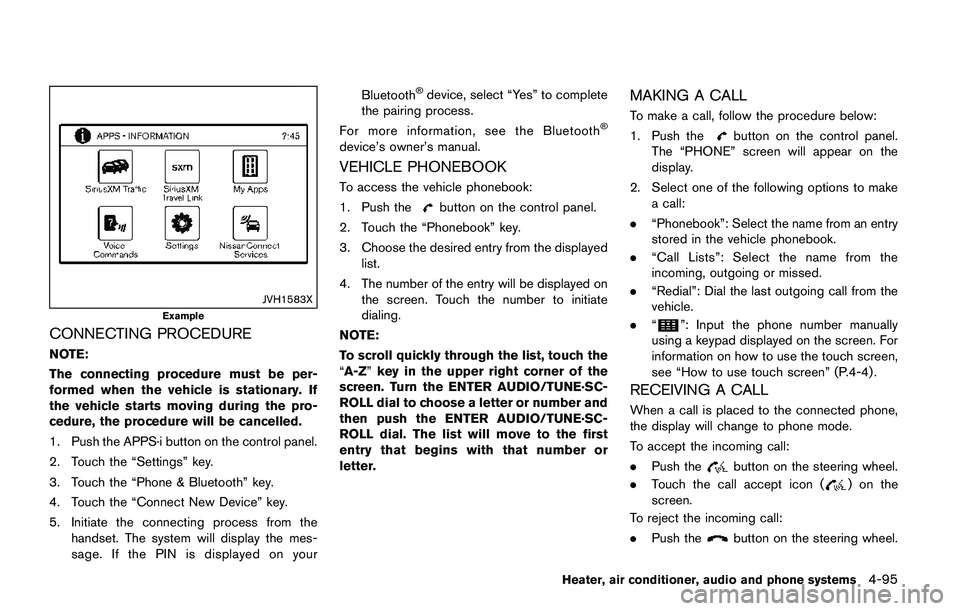
CONNECTING PROCEDURE
NOTE:
The connecting procedure must be per-
formed when the vehicle is stationary. If
the vehicle starts moving during the pro-
cedure, the procedure will be cancelled.
1. Push the APPS·i button on the control panel.
2. Touch the “Settings” key.
3. Touch the “Phone & Bluetooth” key.
4. Touch the “Connect New Device” key.
5. Initiate the connecting process from the
handset. The system will display the mes-
sage. If the PIN is displayed on yourBluetooth
Šdevice, select “Yes” to complete
the pairing process.
For more information, see the Bluetooth
Š
device’s owner’s manual.
VEHICLE PHONEBOOK
To access the vehicle phonebook:
1. Push the
button on the control panel.
2. Touch the “Phonebook” key.
3. Choose the desired entry from the displayed
list.
4. The number of the entry will be displayed on
the screen. Touch the number to initiate
dialing.
NOTE:
To scroll quickly through the list, touch the
“A-Z”key in the upper right corner of the
screen. Turn the ENTER AUDIO/TUNE·SC-
ROLL dial to choose a letter or number and
then push the ENTER AUDIO/TUNE·SC-
ROLL dial. The list will move to the first
entry that begins with that number or
letter.
MAKING A CALL
To make a call, follow the procedure below:
1. Push the
button on the control panel.
The “PHONE” screen will appear on the
display.
2. Select one of the following options to make
a call:
.“Phonebook”: Select the name from an entry
stored in the vehicle phonebook.
.“Call Lists”: Select the name from the
incoming, outgoing or missed.
.“Redial”: Dial the last outgoing call from the
vehicle.
.“
”: Input the phone number manually
using a keypad displayed on the screen. For
information on how to use the touch screen,
see “How to use touch screen” (P.4-4) .
RECEIVING A CALL
When a call is placed to the connected phone,
the display will change to phone mode.
To accept the incoming call:
.Push the
button on the steering wheel.
.Touch the call accept icon (
) on the
screen.
To reject the incoming call:
.Push the
button on the steering wheel.
Heater, air conditioner, audio and phone systems4-95
Page 277 of 508
4-96Heater, air conditioner, audio and phone systems
.Touch the phone end icon () on the
screen.
DURING A CALL
While a call is active, the following options are
available on the screen:
.“Handset”
Select this option to switch control of the
phone call over to the handset.
.“Mute Mic.”
Select this option to mute the microphone.
Select again to unmute the microphone.
.Phone end (
) icon
Select to end the phone call.
ENDING A CALL
To end a phone call, select the phone end ()
icon on the screen or push thebutton on
the steering wheel.
TEXT MESSAGING (if so equipped)
WARNING
.Laws in some jurisdictions may
restrict the use of some of the
applications and features, such as
social networking and texting.
.Laws in some jurisdictions may
restrict the use of“Text-to-Speech”.Check local regulations before
using this feature.
.Use the text messaging feature after
stopping your vehicle in a safe
location. If you have to use the
feature while driving, exercise ex-
treme caution at all times so full
attention may be given to vehicle
operation.
.If you are unable to devote full
attention to vehicle operation while
using the text messaging feature,
pull off the road to a safe location
and stop your vehicle.
NOTE:
Many phones may require special permis-
sion to enable text messaging. Check the
phone’s screen during Bluetooth
Špairing.
For some phones, you may need to enable
“Notifications”in the phone’s Bluetooth
Š
menu for text messages to appear on the
vehicle audio system. See the phone’s
owner’s manual for details. Text message
integration requires that the phone sup-
port MAP (Message Access Profile) for
both receiving and sending text messages.
Some phones may not support all text
messaging features. Refer to www.nissa-nusa.com/bluetooth or www.nissan.ca/
bluetooth for compatibility information,
as well as your device’s owner’s manual.
The system allows for the sending and receiving
of text messages through the vehicle interface.
Sending a text message
1. Push thebutton on the steering wheel.
2. Say “Phone” after the tone.
3. Say “Send Text” after the tone.
4. The system will provide a list of available
commands in order to determine the reci-
pient of the text message. Choose from the
following:
.To (a name).Enter Number.Missed Calls.Incoming Calls.Outgoing Calls
For more information about these options,
see “Phone voice commands” (P.4-101) .
5. Once a recipient is chosen, the system
prompts for which message to send. Several
predefined and custom messages are avail-
able. To choose one of the predefined
messages, speak one of the following after
the tone: