rese NISSAN QASHQAI 2019 Owner´s Manual
[x] Cancel search | Manufacturer: NISSAN, Model Year: 2019, Model line: QASHQAI, Model: NISSAN QASHQAI 2019Pages: 500, PDF Size: 2.38 MB
Page 94 of 500
2-14Instruments and controls
accident and could result in ser-
ious personal injury. Check the
tire pressure for all four tires.
Adjust the tire pressure to the
recommended COLD tire pressure
shown on the Tire and Loading
Information label to turn the low
tire pressure warning light OFF. If
the light still illuminates while
driving after adjusting the tire
pressure, a tire may be flat or
the TPMS may be malfunctioning.
If you have a flat tire, replace it
with a spare tire as soon as
possible. If no tire is flat and all
tires are properly inflated, it is
recommended you consult a
NISSAN dealer.
. Since the spare tire is not
equipped with the TPMS, when a
spare tire is mounted or a wheel
is replaced, the TPMS will not
function and the low tire pressure
warning light will flash for ap-
proximately 1 minute. The light
will remain on after 1 minute.
Have your tires replaced and/or
TPMS system reset as soon as
possible. It is recommended you
visit a NISSAN dealer for these
services. .
Replacing tires with those not
originally specified by NISSAN
could affect the proper operation
of the TPMS.
CAUTION
.The TPMS is not a substitute for
the regular tire pressure check.
Be sure to check the tire pressure
regularly.
. If the vehicle is being driven at
speeds of less than 16 MPH (25
km/h), the TPMS may not operate
correctly.
. Be sure to install the specified
size of tires to the four wheels
correctly.
Master warning light
When the ignition switch is in the ON
position, the master warning light illumi-
nates if any of the following are displayed
on the vehicle information display.
. No Key detected warning (if so
equipped)
. Shift to Park warning (Continuously
Variable Transmission (CVT) models) (if so equipped)
. Key battery low warning (if so
equipped)
. Engine start operation for Intelligent
Key system indicator (if so equipped)
. Key ID incorrect warning (if so
equipped)
. Release Parking Brake warning
. Low fuel level warning
. Low Washer Fluid (if so equipped)
. Door/liftgate open warning
. Key System Error: See Owner’s Manual
warning (if so equipped)
. Loose Fuel Cap
. Tire Pressure Low - Add Air warning
. Low oil pressure Stop vehicle warning
. AWD Error: See Owner’s Manual warn-
ing (if so equipped)
. AWD High Temp. Stop vehicle warning
(if so equipped)
. Tire Size Incorrect: See Owner’s Man-
ual warning (if so equipped)
. Battery Voltage Low Charge Battery
warning
. Shipping Mode On Push Storage Fuse
warning (if so equipped)
. Power will turn off to save the battery
warning
. Power turned off to save the battery
warning
Page 100 of 500
2-20Instruments and controls
.Indicators and warnings
. Tire pressure information
. Chassis Control
. Other information
JVI1566X
HOW TO USE THE VEHICLE INFOR-
MATION DISPLAY
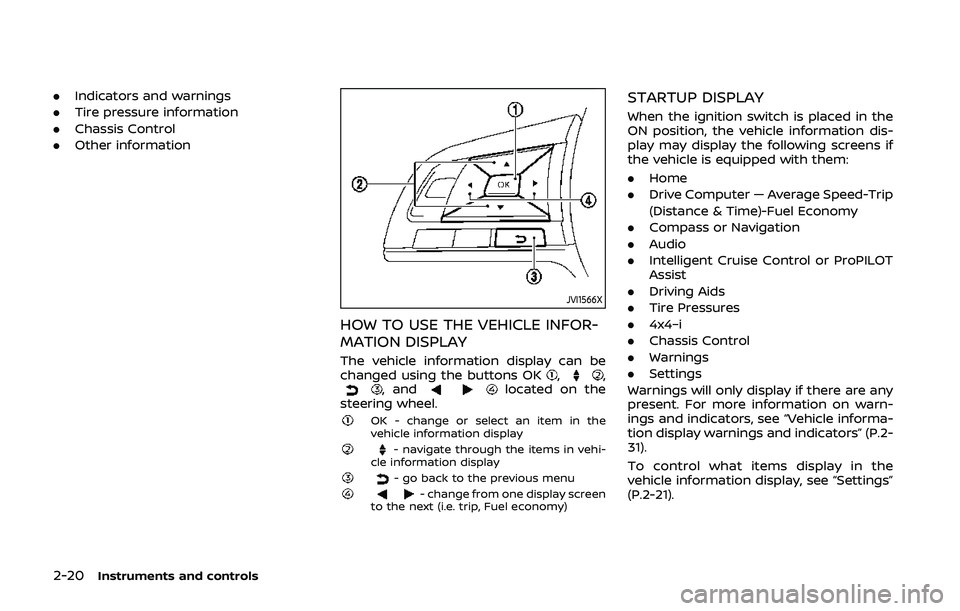
The vehicle information display can be
changed using the buttons OK,,, andlocated on the
steering wheel.
OK - change or select an item in the
vehicle information display
- navigate through the items in vehi-
cle information display
- go back to the previous menu- change from one display screen
to the next (i.e. trip, Fuel economy)
STARTUP DISPLAY
When the ignition switch is placed in the
ON position, the vehicle information dis-
play may display the following screens if
the vehicle is equipped with them:
. Home
. Drive Computer — Average Speed-Trip
(Distance & Time)-Fuel Economy
. Compass or Navigation
. Audio
. Intelligent Cruise Control or ProPILOT
Assist
. Driving Aids
. Tire Pressures
. 4x4–i
. Chassis Control
. Warnings
. Settings
Warnings will only display if there are any
present. For more information on warn-
ings and indicators, see “Vehicle informa-
tion display warnings and indicators” (P.2-
31).
To control what items display in the
vehicle information display, see “Settings”
(P.2-21).
Page 101 of 500
SETTINGS
The setting mode allows you to change
the information displayed in the vehicle
information display:
.Driver Assistance
. Clock
. Meter Settings
. Vehicle Settings
. Maintenance
. Alarm (if so equipped)
. Tire Pressures
. Unit
. Language
. Factory Reset
Driver Assistance
To change the status, warnings or turn on
or off any of the systems/warnings dis-
played in the “Driver Assistance” menu,
use the
buttonsto select and the
OKto change a menu item:
. Driving Aids
. Parking Aids (if so equipped)
. Chassis Control (if so equipped)
. Power Steering (if so equipped)
Driving Aids:
To change the status, warnings or turn on
or off any of the systems/warnings dis-
played in the “Driving Aids” menu, use the
buttonsto select and the OKto
change a menu item:
. Steering Assist (if so equipped)
Allows user to turn the Steering Assist
ON/OFF.
. Emergency Brake
— Front
Allows user to turn the Automatic
Emergency Braking (AEB) system
ON/OFF
— Rear (if so equipped) Allows user to turn the Rear Auto-
matic Braking (RAB) system ON/
OFF.
. Lane (if so equipped)
— Warning (LDW)
Allows user to turn the Lane De-
parture Warning (LDW) system ON/
OFF.
— Prevention (LDP) Allows user to turn the Intelligent
Lane Intervention (I-LI) system ON/
OFF.
. Blind Spot
— Warning (BSW)
Allows user to turn the Blind Spot
Warning (BSW) system ON/OFF.
For additional information, see “ProPILOT
assist” (P.5-86), “Automatic Emergency
Braking (AEB)” (P.5-115), “Automatic Emer-
gency Braking (AEB) with pedestrian de- tection system” (P.5-122), “Rear Automatic
Braking (RAB)” (P.5-132), “Lane Departure
Warning (LDW)” (P.5-35), “Intelligent Lane
Intervention (I-LI)” (P.5-107), and “Blind
Spot Warning (BSW)” (P.5-46).
Parking Aids (if so equipped):
To change the status or turn on or off any
of the systems displayed in the “Parking
Aids” menu, use the
buttonsto
select and the OKto change a menu
item:
. Moving Object (if so equipped)
Press the OK
to turn the Moving
Object Detection (MOD) ON/OFF.
. Cross Traffic
Press the OK
to turn the Rear Cross
Traffic Alert (RCTA) ON/OFF.
. Rear Sensor (if so equipped)
Allows user to turn the rear sensor
ON/OFF.
. Display (if so equipped)
Allows user to turn the Rear Sonar
System (RSS) display ON/OFF.
. Volume (if so equipped)
Allows user to select sensor volume
(High, Med. or Low).
. Range (if so equipped)
Allows user to select the sensor range
(Far, Mid. or Near).
For additional information, see “Moving
Instruments and controls2-21
Page 103 of 500
WAC0086X
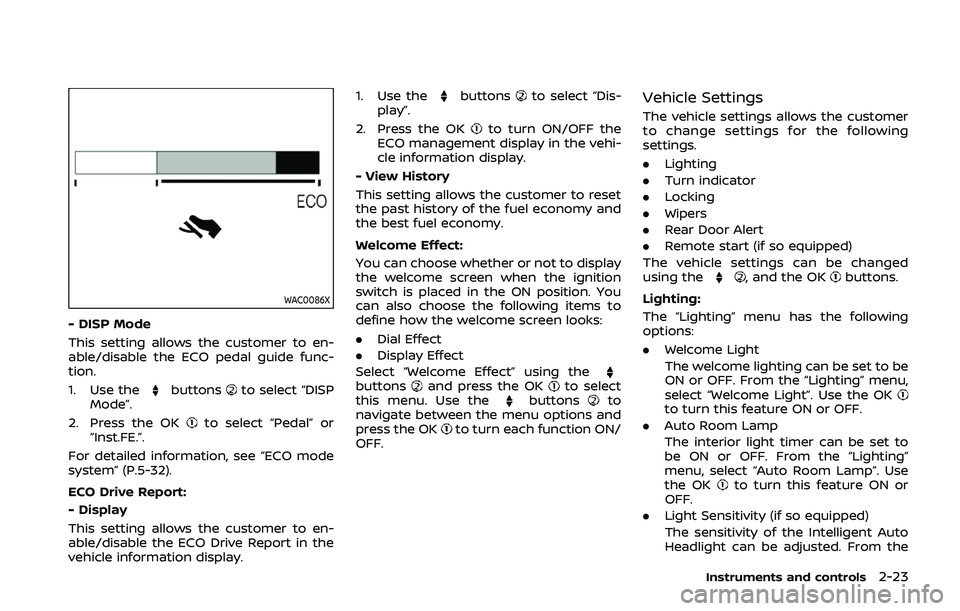
- DISP Mode
This setting allows the customer to en-
able/disable the ECO pedal guide func-
tion.
1. Use the
buttonsto select “DISP
Mode”.
2. Press the OK
to select “Pedal” or
“Inst.FE.”.
For detailed information, see “ECO mode
system” (P.5-32).
ECO Drive Report:
- Display
This setting allows the customer to en-
able/disable the ECO Drive Report in the
vehicle information display. 1. Use the
buttonsto select “Dis-
play”.
2. Press the OK
to turn ON/OFF the
ECO management display in the vehi-
cle information display.
- View History
This setting allows the customer to reset
the past history of the fuel economy and
the best fuel economy.
Welcome Effect:
You can choose whether or not to display
the welcome screen when the ignition
switch is placed in the ON position. You
can also choose the following items to
define how the welcome screen looks:
. Dial Effect
. Display Effect
Select “Welcome Effect” using the
buttonsand press the OKto select
this menu. Use thebuttonsto
navigate between the menu options and
press the OK
to turn each function ON/
OFF.
Vehicle Settings
The vehicle settings allows the customer
to change settings for the following
settings.
. Lighting
. Turn indicator
. Locking
. Wipers
. Rear Door Alert
. Remote start (if so equipped)
The vehicle settings can be changed
using the
, and the OKbuttons.
Lighting:
The “Lighting” menu has the following
options:
. Welcome Light
The welcome lighting can be set to be
ON or OFF. From the “Lighting” menu,
select “Welcome Light”. Use the OK
to turn this feature ON or OFF.
. Auto Room Lamp
The interior light timer can be set to
be ON or OFF. From the “Lighting”
menu, select “Auto Room Lamp”. Use
the OK
to turn this feature ON or
OFF.
. Light Sensitivity (if so equipped)
The sensitivity of the Intelligent Auto
Headlight can be adjusted. From the
Instruments and controls2-23
Page 105 of 500
Remote start (if so equipped):
The “Remote start” feature allows user to
turn the remote engine start on or off.
When turned on, the engine can be
restarted remotely. For additional infor-
mation, refer to “Remote engine start”
(P.3-23).
Maintenance
The maintenance mode allows you to set
alerts for the reminding of maintenance
intervals. To change an item:
Select “Maintenance” using the
switchand press OK.
Oil and Filter:
This indicator appears when the custo-
mer set distance comes for changing the
engine oil and filter. You can set or reset
the distance for checking or replacing
these items. For scheduled maintenance
items and intervals, refer to the “9. Main-
tenance and schedules” section.
Tire:
This indicator appears when the custo-
mer set distance comes for replacing
tires. You can set or reset the distance
for replacing tires.
WARNING
The tire replacement indicator is not
a substitute for regular tire checks,
including tire pressure checks. See
“Changing wheels and tires” (P.8-37).
Many factors including tire inflation,
alignment, driving habits and road
conditions affect tire wear and when
tires should be replaced. Setting the
tire replacement indicator for a cer-
tain driving distance does not mean
your tires will last that long. Use the
tire replacement indicator as a guide
only and always perform regular tire
checks. Failure to perform regular
tire checks, including tire pressure
checks could result in tire failure.
Serious vehicle damage could occur
and may lead to a collision, which
could result in serious personal in-
jury or death.
Other:
This indicator appears when the custo-
mer set distance comes for checking or
replacing maintenance items other than
the engine oil, oil filter and tires. Other
maintenance items can include such
things as air filter or tire rotation. You
can set or reset the distance for checking or replacing the items.
Alarm (if so equipped)
This setting allows the customer to set
alarms.
Select “Alarm” using the
buttonand
press OK button.
Timer Alert (if so equipped):
This setting allows the customer to set an
alert to notify the driver that the set time
has been reached.
1. Use the
buttonto select “Timer
Alert”.
2. Press the OK button
.
3. To change the timer amount, use the
buttonand the OK buttonto
save the selected time amount.
Navigation (if so equipped):
This setting allows the customer to en-
able/disable the alert for navigation in the
vehicle information display.
1. Use the
buttonto select “Navi-
gation”.
2. Press the OK button
to turn ON/OFF
the alert.
Phone (if so equipped):
This setting allows the customer to en-
able/disable the alert for an incoming call
in the vehicle information display.
Instruments and controls2-25
Page 108 of 500
2-28Instruments and controls
Language
The language of the vehicle information
display can be changed.
Use the
button, and the OK buttonto select and change the language of
the vehicle information display.
Factory Reset
The settings in the vehicle information
display can be reset back to the factory
default. To reset the vehicle information
display:
1. Select “Factory Reset” using the
buttonand press the OK button.
2. Select “YES” to return all settings back to default by pressing the OK button
.
Page 112 of 500
2-32Instruments and controls
9. Low fuel level warning
This warning appears when the fuel level
in the fuel tank is getting low. Refuel as
soon as it is convenient, preferably before
the fuel gauge reaches 0 (Empty). There
will be a small reserve of fuel in the tank
when the fuel gauge needle reaches 0
(Empty).
10. Low Washer Fluid warning (if so
equipped)
This warning appears when the window
washer fluid is at a low level. Add window
washer fluid as necessary. For additional
information, refer to “Window washer
fluid” (P.8-10).
11. Door/liftgate open warning
This warning appears if any of the doors
and/or the liftgate are open or not closed
securely. The vehicle icon indicates which
door or the liftgate is open on the display.
12. Key System Error: See Owner’s
Manual warning (if so equipped)
This warning appears if there is a mal-
function in the Intelligent Key system.
If this warning appears while the engine is
stopped, the engine cannot be started. If
this warning appears while the engine is
running, the vehicle can be driven. How-
ever, it is recommended that you visit aNISSAN dealer for repair as soon as
possible.
13. Loose Fuel Cap warning
This warning appears when the fuel-filler
cap is not tightened correctly after the
vehicle has been refueled. For additional
information, refer to “Fuel-filler cap” (P.3-
28).
14. Tire Pressure Low — Add Air
warning
This warning appears when the low tire
pressure warning light in the meter
illuminates and low tire pressure is de-
tected. The warning appears each time
the ignition switch is placed in the ON
position as long as the low tire pressure
warning light remains illuminated. If this
warning appears, stop the vehicle and
adjust the pressure to the recommended
COLD tire pressure shown on the Tire and
Loading Information label. (See “Low tire
pressure warning light” (P.2-13) and “Tire
Pressure Monitoring System (TPMS)” (P.5-
5).)
15. Low Oil Pressure Stop Vehicle
warning
This warning appears if low engine oil
pressure is detected. If the warning ap-
pears during normal driving, pull off the
road in a safe area and stop the engine
immediately. It is recommended that you
call a NISSAN dealer.
The low oil pressure warning is not
designed to indicate a low oil level. Use
the dipstick to check the oil level. (See
“Engine oil” (P.8-6).)
CAUTION
Running the engine with the engine
oil pressure warning displayed could
cause serious damage to the engine.
16. AWD Error: See Owner’s Manual
warning (if so equipped)
This warning appears when the All-Wheel
Drive (AWD) system is not functioning
properly while the engine is running.
Reduce vehicle speed and have the sys-
tem checked. It is recommended that you
visit a NISSAN dealer for this service. See
“Intelligent 4x4” (P.5-139).
Page 117 of 500
46. Rear Sonar System (RSS) indi-
cator (if so equipped)
This indicator illuminates to indicate the
status of the Rear Sonar System.
See “Rear sonar system (RSS)” (P.5-152).
47. Not Available Bad Weather (if so
equipped)
This message may appear when the
steering assist system is engaged.
Under the following conditions, the steer-
ing assist system is automatically can-
celed:
.When the wiper low speed or high
speed operates.
. When lane markers in the traveling
lane cannot be correctly detected for
a period of time due to such items as a
snow rut, reflection of light on a rainy
day or several unclear lane markers
are present.
If you want to use the steering assist
system again, cancel the ProPILOT assist
system and set it again when lane
markers are clearly visible.
48. Not available Front Camera
Obstructed (if so equipped)
This message may appear when the
Intelligent Cruise Control (ICC) (with Pro-
PILOT assist) system is engaged.
Under the following conditions, the ICC
(with ProPILOT assist) system is automa-
tically canceled:
. The camera area of the windshield is
fogged up or covered with dirt, water,
drops, ice, snow, etc.
. Strong light, such as sunlight or high
beams from oncoming vehicles, enter
the front camera
49. Not Available Parking Brake On
(if so equipped)
This message may appear when the
Intelligent Cruise Control (ICC) (with Pro-
PILOT assist) system is engaged.
Under the following condition, the ICC
(with ProPILOT assist) system is automa-
tically canceled:
.The electronic parking brake is ap-
plied.
The above system cannot be used when
the electronic parking brake is activated.
50. Not Available Seat Belt Not
Fastened (if so equipped)
This message may appear when the
Intelligent Cruise Control (ICC) (with Pro-
PILOT assist) system is engaged.
Under the following condition, the ICC
(with ProPILOT assist) system is automa-
tically canceled:
. When the driver’s seat belt is not
fastened.
The ICC (with ProPILOT assist) system
cannot be used when the driver’s seat
belt is not fastened.
51. Press Brake Pedal (if so
equipped)
This message may appear when the
Intelligent Cruise Control (ICC) (with Pro-
PILOT assist) system is engaged.
It will be displayed under the following
condition:
. While the vehicle is stopped by the ICC
(with ProPILOT assist), the driver’s
door is opened but the electronic
parking brake was not activated.
Step on the brake immediately.
Instruments and controls2-37
Page 119 of 500
TRIP COMPUTER
1. Safety Shield (if so equipped)
The safety shield mode shows the oper-
ating condition for the following systems.
.Lane Departure Warning (LDW) (if so
equipped)
. Intelligent Lane Intervention (I-LI) (if so
equipped)
. Blind Spot Warning (BSW)
. Automatic Emergency Braking (AEB) (if
so equipped)
. Automatic Emergency Braking (AEB)
with pedestrian detection system (if
so equipped)
For more details, see “Lane Departure
Warning (LDW)” (P.5-35), “Intelligent Lane
Intervention (I-LI)” (P.5-40), “Blind Spot
Warning (BSW)” (P.5-46), “Automatic Emer-
gency Braking (AEB)” (P.5-115) or “Auto-
matic Emergency Braking (AEB) with
pedestrian detection system” (P.5-122).
2. Average speed 1 and 2 (MPH or
km/h)
The average speed 1 mode shows the
average vehicle speed since the last reset.
The average speed 2 mode shows the
average vehicle speed since the time the
ignition switch was turned ON. The aver-
age speed 2 is automatically reset each
time the ignition is placed in the OFF position.
Resetting is done by pushing the OK
button. When the OKbutton is pushed,
the following menu items are displayed.
. Cancel
— Return to the previous screen with-
out resetting.
. Average Speed
— Reset the average speed.
. All
— Reset all items of “Average Speed”,
“Elapsed time and trip odometer”
and “Fuel economy.”
Once the “Average speed 1” is displayed,
you can use
buttons to switch
between the “Average speed 1” and “Aver-
age speed 2.”
The display is updated every 30 seconds.
The first 30 seconds after a reset, the
display shows “——”.
3. Elapsed time and trip odometer 1
and 2 (mile or km)
Elapsed time:
The elapsed time mode 1 shows the time
since the last reset. The elapsed time 2
mode shows the time since the ignition
switch was turned ON. (The trip odometer
is also reset at the same time.)
Trip odometer:
The trip odometer 1 mode shows the total
distance the vehicle has been driven since
the last reset. The trip odometer 2 mode
shows the total distance the vehicle has
been driven since the time the ignition
switch was placed in the ON position. (The
elapsed time is also reset at the same
time.)
The elapsed time and trip odometer 2 is
automatically reset each time the ignition
is placed in the OFF position.
Resetting is done by pushing the OK
button. When the OKbutton is pushed,
the following menu items are displayed.
. Cancel
— Return to the previous screen with-
out resetting.
. Distance
— Reset the elapsed time and trip
odometer.
Instruments and controls2-39
Page 120 of 500
2-40Instruments and controls
.All
— Reset all items of “Average Speed”,
“Elapsed time and trip odometer”
and “Fuel economy.”
Once the “Elapsed time and trip odometer
1” is displayed, you can use
buttons
to switch between the “Elapsed time and
trip odometer 1” and “Elapsed time and
trip odometer 2.”
4-5. Fuel economy/ECO pedal
guide
Current fuel consumption:
The current fuel consumption mode
shows the current fuel consumption.
Average fuel consumption:
The average fuel consumption 1 mode
shows the average fuel consumption
since the last reset. The average fuel
consumption 2 mode shows the average
fuel consumption since the time the
ignition switch was placed in the ON
position. The average fuel consumption
2 is automatically reset each time the
ignition is placed in the OFF position.
Resetting is done by pushing the OK
button. When the OKbutton is pushed,
the following menu items are displayed.
. Cancel — Return to the previous screen with-
out resetting.
. Fuel Economy
— Reset the fuel economy.
. All
— Reset all items of “Average Speed”,
“Elapsed time and trip odometer”
and “Fuel economy”.
Once the “Fuel economy 1” is displayed,
you can use
buttons to switch
between the “Fuel economy 1” and “Fuel
economy 2”.
The display is updated every 30 seconds.
For about the first 1/3 mile (500 m) after a
reset, the display shows “——”.
6. Audio
The audio mode shows the status of
audio information.
7. Navigation (if so equipped)
When the route guidance is set in the
navigation system, this item shows the
navigation route information.
8. Compass (if so equipped)
This display indicates the heading direc-
tion of the vehicle.
9. Intelligent 4x4 torque distribution
display (if so equipped)
When the Intelligent 4x4 torque distribu-
tion display is selected, you can view the
distribution ratio of the transmission
torque to the front and rear wheels
during driving.
10. Chassis control
When Intelligent Trace Control, Intelligent
Engine Brake (Continuously Variable
Transmission (CVT) models) or Active Ride
Control system is operated, it shows the
operating condition. It also shows oper-
ating condition of Hill Start Assist. The
operating condition of the automatic
brake hold system (if so equipped) is also
shown. See “Intelligent Trace Control”
(P.5-149), “Intelligent Engine Brake (Con-
tinuously Variable Transmission (CVT)
models)” (P.5-150), “Active Ride Control”
(P.5-151), “Hill Start Assist system” (P.5-152)
or “Automatic brake hold” (P.5-29) for
more details.
11. Tire Pressures
The tire pressure mode shows the pres-
sure of all four tires while the vehicle is
driven.
When the Tire Pressure Low — Add Air
warning appears, the display can be
switched to the tire pressure mode by