steering NISSAN QASHQAI 2020 Owner´s Manual
[x] Cancel search | Manufacturer: NISSAN, Model Year: 2020, Model line: QASHQAI, Model: NISSAN QASHQAI 2020Pages: 492, PDF Size: 2.02 MB
Page 302 of 492
5-66Starting and driving
WARNING
Failure to follow the warnings and
instructions for proper use of the
ProPILOT assist system could result
in serious injury or death.
.ProPILOT assist is not a self-driv-
ing system. Within the limits of its
capabilities, as described in this
manual, it helps the driver with
certain driving activities.
. The ProPILOT assist system is not
a replacement for proper driving
procedures and is not designed
to correct careless, inattentive or
absentminded driving. ProPILOT
assist will not always steer the
vehicle to keep it in the lane. The
ProPILOT assist system is not
designed to prevent loss of con-
trol. It is the driver’s responsibility
to stay alert, drive safely, keep
the vehicle in the traveling lane,
and be in control of the vehicle at
all times.
. There are limitations to the Pro-
PILOT assist system capability.
The ProPILOT assist system does
not function in all driving, traffic,
weather, and road conditions. It is the driver’s responsibility to stay
alert, drive safely, keep the vehi-
cle in the traveling lane, and be in
control of the vehicle at all times.
. The ProPILOT assist system is
only an aid to assist the driver
and is not a collision warning or
avoidance device.
. The ProPILOT assist system is for
highway use only and is not
intended for city driving. Failure
to apply the brakes or steer the
vehicle when necessary may re-
sult in a serious accident.
. Always observe posted speed
limits and do not set the speed
over them.
. Never take your hands off the
steering wheel when driving. Al-
ways keep your hands on the
steering wheel and drive your
vehicle safely.
. Never unfasten your safety belt
when using ProPILOT assist.
Doing so automatically cancels
the ProPILOT assist system.
. The ProPILOT assist system does
not react to stationary and slow
moving vehicles. .
Always drive carefully and atten-
tively when using the ProPILOT
assist system. Read and under-
stand the Owner’s Manual thor-
oughly before using the ProPILOT
assist system. To avoid serious
injury or death, do not rely on the
system to prevent accidents or to
control the vehicle’s speed in
emergency situations. Do not
use the ProPILOT assist system
except in appropriate road and
traffic conditions.
PROPILOT ASSIST (if so equipped)
Page 304 of 492

5-68Starting and driving
WAF0046X
Steering-wheel-mounted control (left)
Vehicle information display
Steering-wheel-mounted control (right)ProPILOT assist switch
Steering assist switch
PROPILOT ASSIST SYSTEM OPERA-
TION
The ProPILOT assist system has the
following two functions:
1. Intelligent Cruise Control (ICC)
The ICC system can be set to one of two
cruise control modes:
.Conventional (fixed speed) cruise con-
trol mode:
For cruising at a preset speed
NOTE:
Steering Assist is not available in the
conventional (fixed speed) cruise con-
trol mode.
. Vehicle-to-vehicle distance control
mode:
The ICC system maintains a selected
distance from the vehicle in front of
you within the speed range of 0 to 90
MPH (0 to 144 km/h) up to the set
speed. The set speed can be selected
by the driver between 20 to 90 MPH
(32 to 144 km/h). When the vehicle
ahead slows to a stop, your vehicle
gradually decelerates to a standstill.
When the vehicle is stopped, the ICC
system maintains braking force to
keep your vehicle stopped.
Page 305 of 492

NOTE:
When your vehicle is stopped for less
than 3 seconds and the vehicle ahead
begins to move, your vehicle will start
moving again automatically.
.When your vehicle is at a standstill for
more than 3 seconds and the vehicle
ahead begins to accelerate, push the
RES+ switch or lightly depress the
accelerator pedal. The ICC system
starts to follow the vehicle ahead.
. When no vehicle is detected ahead
within the driver selected distance, the
vehicle travels at the speed set by the
driver. The speed must be above 20
MPH (32 km/h) to use this function.
NOTE:
Even if the Automatic Emergency Brak-
ing (AEB) setting is turned off by the
driver using the “Settings” menu in the
vehicle information display, AEB will be
automatically turned on when ICC is
used.
2. Steering assist
The steering assist function controls the
steering system to help keep your vehicle
within the traveling lane.
When there is no vehicle ahead, steering
assist is not available at speeds under 37
MPH (60 km/h).
WAF0047X
PROPILOT ASSIST SWITCHES
1. DISTANCE switch:.Long.Middle.Short
2. RES+ switch:
Resumes set speed or increases speed
incrementally
3. CANCEL switch: Deactivates the ProPILOT assist sys-
tem
4. ProPILOT assist switch:
Turns the ProPILOT assist system on
or off 5. SET- switch:
Sets desired cruise speed or reduces
speed incrementally
6. Steering assist switch: Turns the steering assist function on
or off
Starting and driving5-69
Page 306 of 492

5-70Starting and driving
WAF0049X
PROPILOT ASSIST SYSTEM DISPLAY
AND INDICATORS
1. Lane marker indicatorIndicates whether the system detects
lane markers
.No lane markers displayed: Steeringassist is turned off
Lane marker indicator (gray): No
lane markers detected
— Lane marker indicator (green): Lane markers detected
— Lane marker indicator (yellow): Lane departure is detected 2. Set distance indicator
Displays the selected distance
3. Vehicle ahead detection indicator Indicates whether the system detects
a vehicle in front of you
4. Steering assist indicator Indicates the status of the Steering
assist function by the color of the
indicator
.Steering assist indicator (gray):Steering assist standby
.Steering assist indicator (green): Steering assist active
.Steering assist indicator (orange):
Steering assist malfunction
5. ProPILOT assist activation Displays once the ProPILOT assist
system is activated
6. Steering assist status indicator/warn- ing
Displays the status of the Steering
assist by the color of the indicator/
warning
.No Steering assist status indicator
displayed: Steering assist is turned
off
Steering assist status indicator
(gray): Steering assist standby — Steering assist status indicator
(green): Steering assist active
— Steering assist status indicator (or- ange): Steering assist malfunction
7. Speed control status indicator/warn- ing
Displays the status of speed control by
the color and shape of the indicator/
warning
.Speed control status indicator/warning (gray): ICC standby
.Speed control status indicator/warning (solid green): ICC (dis-
tance control mode) is active (ve-
hicle detected ahead). Your vehicle
matches the speed of the vehicle
ahead.
.Speed control status indicator/ warning (green outline): ICC
(maintain speed control mode) is
active (no vehicle detected ahead).
Your vehicle maintains the driver-
selected set speed.
.Speed control status indicator/
warning (orange): Indicates an ICC
malfunction
8. Set vehicle speed indicator
Indicates the set vehicle speed
9. ProPILOT assist status indicator Indicates the status of the ProPILOT
Page 311 of 492

WAF0054X
.The distance to the vehicle ahead
changes automatically according to
the vehicle speed. The higher the
vehicle speed, the longer the distance.
. The distance setting will remain at the
current setting even if the engine is
restarted.HOW TO ENABLE/DISABLE THE
STEERING ASSIST
Use the following methods to enable or
disable the steering assist.
Starting and driving5-75
Page 312 of 492

5-76Starting and driving
WAF0055X
1. Steering-wheel-mounted control (left)
2. Vehicle information display
3. Steering assist switch
NOTE:
.When the steering assist switch is
used to turn the system on or off,
the system remembers the setting even if the ignition switch is cycled.
The switch must be pushed again to
change the setting to on or off.
. The steering assist switch changes
the status of the “Steering Assist”
selection made in the “Settings”
screen in the vehicle information
display. Steering assist switch:
To turn the steering assist on or off, push
the steering assist switch
on the
instrument panel.
Setting in the vehicle information dis-
play:
1. Press the
button on the
steering wheeluntil “Settings” ap-
pears in the vehicle information dis-
play
and then press “OK” button.
2. Use the
buttonto select “Driver
Assistance.” Then press the “OK” but-
ton
.
3. Use the
buttonto select “Driving
Aids.” Then press the “OK” button.
4. Select “Steering Assist” and press the “OK” button
.
NOTE:
. When the Cruise screen is displayed
on the vehicle information display,
press the “OK” button on the steer-
ing wheel to call up the “Driving Aids”
setting display.
. When enabling/disabling the system
through the vehicle information dis-
play, the system retains the current
settings even if the engine is re-
started.
Page 317 of 492

Cut-in detection
If a vehicle moves into your traveling lane
near your vehicle, the ICC system may
inform the driver by flashing the vehicle
ahead detection indicator.
Approach warning
If your vehicle comes closer to the vehicle
ahead due to rapid deceleration of that
vehicle or if another vehicle cuts in, the
system warns the driver with the chime
and ICC system display. Decelerate by
depressing the brake pedal to maintain a
safe vehicle distance if:
.The chime sounds.
. The vehicle ahead detection indicator
and set distance indicator blink.
. You judge it necessary to maintain a
safe distance.
The warning chime may not sound in
some cases when there is a short dis-
tance between vehicles. Some examples
are:
. When the vehicles are traveling at the
same speed and the distance be-
tween vehicles is not changing.
. When the vehicle ahead is traveling
faster and the distance between ve-
hicles is increasing.
. When a vehicle cuts in near your
vehicle. The warning chime will not sound when:
.
Your vehicle approaches other vehi-
cles that are parked or moving slowly.
. The accelerator pedal is depressed,
overriding the system.
NOTE:
The approach warning chime may
sound and the system display may
flash when the radar sensor detects
objects on the side of the vehicle or on
the side of the road. This may cause the
ICC system to decelerate or accelerate
the vehicle. The radar sensor may de-
tect these objects when the vehicle is
driven on winding, narrow, or hilly roads
or when the vehicle is entering or
exiting a curve. In these cases, you will
have to manually control the proper
distance ahead of your vehicle.
Also, the sensor sensitivity can be af-
fected by vehicle operation (steering
maneuver or driving position in the
lane) or traffic or vehicle conditions
(for example, if a vehicle is being driven
with some damage).
Acceleration when passing
When the ICC system is engaged above
44 mph (70 km/h) and following a slower
vehicle (below ICC set speed), and the
turn signal is activated to the left, the ICC
system will automatically start to accel-
erate the vehicle to help initiate passing
on the left and will begin to reduce the
distance to vehicle directly ahead. Only
the left side turn signal operates this
feature. As the driver steers the vehicle
and moves into the passing lane, if no
vehicle is detected ahead the ICC system
will continue to accelerate to the ICC
system set speed. If another vehicle is
detected ahead, then the vehicle will
accelerate up to the following speed of
that vehicle. If the vehicle is not steered
into the left lane to pass, the acceleration
will stop after a short time and regain the
set following distance. Acceleration can
be stopped at any point by depressing
the brake pedal or the CANCEL switch on
the steering wheel.
ICC system limitations
WARNING
Listed below are the system limita-
tions for the ICC system. Failure to
operate the vehicle in accordance
Starting and driving5-81
Page 320 of 492

5-84Starting and driving
SSD0252
SSD0253
When driving on some roads, such as
winding, hilly, curved, narrow roads, or
roads which are under construction, the
radar sensor may detect vehicles in a
different lane, or may temporarily not
detect a vehicle traveling ahead. This
may cause the ICC system to decelerate
or accelerate the vehicle.
The detection of vehicles may also be
affected by vehicle operation (steering
maneuver or traveling position in the
lane, etc.) or vehicle condition.
If this occurs, the ICC system may warn
you by blinking the system indicator and
sounding the chime unexpectedly. You
will have to manually control the proper
distance away from the vehicle traveling
ahead.
Page 322 of 492

5-86Starting and driving
Action to take:
When the above driving conditions no
longer exist, turn the system back on.
ICC system malfunction
If the ICC system malfunctions, it will be
turned off automatically, a chime will
sound, and the speed control status
warning (orange) will illuminate.
Action to take:
If the warning illuminates, stop the vehicle
in a safe place. Turn the engine off, restart
the engine and set the ICC system again.
If it is not possible to set the ICC system or
the warning stays on, it may be a
malfunction. Although the normal driving
can be continued, the ICC system should
be inspected. It is recommended that you
visit a NISSAN dealer for this service.
ICC sensor maintenance
The radar sensor is located on the front of
the vehicle.
To keep the ICC system operating prop-
erly, be sure to observe the following:
.Always keep the sensor area clean.
. Do not strike or damage the areas
around the sensor.
. Do not attach a sticker (including
transparent material) or install an
accessory near the sensor. This could cause failure or malfunction.
. Do not attach metallic objects near
the sensor area (brush guard, etc.).
This could cause failure or malfunc-
tion.
. Do not alter, remove, or paint the front
bumper.
Before customizing or restoring the front
bumper, it is recommended that you visit
a NISSAN dealer.
The camera sensor is located above the
inside mirror.
To keep the proper operation of the
systems and prevent a system malfunc-
tion, be sure to observe the following:
. Always keep the windshield clean.
. Do not attach a sticker (including
transparent material) or install an
accessory near the camera unit.
. Do not place reflective materials, such
as white paper or a mirror, on the
instrument panel. The reflection of
sunlight may adversely affect the
camera unit’s capability of detecting
the lane markers.
. Do not strike or damage the areas
around the camera unit. Do not touch
the camera lens or remove the screw
located on the camera unit.
If the camera unit is damaged due to an
accident, it is recommended that you visit a NISSAN dealer.
STEERING ASSIST
WARNING
Failure to follow the warnings and
instructions for proper use of the
steering assist could result in serious
injury or death.
.
The steering assist is not a repla-
cement for proper driving proce-
dures and is not designed to
correct careless, inattentive or
absent-minded driving. The
steering assist will not always
steer the vehicle to keep it in the
lane. It is not designed to prevent
loss of control. It is the driver’s
responsibility to stay alert, drive
safely, keep the vehicle in the
traveling lane, and be in control
of the vehicle at all times.
. As there is a performance limit to
the steering assist’s capability,
never rely solely on the system.
The steering assist does not func-
tion in all driving, traffic, weather,
and road conditions. Always drive
safely, pay attention to the op-
eration of the vehicle, and manu-
ally control your vehicle
Page 323 of 492
appropriately.
. The steering assist is intended for
use on well-developed freeways
or highways with gentle (moder-
ate) curves. To avoid risk of an
accident,do not use this system
on local or non-highway roads.
. The steering assist only steers
the vehicle to maintain its posi-
tion in the center of a lane. The
vehicle will not steer to avoid
objects in the road in front of
the vehicle or to avoid a vehicle
moving into your lane.
. It is the driver’s responsibility to
stay alert, drive safely, keep the
vehicle in the traveling lane, and
be in control of the vehicle at all
times. Never take your hands off
the steering wheel when driving.
Always keep your hands on the
steering wheel and drive your
vehicle safely.
. Always drive carefully and atten-
tively when using the steering
assist. Read and understand the
Owner’s Manual thoroughly be-
fore using the steering assist. To
avoid serious injury or death, do
not rely on the system to prevent
accidents or to control the vehi- cle’s speed in emergency situa-
tions. Do not use the steering
assist except in appropriate road
and traffic conditions.
Steering assist operation
The steering assist controls the steering
system to help keep your vehicle near the
center of the lane when driving. The
steering assist is combined with the
Intelligent Cruise Control (ICC) system.
For additional information, see “Intelligent
Cruise Control (ICC)” (P.5-77).
The steering assist can be activated when
the following conditions are met:
.
The ICC system is activated.
. Lane markers on both sides are clearly
detected.
. A vehicle ahead is detected (when the
vehicle is driven at speeds under 37
MPH (60 km/h)).
. The driver grips the steering wheel.
. The vehicle is driven at the center of
the lane.
. The turn signals are not operated.
. The windshield wiper is not operated
in the high speed operation (the
steering assist function is disabled
after the wiper operates for approxi-
mately 10 seconds).
WAF0062X
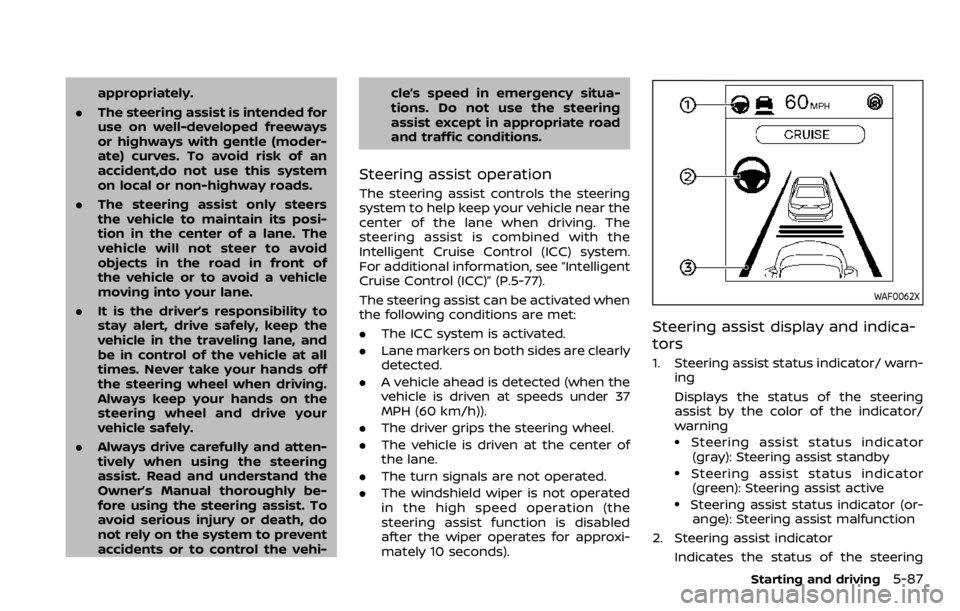
Steering assist display and indica-
tors
1. Steering assist status indicator/ warn-
ing
Displays the status of the steering
assist by the color of the indicator/
warning
.Steering assist status indicator
(gray): Steering assist standby
.Steering assist status indicator(green): Steering assist active
.Steering assist status indicator (or- ange): Steering assist malfunction
2. Steering assist indicator Indicates the status of the steering
Starting and driving5-87