ignition NISSAN QUEST 2008 V42 / 3.G Workshop Manual
[x] Cancel search | Manufacturer: NISSAN, Model Year: 2008, Model line: QUEST, Model: NISSAN QUEST 2008 V42 / 3.GPages: 376, PDF Size: 5.21 MB
Page 172 of 376

Resetting the maintenance interval
The ENGINE OIL and TIRE ROTATION mainte-
nance intervals can be reset to 0 miles (kilome-
ters) .
Select the “Reset” key using the joystick and
press the ENTER button.Displaying the maintenance notice re-
minder
Select the “Display Maintenance Notification”
key and press the ENTER button to display the
MAINTENANCE INFORMATION automatically
at the set maintenance interval.
The MAINTENANCE NOTICE screen (ENGINE
OIL and TIRE ROTATION) will be automatically
displayed as shown when both of the following
conditions are met:
cThe vehicle is driven the set distance and the
ignition key is turned OFF.cThe ignition key is turned ON the next time
the vehicle will be driven.
To return to the previous display after the MAIN-
TENANCE NOTICE screen is displayed, press
the BACK button.
The MAINTENANCE NOTICE screen displays
each time the key is turned ON until one of the
following conditions are met:
c“Reset” key is selected.
c“Display Maintenance Notification” is set
OFF.
cThe maintenance interval is set again.
LHA0556LHA0483
4-10Display screen, heater, air conditioner, audio and phone systems
ZREVIEW COPYÐ2008 Quest(van)
Owners ManualÐUSA_English(nna)
06/29/07Ðdebbie
X
Page 179 of 376

1. ROUTE button*
2. DEST button*
3. MAP button*
4. BACK (previous) button (P. 4-18)
5.
zoom out button*6. Joystick and ENTER button (P. 4-17)
7.
zoom in button*
8. VOICE button*
9. SETTING button (P. 4-22)10.
brightness control button
(P. 4-28)
11. TRIP button (P. 4-18)
*For Navigation system control buttons, refer to
the separate Navigation System Owner’s
Manual.
If you use the system with the engine not
running (ignition ON or ACC) for a long
time, it will use up all the battery power,
and the engine will not start.
Reference symbols:
ENTER button — This is a button on the control
panel. By pressing this button you can select the
item or perform the action.
“Display” key — This is a select key on the screen.
By selecting this key you can proceed to the next
function.
HOW TO USE THE JOYSTICK AND
ENTER BUTTON
Use the joystick to choose an item on the display
screen. Move the joystick up, down, left or right to
highlight an item. Then press the ENTER button
to select the item or perform the action.Display screen with navigation
LHA0631
CONTROL PANEL BUTTONS —
COLOR SCREEN WITH NAVIGATION
SYSTEM (if so equipped)
Display screen, heater, air conditioner, audio and phone systems4-17
ZREVIEW COPYÐ2008 Quest(van)
Owners ManualÐUSA_English(nna)
06/29/07Ðcathy
X
Page 180 of 376

HOW TO USE THE BACK BUTTON
This button has two functions.
cGo back to the previous display (cancel) .
If you press the BACK button during setup, the
setup will be canceled and/or the display will
return to the previous screen.
cFinish setup.
In some screens pressing the BACK button ac-
cepts the changes made during setup.
SETTING UP THE START-UP
SCREEN
When you turn the ignition key to ACC or ON, the
system start-up warning is displayed on the
screen. Read the warning and select the “OK”
key by pressing the ENTER button.
If you do not press the ENTER button, the Navi-
gation system will not proceed to the next step in
the Navigation display.
If you do not touch a button or screen key for
more than 1 minute on the system start-up warn-
ing screen, the screen will change to the audio
screen automatically.
To proceed to the next step, refer to the separate
Navigation System Owner’s Manual.HOW TO USE THE TRIP BUTTON
When the TRIP button is pressed, the following
modes will display on the screen.
Warning message (if any)!TRIP 1!TRIP 2!
FUEL ECONOMY!MAINTENANCE!Audio
or OFF!TRIP 1
Each trip display tracks an independent trip and
displays the following:
cElapsed Time - Journey time since the last
reset up to a maximum of 99 hours and 59
minutes.
cDriving Distance - Distance driven (mile or
km) since the last reset.cAverage Speed - Average speed driven
(MPH or km/h) since the last reset.
Resetting trip 1 and trip 2
Each trip screen can be reset to 0. Press the TRIP
button to select the TRIP screen to be reset.
cSelect the “Reset” key on screen by press-
ing the ENTER button, or
cPress the TRIP button for more than approxi-
mately 1.5 seconds.
LHA0552
4-18Display screen, heater, air conditioner, audio and phone systems
ZREVIEW COPYÐ2008 Quest(van)
Owners ManualÐUSA_English(nna)
06/29/07Ðdebbie
X
Page 181 of 376

Fuel economy
Press the TRIP button to display Average Fuel
Economy and Distance To Empty.
Average fuel economy (MPG or L/100 km)
The Average Fuel Economy is calculated based
on fuel consumption since the last reset. The
display is updated every 30 seconds and 1/3
mile (500 m) . After a reset or connecting the
battery cables, the display will show (**.*) .Resetting fuel economy
The average fuel economy calculation can be
reset to 0. Press the TRIP button repeatedly until
the FUEL ECONOMY menu is shown, then ei-
ther:
cSelect the “Reset” key on screen by press-
ing the ENTER button, or
cPress the TRIP button for more than approxi-
mately 1.5 seconds.
Distance to empty (MI or km)
The Distance To Empty (DTE) mode provides you
with an estimation of the distance that can be
driven before refueling. The DTE is constantly
calculated based on the amount of fuel in the fuel
tank and the actual fuel consumption. The display
is updated every 30 seconds. When the fuel level
is low, the DTE display will change to (*) .
NOTE:
cIf the amount of fuel added while the ignition
switch is OFF is small, the display just before
the ignition switch is turned OFF may con-
tinue to be displayed.
cWhen driving uphill or rounding curves, the
fuel in the tank shifts, which may momentarily
change the display.
Maintenance items
Press the TRIP button to display maintenance
information or set maintenance intervals for the
following:
cEngine Oil
cTire Rotation
cTire Pressure (if so equipped)
For setting the Tire Pressure display, refer to “Tire
pressure information” later in this section.
LHA0553LHA0554
Display screen, heater, air conditioner, audio and phone systems4-19
ZREVIEW COPYÐ2008 Quest(van)
Owners ManualÐUSA_English(nna)
06/29/07Ðdebbie
X
Page 182 of 376

Changing the maintenance interval
Select the “Engine Oil” or “Tire Rotation” key
using the joystick and press the ENTER button to
display the screen to change the maintenance
interval.
Select the “Maintenance Schedule” key using the
joystick and move the joystick to right or left to set
the maintenance interval.Resetting the maintenance interval
The ENGINE OIL and TIRE ROTATION mainte-
nance intervals can be reset to 0 miles (kilome-
ters) .
Select the “Reset” key using the joystick and
press the ENTER button.Displaying the maintenance notice re-
minder
Select the “Display Maintenance Notification”
key and press the ENTER button to display the
MAINTENANCE INFORMATION automatically
at the set maintenance interval.
The MAINTENANCE NOTICE screen (ENGINE
OIL and TIRE ROTATION) will be automatically
displayed as shown when both of the following
conditions are met:
cThe vehicle is driven the set distance and the
ignition key is turned OFF.
LHA0555LHA0556LHA0483
4-20Display screen, heater, air conditioner, audio and phone systems
ZREVIEW COPYÐ2008 Quest(van)
Owners ManualÐUSA_English(nna)
06/29/07Ðdebbie
X
Page 183 of 376
cThe ignition key is turned ON the next time
the vehicle will be driven.
To return to the previous display after the MAIN-
TENANCE NOTICE screen is displayed, press
the BACK button.
The MAINTENANCE NOTICE screen displays
each time the key is turned ON until one of the
following conditions are met:
c“Reset” key is selected.
c“Display Maintenance Notification” is set to
OFF.
cThe maintenance interval is set again.
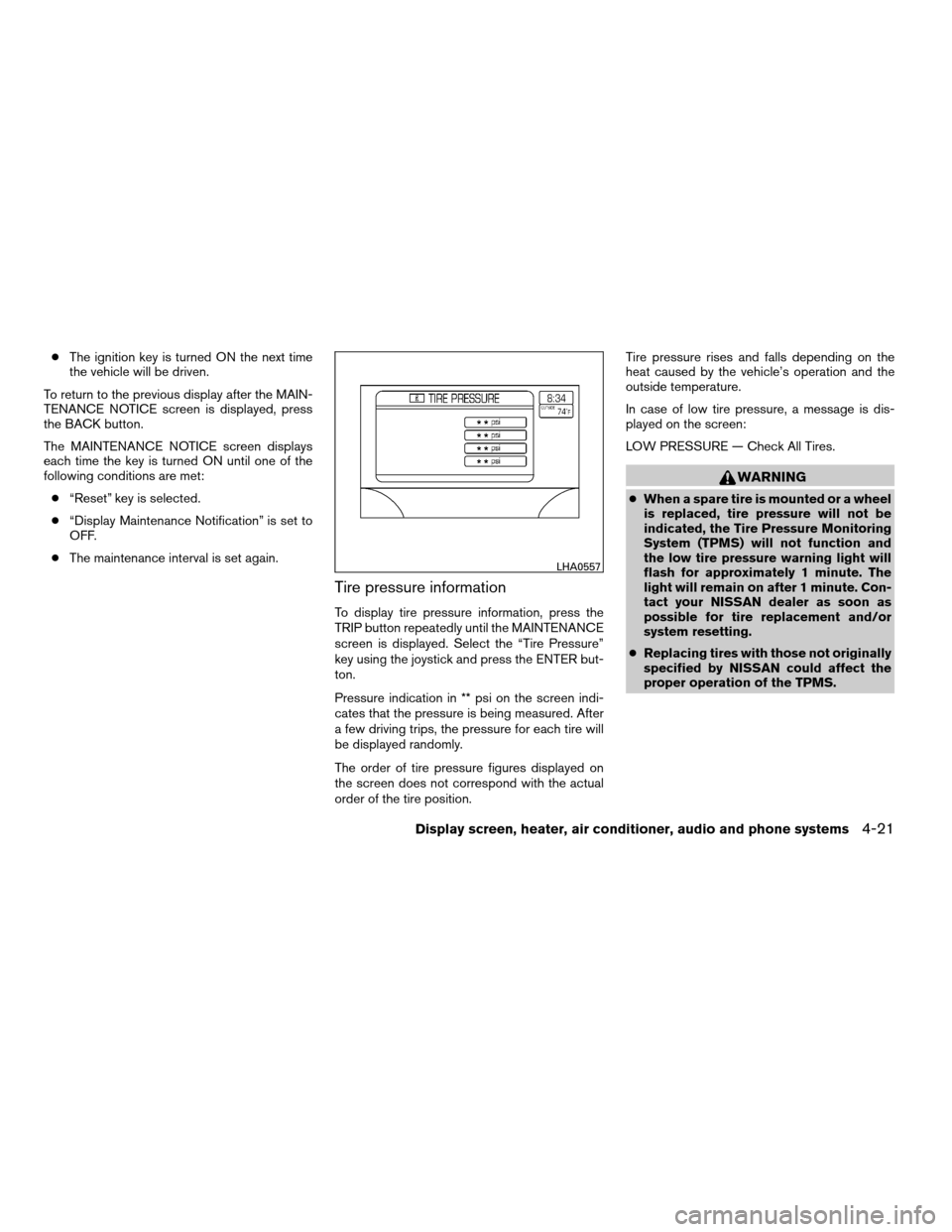
Tire pressure information
To display tire pressure information, press the
TRIP button repeatedly until the MAINTENANCE
screen is displayed. Select the “Tire Pressure”
key using the joystick and press the ENTER but-
ton.
Pressure indication in ** psi on the screen indi-
cates that the pressure is being measured. After
a few driving trips, the pressure for each tire will
be displayed randomly.
The order of tire pressure figures displayed on
the screen does not correspond with the actual
order of the tire position.Tire pressure rises and falls depending on the
heat caused by the vehicle’s operation and the
outside temperature.
In case of low tire pressure, a message is dis-
played on the screen:
LOW PRESSURE — Check All Tires.
WARNING
cWhen a spare tire is mounted or a wheel
is replaced, tire pressure will not be
indicated, the Tire Pressure Monitoring
System (TPMS) will not function and
the low tire pressure warning light will
flash for approximately 1 minute. The
light will remain on after 1 minute. Con-
tact your NISSAN dealer as soon as
possible for tire replacement and/or
system resetting.
cReplacing tires with those not originally
specified by NISSAN could affect the
proper operation of the TPMS.
LHA0557
Display screen, heater, air conditioner, audio and phone systems4-21
ZREVIEW COPYÐ2008 Quest(van)
Owners ManualÐUSA_English(nna)
06/29/07Ðdebbie
X
Page 205 of 376
CONTROLS
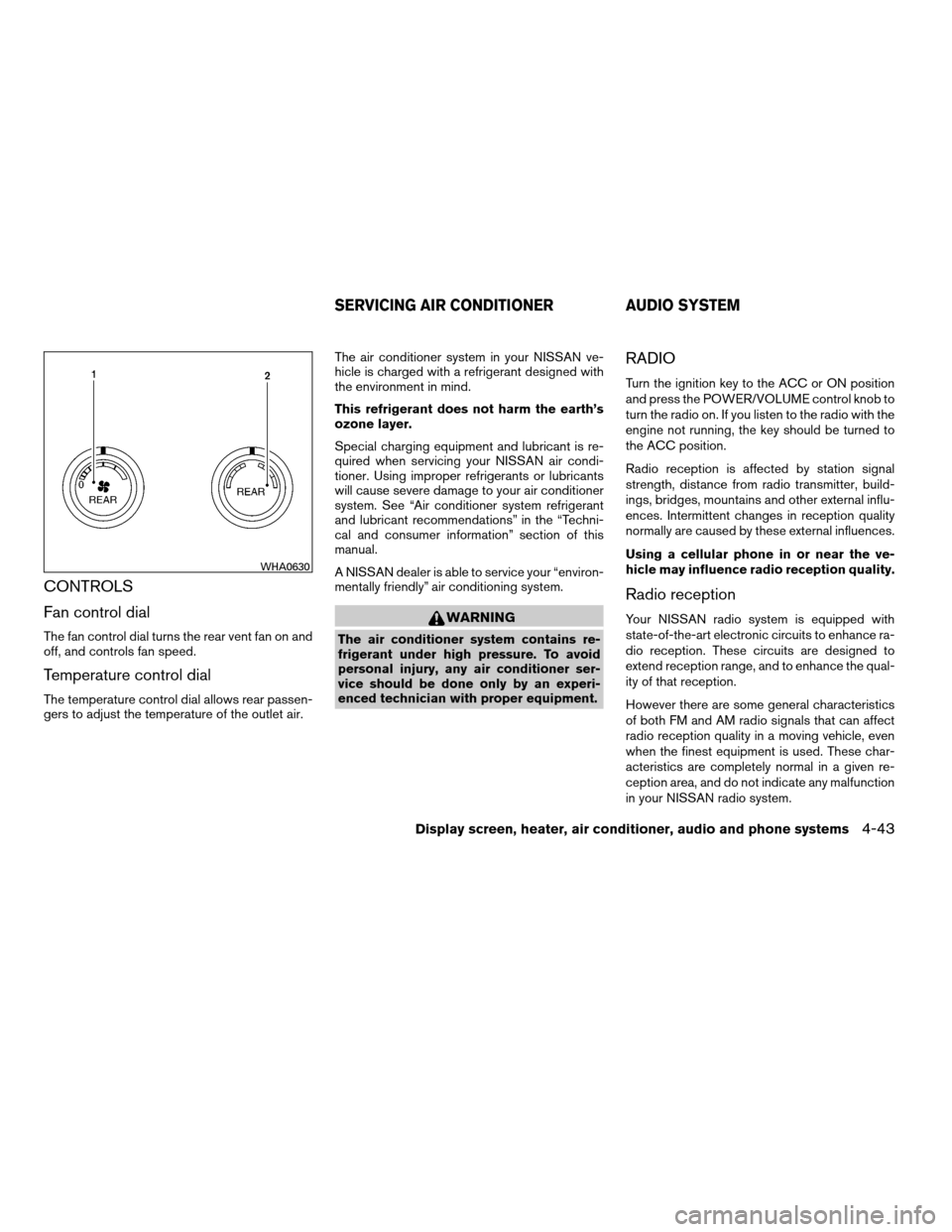
Fan control dial
The fan control dial turns the rear vent fan on and
off, and controls fan speed.
Temperature control dial
The temperature control dial allows rear passen-
gers to adjust the temperature of the outlet air.The air conditioner system in your NISSAN ve-
hicle is charged with a refrigerant designed with
the environment in mind.
This refrigerant does not harm the earth’s
ozone layer.
Special charging equipment and lubricant is re-
quired when servicing your NISSAN air condi-
tioner. Using improper refrigerants or lubricants
will cause severe damage to your air conditioner
system. See “Air conditioner system refrigerant
and lubricant recommendations” in the “Techni-
cal and consumer information” section of this
manual.
A NISSAN dealer is able to service your “environ-
mentally friendly” air conditioning system.
WARNING
The air conditioner system contains re-
frigerant under high pressure. To avoid
personal injury, any air conditioner ser-
vice should be done only by an experi-
enced technician with proper equipment.
RADIO
Turn the ignition key to the ACC or ON position
and press the POWER/VOLUME control knob to
turn the radio on. If you listen to the radio with the
engine not running, the key should be turned to
the ACC position.
Radio reception is affected by station signal
strength, distance from radio transmitter, build-
ings, bridges, mountains and other external influ-
ences. Intermittent changes in reception quality
normally are caused by these external influences.
Using a cellular phone in or near the ve-
hicle may influence radio reception quality.
Radio reception
Your NISSAN radio system is equipped with
state-of-the-art electronic circuits to enhance ra-
dio reception. These circuits are designed to
extend reception range, and to enhance the qual-
ity of that reception.
However there are some general characteristics
of both FM and AM radio signals that can affect
radio reception quality in a moving vehicle, even
when the finest equipment is used. These char-
acteristics are completely normal in a given re-
ception area, and do not indicate any malfunction
in your NISSAN radio system.
WHA0630
SERVICING AIR CONDITIONER AUDIO SYSTEM
Display screen, heater, air conditioner, audio and phone systems4-43
ZREVIEW COPYÐ2008 Quest(van)
Owners ManualÐUSA_English(nna)
06/29/07Ðdebbie
X
Page 213 of 376

Audio main operation
Power/Volume control:
Turn the ignition key to ACC or ON, and then
press the POWER/VOLUME control knob while
the system is off to call up the mode (radio or CD)
which was playing immediately before the system
was turned off.
To turn the system off, press the
POWER/VOLUME control knob.
Turn the POWER/VOLUME control knob to ad-
just the volume.
This vehicle may be equipped with Speed Sen-
sitive Volume (SSV) for audio. The audio volume
changes as the driving speed changes.
AUDIO button (BASS, MID, TREBLE, FADE,
BALANCE and SSV if so equipped):
Press the AUDIO button to change the mode as
follows:
BASS!MID!TREBLE!FADE!BALANCE
!SSV (if so equipped)
To adjust Bass, Mid, Treble, Fade and Balance,
press the AUDIO button until the desired mode
appears in the display. Press the TUNE button to
adjust Bass, Mid and Treble to the desired level.
You can also use the TUNE Button to adjust
Fader and Balance modes. Fader adjusts thesound level between the front and rear speakers
and Balance adjusts the sound between the right
and left speakers.
To change the SSV mode to OFF, LOW, MID or
HIGH, press the TUNE button.
Once you have adjusted the sound quality to the
desired level, press the AUDIO button repeatedly
until the radio or CD display reappears. Other-
wise, the radio or CD display will automatically
reappear after about 10 seconds.
DISP (display) button:
This DISP (display) button will show text about
MP3 (if so equipped) , CD or SAT information in
the audio display.
CD display mode
To change the text displayed while playing a CD
with text, press the DISP button. The DISP button
will allow you to scroll through CD text as follows:
Track numberÃ!Disc titleÃ!Track title.
cTrack title mode displays the title of the se-
lected CD track.
cDisc title mode displays the title of the CD
being played.
cTrack number mode displays the number
selected disc and the track that is currently
being played on the disc.MP3 display mode
To change the text displayed when listening to an
MP3 with MP3 text (when CD with text is being
used) , press the DISP button. The DISP button
will scroll through the CD text as follows: Folder,
Artist and Track titleÃ!Folder titleÃ!Artist
title!Track title.
To change the default display mode, press the
SETTING button repeatedly until MP3 Disp Type
appears on the display, then press the TUNE
button to select the following display modes:
Folder numberÃ!Disc number.
Once a display mode is selected, press the SET-
TING button again to store the setting.
cFolder number mode displays the folder
number and the file number of the folder
currently being played.
cDisc number mode displays the number se-
lected disc and the track that is currently
being played.
Display satellite radio display mode (if so
equipped)
To change the text displayed when listening to
satellite radio (if so equipped) press the DISP
button. The DISP button will scroll through the
broadcast information as follows: NameÃ!
TitleÃ!Current display mode.
Display screen, heater, air conditioner, audio and phone systems4-51
ZREVIEW COPYÐ2008 Quest(van)
Owners ManualÐUSA_English(nna)
06/29/07Ðdebbie
X
Page 214 of 376

To change the default display mode press the
AUDIO button to display mode and press the
TUNE button to select the following display
modes: Channel numberÃ!Channel name
Ã!NameÃ!Title. Once the display mode is
selected press the AUDIO button again to store
the setting. If the AUDIO button is not pressed
after 8 seconds the display will refresh with the
last selected display mode setting.
cChannel number mode displays the channel
number of the selected satellite radio sta-
tion.
cChannel name mode displays the channel
name of the selected satellite radio station.
cName mode displays the name of the artist,
host or weather condition of the selected
satellite radio station.
cTitle mode displays the song title, show
name, or temperature of the selected satel-
lite radio station.
FM/AM/SAT radio operation
FM/AM/SAT band select:
Pressing the FM·AM or SAT (satellite - if so
equipped) radio select button will change the
band as follows:
AMÃ!FM or SAT*When FM·AM or SAT* radio select button is
pressed while the ignition switch is in the ACC or
ON, the radio will come on at the station last
played.
The last station played will also come on when
the POWER/VOLUME control knob is pressed
ON.
*No satellite radio reception is available and “NO
SAT” is displayed when the SAT button is
pressed unless optional satellite receiver and
antenna are installed, and an XMTsatellite radio
service subscription is active. Satellite radio is
not available in Alaska, Hawaii and Guam.
If a compact disc is playing when the FM·AM or
SAT* radio select button is pressed, the compact
disc will automatically be turned off and the last
radio station played will come on.
The FM stereo indicator ST will glow during FM
stereo reception. When the stereo broadcast
signal is weak, the radio will automatically change
from stereo to monaural reception.
TUNE (Tuning):
To manually tune the radio, press the TUNE
button
or.
To move quickly through the channels, hold either
the
orbutton down for more than
1.5 seconds.
SEEK tuning:
Press the SEEK/TRACK button
orfor less than 1.5 seconds to tune from high to low
or low to high frequencies and stop at the next
broadcasting station.
SCAN RPT tuning:
Press the SCAN RPT button for more than 1.5
seconds to stop at each broadcasting station
(AM, FM or SAT if so equipped) for 5 seconds.
Pressing the button again during this 5 second
period will stop SCAN tuning and the radio will
remain tuned to that station. If the SCAN RPT
button is not pressed within 5 seconds, SCAN
tuning moves to the next station.
Station memory operations:
18 stations can be set for the FM, AM and SAT
radio to the A, B and C preset button in any
combination of AM, FM or SAT* stations.
1. Press the PRESET A·B·C button to change
between storage banks. The radio displays
the icon A, B or C to indicate which set of
presets are active.
2. Tune to the desired station using manual,
SEEK or SCAN tuning. Press and hold any
of the desired station memory buttons (1 –
6) until a beep sound is heard. (The radio
mutes when the select button is pressed) .
4-52Display screen, heater, air conditioner, audio and phone systems
ZREVIEW COPYÐ2008 Quest(van)
Owners ManualÐUSA_English(nna)
06/29/07Ðcathy
X
Page 215 of 376

3. The channel indicator will then come on and
the sound will resume. Memorizing is now
complete.
4. Other buttons can be set in the same man-
ner.
* SAT presets are only available on SAT equipped
vehicles.
If the battery cable is disconnected, or if the fuse
opens, the radio memory will be canceled. In that
case, reset the desired stations.
Radio data system (RDS):
RDS stands for Radio Data System, and is a data
information service transmitted by some radio
stations on the FM band (not AM band) and/or
SAT radio encoded within a regular radio broad-
cast. Currently, most RDS stations are in large
cities, but many stations are now considering
broadcasting RDS data.
Compact disc (CD) player operation
Turn the ignition key to the ACC or ON position
and insert the compact disc into the slot with the
label side facing up. The compact disc will be
guided automatically into the slot and start play-
ing.
If the radio is already operating, it will automati-
cally turn off and the compact disc will play.If the system has been turned off while the com-
pact disc was playing, pressing the
POWER/VOLUME control knob will start the
compact disc.
CD/DVD button:
When the CD/DVD button is pressed with the
system off and the compact disc loaded, the
system will turn on and the compact disc will start
to play.
When the CD/DVD button is pressed with the
compact disc loaded but the radio playing, the
radio will automatically be turned off and the
compact disc will start to play.
SEEK/TRACK (Fast For-
ward and Rewind):
When the SEEK/TRACK button is pressed for
more than 1.5 seconds,
(fast forward)
or(rewind) while the compact disc is be-
ing played, the compact disc will play while fast
forwarding or rewinding. When the button is re-
leased, the compact disc will return to normal
play speed.
SEEK/TRACK:
When the
button is pressed for less than
1.5 seconds while a compact disc is playing, the
track being played returns to its beginning. Pressseveral times to skip back through tracks. The
compact disc will go back the number of times
the button is pressed.
When the
button is pressed for less than
1.5 seconds while a compact disc is playing, the
next track will start to play from its beginning.
Press several times to skip through tracks. The
compact disc will advance the number of times
the button is pressed. (When the last track on the
compact disc is skipped through, the first track
will be played.)
When the
orbutton is pressed for
more than 1.5 seconds, the CD will fast forward
or rewind.
SCAN/RPT:
When the SCAN/RPT button is pressed while
the compact disc is being played, the play pattern
can be changed as follows:
1 DISC RPT!1 TRACK RPT!1 DISC RDM
1 DISC RPT: The disc that is currently playing will
be repeated
1 TRACK RPT: The track that is currently playing
will be repeated.
1 DISC RDM: Tracks from the disc that is cur-
rently playing will be played randomly.
Display screen, heater, air conditioner, audio and phone systems4-53
ZREVIEW COPYÐ2008 Quest(van)
Owners ManualÐUSA_English(nna)
06/29/07Ðdebbie
X