ECO mode NISSAN ROGUE 2015 Owner´s Manual
[x] Cancel search | Manufacturer: NISSAN, Model Year: 2015, Model line: ROGUE, Model: NISSAN ROGUE 2015Pages: 440, PDF Size: 4.71 MB
Page 247 of 440
●iPod® nano - 2nd generation (firmware ver-
sion 1.1.3 or later)
● iPod® nano - 3rd generation (firmware ver-
sion 1.1.3 or later)
● iPod® nano - 4th generation (firmware ver-
sion 1.0.4 or later)
● iPod® nano - 5th generation (firmware ver-
sion 1.0.2 or later)
● iPod® nano - 6th generation (firmware ver-
sion 1.1 or later)
● iPhone® 3G (firmware version 4.2.1 or later)
● iPhone® 3GS (firmware version 5.1 or later)
● iPhone® 4 (firmware version 5.1 or later)
● iPhone® 4S (firmware version 5.1 or later)
* Some features of this iPod® may not be fully
functional.
Make sure that your iPod® firmware is updated to
the version indicated above.
Audio main operation
AUX button
When the AUX button is pressed with the system
off and the iPod® connected, the system will turn
on. If another audio source is playing and the
iPod® is connected, press the AUX button re-
peatedly until the center display changes to the
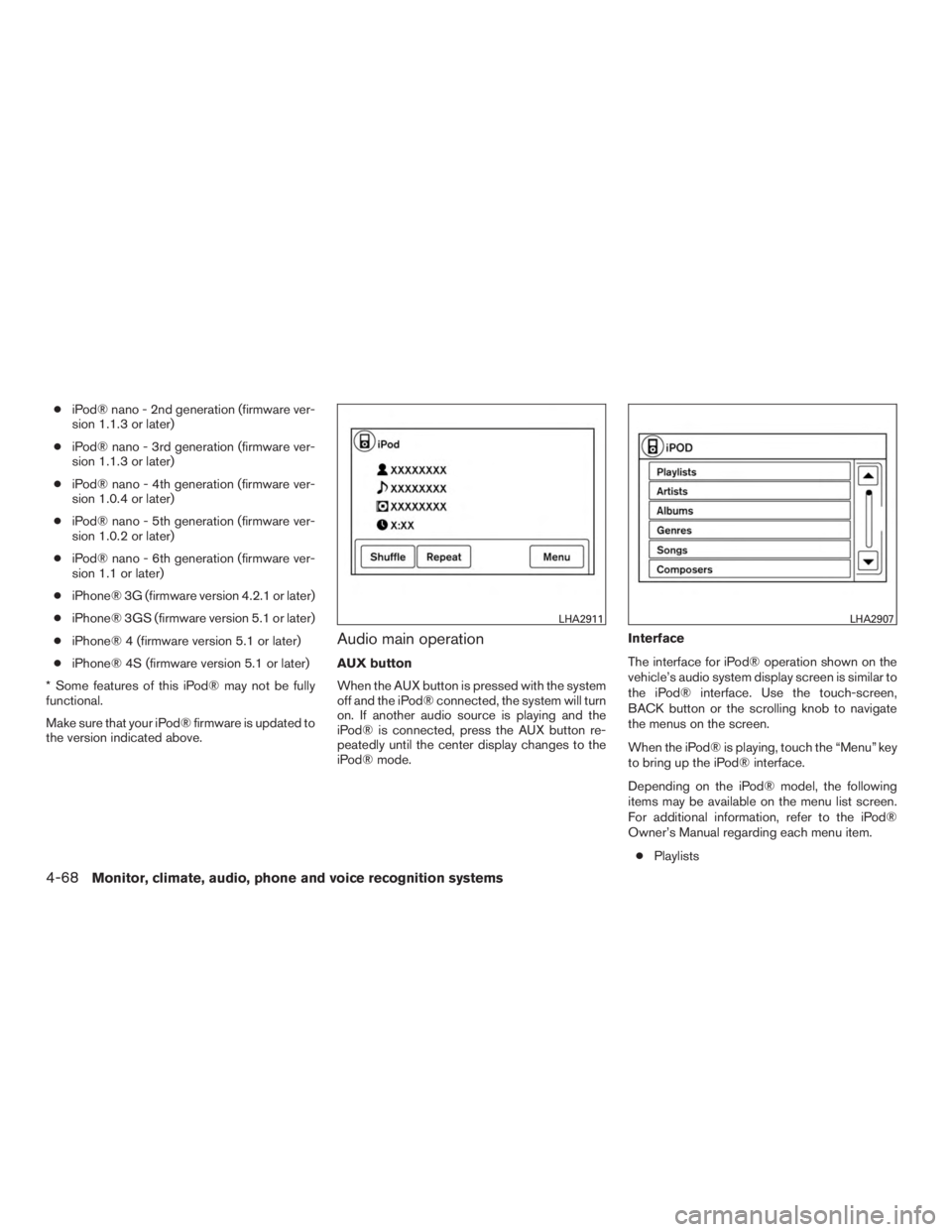
iPod® mode. Interface
The interface for iPod® operation shown on the
vehicle’s audio system display screen is similar to
the iPod® interface. Use the touch-screen,
BACK button or the scrolling knob to navigate
the menus on the screen.
When the iPod® is playing, touch the “Menu” key
to bring up the iPod® interface.
Depending on the iPod® model, the following
items may be available on the menu list screen.
For additional information, refer to the iPod®
Owner’s Manual regarding each menu item.
● Playlists
LHA2911LHA2907
4-68Monitor, climate, audio, phone and voice recognition systems
Page 248 of 440
●Artists
● Albums
● Genres
● Songs
● Composers
● Audiobooks
● Podcasts
Shuffle and repeat play mode
While the iPod® is playing, the play pattern can
be altered so that songs are repeated or played
randomly.
Shuffle
Touch the “Shuffle” key to apply a random play
pattern to the iPod®. When the Shuffle mode is
active, the text is illuminated. Touching the
“Shuffle” key once more will display the “Shuffle
songs” key. To cancel Shuffle mode, touch the
“Shuffle” key again until the text is no longer
illuminated. Repeat
Touch the “Repeat” key to apply a repeat play
pattern to the iPod®. When the repeat mode is
active, the text is illuminated. Touching the “Re-
peat” key once more will display the “Repeat
song” key. To cancel Repeat mode, touch the
“Repeat” key again until the text is no longer
illuminated.
Seek buttons
Press the
orseek button to skip
backward or forward one track.
Press and hold the
orseek button
for 1.5 seconds while a track is playing to reverse
or fast forward the track being played. The track
plays at an increased speed while reversing or
fast forwarding. When the button is released, the
track returns to normal play speed. Scrolling menus
While navigating long lists of artists, albums or
songs in the music menu, it is possible to scroll
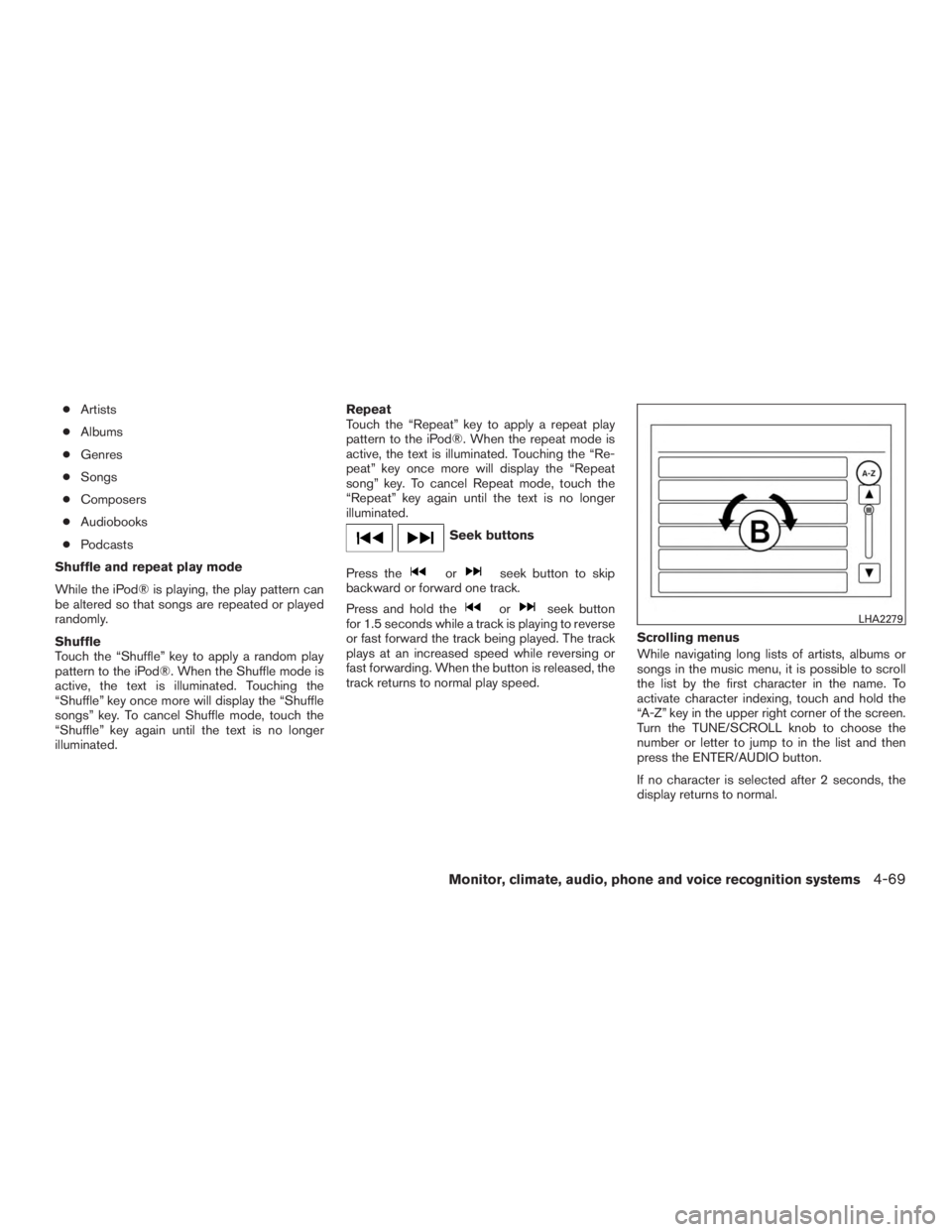
the list by the first character in the name. To
activate character indexing, touch and hold the
“A-Z” key in the upper right corner of the screen.
Turn the TUNE/SCROLL knob to choose the
number or letter to jump to in the list and then
press the ENTER/AUDIO button.
If no character is selected after 2 seconds, the
display returns to normal.LHA2279
Monitor, climate, audio, phone and voice recognition systems4-69
Page 249 of 440
BLUETOOTH® STREAMING AUDIO
WITHOUT NAVIGATION SYSTEM (if
so equipped)
If you have a compatible Bluetooth® audio de-
vice that is capable of playing audio files, the
device can be connected to the vehicle’s audio
system so that the audio files on the device play
through the vehicle’s speakers.
Connecting Bluetooth® audio
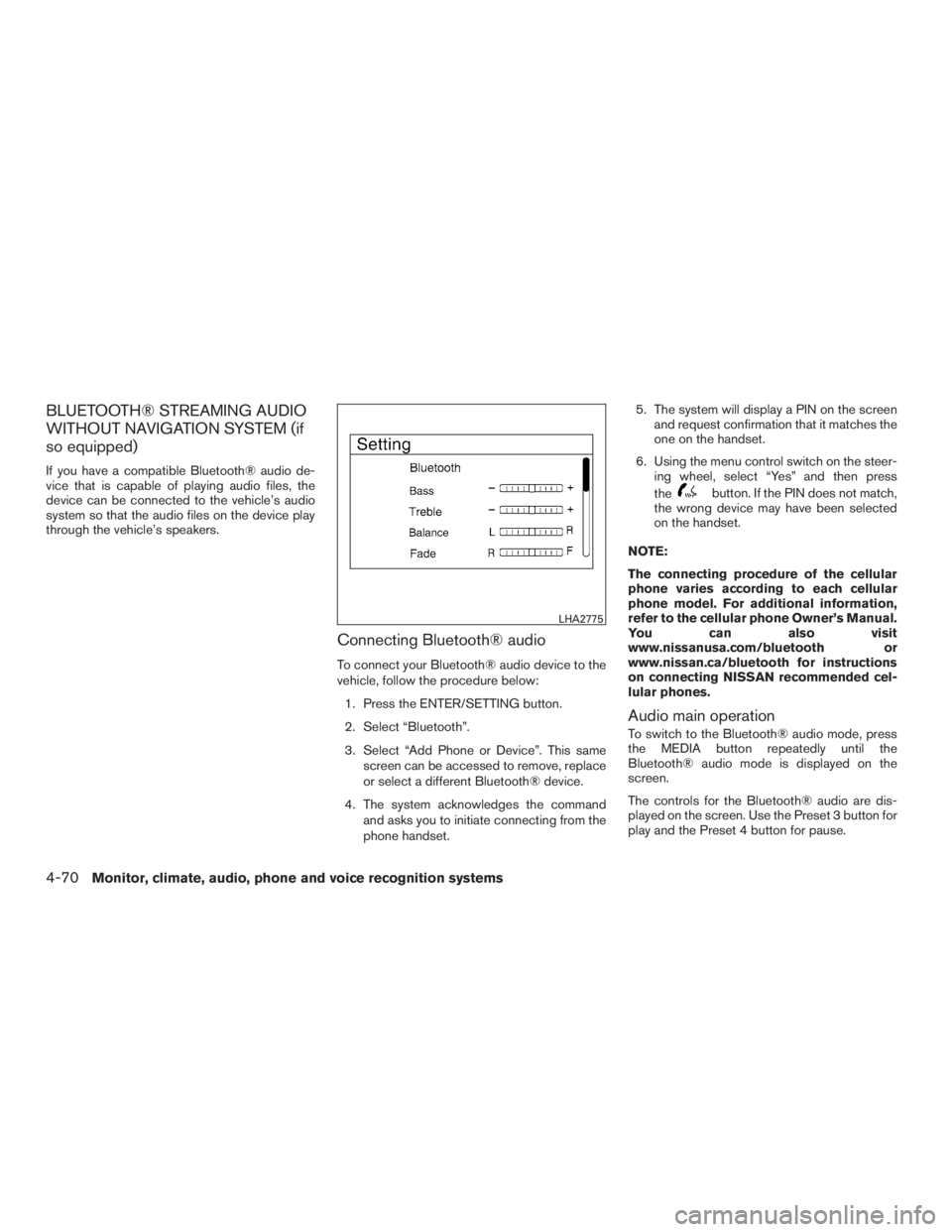
To connect your Bluetooth® audio device to the
vehicle, follow the procedure below:1. Press the ENTER/SETTING button.
2. Select “Bluetooth”.
3. Select “Add Phone or Device”. This same screen can be accessed to remove, replace
or select a different Bluetooth® device.
4. The system acknowledges the command and asks you to initiate connecting from the
phone handset. 5. The system will display a PIN on the screen
and request confirmation that it matches the
one on the handset.
6. Using the menu control switch on the steer- ing wheel, select “Yes” and then press
the
button. If the PIN does not match,
the wrong device may have been selected
on the handset.
NOTE:
The connecting procedure of the cellular
phone varies according to each cellular
phone model. For additional information,
refer to the cellular phone Owner’s Manual.
You can also visit
www.nissanusa.com/bluetooth or
www.nissan.ca/bluetooth for instructions
on connecting NISSAN recommended cel-
lular phones.
Audio main operation
To switch to the Bluetooth® audio mode, press
the MEDIA button repeatedly until the
Bluetooth® audio mode is displayed on the
screen.
The controls for the Bluetooth® audio are dis-
played on the screen. Use the Preset 3 button for
play and the Preset 4 button for pause.
LHA2775
4-70Monitor, climate, audio, phone and voice recognition systems
Page 251 of 440
NOTE:
The connecting procedure of the cellular
phone varies according to each cellular
phone model. For additional information, re-
fer to the cellular phone Owner’s Manual. You
can also visit www.nissanusa.com/bluetooth
or www.nissan.ca/bluetooth for instructions
on connecting NISSAN recommended cellu-
lar phones.
Audio main operation
To switch to the Bluetooth® audio mode, press
the AUX button repeatedly until the Bluetooth®
audio mode is displayed on the screen.
The controls for the Bluetooth® audio are dis-
played on the screen.
CD CARE AND CLEANING
●Handle a CD by its edges. Do not bend the
disc. Never touch the surface of the disc.
● Always place the discs in the storage case
when they are not being used.
● To clean a disc, wipe the surface from the
center to the outer edge using a clean, soft
cloth. Do not wipe the disc using a circular
motion.
● Do not use a conventional record cleaner or
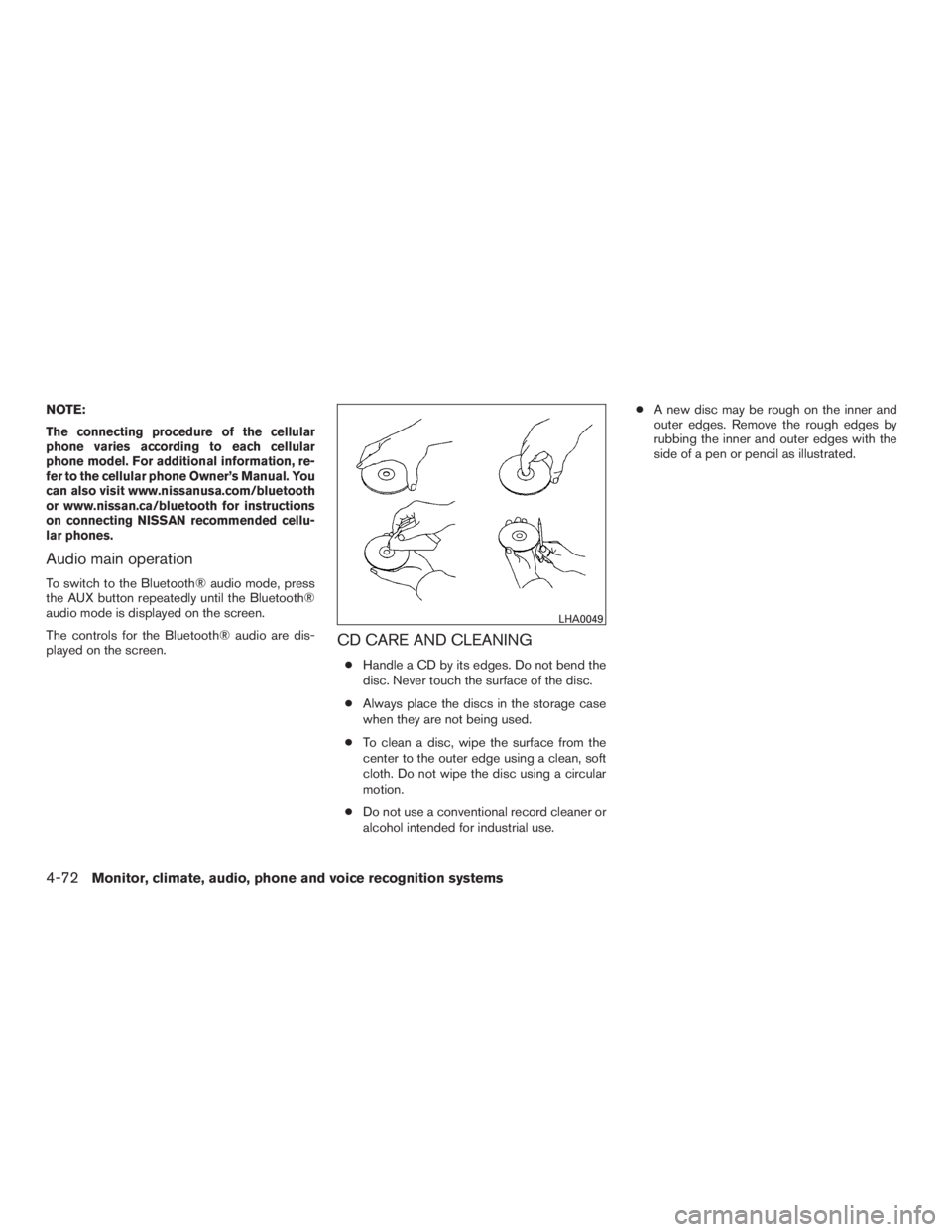
alcohol intended for industrial use. ●
A new disc may be rough on the inner and
outer edges. Remove the rough edges by
rubbing the inner and outer edges with the
side of a pen or pencil as illustrated.
LHA0049
4-72Monitor, climate, audio, phone and voice recognition systems
Page 252 of 440
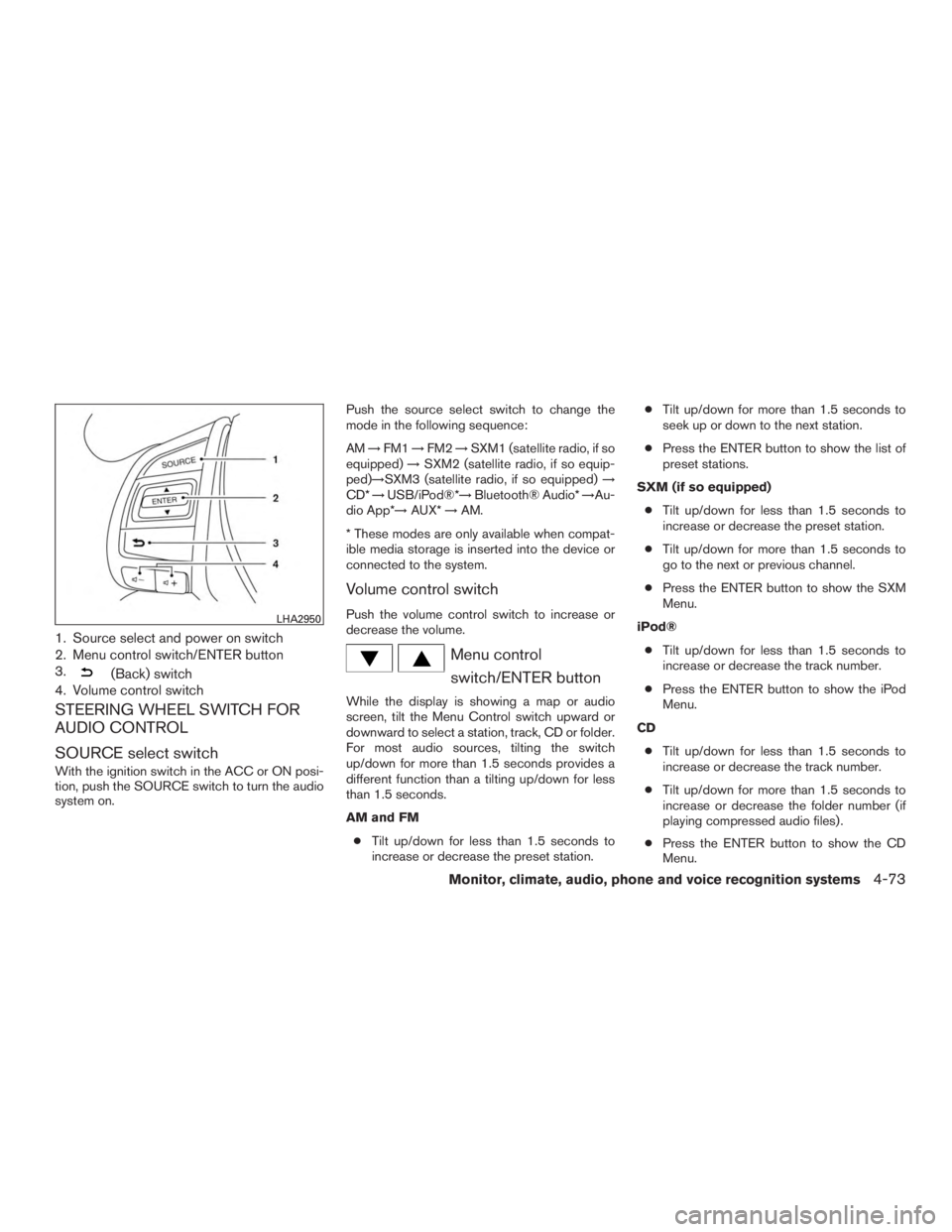
1. Source select and power on switch
2. Menu control switch/ENTER button
3.
(Back) switch
4. Volume control switch
STEERING WHEEL SWITCH FOR
AUDIO CONTROL
SOURCE select switch
With the ignition switch in the ACC or ON posi-
tion, push the SOURCE switch to turn the audio
system on. Push the source select switch to change the
mode in the following sequence:
AM
→FM1 →FM2 →SXM1 (satellite radio, if so
equipped) →SXM2 (satellite radio, if so equip-
ped)→SXM3 (satellite radio, if so equipped) →
CD* →USB/iPod®*→ Bluetooth® Audio* →Au-
dio App*→ AUX*→AM.
* These modes are only available when compat-
ible media storage is inserted into the device or
connected to the system.
Volume control switch
Push the volume control switch to increase or
decrease the volume.
Menu control switch/ENTER button
While the display is showing a map or audio
screen, tilt the Menu Control switch upward or
downward to select a station, track, CD or folder.
For most audio sources, tilting the switch
up/down for more than 1.5 seconds provides a
different function than a tilting up/down for less
than 1.5 seconds.
AM and FM
● Tilt up/down for less than 1.5 seconds to
increase or decrease the preset station. ●
Tilt up/down for more than 1.5 seconds to
seek up or down to the next station.
● Press the ENTER button to show the list of
preset stations.
SXM (if so equipped) ● Tilt up/down for less than 1.5 seconds to
increase or decrease the preset station.
● Tilt up/down for more than 1.5 seconds to
go to the next or previous channel.
● Press the ENTER button to show the SXM
Menu.
iPod® ● Tilt up/down for less than 1.5 seconds to
increase or decrease the track number.
● Press the ENTER button to show the iPod
Menu.
CD ● Tilt up/down for less than 1.5 seconds to
increase or decrease the track number.
● Tilt up/down for more than 1.5 seconds to
increase or decrease the folder number (if
playing compressed audio files) .
● Press the ENTER button to show the CD
Menu.
LHA2950
Monitor, climate, audio, phone and voice recognition systems4-73
Page 254 of 440
CONNECT PHONE
To use this feature, a compatible smartphone
must be connected via Bluetooth® or USB to the
vehicle. For additional information, refer to
“Bluetooth® Hands-Free Phone System without
Navigation System” or “Bluetooth® Hands-Free
Phone System with Navigation System” in this
section.
NOTE:
For vehicles with navigation, Apple iP-
hones® REQUIRE the phone to be plugged
in via USB for NissanConnect Mobile Apps
to function.
For vehicles without Navigation, Apple iP-
hones® must be paired via Bluetooth® for
NissanConnect Mobile Apps to function.
NOTE:
For Android phones, NissanConnect Mo-
bile Apps REQUIRES the phone to be
paired via Bluetooth®.
APPLICATION DOWNLOAD
Once connected, the NissanConnect App will
search your phone to determine which compat-
ible applications are currently installed. The user
will then choose which apps they want to bring
into their vehicle from the list of apps within the
“Manage My Apps” section of the NissanCon-
nect App on their smartphone. The vehicle will
then download the in-vehicle interface for each of
these compatible applications. Once down-
loaded, the user can access their selected smart-
phone applications through the vehicle touch-
screen. For additional information, refer to
www.nissanusa.com/connect regarding applica-
tion availability.When installing a CB, ham radio or car phone in
your vehicle, be sure to observe the following
precautions; otherwise, the new equipment may
adversely affect the engine control system and
other electronic parts.
WARNING
●
A cellular phone should not be used for
any purpose while driving so full atten-
tion may be given to vehicle operation.
Some jurisdictions prohibit the use of
cellular phones while driving.
● If you must make a call while your ve-
hicle is in motion, the hands free cellu-
lar phone operational mode is highly
recommended. Exercise extreme cau-
tion at all times so full attention may be
given to vehicle operation.
● If you are unable to devote full attention
to vehicle operation while talking on
the phone, pull off the road to a safe
location and stop your vehicle.
CAR PHONE OR CB RADIO
Monitor, climate, audio, phone and voice recognition systems4-75
Page 266 of 440
●Delete Phone or Device
Select to delete a phone from the displayed
list. The system will ask to confirm before
deleting the phone.
● Replace Phone
Select to replace a phone from the displayed
list. When a selection is made, the system
will ask to confirm before proceeding. The
recorded phonebook for the phone being
deleted will be saved as long as the new
phone’s phonebook is the same as the old
phone’s phonebook.
● Select Phone or Device
Select to connect to a previously connected
phone from the displayed list.
● Phonebook Download
Select to turn on or off the automatic down-
load of a connected phone’s phonebook.
● Show Incoming Calls
Select “Driver Only” to have incoming call
information displayed only in the vehicle in-
formation display. Select “Both” to have in-
coming call information displayed in both the
vehicle information display and the center
display screen.
● Text Message
Select to turn on or off the vehicle’s text
messaging feature. ●
New Text Sound
Select to adjust the volume of the sound that
plays when a new text is received by a phone
connected to the Bluetooth® Hands-Free
Phone System. The setting all the way to the
left indicates that the new text sound will be
muted.
● Show Incoming Text
Select “Driver Only” to have incoming text
messages displayed only in the vehicle infor-
mation display. Select “Both” to have incom-
ing text messages displayed in both the ve-
hicle information display and the center
display screen. Select “None” to have no
display of incoming text messages.
● Edit Custom Messages
Select to set a custom message that will be
available with the standard options when
sending a text message. To set a custom
message, send a text message to your own
phone number while the phone is connected
to the system. Three custom messages can
be set. Custom messages can only be set
while the vehicle is stationary. ●
Auto Reply
Select to turn on or off the Auto Reply func-
tion. When enabled, the vehicle will auto-
matically send a predefined text message to
the sender when a text message is received
while driving.
● Auto Reply Message
Select to choose the message that is sent
when the Auto Reply function is enabled.
Choose from “I’m Driving” or one of the three
custom messages stored in the system.
● Vehicle Signature On/Off
Select to choose whether or not the vehicle
signature is added to outgoing text mes-
sages from the vehicle. This message can-
not be changed or customized.
MANUAL CONTROL
While using the Voice Recognition system, it is
possible to select menu options by using the
steering wheel controls instead of speaking voice
commands. To activate manual control mode,
press the PHONE/SEND (
) button on the
steering wheel to access the phone menu and
then press either up or down on the tuning switch
(
).
The manual control mode does not allow dialing a
phone number by digits. The user may select an
entry from the Phonebook or Recent Calls lists.
Monitor, climate, audio, phone and voice recognition systems4-87
Page 267 of 440
To reactivate Voice Recognition, exit the manual
control mode by pressing and holding the
PHONE/END (
) button. At that time, press-
ing the PHONE/SEND (
) button will start
the Hands Free Phone System.
WARNING
● Use a phone after stopping your vehicle
in a safe location. If you have to use a
phone while driving, exercise extreme
caution at all times so full attention may
be given to vehicle operation.
● If you are unable to devote full attention
to vehicle operation while talking on
the phone, pull off the road to a safe
location and stop your vehicle.
CAUTION
To avoid discharging the vehicle battery,
use a phone after starting the engine.
BLUETOOTH® HANDS-FREE PHONE
SYSTEM WITH NAVIGATION SYSTEM
(if so equipped)
4-88Monitor, climate, audio, phone and voice recognition systems
Page 271 of 440
MAKING A CALL
To make a call, follow the procedure below:1. Press the
button on the control panel.
The “Phone” screen will appear on the dis-
play.
2. Select one of the following options to make a call:
● “Phonebook”: Select the name from an entry
stored in the vehicle phonebook.
● “Call Lists”: Select the name from the in-
coming, outgoing or missed.
● “Redial”: Dial the last outgoing call from the
vehicle.
● “
”: Input the phone number manually
using a keypad displayed on the screen. For
additional information, refer to “How to use
the touch-screen” in this section.
RECEIVING A CALL
When a call is placed to the connected phone,
the display will change to phone mode.
To accept the incoming call, either:
● Press the
button on the steering
wheel, or
● Touch the
icon on the screen. To reject the incoming call, either:
● Press the
button on the steering
wheel, or
● Touch the red phone icon on the screen.
DURING A CALL
While a call is active, the following options are
available on the screen:
● “Handset”
Select this option to switch control of the
phone call over to the handset.
● “Mute Mic.”
Select this option to mute the microphone.
Select again to unmute the microphone.
● Red phone (
) icon
Select to end the phone call.
ENDING A CALL
To end a phone call, select the red phone ()
icon on the screen or press the
button on
the steering wheel.
TEXT MESSAGING
WARNING
● Laws in some jurisdictions may restrict
the use of “Text-to-Speech”. Check lo-
cal regulations before using this
feature.
● Laws in some jurisdictions may restrict
the use of some of the applications and
features, such as social networking and
texting. Check local regulations for any
requirements.
● Use the text messaging feature after
stopping your vehicle in a safe location.
If you have to use the feature while
driving, exercise extreme caution at all
times so full attention may be given to
vehicle operation.
● If you are unable to devote full attention
to vehicle operation while using the text
messaging feature, pull off the road to a
safe location and stop your vehicle.
4-92Monitor, climate, audio, phone and voice recognition systems
Page 281 of 440
5 Starting and driving
Precautions when starting and driving................5-2
Exhaust gas (carbon monoxide) ..................5-2
Three-way catalyst ..............................5-2
Tire Pressure Monitoring System (TPMS) ..........5-3
Avoiding collision and rollover . . ..................5-6
Off-road recovery ...............................5-7
Rapid air pressure loss ..........................5-7
Drinking alcohol/drugs and driving ................5-8
Driving safety precautions .......................5-8
Ignition switch (if so equipped) .....................5-10
Continuously Variable Transmission (CVT) ........5-10
Key positions ................................. 5-11
NISSAN Vehicle Immobilizer System .............5-11
Push-Button Ignition Switch (if so equipped) ........5-12
Operating range ............................... 5-13
Push-button ignition switch positions . . . .........5-13
Emergency engine shut off .....................5-14
NISSAN Intelligent Key® battery discharge
(if so equipped) ............................... 5-14
NISSAN Vehicle Immobilizer System .............5-15
Before starting the engine ......................... 5-15
Starting the engine (models without NISSAN
Intelligent Key® system) ........................... 5-15Starting the engine (models with NISSAN
Intelligent Key® system)
........................... 5-16
Driving the vehicle ................................ 5-17
Continuously Variable Transmission (CVT) ........5-17
Parking brake .................................... 5-21
ECO mode switch (if so equipped) .................5-22
Blind Spot Warning (BSW) System / Lane
Departure Warning (LDW) System (if so equipped) . . 5-22 BSW system operation ........................ 5-23
BSW driving situations ......................... 5-25
LDW system operation ......................... 5-27
BSW/LDW temporary disabled status ...........5-29
BSW/LDW automatic deactivation ..............5-29
BSW/LDW malfunction ........................ 5-29
Camera unit maintenance ......................5-29
Cruise control .................................... 5-30
Precautions on cruise control ...................5-30
Cruise control operations .......................5-30
Forward
Collision Warning (FCW) system
(if so equipped) .................................. 5-31
Approach warning ............................. 5-32
Precautions on FCW system ....................5-33
FCW system operation ......................... 5-34
Sensor maintenance ........................... 5-35