warning NISSAN ROGUE 2021 Owner´s Manual
[x] Cancel search | Manufacturer: NISSAN, Model Year: 2021, Model line: ROGUE, Model: NISSAN ROGUE 2021Pages: 556, PDF Size: 2.7 MB
Page 109 of 556

Turn the VDC on using the vehicle in-
formation display, or restart the engine
and the system will operate normally.
(See “Vehicle Dynamic Control (VDC) sys-
tem” (P.5-157).)
The light also comes on when placing the
ignition switch in the ON position. The
light will turn off after about 2 seconds if
the system is operational. If the light stays
on or comes on along with the
indicator light while you are driving, have
the VDC system checked. It is recom-
mended that you visit a NISSAN dealer for
this service.
WARNING
The VDC should remain on unless
freeing a vehicle from mud or snow.
While the VDC system is operating, you
might feel a slight vibration or hear the
system working when starting the vehicle
or accelerating, but this is not a malfunc-
tion.
WARNING/INDICATOR LIGHTS
(other)
See “Vehicle information display” (P.2-22).
Automatic brake hold indica-
tor light (white)
The automatic brake hold indicator light
(white) illuminates when the automatic
brake hold system is on standby. (See
“Automatic brake hold” (P.5-28).)
Automatic brake hold indica-
tor light (green)
The automatic brake hold indicator light
(green) illuminates while the automatic
brake hold system is operating. (See
“Automatic brake hold” (P.5-28).)
Exterior light indicator
This indicator illuminates when the head-
light switch is turned to the AUTO,orposition and the front parking lights,
rear combination lights, license plate
lights or headlights are on. The indicator
turns off when these lights are turned off.
Front fog light indicator light
(if so equipped)
The front fog light indicator light illumi-
nates when the front fog lights are on.
(See “Fog light switch” (P.2-62).)
High beam assist indicator
light
The high beam assist indicator light
illuminates when the high beam assist
system is turned on and it is operational.
(See “High beam assist” (P.2-59).)
High beam indicator light
This light illuminates when the headlight
high beam is on and goes out when the
low beam is selected.
Turn signal/hazard indicator
lights
The light flashes when the turn signal
switch lever or hazard switch is turned on.
Instruments and controls2-21
Page 110 of 556
2-22Instruments and controls
AUDIBLE REMINDERS
Light reminder chime
The light reminder chime will sound when
the headlight switch is placed in the
orposition after the engine was
turned off, and the driver’s door is opened
with the light is on.
Turn the light switch to the OFF (if so
equipped) or AUTO position when you
leave the vehicle.
Driving Aid chimes (if so equipped)
An audible alert/chime may be heard if
any of the following systems (if so
equipped) are active:
. Lane Departure Warning (LDW)
. Intelligent Lane Intervention (I-LI)
. Blind Spot Warning (BSW)
. Intelligent Blind Spot Intervention (I-
BSI)
. Rear Cross Traffic Alert (RCTA)
. ProPILOT Assist
. Automatic Emergency Braking (AEB)
with pedestrian detection
. Intelligent Forward Collision Warning
(I-FCW)
. Rear Automatic Braking (RAB)
. Sonar system .
Rear Sonar System (RSS)
For additional information, refer to the “5.
Starting and driving” section of this man-
ual.
Door lock warning chime
When the chime sounds, be sure to check
both the vehicle and the Intelligent Key.
See “Troubleshooting guide” (P.3-13).
Brake pad wear warning
The disc brake pads have audible wear
warnings. When a brake pad requires
replacement, it will make a high pitched
scraping sound when the vehicle is in
motion. This scraping sound will first
occur only when the brake pedal is
depressed. After more wear of the brake
pad, the sound will always be heard even
if the brake pedal is not depressed. Have
the brakes checked as soon as possible if
the warning sound is heard.
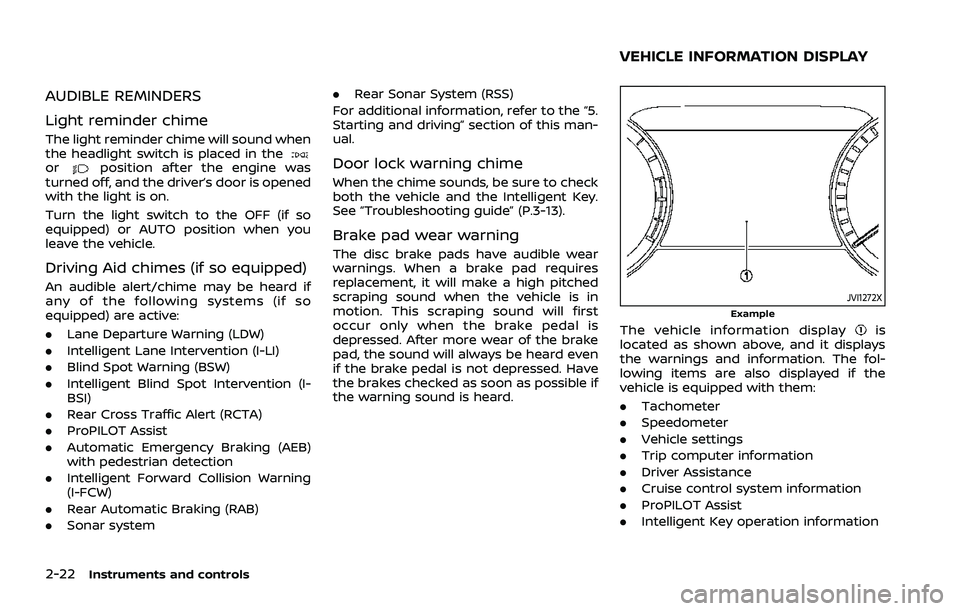
JVI1272XExample
The vehicle information displayis
located as shown above, and it displays
the warnings and information. The fol-
lowing items are also displayed if the
vehicle is equipped with them:
. Tachometer
. Speedometer
. Vehicle settings
. Trip computer information
. Driver Assistance
. Cruise control system information
. ProPILOT Assist
. Intelligent Key operation information
VEHICLE INFORMATION DISPLAY
Page 111 of 556
.Audio information
. Navigation - turn by turn
. Indicators and warnings
. Tire pressure information
. Other information
CHANGING THE METER SCREEN
VIEW (models with full-screen dis-
play)
For the model with full-screen display, the
meter screen view can be changed to
expand the vehicle information display
area. See “Changing the meter screen
view (models with full-screen display)”
(P.2-7) for how to change the view.
WAC0313X
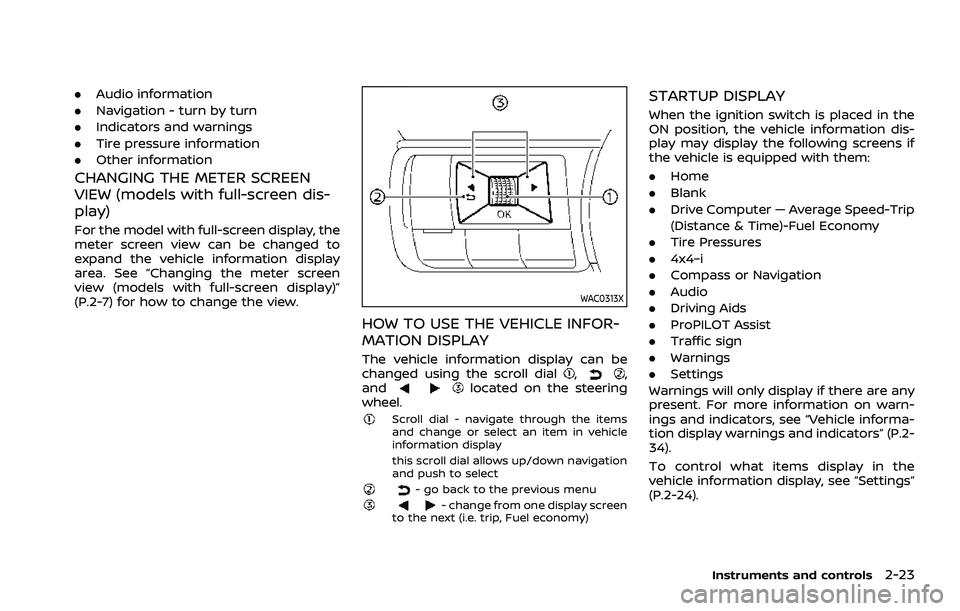
HOW TO USE THE VEHICLE INFOR-
MATION DISPLAY
The vehicle information display can be
changed using the scroll dial,,
andlocated on the steering
wheel.
Scroll dial - navigate through the items
and change or select an item in vehicle
information display
this scroll dial allows up/down navigation
and push to select
- go back to the previous menu- change from one display screen
to the next (i.e. trip, Fuel economy)
STARTUP DISPLAY
When the ignition switch is placed in the
ON position, the vehicle information dis-
play may display the following screens if
the vehicle is equipped with them:
. Home
. Blank
. Drive Computer — Average Speed-Trip
(Distance & Time)-Fuel Economy
. Tire Pressures
. 4x4–i
. Compass or Navigation
. Audio
. Driving Aids
. ProPILOT Assist
. Traffic sign
. Warnings
. Settings
Warnings will only display if there are any
present. For more information on warn-
ings and indicators, see “Vehicle informa-
tion display warnings and indicators” (P.2-
34).
To control what items display in the
vehicle information display, see “Settings”
(P.2-24).
Instruments and controls2-23
Page 112 of 556
2-24Instruments and controls
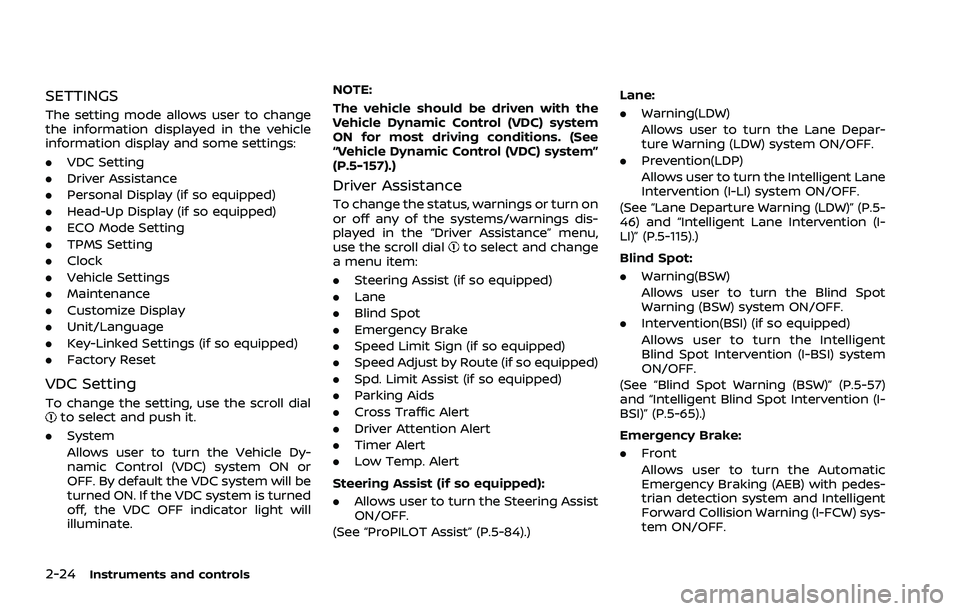
SETTINGS
The setting mode allows user to change
the information displayed in the vehicle
information display and some settings:
.VDC Setting
. Driver Assistance
. Personal Display (if so equipped)
. Head-Up Display (if so equipped)
. ECO Mode Setting
. TPMS Setting
. Clock
. Vehicle Settings
. Maintenance
. Customize Display
. Unit/Language
. Key-Linked Settings (if so equipped)
. Factory Reset
VDC Setting
To change the setting, use the scroll dialto select and push it.
. System
Allows user to turn the Vehicle Dy-
namic Control (VDC) system ON or
OFF. By default the VDC system will be
turned ON. If the VDC system is turned
off, the VDC OFF indicator light will
illuminate. NOTE:
The vehicle should be driven with the
Vehicle Dynamic Control (VDC) system
ON for most driving conditions. (See
“Vehicle Dynamic Control (VDC) system”
(P.5-157).)
Driver Assistance
To change the status, warnings or turn on
or off any of the systems/warnings dis-
played in the “Driver Assistance” menu,
use the scroll dial
to select and change
a menu item:
. Steering Assist (if so equipped)
. Lane
. Blind Spot
. Emergency Brake
. Speed Limit Sign (if so equipped)
. Speed Adjust by Route (if so equipped)
. Spd. Limit Assist (if so equipped)
. Parking Aids
. Cross Traffic Alert
. Driver Attention Alert
. Timer Alert
. Low Temp. Alert
Steering Assist (if so equipped):
. Allows user to turn the Steering Assist
ON/OFF.
(See “ProPILOT Assist” (P.5-84).) Lane:
. Warning(LDW)
Allows user to turn the Lane Depar-
ture Warning (LDW) system ON/OFF.
. Prevention(LDP)
Allows user to turn the Intelligent Lane
Intervention (I-LI) system ON/OFF.
(See “Lane Departure Warning (LDW)” (P.5-
46) and “Intelligent Lane Intervention (I-
LI)” (P.5-115).)
Blind Spot:
. Warning(BSW)
Allows user to turn the Blind Spot
Warning (BSW) system ON/OFF.
. Intervention(BSI) (if so equipped)
Allows user to turn the Intelligent
Blind Spot Intervention (I-BSI) system
ON/OFF.
(See “Blind Spot Warning (BSW)” (P.5-57)
and “Intelligent Blind Spot Intervention (I-
BSI)” (P.5-65).)
Emergency Brake:
. Front
Allows user to turn the Automatic
Emergency Braking (AEB) with pedes-
trian detection system and Intelligent
Forward Collision Warning (I-FCW) sys-
tem ON/OFF.
Page 118 of 556
2-30Instruments and controls
and intervals, refer to the “9. Maintenance
and schedules” section.
Tire:
This indicator appears when the user set
distance comes for replacing tires. You
can set or reset the distance for replacing
tires.
WARNING
The tire replacement indicator is not
a substitute for regular tire checks,
including tire pressure checks. (See
“Changing wheels and tires” (P.8-
33).) Many factors including tire in-
flation, alignment, driving habits and
road conditions affect tire wear and
when tires should be replaced.
Setting the tire replacement indica-
tor for a certain driving distance
does not mean your tires will last
that long. Use the tire replacement
indicator as a guide only and always
perform regular tire checks. Failure
to perform regular tire checks, in-
cluding tire pressure checks could
result in tire failure. Serious vehicle
damage could occur and may lead to
a collision, which could result in
serious personal injury or death.Other:
This indicator appears when the user set
distance comes for checking or replacing
maintenance items other than the engine
oil, oil filter and tires. Other maintenance
items can include such things as air filter
or tire rotation. You can set or reset the
distance for checking or replacing the
items.
Customize Display
The display settings allows user to
choose from the various meter selections.
The display settings can be changed
using the scroll dial
.
Main Menu Selection:
Displays available screens that can be
shown in the vehicle information display.
Route Guidance (if so equipped):
To change the setting, use the scroll dial
to select and push it.
. Alerts
The “Alerts” allows user to turn the
Navigation Settings alerts on or off.
Transition (Cruise) (if so equipped):
The ”Transition (Cruise)” allows user to
turn the cruise screen transition on or off. Welcome Effect:
The “Welcome Effect” displays the avail-
able welcome effect settings.
. Gauges (if so equipped)
. Animation
Operation guidance:
The “Operation guidance” displays the
available operation guidance settings.
. Lights
. Wiper
. Seat Memory (if so equipped)
. Cruise Control (if so equipped)
Unit/Language
The units that are shown in the vehicle
information display can be changed:
.Mileage/Fuel
. Tire Pressure
. Temperature
. Language
Use the scroll dial
to select and change
the units of the vehicle information dis-
play.
Mileage/Fuel:
The unit for the mileage that is shown in
the vehicle information display can be
changed.
Page 122 of 556
2-34Instruments and controls
VEHICLE INFORMATION DISPLAY
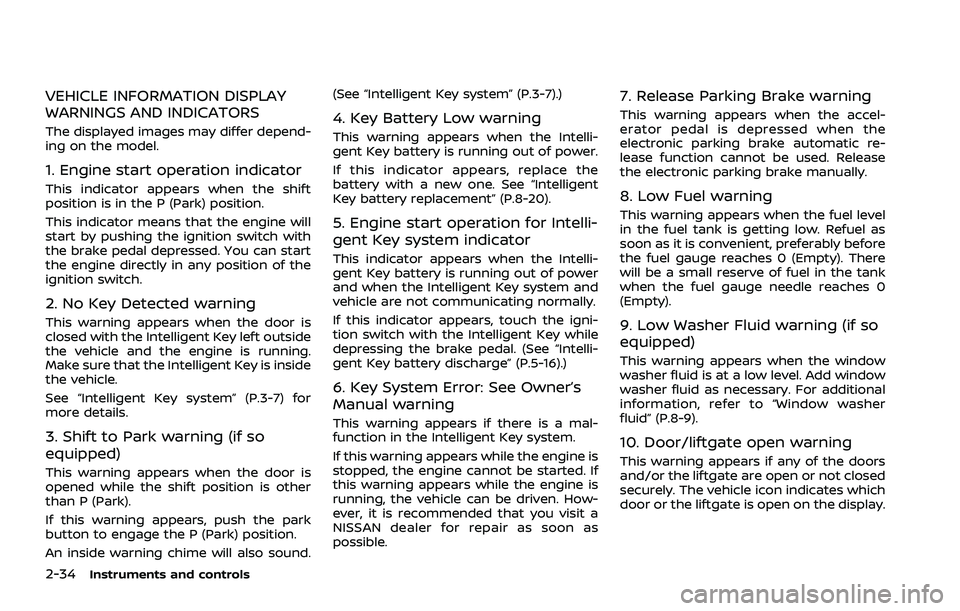
WARNINGS AND INDICATORS
The displayed images may differ depend-
ing on the model.
1. Engine start operation indicator
This indicator appears when the shift
position is in the P (Park) position.
This indicator means that the engine will
start by pushing the ignition switch with
the brake pedal depressed. You can start
the engine directly in any position of the
ignition switch.
2. No Key Detected warning
This warning appears when the door is
closed with the Intelligent Key left outside
the vehicle and the engine is running.
Make sure that the Intelligent Key is inside
the vehicle.
See “Intelligent Key system” (P.3-7) for
more details.
3. Shift to Park warning (if so
equipped)
This warning appears when the door is
opened while the shift position is other
than P (Park).
If this warning appears, push the park
button to engage the P (Park) position.
An inside warning chime will also sound.(See “Intelligent Key system” (P.3-7).)
4. Key Battery Low warning
This warning appears when the Intelli-
gent Key battery is running out of power.
If this indicator appears, replace the
battery with a new one. See “Intelligent
Key battery replacement” (P.8-20).
5. Engine start operation for Intelli-
gent Key system indicator
This indicator appears when the Intelli-
gent Key battery is running out of power
and when the Intelligent Key system and
vehicle are not communicating normally.
If this indicator appears, touch the igni-
tion switch with the Intelligent Key while
depressing the brake pedal. (See “Intelli-
gent Key battery discharge” (P.5-16).)
6. Key System Error: See Owner’s
Manual warning
This warning appears if there is a mal-
function in the Intelligent Key system.
If this warning appears while the engine is
stopped, the engine cannot be started. If
this warning appears while the engine is
running, the vehicle can be driven. How-
ever, it is recommended that you visit a
NISSAN dealer for repair as soon as
possible.
7. Release Parking Brake warning
This warning appears when the accel-
erator pedal is depressed when the
electronic parking brake automatic re-
lease function cannot be used. Release
the electronic parking brake manually.
8. Low Fuel warning
This warning appears when the fuel level
in the fuel tank is getting low. Refuel as
soon as it is convenient, preferably before
the fuel gauge reaches 0 (Empty). There
will be a small reserve of fuel in the tank
when the fuel gauge needle reaches 0
(Empty).
9. Low Washer Fluid warning (if so
equipped)
This warning appears when the window
washer fluid is at a low level. Add window
washer fluid as necessary. For additional
information, refer to “Window washer
fluid” (P.8-9).
10. Door/liftgate open warning
This warning appears if any of the doors
and/or the liftgate are open or not closed
securely. The vehicle icon indicates which
door or the liftgate is open on the display.
Page 123 of 556
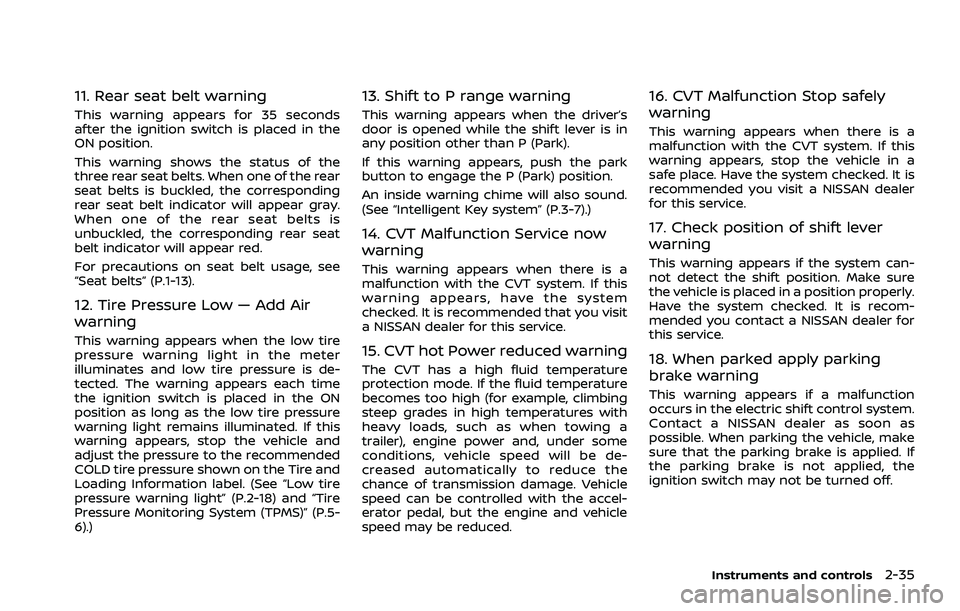
11. Rear seat belt warning
This warning appears for 35 seconds
after the ignition switch is placed in the
ON position.
This warning shows the status of the
three rear seat belts. When one of the rear
seat belts is buckled, the corresponding
rear seat belt indicator will appear gray.
When one of the rear seat belts is
unbuckled, the corresponding rear seat
belt indicator will appear red.
For precautions on seat belt usage, see
“Seat belts” (P.1-13).
12. Tire Pressure Low — Add Air
warning
This warning appears when the low tire
pressure warning light in the meter
illuminates and low tire pressure is de-
tected. The warning appears each time
the ignition switch is placed in the ON
position as long as the low tire pressure
warning light remains illuminated. If this
warning appears, stop the vehicle and
adjust the pressure to the recommended
COLD tire pressure shown on the Tire and
Loading Information label. (See “Low tire
pressure warning light” (P.2-18) and “Tire
Pressure Monitoring System (TPMS)” (P.5-
6).)
13. Shift to P range warning
This warning appears when the driver’s
door is opened while the shift lever is in
any position other than P (Park).
If this warning appears, push the park
button to engage the P (Park) position.
An inside warning chime will also sound.
(See “Intelligent Key system” (P.3-7).)
14. CVT Malfunction Service now
warning
This warning appears when there is a
malfunction with the CVT system. If this
warning appears, have the system
checked. It is recommended that you visit
a NISSAN dealer for this service.
15. CVT hot Power reduced warning
The CVT has a high fluid temperature
protection mode. If the fluid temperature
becomes too high (for example, climbing
steep grades in high temperatures with
heavy loads, such as when towing a
trailer), engine power and, under some
conditions, vehicle speed will be de-
creased automatically to reduce the
chance of transmission damage. Vehicle
speed can be controlled with the accel-
erator pedal, but the engine and vehicle
speed may be reduced.
16. CVT Malfunction Stop safely
warning
This warning appears when there is a
malfunction with the CVT system. If this
warning appears, stop the vehicle in a
safe place. Have the system checked. It is
recommended you visit a NISSAN dealer
for this service.
17. Check position of shift lever
warning
This warning appears if the system can-
not detect the shift position. Make sure
the vehicle is placed in a position properly.
Have the system checked. It is recom-
mended you contact a NISSAN dealer for
this service.
18. When parked apply parking
brake warning
This warning appears if a malfunction
occurs in the electric shift control system.
Contact a NISSAN dealer as soon as
possible. When parking the vehicle, make
sure that the parking brake is applied. If
the parking brake is not applied, the
ignition switch may not be turned off.
Instruments and controls2-35
Page 124 of 556
2-36Instruments and controls
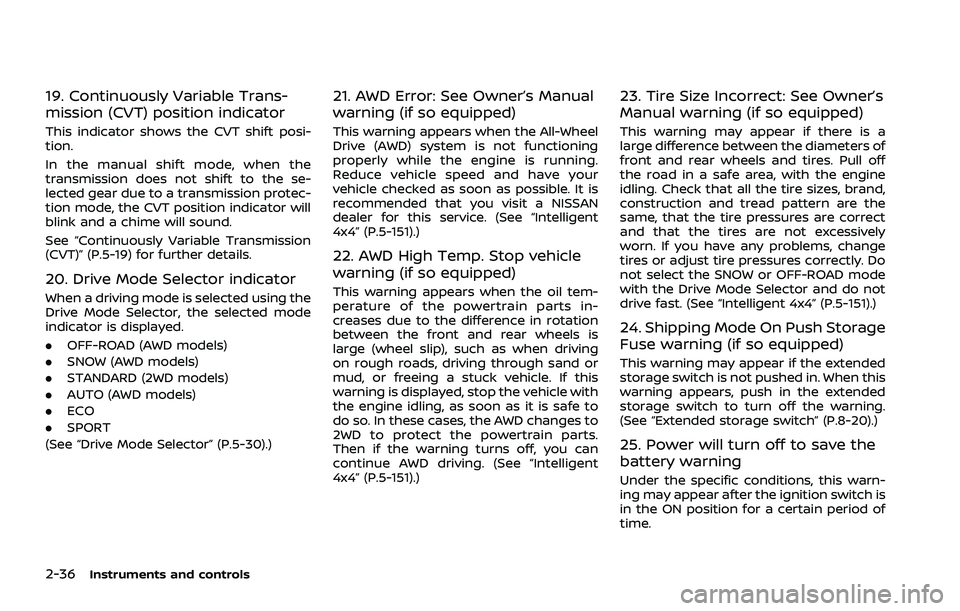
19. Continuously Variable Trans-
mission (CVT) position indicator
This indicator shows the CVT shift posi-
tion.
In the manual shift mode, when the
transmission does not shift to the se-
lected gear due to a transmission protec-
tion mode, the CVT position indicator will
blink and a chime will sound.
See “Continuously Variable Transmission
(CVT)” (P.5-19) for further details.
20. Drive Mode Selector indicator
When a driving mode is selected using the
Drive Mode Selector, the selected mode
indicator is displayed.
.OFF-ROAD (AWD models)
. SNOW (AWD models)
. STANDARD (2WD models)
. AUTO (AWD models)
. ECO
. SPORT
(See “Drive Mode Selector” (P.5-30).)
21. AWD Error: See Owner’s Manual
warning (if so equipped)
This warning appears when the All-Wheel
Drive (AWD) system is not functioning
properly while the engine is running.
Reduce vehicle speed and have your
vehicle checked as soon as possible. It is
recommended that you visit a NISSAN
dealer for this service. (See “Intelligent
4x4” (P.5-151).)
22. AWD High Temp. Stop vehicle
warning (if so equipped)
This warning appears when the oil tem-
perature of the powertrain parts in-
creases due to the difference in rotation
between the front and rear wheels is
large (wheel slip), such as when driving
on rough roads, driving through sand or
mud, or freeing a stuck vehicle. If this
warning is displayed, stop the vehicle with
the engine idling, as soon as it is safe to
do so. In these cases, the AWD changes to
2WD to protect the powertrain parts.
Then if the warning turns off, you can
continue AWD driving. (See “Intelligent
4x4” (P.5-151).)
23. Tire Size Incorrect: See Owner’s
Manual warning (if so equipped)
This warning may appear if there is a
large difference between the diameters of
front and rear wheels and tires. Pull off
the road in a safe area, with the engine
idling. Check that all the tire sizes, brand,
construction and tread pattern are the
same, that the tire pressures are correct
and that the tires are not excessively
worn. If you have any problems, change
tires or adjust tire pressures correctly. Do
not select the SNOW or OFF-ROAD mode
with the Drive Mode Selector and do not
drive fast. (See “Intelligent 4x4” (P.5-151).)
24. Shipping Mode On Push Storage
Fuse warning (if so equipped)
This warning may appear if the extended
storage switch is not pushed in. When this
warning appears, push in the extended
storage switch to turn off the warning.
(See “Extended storage switch” (P.8-20).)
25. Power will turn off to save the
battery warning
Under the specific conditions, this warn-
ing may appear after the ignition switch is
in the ON position for a certain period of
time.
Page 125 of 556
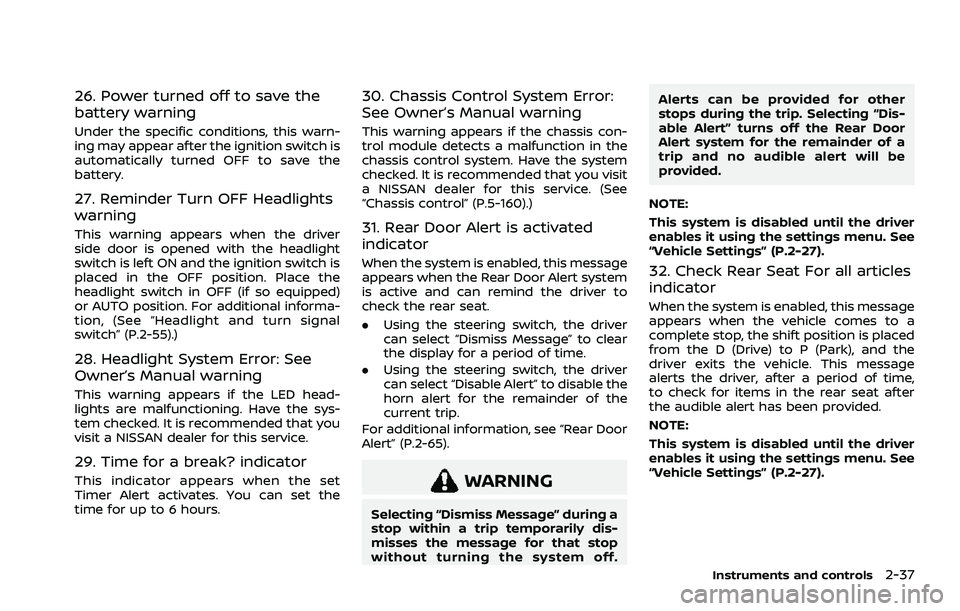
26. Power turned off to save the
battery warning
Under the specific conditions, this warn-
ing may appear after the ignition switch is
automatically turned OFF to save the
battery.
27. Reminder Turn OFF Headlights
warning
This warning appears when the driver
side door is opened with the headlight
switch is left ON and the ignition switch is
placed in the OFF position. Place the
headlight switch in OFF (if so equipped)
or AUTO position. For additional informa-
tion, (See “Headlight and turn signal
switch” (P.2-55).)
28. Headlight System Error: See
Owner’s Manual warning
This warning appears if the LED head-
lights are malfunctioning. Have the sys-
tem checked. It is recommended that you
visit a NISSAN dealer for this service.
29. Time for a break? indicator
This indicator appears when the set
Timer Alert activates. You can set the
time for up to 6 hours.
30. Chassis Control System Error:
See Owner’s Manual warning
This warning appears if the chassis con-
trol module detects a malfunction in the
chassis control system. Have the system
checked. It is recommended that you visit
a NISSAN dealer for this service. (See
“Chassis control” (P.5-160).)
31. Rear Door Alert is activated
indicator
When the system is enabled, this message
appears when the Rear Door Alert system
is active and can remind the driver to
check the rear seat.
.Using the steering switch, the driver
can select “Dismiss Message” to clear
the display for a period of time.
. Using the steering switch, the driver
can select “Disable Alert” to disable the
horn alert for the remainder of the
current trip.
For additional information, see “Rear Door
Alert” (P.2-65).
WARNING
Selecting “Dismiss Message” during a
stop within a trip temporarily dis-
misses the message for that stop
without turning the system off. Alerts can be provided for other
stops during the trip. Selecting “Dis-
able Alert” turns off the Rear Door
Alert system for the remainder of a
trip and no audible alert will be
provided.
NOTE:
This system is disabled until the driver
enables it using the settings menu. See
“Vehicle Settings” (P.2-27).
32. Check Rear Seat For all articles
indicator
When the system is enabled, this message
appears when the vehicle comes to a
complete stop, the shift position is placed
from the D (Drive) to P (Park), and the
driver exits the vehicle. This message
alerts the driver, after a period of time,
to check for items in the rear seat after
the audible alert has been provided.
NOTE:
This system is disabled until the driver
enables it using the settings menu. See
“Vehicle Settings” (P.2-27).
Instruments and controls2-37
Page 126 of 556
2-38Instruments and controls
33. Lane Departure Warning (LDW)/
Intelligent Lane Intervention (I-LI)
indicator
This indicator appears when the Lane
Departure Warning (LDW) and/or Intelli-
gent Lane Intervention (I-LI) systems are
engaged.
(See “Lane Departure Warning (LDW)” (P.5-
46) or “Intelligent Lane Intervention (I-LI)”
(P.5-51).)
34. Blind Spot Warning (BSW)/Intel-
ligent Blind Spot Intervention (I-BSI)
indicator
This indicator appears when the Blind
Spot Warning (BSW) and/or Intelligent
Blind Spot Intervention (I-BSI) (if so
equipped) systems are engaged.
(See “Blind Spot Warning (BSW)” (P.5-57) or
“Intelligent Blind Spot Intervention (I-BSI)”
(P.5-65).)
35. Vehicle ahead detection indica-
tor
This indicator shows the status of the
following systems:
.Automatic Emergency Braking (AEB)
with pedestrian detection
. Intelligent Forward Collision Warning
(I-FCW) (See “Automatic Emergency Braking (AEB)
with pedestrian detection system” (P.5-
122) or “Intelligent Forward Collision Warn-
ing (I-FCW)” (P.5-132).)
36. Cruise indicator (if so equipped)
Models without Intelligent Cruise Con-
trol (ICC) system:
This indicator shows the cruise control
system status. The status is shown by the
color.
(See “Cruise control” (P.5-82).)
Models with Intelligent Cruise Control
(ICC) system:
This indicator shows the conventional
(fixed speed) cruise control mode status.
The status is shown by the color.
(See “Conventional (fixed speed) cruise
control mode” (P.5-118).)
37. Speed control status/set dis-
tance/lane marker indicator (if so
equipped)
This indicator shows the status of the
Intelligent Cruise Control (ICC) system
and the detection of the lane markers.
The status is shown by the color and
shape. (See “ProPILOT Assist” (P.5-84).)
38. Malfunction warning
This warning appears when the following
systems malfunction.
.
Rear Cross Traffic Alert (RCTA)
. Automatic Emergency Braking (AEB)
with pedestrian detection
. Intelligent Forward Collision Warning
(I-FCW)
(See “Rear Cross Traffic Alert (RCTA)” (P.5-
76), “Automatic Emergency Braking (AEB)
with pedestrian detection system” (P.5-
122) or “Intelligent Forward Collision Warn-
ing (I-FCW)” (P.5-132).)
39. Malfunction See Owner’s Man-
ual warning (if so equipped)
This warning appears when the following
systems malfunction.
. Traffic Sign Recognition (TSR) (if so
equipped)
. Rear Automatic Braking (RAB)
(See “Traffic Sign Recognition (TSR)” (P.5-
43) or “Rear Automatic Braking (RAB)” (P.5-
143).)