Settings NISSAN ROGUE 2023 Owner's Manual
[x] Cancel search | Manufacturer: NISSAN, Model Year: 2023, Model line: ROGUE, Model: NISSAN ROGUE 2023Pages: 508, PDF Size: 2.44 MB
Page 208 of 508
4-2Monitor, heater, air conditioner, audio and phone systems
WAE0859X
For models with NissanConnect® system,
refer to the digital NissanConnect® Own-
er’s Manual using the QR code on this
page (US only), or your printed Nissan-
Connect® Owner’s Manual (if so
equipped). This manual includes the fol-
lowing information.
Available functions may vary depending
on the models and specifications.
.Audio
. Hands-Free Phone
. Apple CarPlay®
. Android Auto
TM
.NissanConnect® Services powered by
SiriusXM® .
Navigation system
. Voice recognition
. Information and settings viewable on
NissanConnect®
NISSANCONNECT® OWNER’S MANUAL
Page 214 of 508
4-8Monitor, heater, air conditioner, audio and phone systems
WAE0058X
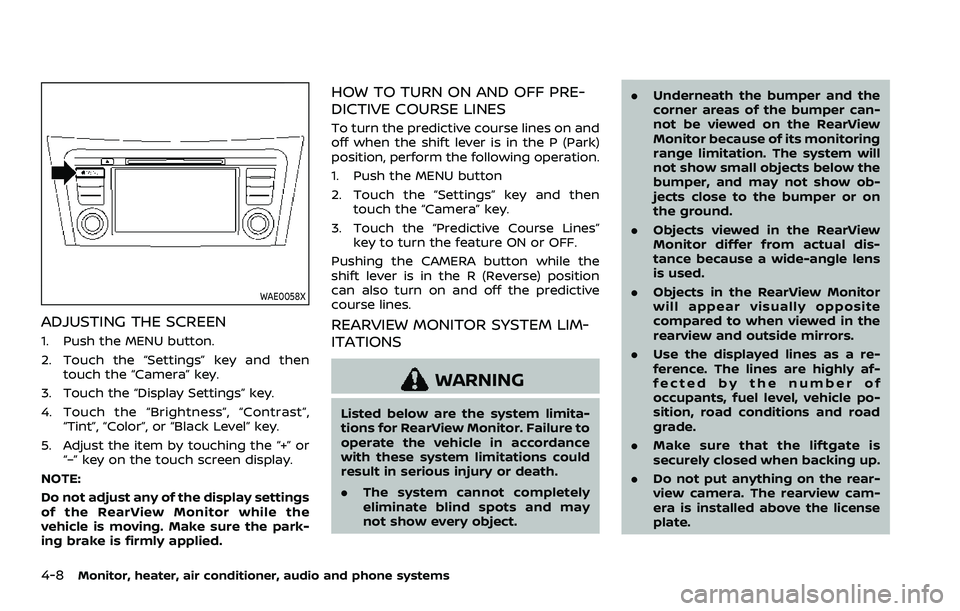
ADJUSTING THE SCREEN
1. Push the MENU button.
2. Touch the “Settings” key and thentouch the “Camera” key.
3. Touch the “Display Settings” key.
4. Touch the “Brightness”, “Contrast”, “Tint”, “Color”, or “Black Level” key.
5. Adjust the item by touching the “+” or “–” key on the touch screen display.
NOTE:
Do not adjust any of the display settings
of the RearView Monitor while the
vehicle is moving. Make sure the park-
ing brake is firmly applied.
HOW TO TURN ON AND OFF PRE-
DICTIVE COURSE LINES
To turn the predictive course lines on and
off when the shift lever is in the P (Park)
position, perform the following operation.
1. Push the MENU button
2. Touch the “Settings” key and then touch the “Camera” key.
3. Touch the “Predictive Course Lines” key to turn the feature ON or OFF.
Pushing the CAMERA button while the
shift lever is in the R (Reverse) position
can also turn on and off the predictive
course lines.
REARVIEW MONITOR SYSTEM LIM-
ITATIONS
WARNING
Listed below are the system limita-
tions for RearView Monitor. Failure to
operate the vehicle in accordance
with these system limitations could
result in serious injury or death.
. The system cannot completely
eliminate blind spots and may
not show every object. .
Underneath the bumper and the
corner areas of the bumper can-
not be viewed on the RearView
Monitor because of its monitoring
range limitation. The system will
not show small objects below the
bumper, and may not show ob-
jects close to the bumper or on
the ground.
. Objects viewed in the RearView
Monitor differ from actual dis-
tance because a wide-angle lens
is used.
. Objects in the RearView Monitor
will appear visually opposite
compared to when viewed in the
rearview and outside mirrors.
. Use the displayed lines as a re-
ference. The lines are highly af-
fected by the number of
occupants, fuel level, vehicle po-
sition, road conditions and road
grade.
. Make sure that the liftgate is
securely closed when backing up.
. Do not put anything on the rear-
view camera. The rearview cam-
era is installed above the license
plate.
Page 224 of 508
4-18Monitor, heater, air conditioner, audio and phone systems
.A different screen is selected.
WAE0058X
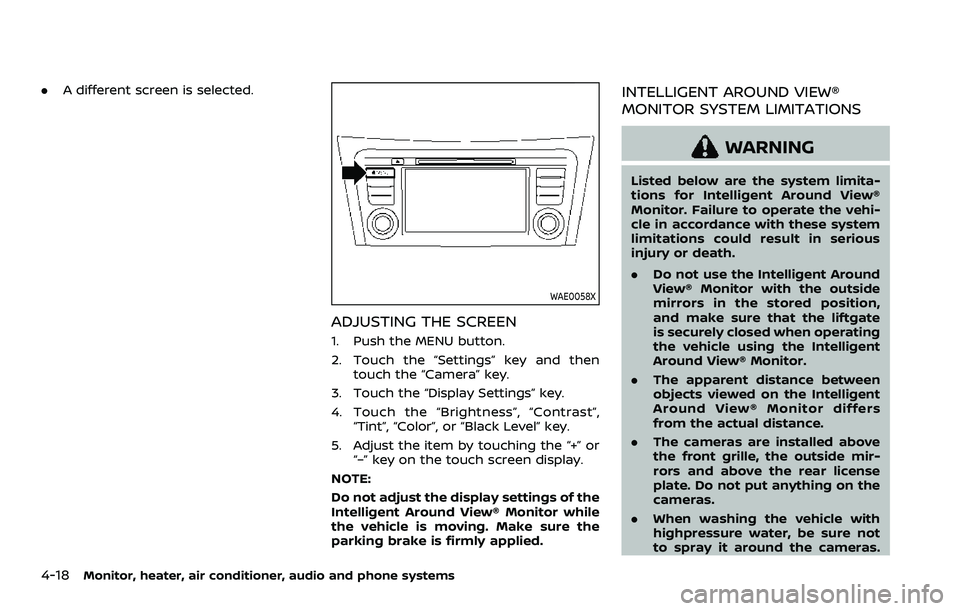
ADJUSTING THE SCREEN
1. Push the MENU button.
2. Touch the “Settings” key and then
touch the “Camera” key.
3. Touch the “Display Settings” key.
4. Touch the “Brightness”, “Contrast”, “Tint”, “Color”, or “Black Level” key.
5. Adjust the item by touching the “+” or “–” key on the touch screen display.
NOTE:
Do not adjust the display settings of the
Intelligent Around View® Monitor while
the vehicle is moving. Make sure the
parking brake is firmly applied.
INTELLIGENT AROUND VIEW®
MONITOR SYSTEM LIMITATIONS
WARNING
Listed below are the system limita-
tions for Intelligent Around View®
Monitor. Failure to operate the vehi-
cle in accordance with these system
limitations could result in serious
injury or death.
. Do not use the Intelligent Around
View® Monitor with the outside
mirrors in the stored position,
and make sure that the liftgate
is securely closed when operating
the vehicle using the Intelligent
Around View® Monitor.
. The apparent distance between
objects viewed on the Intelligent
Around View® Monitor differs
from the actual distance.
. The cameras are installed above
the front grille, the outside mir-
rors and above the rear license
plate. Do not put anything on the
cameras.
. When washing the vehicle with
highpressure water, be sure not
to spray it around the cameras.
Page 234 of 508
4-28Monitor, heater, air conditioner, audio and phone systems
A/C (Air Conditioner) operation:
Push the A/C button to turn on or off the
air conditioner. When the air conditioner
is on, the A/C indicator light on the button
illuminates.
MAX A/C (Quick Air Conditioning) op-
eration:
Push the MAX A/C button for maximum
cooling and dehumidifying.
When the MAX A/C mode is turned on, the
air flow mode indicator will turn off with
the air flow mode fixed at
.
At the same time, the indicator light on
the A/C button and the air recirculation
mode will turn on.
Push the MAX A/C button again to turn
off the MAX A/C mode. When the MAX A/C
mode is turned off, most of the settings
will return to the previous state, while the
indicator light on the A/C button will stay
on.
Heater operation
Heating:
This mode is used to direct heated air
from the foot outlets. Some air also flows
from the defroster outlets and the side
ventilator outlets.
1. Push the air recirculation
button
for normal heating. (The indicator light
will turn off.)
2. Push the
button. (The indicator
light will turn on.)
3. Turn the fan speed control
dial to
the desired position.
4. Turn the temperature control dial to the desired position between the
middle and the hot (right) position.
Ventilation:
This mode directs outside air from the
side and center ventilators.
1. Push the air recirculation
button.
(The indicator light will turn off.)
2. Push the
button. (The indicator
light will turn on.)
3. Turn the fan speed control
dial to
the desired position.
4. Turn the temperature control dial to the desired position. Defrosting or defogging:
This mode directs the air to the defroster
outlets to defrost/defog the windows.
1. Push the front defroster
button.
(The indicator light will turn on.)
2. Turn the fan speed control
dial to
the desired position.
3. Turn the temperature control dial to the desired position between the
middle and the hot (right) position.
To remove frost from the windshield
quickly, turn the temperature control
dial to the maximum hot (right) posi-
tion and the fan speed control
dial
to the maximum position.
When the front defroster mode is
selected, the air conditioner automa-
tically turns on if the outside tempera-
ture is more than 36°F (2°C). This
dehumidifies the air which helps defog
the windshield. The air recirculation
indicator automatically turns off, al-
lowing outside air to be drawn into
the passenger compartment to
further improve the defogging perfor-
mance. The recirculation mode can-
not be activated in the front defroster
mode.
Bi-level heating:
The bi-level mode directs warmed air to
Page 237 of 508
.When the DUAL indicator light is notilluminated, pushing the DUAL but-
ton (the indicator light will turn on)
allows the user to independently
change the driver and passenger
side temperatures with the corre-
sponding temperature control dial.
.To cancel the separate tempera-ture setting, push the DUAL button
(the indicator light will turn off) and
the driver’s side temperature
setting will be applied to both the
driver and passenger sides.
The temperature of the passenger
compartment will be maintained
automatically. Air flow distribution
and fan speed are also controlled
automatically.
A visible mist may be seen coming
from the ventilators in hot and humid
conditions as the air is cooled rapidly.
This does not indicate a malfunction.
Dehumidified defrosting/defogging:
1. Push the front defroster
button
(The indicator light on the front
defroster
button will illuminate).
2. Turn the temperature control dial to set the desired temperature.
. To quickly remove frost from the out-
side surface of the windshield, set the
temperature and the fan speed to the maximum levels.
. After the windshield is cleared, push
the AUTO button (the AUTO indicator
light will turn on).
. When the front defroster
button is
pushed, the air conditioner will turn on
when the outside air temperature is
above approximately 36°F (2°C) to
defog the windshield. The air recircu-
lation mode will automatically turn off.
The outside air circulation mode will
be selected to improve the defogging
performance.
Do not set the temperature too low when
the front defroster mode is on (the
indicator light is illuminated), because
doing so may fog up the windshield.
Manual operation
The manual mode can be used to control
the heater and air conditioner to your
desired settings.
Fan speed control:
Push the fan speed control button (
side orside) to manually control the
fan speed.
Push the AUTO button to change the fan
speed to the automatic mode.
Air flow control:
Push the MODE button to select the
desired mode:
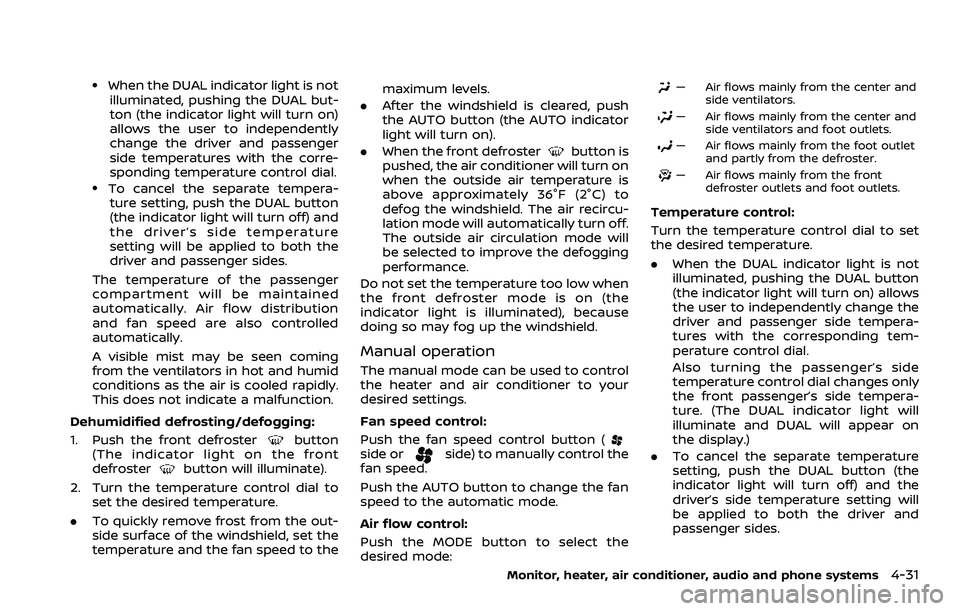
— Air flows mainly from the center and
side ventilators.
— Air flows mainly from the center andside ventilators and foot outlets.
— Air flows mainly from the foot outletand partly from the defroster.
— Air flows mainly from the frontdefroster outlets and foot outlets.
Temperature control:
Turn the temperature control dial to set
the desired temperature.
.When the DUAL indicator light is not
illuminated, pushing the DUAL button
(the indicator light will turn on) allows
the user to independently change the
driver and passenger side tempera-
tures with the corresponding tem-
perature control dial.
Also turning the passenger’s side
temperature control dial changes only
the front passenger’s side tempera-
ture. (The DUAL indicator light will
illuminate and DUAL will appear on
the display.)
. To cancel the separate temperature
setting, push the DUAL button (the
indicator light will turn off) and the
driver’s side temperature setting will
be applied to both the driver and
passenger sides.
Monitor, heater, air conditioner, audio and phone systems4-31
Page 273 of 508
system.
. The ECO mode system will turn off
automatically if a malfunction occurs
in the system.
. Turn off the ECO mode system when
acceleration is required such as when:
— driving with a heavy load of pas-
sengers or cargo in the vehicle
— driving on a steep uphill slope
WAF0142X
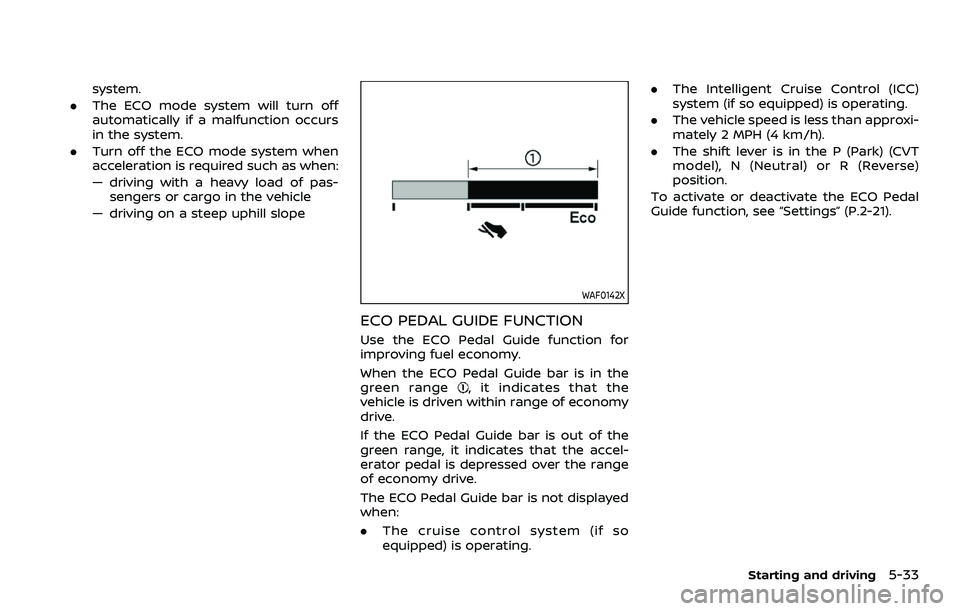
ECO PEDAL GUIDE FUNCTION
Use the ECO Pedal Guide function for
improving fuel economy.
When the ECO Pedal Guide bar is in the
green range
, it indicates that the
vehicle is driven within range of economy
drive.
If the ECO Pedal Guide bar is out of the
green range, it indicates that the accel-
erator pedal is depressed over the range
of economy drive.
The ECO Pedal Guide bar is not displayed
when:
. The cruise control system (if so
equipped) is operating. .
The Intelligent Cruise Control (ICC)
system (if so equipped) is operating.
. The vehicle speed is less than approxi-
mately 2 MPH (4 km/h).
. The shift lever is in the P (Park) (CVT
model), N (Neutral) or R (Reverse)
position.
To activate or deactivate the ECO Pedal
Guide function, see “Settings” (P.2-21).
Starting and driving5-33
Page 274 of 508
5-34Starting and driving
WAF0143X
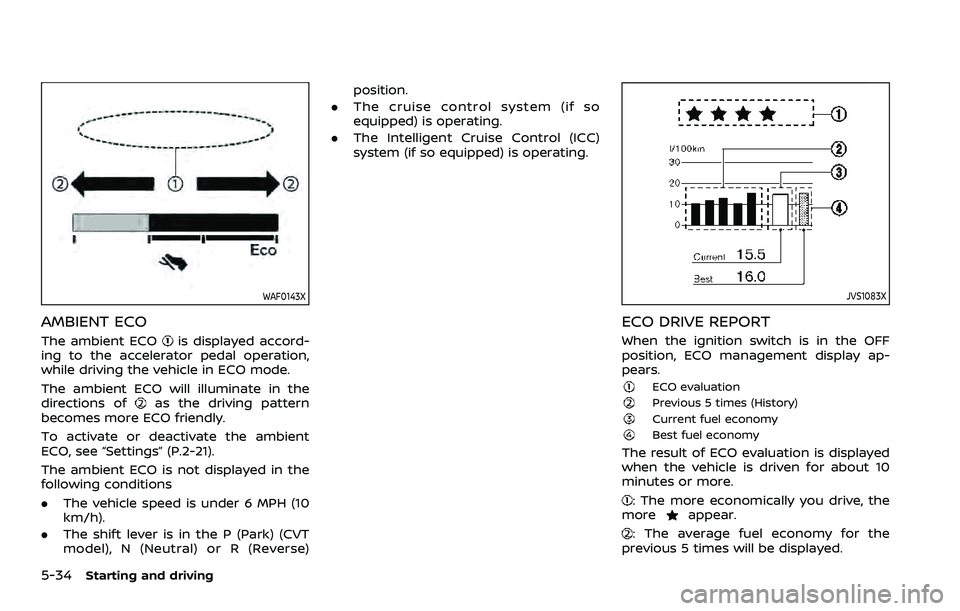
AMBIENT ECO
The ambient ECOis displayed accord-
ing to the accelerator pedal operation,
while driving the vehicle in ECO mode.
The ambient ECO will illuminate in the
directions of
as the driving pattern
becomes more ECO friendly.
To activate or deactivate the ambient
ECO, see “Settings” (P.2-21).
The ambient ECO is not displayed in the
following conditions
. The vehicle speed is under 6 MPH (10
km/h).
. The shift lever is in the P (Park) (CVT
model), N (Neutral) or R (Reverse) position.
. The cruise control system (if so
equipped) is operating.
. The Intelligent Cruise Control (ICC)
system (if so equipped) is operating.
JVS1083X
ECO DRIVE REPORT
When the ignition switch is in the OFF
position, ECO management display ap-
pears.
ECO evaluationPrevious 5 times (History)Current fuel economyBest fuel economy
The result of ECO evaluation is displayed
when the vehicle is driven for about 10
minutes or more.
: The more economically you drive, the
moreappear.
: The average fuel economy for the
previous 5 times will be displayed.
Page 288 of 508
5-48Starting and driving
WAF0140X
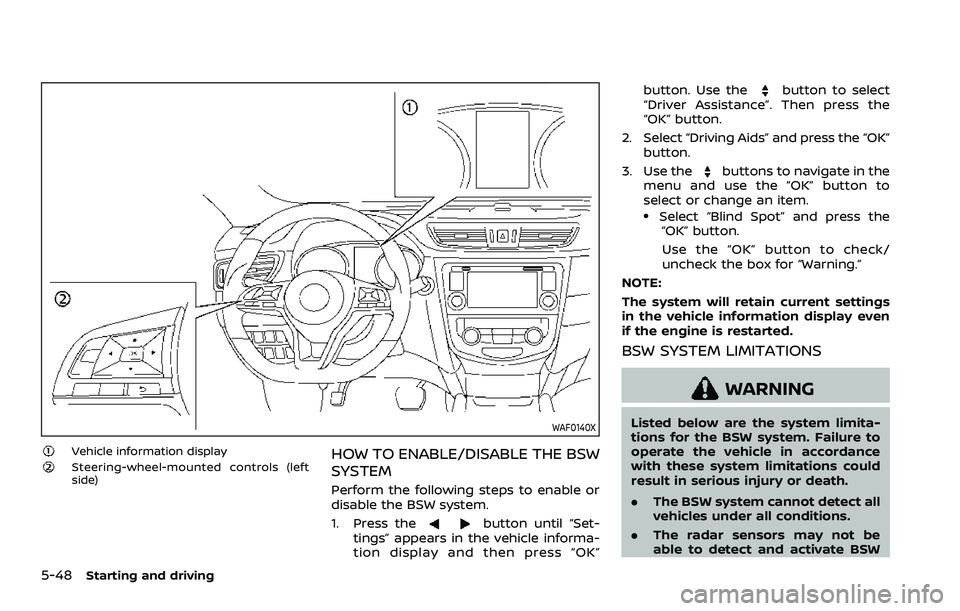
Vehicle information displaySteering-wheel-mounted controls (left
side)HOW TO ENABLE/DISABLE THE BSW
SYSTEM
Perform the following steps to enable or
disable the BSW system.
1. Press the
button until “Set-
tings” appears in the vehicle informa-
tion display and then press “OK” button. Use the
button to select
“Driver Assistance”. Then press the
“OK” button.
2. Select “Driving Aids” and press the “OK” button.
3. Use the
buttons to navigate in the
menu and use the “OK” button to
select or change an item.
.Select “Blind Spot” and press the “OK” button.
Use the “OK” button to check/
uncheck the box for “Warning.”
NOTE:
The system will retain current settings
in the vehicle information display even
if the engine is restarted.
BSW SYSTEM LIMITATIONS
WARNING
Listed below are the system limita-
tions for the BSW system. Failure to
operate the vehicle in accordance
with these system limitations could
result in serious injury or death.
. The BSW system cannot detect all
vehicles under all conditions.
. The radar sensors may not be
able to detect and activate BSW
Page 307 of 508
.When your vehicle is at a standstill for
more than 3 seconds and the vehicle
ahead begins to accelerate, push the
RES+ switch or lightly depress the
accelerator pedal. The ICC system
starts to follow the vehicle ahead.
. When no vehicle is detected ahead
within the driver selected distance, the
vehicle travels at the speed set by the
driver. The speed must be above 20
MPH (32 km/h) to use this function.
NOTE:
Even if the Automatic Emergency Brak-
ing (AEB) setting is turned off by the
driver using the “Settings” menu in the
vehicle information display, AEB will be
automatically turned on when ICC is
used.
2. Steering assist
The steering assist function controls the
steering system to help keep your vehicle
within the traveling lane.
When there is no vehicle ahead, steering
assist is not available at speeds under 37
MPH (60 km/h).
WAF0047X
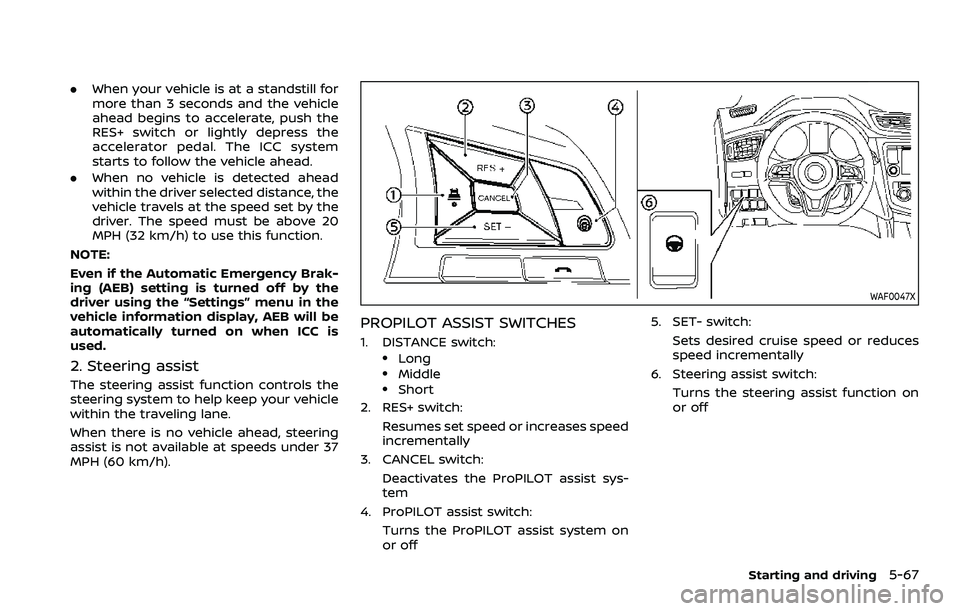
PROPILOT ASSIST SWITCHES
1. DISTANCE switch:.Long.Middle.Short
2. RES+ switch:
Resumes set speed or increases speed
incrementally
3. CANCEL switch: Deactivates the ProPILOT assist sys-
tem
4. ProPILOT assist switch:
Turns the ProPILOT assist system on
or off 5. SET- switch:
Sets desired cruise speed or reduces
speed incrementally
6. Steering assist switch: Turns the steering assist function on
or off
Starting and driving5-67
Page 310 of 508
5-70Starting and driving
WAF0051X
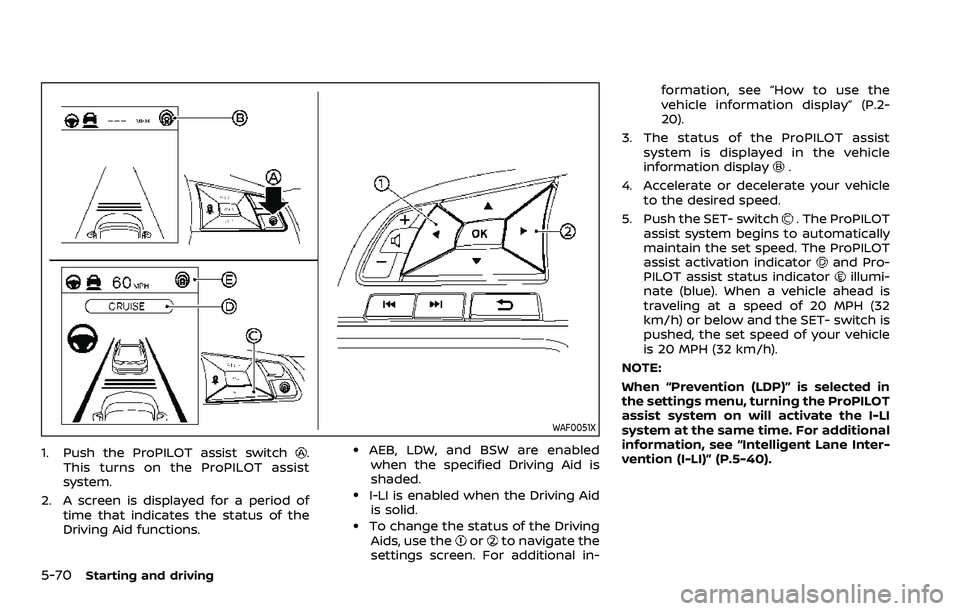
1. Push the ProPILOT assist switch.
This turns on the ProPILOT assist
system.
2. A screen is displayed for a period of time that indicates the status of the
Driving Aid functions..AEB, LDW, and BSW are enabledwhen the specified Driving Aid is
shaded.
.I-LI is enabled when the Driving Aid is solid.
.To change the status of the DrivingAids, use theorto navigate the
settings screen. For additional in- formation, see “How to use the
vehicle information display” (P.2-
20).
3. The status of the ProPILOT assist system is displayed in the vehicle
information display
.
4. Accelerate or decelerate your vehicle to the desired speed.
5. Push the SET- switch
. The ProPILOT
assist system begins to automatically
maintain the set speed. The ProPILOT
assist activation indicator
and Pro-
PILOT assist status indicatorillumi-
nate (blue). When a vehicle ahead is
traveling at a speed of 20 MPH (32
km/h) or below and the SET- switch is
pushed, the set speed of your vehicle
is 20 MPH (32 km/h).
NOTE:
When “Prevention (LDP)” is selected in
the settings menu, turning the ProPILOT
assist system on will activate the I-LI
system at the same time. For additional
information, see “Intelligent Lane Inter-
vention (I-LI)” (P.5-40).