change time NISSAN ROGUE SPORT 2017 User Guide
[x] Cancel search | Manufacturer: NISSAN, Model Year: 2017, Model line: ROGUE SPORT, Model: NISSAN ROGUE SPORT 2017Pages: 512, PDF Size: 3.33 MB
Page 221 of 512

4-42Heater, air conditioner, audio and phone systems
tion.
. An incorrect song title may appear
when the Play Mode is changed while
using an iPod nano® (2nd Generation)
. Audiobooks may not play in the same
order as they appear on an iPod®.
. Large video files cause slow responses
in an iPod®. The display may momen-
tarily black out, but will soon recover.
. If an iPod® automatically selects large
video files while in the shuffle mode,
the display may momentarily black
out, but will soon recover.
Compressed Audio Files (MP3/
WMA)
Explanation of terms:
.MP3 — MP3 is short for Moving Pic-
tures Experts Group Audio Layer 3.
MP3 is the most well known com-
pressed digital audio file format. This
format allows for near “CD quality”
sound, but at a fraction of the size of
normal audio files. MP3 conversion of
an audio track can reduce the file size
by approximately a 10:1 ratio (Sam-
pling: 44.1 kHz, Bit rate: 128 kbps) with
virtually no perceptible loss in quality.
The compression reduces certain
parts of sound that seem inaudible
to most people. .
WMA — Windows Media Audio (WMA) is
a compressed audio format created
by Microsoft as an alternative to MP3.
The WMA codec offers greater file
compression than the MP3 codec,
enabling storage of more digital audio
tracks in the same amount of space
when compared to MP3s at the same
level of quality.
This product is protected by certain
intellectual property rights of Micro-
soft Corporation and third parties. Use
or distribution of such technology
outside of this product is prohibited
without a license from Microsoft or an
authorized Microsoft subsidiary and
third parties.
. Bit rate — Bit rate denotes the number
of bits per second used by a digital
music file. The size and quality of a
compressed digital audio file is deter-
mined by the bit rate used when
encoding the file.
. Sampling frequency — Sampling fre-
quency is the rate at which the
samples of a signal are converted
from analog to digital (A/D conver-
sion) per second.
. Multisession — Multisession is one of
the methods for writing data to med-
ia. Writing data once to the media is
called a single session, and writing more than once is called a multises-
sion.
. ID3/WMA Tag — The ID3/WMA tag is
the part of the encoded MP3 or WMA
file that contains information about
the digital music file such as song title,
artist, album title, encoding bit rate,
track time duration, etc. ID3 tag in-
formation is displayed on the Album/
Artist/Track title line on the display.
* Windows® and Windows Media® are
registered trademarks or trademarks of
Microsoft Corporation in the United
States of America and/or other countries.
Page 230 of 512

5. Other buttons can be set in the samemanner.
If the battery cable is disconnected, or if
the fuse opens, the station memory will
be erased. In that case, reset the desired
stations.
CD player operation
Place the ignition switch in the ACC or ON
position. Insert the Compact Disc (CD)
into the slot with the label side facing up.
The CD will be guided automatically into
the slot and start playing.
After loading the CD, the number of
tracks on the CD and the play time will
appear on the display.
If another audio source is already operat-
ing, it will automatically turn off and the
CD will play.
If the system has been turned off while
the CD was playing, pushing the Power/
VOL dial will start the CD.
PLAY:
When the CD button is pushed while a CD
is loaded, the CD will start playing.
CD/MP3 display mode:
While listening to an MP3/WMA CD, cer-
tain text may be displayed on the screen
if the CD has been encoded with text information. Depending on how the MP3/
WMA CD is encoded, information such as
Artist, Song and Folder will be displayed.
The track number and the total number
of tracks in the current folder or on the
current disc are displayed on the screen
as well.
SEEK/TRACK:
When the
orbutton is pushed
and hold while the CD is being played, the
CD will play while fast forwarding or
rewinding. When the button is released,
the CD will return to normal play speed.
When the
orbutton is pushed
while the CD is being played, the next
track or the beginning of the current
track on the CD will be played. Push the
button again to select the previous
track.
REPEAT (RPT):
When the
button is pushed while the
CD is played, the play pattern can be
changed as follows:
(CD)
(Normal) ⇔1 Track Repeat
(CD with compressed audio files)
(Normal) ?1 Folder Repeat ?1 Track
Repeat ?(Normal)
RANDOM (RDM):
When the
button is pushed while a CD
is being played, the play pattern can be
changed as follows:
(CD)
(Normal) ⇔1 Disc Random
(CD with compressed audio files)
(Normal) ?1 Disc Random ?1 Folder
Random ?(Normal)
CD eject:
When the
button is pushed with the
CD loaded, the CD will be ejected.
If the CD comes out and is not removed,
it will be pulled back into the slot to
protect it.
USB memory player operation
USB memory main operation:
The USB connection port is located on
the lower part of the instrument panel.
(See “USB (Universal Serial Bus) connec-
tion port” (P.4-74).) Connect a USB mem-
ory into the port. When the audio system
operates, the system will switch to the
USB memory mode automatically.
If the system has been turned off while
the USB memory was playing, pushing
the Power/VOL dial will start the USB
Heater, air conditioner, audio and phone systems4-51
Page 248 of 512

USB memory player operation
Connecting a device to the USB con-
nection port:
The USB connection port is located on
the lower part of the instrument panel.
Insert the USB memory into the port. (See
“USB (Universal Serial Bus) connection
port” (P.4-74).)
When a compatible storage device is
plugged into the port, compatible audio
files on the storage device can be played
through the vehicle’s audio system.
Audio file operation:
AUX button:
Place the ignition switch in the ACC or ON
position and push the AUX button to
switch to the USB memory input mode.
If another audio source is playing and a
USB memory is inserted, pushing the AUX
button repeatedly will change the system
to the USB memory mode.
If the system has been turned off while
the USB memory was playing, push the
POWER/VOLUME dial to restart the USB
memory.
JVH1685X
Play information:
Information about the audio files being
played is shown on the screen of the
vehicle’s audio system. Touch “Browse” to
display the list of categories that can be
used to narrow the search. Touch the
name of a song on the screen to begin
playing that song.
Seek button:
Push the
button while an audio file on
the USB memory is playing to return to
the beginning of the current track. Push
the
button several times to skip
backward several tracks.
Push the
button while an audio file on the USB memory is playing to advance
one track. Push the
button several
times to skip forward several tracks. If the
last track in a folder on the USB memory
is skipped, the first track of the next folder
is played.
Random and repeat play mode:
While files on a USB memory are playing,
the play pattern can be altered so that
songs are repeated or played randomly.
. Random:
Touch the “Random” key to apply a
random play pattern to the USB
memory. To cancel Random mode,
touch the “Random” key again.
. Repeat:
Touch the “Repeat” key to apply a
repeat play pattern to the USB mem-
ory. To cancel Repeat mode, touch the
“Repeat” key again.
Heater, air conditioner, audio and phone systems4-69
Page 261 of 512

4-82Heater, air conditioner, audio and phone systems
TROUBLESHOOTING GUIDE
SymptomCause and Countermeasure
Cannot access Siri® Eyes Free from the
switch on the steering wheel Check if a Bluetooth® connection is established between the iPhone® and the system.
Check if Siri® is enabled on the device. On your phone, go to Siri® setting.
Check that Siri® can be accessed from the device lock screen. This can be set in the settings menu of
your phone.
Check the settings for Siri® Eyes Free activation on the vehicle audio system. If the setting is “Long
Press”, you must push and hold the
button on the steering wheel for more than 1.5 seconds to start
Siri® Eyes Free. If the setting is “Short Press”, a short push and release of the button should start Siri®
Eyes Free.
Audio source does not change automati-
cally to iPod® or Bluetooth® Audio mode For best results, use the native music app. Performance of music control function while using Podcasts,
Audiobook or other third party music apps may vary.
For best results, play media already stored on your device. Streaming music or playback from cloud
storage may degrade performance.
Models with navigation system:
Switch the source manually by pushing the AUX button on the vehicle audio system or the menu
control buttons/OK button on the steering wheel.
Models without navigation system:
Switch the source manually by pushing the
orbutton on the vehicle audio system or the
menu control buttons/OK button on the steering wheel.
Play, pause, next track, previous track or
play timer does not work For best results, use the native music app. Performance of music control function while using Podcasts,
Audiobook or other third party music apps may vary and is controlled by the device.
Cannot hear any music/audio being played
back from a connected iPhone® Check that the audio source is set to Bluetooth® Audio or iPod® mode. A USB connection is required for
iPod® mode.
Cannot hear map turn-by-turn direction
guidance from a connected iPhone® Check that the audio source is set to Bluetooth® Audio or iPod® mode. A USB connection is required for
iPod® mode.
Cannot receive text message notifications
on the vehicle audio system Check if “Show Notifications” is enabled on your phone. On your phone, go to Bluetooth® settings. Find
the device name, like “My Car”. Touch the
icon on your phone. Turn on “Show Notifications”.
Cannot reply to text message notifications
using Siri® Eyes Free After receiving an incoming text message, follow the on-screen guidance. Push or push and hold the
button on the steering wheel for Siri® Eyes Free. After Siri® Eyes Free starts, say “Text Message”.
Page 265 of 512

4-86Heater, air conditioner, audio and phone systems
The manual control mode does not allow
dialing a phone number by digits. The
user may select an entry from the Phone-
book or Recent Calls lists. To reactivate
Voice Recognition, exit the manual con-
trol mode by pushing and holding the
button. At that time, pushing thebutton will start the Bluetooth® Hands-
Free Phone System.
Choosing a language
You can interact with the Bluetooth®
Hands-Free Phone System using several
languages that are available. For opera-
tions to change the language, see “Audio
main operation” (P.4-48) or “Audio main
operation” (P.4-56).
Changing voice feedback volume
If you want to adjust the volume of the
voice feedback, push the volume control
buttons on the steering wheel while
being provided with feedback. You can
also use the Power/VOL dial on the
control panel.
Initialization
When the ignition switch is placed in the
ACC or ON position, voice recognition is
initialized, which takes a few seconds. If
the
button is pushed before the
initialization completes, the system will
announce “Hands-free phone system not
ready” and will not react to voice com-
mands.
Connecting procedure:
NOTE:
The connecting procedure must be
performed when the vehicle is station-
ary. If the vehicle starts moving during
the procedure, the procedure will be
cancelled.
JVH1626X
To connect a phone to the Bluetooth®
Hands-Free Phone System;
1. Push the ENTER SETTING button
.
2. Use the ENTER SETTING button
to
select “Bluetooth” and then push the
ENTER SETTING button
.
3. Select “Add Phone” and then push the ENTER SETTING button
.
4. When a message with a PIN appears on the screen, operate the Bluetooth®
phone to enter the PIN.
The connecting procedure varies accord-
ing to each phone. See the phone’s own-
er’s manual for details.
Page 272 of 512
standard options when sending a
text message. To set a custom
message, send a text message to
your own phone number while the
phone is connected to the system.
Three custom messages can be set.
Custom messages can only be set
while the vehicle is stationary.
.Auto Reply (if so equipped)Select to turn on or off the Auto
Reply function. When enabled, the
vehicle will automatically send a
predefined text message to the
sender when a text message is
received while driving.
.Auto Reply Message (if so equipped)
Select to choose the message that
is sent when the Auto Reply func-
tion is enabled. Choose from “I’m
Driving” or one of the three custom
messages stored in the system.
.Vehicle Signature On/Off (if soequipped)
Select to choose whether or not
the vehicle signature is added to
outgoing text messages from the
vehicle. This message cannot be
changed or customized.
WARNING
. Use a phone after stopping your
vehicle in a safe location. If you
have to use a phone while driving,
exercise extreme caution at all
times so full attention may be
given to vehicle operation.
. If you are unable to devote full
attention to vehicle operation
while talking on the phone, pull
off the road to a safe location and
stop your vehicle.
CAUTION
To avoid discharging the vehicle
battery, use a phone after starting
the engine.
Your vehicle is equipped with the Blue-
tooth® Hands-Free Phone System. If you
have a compatible Bluetooth® enabled
cellular phone, you can set up the wire-
less connection between your cellular
phone and the in-vehicle phone module.
With Bluetooth® wireless technology, you
can make or receive a hands-free tele-
phone call with your cellular phone in the vehicle.
Once your cellular phone is connected to
the in-vehicle phone module, no other
phone connecting procedure is required.
Your phone is automatically connected
with the in-vehicle phone module when
the ignition switch is placed in the ON
position with the connected cellular
phone turned on and carried in the
vehicle.
You can register up to five different Blue-
tooth® cellular phones to the in-vehicle
phone module. However, you can talk on
only one cellular phone at a time.
NISSAN Voice Recognition system sup-
ports the phone commands, so dialing a
phone number using your voice is possi-
ble. For more details, see “NISSAN Voice
Recognition system (models with naviga-
tion system)” (P.4-100).
Before using the Bluetooth® Hands-Free
Phone System, refer to the following
notes.
.
Set up the wireless connection be-
tween a cellular phone and the in-
vehicle phone module before using
the Hands-Free Phone System.
. Some Bluetooth® enabled cellular
phones may not be recognized by
the in-vehicle phone module. Please
visit www.nissanusa.com/bluetooth
Heater, air conditioner, audio and phone systems4-93
Bluetooth® HANDS-FREE PHONE SYSTEM
(models with navigation system)
Page 276 of 512
MAKING A CALL
To make a call, follow the procedure
below:
1. Push the
button on the control
panel. The “PHONE” screen will appear
on the display.
2. Select one of the following options to make a call:
. “Phonebook”: Select the name from an
entry stored in the vehicle phonebook.
. “Call Lists”: Select the name from the
incoming, outgoing or missed.
. “Redial”: Dial the last outgoing call
from the vehicle.
. “
”: Input the phone number manu-
ally using a keypad displayed on the
screen. For information on how to use
the touch screen, see “How to use
touch screen” (P.4-4).
RECEIVING A CALL
When a call is placed to the connected
phone, the display will change to phone
mode.
To accept the incoming call:
. Push the
button on the steering
wheel.
. Touch the call accept icon (
) on the
screen.
To reject the incoming call: .
Push the
button on the steering
wheel.
. Touch the phone end icon (
)on
the screen.
DURING A CALL
While a call is active, the following options
are available on the screen:
. “Handset”
Select this option to switch control of
the phone call over to the handset.
. “Mute Mic.”
Select this option to mute the micro-
phone. Select again to unmute the
microphone.
. Phone end (
) icon
Select to end the phone call.
ENDING A CALL
To end a phone call, select the phone end
() icon on the screen or push thebutton on the steering wheel.
TEXT MESSAGING (if so equipped)
WARNING
. Laws in some jurisdictions may
restrict the use of some of the
applications and features, such
as social networking and texting. .
Laws in some jurisdictions may
restrict the use of “Text-to-
Speech”. Check local regulations
before using this feature.
. Use the text messaging feature
after stopping your vehicle in a
safe location. If you have to use
the feature while driving, exercise
extreme caution at all times so
full attention may be given to
vehicle operation.
. If you are unable to devote full
attention to vehicle operation
while using the text messaging
feature, pull off the road to a safe
location and stop your vehicle.
NOTE:
Many phones may require special per-
mission to enable text messaging.
Check the phone’s screen during Blue-
tooth® pairing. For some phones, you
may need to enable “Notifications” in
the phone’s Bluetooth® menu for text
messages to appear on the vehicle
audio system. See the phone’s owner’s
manual for details. Text message inte-
gration requires that the phone support
MAP (Message Access Profile) for both
receiving and sending text messages.
Some phones may not support all text
messaging features. Refer to www.nis-
Heater, air conditioner, audio and phone systems4-97
Page 289 of 512
5-4Starting and driving
WARNING
.Do not leave children or adults
who would normally require the
support of others alone in your
vehicle. Pets should not be left
alone either. They could acciden-
tally injure themselves or others
through inadvertent operation of
the vehicle. Also, on hot, sunny
days, temperatures in a closed
vehicle could quickly become
high enough to cause severe or
possibly fatal injuries to people or
animals.
. Properly secure all cargo with
ropes or straps to help prevent it
from sliding or shifting. Do not
place cargo higher than the seat-
backs. In a sudden stop or colli-
sion, unsecured cargo could
cause personal injury.
EXHAUST GAS (carbon monoxide)
WARNING
.Do not breathe exhaust gas; it
contains colorless and odorless
carbon monoxide. Carbon mon- oxide is dangerous. It can cause
unconsciousness or death.
. If you suspect that exhaust fumes
are entering the vehicle, drive
with all windows fully open, and
have the vehicle inspected imme-
diately.
. Do not run the engine in closed
spaces such as a garage.
. Do not park the vehicle with the
engine running for an extended
period of time.
. Keep the liftgate closed while
driving, otherwise exhaust gas
could be drawn into the passen-
ger compartment. If you must
drive with the liftgate open, fol-
low these precautions:
— Open all the windows.
— Turn the air recirculation
mode off and set the fan
speed control to the highest
level to circulate the air.
. If a special body or other equip-
ment is added for recreational or
other usage, follow the manufac-
turer’s recommendation to pre-
vent carbon monoxide entry into
the vehicle. (Some recreational
vehicle appliances such as stoves, refrigerators, heaters, etc. may
also generate carbon monoxide.)
. The exhaust system and body
should be inspected by a quali-
fied mechanic whenever:
— Your vehicle is raised while
being serviced.
— You suspect that exhaust fumes are entering into the
passenger compartment.
— You notice a change in the sound of the exhaust system.
— You have had an accident involving damage to the ex-
haust system, underbody, or
rear of the vehicle.
THREE-WAY CATALYST
The three-way catalyst is an emission
control device installed in the exhaust
system. Exhaust gases in the three-way
catalyst are burned at high temperatures
to help reduce pollutants.
WARNING
. The exhaust gas and the exhaust
system are very hot. Keep people,
animals and flammable materials
PRECAUTIONS WHEN STARTING
AND DRIVING
Page 295 of 512
5-10Starting and driving
3. When appropriate, slowly release theaccelerator pedal to gradually slow
the vehicle.
4. Gradually steer the vehicle to a safe location off the road and away from
traffic if possible.
5. Lightly apply the brake pedal to gra- dually stop the vehicle.
6. Turn on the hazard warning flashers and either contact a roadside emer-
gency service to change the tire or see
“Changing a flat tire” (P.6-4) of this
Owner’s Manual.
DRINKING ALCOHOL/DRUGS AND
DRIVING
WARNING
Never drive under the influence of
alcohol or drugs. Alcohol in the
bloodstream reduces coordination,
delays reaction time and impairs
judgement. Driving after drinking
alcohol increases the likelihood of
being involved in an accident injuring
yourself and others. Additionally, if
you are injured in an accident, alco-
hol can increase the severity of the
injury. NISSAN is committed to safe driving.
However, you must choose not to drive
under the influence of alcohol. Every year
thousands of people are injured or killed
in alcohol-related accidents. Although the
local laws vary on what is considered to
be legally intoxicated, the fact is that
alcohol affects all people differently and
most people underestimate the effects of
alcohol.
Remember, drinking and driving don’t
mix! And that is true for drugs, too (over-
the-counter, prescription, and illegal
drugs). Don’t drive if your ability to oper-
ate your vehicle is impaired by alcohol,
drugs, or some other physical condition.
DRIVING SAFETY PRECAUTIONS
Your vehicle is designed for both normal
and off-road use. However, avoid driving
in deep water or mud as your vehicle is
mainly designed for leisure use, unlike a
conventional off-road vehicle.
Remember that Two-Wheel Drive (2WD)
models are less capable than All-Wheel
Drive (AWD) models for rough road driving
and extrication when stuck in deep snow,
mud, or the like.
Please observe the following precautions:
WARNING
.
Drive carefully when off the road
and avoid dangerous areas. Every
person who drives or rides in this
vehicle should be seated with
their seat belt fastened. This will
keep you and your passengers in
position when driving over rough
terrain.
. Do not drive across steep slopes.
Instead drive either straight up or
straight down the slopes. Off-
road vehicles can tip over side-
ways much more easily than they
can forward or backward.
. Many hills are too steep for any
vehicle. If you drive up them, you
may stall. If you drive down them,
you may not be able to control
your speed. If you drive across
them, you may roll over.
. Do not shift ranges while driving
on downhill grades as this could
cause loss of control of the vehi-
cle.
. Stay alert when driving to the top
of a hill. At the top there could be
a drop-off or other hazard that
could cause an accident.
Page 300 of 512
start the engine.
.The cargo room area is not included in
the operating range but the Intelligent
Key may function.
. If the Intelligent Key is placed on the
instrument panel, inside the glove box
or door pocket, the Intelligent Key may
not function.
. If the Intelligent Key is placed near the
door or window outside the vehicle,
the Intelligent Key may function.
PUSH-BUTTON IGNITION SWITCH
OPERATION
CAUTION
.Do not leave the vehicle for ex-
tended periods of time when the
ignition switch is in the ON posi-
tion and the engine is not run-
ning. This can discharge the
battery.
. Use electrical accessories with
the engine running to avoid dis-
charging the vehicle battery. If
you must use accessories while
the engine is not running, do not
use them for extended periods of
time and do not use multiple
electrical accessories at the same time.
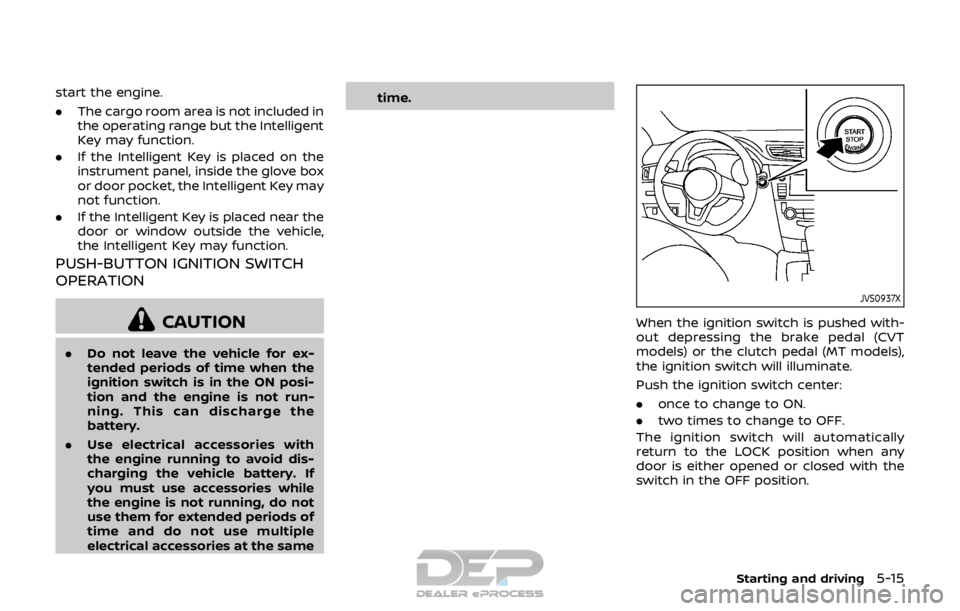
JVS0937X
When the ignition switch is pushed with-
out depressing the brake pedal (CVT
models) or the clutch pedal (MT models),
the ignition switch will illuminate.
Push the ignition switch center:
.
once to change to ON.
. two times to change to OFF.
The ignition switch will automatically
return to the LOCK position when any
door is either opened or closed with the
switch in the OFF position.
Starting and driving5-15