bluetooth NISSAN SENTRA 2018 Owner´s Manual
[x] Cancel search | Manufacturer: NISSAN, Model Year: 2018, Model line: SENTRA, Model: NISSAN SENTRA 2018Pages: 507, PDF Size: 5.59 MB
Page 14 of 507
Operating, servicing and maintaining a
passenger vehicle or off-road vehicle
can expose you to chemicals including
engine exhaust, carbon monoxide,
phthalates, and lead, which are known
to the State of California to cause can-
cer and birth defects or other reproduc-
tive harm. To minimize exposure, avoid
breathing exhaust, do not idle the en-
gine except as necessary, service your
vehicle in a well-ventilated area and
wear gloves or wash your hands fre-
quently when servicing your vehicle.
For more information go to
www.P65Warnings.ca.gov.
CALIFORNIA PERCHLORATE
ADVISORY
Some vehicle parts, such as lithium bat-
teries, may contain perchlorate material.
The following advisory is provided: “Per-
chlorate Material – special handling may
apply. For additional information, refer to
www.dtsc.ca.gov/hazardouswaste/
perchlorate/”.
BLUETOOTH® is a
trademark owned
by Bluetooth SIG,
Inc. and licensed to
Visteon and Bosch.
SiriusXM® services
require a subscrip-
tion af ter trial pe-
riod and are sold
separately or as a
package. The
satellite service is
available only in the
48 contiguous USA
and DC. SiriusXM®
satellite service is
also available in
Canada; see
www.siriusxm.ca.
© Nissan Mexicana, S. A. de C. V.
All rights reserved. No part of this Owner’s
Manual may be reproduced or stored in a
retrieval system, or transmitted in any
form, or by any means, electronic, me-
chanical, photocopying, recording or oth-
erwise, without the prior written permis-
sion of Nissan Mexicana, S. A. de C. V.
Page 24 of 507
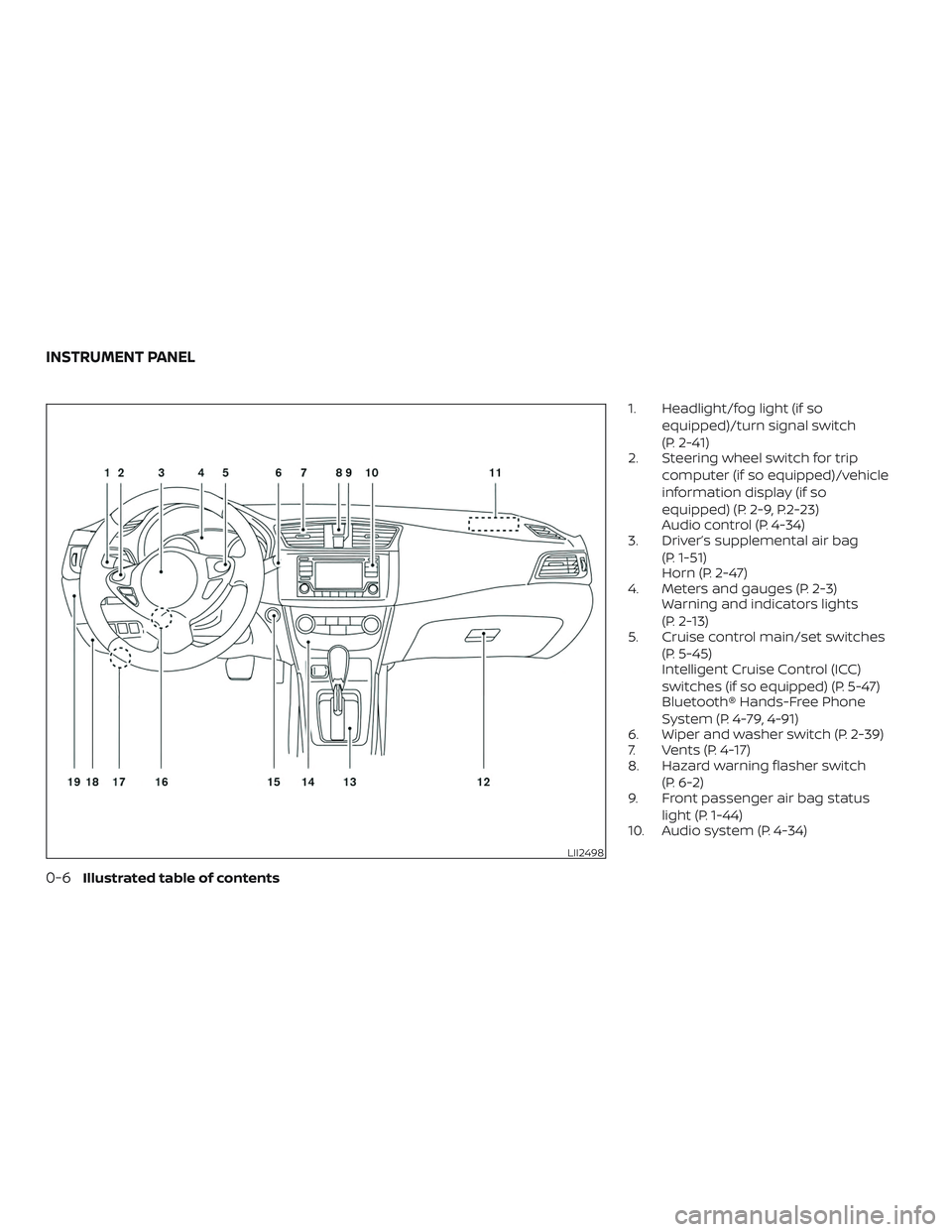
1. Headlight/fog light (if soequipped)/turn signal switch
(P. 2-41)
2. Steering wheel switch for trip
computer (if so equipped)/vehicle
information display (if so
equipped) (P. 2-9, P.2-23)
Audio control (P. 4-34)
3. Driver’s supplemental air bag
(P. 1-51)
Horn (P. 2-47)
4. Meters and gauges (P. 2-3) Warning and indicators lights
(P. 2-13)
5. Cruise control main/set switches
(P. 5-45)
Intelligent Cruise Control (ICC)
switches (if so equipped) (P. 5-47)
Bluetooth® Hands-Free Phone
System (P. 4-79, 4-91)
6. Wiper and washer switch (P. 2-39)
7. Vents (P. 4-17)
8. Hazard warning flasher switch
(P. 6-2)
9. Front passenger air bag status
light (P. 1-44)
10. Audio system (P. 4-34)
LII2498
INSTRUMENT PANEL
0-6Illustrated table of contents
Page 98 of 507
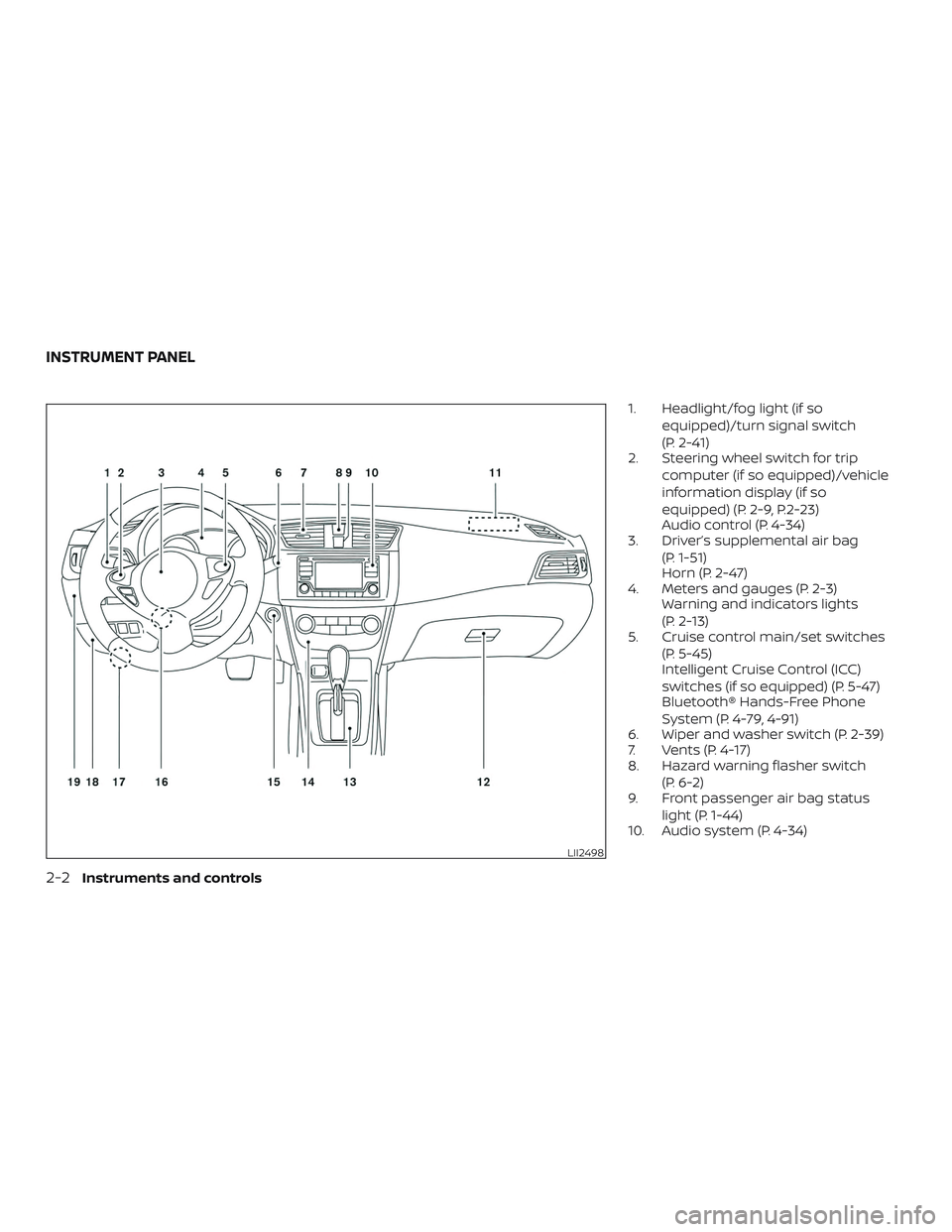
1. Headlight/fog light (if soequipped)/turn signal switch
(P. 2-41)
2. Steering wheel switch for trip
computer (if so equipped)/vehicle
information display (if so
equipped) (P. 2-9, P.2-23)
Audio control (P. 4-34)
3. Driver’s supplemental air bag
(P. 1-51)
Horn (P. 2-47)
4. Meters and gauges (P. 2-3) Warning and indicators lights
(P. 2-13)
5. Cruise control main/set switches
(P. 5-45)
Intelligent Cruise Control (ICC)
switches (if so equipped) (P. 5-47)
Bluetooth® Hands-Free Phone
System (P. 4-79, 4-91)
6. Wiper and washer switch (P. 2-39)
7. Vents (P. 4-17)
8. Hazard warning flasher switch
(P. 6-2)
9. Front passenger air bag status
light (P. 1-44)
10. Audio system (P. 4-34)
LII2498
INSTRUMENT PANEL
2-2Instruments and controls
Page 200 of 507
FM/AM/SAT radio with compact disc
(CD) player (Type A) (if so equipped)..........4-48
FM/AM/SAT radio with compact disc
(CD) player (Type B) (if so equipped) ..........4-53
USB (Universal Serial Bus) Connection
Port (models without Navigation
System) (if so equipped) .....................4-59
USB (Universal Serial Bus) Connection
Port (models with Navigation System)
(if so equipped) .............................. 4-61
iPod®* player operation without
Navigation System (if so equipped) ..........4-63
iPod®* player operation with Navigation
System (if so equipped) ......................4-66
Bluetooth® streaming audio without
Navigation System (if so equipped) ..........4-69
Bluetooth® streaming audio with
Navigation System (if so equipped) ..........4-70
CD care and cleaning ........................ 4-71
Steering wheel switch for audio control ......4-72
Antenna ..................................... 4-73
NissanConnect® Mobile Apps (if so equipped). . . 4-74 Registering with NissanConnect®
Mobile Apps .................................4-74 Connect phone
..............................4-74
Application download .......................4-74
NissanConnect® Services (if so equipped) ......4-75
Siri® Eyes Free .................................. 4-75
Requirements ............................... 4-75
Siri® activation ............................... 4-76
Operating Siri® Eyes Free ....................4-76
Changing Siri® Eyes Free settings
(models without navigation system) .........4-77
Changing Siri® Eyes Free settings
(models with navigation system) ............4-77
Troubleshooting guide ......................4-78
Car phone or CB radio .......................... 4-79
Bluetooth® Hands-Free Phone System
without Navigation System (if so equipped) .....4-79
Regulatory information ......................4-81
Using the system ............................ 4-82
Control buttons ............................. 4-83
Connecting procedure ......................4-84
Voice commands ........................... 4-85
Making a call ................................ 4-86
Receiving a call .............................. 4-87
During
a call ................................. 4-87
Ending a call ................................. 4-88
Page 201 of 507
Text messaging (if so equipped).............4-88
Bluetooth® settings ......................... 4-90
Manual control .............................. 4-91
Bluetooth® Hands-Free Phone System with
Navigation System (if so equipped) .............4-91
Regulatory information ......................4-93
Voice commands ........................... 4-94
Connecting procedure ......................4-94
Vehicle phonebook .......................... 4-94
Making a call ................................ 4-95
Receiving a call .............................. 4-95
During a call ................................. 4-95
Ending a call ................................. 4-95
Text messaging (if so equipped) .............4-95
Bluetooth® settings ......................... 4-98Phone settings
.............................. 4-99
Troubleshooting guide .....................4-100
Nissan Voice Recognition System
(if so equipped) ................................ 4-101
Using the system ........................... 4-101
System features ............................ 4-102
Bluetooth® Hands-Free Phone System
voice commands ........................... 4-103
Navigation System voice commands .......4-104
Audio system voice commands ............4-104
Information voice commands ..............4-105
My Apps voice commands .................4-105
Help voice commands ......................4-105
Troubleshooting guide .....................4-106
Page 203 of 507
9. NAV button*
* For additional information regarding the
navigation system control buttons, refer to
the separate NissanConnect® Owner’s
Manual.
** For additional information regarding the
Bluetooth® Hands-Free Phone System
control button, refer to “Bluetooth® Hands-
Free Phone System with navigation sys-
tem” in this section.
When you use this system, make sure the
engine is running.
If you use the system with the engine not
running (ignition ON or ACC) for a long
time, it will discharge the battery, and
the engine will not start.
Reference symbols:
“Example” — Words marked in quotes refer
to a key shown only on the display. These
keys can be selected by touching the
screen.HOW TO USE THE TOUCH-SCREEN
CAUTION
∙ The glass display screen may break if it is hit with a hard or sharp object. If
the glass screen breaks, do not touch
it. Doing so could result in an injury.
∙ To clean the display, never use a rough cloth, alcohol, benzine, thinner or any
kind of solvent or paper towel with a
chemical cleaning agent. They will
scratch or deteriorate the panel.
∙ Do not splash any liquid such as water or car fragrance on the display. Con-
tact with liquid will cause the system
to malfunction.
To help ensure safe driving, some functions
cannot be operated while driving.
The on-screen functions that are not avail-
able while driving will be “grayed out” or
muted.
Park the vehicle in a safe location and then
operate the navigation system.
WARNING
∙ ALWAYS give your full attention to driving.
∙ Avoid using vehicle features that could distract you. If distracted, you
could lose control of your vehicle and
cause an accident.
Monitor, climate, audio, phone and voice recognition systems4-5
Page 207 of 507
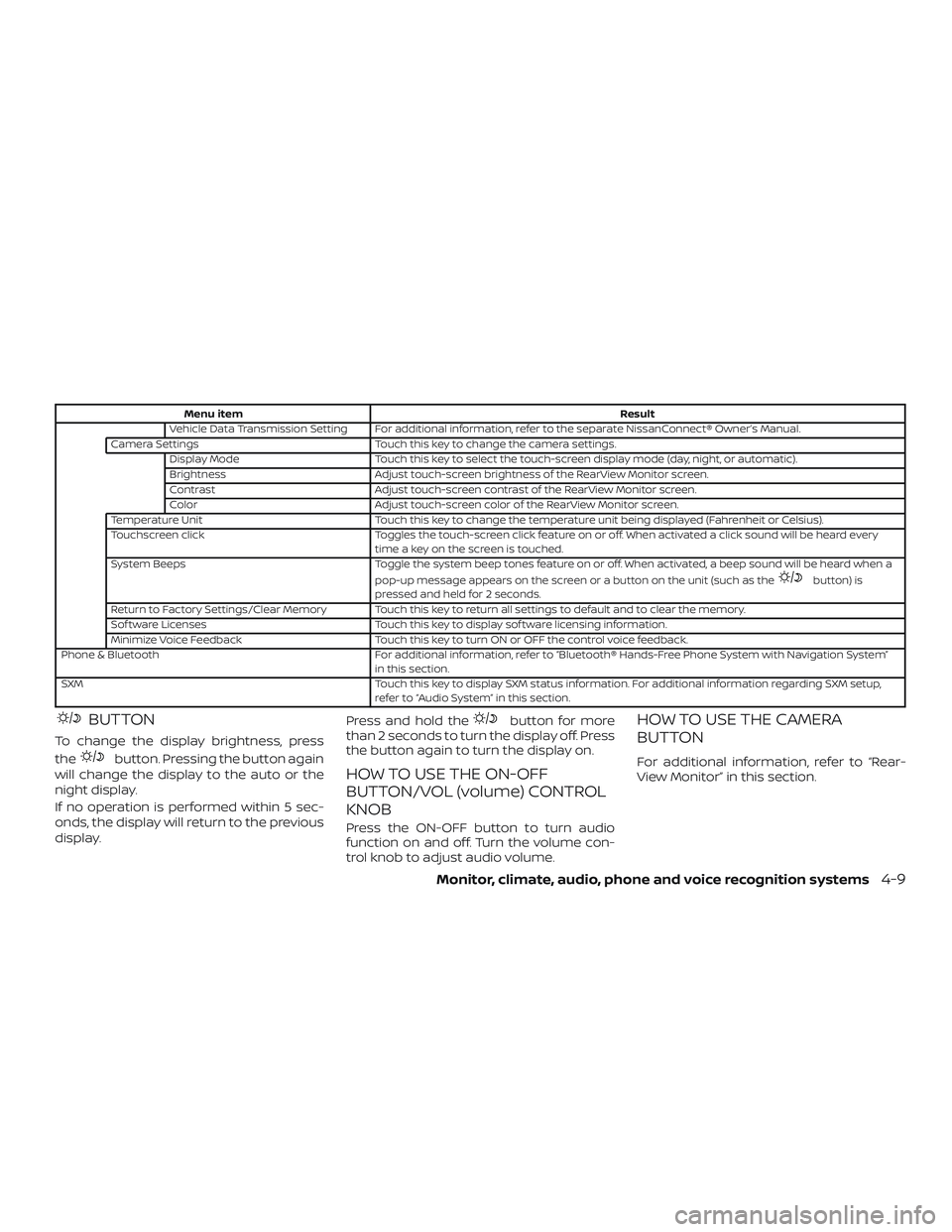
Menu itemResult
Vehicle Data Transmission Setting For additional information, refer to the separate NissanConnect® Owner’s Manual.
Camera Settings Touch this key to change the camera settings.
Display Mode Touch this key to select the touch-screen display mode (day, night, or automatic).
Brightness Adjust touch-screen brightness of the RearView Monitor screen.
Contrast Adjust touch-screen contrast of the RearView Monitor screen.
Color Adjust touch-screen color of the RearView Monitor screen.
Temperature Unit Touch this key to change the temperature unit being displayed (Fahrenheit or Celsius).
Touchscreen click Toggles the touch-screen click feature on or off. When activated a click sound will be heard every
time a key on the screen is touched.
System Beeps Toggle the system beep tones feature on or off. When activated, a beep sound will be heard when a
pop-up message appears on the screen or a button on the unit (such as the
button) is
pressed and held for 2 seconds.
Return to Factory Settings/Clear Memory Touch this key to return all settings to default and to clear the memory.
Sof tware Licenses Touch this key to display sof tware licensing information.
Minimize Voice Feedback Touch this key to turn ON or OFF the control voice feedback.
Phone & Bluetooth For additional information, refer to “Bluetooth® Hands-Free Phone System with Navigation System” in this section.
SXM Touch this key to display SXM status information. For additional information regarding SXM setup, refer to “Audio System” in this section.
BUTTON
To change the display brightness, press
the
button. Pressing the button again
will change the display to the auto or the
night display.
If no operation is performed within 5 sec-
onds, the display will return to the previous
display. Press and hold the
button for more
than 2 seconds to turn the display off. Press
the button again to turn the display on.
HOW TO USE THE ON-OFF
BUTTON/VOL (volume) CONTROL
KNOB
Press the ON-OFF button to turn audio
function on and off. Turn the volume con-
trol knob to adjust audio volume.
HOW TO USE THE CAMERA
BUTTON
For additional information, refer to “Rear-
View Monitor” in this section.
Monitor, climate, audio, phone and voice recognition systems4-9
Page 240 of 507
Bluetooth® streaming audio
∙ Some Bluetooth® audio devices maynot be recognized by the in-vehicle au-
dio system.
∙ It is necessary to set up the wireless connection between a compatible
Bluetooth® audio device and the in-
vehicle Bluetooth® module before using
the Bluetooth® audio.
∙ Operating procedure of the Bluetooth® audio will vary depending on the de-
vices. Make sure how to operate your
audio device before using it with this
system.
∙ The Bluetooth® audio may be stopped under the following conditions:
∙ Receiving a call on the Hands-Free Phone System.
∙ Checking the connection to the hands-free phone.
∙ Do not place the Bluetooth® audio de- vice in an area surrounded by metal or
far away from the in-vehicle Bluetooth®
module to prevent tone quality degra-
dation and wireless connection disrup-
tion. ∙ While an audio device is connected
through the Bluetooth® wireless con-
nection, the battery power of the device
may discharge quicker than usual.
∙ This system supports the Bluetooth® Audio Distribution Profile (A2DP, AVRCP).
BLUETOOTH® is a
trademark owned
by Bluetooth SIG,
Inc. and licensed
to Visteon and
Bosch.
4-42
Monitor, climate, audio, phone and voice recognition systems
Page 245 of 507
RPT (repeat) button
When the RPT button is pressed while a
compact disc is playing, the play pattern
can be changed as follows:
CD:
1 Track Repeat←→OFF
CD with MP3 or WMA:
1 Folder Repeat →1 Track Repeat →OFF
1 Track Repeat: the current track will be
repeated.
1 Folder Repeat: the current folder will be
repeated.
OFF: No repeat play pattern is applied. The
indicator on the display will turn off.
The current play pattern of the CD is dis-
played on the screen unless no pattern is
applied.
RDM (random) button
When the RDM button is pressed while a
compact disc is playing, the play pattern
can be changed as follows:
CD:
1 Disc Random ←→OFF CD with MP3 or WMA:
1 Disc Random
→1 Folder Random →OFF
1 Disc Random: all tracks on the disc will be
played randomly.
1 Folder Random: all tracks in the current
folder will be played randomly.
OFF: No random play pattern is applied. The
indicator on the display will turn off.
The current play pattern of the CD is dis-
played on the screen unless no pattern is
applied.
CD EJECT
When the
CD eject button is pressed
with a compact disc loaded, the compact
disc will be ejected.
When the
CD eject button is pressed
while the compact disc is playing, the com-
pact disc will eject and the system will turn
off.
Additional features
For additional information, refer to “iPod®
player operation without Navigation Sys-
tem” in this section. For additional information, refer to “USB
(Universal Serial Bus) connection port
(models without Navigation System)” in this
section.
For additional information, refer to
“Bluetooth® streaming audio without Navi-
gation System” in this section.
Microsof t (WMA) Obligation of Labeling
Additional Obligation of Labeling
This product is protected by certain intel-
lectual property rights of Microsof t
Corporation and third parties. Use or distri-
bution of such technology outside of this
product is prohibited without a license
from Microsof t or an authorized Microsof t
subsidiary and third parties.
Monitor, climate, audio, phone and voice recognition systems4-47
Page 247 of 507
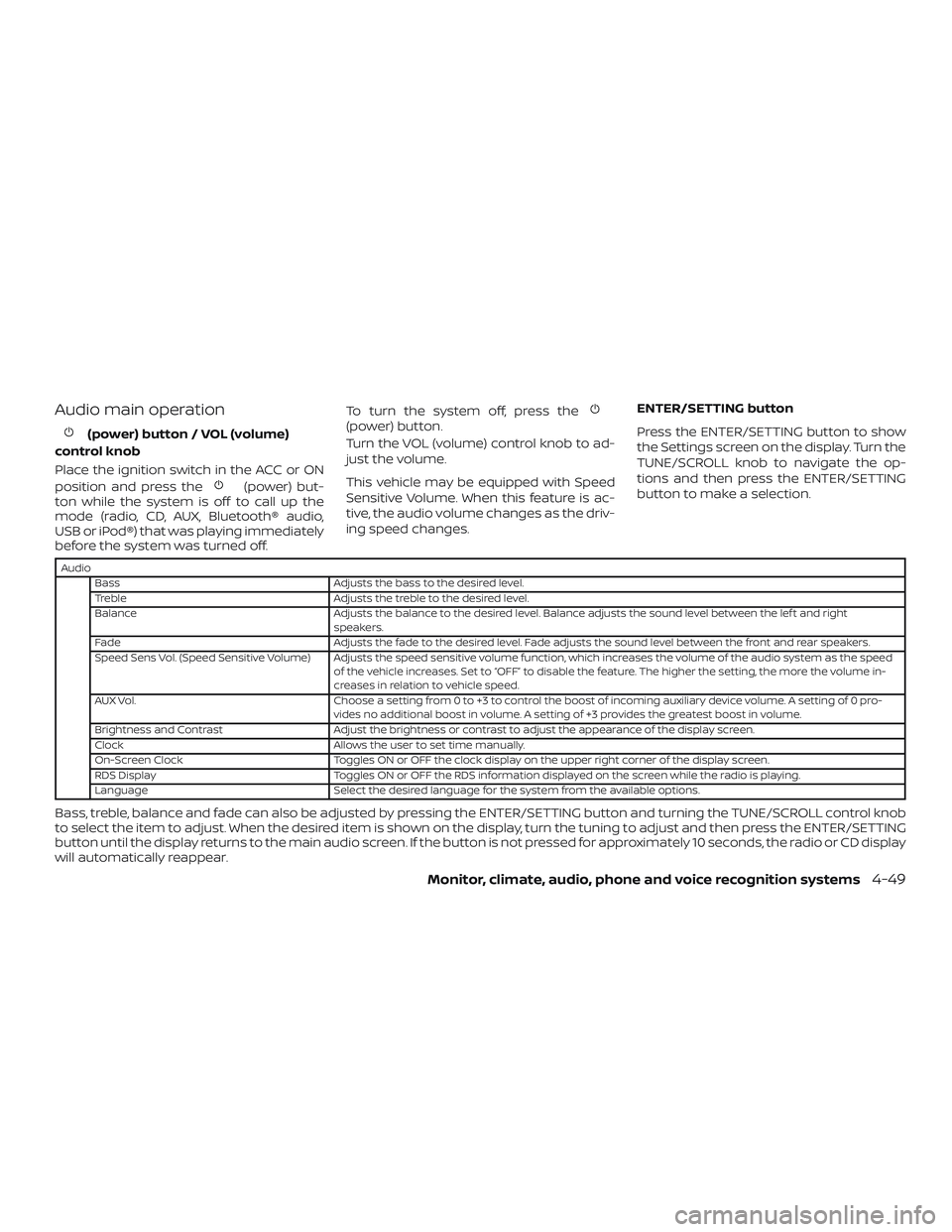
Audio main operation
(power) button / VOL (volume)
control knob
Place the ignition switch in the ACC or ON
position and press the
(power) but-
ton while the system is off to call up the
mode (radio, CD, AUX, Bluetooth® audio,
USB or iPod®) that was playing immediately
before the system was turned off. To turn the system off, press the
(power) button.
Turn the VOL (volume) control knob to ad-
just the volume.
This vehicle may be equipped with Speed
Sensitive Volume. When this feature is ac-
tive, the audio volume changes as the driv-
ing speed changes.
ENTER/SETTING button
Press the ENTER/SETTING button to show
the Settings screen on the display. Turn the
TUNE/SCROLL knob to navigate the op-
tions and then press the ENTER/SETTING
button to make a selection.
Audio
Bass Adjusts the bass to the desired level.
Treble Adjusts the treble to the desired level.
Balance Adjusts the balance to the desired level. Balance adjusts the sound level between the lef t and right speakers.
Fade Adjusts the fade to the desired level. Fade adjusts the sound level between the front and rear speakers.
Speed Sens Vol. (Speed Sensitive Volume) Adjusts the speed sensitive volume function, which increases the volume of the audio system as the speed of the vehicle increases. Set to “OFF” to disable the feature. The higher the setting, the more the volume in-
creases in relation to vehicle speed.
AUX Vol. Choose a setting from 0 to +3 to control the boost of incoming auxiliary device volume. A setting of 0 pro-
vides no additional boost in volume. A setting of +3 provides the greatest boost in volume.
Brightness and Contrast Adjust the brightness or contrast to adjust the appearance of the display screen.
Clock Allows the user to set time manually.
On-Screen Clock Toggles ON or OFF the clock display on the upper right corner of the display screen.
RDS Display Toggles ON or OFF the RDS information displayed on the screen while the radio is playing.
Language Select the desired language for the system from the available options.
Bass, treble, balance and fade can also be adjusted by pressing the ENTER/SETTING button and turning the TUNE/SCROLL control knob
to select the item to adjust. When the desired item is shown on the display, turn the tuning to adjust and then press the ENTER/SETTING
button until the display returns to the main audio screen. If the button is not pressed for approximately 10 seconds, the radio or CD display
will automatically reappear.
Monitor, climate, audio, phone and voice recognition systems4-49