buttons NISSAN SENTRA 2020 Owner´s Manual
[x] Cancel search | Manufacturer: NISSAN, Model Year: 2020, Model line: SENTRA, Model: NISSAN SENTRA 2020Pages: 528, PDF Size: 3.56 MB
Page 258 of 528
USB memory device player
operation
Activation and playing
Connecting the USB memory device into
the port will start playing the USB memory.
USB memory device can also be played by
touching the “USB” key on the Menu screen
or by touching USB on the Launch Bar.
To pause playing the USB memory device
touch the “
” key. To resume playing,
touch the “”key.
Skipping tracks
To skip the tracks, push theorbuttons on the control panel or touch the “”or“” keys on the screen repeat-
edly until the preferred track is selected.
NOTE:
Depending on the condition, skipping to
the previous track may require pushing
the button or touching the key twice.
Pushing the button or touching the key
once may only restart the current track
from the beginning.
Fast-forwarding/rewinding
To rewind or fast-forward the track, push
and hold theorbuttons on the
control panel or touch and hold the “”
or “” keys on the screen.
Changing play mode
Repeat mode
Touch the “
” key on the USB screen to
change the repeat mode.
The following modes are available:
All: Repeat all
1 Folder: Repeat folder/sub-folder
1 Track: Repeat track
Random mode
Touch the “
” key on the screen to
change the random mode as follows:
No text displayed: Random off
All: Repeat all
1 Folder: Repeat folder/sub-folder
USB menu
Touch the “USB Menu” key on the USB
screen to display the USB Menu screen.
“Now Playing” key Touch to display the USB
screen.
“Folder List” key Touch to display the folder list. Touch an item on the list to
select the folder. The sub-
folder or track list will be dis-
played. Select a sub-folder or
track from the list.
“Album Artwork” Touch to run on/off the album artwork display on the USB
screen.
4-56Monitor, climate, audio, phone and voice recognition systems
Page 261 of 528
iPod® memory device player
operation
Activation and playing
Connecting the iPod® to the vehicle via USB
cable will activate the iPod® mode.
The iPod® can also be played by touching
the “iPod” key on the Menu screen or by
touching iPod on the Launch Bar.
Skipping tracks
To skip the tracks, push theorbuttons on the control panel or touch the “”or“” keys on the screen repeat-
edly until the preferred track is selected.
NOTE:
Depending on the condition, skipping to
the previous track may require pushing
the button or touching the key twice.
Pushing the button or touching the key
once may only restart the current track
from the beginning.
Fast-forwarding/rewinding
To rewind or fast-forward the track, push
and hold theorbuttons on the
control panel or touch and hold the “”
or “” keys on the screen,
Changing play mode
Repeat mode
Touch the “
” key on the iPod® screen
to change the repeat mode. The following
modes are available.
No text displayed: Repeat off
All: Repeat all
One: Repeat track
Random mode
Touch the “
” key on the screen to
change the random mode as follows.
“
” is not highlighted: Random off
“
” highlighted: Random on
iPod® Menu
Touch the “iPod Menu” key on the iPod®
screen to display the iPod® Menu screen.
“Now Playing” key Touch to display the USB screen.
“Folder List” key (if
so equipped) Touch to display the folder list.
Touch an item on the list to
select the folder. The sub-
folder or track list will be dis-
played. Select a sub-folder or
track from the list.
“Album Artwork”
key Touch to run on/off the album
artwork display on the USB
screen.
“Playlists” key Touch to display the list ac- cording to the selected item.
“Artists” key
“Albums” key
“Songs” key
“Podcasts” key
“Genres” key
“Composers” key
“Audiobooks” key
“iTunes Radio”
key
Monitor, climate, audio, phone and voice recognition systems4-59
Page 264 of 528
Bluetooth® audio operation
The ability to pause, change tracks, fast
forward, rewind, randomize and repeat
music may be different between devices.
Some or all of these functions may not be
supported on each device.
NOTE:
Depending on the Bluetooth® audio de-
vice that is connected, it may not be pos-
sible to perform audio operations or a
delay may occur before music is played
back.
Activation and playing
A Bluetooth® audio device can be played by
touching the “Bluetooth” key on the Menu
screen or by touching Bluetooth on the
Launch Bar.
To pause playing the Bluetooth® audio,
touch the “
” key. Touch the “”key
to resume playing.
Changing folders
To change folders, touch the “BT Menu” key.
Fast-forwarding/rewinding
To fast-forward or rewind the track, push
and hold theorbuttons on the
control panel or touch the “”or“”
keys on the screen.
Changing play mode
Repeat mode
Touch the “
” key on the screen to
change the repeat mode.
Random mode
Touch the “
” key on the screen to
change the random mode.
NOTE:
Available repeat/random modes change
depending on the connected device.
BT Menu
Touch the “BT Menu” key on the Bluetooth®
audio screen to display the Bluetooth® au-
dio menu screen. The following items are available.
“Now Playing” key Touch to display the
Bluetooth® audio screen.
“Current List” key (if so
equipped)* A list of track in the cur-
rently selected folder is
displayed.
“Connections” key Touch to display the con- nections screen.
“Folder List” key* Touch to display the folder list. Touch an item
on the list to select the
folder.
*: displayed only when available.
NOTE:
Depending on the connected device, the
“BT Menu” key may not be displayed.
4-62Monitor, climate, audio, phone and voice recognition systems
Page 265 of 528
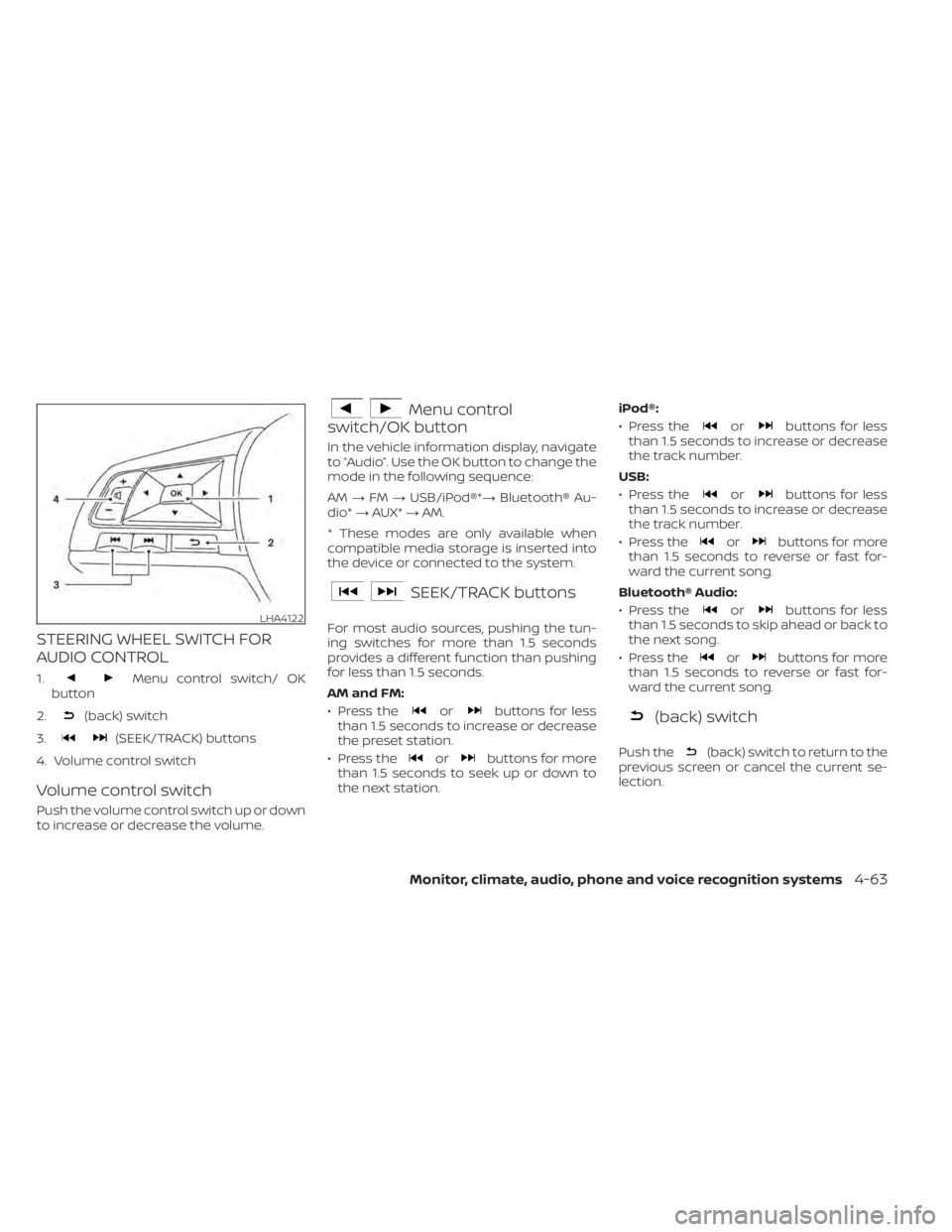
STEERING WHEEL SWITCH FOR
AUDIO CONTROL
1.Menu control switch/ OK
button
2.
(back) switch
3.
(SEEK/TRACK) buttons
4. Volume control switch
Volume control switch
Push the volume control switch up or down
to increase or decrease the volume.
Menu control
switch/OK button
In the vehicle information display, navigate
to “Audio”. Use the OK button to change the
mode in the following sequence:
AM →FM →USB/iPod®*→ Bluetooth® Au-
dio* →AUX* →AM.
* These modes are only available when
compatible media storage is inserted into
the device or connected to the system.
SEEK/TRACK buttons
For most audio sources, pushing the tun-
ing switches for more than 1.5 seconds
provides a different function than pushing
for less than 1.5 seconds.
AM and FM:
• Press the
orbuttons for less
than 1.5 seconds to increase or decrease
the preset station.
• Press the
orbuttons for more
than 1.5 seconds to seek up or down to
the next station. iPod®:
• Press the
orbuttons for less
than 1.5 seconds to increase or decrease
the track number.
USB:
• Press the
orbuttons for less
than 1.5 seconds to increase or decrease
the track number.
• Press the
orbuttons for more
than 1.5 seconds to reverse or fast for-
ward the current song.
Bluetooth® Audio:
• Press the
orbuttons for less
than 1.5 seconds to skip ahead or back to
the next song.
• Press the
orbuttons for more
than 1.5 seconds to reverse or fast for-
ward the current song.
(back) switch
Push the(back) switch to return to the
previous screen or cancel the current se-
lection.
LHA4122
Monitor, climate, audio, phone and voice recognition systems4-63
Page 273 of 528
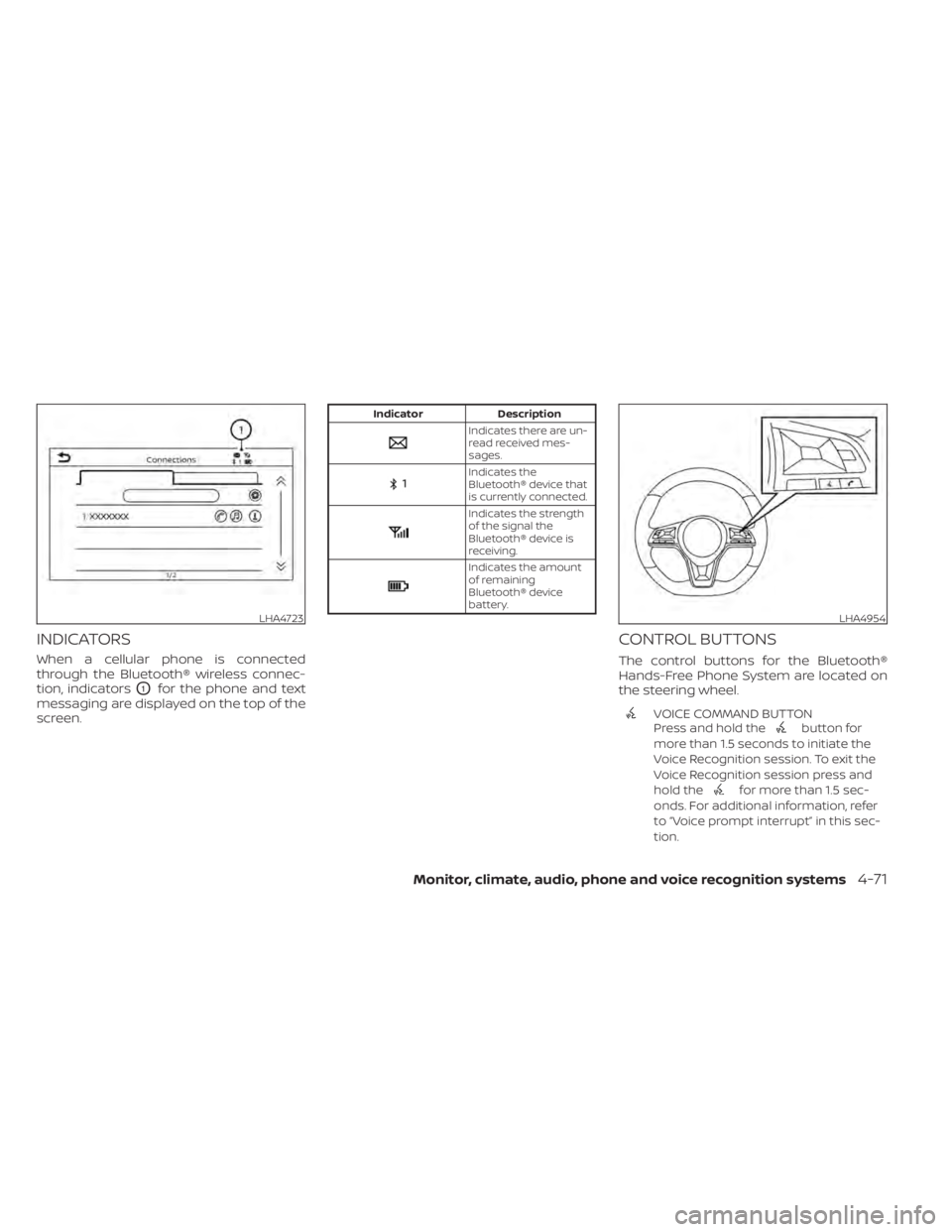
INDICATORS
When a cellular phone is connected
through the Bluetooth® wireless connec-
tion, indicators
O1for the phone and text
messaging are displayed on the top of the
screen.
Indicator Description
Indicates there are un-
read received mes-
sages.
Indicates the
Bluetooth® device that
is currently connected.
Indicates the strength
of the signal the
Bluetooth® device is
receiving.
Indicates the amount
of remaining
Bluetooth® device
battery.
CONTROL BUTTONS
The control buttons for the Bluetooth®
Hands-Free Phone System are located on
the steering wheel.
VOICE COMMAND BUTTON
Press and hold thebutton for
more than 1.5 seconds to initiate the
Voice Recognition session. To exit the
Voice Recognition session press and
hold the
for more than 1.5 sec-
onds. For additional information, refer
to “Voice prompt interrupt” in this sec-
tion.
LHA4723LHA4954
Monitor, climate, audio, phone and voice recognition systems4-71
Page 464 of 528
3. Replace the battery with a new one.Recommended battery: CR2032 or
equivalent.• Do not touch the internal circuit and electric terminals as doing so could
cause a malfunction.
• Hold the battery by the edges. Holding the battery across the contact points
will seriously deplete the storage ca-
pacity.
• Make sure that the + side faces the bottom of the lower part.
4. Close the lid securely as illustrated with
OCandOD.
5. Operate the buttons to check the operation.
If you need assistance with replacement, it
is recommended that you visit a NISSAN
dealer for this service.
FCC Notice:
For USA:
This device complies with Part 15 of the
FCC Rules. Operation is subject to the fol-
lowing two conditions: (1) This device
may not cause harmful interference, and
(2) this device must accept any interfer- ence received, including interference
that may cause undesired operation.
Note:
Changes or modifications not expressly
approved by the party responsible for
compliance could void the user’s author-
ity to operate the equipment.
For Canada:
This device complies with Industry
Canada licence-exempt RSS standard(s).
Operation is subject to the following two
conditions: (1) this device may not cause
interference, and (2) this device must ac-
cept any interference, including interfer-
ence that may cause undesired opera-
tion of the device.
HEADLIGHTS
For additional information on headlight
bulb replacement, refer to the instructions
outlined in this section.
Replacing the halogen headlight
bulb (if so equipped)
If halogen headlight bulb replacement is
required, it is recommended that you visit a
NISSAN dealer for this service.
CAUTION
• Aiming is not necessary af ter replac-
ing the bulb. When aiming adjust-
ment is necessary, it is recom-
mended that you visit a NISSAN
dealer for this service.
• Do not leave the headlight assembly
open without a bulb installed for a
long period of time. Dust, moisture,
smoke, etc. entering the headlight
body may affect bulb performance.
Remove the bulb from the headlight
assembly just before a replacement
bulb is installed.
LIGHTS
8-24Do-it-yourself
Page 518 of 528
Bulb replacement...............8-26
C
C.M.V.S.S. certification label.........10-13Capacities and recommended
fuel/lubricants.................10-2Car phone or CB radio............4-67Cargo
(See vehicle loading information).....10-15Chassis control................5-119Check tire pressure..........2-30, 2-47Child restraints.......1-21,1-22,1-23,1-25LATCH (Lower Anchors and Tethers for
CHildren) System..............1-25Precautions on child
restraints............1-30, 1-36, 1-41Top tether strap anchor point
locations...................1-28Child safety rear door lock..........3-7Cleaning exterior and interior......7-2,7-5Clutch
Clutch fluid..................8-11Cold weather driving............5-125Console box................. .2-68Continuously Variable Transmission
(CVT).......................5-16Continuously Variable Transmission (CVT)
fluid......................8-10Driving with Continuously Variable
Transmission (CVT)............5-16Control panel buttons.............4-3Brightness/contrast button.......4-8
Controls
Audio controls (steering wheel).....4-63Heater and air conditioner
controls................4-33, 4-41CoolantCapacities and recommended
fuel/lubricants
...............10-2Changing engine coolant.........8-6Checking engine coolant level......8-6Engine coolant temperature gauge. . .2-6Corrosion protection..............7-8Cruise control................ .5-58Cup holders................. .2-69
D
Daytime Running Light System......2-59Defroster switch
Rear window and outside mirror defroster
switch
................... .2-55Diesel Particulate Filter (DPF)........2-51Dimensions and weights..........10-11Dimmer switch for instrument panel. . .2-60Display controls (see control panel
buttons).................... .4-3Door locks....................3-4Drive belt....................8-14Driving
Cold weather driving...........5-125Driving with Continuously Variable
Transmission (CVT)............5-16Driving with manual transmission. . .5-21
Precautions when starting and
driving.................... .5-4Driving the vehicle...............5-16
E
E-call (SOS) Button..............2-64ECO mode switch...............5-25Economy - fuel................5-111Emergency engine shutoff.......5-13,6-2Emission control information label. . . .10-13Emission control system warranty. . . .10-20Engine
Before starting the engine........5-14Capacities and recommended
fuel/lubricants...............10-2Changing engine coolant.........8-6Changing engine oil.............8-7Changing engine oil filter.........8-7Checking engine coolant level......8-6Checking engine oil level..........8-7Engine compartment check
locations.................. .8-4Engine coolant temperature gauge. . .2-6Engine cooling system...........8-5Engine oil...................8-7Engine oil and oil filter
recommendation.............10-7Engine oil pressure warning light. . . .2-10Engine oil viscosity.............10-7Engine serial number..........10-13Engine specifications...........10-9Starting the engine............5-14
11-2Index