Voice recognition NISSAN SENTRA 2023 Manual Online
[x] Cancel search | Manufacturer: NISSAN, Model Year: 2023, Model line: SENTRA, Model: NISSAN SENTRA 2023Pages: 556, PDF Size: 6.11 MB
Page 270 of 556
NOTE:
This feature is automatically disabled if
the connected device does not support
the Message Access Profile (MAP). For
additional information, refer to the
phone’s owner’s manual for details and
instructions.
NOTE:
Many phones may require special per-
mission to enable text messaging. Check
the phone’s screen during Bluetooth®
pairing. For some phones, you may need
to enable ‘Notifications’ in the phone’s
Bluetooth® menu for text messages to
appear on the headunit. For additional
information, refer to your phone’s own-
er’s manual. Text message integration
requires that the phone support MAP
(Message Access Profile) for both receiv-
ing and sending text messages. Some
phones may not support all text mes-
saging features. Please refer to
www.nissanusa.com/bluetooth or
www.nissan.ca/bluetooth for compat-
ibility information, as well as your de-
vice’s owner’s manual.
The system allows for the sending and re-
ceiving of text messages through the ve-
hicle interface.The availability of the text message func-
tion may vary depending on the cellular
phone.
When the cellular phone connected to the
vehicle receives a text message, a notifica-
tion will appear on the control panel dis-
play. To check the message, touch the
“Read” key. Touch the “Ignore” key to save
the message to be checked later.
Access text messaging through the ve-
hicles Bluetooth® Hands-Free Phone or
through the vehicles control panel.
Text messaging using Bluetooth®
Hands-Free Phone System (if so
equipped)
Sending a text message (if so equipped)
1. Press and hold the
button on the
steering wheel for less than 1.5 seconds.
2. Say “Send Text” af ter the tone.
3. The system will provide a list of available commands in order to determine the
recipient of the text message. Choose
from the following:
• Phonebook
• Quick Dial
• Incoming Calls • Outgoing Calls
• Missed Calls
• Dial
4. Once a recipient is chosen, the system
prompts for which message to send.
Nine predefined messages are avail-
able. To choose one of the predefined
messages, speak one of the following
af ter the tone:
• “Driving, can't text”
• “Call me”
• “On my way ”
• “Running late”
• “Okay ”
• “Yes”
• “No”
• “Where are you?”
• “When?”
Reading a received text message
1. Press and hold the
button on the
steering wheel for less than 1.5 seconds.
2. Say “Read Text” af ter the tone.
4-78Monitor, climate, audio, phone and voice recognition systems
Page 271 of 556
The display will show a list of 20 messages
with the sender and delivery time. Touch
the “Next” key on the screen to view all mes-
sages. To view a text message press the
button on the steering wheel and
speak the number item list on the screen.
The following options will be available:
• Play Speak this command to have the system
say the message.
• Reply Speak this command to send a text mes-
sage response to the sender of the text
message.
• Call Speak this command to call the sender.
• Previous Speak this command to move to the pre-
vious text message (if available).
•Next Speak this command to move to the next
text message (if available).
Siri® Eyes Free (if so equipped)
If a connected phone is equipped with Siri®,
it can also be used to create custom mes-
sages that are sent through the phone. For
additional information, see “Siri® Eyes Free”
(P. 4-63).
NOTE:
Text messages are only displayed if the
vehicle speed is less than 5 mph (8
km/h).
NOTE:
For Apple iPhones®, text messages can
only be sent through Siri.
Text messaging using the control
panel
Display received message list
1. Press the
button on the control
panel.
2. Touch the “Text Message” key on the screen
3. Touch an item on the list to read or reply to the message.
Up to 100 messages can be stored in the
message list.
Received message screen
Touching the “Read” key on the incoming
message notification screen or selecting a
message from the message list will show
the details of the received message on the
display. Available actions:
•Prev.
Touch this key to read the previous
message.
•Next Touch this key to read the next message.
• Play/Stop Touch the “Play” key to have the hands-
free phone system read out the received
message. Touch the “Stop” key to stop
reading.
• Call If the sender of the message is registered
in the phonebook, touch the “Call” key to
make a call to the sender.
• Reply A reply message can be selected from
the predefined list.
Sending a text message (if so equipped)
This function may not be supported de-
pending on the cellular phone.
1. Press the
button on the control
panel.
2. Touch the “Text Message” key on the screen.
3. Touch the “Create Message” key on the screen.
Monitor, climate, audio, phone and voice recognition systems4-79
Page 272 of 556
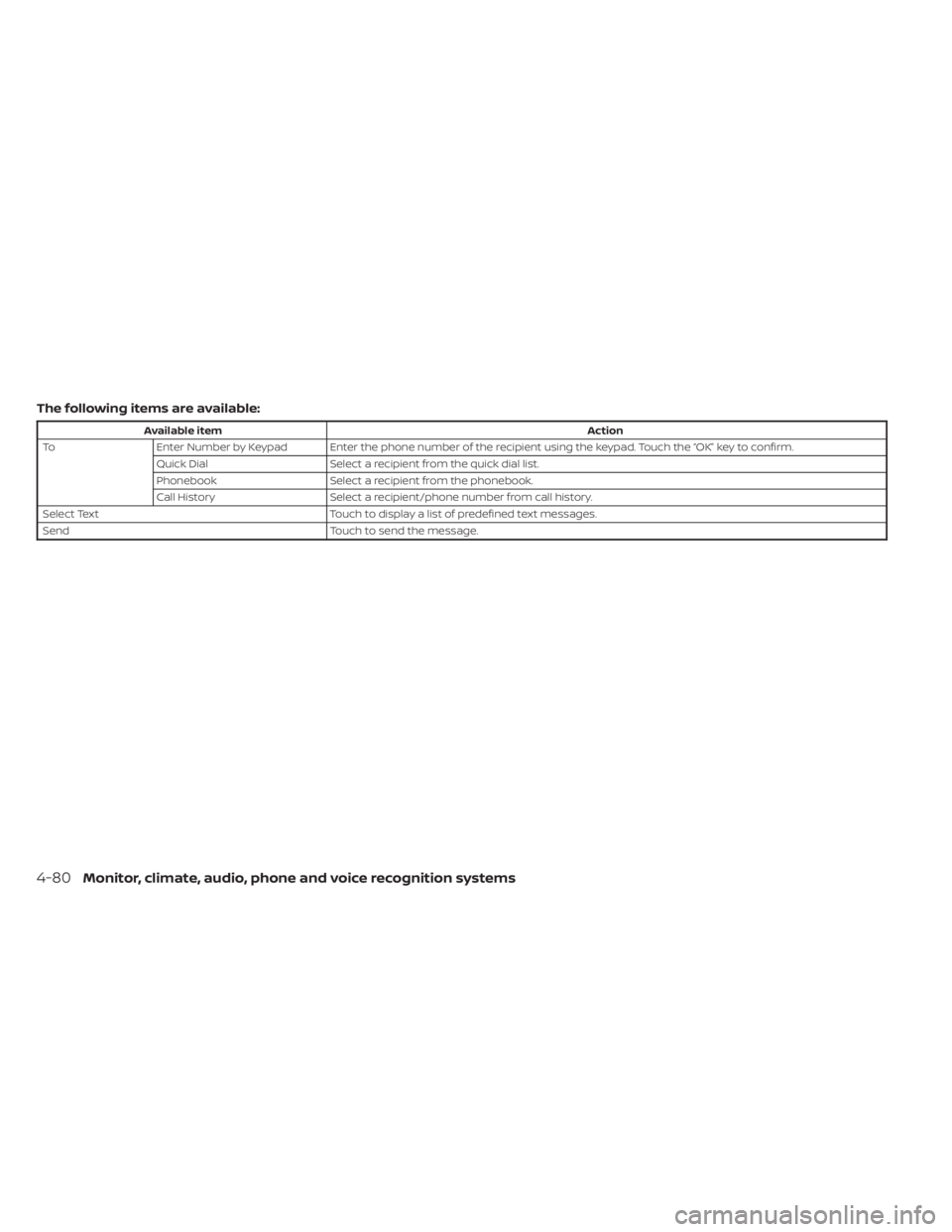
The following items are available:
Available itemAction
To Enter Number by Keypad Enter the phone number of the recipient using the keypad. Touch the “OK” key to confirm.
Quick Dial Select a recipient from the quick dial list.
Phonebook Select a recipient from the phonebook.
Call History Select a recipient/phone number from call history.
Select Text Touch to display a list of predefined text messages.
Send Touch to send the message.
4-80Monitor, climate, audio, phone and voice recognition systems
Page 273 of 556
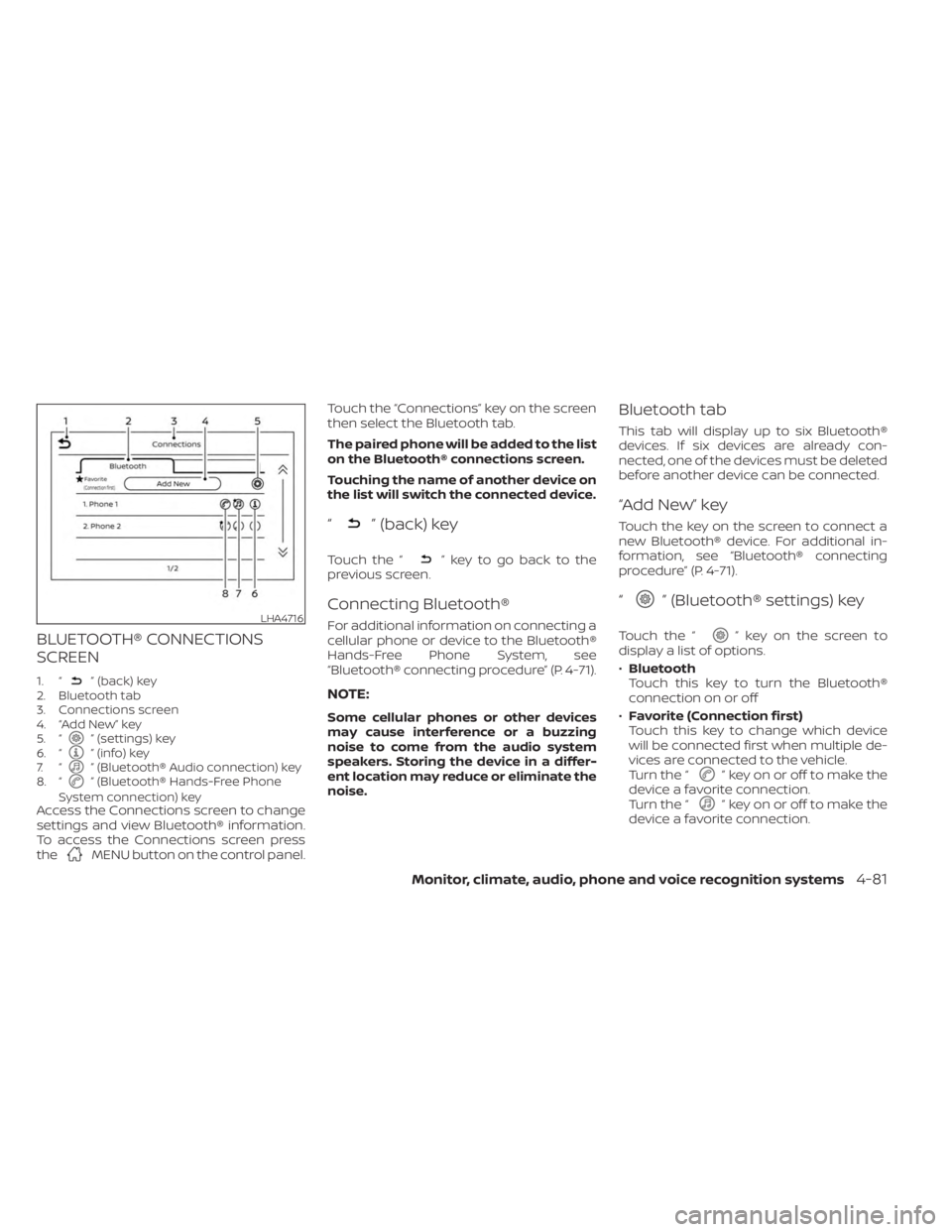
BLUETOOTH® CONNECTIONS
SCREEN
1. “” (back) key
2. Bluetooth tab
3. Connections screen
4. “Add New” key
5. “
” (settings) key
6. “” (info) key
7. “” (Bluetooth® Audio connection) key
8. “” (Bluetooth® Hands-Free Phone
System connection) key
Access the Connections screen to change
settings and view Bluetooth® information.
To access the Connections screen press
the
MENU button on the control panel. Touch the “Connections” key on the screen
then select the Bluetooth tab.
The paired phone will be added to the list
on the Bluetooth® connections screen.
Touching the name of another device on
the list will switch the connected device.
“” (back) key
Touch the “” key to go back to the
previous screen.
Connecting Bluetooth®
For additional information on connecting a
cellular phone or device to the Bluetooth®
Hands-Free Phone System, see
“Bluetooth® connecting procedure” (P. 4-71).
NOTE:
Some cellular phones or other devices
may cause interference or a buzzing
noise to come from the audio system
speakers. Storing the device in a differ-
ent location may reduce or eliminate the
noise.
Bluetooth tab
This tab will display up to six Bluetooth®
devices. If six devices are already con-
nected, one of the devices must be deleted
before another device can be connected.
“Add New” key
Touch the key on the screen to connect a
new Bluetooth® device. For additional in-
formation, see “Bluetooth® connecting
procedure” (P. 4-71).
“” (Bluetooth® settings) key
Touch the “” key on the screen to
display a list of options.
• Bluetooth
Touch this key to turn the Bluetooth®
connection on or off
• Favorite (Connection first)
Touch this key to change which device
will be connected first when multiple de-
vices are connected to the vehicle.
Turn the “
” key on or off to make the
device a favorite connection.
Turn the “
” key on or off to make the
device a favorite connection.
LHA4716
Monitor, climate, audio, phone and voice recognition systems4-81
Page 274 of 556
•Pin
Touch this key to customize the PIN code.
Input a four digit number then touch the
“OK” key. The new PIN will be set.
“” (info) key
Touch the “” key on the screen to
display the information of the cellular
phone or to delete the device.
Touch the “Delete” key to remove a paired
device then select “Yes” when a message
appears.
“” (Bluetooth® Hands-Free
Phone System connection) key
A list of connected devices will be displayed
on the screen. Touch the “” key next to
the name to connect a device to the
Hands-Free Phone System. If the phone is
listed as a favorite, a star will appear on the
icon. Touch the key again to disconnect the
device. The device will not be removed
from the list. For additional information on
removing a device, see “
(info) key”
(P. 4-82).
“” (Bluetooth® Audio
connection) key
A list of connected devices will be displayed
on the screen. Touch the “” key next to
the name to connect a device to
Bluetooth® Audio. If the device is listed as a
favorite, a star will appear on the icon.
Touch the key again to disconnect the de-
vice. The device will not be removed from
the list. For additional information on re-
moving a device, see “
(info) key”
(P. 4-82).
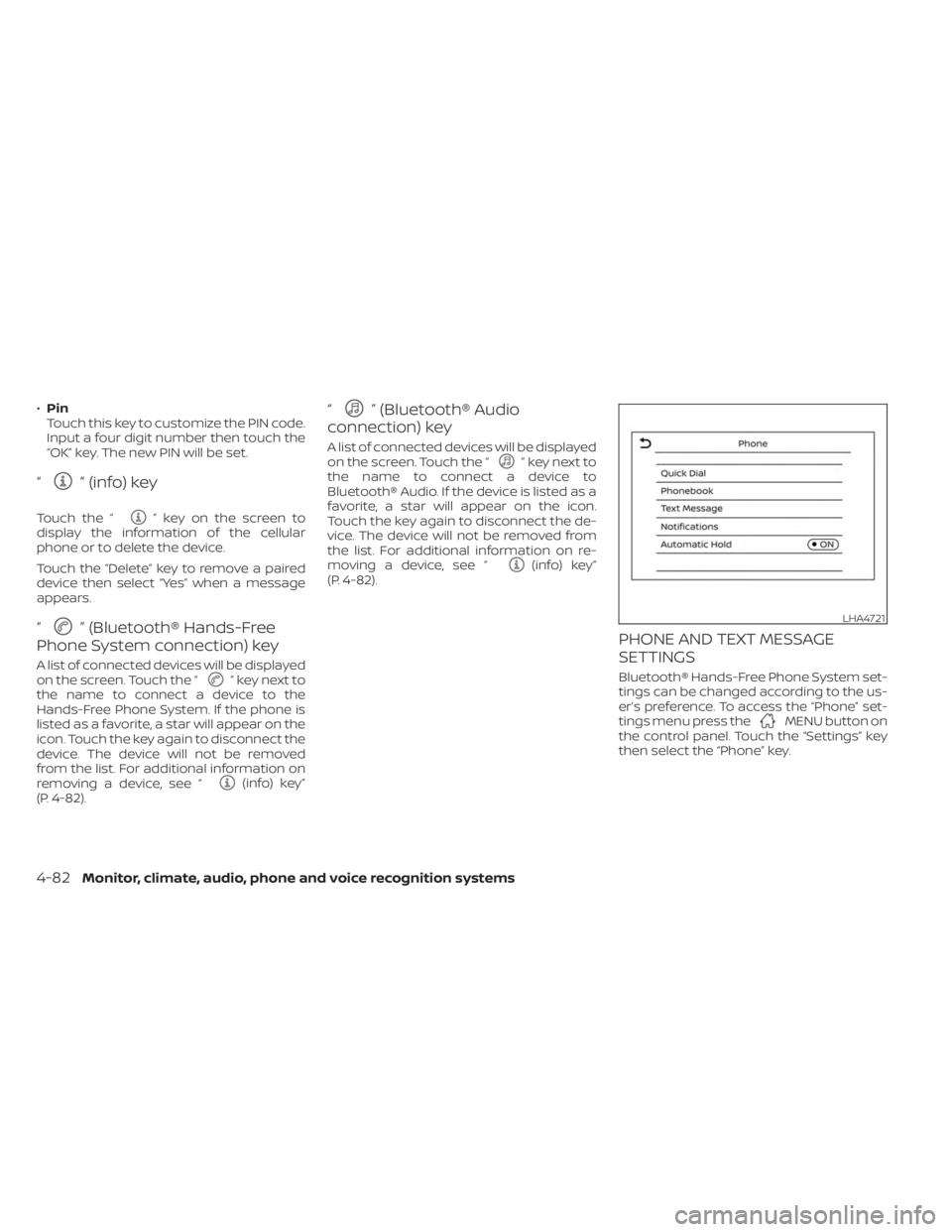
PHONE AND TEXT MESSAGE
SETTINGS
Bluetooth® Hands-Free Phone System set-
tings can be changed according to the us-
er’s preference. To access the “Phone” set-
tings menu press the
MENU button on
the control panel. Touch the “Settings” key
then select the “Phone” key.
LHA4721
4-82Monitor, climate, audio, phone and voice recognition systems
Page 275 of 556
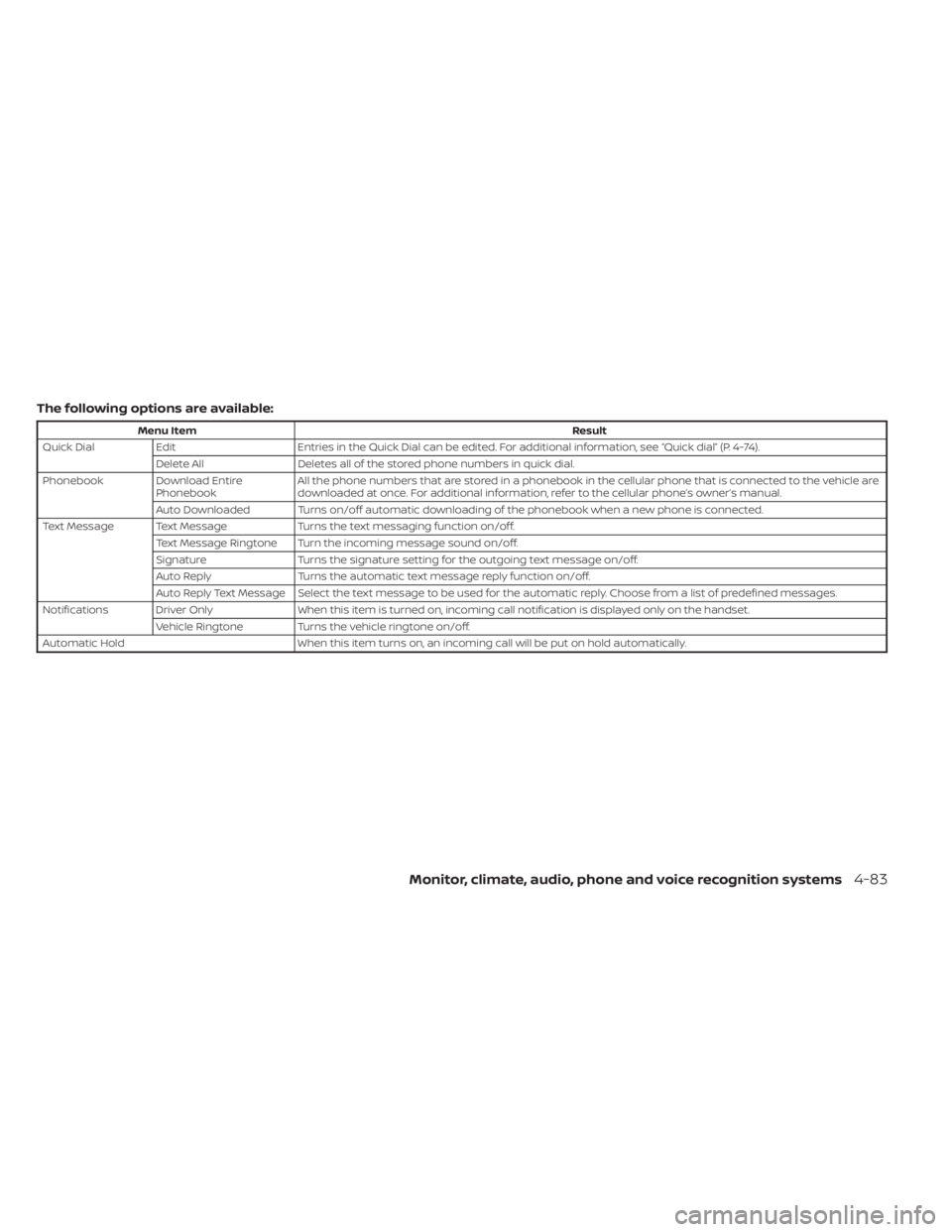
The following options are available:
Menu ItemResult
Quick Dial Edit Entries in the Quick Dial can be edited. For additional information, see “Quick dial” (P. 4-74).
Delete All Deletes all of the stored phone numbers in quick dial.
Phonebook Download Entire Phonebook All the phone numbers that are stored in a phonebook in the cellular phone that is connected to the vehicle are
downloaded at once. For additional information, refer to the cellular phone’s owner’s manual.
Auto Downloaded Turns on/off automatic downloading of the phonebook when a new phone is connected.
Text Message Text Message Turns the text messaging function on/off.
Text Message Ringtone Turn the incoming message sound on/off.
Signature Turns the signature setting for the outgoing text message on/off.
Auto Reply Turns the automatic text message reply function on/off.
Auto Reply Text Message Select the text message to be used for the automatic reply. Choose from a list of predefined messages.
Notifications Driver Only When this item is turned on, incoming call notification is displayed only on the handset.
Vehicle Ringtone Turns the vehicle ringtone on/off.
Automatic Hold When this item turns on, an incoming call will be put on hold automatically.
Monitor, climate, audio, phone and voice recognition systems4-83
Page 276 of 556
VOLUME & BEEPS
There are several methods to customize
the volume settings.
Volume & Beeps
The Volume & Beeps screen can be found
by pressing the
MENU button on the
control panel, touching the “Settings” key
on the screen and selecting “Volume &
Beeps”. To adjust the volume of the follow-
ing options, touch the “–” and “+” keys on the
screen.
The available settings are:
• Ringtone Adjust the volume level of the ringtone of
incoming calls.
• Outgoing Call Adjust the volume level of the outgoing
calls.
• Voice Prompt Vol. Adjust the volume level of the system
voice.
• Text-to-speech Vol. Adjust the volume of the replay voice for
text messaging.
• Button Beeps Turns on/off the button beep sounds and
alarm for prohibited operations. Volume Settings
The Volume settings screen can be found
by pressing the
button on the control
panel then touching the “Volume” key on
the screen. To adjust the volume of the
following options, touch the “–” and “+” keys
on the screen.
The available settings are:
• Ringtone Adjust the volume level of the ringtone of
incoming calls.
• Outgoing Call Adjust the volume level of the outgoing
calls. “Made for iPod”, “Made for iPhone” and
“Made for iPad” mean that an electronic
accessory has been designed to connect
specifically to iPod, iPhone or iPad, respec-
tively, and has been certified by the devel-
oper to meet Apple performance stan-
dards. Apple is not responsible for the
operation of this device or its compliance
with safety and regulatory standards.
Please note that the use of this accessory
with iPod, iPhone or iPad may affect wire-
less performance.
iPad, iPhone, iPod classic, iPod nano, iPod
shuffle and iPod touch are trademarks of
Apple Inc., registered in the U.S. and other
countries. Lightning is a trademark of
Apple Inc.
iPod®/iPhone®
4-84Monitor, climate, audio, phone and voice recognition systems
Page 289 of 556
OFF
The ignition switch is in the OFF position
when the engine is turned off using the
ignition switch. No lights will illuminate on
the ignition switch.
AUTO ACC:
With the vehicle in the P (Park) position, the
Intelligent Key with you, and the ignition
switch placed from the ON to the OFF po-
sition, the radio can still be used for a period
of time, or until the driver’s door is opened.
Af ter a period of time, functions such as
radio, navigation, and Bluetooth® Hands-
Free Phone System may be restarted by
pressing the “POWER button/VOLUME con-
trol knob” or the key fob unlock button. For
additional information, see the “Monitor, cli-
mate, audio, phone and voice recognition
systems” section of this manual.
EMERGENCY ENGINE SHUT OFF
To shut off the engine in an emergency
situation while driving, perform the follow-
ing procedure:
• Rapidly push the ignition switch threeconsecutive times in less than 1.5 sec-
onds, or
• Push and hold the ignition switch for more than 2 seconds.
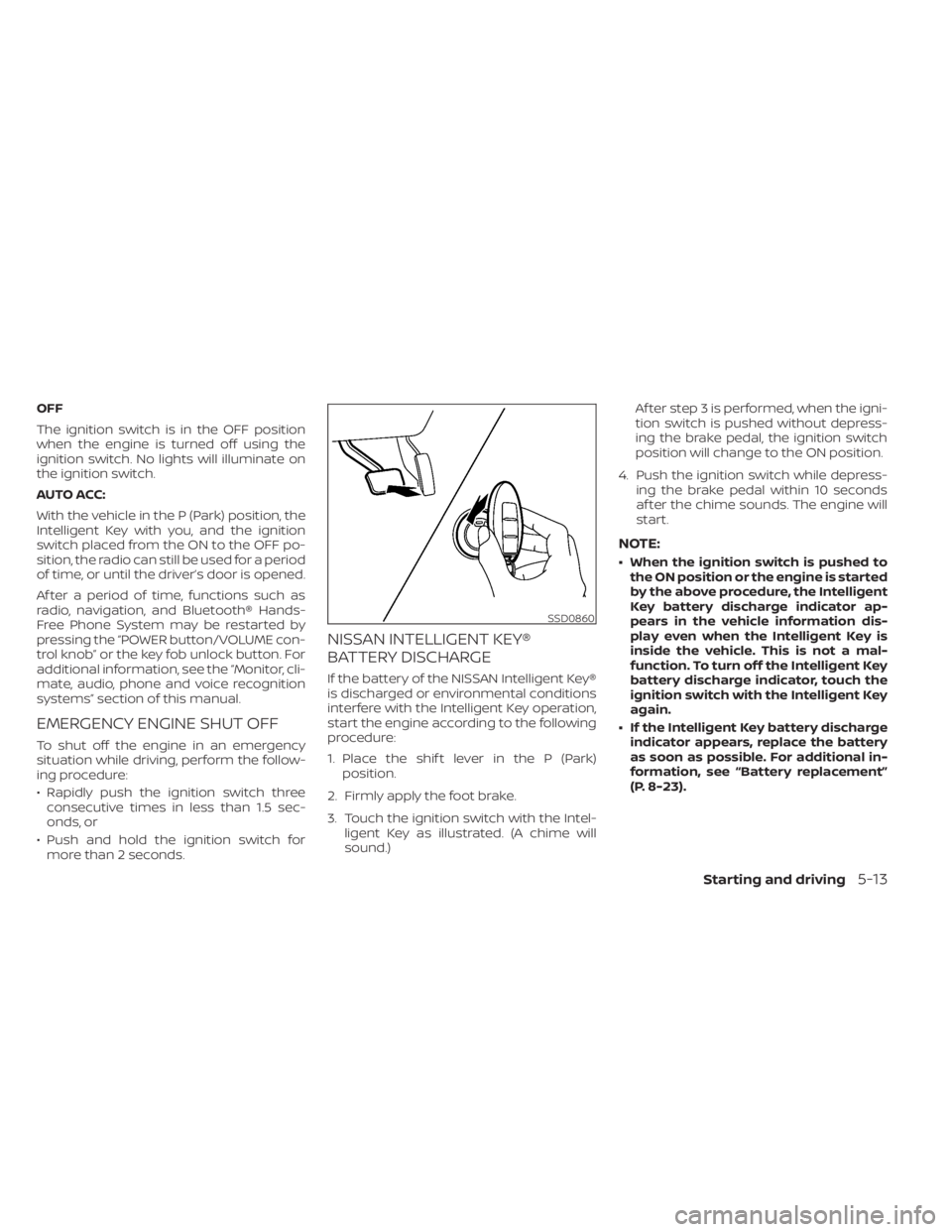
NISSAN INTELLIGENT KEY®
BATTERY DISCHARGE
If the battery of the NISSAN Intelligent Key®
is discharged or environmental conditions
interfere with the Intelligent Key operation,
start the engine according to the following
procedure:
1. Place the shif t lever in the P (Park) position.
2. Firmly apply the foot brake.
3. Touch the ignition switch with the Intel- ligent Key as illustrated. (A chime will
sound.) Af ter step 3 is performed, when the igni-
tion switch is pushed without depress-
ing the brake pedal, the ignition switch
position will change to the ON position.
4. Push the ignition switch while depress- ing the brake pedal within 10 seconds
af ter the chime sounds. The engine will
start.
NOTE:
• When the ignition switch is pushed tothe ON position or the engine is started
by the above procedure, the Intelligent
Key battery discharge indicator ap-
pears in the vehicle information dis-
play even when the Intelligent Key is
inside the vehicle. This is not a mal-
function. To turn off the Intelligent Key
battery discharge indicator, touch the
ignition switch with the Intelligent Key
again.
• If the Intelligent Key battery discharge indicator appears, replace the battery
as soon as possible. For additional in-
formation, see “Battery replacement”
(P. 8-23).
SSD0860
Starting and driving5-13
Page 545 of 556
T
Tachometer...................2-6Temperature gauge
Engine coolant temperature gauge. . .2-6Thef t (NISSAN Vehicle Immobilizer System),
engine start...............2-49, 5-14Three-way catalyst...............5-4TiltTelescopic steering............3-26TireFlat tire................... .6-3Spare tire................6-4, 8-41Tire and Loading Information label. .10-14Tire chains..................8-37Tire pressure................8-29Tire rotation.................8-38Types of tires................8-36Uniform tire quality grading.......10-21Wheel/tire size...............10-10Wheels and tires..............8-29Tire pressure
Low tire pressure warning light.....2-13Tire Pressure Monitoring System
(TPMS)...................... .5-5Towing
2-wheel drive models...........6-134-wheel drive models...........6-13Flat towing................ .10-20Trailer towing...............10-20Towing a trailer................10-20Towing your vehicle..............6-12Traffic Sign Recognition (TSR)........5-25
Transmission
Continuously Variable Transmission
(CVT) fluid
..................8-10Driving with Continuously Variable
Transmission (CVT)............5-16Driving with manual transmission. . .5-21Travel (See registering a vehicle in
another country)...............10-12Trip odometer................. .2-5Trunk access through the rear seat. . . .3-23Trunk lid.....................3-22Trunk lid lock opener lever..........3-22Trunk light....................2-76Turn signal switch...............2-58
U
Uniform tire quality grading........10-21USB interface.................4-53USB/iPod® Charging Ports.........2-64
V
Vanity mirror..................3-27Variable voltage control system......8-15Vehicle dimensions and weights.....10-11Vehicle Dynamic Control (VDC)
system.....................5-131Vehicle identification.............10-12Vehicle identification number (VIN)
(Chassis number)...............10-12Vehicle identification number (VIN)
plate...................... .10-12
Vehicle immobilizer system.....2-49, 5-14Vehicle information display......2-18,2-32Vehicle loading information........10-16Vehicle recovery................6-14Vehicle security system...........2-48Vehicle security system
(NISSAN Vehicle Immobilizer System),
engine start
...............2-49, 5-14Vents...................... .4-31Visors......................3-26Voice Prompt Interrupt...........4-69
W
Warning
Air bag warning light........1-65, 2-12Battery charge warning light.......2-11Brake warning light............2-10Engine oil pressure warning light. . . .2-11Hazard warning flasher switch......6-2Loose fuel cap warning......2-28, 2-42Low fuel warning light.......2-28, 2-43Low tire pressure warning light.....2-13Low windshield-washer fluid
warning light.............2-28, 2-43Seat belt warning light.......1-15,2-12Supplemental air bag warning
light.................. .1-65, 2-12Vehicle security system.........2-48Warning labels (for SRS)..........1-65Warning lights, indicator lights and
audible reminders...............2-9
11-7