position NISSAN TITAN 2008 1.G 04IT Navigation Manual
[x] Cancel search | Manufacturer: NISSAN, Model Year: 2008, Model line: TITAN, Model: NISSAN TITAN 2008 1.GPages: 270, PDF Size: 5.97 MB
Page 12 of 270
Black plate (12,1)
Model "NISSAN_NAVI" EDITED: 2007/ 2/ 26
NAV2701
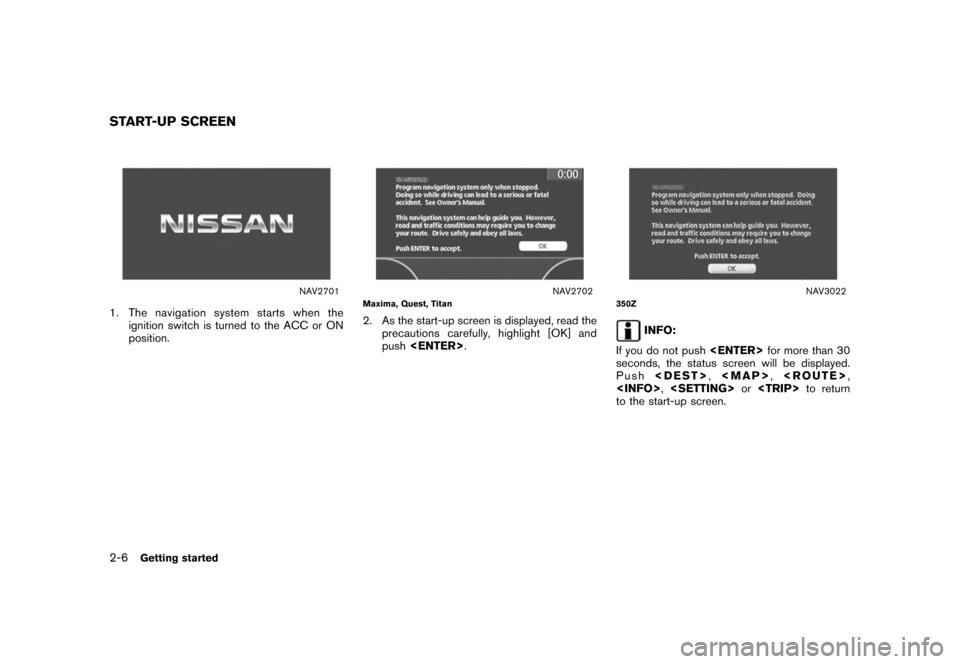
1. The navigation system starts when the
ignition switch is turned to the ACC or ON
position.
NAV2702Maxima, Quest, Titan
2. As the start-up screen is displayed, read the
precautions carefully, highlight [OK] and
push
NAV3022350Z
INFO:
If you do not push
seconds, the status screen will be displayed.
Push
Page 20 of 270
Black plate (20,1)
Model "NISSAN_NAVI" EDITED: 2007/ 2/ 26
NAV2708
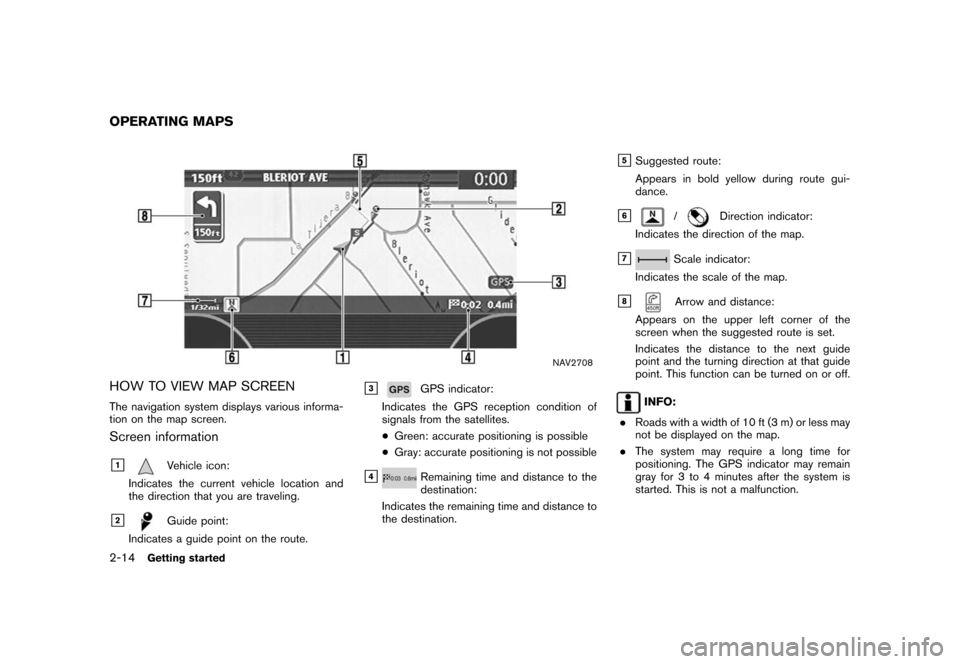
HOW TO VIEW MAP SCREEN
The navigation system displays various informa-
tion on the map screen.
Screen information
&1Vehicle icon:
Indicates the current vehicle location and
the direction that you are traveling.
&2Guide point:
Indicates a guide point on the route.
&3GPS indicator:
Indicates the GPS reception condition of
signals from the satellites.
*Green: accurate positioning is possible
*Gray: accurate positioning is not possible
&4Remaining time and distance to the
destination:
Indicates the remaining time and distance to
the destination.
&5Suggested route:
Appears in bold yellow during route gui-
dance.
&6/Direction indicator:
Indicates the direction of the map.
&7Scale indicator:
Indicates the scale of the map.
&8Arrow and distance:
Appears on the upper left corner of the
screen when the suggested route is set.
Indicates the distance to the next guide
point and the turning direction at that guide
point. This function can be turned on or off.
INFO:
.Roads with a width of 10 ft (3 m) or less may
not be displayed on the map.
.The system may require a long time for
positioning. The GPS indicator may remain
gray for 3 to 4 minutes after the system is
started. This is not a malfunction.
OPERATING MAPS
2-14Getting started
Page 36 of 270
![NISSAN TITAN 2008 1.G 04IT Navigation Manual Black plate (36,1)
Model "NISSAN_NAVI" EDITED: 2007/ 2/ 26
NAV2732
6. Highlight the preferred airport from the list
and push<ENTER>.
NAV2733
INFO:
By selecting [By Distance], you can sort the
list by](/img/5/794/w960_794-35.png "NISSAN TITAN 2008 1.G 04IT Navigation Manual Black plate (36,1)
Model \"NISSAN_NAVI\" EDITED: 2007/ 2/ 26
NAV2732
6. Highlight the preferred airport from the list
and push<ENTER>.
NAV2733
INFO:
By selecting [By Distance], you can sort the
list by")
Black plate (36,1)
Model "NISSAN_NAVI" EDITED: 2007/ 2/ 26
NAV2732
6. Highlight the preferred airport from the list
and push
NAV2733
INFO:
By selecting [By Distance], you can sort the
list by the shortest distance.
The position of the selected location is
displayed in the preview on the right side
of the screen.
NAV2734
7. The selected destination is displayed at the
center of the map. Highlight [OK] after
confirming the location of the displayed
destination, and push
INFO:
The system sets the destination to the
selected location and starts calculating a
route.
2-30Getting started
Page 48 of 270
Black plate (48,1)
Model "NISSAN_NAVI" EDITED: 2007/ 2/ 26
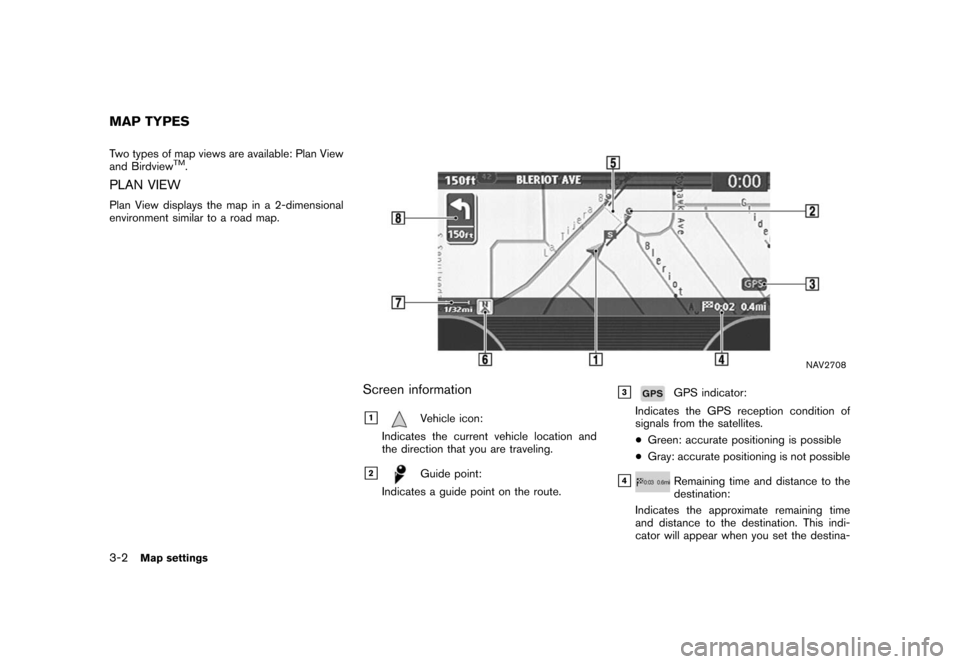
Two types of map views are available: Plan View
and BirdviewTM.
PLAN VIEW
Plan View displays the map in a 2-dimensional
environment similar to a road map.
NAV2708
Screen information
&1Vehicle icon:
Indicates the current vehicle location and
the direction that you are traveling.
&2Guide point:
Indicates a guide point on the route.
&3GPS indicator:
Indicates the GPS reception condition of
signals from the satellites.
*Green: accurate positioning is possible
*Gray: accurate positioning is not possible
&4Remaining time and distance to the
destination:
Indicates the approximate remaining time
and distance to the destination. This indi-
cator will appear when you set the destina-
MAP TYPES
3-2Map settings
Page 61 of 270
Black plate (61,1)
Model "NISSAN_NAVI" EDITED: 2007/ 2/ 26
Other settings are also available for the map
screen, such as changing the map direction,
splitting the screen, etc.
SETTINGS OF HEADING/LONG
RANGE MAP VIEW
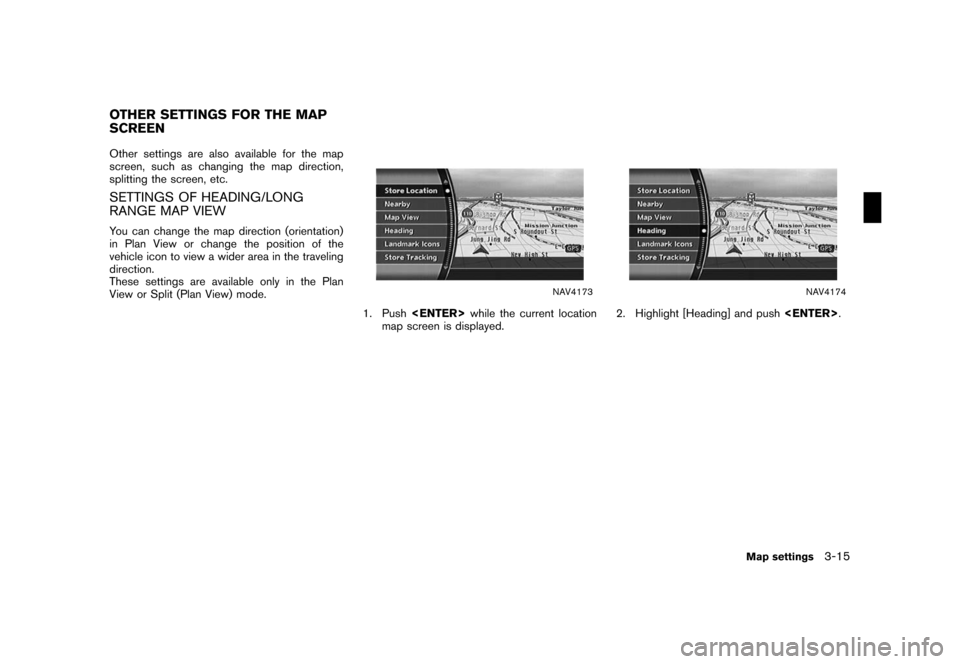
You can change the map direction (orientation)
in Plan View or change the position of the
vehicle icon to view a wider area in the traveling
direction.
These settings are available only in the Plan
View or Split (Plan View) mode.
NAV4173
1. Push
map screen is displayed.
NAV4174
2. Highlight [Heading] and push
OTHER SETTINGS FOR THE MAP
SCREEN
Map settings3-15
Page 81 of 270
![NISSAN TITAN 2008 1.G 04IT Navigation Manual Black plate (81,1)
Model "NISSAN_NAVI" EDITED: 2007/ 2/ 26
&3Symbols/A-Z:
Symbol keys are displayed by high-
lighting [Symbols] and pushing
<ENTER>. Alphabet keys are dis-
played by highlighting [A-Z]](/img/5/794/w960_794-80.png "NISSAN TITAN 2008 1.G 04IT Navigation Manual Black plate (81,1)
Model \"NISSAN_NAVI\" EDITED: 2007/ 2/ 26
&3Symbols/A-Z:
Symbol keys are displayed by high-
lighting [Symbols] and pushing
<ENTER>. Alphabet keys are dis-
played by highlighting [A-Z]")
Black plate (81,1)
Model "NISSAN_NAVI" EDITED: 2007/ 2/ 26
&3Symbols/A-Z:
Symbol keys are displayed by high-
lighting [Symbols] and pushing
played by highlighting [A-Z] and push-
ing
NAV3076
4. Highlight [City] and push
narrow down the route calculation condi-
tions by entering the name of the city.
Enter the name of the city, highlight [OK] and
push
A list screen is displayed.
INFO:
Highlight [Last 5 Cities] and push
as destinations.
NAV2840
5. Highlight the preferred destination from the
list and push
The position of the selected location is
displayed in the preview on the right side
of the screen.
Setting a destination4-9
Page 107 of 270
![NISSAN TITAN 2008 1.G 04IT Navigation Manual Black plate (107,1)
Model "NISSAN_NAVI" EDITED: 2007/ 2/ 26
NAV2799
INFO:
By selecting [By Distance], you can sort the
list by the nearest distance.
The position of the selected location is
displayed](/img/5/794/w960_794-106.png "NISSAN TITAN 2008 1.G 04IT Navigation Manual Black plate (107,1)
Model \"NISSAN_NAVI\" EDITED: 2007/ 2/ 26
NAV2799
INFO:
By selecting [By Distance], you can sort the
list by the nearest distance.
The position of the selected location is
displayed")
Black plate (107,1)
Model "NISSAN_NAVI" EDITED: 2007/ 2/ 26
NAV2799
INFO:
By selecting [By Distance], you can sort the
list by the nearest distance.
The position of the selected location is
displayed in the preview on the right side
of the screen.
NAV2800
8. The selected destination is displayed at the
center of the map. Highlight [OK] after
confirming the location of the displayed
destination, and push
The system sets the destination to the
selected location and starts calculating a
route.
NAV2801
INFO:
Even after setting a destination, you can
adjust the location of the destination, store
the location, etc.
“OPERATIONS AFTER SETTING A
DESTINATION” (page 4-48)
Setting a destination4-35
Page 114 of 270
![NISSAN TITAN 2008 1.G 04IT Navigation Manual Black plate (114,1)
Model "NISSAN_NAVI" EDITED: 2007/ 2/ 26
NAV2809
6. Highlight the freeway of the destination from
the list, and push<ENTER>.
NAV2810
7. Highlight [Entrance] or [Exit] and push
<ENTE](/img/5/794/w960_794-113.png "NISSAN TITAN 2008 1.G 04IT Navigation Manual Black plate (114,1)
Model \"NISSAN_NAVI\" EDITED: 2007/ 2/ 26
NAV2809
6. Highlight the freeway of the destination from
the list, and push<ENTER>.
NAV2810
7. Highlight [Entrance] or [Exit] and push
<ENTE")
Black plate (114,1)
Model "NISSAN_NAVI" EDITED: 2007/ 2/ 26
NAV2809
6. Highlight the freeway of the destination from
the list, and push
NAV2810
7. Highlight [Entrance] or [Exit] and push
A list screen is displayed.
NAV2811
8. Select the preferred destination from the list.
The position of the selected location is
displayed in the preview on the right side
of the screen. Then, push
4-42Setting a destination
Page 118 of 270
![NISSAN TITAN 2008 1.G 04IT Navigation Manual Black plate (118,1)
Model "NISSAN_NAVI" EDITED: 2007/ 2/ 26
NAV2819
3. Highlight [Nearby Places] and push
<ENTER>.
NAV2820
4. Highlight the preferred destination Points of
Interest and push<ENTER>.
A](/img/5/794/w960_794-117.png "NISSAN TITAN 2008 1.G 04IT Navigation Manual Black plate (118,1)
Model \"NISSAN_NAVI\" EDITED: 2007/ 2/ 26
NAV2819
3. Highlight [Nearby Places] and push
<ENTER>.
NAV2820
4. Highlight the preferred destination Points of
Interest and push<ENTER>.
A")
Black plate (118,1)
Model "NISSAN_NAVI" EDITED: 2007/ 2/ 26
NAV2819
3. Highlight [Nearby Places] and push
NAV2820
4. Highlight the preferred destination Points of
Interest and push
A list screen is displayed.
INFO:
If there are any particular Points of Interest
that you intend to use frequently, you can
store them in the list of nearby Points of
Interest.
“CUSTOMIZING NEARBY PLACES”
(page 6-33)
NAV2821
5. Highlight the preferred destination from the
list, and push
The position of the selected location is
displayed in the preview on the right side
of the screen.
4-46Setting a destination
Page 162 of 270
Black plate (164,1)
Model "NISSAN_NAVI" EDITED: 2007/ 2/ 26
Locations that you often visit can be stored in
the Address Book. The stored locations can be
easily retrieved to set them as a destination or
waypoint.
INFO:
.The Address Book can store up to 100
locations.
.New information placed in the same storage
position will overwrite the old data.
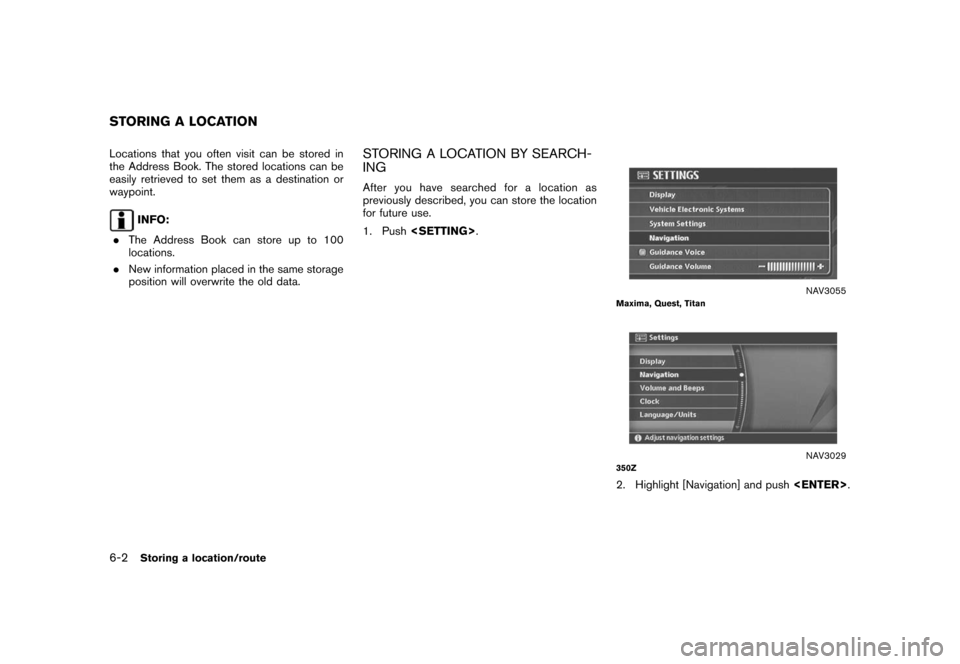
STORING A LOCATION BY SEARCH-
ING
After you have searched for a location as
previously described, you can store the location
for future use.
1. Push
NAV3055Maxima, Quest, Titan
NAV3029350Z
2. Highlight [Navigation] and push
STORING A LOCATION
6-2Storing a location/route