phone NISSAN TITAN 2017 2.G Quick Reference Guide
[x] Cancel search | Manufacturer: NISSAN, Model Year: 2017, Model line: TITAN, Model: NISSAN TITAN 2017 2.GPages: 40, PDF Size: 2.22 MB
Page 29 of 40
27
BLUETOOTH®
HANDS-FREE PHONE SYSTEM1
A cellular telephone should not be used while driving so full attention may be
given to vehicle operation2.
SYSTEM OPERATING TIPS
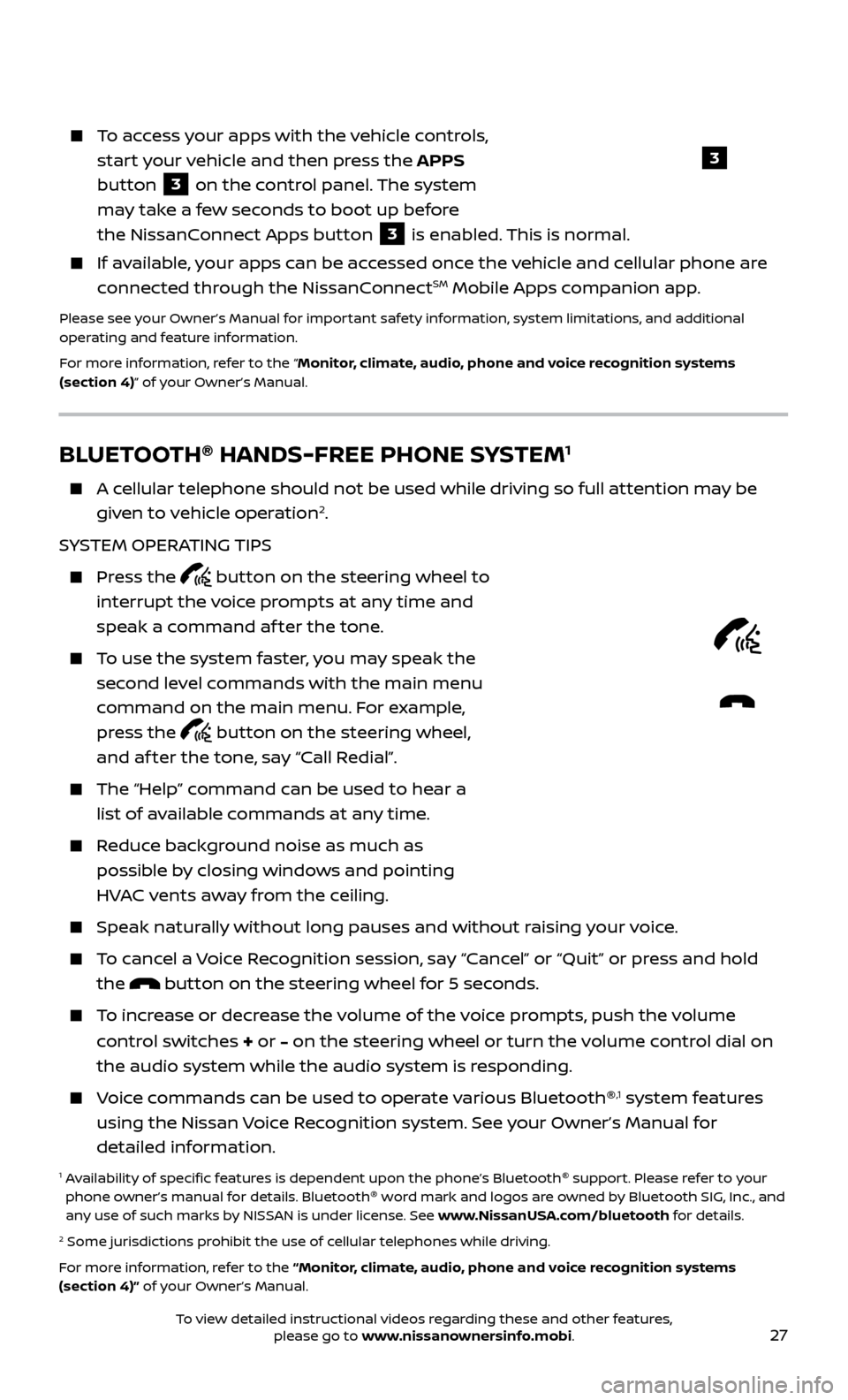
Press the button on the steering wheel to
interrupt the voice prompts at any time and
speak a command af ter the tone.
To use the system faster, you may speak the second level commands with the main menu
command on the main menu. For example,
press the
button on the steering wheel,
and af ter the tone, say “Call Redial”.
The “Help” c ommand can be used to hear a
list of available commands at any time.
Reduce background noise as much as possible by closing windows and pointing
HVAC vents away from the ceiling.
Speak naturally without long pauses and without raising your voice.
To cancel a Voice Recognition session, say “Cancel” or “Quit” or press and hold the
button on the steering wheel for 5 seconds.
To increase or decrease the volume of the voice prompts, push the volume
control switches
+ or – on the steering wheel or turn the volume control dial on
the audio system while the audio system is responding.
Voice commands can be used to operate various Bluetooth ®,1 system features
using the Nissan Voice Recognition system. See your Owner’s Manual for
detailed information.
1 Availability of specific features is dependent upon the phone’s Bluetooth ®
support. Please refer to your
phone owner’s manual for details. Bluetooth ®
word mark and logos are owned by Bluetooth SIG, Inc., and
any use of such marks by NISSAN is under license. See www.NissanUSA.com/bluetooth for details.
2 Some jurisdictions prohibit the use of cellular telephones while driving.
For more information, refer to the “Monitor, climate, audio, phone and voice recognition systems
(section 4)” of your Owner’s Manual.
Microphone
To access your apps with the vehicle controls,
start your vehicle and then press the APPS
button
3 on the control panel. The system
may take a few seconds to boot up before
the NissanConnect Apps button
3 is enabled. This is normal.
If available, your apps can be accessed once the vehicle and cellular phone are
connected through the NissanConnectSM Mobile Apps companion app.
Please see your Owner’s Manual for important safety information, system limitations, and additional
operating and feature information.
For more information, refer to the “Monitor, climate, audio, phone and voice recognition systems
(section 4)” of your Owner’s Manual.
3
To view detailed instructional videos regarding these and other features, please go to www.nissanownersinfo.mobi.
Page 30 of 40

28
BLUETOOTH®
SYSTEM WITHOUT NAVIGATION1, 2
(if so equipped)
CONNECTING PROCEDURE3
The vehicle must be stationary when connecting the cellular phone.
1.
Press the
button on the steering wheel. The system announces the
available commands.
2.
Sa
y: “Add Phone”. The system acknowledges the command and asks you to
initiate connecting from the cellular phone handset.
3.
Initiate c
onnecting from the cellular phone:
The connecting procedure varies according to each cellular phone model. For detailed connecting instructions and a list of compatible cellular phones,
please visit
www.NissanUSA.com/bluetooth.
When prompted, confirm that the PIN on the display matches the PIN shown on the handset. If your handset does not support Secure Simple Pairing and
requests you to input a PIN, enter “1234” from the handset.
PHONEBOOK SETUP
The phonebook stor es up to 1,000 entries for each cellular phone paired with
the system.
Depending on y our cellular phone, the system may automatically download
your cellular phone’s entire phonebook to the vehicle’s Bluetooth ®,2 system.
MAKING A CALL FROM THE PHONEBOOK
1. Pr
ess the
button on the steering wheel.
2.
A
f ter waiting for the tone, say “Call” followed by the name of a phonebook entry.
For example, “Call Michael Smith”.
3. C
onfirm the correct name is recognized by saying “Dial” af ter the tone.
MAKING A CALL BY PHONE NUMBER
1. Pr
ess the
button on the steering wheel. A tone will sound.
2.
Sa
y: “Phone”. The system acknowledges the command and announces the next
set of available commands.
3.
Sa
y: “Dial Number”. The system acknowledges the command and announces the
next set of available commands.
4.
Sa
y the number you wish to call starting with the area code in single
digit format.
5
.
When y
ou have finished speaking the phone number, the system repeats it back
and announces the available commands.
6
.
Sa
y: “Dial”. The system acknowledges the command and makes the call.
SYSTEM GUIDE
To view detailed instructional videos regarding these and other features, please go to www.nissanownersinfo.mobi.
Page 31 of 40
29
RECEIVING/ENDING A CALL
When you receive a cellular phone call, a ring tone sounds through the audio system.
To accept the call, press the button on the steering wheel.
To reject the call, press the button on the steering wheel.
To hang up the cellular phone at the end of a call or to disconnect during call placement, press the
button on the steering wheel.
1 Some jurisdictions prohibit the use of cellular telephones while driving.2 Availability of specific features is dependent upon the phone’s Bluetooth ®
support. Please refer to your
phone owner’s manual for details. Bluetooth ®
word mark and logos are owned by Bluetooth SIG, Inc., and
any use of such marks by NISSAN is under license. See www.NissanUSA.com/bluetooth for details.
3 Laws in some jurisdictions may restrict the use of “Text-to-Speech”. Some applications and features, such as social networking and texting, may also be restricted. Check local regulations for any requirements
before using these features.
Compatible smartphone required. Text rates and/or data usage may apply.
To view detailed instructional videos regarding these and other features, please go to
www.nissanownersinfo.mobi.
For more information, refer to the “Monitor, climate, audio, phone and voice recognition systems
(section 4)” of your Owner’s Manual.
BLUETOOTH ®
SYSTEM WITH NAVIGATION1, 2, 3 (if so equipped)
Send predefined or custom text messages4
through your vehicle’s Bluetooth ®,2 system.
Receive texts through your vehicle’s
Bluetooth ®,2 system that can be read to you.
Bluetooth®,2 Streaming Audio allows you to
use a compatible Bluetooth ®,2 device to play
audio files on your device. Your compatible
device can be connected to the vehicle’s
audio system, allowing audio files to play
through the vehicle’s speakers.
CONNECTING PROCEDURE
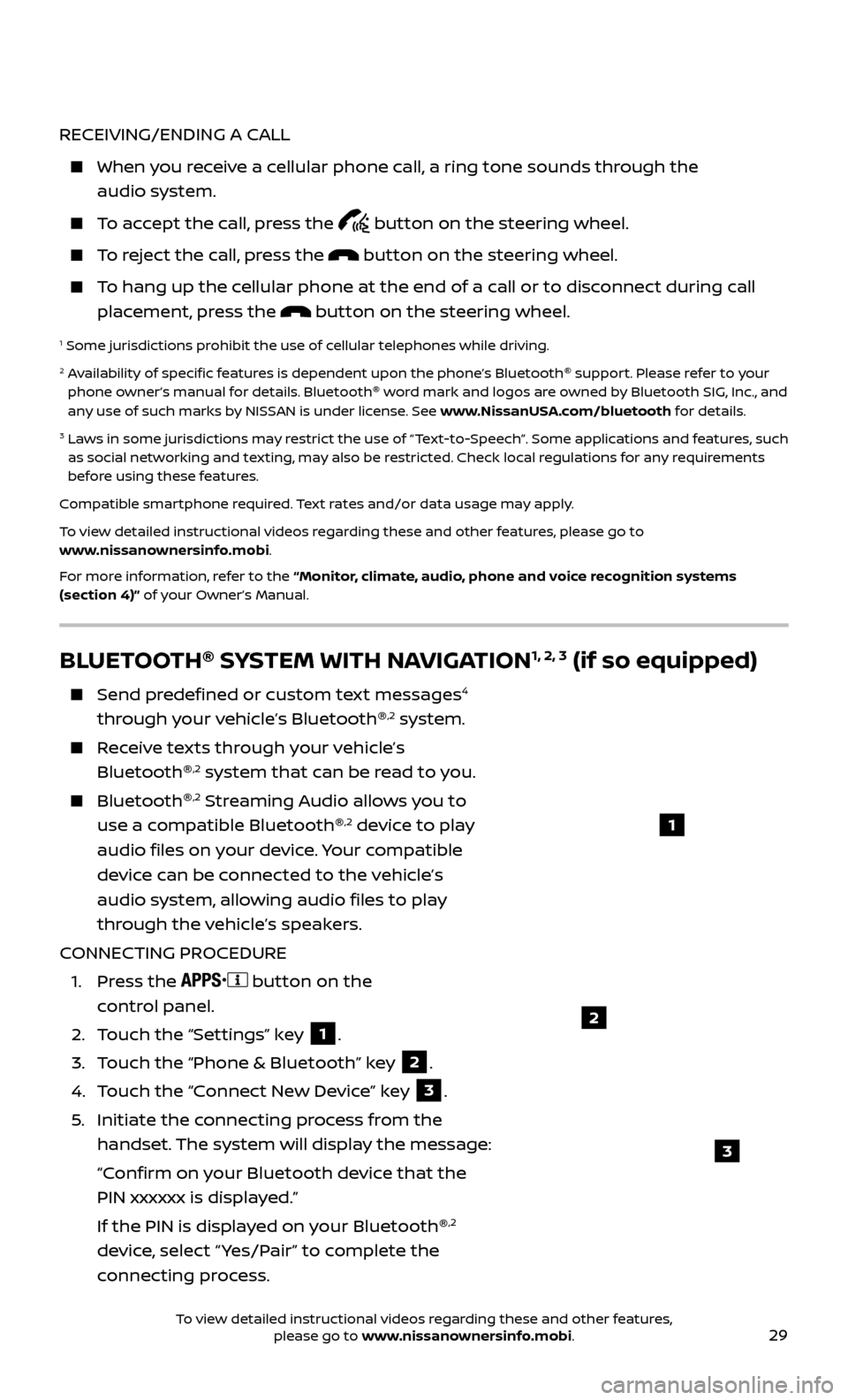
1.
Press the
button on the
control panel.
2.
T
ouch the “Settings” key
1.
3.
T
ouch the “Phone & Bluetooth” key
2.
4.
T
ouch the “Connect New Device” key
3.
5
.
Initiate the c
onnecting process from the
handset. The system will display the message:
“C
onfirm on your Bluetooth device that the
PIN xxxxxx is displayed.”
If the PIN is displa
yed on your Bluetooth ®
,2
device, select “ Yes/Pair” to complete the
connecting process.
1
2
3
To view detailed instructional videos regarding these and other features, please go to www.nissanownersinfo.mobi.
Page 32 of 40
30
VEHICLE PHONEBOOK
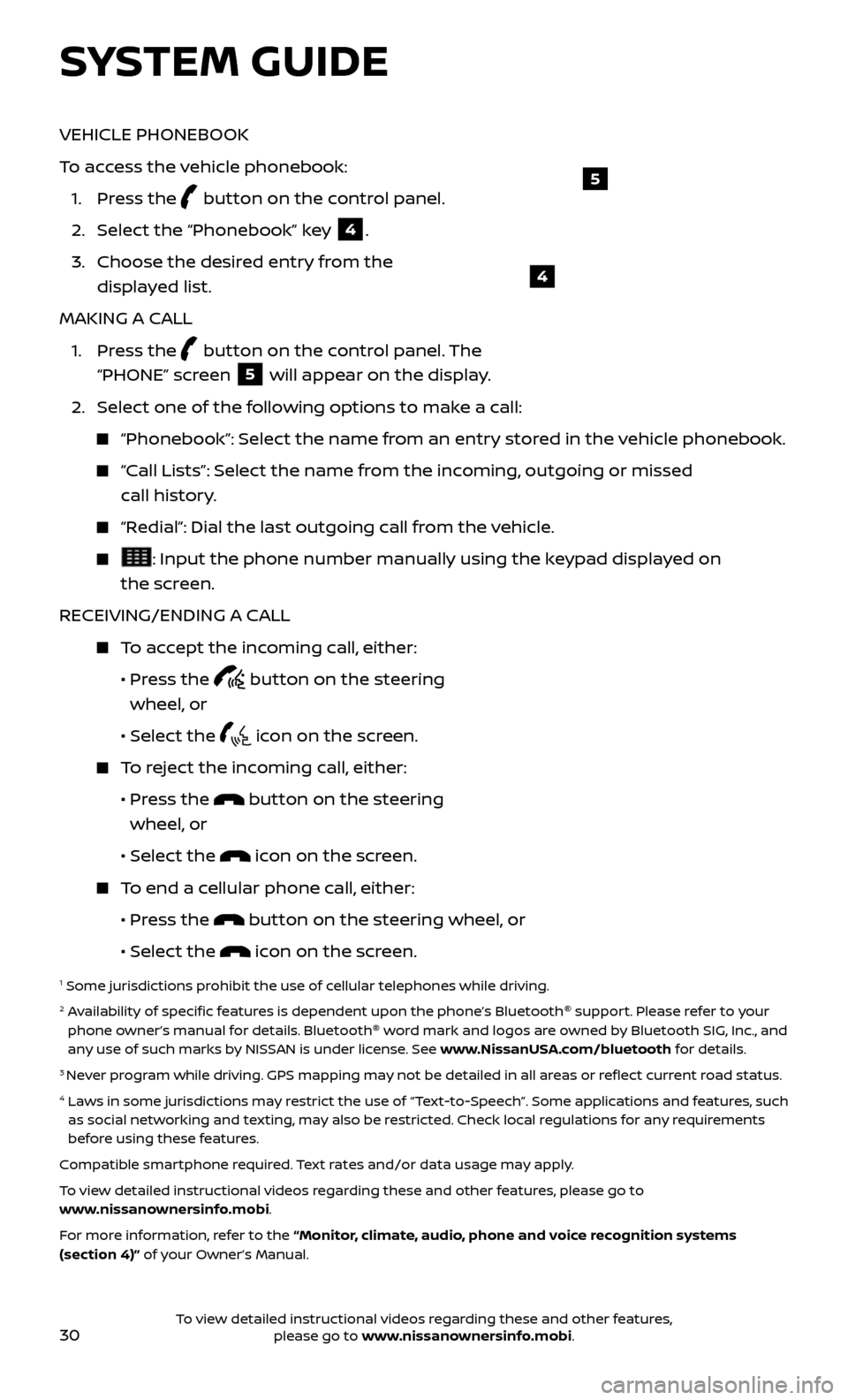
To access the vehicle phonebook:
1. Pr
ess the
button on the control panel.
2. Selec
t the “Phonebook” key
4.
3.
Choose the desir
ed entry from the
displayed list.
MAKING A CALL
1.
Press the
button on the control panel. The
“PHONE” screen 5 will appear on the display.
2. Selec
t one of the following options to make a call:
“Phonebook”: Select the name from an entry stored in the vehicle phonebook.
“Call Lists”: Select the name from the incoming, outgoing or missed
call history.
“Redial”: Dial the last outgoing call from the vehicle.
: Input the phone number manually using the keypad displayed on
the screen.
RECEIVING/ENDING A CALL
To accept the incoming call, either:
•
Pr
ess the
button on the steering
wheel, or
• Selec
t the
icon on the screen.
To reject the incoming call, either:
•
Pr
ess the
button on the steering
wheel, or
• Selec
t the
icon on the screen.
To end a cellular phone call, either:
• Pr
ess the
button on the steering wheel, or
• Selec
t the
icon on the screen.
1 Some jurisdictions prohibit the use of cellular telephones while driving.2 Availability of specific features is dependent upon the phone’s Bluetooth ®
support. Please refer to your
phone owner’s manual for details. Bluetooth ®
word mark and logos are owned by Bluetooth SIG, Inc., and
any use of such marks by NISSAN is under license. See www.NissanUSA.com/bluetooth for details.
3 Never program while driving. GPS mapping may not be detailed in all areas or reflect current road status.4 Laws in some jurisdictions may restrict the use of “Text-to-Speech”. Some applications and features, such as social networking and texting, may also be restricted. Check local regulations for any requirements
before using these features.
Compatible smartphone required. Text rates and/or data usage may apply.
To view detailed instructional videos regarding these and other features, please go to
www.nissanownersinfo.mobi.
For more information, refer to the “Monitor, climate, audio, phone and voice recognition systems
(section 4)” of your Owner’s Manual.
4
5
SYSTEM GUIDE
To view detailed instructional videos regarding these and other features, please go to www.nissanownersinfo.mobi.
Page 33 of 40
31
NISSAN MOBILE ENTERTAINMENT SYSTEM (MES)
(if so equipped)
With the MES, you can play DVD videos,
video CDs or CDs that contain music or
sound content. Images will display on the
corresponding monitor. Sound will play
from the vehicle’s audio system (or wireless
headphones provided in the kit) or your own
wired headphones af ter connecting them to
the headphone jacks of the corresponding
DVD player.
1.
Plac
e the ignition switch in the
ACC or
ON position.
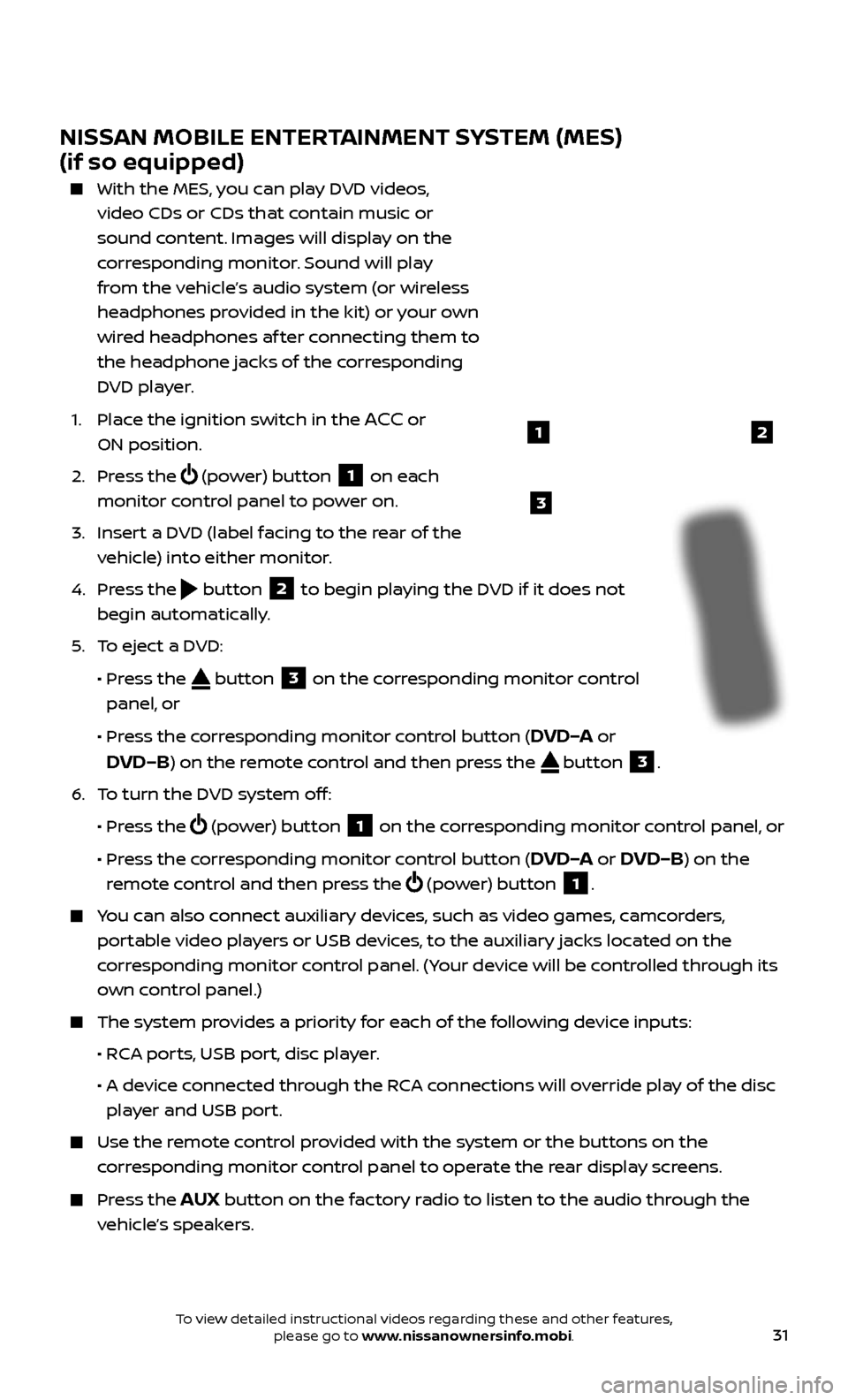
2.
Press the
(power) button 1 on each
monitor control panel to power on.
3.
Inser
t a DVD (label facing to the rear of the
vehicle) into either monitor.
4.
Press the
button 2 to begin playing the DVD if it does not
begin automatically.
5
.
T
o eject a DVD:
•
Pr
ess the
button 3 on the corresponding monitor control
panel, or
•
Pr
ess the corresponding monitor control button (
DVD–A or
DVD–B) on the remote control and then press the button 3.
6
.
T
o turn the DVD system off:
•
Pr
ess the
(power) button 1 on the corresponding monitor control panel, or
•
Pr
ess the corresponding monitor control button (
DVD–A or DVD–B) on the
remote control and then press the
(power) button 1.
You can also connect auxiliary devices, such as video games, camcorders,
portable video players or USB devices, to the auxiliary jacks located on the
corresponding monitor control panel. (Your device will be controlled through its
own control panel.)
The system pr ovides a priority for each of the following device inputs:
•
R
CA ports, USB port, disc player.
•
A devic
e connected through the RCA connections will override play of the disc
player and USB port.
Use the r emote control provided with the system or the buttons on the
corresponding monitor control panel to operate the rear display screens.
Press the AUX button on the factory radio to listen to the audio through the
vehicle’s speakers.
3
21
To view detailed instructional videos regarding these and other features, please go to www.nissanownersinfo.mobi.
Page 34 of 40
32To view detailed instructional videos regarding these and other features, please go to www.nissanownersinfo.mobi.
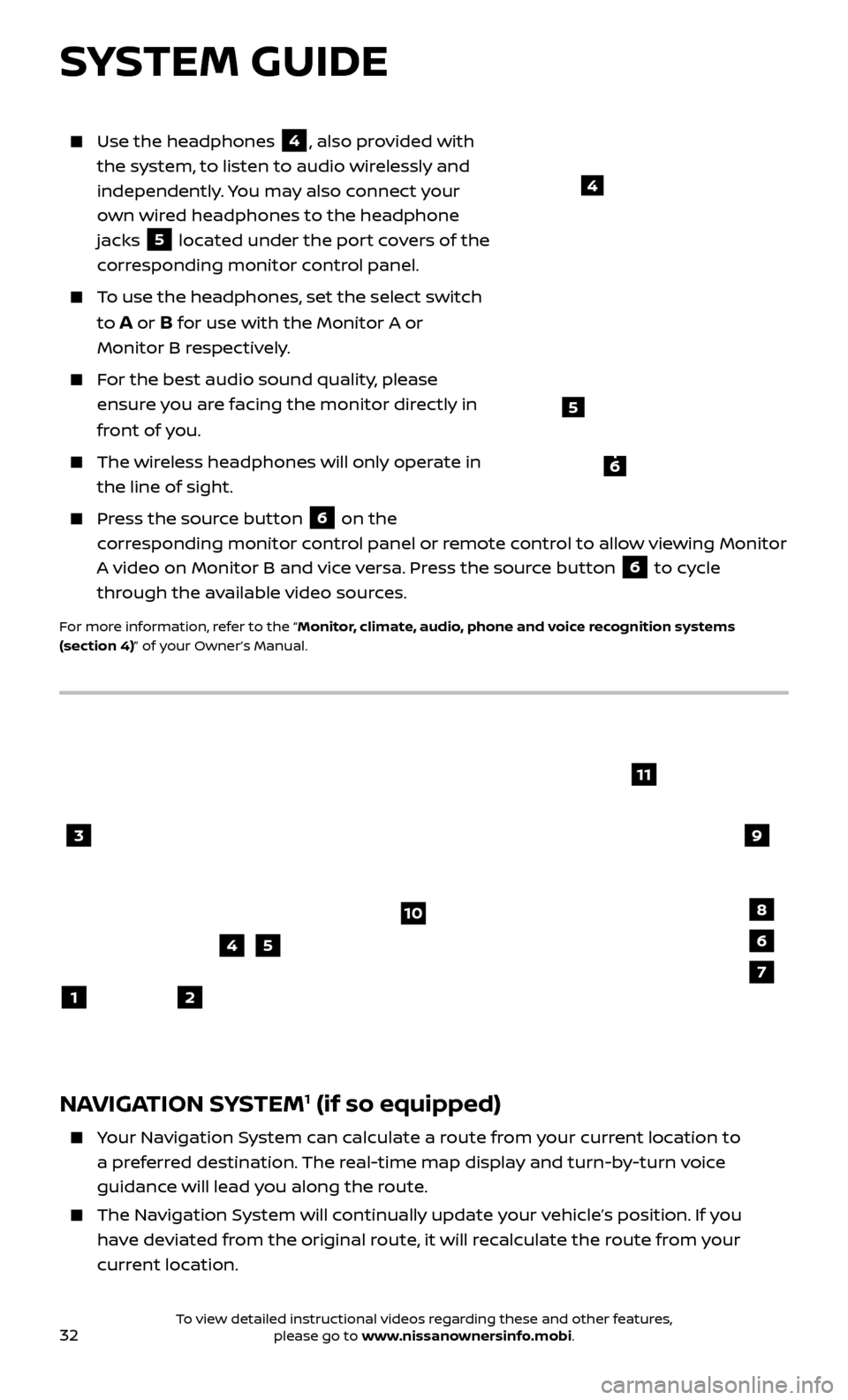
Use the headphones 4, also provided with
the system, to listen to audio wirelessly and
independently. You may also connect your
own wired headphones to the headphone
jacks
5 located under the port covers of the
corresponding monitor control panel.
To use the headphones, set the select switch
to
A or B for use with the Monitor A or
Monitor B respectively.
For the best audio sound quality, please ensure you are facing the monitor directly in
front of you.
The wireless headphones will only operate in the line of sight.
Press the source button 6 on the
corresponding monitor control panel or remote control to allow viewing Monitor
A video on Monitor B and vice versa. Press the source button
6 to cycle
through the available video sources.
For more information, refer to the “Monitor, climate, audio, phone and voice recognition systems
(section 4)” of your Owner’s Manual.
4
NAVIGATION SYSTEM1 (if so equipped)
Your Navigation System can calculate a route from your current location to a preferred destination. The real-time map display and turn-by-turn voice
guidance will lead you along the route.
The Navigation System will continually update your vehicle’s position. If you have deviated from the original route, it will recalculate the route from your
current location.
3
2
4
1
10
6
11
5
8
7
9
SYSTEM GUIDE
5
6
Page 35 of 40
33
To help promote safe driving, some functions cannot be operated or have limited operation when the vehicle speed is above 5 mph (8 km/h). The
on-screen text and keys for these restricted functions will be “grayed-out”
or muted and cannot be selected while driving. These functions will become
available again when the vehicle speed is reduced to 5 mph (8 km/h). Voice
commands may be available for some of the restricted functions. For more
information, refer to the “Monitor, climate, audio, phone and voice recognition
systems (section 4)” of your Owner’s Manual.
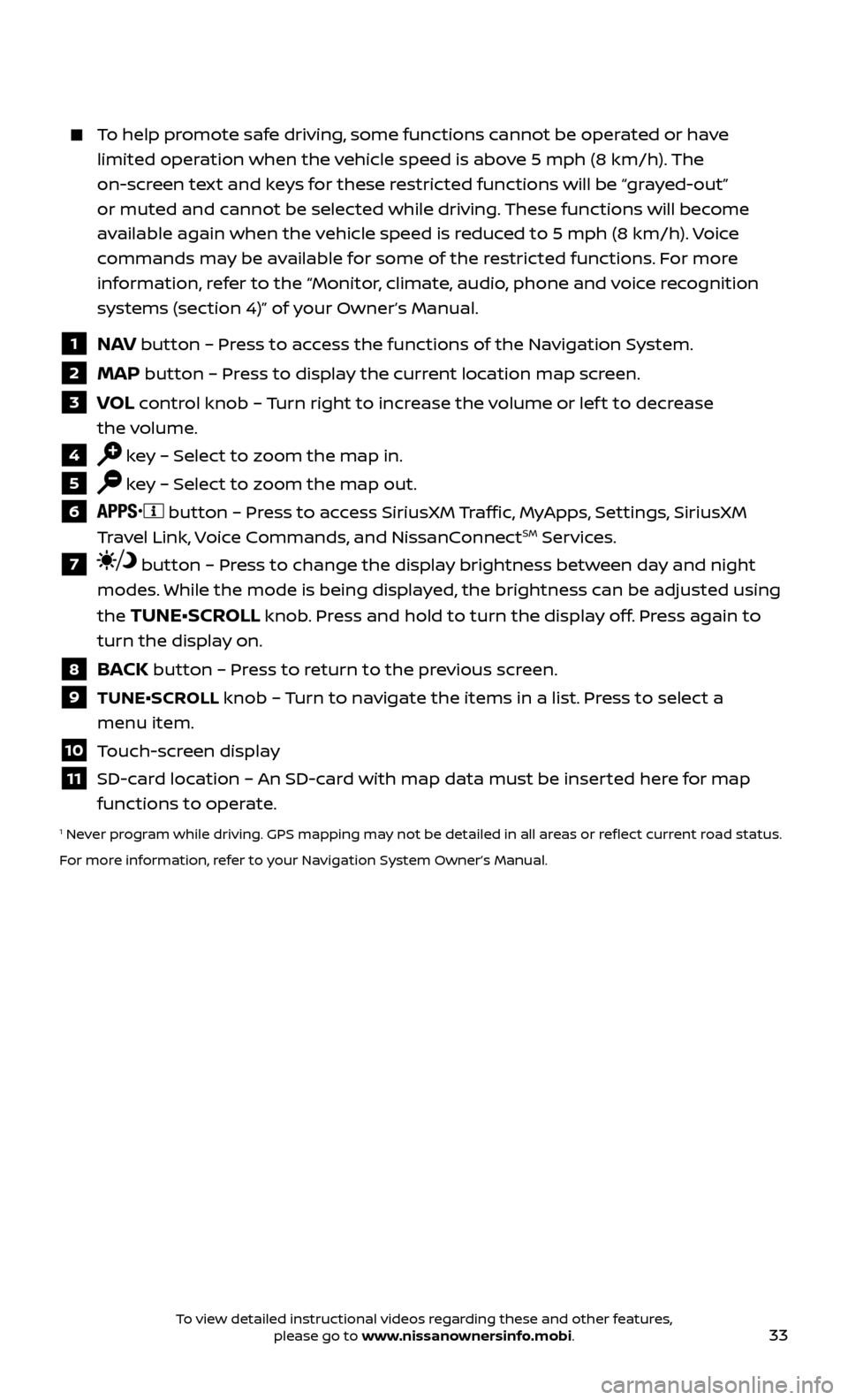
1 NAV button – Press to access the functions of the Navigation System.
2 MAP button – Press to display the current location map screen.
3 VOL control knob – Turn right to increase the volume or lef t to decrease
the volume.
4 key – Select to zoom the map in.
5 key – Select to zoom the map out.
6 button – Press to access SiriusXM Traffic, MyApps, Settings, SiriusXM
Travel Link, Voice Commands, and NissanConnectSM Services.
7 button – Press to change the display brightness between day and night
modes. While the mode is being displayed, the brightness can be adjusted using
the
TUNE•SCROLL knob. Press and hold to turn the display off. Press again to
turn the display on.
8 BACK button – Press to return to the previous screen.
9 TUNE•SCR OLL knob – Turn to navigate the items in a list. Press to select a
menu item.
10 Touch-screen display
11 SD-card location – An SD-card with map data must be inserted here for map functions to operate.
1 Never program while driving. GPS mapping may not be detailed in all areas or reflect current road status.
For more information, refer to your Navigation System Owner’s Manual.
To view detailed instructional videos regarding these and other features, please go to www.nissanownersinfo.mobi.
Page 40 of 40

Nissan, the Nissan Brand Symbol, Z and
Nissan model names are Nissan trademarks.
©
2016 Nissan North America, Inc.
QR17EA 0A61U1Printing: September 2016 (04)
To view detailed instructional videos,
go to www.nissanownersinfo.mobi/2017/titan
or snap this barcode with an appropriate barcode reader.
This Quick Reference Guide is intended to provide an overview of some of the unique features of your new
vehicle. Please see your Owner’s Manual for important safety information and system operation limitations.
Features and equipment in your vehicle may vary depending on model, trim level, options selected, order, date of
production, region or availability. Therefore, you may find information about features or equipment that are not
included or installed on your vehicle.
All information, specifications and illustrations in this Quick Reference Guide are those in effect at the time
of printing. NISSAN reserves the right to change specifications, performance, design or component suppliers
without notice and without obligation. From time to time, NISSAN may update or revise this Quick Reference
Guide to provide owners with the most accurate information currently available. Please carefully read and
retain with this Quick Reference Guide all revision updates sent to you by NISSAN to ensure you have access
to accurate and up-to-date information regarding your vehicle. Current versions of vehicle Quick Reference
Guides, Owner’s Manuals and any updates can also be found in the Owner section of the NISSAN website at
https://owners.nissanusa.com/nowners/navigation/manualsGuide. If you have questions concerning
any information in your Owner’s Manual, contact Nissan Consumer Affairs. See the NISSAN CUSTOMER CARE
PROGRAM page in the Owner’s Manual for contact information.
Helpful Resources
Below is a list of helpful resources that can be used
to learn more about the vehicle’s systems and
feature operations.
Vehicle Owner’s Manual
Navigation Owner’s Manual (if so equipped)
Printed Quick R eference Guide (this document)
www.NissanUSA.com/bluetooth
www.NissanUSA.com/connect
www.youtube.com/user/NissanUSA
Nissan Consumer Affairs 1-800-647-7261
Electronic Quick Reference Guide
(Use Quick Response (QR) code or URL below.)
Nissan Quick Guide (a vailable in the iPhone
App Store or Android Google Play Store for
download to your smartphone)