light NISSAN TITAN 2018 Owner´s Manual
[x] Cancel search | Manufacturer: NISSAN, Model Year: 2018, Model line: TITAN, Model: NISSAN TITAN 2018Pages: 650, PDF Size: 7.54 MB
Page 356 of 650
the desired audio stream in order for it to
be heard during playback.
Subtitle
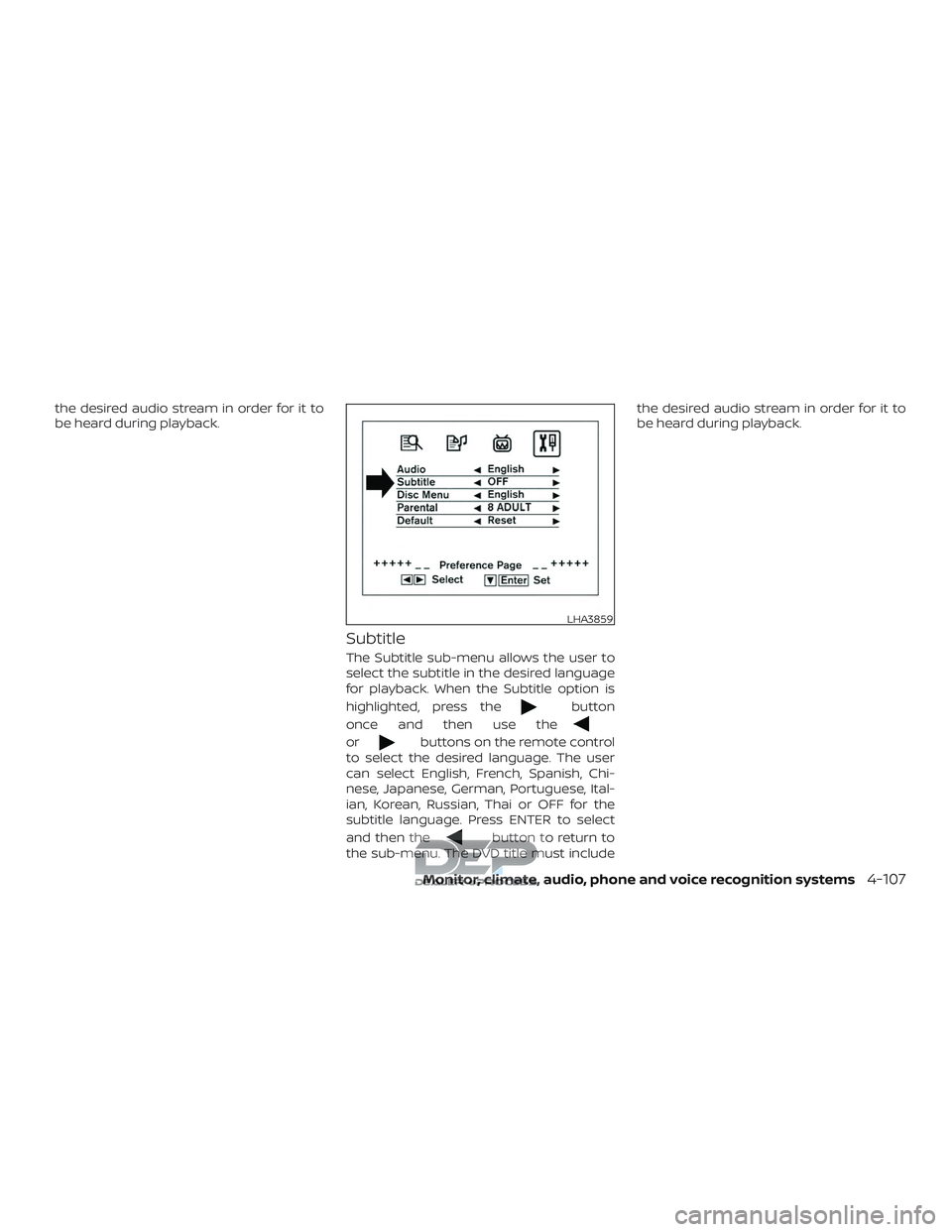
The Subtitle sub-menu allows the user to
select the subtitle in the desired language
for playback. When the Subtitle option is
highlighted, press the
button
once and then use the
orbuttons on the remote control
to select the desired language. The user
can select English, French, Spanish, Chi-
nese, Japanese, German, Portuguese, Ital-
ian, Korean, Russian, Thai or OFF for the
subtitle language. Press ENTER to select
and then the
button to return to
the sub-menu. The DVD title must include the desired audio stream in order for it to
be heard during playback.
LHA3859
Monitor, climate, audio, phone and voice recognition systems4-107
Page 357 of 650
Disc Menu
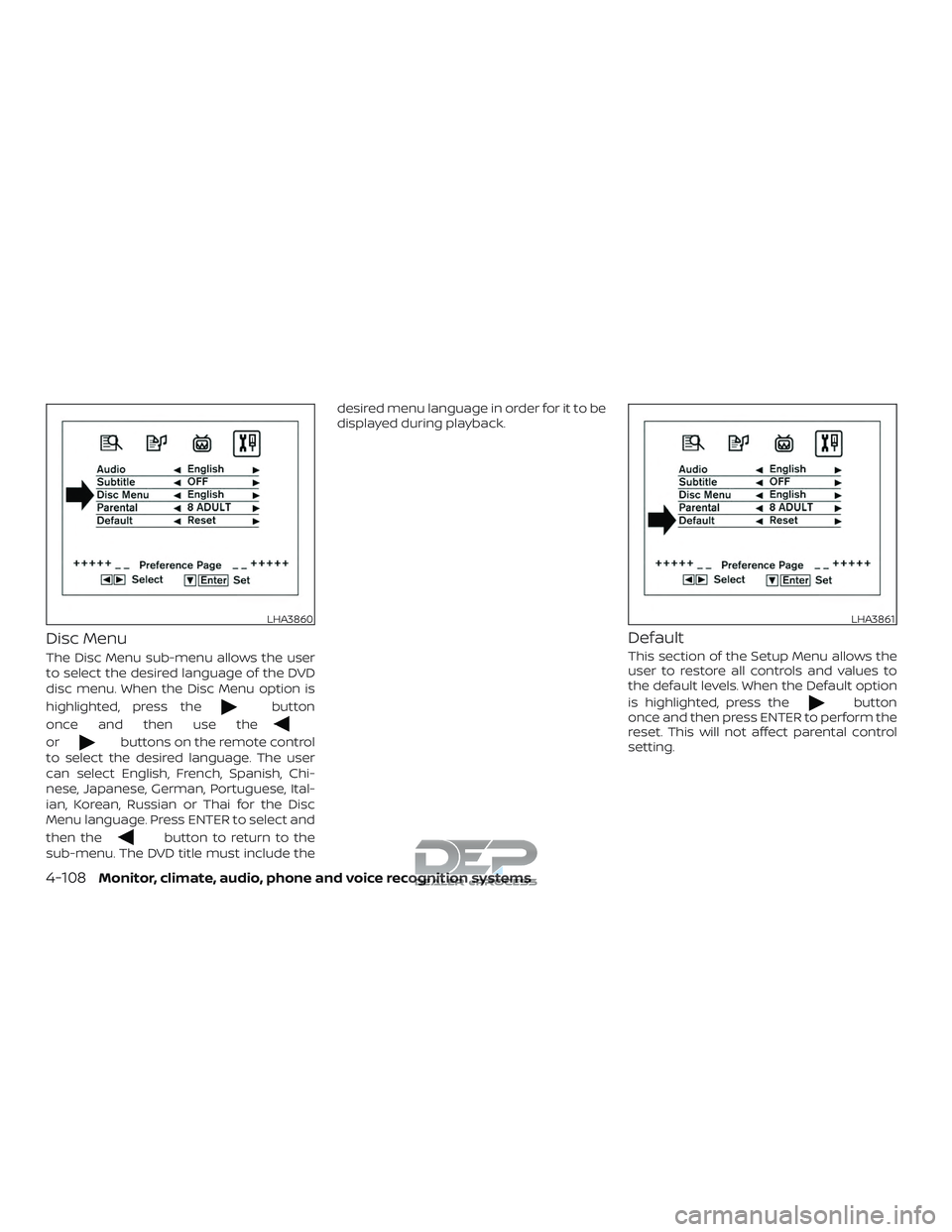
The Disc Menu sub-menu allows the user
to select the desired language of the DVD
disc menu. When the Disc Menu option is
highlighted, press the
button
once and then use the
orbuttons on the remote control
to select the desired language. The user
can select English, French, Spanish, Chi-
nese, Japanese, German, Portuguese, Ital-
ian, Korean, Russian or Thai for the Disc
Menu language. Press ENTER to select and
then the
button to return to the
sub-menu. The DVD title must include the desired menu language in order for it to be
displayed during playback.
Default
This section of the Setup Menu allows the
user to restore all controls and values to
the default levels. When the Default option
is highlighted, press the
button
once and then press ENTER to perform the
reset. This will not affect parental control
setting.
LHA3860LHA3861
4-108Monitor, climate, audio, phone and voice recognition systems
Page 358 of 650
Parental
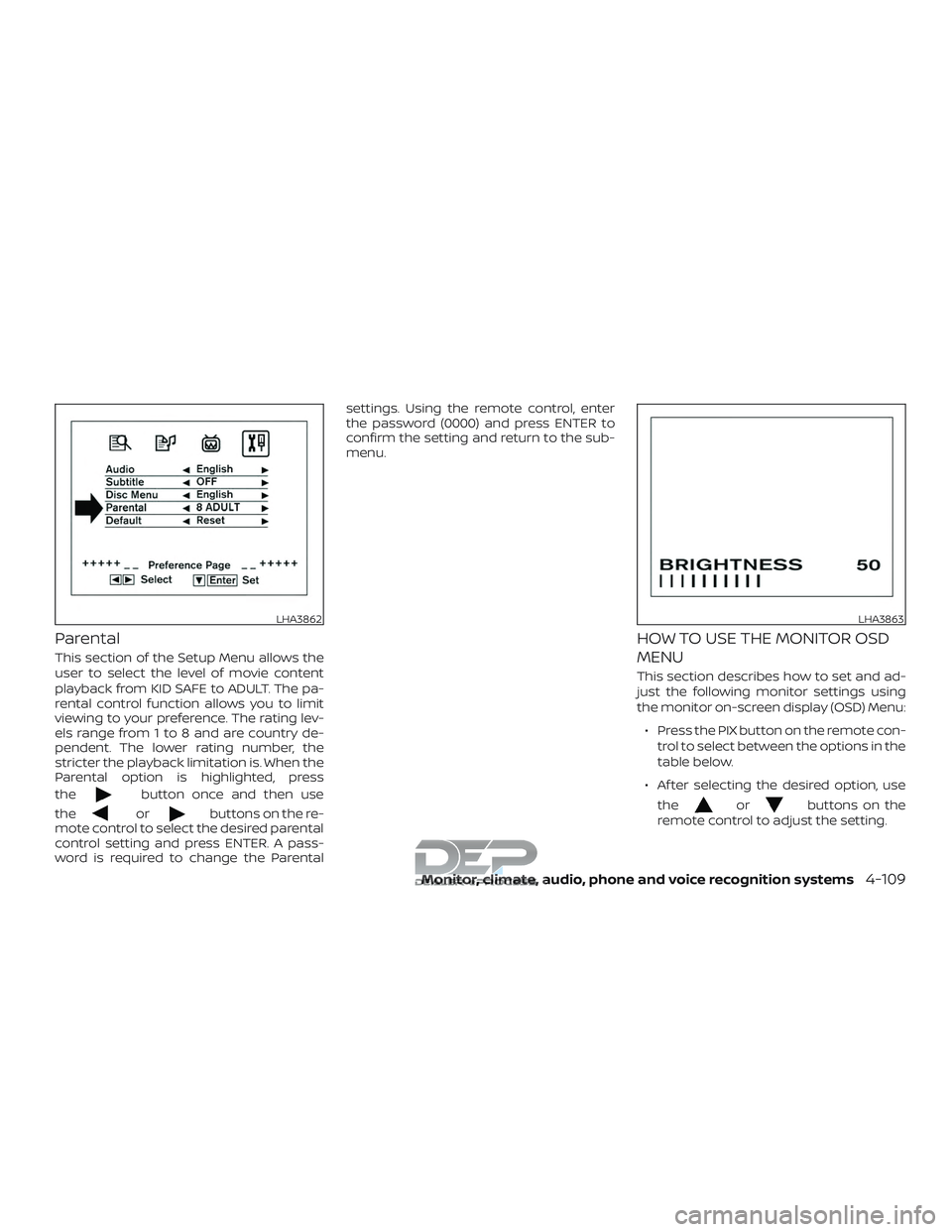
This section of the Setup Menu allows the
user to select the level of movie content
playback from KID SAFE to ADULT. The pa-
rental control function allows you to limit
viewing to your preference. The rating lev-
els range from 1 to 8 and are country de-
pendent. The lower rating number, the
stricter the playback limitation is. When the
Parental option is highlighted, press
the
button once and then use
the
orbuttons on the re-
mote control to select the desired parental
control setting and press ENTER. A pass-
word is required to change the Parental settings. Using the remote control, enter
the password (0000) and press ENTER to
confirm the setting and return to the sub-
menu.
HOW TO USE THE MONITOR OSD
MENU
This section describes how to set and ad-
just the following monitor settings using
the monitor on-screen display (OSD) Menu:
∙ Press the PIX button on the remote con- trol to select between the options in the
table below.
∙ Af ter selecting the desired option, use the
orbuttons on the
remote control to adjust the setting.
LHA3862LHA3863
Monitor, climate, audio, phone and voice recognition systems4-109
Page 361 of 650
PLAYING AUDIO FILES
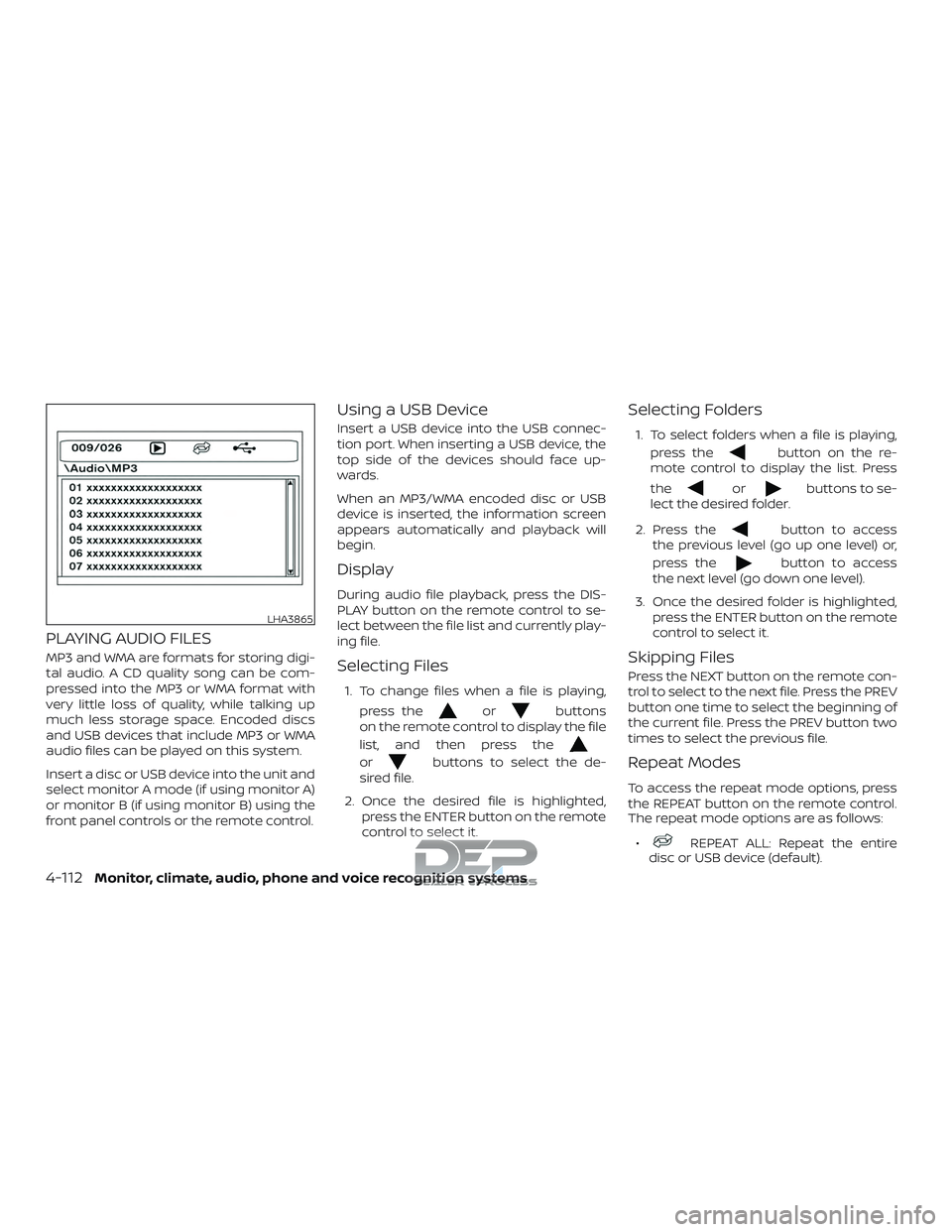
MP3 and WMA are formats for storing digi-
tal audio. A CD quality song can be com-
pressed into the MP3 or WMA format with
very little loss of quality, while talking up
much less storage space. Encoded discs
and USB devices that include MP3 or WMA
audio files can be played on this system.
Insert a disc or USB device into the unit and
select monitor A mode (if using monitor A)
or monitor B (if using monitor B) using the
front panel controls or the remote control.
Using a USB Device
Insert a USB device into the USB connec-
tion port. When inserting a USB device, the
top side of the devices should face up-
wards.
When an MP3/WMA encoded disc or USB
device is inserted, the information screen
appears automatically and playback will
begin.
Display
During audio file playback, press the DIS-
PLAY button on the remote control to se-
lect between the file list and currently play-
ing file.
Selecting Files
1. To change files when a file is playing,press the
orbuttons
on the remote control to display the file
list, and then press the
orbuttons to select the de-
sired file.
2. Once the desired file is highlighted, press the ENTER button on the remote
control to select it.
Selecting Folders
1. To select folders when a file is playing,
press the
button on the re-
mote control to display the list. Press
the
orbuttons to se-
lect the desired folder.
2. Press the
button to access
the previous level (go up one level) or,
press the
button to access
the next level (go down one level).
3. Once the desired folder is highlighted, press the ENTER button on the remote
control to select it.
Skipping Files
Press the NEXT button on the remote con-
trol to select to the next file. Press the PREV
button one time to select the beginning of
the current file. Press the PREV button two
times to select the previous file.
Repeat Modes
To access the repeat mode options, press
the REPEAT button on the remote control.
The repeat mode options are as follows:
∙
REPEAT ALL: Repeat the entire
disc or USB device (default).
LHA3865
4-112Monitor, climate, audio, phone and voice recognition systems
Page 362 of 650
∙REPEAT FOLDER: Repeat the cur-
rent folder
∙
REPEAT ONE: Repeat the current
file.
∙ REPEAT OFF: Playback stops af ter the disc or USB device is played in its en-
tirety.
Random Mode
You can choose what order the files will be
played. To access the random play mode,
press the RANDOM button on the remote
control. The files in the current folder will
playback in random order. Press RANDOM
again to cancel random mode.
Direct File Access
Press the number keys on the remote con-
trol (0–9) to access a file directly. For ex-
ample, to go to track 14, press “1”,”4”, then
ENTER on the remote control.
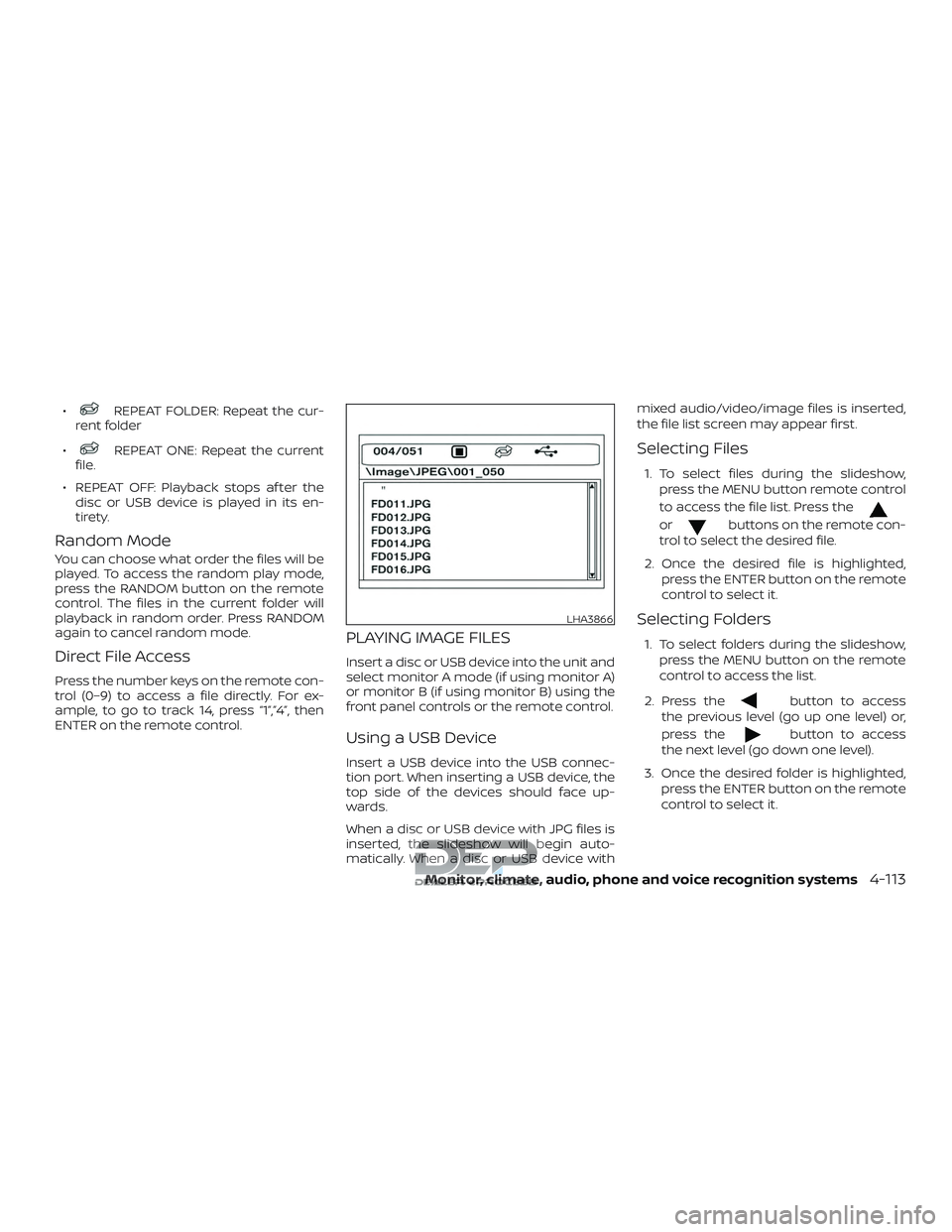
PLAYING IMAGE FILES
Insert a disc or USB device into the unit and
select monitor A mode (if using monitor A)
or monitor B (if using monitor B) using the
front panel controls or the remote control.
Using a USB Device
Insert a USB device into the USB connec-
tion port. When inserting a USB device, the
top side of the devices should face up-
wards.
When a disc or USB device with JPG files is
inserted, the slideshow will begin auto-
matically. When a disc or USB device with mixed audio/video/image files is inserted,
the file list screen may appear first.
Selecting Files
1. To select files during the slideshow,
press the MENU button remote control
to access the file list. Press the
orbuttons on the remote con-
trol to select the desired file.
2. Once the desired file is highlighted, press the ENTER button on the remote
control to select it.
Selecting Folders
1. To select folders during the slideshow,press the MENU button on the remote
control to access the list.
2. Press the
button to access
the previous level (go up one level) or,
press the
button to access
the next level (go down one level).
3. Once the desired folder is highlighted, press the ENTER button on the remote
control to select it.
LHA3866
Monitor, climate, audio, phone and voice recognition systems4-113
Page 363 of 650
Repeat Modes
To access the repeat mode options, press
the REPEAT button on the remote control.
The repeat mode options are as follows:∙
REPEAT ALL: Repeat the entire
disc or USB device (default).
∙
REPEAT FOLDER: Repeat the cur-
rent folder
∙
REPEAT ONE: Repeat the current
file.
∙ REPEAT OFF: Playback stops af ter the disc or USB device is played in its en-
tirety.
Thumbnail Views
1. Press the STOP button on the remote control during the slideshow to display
images in thumbnail mode. Press
the
orand
the
orbuttons on the
remote control to select the desired
language.
2. Once the desired image is highlighted, press the ENTER button on the remote
control to select it.
Rotating Images
During the slideshow, press thebutton on the remote control to rotate the
image 90° clockwise. Press the
button to rotate the image 90° counter-
clockwise.
Inverting Images
During the slideshow, press thebutton on the remote control to invert the
image (Up-Down).
Mirroring Images
During the slideshow, press
the
button on the remote control
to mirror the image (Lef t-Right).
Direct File Access
Press the number keys on the remote con-
trol (0–9) to access a file directly. For ex-
ample, to go to track 14, press “1”,”4”, then
ENTER on the remote control.
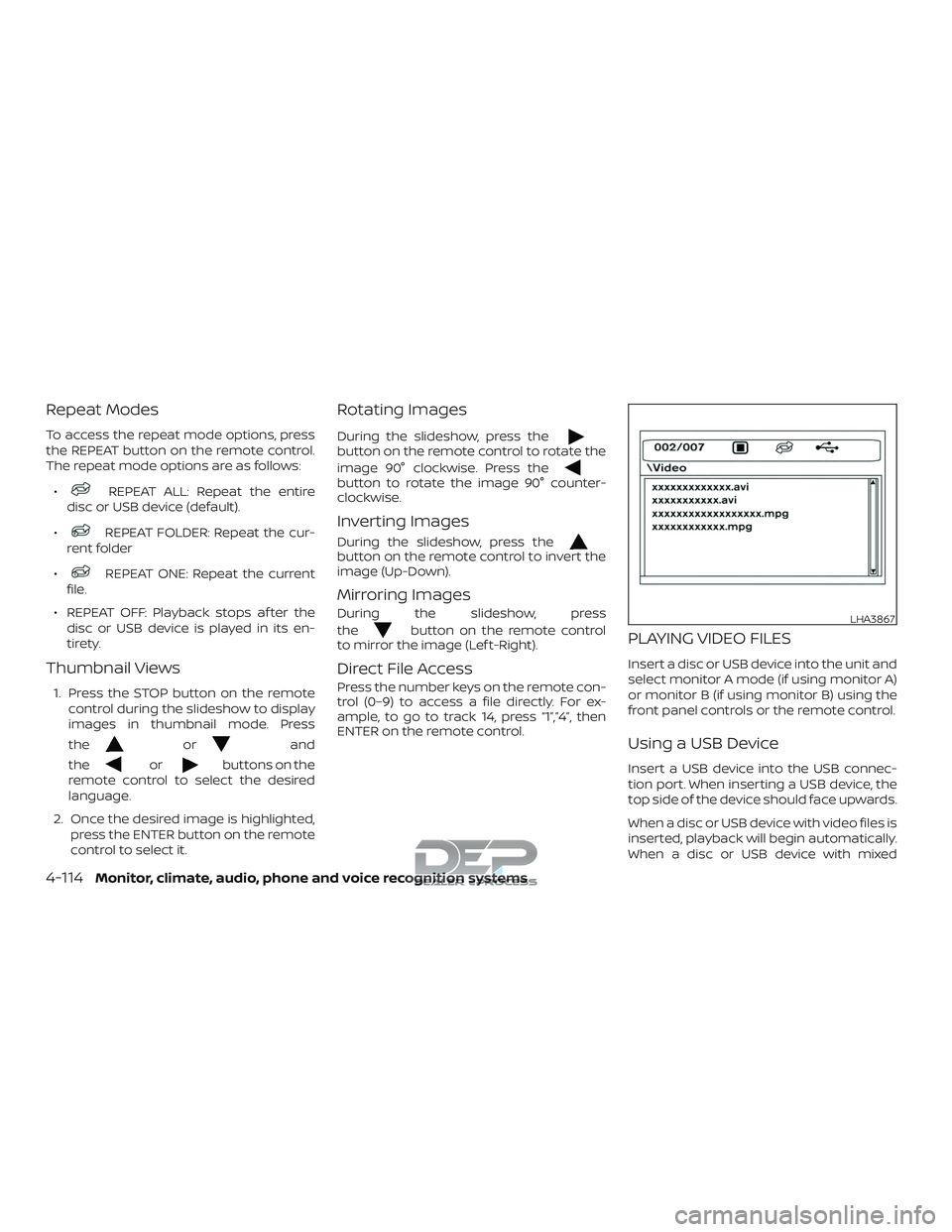
PLAYING VIDEO FILES
Insert a disc or USB device into the unit and
select monitor A mode (if using monitor A)
or monitor B (if using monitor B) using the
front panel controls or the remote control.
Using a USB Device
Insert a USB device into the USB connec-
tion port. When inserting a USB device, the
top side of the device should face upwards.
When a disc or USB device with video files is
inserted, playback will begin automatically.
When a disc or USB device with mixed
LHA3867
4-114Monitor, climate, audio, phone and voice recognition systems
Page 364 of 650
audio/video/image files is inserted, the file
list screen may appear first.
Selecting Files
1. To select files during the video play-back, press the MENU button on the
remote control to access the file list.
Press the
orbuttons
on the remote control to select the de-
sired file.
2. Once the desired file is highlighted, press the ENTER button on the remote
control to select it.
Selecting Folders
1. To select folders during video playback,press the MENU button on the remote
control to access the list.
2. Press the
button to access
the previous level (go up one level) or,
press the
button to access
the next level (go down one level).
3. Once the desired folder is highlighted, press the ENTER button on the remote
control to select it.
Skipping Files
Press the NEXT button on the remote con-
trol to select to the next file. Press the PREV
button one time to select the beginning of
the current file. Press the PREV button two
times to select the previous file.
Repeat Modes
To access the repeat mode options, press
the REPEAT button on the remote control.
The repeat mode options are as follows:
∙
REPEAT ALL: Repeat the entire
disc or USB device (default).
∙
REPEAT FOLDER: Repeat the cur-
rent folder
∙
REPEAT ONE: Repeat the current
file.
∙ REPEAT OFF: Playback stops af ter the disc or USB device is played in its en-
tirety.
Direct File Access
Press the number keys on the remote con-
trol (0–9) to access a file directly. For ex-
ample, to go to track 14, press “1”,”4”, then
ENTER on the remote control.
CHARGING A USB DEVICE
Plug the USB cable (not supplied) into the
USB connection port and then connect the
other end to the USB device.
NOTE:
Depending on the device, it may or may
not charge when connected to the USB
port. Not all devices are able to charge
when connected to the USB port.
CONNECTING AN EXTERNAL
AUXILIARY A/V SOURCE — INPUT
An external A/V source such as a media
player, video game, or other audio/video
device may be connected to the RCA type
jacks on the front of the monitor. Connect
the external audio/video source to the RCA
type input jacks on the front of the monitor
using RCA type connectors (sold sepa-
rately).
Yellow: Video input
Red: Audio-right channel input
White: Audio-lef t channel input
The system will automatically select the
auxiliary input mode when the RCA type
connectors are inserted into the input
Monitor, climate, audio, phone and voice recognition systems4-115
Page 366 of 650
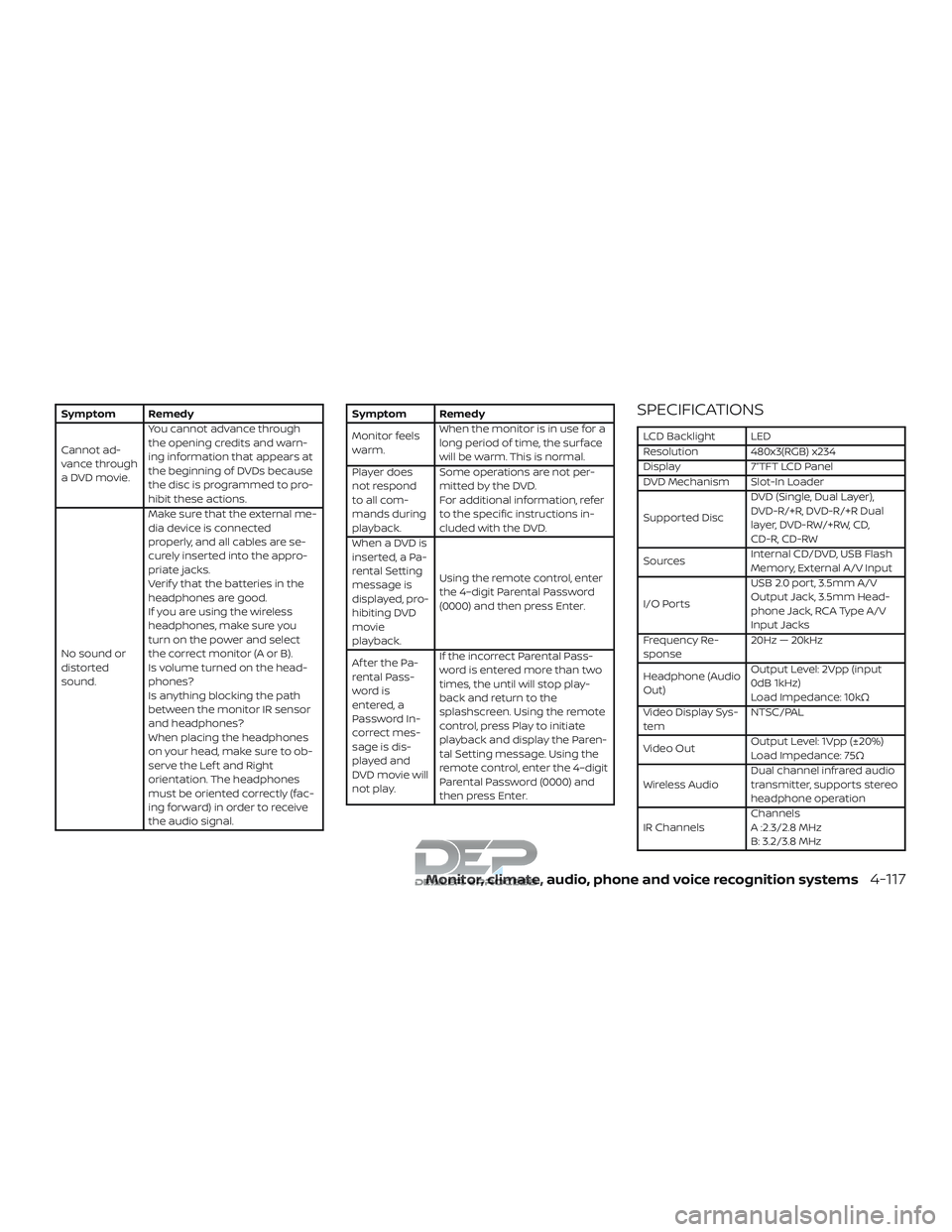
Symptom Remedy
Cannot ad-
vance through
a DVD movie.You cannot advance through
the opening credits and warn-
ing information that appears at
the beginning of DVDs because
the disc is programmed to pro-
hibit these actions.
No sound or
distorted
sound. Make sure that the external me-
dia device is connected
properly, and all cables are se-
curely inserted into the appro-
priate jacks.
Verif y that the batteries in the
headphones are good.
If you are using the wireless
headphones, make sure you
turn on the power and select
thecorrectmonitor(AorB).
Is volume turned on the head-
phones?
Is anything blocking the path
between the monitor IR sensor
and headphones?
When placing the headphones
on your head, make sure to ob-
serve the Lef t and Right
orientation. The headphones
must be oriented correctly (fac-
ing forward) in order to receive
the audio signal.Symptom Remedy
Monitor feels
warm.
When the monitor is in use for a
long period of time, the surface
will be warm. This is normal.
Player does
not respond
to all com-
mands during
playback. Some operations are not per-
mitted by the DVD.
For additional information, refer
to the specific instructions in-
cluded with the DVD.
When a DVD is
inserted, a Pa-
rental Setting
message is
displayed, pro-
hibiting DVD
movie
playback. Using the remote control, enter
the 4–digit Parental Password
(0000) and then press Enter.
Af ter the Pa-
rental Pass-
word is
entered, a
Password In-
correct mes-
sage is dis-
played and
DVD movie will
not play. If the incorrect Parental Pass-
word is entered more than two
times, the until will stop play-
back and return to the
splashscreen. Using the remote
control, press Play to initiate
playback and display the Paren-
tal Setting message. Using the
remote control, enter the 4–digit
Parental Password (0000) and
then press Enter.SPECIFICATIONS
LCD Backlight LED
Resolution 480x3(RGB) x234
Display 7”TFT LCD Panel
DVD Mechanism Slot-In Loader
Supported Disc
DVD (Single, Dual Layer),
DVD-R/+R, DVD-R/+R Dual
layer, DVD-RW/+RW, CD,
CD-R, CD-RW
Sources Internal CD/DVD, USB Flash
Memory, External A/V Input
I/O Ports USB 2.0 port, 3.5mm A/V
Output Jack, 3.5mm Head-
phone Jack, RCA Type A/V
Input Jacks
Frequency Re-
sponse 20Hz — 20kHz
Headphone (Audio
Out) Output Level: 2Vpp (input
0dB 1kHz)
Load Impedance: 10kΩ
Video Display Sys-
tem NTSC/PAL
Video Out Output Level: 1Vpp (±20%)
Load Impedance: 75Ω
Wireless Audio Dual channel infrared audio
transmitter, supports stereo
headphone operation
IR Channels Channels
A :2.3/2.8 MHz
B: 3.2/3.8 MHz
Monitor, climate, audio, phone and voice recognition systems4-117
Page 401 of 650
prevent the TPMS from functioning prop-
erly. Always check the TPMS malfunction
telltale af ter replacing one or more tires or
wheels on your vehicle to ensure that the
replacement or alternate tires and wheels
allow the TPMS to continue to function
properly.
Additional information:∙ When replacing a wheel without the TPMS such as the spare tire, the TPMS
does not monitor the tire pressure of
the spare tire.
∙ The TPMS will activate only when the vehicle is driven at speeds above
16 mph (25 km/h). Also, this system may
not detect a sudden drop in tire pres-
sure (for example, a flat tire while driv-
ing).
∙ The low tire pressure warning light does not automatically turn off when the tire
pressure is adjusted. Af ter your tires are
inflated to the recommended pressure,
the vehicle must be driven at speeds
above 16 mph (25 km/h) to activate the
TPMS and turn off the low tire pressure
warning light. Use a tire pressure gauge
to check the tire pressure. ∙ The “Tire Pressure Low – Add Air” warn-
ing appears in the vehicle information
display when the low tire pressure
warning light is illuminated and low tire
pressure is detected. The “Tire Pressure
Low – Add Air” warning turns off when
the low tire pressure warning light turns
off.
∙ The “Tire Pressure Low – Add Air” warn- ing does not appear if the low tire pres-
sure warning light illuminates to indi-
cate a TPMS malfunction.
∙ Tire pressure rises and falls depending on the heat caused by the vehicle’s op-
eration and the outside temperature.
Do not reduce the tire pressure af ter
driving because the tire pressure rises
af ter driving. Low outside temperature
can lower the temperature of the air
inside the tire which can cause a lower
tire inflation pressure. This may cause
the low tire pressure warning light to
illuminate. If the warning light illumi-
nates, check the tire pressure for all four
tires.
∙ The Tire and Loading Information label is located in the driver’s door opening. For additional information, refer to “Low tire
pressure warning light” in the “Instruments
and controls” section and “Tire Pressure
Monitoring System (TPMS)” in the “In case of
emergency” section of this manual.
WARNING
∙ Radio waves could adversely affect
electric medical equipment. Those
who use a pacemaker should contact
the electric medical equipment
manufacturer for the possible influ-
ences before use.
∙ If the low tire pressure warning light illuminates while driving, avoid sud-
den steering maneuvers or abrupt
braking, reduce vehicle speed, pull off
the road to a safe location and stop
the vehicle as soon as possible. Driv-
ing with under-inflated tires may per-
manently damage the tires and in-
crease the likelihood of tire failure.
Serious vehicle damage could occur
and may lead to an accident and could
result in serious personal injury.
Check the tire pressure for all four
tires. Adjust the tire pressure to the
recommended COLD tire pressure
5-4Starting and driving
Page 402 of 650
shown on the Tire and Loading Infor-
mation label to turn the low tire pres-
sure warning light off. If you have a flat
tire, replace it with a spare tire as soon
as possible. (For additional informa-
tion, refer to “Flat tire” in the “In case of
emergency ” section for changing a
flat tire.)
∙ When replacing a wheel without the TPMS such as the spare tire, when a
spare tire is mounted or a wheel is
replaced, tire pressure will not be indi-
cated, the TPMS will not function and
the low tire pressure warning light will
flash for approximately 1 minute. The
light will remain on af ter 1 minute.
Have your tires replaced and/or TPMS
system reset as soon as possible. It is
recommended that you visit a NISSAN
dealer for this service.
∙ Replacing tires with those not origi- nally specified by NISSAN could affect
the proper operation of the TPMS.
∙ Do not inject any tire liquid or aerosol tire sealant into the tires, as this may
cause a malfunction of the tire pres-
sure sensors.CAUTION
Do not place metalized film or any
metal parts (antenna, etc.) on the win-
dows. This may cause poor reception of
the signals from the tire pressure sen-
sors, and the TPMS will not function
properly.
Some devices and transmitters may tem-
porarily interfere with the operation of the
TPMS and cause the low tire pressure
warning light to illuminate.
Some examples are: ∙ Facilities or electric devices using simi- lar radio frequencies are near the ve-
hicle.
∙ If a transmitter set to similar frequen- cies is being used in or near the vehicle.
∙ If a computer (or similar equipment) or a DC/AC converter is being used in or
near the vehicle.
The low tire pressure warning light may
illuminate in the following cases: ∙ If the vehicle is equipped with a wheel and tire without TPMS.
∙ If the TPMS has been replaced and the ID has not been registered. ∙ If the wheel is not originally specified by
NISSAN.
FCC Notice:
For USA:
This device complies with Part 15 of the
FCC Rules. Operation is subject to the fol-
lowing two conditions: (1) This device
may not cause harmful interference, and
(2) this device must accept any interfer-
ence received, including interference
that may cause undesired operation.
NOTE:
Changes or modifications not expressly
approved by the party responsible for
compliance could void the user’s author-
ity to operate the equipment.
For Canada:
This device complies with Industry
Canada licence-exempt RSS standard(s).
Operation is subject to the following two
conditions: (1) this device may not cause
harmful interference, and (2) this device
must accept any interference received,
including interference that may cause
undesired operation of the device.
Starting and driving5-5