change wheel NISSAN TITAN 2018 Owner´s Manual
[x] Cancel search | Manufacturer: NISSAN, Model Year: 2018, Model line: TITAN, Model: NISSAN TITAN 2018Pages: 650, PDF Size: 7.54 MB
Page 294 of 650
Dehumidified defrosting or
defogging
1. Press thedefroster control but-
ton to turn the system on. The indicator
light in the button will illuminate.
2. Turn the temperature dial to the lef t or right to set the desired temperature.
∙ To quickly remove ice from the outside of the windows, press the
fan
speed control button to the maximum
position.
∙ As soon as possible af ter the wind- shield is clean, press the AUTO button to
return to the auto mode. ∙ When the
control is activated, the
air conditioner will automatically be
turned on at outside temperatures
above 36°F (2°C). This dehumidifies the
air which helps defog the windshield.
Under this condition, the indicator light
on the A/C button indicator will not turn
on if the user had selected A/C off. Turn-
ing off the air condition via the A/C but-
ton is not allowed in this mode. If the
A/C button indicator was on when en-
tering this mode, and the A/C button is
selected in this mode, the A/C com-
pressor will still be automatically en-
abled. The air recirculation mode auto-
matically turns off, allowing outside air
to be drawn into the passenger com-
partment to further improve the defog-
ging performance.
Remote Engine Start with
Intelligent Climate Control (if so
equipped)
Vehicles equipped with automatic climate
controls and Remote Engine Start function
may go into automatic heating or cooling
mode when Remote Engine Start is acti-
vated depending on outside and cabin
temperatures. During this period, the cli-
mate control display and buttons will be
inoperable until the ignition switch is turned on. In Remote Engine Start defrost-
ing mode, the rear window defroster and
heated steering wheel (if so equipped) may
be activated automatically.
MANUAL OPERATION
Fan speed control
Press thefan speed control buttons
to manually control the fan speed.
Press the AUTO button to return to auto-
matic control of the fan speed.
When adjusting the manual fan from auto
mode, the outlet direction (floor,
floor/defrost, vent, bi-level) will still auto-
matically change. To fix the outlet to a
manual mode, select the desired air flow
location using the MODE button.
Temperature control dial
The temperature control dial allows you to
adjust the temperature of the outlet air. To
lower the temperature, turn the dial to the
lef t. To increase the temperature, turn the
dial to the right. Temperature can be ad-
justed on the driver’s and passenger’s side.
Monitor, climate, audio, phone and voice recognition systems4-45
Page 336 of 650
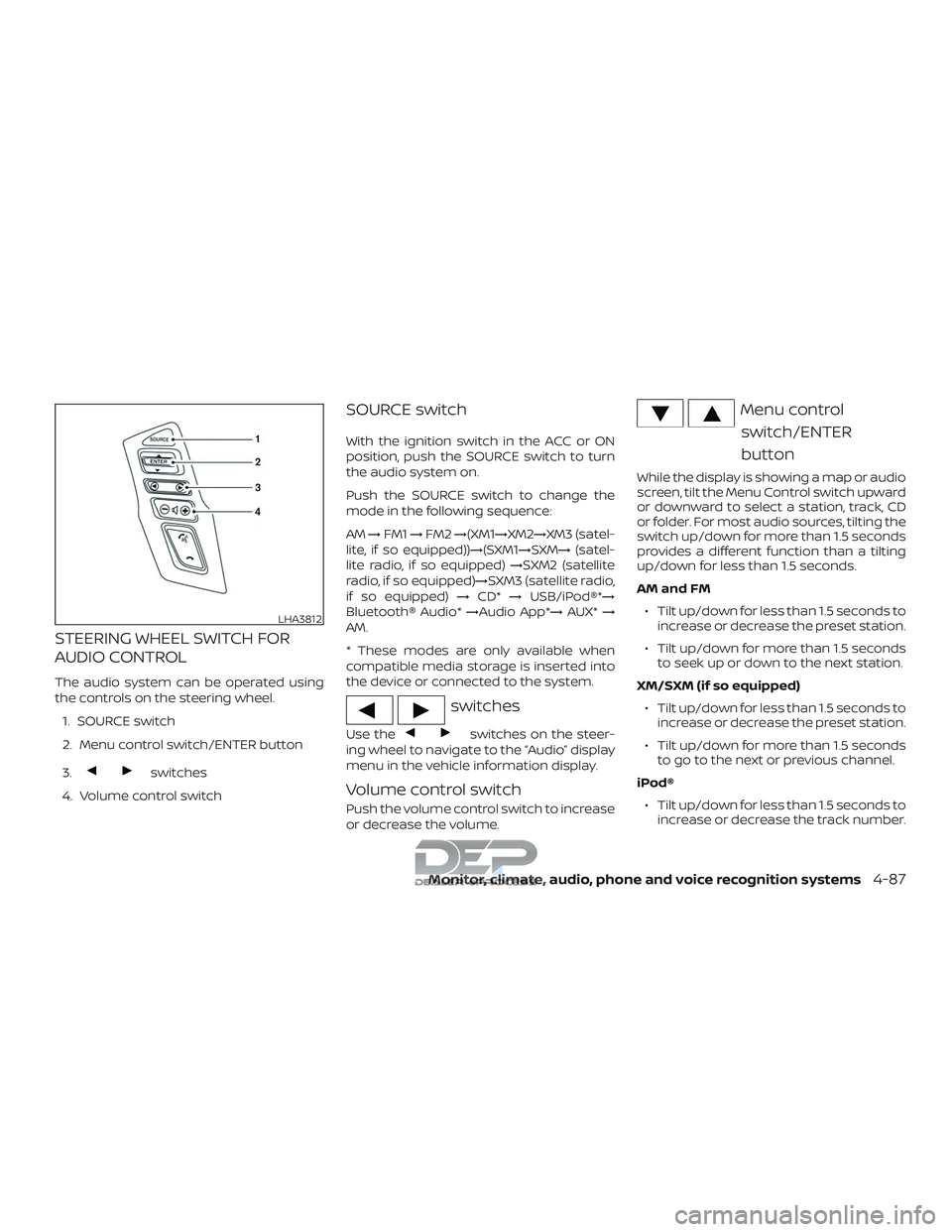
STEERING WHEEL SWITCH FOR
AUDIO CONTROL
The audio system can be operated using
the controls on the steering wheel.1. SOURCE switch
2. Menu control switch/ENTER button
3.
switches
4. Volume control switch
SOURCE switch
With the ignition switch in the ACC or ON
position, push the SOURCE switch to turn
the audio system on.
Push the SOURCE switch to change the
mode in the following sequence:
AM →FM1 →FM2 →(XM1→XM2→XM3 (satel-
lite, if so equipped))→(SXM1→SXM→ (satel-
lite radio, if so equipped) →SXM2 (satellite
radio, if so equipped)→SXM3 (satellite radio,
if so equipped) →CD* →USB/iPod®*→
Bluetooth® Audio* →Audio App*→AUX*→
AM.
* These modes are only available when
compatible media storage is inserted into
the device or connected to the system.
switches
Use theswitches on the steer-
ing wheel to navigate to the “Audio” display
menu in the vehicle information display.
Volume control switch
Push the volume control switch to increase
or decrease the volume.
Menu control
switch/ENTER
button
While the display is showing a map or audio
screen, tilt the Menu Control switch upward
or downward to select a station, track, CD
or folder. For most audio sources, tilting the
switch up/down for more than 1.5 seconds
provides a different function than a tilting
up/down for less than 1.5 seconds.
AM and FM
∙ Tilt up/down for less than 1.5 seconds to increase or decrease the preset station.
∙ Tilt up/down for more than 1.5 seconds to seek up or down to the next station.
XM/SXM (if so equipped) ∙ Tilt up/down for less than 1.5 seconds to increase or decrease the preset station.
∙ Tilt up/down for more than 1.5 seconds to go to the next or previous channel.
iPod® ∙ Tilt up/down for less than 1.5 seconds to increase or decrease the track number.
LHA3812
Monitor, climate, audio, phone and voice recognition systems4-87
Page 339 of 650
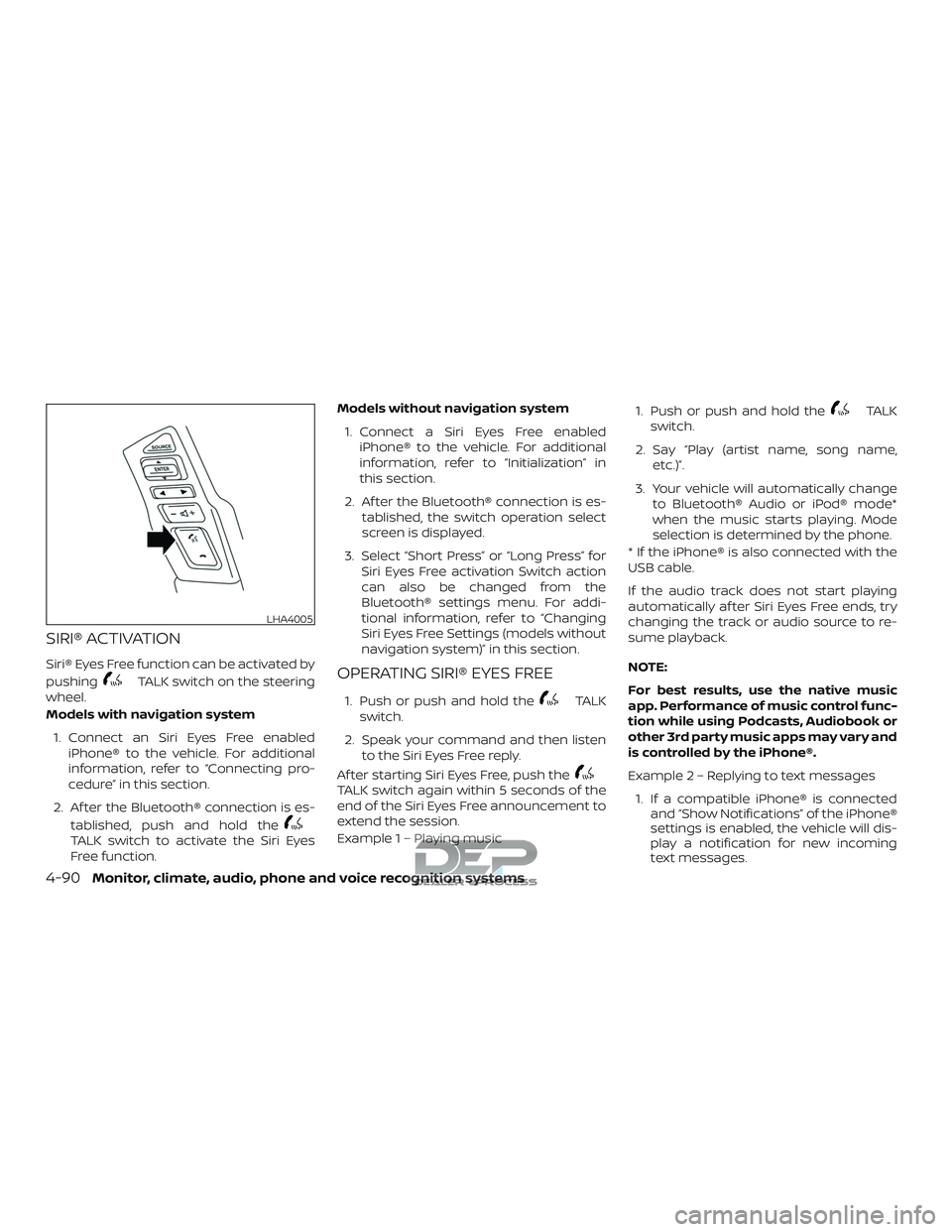
SIRI® ACTIVATION
Siri® Eyes Free function can be activated by
pushing
TALK switch on the steering
wheel.
Models with navigation system
1. Connect an Siri Eyes Free enabled iPhone® to the vehicle. For additional
information, refer to “Connecting pro-
cedure” in this section.
2. Af ter the Bluetooth® connection is es- tablished, push and hold the
TALK switch to activate the Siri Eyes
Free function. Models without navigation system
1. Connect a Siri Eyes Free enabled iPhone® to the vehicle. For additional
information, refer to “Initialization” in
this section.
2. Af ter the Bluetooth® connection is es- tablished, the switch operation select
screen is displayed.
3. Select “Short Press” or “Long Press” for Siri Eyes Free activation Switch action
can also be changed from the
Bluetooth® settings menu. For addi-
tional information, refer to “Changing
Siri Eyes Free Settings (models without
navigation system)” in this section.
OPERATING SIRI® EYES FREE
1. Push or push and hold theTALK
switch.
2. Speak your command and then listen to the Siri Eyes Free reply.
Af ter starting Siri Eyes Free, push the
TALK switch again within 5 seconds of the
end of the Siri Eyes Free announcement to
extend the session.
Example 1 – Playing music 1. Push or push and hold the
TALK
switch.
2. Say “Play (artist name, song name, etc.)”.
3. Your vehicle will automatically change to Bluetooth® Audio or iPod® mode*
when the music starts playing. Mode
selection is determined by the phone.
* If the iPhone® is also connected with the
USB cable.
If the audio track does not start playing
automatically af ter Siri Eyes Free ends, try
changing the track or audio source to re-
sume playback.
NOTE:
For best results, use the native music
app. Performance of music control func-
tion while using Podcasts, Audiobook or
other 3rd party music apps may vary and
is controlled by the iPhone®.
Example2–Repl ying to text messages
1. If a compatible iPhone® is connected and “Show Notifications” of the iPhone®
settings is enabled, the vehicle will dis-
play a notification for new incoming
text messages.
LHA4005
4-90Monitor, climate, audio, phone and voice recognition systems
Page 341 of 650
TROUBLESHOOTING GUIDE
SymptomCause and Countermeasure
Cannot access Siri Eyes
Freefromswitchonthe
steering wheel Check if a Bluetooth® connection is established between the iPhone® and the system.
Check if Siri is enabled on the device. On your phone, go to Siri setting.
Check that Siri can be accessed from the device lock screen. This can be set in the settings menu of your phone.
Models without navigation system:
Check the settings for Siri Eyes Free activation on the vehicle audio system. If the setting is “Long Press”, you must push and hold
the
TALK switch on the steering wheel for more than 1.5 seconds to start Siri Eyes Free. If the setting is “Short Press”, a short
push and release of the switch should start Siri Eyes Free.
Audio Source does not
change automatically to
iPod® or Bluetooth® Au-
dio mode For best results, use the native Music app. Performance of music control function while using Podcasts, Audiobook or other 3rd party
music apps may vary.
For best results, play media already stored on your device. Streaming music or playback from cloud storage may degrade
performance.
Switch the source manually by pressing the AUX or MEDIA button on the vehicle audio system or the SOURCE select switch on the
steering wheel.
Play, pause, next track,
previous track or play
timer does not work For best results, use the native Music app. Performance of music control function while using Podcasts, Audiobook or other 3rd party
music apps may vary and is controlled by the device.
Cannot hear any music/
audio being played back
from a connected
iPhone® Check that the audio source is set to Bluetooth® Audio or iPod® mode. A USB connection is required for iPod® mode.
Cannot hear map turn-
by-turn direction guid-
ance from a connected
iPhone® Check that the audio source is set to Bluetooth® Audio or iPod® mode. A USB connection is required for iPod® mode.
Cannot receive text mes-
sage notifications on the
vehicle audio system Check if “Send Notifications” is enabled on your phone. On the phone, go to Bluetooth® settings. Find the device name, like “My Car”.
Press the info button. Turn on “Show Notifications”.
Cannot reply to text
message notifications by
Siri Eyes Free Af ter receiving an incoming text message, follow on-screen guidance. Push or push and hold the
TALK switch on the steering
wheel for Siri Eyes Free. Af ter Siri Eyes Free starts, say “Text Message”.
4-92Monitor, climate, audio, phone and voice recognition systems
Page 381 of 650
∙ Auto Reply MessageSelect to choose the message that is
sent when the Auto Reply function is
enabled. Choose from “I’m Driving” or
one of the three custom messages
stored in the system.
∙ Vehicle Signature On/Off Select to choose whether or not the
vehicle signature is added to outgoing
text messages from the vehicle. This
message cannot be changed or cus-
tomized.MANUAL CONTROL
While using the Voice Recognition system,
it is possible to select menu options by
using the steering wheel controls instead
of speaking voice commands. To activate
manual control mode, press the
but-
ton on the steering wheel to access the
phone menu and then push either up or
down on the
tuning switch .
The manual control mode does not allow
dialing a phone number by digits. The user
may select an entry from the Phonebook
or Recent Calls lists. To reactivate Voice Recognition, exit the manual control mode
by pressing and holding the
button.
At that time, pressing the
button will
start the Hands Free Phone System.
TROUBLESHOOTING GUIDE
The system should respond correctly to all
voice commands without difficulty. If prob-
lems are encountered, try the following so-
lutions.
Where the solutions are listed by number,
try each solution in turn, starting with num-
ber 1, until the problem is resolved.
Symptom Solution
System fails to interpret the command correctly. 1. Ensure that the command is valid. For additional information, refer to “Voice commands” in this
section.
2. Ensure that the command is spoken af ter the tone.
3. Speak clearly without pausing between words and at a level appropriate to the ambient noise level in
the vehicle.
4. Ensure that the ambient noise level is not excessive (for example, windows open or defroster on).
NOTE: If it is too noisy to use the phone, it is likely that the voice commands will not be recognized.
5. If more than one command was said at a time, try saying the commands separately.
The system consistently selects the wrong entry from
the phone book. 1. Ensure that the phone book entry name requested matches what was originally stored. This can be
confirmed by using the “List Names” command. For additional information, refer to “Voice Commands”
in this section.
2. Replace one of the names being confused with a new name.
3. Please speak both first and last name of contact to improve recognition accuracy.
4-132Monitor, climate, audio, phone and voice recognition systems
Page 386 of 650
RECEIVING A CALL
When a call is placed to the connected
phone, the display will change to phone
mode.
To accept the incoming call, either:∙ Press the
button on the steering
wheel, or
∙ Touch the
icon on the screen.
To reject the incoming call, either:
∙ Press the
button on the steering
wheel, or
∙ Touch the
icon on the screen.
DURING A CALL
While a call is active, the following options
are available on the screen: ∙ “Handset” Select this option to switch control of
the phone call over to the handset.
∙ “Mute Mic.” Select this option to mute the micro-
phone. Select again to unmute the mi-
crophone.
∙ Phone
icon
Select to end the phone call.
ENDING A CALL
To end a phone call, select the phone
icon on the screen or press thebut-
ton on the steering wheel.
TEXT MESSAGING
WARNING
∙ Laws in some jurisdictions may re- strict the use of “Text-to-Speech”.
Check local regulations before using
this feature.
∙ Laws in some jurisdictions may re- strict the use of some of the applica-
tions and features, such as social net-
working and texting. Check local
regulations for any requirements.
∙ Use the text messaging feature af ter stopping your vehicle in a safe loca-
tion. If you have to use the feature
while driving, exercise extreme cau-
tion at all times so full attention may
be given to vehicle operation.
∙ If you are unable to devote full atten- tion to vehicle operation while using
the text messaging feature, pull off
the road to a safe location and stop
your vehicle. NOTE:
This feature is automatically disabled if
the connected device does not support
the Message Access Profile (MAP). For
additional information, refer to the
phone’s Owner’s Manual for details and
instructions.
NOTE:Many phones may require special permis-
sion to enable text messaging. Check the
phone’s screen during Bluetooth® pairing.
For some phones, you may need to enable
‘Notifications’ in the phone’s Bluetooth®
menu for text messages to appear on the
headunit. For additional information, refer
to your phone’s Owner’s manual. Text
message integration requires that the
phone support MAP (Message Access Pro-
file) for both receiving and sending text
messages. Some phones may not support
all text messaging features. For additional
information, refer to www.nissanusa.com/
bluetooth or www.nissan.ca/bluetooth for
compatibility information, as well as your
device’s Owner’s manual.
The system allows for the sending and re-
ceiving of text messages through the ve-
hicle interface.
Monitor, climate, audio, phone and voice recognition systems4-137
Page 391 of 650
The NISSAN Voice Recognition system al-
lows hands-free operation of the systems
equipped on this vehicle, such as the
phone and navigation systems.
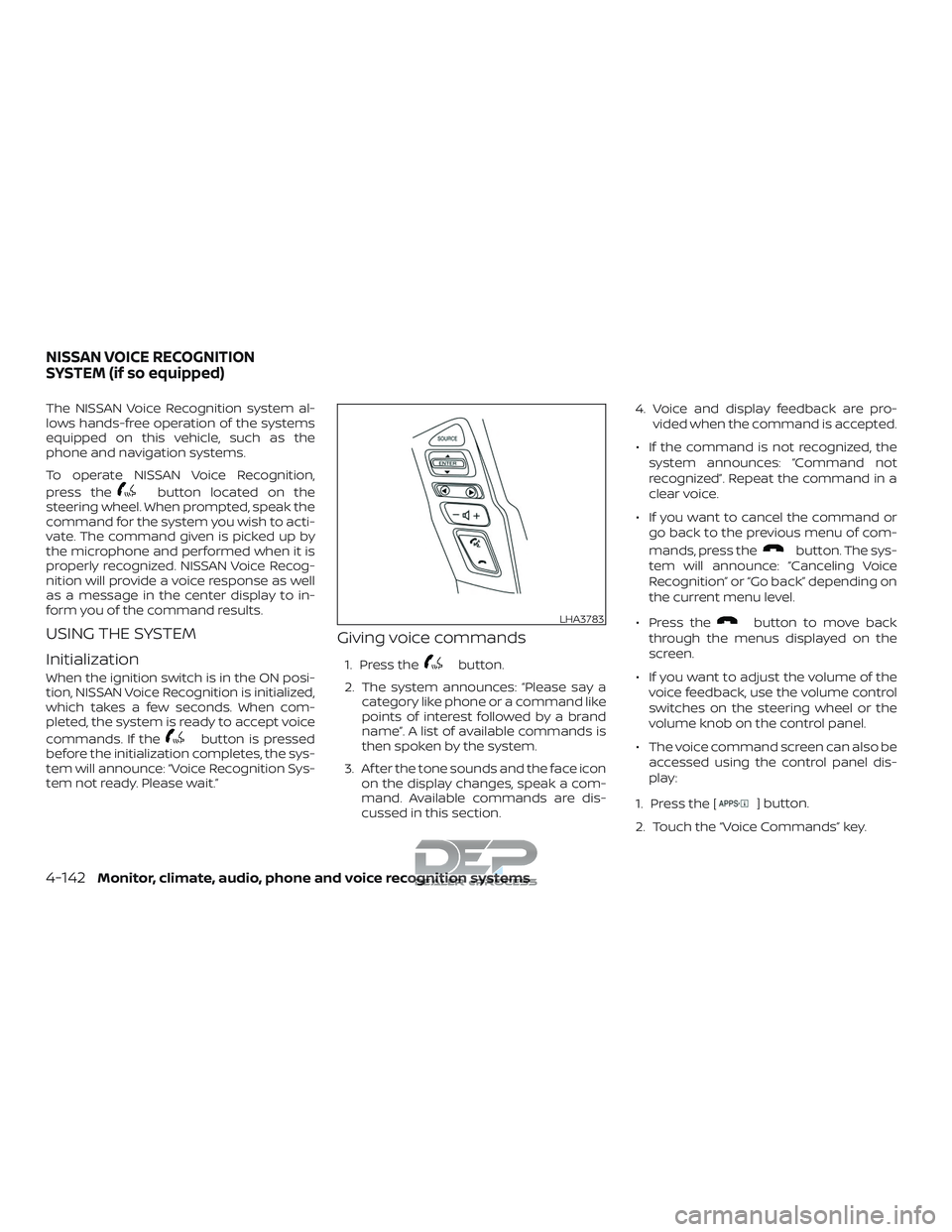
To operate NISSAN Voice Recognition,
press the
button located on the
steering wheel. When prompted, speak the
command for the system you wish to acti-
vate. The command given is picked up by
the microphone and performed when it is
properly recognized. NISSAN Voice Recog-
nition will provide a voice response as well
as a message in the center display to in-
form you of the command results.
USING THE SYSTEM
Initialization
When the ignition switch is in the ON posi-
tion, NISSAN Voice Recognition is initialized,
which takes a few seconds. When com-
pleted, the system is ready to accept voice
commands. If the
button is pressed
before the initialization completes, the sys-
tem will announce: “Voice Recognition Sys-
tem not ready. Please wait.”
Giving voice commands
1. Press thebutton.
2. The system announces: “Please say a category like phone or a command like
points of interest followed by a brand
name”. A list of available commands is
then spoken by the system.
3. Af ter the tone sounds and the face icon on the display changes, speak a com-
mand. Available commands are dis-
cussed in this section. 4. Voice and display feedback are pro-
vided when the command is accepted.
∙ If the command is not recognized, the system announces: “Command not
recognized”. Repeat the command in a
clear voice.
∙ If you want to cancel the command or go back to the previous menu of com-
mands, press the
button. The sys-
tem will announce: “Canceling Voice
Recognition” or “Go back” depending on
the current menu level.
∙ Press the
button to move back
through the menus displayed on the
screen.
∙ If you want to adjust the volume of the voice feedback, use the volume control
switches on the steering wheel or the
volume knob on the control panel.
∙ The voice command screen can also be accessed using the control panel dis-
play:
1. Press the [
] button.
2. Touch the “Voice Commands” key.
LHA3783
NISSAN VOICE RECOGNITION
SYSTEM (if so equipped)
4-142Monitor, climate, audio, phone and voice recognition systems
Page 402 of 650
shown on the Tire and Loading Infor-
mation label to turn the low tire pres-
sure warning light off. If you have a flat
tire, replace it with a spare tire as soon
as possible. (For additional informa-
tion, refer to “Flat tire” in the “In case of
emergency ” section for changing a
flat tire.)
∙ When replacing a wheel without the TPMS such as the spare tire, when a
spare tire is mounted or a wheel is
replaced, tire pressure will not be indi-
cated, the TPMS will not function and
the low tire pressure warning light will
flash for approximately 1 minute. The
light will remain on af ter 1 minute.
Have your tires replaced and/or TPMS
system reset as soon as possible. It is
recommended that you visit a NISSAN
dealer for this service.
∙ Replacing tires with those not origi- nally specified by NISSAN could affect
the proper operation of the TPMS.
∙ Do not inject any tire liquid or aerosol tire sealant into the tires, as this may
cause a malfunction of the tire pres-
sure sensors.CAUTION
Do not place metalized film or any
metal parts (antenna, etc.) on the win-
dows. This may cause poor reception of
the signals from the tire pressure sen-
sors, and the TPMS will not function
properly.
Some devices and transmitters may tem-
porarily interfere with the operation of the
TPMS and cause the low tire pressure
warning light to illuminate.
Some examples are: ∙ Facilities or electric devices using simi- lar radio frequencies are near the ve-
hicle.
∙ If a transmitter set to similar frequen- cies is being used in or near the vehicle.
∙ If a computer (or similar equipment) or a DC/AC converter is being used in or
near the vehicle.
The low tire pressure warning light may
illuminate in the following cases: ∙ If the vehicle is equipped with a wheel and tire without TPMS.
∙ If the TPMS has been replaced and the ID has not been registered. ∙ If the wheel is not originally specified by
NISSAN.
FCC Notice:
For USA:
This device complies with Part 15 of the
FCC Rules. Operation is subject to the fol-
lowing two conditions: (1) This device
may not cause harmful interference, and
(2) this device must accept any interfer-
ence received, including interference
that may cause undesired operation.
NOTE:
Changes or modifications not expressly
approved by the party responsible for
compliance could void the user’s author-
ity to operate the equipment.
For Canada:
This device complies with Industry
Canada licence-exempt RSS standard(s).
Operation is subject to the following two
conditions: (1) this device may not cause
harmful interference, and (2) this device
must accept any interference received,
including interference that may cause
undesired operation of the device.
Starting and driving5-5
Page 405 of 650
RAPID AIR PRESSURE LOSS
Rapid air pressure loss or a “blow-out” can
occur if the tire is punctured or is damaged
due to hitting a curb or pothole. Rapid air
pressure loss can also be caused by driving
on under-inflated tires.
Rapid air pressure loss can affect the han-
dling and stability of the vehicle, especially
at highway speeds.
Help prevent rapid air pressure loss by
maintaining the correct air pressure and
visually inspecting the tires for wear and
damage. For additional information, refer
to “Wheels and tires” in the “Do-it-yourself ”
section of this manual. If a tire rapidly loses
air pressure or “blows-out” while driving,
maintain control of the vehicle by following
the procedure below. Please note that this
procedure is only a general guide. The ve-
hicle must be driven as appropriate based
on the conditions of the vehicle, road and
traffic.
WARNING
The following actions can increase the
chance of losing control of the vehicle if
there is a sudden loss of tire air pres-
sure. Losing control of the vehicle may
cause a collision and result in personal
injury.
∙ The vehicle generally moves or pullsin the direction of the flat tire.
∙ Do not rapidly apply the brakes.
∙ Do not rapidly release the accelerator pedal.
∙ Do not rapidly turn the steering wheel.
1. Remain calm and do not overreact.
2. Maintain a firm grip on the steering wheel with both hands and try to hold a
straight course.
3. When appropriate, slowly release the accelerator pedal to gradually slow the
vehicle.
4. Gradually steer the vehicle to a safe location off the road and away from
traffic if possible.
5. Lightly apply the brake pedal to gradu- ally stop the vehicle. 6. Turn on the hazard warning flashers
and contact a roadside emergency
service to change the tire. For addi-
tional information, refer to “Changing a
flat tire” in the “In case of emergency”
section of this manual.
DRINKING ALCOHOL/DRUGS AND
DRIVING
WARNING
Never drive under the influence of alco-
hol or drugs. Alcohol in the bloodstream
reduces coordination, delays reaction
time and impairs judgement. Driving af-
ter drinking alcohol increases the likeli-
hood of being involved in an accident in-
juring yourself and others. Additionally, if
you are injured in an accident, alcohol can
increase the severity of the injury.
NISSAN is committed to safe driving. How-
ever, you must choose not to drive under the
influence of alcohol. Every year thousands of
people are injured or killed in alcohol-related
collisions. Although the local laws vary on
what is considered to be legally intoxicated,
the fact is that alcohol affects all people dif-
ferently and most people underestimate the
effects of alcohol.
5-8Starting and driving
Page 445 of 650
The transfer case 4WD shif t switch is used
to select either 2WD or 4WD depending on
the driving conditions. There are three
types of drive modes available: 2WD, 4H and
4LO.
The 4WD shif t switch electronically controls
the transfer case operation. Rotate the
switch to move between each mode: 2WD,
4H and 4LO.
To change into or out of 4LO, the vehicle
MUST be stationary, move the shif t lever
to N (Neutral), and depress the brake
pedal. The switch must be pushed and
turned to select 4LO.
WARNING
∙ When parking, apply the parkingbrake before stopping the engine and
make sure that the 4WD shif t indica-
tor light is on and the Automatic
Transmission park (ATP) warning light
goes off. Otherwise, the vehicle could
unexpectedly move even if the A/T is
in the P position. ∙ The 4LO indicator light must stop
blinking and remain illuminated or
turn off before shif ting the transmis-
sion into gear. If the shif t lever is
shif ted from the N (Neutral) position
to any other gear when the 4LO indi-
cator light is blinking, the vehicle may
move unexpectedly.
CAUTION
∙ Never shif t the 4WD shif t switch be-tween 4LO and 4H while driving.
∙ The 4H position provides greater trac- tion. Avoid excessive speed, as it will
cause increased fuel consumption
and higher oil temperatures, and
could damage drivetrain compo-
nents. Speeds over 62 mph
(100 km/h) in 4H is not recommended.
∙ The 4LO position provides maximum power and traction. Avoid raising ve-
hicle speed excessively, as the maxi-
mum speed is approximately 31 mph
(50 km/h).
∙ When driving straight, shif t the 4WD shif t switch to the 2WD or 4H position.
Do not move the 4WD shif t switch
when making a turn or reversing. ∙ Do not shif t the 4WD shif t switch (be-
tween 2WD and 4H) while driving on
steep downhill grades. Use the engine
brake and low A/T gears (M1 or M2) for
engine braking.
∙ Do not operate the 4WD shif t switch (between 2WD and 4H) with the rear
wheels spinning.
∙ Do not drive on dry hard surface roads in the 4H or 4LO position. Driving on
dry hard surfaces in 4H or 4LO may
cause unnecessary noise and tire
wear. NISSAN recommends driving in
the 2WD position under these
conditions.
∙ The 4WD transfer case may not be shif ted between 4H and 4LO at low
ambient temperatures and the trans-
fer 4LO position indicator light may
blink even when the 4WD shif t switch
is shif ted. Af ter driving for a while you
can change the 4WD transfer case be-
tween 4H and 4LO.
When driving on rough roads, ∙ Set the 4WD shif t switch to 4H or 4LO.
∙ Drive carefully according to the road surface conditions.
5-48Starting and driving