bluetooth NISSAN TITAN 2018 Owner´s Manual
[x] Cancel search | Manufacturer: NISSAN, Model Year: 2018, Model line: TITAN, Model: NISSAN TITAN 2018Pages: 650, PDF Size: 7.54 MB
Page 385 of 650
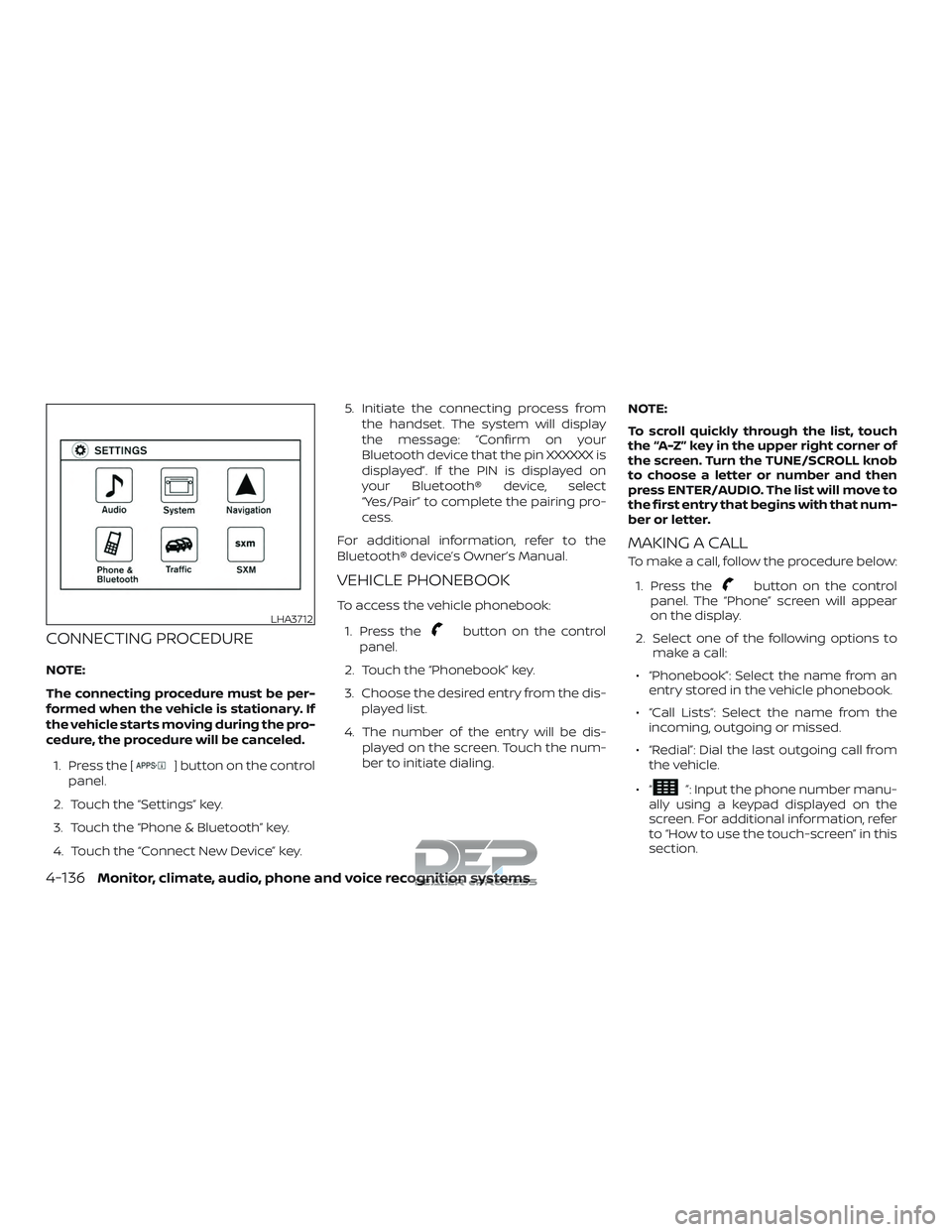
CONNECTING PROCEDURE
NOTE:
The connecting procedure must be per-
formed when the vehicle is stationary. If
the vehicle starts moving during the pro-
cedure, the procedure will be canceled.1. Press the [
] button on the control
panel.
2. Touch the “Settings” key.
3. Touch the “Phone & Bluetooth” key.
4. Touch the “Connect New Device” key. 5. Initiate the connecting process from
the handset. The system will display
the message: “Confirm on your
Bluetooth device that the pin XXXXXX is
displayed”. If the PIN is displayed on
your Bluetooth® device, select
“Yes/Pair” to complete the pairing pro-
cess.
For additional information, refer to the
Bluetooth® device’s Owner’s Manual.
VEHICLE PHONEBOOK
To access the vehicle phonebook:
1. Press the
button on the control
panel.
2. Touch the “Phonebook” key.
3. Choose the desired entry from the dis- played list.
4. The number of the entry will be dis- played on the screen. Touch the num-
ber to initiate dialing. NOTE:
To scroll quickly through the list, touch
the “A-Z” key in the upper right corner of
the screen. Turn the TUNE/SCROLL knob
to choose a letter or number and then
press ENTER/AUDIO. The list will move to
the first entry that begins with that num-
ber or letter.
MAKING A CALL
To make a call, follow the procedure below:
1. Press the
button on the control
panel. The “Phone” screen will appear
on the display.
2. Select one of the following options to make a call:
∙ “Phonebook”: Select the name from an entry stored in the vehicle phonebook.
∙ “Call Lists”: Select the name from the incoming, outgoing or missed.
∙ “Redial”: Dial the last outgoing call from the vehicle.
∙“
”: Input the phone number manu-
ally using a keypad displayed on the
screen. For additional information, refer
to “How to use the touch-screen” in this
section.
LHA3712
4-136Monitor, climate, audio, phone and voice recognition systems
Page 386 of 650
RECEIVING A CALL
When a call is placed to the connected
phone, the display will change to phone
mode.
To accept the incoming call, either:∙ Press the
button on the steering
wheel, or
∙ Touch the
icon on the screen.
To reject the incoming call, either:
∙ Press the
button on the steering
wheel, or
∙ Touch the
icon on the screen.
DURING A CALL
While a call is active, the following options
are available on the screen: ∙ “Handset” Select this option to switch control of
the phone call over to the handset.
∙ “Mute Mic.” Select this option to mute the micro-
phone. Select again to unmute the mi-
crophone.
∙ Phone
icon
Select to end the phone call.
ENDING A CALL
To end a phone call, select the phone
icon on the screen or press thebut-
ton on the steering wheel.
TEXT MESSAGING
WARNING
∙ Laws in some jurisdictions may re- strict the use of “Text-to-Speech”.
Check local regulations before using
this feature.
∙ Laws in some jurisdictions may re- strict the use of some of the applica-
tions and features, such as social net-
working and texting. Check local
regulations for any requirements.
∙ Use the text messaging feature af ter stopping your vehicle in a safe loca-
tion. If you have to use the feature
while driving, exercise extreme cau-
tion at all times so full attention may
be given to vehicle operation.
∙ If you are unable to devote full atten- tion to vehicle operation while using
the text messaging feature, pull off
the road to a safe location and stop
your vehicle. NOTE:
This feature is automatically disabled if
the connected device does not support
the Message Access Profile (MAP). For
additional information, refer to the
phone’s Owner’s Manual for details and
instructions.
NOTE:Many phones may require special permis-
sion to enable text messaging. Check the
phone’s screen during Bluetooth® pairing.
For some phones, you may need to enable
‘Notifications’ in the phone’s Bluetooth®
menu for text messages to appear on the
headunit. For additional information, refer
to your phone’s Owner’s manual. Text
message integration requires that the
phone support MAP (Message Access Pro-
file) for both receiving and sending text
messages. Some phones may not support
all text messaging features. For additional
information, refer to www.nissanusa.com/
bluetooth or www.nissan.ca/bluetooth for
compatibility information, as well as your
device’s Owner’s manual.
The system allows for the sending and re-
ceiving of text messages through the ve-
hicle interface.
Monitor, climate, audio, phone and voice recognition systems4-137
Page 387 of 650
Sending a text message:1. Press the
button on the steering
wheel.
2. Say “Phone” af ter the tone.
3. Say “Send Text” af ter the tone.
4. The system will provide a list of avail- able commands in order to determine
the recipient of the text message.
Choose from the following:
∙ To (a name)
∙ Enter Number
∙ Missed Calls
∙ Incoming Calls
∙ Outgoing Calls
For additional information, refer to
“Voice commands” in this section. 5. Once a recipient is chosen, the system
prompts for which message to send.
Nine predefined messages are avail-
able as well as three custom mes-
sages. To choose one of the predefined
messages, speak one of the following
af ter the tone:
∙ “Driving, can’t text”
∙ “Call me”
∙ “On my way ”
∙ “Running late”
∙ “Okay ”
∙ “Yes”
∙ “No”
∙ “Where are you?”
∙ “When?”
∙ “Custom Messages”
To send one of the custom messages,
say “Custom Messages”. If more than
one custom message is stored, the
system will prompt for the number of
the desired custom message. For ad-
ditional information, refer to
“Bluetooth® settings” in this section. Reading a received text message:
1. Press thebutton on the steering
wheel.
2. Say “Phone” af ter the tone.
3. Say “Read Text” af ter the tone.
The text message, sender and delivery
time are shown on the screen. Use the tun-
ing switch to scroll through all text mes-
sages if more than one are available. Press
the
button to exit the text message
screen. Press the
button to access
the following options for replying to the text
message:
∙ Call Back Speak this command to call the sender
of the text message using the
Bluetooth® Hands-Free Phone System.
∙ Send Text Speak this command to send a text
message response to the sender of the
text message.
∙ Read Text Speak this command to read the text
message again.
∙ Previous Text Speak this command to move to the
previous text message (if available).
4-138Monitor, climate, audio, phone and voice recognition systems
Page 388 of 650
∙ Next TextSpeak this command to move to the
next text message (if available).
NOTE:
Text messages are only displayed if the
vehicle speed is less than 5 mph
(8 km/h).
NOTE:
iPhones® can only send text messages
via Siri® Eyes Free.
Making custom messages with Siri® Eyes
Free
If a connected phone is equipped with Siri®,
it can also be used to create custom mes-
sages. For additional information, refer to
“Siri® Eyes Free” in this section.
BLUETOOTH® SETTINGS
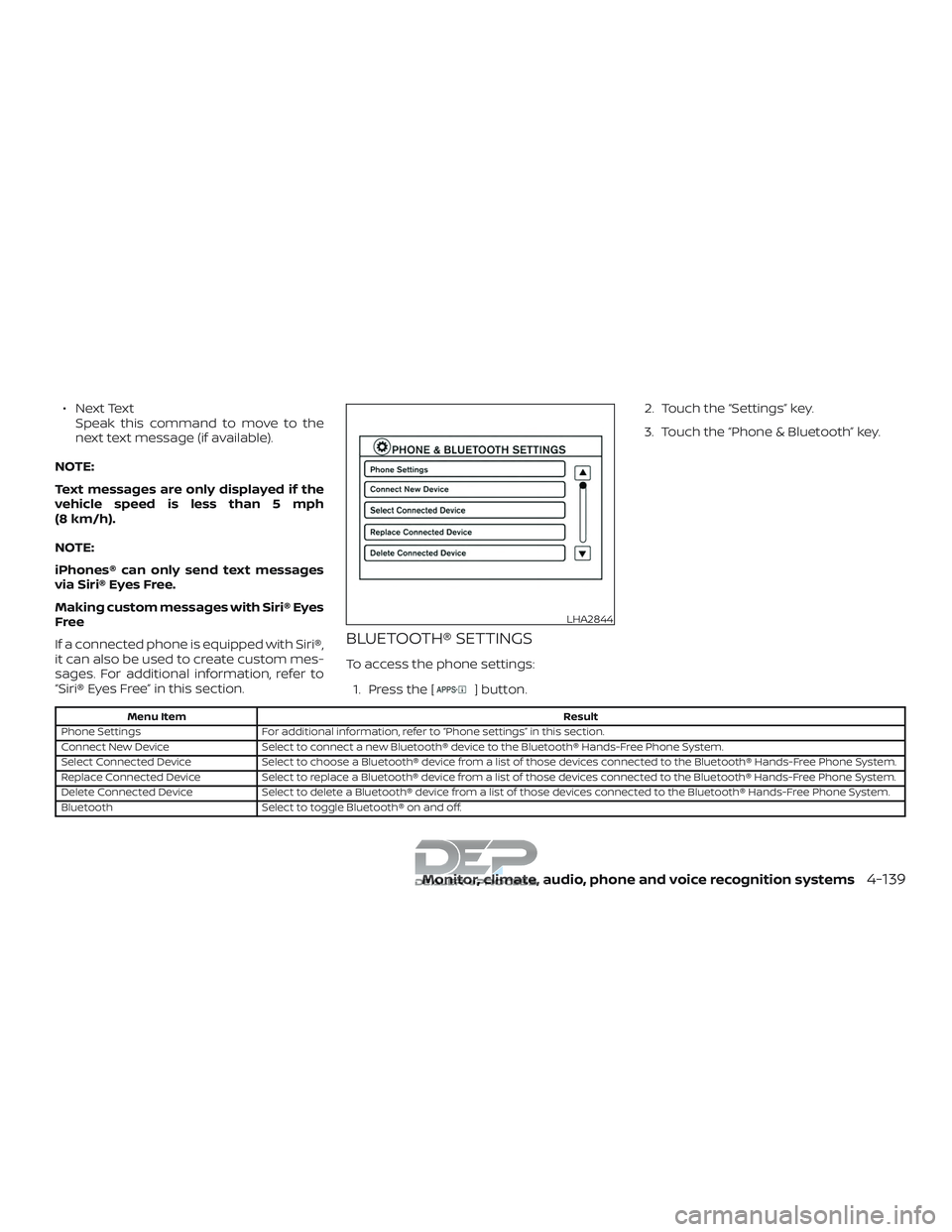
To access the phone settings: 1. Press the [
] button. 2. Touch the “Settings” key.
3. Touch the “Phone & Bluetooth” key.
Menu Item
Result
Phone Settings For additional information, refer to “Phone settings” in this section.
Connect New Device Select to connect a new Bluetooth® device to the Bluetooth® Hands-Free Phone System.
Select Connected Device Select to choose a Bluetooth® device from a list of those devices connected to the Bluetooth® Hands-Free Phone System.
Replace Connected Device Select to replace a Bluetooth® device from a list of those devices connected to the Bluetooth® Hands-Free Phone System.
Delete Connected Device Select to delete a Bluetooth® device from a list of those devices connected to the Bluetooth® Hands-Free Phone System.
Bluetooth Select to toggle Bluetooth® on and off.
LHA2844
Monitor, climate, audio, phone and voice recognition systems4-139
Page 389 of 650
![NISSAN TITAN 2018 Owner´s Manual PHONE SETTINGS
To access the phone settings:1. Press the [
] button.
2. Touch the “Settings” key.
3. Touch the “Phone & Bluetooth” key.
4. Touch the “Phone Settings” key and ad- just the f](/img/5/40372/w960_40372-388.png "NISSAN TITAN 2018 Owner´s Manual PHONE SETTINGS
To access the phone settings:1. Press the [
] button.
2. Touch the “Settings” key.
3. Touch the “Phone & Bluetooth” key.
4. Touch the “Phone Settings” key and ad- just the f")
PHONE SETTINGS
To access the phone settings:1. Press the [
] button.
2. Touch the “Settings” key.
3. Touch the “Phone & Bluetooth” key.
4. Touch the “Phone Settings” key and ad- just the following settings as desired:
∙ Start Siri® by: Touch “Short Press” or “Long Press” to
set how Siri® is operated on the steering
wheel.
∙ Sort Phonebook By: Touch “First Name” or “Last Name” to
choose how phonebook entries are al-
phabetically displayed on the screen.
∙ Use Phonebook From: Touch “Handset” to use the phone’s
phonebook. Touch “SIM” to use the
phonebook on the SIM card. Select
“Both” to use both sources.
∙ Download Phonebook Now: Touch to download the phonebook to
the vehicle from the chosen source. ∙ Record Name for Phonebook Entry:
Touch to record a name for a phone-
book entry for use with the NISSAN
Voice Recognition System.
∙ Phone Notifications for: Touch “Driver” to have phone notifica-
tions shown in the vehicle information
display (if so equipped). Select “Both” to
have phone notifications shown in both
the vehicle information display (if so
equipped) and the center display
screen.
∙ Text Messaging: Touch to toggle the text message func-
tionality on or off.
∙ Show Incoming Text for: Touch “Driver” to have incoming text no-
tifications shown in the vehicle informa-
tion display (if so equipped). Touch
“Both” to have text notifications shown
in both the vehicle information display
(if so equipped) and the center display
screen. Touch “Off ” to turn off all text
notifications.
∙ Auto Reply: Touch to toggle the auto reply function-
ality on or off. ∙ Auto Reply Message:
Touch to indicate preferred message to
be sent when “Auto Reply” function is
activated.
∙ Use Vehicle’s Signature: Touch to toggle on or off the addition of
the vehicle signature to outgoing mes-
sages.
∙ Custom Text Messages: Touch this option to select a custom
message to edit. There are 4 customer
message slots available.
4-140Monitor, climate, audio, phone and voice recognition systems
Page 392 of 650
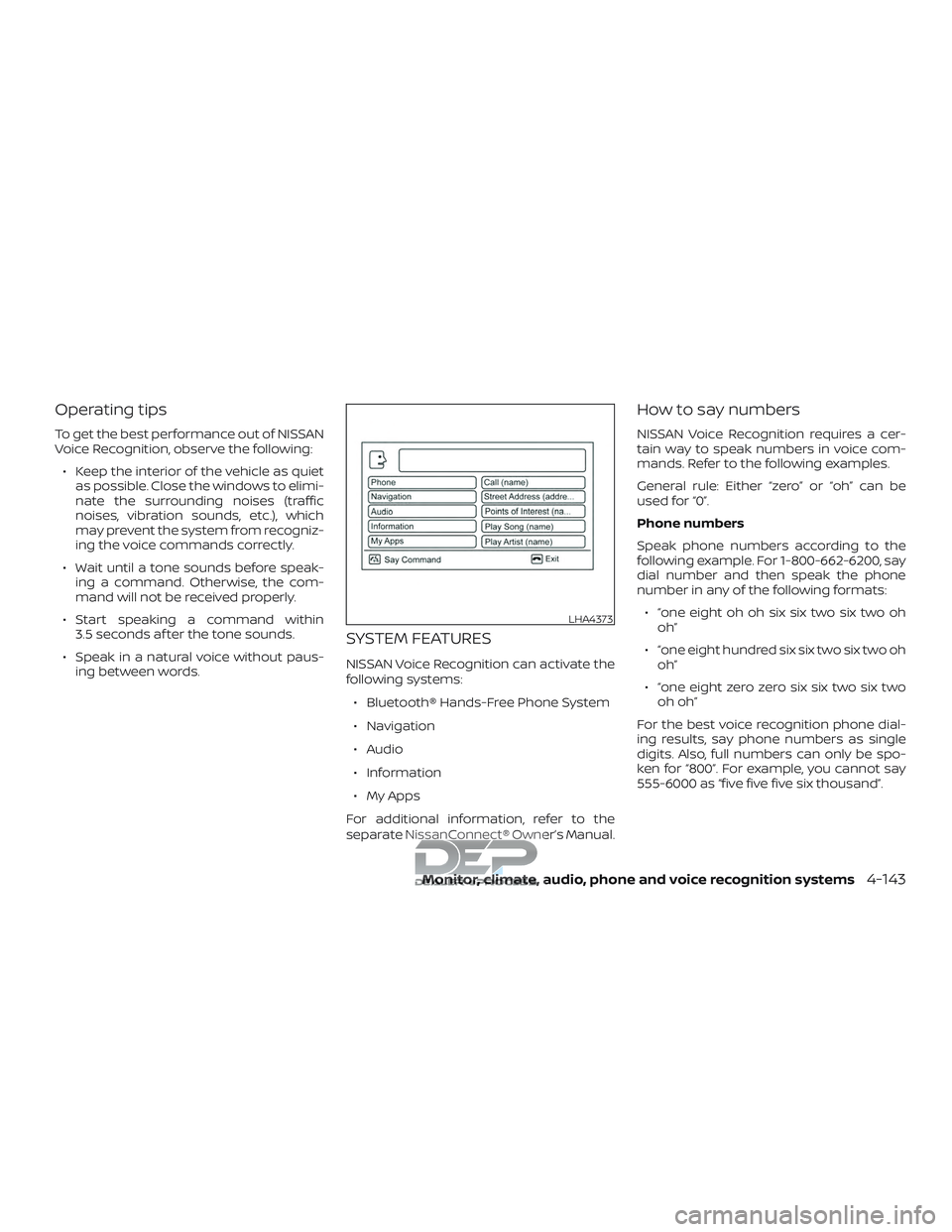
Operating tips
To get the best performance out of NISSAN
Voice Recognition, observe the following:∙ Keep the interior of the vehicle as quiet as possible. Close the windows to elimi-
nate the surrounding noises (traffic
noises, vibration sounds, etc.), which
may prevent the system from recogniz-
ing the voice commands correctly.
∙ Wait until a tone sounds before speak- ing a command. Otherwise, the com-
mand will not be received properly.
∙ Start speaking a command within 3.5 seconds af ter the tone sounds.
∙ Speak in a natural voice without paus- ing between words.
SYSTEM FEATURES
NISSAN Voice Recognition can activate the
following systems:
∙ Bluetooth® Hands-Free Phone System
∙ Navigation
∙ Audio
∙ Information
∙ My Apps
For additional information, refer to the
separate NissanConnect® Owner’s Manual.
How to say numbers
NISSAN Voice Recognition requires a cer-
tain way to speak numbers in voice com-
mands. Refer to the following examples.
General rule: Either “zero” or “oh” can be
used for “0”.
Phone numbers
Speak phone numbers according to the
following example. For 1-800-662-6200, say
dial number and then speak the phone
number in any of the following formats: ∙ “one eight oh oh six six two six two oh oh”
∙ “one eight hundred six six two six two oh oh”
∙ “one eight zero zero six six two six two oh oh”
For the best voice recognition phone dial-
ing results, say phone numbers as single
digits. Also, full numbers can only be spo-
ken for “800”. For example, you cannot say
555-6000 as “five five five six thousand”.
LHA4373
Monitor, climate, audio, phone and voice recognition systems4-143
Page 393 of 650
BLUETOOTH® HANDS-FREE
PHONE SYSTEM VOICE
COMMANDS
To access the Bluetooth® Hands-Free
Phone System voice commands:1. Press the
button.
2. Say “Call” and then a name in the ve- hicle phonebook to call that entry. Oth-
erwise, say “Phone” to access various
phone commands.
If the Bluetooth® has been set to “Off ”, the
system announces: “Bluetooth® is off.
Would you like to turn Bluetooth® on?”
If no phone is connected to the system and
the vehicle is stationary, the system an-
nounces: “There is no phone connected.
Would you like to connect a phone now?”
Say “Yes” to connect a phone. All further
Bluetooth® Hands-Free Phone System
voice commands are only available if a
phone is connected. If a phone is connected and Bluetooth® is
set to “On”, the following voice commands
are available:
∙ Call (a name) Speak the name of the contact in
which you are trying to call. System will
confirm correct contact. Say “Dial” to
initiate dialing.
∙ Dial Number Allows for up to 24 digits to be dialed.
Af ter the number is entered, say “Dial”
to initiate dialing. Say “Correction” to
correct the number entered. Say “Go
Back” to return to the main menu.
∙ List Phonebook Starting with the first alphabetical en-
try in the vehicle phonebook, the sys-
tem prompts for an additional com-
mand. Say “Dial” to call the number of
the phonebook entry. Say “Send Text”
to send a text message to the number
of the phonebook entry. Say “Next En-
try” to skip to the next alphabetical en-
try in the vehicle phonebook, where
the same options will then be available. ∙ Recent Calls
The system prompts for an additional
command. Say “Missed Calls”, “Incom-
ing Calls” or “Outgoing Calls” to display
a list of such calls on the screen.
Speak the number of the entry dis-
played on the screen to dial that num-
ber or say “Next Page” to view entries
on the next page (if available).
∙ Redial Redials the last called number.
∙ Read Text Reads an incoming text message. For
additional information, refer to
“Bluetooth® Hands-Free Phone Sys-
tem with Navigation System” in this
section.
∙ Send Text Sends a text message. For additional
information, refer to “Bluetooth®
Hands-Free Phone System with Navi-
gation System” in this section.
4-144Monitor, climate, audio, phone and voice recognition systems
Page 394 of 650
∙ Select PhoneThe system replies “Please use manual
controls to continue”. Use manual con-
trols to change the active phone from
among the listed phones connected
to the vehicle.
∙ Siri® The system replies “Starting Siri”. For
additional information, refer to “Oper-
ating Siri Eyes Free” in this section.
For additional information, refer to
“Bluetooth® Hands-Free Phone System
with Navigation System” in this section.
NAVIGATION SYSTEM VOICE
COMMANDS
The following voice commands are avail-
able for the Navigation System: ∙ Street Address (address)
∙ Points of Interest (name)
∙ POI by Category
∙ Home
∙ Address Book
∙ Previous Destinations ∙ Enter Address in Steps
∙ Cancel Route
For additional information about these
commands, see the separate
NissanConnect® Owner’s Manual.
AUDIO SYSTEM VOICE COMMANDS
To access the audio system voice com-
mands:
1. Press the
button.
2. Say “Audio”
3. Speak a command from the following available commands:
∙ Play (AM, FM, etc.) Allows user to select radio band
∙ Tune AM (number) Allows user to tune directly to a desired
AM frequency
∙ Tune FM (number) Allows user to tune directly to a desired
FM frequency ∙ SXM channel (number)
Allows user to tune directly to a desired
SXM station (if so equipped)
∙ CD Track (number) Allows user to select track to be played
∙ Play Song (name) Allows user to select song name to be
played
∙ Play Artist (name) Allows user to select artist to be played
∙ Play Album (name) Allows user to select album name to
be played
For additional information, refer to “Audio
system” in this section.
Monitor, climate, audio, phone and voice recognition systems4-145
Page 634 of 650
11 Index
4WD.......................5-45
4WDwarninglight..............2-22
4-Wheel Drive.................5-45
A
Active Brake Limited Slip (ABLS)
system .....................5-59
Aimingcontrol,headlights.........2-57
Air bag (See supplemental restraint
system) .................... .1-53
Air bag system Front (See supplemental front impact air
bagsystem).............1-60, 1-75
Air bag warning labels ............1-80
Airbagwarninglight..........1-81, 2-29
Air bag warning light,
supplemental ..............1-81, 2-29
Air cleaner ...................8-19
Air cleaner housing filter ..........8-19
Air conditioner Air conditioner operation ....4-38,4-44
Air conditioner specification label . .10-20
Air conditioner system refrigerant and oil
recommendations ............10-8
Air conditioner system refrigerant
recommendations ............10-8
Heater and air conditioner (automatic)
(if so equipped) ..............4-43
Heater and air conditioner
controls ..................4-44
Servicing air conditioner ........4-48Air flow charts
.................4-39
Alarm system
(See vehicle security system) .......2-48
Anchor point locations ............1-31
Antenna ....................4-88
Antifreeze ...................5-69
Anti-lock brake warning light .......2-22
Anti-lock Braking System (ABS) ......5-57
Apps ......................4-88
Audible reminders ..............2-32
Audiosystem.................4-48 AMradioreception............4-49
Bluetooth® audio .........4-84,4-85
Bluetooth® streaming audio . .4-84, 4-85
Compact disc (CD)
player.............4-59,4-65,4-72
FM-AM radio with compact disc (CD)
player....................4-57
FM/AM/SAT radio with compact disc (CD)
player.................4-61,4-67
FMradioreception............4-49
iPod®Player.............4-78,4-81
iPod® player operation ......4-78,4-81
Radio ....................4-48
Steering wheel audio control
switch....................4-87
USBinterface............4-74,4-76
USB (Universal Serial Bus) Connection
Port.....................4-76
Autolightswitch ...............2-55
Automatic Automatic drive positioner . . .3-42, 3-44
Automatic power window switch. . .2-89 Driving with automatic
transmission................5-17
Automatic anti-glare inside mirror ....3-32
Automatic door locks .............3-8
Automatic drive positioner .....3-42,3-44
Automatic transmission fluid temperature
gauge ......................2-11
AUXjack....................4-69
B
Back button ...................4-7
Battery..................5-69,8-15 Charge warning light ..........2-25
Battery replacement ............8-26
Keyfob...................8-26
NISSAN Intelligent Key® .........8-26
Before starting the engine .........5-14
Belt(Seedrivebelt)..............8-17
Blind Spot Warning (BSW) ..........5-23
Block heater Engine ....................5-71
Bluetooth® audio ...........4-84,4-85
Bluetooth® hands-free phone
system .................4-120,4-133
Booster seats .................1-49
Br ak
e
Anti-lock Braking System (ABS) ....5-57
Brakefluid.................8-13
Brakelight(Seestoplight) .......8-31
Brakesystem...............5-56
Brakewarninglight ...........2-24
Page 636 of 650
EngineBefore starting the engine ........5-14
Blockheater.................5-71
Capacities and recommended
fuel/lubricants...............10-2
Changing engine coolant .........8-6
Changing engine oil ............8-8
Changing engine oil filter .........8-9
Checking engine coolant level ......8-6
Checking engine oil level .........8-7
Engine compartment check
locations...................8-3
Engine coolant temperature gauge . .2-9
Engine cooling system ..........8-5
Engine oil ...................8-7
Engine oil and oil filter
recommendation .............10-7
Engine oil pressure gauge .....2-11, 2-12
Engine oil pressure warning light . . .2-25
Engine oil viscosity .............10-7
Engine serial number ..........10-18
Engine specifications ...........10-9
Engine coolant temperature gauge ....2-9
Engine oil pressure gauge .......2-11, 2-12
Enterbutton...................4-4
EventDatarecorders............10-65
Exhaust gas (Carbon monoxide) .......5-2
Explanation of maintenance items .....9-2
Explanation of scheduled maintenance
items .......................9-5
Extended storage switch ..........2-74
Eyeglasscase..................2-81 F
Flashers
(See hazard warning flasher switch) ....6-2
Flattire......................6-3
Floormatpositioningaid...........7-6
Fluid Brakefluid..................8-13
Capacities and recommended
fuel/lubricants...............10-2
Engine coolant ...............8-5
Engine oil ...................8-7
Powersteeringfluid............8-12
Windshield-washer fluid .........8-14
F.M.V.S.S. certification label .........10-18
Foglightswitch................2-59
Four-Wheel Drive ...............5-45
Front air bag system (See supplemental
restraint system) .............1-60, 1-75
Front and rear sonar system ........5-64
Front-door pocket ...............2-75
Front power seat adjustment ........1-5
Frontseats....................1-2
Fuel Capacities and recommended
fuel/lubricants...............10-2
Fuel economy ...............5-45
Fuel gauge .................2-10
Fueloctanerating.............10-6
Fuel recommendation ..........10-4
Loose fuel cap warning .........2-45
Fuel Cell Vehicle (FCV) System Tire pressure ................8-34
Fuel efficient driving tips ...........5-43
Fuel-filler door .................3-25 Fuel gauge
...................2-10
Fuses.......................8-22
Fusiblelinks...................8-24
G
Garage door opener, HomeLink® Universal
Transceiver . .2-93, 2-94, 2-95, 2-96, 2-96, 2-97
Gauge Automatic transmission fluid
temperature gauge ............2-11
Engine coolant temperature gauge . .2-9
Engine oil pressure gauge .....2-11, 2-12
Fuel gauge .................2-10
Odometer ..................2-8
Speedometer ................
2
-8
Tachometer .................2-9
Trip computer ...............2-13
Trip odometer ................2-8
Voltmeter..................2-12
General maintenance .............9-2
Glovebox....................2-78
Grocery hooks .................2-85
H
Hands-free phone system,
Bluetooth®...............4-120,4-133
Hazardwarningflasherswitch........6-2
Headlightaimingcontrol...........2-57
Headlight and turn signal switch ......2-54
Headlightcontrolswitch...........2-54
Headlights...................8-28
Headlights,aimingcontrol..........2-57
11-3