ECO mode NISSAN TITAN 2018 Owner´s Manual
[x] Cancel search | Manufacturer: NISSAN, Model Year: 2018, Model line: TITAN, Model: NISSAN TITAN 2018Pages: 650, PDF Size: 7.54 MB
Page 336 of 650
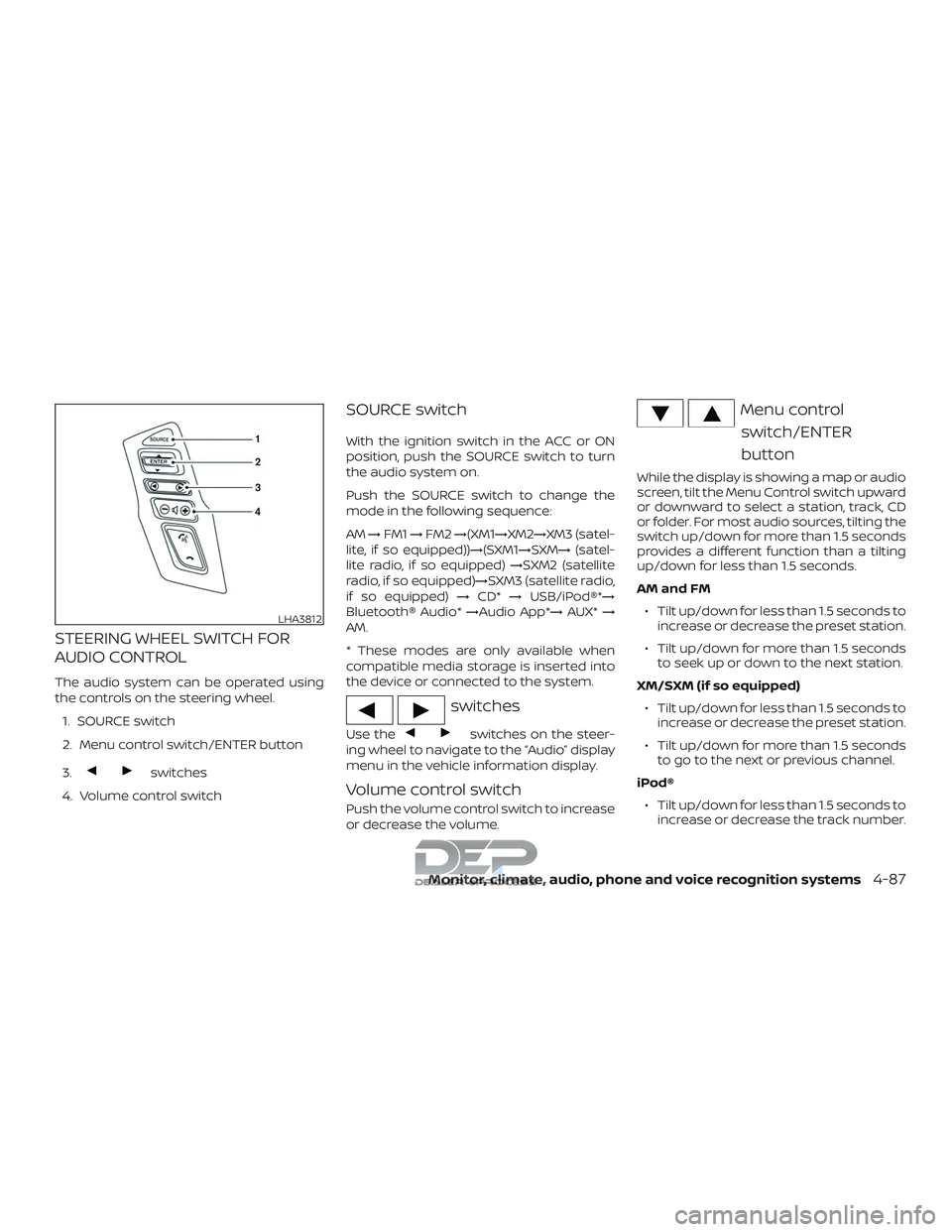
STEERING WHEEL SWITCH FOR
AUDIO CONTROL
The audio system can be operated using
the controls on the steering wheel.1. SOURCE switch
2. Menu control switch/ENTER button
3.
switches
4. Volume control switch
SOURCE switch
With the ignition switch in the ACC or ON
position, push the SOURCE switch to turn
the audio system on.
Push the SOURCE switch to change the
mode in the following sequence:
AM →FM1 →FM2 →(XM1→XM2→XM3 (satel-
lite, if so equipped))→(SXM1→SXM→ (satel-
lite radio, if so equipped) →SXM2 (satellite
radio, if so equipped)→SXM3 (satellite radio,
if so equipped) →CD* →USB/iPod®*→
Bluetooth® Audio* →Audio App*→AUX*→
AM.
* These modes are only available when
compatible media storage is inserted into
the device or connected to the system.
switches
Use theswitches on the steer-
ing wheel to navigate to the “Audio” display
menu in the vehicle information display.
Volume control switch
Push the volume control switch to increase
or decrease the volume.
Menu control
switch/ENTER
button
While the display is showing a map or audio
screen, tilt the Menu Control switch upward
or downward to select a station, track, CD
or folder. For most audio sources, tilting the
switch up/down for more than 1.5 seconds
provides a different function than a tilting
up/down for less than 1.5 seconds.
AM and FM
∙ Tilt up/down for less than 1.5 seconds to increase or decrease the preset station.
∙ Tilt up/down for more than 1.5 seconds to seek up or down to the next station.
XM/SXM (if so equipped) ∙ Tilt up/down for less than 1.5 seconds to increase or decrease the preset station.
∙ Tilt up/down for more than 1.5 seconds to go to the next or previous channel.
iPod® ∙ Tilt up/down for less than 1.5 seconds to increase or decrease the track number.
LHA3812
Monitor, climate, audio, phone and voice recognition systems4-87
Page 338 of 650
NissanConnect® Services is a suite of tele-
matics tools that provide emergency pre-
paredness, remote access, customizable
alerts and convenience services. This fea-
ture is an option on navigation system
equipped vehicles. For additional informa-
tion, refer to the separate NissanConnect®
Owner’s Manual.Apple Siri® Eyes Free personal assistant
can be accessed from the vehicle. Siri Eyes
Free can be accessed in Siri Eyes Free
mode to reduce user distraction. In this
mode, Siri Eyes Free is available for interac-
tion by voice control. Af ter connecting a
compatible Apple device by using
Bluetooth®, Siri Eyes Free can be activated
from the
TALK switch on the steering
wheel.
Siri® is a trademark of Apple Inc., registered
in the U.S. and other countries.
∙ Some Siri Eyes Free functions, such as displaying pictures or opening apps,
may not be available while driving.
∙ For best results, always update your de- vice to the latest sof tware version.
∙ Keep the interior of the vehicle as quiet as possible. Close the windows to elimi-
nate the surrounding noises (traffic
noises, vibration sounds, etc.), which
may prevent the system from recogniz-
ing the voice commands correctly.
∙ For functions that can be used in Siri Eyes Free, please refer to the Apple
website.
REQUIREMENTS
Siri is only available on the iPhone® 4S or
later. Devices released before iPhone® 4S
are not supported by the Siri Eyes Free sys-
tem. Visit www.apple.com/ios/siri for de-
tails about device compatibility.
Siri must be enabled on the phone. Please
check phone settings.
If the device has a lock screen, Siri must be
accessible from the lock screen. Please
check phone settings.
For best results, always update your device
to the latest sof tware version.
NISSANCONNECT® SERVICES (if so
equipped) SIRI® EYES FREE
Monitor, climate, audio, phone and voice recognition systems4-89
Page 339 of 650
SIRI® ACTIVATION
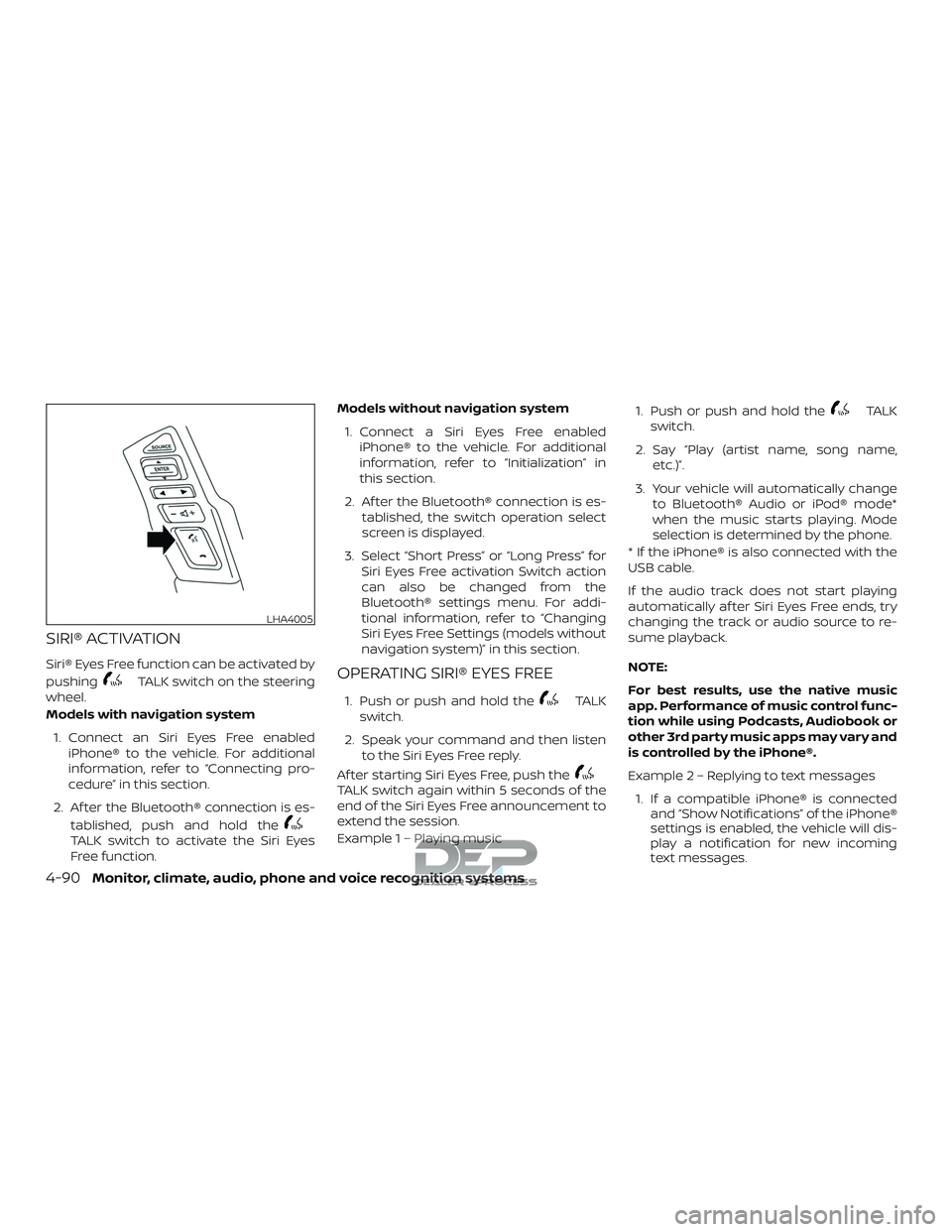
Siri® Eyes Free function can be activated by
pushing
TALK switch on the steering
wheel.
Models with navigation system
1. Connect an Siri Eyes Free enabled iPhone® to the vehicle. For additional
information, refer to “Connecting pro-
cedure” in this section.
2. Af ter the Bluetooth® connection is es- tablished, push and hold the
TALK switch to activate the Siri Eyes
Free function. Models without navigation system
1. Connect a Siri Eyes Free enabled iPhone® to the vehicle. For additional
information, refer to “Initialization” in
this section.
2. Af ter the Bluetooth® connection is es- tablished, the switch operation select
screen is displayed.
3. Select “Short Press” or “Long Press” for Siri Eyes Free activation Switch action
can also be changed from the
Bluetooth® settings menu. For addi-
tional information, refer to “Changing
Siri Eyes Free Settings (models without
navigation system)” in this section.
OPERATING SIRI® EYES FREE
1. Push or push and hold theTALK
switch.
2. Speak your command and then listen to the Siri Eyes Free reply.
Af ter starting Siri Eyes Free, push the
TALK switch again within 5 seconds of the
end of the Siri Eyes Free announcement to
extend the session.
Example 1 – Playing music 1. Push or push and hold the
TALK
switch.
2. Say “Play (artist name, song name, etc.)”.
3. Your vehicle will automatically change to Bluetooth® Audio or iPod® mode*
when the music starts playing. Mode
selection is determined by the phone.
* If the iPhone® is also connected with the
USB cable.
If the audio track does not start playing
automatically af ter Siri Eyes Free ends, try
changing the track or audio source to re-
sume playback.
NOTE:
For best results, use the native music
app. Performance of music control func-
tion while using Podcasts, Audiobook or
other 3rd party music apps may vary and
is controlled by the iPhone®.
Example2–Repl ying to text messages
1. If a compatible iPhone® is connected and “Show Notifications” of the iPhone®
settings is enabled, the vehicle will dis-
play a notification for new incoming
text messages.
LHA4005
4-90Monitor, climate, audio, phone and voice recognition systems
Page 340 of 650
2. Af ter reading the message, push orpush and hold the
TALK switch to
reply using Siri Eyes Free.
3. Af ter a beep sounds, say “Text mes- sage” or a similar command to reply
using Siri Eyes Free.
CHANGING SIRI® EYES FREE
SETTINGS (models without
navigation system)
Settings for Siri® Eyes Free can be found in
the Bluetooth® settings menu. For addi-
tional information, refer to “Bluetooth® set-
tings” in this section.
1. Press the ENTER/SETTING button.
2. Use the TUNE/FOLDER or TUNE/SCROLL knob to select
“Bluetooth” and then press the
ENTER/SETTING button.
3. Use the TUNE/FOLDER or TUNE/SCROLL knob to select “Siri” and
then press the ENTER/SETTING button.
4. Select “Short Press” or “Long Press” us- ing the TUNE/FOLDER or
TUNE/SCROLL knob and then press
the ENTER/SETTING button.
CHANGING SIRI® EYES FREE
SETTINGS (models with
navigation system)
Settings for Siri® Eyes Free can be found in
the Bluetooth® settings menu. For addi-
tional information, refer to “Bluetooth® set-
tings” in this section.
1. Press the [
] button.
2. Touch the “Settings” key.
3. Touch the “Phone & Bluetooth” key.
4. Touch the “Phone settings” key.
5. Select “Short Press” or “Long Press” to set the activation.
Monitor, climate, audio, phone and voice recognition systems4-91
Page 341 of 650
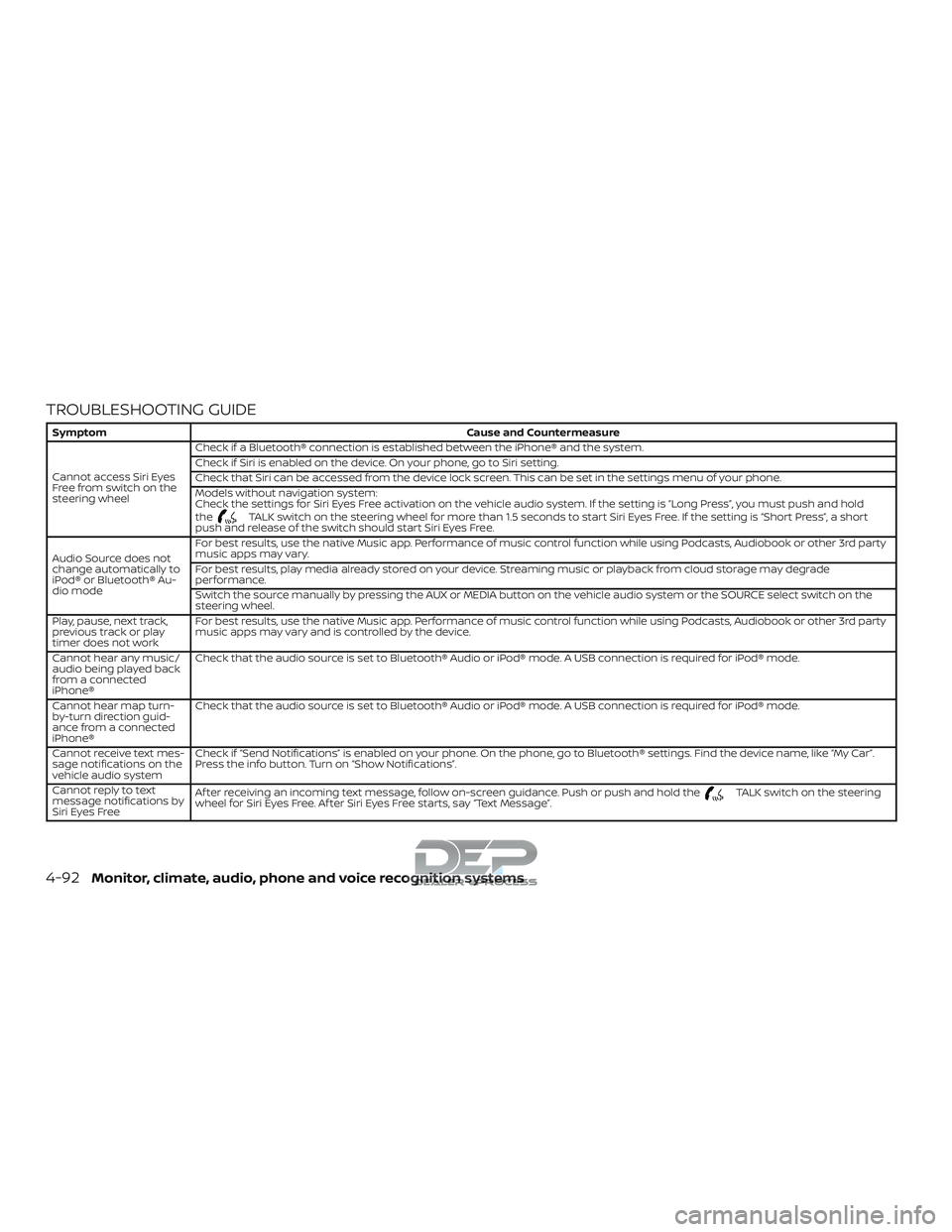
TROUBLESHOOTING GUIDE
SymptomCause and Countermeasure
Cannot access Siri Eyes
Freefromswitchonthe
steering wheel Check if a Bluetooth® connection is established between the iPhone® and the system.
Check if Siri is enabled on the device. On your phone, go to Siri setting.
Check that Siri can be accessed from the device lock screen. This can be set in the settings menu of your phone.
Models without navigation system:
Check the settings for Siri Eyes Free activation on the vehicle audio system. If the setting is “Long Press”, you must push and hold
the
TALK switch on the steering wheel for more than 1.5 seconds to start Siri Eyes Free. If the setting is “Short Press”, a short
push and release of the switch should start Siri Eyes Free.
Audio Source does not
change automatically to
iPod® or Bluetooth® Au-
dio mode For best results, use the native Music app. Performance of music control function while using Podcasts, Audiobook or other 3rd party
music apps may vary.
For best results, play media already stored on your device. Streaming music or playback from cloud storage may degrade
performance.
Switch the source manually by pressing the AUX or MEDIA button on the vehicle audio system or the SOURCE select switch on the
steering wheel.
Play, pause, next track,
previous track or play
timer does not work For best results, use the native Music app. Performance of music control function while using Podcasts, Audiobook or other 3rd party
music apps may vary and is controlled by the device.
Cannot hear any music/
audio being played back
from a connected
iPhone® Check that the audio source is set to Bluetooth® Audio or iPod® mode. A USB connection is required for iPod® mode.
Cannot hear map turn-
by-turn direction guid-
ance from a connected
iPhone® Check that the audio source is set to Bluetooth® Audio or iPod® mode. A USB connection is required for iPod® mode.
Cannot receive text mes-
sage notifications on the
vehicle audio system Check if “Send Notifications” is enabled on your phone. On the phone, go to Bluetooth® settings. Find the device name, like “My Car”.
Press the info button. Turn on “Show Notifications”.
Cannot reply to text
message notifications by
Siri Eyes Free Af ter receiving an incoming text message, follow on-screen guidance. Push or push and hold the
TALK switch on the steering
wheel for Siri Eyes Free. Af ter Siri Eyes Free starts, say “Text Message”.
4-92Monitor, climate, audio, phone and voice recognition systems
Page 349 of 650
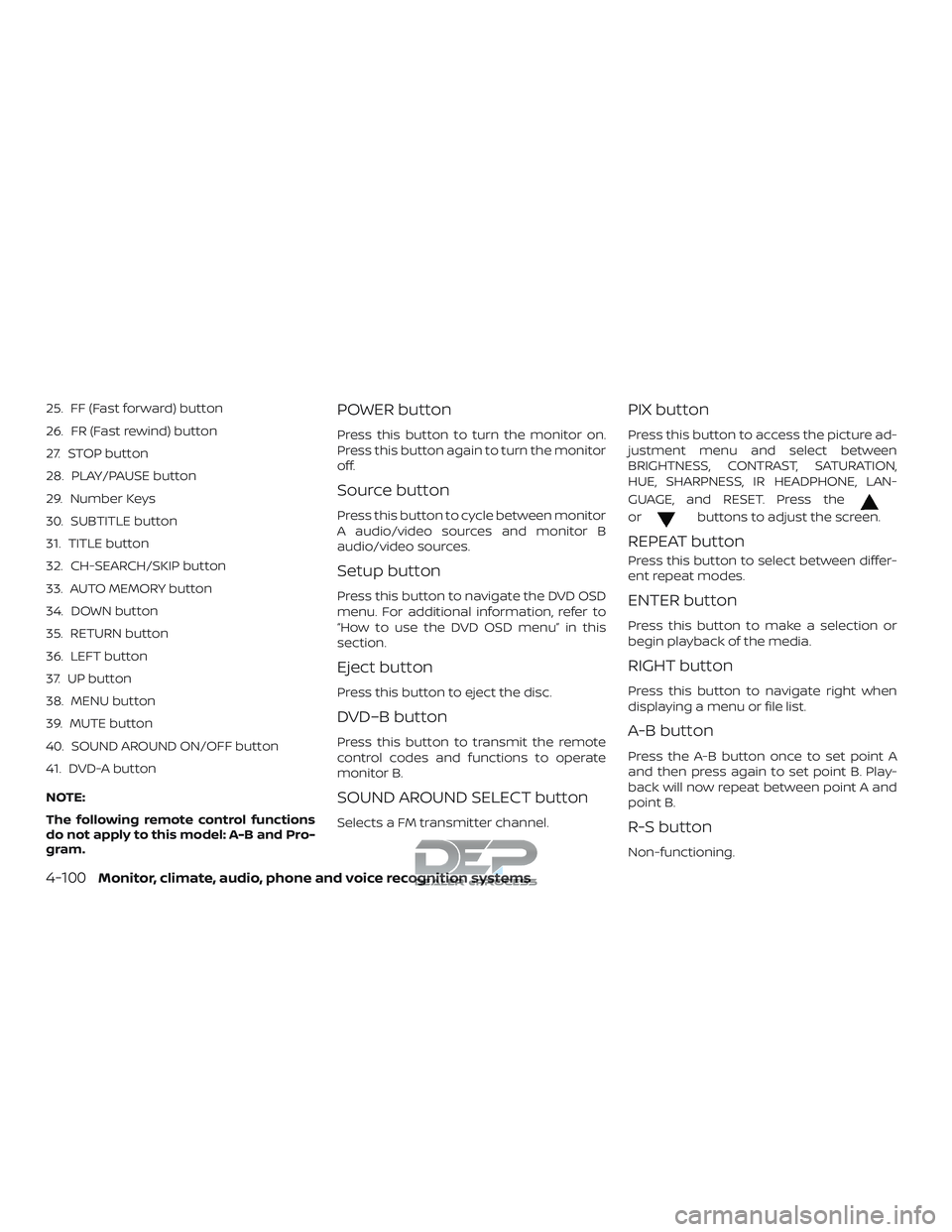
25. FF (Fast forward) button
26. FR (Fast rewind) button
27. STOP button
28. PLAY/PAUSE button
29. Number Keys
30. SUBTITLE button
31. TITLE button
32. CH-SEARCH/SKIP button
33. AUTO MEMORY button
34. DOWN button
35. RETURN button
36. LEFT button
37. UP button
38. MENU button
39. MUTE button
40. SOUND AROUND ON/OFF button
41. DVD-A button
NOTE:
The following remote control functions
do not apply to this model: A-B and Pro-
gram.POWER button
Press this button to turn the monitor on.
Press this button again to turn the monitor
off.
Source button
Press this button to cycle between monitor
A audio/video sources and monitor B
audio/video sources.
Setup button
Press this button to navigate the DVD OSD
menu. For additional information, refer to
“How to use the DVD OSD menu” in this
section.
Eject button
Press this button to eject the disc.
DVD–B button
Press this button to transmit the remote
control codes and functions to operate
monitor B.
SOUND AROUND SELECT button
Selects a FM transmitter channel.
PIX button
Press this button to access the picture ad-
justment menu and select between
BRIGHTNESS, CONTRAST, SATURATION,
HUE, SHARPNESS, IR HEADPHONE, LAN-
GUAGE, and RESET. Press the
orbuttons to adjust the screen.
REPEAT button
Press this button to select between differ-
ent repeat modes.
ENTER button
Press this button to make a selection or
begin playback of the media.
RIGHT button
Press this button to navigate right when
displaying a menu or file list.
A-B button
Press the A-B button once to set point A
and then press again to set point B. Play-
back will now repeat between point A and
point B.
R-S button
Non-functioning.
4-100Monitor, climate, audio, phone and voice recognition systems
Page 350 of 650
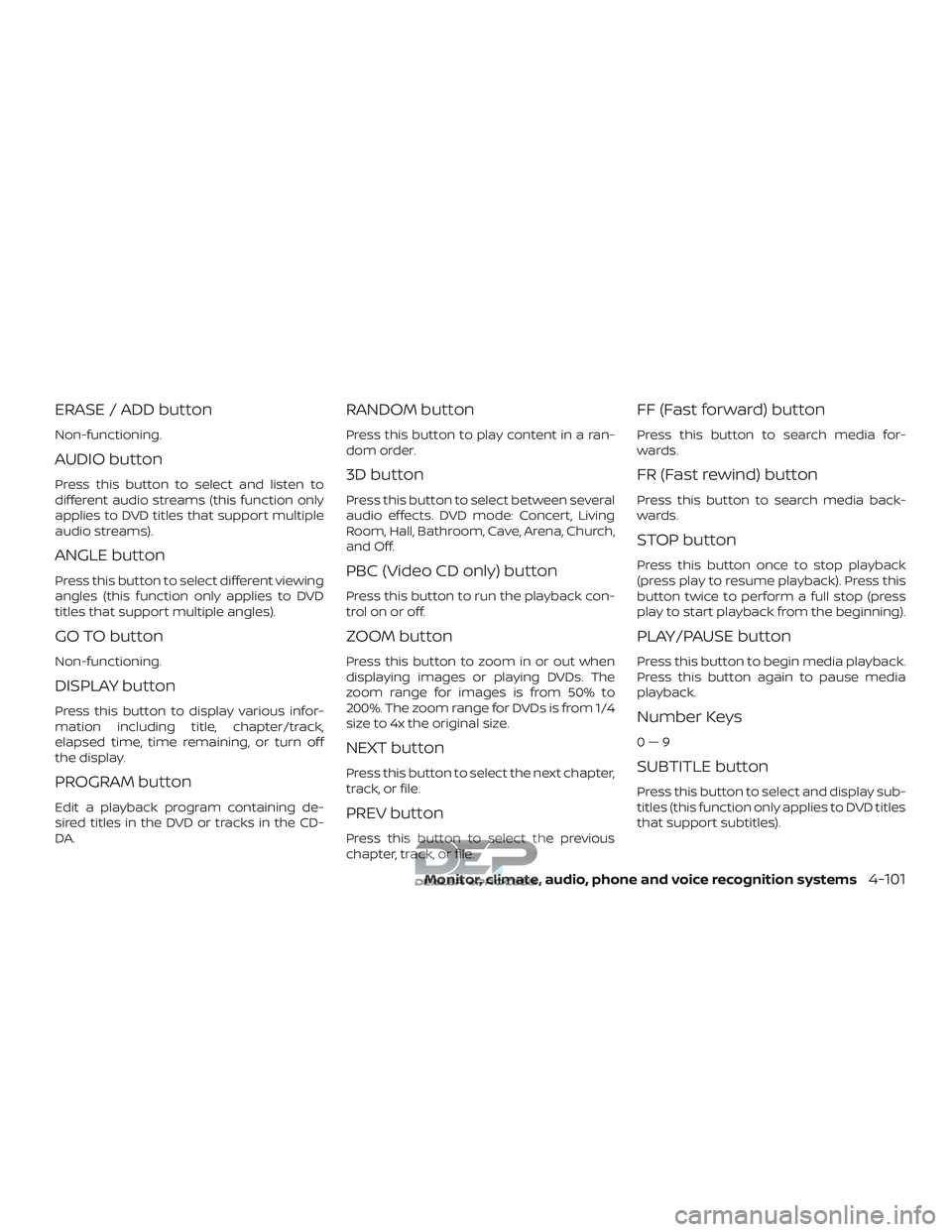
ERASE / ADD button
Non-functioning.
AUDIO button
Press this button to select and listen to
different audio streams (this function only
applies to DVD titles that support multiple
audio streams).
ANGLE button
Press this button to select different viewing
angles (this function only applies to DVD
titles that support multiple angles).
GO TO button
Non-functioning.
DISPLAY button
Press this button to display various infor-
mation including title, chapter/track,
elapsed time, time remaining, or turn off
the display.
PROGRAM button
Edit a playback program containing de-
sired titles in the DVD or tracks in the CD-
DA.
RANDOM button
Press this button to play content in a ran-
dom order.
3D button
Press this button to select between several
audio effects. DVD mode: Concert, Living
Room, Hall, Bathroom, Cave, Arena, Church,
and Off.
PBC (Video CD only) button
Press this button to run the playback con-
trol on or off.
ZOOM button
Press this button to zoom in or out when
displaying images or playing DVDs. The
zoom range for images is from 50% to
200%. The zoom range for DVDs is from 1/4
size to 4x the original size.
NEXT button
Press this button to select the next chapter,
track, or file.
PREV button
Press this button to select the previous
chapter, track, or file.
FF (Fast forward) button
Press this button to search media for-
wards.
FR (Fast rewind) button
Press this button to search media back-
wards.
STOP button
Press this button once to stop playback
(press play to resume playback). Press this
button twice to perform a full stop (press
play to start playback from the beginning).
PLAY/PAUSE button
Press this button to begin media playback.
Press this button again to pause media
playback.
Number Keys
0—9
SUBTITLE button
Press this button to select and display sub-
titles (this function only applies to DVD titles
that support subtitles).
Monitor, climate, audio, phone and voice recognition systems4-101
Page 360 of 650
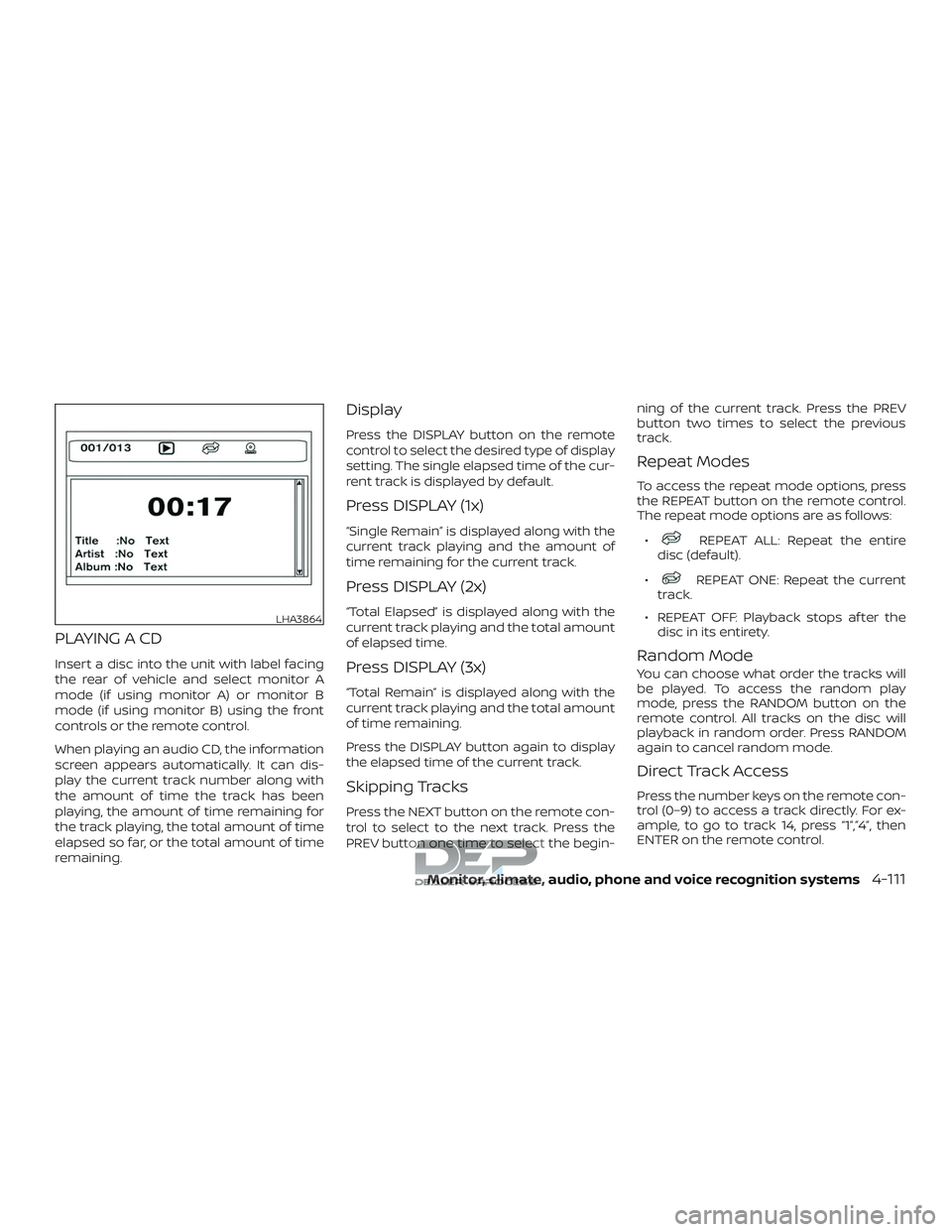
PLAYING A CD
Insert a disc into the unit with label facing
the rear of vehicle and select monitor A
mode (if using monitor A) or monitor B
mode (if using monitor B) using the front
controls or the remote control.
When playing an audio CD, the information
screen appears automatically. It can dis-
play the current track number along with
the amount of time the track has been
playing, the amount of time remaining for
the track playing, the total amount of time
elapsed so far, or the total amount of time
remaining.
Display
Press the DISPLAY button on the remote
control to select the desired type of display
setting. The single elapsed time of the cur-
rent track is displayed by default.
Press DISPLAY (1x)
“Single Remain” is displayed along with the
current track playing and the amount of
time remaining for the current track.
Press DISPLAY (2x)
“Total Elapsed” is displayed along with the
current track playing and the total amount
of elapsed time.
Press DISPLAY (3x)
“Total Remain” is displayed along with the
current track playing and the total amount
of time remaining.
Press the DISPLAY button again to display
the elapsed time of the current track.
Skipping Tracks
Press the NEXT button on the remote con-
trol to select to the next track. Press the
PREV button one time to select the begin-ning of the current track. Press the PREV
button two times to select the previous
track.
Repeat Modes
To access the repeat mode options, press
the REPEAT button on the remote control.
The repeat mode options are as follows:
∙
REPEAT ALL: Repeat the entire
disc (default).
∙
REPEAT ONE: Repeat the current
track.
∙ REPEAT OFF: Playback stops af ter the disc in its entirety.
Random Mode
You can choose what order the tracks will
be played. To access the random play
mode, press the RANDOM button on the
remote control. All tracks on the disc will
playback in random order. Press RANDOM
again to cancel random mode.
Direct Track Access
Press the number keys on the remote con-
trol (0–9) to access a track directly. For ex-
ample, to go to track 14, press “1”,”4”, then
ENTER on the remote control.
LHA3864
Monitor, climate, audio, phone and voice recognition systems4-111
Page 361 of 650
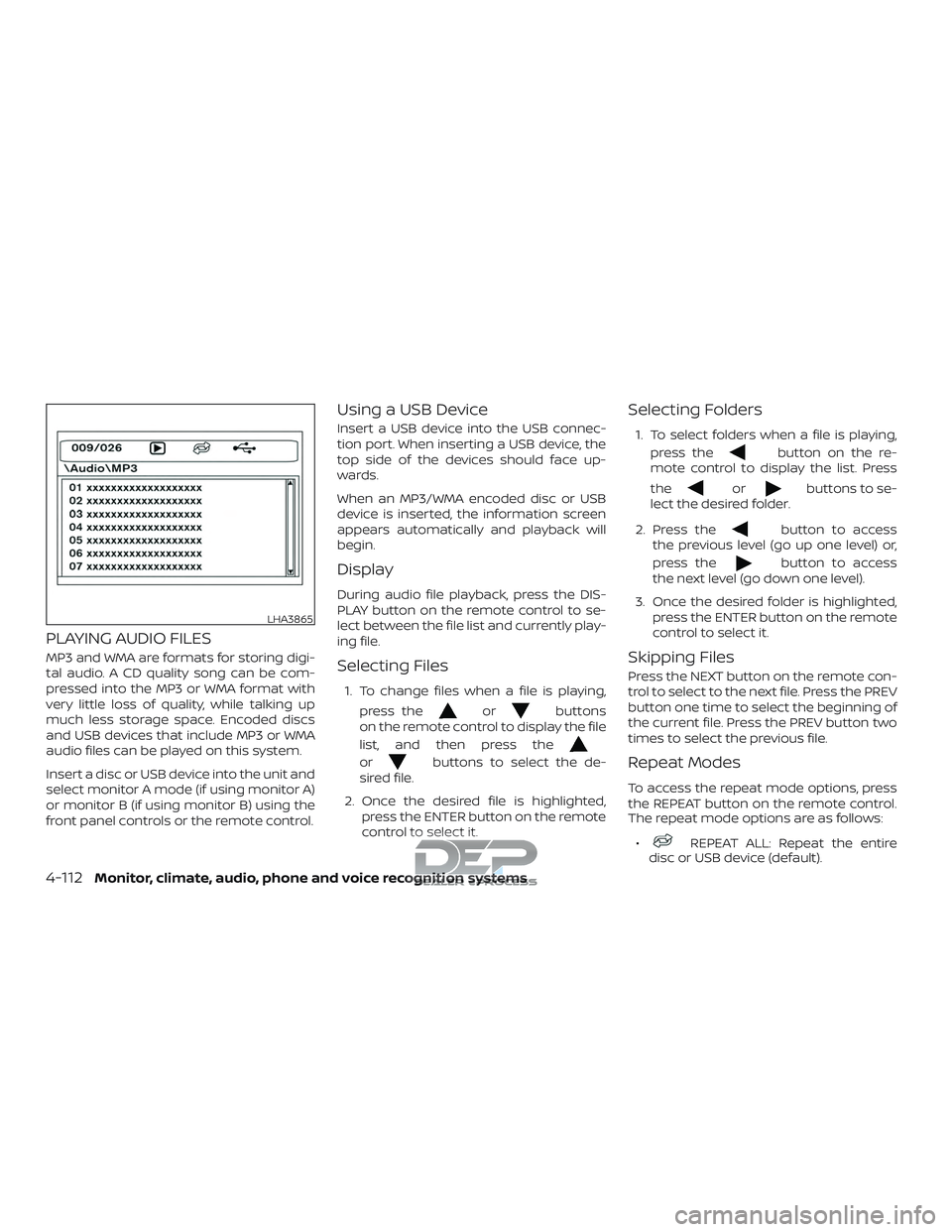
PLAYING AUDIO FILES
MP3 and WMA are formats for storing digi-
tal audio. A CD quality song can be com-
pressed into the MP3 or WMA format with
very little loss of quality, while talking up
much less storage space. Encoded discs
and USB devices that include MP3 or WMA
audio files can be played on this system.
Insert a disc or USB device into the unit and
select monitor A mode (if using monitor A)
or monitor B (if using monitor B) using the
front panel controls or the remote control.
Using a USB Device
Insert a USB device into the USB connec-
tion port. When inserting a USB device, the
top side of the devices should face up-
wards.
When an MP3/WMA encoded disc or USB
device is inserted, the information screen
appears automatically and playback will
begin.
Display
During audio file playback, press the DIS-
PLAY button on the remote control to se-
lect between the file list and currently play-
ing file.
Selecting Files
1. To change files when a file is playing,press the
orbuttons
on the remote control to display the file
list, and then press the
orbuttons to select the de-
sired file.
2. Once the desired file is highlighted, press the ENTER button on the remote
control to select it.
Selecting Folders
1. To select folders when a file is playing,
press the
button on the re-
mote control to display the list. Press
the
orbuttons to se-
lect the desired folder.
2. Press the
button to access
the previous level (go up one level) or,
press the
button to access
the next level (go down one level).
3. Once the desired folder is highlighted, press the ENTER button on the remote
control to select it.
Skipping Files
Press the NEXT button on the remote con-
trol to select to the next file. Press the PREV
button one time to select the beginning of
the current file. Press the PREV button two
times to select the previous file.
Repeat Modes
To access the repeat mode options, press
the REPEAT button on the remote control.
The repeat mode options are as follows:
∙
REPEAT ALL: Repeat the entire
disc or USB device (default).
LHA3865
4-112Monitor, climate, audio, phone and voice recognition systems
Page 362 of 650
∙REPEAT FOLDER: Repeat the cur-
rent folder
∙
REPEAT ONE: Repeat the current
file.
∙ REPEAT OFF: Playback stops af ter the disc or USB device is played in its en-
tirety.
Random Mode
You can choose what order the files will be
played. To access the random play mode,
press the RANDOM button on the remote
control. The files in the current folder will
playback in random order. Press RANDOM
again to cancel random mode.
Direct File Access
Press the number keys on the remote con-
trol (0–9) to access a file directly. For ex-
ample, to go to track 14, press “1”,”4”, then
ENTER on the remote control.
PLAYING IMAGE FILES
Insert a disc or USB device into the unit and
select monitor A mode (if using monitor A)
or monitor B (if using monitor B) using the
front panel controls or the remote control.
Using a USB Device
Insert a USB device into the USB connec-
tion port. When inserting a USB device, the
top side of the devices should face up-
wards.
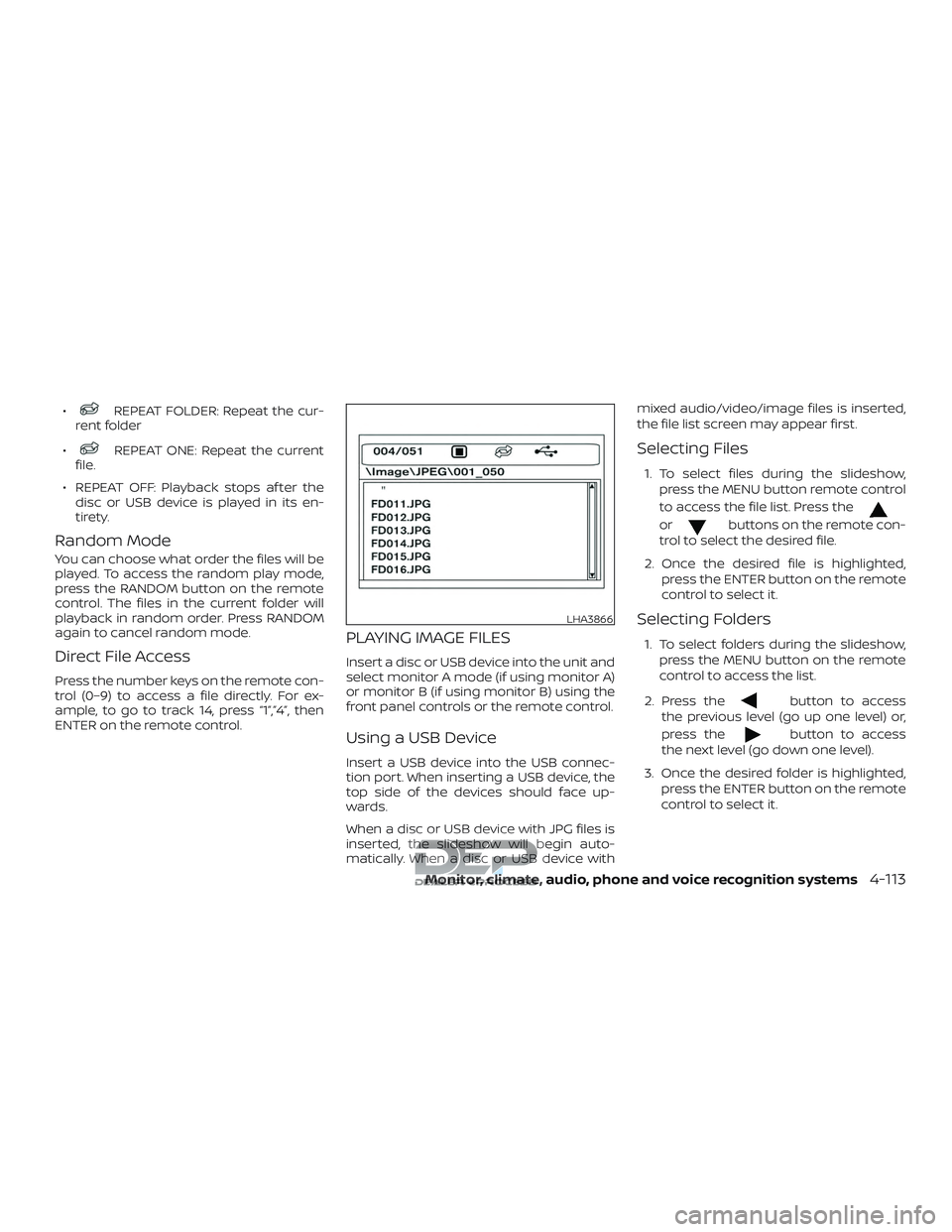
When a disc or USB device with JPG files is
inserted, the slideshow will begin auto-
matically. When a disc or USB device with mixed audio/video/image files is inserted,
the file list screen may appear first.
Selecting Files
1. To select files during the slideshow,
press the MENU button remote control
to access the file list. Press the
orbuttons on the remote con-
trol to select the desired file.
2. Once the desired file is highlighted, press the ENTER button on the remote
control to select it.
Selecting Folders
1. To select folders during the slideshow,press the MENU button on the remote
control to access the list.
2. Press the
button to access
the previous level (go up one level) or,
press the
button to access
the next level (go down one level).
3. Once the desired folder is highlighted, press the ENTER button on the remote
control to select it.
LHA3866
Monitor, climate, audio, phone and voice recognition systems4-113