ECO mode NISSAN TITAN 2018 Owner´s Manual
[x] Cancel search | Manufacturer: NISSAN, Model Year: 2018, Model line: TITAN, Model: NISSAN TITAN 2018Pages: 650, PDF Size: 7.54 MB
Page 363 of 650
Repeat Modes
To access the repeat mode options, press
the REPEAT button on the remote control.
The repeat mode options are as follows:∙
REPEAT ALL: Repeat the entire
disc or USB device (default).
∙
REPEAT FOLDER: Repeat the cur-
rent folder
∙
REPEAT ONE: Repeat the current
file.
∙ REPEAT OFF: Playback stops af ter the disc or USB device is played in its en-
tirety.
Thumbnail Views
1. Press the STOP button on the remote control during the slideshow to display
images in thumbnail mode. Press
the
orand
the
orbuttons on the
remote control to select the desired
language.
2. Once the desired image is highlighted, press the ENTER button on the remote
control to select it.
Rotating Images
During the slideshow, press thebutton on the remote control to rotate the
image 90° clockwise. Press the
button to rotate the image 90° counter-
clockwise.
Inverting Images
During the slideshow, press thebutton on the remote control to invert the
image (Up-Down).
Mirroring Images
During the slideshow, press
the
button on the remote control
to mirror the image (Lef t-Right).
Direct File Access
Press the number keys on the remote con-
trol (0–9) to access a file directly. For ex-
ample, to go to track 14, press “1”,”4”, then
ENTER on the remote control.
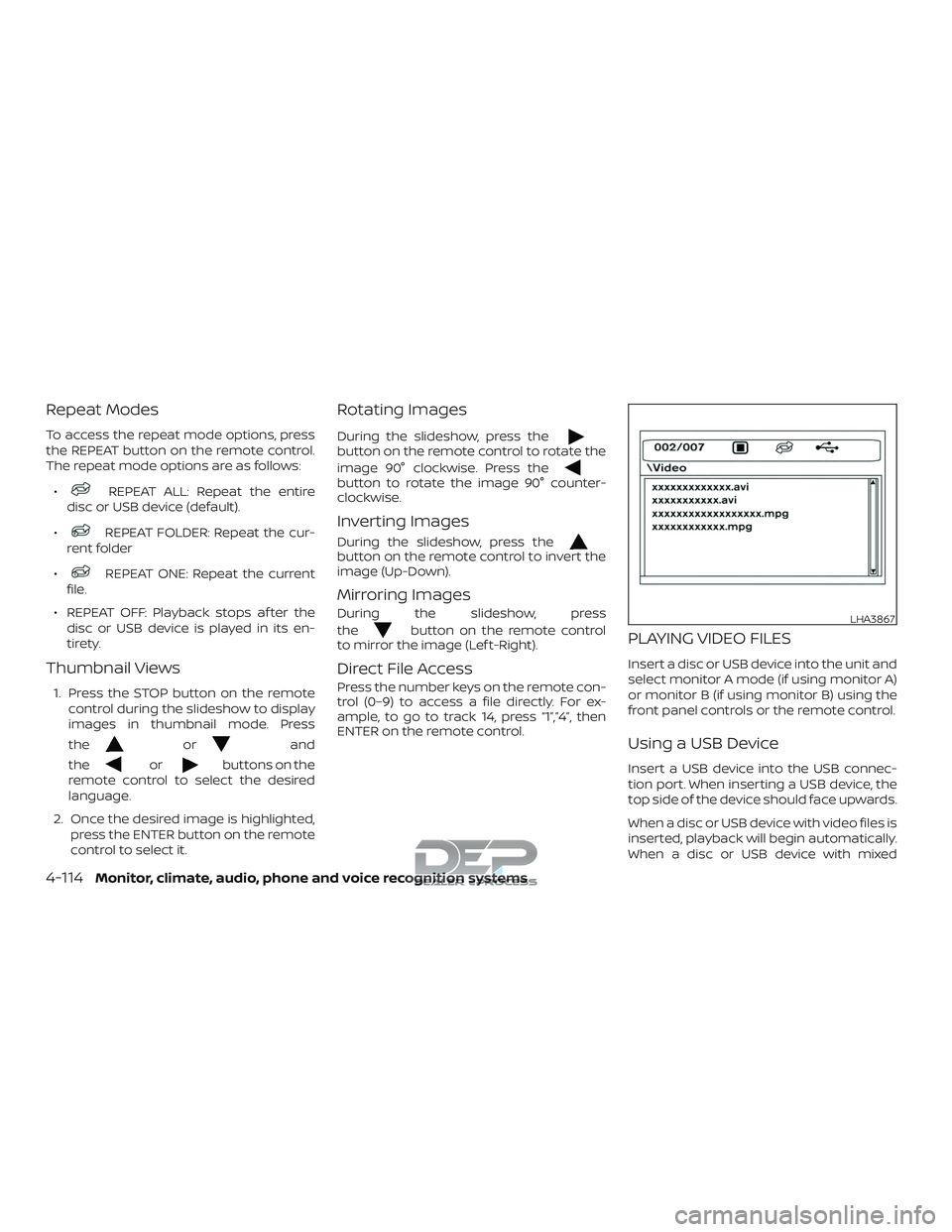
PLAYING VIDEO FILES
Insert a disc or USB device into the unit and
select monitor A mode (if using monitor A)
or monitor B (if using monitor B) using the
front panel controls or the remote control.
Using a USB Device
Insert a USB device into the USB connec-
tion port. When inserting a USB device, the
top side of the device should face upwards.
When a disc or USB device with video files is
inserted, playback will begin automatically.
When a disc or USB device with mixed
LHA3867
4-114Monitor, climate, audio, phone and voice recognition systems
Page 364 of 650
audio/video/image files is inserted, the file
list screen may appear first.
Selecting Files
1. To select files during the video play-back, press the MENU button on the
remote control to access the file list.
Press the
orbuttons
on the remote control to select the de-
sired file.
2. Once the desired file is highlighted, press the ENTER button on the remote
control to select it.
Selecting Folders
1. To select folders during video playback,press the MENU button on the remote
control to access the list.
2. Press the
button to access
the previous level (go up one level) or,
press the
button to access
the next level (go down one level).
3. Once the desired folder is highlighted, press the ENTER button on the remote
control to select it.
Skipping Files
Press the NEXT button on the remote con-
trol to select to the next file. Press the PREV
button one time to select the beginning of
the current file. Press the PREV button two
times to select the previous file.
Repeat Modes
To access the repeat mode options, press
the REPEAT button on the remote control.
The repeat mode options are as follows:
∙
REPEAT ALL: Repeat the entire
disc or USB device (default).
∙
REPEAT FOLDER: Repeat the cur-
rent folder
∙
REPEAT ONE: Repeat the current
file.
∙ REPEAT OFF: Playback stops af ter the disc or USB device is played in its en-
tirety.
Direct File Access
Press the number keys on the remote con-
trol (0–9) to access a file directly. For ex-
ample, to go to track 14, press “1”,”4”, then
ENTER on the remote control.
CHARGING A USB DEVICE
Plug the USB cable (not supplied) into the
USB connection port and then connect the
other end to the USB device.
NOTE:
Depending on the device, it may or may
not charge when connected to the USB
port. Not all devices are able to charge
when connected to the USB port.
CONNECTING AN EXTERNAL
AUXILIARY A/V SOURCE — INPUT
An external A/V source such as a media
player, video game, or other audio/video
device may be connected to the RCA type
jacks on the front of the monitor. Connect
the external audio/video source to the RCA
type input jacks on the front of the monitor
using RCA type connectors (sold sepa-
rately).
Yellow: Video input
Red: Audio-right channel input
White: Audio-lef t channel input
The system will automatically select the
auxiliary input mode when the RCA type
connectors are inserted into the input
Monitor, climate, audio, phone and voice recognition systems4-115
Page 365 of 650
jacks. The auxiliary input connection over-
rides disc and USB playback.
The system provides priority for each of the
following device inputs:1. External RCA A/V input
2. USB port
3. Disc playback
For example if a disc is playing and a USB
device is plugged in, the USB device will
take priority over disc playback. The exter-
nal RCA A/V input connections have prior-
ity over both USB port and disc playback.
CONNECTING AN EXTERNAL A/V
MONITOR — OUTPUT
An external audio/video monitor may be
connected to the 3.5mm A/V connector
(sold separately).
NOTE:
Use the 3.5mm A/V cable made specifi-
cally for the device. An optional adapter
(sold separately) may be used to convert
the 3.5mm A/V output to the standard
RCA jacks.
SELECTING MONITOR A OR B AS
THE SOURCE
It is possible to select monitor B as the
source from monitor A and vice versa. This
will allow content that is playing on monitor
B to be displayed on monitor A.
Monitor A:
To select monitor B as the source for moni-
tor A, press the source button on the front
panel or the remote control until “MONITOR
B” is displayed.
Monitor B:
To select monitor A as the source for moni-
tor B, press the source button on the front
panel or the remote control until “MONITOR
A” is displayed.
TROUBLESHOOTING GUIDE
Symptom Remedy
Monitor does
not power on. Is ignition switch turned to the
ON or ACC position?
Are batteries installed in the re-
mote control?
Check the remote control to
make sure “DVD-A” button is
pressed for controlling monitor
A and “DVD-B” button is pressed
for controlling monitor B.
Symptom Remedy
Remote con-
trol does not
function.
Verif y that the batteries in the
remote control are good.
Verif y that the remote sensor
lens is not obstructed.
Disc will not
play. Insert the disc with label side
facing the rear of the vehicle.
Check if the disc is defective by
trying another disc.
Check the type of disc being
played. This unit only plays DVD
(Single, Dual Layer), DVD-R/+R,
DVD+R Dual layer, DVD-RW/+RW,
CD, CD-R, and CD-RW.
Both the unit and DVD discs are
coded by region. If the region
codes don’t match, the DVD
can’tbeplayed.
Disc plays, but
stops
intermittently. The disc is dirty and needs
cleaning.
Condensation has formed in-
side the unit. Remove the disc
and allow unit to dry out.
No picture. Check the signal source is
connected.
Check the menu source setting.
Match your monitor mode with
the source correctly.
Distorted
picture. Check the disc for fingerprints
and clean with a sof t cloths,
wiping from center to edge.
4-116Monitor, climate, audio, phone and voice recognition systems
Page 369 of 650
When installing a CB, ham radio or car
phone in your vehicle, be sure to observe
the following precautions; otherwise, the
new equipment may adversely affect the
engine control system and other electronic
parts.
WARNING
∙ A cellular phone should not be usedfor any purpose while driving so full
attention may be given to vehicle op-
eration. Some jurisdictions prohibit
the use of cellular phones while
driving.
∙ If you must make a call while your ve- hicle is in motion, the hands free cellu-
lar phone operational mode (if so
equipped) is highly recommended.
Exercise extreme caution at all times
so full attention may be given to ve-
hicle operation.
∙ If you are unable to devote full atten- tion to vehicle operation while talking
on the phone, pull off the road to a
safe location and stop your vehicle.
CAUTION
∙ Keep the antenna as far away as pos-sible from the electronic control
modules.
∙ Keep the antenna wire more than 8 in (20 cm) away from the electronic con-
trol system harnesses. Do not route
the antenna wire next to any harness.
∙ Adjust the antenna standing-wave ratio as recommended by the
manufacturer.
∙ Connect the ground wire from the CB radio chassis to the body.
∙ For additional information, it is rec- ommended that you visit a NISSAN
dealer for this service.
WARNING
∙ Use a phone af ter stopping your ve-hicle in a safe location. If you have to
use a phone while driving, exercise ex-
treme caution at all times so full at-
tention may be given to vehicle
operation.
∙ If you are unable to devote full atten- tion to vehicle operation while talking
on the phone, pull off the road to a
safe location and stop your vehicle.
CAUTION
To avoid discharging the vehicle bat-
tery, use a phone af ter starting the
engine.
CAR PHONE OR CB RADIO BLUETOOTH® HANDS-FREE PHONE
SYSTEM WITHOUT NAVIGATION
SYSTEM (if so equipped)
4-120Monitor, climate, audio, phone and voice recognition systems
Page 381 of 650
∙ Auto Reply MessageSelect to choose the message that is
sent when the Auto Reply function is
enabled. Choose from “I’m Driving” or
one of the three custom messages
stored in the system.
∙ Vehicle Signature On/Off Select to choose whether or not the
vehicle signature is added to outgoing
text messages from the vehicle. This
message cannot be changed or cus-
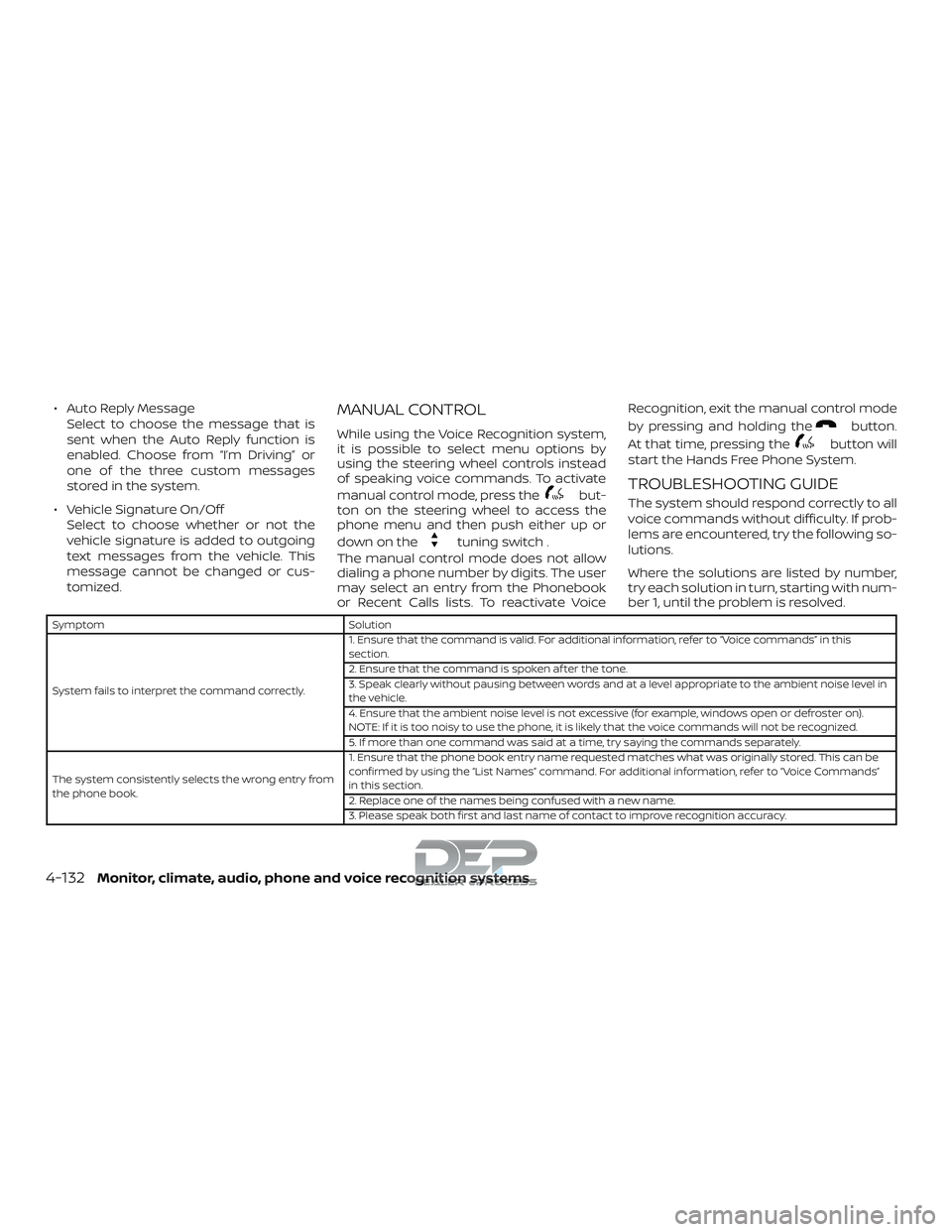
tomized.MANUAL CONTROL
While using the Voice Recognition system,
it is possible to select menu options by
using the steering wheel controls instead
of speaking voice commands. To activate
manual control mode, press the
but-
ton on the steering wheel to access the
phone menu and then push either up or
down on the
tuning switch .
The manual control mode does not allow
dialing a phone number by digits. The user
may select an entry from the Phonebook
or Recent Calls lists. To reactivate Voice Recognition, exit the manual control mode
by pressing and holding the
button.
At that time, pressing the
button will
start the Hands Free Phone System.
TROUBLESHOOTING GUIDE
The system should respond correctly to all
voice commands without difficulty. If prob-
lems are encountered, try the following so-
lutions.
Where the solutions are listed by number,
try each solution in turn, starting with num-
ber 1, until the problem is resolved.
Symptom Solution
System fails to interpret the command correctly. 1. Ensure that the command is valid. For additional information, refer to “Voice commands” in this
section.
2. Ensure that the command is spoken af ter the tone.
3. Speak clearly without pausing between words and at a level appropriate to the ambient noise level in
the vehicle.
4. Ensure that the ambient noise level is not excessive (for example, windows open or defroster on).
NOTE: If it is too noisy to use the phone, it is likely that the voice commands will not be recognized.
5. If more than one command was said at a time, try saying the commands separately.
The system consistently selects the wrong entry from
the phone book. 1. Ensure that the phone book entry name requested matches what was originally stored. This can be
confirmed by using the “List Names” command. For additional information, refer to “Voice Commands”
in this section.
2. Replace one of the names being confused with a new name.
3. Please speak both first and last name of contact to improve recognition accuracy.
4-132Monitor, climate, audio, phone and voice recognition systems
Page 386 of 650
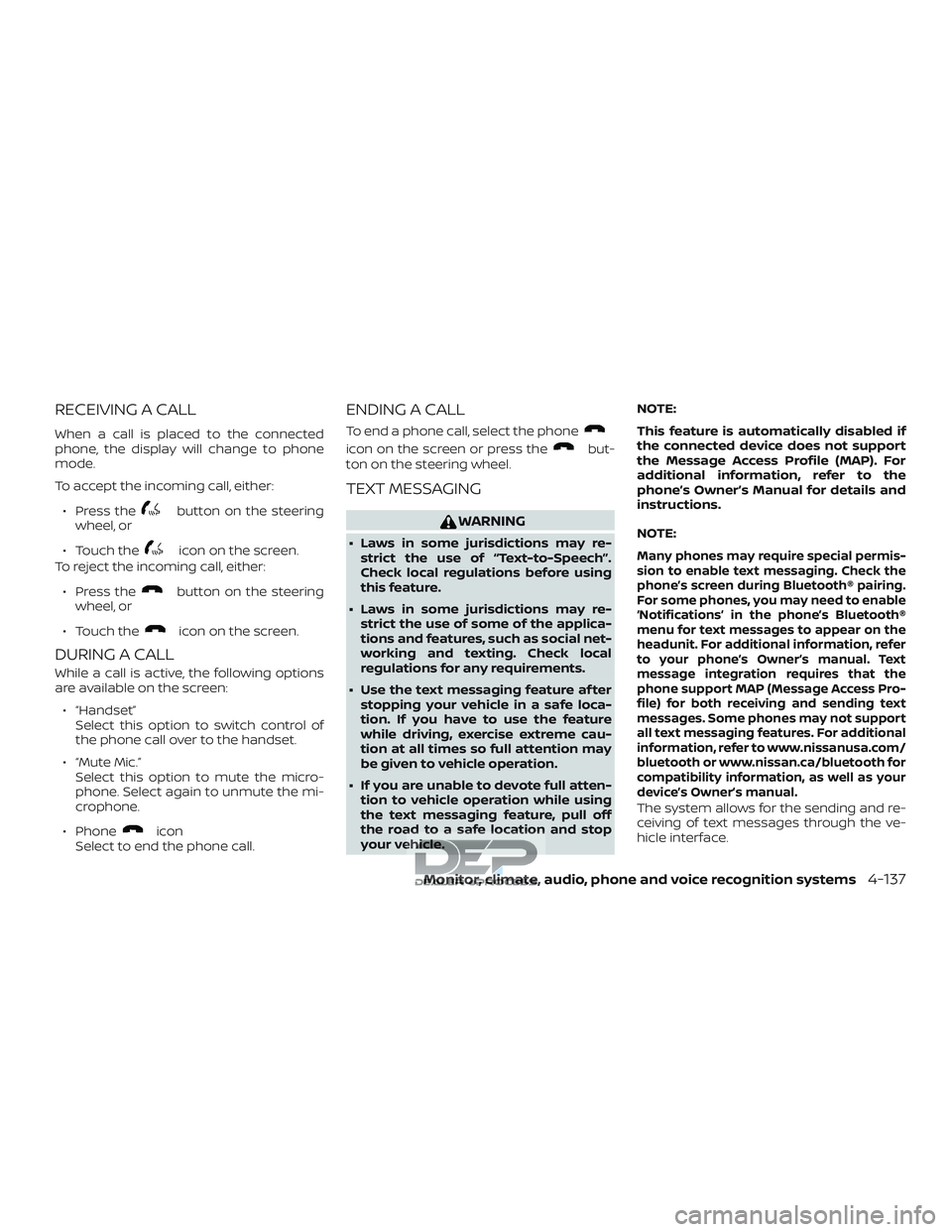
RECEIVING A CALL
When a call is placed to the connected
phone, the display will change to phone
mode.
To accept the incoming call, either:∙ Press the
button on the steering
wheel, or
∙ Touch the
icon on the screen.
To reject the incoming call, either:
∙ Press the
button on the steering
wheel, or
∙ Touch the
icon on the screen.
DURING A CALL
While a call is active, the following options
are available on the screen: ∙ “Handset” Select this option to switch control of
the phone call over to the handset.
∙ “Mute Mic.” Select this option to mute the micro-
phone. Select again to unmute the mi-
crophone.
∙ Phone
icon
Select to end the phone call.
ENDING A CALL
To end a phone call, select the phone
icon on the screen or press thebut-
ton on the steering wheel.
TEXT MESSAGING
WARNING
∙ Laws in some jurisdictions may re- strict the use of “Text-to-Speech”.
Check local regulations before using
this feature.
∙ Laws in some jurisdictions may re- strict the use of some of the applica-
tions and features, such as social net-
working and texting. Check local
regulations for any requirements.
∙ Use the text messaging feature af ter stopping your vehicle in a safe loca-
tion. If you have to use the feature
while driving, exercise extreme cau-
tion at all times so full attention may
be given to vehicle operation.
∙ If you are unable to devote full atten- tion to vehicle operation while using
the text messaging feature, pull off
the road to a safe location and stop
your vehicle. NOTE:
This feature is automatically disabled if
the connected device does not support
the Message Access Profile (MAP). For
additional information, refer to the
phone’s Owner’s Manual for details and
instructions.
NOTE:Many phones may require special permis-
sion to enable text messaging. Check the
phone’s screen during Bluetooth® pairing.
For some phones, you may need to enable
‘Notifications’ in the phone’s Bluetooth®
menu for text messages to appear on the
headunit. For additional information, refer
to your phone’s Owner’s manual. Text
message integration requires that the
phone support MAP (Message Access Pro-
file) for both receiving and sending text
messages. Some phones may not support
all text messaging features. For additional
information, refer to www.nissanusa.com/
bluetooth or www.nissan.ca/bluetooth for
compatibility information, as well as your
device’s Owner’s manual.
The system allows for the sending and re-
ceiving of text messages through the ve-
hicle interface.
Monitor, climate, audio, phone and voice recognition systems4-137
Page 397 of 650
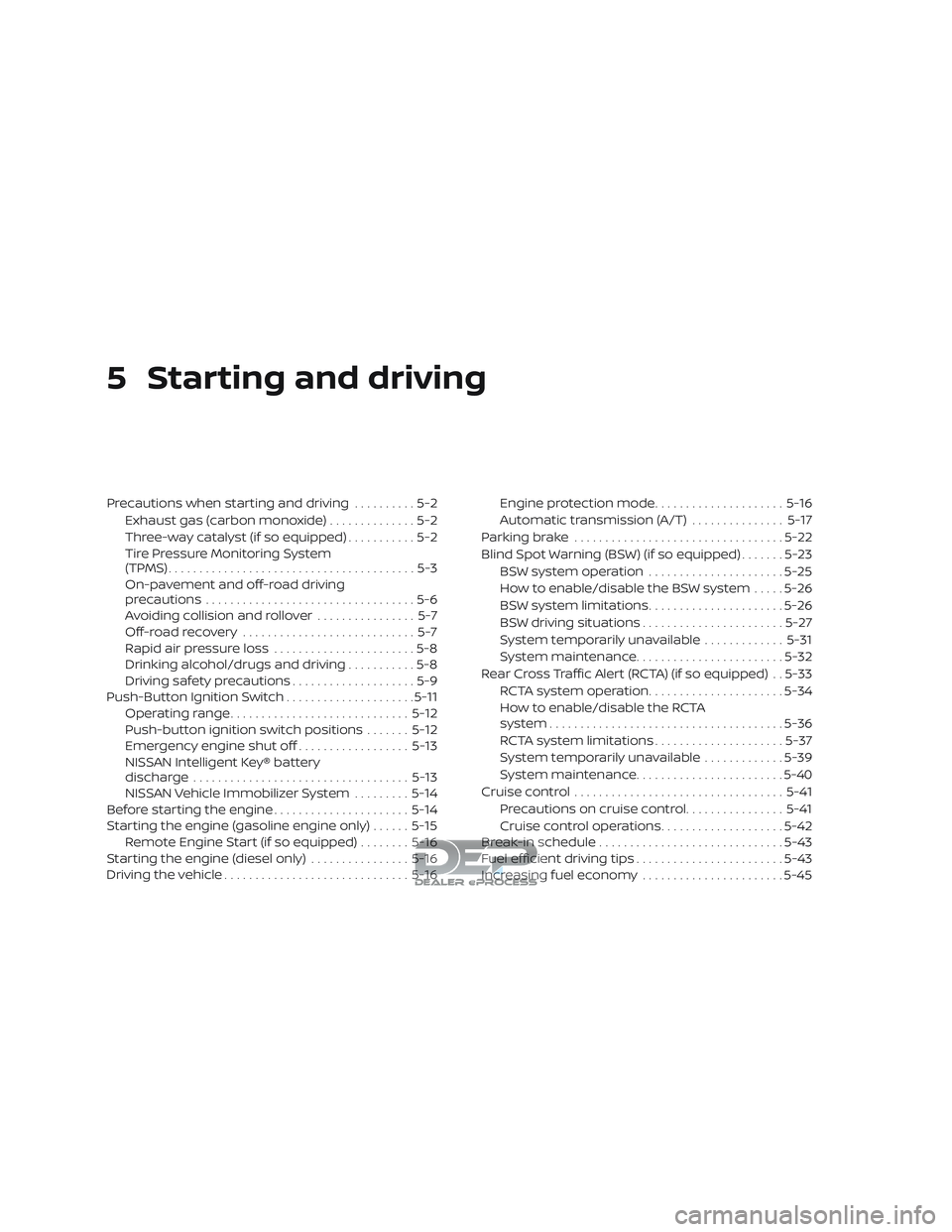
5 Starting and driving
Precautions when starting and driving..........5-2
Exhaust gas (carbon monoxide) ..............5-2
Three-way catalyst (if so equipped) ...........5-2
Tire Pressure Monitoring System
(TPMS)........................................5-3
On-pavement and off-road driving
precautions ..................................5-6
Avoiding collision and rollover ................5-7
Off-roadrecovery ............................5-7
Rapid air pressure loss .......................5-8
Drinking alcohol/drugs and driving ...........5-8
Driving safety precautions ....................5-9
Push-Button Ignition Switch .....................5-11
Operating range ............................. 5-12
Push-button ignition switch positions .......5-12
Emergency engine shut off ..................5-13
NISSAN Intelligent Key® battery
discharge ................................... 5-13
NISSAN Vehicle Immobilizer System .........5-14
Before starting the engine ......................5-14
Starting the engine (gasoline engine only) ......5-15
Remote Engine Start (if so equipped) ........5-16
Starting the engine (diesel only) ................5-16
Driving the vehicle .............................. 5-16Engine protection mode
.....................5-16
Automatic transmission (A/T) ...............5-17
Parking brake .................................. 5-22
Blind Spot Warning (BSW) (if so equipped) .......5-23
BSW system operation ......................5-25
How to enable/disable the BSW system .....5-26
BSW system limitations ......................5-26
BSW driving situations .......................5-27
System temporarily unavailable .............5-31
System maintenance ........................ 5-32
Rear Cross Traffic Alert (RCTA) (if so equipped) . . 5-33 RCTA system operation ......................5-34
How to enable/disable the RCTA
system ...................................... 5-36
RCTA system limitations .....................5-37
System temporarily unavailable .............5-39
System maintenance ........................ 5-40
Cruise control .................................. 5-41
Pr ec
autions on cruise control ................5-41
Cruise control operations ....................5-42
Break-in schedule .............................. 5-43
Fuel efficient driving tips ........................5-43
Increasing fuel economy .......................5-45
Page 412 of 650
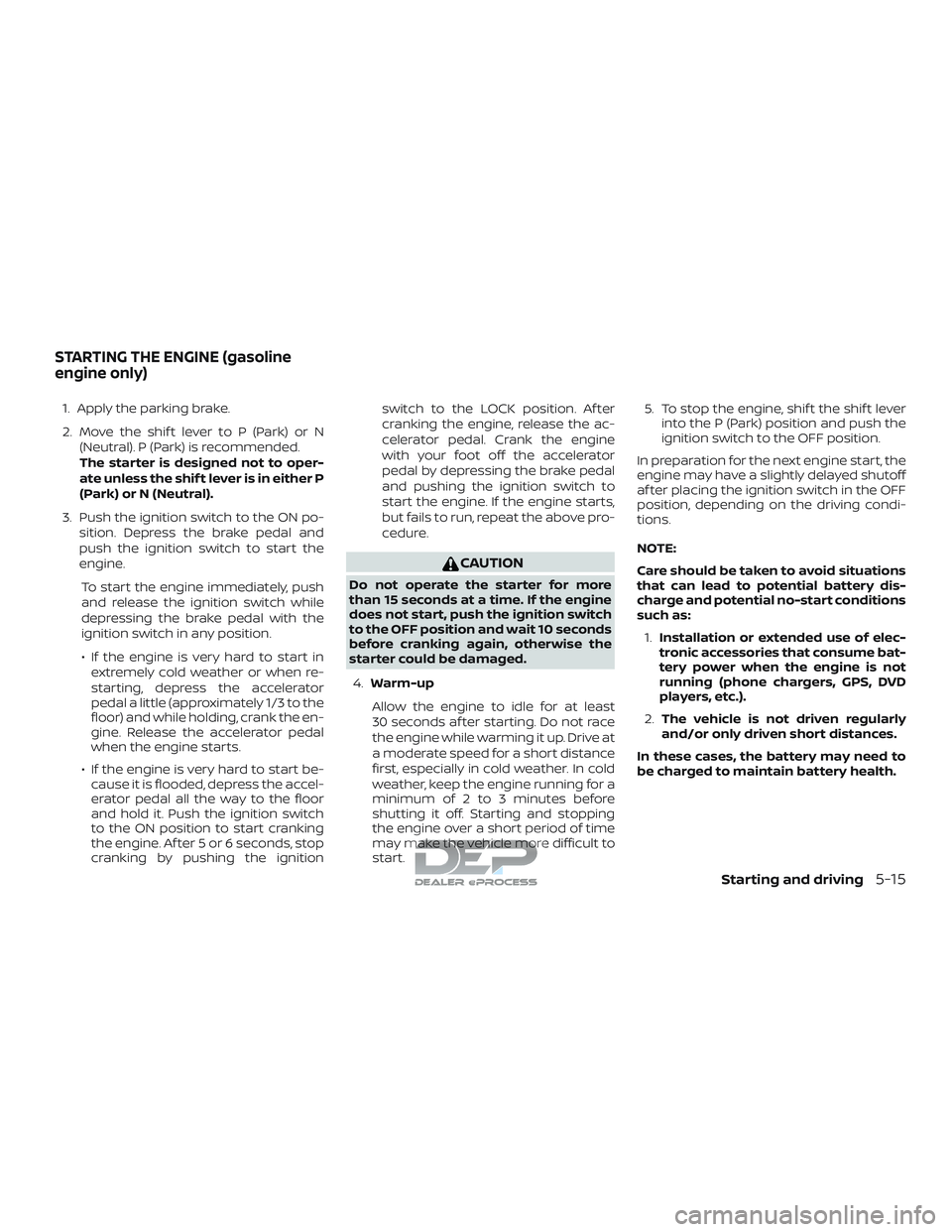
1. Apply the parking brake.
2. Move the shif t lever to P (Park) or N(Neutral). P (Park) is recommended.
The starter is designed not to oper-
ate unless the shif t lever is in either P
(Park) or N (Neutral).
3. Push the ignition switch to the ON po- sition. Depress the brake pedal and
push the ignition switch to start the
engine.
To start the engine immediately, push
and release the ignition switch while
depressing the brake pedal with the
ignition switch in any position.
∙ If the engine is very hard to start in extremely cold weather or when re-
starting, depress the accelerator
pedal a little (approximately 1/3 to the
floor) and while holding, crank the en-
gine. Release the accelerator pedal
when the engine starts.
∙ If the engine is very hard to start be- cause it is flooded, depress the accel-
erator pedal all the way to the floor
and hold it. Push the ignition switch
to the ON position to start cranking
the engine. Af ter 5 or 6 seconds, stop
cranking by pushing the ignition switch to the LOCK position. Af ter
cranking the engine, release the ac-
celerator pedal. Crank the engine
with your foot off the accelerator
pedal by depressing the brake pedal
and pushing the ignition switch to
start the engine. If the engine starts,
but fails to run, repeat the above pro-
cedure.
CAUTION
Do not operate the starter for more
than 15 seconds at a time. If the engine
does not start, push the ignition switch
to the OFF position and wait 10 seconds
before cranking again, otherwise the
starter could be damaged.
4. Warm-up
Allow the engine to idle for at least
30 seconds af ter starting. Do not race
the engine while warming it up. Drive at
a moderate speed for a short distance
first, especially in cold weather. In cold
weather, keep the engine running for a
minimum of 2 to 3 minutes before
shutting it off. Starting and stopping
the engine over a short period of time
may make the vehicle more difficult to
start. 5. To stop the engine, shif t the shif t lever
into the P (Park) position and push the
ignition switch to the OFF position.
In preparation for the next engine start, the
engine may have a slightly delayed shutoff
af ter placing the ignition switch in the OFF
position, depending on the driving condi-
tions.
NOTE:
Care should be taken to avoid situations
that can lead to potential battery dis-
charge and potential no-start conditions
such as: 1. Installation or extended use of elec-
tronic accessories that consume bat-
tery power when the engine is not
running (phone chargers, GPS, DVD
players, etc.).
2. The vehicle is not driven regularly
and/or only driven short distances.
In these cases, the battery may need to
be charged to maintain battery health.
STARTING THE ENGINE (gasoline
engine only)
Starting and driving5-15
Page 413 of 650
REMOTE ENGINE START (if so
equipped)
Vehicles started with the Remote Engine
Start require the ignition switch to be
placed in the ON position before the shif t
lever can be moved from the P (Park) posi-
tion. To place the ignition switch in the ON
position, follow these steps:1. Make sure that the Intelligent Key is on you.
2. Apply the brake.
3. Push the ignition switch once to the ON position.
For additional information, refer to “NISSAN
Intelligent Key®” in the “Pre-driving checks
and adjustments” section of this manual. For additional information on starting your
diesel engine, refer to your Titan Diesel
Owner’s Manual.
ENGINE PROTECTION MODE
The engine has an engine protection mode
to reduce the chance of damage if the
coolant temperature becomes too high
(for example, when climbing steep grades
in high temperatures with heavy loads,
such as when towing a trailer). When the
engine temperature reaches a certain
level:
∙ The engine coolant temperature gauge will move toward the H position.
∙ Engine power may be reduced.
∙ The air conditioning cooling function may be automatically turned off for a
short time (the blower will continue to
operate).
Engine power and, under some conditions,
vehicle speed will decrease. Vehicle speed
can be controlled with the accelerator
pedal, but the vehicle may not accelerate at
the desired speed. The transmission will
downshif t or upshif t as it reaches pre-
scribed shif t points. You can also shif t
manually.
As driving conditions change and engine
coolant temperature is reduced, vehicle
speed can be increased using the accel-
STARTING THE ENGINE (diesel only) DRIVING THE VEHICLE
5-16Starting and driving
Page 418 of 650
When canceling the manual shif t mode
Press and hold the +(UP) button to return
the transmission to the normal driving
mode.∙ In the manual shif t mode, the trans-
mission may not shif t to the selected
gear immediately because of vehicle
speed. The transmission will up or
down shif t when vehicle speed
matches the programmed transmis-
sion shif t points. This helps maintain
driving performance and reduces the
chance of vehicle damage or loss of
control.
∙ In the manual shif t mode, the trans-
mission will not up shif t to a higher
gear than is manually selected. When
the vehicle speed decreases, the
transmission automatically shif ts
down and shif ts to 1st gear before the
vehicle comes to a stop.
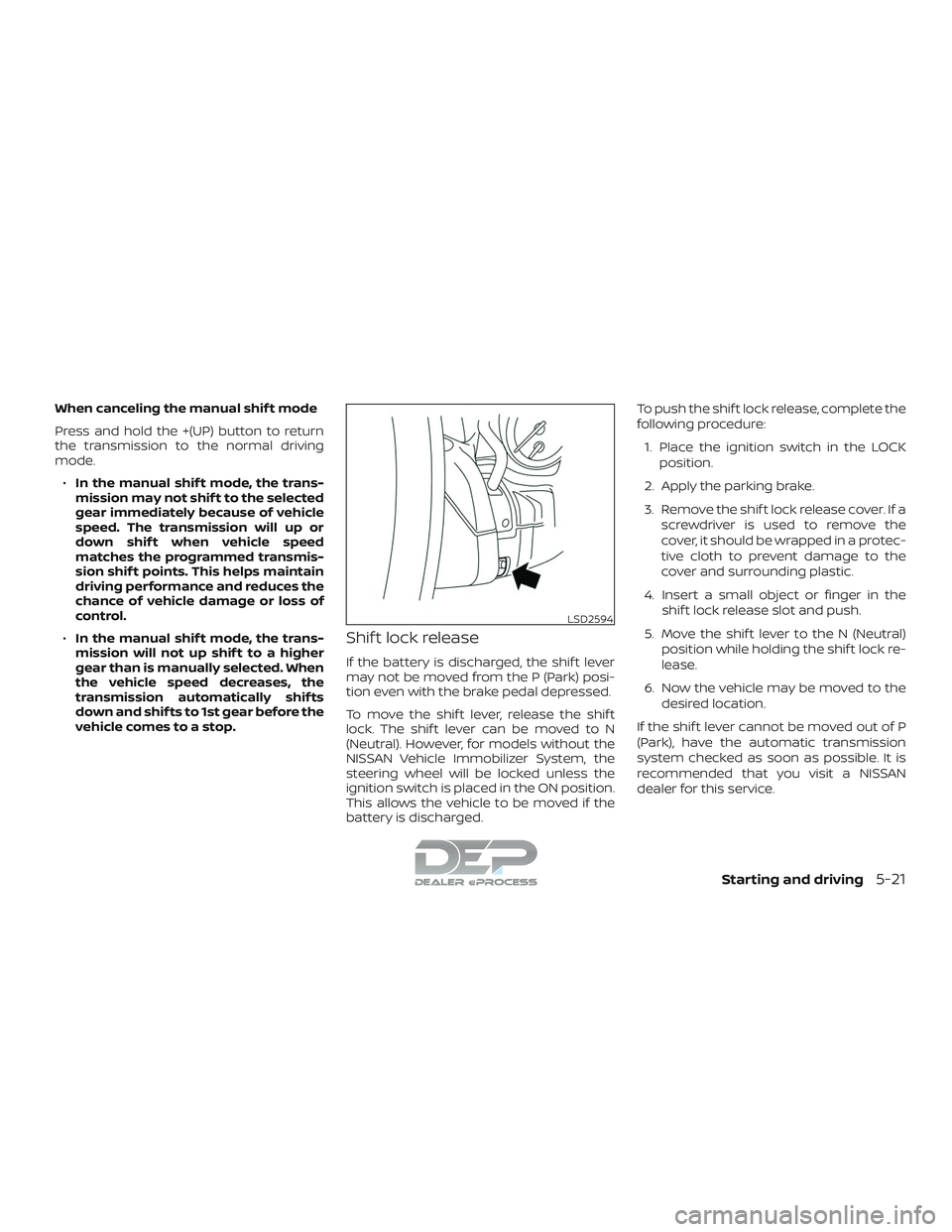
Shif t lock release
If the battery is discharged, the shif t lever
may not be moved from the P (Park) posi-
tion even with the brake pedal depressed.
To move the shif t lever, release the shif t
lock. The shif t lever can be moved to N
(Neutral). However, for models without the
NISSAN Vehicle Immobilizer System, the
steering wheel will be locked unless the
ignition switch is placed in the ON position.
This allows the vehicle to be moved if the
battery is discharged. To push the shif t lock release, complete the
following procedure:
1. Place the ignition switch in the LOCK position.
2. Apply the parking brake.
3. Remove the shif t lock release cover. If a screwdriver is used to remove the
cover, it should be wrapped in a protec-
tive cloth to prevent damage to the
cover and surrounding plastic.
4. Insert a small object or finger in the shif t lock release slot and push.
5. Move the shif t lever to the N (Neutral) position while holding the shif t lock re-
lease.
6. Now the vehicle may be moved to the desired location.
If the shif t lever cannot be moved out of P
(Park), have the automatic transmission
system checked as soon as possible. It is
recommended that you visit a NISSAN
dealer for this service.
LSD2594
Starting and driving5-21