light NISSAN TITAN 2019 Owner´s Manual
[x] Cancel search | Manufacturer: NISSAN, Model Year: 2019, Model line: TITAN, Model: NISSAN TITAN 2019Pages: 682, PDF Size: 7.99 MB
Page 309 of 682
Power up tips
1. Af ter the ignition is turned on, there is a12 second delay before the
monitor
(power) button is oper-
able.
2. On some vehicles af ter the ignition is turned off, the system will continue to
work for 10 minutes, or until the driver’s
door is opened.
3. Remember to turn the monitor off and pivot the screen to the locked (latched)
position when not in use.
Audio options
Wireless headphones
Each monitor includes a built-in dual chan-
nel infrared transmitter for use with wire-
less headphones. The wireless head-
phones must be used within a line of sight
from the transmitter as infrared signals, like
visible light, travel only in a straight line.
How to use the wireless headphones
When placing the headphones on your
head, make sure to observe the lef t and
right orientation. The headphones must be
oriented correctly (facing forward) to re-
ceive the audio signal. Press
the
(power) button on the head- phones, then select channel “A” to listen to
monitor A, or channel “B” to listen to moni-
tor B. Adjust the audio level using the vol-
ume control on each headphone.
Wired headphones
There is a 3.5mm stereo headphone out-
put on each monitor which can be used
with most standard stereo headphones
(wired headphones sold separately).
Bluetooth® streaming audio
To listen to audio throughout the entire ve-
hicle, the system includes the ability to
stream audio over a Bluetooth® connec-
tion to the vehicle’s stereo system.
When monitor A is selected as the source
to stream from, the audio output to the
wireless and wired headphones will be dis-
abled (only on monitor A). To use the wire-
less or wired headphones with monitor A,
you must turn off the Bluetooth® stream-
ing feature. To enable/disable Bluetooth®
streaming, navigate to the “SETTINGS”
menu, or press
on the remote control
during content playback. For additional in-
formation, refer to “Settings” in this section.
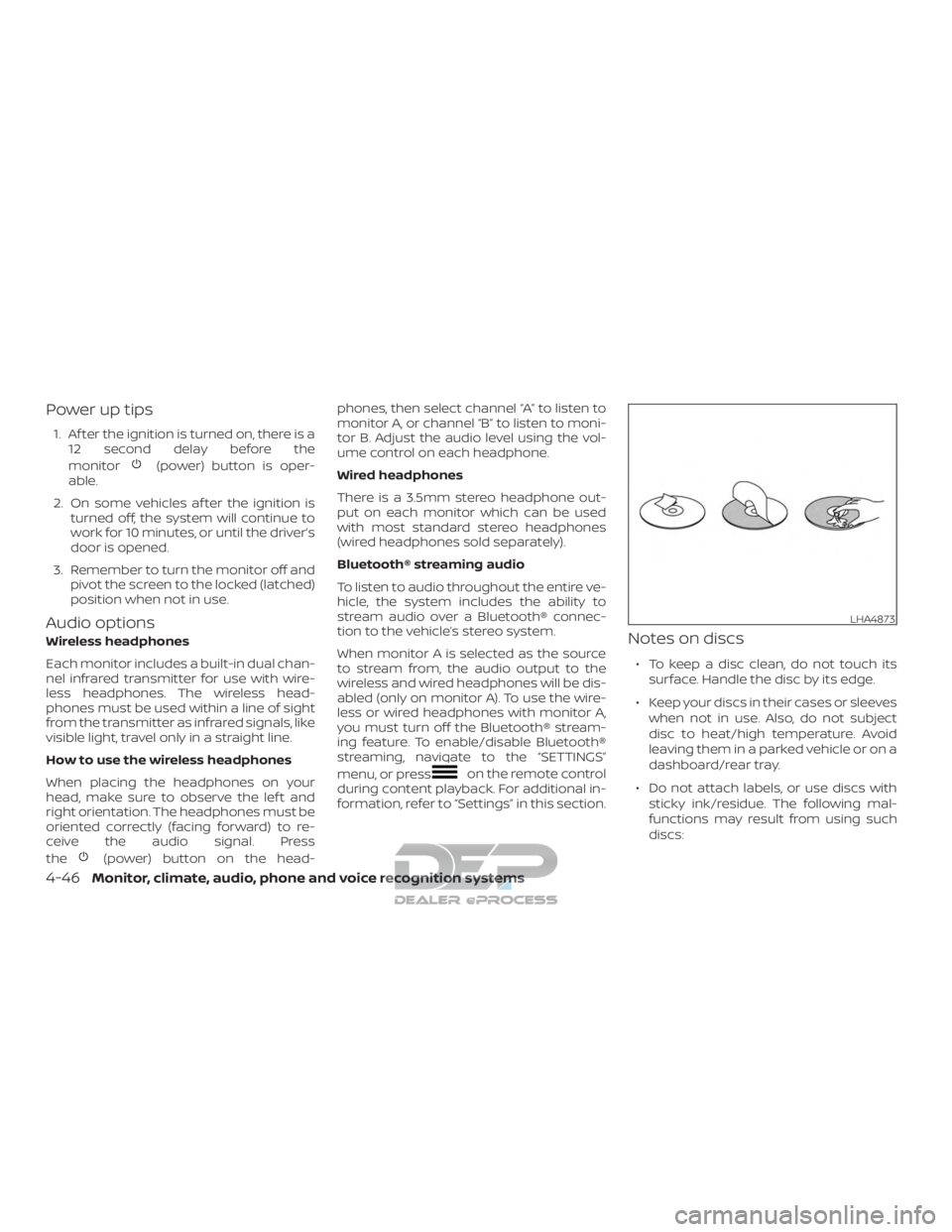
Notes on discs
∙ To keep a disc clean, do not touch its
surface. Handle the disc by its edge.
∙ Keep your discs in their cases or sleeves when not in use. Also, do not subject
disc to heat/high temperature. Avoid
leaving them in a parked vehicle or on a
dashboard/rear tray.
∙ Do not attach labels, or use discs with sticky ink/residue. The following mal-
functions may result from using such
discs:
LHA4873
4-46Monitor, climate, audio, phone and voice recognition systems
Page 315 of 682
9.Power (Monitor A)
Press this button to turn the monitor
on. Press again to turn the monitor off.
Press and hold for 6 seconds to reset
the system (Monitor A only)
Power (Monitor B)
Press this button to turn the monitor
on. Press again to turn the monitor off.
10. Disc slot
Play DVDs and CDs using standard size
DVD or CD discs.
CAUTION
∙ Do not use any harsh solvents or chemicals when cleaning the monitor.
∙ Do not use any abrasive cleaners that may scratch the screen. Use only a
lightly dampened lint free cloth to
wipe the screen if it is dirty.
∙ The LCD display screen is not touch- screen. Do not put pressure or add
suction cups on the screen.
∙ Caution children to avoid touching or scratching the screen, as it may be-
come dirty or damaged.
∙ Place the monitor in the fully closed position when not in use.REMOTE CONTROL OPERATION
Before use
Before attempting to operate your remote
control, turn the remote control face down
and remove the battery insulator by pulling
the clear plastic tab away from the remote
control.
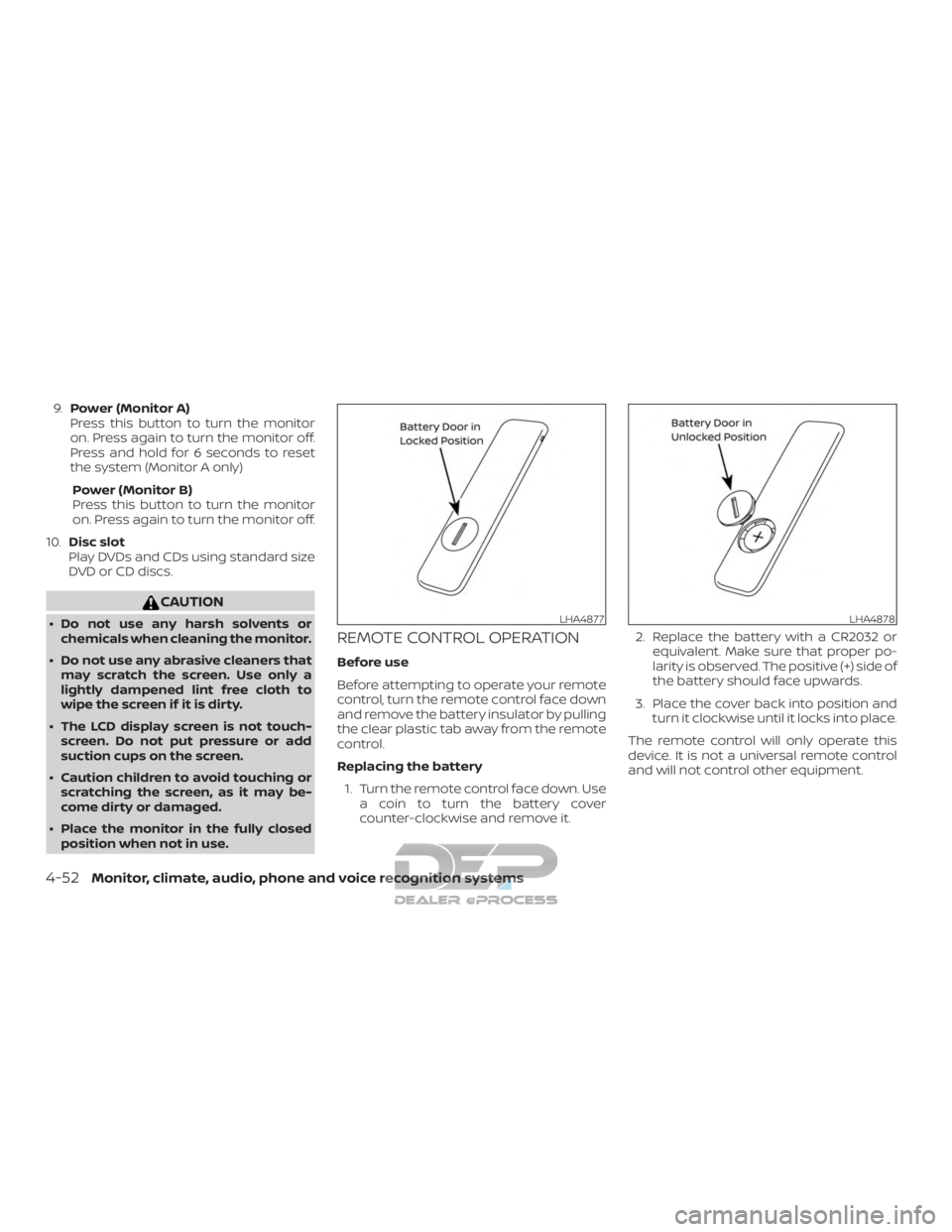
Replacing the battery
1. Turn the remote control face down. Use a coin to turn the battery cover
counter-clockwise and remove it. 2. Replace the battery with a CR2032 or
equivalent. Make sure that proper po-
larity is observed. The positive (+) side of
the battery should face upwards.
3. Place the cover back into position and turn it clockwise until it locks into place.
The remote control will only operate this
device. It is not a universal remote control
and will not control other equipment.
LHA4877LHA4878
4-52Monitor, climate, audio, phone and voice recognition systems
Page 319 of 682
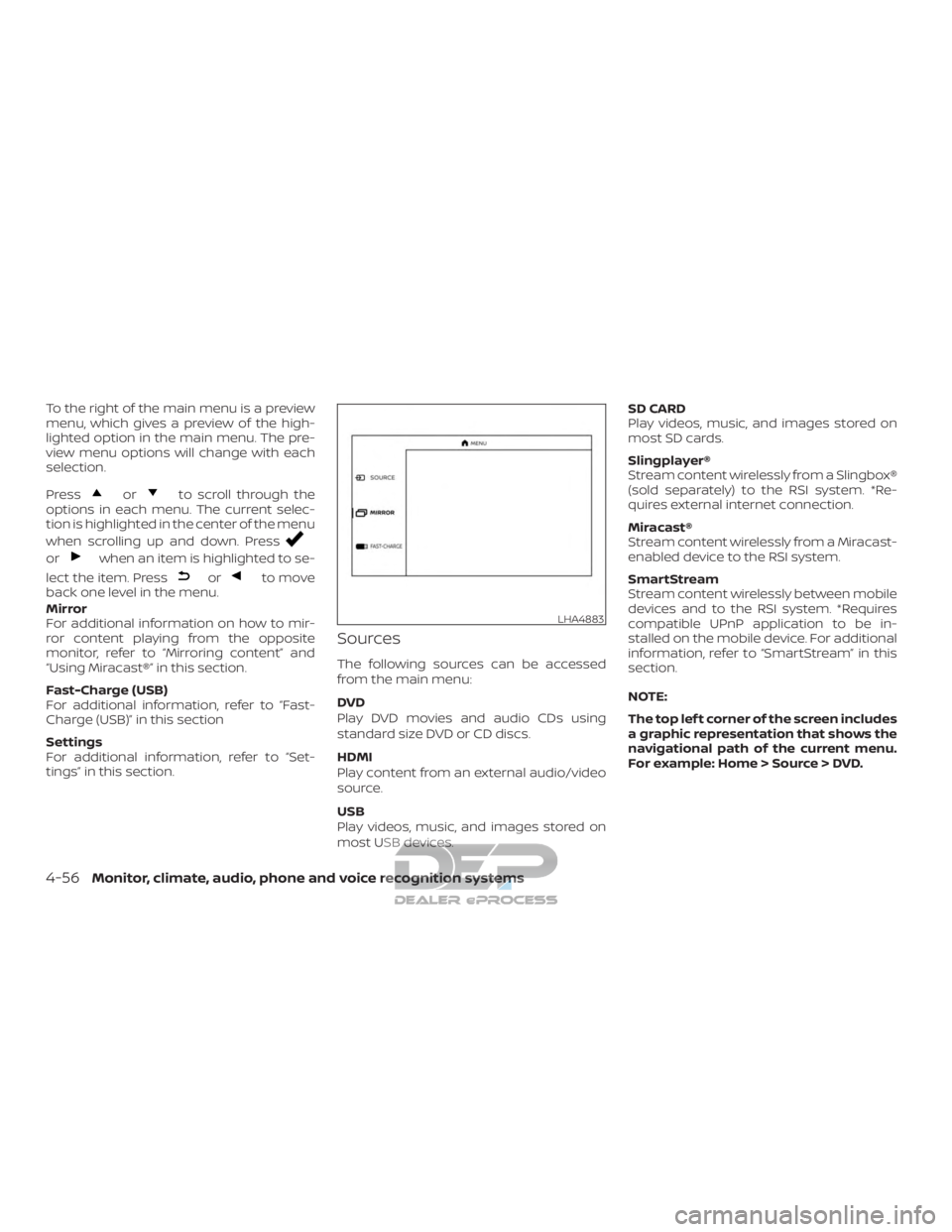
To the right of the main menu is a preview
menu, which gives a preview of the high-
lighted option in the main menu. The pre-
view menu options will change with each
selection.
Press
orto scroll through the
options in each menu. The current selec-
tion is highlighted in the center of the menu
when scrolling up and down. Press
orwhen an item is highlighted to se-
lect the item. Press
orto move
back one level in the menu.
Mirror
For additional information on how to mir-
ror content playing from the opposite
monitor, refer to “Mirroring content” and
“Using Miracast®” in this section.
Fast-Charge (USB)
For additional information, refer to “Fast-
Charge (USB)” in this section
Settings
For additional information, refer to “Set-
tings” in this section.
Sources
The following sources can be accessed
from the main menu:
DVD
Play DVD movies and audio CDs using
standard size DVD or CD discs.
HDMI
Play content from an external audio/video
source.
USB
Play videos, music, and images stored on
most USB devices. SD CARD
Play videos, music, and images stored on
most SD cards.
Slingplayer®
Stream content wirelessly from a Slingbox®
(sold separately) to the RSI system. *Re-
quires external internet connection.
Miracast®
Stream content wirelessly from a Miracast-
enabled device to the RSI system.
SmartStream
Stream content wirelessly between mobile
devices and to the RSI system. *Requires
compatible UPnP application to be in-
stalled on the mobile device. For additional
information, refer to “SmartStream” in this
section.
NOTE:
The top lef t corner of the screen includes
a graphic representation that shows the
navigational path of the current menu.
For example: Home > Source > DVD.
LHA4883
4-56Monitor, climate, audio, phone and voice recognition systems
Page 321 of 682
Some DVDs may start at the root menu,
where playback must be selected to start a
movie. Use the remote control or front
panel buttons to navigate through the DVD
menu and begin playback.
The system supports DVD parental con-
trols that provide the ability to limit content
playback based on the Motion Picture As-
sociation of America (MPAA) ratings. For
additional information, refer to “About pa-
rental lock” in this section.
Mirroring content
To mirror the content of the opposite
monitor, using the directional pad on the
remote, select “MIRROR” from the Home
Screen. This will allow the identical content
to play on both monitors.
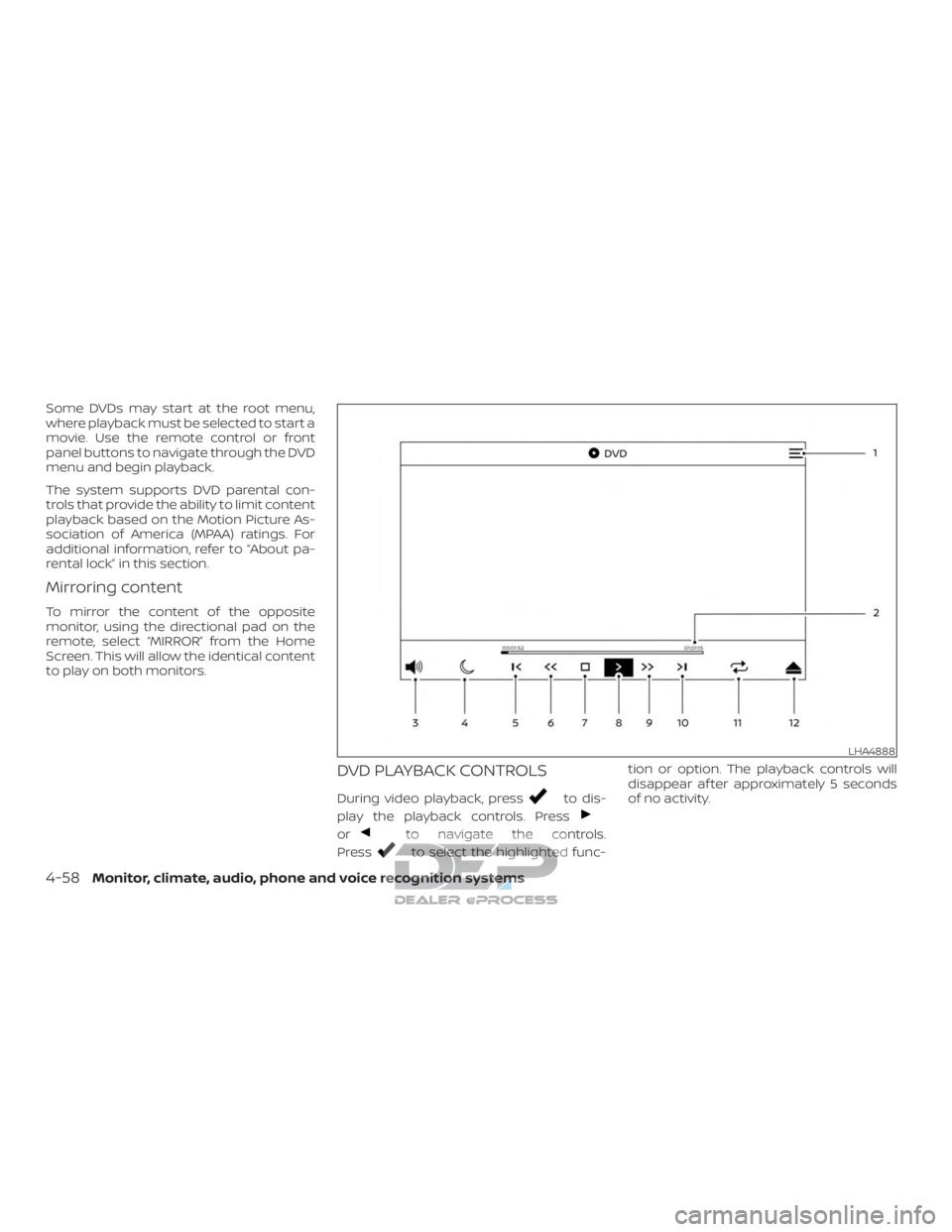
DVD PLAYBACK CONTROLS
During video playback, pressto dis-
play the playback controls. Press
orto navigate the controls.
Press
to select the highlighted func- tion or option. The playback controls will
disappear af ter approximately 5 seconds
of no activity.
LHA4888
4-58Monitor, climate, audio, phone and voice recognition systems
Page 322 of 682
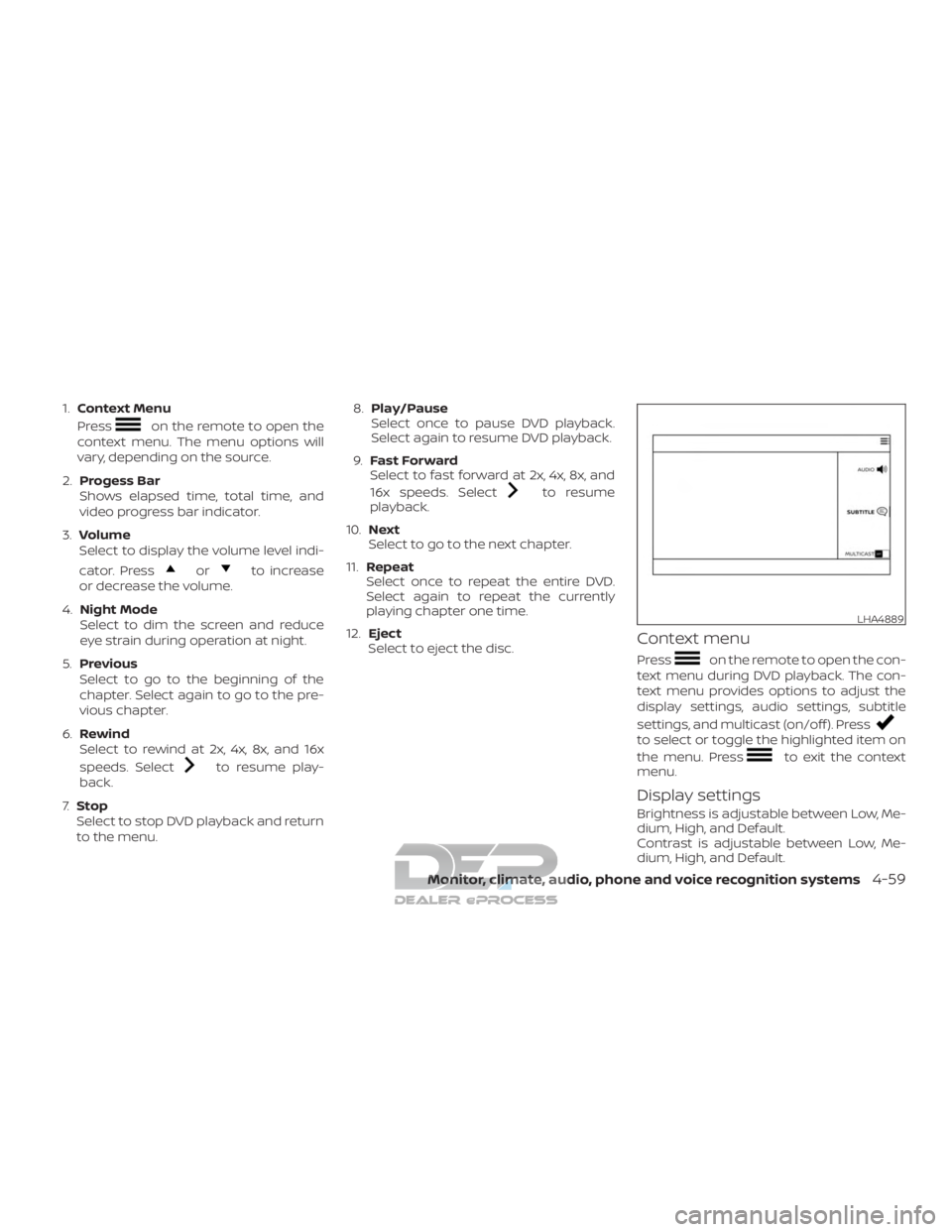
1.Context Menu
Press
on the remote to open the
context menu. The menu options will
vary, depending on the source.
2. Progess Bar
Shows elapsed time, total time, and
video progress bar indicator.
3. Volume
Select to display the volume level indi-
cator. Press
orto increase
or decrease the volume.
4. Night Mode
Select to dim the screen and reduce
eye strain during operation at night.
5. Previous
Select to go to the beginning of the
chapter. Select again to go to the pre-
vious chapter.
6. Rewind
Select to rewind at 2x, 4x, 8x, and 16x
speeds. Select
to resume play-
back.
7. Stop
Select to stop DVD playback and return
to the menu. 8.
Play/Pause
Select once to pause DVD playback.
Select again to resume DVD playback.
9. Fast Forward
Select to fast forward at 2x, 4x, 8x, and
16x speeds. Select
to resume
playback.
10. Next
Select to go to the next chapter.
11. Repeat
Select once to repeat the entire DVD.
Select again to repeat the currently
playing chapter one time.
12. Eject
Select to eject the disc.
Context menu
Presson the remote to open the con-
text menu during DVD playback. The con-
text menu provides options to adjust the
display settings, audio settings, subtitle
settings, and multicast (on/off ). Press
to select or toggle the highlighted item on
the menu. Press
to exit the context
menu.
Display settings
Brightness is adjustable between Low, Me-
dium, High, and Default.
Contrast is adjustable between Low, Me-
dium, High, and Default.
LHA4889
Monitor, climate, audio, phone and voice recognition systems4-59
Page 325 of 682
CD PLAYBACK CONTROLS
During audio playback the controls are dis-
played at all times.1. Context Menu
Press
on the remote to open the
context menu. The menu options will
vary, depending on the source.
2. Progress Bar
Shows elapsed time, total time, and
progress bar indicator.
3. Volume
Select to display the volume level indi-
cator. Press
orto increase
or decrease the volume.
4. Night Mode
Select to dim the screen and reduce
eye strain during operation at night.
5. Previous
Select to go to the beginning of the
track. Select again to go to the previous
track.
6. Rewind
Select to rewind at 2x, 4x, 8x, and 16x
speeds. Select to resume playback. 7.
Stop
Select to stop CD playback.
8. Play/Pause
Select once to pause CD playback. Se-
lect again to resume CD playback.
9. Fast Forward
Select to fast forward at 2x, 4x, 8x, and
16x speeds. Select
to resume
playback.
10. Next
Select to go to the next track.
11. Repeat
Select once to repeat the entire CD. Se-
lect again to repeat the currently play-
ing track.
12. Eject
Select to eject the disc.
HDMI/MHL CONNECTION
HDMI connection
Display content from an external source con-
nected to the system using the HDMI port
located on the front of monitor A. A standard
HDMI cable is required (sold separately).
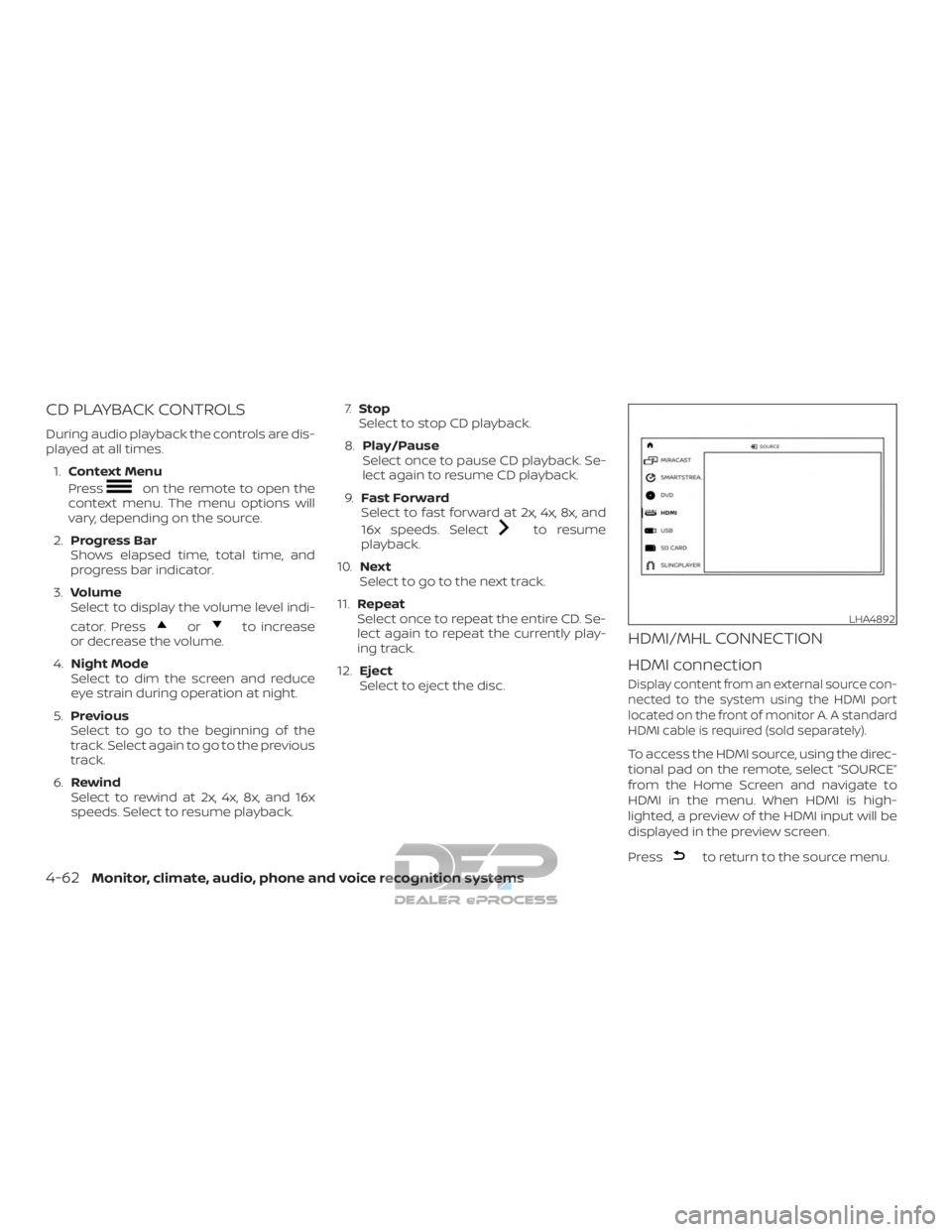
To access the HDMI source, using the direc-
tional pad on the remote, select “SOURCE”
from the Home Screen and navigate to
HDMI in the menu. When HDMI is high-
lighted, a preview of the HDMI input will be
displayed in the preview screen.
Press
to return to the source menu.
LHA4892
4-62Monitor, climate, audio, phone and voice recognition systems
Page 326 of 682
NOTE:
HDMI connected devices are indepen-
dent and must be controlled directly
from the source device.
MHL connection
The system also allows mobile devices
supporting Mobile High-Definition Link
(MHL) to be connected. An MHL-to-HDMI
cable is required (sold separately).
Mobile High-Definition Link (MHL) is an in-
dustry standard mobile audio/ video inter-
face that allows connection of smart-
phones, tablets, and other portable
consumer electronics devices to the sys-
tem. MHL transports high-quality uncom-
pressed audio and video from a mobile
source device to the system and at the
same time provides power to recharge the
device.
NOTE:
MHL connected devices are independent
and must be controlled directly from the
source device.
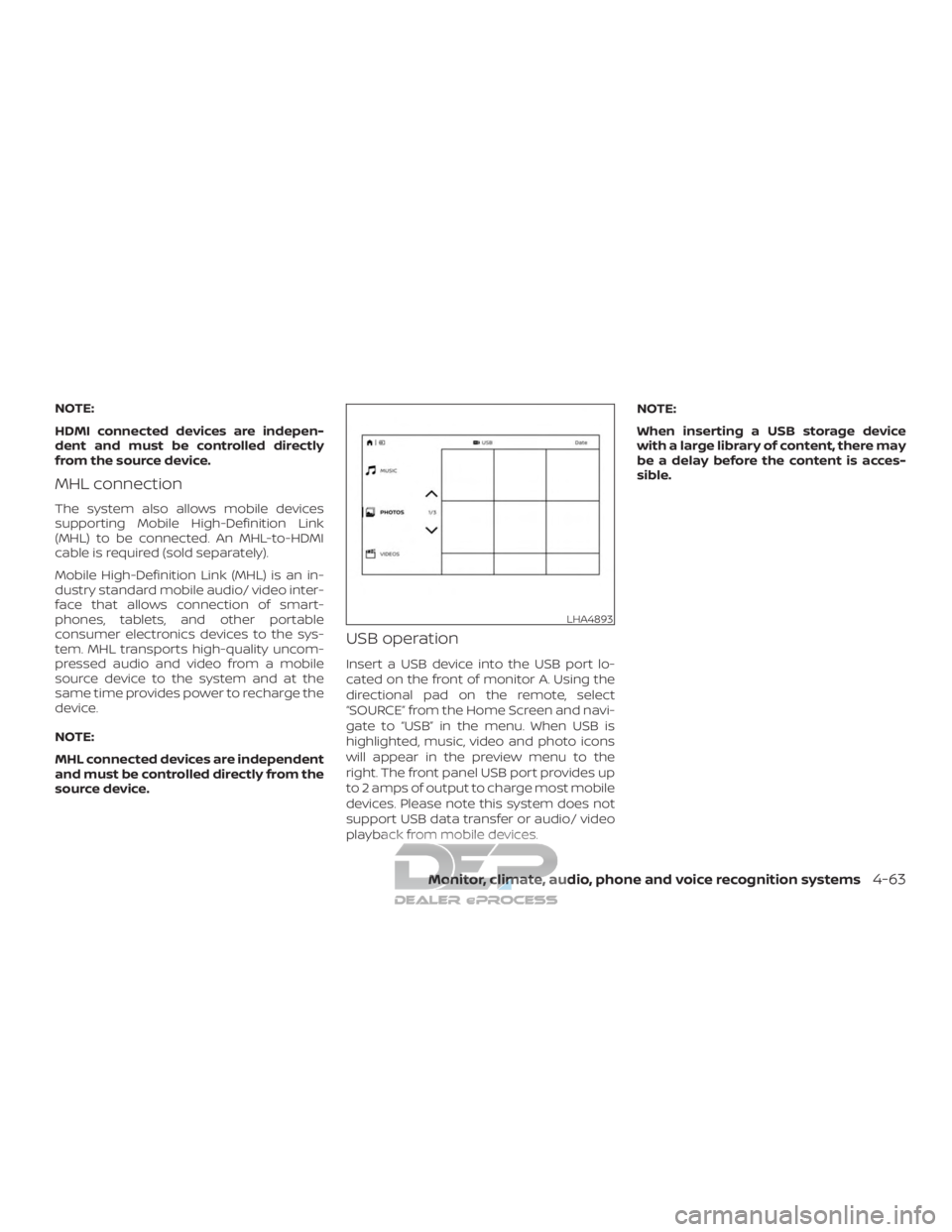
USB operation
Insert a USB device into the USB port lo-
cated on the front of monitor A. Using the
directional pad on the remote, select
“SOURCE” from the Home Screen and navi-
gate to “USB” in the menu. When USB is
highlighted, music, video and photo icons
will appear in the preview menu to the
right. The front panel USB port provides up
to 2 amps of output to charge most mobile
devices. Please note this system does not
support USB data transfer or audio/ video
playback from mobile devices.NOTE:
When inserting a USB storage device
with a large library of content, there may
be a delay before the content is acces-
sible.
LHA4893
Monitor, climate, audio, phone and voice recognition systems4-63
Page 327 of 682
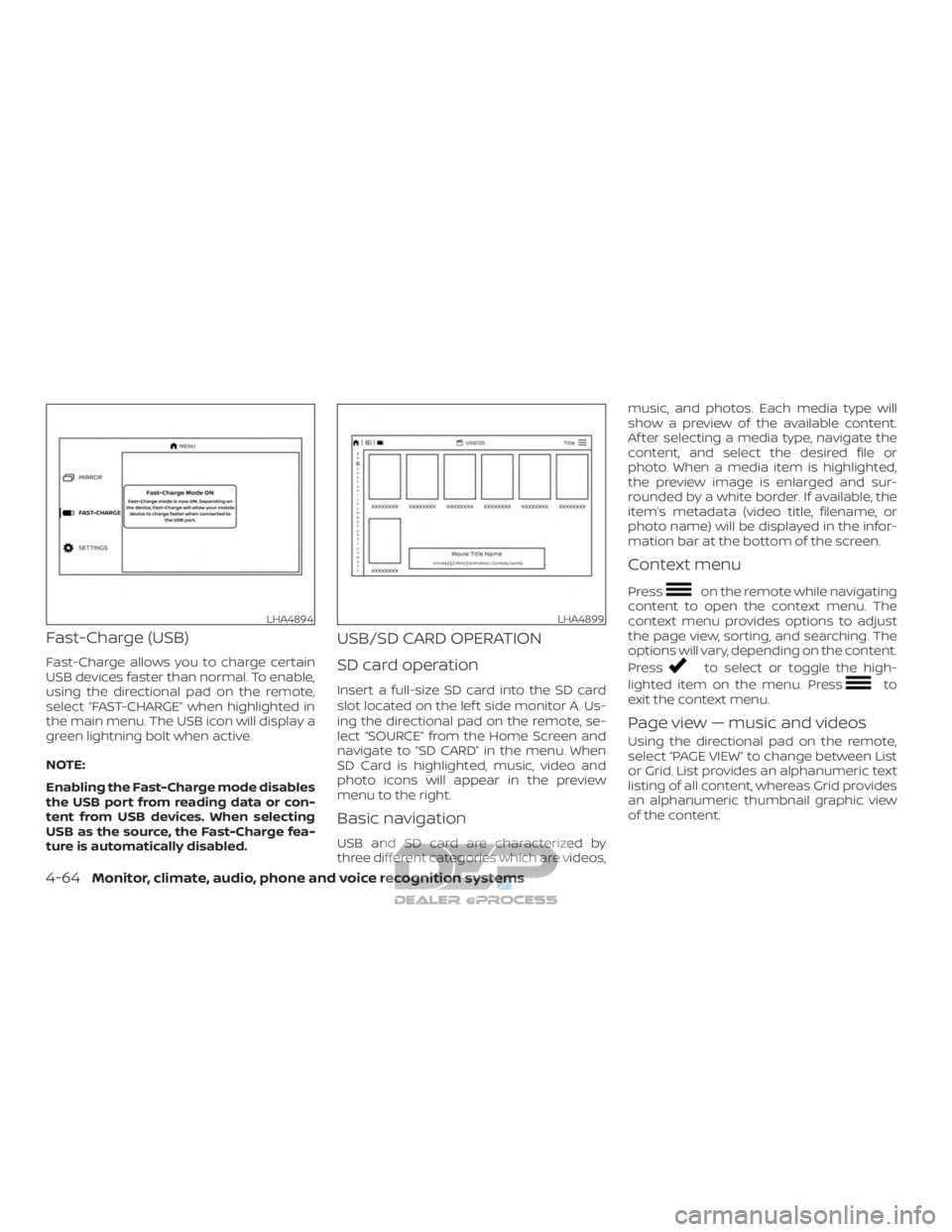
Fast-Charge (USB)
Fast-Charge allows you to charge certain
USB devices faster than normal. To enable,
using the directional pad on the remote,
select “FAST-CHARGE” when highlighted in
the main menu. The USB icon will display a
green lightning bolt when active.
NOTE:
Enabling the Fast-Charge mode disables
the USB port from reading data or con-
tent from USB devices. When selecting
USB as the source, the Fast-Charge fea-
ture is automatically disabled.
USB/SD CARD OPERATION
SD card operation
Insert a full-size SD card into the SD card
slot located on the lef t side monitor A. Us-
ing the directional pad on the remote, se-
lect “SOURCE” from the Home Screen and
navigate to “SD CARD” in the menu. When
SD Card is highlighted, music, video and
photo icons will appear in the preview
menu to the right.
Basic navigation
USB and SD card are characterized by
three different categories which are videos,music, and photos. Each media type will
show a preview of the available content.
Af ter selecting a media type, navigate the
content, and select the desired file or
photo. When a media item is highlighted,
the preview image is enlarged and sur-
rounded by a white border. If available, the
item’s metadata (video title, filename, or
photo name) will be displayed in the infor-
mation bar at the bottom of the screen.
Context menu
Presson the remote while navigating
content to open the context menu. The
context menu provides options to adjust
the page view, sorting, and searching. The
options will vary, depending on the content.
Press
to select or toggle the high-
lighted item on the menu. Press
to
exit the context menu.
Page view — music and videos
Using the directional pad on the remote,
select “PAGE VIEW ” to change between List
or Grid. List provides an alphanumeric text
listing of all content, whereas Grid provides
an alphanumeric thumbnail graphic view
of the content.
LHA4894LHA4899
4-64Monitor, climate, audio, phone and voice recognition systems
Page 329 of 682
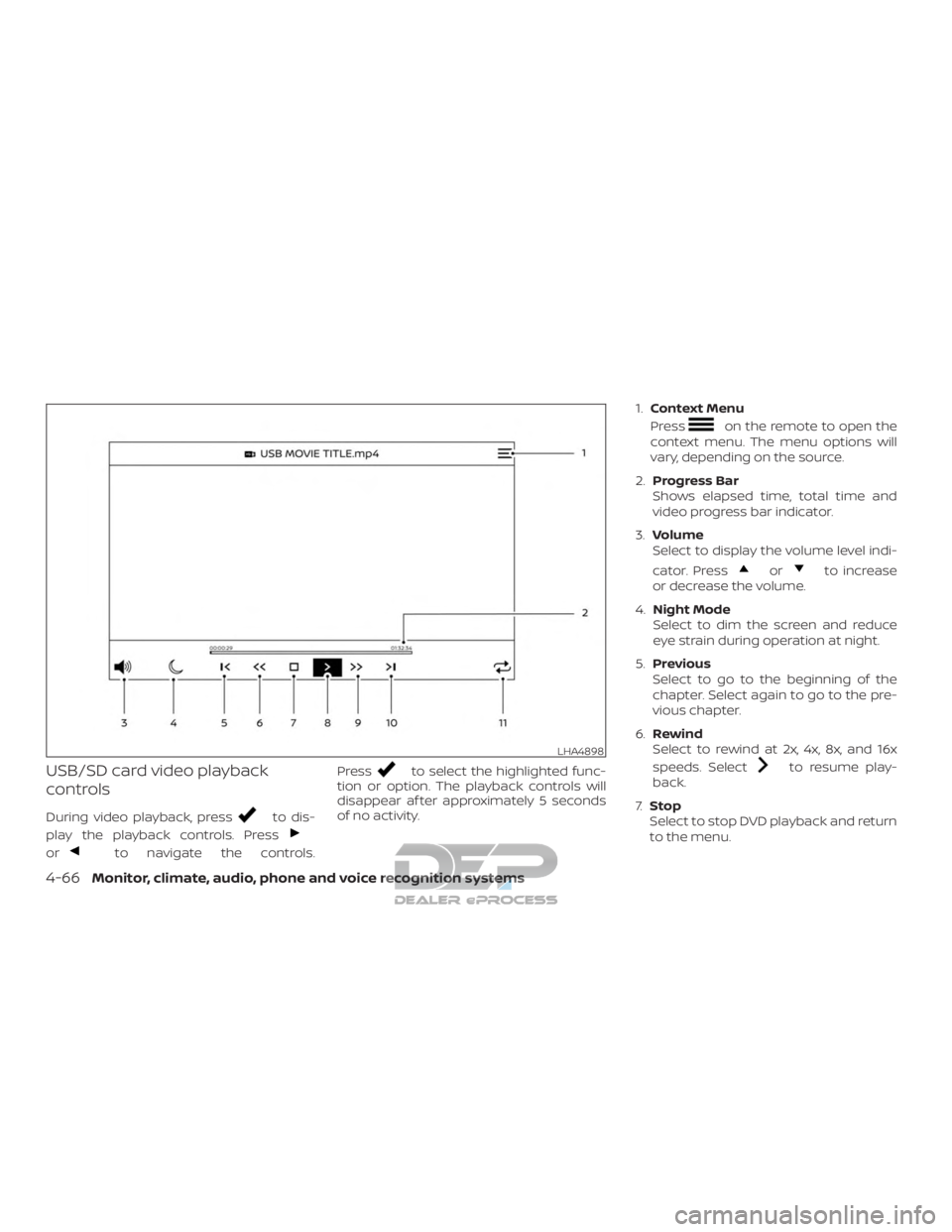
USB/SD card video playback
controls
During video playback, pressto dis-
play the playback controls. Press
orto navigate the controls. Press
to select the highlighted func-
tion or option. The playback controls will
disappear af ter approximately 5 seconds
of no activity. 1.
Context Menu
Press
on the remote to open the
context menu. The menu options will
vary, depending on the source.
2. Progress Bar
Shows elapsed time, total time and
video progress bar indicator.
3. Volume
Select to display the volume level indi-
cator. Press
orto increase
or decrease the volume.
4. Night Mode
Select to dim the screen and reduce
eye strain during operation at night.
5. Previous
Select to go to the beginning of the
chapter. Select again to go to the pre-
vious chapter.
6. Rewind
Select to rewind at 2x, 4x, 8x, and 16x
speeds. Select
to resume play-
back.
7. Stop
Select to stop DVD playback and return
to the menu.
LHA4898
4-66Monitor, climate, audio, phone and voice recognition systems
Page 330 of 682
8.Play/Pause
Select once to pause DVD playback.
Select again to resume DVD playback.
9. Fast Forward
Select to fast forward at 2x, 4x, 8x, and
16x speeds. Select
to resume
playback.
10. Next
Select to go to the next chapter.
11. Repeat
Select once to repeat the entire DVD.
Select again to repeat the currently
playing chapter one time.
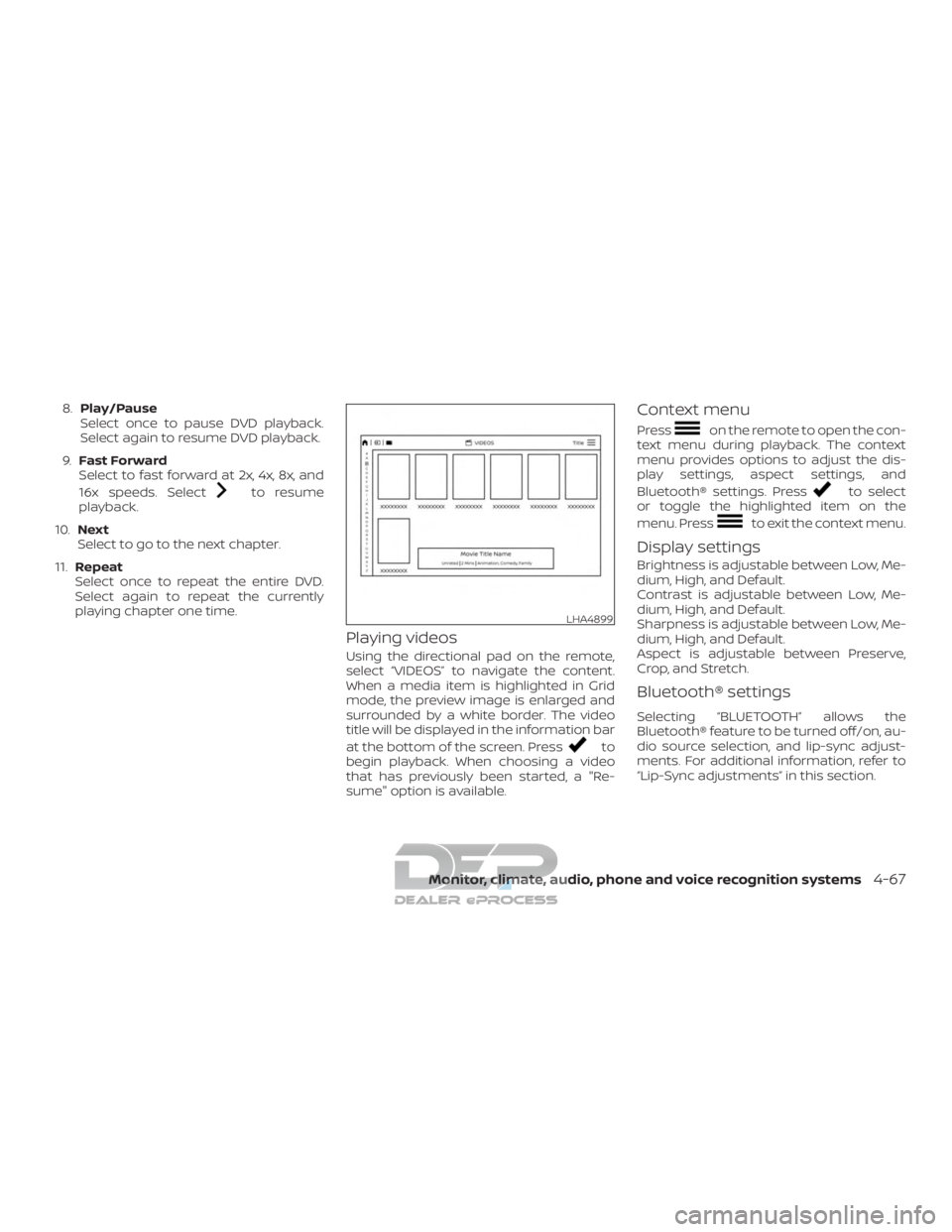
Playing videos
Using the directional pad on the remote,
select “VIDEOS” to navigate the content.
When a media item is highlighted in Grid
mode, the preview image is enlarged and
surrounded by a white border. The video
title will be displayed in the information bar
at the bottom of the screen. Press
to
begin playback. When choosing a video
that has previously been started, a "Re-
sume" option is available.
Context menu
Presson the remote to open the con-
text menu during playback. The context
menu provides options to adjust the dis-
play settings, aspect settings, and
Bluetooth® settings. Press
to select
or toggle the highlighted item on the
menu. Press
to exit the context menu.
Display settings
Brightness is adjustable between Low, Me-
dium, High, and Default.
Contrast is adjustable between Low, Me-
dium, High, and Default.
Sharpness is adjustable between Low, Me-
dium, High, and Default.
Aspect is adjustable between Preserve,
Crop, and Stretch.
Bluetooth® settings
Selecting “BLUETOOTH” allows the
Bluetooth® feature to be turned off/on, au-
dio source selection, and lip-sync adjust-
ments. For additional information, refer to
“Lip-Sync adjustments” in this section.
LHA4899
Monitor, climate, audio, phone and voice recognition systems4-67