climate settings NISSAN TITAN 2019 Owner´s Manual
[x] Cancel search | Manufacturer: NISSAN, Model Year: 2019, Model line: TITAN, Model: NISSAN TITAN 2019Pages: 682, PDF Size: 7.99 MB
Page 341 of 682
∙To use the wireless or wired head-
phones with monitor A, you must turn
off the Bluetooth® streaming feature.
For additional information, refer to
“Bluetooth® streaming” in this sec-
tion.
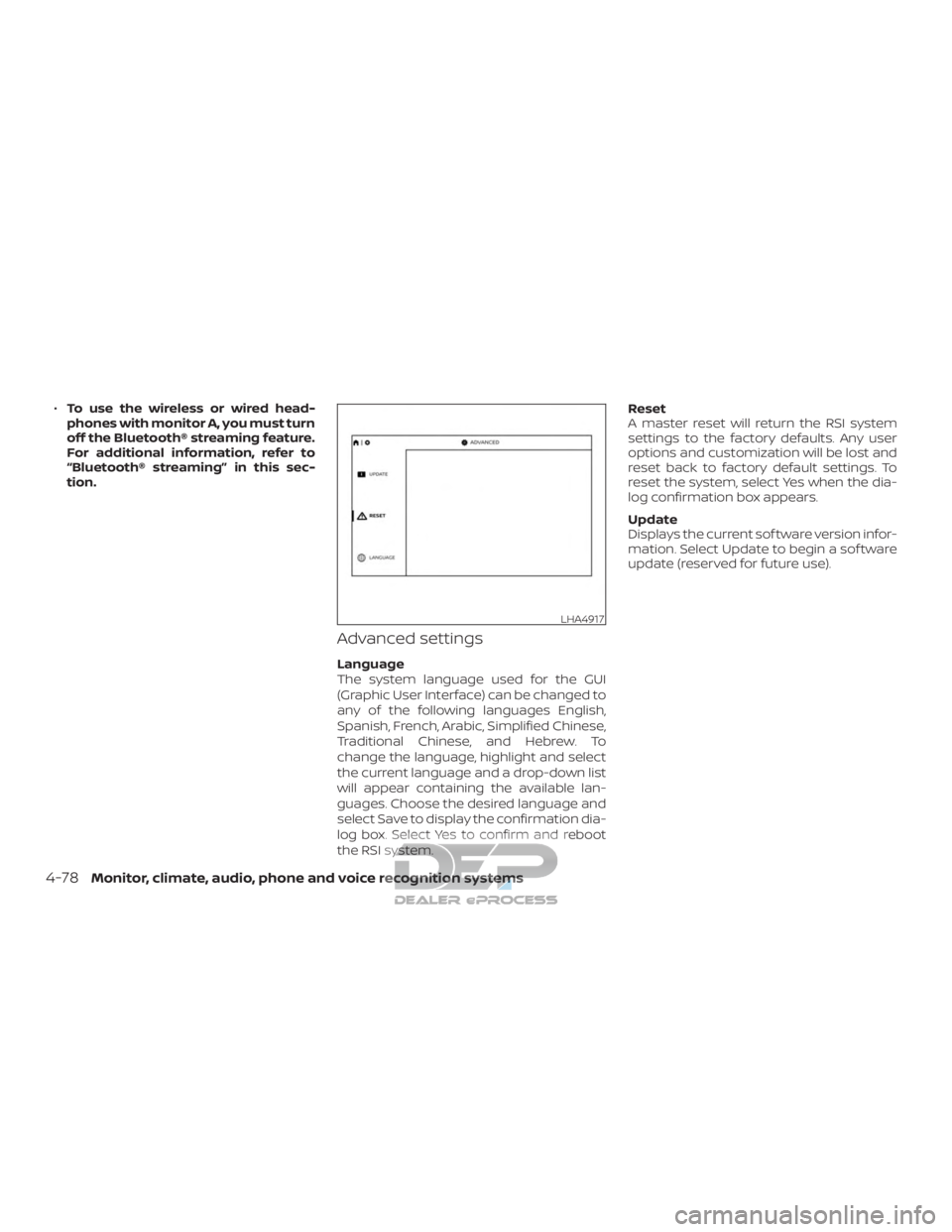
Advanced settings
Language
The system language used for the GUI
(Graphic User Interface) can be changed to
any of the following languages English,
Spanish, French, Arabic, Simplified Chinese,
Traditional Chinese, and Hebrew. To
change the language, highlight and select
the current language and a drop-down list
will appear containing the available lan-
guages. Choose the desired language and
select Save to display the confirmation dia-
log box. Select Yes to confirm and reboot
the RSI system. Reset
A master reset will return the RSI system
settings to the factory defaults. Any user
options and customization will be lost and
reset back to factory default settings. To
reset the system, select Yes when the dia-
log confirmation box appears.
Update
Displays the current sof tware version infor-
mation. Select Update to begin a sof tware
update (reserved for future use).
LHA4917
4-78Monitor, climate, audio, phone and voice recognition systems
Page 342 of 682
Customize settings
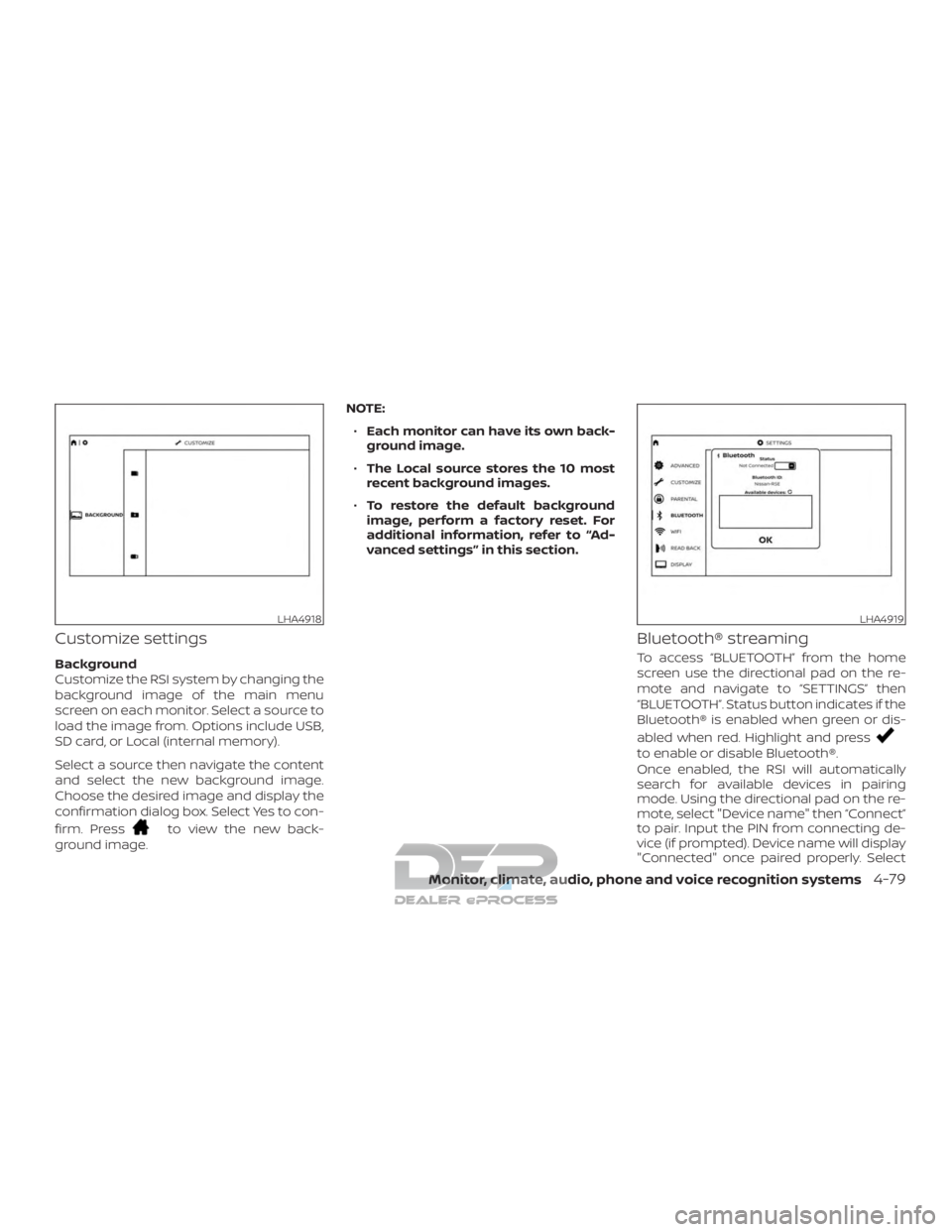
Background
Customize the RSI system by changing the
background image of the main menu
screen on each monitor. Select a source to
load the image from. Options include USB,
SD card, or Local (internal memory).
Select a source then navigate the content
and select the new background image.
Choose the desired image and display the
confirmation dialog box. Select Yes to con-
firm. Press
to view the new back-
ground image. NOTE:
∙ Each monitor can have its own back-
ground image.
∙ The Local source stores the 10 most
recent background images.
∙ To restore the default background
image, perform a factory reset. For
additional information, refer to “Ad-
vanced settings” in this section.
Bluetooth® streaming
To access “BLUETOOTH” from the home
screen use the directional pad on the re-
mote and navigate to “SETTINGS” then
“BLUETOOTH”. Status button indicates if the
Bluetooth® is enabled when green or dis-
abled when red. Highlight and press
to enable or disable Bluetooth®.
Once enabled, the RSI will automatically
search for available devices in pairing
mode. Using the directional pad on the re-
mote, select "Device name" then “Connect”
to pair. Input the PIN from connecting de-
vice (if prompted). Device name will display
"Connected" once paired properly. Select
LHA4918LHA4919
Monitor, climate, audio, phone and voice recognition systems4-79
Page 343 of 682
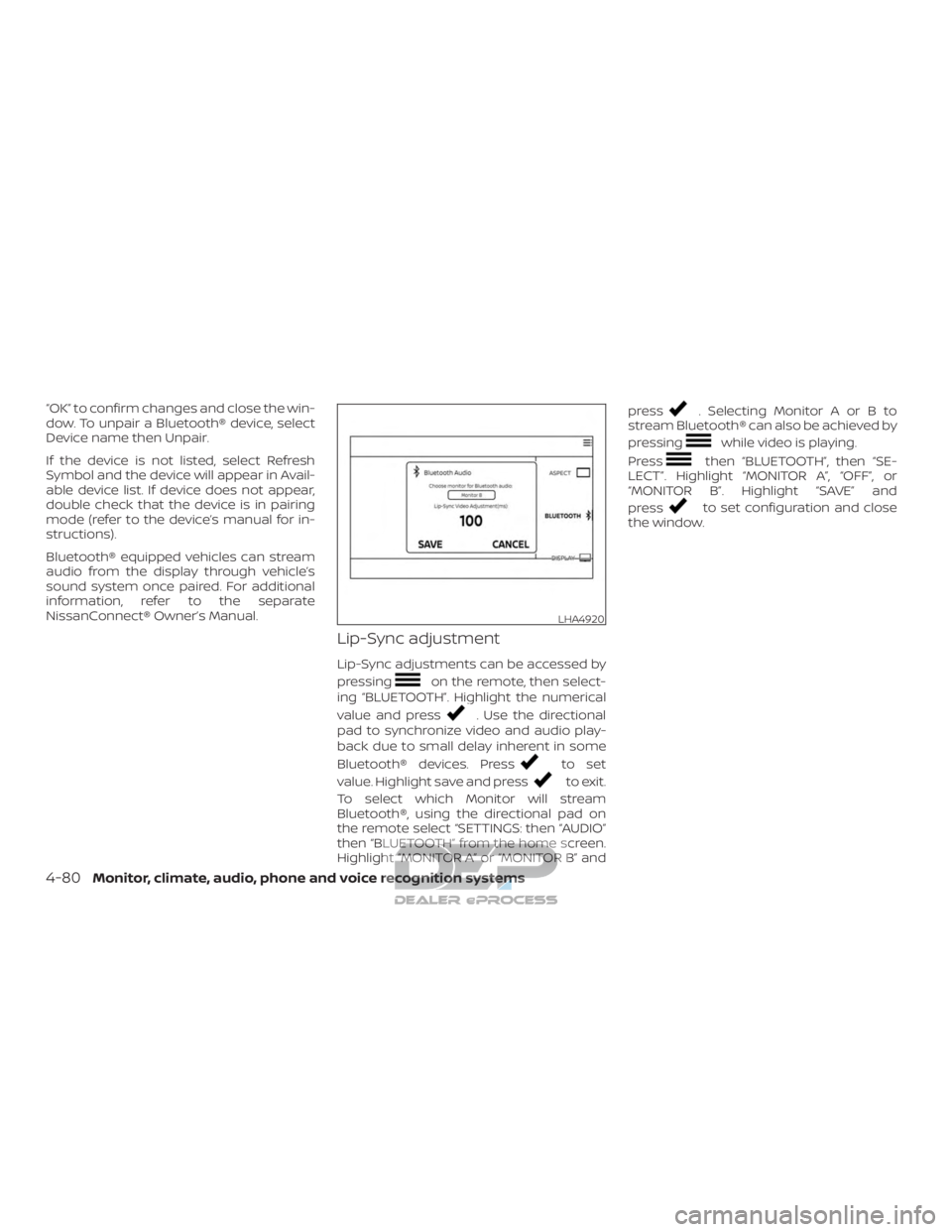
“OK” to confirm changes and close the win-
dow. To unpair a Bluetooth® device, select
Device name then Unpair.
If the device is not listed, select Refresh
Symbol and the device will appear in Avail-
able device list. If device does not appear,
double check that the device is in pairing
mode (refer to the device’s manual for in-
structions).
Bluetooth® equipped vehicles can stream
audio from the display through vehicle’s
sound system once paired. For additional
information, refer to the separate
NissanConnect® Owner’s Manual.
Lip-Sync adjustment
Lip-Sync adjustments can be accessed by
pressing
on the remote, then select-
ing “BLUETOOTH”. Highlight the numerical
value and press
. Use the directional
pad to synchronize video and audio play-
back due to small delay inherent in some
Bluetooth® devices. Press
to set
value. Highlight save and press
to exit.
To select which Monitor will stream
Bluetooth®, using the directional pad on
the remote select “SETTINGS: then “AUDIO”
then “BLUETOOTH” from the home screen.
Highlight “MONITOR A” or “MONITOR B” and press
. Selecting Monitor A or B to
stream Bluetooth® can also be achieved by
pressing
while video is playing.
Press
then “BLUETOOTH”, then “SE-
LECT”. Highlight “MONITOR A”, “OFF”, or
“MONITOR B”. Highlight “SAVE” and
press
to set configuration and close
the window.
LHA4920
4-80Monitor, climate, audio, phone and voice recognition systems
Page 344 of 682
About parental lock
Some DVDs may have a parental rating
level assigned to the entire disc or to cer-
tain scenes/chapters on the disc. Parental
Lock allows the playback limitation level to
be set. This prohibits the playing discs that
are not suitable for children or have alter-
native scenes. The rating levels range from
1 to 8. They are country dependent, but in
general they are defined as follows:
1 KID SAFE:
Kids material; recommended children and
viewers of all ages.2G:
General Audience; recommended for all
ages.
3PG:
Parental Guidance suggested.
4 PG-13:
Unsuitable for children under age 13.
5/6 PGR/R:
Parental Guidance/Restricted content not
suitable for children under the age of 17.
7 NC-17:
No children under age 17.
8 Adult:
Mature content; should be viewed only by
an adult due to graphic sexual material,
violence, or language.
Once a rating level is set, DVDs that are
rated above that level will not play unless a
4-digit password is entered and higher-
level rating is chosen.
Changing parental lock
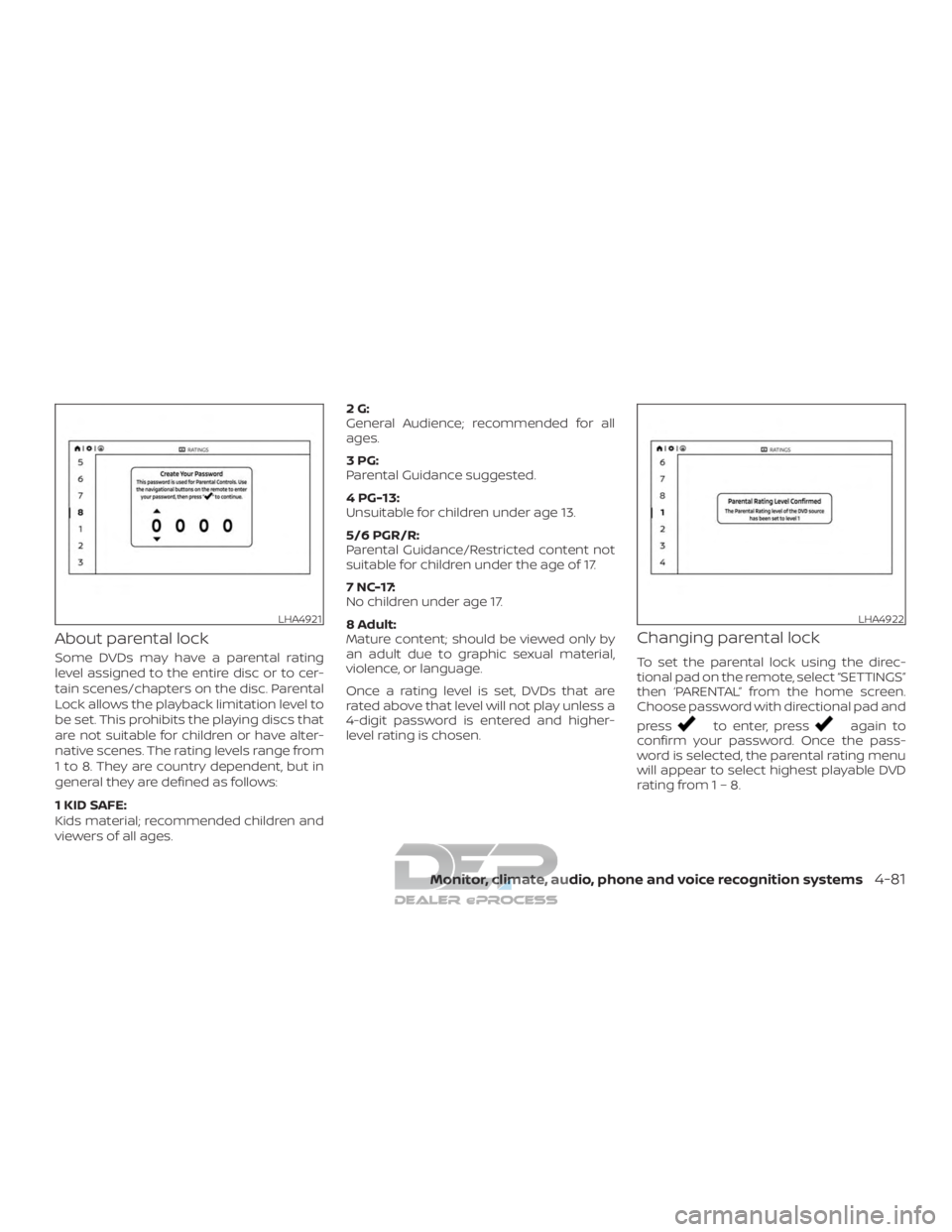
To set the parental lock using the direc-
tional pad on the remote, select “SETTINGS”
then ‘PARENTAL” from the home screen.
Choose password with directional pad and
press
to enter, pressagain to
confirm your password. Once the pass-
word is selected, the parental rating menu
will appear to select highest playable DVD
rating from1–8.
LHA4921LHA4922
Monitor, climate, audio, phone and voice recognition systems4-81
Page 345 of 682
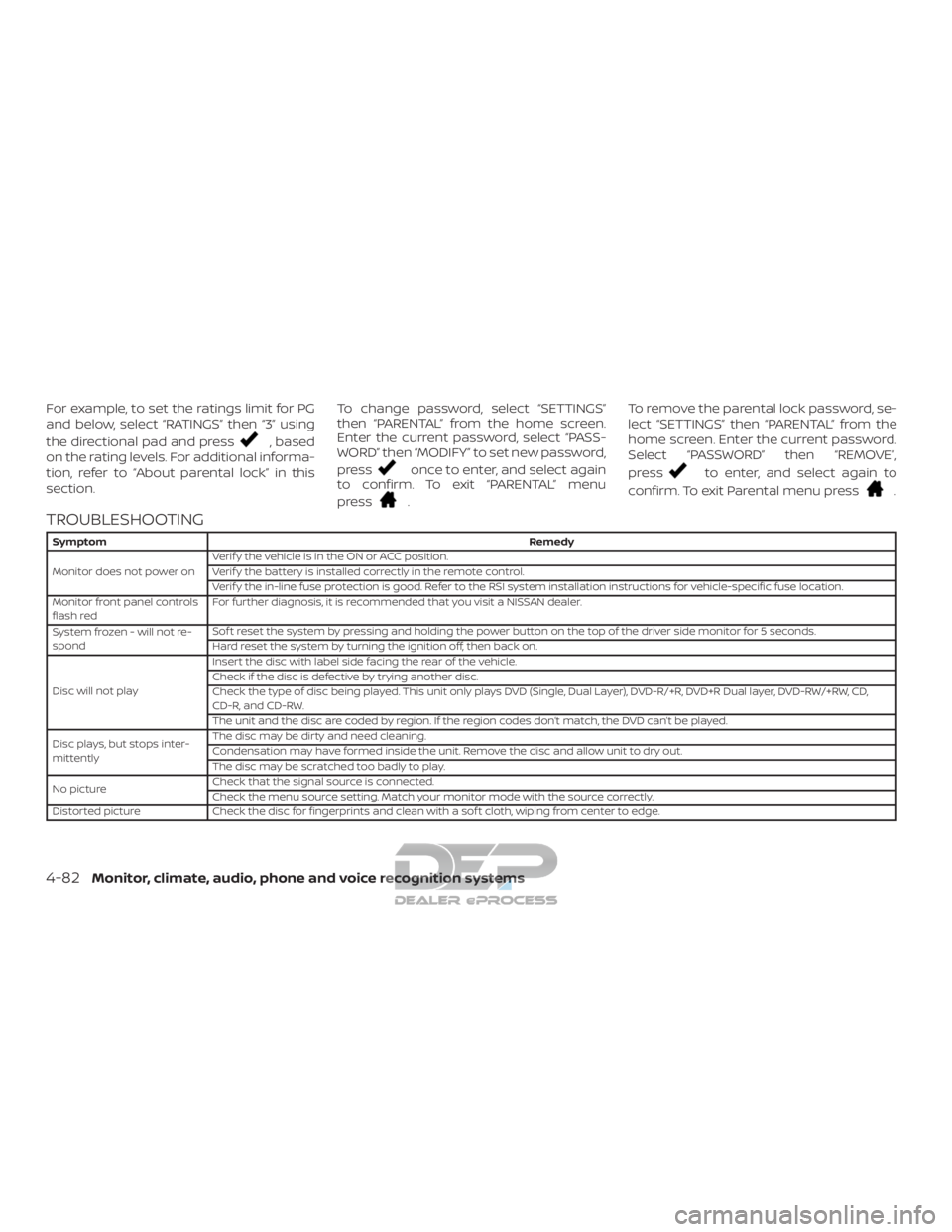
For example, to set the ratings limit for PG
and below, select “RATINGS” then “3” using
the directional pad and press
, based
on the rating levels. For additional informa-
tion, refer to “About parental lock” in this
section. To change password, select “SETTINGS”
then “PARENTAL” from the home screen.
Enter the current password, select “PASS-
WORD” then “MODIFY” to set new password,
press
once to enter, and select again
to confirm. To exit “PARENTAL” menu
press
. To remove the parental lock password, se-
lect “SETTINGS” then “PARENTAL” from the
home screen. Enter the current password.
Select “PASSWORD” then “REMOVE”,
press
to enter, and select again to
confirm. To exit Parental menu press
.
TROUBLESHOOTING
Symptom Remedy
Monitor does not power on Verif y the vehicle is in the ON or ACC position.
Verif y the battery is installed correctly in the remote control.
Verif y the in-line fuse protection is good. Refer to the RSI system installation instructions for vehicle-specific fuse location.
Monitor front panel controls
flash red For further diagnosis, it is recommended that you visit a NISSAN dealer.
System frozen - will not re-
spond Sof t reset the system by pressing and holding the power button on the top of the driver side monitor for 5 seconds.
Hard reset the system by turning the ignition off, then back on.
Disc will not play Insert the disc with label side facing the rear of the vehicle.
Check if the disc is defective by trying another disc.
Check the type of disc being played. This unit only plays DVD (Single, Dual Layer), DVD-R/+R, DVD+R Dual layer, DVD-RW/+RW, CD,
CD-R, and CD-RW.
The unit and the disc are coded by region. If the region codes don’t match, the DVD can’t be played.
Disc plays, but stops inter-
mittently The disc may be dirty and need cleaning.
Condensation may have formed inside the unit. Remove the disc and allow unit to dry out.
The disc may be scratched too badly to play.
No picture Check that the signal source is connected.
Check the menu source setting. Match your monitor mode with the source correctly.
Distorted picture Check the disc for fingerprints and clean with a sof t cloth, wiping from center to edge.
4-82Monitor, climate, audio, phone and voice recognition systems