audio NISSAN TITAN 2019 Owner´s Manual
[x] Cancel search | Manufacturer: NISSAN, Model Year: 2019, Model line: TITAN, Model: NISSAN TITAN 2019Pages: 682, PDF Size: 7.99 MB
Page 315 of 682
9.Power (Monitor A)
Press this button to turn the monitor
on. Press again to turn the monitor off.
Press and hold for 6 seconds to reset
the system (Monitor A only)
Power (Monitor B)
Press this button to turn the monitor
on. Press again to turn the monitor off.
10. Disc slot
Play DVDs and CDs using standard size
DVD or CD discs.
CAUTION
∙ Do not use any harsh solvents or chemicals when cleaning the monitor.
∙ Do not use any abrasive cleaners that may scratch the screen. Use only a
lightly dampened lint free cloth to
wipe the screen if it is dirty.
∙ The LCD display screen is not touch- screen. Do not put pressure or add
suction cups on the screen.
∙ Caution children to avoid touching or scratching the screen, as it may be-
come dirty or damaged.
∙ Place the monitor in the fully closed position when not in use.REMOTE CONTROL OPERATION
Before use
Before attempting to operate your remote
control, turn the remote control face down
and remove the battery insulator by pulling
the clear plastic tab away from the remote
control.
Replacing the battery
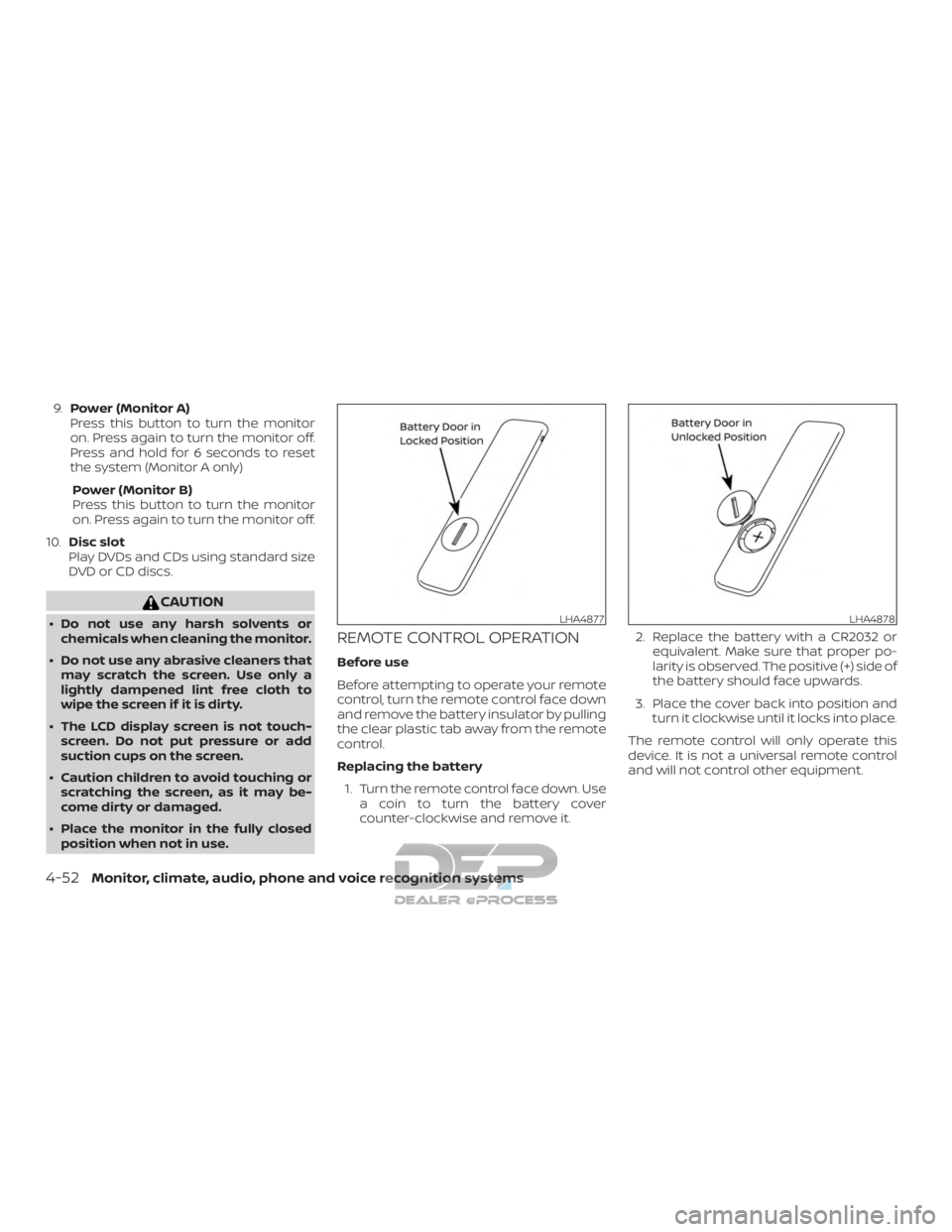
1. Turn the remote control face down. Use a coin to turn the battery cover
counter-clockwise and remove it. 2. Replace the battery with a CR2032 or
equivalent. Make sure that proper po-
larity is observed. The positive (+) side of
the battery should face upwards.
3. Place the cover back into position and turn it clockwise until it locks into place.
The remote control will only operate this
device. It is not a universal remote control
and will not control other equipment.
LHA4877LHA4878
4-52Monitor, climate, audio, phone and voice recognition systems
Page 316 of 682
WARNING
∙ Always ensure that the battery is in-serted in the correct direction as
shown in the battery compartment.
∙ When the battery fails to function, re- place it immediately.
∙ Keep the battery out of the reach of children. In case the battery is acci-
dentally swallowed, immediately con-
sult a doctor. Also, when disposing of
used batteries, please comply with
governmental regulations or environ-
mental public institution rules that
apply in your country/area.
∙ Remove the battery if the remote con- trol is not used for a month or longer.
∙ Storage in extreme cold can weaken the battery. Keep the remote control
stored in a cool, dry place.
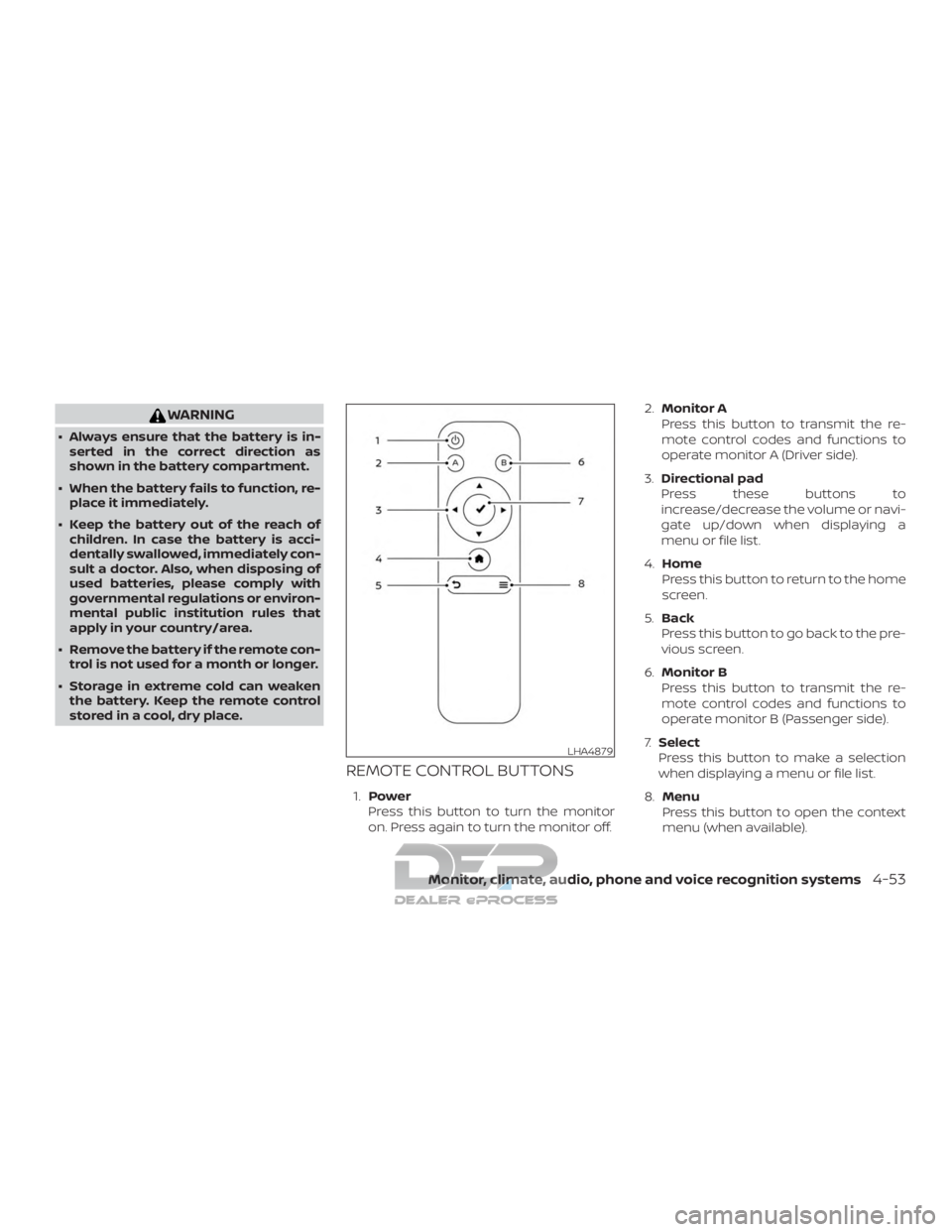
REMOTE CONTROL BUTTONS
1. Power
Press this button to turn the monitor
on. Press again to turn the monitor off. 2.
Monitor A
Press this button to transmit the re-
mote control codes and functions to
operate monitor A (Driver side).
3. Directional pad
Press these buttons to
increase/decrease the volume or navi-
gate up/down when displaying a
menu or file list.
4. Home
Press this button to return to the home
screen.
5. Back
Press this button to go back to the pre-
vious screen.
6. Monitor B
Press this button to transmit the re-
mote control codes and functions to
operate monitor B (Passenger side).
7. Select
Press this button to make a selection
when displaying a menu or file list.
8. Menu
Press this button to open the context
menu (when available).
LHA4879
Monitor, climate, audio, phone and voice recognition systems4-53
Page 317 of 682
NOTE:
You must first select the desired monitor
(press A or B) to control it. Example -
Press A, then press Power to turn moni-
tor A on/off.
WIRELESS HEADPHONE
OPERATION
Installing the batteries
Before attempting to operate the headphones,
install the batteries as described below:
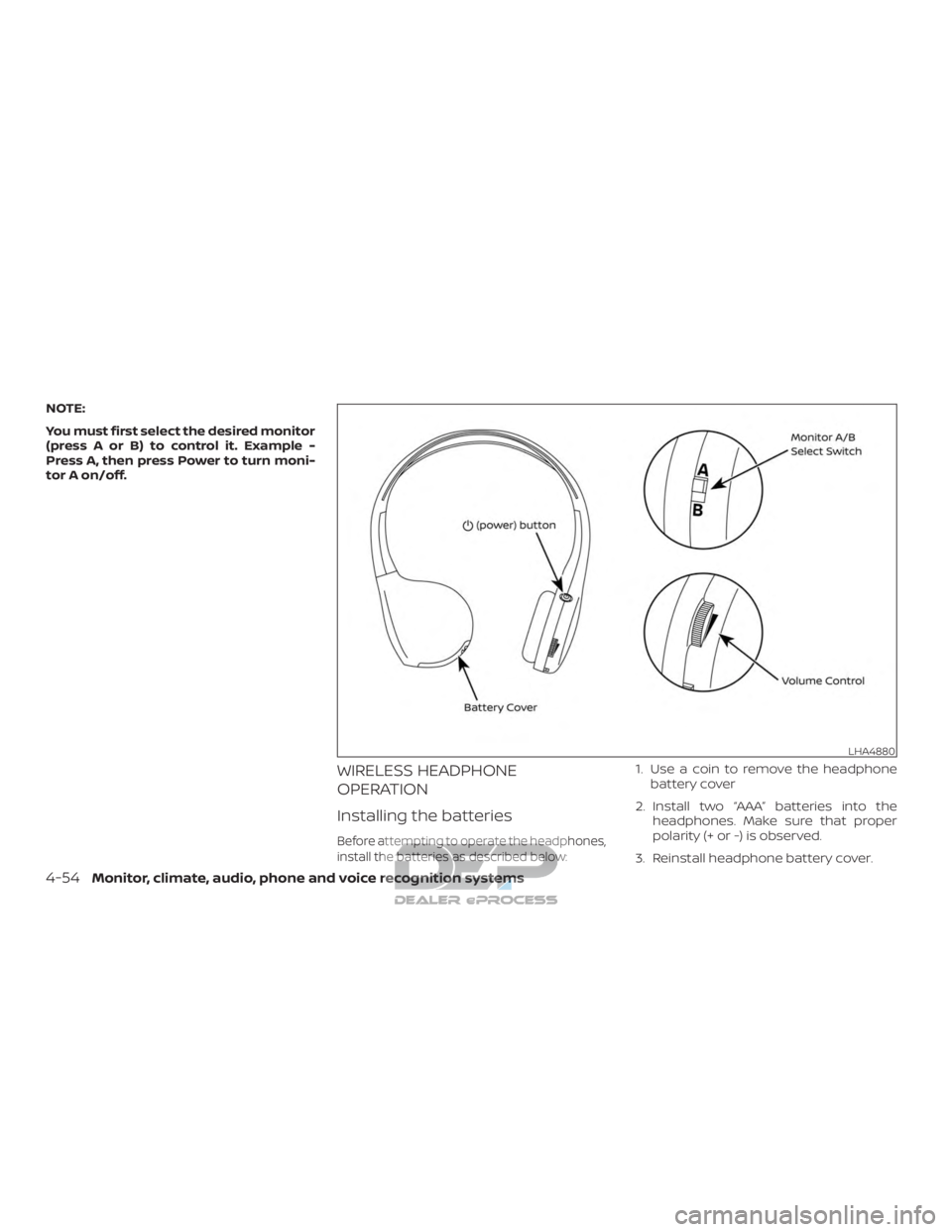
1. Use a coin to remove the headphonebattery cover
2. Install two “AAA” batteries into the headphones. Make sure that proper
polarity (+ or -) is observed.
3. Reinstall headphone battery cover.
LHA4880
4-54Monitor, climate, audio, phone and voice recognition systems
Page 318 of 682
Headphone operation
Press the power button on the head-
phones to turn on and off the headphones.
The red LED will illuminate when the head-
phone is turned on. Set the select switch to
“A” or “B” for use with the “A” monitor or “B”
monitor respectively. Use the volume
thumb wheel to adjust the volume level for
the headphone audio.
NOTE:
If the headphones are accidentally lef t
on and system is powered off, a battery
saver feature will automatically turn off
the headphones af ter approximately
3 minutes.
CAUTION
∙ Always ensure that the batteries areinserted with the positive and nega-
tive terminals in the correct direction
as shown in the battery
compartment.
∙ Different types of batteries have dif- ferent characteristics. Do not mix dif-
ferent types. ∙ Do not mix old and new batteries. Mix-
ing old and new batteries will shorten
battery life and/or cause chemical
leaks from the old batteries.
∙ When batteries fail to function, re- place them immediately.
∙ Keep the batteries out of the reach of children. In case the batteries are ac-
cidentally swallowed, immediately
consult a doctor. Also, when disposing
of used batteries, please comply with
governmental regulations or environ-
mental public institution rules that
apply in your country/area.
∙ Remove the batteries if the head- phones are not used for a month or
longer.
GENERAL OPERATION
Navigating menus
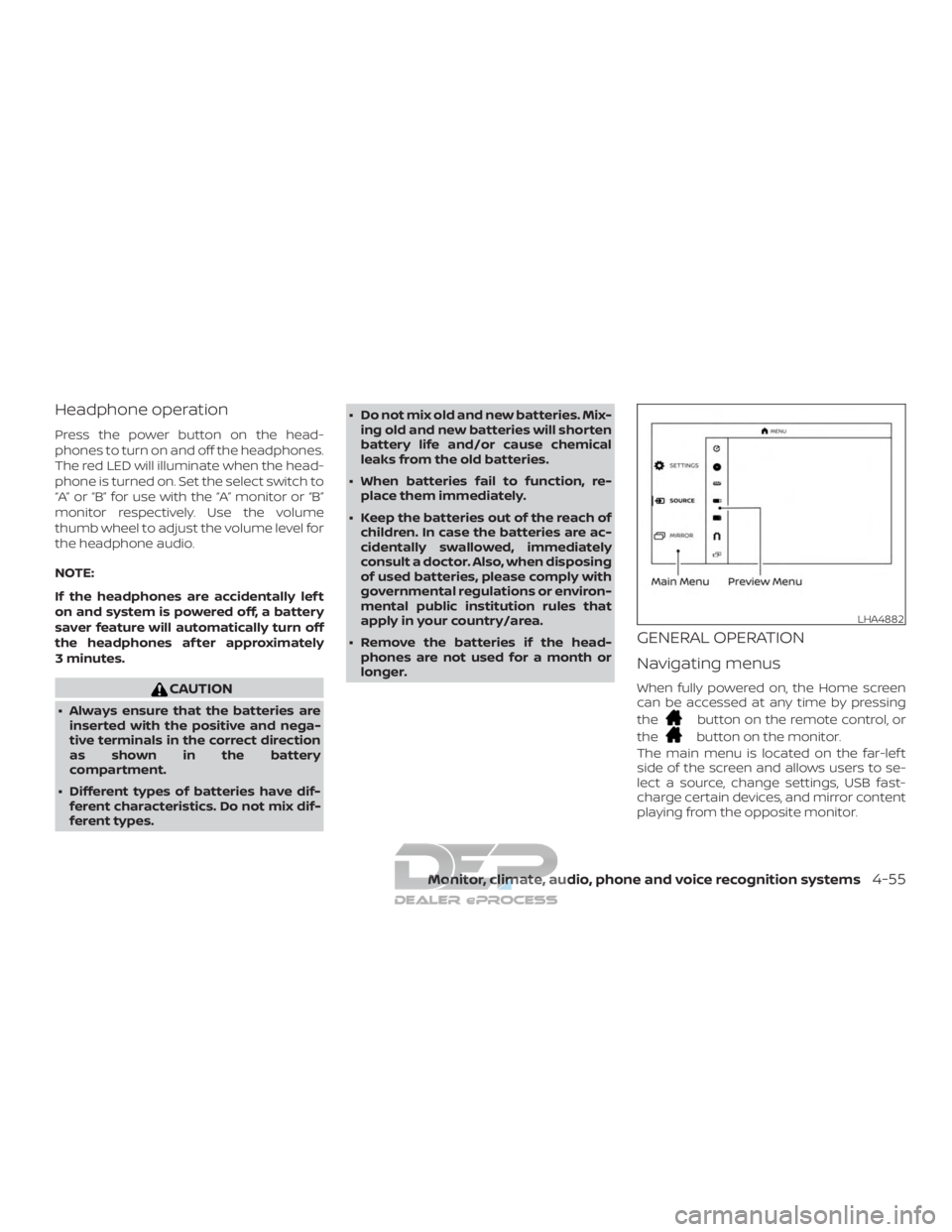
When fully powered on, the Home screen
can be accessed at any time by pressing
the
button on the remote control, or
the
button on the monitor.
The main menu is located on the far-lef t
side of the screen and allows users to se-
lect a source, change settings, USB fast-
charge certain devices, and mirror content
playing from the opposite monitor.
LHA4882
Monitor, climate, audio, phone and voice recognition systems4-55
Page 319 of 682
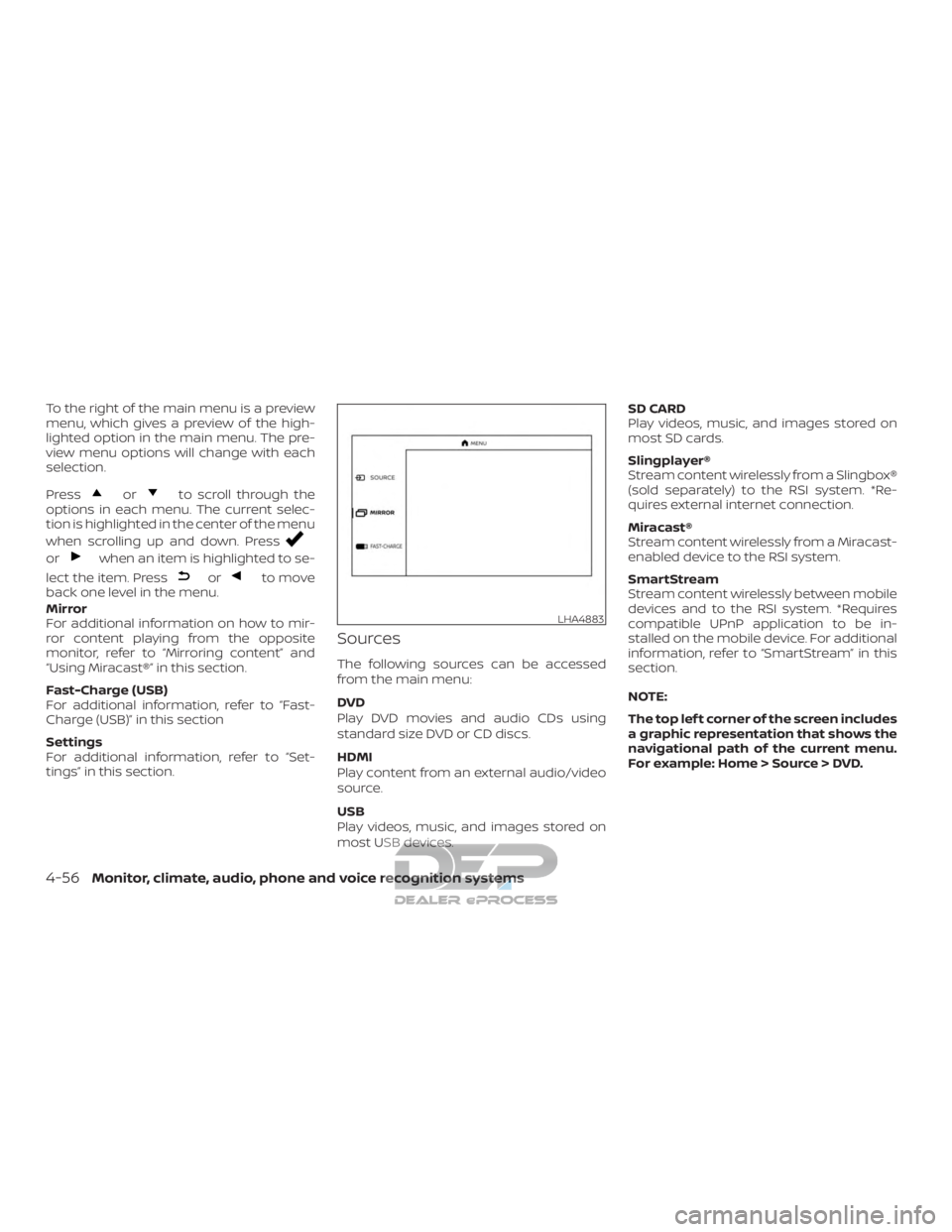
To the right of the main menu is a preview
menu, which gives a preview of the high-
lighted option in the main menu. The pre-
view menu options will change with each
selection.
Press
orto scroll through the
options in each menu. The current selec-
tion is highlighted in the center of the menu
when scrolling up and down. Press
orwhen an item is highlighted to se-
lect the item. Press
orto move
back one level in the menu.
Mirror
For additional information on how to mir-
ror content playing from the opposite
monitor, refer to “Mirroring content” and
“Using Miracast®” in this section.
Fast-Charge (USB)
For additional information, refer to “Fast-
Charge (USB)” in this section
Settings
For additional information, refer to “Set-
tings” in this section.
Sources
The following sources can be accessed
from the main menu:
DVD
Play DVD movies and audio CDs using
standard size DVD or CD discs.
HDMI
Play content from an external audio/video
source.
USB
Play videos, music, and images stored on
most USB devices. SD CARD
Play videos, music, and images stored on
most SD cards.
Slingplayer®
Stream content wirelessly from a Slingbox®
(sold separately) to the RSI system. *Re-
quires external internet connection.
Miracast®
Stream content wirelessly from a Miracast-
enabled device to the RSI system.
SmartStream
Stream content wirelessly between mobile
devices and to the RSI system. *Requires
compatible UPnP application to be in-
stalled on the mobile device. For additional
information, refer to “SmartStream” in this
section.
NOTE:
The top lef t corner of the screen includes
a graphic representation that shows the
navigational path of the current menu.
For example: Home > Source > DVD.
LHA4883
4-56Monitor, climate, audio, phone and voice recognition systems
Page 320 of 682
DVD OPERATION
Volume control
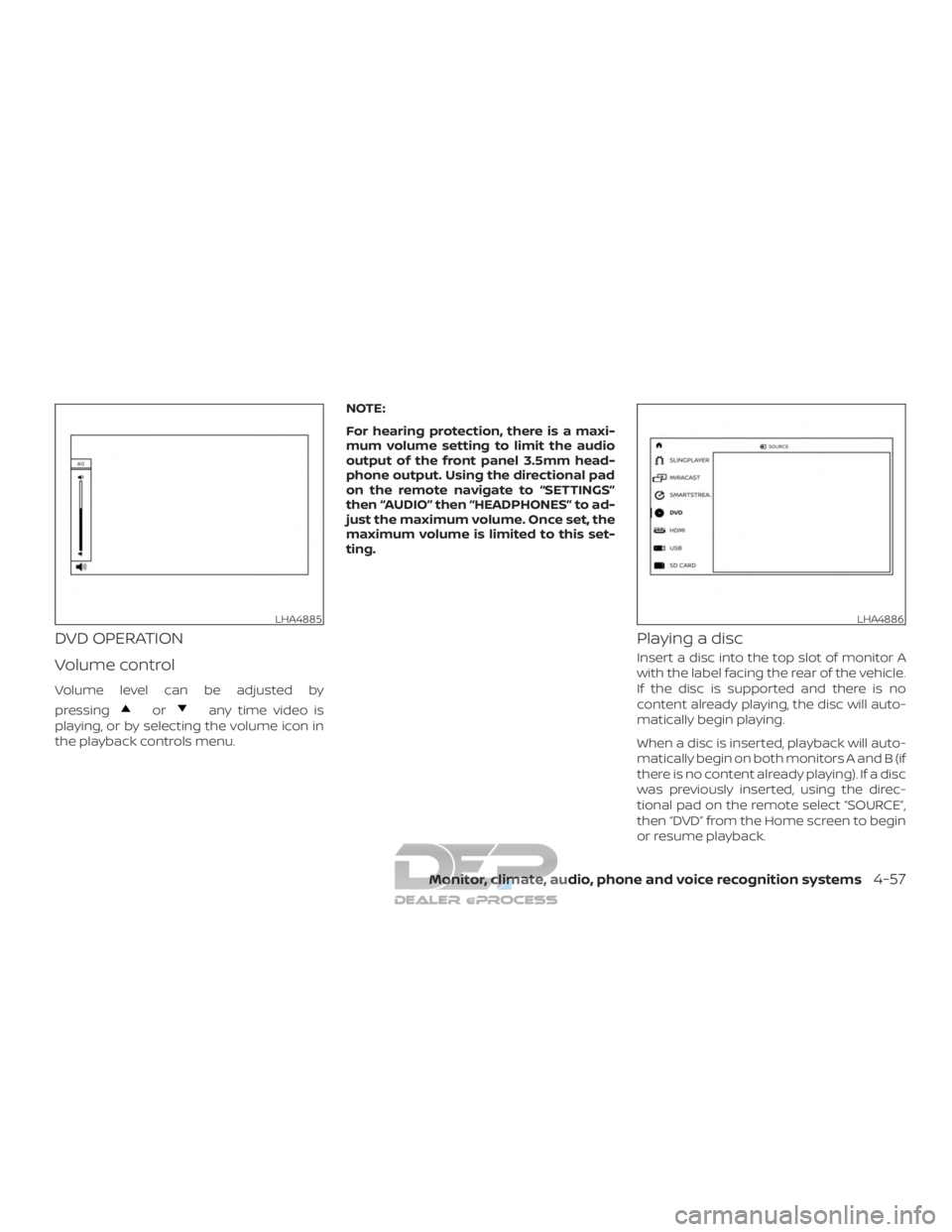
Volume level can be adjusted by
pressing
orany time video is
playing, or by selecting the volume icon in
the playback controls menu. NOTE:
For hearing protection, there is a maxi-
mum volume setting to limit the audio
output of the front panel 3.5mm head-
phone output. Using the directional pad
on the remote navigate to “SETTINGS”
then “AUDIO” then “HEADPHONES” to ad-
just the maximum volume. Once set, the
maximum volume is limited to this set-
ting.
Playing a disc
Insert a disc into the top slot of monitor A
with the label facing the rear of the vehicle.
If the disc is supported and there is no
content already playing, the disc will auto-
matically begin playing.
When a disc is inserted, playback will auto-
matically begin on both monitors A and B (if
there is no content already playing). If a disc
was previously inserted, using the direc-
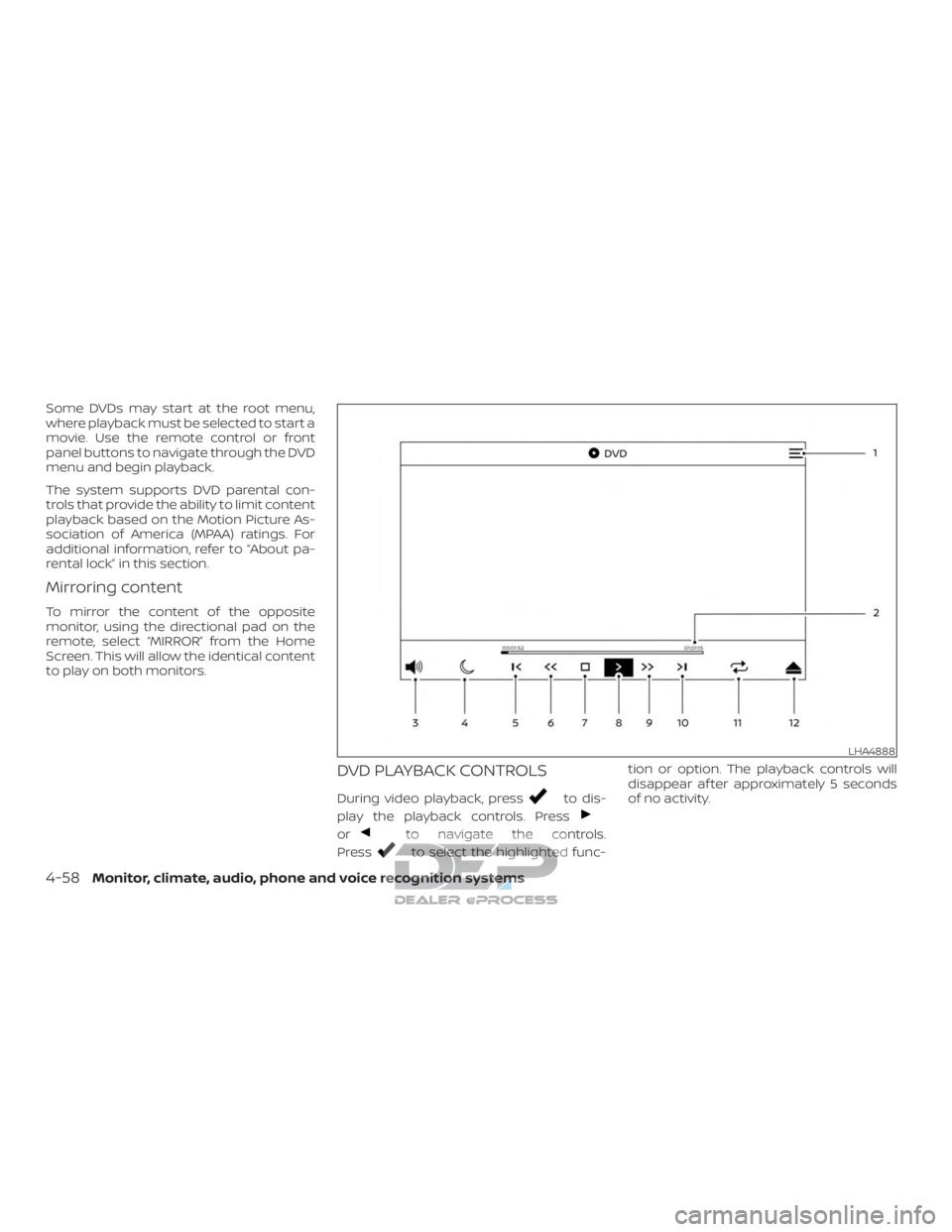
tional pad on the remote select “SOURCE”,
then “DVD” from the Home screen to begin
or resume playback.
LHA4885LHA4886
Monitor, climate, audio, phone and voice recognition systems4-57
Page 321 of 682
Some DVDs may start at the root menu,
where playback must be selected to start a
movie. Use the remote control or front
panel buttons to navigate through the DVD
menu and begin playback.
The system supports DVD parental con-
trols that provide the ability to limit content
playback based on the Motion Picture As-
sociation of America (MPAA) ratings. For
additional information, refer to “About pa-
rental lock” in this section.
Mirroring content
To mirror the content of the opposite
monitor, using the directional pad on the
remote, select “MIRROR” from the Home
Screen. This will allow the identical content
to play on both monitors.
DVD PLAYBACK CONTROLS
During video playback, pressto dis-
play the playback controls. Press
orto navigate the controls.
Press
to select the highlighted func- tion or option. The playback controls will
disappear af ter approximately 5 seconds
of no activity.
LHA4888
4-58Monitor, climate, audio, phone and voice recognition systems
Page 322 of 682
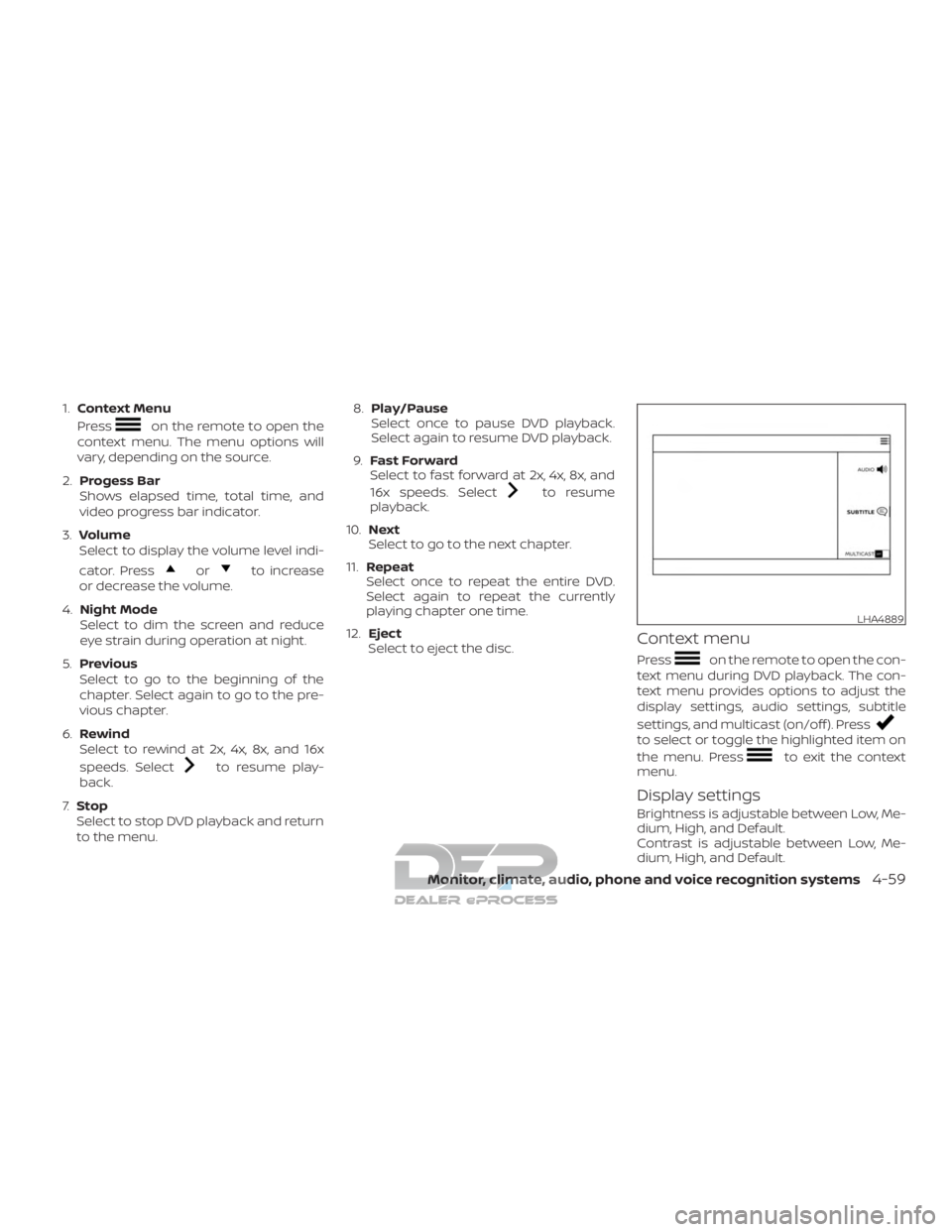
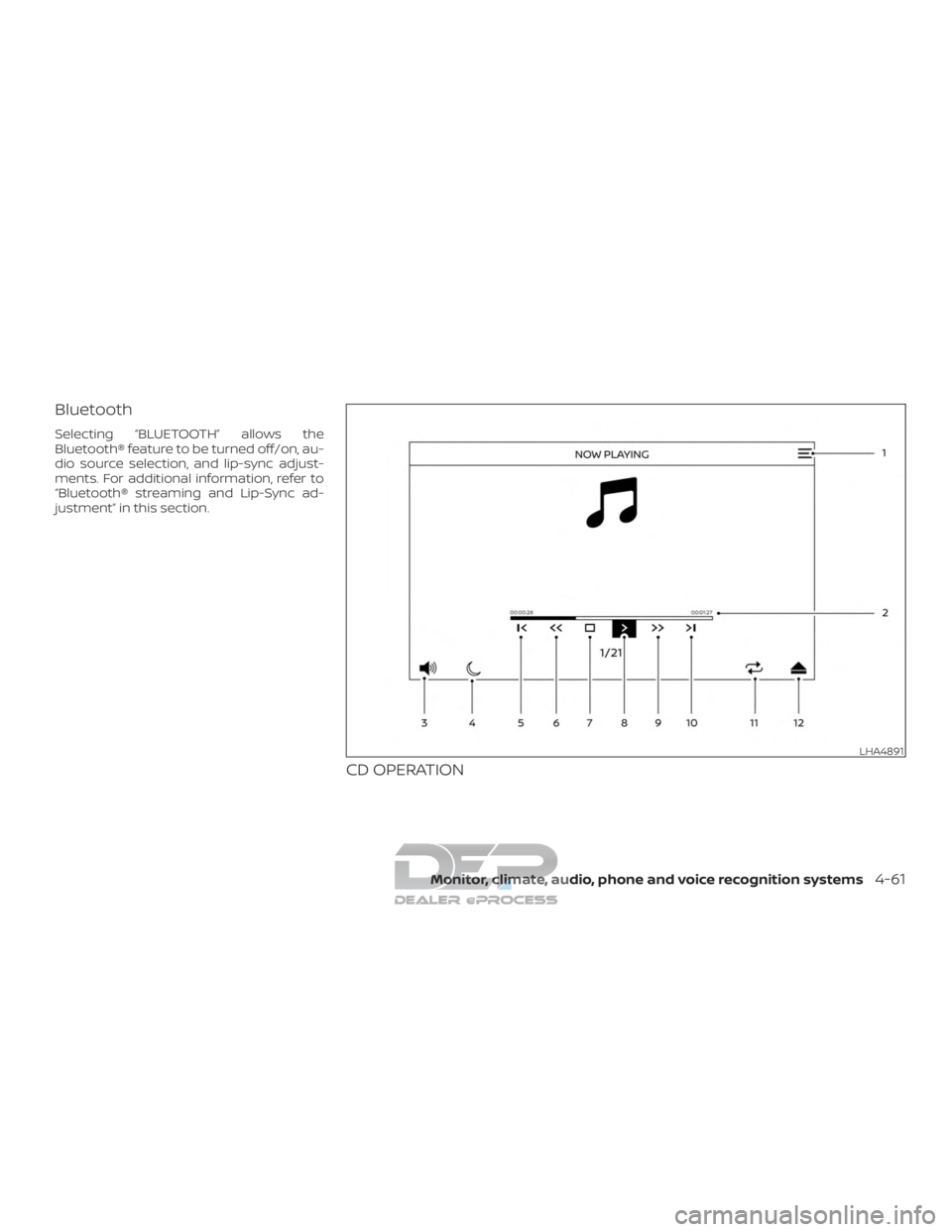
1.Context Menu
Press
on the remote to open the
context menu. The menu options will
vary, depending on the source.
2. Progess Bar
Shows elapsed time, total time, and
video progress bar indicator.
3. Volume
Select to display the volume level indi-
cator. Press
orto increase
or decrease the volume.
4. Night Mode
Select to dim the screen and reduce
eye strain during operation at night.
5. Previous
Select to go to the beginning of the
chapter. Select again to go to the pre-
vious chapter.
6. Rewind
Select to rewind at 2x, 4x, 8x, and 16x
speeds. Select
to resume play-
back.
7. Stop
Select to stop DVD playback and return
to the menu. 8.
Play/Pause
Select once to pause DVD playback.
Select again to resume DVD playback.
9. Fast Forward
Select to fast forward at 2x, 4x, 8x, and
16x speeds. Select
to resume
playback.
10. Next
Select to go to the next chapter.
11. Repeat
Select once to repeat the entire DVD.
Select again to repeat the currently
playing chapter one time.
12. Eject
Select to eject the disc.
Context menu
Presson the remote to open the con-
text menu during DVD playback. The con-
text menu provides options to adjust the
display settings, audio settings, subtitle
settings, and multicast (on/off ). Press
to select or toggle the highlighted item on
the menu. Press
to exit the context
menu.
Display settings
Brightness is adjustable between Low, Me-
dium, High, and Default.
Contrast is adjustable between Low, Me-
dium, High, and Default.
LHA4889
Monitor, climate, audio, phone and voice recognition systems4-59
Page 323 of 682
Sharpness is adjustable between Low, Me-
dium, High, and Default.
Aspect Ratio is adjustable between Pan &
Scan, Letter Box, Widescreen, and Default.
Audio settings
The Audio settings allow you to set the
default audio language for DVD playback. If
the selected language is included on the
DVD, the selected audio will be heard in that
language.
Preferred language
Preferred Language is selectable between
English, French, Spanish, Chinese (Simpli-
fied), Chinese (Traditional), Dutch, Portu-
guese, Italian, Korean, Russian, Arabic, and
Default. The preferred language must be
included on DVD in order for it to be dis-
played. Refer to the DVD jacket for more
information.
Language switch
Language Switch provides the ability to se-
lect between various audio streams (lan-
guages) included on a DVD. Audio streams
must be included on the DVD to be heard.
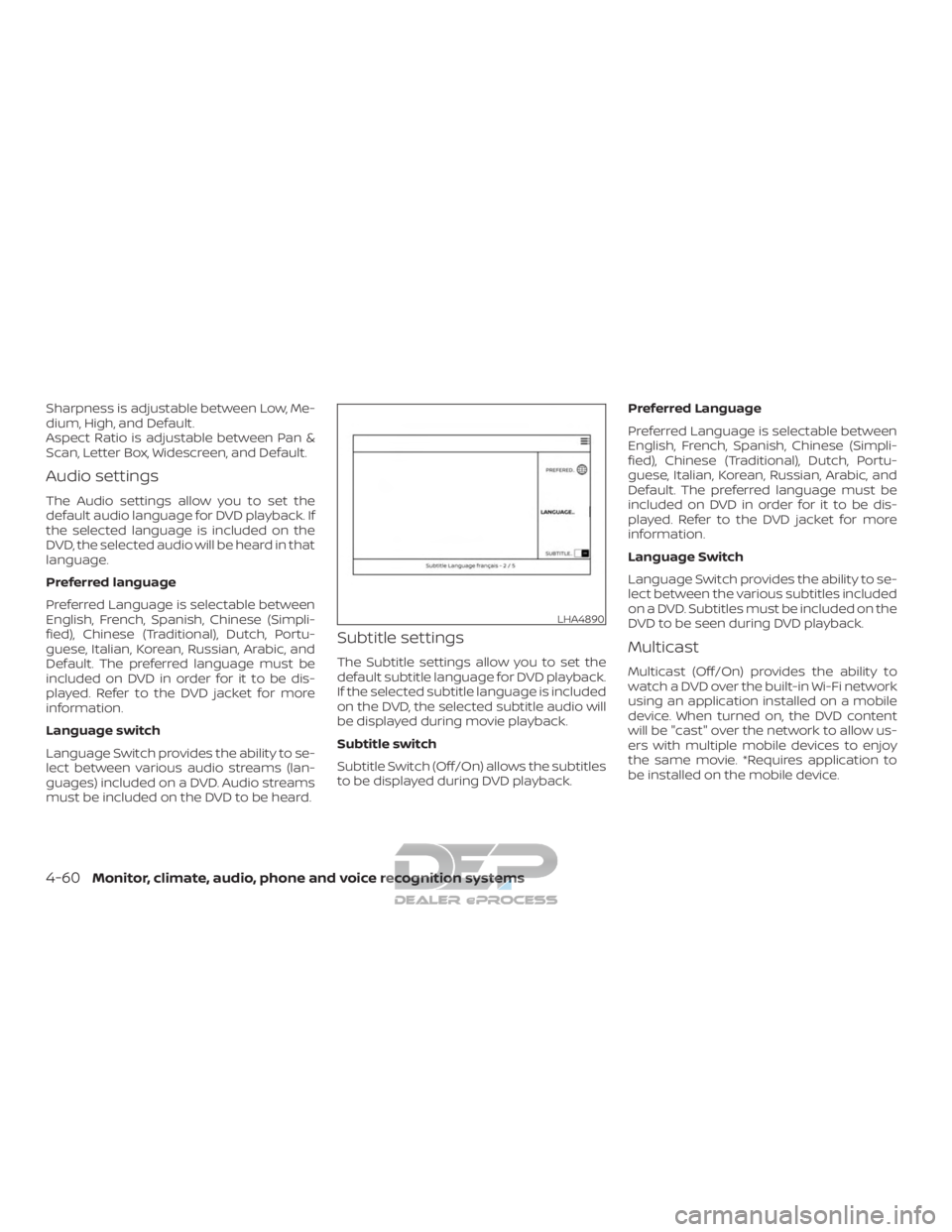
Subtitle settings
The Subtitle settings allow you to set the
default subtitle language for DVD playback.
If the selected subtitle language is included
on the DVD, the selected subtitle audio will
be displayed during movie playback.
Subtitle switch
Subtitle Switch (Off/On) allows the subtitles
to be displayed during DVD playback.Preferred Language
Preferred Language is selectable between
English, French, Spanish, Chinese (Simpli-
fied), Chinese (Traditional), Dutch, Portu-
guese, Italian, Korean, Russian, Arabic, and
Default. The preferred language must be
included on DVD in order for it to be dis-
played. Refer to the DVD jacket for more
information.
Language Switch
Language Switch provides the ability to se-
lect between the various subtitles included
on a DVD. Subtitles must be included on the
DVD to be seen during DVD playback.Multicast
Multicast (Off/On) provides the ability to
watch a DVD over the built-in Wi-Fi network
using an application installed on a mobile
device. When turned on, the DVD content
will be "cast" over the network to allow us-
ers with multiple mobile devices to enjoy
the same movie. *Requires application to
be installed on the mobile device.
LHA4890
4-60Monitor, climate, audio, phone and voice recognition systems
Page 324 of 682
Bluetooth
Selecting “BLUETOOTH” allows the
Bluetooth® feature to be turned off/on, au-
dio source selection, and lip-sync adjust-
ments. For additional information, refer to
“Bluetooth® streaming and Lip-Sync ad-
justment” in this section.
CD OPERATION
LHA4891
Monitor, climate, audio, phone and voice recognition systems4-61