phone NISSAN TITAN 2021 Owner´s Manual
[x] Cancel search | Manufacturer: NISSAN, Model Year: 2021, Model line: TITAN, Model: NISSAN TITAN 2021Pages: 638, PDF Size: 4.31 MB
Page 325 of 638
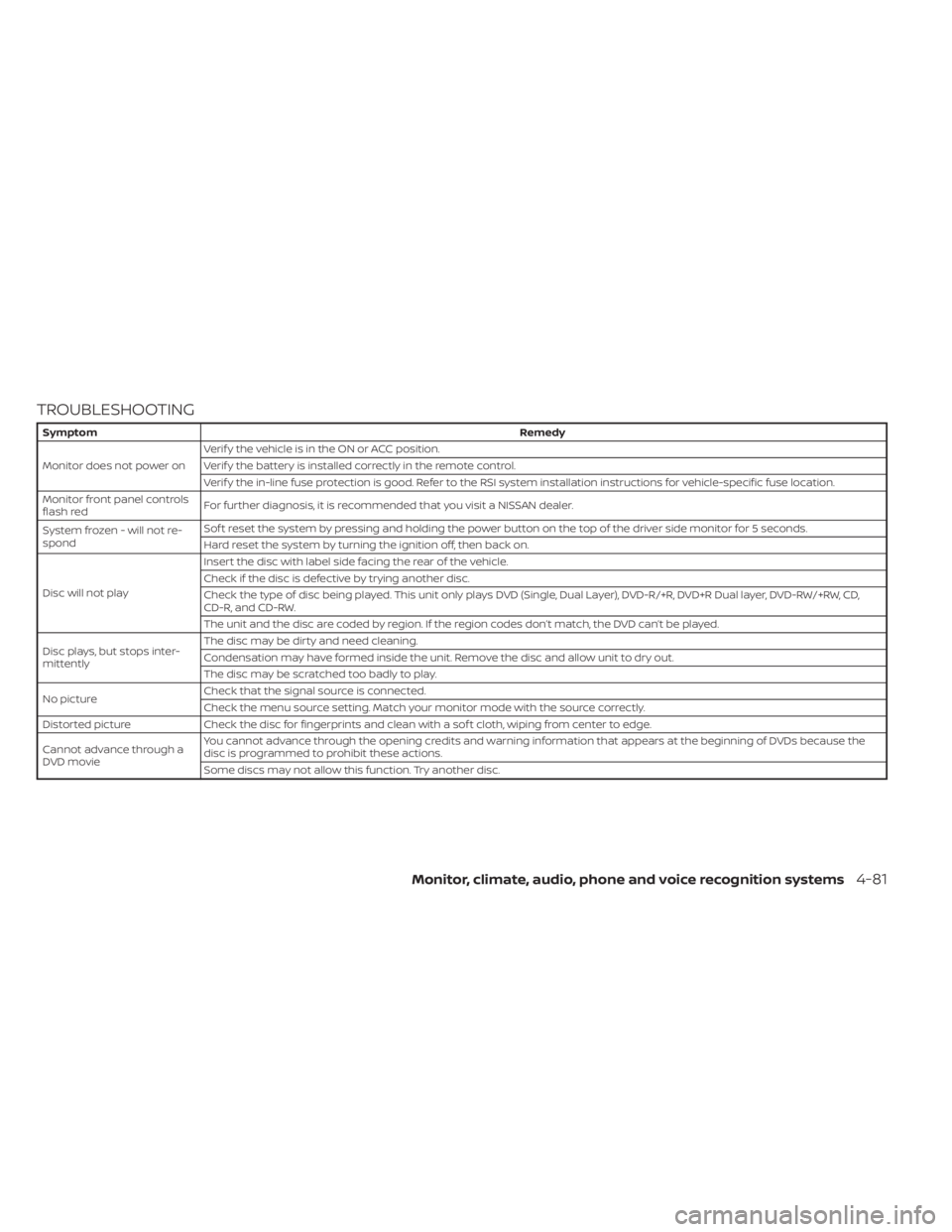
TROUBLESHOOTING
SymptomRemedy
Monitor does not power on Verif y the vehicle is in the ON or ACC position.
Verif y the battery is installed correctly in the remote control.
Verif y the in-line fuse protection is good. Refer to the RSI system installation instructions for vehicle-specific fuse location.
Monitor front panel controls
flash red For further diagnosis, it is recommended that you visit a NISSAN dealer.
System frozen - will not re-
spond Sof t reset the system by pressing and holding the power button on the top of the driver side monitor for 5 seconds.
Hard reset the system by turning the ignition off, then back on.
Disc will not play Insert the disc with label side facing the rear of the vehicle.
Check if the disc is defective by trying another disc.
Check the type of disc being played. This unit only plays DVD (Single, Dual Layer), DVD-R/+R, DVD+R Dual layer, DVD-RW/+RW, CD,
CD-R, and CD-RW.
The unit and the disc are coded by region. If the region codes don’t match, the DVD can’t be played.
Disc plays, but stops inter-
mittently The disc may be dirty and need cleaning.
Condensation may have formed inside the unit. Remove the disc and allow unit to dry out.
The disc may be scratched too badly to play.
No picture Check that the signal source is connected.
Check the menu source setting. Match your monitor mode with the source correctly.
Distorted picture Check the disc for fingerprints and clean with a sof t cloth, wiping from center to edge.
Cannot advance through a
DVD movie You cannot advance through the opening credits and warning information that appears at the beginning of DVDs because the
disc is programmed to prohibit these actions.
Some discs may not allow this function. Try another disc.
Monitor, climate, audio, phone and voice recognition systems4-81
Page 326 of 638
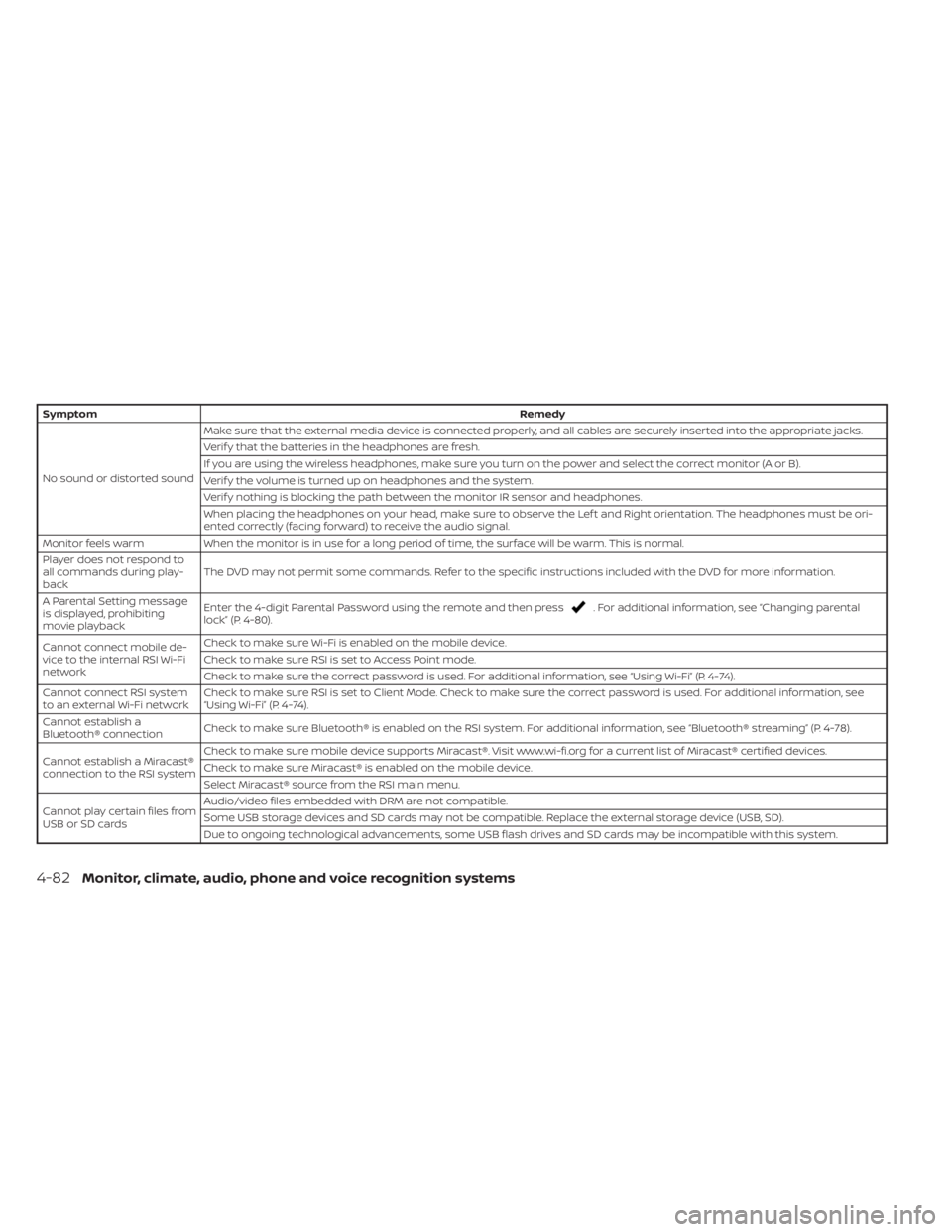
SymptomRemedy
No sound or distorted sound Make sure that the external media device is connected properly, and all cables are securely inserted into the appropriate jacks.
Verif y that the batteries in the headphones are fresh.
If you are using the wireless headphones, make sure you turn on the power and select the correct monitor (A or B).
Verif y the volume is turned up on headphones and the system.
Verif y nothing is blocking the path between the monitor IR sensor and headphones.
When placing the headphones on your head, make sure to observe the Lef t and Right orientation. The headphones must be ori-
ented correctly (facing forward) to receive the audio signal.
Monitor feels warm When the monitor is in use for a long period of time, the surface will be warm. This is normal.
Player does not respond to
all commands during play-
back The DVD may not permit some commands. Refer to the specific instructions included with the DVD for more information.
A Parental Setting message
is displayed, prohibiting
movie playback Enter the 4-digit Parental Password using the remote and then press
. For additional information, see “Changing parental
lock” (P. 4-80).
Cannot connect mobile de-
vice to the internal RSI Wi-Fi
network Check to make sure Wi-Fi is enabled on the mobile device.
Check to make sure RSI is set to Access Point mode.
Check to make sure the correct password is used. For additional information, see “Using Wi-Fi” (P. 4-74).
Cannot connect RSI system
to an external Wi-Fi network Check to make sure RSI is set to Client Mode. Check to make sure the correct password is used. For additional information, see
“Using Wi-Fi” (P. 4-74).
Cannot establish a
Bluetooth® connection Check to make sure Bluetooth® is enabled on the RSI system. For additional information, see “Bluetooth® streaming” (P. 4-78).
Cannot establish a Miracast®
connection to the RSI system Check to make sure mobile device supports Miracast®. Visit www.wi-fi.org for a current list of Miracast® certified devices.
Check to make sure Miracast® is enabled on the mobile device.
Select Miracast® source from the RSI main menu.
Cannot play certain files from
USB or SD cards Audio/video files embedded with DRM are not compatible.
Some USB storage devices and SD cards may not be compatible. Replace the external storage device (USB, SD).
Due to ongoing technological advancements, some USB flash drives and SD cards may be incompatible with this system.
4-82Monitor, climate, audio, phone and voice recognition systems
Page 327 of 638
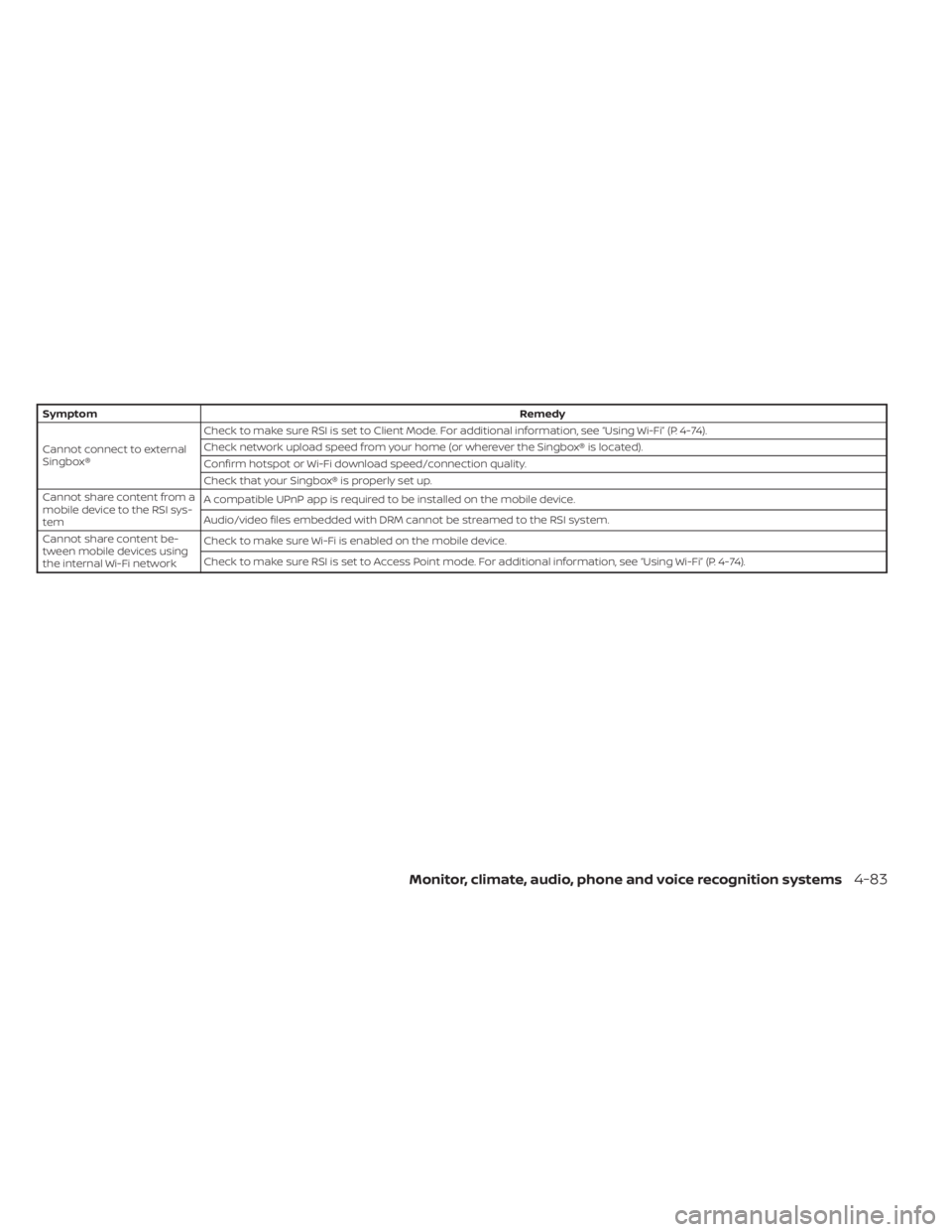
SymptomRemedy
Cannot connect to external
Singbox® Check to make sure RSI is set to Client Mode. For additional information, see “Using Wi-Fi” (P. 4-74).
Check network upload speed from your home (or wherever the Singbox® is located).
Confirm hotspot or Wi-Fi download speed/connection quality.
Check that your Singbox® is properly set up.
Cannot share content from a
mobile device to the RSI sys-
tem A compatible UPnP app is required to be installed on the mobile device.
Audio/video files embedded with DRM cannot be streamed to the RSI system.
Cannot share content be-
tween mobile devices using
the internal Wi-Fi network Check to make sure Wi-Fi is enabled on the mobile device.
Check to make sure RSI is set to Access Point mode. For additional information, see “Using Wi-Fi” (P. 4-74).
Monitor, climate, audio, phone and voice recognition systems4-83
Page 328 of 638
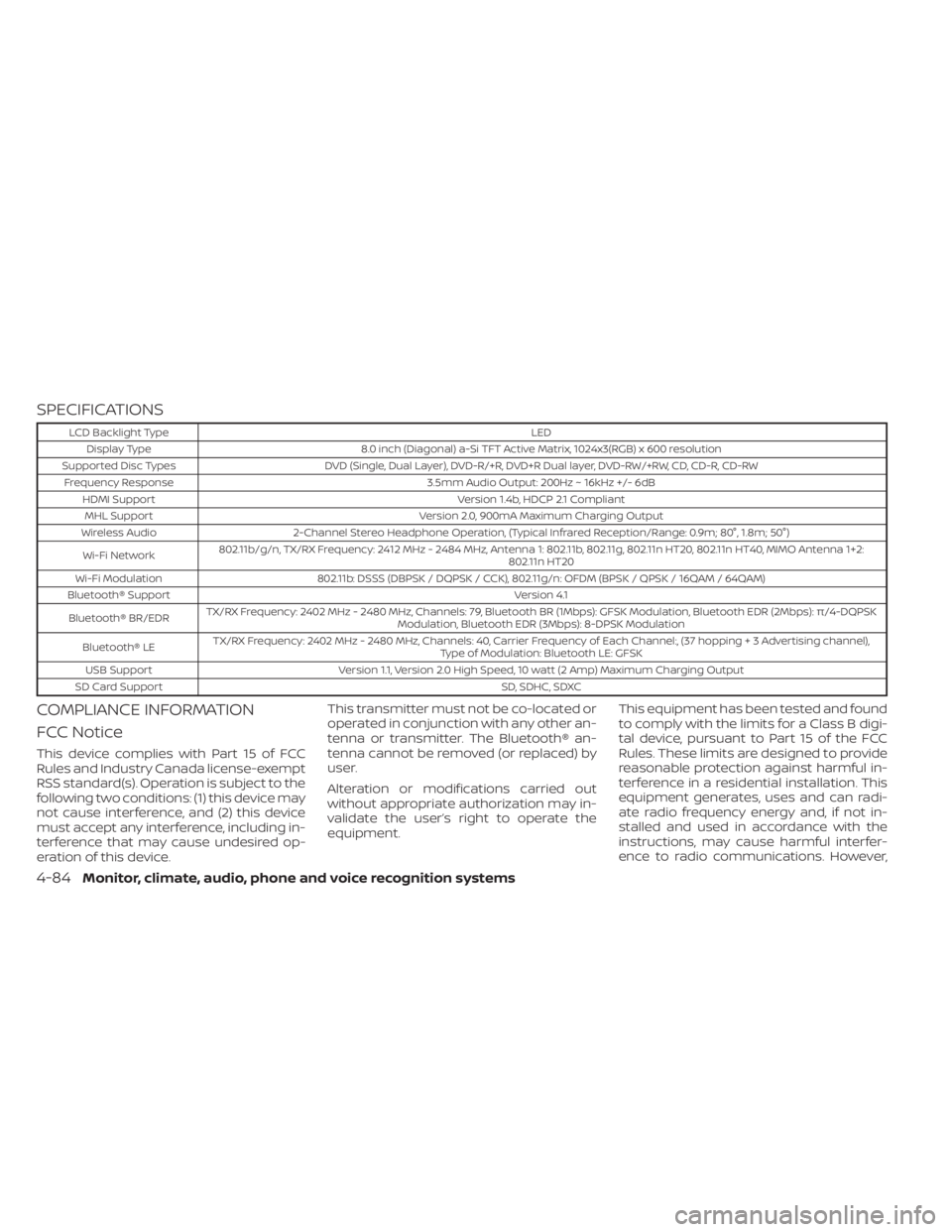
SPECIFICATIONS
LCD Backlight TypeLED
Display Type 8.0 inch (Diagonal) a-Si TFT Active Matrix, 1024x3(RGB) x 600 resolution
Supported Disc Types DVD (Single, Dual Layer), DVD-R/+R, DVD+R Dual layer, DVD-RW/+RW, CD, CD-R, CD-RW
Frequency Response 3.5mm Audio Output: 200Hz ~ 16kHz +/- 6dB
HDMI Support Version 1.4b, HDCP 2.1 Compliant
MHL Support Version 2.0, 900mA Maximum Charging Output
Wireless Audio 2-Channel Stereo Headphone Operation, (Typical Infrared Reception/Range: 0.9m; 80°, 1.8m; 50°)
Wi-Fi Network 802.11b/g/n, TX/RX Frequency: 2412 MHz - 2484 MHz, Antenna 1: 802.11b, 802.11g, 802.11n HT20, 802.11n HT40, MIMO Antenna 1+2:
802.11n HT20
Wi-Fi Modulation 802.11b: DSSS (DBPSK / DQPSK / CCK), 802.11g/n: OFDM (BPSK / QPSK / 16QAM / 64QAM)
Bluetooth® Support Version 4.1
Bluetooth® BR/EDR TX/RX Frequency: 2402 MHz - 2480 MHz, Channels: 79, Bluetooth BR (1Mbps): GFSK Modulation, Bluetooth EDR (2Mbps): π/4-DQPSK
Modulation, Bluetooth EDR (3Mbps): 8-DPSK Modulation
Bluetooth® LE TX/RX Frequency: 2402 MHz - 2480 MHz, Channels: 40, Carrier Frequency of Each Channel:, (37 hoppin
g+3Advertisingchannel),
Type of Modulation: Bluetooth LE: GFSK
USB Support Version 1.1, Version 2.0 High Speed, 10 watt (2 Amp) Maximum Charging Output
SD Card Support SD, SDHC, SDXC
COMPLIANCE INFORMATION
FCC Notice
This device complies with Part 15 of FCC
Rules and Industry Canada license-exempt
RSS standard(s). Operation is subject to the
following two conditions: (1) this device may
not cause interference, and (2) this device
must accept any interference, including in-
terference that may cause undesired op-
eration of this device.This transmitter must not be co-located or
operated in conjunction with any other an-
tenna or transmitter. The Bluetooth® an-
tenna cannot be removed (or replaced) by
user.
Alteration or modifications carried out
without appropriate authorization may in-
validate the user’s right to operate the
equipment.
This equipment has been tested and found
to comply with the limits for a Class B digi-
tal device, pursuant to Part 15 of the FCC
Rules. These limits are designed to provide
reasonable protection against harmful in-
terference in a residential installation. This
equipment generates, uses and can radi-
ate radio frequency energy and, if not in-
stalled and used in accordance with the
instructions, may cause harmful interfer-
ence to radio communications. However,
4-84Monitor, climate, audio, phone and voice recognition systems
Page 329 of 638
there is no guarantee that interference will
not occur in a particular installation. If this
equipment does cause harmful interfer-
ence to radio or television reception, which
can be determined by turning the equip-
ment off and on, the user is encouraged to
try to correct the interference by one or
more of the following measures:
• Reorient or relocate the receiving an-tenna.
• Increase the separation between the equipment and receiver.
• Connect the equipment into an outlet on a circuit different from that to which the
receiver is connected.
• Consult the dealer or an experienced radio/ TV technician for help.
Bluetooth®
The Bluetooth® word mark and logos are
registered trademarks owned by the
Bluetooth SIG, Inc. and any use of such marks
by Voxx Automotive Corporation is under li-
cense. Other trademarks and trade names
are those of their respective owners.
DVD Video Playback
This item incorporates copy protection
technology that is protected by U.S. pat-
ents and other intellectual property rights
of Rovi Corporation. Reverse engineering
and disassembly are prohibited.
AAC
AAC is short for Advanced Audio Coding
and refers to an audio compression tech-
nology standard used with MPEG-2 and
MPEG-4. Several applications can be used
to encode AAC files, but file formats and
extensions differ depending on the appli-
cation which is used to encode.
FLAC
Copyright © 2000-2009 Josh Coalson
Copyright © 2011-2013 Xiph.Org Foundation
Redistribution and use in source and bi-
nary forms, with or without modification,
are permitted provided that the following
conditions are met:
Redistributions of source code must retain
the above copyright notice, this list of con-
ditions and the following disclaimer.
Redistributions in binary form must repro-
duce the above copyright notice, this list of
conditions and the following disclaimer in
the documentation and/or other materi-
als provided with the distribution.
Neither the name of the Xiph.org Founda-
tion nor the names of its contributors may
be used to endorse or promote products
derived from this sof tware without specific
prior written permission.
LHA4926
Monitor, climate, audio, phone and voice recognition systems4-85
Page 330 of 638
THIS SOFTWARE IS PROVIDED BY THE COPY-
RIGHT HOLDERS AND CONTRIBUTORS “AS
IS” AND ANY EXPRESS OR IMPLIED WARRAN-
TIES, INCLUDING, BUT NOT LIMITED TO, THE
IMPLIED WARRANTIES OF MERCHANTABIL-
ITY AND FITNESS FOR A PARTICULAR PUR-
POSE ARE DISCLAIMED. IN NO EVENT SHALL
THE FOUNDATION OR CONTRIBUTORS BE
LIABLE FOR ANY DIRECT, INDIRECT, INCIDEN-
TAL, SPECIAL, EXEMPLARY, OR CONSEQUEN-
TIAL DAMAGES (INCLUDING, BUT NOT LIM-
ITED TO, PROCUREMENT OF SUBSTITUTE
GOODS OR SERVICES; LOSS OF USE, DATA,
OR PROFITS; OR BUSINESS INTERRUPTION)
HOWEVER CAUSED AND ON ANY THEORY
OF LIABILITY, WHETHER IN CONTRACT,
STRICT LIABILITY, OR TORT (INCLUDING
NEGLIGENCE OR OTHERWISE) ARISING IN
ANY WAY OUT OF THE USE OF THIS SOFT-
WARE, EVEN IF ADVISED OF THE POSSIBILITY
OF SUCH DAMAGE.
MP3
Supply of this product only conveys a li-
cense for private, non-commercial use and
does not convey a license nor imply any
right to use this product in any commercial
(i.e. revenuegenerating) real time broad-
casting (terrestrial, satellite, cable and/or
any other media), broadcasting/streaming
via internet, intranets and/or other net-works or in other electronic content
distribution systems, such as pay-audio
or audio-on-demand applications. An
independent license for such use is re-
quired. For details, please visit http://
www.mp3licensing.com.
WMA/WMV
Windows Media is either a registered
trademark or trademark of Microsof t
Corporation in the United States and/or
other countries. This product includes
technology owned by Microsof t
Corporation and cannot be used or distrib-
uted without a license from Microsof t
Licensing, Inc.
SD/SDHC/SDXC
SD, SDHC and SDXC Logos are trademarks
or registered trademarks of SD-3C LLC in
the United States, other countries or both.
HDMI
The terms HDMI and HDMI High-Definition
Multimedia Interface, and the HDMI Logo
are trademarks or registered trademarks
of HDMI Licensing, LLC in the United States
and other countries.
MHL
MHL, the MHL Logo, and Mobile High-
Definition Link are trademarks or regis-
tered trademarks of MHL, LLC in the United
States and other countries.
LHA4923
4-86Monitor, climate, audio, phone and voice recognition systems
Page 331 of 638
Dolby Digital
This product will down-mix Dolby Digital
signals internally and the sound will be out-
put in stereo. Manufactured under license
from Dolby Laboratories. Dolby and the
double-D symbol are trademarks of Dolby
Laboratories.
European Waste Electrical and
Electronic Equipment (WEEE)
Notice
In accordance with Directive 2012/19/EU of
the European Parliament on waste electri-
cal and electronic equipment (WEEE):The symbol above indicates that separate
collection of electrical and electronic
equipment is required. When this product
has reached the end of its serviceable life, it
cannot be disposed of as unsorted munici-
pal waste. It must be collected and treated
separately. It has been determined by the
European Parliament that there are poten-
tial negative effects on the environment
and human health as a result of the pres-
ence of hazardous substances in electrical
and electronic equipment. It is the users‘
responsibility to utilize the available collec-
tion system to ensure WEEE is properly
treated.All other trademarks and their respective
logos cited herein are the property of their
respective owners.
LHA4924LHA4925
Monitor, climate, audio, phone and voice recognition systems4-87
Page 332 of 638
When installing a CB, ham radio or car
phone in your vehicle, be sure to observe
the following precautions; otherwise, the
new equipment may adversely affect the
engine control system and other electronic
parts.
WARNING
• A cellular phone should not be used
for any purpose while driving so full
attention may be given to vehicle op-
eration. Some jurisdictions prohibit
the use of cellular phones while
driving.
• If you must make a call while your
vehicle is in motion, the hands free
cellular phone operational mode (if
so equipped) is highly recom-
mended. Exercise extreme caution at
all times so full attention may be
given to vehicle operation.
• If you are unable to devote full atten-
tion to vehicle operation while talk-
ing on the phone, pull off the road to
a safe location and stop your vehicle.
CAUTION
• Keep the antenna as far away as pos-
sible from the electronic control
modules.
• Keep the antenna wire more than 8 in
(20 cm) away from the electronic
control system harnesses. Do not
route the antenna wire next to any
harness.
• Adjust the antenna standing-wave
ratio as recommended by the
manufacturer.
• Connect the ground wire from the CB
radio chassis to the body.
• For additional information, it is rec-
ommended that you visit a NISSAN
dealer for this service. “Made for iPod”, “Made for iPhone” and
“Made for iPad” mean that an electronic
accessory has been designed to connect
specifically to iPod, iPhone or iPad, respec-
tively, and has been certified by the devel-
oper to meet Apple performance stan-
dards. Apple is not responsible for the
operation of this device or its compliance
with safety and regulatory standards.
Please note that the use of this accessory
with iPod, iPhone or iPad may affect wire-
less performance.
iPad, iPhone, iPod classic, iPod Nano, iPod
shuffle and iPod touch are trademarks of
Apple Inc., registered in the U.S. and other
countries. Lightning is a trademark of
Apple Inc.
CAR PHONE OR CB RADIO
iPod®/IPHONE®
4-88Monitor, climate, audio, phone and voice recognition systems
Page 349 of 638
cranking the engine, release the accel-
erator pedal. Crank the engine with
your foot off the accelerator pedal by
depressing the brake pedal and push-
ing the ignition switch to start the en-
gine. If the engine starts, but fails to
run, repeat the above procedure.
CAUTION
Do not operate the starter for more
than 15 seconds at a time. If the engine
does not start, push the ignition switch
to the OFF position and wait 10 seconds
before cranking again, otherwise the
starter could be damaged.
4. Warm-up
Allow the engine to idle for at least 30
seconds af ter starting. Do not race the
engine while warming it up. Drive at a
moderate speed for a short distance
first, especially in cold weather. In cold
weather, keep the engine running for a
minimum of 2 to 3 minutes before shut-
ting it off. Starting and stopping the en-
gine over a short period of time may
make the vehicle more difficult to start. 5. To stop the engine, move the shif t lever
to the P (Park) position and push the
ignition switch to the OFF position.
In preparation for the next engine start, the
engine may have a slightly delayed shutoff
af ter placing the ignition switch in the OFF
position, depending on the driving condi-
tions.NOTE:
Care should be taken to avoid situa-
tions that can lead to potential bat-
tery discharge and potential no-start
conditions such as:
1. Installation or extended use of elec- tronic accessories that consume bat-
tery power when the engine is not
running (phone chargers, GPS, DVD
players, etc.).
2. The vehicle is not driven regularly and/or only driven short distances.
In these cases, the battery may need to
be charged to maintain battery health.
REMOTE ENGINE START (if so
equipped)
Vehicles started with the Remote Engine
Start require the ignition switch to be
placed in the ON position before the shif t
lever can be moved from the P (Park) posi-
tion. To place the ignition switch in the ON
position, follow these steps:
1. Make sure that the Intelligent Key is on you.
2. Apply the brake.
3. Push the ignition switch once to the ON position.
For additional information, see “NISSAN In-
telligent Key®” (P. 3-2).
Starting and driving5-17
Page 503 of 638
• If the battery is labeled "do not open" it ismaintenance free and battery fluid
should not be checked. It is recom-
mended that you visit a NISSAN dealer or
a qualified specialist workshop to con-
firm the battery’s performance.
• Keep the battery surface clean and dry. Clean the battery with a solution of bak-
ing soda and water.
• Make certain the terminal connections are clean and securely tightened.
• Push the ignition switch to the OFF posi- tion and wait 2 minutes before discon-
necting the battery.
• If the vehicle is not to be used for 30 days or longer, disconnect the negative (-) bat-
tery terminal cable to prevent discharge.
NOTE:
Care should be taken to avoid situations
that can lead to potential battery dis-
charge and potential no-start conditions
such as:
1. Installation or extended use of elec-
tronic accessories that consume bat-
tery power when the engine is not
running (Phone chargers, GPS, DVD
players, etc.) 2.
Vehicle is not driven regularly and/or
only driven short distances.
In these cases, the battery may need to
be charged to maintain battery health.
WARNING
• Do not expose the battery to flames,
an electrical spark or a cigarette. Hy-
drogen gas generated by the battery
is explosive. Explosive gases can
cause blindness or injury. Do not al-
low battery fluid to contact your skin,
eyes, fabrics or painted surfaces. Sul-
furic acid can cause blindness or in-
jury. Af ter touching a battery or bat-
tery cap, do not touch or rub your
eyes. Thoroughly wash your hands. If
the acid contacts your eyes, skin or
clothing, immediately flush with wa-
ter for at least 15 minutes and seek
medical attention.
• Do not operate the vehicle if the fluid
in the battery is low. Low battery fluid
can cause a higher load on the bat-
tery which can generate heat, reduce
battery life, and in some cases lead to
an explosion. •
When working on or near a battery,
always wear suitable eye protection
and remove all jewelry.
• Battery posts, terminals and related
accessories contain lead and lead
compounds. Wash hands af ter
handling.
• This vehicle uses a special battery. If
the 12-volt battery needs to be re-
placed, use a 12-volt battery of the
same design.
• Keep battery out of the reach of
children.
• Do not tip the battery. Keep the vent
caps tight and the battery level.
Do-it-yourself8-17