climate control NISSAN TITAN 2021 Owner´s Manual
[x] Cancel search | Manufacturer: NISSAN, Model Year: 2021, Model line: TITAN, Model: NISSAN TITAN 2021Pages: 638, PDF Size: 4.31 MB
Page 304 of 638
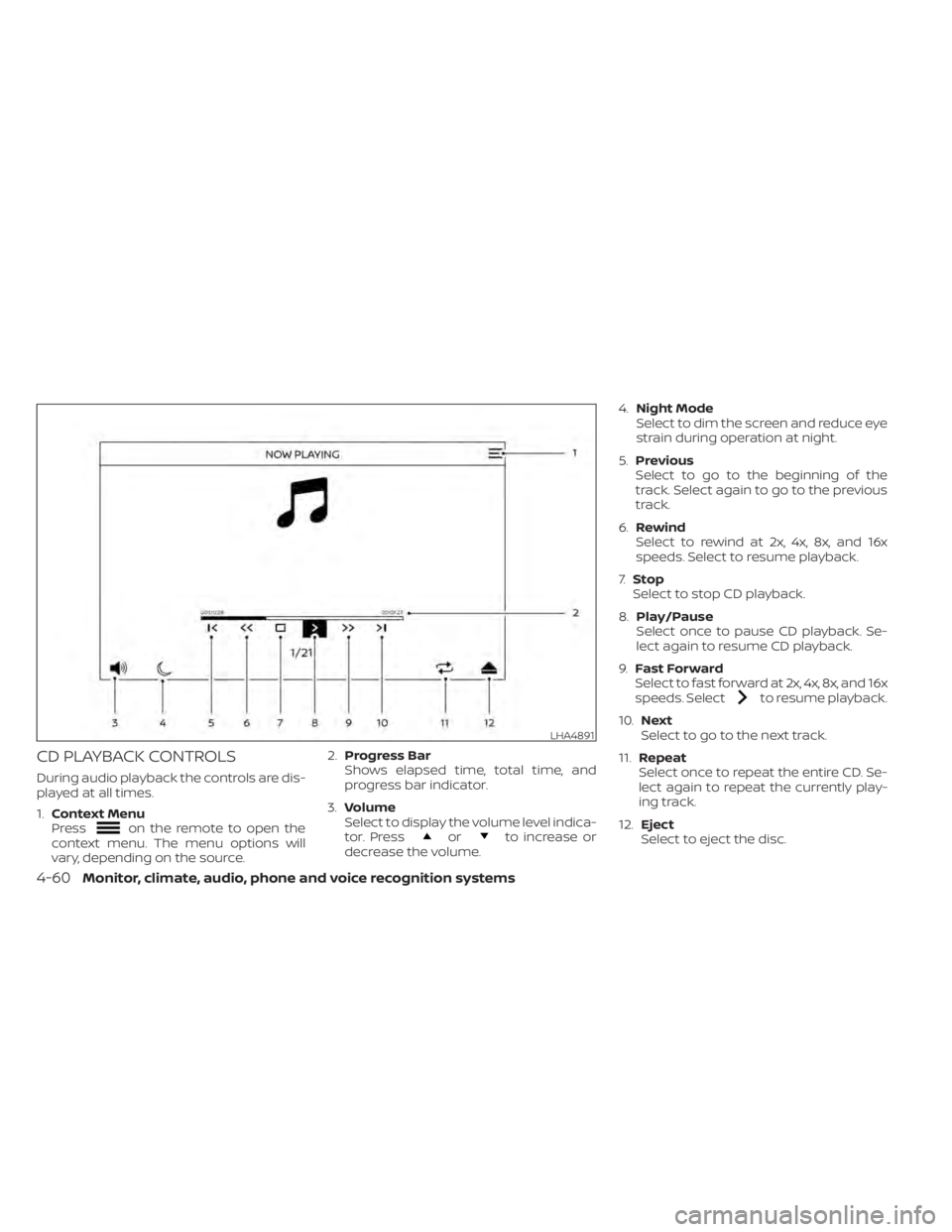
CD PLAYBACK CONTROLS
During audio playback the controls are dis-
played at all times.
1.Context Menu
Press
on the remote to open the
context menu. The menu options will
vary, depending on the source. 2.
Progress Bar
Shows elapsed time, total time, and
progress bar indicator.
3. Volume
Select to display the volume level indica-
tor. Pressorto increase or
decrease the volume. 4.
Night Mode
Select to dim the screen and reduce eye
strain during operation at night.
5. Previous
Select to go to the beginning of the
track. Select again to go to the previous
track.
6. Rewind
Select to rewind at 2x, 4x, 8x, and 16x
speeds. Select to resume playback.
7. Stop
Select to stop CD playback.
8. Play/Pause
Select once to pause CD playback. Se-
lect again to resume CD playback.
9. Fast Forward
Select to fast forward at 2x, 4x, 8x, and 16x
speeds. Select
to resume playback.
10. Next
Select to go to the next track.
11. Repeat
Select once to repeat the entire CD. Se-
lect again to repeat the currently play-
ing track.
12. Eject
Select to eject the disc.
LHA4891
4-60Monitor, climate, audio, phone and voice recognition systems
Page 305 of 638
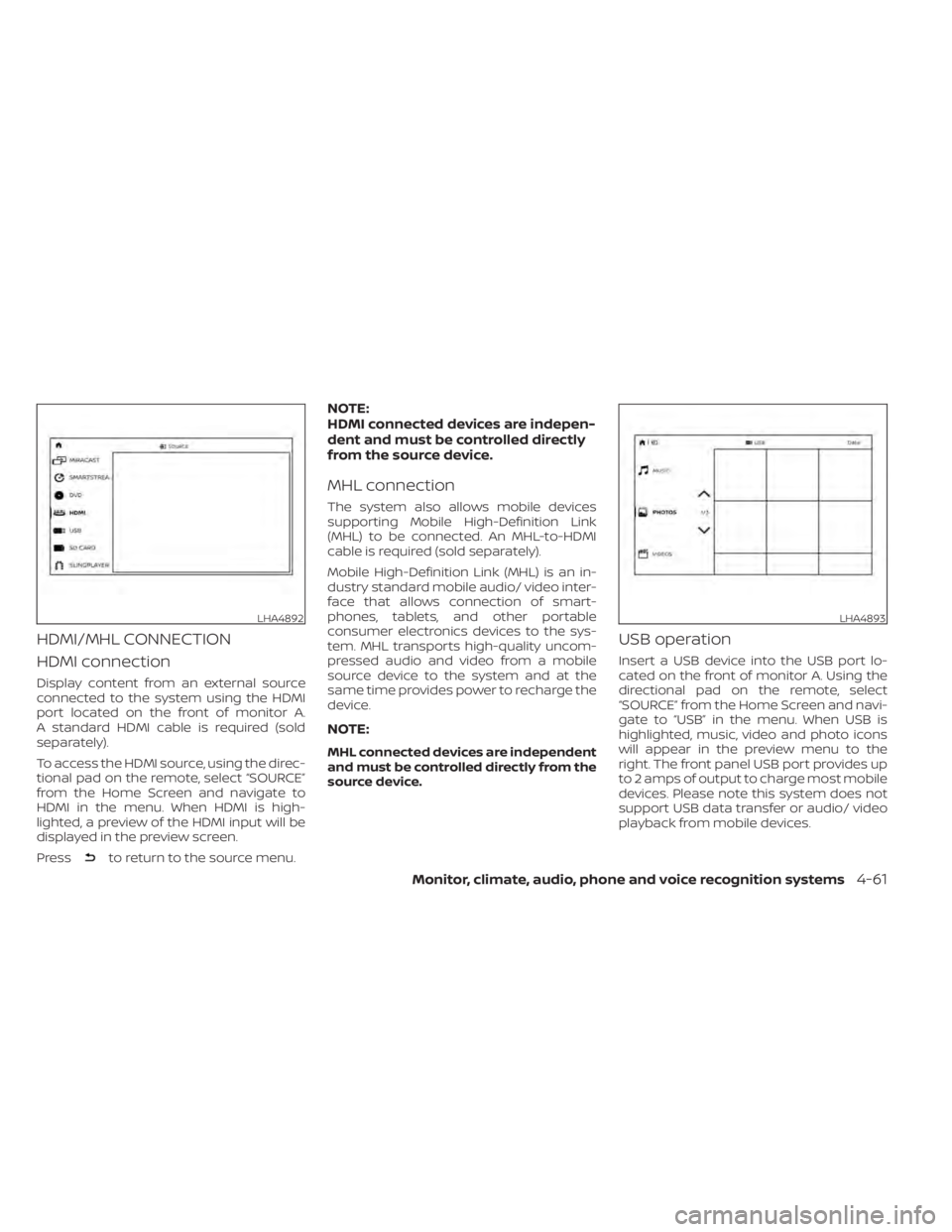
HDMI/MHL CONNECTION
HDMI connection
Display content from an external source
connected to the system using the HDMI
port located on the front of monitor A.
A standard HDMI cable is required (sold
separately).
To access the HDMI source, using the direc-
tional pad on the remote, select “SOURCE”
from the Home Screen and navigate to
HDMI in the menu. When HDMI is high-
lighted, a preview of the HDMI input will be
displayed in the preview screen.
Press
to return to the source menu.
NOTE:
HDMI connected devices are indepen-
dent and must be controlled directly
from the source device.
MHL connection
The system also allows mobile devices
supporting Mobile High-Definition Link
(MHL) to be connected. An MHL-to-HDMI
cable is required (sold separately).
Mobile High-Definition Link (MHL) is an in-
dustry standard mobile audio/ video inter-
face that allows connection of smart-
phones, tablets, and other portable
consumer electronics devices to the sys-
tem. MHL transports high-quality uncom-
pressed audio and video from a mobile
source device to the system and at the
same time provides power to recharge the
device.
NOTE:
MHL connected devices are independent
and must be controlled directly from the
source device.
USB operation
Insert a USB device into the USB port lo-
cated on the front of monitor A. Using the
directional pad on the remote, select
“SOURCE” from the Home Screen and navi-
gate to “USB” in the menu. When USB is
highlighted, music, video and photo icons
will appear in the preview menu to the
right. The front panel USB port provides up
to 2 amps of output to charge most mobile
devices. Please note this system does not
support USB data transfer or audio/ video
playback from mobile devices.
LHA4892LHA4893
Monitor, climate, audio, phone and voice recognition systems4-61
Page 309 of 638
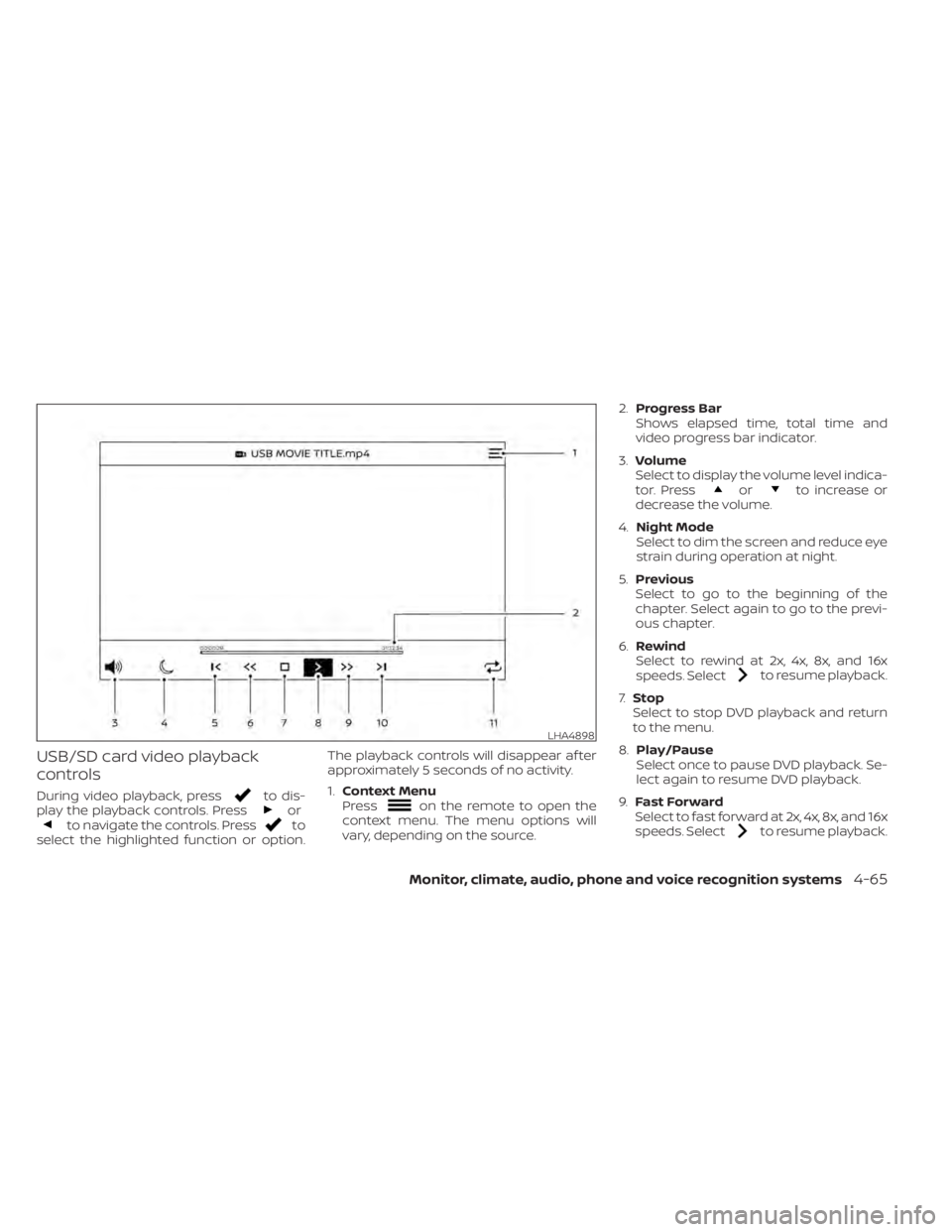
USB/SD card video playback
controls
During video playback, pressto dis-
play the playback controls. Pressorto navigate the controls. Pressto
select the highlighted function or option. The playback controls will disappear af ter
approximately 5 seconds of no activity.
1.
Context Menu
Press
on the remote to open the
context menu. The menu options will
vary, depending on the source. 2.
Progress Bar
Shows elapsed time, total time and
video progress bar indicator.
3. Volume
Select to display the volume level indica-
tor. Press
orto increase or
decrease the volume.
4. Night Mode
Select to dim the screen and reduce eye
strain during operation at night.
5. Previous
Select to go to the beginning of the
chapter. Select again to go to the previ-
ous chapter.
6. Rewind
Select to rewind at 2x, 4x, 8x, and 16x
speeds. Select
to resume playback.
7. Stop
Select to stop DVD playback and return
to the menu.
8. Play/Pause
Select once to pause DVD playback. Se-
lect again to resume DVD playback.
9. Fast Forward
Select to fast forward at 2x, 4x, 8x, and 16x
speeds. Select
to resume playback.
LHA4898
Monitor, climate, audio, phone and voice recognition systems4-65
Page 311 of 638
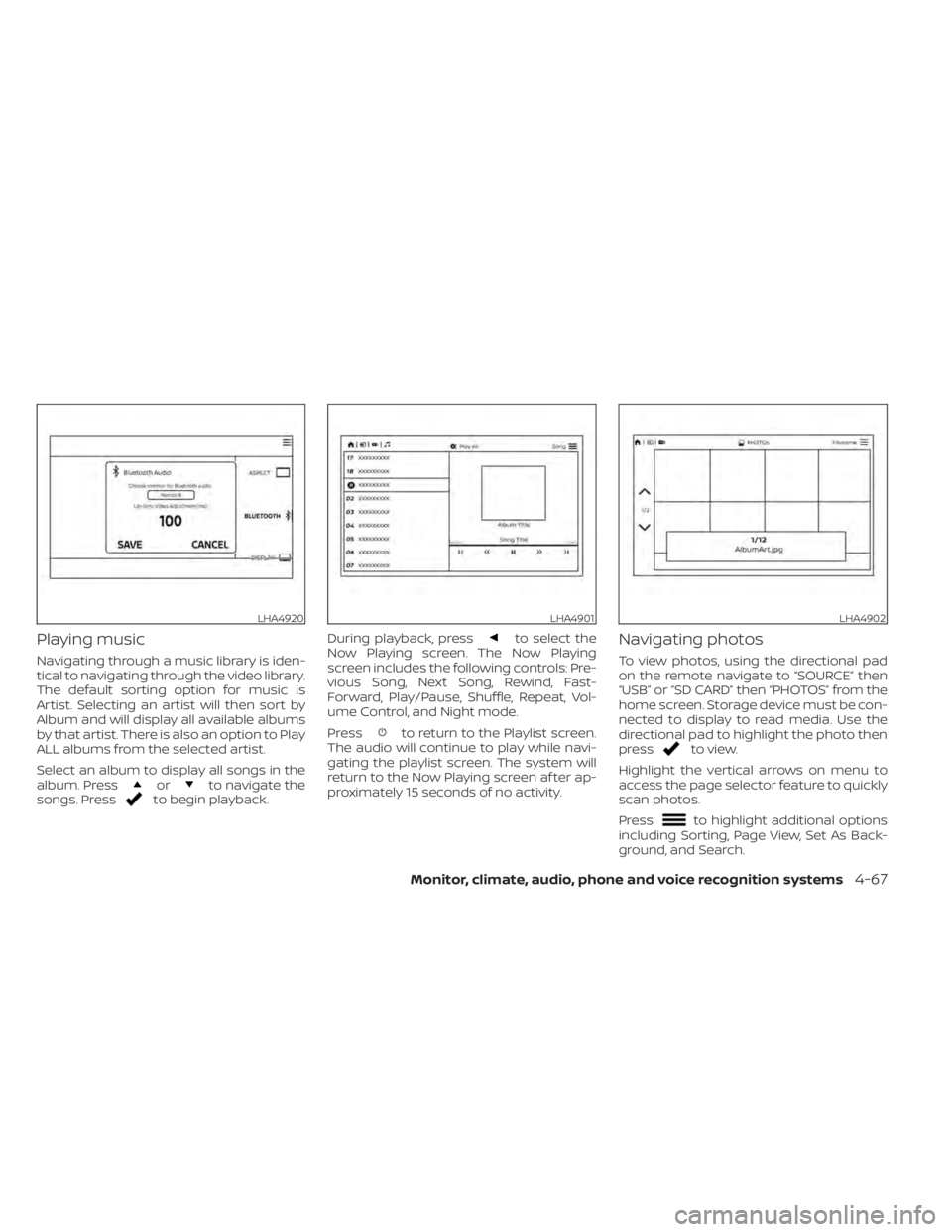
Playing music
Navigating through a music library is iden-
tical to navigating through the video library.
The default sorting option for music is
Artist. Selecting an artist will then sort by
Album and will display all available albums
by that artist. There is also an option to Play
ALL albums from the selected artist.
Select an album to display all songs in the
album. Press
orto navigate the
songs. Pressto begin playback. During playback, press
to select the
Now Playing screen. The Now Playing
screen includes the following controls: Pre-
vious Song, Next Song, Rewind, Fast-
Forward, Play/Pause, Shuffle, Repeat, Vol-
ume Control, and Night mode.
Press
to return to the Playlist screen.
The audio will continue to play while navi-
gating the playlist screen. The system will
return to the Now Playing screen af ter ap-
proximately 15 seconds of no activity.
Navigating photos
To view photos, using the directional pad
on the remote navigate to “SOURCE” then
“USB” or “SD CARD” then “PHOTOS” from the
home screen. Storage device must be con-
nected to display to read media. Use the
directional pad to highlight the photo then
press
to view.
Highlight the vertical arrows on menu to
access the page selector feature to quickly
scan photos.
Press
to highlight additional options
including Sorting, Page View, Set As Back-
ground, and Search.
LHA4920LHA4901LHA4902
Monitor, climate, audio, phone and voice recognition systems4-67
Page 312 of 638
Sorting lets you arrange the photos by file-
name or date.
Page View allows the user to view photos in
Fullscreen, Grid, Overview, or Slideshow.
Set As Background sets the selected photo
as the home screen background.
Search prompts the user to input a file-
name or date to find a photo.
SLINGPLAYER®About Slingplayer®
A Slingbox® (sold separately) connects to
your home network and sits between your
cable or set-top box and your TV. When
accessed remotely, your Slingbox® slings
your content to the RSI system. To use
Slingplayer®, an external internet connec-
tion is required. For additional information,
see “Using Wi-Fi” (P. 4-74) to enable Client
Mode in the Wi-Fi Settings and allow the
system to connect to a Wi-Fi hotspot.
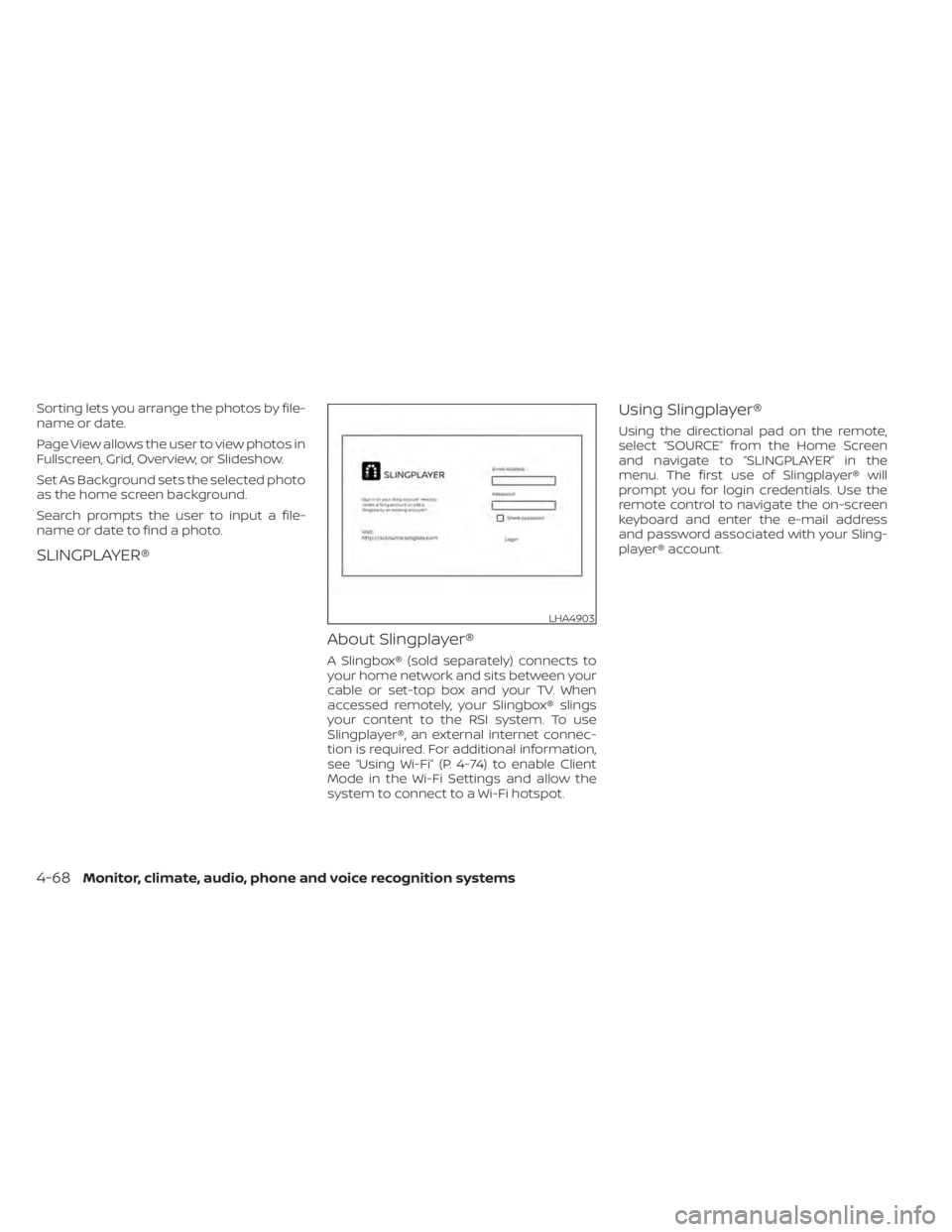
Using Slingplayer®
Using the directional pad on the remote,
select “SOURCE” from the Home Screen
and navigate to “SLINGPLAYER” in the
menu. The first use of Slingplayer® will
prompt you for login credentials. Use the
remote control to navigate the on-screen
keyboard and enter the e-mail address
and password associated with your Sling-
player® account.
LHA4903
4-68Monitor, climate, audio, phone and voice recognition systems
Page 313 of 638
Slingplayer® options
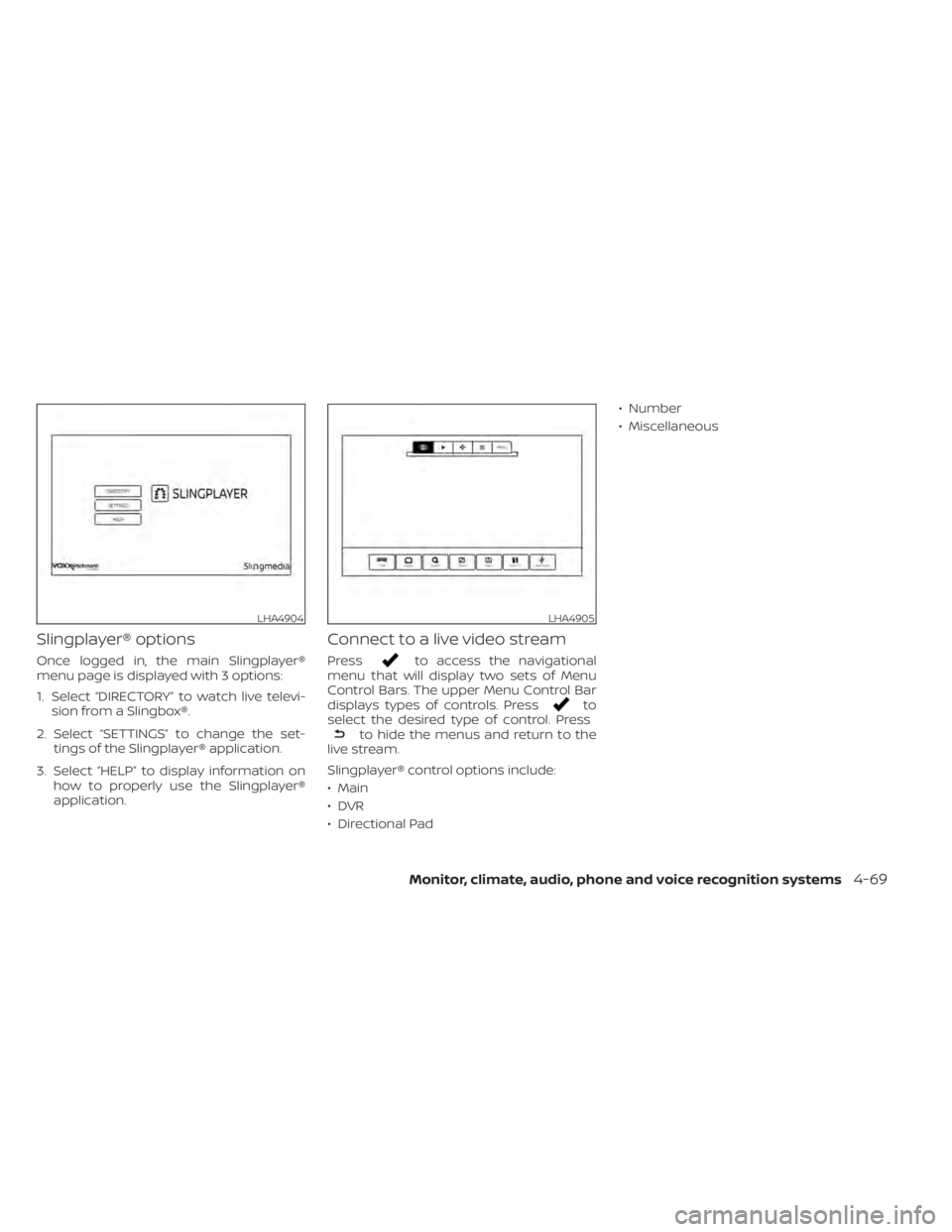
Once logged in, the main Slingplayer®
menu page is displayed with 3 options:
1. Select “DIRECTORY” to watch live televi-sion from a Slingbox®.
2. Select “SETTINGS” to change the set- tings of the Slingplayer® application.
3. Select “HELP” to display information on how to properly use the Slingplayer®
application.
Connect to a live video stream
Pressto access the navigational
menu that will display two sets of Menu
Control Bars. The upper Menu Control Bar
displays types of controls. Press
to
select the desired type of control. Press
to hide the menus and return to the
live stream.
Slingplayer® control options include:
• Main
•DVR
• Directional Pad • Number
• Miscellaneous
LHA4904LHA4905
Monitor, climate, audio, phone and voice recognition systems4-69
Page 314 of 638
Accessing the program guide
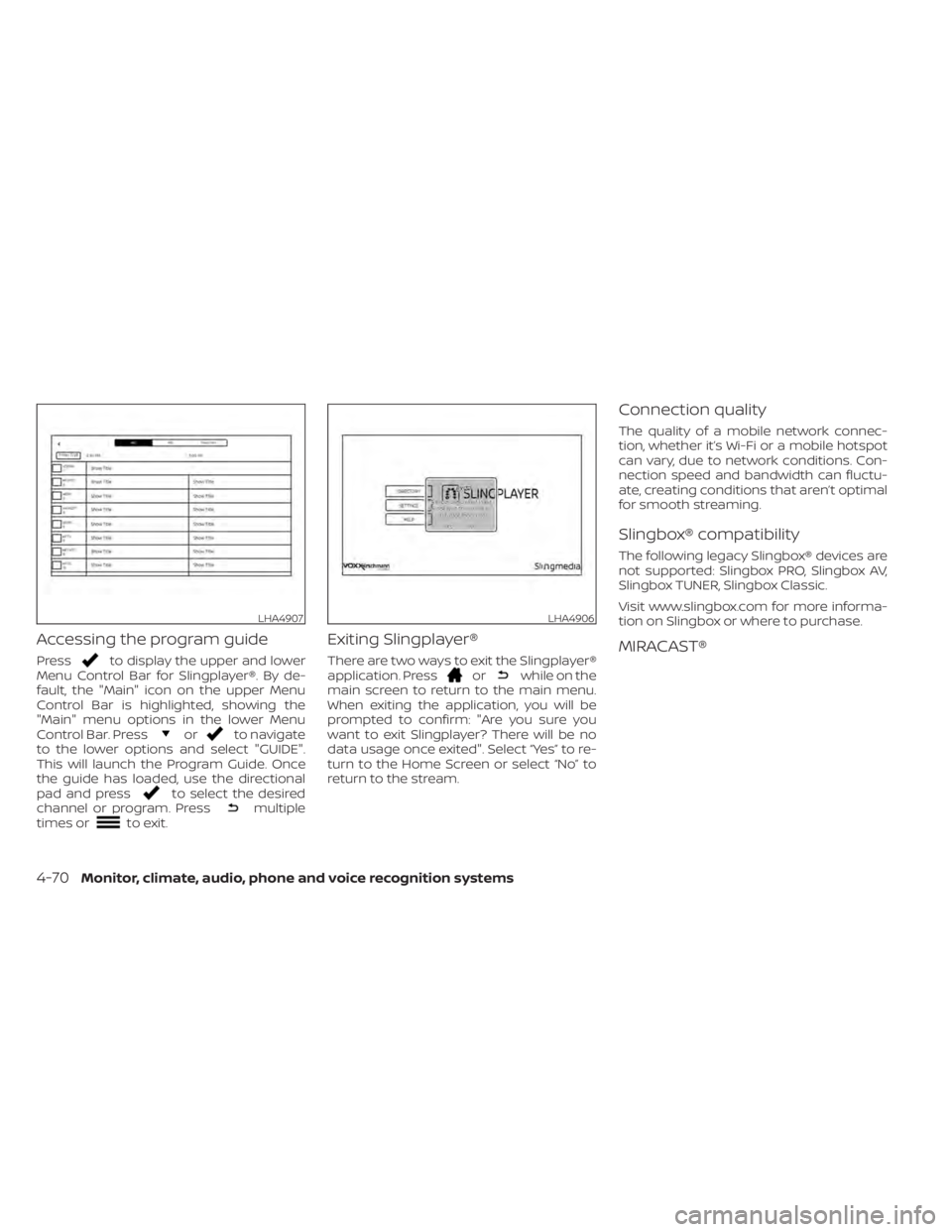
Pressto display the upper and lower
Menu Control Bar for Slingplayer®. By de-
fault, the "Main" icon on the upper Menu
Control Bar is highlighted, showing the
"Main" menu options in the lower Menu
Control Bar. Press
orto navigate
to the lower options and select "GUIDE".
This will launch the Program Guide. Once
the guide has loaded, use the directional
pad and press
to select the desired
channel or program. Pressmultiple
times orto exit.
Exiting Slingplayer®
There are two ways to exit the Slingplayer®
application. Pressorwhile on the
main screen to return to the main menu.
When exiting the application, you will be
prompted to confirm: "Are you sure you
want to exit Slingplayer? There will be no
data usage once exited". Select “Yes” to re-
turn to the Home Screen or select “No” to
return to the stream.
Connection quality
The quality of a mobile network connec-
tion, whether it’s Wi-Fi or a mobile hotspot
can vary, due to network conditions. Con-
nection speed and bandwidth can fluctu-
ate, creating conditions that aren’t optimal
for smooth streaming.
Slingbox® compatibility
The following legacy Slingbox® devices are
not supported: Slingbox PRO, Slingbox AV,
Slingbox TUNER, Slingbox Classic.
Visit www.slingbox.com for more informa-
tion on Slingbox or where to purchase.
MIRACAST®
LHA4907LHA4906
4-70Monitor, climate, audio, phone and voice recognition systems
Page 317 of 638
3. Select the desired source content fromthe list of available devices. Content can
be browsed from all devices that are
connected to the RSI Wi-Fi network and
have a compatible UPnP application
installed.
4. Af ter selecting a content source, navi- gate through the folders, and select the
desired file to stream to the monitor.
Once the file is selected, it will begin
streaming to the monitor that was se-
lected in step 2 above.
5. Playback controls are available from the Now Playing screen in the UPnP applica-
tion and from the monitor. Press
to
display the playback controls on the
monitor.
NOTE:
• Content protected with DRM (Digital Rights Management) cannot be
streamed using the SmartStream fea-
ture.
• A wired connection (HDMI or MHL) is required to stream protected content
from a mobile device to the RSI system.
For additional information, see “HDMI/
MHL connection” (P. 4-61).
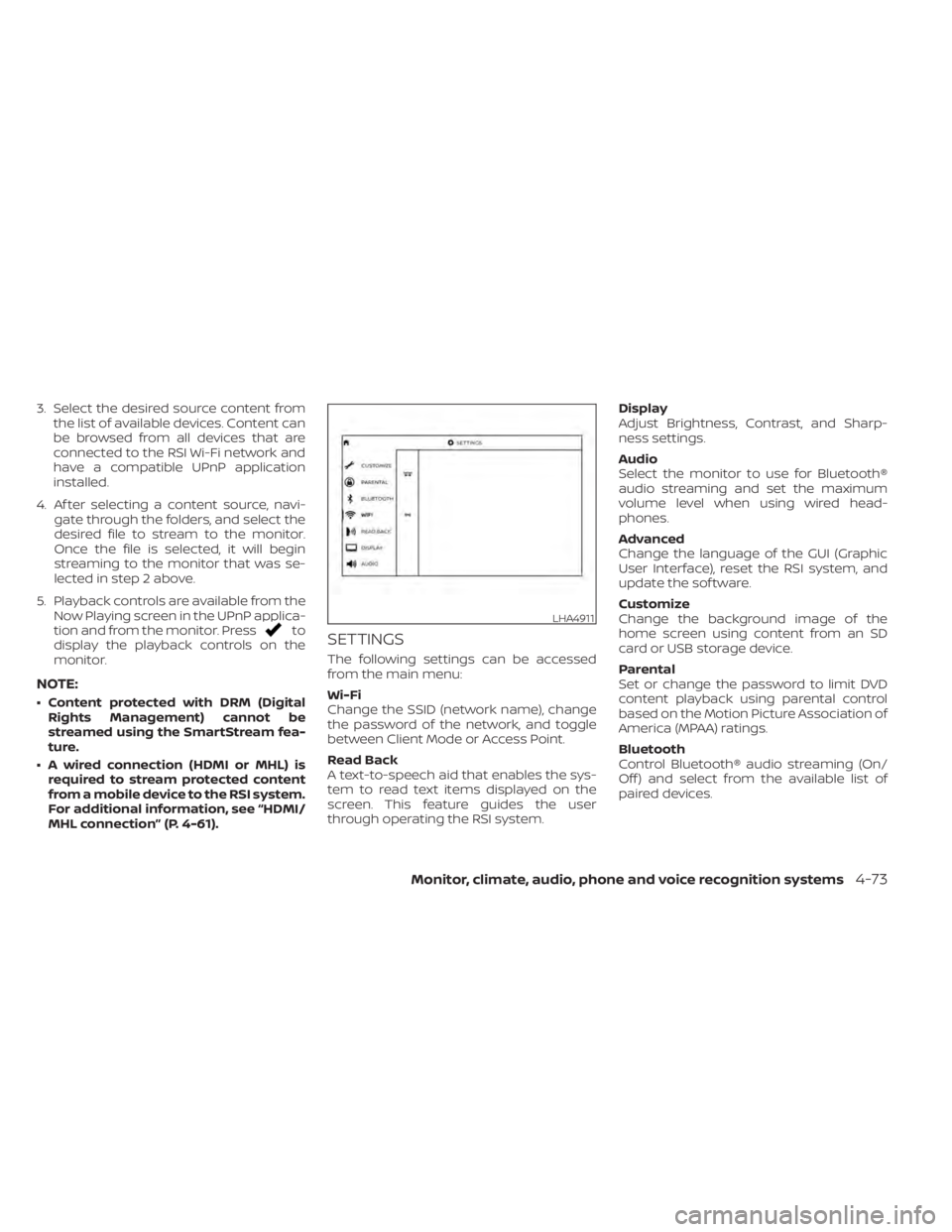
SETTINGS
The following settings can be accessed
from the main menu:
Wi-Fi
Change the SSID (network name), change
the password of the network, and toggle
between Client Mode or Access Point.
Read Back
A text-to-speech aid that enables the sys-
tem to read text items displayed on the
screen. This feature guides the user
through operating the RSI system. Display
Adjust Brightness, Contrast, and Sharp-
ness settings.
Audio
Select the monitor to use for Bluetooth®
audio streaming and set the maximum
volume level when using wired head-
phones.
Advanced
Change the language of the GUI (Graphic
User Interface), reset the RSI system, and
update the sof tware.
Customize
Change the background image of the
home screen using content from an SD
card or USB storage device.
Parental
Set or change the password to limit DVD
content playback using parental control
based on the Motion Picture Association of
America (MPAA) ratings.
Bluetooth
Control Bluetooth® audio streaming (On/
Off ) and select from the available list of
paired devices.
LHA4911
Monitor, climate, audio, phone and voice recognition systems4-73
Page 319 of 638
Speech Volume
Speech Volume can be adjusted to match
the media volume (spoken text volume is
the same volume level as the content be-
ing played). To reduce the Speech Volume
to be lower than the volume level content
being played, set it to 75%, 50%, or 25% of
the media volume.
Speech Rate
Speech Rate can be adjusted between
Normal, Fast, or Slow. This setting controls
how fast the spoken text is pronounced.
*Complies with FCC/Accessibility rule 21st
Century Communications and Video Ac-
cessibility Act (CVAA).
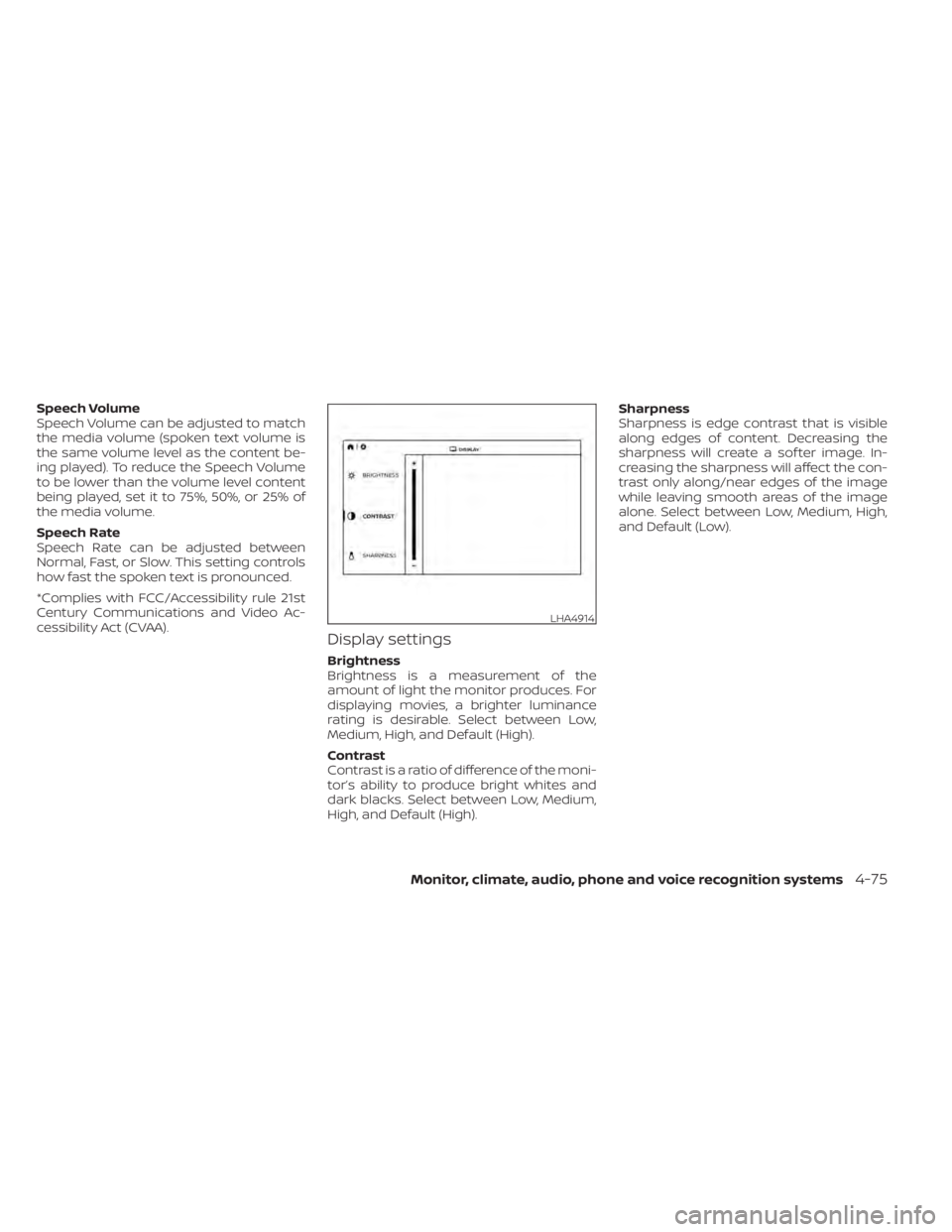
Display settings
Brightness
Brightness is a measurement of the
amount of light the monitor produces. For
displaying movies, a brighter luminance
rating is desirable. Select between Low,
Medium, High, and Default (High).
Contrast
Contrast is a ratio of difference of the moni-
tor’s ability to produce bright whites and
dark blacks. Select between Low, Medium,
High, and Default (High).Sharpness
Sharpness is edge contrast that is visible
along edges of content. Decreasing the
sharpness will create a sof ter image. In-
creasing the sharpness will affect the con-
trast only along/near edges of the image
while leaving smooth areas of the image
alone. Select between Low, Medium, High,
and Default (Low).
LHA4914
Monitor, climate, audio, phone and voice recognition systems4-75
Page 325 of 638
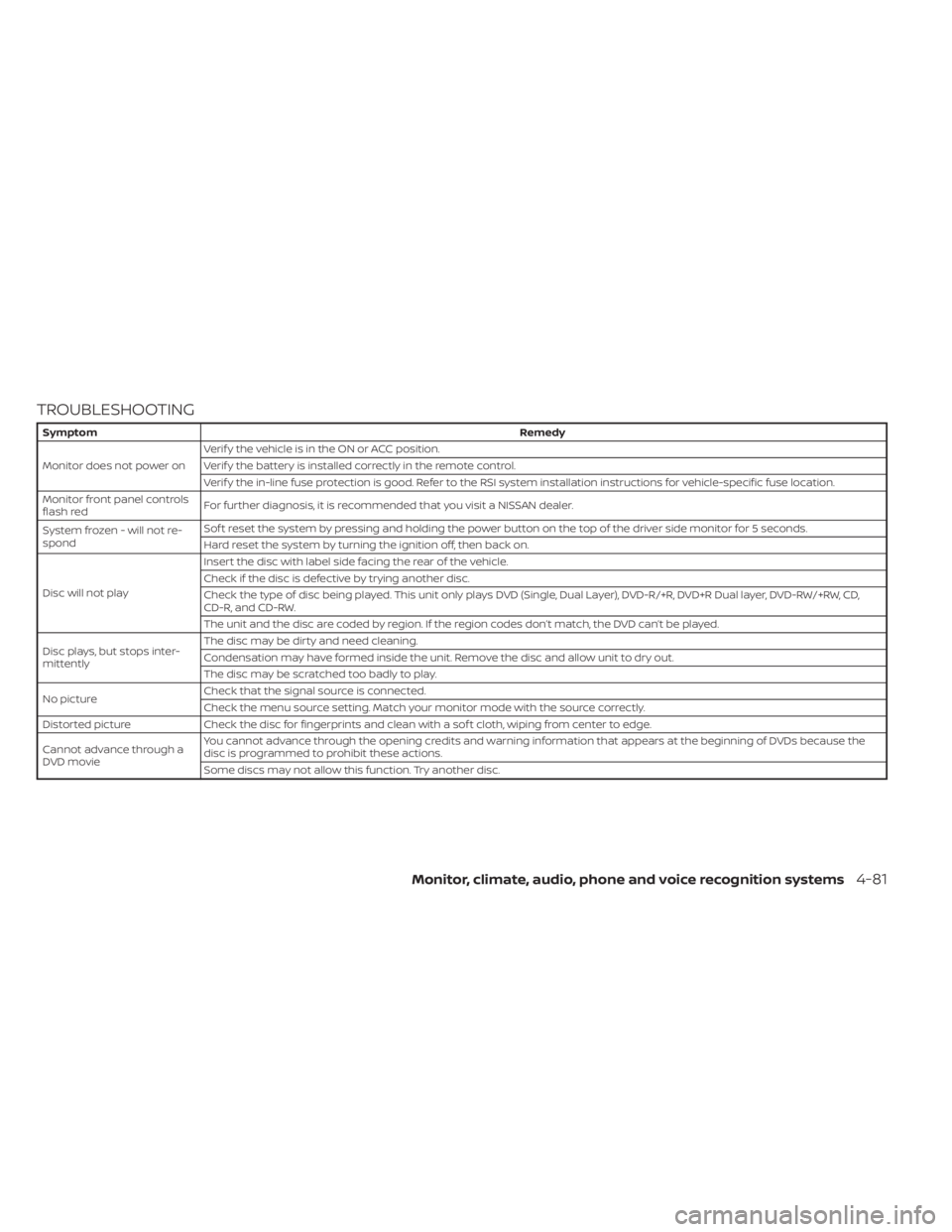
TROUBLESHOOTING
SymptomRemedy
Monitor does not power on Verif y the vehicle is in the ON or ACC position.
Verif y the battery is installed correctly in the remote control.
Verif y the in-line fuse protection is good. Refer to the RSI system installation instructions for vehicle-specific fuse location.
Monitor front panel controls
flash red For further diagnosis, it is recommended that you visit a NISSAN dealer.
System frozen - will not re-
spond Sof t reset the system by pressing and holding the power button on the top of the driver side monitor for 5 seconds.
Hard reset the system by turning the ignition off, then back on.
Disc will not play Insert the disc with label side facing the rear of the vehicle.
Check if the disc is defective by trying another disc.
Check the type of disc being played. This unit only plays DVD (Single, Dual Layer), DVD-R/+R, DVD+R Dual layer, DVD-RW/+RW, CD,
CD-R, and CD-RW.
The unit and the disc are coded by region. If the region codes don’t match, the DVD can’t be played.
Disc plays, but stops inter-
mittently The disc may be dirty and need cleaning.
Condensation may have formed inside the unit. Remove the disc and allow unit to dry out.
The disc may be scratched too badly to play.
No picture Check that the signal source is connected.
Check the menu source setting. Match your monitor mode with the source correctly.
Distorted picture Check the disc for fingerprints and clean with a sof t cloth, wiping from center to edge.
Cannot advance through a
DVD movie You cannot advance through the opening credits and warning information that appears at the beginning of DVDs because the
disc is programmed to prohibit these actions.
Some discs may not allow this function. Try another disc.
Monitor, climate, audio, phone and voice recognition systems4-81