climate control NISSAN TITAN 2021 Owner´s Manual
[x] Cancel search | Manufacturer: NISSAN, Model Year: 2021, Model line: TITAN, Model: NISSAN TITAN 2021Pages: 638, PDF Size: 4.31 MB
Page 288 of 638
•Be sure to run the vehicle engine
while using the system. Using this
system without running the engine
can result in battery drain. To avoid
the risk of battery drain, please re-
member to turn off the system when
the vehicle is not in use.
WELCOME
Thank you for purchasing this advanced
Rear Seat Infotainment (RSI) system with
built-in Wi-Fi and DVD player. Before oper-
ating this system, read this section thor-
oughly and retain it for future reference.
System features
• Twin 8-inch Color TFT-LCD Panels with 1024x600 Resolution
• Top-load DVD Player (Driver Side Only)
• Internal Wi-Fi Network
• Bluetooth® 4.1 Audio Streaming
• Miracast®/Smart View Capability
• SmartStream Content Sharing
• USB 2.0 Port, SDXC Card Input
• HDMI 1.4 Input with MHL 2.0 Support
• Exclusive Slingplayer® Application
• 3.5mm Stereo Headphone Output
• Front Panel Capacitive Touch Controls • Infrared Wireless Headphones
• Full-Function Slimline Remote Control
• Monitor Screen SharingGETTING STARTED
Turning the monitor on or off
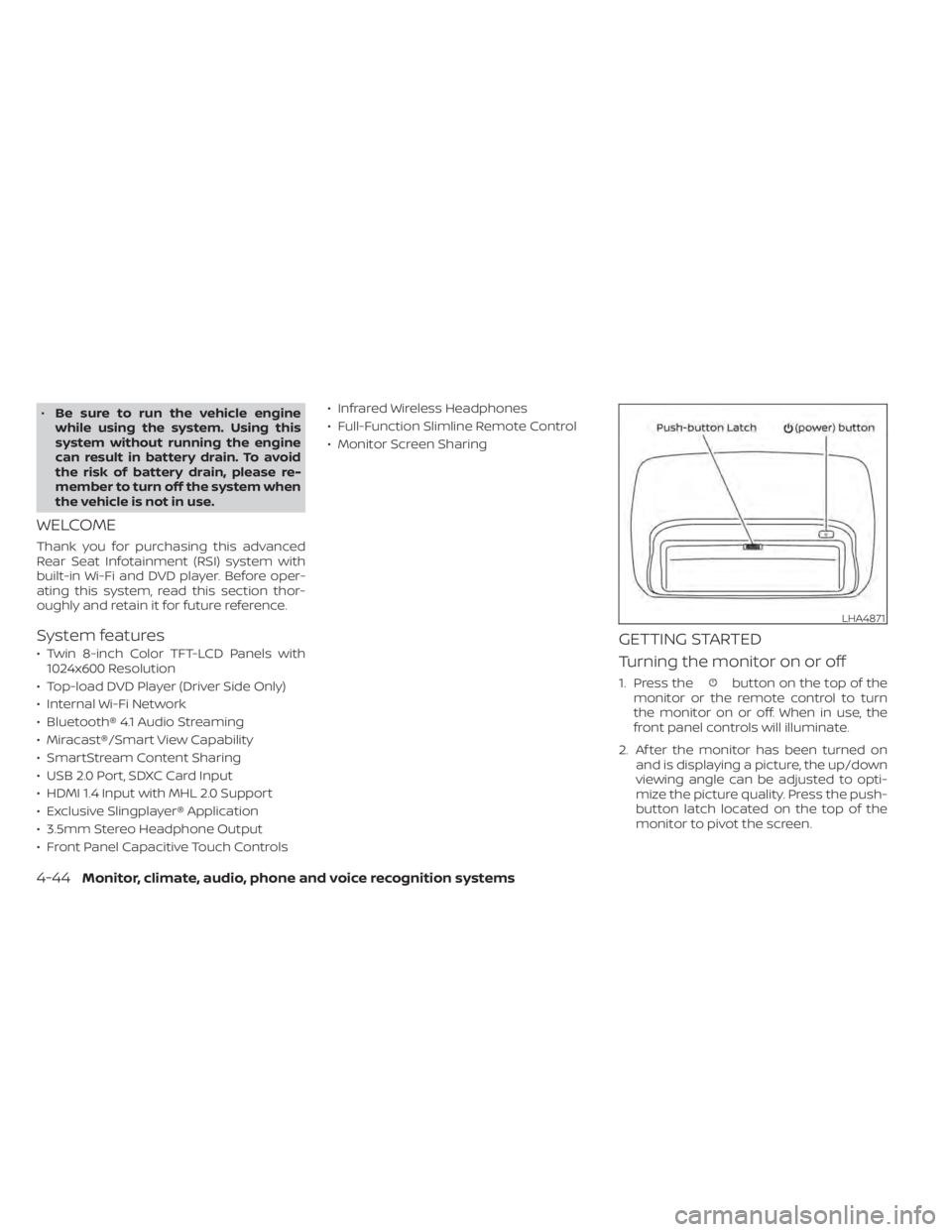
1. Press thebutton on the top of the
monitor or the remote control to turn
the monitor on or off. When in use, the
front panel controls will illuminate.
2. Af ter the monitor has been turned on and is displaying a picture, the up/down
viewing angle can be adjusted to opti-
mize the picture quality. Press the push-
button latch located on the top of the
monitor to pivot the screen.
LHA4871
4-44Monitor, climate, audio, phone and voice recognition systems
Page 289 of 638
Power up tips
1. Af ter the ignition is turned on, there is a12 second delay before the monitor
(power) button is operable.
2. On some vehicles af ter the ignition is turned off, the system will continue to
work for 10 minutes, or until the driver's
door is opened.
3. Remember to turn the monitor off and pivot the screen to the locked (latched)
position when not in use.
Audio options
Wireless headphones
Each monitor includes a built-in dual chan-
nel infrared transmitter for use with wire-
less headphones. The wireless head-
phones must be used within a line of sight
from the transmitter as infrared signals, like
visible light, travel only in a straight line. How to use the wireless headphones
When placing the headphones on your
head, make sure to observe the lef t and
right orientation. The headphones must be
oriented correctly (facing forward) to re-
ceive the audio signal. Press the
(power) button on the headphones,
then select channel “A” to listen to monitor
A, or channel “B” to listen to monitor B.
Adjust the audio level using the volume
control on each headphone.
Wired headphones
There is a 3.5mm stereo headphone out-
put on each monitor which can be used
with most standard stereo headphones
(wired headphones sold separately).
Bluetooth® streaming audio
To listen to audio throughout the entire ve-
hicle, the system includes the ability to
stream audio over a Bluetooth® connec-
tion to the vehicle’s stereo system. When monitor A is selected as the source
to stream from, the audio output to the
wireless and wired headphones will be dis-
abled (only on monitor A). To use the wire-
less or wired headphones with monitor A,
you must turn off the Bluetooth® stream-
ing feature. To enable/disable Bluetooth®
streaming, navigate to the “SETTINGS”
menu, or press
on the remote control
during content playback. For additional in-
formation, see “Settings” (P. 4-73).
Monitor, climate, audio, phone and voice recognition systems4-45
Page 290 of 638
Notes on discs
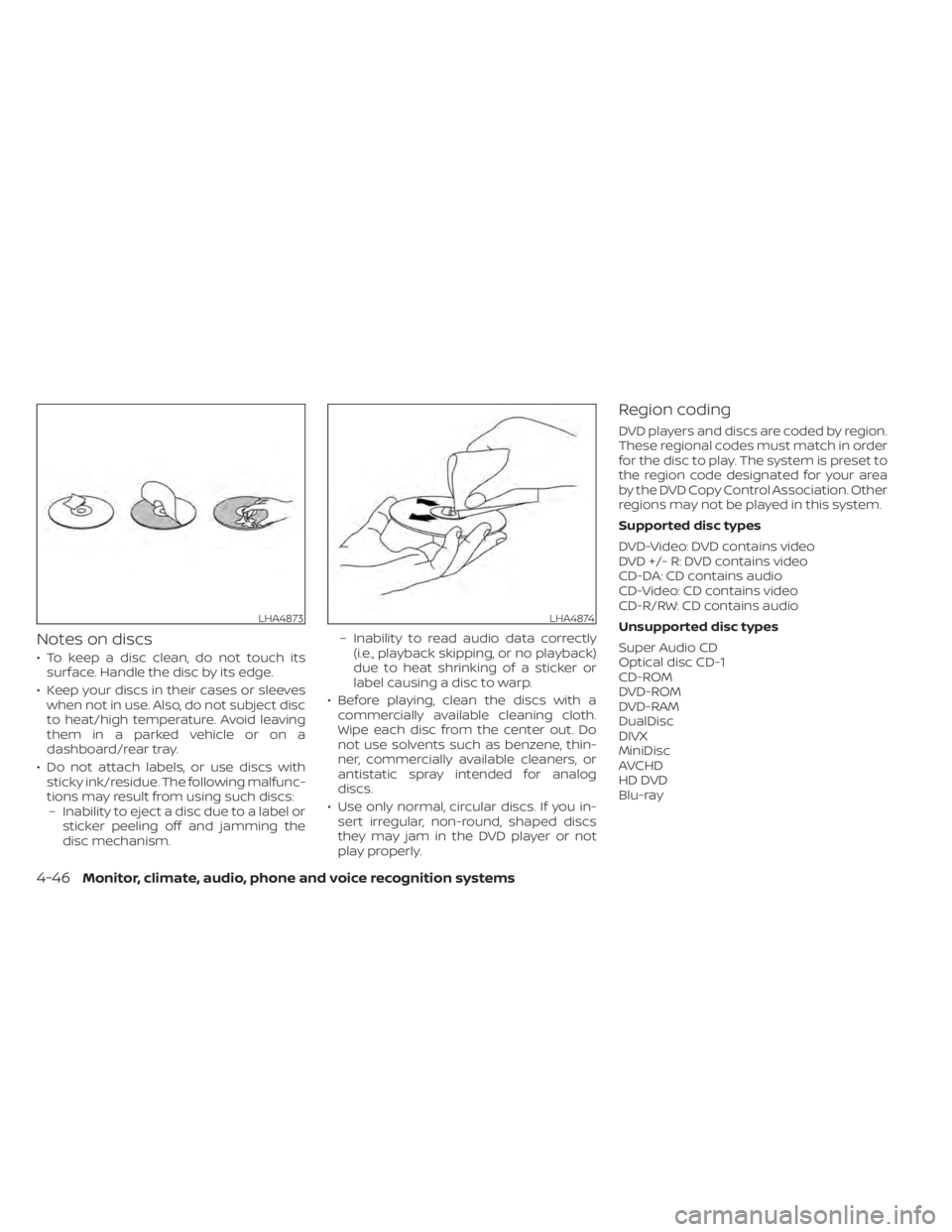
• To keep a disc clean, do not touch itssurface. Handle the disc by its edge.
• Keep your discs in their cases or sleeves when not in use. Also, do not subject disc
to heat/high temperature. Avoid leaving
them in a parked vehicle or on a
dashboard/rear tray.
• Do not attach labels, or use discs with sticky ink/residue. The following malfunc-
tions may result from using such discs:– Inability to eject a disc due to a label or sticker peeling off and jamming the
disc mechanism. – Inability to read audio data correctly
(i.e., playback skipping, or no playback)
due to heat shrinking of a sticker or
label causing a disc to warp.
• Before playing, clean the discs with a commercially available cleaning cloth.
Wipe each disc from the center out. Do
not use solvents such as benzene, thin-
ner, commercially available cleaners, or
antistatic spray intended for analog
discs.
• Use only normal, circular discs. If you in- sert irregular, non-round, shaped discs
they may jam in the DVD player or not
play properly.
Region coding
DVD players and discs are coded by region.
These regional codes must match in order
for the disc to play. The system is preset to
the region code designated for your area
by the DVD Copy Control Association. Other
regions may not be played in this system.
Supported disc types
DVD-Video: DVD contains video
DVD +/- R: DVD contains video
CD-DA: CD contains audio
CD-Video: CD contains video
CD-R/RW: CD contains audio
Unsupported disc types
Super Audio CD
Optical disc CD-1
CD-ROM
DVD-ROM
DVD-RAM
DualDisc
DIVX
MiniDisc
AVCHD
HD DVD
Blu-ray
LHA4873LHA4874
4-46Monitor, climate, audio, phone and voice recognition systems
Page 293 of 638
CONTROL DESCRIPTION
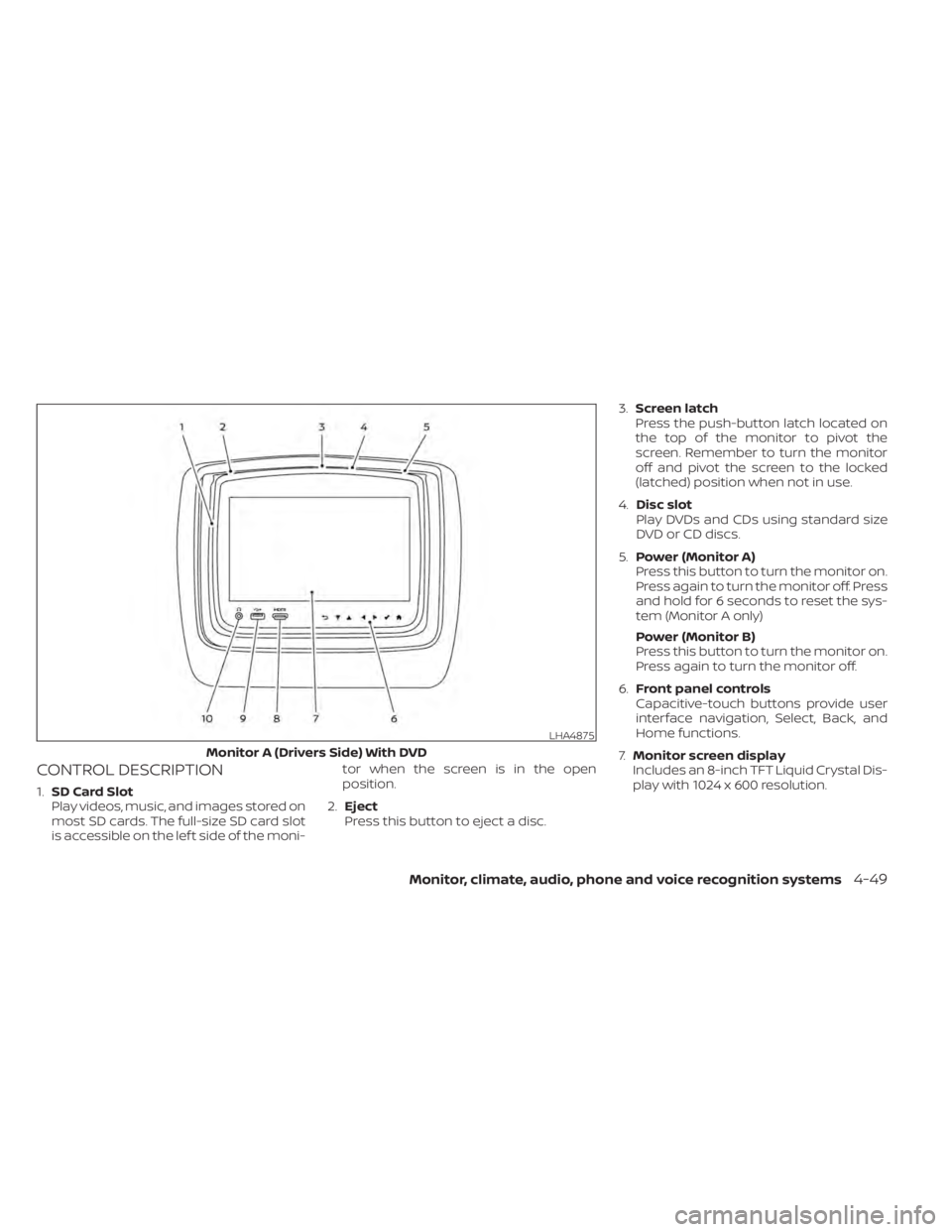
1.SD Card Slot
Play videos, music, and images stored on
most SD cards. The full-size SD card slot
is accessible on the lef t side of the moni- tor when the screen is in the open
position.
2. Eject
Press this button to eject a disc. 3.
Screen latch
Press the push-button latch located on
the top of the monitor to pivot the
screen. Remember to turn the monitor
off and pivot the screen to the locked
(latched) position when not in use.
4. Disc slot
Play DVDs and CDs using standard size
DVD or CD discs.
5. Power (Monitor A)
Press this button to turn the monitor on.
Press again to turn the monitor off. Press
and hold for 6 seconds to reset the sys-
tem (Monitor A only)
Power (Monitor B)
Press this button to turn the monitor on.
Press again to turn the monitor off.
6. Front panel controls
Capacitive-touch buttons provide user
interface navigation, Select, Back, and
Home functions.
7. Monitor screen display
Includes an 8-inch TFT Liquid Crystal Dis-
play with 1024 x 600 resolution.
LHA4875
Monitor A (Drivers Side) With DVD
Monitor, climate, audio, phone and voice recognition systems4-49
Page 295 of 638
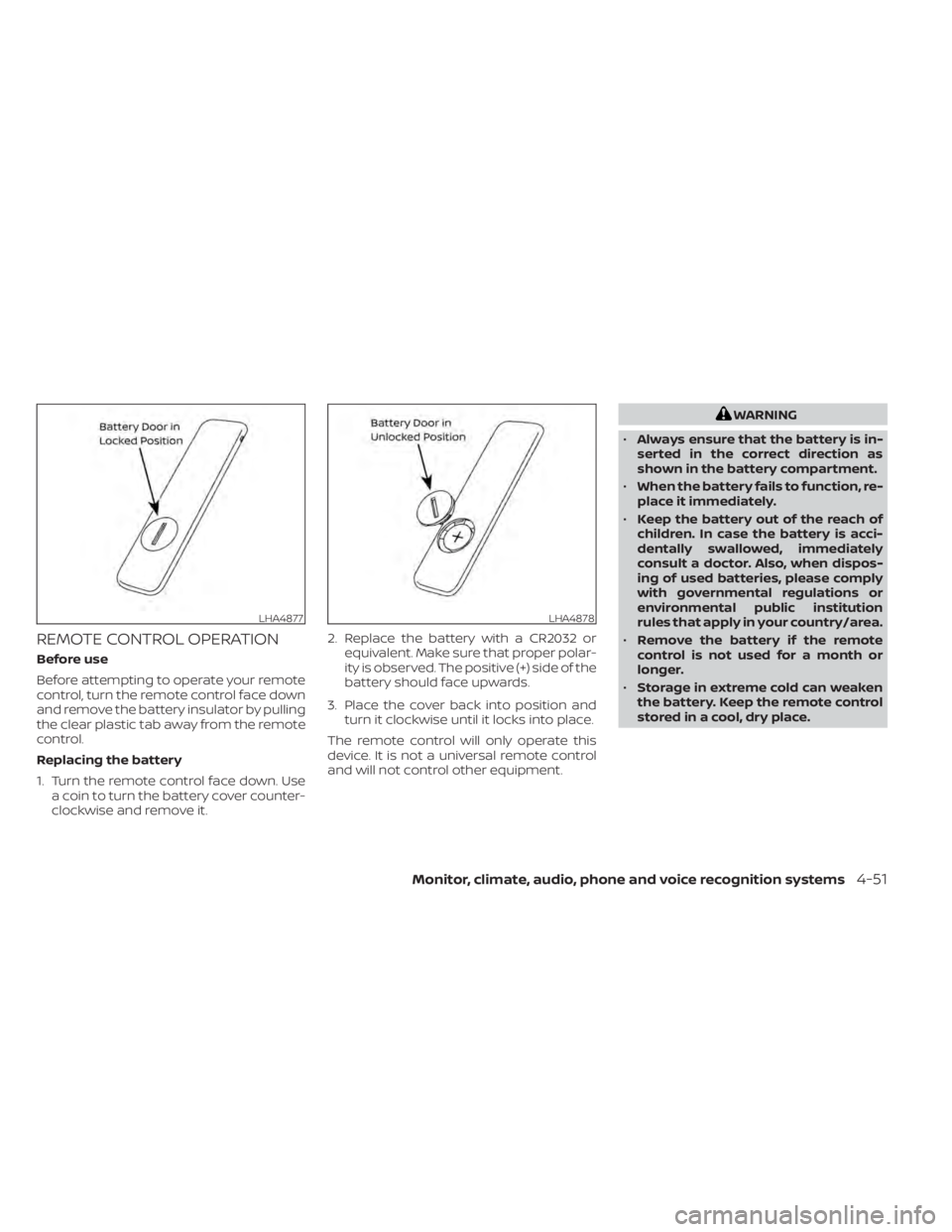
REMOTE CONTROL OPERATION
Before use
Before attempting to operate your remote
control, turn the remote control face down
and remove the battery insulator by pulling
the clear plastic tab away from the remote
control.
Replacing the battery
1. Turn the remote control face down. Usea coin to turn the battery cover counter-
clockwise and remove it. 2. Replace the battery with a CR2032 or
equivalent. Make sure that proper polar-
ity is observed. The positive (+) side of the
battery should face upwards.
3. Place the cover back into position and turn it clockwise until it locks into place.
The remote control will only operate this
device. It is not a universal remote control
and will not control other equipment.
WARNING
• Always ensure that the battery is in-
serted in the correct direction as
shown in the battery compartment.
• When the battery fails to function, re-
place it immediately.
• Keep the battery out of the reach of
children. In case the battery is acci-
dentally swallowed, immediately
consult a doctor. Also, when dispos-
ing of used batteries, please comply
with governmental regulations or
environmental public institution
rules that apply in your country/area.
• Remove the battery if the remote
control is not used for a month or
longer.
• Storage in extreme cold can weaken
the battery. Keep the remote control
stored in a cool, dry place.
LHA4877LHA4878
Monitor, climate, audio, phone and voice recognition systems4-51
Page 296 of 638
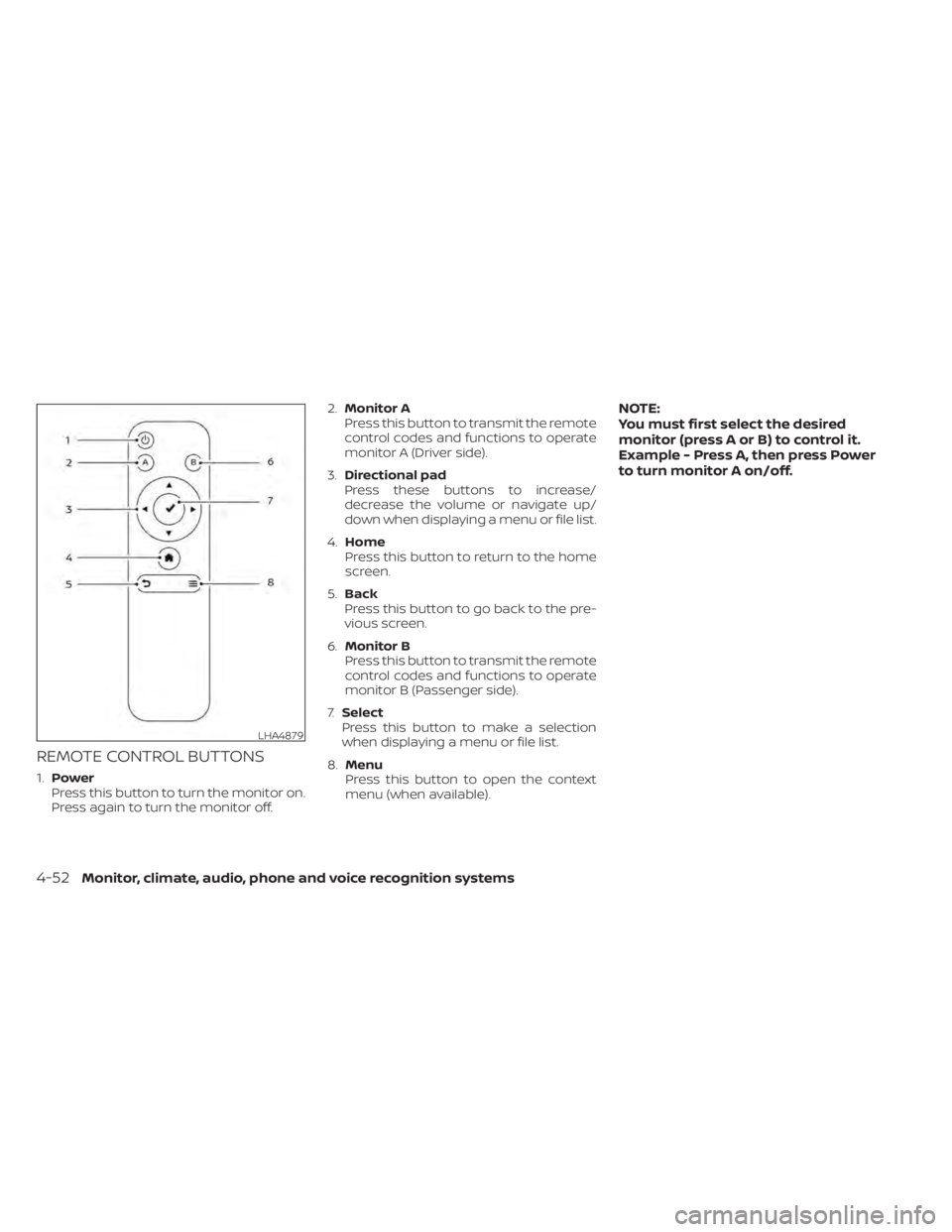
REMOTE CONTROL BUTTONS
1.Power
Press this button to turn the monitor on.
Press again to turn the monitor off. 2.
Monitor A
Press this button to transmit the remote
control codes and functions to operate
monitor A (Driver side).
3. Directional pad
Press these buttons to increase/
decrease the volume or navigate up/
down when displaying a menu or file list.
4. Home
Press this button to return to the home
screen.
5. Back
Press this button to go back to the pre-
vious screen.
6. Monitor B
Press this button to transmit the remote
control codes and functions to operate
monitor B (Passenger side).
7. Select
Press this button to make a selection
when displaying a menu or file list.
8. Menu
Press this button to open the context
menu (when available).
NOTE:
You must first select the desired
monitor (press A or B) to control it.
Example - Press A, then press Power
to turn monitor A on/off.
LHA4879
4-52Monitor, climate, audio, phone and voice recognition systems
Page 298 of 638
CAUTION
•
Always ensure that the batteries are
inserted with the positive and nega-
tive terminals in the correct direction
as shown in the battery compartment.
• Different types of batteries have dif-
ferent characteristics. Do not mix dif-
ferent types.
• Do not mix old and new batteries.
Mixing old and new batteries will
shorten battery life and/or cause
chemical leaks from the old
batteries.
• When batteries fail to function, re-
place them immediately.
• Keep the batteries out of the reach of
children. In case the batteries are ac-
cidentally swallowed, immediately
consult a doctor. Also, when dispos-
ing of used batteries, please comply
with governmental regulations or
environmental public institution
rules that apply in your country/area.
• Remove the batteries if the head-
phones are not used for a month or
longer.
GENERAL OPERATION
Navigating menus
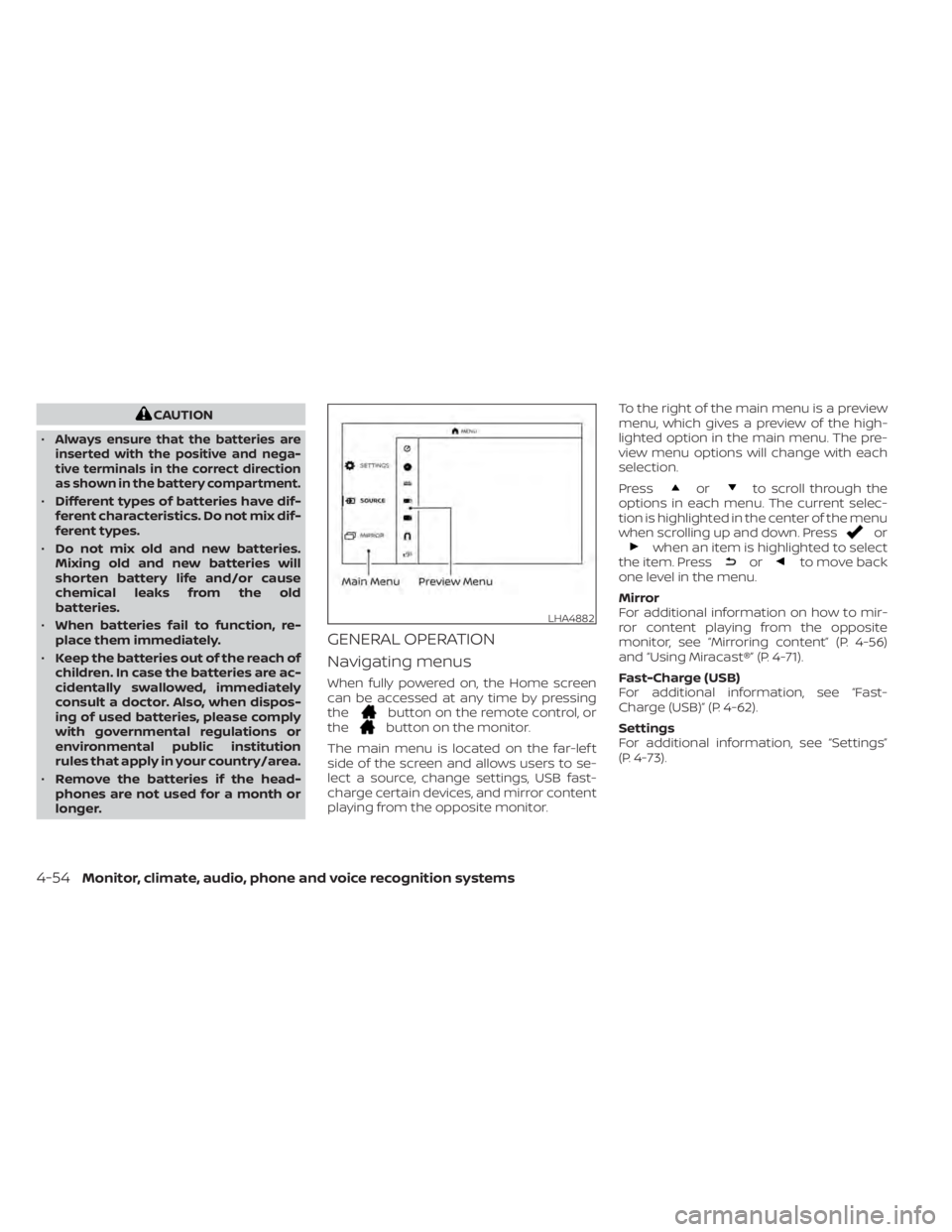
When fully powered on, the Home screen
can be accessed at any time by pressing
the
button on the remote control, or
thebutton on the monitor.
The main menu is located on the far-lef t
side of the screen and allows users to se-
lect a source, change settings, USB fast-
charge certain devices, and mirror content
playing from the opposite monitor. To the right of the main menu is a preview
menu, which gives a preview of the high-
lighted option in the main menu. The pre-
view menu options will change with each
selection.
Press
orto scroll through the
options in each menu. The current selec-
tion is highlighted in the center of the menu
when scrolling up and down. Press
orwhen an item is highlighted to select
the item. Pressorto move back
one level in the menu.
Mirror
For additional information on how to mir-
ror content playing from the opposite
monitor, see “Mirroring content” (P. 4-56)
and “Using Miracast®” (P. 4-71).
Fast-Charge (USB)
For additional information, see “Fast-
Charge (USB)” (P. 4-62).
Settings
For additional information, see “Settings”
(P. 4-73).
LHA4882
4-54Monitor, climate, audio, phone and voice recognition systems
Page 299 of 638
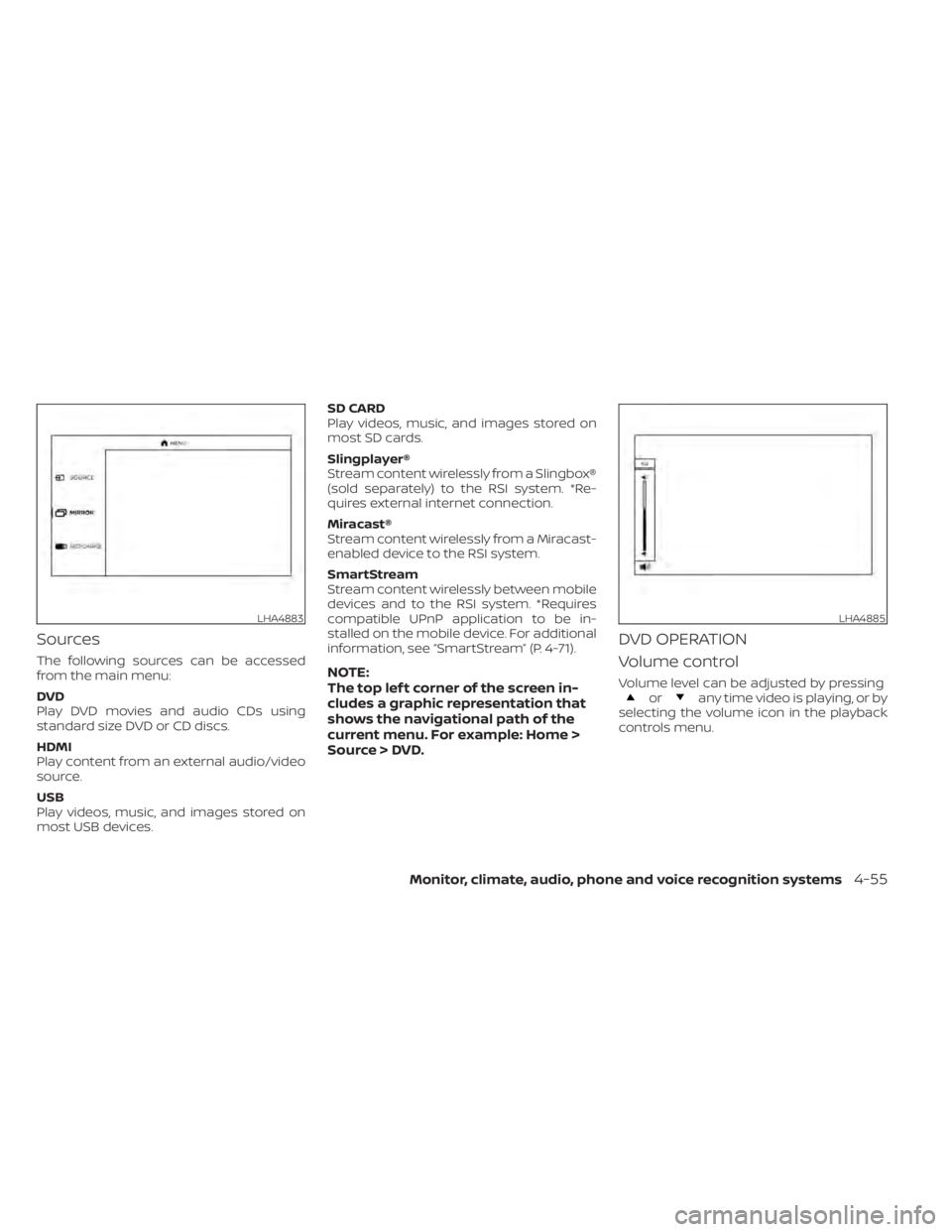
Sources
The following sources can be accessed
from the main menu:
DVD
Play DVD movies and audio CDs using
standard size DVD or CD discs.
HDMI
Play content from an external audio/video
source.
USB
Play videos, music, and images stored on
most USB devices.SD CARD
Play videos, music, and images stored on
most SD cards.
Slingplayer®
Stream content wirelessly from a Slingbox®
(sold separately) to the RSI system. *Re-
quires external internet connection.
Miracast®
Stream content wirelessly from a Miracast-
enabled device to the RSI system.
SmartStream
Stream content wirelessly between mobile
devices and to the RSI system. *Requires
compatible UPnP application to be in-
stalled on the mobile device. For additional
information, see “SmartStream” (P. 4-71).NOTE:
The top lef t corner of the screen in-
cludes a graphic representation that
shows the navigational path of the
current menu. For example: Home >
Source > DVD.
DVD OPERATION
Volume control
Volume level can be adjusted by pressingorany time video is playing, or by
selecting the volume icon in the playback
controls menu.
LHA4883LHA4885
Monitor, climate, audio, phone and voice recognition systems4-55
Page 300 of 638
NOTE:
For hearing protection, there is a
maximum volume setting to limit the
audio output of the front panel 3.5mm
headphone output. Using the direc-
tional pad on the remote navigate to
“SETTINGS” then “AUDIO” then “HEAD-
PHONES” to adjust the maximum vol-
ume. Once set, the maximum volume
is limited to this setting.
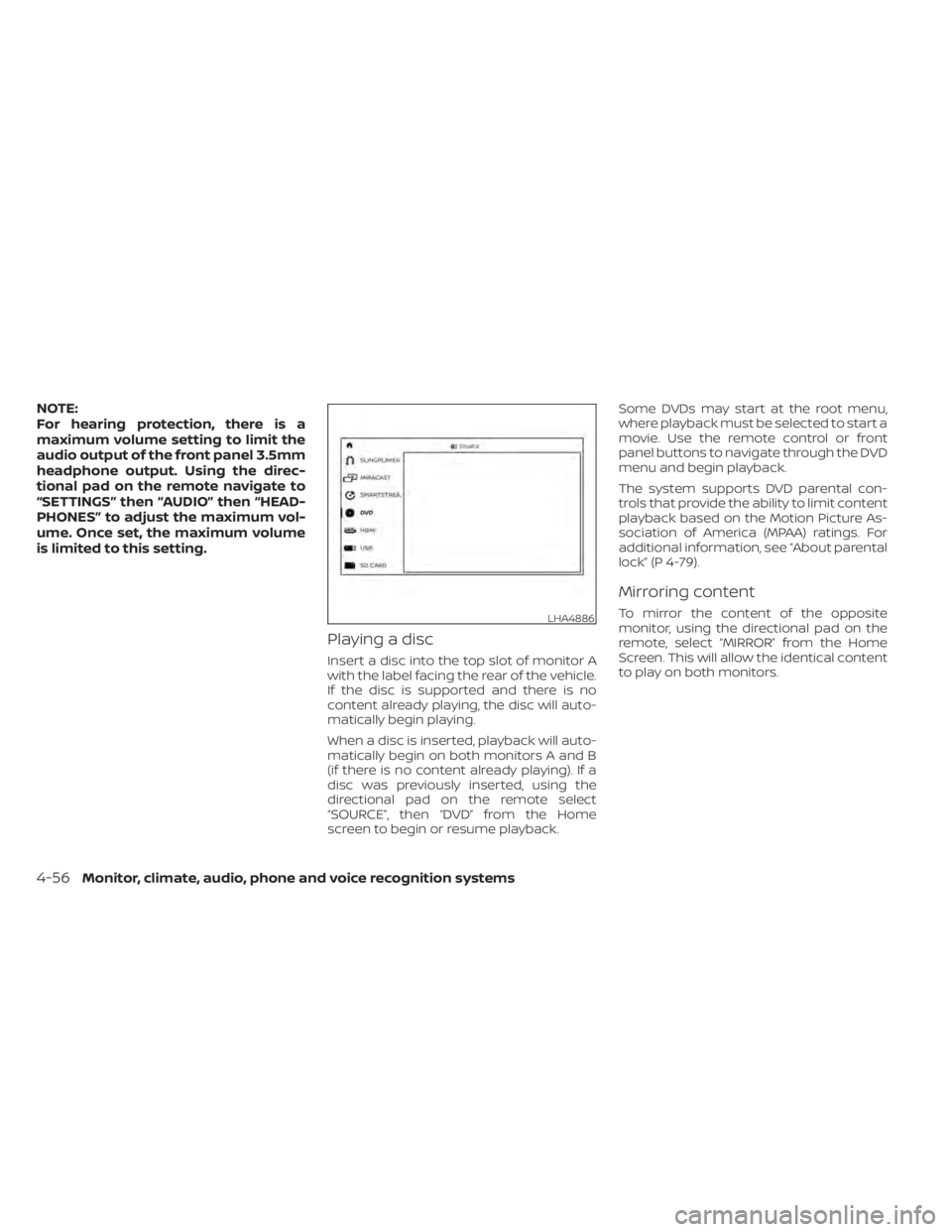
Playing a disc
Insert a disc into the top slot of monitor A
with the label facing the rear of the vehicle.
If the disc is supported and there is no
content already playing, the disc will auto-
matically begin playing.
When a disc is inserted, playback will auto-
matically begin on both monitors A and B
(if there is no content already playing). If a
disc was previously inserted, using the
directional pad on the remote select
“SOURCE”, then “DVD” from the Home
screen to begin or resume playback.Some DVDs may start at the root menu,
where playback must be selected to start a
movie. Use the remote control or front
panel buttons to navigate through the DVD
menu and begin playback.
The system supports DVD parental con-
trols that provide the ability to limit content
playback based on the Motion Picture As-
sociation of America (MPAA) ratings. For
additional information, see “About parental
lock” (P 4-79).
Mirroring content
To mirror the content of the opposite
monitor, using the directional pad on the
remote, select “MIRROR” from the Home
Screen. This will allow the identical content
to play on both monitors.LHA4886
4-56Monitor, climate, audio, phone and voice recognition systems
Page 301 of 638
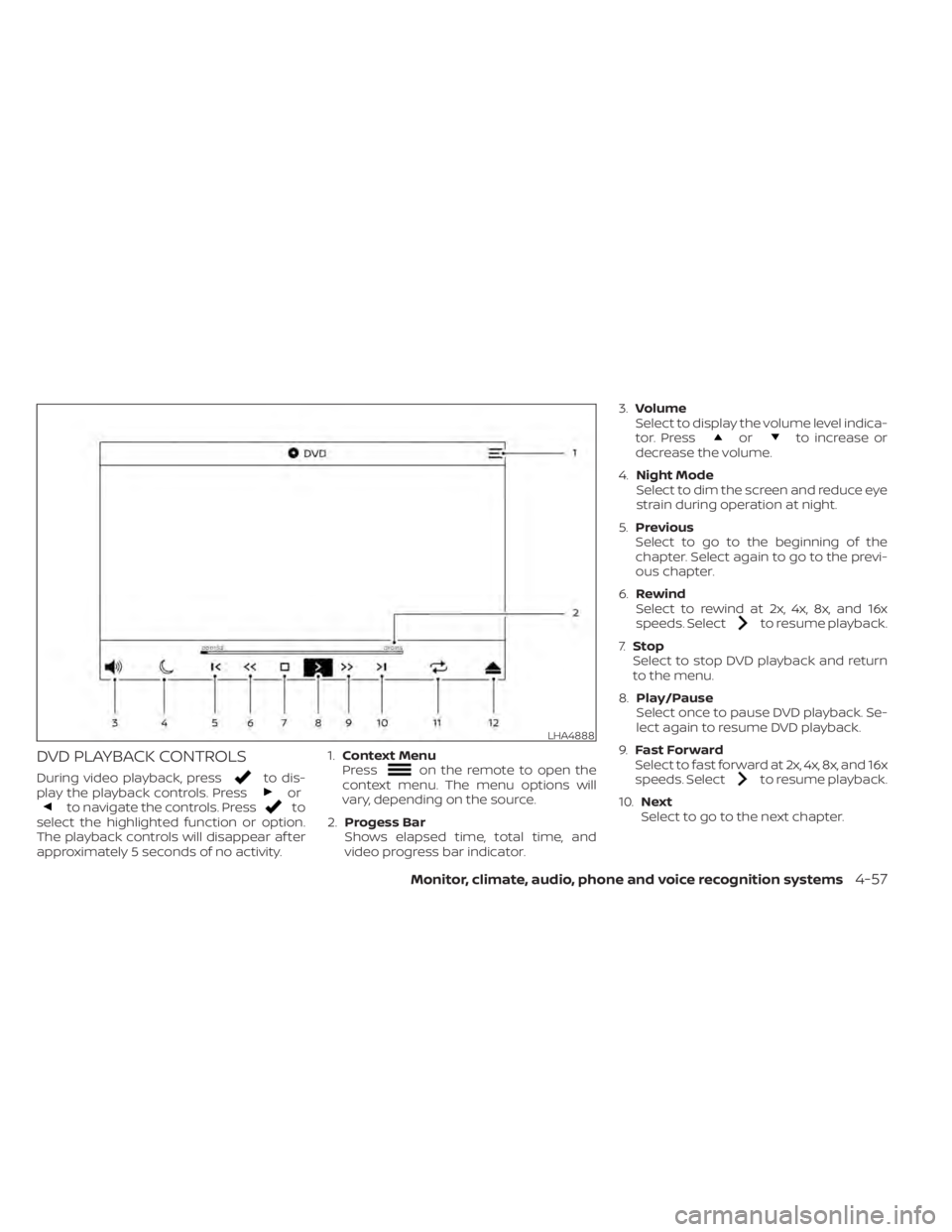
DVD PLAYBACK CONTROLS
During video playback, pressto dis-
play the playback controls. Pressorto navigate the controls. Pressto
select the highlighted function or option.
The playback controls will disappear af ter
approximately 5 seconds of no activity. 1.
Context Menu
Press
on the remote to open the
context menu. The menu options will
vary, depending on the source.
2. Progess Bar
Shows elapsed time, total time, and
video progress bar indicator. 3.
Volume
Select to display the volume level indica-
tor. Press
orto increase or
decrease the volume.
4. Night Mode
Select to dim the screen and reduce eye
strain during operation at night.
5. Previous
Select to go to the beginning of the
chapter. Select again to go to the previ-
ous chapter.
6. Rewind
Select to rewind at 2x, 4x, 8x, and 16x
speeds. Select
to resume playback.
7. Stop
Select to stop DVD playback and return
to the menu.
8. Play/Pause
Select once to pause DVD playback. Se-
lect again to resume DVD playback.
9. Fast Forward
Select to fast forward at 2x, 4x, 8x, and 16x
speeds. Select
to resume playback.
10. Next
Select to go to the next chapter.
LHA4888
Monitor, climate, audio, phone and voice recognition systems4-57