bluetooth NISSAN TITAN 2021 Owner´s Manual
[x] Cancel search | Manufacturer: NISSAN, Model Year: 2021, Model line: TITAN, Model: NISSAN TITAN 2021Pages: 638, PDF Size: 4.31 MB
Page 16 of 638
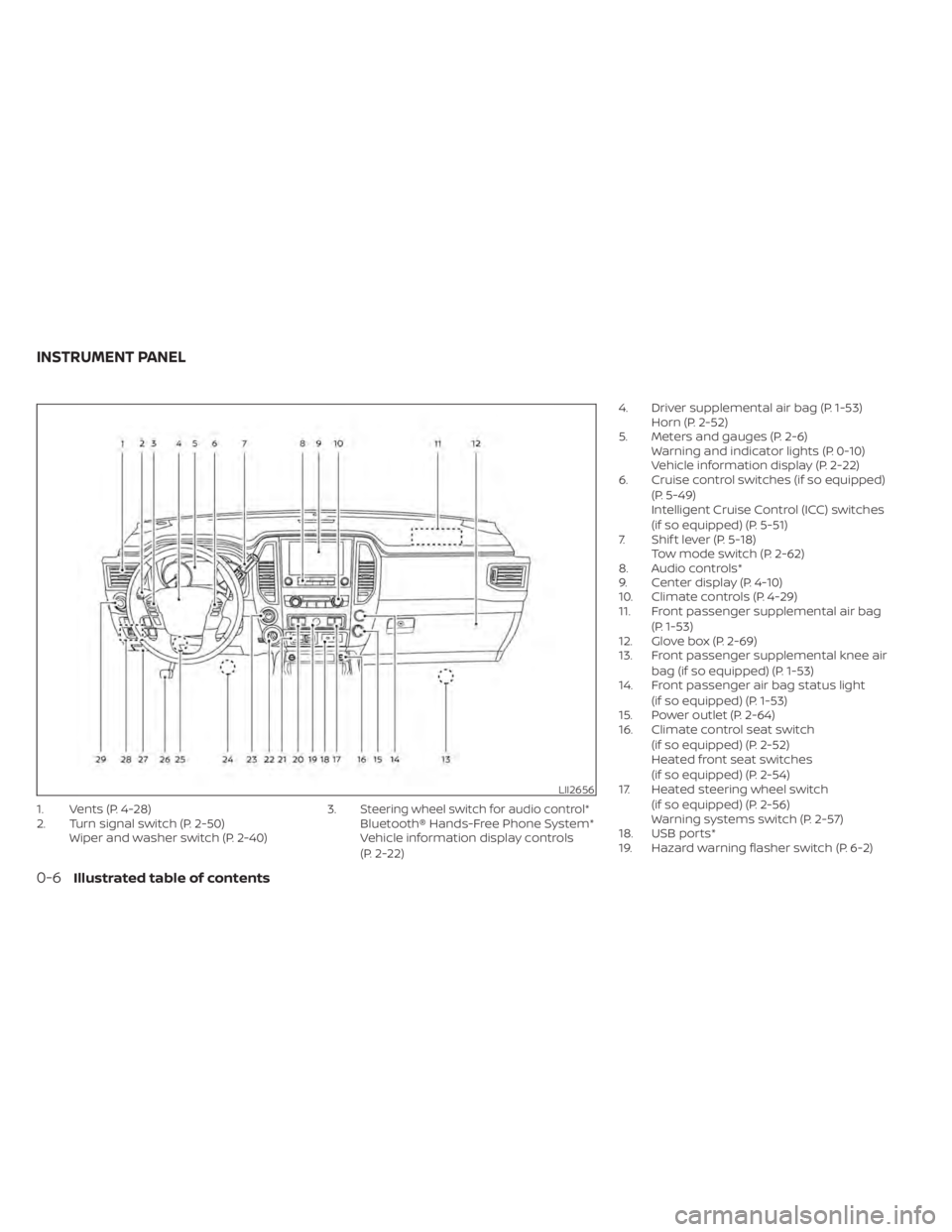
1. Vents (P. 4-28)
2. Turn signal switch (P. 2-50)Wiper and washer switch (P. 2-40) 3.Steering wheel switch for audio control*Bluetooth® Hands-Free Phone System*
Vehicle information display controls
(P. 2-22)4. Driver supplemental air bag (P. 1-53)
Horn (P. 2-52)
5. Meters and gauges (P. 2-6) Warning and indicator lights (P. 0-10)
Vehicle information display (P. 2-22)
6. Cruise control switches (if so equipped)
(P. 5-49)
Intelligent Cruise Control (ICC) switches
(if so equipped) (P. 5-51)
7. Shif t lever (P. 5-18) Tow mode switch (P. 2-62)
8. Audio controls*
9. Center display (P. 4-10)
10. Climate controls (P. 4-29)
11. Front passenger supplemental air bag
(P. 1-53)
12. Glove box (P. 2-69)
13. Front passenger supplemental knee air
bag (if so equipped) (P. 1-53)
14. Front passenger air bag status light
(if so equipped) (P. 1-53)
15. Power outlet (P. 2-64)
16. Climate control seat switch
(if so equipped) (P. 2-52)
Heated front seat switches
(if so equipped) (P. 2-54)
17. Heated steering wheel switch
(if so equipped) (P. 2-56)
Warning systems switch (P. 2-57)
18. USB ports*
19. Hazard warning flasher switch (P. 6-2)
LII2656
INSTRUMENT PANEL
0-6Illustrated table of contents
Page 110 of 638
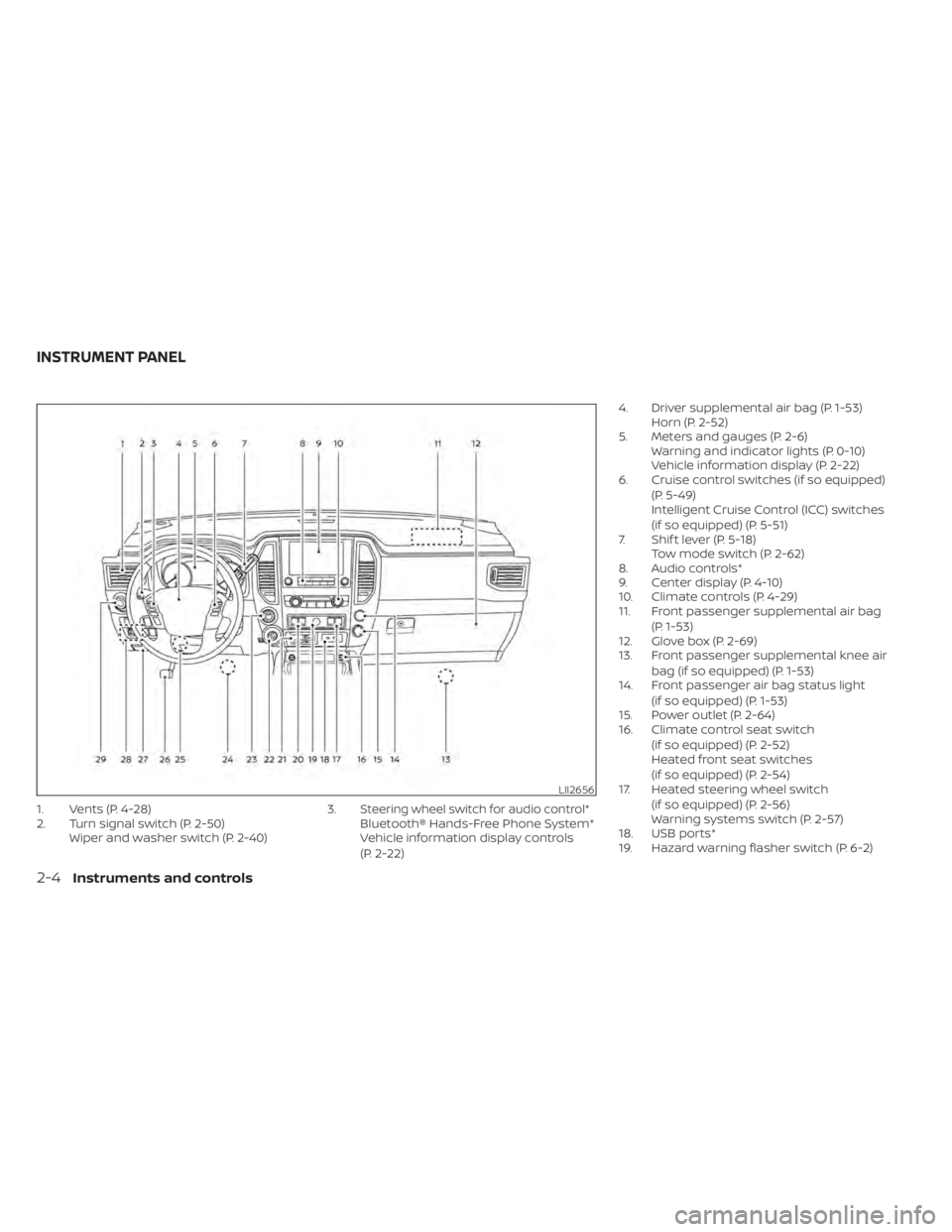
1. Vents (P. 4-28)
2. Turn signal switch (P. 2-50)Wiper and washer switch (P. 2-40) 3.Steering wheel switch for audio control*Bluetooth® Hands-Free Phone System*
Vehicle information display controls
(P. 2-22)4. Driver supplemental air bag (P. 1-53)
Horn (P. 2-52)
5. Meters and gauges (P. 2-6) Warning and indicator lights (P. 0-10)
Vehicle information display (P. 2-22)
6. Cruise control switches (if so equipped)
(P. 5-49)
Intelligent Cruise Control (ICC) switches
(if so equipped) (P. 5-51)
7. Shif t lever (P. 5-18) Tow mode switch (P. 2-62)
8. Audio controls*
9. Center display (P. 4-10)
10. Climate controls (P. 4-29)
11. Front passenger supplemental air bag
(P. 1-53)
12. Glove box (P. 2-69)
13. Front passenger supplemental knee air
bag (if so equipped) (P. 1-53)
14. Front passenger air bag status light
(if so equipped) (P. 1-53)
15. Power outlet (P. 2-64)
16. Climate control seat switch
(if so equipped) (P. 2-52)
Heated front seat switches
(if so equipped) (P. 2-54)
17. Heated steering wheel switch
(if so equipped) (P. 2-56)
Warning systems switch (P. 2-57)
18. USB ports*
19. Hazard warning flasher switch (P. 6-2)
LII2656
INSTRUMENT PANEL
2-4Instruments and controls
Page 246 of 638

Refer to the NissanConnect® Owner’s Manual
that includes the following information.
• NissanConnect® Services (if so equipped)
• Navigation system (if so equipped)
• Audio system
• Apple CarPlay®
• Android Auto
TM
• Bluetooth® Hands-Free Phone system
• Viewing information
• Other settings
• Voice recognition
• General system information
NISSANCONNECT® OWNER’S
MANUAL
4-2Monitor, climate, audio, phone and voice recognition systems
Page 288 of 638
•Be sure to run the vehicle engine
while using the system. Using this
system without running the engine
can result in battery drain. To avoid
the risk of battery drain, please re-
member to turn off the system when
the vehicle is not in use.
WELCOME
Thank you for purchasing this advanced
Rear Seat Infotainment (RSI) system with
built-in Wi-Fi and DVD player. Before oper-
ating this system, read this section thor-
oughly and retain it for future reference.
System features
• Twin 8-inch Color TFT-LCD Panels with 1024x600 Resolution
• Top-load DVD Player (Driver Side Only)
• Internal Wi-Fi Network
• Bluetooth® 4.1 Audio Streaming
• Miracast®/Smart View Capability
• SmartStream Content Sharing
• USB 2.0 Port, SDXC Card Input
• HDMI 1.4 Input with MHL 2.0 Support
• Exclusive Slingplayer® Application
• 3.5mm Stereo Headphone Output
• Front Panel Capacitive Touch Controls • Infrared Wireless Headphones
• Full-Function Slimline Remote Control
• Monitor Screen SharingGETTING STARTED
Turning the monitor on or off
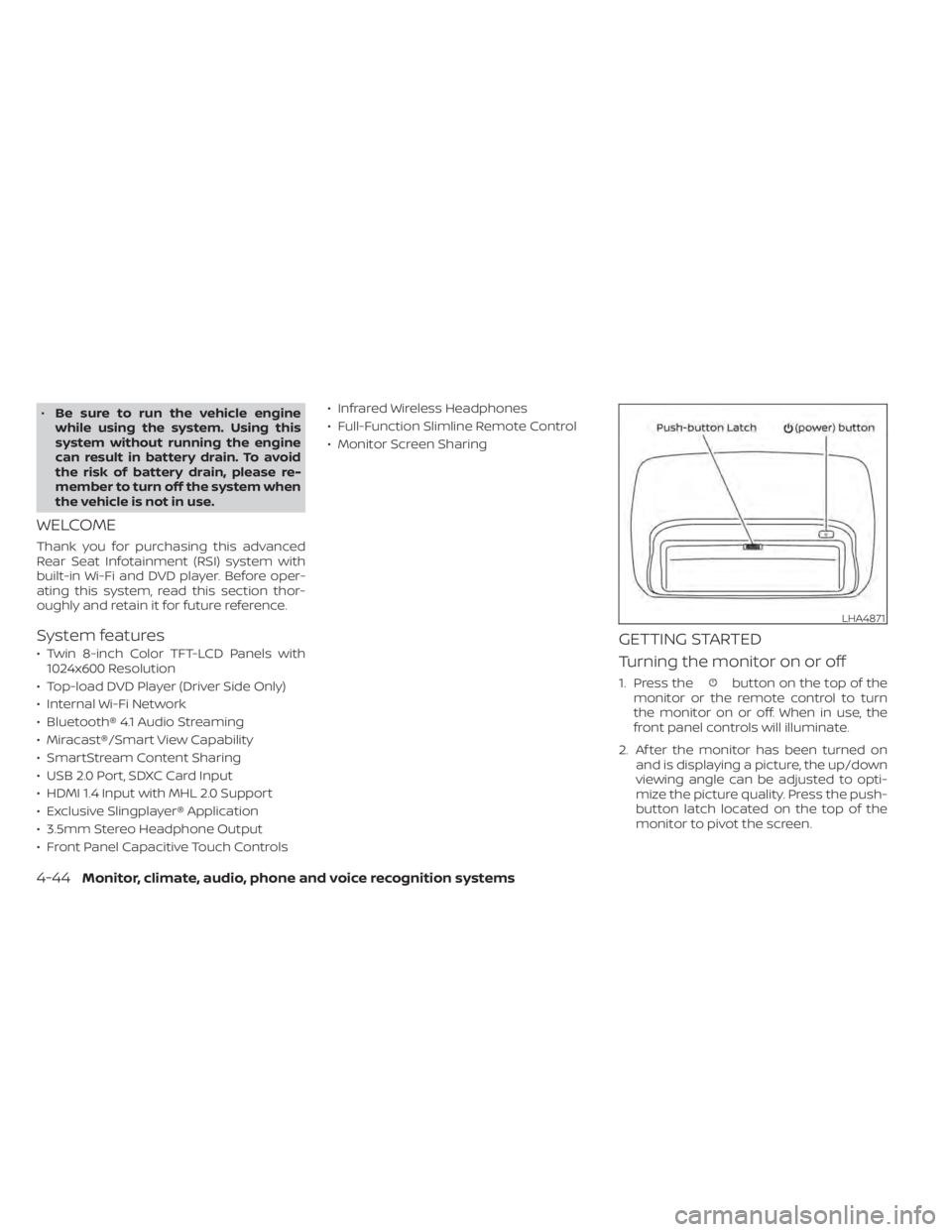
1. Press thebutton on the top of the
monitor or the remote control to turn
the monitor on or off. When in use, the
front panel controls will illuminate.
2. Af ter the monitor has been turned on and is displaying a picture, the up/down
viewing angle can be adjusted to opti-
mize the picture quality. Press the push-
button latch located on the top of the
monitor to pivot the screen.
LHA4871
4-44Monitor, climate, audio, phone and voice recognition systems
Page 289 of 638
Power up tips
1. Af ter the ignition is turned on, there is a12 second delay before the monitor
(power) button is operable.
2. On some vehicles af ter the ignition is turned off, the system will continue to
work for 10 minutes, or until the driver's
door is opened.
3. Remember to turn the monitor off and pivot the screen to the locked (latched)
position when not in use.
Audio options
Wireless headphones
Each monitor includes a built-in dual chan-
nel infrared transmitter for use with wire-
less headphones. The wireless head-
phones must be used within a line of sight
from the transmitter as infrared signals, like
visible light, travel only in a straight line. How to use the wireless headphones
When placing the headphones on your
head, make sure to observe the lef t and
right orientation. The headphones must be
oriented correctly (facing forward) to re-
ceive the audio signal. Press the
(power) button on the headphones,
then select channel “A” to listen to monitor
A, or channel “B” to listen to monitor B.
Adjust the audio level using the volume
control on each headphone.
Wired headphones
There is a 3.5mm stereo headphone out-
put on each monitor which can be used
with most standard stereo headphones
(wired headphones sold separately).
Bluetooth® streaming audio
To listen to audio throughout the entire ve-
hicle, the system includes the ability to
stream audio over a Bluetooth® connec-
tion to the vehicle’s stereo system. When monitor A is selected as the source
to stream from, the audio output to the
wireless and wired headphones will be dis-
abled (only on monitor A). To use the wire-
less or wired headphones with monitor A,
you must turn off the Bluetooth® stream-
ing feature. To enable/disable Bluetooth®
streaming, navigate to the “SETTINGS”
menu, or press
on the remote control
during content playback. For additional in-
formation, see “Settings” (P. 4-73).
Monitor, climate, audio, phone and voice recognition systems4-45
Page 303 of 638
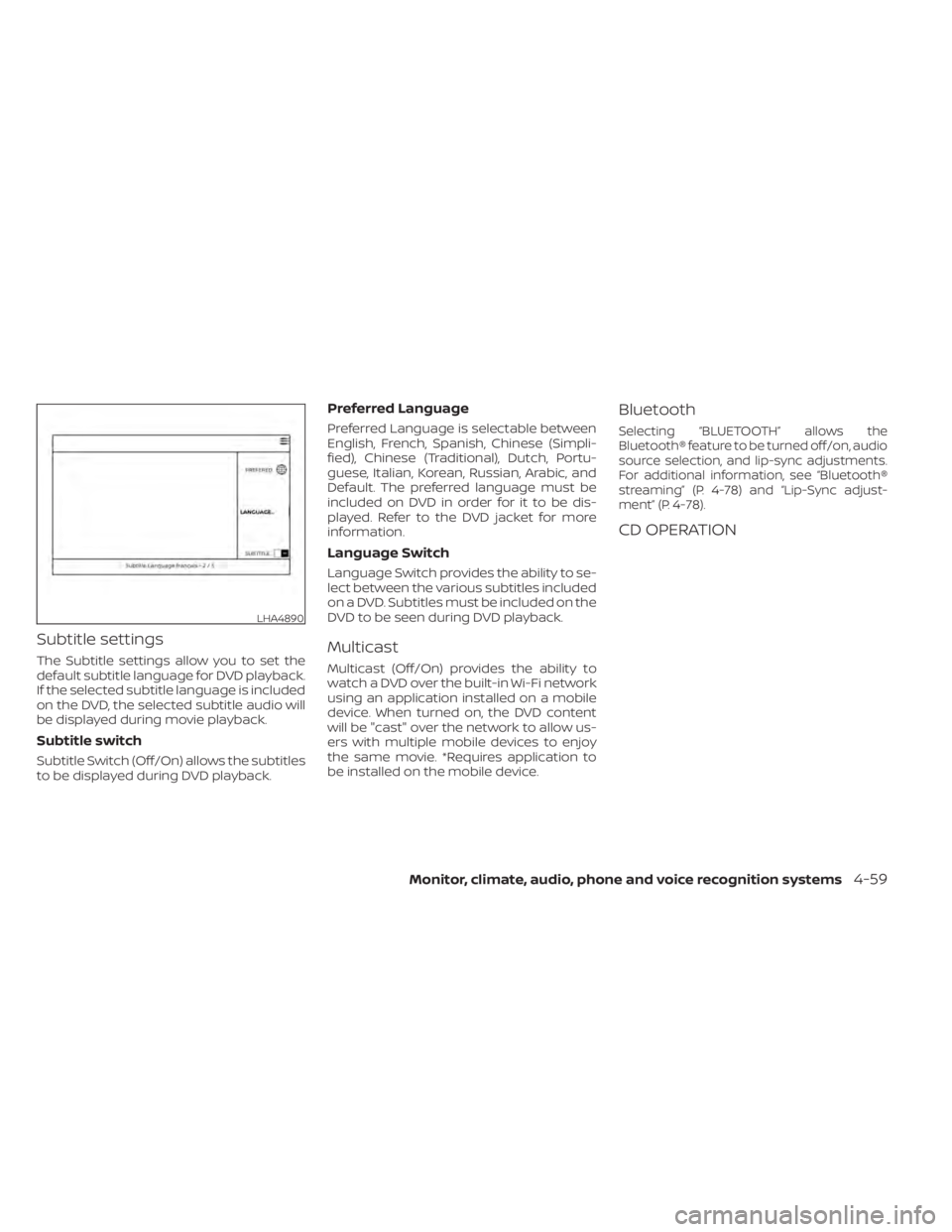
Subtitle settings
The Subtitle settings allow you to set the
default subtitle language for DVD playback.
If the selected subtitle language is included
on the DVD, the selected subtitle audio will
be displayed during movie playback.
Subtitle switch
Subtitle Switch (Off/On) allows the subtitles
to be displayed during DVD playback.
Preferred Language
Preferred Language is selectable between
English, French, Spanish, Chinese (Simpli-
fied), Chinese (Traditional), Dutch, Portu-
guese, Italian, Korean, Russian, Arabic, and
Default. The preferred language must be
included on DVD in order for it to be dis-
played. Refer to the DVD jacket for more
information.
Language Switch
Language Switch provides the ability to se-
lect between the various subtitles included
on a DVD. Subtitles must be included on the
DVD to be seen during DVD playback.
Multicast
Multicast (Off/On) provides the ability to
watch a DVD over the built-in Wi-Fi network
using an application installed on a mobile
device. When turned on, the DVD content
will be "cast" over the network to allow us-
ers with multiple mobile devices to enjoy
the same movie. *Requires application to
be installed on the mobile device.
Bluetooth
Selecting “BLUETOOTH” allows the
Bluetooth® feature to be turned off/on, audio
source selection, and lip-sync adjustments.
For additional information, see “Bluetooth®
streaming” (P. 4-78) and “Lip-Sync adjust-
ment” (P. 4-78).
CD OPERATION
LHA4890
Monitor, climate, audio, phone and voice recognition systems4-59
Page 310 of 638
10.Next
Select to go to the next chapter.
11. Repeat
Select once to repeat the entire DVD.
Select again to repeat the currently
playing chapter one time.
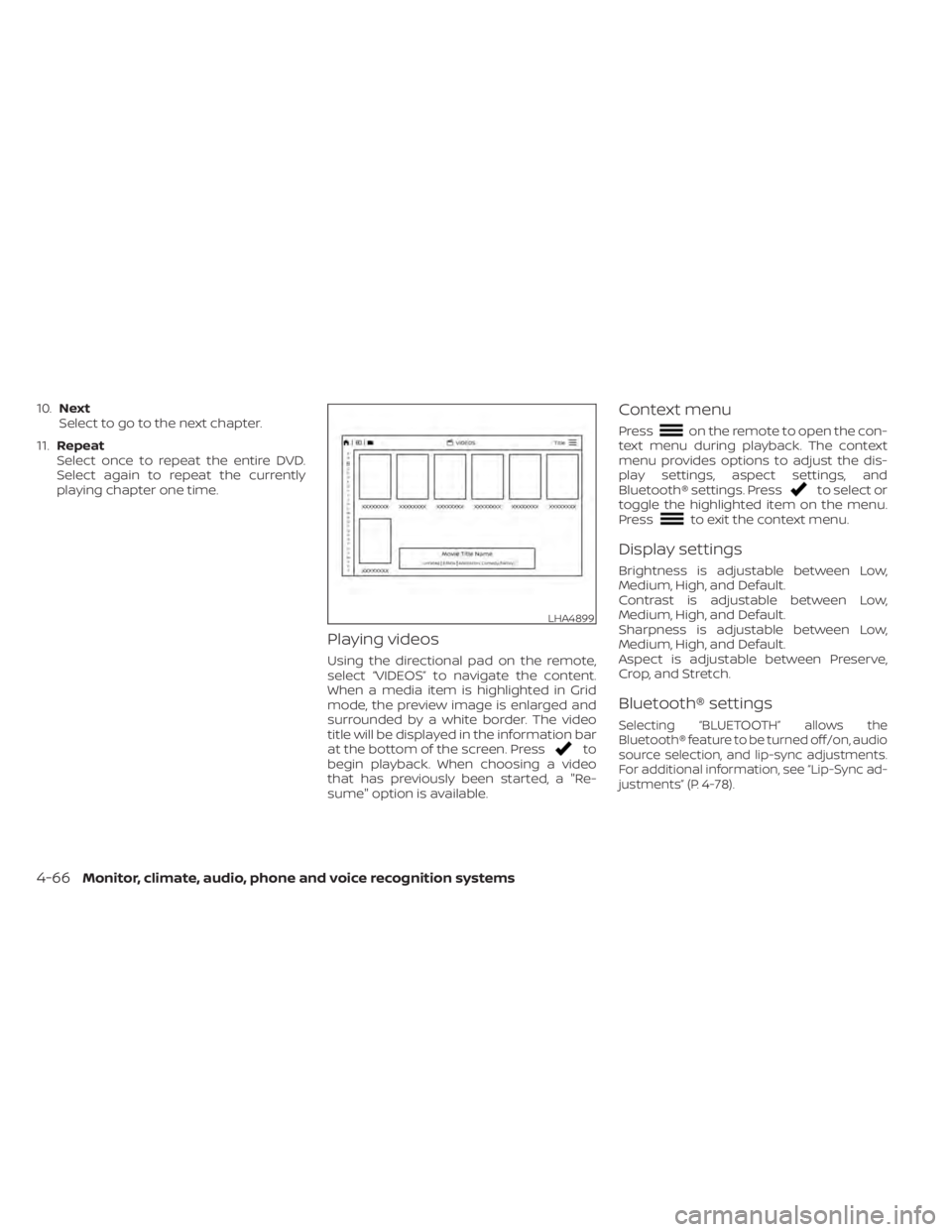
Playing videos
Using the directional pad on the remote,
select “VIDEOS” to navigate the content.
When a media item is highlighted in Grid
mode, the preview image is enlarged and
surrounded by a white border. The video
title will be displayed in the information bar
at the bottom of the screen. Press
to
begin playback. When choosing a video
that has previously been started, a "Re-
sume" option is available.
Context menu
Presson the remote to open the con-
text menu during playback. The context
menu provides options to adjust the dis-
play settings, aspect settings, and
Bluetooth® settings. Press
to select or
toggle the highlighted item on the menu.
Press
to exit the context menu.
Display settings
Brightness is adjustable between Low,
Medium, High, and Default.
Contrast is adjustable between Low,
Medium, High, and Default.
Sharpness is adjustable between Low,
Medium, High, and Default.
Aspect is adjustable between Preserve,
Crop, and Stretch.
Bluetooth® settings
Selecting “BLUETOOTH” allows the
Bluetooth® feature to be turned off/on, audio
source selection, and lip-sync adjustments.
For additional information, see “Lip-Sync ad-
justments” (P. 4-78).
LHA4899
4-66Monitor, climate, audio, phone and voice recognition systems
Page 317 of 638
3. Select the desired source content fromthe list of available devices. Content can
be browsed from all devices that are
connected to the RSI Wi-Fi network and
have a compatible UPnP application
installed.
4. Af ter selecting a content source, navi- gate through the folders, and select the
desired file to stream to the monitor.
Once the file is selected, it will begin
streaming to the monitor that was se-
lected in step 2 above.
5. Playback controls are available from the Now Playing screen in the UPnP applica-
tion and from the monitor. Press
to
display the playback controls on the
monitor.
NOTE:
• Content protected with DRM (Digital Rights Management) cannot be
streamed using the SmartStream fea-
ture.
• A wired connection (HDMI or MHL) is required to stream protected content
from a mobile device to the RSI system.
For additional information, see “HDMI/
MHL connection” (P. 4-61).
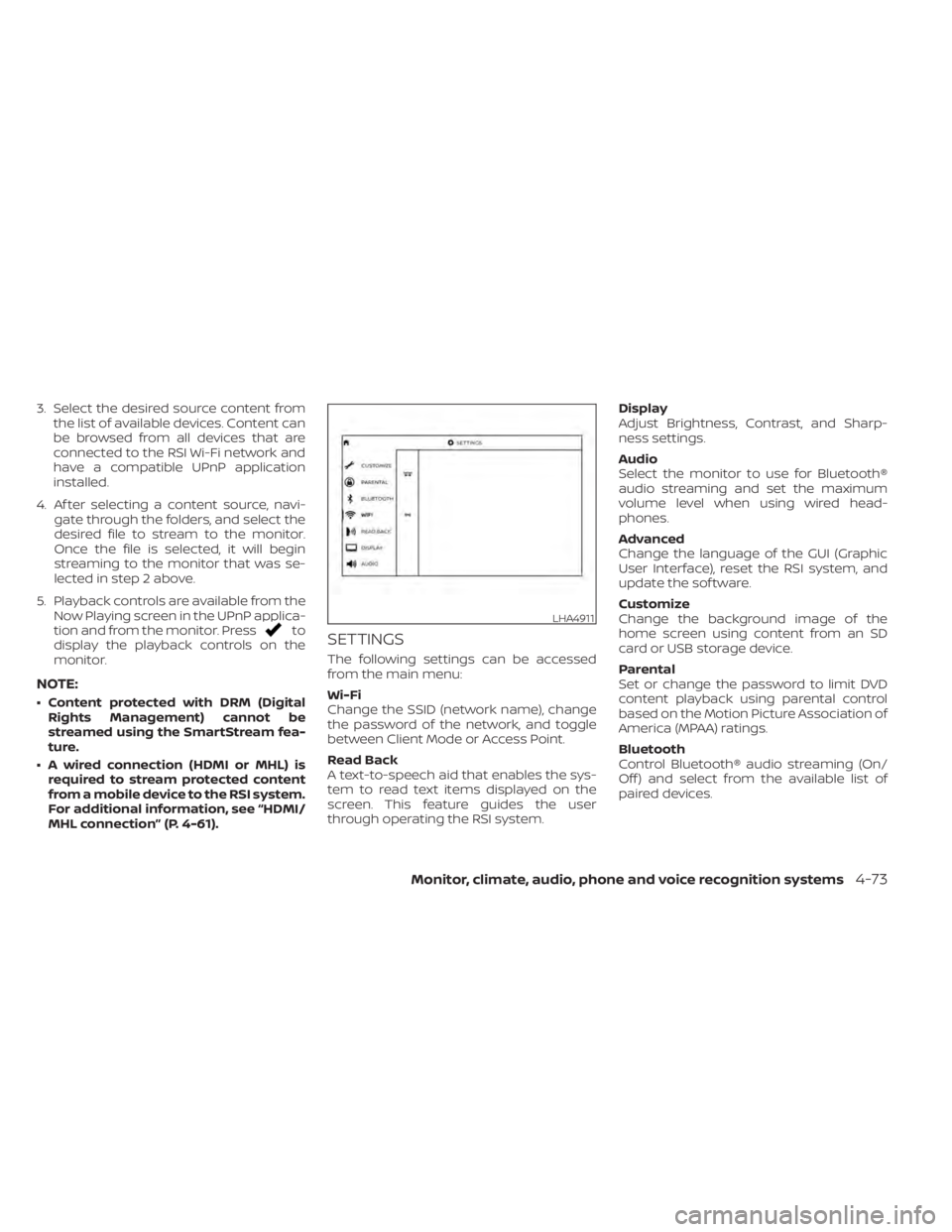
SETTINGS
The following settings can be accessed
from the main menu:
Wi-Fi
Change the SSID (network name), change
the password of the network, and toggle
between Client Mode or Access Point.
Read Back
A text-to-speech aid that enables the sys-
tem to read text items displayed on the
screen. This feature guides the user
through operating the RSI system. Display
Adjust Brightness, Contrast, and Sharp-
ness settings.
Audio
Select the monitor to use for Bluetooth®
audio streaming and set the maximum
volume level when using wired head-
phones.
Advanced
Change the language of the GUI (Graphic
User Interface), reset the RSI system, and
update the sof tware.
Customize
Change the background image of the
home screen using content from an SD
card or USB storage device.
Parental
Set or change the password to limit DVD
content playback using parental control
based on the Motion Picture Association of
America (MPAA) ratings.
Bluetooth
Control Bluetooth® audio streaming (On/
Off ) and select from the available list of
paired devices.
LHA4911
Monitor, climate, audio, phone and voice recognition systems4-73
Page 320 of 638
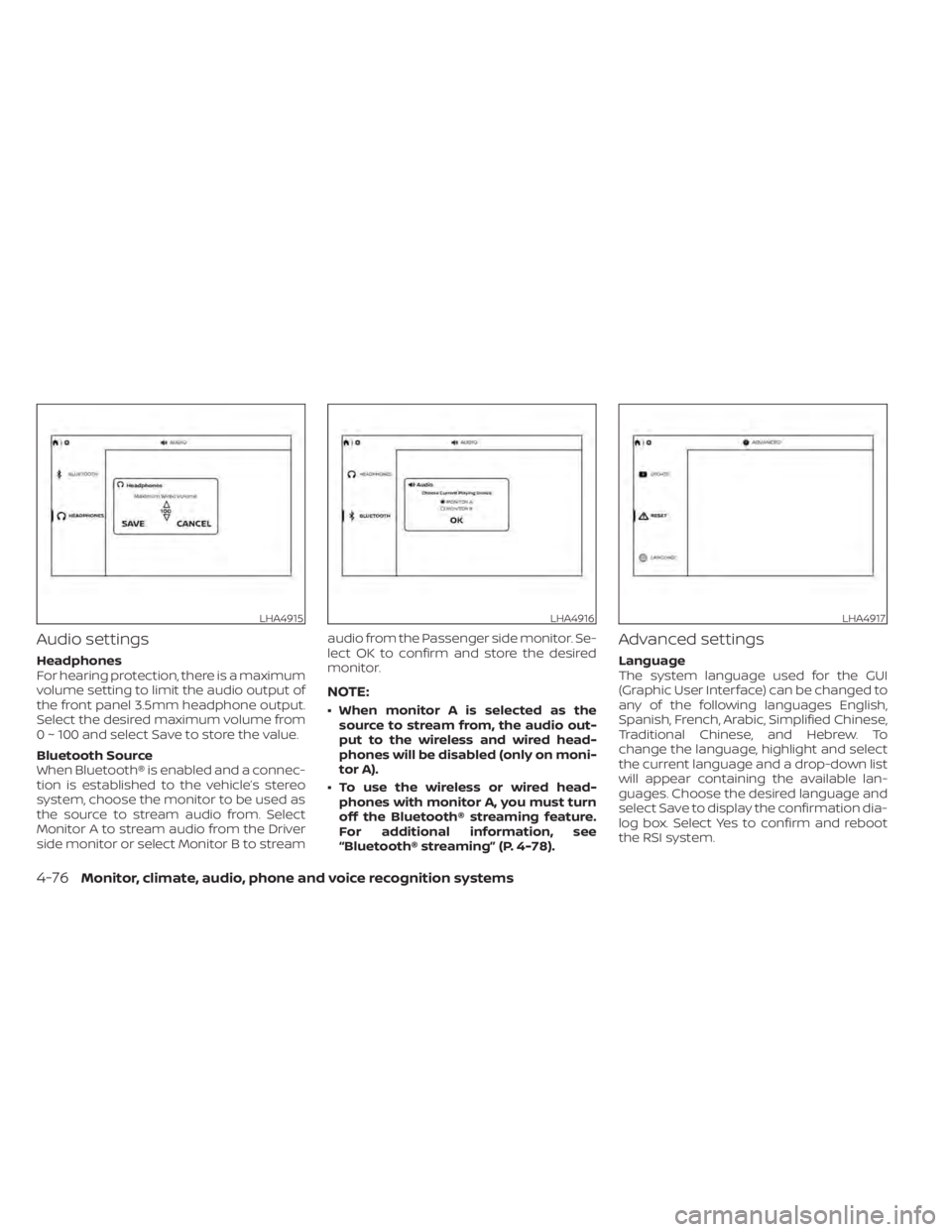
Audio settings
Headphones
For hearing protection, there is a maximum
volume setting to limit the audio output of
the front panel 3.5mm headphone output.
Select the desired maximum volume from
0 ~ 100 and select Save to store the value.
Bluetooth Source
When Bluetooth® is enabled and a connec-
tion is established to the vehicle’s stereo
system, choose the monitor to be used as
the source to stream audio from. Select
Monitor A to stream audio from the Driver
side monitor or select Monitor B to streamaudio from the Passenger side monitor. Se-
lect OK to confirm and store the desired
monitor.
NOTE:
• When monitor A is selected as the
source to stream from, the audio out-
put to the wireless and wired head-
phones will be disabled (only on moni-
tor A).
• To use the wireless or wired head- phones with monitor A, you must turn
off the Bluetooth® streaming feature.
For additional information, see
“Bluetooth® streaming” (P. 4-78).
Advanced settings
Language
The system language used for the GUI
(Graphic User Interface) can be changed to
any of the following languages English,
Spanish, French, Arabic, Simplified Chinese,
Traditional Chinese, and Hebrew. To
change the language, highlight and select
the current language and a drop-down list
will appear containing the available lan-
guages. Choose the desired language and
select Save to display the confirmation dia-
log box. Select Yes to confirm and reboot
the RSI system.
LHA4915LHA4916LHA4917
4-76Monitor, climate, audio, phone and voice recognition systems
Page 322 of 638
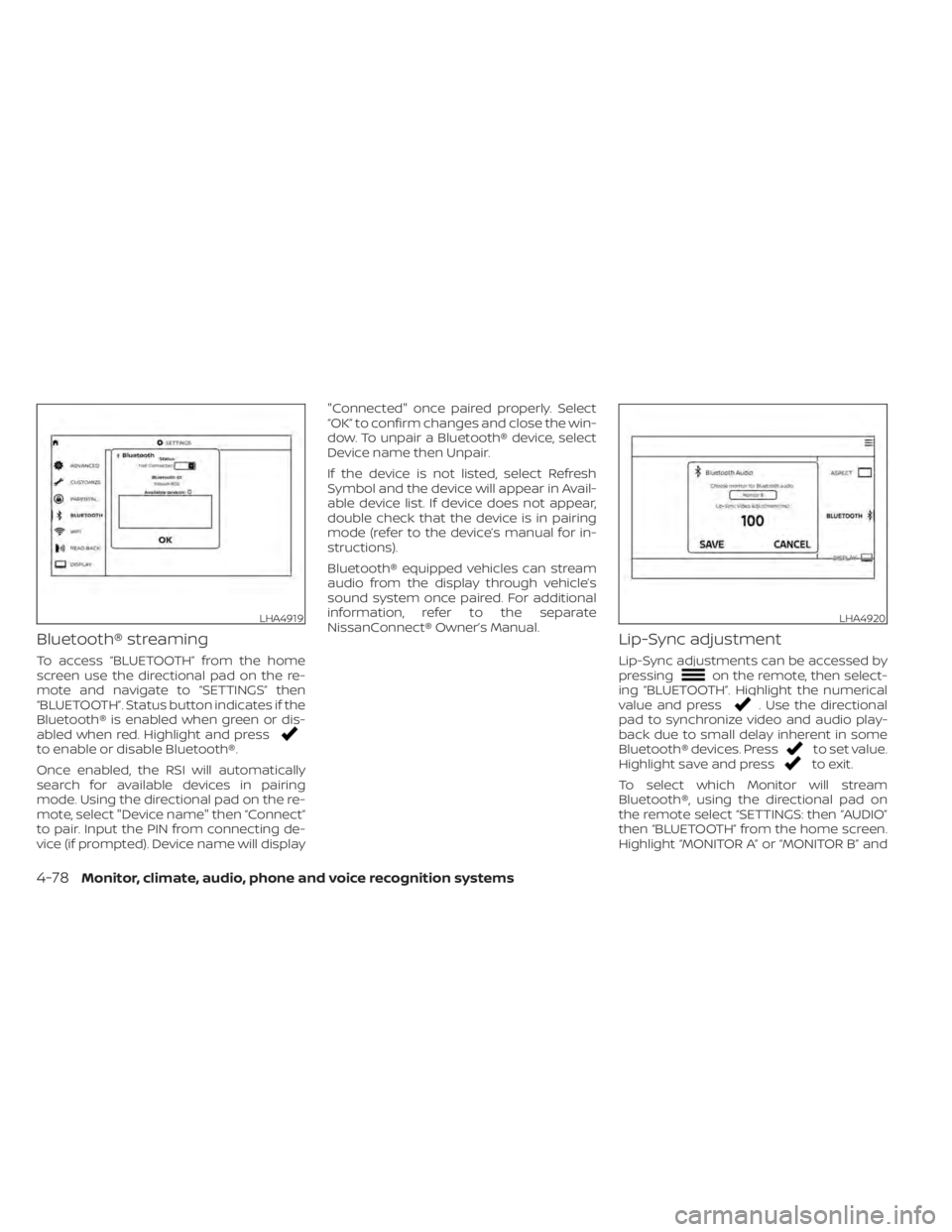
Bluetooth® streaming
To access “BLUETOOTH” from the home
screen use the directional pad on the re-
mote and navigate to “SETTINGS” then
“BLUETOOTH”. Status button indicates if the
Bluetooth® is enabled when green or dis-
abled when red. Highlight and press
to enable or disable Bluetooth®.
Once enabled, the RSI will automatically
search for available devices in pairing
mode. Using the directional pad on the re-
mote, select "Device name" then “Connect”
to pair. Input the PIN from connecting de-
vice (if prompted). Device name will display"Connected" once paired properly. Select
“OK” to confirm changes and close the win-
dow. To unpair a Bluetooth® device, select
Device name then Unpair.
If the device is not listed, select Refresh
Symbol and the device will appear in Avail-
able device list. If device does not appear,
double check that the device is in pairing
mode (refer to the device’s manual for in-
structions).
Bluetooth® equipped vehicles can stream
audio from the display through vehicle’s
sound system once paired. For additional
information, refer to the separate
NissanConnect® Owner’s Manual.
Lip-Sync adjustment
Lip-Sync adjustments can be accessed by
pressingon the remote, then select-
ing “BLUETOOTH”. Highlight the numerical
value and press
. Use the directional
pad to synchronize video and audio play-
back due to small delay inherent in some
Bluetooth® devices. Press
to set value.
Highlight save and pressto exit.
To select which Monitor will stream
Bluetooth®, using the directional pad on
the remote select “SETTINGS: then “AUDIO”
then “BLUETOOTH” from the home screen.
Highlight “MONITOR A” or “MONITOR B” and
LHA4919LHA4920
4-78Monitor, climate, audio, phone and voice recognition systems