climate control NISSAN TITAN 2022 Owner's Guide
[x] Cancel search | Manufacturer: NISSAN, Model Year: 2022, Model line: TITAN, Model: NISSAN TITAN 2022Pages: 635, PDF Size: 7.78 MB
Page 304 of 635
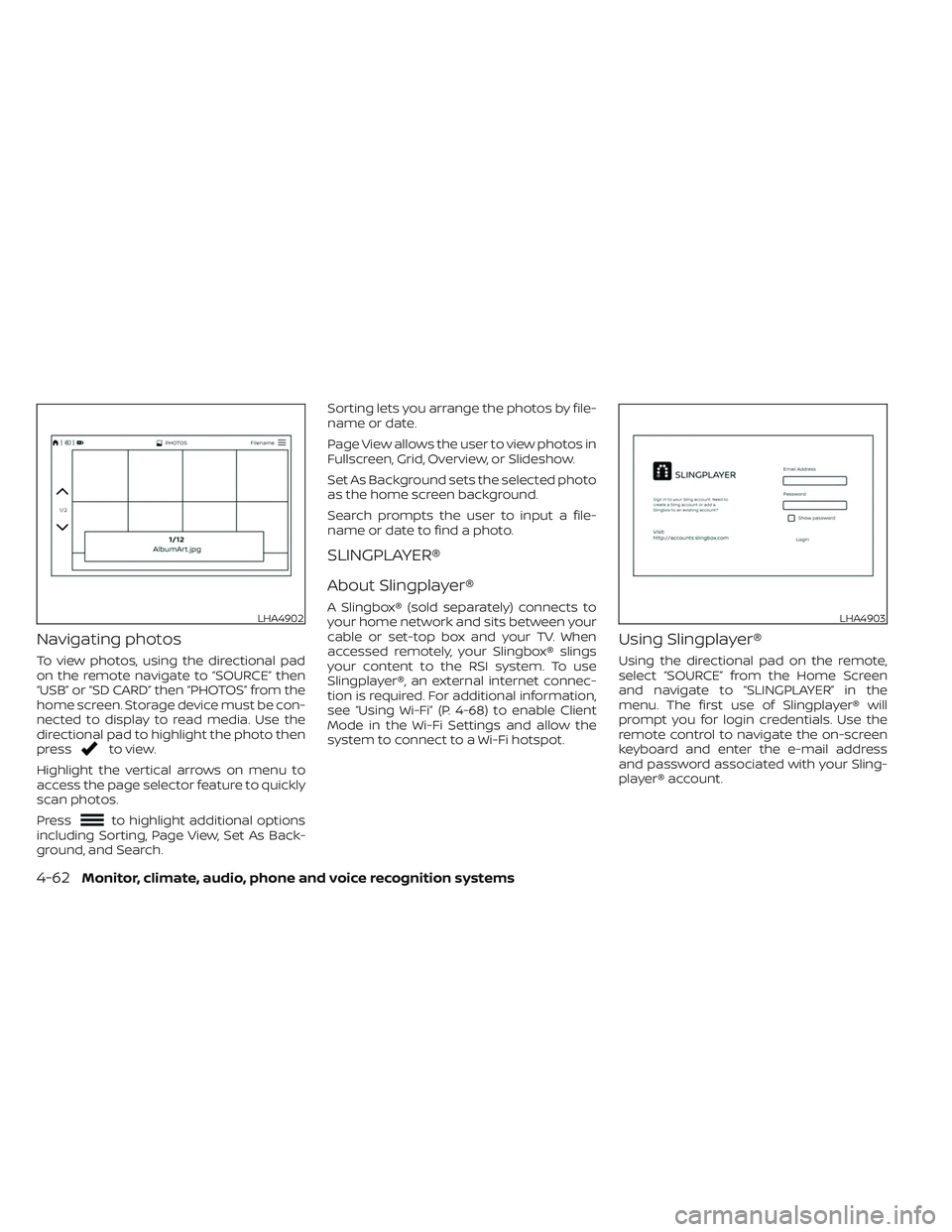
Navigating photos
To view photos, using the directional pad
on the remote navigate to “SOURCE” then
“USB” or “SD CARD” then “PHOTOS” from the
home screen. Storage device must be con-
nected to display to read media. Use the
directional pad to highlight the photo then
press
to view.
Highlight the vertical arrows on menu to
access the page selector feature to quickly
scan photos.
Press
to highlight additional options
including Sorting, Page View, Set As Back-
ground, and Search. Sorting lets you arrange the photos by file-
name or date.
Page View allows the user to view photos in
Fullscreen, Grid, Overview, or Slideshow.
Set As Background sets the selected photo
as the home screen background.
Search prompts the user to input a file-
name or date to find a photo.
SLINGPLAYER®
About Slingplayer®
A Slingbox® (sold separately) connects to
your home network and sits between your
cable or set-top box and your TV. When
accessed remotely, your Slingbox® slings
your content to the RSI system. To use
Slingplayer®, an external internet connec-
tion is required. For additional information,
see “Using Wi-Fi” (P. 4-68) to enable Client
Mode in the Wi-Fi Settings and allow the
system to connect to a Wi-Fi hotspot.
Using Slingplayer®
Using the directional pad on the remote,
select “SOURCE” from the Home Screen
and navigate to “SLINGPLAYER” in the
menu. The first use of Slingplayer® will
prompt you for login credentials. Use the
remote control to navigate the on-screen
keyboard and enter the e-mail address
and password associated with your Sling-
player® account.
LHA4902LHA4903
4-62Monitor, climate, audio, phone and voice recognition systems
Page 305 of 635
Slingplayer® options
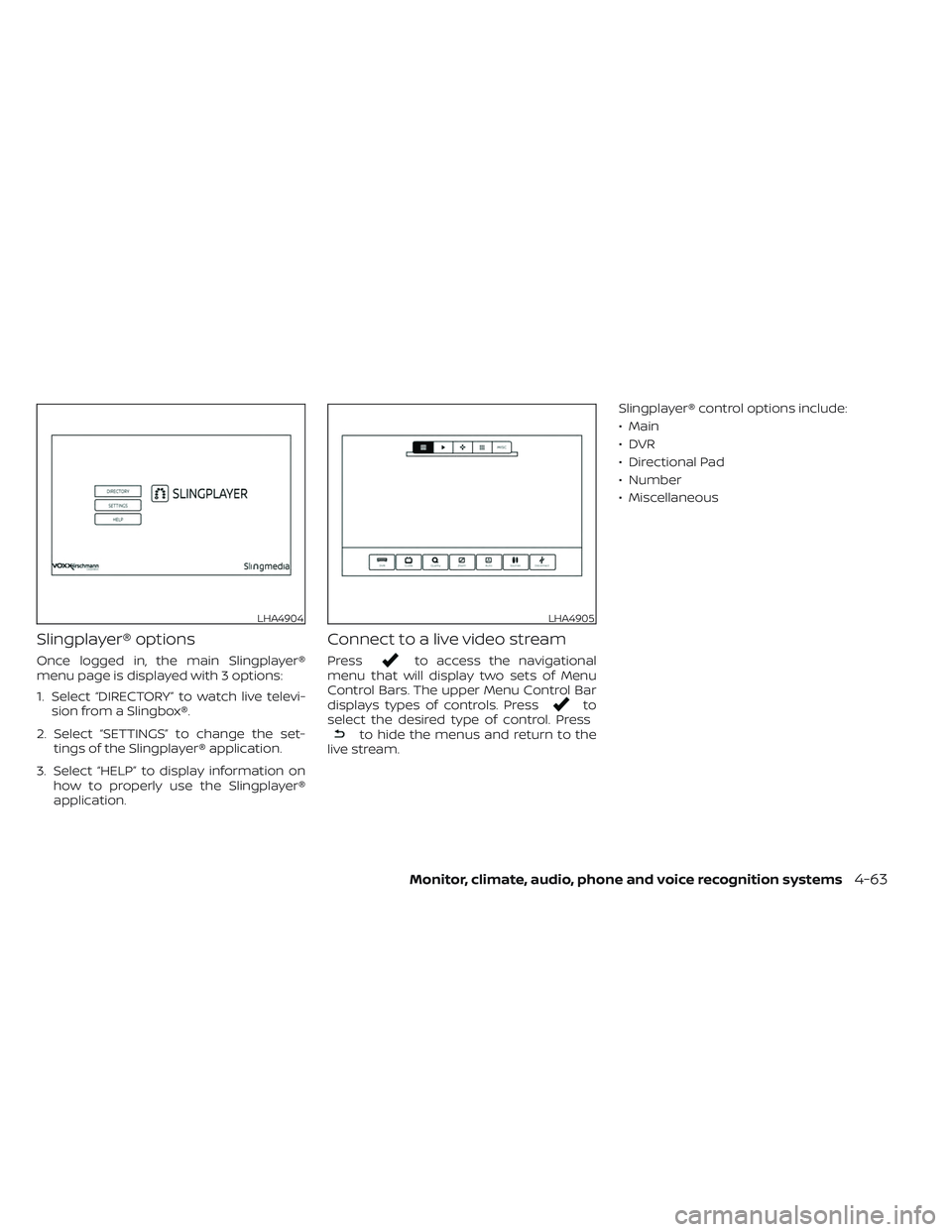
Once logged in, the main Slingplayer®
menu page is displayed with 3 options:
1. Select “DIRECTORY” to watch live televi-sion from a Slingbox®.
2. Select “SETTINGS” to change the set- tings of the Slingplayer® application.
3. Select “HELP” to display information on how to properly use the Slingplayer®
application.
Connect to a live video stream
Pressto access the navigational
menu that will display two sets of Menu
Control Bars. The upper Menu Control Bar
displays types of controls. Press
to
select the desired type of control. Press
to hide the menus and return to the
live stream. Slingplayer® control options include:
• Main
•DVR
• Directional Pad
• Number
• Miscellaneous
LHA4904LHA4905
Monitor, climate, audio, phone and voice recognition systems4-63
Page 306 of 635
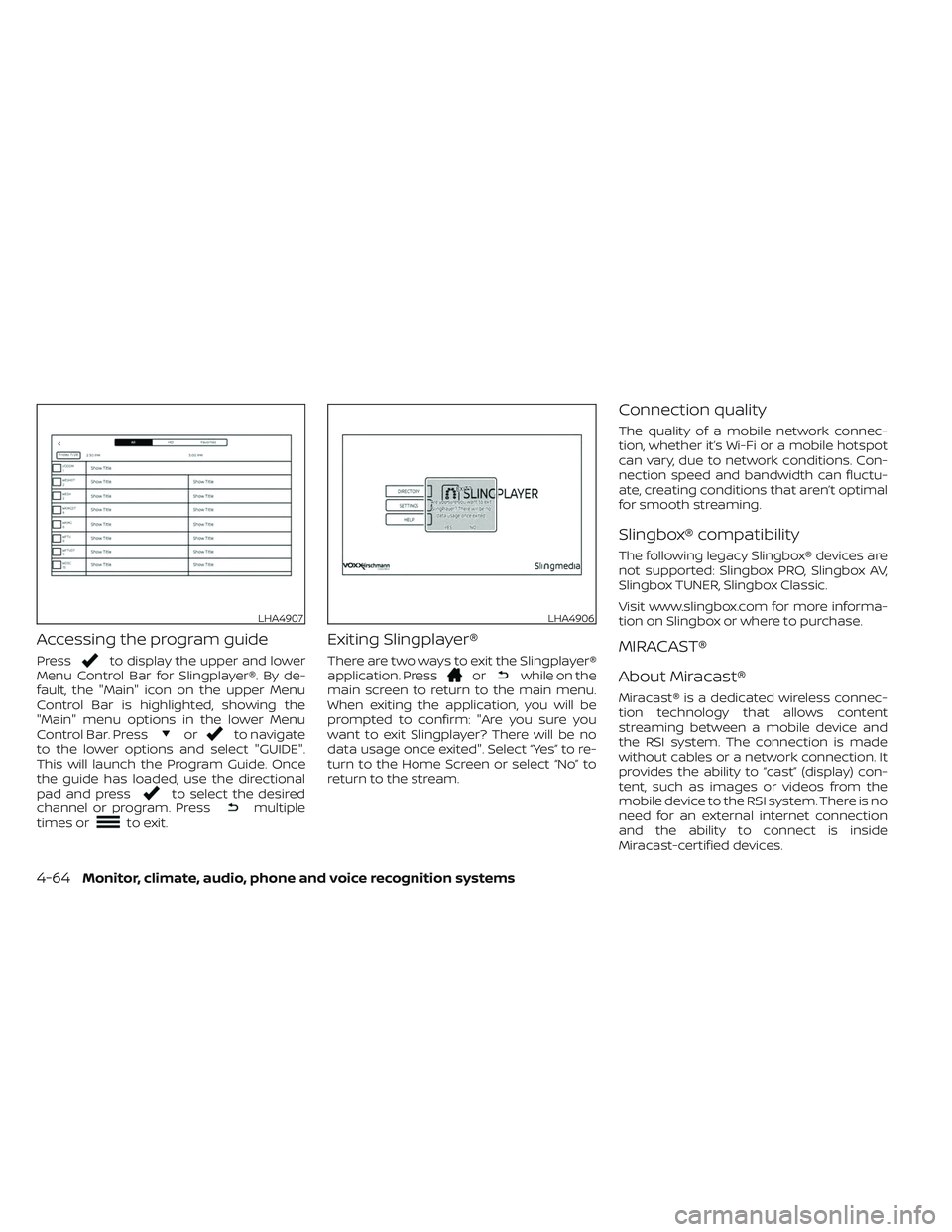
Accessing the program guide
Pressto display the upper and lower
Menu Control Bar for Slingplayer®. By de-
fault, the "Main" icon on the upper Menu
Control Bar is highlighted, showing the
"Main" menu options in the lower Menu
Control Bar. Press
orto navigate
to the lower options and select "GUIDE".
This will launch the Program Guide. Once
the guide has loaded, use the directional
pad and press
to select the desired
channel or program. Pressmultiple
times orto exit.
Exiting Slingplayer®
There are two ways to exit the Slingplayer®
application. Pressorwhile on the
main screen to return to the main menu.
When exiting the application, you will be
prompted to confirm: "Are you sure you
want to exit Slingplayer? There will be no
data usage once exited". Select “Yes” to re-
turn to the Home Screen or select “No” to
return to the stream.
Connection quality
The quality of a mobile network connec-
tion, whether it’s Wi-Fi or a mobile hotspot
can vary, due to network conditions. Con-
nection speed and bandwidth can fluctu-
ate, creating conditions that aren’t optimal
for smooth streaming.
Slingbox® compatibility
The following legacy Slingbox® devices are
not supported: Slingbox PRO, Slingbox AV,
Slingbox TUNER, Slingbox Classic.
Visit www.slingbox.com for more informa-
tion on Slingbox or where to purchase.
MIRACAST®
About Miracast®
Miracast® is a dedicated wireless connec-
tion technology that allows content
streaming between a mobile device and
the RSI system. The connection is made
without cables or a network connection. It
provides the ability to “cast” (display) con-
tent, such as images or videos from the
mobile device to the RSI system. There is no
need for an external internet connection
and the ability to connect is inside
Miracast-certified devices.
LHA4907LHA4906
4-64Monitor, climate, audio, phone and voice recognition systems
Page 309 of 635
3. When prompted, enter the networkpassword to join the Nissan RSE net-
work. Select the Show Password check
box in the Wi-Fi Settings menu to display
the current password. For additional in-
formation, see “Using Wi-Fi” (P. 4-68).
NOTE:
Access Point must be selected to use
the SmartStream feature. For addi-
tional information, see “Using Wi-Fi”
(P. 4-68).
Streaming content from a mobile
device:
1. Once connected, launch the application,and select SmartStream on the mobile
device.
2. Choose the desired monitor to stream to by selecting Monitor A or Monitor B.
Note: To stream content from a mobile
device the monitor must be set to
SmartStream in the source menu. 3. Select the desired source content from
the list of available devices. Content can
be browsed from all devices that are
connected to the RSI Wi-Fi network and
have a compatible UPnP application
installed.
4. Af ter selecting a content source, navi- gate through the folders, and select the
desired file to stream to the monitor.
Once the file is selected, it will begin
streaming to the monitor that was se-
lected in step 2 above.
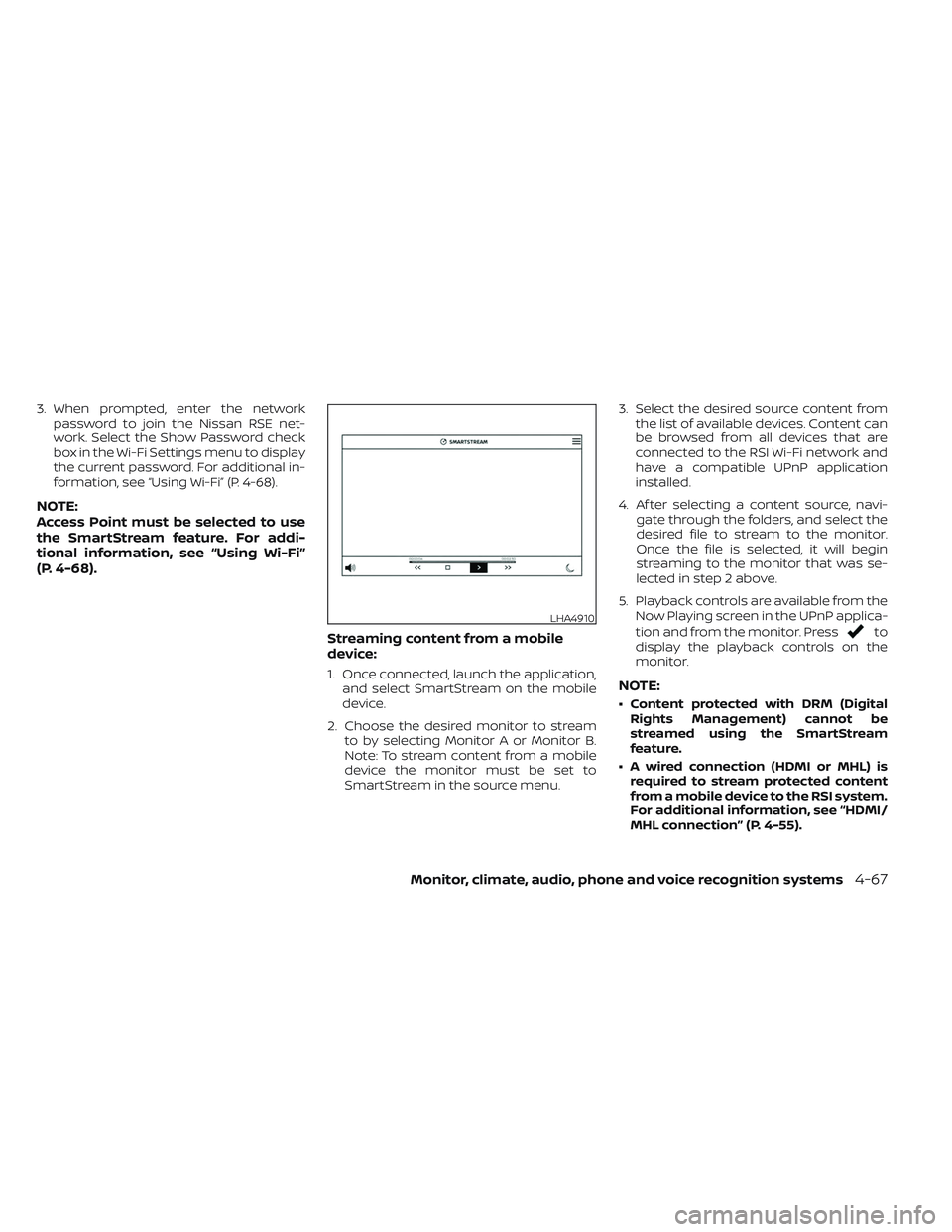
5. Playback controls are available from the Now Playing screen in the UPnP applica-
tion and from the monitor. Press
to
display the playback controls on the
monitor.
NOTE:
• Content protected with DRM (Digital Rights Management) cannot be
streamed using the SmartStream
feature.
• A wired connection (HDMI or MHL) is required to stream protected content
from a mobile device to the RSI system.
For additional information, see “HDMI/
MHL connection” (P. 4-55).
LHA4910
Monitor, climate, audio, phone and voice recognition systems4-67
Page 310 of 635
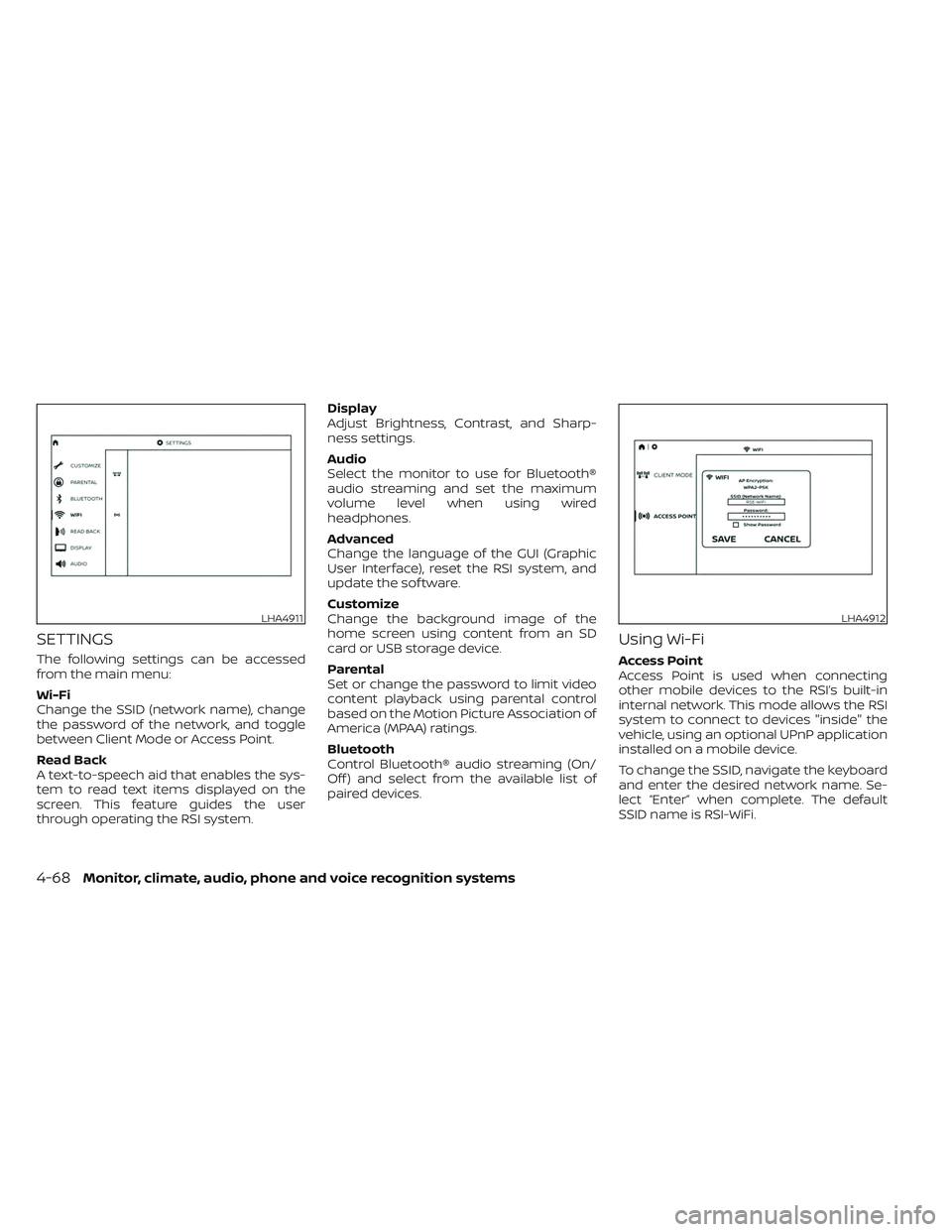
SETTINGS
The following settings can be accessed
from the main menu:
Wi-Fi
Change the SSID (network name), change
the password of the network, and toggle
between Client Mode or Access Point.
Read Back
A text-to-speech aid that enables the sys-
tem to read text items displayed on the
screen. This feature guides the user
through operating the RSI system.Display
Adjust Brightness, Contrast, and Sharp-
ness settings.
Audio
Select the monitor to use for Bluetooth®
audio streaming and set the maximum
volume level when using wired
headphones.
Advanced
Change the language of the GUI (Graphic
User Interface), reset the RSI system, and
update the sof tware.
Customize
Change the background image of the
home screen using content from an SD
card or USB storage device.
Parental
Set or change the password to limit video
content playback using parental control
based on the Motion Picture Association of
America (MPAA) ratings.
Bluetooth
Control Bluetooth® audio streaming (On/
Off ) and select from the available list of
paired devices.
Using Wi-Fi
Access Point
Access Point is used when connecting
other mobile devices to the RSI’s built-in
internal network. This mode allows the RSI
system to connect to devices "inside" the
vehicle, using an optional UPnP application
installed on a mobile device.
To change the SSID, navigate the keyboard
and enter the desired network name. Se-
lect “Enter” when complete. The default
SSID name is RSI-WiFi.
LHA4911LHA4912
4-68Monitor, climate, audio, phone and voice recognition systems
Page 312 of 635
Speech Rate
Speech Rate can be adjusted between
Normal, Fast, or Slow. This setting controls
how fast the spoken text is pronounced.
*Complies with FCC/Accessibility rule 21st
Century Communications and Video Ac-
cessibility Act (CVAA).
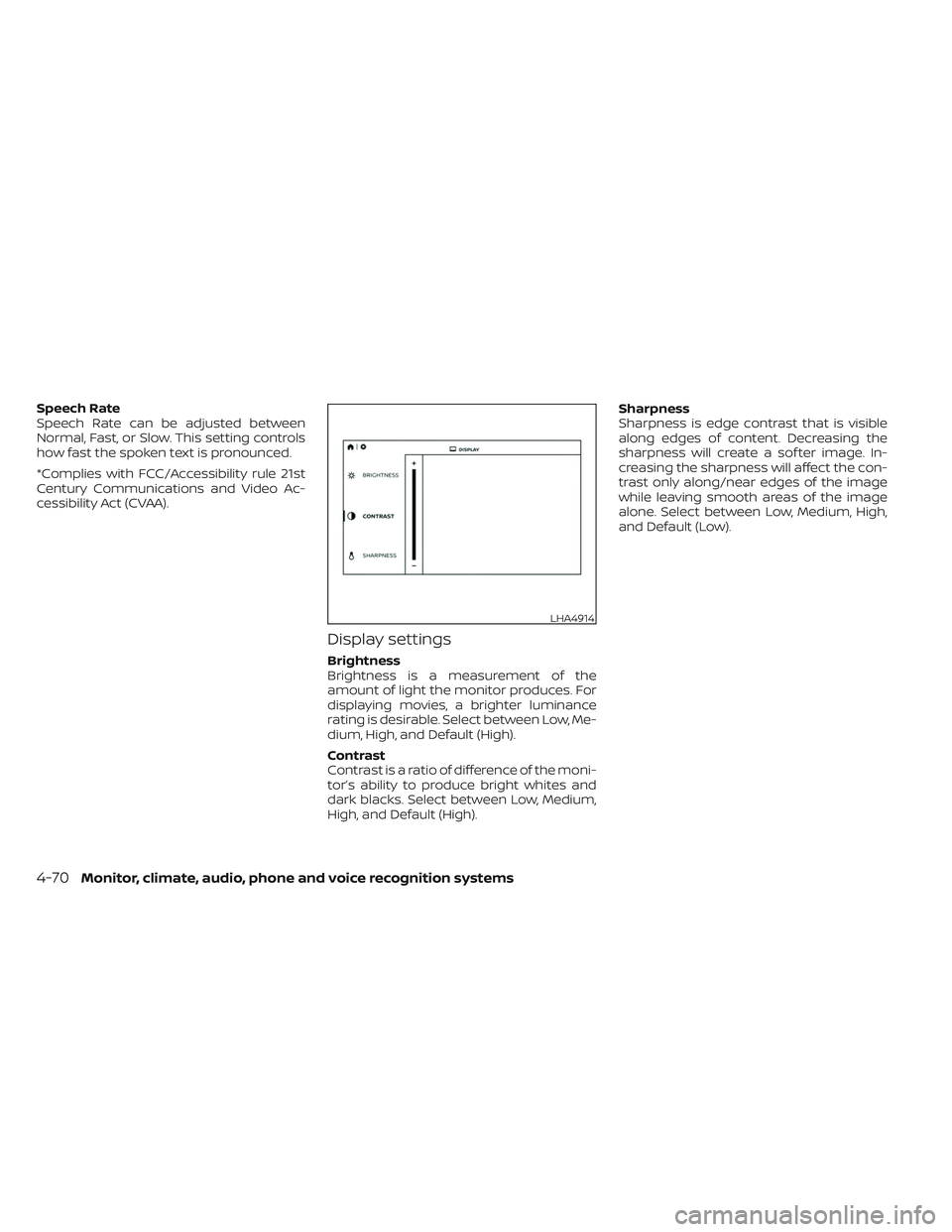
Display settings
Brightness
Brightness is a measurement of the
amount of light the monitor produces. For
displaying movies, a brighter luminance
rating is desirable. Select between Low, Me-
dium, High, and Default (High).
Contrast
Contrast is a ratio of difference of the moni-
tor’s ability to produce bright whites and
dark blacks. Select between Low, Medium,
High, and Default (High).Sharpness
Sharpness is edge contrast that is visible
along edges of content. Decreasing the
sharpness will create a sof ter image. In-
creasing the sharpness will affect the con-
trast only along/near edges of the image
while leaving smooth areas of the image
alone. Select between Low, Medium, High,
and Default (Low).
LHA4914
4-70Monitor, climate, audio, phone and voice recognition systems
Page 318 of 635
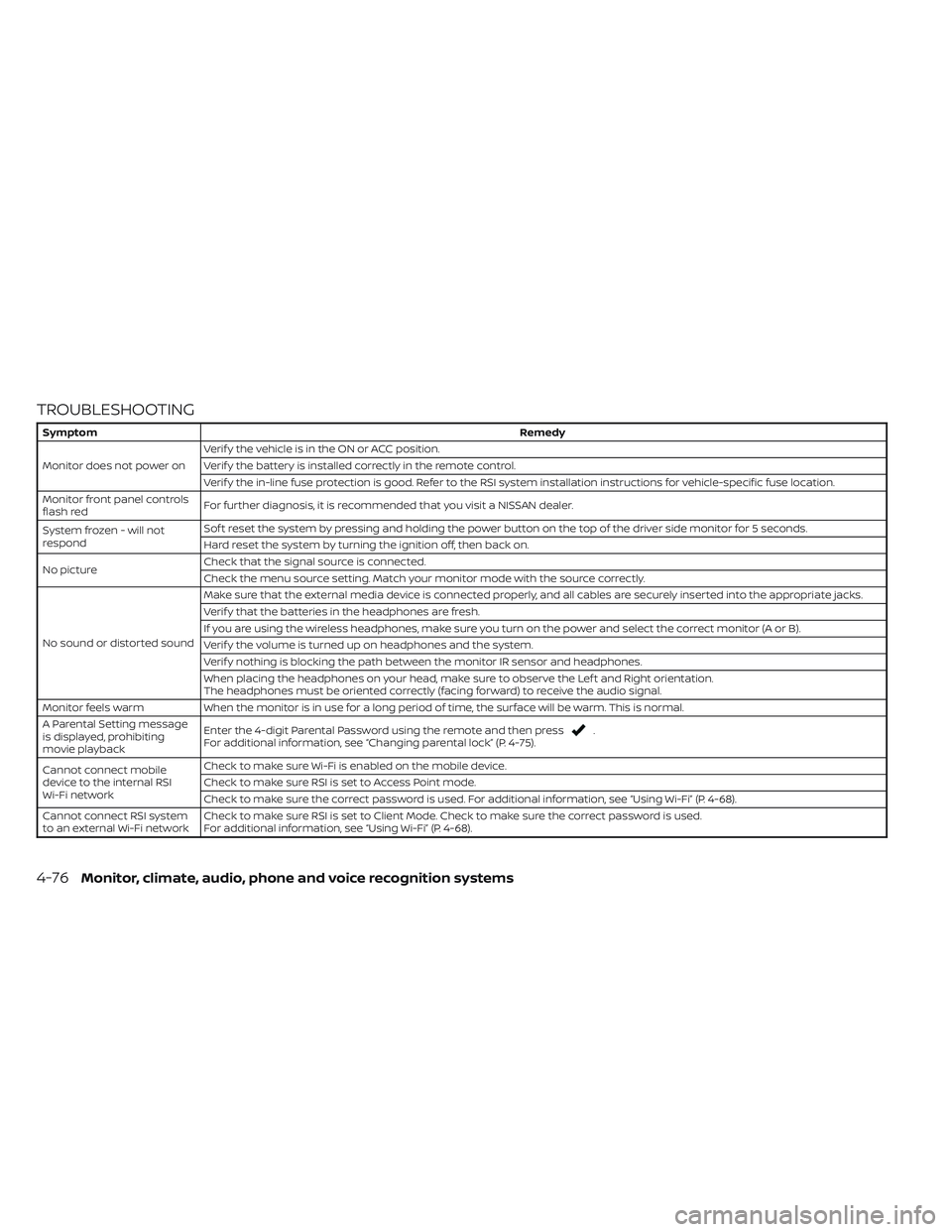
TROUBLESHOOTING
SymptomRemedy
Monitor does not power on Verif y the vehicle is in the ON or ACC position.
Verif y the battery is installed correctly in the remote control.
Verif y the in-line fuse protection is good. Refer to the RSI system installation instructions for vehicle-specific fuse location.
Monitor front panel controls
flash red For further diagnosis, it is recommended that you visit a NISSAN dealer.
System frozen - will not
respond Sof t reset the system by pressing and holding the power button on the top of the driver side monitor for 5 seconds.
Hard reset the system by turning the ignition off, then back on.
No picture Check that the signal source is connected.
Check the menu source setting. Match your monitor mode with the source correctly.
No sound or distorted sound Make sure that the external media device is connected properly, and all cables are securely inserted into the appropriate jacks.
Verif y that the batteries in the headphones are fresh.
If you are using the wireless headphones, make sure you turn on the power and select the correct monitor (A or B).
Verif y the volume is turned up on headphones and the system.
Verif y nothing is blocking the path between the monitor IR sensor and headphones.
When placing the headphones on your head, make sure to observe the Lef t and Right orientation.
The headphones must be oriented correctly (facing forward) to receive the audio signal.
Monitor feels warm When the monitor is in use for a long period of time, the surface will be warm. This is normal.
A Parental Setting message
is displayed, prohibiting
movie playback Enter the 4-digit Parental Password using the remote and then press
.
For additional information, see “Changing parental lock” (P. 4-75).
Cannot connect mobile
device to the internal RSI
Wi-Fi network Check to make sure Wi-Fi is enabled on the mobile device.
Check to make sure RSI is set to Access Point mode.
Check to make sure the correct password is used. For additional information, see “Using Wi-Fi” (P. 4-68).
Cannot connect RSI system
to an external Wi-Fi network Check to make sure RSI is set to Client Mode. Check to make sure the correct password is used.
For additional information, see “Using Wi-Fi” (P. 4-68).
4-76Monitor, climate, audio, phone and voice recognition systems
Page 324 of 635
All other trademarks and their respective
logos cited herein are the property of their
respective owners.When installing a CB, ham radio or car
phone in your vehicle, be sure to observe
the following precautions; otherwise, the
new equipment may adversely affect the
engine control system and other electronic
parts.
WARNING
• A cellular phone should not be used
for any purpose while driving so full
attention may be given to vehicle op-
eration. Some jurisdictions prohibit
the use of cellular phones while
driving.
• If you must make a call while your
vehicle is in motion, the hands free
cellular phone operational mode (if
so equipped) is highly recom-
mended. Exercise extreme caution at
all times so full attention may be
given to vehicle operation.
• If you are unable to devote full atten-
tion to vehicle operation while talk-
ing on the phone, pull off the road to
a safe location and stop your vehicle.
CAUTION
• Keep the antenna as far away as pos-
sible from the electronic control
modules.
• Keep the antenna wire more than 8 in
(20 cm) away from the electronic
control system harnesses. Do not
route the antenna wire next to any
harness.
• Adjust the antenna standing-wave
ratio as recommended by the
manufacturer.
• Connect the ground wire from the CB
radio chassis to the body.
• For additional information, it is rec-
ommended that you visit a NISSAN
dealer for this service.
CAR PHONE OR CB RADIO
4-82Monitor, climate, audio, phone and voice recognition systems
Page 617 of 635
NISSAN does not make a snowplow for TI-
TAN and has not evaluated the suitability of
its trucks for use as snowplow platforms.
Instead, the snowplow manufacturers es-
tablish minimum vehicle requirements for
their various plow products and they make
the determination as to which vehicle plat-
forms are suitable, based on their indi-
vidual product specifications. Consult the
snowplow manufacturers and sellers con-
cerning the fitness of the TITAN for use with
their products. NISSAN advises caution
whenever installing af termarket parts and
accessories because these products have
not been tested or certified by NISSAN.
Please reference the NISSAN Body Builder’s
guide for the appropriate upfit capacities
and requirements of the TITAN XD ‘Snow-
plow Prep’ package (if so equipped) or ‘HD
Front GAWR’ Package (if so equipped).WARNING
• Installing a snowplow may affect ve-
hicle handling. This may cause the
driver to lose control of the vehicle
and could result in vehicle damage,
serious injury, or death.
• A snowplow attached may affect the
operation of the air bags. Use ex-
treme caution while driving and
plowing to avoid vehicle damage, se-
rious injury, or death. DOT (Department of Transportation) Qual-
ity Grades: All passenger car tires must
conform to federal safety requirements in
addition to these grades.
Quality grades can be found where appli-
cable on the tire sidewall between tread
shoulder and maximum section width. For
example:
Treadwear 200 Traction AA Temperature A
Treadwear
The treadwear grade is a comparative rat-
ing based on the wear rate of the tire when
tested under controlled conditions on a
specified government test course. For ex-
ample, a tire graded 150 would wear one
and one-half (1 1/2) times as well on the
government course as a tire graded 100.
The relative performance of tires depends
upon the actual conditions of their use,
however, and may depart significantly from
the norm due to variations in driving habits,
service practices and differences in road
characteristics and climate.
SNOW PLOW
UNIFORM TIRE QUALITY GRADING
Technical and consumer information10-55
Page 624 of 635
Top tether strap anchor point
locations...................1-32Child safety rear door lock..........3-9Cleaning exterior and interior......7-2,7-4Climate control seat switch.........2-53Cold weather driving............5-129Console light..................2-89Controls
Heater and air conditioner controls. .4-38Heater and air conditioner controls
(manual)...................4-28CoolantCapacities and recommended
fuel/lubricants
...............10-2Changing engine coolant.........8-6Checking engine coolant level......8-6Engine coolant temperature gauge. . .2-8Corrosion protection..............7-7Cruise control................ .5-49Cup holders...................2-77Curtain side-impact and rollover
air bag......................1-79
D
Daytime Running Light System......2-50Digital video disc DVD............4-43Dimensions and weights..........10-11Dimmer switch for instrument panel. . .2-51Display
Information display............2-23Door locks................... .3-4Drive belt....................8-20
Driving
Cold weather driving...........5-129Driving with automatic
transmission................5-19Precautions when starting
and driving...............5-4, 5-11Driving the vehicle...............5-18Dual power moonroof............2-86
E
Eco Drive Report...............5-114Economy - fuel................5-107Electronic locking rear differential
(E-Lock) system................5-113Electronic locking rear differential
(E-Lock) system switch...........2-60Emergency call (SOS) button........2-63Emergency engine shutoff.......5-15,6-2Emission control information label. . . .10-17Emission control system warranty. . . .10-56EngineBefore starting the engine........5-16Capacities and recommended
fuel/lubricants...............10-2Changing engine coolant.........8-6Changing engine oil.............8-7Changing engine oil filter.........8-7Checking engine coolant level......8-6Checking engine oil level..........8-7Engine compartment check
locations.................. .8-3Engine coolant temperature gauge. . .2-8
Engine cooling system...........8-5Engine oil...................8-7Engine oil and oil filter
recommendation.............10-7Engine oil pressure gauge........2-10Engine oil pressure warning light. . . .2-15Engine oil viscosity.............10-7Engine serial number..........10-16Engine specifications...........10-9Starting the engine............5-17Engine coolant temperature gauge. . . .2-8Engine oil pressure gauge..........2-10Event Data recorders............10-59Exhaust gas (Carbon monoxide)......5-4Explanation of maintenance items.....9-2Explanation of scheduled maintenance
items...................... .9-5Extended storage switch..........2-69Eyeglass case.................2-76
F
F.M.V.S.S. certification label.........10-16Flashers (See hazard warning flasher
switch)......................6-2Flat tire......................6-3Floor mat positioning aid...........7-6Fluid
Brake fluid..................8-14Capacities and recommended
fuel/lubricants...............10-2Engine coolant................8-5Engine oil...................8-7
11-2