light NISSAN TITAN 2023 Owners Manual
[x] Cancel search | Manufacturer: NISSAN, Model Year: 2023, Model line: TITAN, Model: NISSAN TITAN 2023Pages: 644, PDF Size: 7.8 MB
Page 312 of 644
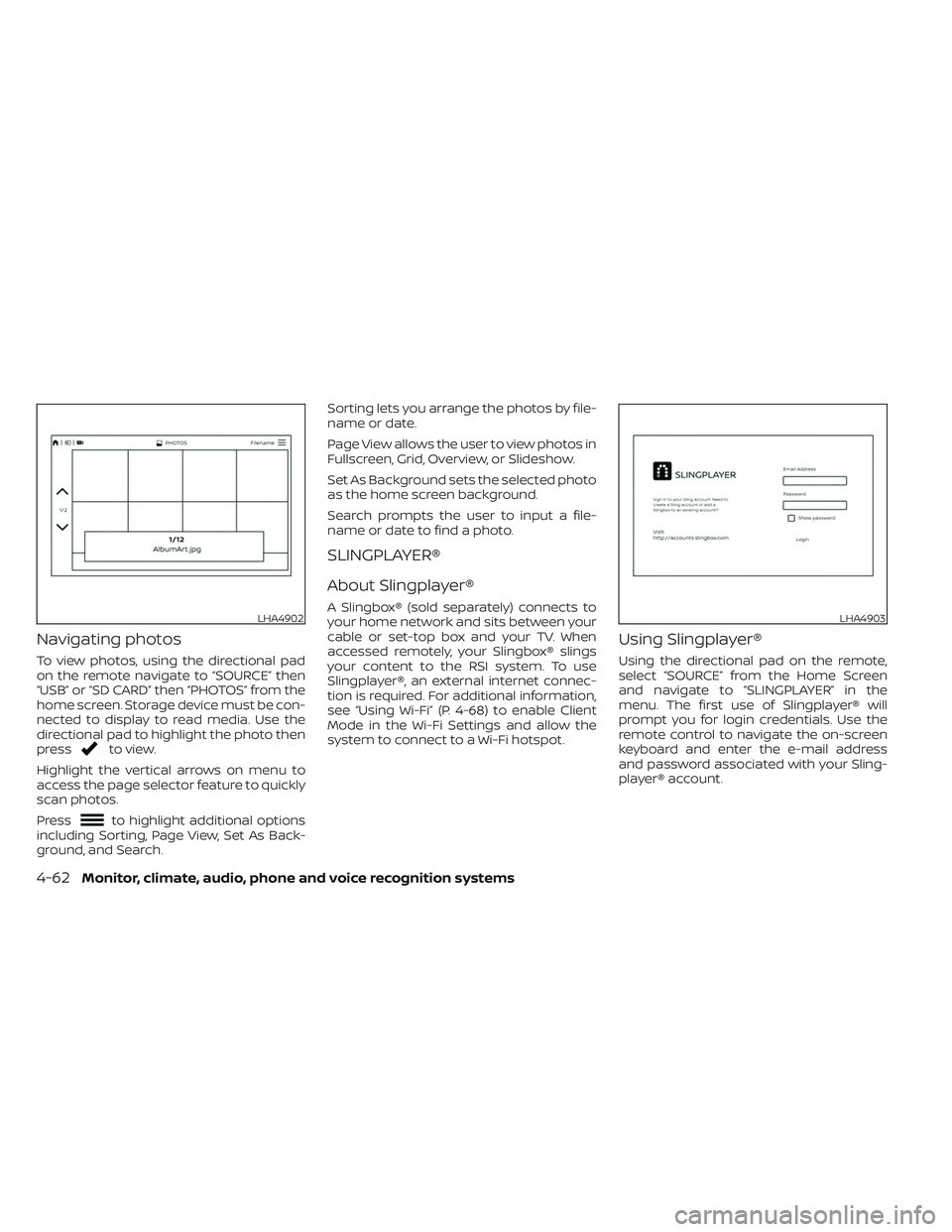
Navigating photos
To view photos, using the directional pad
on the remote navigate to “SOURCE” then
“USB” or “SD CARD” then “PHOTOS” from the
home screen. Storage device must be con-
nected to display to read media. Use the
directional pad to highlight the photo then
press
to view.
Highlight the vertical arrows on menu to
access the page selector feature to quickly
scan photos.
Press
to highlight additional options
including Sorting, Page View, Set As Back-
ground, and Search. Sorting lets you arrange the photos by file-
name or date.
Page View allows the user to view photos in
Fullscreen, Grid, Overview, or Slideshow.
Set As Background sets the selected photo
as the home screen background.
Search prompts the user to input a file-
name or date to find a photo.
SLINGPLAYER®
About Slingplayer®
A Slingbox® (sold separately) connects to
your home network and sits between your
cable or set-top box and your TV. When
accessed remotely, your Slingbox® slings
your content to the RSI system. To use
Slingplayer®, an external internet connec-
tion is required. For additional information,
see “Using Wi-Fi” (P. 4-68) to enable Client
Mode in the Wi-Fi Settings and allow the
system to connect to a Wi-Fi hotspot.
Using Slingplayer®
Using the directional pad on the remote,
select “SOURCE” from the Home Screen
and navigate to “SLINGPLAYER” in the
menu. The first use of Slingplayer® will
prompt you for login credentials. Use the
remote control to navigate the on-screen
keyboard and enter the e-mail address
and password associated with your Sling-
player® account.
LHA4902LHA4903
4-62Monitor, climate, audio, phone and voice recognition systems
Page 314 of 644
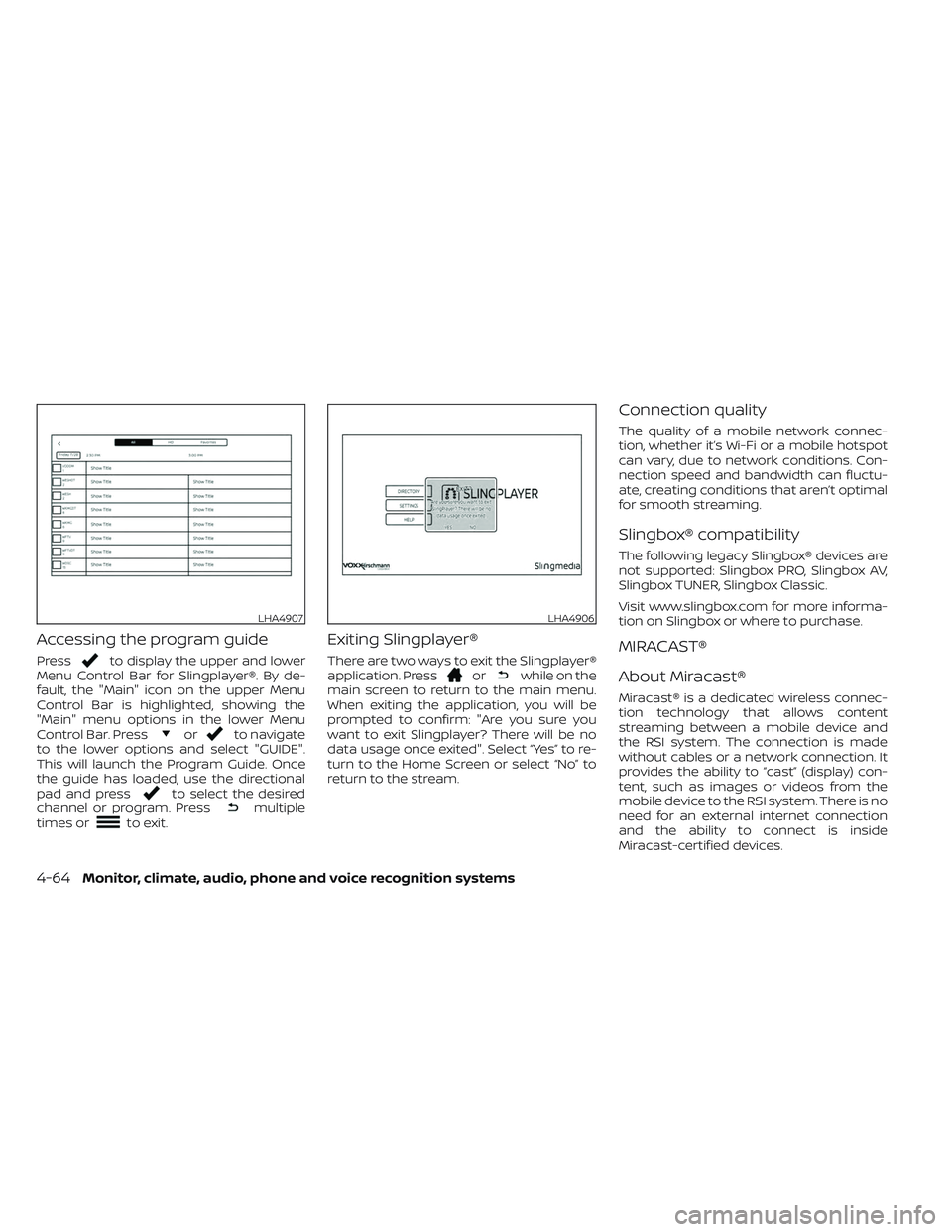
Accessing the program guide
Pressto display the upper and lower
Menu Control Bar for Slingplayer®. By de-
fault, the "Main" icon on the upper Menu
Control Bar is highlighted, showing the
"Main" menu options in the lower Menu
Control Bar. Press
orto navigate
to the lower options and select "GUIDE".
This will launch the Program Guide. Once
the guide has loaded, use the directional
pad and press
to select the desired
channel or program. Pressmultiple
times orto exit.
Exiting Slingplayer®
There are two ways to exit the Slingplayer®
application. Pressorwhile on the
main screen to return to the main menu.
When exiting the application, you will be
prompted to confirm: "Are you sure you
want to exit Slingplayer? There will be no
data usage once exited". Select “Yes” to re-
turn to the Home Screen or select “No” to
return to the stream.
Connection quality
The quality of a mobile network connec-
tion, whether it’s Wi-Fi or a mobile hotspot
can vary, due to network conditions. Con-
nection speed and bandwidth can fluctu-
ate, creating conditions that aren’t optimal
for smooth streaming.
Slingbox® compatibility
The following legacy Slingbox® devices are
not supported: Slingbox PRO, Slingbox AV,
Slingbox TUNER, Slingbox Classic.
Visit www.slingbox.com for more informa-
tion on Slingbox or where to purchase.
MIRACAST®
About Miracast®
Miracast® is a dedicated wireless connec-
tion technology that allows content
streaming between a mobile device and
the RSI system. The connection is made
without cables or a network connection. It
provides the ability to “cast” (display) con-
tent, such as images or videos from the
mobile device to the RSI system. There is no
need for an external internet connection
and the ability to connect is inside
Miracast-certified devices.
LHA4907LHA4906
4-64Monitor, climate, audio, phone and voice recognition systems
Page 319 of 644
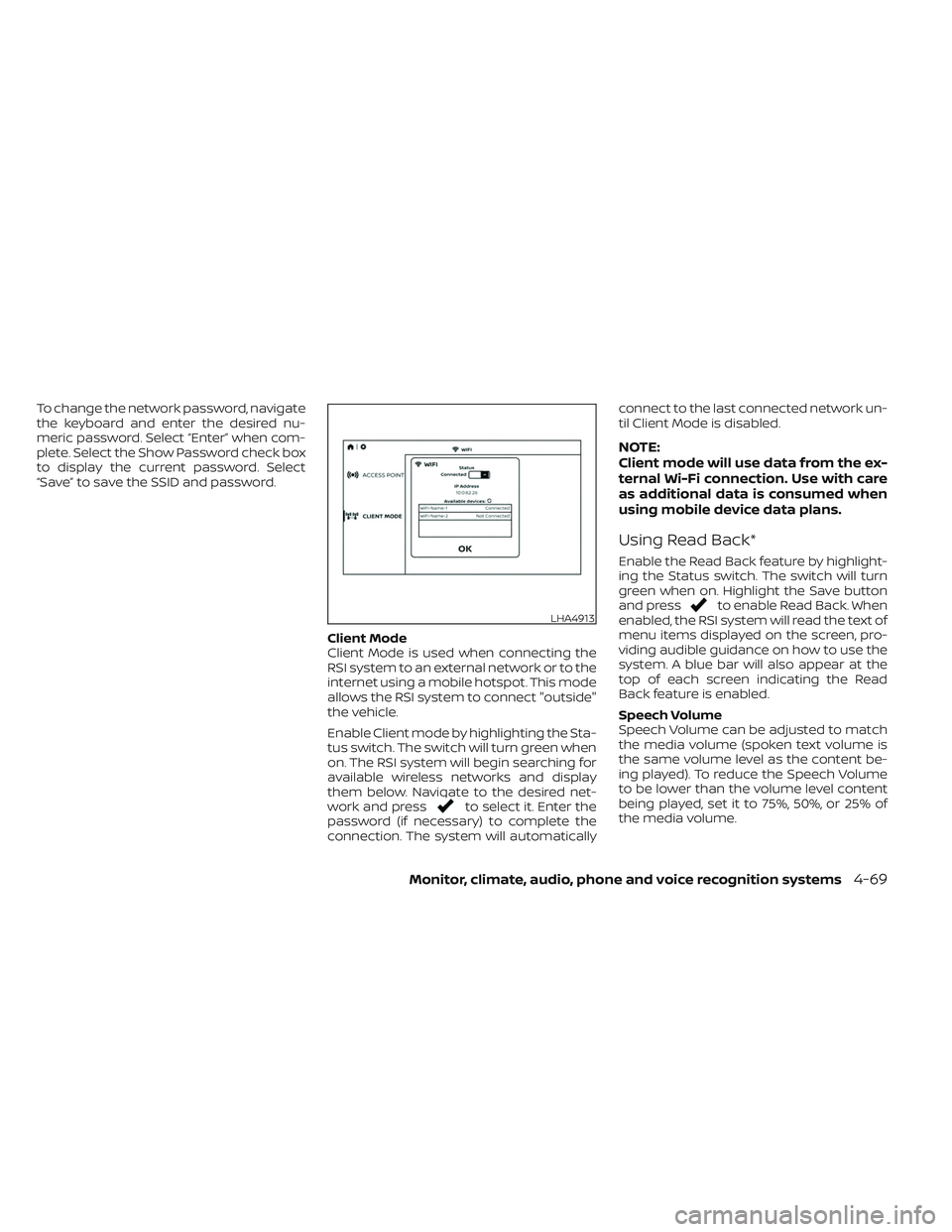
To change the network password, navigate
the keyboard and enter the desired nu-
meric password. Select “Enter” when com-
plete. Select the Show Password check box
to display the current password. Select
“Save” to save the SSID and password.Client Mode
Client Mode is used when connecting the
RSI system to an external network or to the
internet using a mobile hotspot. This mode
allows the RSI system to connect "outside"
the vehicle.
Enable Client mode by highlighting the Sta-
tus switch. The switch will turn green when
on. The RSI system will begin searching for
available wireless networks and display
them below. Navigate to the desired net-
work and press
to select it. Enter the
password (if necessary) to complete the
connection. The system will automatically connect to the last connected network un-
til Client Mode is disabled.
NOTE:
Client mode will use data from the ex-
ternal Wi-Fi connection. Use with care
as additional data is consumed when
using mobile device data plans.
Using Read Back*
Enable the Read Back feature by highlight-
ing the Status switch. The switch will turn
green when on. Highlight the Save button
and press
to enable Read Back. When
enabled, the RSI system will read the text of
menu items displayed on the screen, pro-
viding audible guidance on how to use the
system. A blue bar will also appear at the
top of each screen indicating the Read
Back feature is enabled.
Speech Volume
Speech Volume can be adjusted to match
the media volume (spoken text volume is
the same volume level as the content be-
ing played). To reduce the Speech Volume
to be lower than the volume level content
being played, set it to 75%, 50%, or 25% of
the media volume.LHA4913
Monitor, climate, audio, phone and voice recognition systems4-69
Page 320 of 644
Speech Rate
Speech Rate can be adjusted between
Normal, Fast, or Slow. This setting controls
how fast the spoken text is pronounced.
*Complies with FCC/Accessibility rule 21st
Century Communications and Video Ac-
cessibility Act (CVAA).
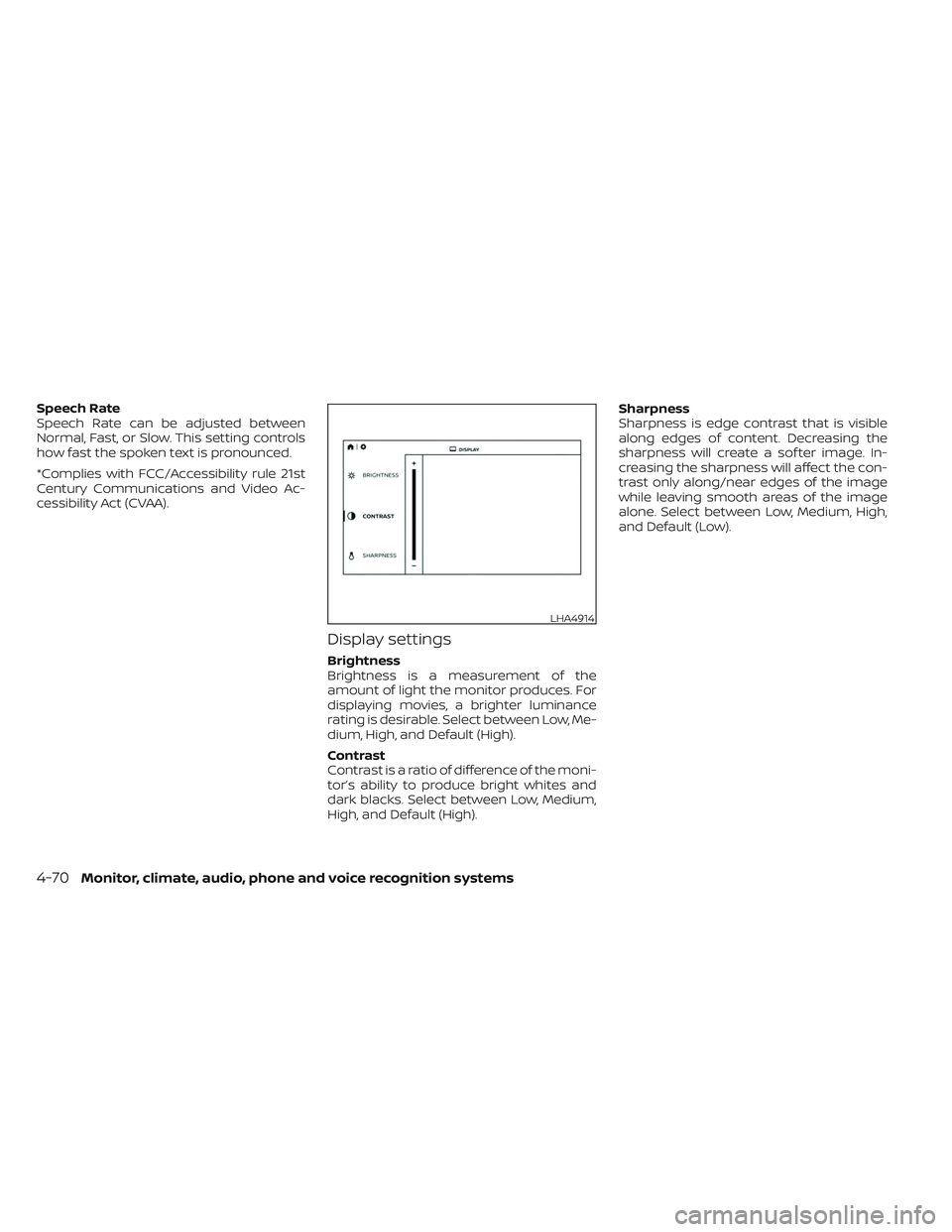
Display settings
Brightness
Brightness is a measurement of the
amount of light the monitor produces. For
displaying movies, a brighter luminance
rating is desirable. Select between Low, Me-
dium, High, and Default (High).
Contrast
Contrast is a ratio of difference of the moni-
tor’s ability to produce bright whites and
dark blacks. Select between Low, Medium,
High, and Default (High).Sharpness
Sharpness is edge contrast that is visible
along edges of content. Decreasing the
sharpness will create a sof ter image. In-
creasing the sharpness will affect the con-
trast only along/near edges of the image
while leaving smooth areas of the image
alone. Select between Low, Medium, High,
and Default (Low).
LHA4914
4-70Monitor, climate, audio, phone and voice recognition systems
Page 322 of 644
Advanced settings
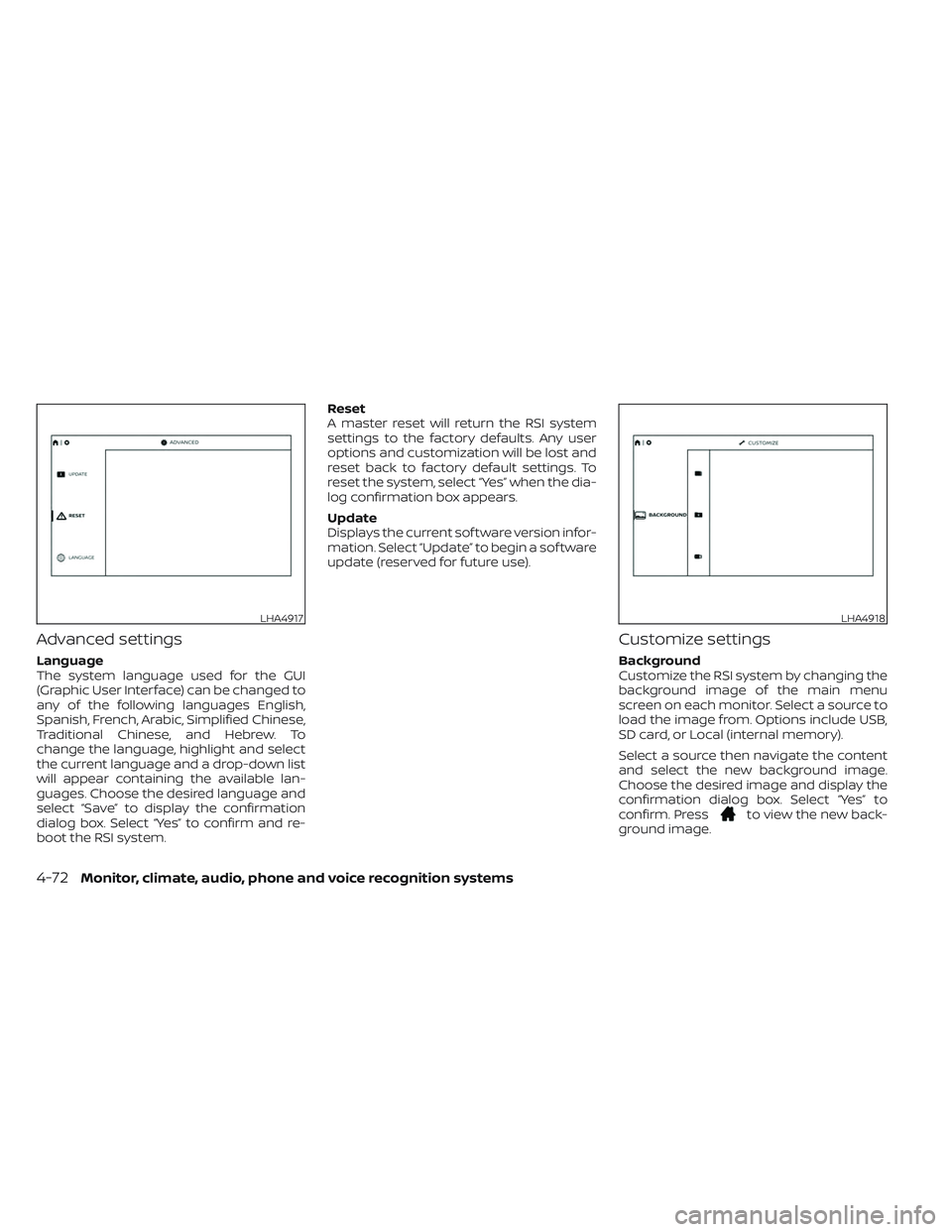
Language
The system language used for the GUI
(Graphic User Interface) can be changed to
any of the following languages English,
Spanish, French, Arabic, Simplified Chinese,
Traditional Chinese, and Hebrew. To
change the language, highlight and select
the current language and a drop-down list
will appear containing the available lan-
guages. Choose the desired language and
select “Save” to display the confirmation
dialog box. Select “Yes” to confirm and re-
boot the RSI system.Reset
A master reset will return the RSI system
settings to the factory defaults. Any user
options and customization will be lost and
reset back to factory default settings. To
reset the system, select “Yes” when the dia-
log confirmation box appears.
Update
Displays the current sof tware version infor-
mation. Select “Update” to begin a sof tware
update (reserved for future use).
Customize settings
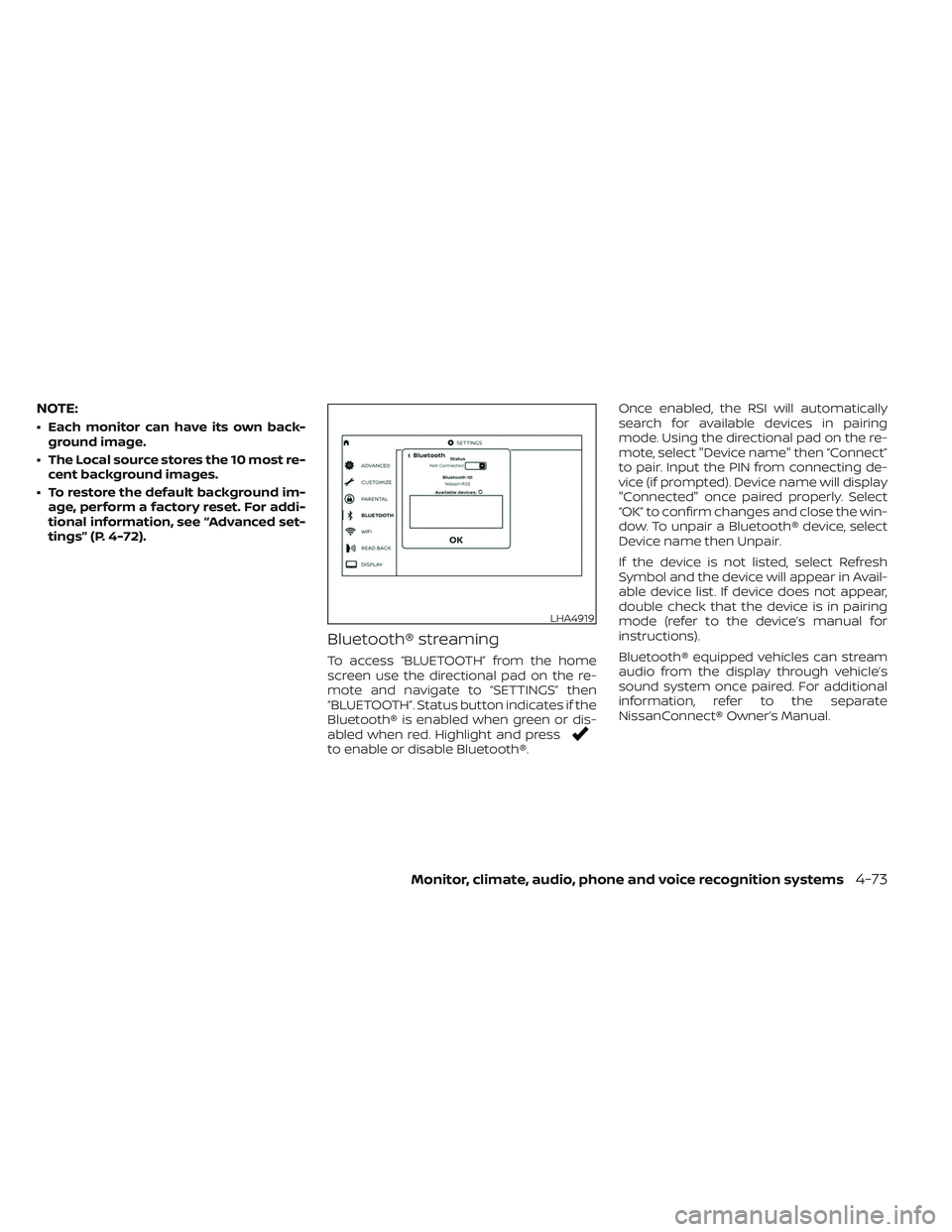
Background
Customize the RSI system by changing the
background image of the main menu
screen on each monitor. Select a source to
load the image from. Options include USB,
SD card, or Local (internal memory).
Select a source then navigate the content
and select the new background image.
Choose the desired image and display the
confirmation dialog box. Select “Yes” to
confirm. Press
to view the new back-
ground image.
LHA4917LHA4918
4-72Monitor, climate, audio, phone and voice recognition systems
Page 323 of 644
NOTE:
• Each monitor can have its own back-ground image.
• The Local source stores the 10 most re- cent background images.
• To restore the default background im- age, perform a factory reset. For addi-
tional information, see “Advanced set-
tings” (P. 4-72).
Bluetooth® streaming
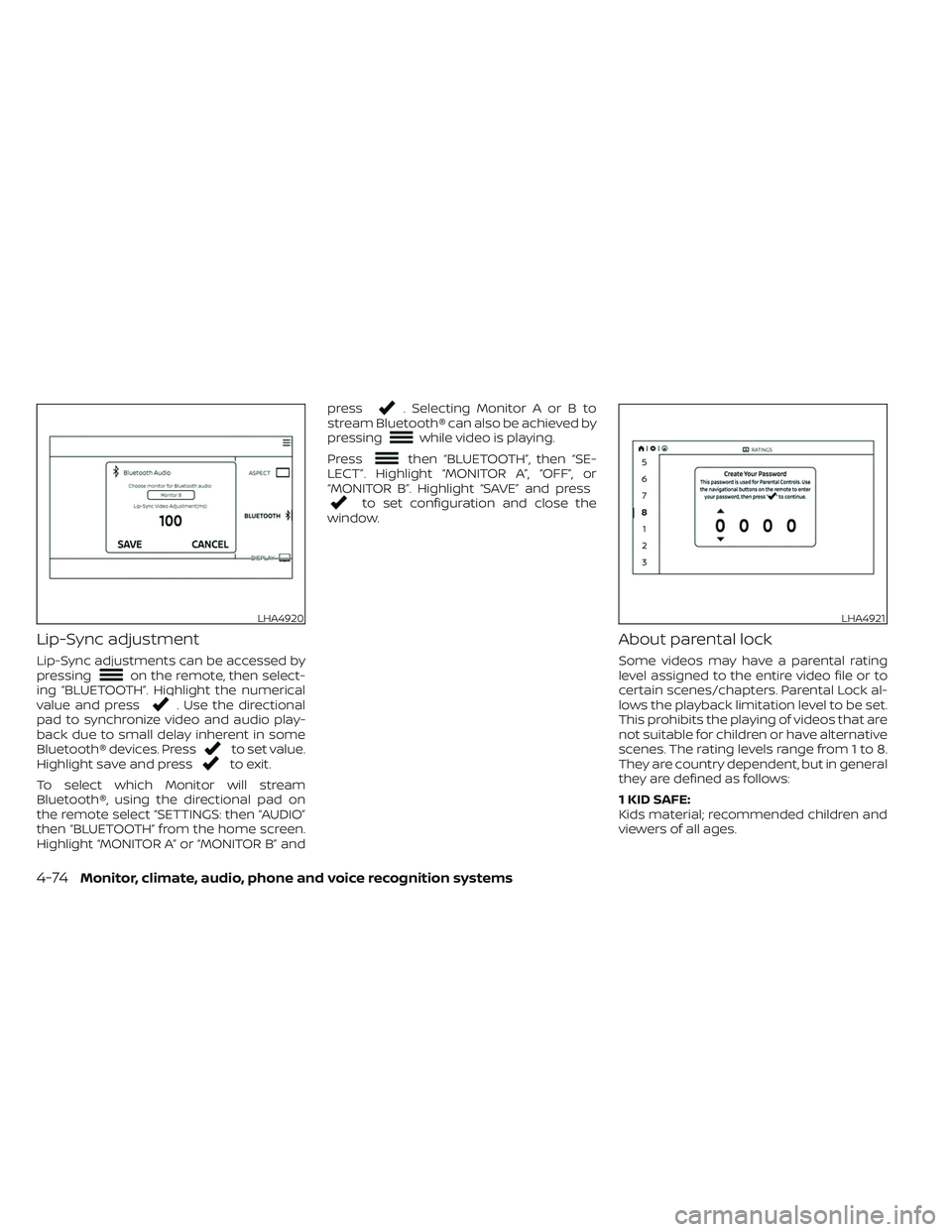
To access “BLUETOOTH” from the home
screen use the directional pad on the re-
mote and navigate to “SETTINGS” then
“BLUETOOTH”. Status button indicates if the
Bluetooth® is enabled when green or dis-
abled when red. Highlight and press
to enable or disable Bluetooth®. Once enabled, the RSI will automatically
search for available devices in pairing
mode. Using the directional pad on the re-
mote, select "Device name" then “Connect”
to pair. Input the PIN from connecting de-
vice (if prompted). Device name will display
"Connected" once paired properly. Select
“OK” to confirm changes and close the win-
dow. To unpair a Bluetooth® device, select
Device name then Unpair.
If the device is not listed, select Refresh
Symbol and the device will appear in Avail-
able device list. If device does not appear,
double check that the device is in pairing
mode (refer to the device’s manual for
instructions).
Bluetooth® equipped vehicles can stream
audio from the display through vehicle’s
sound system once paired. For additional
information, refer to the separate
NissanConnect® Owner’s Manual.
LHA4919
Monitor, climate, audio, phone and voice recognition systems4-73
Page 324 of 644
Lip-Sync adjustment
Lip-Sync adjustments can be accessed by
pressingon the remote, then select-
ing “BLUETOOTH”. Highlight the numerical
value and press
. Use the directional
pad to synchronize video and audio play-
back due to small delay inherent in some
Bluetooth® devices. Press
to set value.
Highlight save and pressto exit.
To select which Monitor will stream
Bluetooth®, using the directional pad on
the remote select “SETTINGS: then “AUDIO”
then “BLUETOOTH” from the home screen.
Highlight “MONITOR A” or “MONITOR B” and press
. Selecting Monitor A or B to
stream Bluetooth® can also be achieved by
pressing
while video is playing.
Press
then “BLUETOOTH”, then “SE-
LECT”. Highlight “MONITOR A”, “OFF”, or
“MONITOR B”. Highlight “SAVE” and press
to set configuration and close the
window.
About parental lock
Some videos may have a parental rating
level assigned to the entire video file or to
certain scenes/chapters. Parental Lock al-
lows the playback limitation level to be set.
This prohibits the playing of videos that are
not suitable for children or have alternative
scenes. The rating levels range from 1 to 8.
They are country dependent, but in general
they are defined as follows:
1 KID SAFE:
Kids material; recommended children and
viewers of all ages.
LHA4920LHA4921
4-74Monitor, climate, audio, phone and voice recognition systems
Page 328 of 644
SPECIFICATIONS
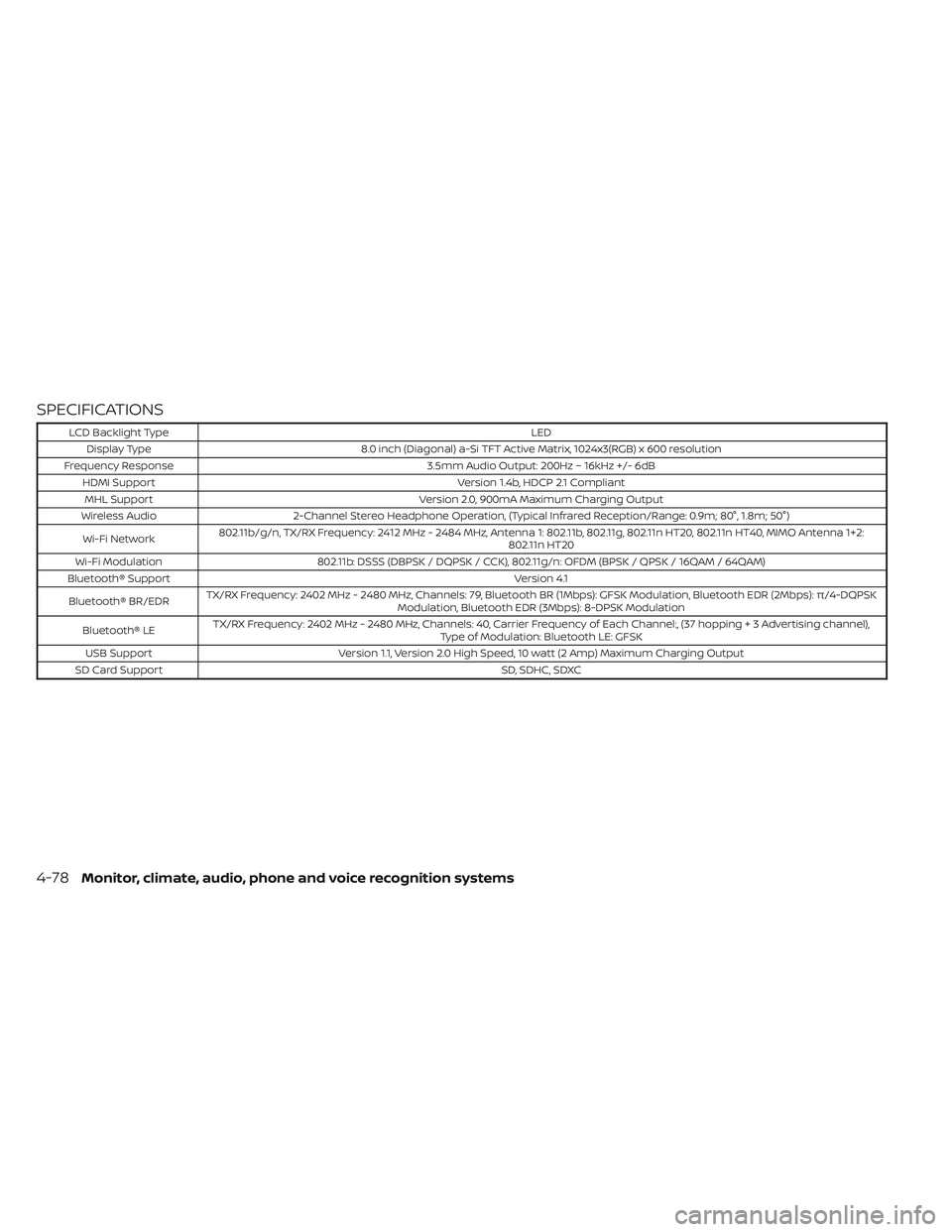
LCD Backlight TypeLED
Display Type 8.0 inch (Diagonal) a-Si TFT Active Matrix, 1024x3(RGB) x 600 resolution
Frequency Response 3.5mm Audio Output: 200Hz ~ 16kHz +/- 6dB
HDMI Support Version 1.4b, HDCP 2.1 Compliant
MHL Support Version 2.0, 900mA Maximum Charging Output
Wireless Audio 2-Channel Stereo Headphone Operation, (Typical Infrared Reception/Range: 0.9m; 80°, 1.8m; 50°)
Wi-Fi Network 802.11b/g/n, TX/RX Frequency: 2412 MHz - 2484 MHz, Antenna 1: 802.11b, 802.11g, 802.11n HT20, 802.11n HT40, MIMO Antenna 1+2:
802.11n HT20
Wi-Fi Modulation 802.11b: DSSS (DBPSK / DQPSK / CCK), 802.11g/n: OFDM (BPSK / QPSK / 16QAM / 64QAM)
Bluetooth® Support Version 4.1
Bluetooth® BR/EDR TX/RX Frequency: 2402 MHz - 2480 MHz, Channels: 79, Bluetooth BR (1Mbps): GFSK Modulation, Bluetooth EDR (2Mbps): π/4-DQPSK
Modulation, Bluetooth EDR (3Mbps): 8-DPSK Modulation
Bluetooth® LE TX/RX Frequency: 2402 MHz - 2480 MHz, Channels: 40, Carrier Frequency of Each Channel:, (37 hoppin
g+3Advertisingchannel),
Type of Modulation: Bluetooth LE: GFSK
USB Support Version 1.1, Version 2.0 High Speed, 10 watt (2 Amp) Maximum Charging Output
SD Card Support SD, SDHC, SDXC
4-78Monitor, climate, audio, phone and voice recognition systems
Page 333 of 644
“Made for iPod”, “Made for iPhone” and
“Made for iPad” mean that an electronic
accessory has been designed to connect
specifically to iPod, iPhone or iPad, respec-
tively, and has been certified by the devel-
oper to meet Apple performance stan-
dards. Apple is not responsible for the
operation of this device or its compliance
with safety and regulatory standards.
Please note that the use of this accessory
with iPod, iPhone or iPad may affect wire-
less performance.
iPad, iPhone, iPod classic, iPod Nano, iPod
shuffle and iPod touch are trademarks of
Apple Inc., registered in the U.S. and other
countries. Lightning is a trademark of
Apple Inc.
iPod®/iPhone®
Monitor, climate, audio, phone and voice recognition systems4-83
Page 340 of 644
prevent the TPMS from functioning prop-
erly. Always check the TPMS malfunction
telltale af ter replacing one or more tires or
wheels on your vehicle to ensure that the
replacement or alternate tires and wheels
allow the TPMS to continue to function
properly.
Additional information:
• When using a wheel without the TPMSsuch as the spare tire, the TPMS does not
monitor the tire pressure of the spare tire.
• The TPMS will activate only when the ve- hicle is driven at speeds above 16 mph (25
km/h). Also, this system may not detect a
sudden drop in tire pressure (for example,
a flat tire while driving).
• The low tire pressure warning light does not automatically turn off when the tire
pressure is adjusted. Af ter your tires are
inflated to the recommended pressure,
the vehicle must be driven at speeds
above 16 mph (25 km/h) to activate the
TPMS and turn off the low tire pressure
warning light. Use a tire pressure gauge
to check the tire pressure. • The “Tire Pressure Low – Add Air” warning
appears in the vehicle information dis-
play when the low tire pressure warning
light is illuminated and low tire pressure is
detected. The “Tire Pressure Low – Add
Air” warning turns off when the low tire
pressure warning light turns off.
• The “Tire Pressure Low – Add Air” warning does not appear if the low tire pressure
warning light illuminates to indicate a
TPMS malfunction.
• Tire pressure rises and falls depending on the heat caused by the vehicle’s opera-
tion and the outside temperature. Do not
reduce the tire pressure af ter driving be-
cause the tire pressure rises af ter driving.
Low outside temperature can lower the
temperature of the air inside the tire
which can cause a lower tire inflation
pressure. This may cause the low tire
pressure warning light to illuminate. If the
warning light illuminates, check the tire
pressure for all four tires.
• The Tire and Loading Information label is located in the driver's door opening.
For additional information, see “Low tire
pressure warning light” (P. 2-20) and “Tire
Pressure Monitoring System (TPMS)” (P. 6-3).WARNING
• Radio waves could adversely affect
electric medical equipment. Those
who use a pacemaker should contact
the electric medical equipment
manufacturer for the possible influ-
ences before use.
• If the low tire pressure warning light
illuminates while driving, avoid sud-
den steering maneuvers or abrupt
braking, reduce vehicle speed, pull
off the road to a safe location and
stop the vehicle as soon as possible.
Driving with under-inflated tires may
permanently damage the tires and
increase the likelihood of tire failure.
Serious vehicle damage could occur
and may lead to an accident and
could result in serious personal in-
jury. Check the tire pressure for all
four tires. Adjust the tire pressure to
the recommended COLD tire pres-
sure shown on the Tire and Loading
Information label to turn the low tire
pressure warning light off. If you have
a flat tire, replace it with a spare tire
as soon as possible. (For additional
information, see “Flat tire” (P. 6-3) for
changing a flat tire.)
5-6Starting and driving