AUX NISSAN VERSA NOTE 2016 2.G User Guide
[x] Cancel search | Manufacturer: NISSAN, Model Year: 2016, Model line: VERSA NOTE, Model: NISSAN VERSA NOTE 2016 2.GPages: 402, PDF Size: 4.58 MB
Page 216 of 402
CAUTION
●Do not force the USB device into the
USB port. Inserting the USB device
tilted or up-side-down into the port may
damage the port. Make sure that the
USB device is connected correctly into
the USB port.
● Do not grab the USB port cover (if so
equipped) when pulling the USB device
out of the port. This could damage the
port and the cover.
● Do not leave the USB cable in a place
where it can be pulled unintentionally.
Pulling the cable may damage the port.
For additional information, refer to your device
manufacturer’s owner information.
The USB connection port is located in the center
console. Insert the USB device into the port.
When a compatible storage device is plugged
into the connection port, compatible audio files
on the storage device can be played through the
vehicle’s audio system.
Audio file operation
AUX or USB button (if so equipped)
Place the ignition switch in the ON or ACC
position and press the AUX or USB button to switch to the USB input mode. If a CD is playing
or another audio source is plugged in through the
AUX IN jack, the AUX or USB button toggles
between the three sources.
MEDIA button (if so equipped)
Place the ignition switch in the ON or ACC
position and press the MEDIA button to switch to
the USB input mode. If a CD is playing or another
audio source is plugged in through the AUX IN
jack located in the center console, the MEDIA
button toggles between the three sources.
Play information
Information about the audio files being played
can be displayed on the display screen of the
vehicle’s audio system. Depending on how the
audio files are encoded, information such as
Folder, Song and Artist will be displayed.
The track number and number of total tracks in
the folder are displayed on the screen as well.
SEEK/CAT (Reverse or
Fast Forward) buttons
Press and hold the SEEK/CAT buttons
orfor 1.5 seconds while an audio file on
the USB device is playing to reverse or fast
forward the track being played. The track plays at
an increased speed while reversing or fast for- warding. When the button is released, the audio
file returns to normal play speed.
SEEK/CAT buttons
Press the SEEK/CAT button
while an au-
dio file on the USB device is playing to return to
the beginning of the current track. Press the
SEEK/CAT button
several times to skip
backward several tracks.
Press the SEEK/CAT button
while an au-
dio file on the USB device is playing to advance
one track. Press the SEEK/CAT button
several times to skip forward several tracks. If the
last track in a folder on the USB device is
skipped, the first track of the next folder is played.
RDM (random) button
When the RDM button is pressed while an audio
file on the USB device is playing, the play pattern
can be changed as follows:
All Random →1 Folder Random →OFF
All Random: all tracks on the USB device will be
played randomly.
1 Folder Random: all tracks in the current folder
will be played randomly.
OFF: No random play pattern is applied. The
indicator on the display will turn off.
Monitor, climate, audio, phone and voice recognition systems4-65
Page 218 of 402
Audio file operation
AUX (auxiliary) button
Place the ignition switch in the ON or ACC
position and press the AUX button to switch to
the USB input mode. If another audio source is
playing and a USB memory device is inserted,
press the AUX button until the center display
changes to the USB memory mode.
If the system has been turned off while the USB
memory was playing, press the POWER button
to restart the USB memory.Play information
Information about the audio files being played is
shown on the display screen of the vehicle’s
audio system. Touch “Browse” to display the list
of folders and files on the USB device. Touch the
name of a song on the screen to begin playing
that song.
SEEKING buttons
Press the
button while an audio file on the
USB device is playing to return to the beginning
of the current track. Press the
button sev-
eral times to skip backward several tracks. Press the
button while an audio file on the
USB device is playing to advance one track.
Press the
button several times to skip for-
ward several tracks. If the last track in a folder on
the USB device is skipped, the first track of the
next folder is played.
Random and repeat play mode
While files on a USB device are playing, the play
pattern can be altered so that songs are repeated
or played randomly.
Random
Touch the “Random” key to apply a random play
pattern to the USB device. When the random
mode is active, the
icon is displayed to the
left of the song title or album name to denote
which random pattern is applied. To cancel Ran-
dom mode, touch the “Random” key until
no
icon is displayed.
Repeat
Touch the “Repeat” key to apply a repeat play
pattern to the USB device. When the repeat
mode is active, the
icon is displayed to the
left of the song title or album name to denote
which repeat pattern is applied. To cancel Repeat
mode, touch the “Repeat” key until no
icon
is displayed.
LHA2923
Monitor, climate, audio, phone and voice recognition systems4-67
Page 220 of 402
●iPod® nano - 5th generation (8GB) (firm-
ware version 1.0.2PC or later)
● iPod® nano - 5th generation (16GB) (firm-
ware version 1.0.1PC or later)
● iPod® nano - 6th generation (8GB) (firm-
ware version 1.2PC or later)
● iPod® nano - 6th generation (8GB) (firm-
ware version 1.1PC or later)
● iPod® Touch - 1st generation (firmware ver-
sion 2.2.1 or later)
● iPod® Touch - 2nd generation (firmware
version 2.2.1 or later)
● iPod® Touch - 3rd generation (firmware ver-
sion 3.1.3 or later)
● iPod® Touch - 4th generation (firmware ver-
sion 4.3.5 or later)
● iPhone® 3G (firmware version 4.1 or later)
● iPhone® 3GS (firmware version 4.3 or later)
● iPhone® 4 (firmware version 5.0 or later)
● iPhone® 4S (firmware version 5.1 or later)
● iPad® (firmware version 4.3.2 or later)
● iPad® 2 (firmware version 4.3.3 or later)
Make sure that your iPod® firmware is updated to
the version indicated above.Audio main operation
Place the ignition switch to the ACC or ON
position. Then, press the AUX or MEDIA button
repeatedly to switch to the iPod® mode.
If the audio system is turned off while the iPod® is
playing, the iPod® plays when the audio system
is turned back on.
If the audio system is off, pressing the AUX or
MEDIA button turns the audio system on and
plays the iPod®.
If the audio system is on, the audio system auto-
matically begins playing tracks from the iPod®
when it is plugged into the jack.
SEEK/CAT buttons
Press the SEEK/CAT buttons
orto
skip backward or forward one track.
Press and hold the SEEK/CAT buttons
orfor 1.5 seconds while a track is playing
to reverse or fast forward the track being played.
The track plays at an increased speed while
reversing or fast forwarding. When the button is
released, the track returns to normal play speed. (RPT) REPEAT
When the RPT button is pressed while a track is
being played, the play pattern can be changed as
follows:
Repeat Off
→1 Track Repeat →All Repeat →
Repeat Off
1 Track Repeat: the current track will be re-
peated.
All Repeat: all songs in the current list are re-
peated.
Repeat Off: no repeat play pattern is applied.
(RDM) RANDOM
When the RDM button is pressed while a track is
being played, the play pattern can be changed as
follows:
Shuffle Off →Track Shuffle →Album Shuffle →
Shuffle Off
Track Shuffle: the tracks in the current list will be
played randomly.
Album Shuffle: the albums in the current list will
be played randomly.
Shuffle Off: no random play pattern is applied.
BACK button
When the
BACK button is pressed, it re-
turns to the previous menu.
Monitor, climate, audio, phone and voice recognition systems4-69
Page 222 of 402
While connected to the vehicle, the iPod® can
only be operated by the vehicle audio controls.
To disconnect the iPod® from the vehicle, re-
move the USB end of the cable from the USB
port on the vehicle, then remove the cable from
the iPod®.
* iPod® is a trademark of Apple Inc., registered in
the U.S. and other countries.
Compatibility
The following models are compatible:● iPod® Classic 5th generation (firmware ver-
sion 1.3.0 or later)
● iPod® Classic 6th generation (firmware ver-
sion 2.0.1 or later)
● iPod® Classic 7th generation (firmware ver-
sion 2.0.4 or later)
● iPod® Touch 2nd generation (firmware ver-
sion 4.2.1 or later)*
● iPod® Touch 3rd generation (firmware ver-
sion 5.1 or later)
● iPod® Touch 4th generation (firmware ver-
sion 5.1 or later)
● iPod® nano - 1st generation (firmware ver-
sion 1.3.1 or later) ●
iPod® nano - 2nd generation (firmware ver-
sion 1.1.3 or later)
● iPod® nano - 3rd generation (firmware ver-
sion 1.1.3 or later)
● iPod® nano - 4th generation (firmware ver-
sion 1.0.4 or later)
● iPod® nano - 5th generation (firmware ver-
sion 1.0.2 or later)
● iPod® nano - 6th generation (firmware ver-
sion 1.1 or later)
● iPhone® 3G (firmware version 4.2.1 or later)
● iPhone® 3GS (firmware version 5.1 or later)
● iPhone® 4 (firmware version 5.1 or later)
● iPhone® 4S (firmware version 5.1 or later)
* Some features of this iPod® may not be fully
functional.
Make sure that your iPod® firmware is updated to
the version indicated above.
Audio main operation
Place the ignition switch in the ACC or ON
position. Press the AUX button repeatedly to
switch to the iPod® mode.
If the system has been turned off while the iPod®
was playing, pressing the VOL/ON·OFF control
knob will start the iPod®.
AUX button
When the AUX button is pressed with the system
off and the iPod® connected, the system will turn
on. If another audio source is playing and the
LHA2911
Monitor, climate, audio, phone and voice recognition systems4-71
Page 223 of 402
iPod® is connected, press the AUX button re-
peatedly until the center display changes to the
iPod® mode.Interface
The interface for iPod® operation shown on the
vehicle’s audio system display screen is similar to
the iPod® interface. Use the touch-screen,
BACK button or the TUNE knob to navigate the
menus on the screen.When the iPod® is playing, touch the “Menu” key
to bring up the iPod® interface.
Depending on the iPod® model, the following
items may be available on the menu list screen.
For additional information about each item, refer
to the iPod® Owner’s Manual.
● Playlists
● Artists
● Albums
● Genres
● Songs
● Composers
● Audiobooks
● Podcasts
Shuffle and repeat play mode
Item Result
Shuffle and repeat play mode While the iPod® is playing, the play pattern can be altered so that songs are repeated or played randomly.
Shuffle Touch the “Shuffle” key to apply a random play pattern to the iPod®. When the shuffle mode is active it will
appear on the screen. To cancel Shuffle mode, touch the “Shuffle” key until it is not displayed.
Repeat Touch the “Repeat” key to apply a repeat play pattern to the iPod®. When the repeat mode is active it will ap-
pear on the screen. To cancel Repeat mode, touch the “Repeat” key until it is not displayed.
LHA2907
4-72Monitor, climate, audio, phone and voice recognition systems
Page 226 of 402
4. Touch the “Connect New Device” key.
5. The system acknowledges the commandand asks you to initiate connecting from the
phone handset. The connecting procedure
of the cellular phone varies according to
each cellular phone model. See the cellular
phone Owner’s Manual for details. You can
also visit www.nissanusa.com/bluetooth or
www.nissancanada.com/bluetooth for in-
structions on connecting NISSAN recom-
mended cellular phones.
Audio main operation
To switch to the Bluetooth® audio mode, press
the AUX button repeatedly until the Bluetooth®
audio mode is displayed on the screen.
The controls for the Bluetooth® audio are dis-
played on the screen.
CD CARE AND CLEANING
●Handle a CD by its edges. Do not bend the
disc. Never touch the surface of the disc.
● Always place the discs in the storage case
when they are not being used.
● To clean a disc, wipe the surface from the
center to the outer edge using a clean, soft
cloth. Do not wipe the disc using a circular
motion.
● Do not use a conventional record cleaner or
alcohol intended for industrial use.
LHA2844LHA0049
Monitor, climate, audio, phone and voice recognition systems4-75
Page 227 of 402
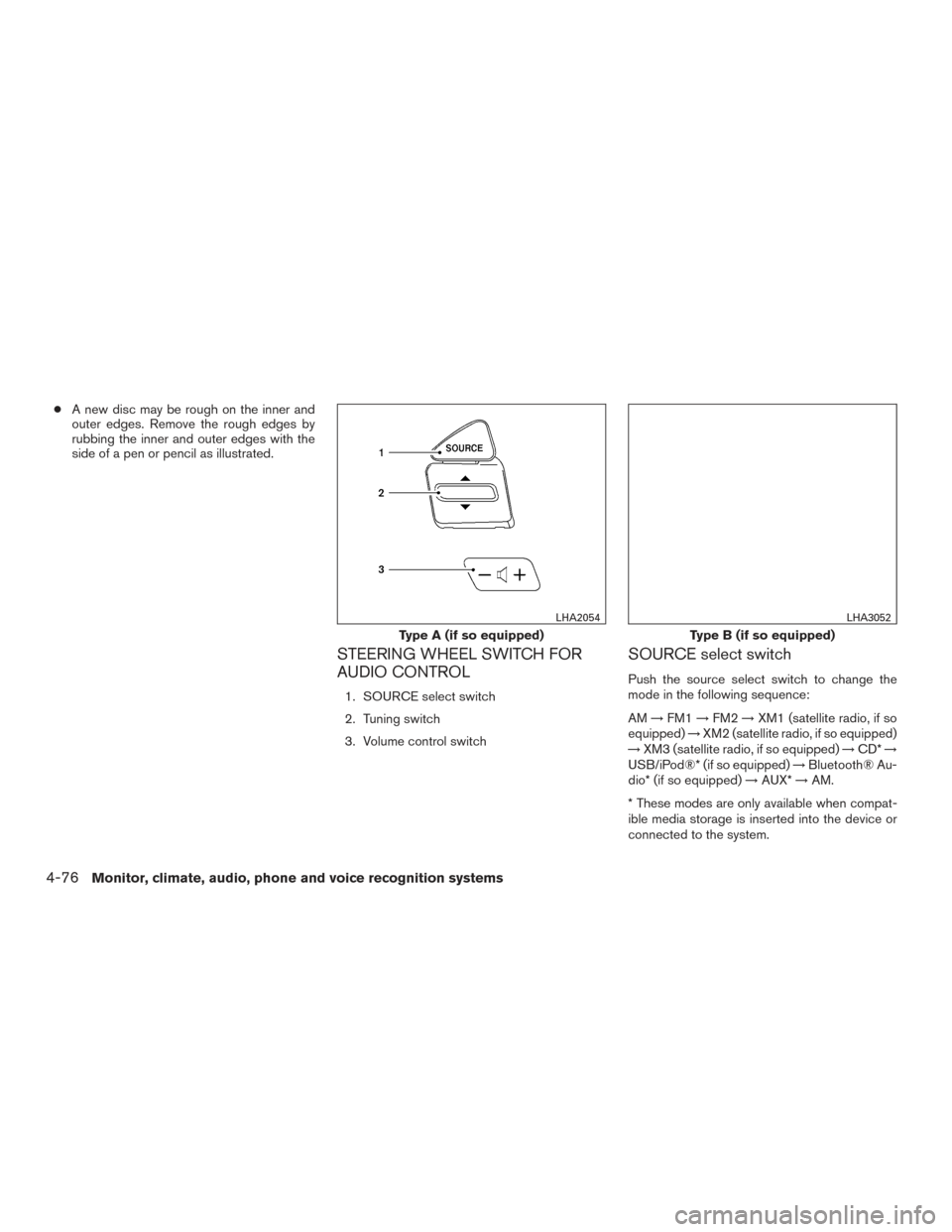
●A new disc may be rough on the inner and
outer edges. Remove the rough edges by
rubbing the inner and outer edges with the
side of a pen or pencil as illustrated.
STEERING WHEEL SWITCH FOR
AUDIO CONTROL
1. SOURCE select switch
2. Tuning switch
3. Volume control switch
SOURCE select switch
Push the source select switch to change the
mode in the following sequence:
AM →FM1 →FM2 →XM1 (satellite radio, if so
equipped) →XM2 (satellite radio, if so equipped)
→ XM3 (satellite radio, if so equipped) →CD* →
USB/iPod®* (if so equipped) →Bluetooth® Au-
dio* (if so equipped) →AUX* →AM.
* These modes are only available when compat-
ible media storage is inserted into the device or
connected to the system.
Type A (if so equipped)
LHA2054
Type B (if so equipped)
LHA3052
4-76Monitor, climate, audio, phone and voice recognition systems
Page 394 of 402
10 Index
A
ABS (Anti-lock Braking System) ........5-28
Air bag (See supplemental restraint
system) .....................1-42
Air bag system Front (See supplemental front impact air bag
system) ...................1-49
Side and curtain (See supplemental side air
bag and curtain side-impact air bag
system) ...................1-56
Airbagwarninglabels.............1-58
Airbagwarninglight...........1-59,2-18
Air bag warning light, supplemental . .1-59, 2-18
Air cleaner housing filter ............8-18
Air conditioner Air conditioner operation ..........4-30
Air conditioner service ...........4-35
Air conditioner specification label .....9-12
Air conditioner system refrigerant and
oil recommendations .............9-7
Heater and air conditioner controls ....4-27
Servicing air conditioner ..........4-35
Airflowcharts..................4-31
Anchor point locations .............1-26
Antenna .....................4-77
Antifreeze ....................5-32
Anti-lock Braking System (ABS) ........5-28
Apps .......................4-78
Armrests .....................1-5
Around View® Monitor .............4-16
Audible reminders ...............2-21 Audio system
..................4-35
AMradioreception.............4-36
Bluetooth®audio..........4-73,4-74
Compact disc (CD)
player..........4-46,4-52,4-56,4-63
FM/AM radio with compact disc (CD)
player ....................4-48
FM-AM radio with compact disc (CD)
player ....................4-44
FM/AM/SAT radio with compact disc (CD)
player.................4-53,4-58
FMradioreception..........4-35,4-49
iPod® Player .............4-68,4-70
iPod® player operation .......4-68,4-70
Radio ....................4-35
Steering wheel audio control switch . . .4-76
USB interface ............4-64,4-66
USB (Universal Serial Bus) Connection
Port..................4-64,4-66
Automatic Automatic power window switch .....2-40
Automatic door locks ..............3-7
AUXjack..............4-47,4-49,4-64
B
Battery ..................5-32,8-14
Chargewarninglight............2-14
Battery replacement ..............8-24
Keyfob................8-24,8-24
NISSAN Intelligent Key® ..........8-26
Before starting the engine ...........5-13 Belt (See drive belt)
..............8-17
Block heater Engine ....................5-33
Bluetooth® audio ............4-73,4-74
Bluetooth® hands-free phone
system..............4-79,4-94,4-104
Bluetooth® streaming audio without Navigation
System (if so equipped) ............4-73
Boosterseats..................1-39
Brake Anti-lock Braking System (ABS) ......5-28
Brake fluid ..................8-13
Brakelight(Seestoplight).........8-29
Brake system ................5-27
Brakewarninglight.............2-13
Brakewearindicators........2-21,8-21
Parking brake operation ..........5-20
Self-adjusting brakes ............8-21
Brake fluid ....................8-13
Brakes ......................8-21
Brake system ..................5-27
Break-inschedule ...............5-23
Brightness/contrast button ...........4-9
Brightness control Instrument panel ..............2-27
Bulb check/instrument panel ..........2-13
Bulbreplacement................8-29
C
Capacities and recommended
fuel/lubricants ...................9-2