display NISSAN VERSA NOTE 2018 Owner´s Manual
[x] Cancel search | Manufacturer: NISSAN, Model Year: 2018, Model line: VERSA NOTE, Model: NISSAN VERSA NOTE 2018Pages: 878, PDF Size: 9.62 MB
Page 673 of 878
CAUTION
∙ Do not force the USB device into theUSB port. Inserting the USB device
tilted or up-side-down into the port
may damage the port. Make sure that
the USB device is connected correctly
into the USB port.
∙ Do not grab the USB port cover (if so equipped) when pulling the USB de-
vice out of the port. This could dam-
age the port and the cover.
∙ Do not leave the USB cable in a place where it can be pulled unintentionally.
Pulling the cable may damage the
port.
For additional information, refer to your de-
vice manufacturer’s owner information re-
garding the proper use and care of the
device.
To connect an iPod® to the vehicle so that
the iPod® can be controlled with the audio
system controls and display screen, use
the USB Connection port located beneath
the heater and air conditioner controls.
Connect the iPod®-specific end of the
cable to the iPod® and the USB end of the
cable to the USB Connection port on the
vehicle. If your iPod® supports charging via a USB connection, its battery will be
charged while connected to the vehicle
with the ignition switch in the ACC or ON
position.
While connected to the vehicle, the iPod®
can only be operated by the vehicle audio
controls.
To disconnect the iPod® from the vehicle,
remove the USB end of the cable from the
USB Connection port on the vehicle, then
remove the cable from the iPod®.
* iPod® is a trademark of Apple Inc., regis-
tered in the U.S. and other countries.
Compatibility
The following models are compatible:
∙ iPod® Classic 5th generation (firmware version 1.3.0 or later)
∙ iPod® Classic 6th generation (firmware version 2.0.1 or later)
∙ iPod® Classic 7th generation (firmware version 2.0.4 or later)
∙ iPod® Touch 2nd generation (firmware version 4.2.1 or later)*
∙ iPod® Touch 3rd generation (firmware version 5.1 or later) ∙ iPod® Touch 4th generation (firmware
version 5.1 or later)
∙ iPod® nano - 1st generation (firmware version 1.3.1 or later)
∙ iPod® nano - 2nd generation (firmware version 1.1.3 or later)
∙ iPod® nano - 3rd generation (firmware version 1.1.3 or later)
∙ iPod® nano - 4th generation (firmware version 1.0.4 or later)
∙ iPod® nano - 5th generation (firmware version 1.0.2 or later)
∙ iPod® nano - 6th generation (firmware version 1.1 or later)
∙ iPhone® 3G (firmware version 4.2.1 or later)
∙ iPhone® 3GS (firmware version 5.1 or later)
∙ iPhone® 4 (firmware version 5.1 or later)
∙ iPhone® 4S (firmware version 5.1 or later)
* Some features of this iPod® may not be
fully functional.
Make sure that your iPod® firmware is up-
dated to the version indicated above.
Monitor, climate, audio, phone and voice recognition systems4-73
Page 674 of 878
Audio main operation
Place the ignition switch in the ACC or ON
position. Press the AUX button repeatedly
to switch to the iPod® mode.
If the system has been turned off while the
iPod® was playing, pressing the VOL/ON·OFF
control knob will start the iPod®.
AUX button
When the AUX button is pressed with the
system off and the iPod® connected, the
system will turn on. If another audio source
is playing and the iPod® is connected, press
the AUX button repeatedly until the center
display changes to the iPod® mode.Interface
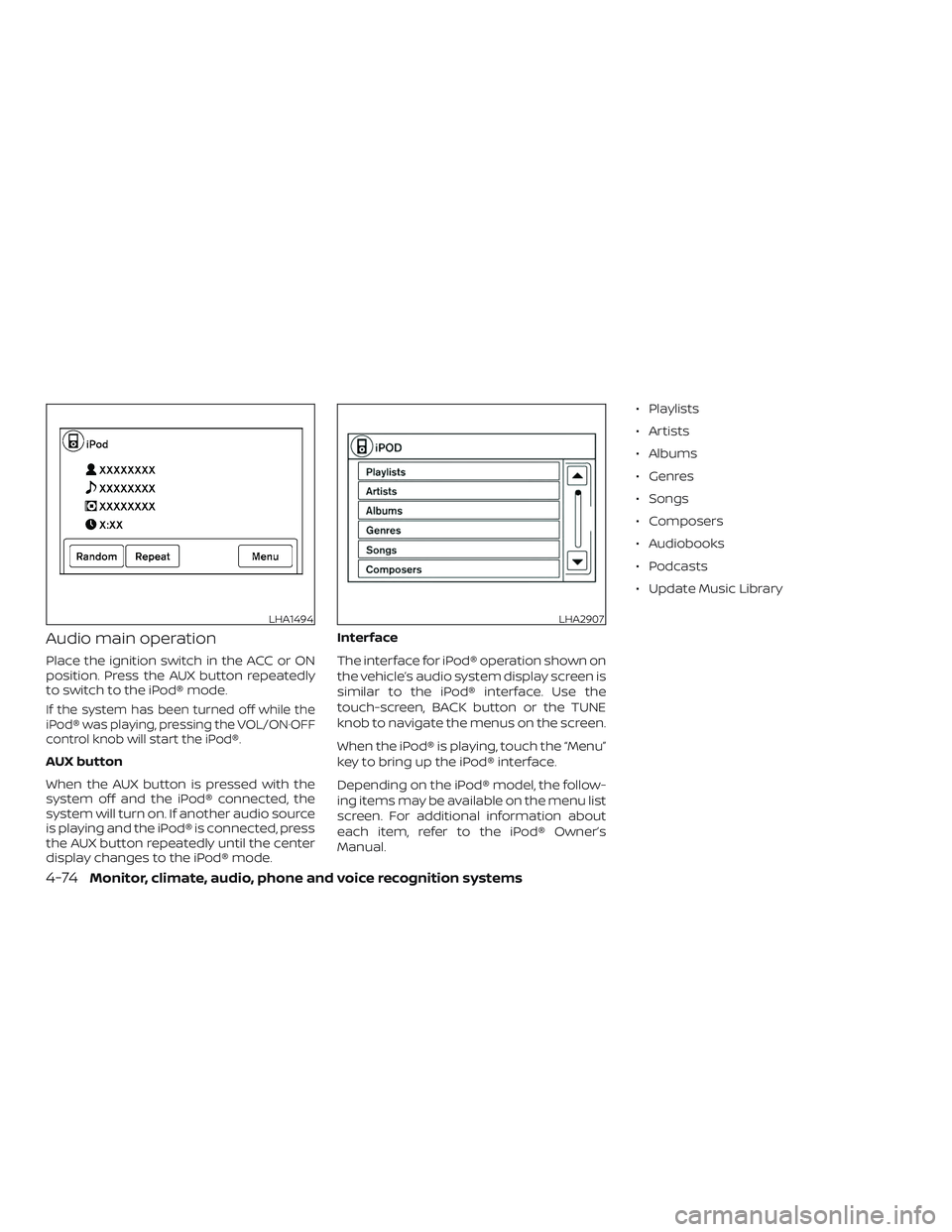
The interface for iPod® operation shown on
the vehicle’s audio system display screen is
similar to the iPod® interface. Use the
touch-screen, BACK button or the TUNE
knob to navigate the menus on the screen.
When the iPod® is playing, touch the “Menu”
key to bring up the iPod® interface.
Depending on the iPod® model, the follow-
ing items may be available on the menu list
screen. For additional information about
each item, refer to the iPod® Owner’s
Manual. ∙ Playlists
∙ Artists
∙ Albums
∙ Genres
∙ Songs
∙ Composers
∙ Audiobooks
∙ Podcasts
∙ Update Music Library
LHA1494LHA2907
4-74Monitor, climate, audio, phone and voice recognition systems
Page 675 of 878
Shuffle and repeat play mode
ItemResult
Shuffle and repeat play mode While the iPod® is playing, the play pattern can be altered so that songs are repeated or played
randomly.
Shuffle Touch the “Shuffle” key to apply a random play pattern to the iPod®. When the shuffle mode is ac-
tive it will appear on the screen. To cancel shuffle mode, touch the “Shuffle” key until it is not
displayed.
Repeat Touch the “Repeat” key to apply a repeat play pattern to the iPod®. When the repeat mode is active it will appear on the screen. To cancel repeat mode, touch the “Repeat” key until it is not displayed.
Monitor, climate, audio, phone and voice recognition systems4-75
Page 676 of 878
SEEK buttons
Press the SEEK button
orto
skip backward or forward one track.
Press and hold the SEEK button
orfor 1.5 seconds while a track is
playing to reverse or fast forward the track
being played. The track plays at an in-
creased speed while reversing or fast for-
warding. When the button is released, the
track returns to normal play speed.
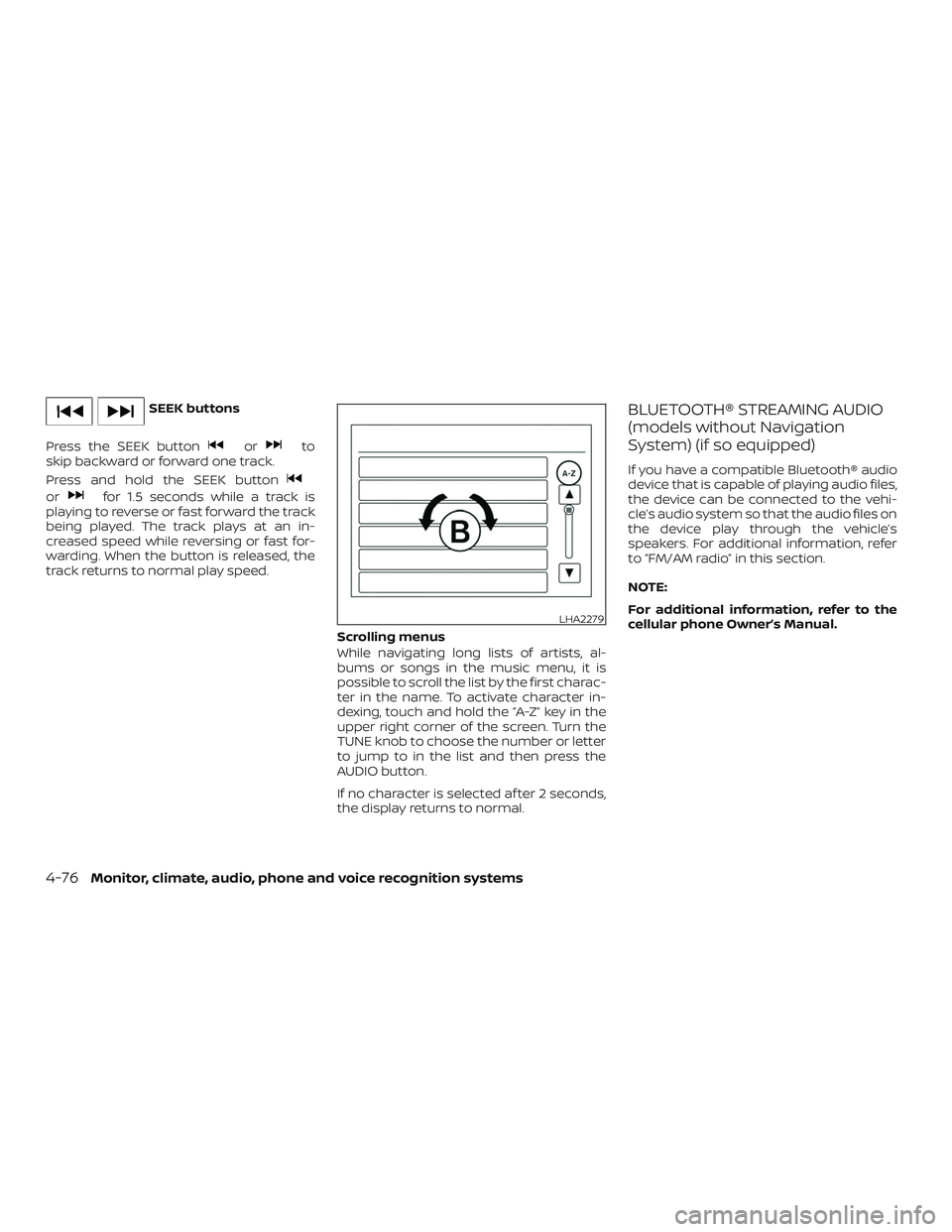
Scrolling menus
While navigating long lists of artists, al-
bums or songs in the music menu, it is
possible to scroll the list by the first charac-
ter in the name. To activate character in-
dexing, touch and hold the “A-Z” key in the
upper right corner of the screen. Turn the
TUNE knob to choose the number or letter
to jump to in the list and then press the
AUDIO button.
If no character is selected af ter 2 seconds,
the display returns to normal.
BLUETOOTH® STREAMING AUDIO
(models without Navigation
System) (if so equipped)
If you have a compatible Bluetooth® audio
device that is capable of playing audio files,
the device can be connected to the vehi-
cle’s audio system so that the audio files on
the device play through the vehicle’s
speakers. For additional information, refer
to “FM/AM radio” in this section.
NOTE:
For additional information, refer to the
cellular phone Owner’s Manual.
LHA2279
4-76Monitor, climate, audio, phone and voice recognition systems
Page 678 of 878
Automatic Connecting Procedure
If no phone is connected to the system,
press and hold the
button on the
steering wheel for more than 1.5 seconds.
Af ter the prompt, speak “Add Phone”, the
system will announce “transferring to the
add phone settings menu”. The system will
start the pairing procedure. When a com-
patible phone is found, a message with a
PIN appears on the screen. Operate the
Bluetooth® phone to complete the con-
nection process. For additional informa-
tion, refer to “Bluetooth® connections
screen” in this section.
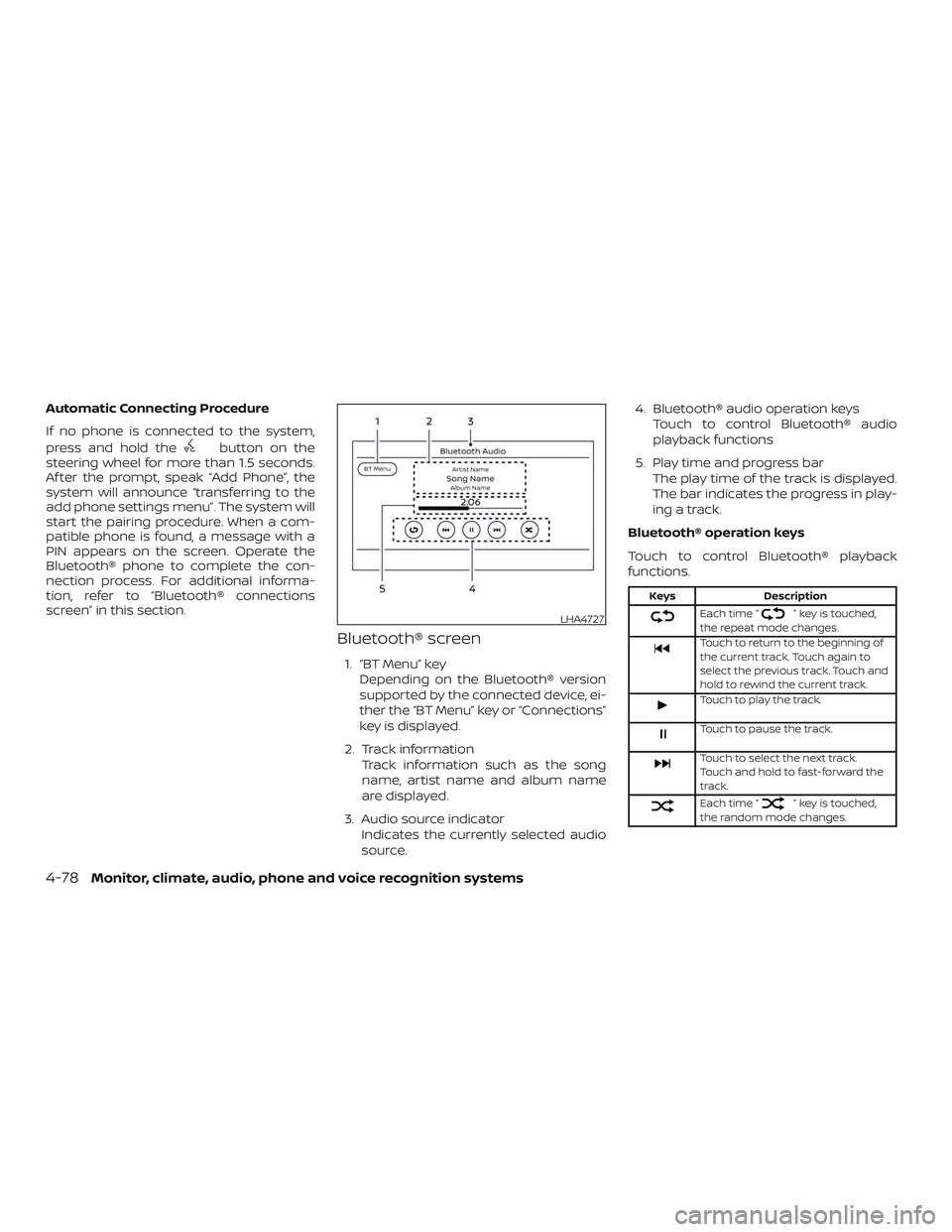
Bluetooth® screen
1. “BT Menu” key
Depending on the Bluetooth® version
supported by the connected device, ei-
ther the “BT Menu” key or “Connections”
key is displayed.
2. Track information Track information such as the song
name, artist name and album name
are displayed.
3. Audio source indicator Indicates the currently selected audio
source. 4. Bluetooth® audio operation keys
Touch to control Bluetooth® audio
playback functions
5. Play time and progress bar The play time of the track is displayed.
The bar indicates the progress in play-
ing a track.
Bluetooth® operation keys
Touch to control Bluetooth® playback
functions.
Keys Description
Each time “” key is touched,
the repeat mode changes.
Touch to return to the beginning of
the current track. Touch again to
select the previous track. Touch and
hold to rewind the current track.
Touch to play the track.
Touch to pause the track.
Touch to select the next track.
Touch and hold to fast-forward the
track.
Each time “” key is touched,
the random mode changes.
LHA4727
4-78Monitor, climate, audio, phone and voice recognition systems
Page 679 of 878
Bluetooth® audio operation
The ability to pause, change tracks, fast
forward, rewind, randomize and repeat
music may be different between devices.
Some or all of these functions may not be
supported on each device.
NOTE:
Depending on the Bluetooth® audio de-
vice that is connected, it may not be pos-
sible to perform audio operations or a
delay may occur before music is played
back.
Activation and playing
A Bluetooth® audio device can be played by
touching the “Bluetooth” key on the Menu
screen or by touching Bluetooth on the
Launch Bar.
To pause playing the Bluetooth® audio,
touch the “
” key. Touch the “”key
to resume playing.
Changing folders
To change folders, touch the “BT Menu” key. Fast-forwarding/rewinding
To fast-forward or rewind the track, push
and hold the
orbuttons on the
control panel or touch the “
”or“”
keys on the screen.
Changing play mode
Repeat mode
Touch the “
” key on the screen to
change the repeat mode.
Random mode
Touch the “
” key on the screen to
change the random mode.
NOTE:
Available repeat/random modes change
depending on the connected device.
BT Menu
Touch the “BT Menu” key on the Bluetooth®
audio screen to display the Bluetooth® au-
dio menu screen.
The following items are available.
“Now Playing” key Touch to display the
Bluetooth® audio screen.
“Current List” key (if so
equipped)* A list of track in the cur-
rently selected folder is
displayed.
“Connections” key Touch to display the connections screen.
“Folder List” key* Touch to display the folder list. Touch an item
on the list to select the
folder.
*: displayed only when available.
NOTE:
Depending on the connected device, the
“BT Menu” key may not be displayed.
BLUETOOTH® STREAMING AUDIO
(models with Navigation System)
(if so equipped)
If you have a compatible Bluetooth® audio
device that is capable of playing audio files,
the device can be connected to the vehi-
cle’s audio system so that the audio files on
the device play through the vehicle’s
speakers.
Monitor, climate, audio, phone and voice recognition systems4-79
Page 680 of 878
![NISSAN VERSA NOTE 2018 Owner´s Manual Connecting Bluetooth® audio
To connect your Bluetooth® audio device
to the vehicle, follow the procedure below:1. Press the [
] button.
2. Touch the “Settings” key.
3. Touch the “Phone & Bluet](/img/5/40333/w960_40333-679.png "NISSAN VERSA NOTE 2018 Owner´s Manual Connecting Bluetooth® audio
To connect your Bluetooth® audio device
to the vehicle, follow the procedure below:1. Press the [
] button.
2. Touch the “Settings” key.
3. Touch the “Phone & Bluet")
Connecting Bluetooth® audio
To connect your Bluetooth® audio device
to the vehicle, follow the procedure below:1. Press the [
] button.
2. Touch the “Settings” key.
3. Touch the “Phone & Bluetooth” key. 4. Touch the “Connect New Device” key.
5. The system acknowledges the com-
mand and asks you to initiate connect-
ing from the phone handset. The con-
necting procedure of the cellular
phone varies according to each cellular
phone model. For additional informa-
tion, refer to the cellular phone Owner’s
Manual for details. You can also visit
www.nissanusa.com/bluetooth or
www.nissancanada.com/bluetooth for
instructions on connecting NISSAN
recommended cellular phones.
Audio main operation
To switch to the Bluetooth® audio mode,
press the AUX button repeatedly until the
Bluetooth® audio mode is displayed on the
screen.
The controls for the Bluetooth® audio are
displayed on the screen.
LHA2924LHA2844
4-80Monitor, climate, audio, phone and voice recognition systems
Page 683 of 878
∙ Hold theswitch for 1.5 seconds to
fast forward or rewind the track being
played.
ANTENNA
The antenna cannot be shortened, but can
be removed. When you need to remove the
antenna, turn the antenna rod counter-
clockwise.
To install the antenna rod, turn the antenna
rod clockwise and hand tighten.
CAUTION
∙ Always properly tighten the antenna rod during installation or the antenna
rod may break during vehicle
operation.
∙ Be sure that the antenna is removed before the vehicle enters an auto-
matic car wash. This vehicle is equipped with Smartphone
Integration technology. This allows many
compatible Smartphone applications to
be displayed and easily controlled through
the vehicle’s touch-screen.
NOTE:
A compatible smartphone and registra-
tion is required to use mobile applica-
tions or to access connected features of
certain vehicle applications.
REGISTERING WITH
NISSANCONNECT® MOBILE APPS
To use the Smartphone Integration feature,
it is necessary for the user to register. In
order to register, visit the NissanConnect®
Mobile Apps website,
www.nissanusa.com/connect/ or
www.nissan.ca/en/connect or
www.nissan.ca/fr/connect and sign up or
create an account through the prompts on
the NissanConnect® Mobile Apps. Once
registered, download the NissanConnect®
Mobile Apps from your compatible phone’s
application download source and then log
into the application. If you already have an
account created through the App, please
log in.
CONNECT PHONE
To use this feature, a compatible smart-
phone must be connected via Bluetooth®
or USB to the vehicle. For additional infor-
mation on connecting your phone, refer to
“Bluetooth® Hands-Free Phone System
with Navigation System” in this section.
NOTE:
For vehicles with a navigation system,
Apple iPhones® require the phone to be
plugged in via USB for NissanConnect
Mobile Apps to function.
For vehicles without a navigation sys-
tem, Apple iPhones® must be paired via
Bluetooth® for NissanConnect Mobile
Apps to function.
NOTE:
For Android phones, NissanConnect
Mobile Apps requires the phone to be
paired via Bluetooth®.
NISSANCONNECT® MOBILE APPS (if
so equipped)
Monitor, climate, audio, phone and voice recognition systems4-83
Page 684 of 878
APPLICATION DOWNLOAD
Once connected, the NissanConnect® App
will search your phone to determine which
compatible applications are currently in-
stalled. The user will then choose which
apps they want to bring into their vehicle
from the list of apps within the “Manage My
Apps” section of the NissanConnect® App
on their smartphone. The vehicle will then
download the in-vehicle interface for each
of these compatible applications. Once
downloaded, the user can access their se-
lected smartphone applications through
the vehicle touch-screen. For additional in-
formation, refer to
www.nissanusa.com/connect or
www.nissan.ca/en/connect or
www.nissan.ca/fr/connect regarding ap-
plication availability.Apple Siri® Eyes Free personal assistant
can be accessed from the vehicle. Siri Eyes
Free can be accessed in Siri Eyes Free
mode to reduce user distraction. In this
mode, Siri Eyes Free is available for interac-
tion by voice control. Af ter connecting a
compatible Apple device by using
Bluetooth®, Siri Eyes Free can be activated
from the
button on the steering
wheel.
Siri® is a trademark of Apple Inc., registered
in the U.S. and other countries.
∙ Some Siri Eyes Free functions, such as displaying pictures or opening apps,
may not be available while driving.
∙ For getting best results, always update your device to the latest sof tware ver-
sion.
∙ Keep the interior of the vehicle as quiet as possible. Close the windows to elimi-
nate the surrounding noises (traffic
noises, vibration sounds, etc.), which
may prevent the system from recogniz-
ing the voice commands correctly.
∙ For functions that can be used in Siri Eyes Free, please refer to the Apple
website.
REQUIREMENTS
Siri® is only available on the iPhone® 4S or
later. Devices released before iPhone® 4S
are not supported by the Siri® Eyes Free
system. Visit www.apple.com/ios/siri for
details about device compatibility.
Siri must be enabled on the phone. Please
check phone settings.
If the device has a lock screen, Siri must be
accessible from the lock screen. Please
check phone settings.
For best results, always update your device
to the latest sof tware version.
SIRI® EYES FREE (models without
Navigation System) (if so equipped)
4-84Monitor, climate, audio, phone and voice recognition systems
Page 687 of 878
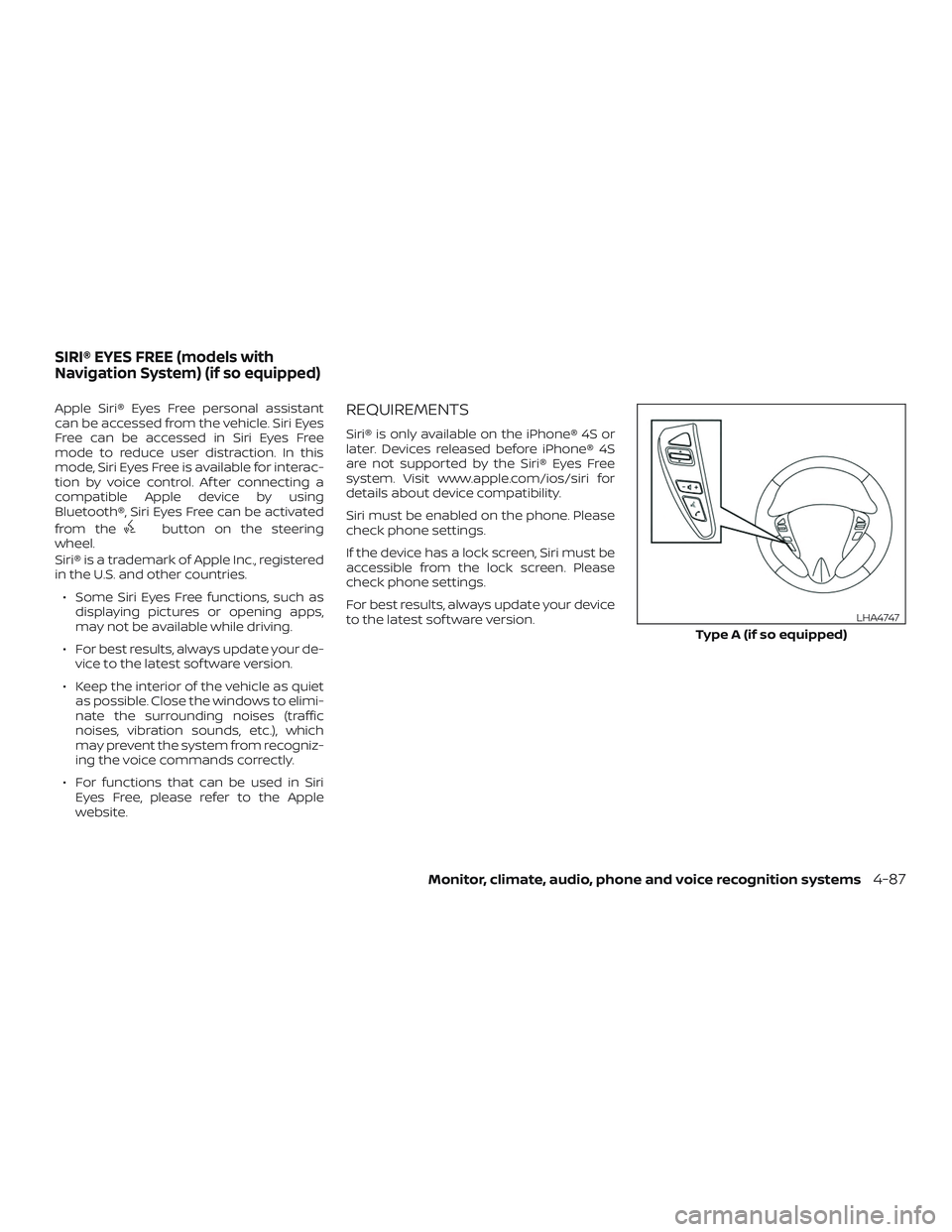
Apple Siri® Eyes Free personal assistant
can be accessed from the vehicle. Siri Eyes
Free can be accessed in Siri Eyes Free
mode to reduce user distraction. In this
mode, Siri Eyes Free is available for interac-
tion by voice control. Af ter connecting a
compatible Apple device by using
Bluetooth®, Siri Eyes Free can be activated
from the
button on the steering
wheel.
Siri® is a trademark of Apple Inc., registered
in the U.S. and other countries.
∙ Some Siri Eyes Free functions, such as displaying pictures or opening apps,
may not be available while driving.
∙ For best results, always update your de- vice to the latest sof tware version.
∙ Keep the interior of the vehicle as quiet as possible. Close the windows to elimi-
nate the surrounding noises (traffic
noises, vibration sounds, etc.), which
may prevent the system from recogniz-
ing the voice commands correctly.
∙ For functions that can be used in Siri Eyes Free, please refer to the Apple
website.
REQUIREMENTS
Siri® is only available on the iPhone® 4S or
later. Devices released before iPhone® 4S
are not supported by the Siri® Eyes Free
system. Visit www.apple.com/ios/siri for
details about device compatibility.
Siri must be enabled on the phone. Please
check phone settings.
If the device has a lock screen, Siri must be
accessible from the lock screen. Please
check phone settings.
For best results, always update your device
to the latest sof tware version.
Type A (if so equipped)
LHA4747
SIRI® EYES FREE (models with
Navigation System) (if so equipped)
Monitor, climate, audio, phone and voice recognition systems4-87