display NISSAN VERSA NOTE 2018 Owner´s Manual
[x] Cancel search | Manufacturer: NISSAN, Model Year: 2018, Model line: VERSA NOTE, Model: NISSAN VERSA NOTE 2018Pages: 878, PDF Size: 9.62 MB
Page 706 of 878
BLUETOOTH® CONNECTIONS
SCREEN
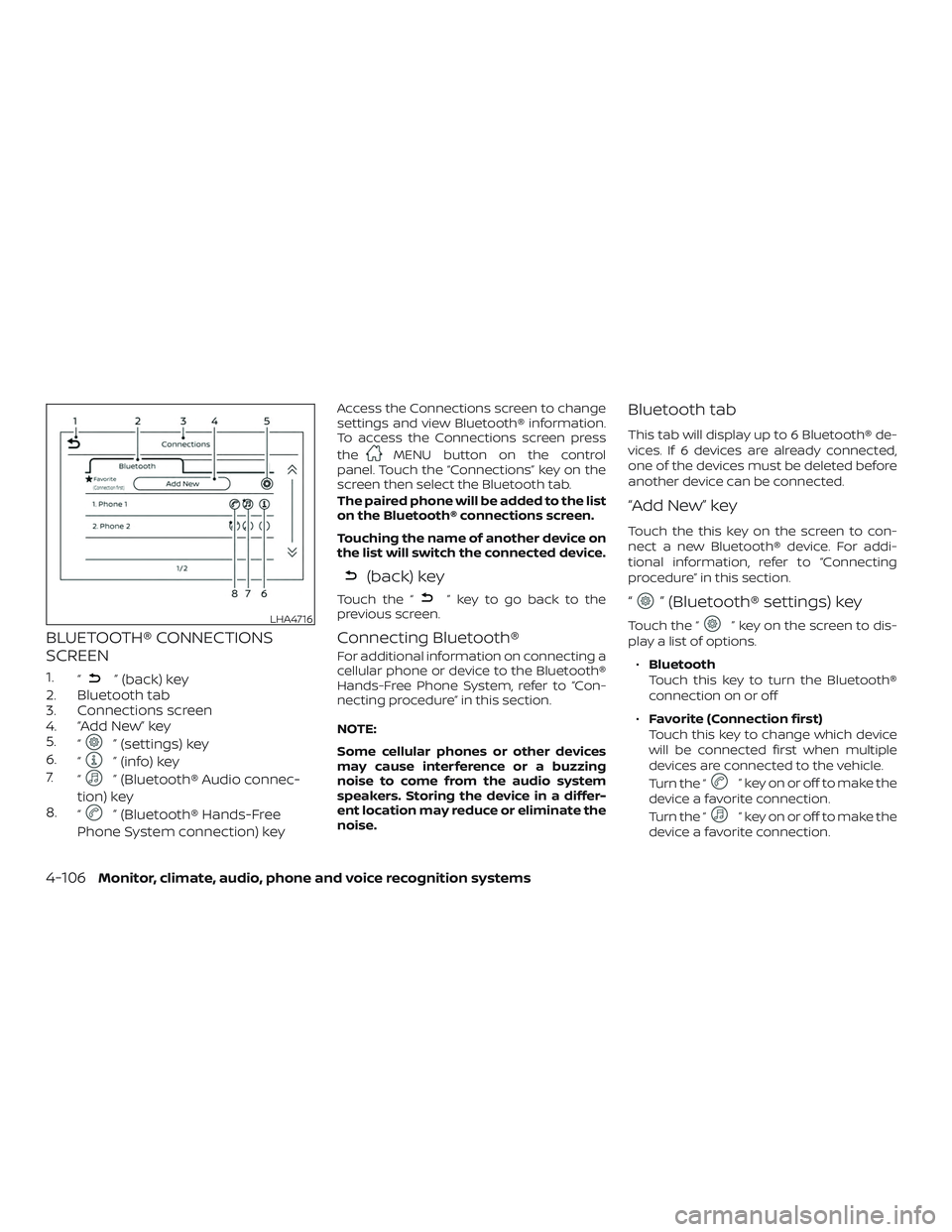
1.“” (back) key
2. Bluetooth tab
3. Connections screen
4. “Add New” key
5. “
” (settings) key
6. “
” (info) key
7. “
” (Bluetooth® Audio connec-
tion) key
8. “
” (Bluetooth® Hands-Free
Phone System connection) key
Access the Connections screen to change
settings and view Bluetooth® information.
To access the Connections screen press
the
MENU button on the control
panel. Touch the “Connections” key on the
screen then select the Bluetooth tab.
The paired phone will be added to the list
on the Bluetooth® connections screen.
Touching the name of another device on
the list will switch the connected device.
(back) key
Touch the “” key to go back to the
previous screen.
Connecting Bluetooth®
For additional information on connecting a
cellular phone or device to the Bluetooth®
Hands-Free Phone System, refer to “Con-
necting procedure” in this section.
NOTE:
Some cellular phones or other devices
may cause interference or a buzzing
noise to come from the audio system
speakers. Storing the device in a differ-
ent location may reduce or eliminate the
noise.
Bluetooth tab
This tab will display up to 6 Bluetooth® de-
vices. If 6 devices are already connected,
one of the devices must be deleted before
another device can be connected.
“Add New” key
Touch the this key on the screen to con-
nect a new Bluetooth® device. For addi-
tional information, refer to “Connecting
procedure” in this section.
“” (Bluetooth® settings) key
Touch the “” key on the screen to dis-
play a list of options.
∙ Bluetooth
Touch this key to turn the Bluetooth®
connection on or off
∙ Favorite (Connection first)
Touch this key to change which device
will be connected first when multiple
devices are connected to the vehicle.
Turn the “
” key on or off to make the
device a favorite connection.
Turn the “
” key on or off to make the
device a favorite connection.
LHA4716
4-106Monitor, climate, audio, phone and voice recognition systems
Page 707 of 878
∙Pin
Touch this key to customize the PIN
code. Input a four digit number then
touch the “OK” key. The new PIN will be
set.
“” (info) key
Touch the “” key on the screen to dis-
play the information of the cellular phone
or to delete the device.
Touch the “Delete” key to remove a paired
device then select “Yes” when a message
appears.
(Bluetooth® Hands-Free Phone
System connection) key
A list of connected devices will be displayed
on the screen. Touch the “
” key next to
the name to connect a device to the
Hands-Free Phone System. If the phone is
listed as a favorite, a star will appear on the
icon. Select the key again to disconnect the
device. The device will not be removed
from the list. For additional information on
removing a device, refer to “
(info) key”
in this section.
“” (Bluetooth® Audio
connection) key
A list of connected devices will be displayed
on the screen. Touch the “
” key next to
the name to connect a device to
Bluetooth® Audio. If the device is listed as a
favorite, a star will appear on the icon. Se-
lect the key again to disconnect the device.
The device will not be removed from the
list. For additional information on removing
a device, refer to “Info key” in this section.
PHONE AND TEXT MESSAGE
SETTINGS
Bluetooth® Hands-Free Phone System set-
tings can be changed according to the us-
er’s preference. To access the “Phone” set-
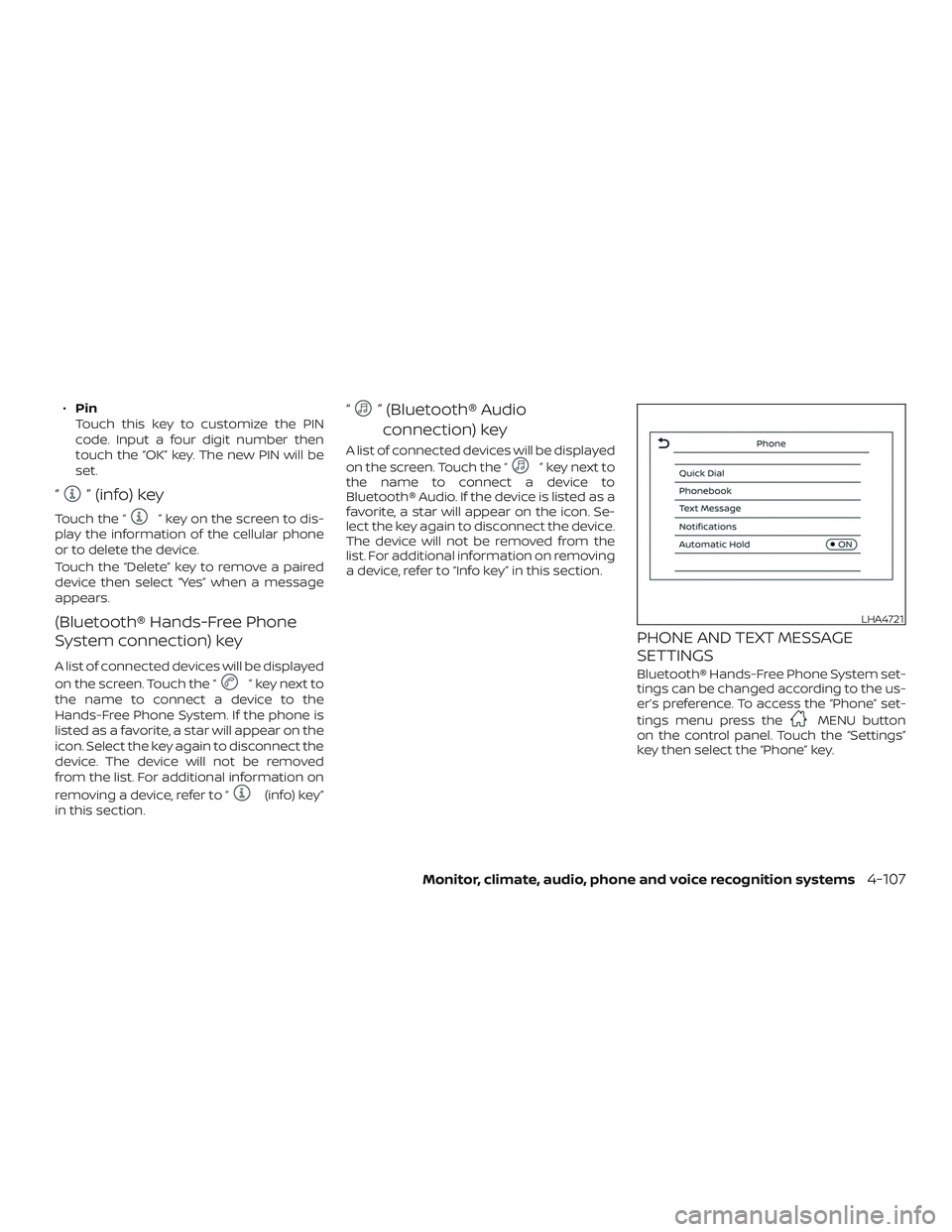
tings menu press the
MENU button
on the control panel. Touch the “Settings”
key then select the “Phone” key.
LHA4721
Monitor, climate, audio, phone and voice recognition systems4-107
Page 708 of 878
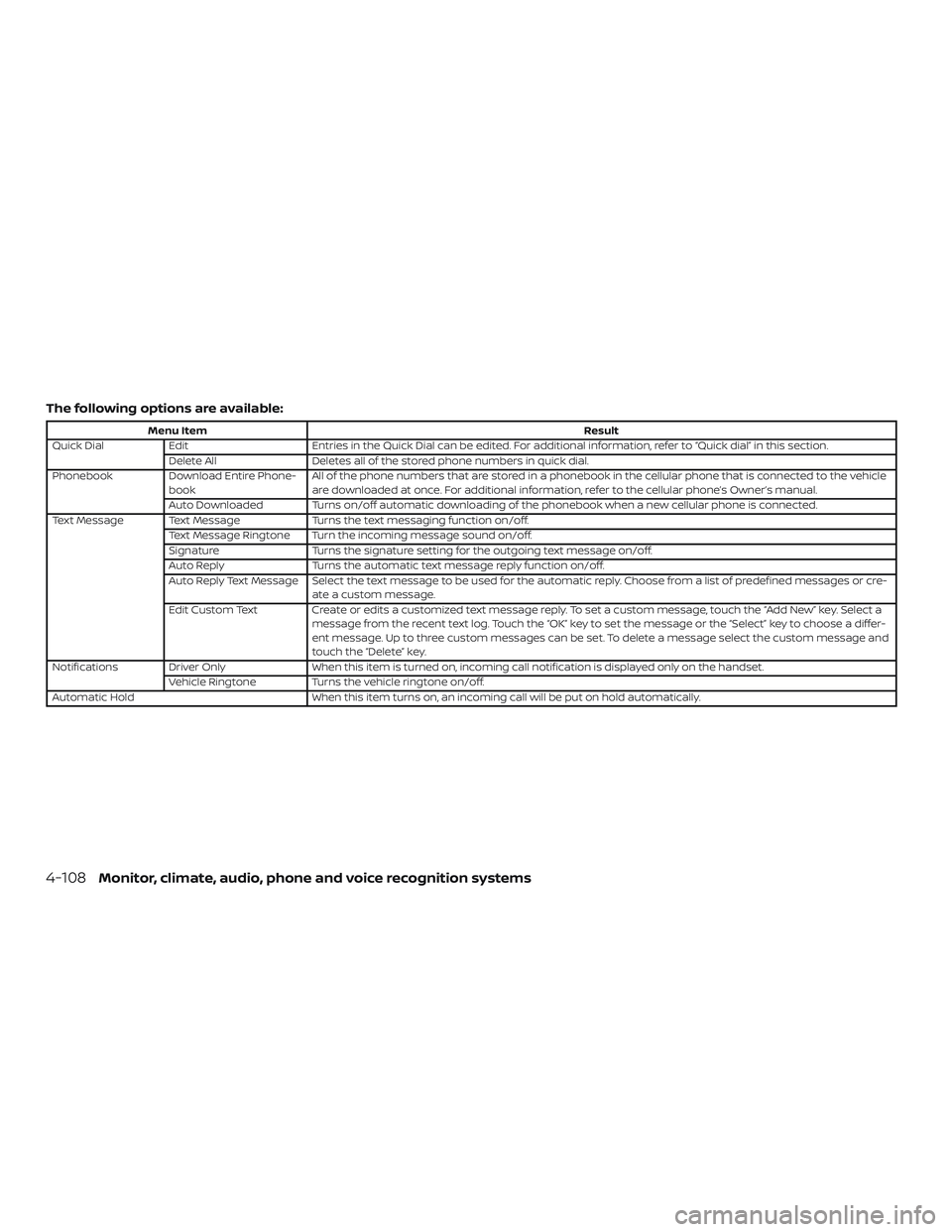
The following options are available:
Menu ItemResult
Quick Dial Edit Entries in the Quick Dial can be edited. For additional information, refer to “Quick dial” in this section.
Delete All Deletes all of the stored phone numbers in quick dial.
Phonebook Download Entire Phone-
book All of the phone numbers that are stored in a phonebook in the cellular phone that is connected to the vehicle
are downloaded at once. For additional information, refer to the cellular phone’s Owner’s manual.
Auto Downloaded Turns on/off automatic downloading of the phonebook when a new cellular phone is connected.
Text Message Text Message Turns the text messaging function on/off.
Text Message Ringtone Turn the incoming message sound on/off.
Signature Turns the signature setting for the outgoing text message on/off.
Auto Reply Turns the automatic text message reply function on/off.
Auto Reply Text Message Select the text message to be used for the automatic reply. Choose from a list of predefined messages or cre- ate a custom message.
Edit Custom Text Create or edits a customized text message reply. To set a custom message, touch the “Add New” key. Select a message from the recent text log. Touch the “OK” key to set the message or the “Select” key to choose a differ-
ent message. Up to three custom messages can be set. To delete a message select the custom message and
touch the “Delete” key.
Notifications Driver Only When this item is turned on, incoming call notification is displayed only on the handset.
Vehicle Ringtone Turns the vehicle ringtone on/off.
Automatic Hold When this item turns on, an incoming call will be put on hold automatically.
4-108Monitor, climate, audio, phone and voice recognition systems
Page 711 of 878
∙ You will not be able to use a hands-freephone under the following conditions:
– Your vehicle is outside of the cellular service area.
– Your vehicle is in an area where it is difficult to receive cellular signal;
such as in a tunnel, in an under-
ground parking garage, near a tall
building or in a mountainous area.
– Your cellular phone is locked to pre- vent it from being dialed.
∙ When the radio wave condition is not ideal or ambient sound is too loud, it
may be difficult to hear the other per-
son’s voice during a call.
∙ Immediately af ter the ignition switch is placed in the ON position, it may be im-
possible to receive a call for a short pe-
riod of time.
∙ Do not place the cellular phone in an area surrounded by metal or far away
from the in-vehicle phone module to
prevent tone quality degradation and
wireless connection disruption. ∙ While a cellular phone is connected
through the Bluetooth® wireless con-
nection, the battery power of the cellu-
lar phone may discharge quicker than
usual. The Bluetooth® Hands-Free
Phone System cannot charge cellular
phones.
∙ For additional information, refer to “Troubleshooting guide” in this section.
You can also visit
www.nissanusa.com/bluetooth or
www.nissan.ca/bluetooth for trouble-
shooting help if the hands-free phone
system seems to be malfunctioning.
∙ Some cellular phones or other devices may cause interference or a buzzing
noise to come from the audio system
speakers. Storing the device in a differ-
ent location may reduce or eliminate
the noise.
∙ For additional information, refer to the cellular phone owner’s manual regard-
ing the telephone charges, cellular
phone antenna and body, etc.
∙ The signal strength display on the monitor will not coincide with the signal
strength display of some cellular
phones.REGULATORY INFORMATION
FCC Regulatory information
– CAUTION: To maintain compliance with FCC’s RF exposure guidelines, use only
the supplied antenna. Unauthorized an-
tenna, modification, or attachments
could damage the transmitter and may
violate FCC regulations.
– Operation is subject to the following two conditions:
1. This device may not cause interference and
2. this device must accept any interfer- ence, including interference that may
cause undesired operation of the de-
vice.
IC Regulatory information
– Operation is subject to the following two conditions: (1) this device may not cause
interference, and (2) this device must ac-
cept any interference, including interfer-
ence that may cause undesired opera-
tion of the device.
– This Class B digital apparatus meets all requirements of the Canadian
Interference-Causing Equipment Regu-
lations.
Monitor, climate, audio, phone and voice recognition systems4-111
Page 712 of 878
BLUETOOTH® is a
trademark owned
by Bluetooth SIG,
Inc. and licensed
to Bosch.
VOICE COMMANDS
You can use voice commands to operate
various Bluetooth® Hands-Free Phone Sys-
tem features using the NISSAN Voice Rec-
ognition system. For additional informa-
tion, refer to “NISSAN Voice Recognition
System” in this section.
Voice Prompt Interrupt
While using the voice recognition system,
the system voice can be interrupted to al-
low the user to speak commands. While
the system is speaking, press
the
button on the steering wheel. The
system voice will stop and a tone will be
heard. Af ter the tone, speak desired com-
mand (displayed on the touch-screen).
One Shot Call
To use the system faster, you may speak
the second level commands with the main
menu command on the main menu. For
example, press the
button and af ter
the tone say, “Call Redial”.
CONNECTING PROCEDURE
NOTE:
The connecting procedure must be per-
formed when the vehicle is stationary. If
the vehicle starts moving during the pro-
cedure, the procedure will be canceled.
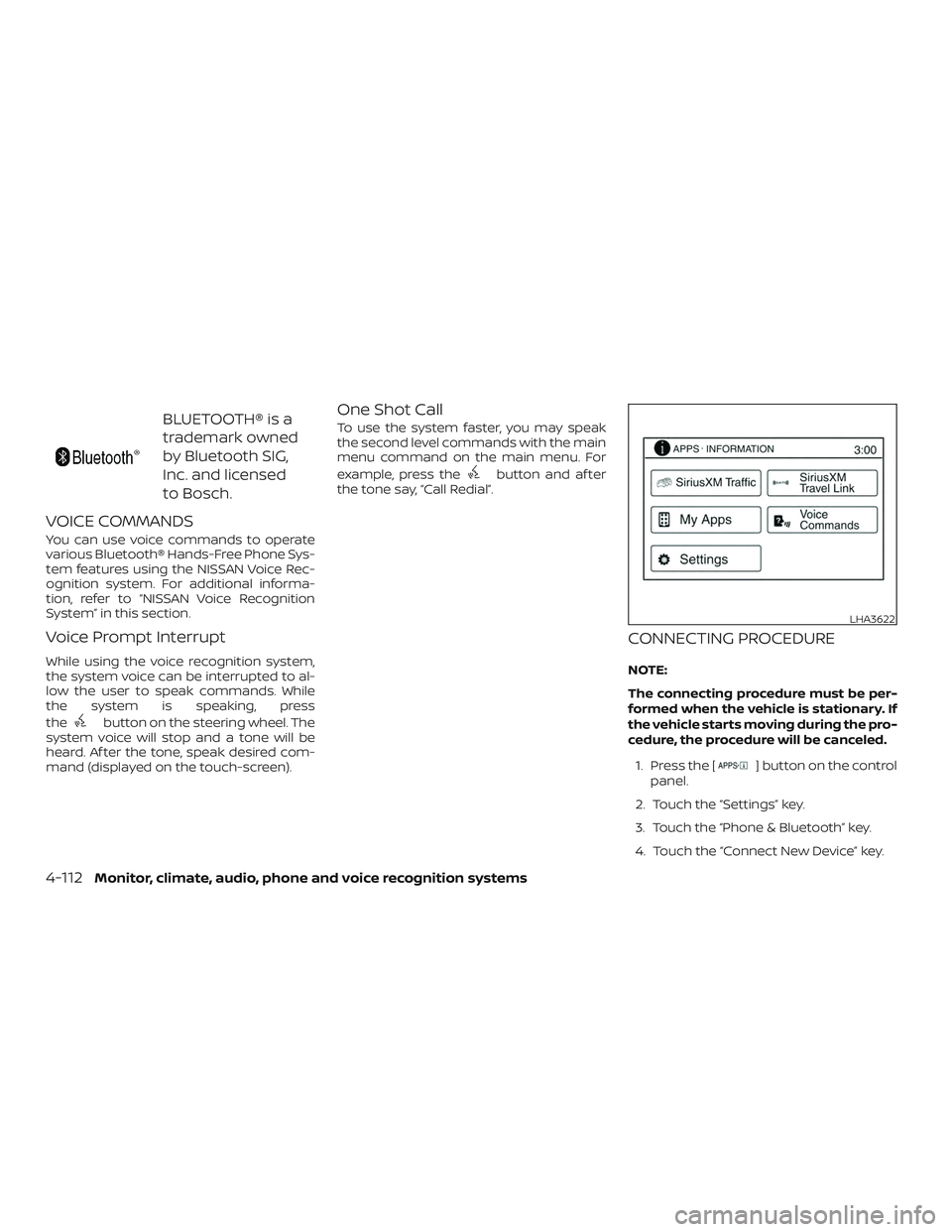
1. Press the [
] button on the control
panel.
2. Touch the “Settings” key.
3. Touch the “Phone & Bluetooth” key.
4. Touch the “Connect New Device” key.
LHA3622
4-112Monitor, climate, audio, phone and voice recognition systems
Page 713 of 878
5. Initiate the connecting process fromthe handset. The system will display
the message: “Is PIN XXXXXX displayed
on your Bluetooth device?”. If the PIN is
displayed on your Bluetooth® device,
select “Yes” to complete the pairing
process.
For additional information, refer to the
Bluetooth® device’s Owner’s Manual.
VEHICLE PHONEBOOK
To access the vehicle phonebook:
1. Press the
button on the control
panel.
2. Touch the “Phonebook” key.
3. Choose the desired entry from the dis- played list.
4. The number of the entry will be dis- played on the screen. Touch the num-
ber to initiate dialing. NOTE:
To scroll quickly through the list, touch
the “A-Z” key in the upper right corner of
the screen. Turn the TUNE knob to
choose a letter or number and then
press ENTER. The list will move to the
first entry that begins with that number
or letter.
MAKING A CALL
To make a call, follow the procedure below:
1. Press the
button on the control
panel. The “Phone” screen will appear
on the display.
2. Select one of the following options to make a call:
∙ “Phonebook”: Select the name from an entry stored in the vehicle phonebook.
∙ “Call Lists”: Select the name from the incoming, outgoing or missed.
∙ “Redial”: Dial the last outgoing call from the vehicle. ∙“
”: Input the phone number manu-
ally using a keypad displayed on the
screen. For additional information, refer
to “How to use the touch-screen” in this
section.
RECEIVING A CALL
When a call is placed to the connected
phone, the display will change to phone
mode.
To accept the incoming call, either:
∙ Press the
button on the steering
wheel, or
∙ Touch the phone
icon on the
screen.
To reject the incoming call, either:
∙ Press the
button on the steering
wheel, or
∙ Touch the phone
icon on the
screen.
Monitor, climate, audio, phone and voice recognition systems4-113
Page 716 of 878
Siri® Eyes Free (if so equipped)
If a connected phone is equipped with Siri®,
it can also be used to create custom mes-
sages that are sent through the phone. For
additional information, refer to “Siri® Eyes
Free (models with touch-screen with Navi-
gation System)” in this section.
NOTE:
Text messages are only displayed if the
vehicle speed is less than 5 mph
(8 km/h).
NOTE:
For Apple iPhones®, text messages can
only be sent through Siri.BLUETOOTH® SETTINGS
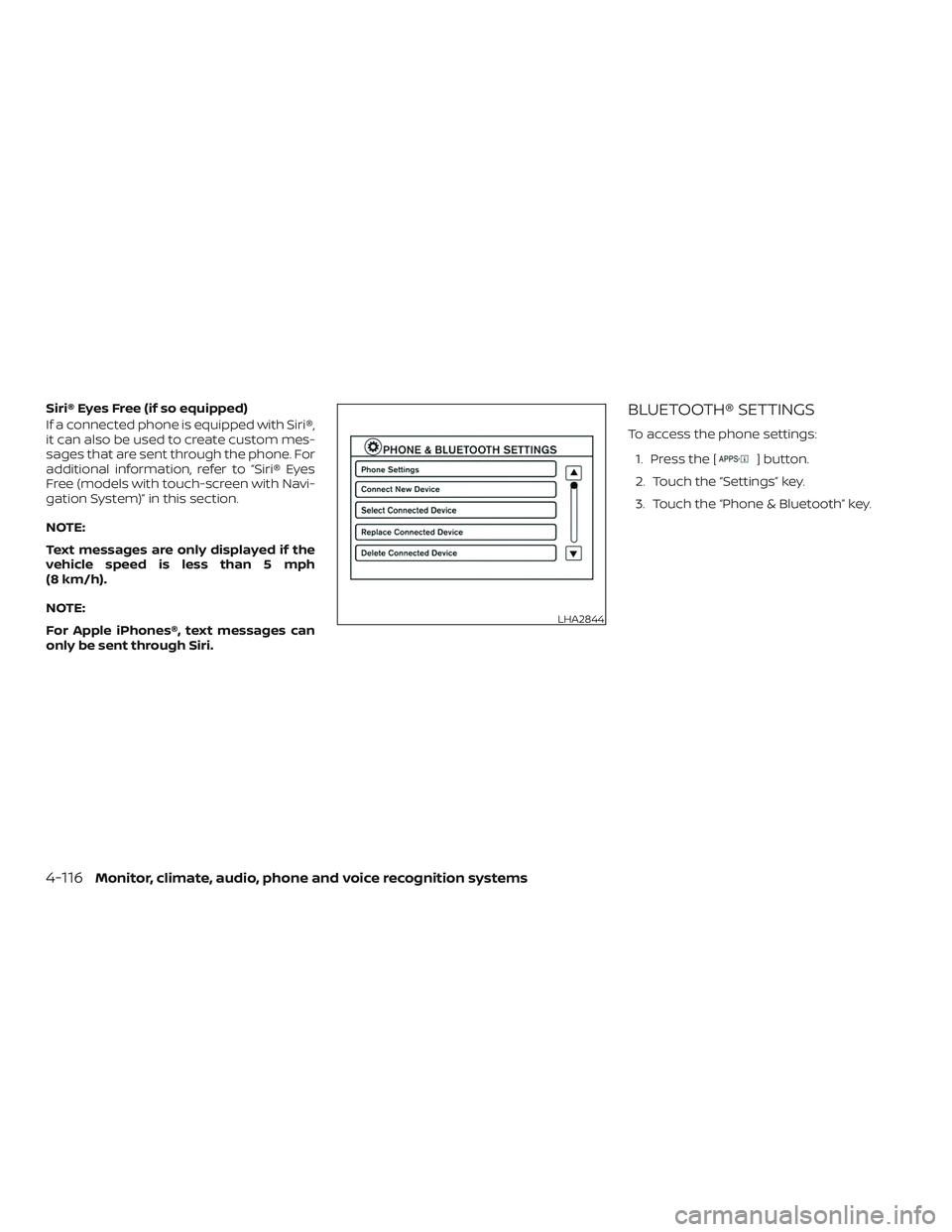
To access the phone settings:1. Press the [
] button.
2. Touch the “Settings” key.
3. Touch the “Phone & Bluetooth” key.
LHA2844
4-116Monitor, climate, audio, phone and voice recognition systems
Page 718 of 878
![NISSAN VERSA NOTE 2018 Owner´s Manual PHONE SETTINGS
To access the phone settings:1. Press the [
] button.
2. Touch the “Settings” key.
3. Touch the “Phone & Bluetooth” key.
4. Touch the “Phone Settings” key and ad- just the f](/img/5/40333/w960_40333-717.png "NISSAN VERSA NOTE 2018 Owner´s Manual PHONE SETTINGS
To access the phone settings:1. Press the [
] button.
2. Touch the “Settings” key.
3. Touch the “Phone & Bluetooth” key.
4. Touch the “Phone Settings” key and ad- just the f")
PHONE SETTINGS
To access the phone settings:1. Press the [
] button.
2. Touch the “Settings” key.
3. Touch the “Phone & Bluetooth” key.
4. Touch the “Phone Settings” key and ad- just the following settings as desired:
∙ Start Siri® by: Touch “Short Press” or “Long Press” to
set how Siri® is operated on the steering
wheel.
∙ Sort Phonebook By: Touch “First Name” or “Last Name” to
choose how phonebook entries are al-
phabetically displayed on the screen.
∙ Use Phonebook From: Touch “Handset” to use the phone’s
phonebook. Select “SIM” to use the
phonebook on the SIM card. Touch
“Both” to use both sources. ∙ Download Phonebook Now:
Touch to download the phonebook to
the vehicle from the chosen source.
∙ Record Name for Phonebook Entry: Touch to record a name for a phone-
book entry for use with the NISSAN
Voice Recognition System.
∙ Phone Notifications for: Notifications may be displayed on the
center display screen.
∙ Text Messaging: Touch to toggle the text message func-
tionality on or off.
∙ Show Incoming Text for: Text notifications may be displayed on
the center display screen. Touch “Off ” to
turn off all text notifications.
∙ Auto Reply: Touch to toggle the auto reply function-
ality on or off. ∙ Auto Reply Message:
Touch to indicate preferred message to
be sent when “Auto Reply” function is
activated.
∙ Use Vehicle’s Signature: Touch to toggle on or off the addition of
the vehicle signature to outgoing mes-
sages.
∙ Custom Text Messages: Touch this option to select a custom
message to edit. There are 4 customer
message slots available.
4-118Monitor, climate, audio, phone and voice recognition systems
Page 720 of 878
The NISSAN Voice Recognition system al-
lows hands-free operation of the systems
equipped on this vehicle, such as the
phone and navigation systems.
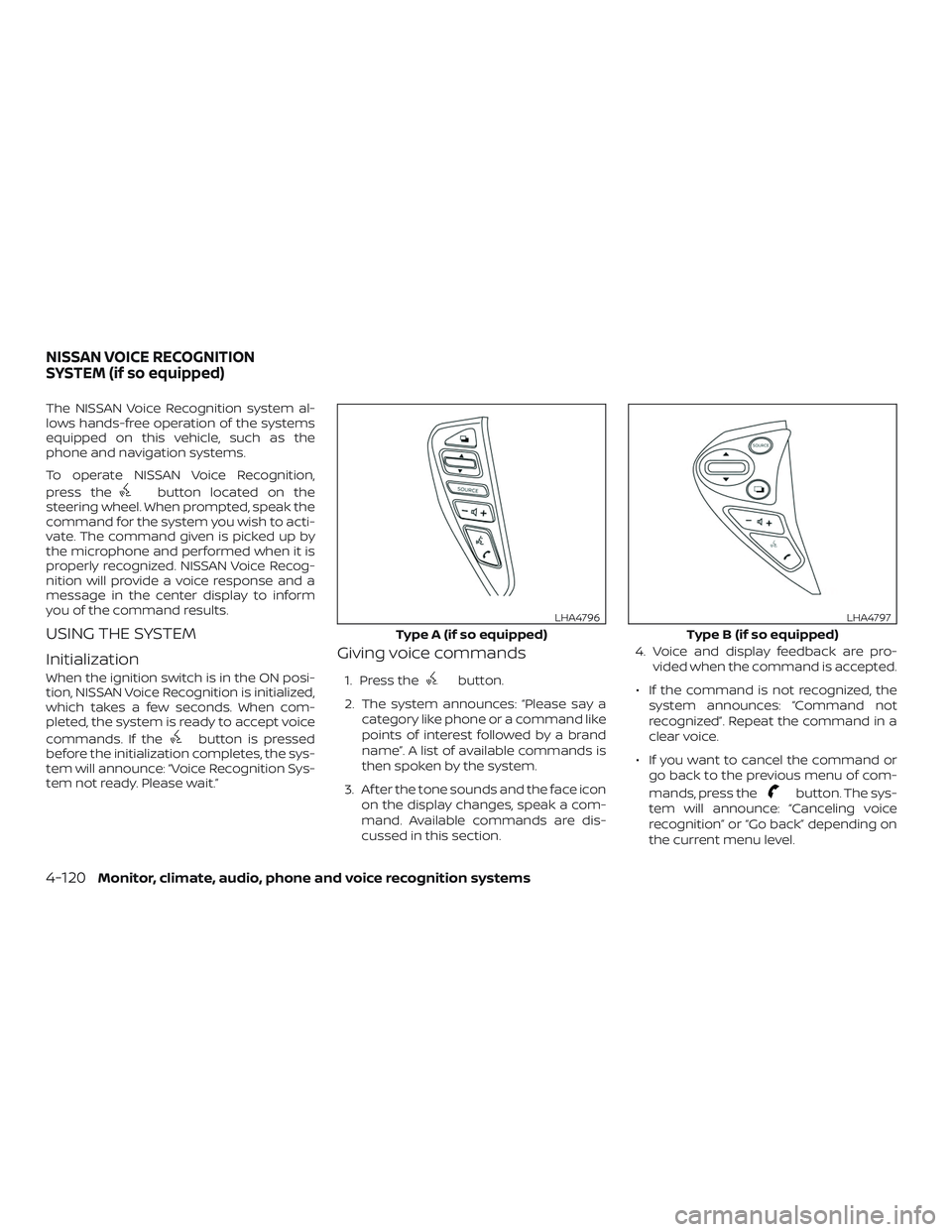
To operate NISSAN Voice Recognition,
press the
button located on the
steering wheel. When prompted, speak the
command for the system you wish to acti-
vate. The command given is picked up by
the microphone and performed when it is
properly recognized. NISSAN Voice Recog-
nition will provide a voice response and a
message in the center display to inform
you of the command results.
USING THE SYSTEM
Initialization
When the ignition switch is in the ON posi-
tion, NISSAN Voice Recognition is initialized,
which takes a few seconds. When com-
pleted, the system is ready to accept voice
commands. If the
button is pressed
before the initialization completes, the sys-
tem will announce: “Voice Recognition Sys-
tem not ready. Please wait.”
Giving voice commands
1. Press thebutton.
2. The system announces: “Please say a category like phone or a command like
points of interest followed by a brand
name”. A list of available commands is
then spoken by the system.
3. Af ter the tone sounds and the face icon on the display changes, speak a com-
mand. Available commands are dis-
cussed in this section. 4. Voice and display feedback are pro-
vided when the command is accepted.
∙ If the command is not recognized, the system announces: “Command not
recognized”. Repeat the command in a
clear voice.
∙ If you want to cancel the command or go back to the previous menu of com-
mands, press the
button. The sys-
tem will announce: “Canceling voice
recognition” or “Go back” depending on
the current menu level.
Type A (if so equipped)
LHA4796
Type B (if so equipped)
LHA4797
NISSAN VOICE RECOGNITION
SYSTEM (if so equipped)
4-120Monitor, climate, audio, phone and voice recognition systems
Page 721 of 878
∙ Press the BACK button on the controlpanel to move back through the menus
displayed on the screen.
∙ If you want to adjust the volume of the voice feedback, use the volume control
switches on the steering wheel or the
volume knob on the control panel.
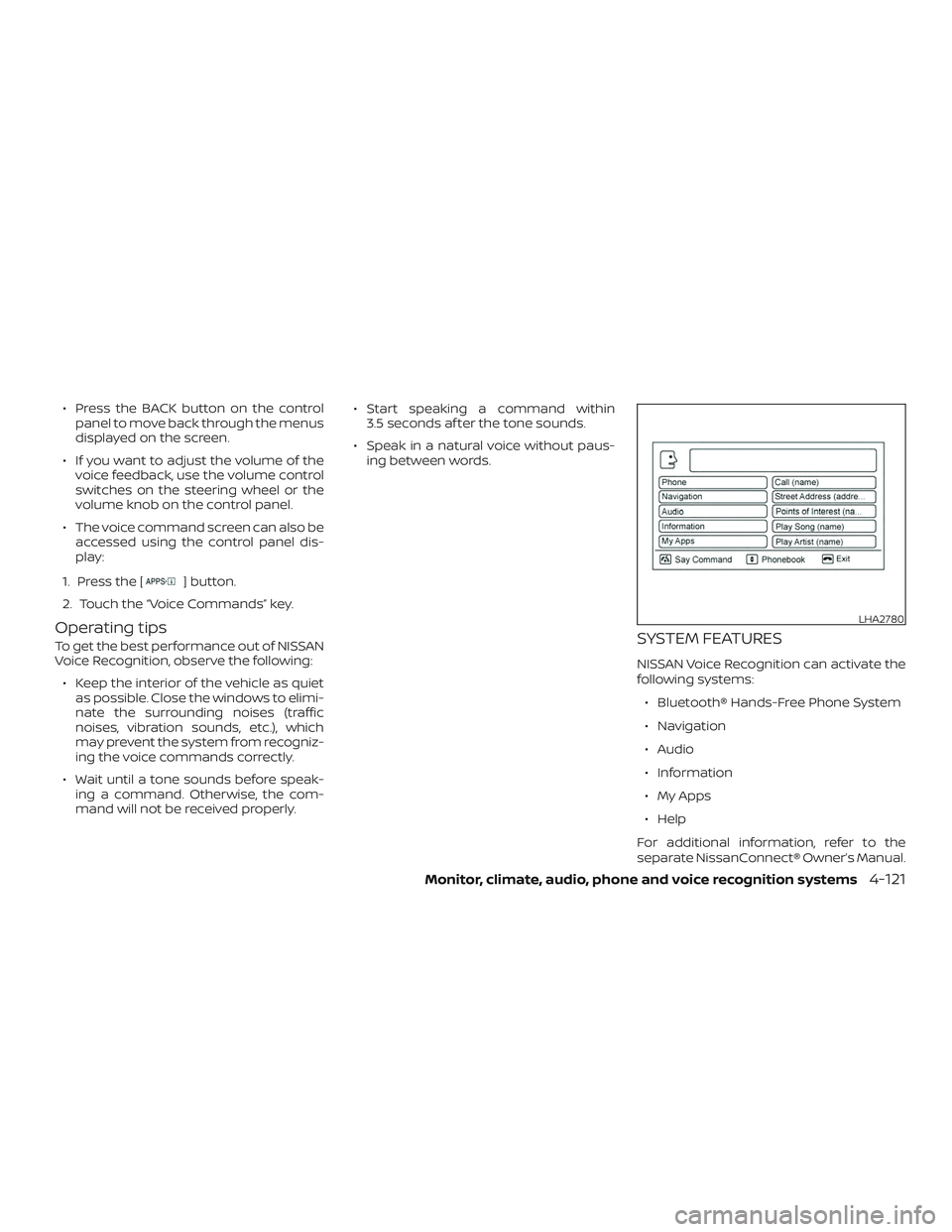
∙ The voice command screen can also be accessed using the control panel dis-
play:
1. Press the [
] button.
2. Touch the “Voice Commands” key.
Operating tips
To get the best performance out of NISSAN
Voice Recognition, observe the following: ∙ Keep the interior of the vehicle as quiet as possible. Close the windows to elimi-
nate the surrounding noises (traffic
noises, vibration sounds, etc.), which
may prevent the system from recogniz-
ing the voice commands correctly.
∙ Wait until a tone sounds before speak- ing a command. Otherwise, the com-
mand will not be received properly. ∙ Start speaking a command within
3.5 seconds af ter the tone sounds.
∙ Speak in a natural voice without paus- ing between words.SYSTEM FEATURES
NISSAN Voice Recognition can activate the
following systems:
∙ Bluetooth® Hands-Free Phone System
∙ Navigation
∙ Audio
∙ Information
∙ My Apps
∙ Help
For additional information, refer to the
separate NissanConnect® Owner’s Manual.
LHA2780
Monitor, climate, audio, phone and voice recognition systems4-121